Best MKV to MP4 Converter: 10 Tools for Windows and Mac (2026)


On this page
Here is the thing most converter roundups get wrong: turning an MKV into an MP4 usually does not require re-encoding anything. MKV and MP4 are both containers, wrappers around the same video and audio streams. If your MKV already holds H.264 or H.265 video, the fast path is a remux, which rewraps those exact streams into an MP4 in a few seconds with zero quality loss. A full re-encode, which is what most tools do by default, can take twenty minutes and shave quality off a file that never needed touching.
That one distinction decides which tool you should pick. Need a quick, lossless rewrap? A lightweight tool that remuxes beats a heavy converter every time. Stuck with an exotic codec inside the MKV, or want to compress while you convert? Then you actually want a re-encoder like HandBrake, and the slower speed is the price of the job.
Below are ten tools I would actually reach for, sorted by what they are good at rather than a made-up ranking. Some are free and open source, some are paid, two run entirely in the browser. If you are working with an online video link instead of a local file, our link to MP4 converter saves it as MP4 directly, and if you would rather skip the whole download-then-convert dance, the MKV to MP4 tool handles the rewrap online. Prices and free-tier limits below were checked in July 2026.
Why MKV needs converting at all
MKV, short for Matroska, is a free open container that can hold as many video, audio, and subtitle tracks as you want in one file. It is a favourite for ripped Blu-rays and anime releases because it carries multiple audio dubs and subtitle languages together. The Matroska project designed it to be flexible, and that flexibility is exactly why some hardware chokes on it.
MP4 (MPEG-4 Part 14) holds the same kinds of streams but is the format almost everything accepts: iPhones, smart TVs, PowerPoint, Premiere, web browsers, the upload box on every social platform. So the reason to convert is rarely the video itself. It is that the box the video came in does not open where you need it to.
Remember the container point from up top, because it changes what “convert” means:
- If the MKV holds H.264 or H.265 video (most do), a remux rewraps the streams into MP4 in seconds, no quality lost. This is what you want almost every time.
- If it holds something MP4 cannot carry, or you also want a smaller file, you re-encode. Slower, and you trade a little quality for the fix.
I sorted the tools below by that reality. A few are built for fast lossless remuxing, a few are heavier re-encoders worth the wait, and two skip installation entirely. Where a tool has a free tier, I noted what the free tier actually gives you, because “free” and “free without a watermark” are not the same thing.
The 10 best MKV to MP4 converters
Quick picks
Free, open source, cross-platform. Re-encodes, so slower but gives you compression control.
Free player most people already have. Converts in a few clicks, no extra download.
GPU acceleration makes big batches fly. Free trial, then a paid license.
Nothing to install. Good for a one-off file when you are on someone else's computer.
| Tool | Method | Platform | Free tier | Best for |
|---|---|---|---|---|
| HandBrake | Re-encode | Win, Mac, Linux | Fully free, no watermark | Compressing while converting |
| VLC | Re-encode | Win, Mac, Linux | Fully free, no watermark | A file or two, no new install |
| VideoProc Converter | Both | Win, Mac | Trial, then paid | Large GPU-accelerated batches |
| Movavi Video Converter | Both | Win, Mac | Trial, $69.95 lifetime | Beginners who want simple |
| CloudConvert | Re-encode | Browser | Daily free quota | One-off, no install |
| Wondershare UniConverter | Both | Win, Mac | Trial, $79.99 lifetime | Convert plus editing suite |
| Any Video Converter | Re-encode | Win, Mac | Free version, paid upgrade | A free all-rounder |
| Zamzar | Re-encode | Browser | Free with size cap | The simplest possible flow |
| Freemake Video Converter | Re-encode | Windows | Free, but watermark | Windows beginners |
| MPEG Streamclip | Re-encode | Legacy Win, Mac | Free, unmaintained | Old machines only |
The out-of-ten scores below are our editorial read after using these tools, not a lab benchmark. Pricing and free-tier limits were checked in July 2026.
1. HandBrake
The free converter I recommend to almost everyone
HandBrake is the free tool most people should start with. Point it at an MKV, pick the MP4 (or M4V) container, choose a preset like Fast 1080p30, and add it to the queue. The queue is the part I use most: drop in fifteen MKV files, hit start, walk away.
The honest catch is that HandBrake always re-encodes the video, it will not do a pure lossless remux. So a file that only needed rewrapping still gets rebuilt, which takes longer and costs a sliver of quality at low bitrates. The upside of that same behaviour is real control: you can shrink a 4 GB MKV to a manageable MP4 by nudging the Constant Quality slider, which the remux-only tools cannot do. Audio can pass through untouched, so at least that half stays lossless.
Pros
- -Genuinely free with no watermark or file cap
- -Batch queue handles dozens of files unattended
- -Compression control the remux tools do not offer
- -Audio passthrough keeps the sound lossless
Cons
- -Always re-encodes, so no instant lossless rewrap
- -The preset panel overwhelms first-timers
- -Only outputs MP4, MKV, and WebM
Best For
Anyone who wants a free, no-catch converter and does not mind waiting a few minutes, especially if they also want to shrink the file.
2. VLC Media Player
The converter that is probably already on your machine
VLC plays basically anything, and buried in the Media menu is a converter most people never notice. Media, then Convert / Save, add your MKV, pick the "Video - H.264 + MP3 (MP4)" profile, choose a destination, and hit Start. For one file when you do not want to install anything new, it is hard to beat.
Two real gotchas. First, VLC's progress bar sits frozen at zero the whole time it is working, so it looks stuck when it is not. Give it time and watch the file size grow instead. Second, there is no batch queue, so it is a one-file-at-a-time affair. It re-encodes rather than remuxes, and the default profile settings are middling, so tweak the bitrate in the wrench icon if quality matters.
Pros
- -Free, no watermark, no file cap
- -Most people already have it installed
- -Runs on Windows, Mac, and Linux
Cons
- -Progress bar looks frozen the whole time
- -No batch, one file at a time
- -Menu-buried and re-encodes by default
Best For
The quick one-off convert when you already have VLC open and do not want to download a dedicated tool.
3. VideoProc Converter
Fastest option when you have a stack of files to churn
VideoProc Converter leans on your GPU (Intel, NVIDIA, or AMD) to encode, and on a machine with a decent graphics card the speed difference on 4K files is obvious. It also has an "Auto Copy" mode that remuxes instead of re-encoding when the codecs already fit MP4, which is the fast lossless path this whole article keeps pointing at.
The free trial exists but limits how much of each file it will process, so it is really a paid tool once you use it for real. The upsell nudges toward the rest of the VideoProc suite (a downloader, a recorder) that you may not need. If your work is a steady stream of large videos, though, the hardware acceleration earns its keep.
Pros
- -GPU acceleration is genuinely fast on big files
- -Auto Copy remuxes losslessly when codecs fit
- -Handles huge batches without complaint
- -Clean, approachable interface
Cons
- -Free trial caps how much of each file it processes
- -Pushes the wider VideoProc bundle
- -Overkill for a single small file
Best For
People converting large or 4K files in bulk who have the GPU to make hardware acceleration pay off and do not mind buying a license.
4. Movavi Video Converter
The easiest paid option if menus scare you off
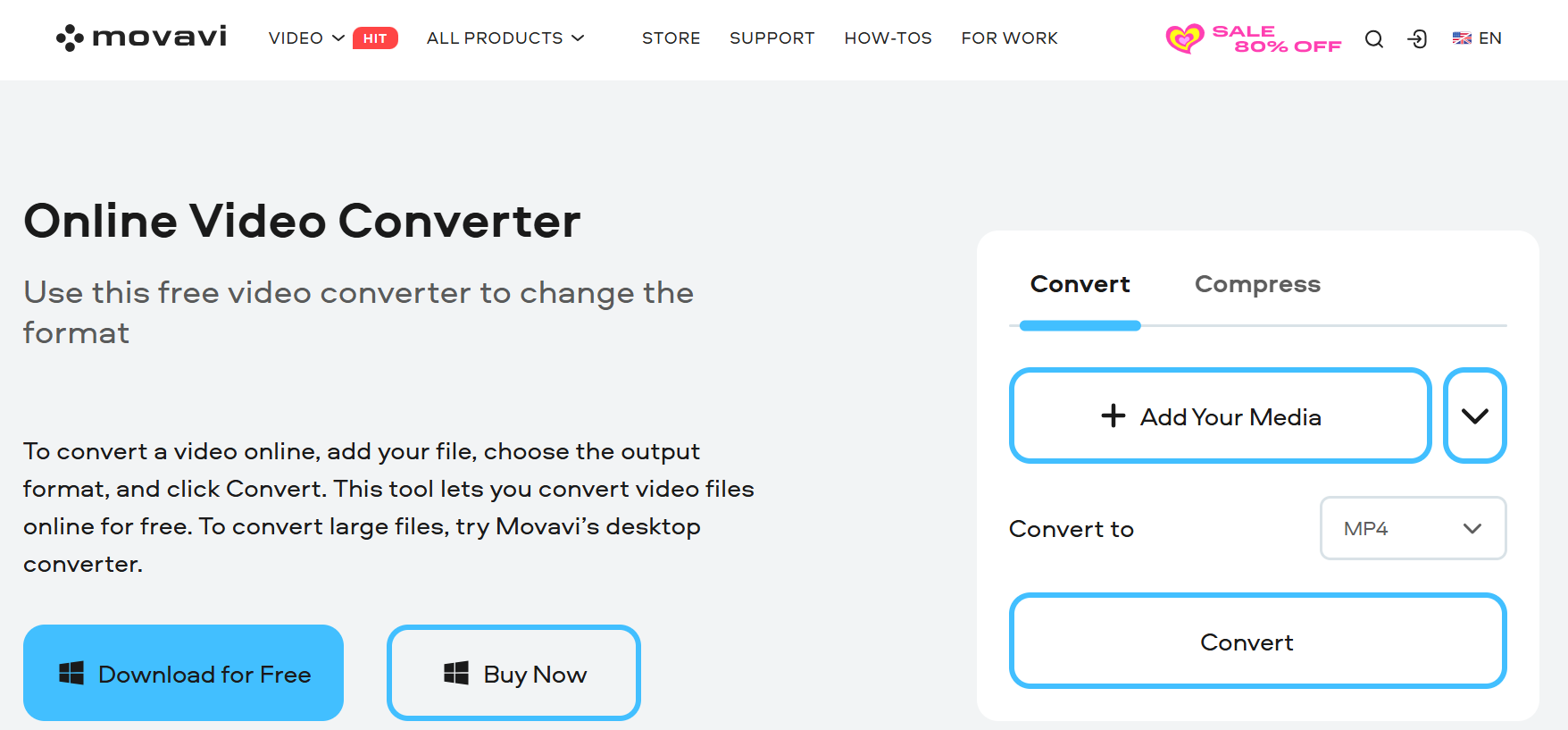
Movavi Video Converter is the one I point non-technical friends to. Drag the MKV in, click MP4, click Convert. That is the whole experience, and its SuperSpeed mode does a near-instant remux when the codecs already fit, so it is not just easy, it is fast on the common case too. Light trimming and cropping are built in if you need a quick tidy-up.
The catch is the money. A lifetime license runs $69.95 for one computer, and the free trial is a genuine trap: it can auto-bill around $14.95 a month if you do not cancel in time, and the trial stamps a watermark on exports. Set a reminder if you go the trial route. For a one-time purchase that just works, though, it is the least fiddly paid tool here.
Pros
- -The simplest interface of any paid tool here
- -SuperSpeed remux for near-instant conversions
- -Handy built-in trimming and cropping
- -One-time $69.95 license, no subscription needed
Cons
- -Free trial watermarks exports and can auto-bill
- -License covers only one computer
- -Paying for what free tools also do
Best For
People who will pay a one-time fee to never see an encoding setting, and who want speed without learning HandBrake.
5. CloudConvert
Best when you cannot or will not install anything
CloudConvert is the online converter I trust most. Upload the MKV, and unlike the bare-bones web tools it lets you actually set the codec, resolution, and quality before it runs. It is the option when you are on a locked-down work laptop or someone else's machine and cannot install software.
The trade-offs are the ones every online converter has. You upload the whole file and download it back, so a 3 GB MKV means waiting twice over a connection you may not control, and you are handing your video to a third-party server, which is a no for anything private. The free tier runs on a daily quota that a couple of large files will exhaust, after which you buy conversion packages. For the occasional file it is excellent, for daily work a desktop tool wins.
Pros
- -Nothing to install, works on any device
- -Real encoding controls, not just a big button
- -Supports a huge range of formats
Cons
- -Upload and download time on large files
- -Your video goes to a third-party server
- -Free daily quota is quickly used up
Best For
A one-off conversion on a machine where you cannot install anything, with a file that is not sensitive.
6. Wondershare UniConverter
A whole video toolkit that happens to convert
Wondershare UniConverter converts MKV to MP4 quickly with GPU acceleration, but conversion is only a slice of what it does. There is a compressor, a trimmer, a screen recorder, a DVD burner, and a pile of AI tools bolted on. If you want one app that also edits and compresses, this covers it.
That breadth is also the downside. You are paying for a suite when you might only need the converter, and some of the newer tools sit behind extra subscription add-ons at around $5.99 a month on top of the base license. A lifetime license is $79.99 for one computer, the priciest pick here. Worth it if you will use the editing and compression, hard to justify for plain conversion.
Pros
- -Fast GPU-accelerated conversion
- -Editing, compression, and recording in one app
- -Polished, easy-to-follow interface
Cons
- -Most expensive option at $79.99 lifetime
- -Some tools need extra subscription add-ons
- -Overkill if you only convert
Best For
People who want one paid app to convert, compress, and lightly edit video, and will use enough of it to justify the price.
7. Any Video Converter
A capable free all-rounder, if you watch the installer
Any Video Converter handles MKV to MP4 in its free version without a watermark, which already puts it ahead of some paid tools. It batches files, does light editing, and throws in a downloader and DVD burner. For a free desktop all-rounder it is a solid pick.
The thing to watch is the installer. Free ANVSOFT builds have historically offered bundled extras during setup, so click through carefully and decline anything you did not come for. The free tier also nags toward the paid upgrade, and a few output options are locked behind it. Take the two minutes to install it cleanly and it earns its place.
Pros
- -Free version converts with no watermark
- -Batch conversion and light editing
- -Downloader and DVD burner included
Cons
- -Installer may offer bundled extras
- -Free tier nags toward the paid upgrade
- -A few outputs locked behind the license
Best For
People who want a free desktop converter with extras and do not mind reading the installer screens carefully.
8. Zamzar
The simplest online flow, with the tightest free limits
Zamzar has been converting files online since the mid-2000s and it shows in the best way: upload, pick MP4, convert, download. No profiles, no codec menus, no decisions. If you want the least possible friction for a single small file, this is it.
Simplicity is also the ceiling. The free tier has a firm file-size limit that a normal MKV blows past quickly, and there are no quality controls at all, so you take whatever it gives. Bigger files need a paid monthly plan. Same privacy caveat as any online tool: your video goes to their server. Great for a tiny clip, wrong tool for a full movie.
Pros
- -About as simple as software gets
- -No install, no account for a quick job
- -Converts a huge list of formats
Cons
- -Free file-size cap is easily exceeded
- -No quality or codec controls at all
- -Uploads your video to a third-party server
Best For
A small, non-sensitive clip you want converted with zero setup and zero decisions.
9. Freemake Video Converter
Easy on Windows, but the free logo is a dealbreaker
Freemake Video Converter is a friendly Windows tool that has been around a long time. It converts MKV to MP4 in a couple of clicks, batches files, and does basic trimming and merging. For a Windows beginner it feels approachable.
Here is the catch that sinks it for most people: the free version stamps a Freemake logo and a splash clip onto your output. Removing that branding means paying. So the "free" converter is really a trial, and for MKV to MP4 specifically you can get an unbranded result from HandBrake or VLC for nothing. It is also Windows-only and feels dated next to the others. Fine if you already own the paid version, otherwise skip.
Pros
- -Approachable for Windows beginners
- -Batch conversion and basic trimming
- -Supports a wide range of formats
Cons
- -Free version brands your video with a logo
- -Windows only, and feels dated
- -Free rivals do the same job unbranded
Best For
Windows users who already own the paid version, or who genuinely do not mind the logo on their exports.
10. MPEG Streamclip
A classic, but effectively abandoned software now
MPEG Streamclip earned a real reputation years ago as a free, no-nonsense converter and trimmer. I am keeping it on the list because people still search for it, but I have to be honest about the state it is in. It has not had a proper update since around 2012.
In practice that means trouble on modern machines. It is a 32-bit app, so it will not launch on current macOS, which dropped 32-bit support back at Catalina. On Windows it leans on an old QuickTime install for some formats, and QuickTime for Windows was itself deprecated years ago for security reasons. Unless you are keeping an old Mac or PC alive for exactly this, use HandBrake or VLC instead. This entry is a heads-up, not a recommendation.
Pros
- -Free, light, and simple to use
- -Fine on an older machine that already runs it
- -Handy quick trimming
Cons
- -No updates since roughly 2012
- -32-bit, will not run on modern macOS
- -Relies on deprecated QuickTime on Windows
Best For
Only people keeping a legacy Mac or PC running where it is already installed. Everyone else should pick HandBrake or VLC.

Conclusion
In 2026, choosing the right MKV to MP4 converter depends on your specific needs, whether it’s speed, advanced editing features, or an easy-to-use interface. From professional-grade tools like Wondershare UniConverter to free and open-source solutions such as HandBrake and VLC, there are options for everyone.
For users seeking speed and efficiency, Movavi Video Converter and VideoProc Converter offer hardware acceleration and high-speed processing. If you need an all-in-one solution with editing features, Any Video Converter and Freemake Video Converter provide additional tools beyond conversion. For those who prefer an online solution, CloudConvert and Zamzar offer convenience without software installation.
No matter your expertise level-whether you’re a beginner or an experienced video editor-this list ensures you can make an informed decision. Choose a converter that best fits your workflow and enjoy seamless video compatibility across all your devices.
Frequently Asked Questions (FAQs)
1. What is the best free MKV to MP4 converter?
If you’re looking for a free tool, HandBrake, VLC, and MPEG Streamclip are excellent options. They offer good conversion quality without any cost.
2. Which converter is the fastest?
Movavi Video Converter and VideoProc Converter are among the fastest converters, utilizing GPU acceleration for high-speed conversion without quality loss.
3. Can I convert MKV to MP4 without losing quality?
Yes. High-quality converters like Wondershare UniConverter, HandBrake, and VideoProc Converter allow you to retain or even enhance video quality during conversion.
4. Are online converters safe to use?
Most reputable online converters like CloudConvert and Zamzar use encrypted processing for security. However, avoid uploading sensitive or confidential videos to online platforms.
5. Do free converters add watermarks to videos?
Some free versions, like Freemake Video Converter, may add watermarks. Always check the terms before using a free tool.
6. Can I convert MKV to MP4 on a Mac?
Yes. HandBrake, Movavi Video Converter, and CloudConvert work well on Mac, providing seamless conversion without compatibility issues.
7. Is there a way to batch convert multiple MKV files?
Yes, many converters, including Any Video Converter, Wondershare UniConverter, and VideoProc Converter, support batch conversion to process multiple files simultaneously.
8. Do I need an internet connection to convert MKV to MP4?
No, desktop converters like Movavi Video Converter, VLC, and HandBrake work offline. However, online tools like CloudConvert and Zamzar require an internet connection.
9. What is the best MKV to MP4 converter for beginners?
For an easy-to-use experience, Freemake Video Converter and Any Video Converter offer intuitive interfaces suitable for beginners.
10. Which converter is best for professional video editing?
Wondershare UniConverter and VideoProc Converter provide advanced editing, compression, and conversion features, making them ideal for professionals.
FAQ
1. What is the best free MKV to MP4 converter?
If you’re looking for a free tool, HandBrake, VLC, and MPEG Streamclip are excellent options. They offer good conversion quality without any cost.
2. Which converter is the fastest?
Movavi Video Converter and VideoProc Converter are among the fastest converters, utilizing GPU acceleration for high-speed conversion without quality loss.
3. Can I convert MKV to MP4 without losing quality?
Yes. High-quality converters like Wondershare UniConverter, HandBrake, and VideoProc Converter allow you to retain or even enhance video quality during conversion.
4. Are online converters safe to use?
Most reputable online converters like CloudConvert and Zamzar use encrypted processing for security. However, avoid uploading sensitive or confidential videos to online platforms.
5. Do free converters add watermarks to videos?
Some free versions, like Freemake Video Converter, may add watermarks. Always check the terms before using a free tool.
6. Can I convert MKV to MP4 on a Mac?
Yes. HandBrake, Movavi Video Converter, and CloudConvert work well on Mac, providing seamless conversion without compatibility issues.
7. Is there a way to batch convert multiple MKV files?
Yes, many converters, including Any Video Converter, Wondershare UniConverter, and VideoProc Converter, support batch conversion to process multiple files simultaneously.
8. Do I need an internet connection to convert MKV to MP4?
No, desktop converters like Movavi Video Converter, VLC, and HandBrake work offline. However, online tools like CloudConvert and Zamzar require an internet connection.
9. What is the best MKV to MP4 converter for beginners?
For an easy-to-use experience, Freemake Video Converter and Any Video Converter offer intuitive interfaces suitable for beginners.
10. Which converter is best for professional video editing?
Wondershare UniConverter and VideoProc Converter provide advanced editing, compression, and conversion features, making them ideal for professionals.