Which AI Can Watch and Understand Videos? Best Tools for Video Analysis

On this page
You have a lecture, product demo or tutorial, and the answer you need is somewhere inside it. Gemini accepts video uploads; ScreenApp has a video-analysis workflow; ChatGPT supports video attachments where available. But an AI that can watch videos might inspect frames and audio, summarize only a transcript, or use external tools to extract material first. Those differences decide which questions it can answer. Google’s video-upload documentation and OpenAI’s attachment guidance describe their respective workflows.
Start with a detail the speaker never says aloud. A number on a slide, a selected menu item, a warning that appears briefly. Ask about that detail before trusting a polished summary. It is a useful way to check whether your workflow includes visual evidence.
Below are the tools to consider, their documented restrictions, a practical upload workflow and prompts you can reuse. For the wider category of summary-focused products, see our AI video watcher roundup. ScreenApp publishes this article and appears in the comparison. We checked documentation on October 1, 2026; we have not completed the proposed comparison tests or measured a winner.
Which AI can watch videos?
Choose a tool by the evidence your question needs. Gemini is a direct upload option worth trying for visual questions. ScreenApp connects recording analysis with notes and documents. ChatGPT is worth checking if you already work there. NotebookLM, called Gemini Notebook in Google’s current help pages, takes a different route when you import a YouTube link: it uses the transcript.
Ask about a short video. Try Gemini and check a detail shown only on screen.
Turn a recording into notes. Evaluate ScreenApp on the document you need to produce.
Research spoken explanations. Consider Gemini Notebook for supported YouTube transcripts.
Search a video library. Evaluate TwelveLabs or Azure AI Video Indexer.
A quick comparison of inputs and evidence
This table describes documented workflows. Timestamp support means a tool can return a reference; it does not establish that the reference is correct. Free allowances and billing are compared separately below.
| Tool | Supported input route | Visual evidence | Audio or speech | Timestamp evidence | Main restriction |
|---|---|---|---|---|---|
| Gemini app | Video upload | Questions about uploaded video | Video questions can involve speech | Request references and check them | Plan-dependent duration and usage |
| ScreenApp | MP4, M4V, MOV, AVI, WEBM, MKV, FLV, TS, MTS, M2TS, 3GP, 3GPP, 3G2, WMV, ASF, VOB, OGV, RM, RMVB, MPG, MPEG, M2V, F4V, MXF; YouTube, Vimeo and direct media links | AI reads video frames, not just the audio | Transcription workflow | chapters with timestamps | Separate upload, transcription and chat allowances |
| ChatGPT | Video attachments through supported upload methods | Tool-assisted analysis where available | Accurate audio interpretation is not guaranteed | Ask for references; coverage can be incomplete | Account, platform and upload-method differences |
| Gemini Notebook / NotebookLM | Supported public YouTube link | YouTube import supplies no frames | Imports the caption transcript | Source citations to transcript material | Captioned public videos; no silent-video import |
| Claude | Extracted transcript and uploaded images | Only the screenshots you supply | Provide the transcript separately | Preserve timestamps in supplied material | Standard upload docs do not list native video |
| TwelveLabs | Assets, local files or supported media URLs via its platform and APIs | Video analysis and search | Multimodal processing | Search moments and timestamped segments | Upload method, indexing and usage costs |
| Azure AI Video Indexer | Video and audio through the portal or API | OCR, scenes and other selected insights | Transcription and selected audio insights | Insights linked to video intervals | Deployment, analysis preset and feature access |
| Gemini API | Programmatic files and supported URLs | Configurable video processing | Audio and visual inputs | Timestamp questions and structured output | Separate developer billing and implementation |
Sources, checked 2026-09-16: ScreenApp supported file types
The relevant sources are Google’s upload guide, OpenAI’s video attachment guidance, Gemini Notebook’s source guide, Claude’s upload documentation, TwelveLabs’ analysis guide and Microsoft’s Video Indexer overview.
What does “watch” mean?
An upload button tells you that the service accepts a file. You still need to establish which parts of that file become evidence for the answer.
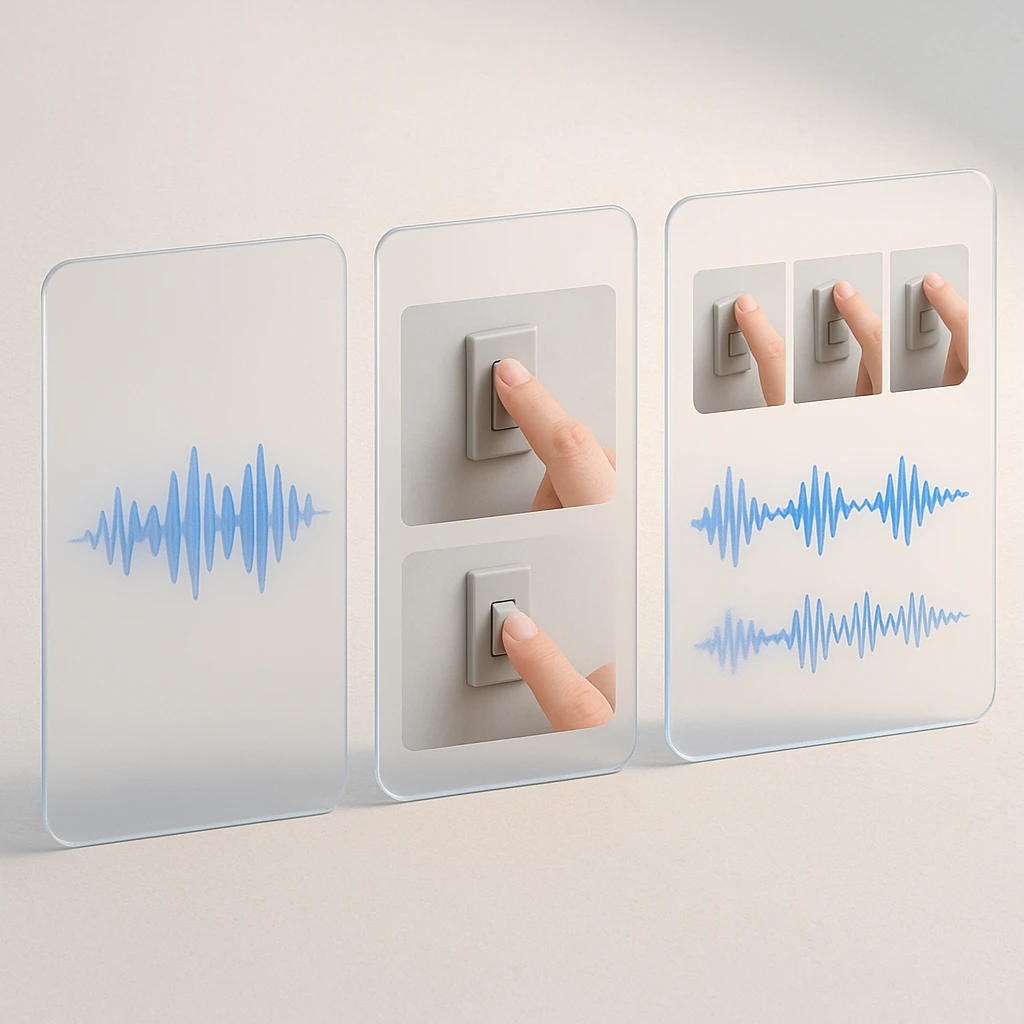
Transcript only
Speech → text → answer
Can explain what the presenter said. An unspoken slide number is missing.
Visual analysis
Video → selected frames → answer
Can inspect visible content. Speech needs its own input; brief events can fall between frames.
Combined analysis
Frames + audio or transcript → answer
Can connect a spoken instruction with the screen shown at that moment.
Transcription: what the speaker said
Speech-to-text creates a written record of the audio. A caption importer starts with an existing transcript. Either can support useful lecture notes, quotations and questions about the explanation.
Suppose a presenter says, “Revenue grew this quarter,” while the slide displays a table. The transcript supports the growth statement. It cannot supply the table’s exact figures unless someone read them aloud. For a task centered on speech, a video-to-text workflow may provide all the evidence you need.
Visual analysis: what appeared on screen
Visual analysis can involve identifying objects, describing scenes, reading slides and following visible actions. Optical character recognition, or OCR, extracts text from images. Chart interpretation adds another task: relating labels, numbers, colors and axes correctly.
Consider a silent software demo. Someone opens Settings, selects Notifications and switches off email alerts. A useful visual answer should describe those actions in order. A transcript has nothing to contribute. For text-heavy footage, the video OCR guide explains the extraction task in more detail.
Combined analysis: connect the two
“Select this option” is incomplete without the screen. Seeing a button selected is incomplete if the speaker immediately says it was a mistake. Combined analysis should connect these moments and preserve the correction.
Ask for separate columns for visible action, spoken explanation and interpretation. That format makes disagreements easier to inspect. It also prevents a product claim made in narration from quietly becoming a claim that the video demonstrated it working.
Does it process every frame?
Do not assume exhaustive coverage. Google’s Gemini API documentation describes static processing with a default of one sampled frame per second and warns about missed rapid motion or scene changes. It also documents a separate agentic mode that retrieves relevant material on demand. These are API behaviors, not a universal description of Gemini’s app or other products. See Google’s video processing guide.
A confirmation message that flashes briefly could be missing from the inspected frames. Ask for the specific interval, or supply a clear screenshot, if that message matters.
Video generators create footage. Editors trim or arrange footage. Metadata readers inspect properties like duration and codec. None of those labels, by themselves, establish visual understanding.
How we evaluate video analysis
This is the proposed evaluation method for a future hands-on update. The comparison above is based on documentation. There are no measured accuracy scores, processing-time results or claimed test screenshots in this article.
Use the same recordings
Prepare original or permission-cleared recordings and write a manually checked answer sheet before asking any tool questions. Include exact answers, acceptable variants and the original timestamp intervals.
| Test recording | What the questions should establish |
|---|---|
| Narrated lecture with slides | Whether the answer connects an explanation to a detail visible only on a slide |
| Silent software tutorial | Whether it identifies menu choices and their order without narration |
| Product demonstration | Whether it separates spoken claims from behavior visibly demonstrated |
| Longer recording | Whether it finds known facts near the beginning, middle and end |
| Fast-moving clip | Whether brief events are missed or placed in the wrong order |
| Multilingual recording | Whether transcription, translation and technical terms remain correct |
Use an identical short excerpt for the first comparison so a free account’s duration limit does not change the input. Test longer recordings separately. If one tool requires screenshots or a transcript, record that extra preparation and identify exactly what it received.
Measure more than summaries
Score each question for visual accuracy, speech accuracy, completeness, event order, text extraction and timestamp accuracy. Keep these separate: a correct answer attached to the wrong moment still fails the evidence check.
Add a question about an event that never occurs. For example, ask when the demonstrator enabled two-factor authentication in a clip that contains no security settings. The acceptable response should report insufficient evidence. An invented sequence of plausible clicks is a failure.
Record unsupported claims explicitly. A summary can get the broad topic right while introducing a product feature, a number or an action item that the source never contained.
Keep the conditions with the result
Save the account plan, visible model name, device, upload method, file duration, language, prompt, processing settings and date. Preserve the first response before follow-up questions. Otherwise a carefully repaired answer can look like a successful first attempt.
A useful evidence record has five columns: question, checked answer, original timestamp, verbatim tool response and verdict. Add a screenshot of the relevant frame next to the response. Until those runs exist, a side-by-side results table would imply evidence we do not have.
ScreenApp should receive the same files, questions and scoring rules as every competitor. Its publisher relationship is a reason to make the evidence inspectable.
Tools for video questions
The following options suit different tasks. The order is not an accuracy ranking, and the suggested checks are tasks to try, not reported results.
1. Google Gemini
Direct video upload with follow-up questions
Google Gemini accepts uploaded video in its app. Its documented limits are 2 GB per video and five minutes of total video length, extended to one hour with Google AI Pro or Ultra. Usage restrictions still apply. Those app limits are separate from the developer API's limits.
The practical advantage is the short path between choosing a file and asking a question. Try a narrated presentation and ask for a number displayed on a slide but never spoken. Then ask which slide supports the answer and request a timestamp.
Inspect three things: the number, its unit and its context. “24” is an incomplete extraction if the slide says “24% monthly churn.” A correct-looking number copied from a different chart also fails.
Gemini is a sensible candidate when you want to explore a clip through follow-up questions. Check the current account allowance before using it for a long course or repeated daily uploads. Pricing appears in the table below; the upload details come from Google's app documentation.
Documented strengths
- •Shortest path from choosing a file to asking a question
- •Follow-up questions suit exploring a clip
Documented limits
- •Plan-dependent duration and usage caps
- •App limits are separate from the developer API
Best for: Exploring a short clip through follow-up questions, especially details shown only on screen.
2. ScreenApp
From recording analysis to notes and documents
ScreenApp's video analyzer connects uploaded recordings and supported links with analysis and written output. Its documented capability is: AI reads video frames, not just the audio. The workflow also includes AI chat with any recording, chapters with timestamps and AI templates and documents.
That combination is relevant when the question is only the first step. A support recording might need to become a bug report, and the mechanical half of that, timestamps, frames and environment details, can be captured from the recording before anyone writes a word. A demonstration might need to become instructions another colleague can follow. Compare how much correction the finished document requires, alongside the answer itself.
For a useful check, upload a silent tutorial and ask which setting changed. Follow with: “Show the supporting moment and identify any step you inferred.” Inspect the source, then ask for a written procedure. A readable document still needs every required action checked.
Supported link categories include YouTube, Vimeo and direct media links. Access restrictions can prevent import; having a link does not mean the service can open a private recording. The free plan has separate upload, transcription and AI-chat allowances, listed below.
We publish ScreenApp, and we have not verified this workflow against the competing tools on identical recordings. For this comparison, visual answers and timestamp accuracy remain untested.
Documented strengths
- •Connects the answer to the document you need to produce
- •Link import and chaptered output are documented capabilities
Documented limits
- •Visual answers and timestamp accuracy untested against competitors here
- •Separate upload, transcription and AI-chat allowances
Best for: Recordings where the question is only the first step and a usable document is the deliverable.
3. ChatGPT
Video attachments inside an existing workflow
ChatGPT accepts video attachments through supported upload methods, including on Free accounts. Availability varies. OpenAI suggests trying Files if a video cannot be selected through Photos, and cautions that tool-assisted analysis can miss parts of a video or interpret audio incorrectly. Live camera and screen sharing are separate features. See OpenAI's attachment guidance.
Start with a short clip. Compare a broad summary against one narrow question about a visible action. Ask what material supports the response, and inspect any claimed reference yourself.
The useful decision is whether the result is reliable enough for your particular task. Upload acceptance alone does not establish complete coverage. If the answer depends on narration, check the speech directly or provide a checked transcript as a separate source.
For an account that rejects video, a transcript and timestamped screenshots provide a fallback, with the same missing-frame limitations described for Claude below. Record that change of input when comparing results.
Documented strengths
- •Works where you already work, including Free accounts
- •Fallback route via transcript and screenshots
Documented limits
- •OpenAI cautions analysis can miss parts of a video
- •Accurate audio interpretation is not guaranteed
Best for: Quick checks on short clips when ChatGPT is already your daily tool.
4. Claude
Strong reasoning over evidence you extract first
Claude is a candidate when you already have the evidence extracted. Its standard upload documentation lists documents and images, rather than native video files. Upload a transcript plus selected screenshots, and label each screenshot with its original timestamp. Claude’s file guide distinguishes chat and project limits; chat uploads currently allow up to 20 files.
Give it a focused task: “Use these screenshots and the transcript to explain how the notification setting changes. Flag transitions that are missing.” That question makes the boundary of the evidence explicit.
The weakness is what happens between screenshots. Two frames showing different settings do not prove which button was clicked, whether a save action occurred or whether an error appeared in between. Preserve uncertainty in the resulting instructions.
Claude Code, connectors and separately configured extraction tools can change the workflow. Describe the tool that extracts the video evidence instead of attributing that extraction to ordinary Claude chat. Our guide to using Claude with videos covers those options in more detail.
Documented strengths
- •Focused analysis of supplied transcripts and labeled screenshots
- •Makes evidence boundaries explicit when asked
Documented limits
- •Standard uploads do not list native video
- •What happens between screenshots stays unproven
Best for: Analysis when the transcript and key frames are already extracted and labeled.
5. Gemini Notebook / NotebookLM
YouTube research through the caption transcript
For the YouTube workflow, Gemini Notebook, also known as NotebookLM, imports the text transcript of a supported public video with captions. It does not import the video frames through that route. Google’s help also notes that newly uploaded videos can take time to become importable. Read the source requirements.
This suits a different kind of question: what did the lecturer argue, which definitions did they use, or where do two speakers disagree? A transcript can contain enough evidence to answer all three.
Test its boundary with paired questions. Ask one answered by narration, then one about an unspoken slide label. For the second, supply the slide separately if needed and identify that additional source. Do not assume that a YouTube link made the slide available.
Keep generated study notes beside their source citations so you can check quotations. A cited sentence can still be summarized incorrectly. For the wider link-based workflow, see how to chat with YouTube videos.
Documented strengths
- •Citations tie generated notes back to transcript passages
- •Suits questions about what a speaker argued
Documented limits
- •YouTube import supplies no frames
- •Needs captioned public videos; no silent-video import
Best for: Research into spoken explanations across supported public YouTube videos.
6. Gemini API
Programmatic video processing with structured output
The Gemini API is a separate implementation path with its own billing and limits. Google documents file uploads, inline video, Cloud Storage and public YouTube inputs, along with timestamp questions and processing controls. The video understanding guide is the starting point.
Consider it when you need repeated processing with a consistent output structure. An application could request event descriptions, timestamps and an evidence type, then validate those fields before storing them. That is a proposed application design; a valid JSON response still needs factual checks.
Keep the original file ID and any clip offset. If your application cuts a recording into sections, a timestamp in the second section is not automatically a timestamp in the original. Build that conversion into the workflow before displaying references to readers.
Documented strengths
- •Documented file, inline, Cloud Storage and YouTube inputs
- •Timestamp questions and processing controls for applications
Documented limits
- •Separate developer billing and implementation effort
- •Clip offsets need explicit handling in your workflow
Best for: Repeated processing jobs that need a consistent, validatable output structure.
7. TwelveLabs
Search and analysis across a video library
TwelveLabs supports multimodal video analysis and search through its platform and APIs. Its search documentation covers finding relevant moments; its analysis guide covers summaries, questions and structured results.
This is relevant when your question starts with “Which recording contains…?” rather than a single file you have already opened. Evaluate whether returned moments distinguish similar demonstrations across different recordings.
Budget for preparation, indexing, infrastructure and repeated analysis. A media URL can also mean a direct file URL rather than a video-hosting share page. Check the selected upload method before building an import feature around it.
Its documentation permits analysis of up to two hours, with separate conditions for longer source files when analyzing a portion. That is an input allowance, not evidence that every answer covers every moment correctly.
Documented strengths
- •Finds moments across many recordings, not just one file
- •Multimodal analysis and search through platform and APIs
Documented limits
- •Indexing, infrastructure and usage costs need budgeting
- •Free minutes do not reset when files are deleted
Best for: Questions that start with "which recording contains..." across a library.
8. Azure AI Video Indexer
Repeatable archive indexing with time-linked insights
Azure AI Video Indexer extracts searchable insights from video and audio. Depending on the selected features, those include transcription, on-screen text, scene information and time-linked insights. Some capabilities have access restrictions, and cloud and Azure Arc deployments differ. Microsoft’s overview describes the options.
Evaluate it for an archive that needs repeatable indexing and integration with business systems. Searchable OCR might locate a slide title; a transcript search might locate a spoken phrase. Test both against known moments before treating the archive as complete.
The setup and billing deserve their own evaluation. Select the deployment and analysis preset first, then estimate processing costs. Enabling a service does not establish that every insight shown in a feature list is available to your account.
Documented strengths
- •Searchable OCR and transcript insights linked to video intervals
- •Fits business-system integration and repeatable pipelines
Documented limits
- •Deployment, preset and feature access shape what you get
- •Setup and per-minute billing deserve their own evaluation
Best for: Organizations indexing a video archive for search and integration.
Choose by the actual task
The best AI for video analysis depends on what would count as a correct answer. Define that before comparing the fluency of the summaries.
| Your goal | Prioritize | Verify before relying on it |
|---|---|---|
| Understand a spoken lecture | Transcript summaries and follow-up questions | Important qualifications and explanations survive the summary |
| Understand a silent demonstration | Visual actions and event order | The sequence matches the recording without narrated clues |
| Read slides or dashboards | OCR and chart interpretation | Numbers, labels, decimal places and units are correct |
| Find a particular moment | Search and timestamp references | The reference lands on the event you asked about |
| Create training documentation | Step extraction and editable output | No required step is omitted or invented |
| Analyze a video library | Search across recordings and source attribution | Similar videos remain distinguishable |
| Build an application | API inputs and structured responses | Implementation effort, processing limits and total cost fit |
For a one-off lecture summary, preparation time matters. If obtaining a transcript takes less effort than setting up a video API, the simpler route may be enough. For a silent workflow, the same shortcut would remove the evidence you need.
Free plans and paid limits
Pricing and documentation checked October 1, 2026. Listed dollar prices are USD; taxes, region and checkout offers can change the amount. A monthly equivalent billed annually is a different commitment from monthly billing.
| Tool | Free access | Paid pricing or billing basis | Limits to check |
|---|---|---|---|
| Gemini app | Five minutes total video; 2 GB per video | Google AI Pro: $19.99/month, or $199.99/year on the checked US page | Pro/Ultra extend total video length to one hour; usage caps remain |
| ScreenApp | 3 lifetime uploads; 2 lifetime transcriptions; 10 AI chats/month | Pro: $30/month, or $19/month billed annually | Free recordings: 45 minutes. Pro: 50 transcriptions, 500 uploads and 50 AI chats/month |
| ChatGPT | Free accounts have file uploads, including supported video attachments | Paid subscriptions have plan-specific allowances; verify the current checkout | 512 MB/file; Free has three file uploads/day, subject to reductions at peak times. No universal video-duration promise |
| Gemini Notebook | Free source allowance; YouTube import uses captions | Higher limits through eligible Google AI plans | Free: 50 sources/notebook; 500,000 words/source. Check chat and generated-output quotas separately |
| Claude | Free chat for supplied documents and images, subject to usage limits | Pro: $20/month, or $200 billed annually | Chat: 500 MB/file, up to 20 files. Project files have a separate 30 MB limit. This is the transcript/screenshots route |
| TwelveLabs | 600 cumulative minutes shared across indexing, analysis and segmentation | Listed Analyze API: $1.75/input hour plus $7.50/million output tokens | Free minutes do not reset when files are deleted. Indexing, search and infrastructure have separate charges |
| Azure AI Video Indexer | Trial: up to 2,400 indexing minutes in current Microsoft Learn guidance | Per input minute, by audio/video analysis preset and deployment | A trial allowance, not a renewing free monthly plan; regional pricing requires a selected configuration |
| Gemini API | Model-dependent free-tier access | Separate API usage billing | Model, input method, processing mode, rate limits and output tokens |
Sources, checked 2026-09-23: ScreenApp pricing, ScreenApp recording limits
Pricing sources: Google AI plans, ScreenApp pricing, ChatGPT file limits, ChatGPT plans, Gemini Notebook upgrades, Claude pricing, TwelveLabs free allowance, TwelveLabs pricing and Azure pricing.
For ScreenApp, the free account and paid trial are separate. The documented trial lasts 7 days on eligible annual plans and requires a card. An upload allowance also does not equal a transcription allowance. Check the operation you will actually repeat.
Before paying, work through one representative task and count the uploads, processing operations and follow-up questions it uses. Check file-size limits separately from duration: a short high-resolution file can exceed a size cap. Ask how retained files count toward the account’s limits, which outputs you can export and whether deleting material restores any allowance. Avoid reading “unlimited” as an exemption from file limits or fair-use terms.
Upload and ask useful questions
This walkthrough uses ScreenApp’s documented workflow and its public upload screen, inspected October 1, 2026. Processing and account-specific exports were not tested for this article. The embedded recording is ScreenApp’s existing product demonstration, not footage from the proposed comparison tests.
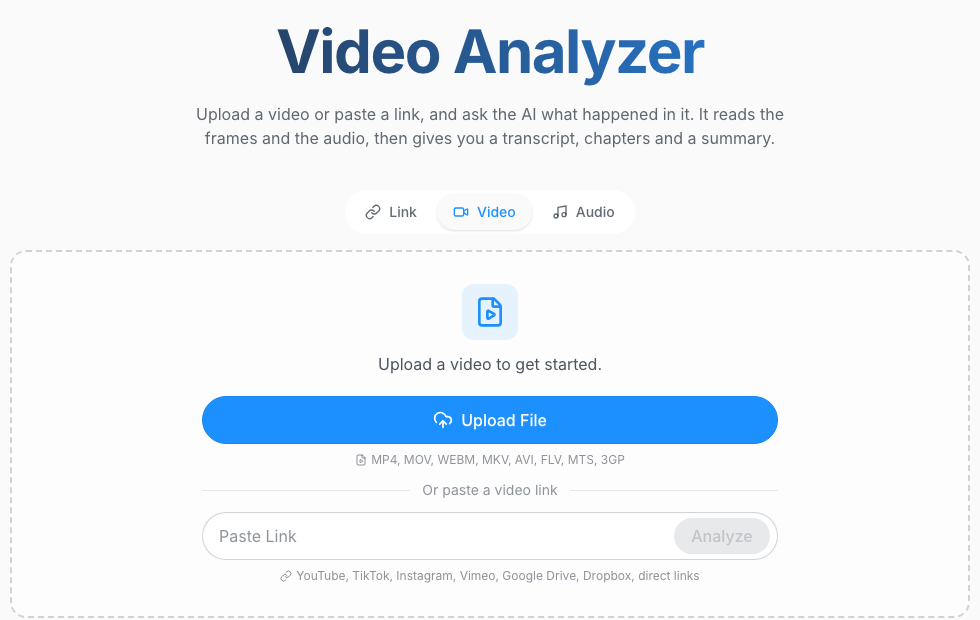
Step 1: choose the recording
Choose a recording you have permission to process. Note its duration and language, then write down whether your question needs speech, visuals or both. Start with a short representative clip that contains an answer you can verify yourself.
For a tutorial, keep the section immediately before and after the action. Cutting too tightly can remove a prerequisite or a correction. If you trim the beginning, record the clip’s offset from the original timeline.
Step 2: upload or import
Open the video analyzer and use the upload option, or enter a supported link. ScreenApp documents YouTube, Vimeo and direct media links. Wait for processing before judging whether the transcript or other output is missing.
A private or login-protected URL can fail even when you can play it in your own browser. Use an authorized local file if the source allows it. Check the file’s format and account allowance if the upload is rejected.
Step 3: define the output
“Summarize this” leaves the AI to choose what matters. Give it a concrete job instead:
Extract the steps shown for disabling email notifications. List the menu, control and final setting for each step. Preserve the order. Mark anything you cannot see clearly.
For a lecture, replace the procedure with concepts, definitions and questions for revision. For a product demo, request a table separating claimed features from demonstrated behavior.
Step 4: ask for evidence
Follow with: “Which moment supports each step? State whether it comes from the screen, the narration or both.” Open those moments and inspect them.
If an answer has no usable reference, narrow the question to an interval you can review. Ask the tool to identify missing evidence. Repeating the same broad question with stronger wording does not supply missing frames or clearer speech.
Step 5: check and save
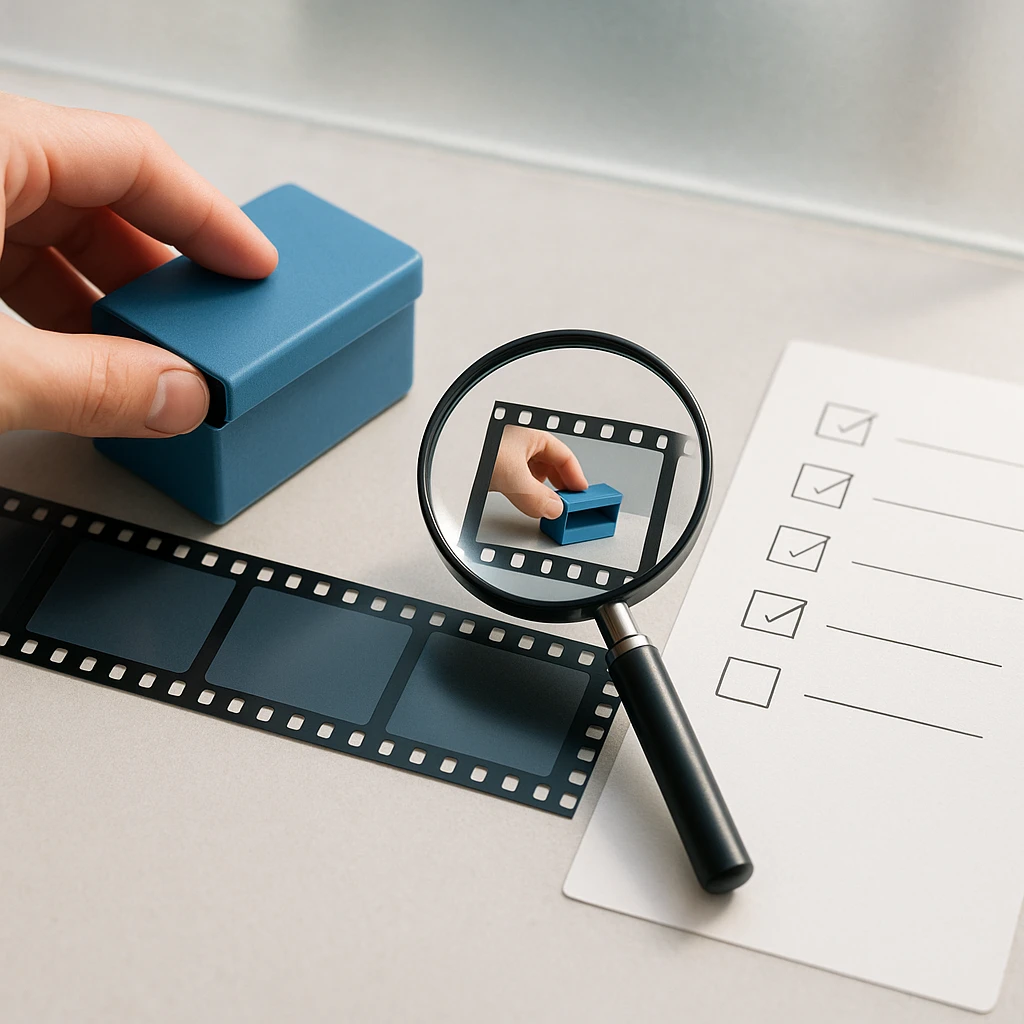
Verify names, numbers, quotations, required steps and timestamps. A guessed owner in meeting notes or a missing save step in a tutorial can change what someone does next.
ScreenApp documents transcript exports in TXT, DOCX, PDF, VTT and SRT and document exports in Markdown, TXT, PDF, DOCX and PPTX. Choose the available output for the material you generated. We have not verified export access on each plan for this article; check the current account before relying on a particular format. Copy the reviewed text if the export you need is unavailable.
On other platforms, the input step changes. Gemini uses its file attachment flow; ChatGPT depends on a supported attachment method; Gemini Notebook adds a YouTube source; Claude needs the extracted evidence. Carry the same question and verification routine across them.
Practical video-analysis tasks
These are tasks to evaluate with your recordings. A product appearing in this comparison does not mean it automatically completes every task well.
| Recording | Question to ask | Useful output |
|---|---|---|
| Lecture or course | How does this diagram support the lecturer's explanation? | Study notes, timestamps and review questions |
| Meeting or webinar | Which decisions were confirmed, and which ideas remained proposals? | Decisions, unresolved questions and stated follow-ups |
| Software tutorial | What actions are visibly required to complete the process? | A guide with checked steps |
| Product demo | Which advertised features are actually demonstrated? | A claim-and-evidence comparison |
| Research collection | Where do these speakers address the same question? | Notes naming each recording and source moment |
| Employee training | What procedure is shown, and which prerequisites are only mentioned? | A draft SOP for a process owner to review |
| Multilingual recording | Can you explain this section in my language while preserving technical terms? | Translated notes with uncertain terms marked |
For meeting notes, do not turn “we could ship Friday” into “ship Friday.” Ask the tool to preserve tentative language and leave owners blank when none were named. For a product demo, a presenter saying “this works offline” does not establish that the recording demonstrates offline use.
If your deliverable is a short recap, request a summary with source references. If it is a repeatable procedure, the video-to-SOP generator is the relevant next step. Keep a link back to the source in either output so corrections remain possible.
Prompts you can reuse
Add this instruction before any of the prompts below:
Use only the video, audio, transcript or images actually available to you. Separate observations from interpretations. Identify missing evidence, and do not invent timestamps. If a question cannot be answered from these sources, say what is missing.
A timestamped summary
Summarize this video for someone who has not watched it. Include the main ideas, important visual information and timestamps for the main sections. Preserve corrections and qualifications made by the speaker. Flag anything you could not verify.
Visible actions in order
Describe the visible actions in chronological order. Use the screen evidence alongside any narration. Include timestamp references where available. Identify unclear transitions, and distinguish an action being started from an action being completed.
Text on slides and screens
Extract the important text shown on slides, charts and interface screens. Preserve numbers, labels and units. Include timestamps. Mark unreadable text rather than guessing. For charts, include the axis labels and state whether a value is printed or estimated from the graphic.
Answer one specific question
Based only on this recording, answer: [question]. Give the supporting timestamp or source passage. State whether the answer comes from visuals, speech or both. If the evidence conflicts, describe the conflict before giving an interpretation.
Create a written procedure
Turn the demonstrated process into a step-by-step guide. Separate actions shown from prerequisites mentioned by the speaker. Keep corrections in the right order. Flag missing information instead of filling it in. End with a list of steps that need human verification.
For any prompt, specify the intended reader and format. “A checklist for a new support agent” gives the output a clearer purpose than “detailed analysis.” Avoid asking for exact timestamps when the supplied transcript contains none; request paragraph or screenshot references instead.
Accuracy and common problems
Why details go missing
Brief events, tiny text, motion blur, overlapping speech and ambiguous actions create different problems. A clearer transcript cannot repair an unreadable chart. A higher-resolution screenshot cannot establish words that were inaudible.
Sampling adds another failure point. Google’s documented static-video processing can miss rapid changes, while OpenAI explicitly cautions that uploaded-video analysis may be incomplete. Neither warning gives a universal accuracy percentage. Test the kinds of details you need to recover.
A summary is a weak visual test
A plausible summary might come entirely from narration. Use the unspoken-detail check from the opening: a label, number or action that appears only on screen. Ask without including the answer in the prompt.
Then ask about a second detail elsewhere in the recording. Success at one moment does not establish coverage of the whole file. For a long recording, check the beginning, middle and end, and include a question about the sequence between them.
Diagnose the failure first
| Problem | What to check | Next attempt |
|---|---|---|
| Upload rejected | Format, codec, size, duration and account restrictions | Use a supported export or a shorter authorized clip |
| Answer ignores visuals | Whether frames were processed or only text was imported | Ask a visual-only question; provide a relevant screenshot if needed |
| Timestamp is wrong | Exact source reference versus generated approximation; clip offset | Compare with the original timeline and correct the offset |
| Important detail missing | Scope of the question and visibility of the event | Ask about a shorter interval with one concrete question |
| Link cannot be imported | Supported source, captions if required, and access restrictions | Use a permitted local upload or supported source |
| Confident but incorrect answer | Whether the cited moment supports the claim | Reject the unsupported claim and recheck the recording |
These checks help isolate the issue; they do not guarantee a repair. Preserve the original recording when creating a smaller copy, especially if compression could erase the text you want to read.
Is uploading a video safe?
Check the actual data handling
Read the policy for the product and account type you will use. Look for retention periods, model-training settings, deletion controls, sharing defaults, storage location and organizational administration. Encryption is one part of that assessment.
Also check what happens to generated transcripts and documents. Removing the uploaded recording may not answer every question about copies, exports or shared outputs. For a company account, ask the administrator which settings are enforced centrally.
Remove unnecessary sensitive material
A customer demo can expose account details. A meeting can include personal information. An internal dashboard can reveal figures unrelated to the question you need answered. Upload only the material required for the task where practical, and check organizational approval and permission to process it.
For software training, a demonstration account can reduce the need to include real customer data. Review the exported document too: sensitive details can survive in a transcript even when they were hard to notice in the video.
Review consequential outputs
Treat the analysis as a working aid. Check the recording before using an extracted claim for a consequential decision, an external quotation or an instruction someone must follow precisely. A timestamp is a route back to evidence, not a guarantee that the interpretation is right.
Start with one recording
Choose the evidence your task needs: speech for an explanation, frames for a silent action, both for a narrated demonstration, or indexed sources for a library search. Then test one representative recording before committing to a plan or building a workflow around it.
Analyze a video with ScreenApp
Ask a specific question, and check the answer against the recording.
FAQ
Is there a free AI that can watch videos?
Yes. Gemini has a documented free video-upload allowance. ChatGPT supports video attachments on Free accounts where the upload method is available. ScreenApp has 3 lifetime uploads and 2 lifetime transcriptions, plus 10 AI chats per month. See the pricing table for the different limits and verify visual answers on your own clip.
Can AI understand videos without subtitles?
A tool that processes audio or frames can work without existing subtitles. A workflow that imports captions needs those captions. Check what the tool receives before choosing it for an uncaptioned recording.
Can AI analyze a silent video?
It requires a visual workflow. Try the silent-demo test described in the evaluation section: ask about an action shown on screen, its order and the supporting moment. A transcript-only import has no speech to use.
Can AI read text from slides and screens?
Visual analysis and OCR can extract on-screen text when it is readable. Verify numbers, units and chart labels against the frame. Supply a clear screenshot when a moving or compressed image makes the original text difficult to inspect.
Can AI watch a two-hour video?
Some workflows accept that duration; TwelveLabs documents analysis up to two hours. The Gemini app's documented paid upload allowance is one hour total. Check the exact product and input method, then test coverage throughout the recording. Permitted duration does not establish reliable recall of every event.
Can I paste a YouTube link?
Some products support YouTube links, but they import different evidence. Gemini Notebook's documented YouTube route imports captions. ScreenApp documents YouTube, Vimeo and direct media links, while Google's Gemini API also documents public YouTube inputs. Check access and the specific product workflow before relying on a link.
Can AI compare several videos?
That depends on whether the workflow supports multiple sources or a searchable library. Require every answer to name the recording and source moment. For transcript-based comparisons, several documents may be enough; comparing visible actions requires visual evidence from each video.
Can AI analyze a private video?
An authorized local upload can be an option if the tool supports the file and its data-handling terms fit your requirements. A private share link is a separate access problem. Do not assume an importer inherits your browser login or organizational permissions.
Does a timestamp prove correctness?
No. Open the referenced moment and check that it supports the answer. A timestamp can point to the right topic but the wrong claim, or refer to a trimmed clip's timeline instead of the original recording.
How do summarizers and analyzers differ?
A summary is an output. Analysis describes the work performed on the source. A summarizer might use only text, while an analyzer might inspect audio, frames or both. Compare the evidence processed rather than relying on the product label.