Chat with YouTube Videos Using AI: Ask Questions, Get Timestamped Answers

On this page
A two-hour lecture is sitting in your watch-later list, and the one thing you need from it is somewhere in the middle. You do not know where. The chapters are vague, the transcript page is a wall of unpunctuated text, and scrubbing the seek bar at 2x still costs you twenty minutes.
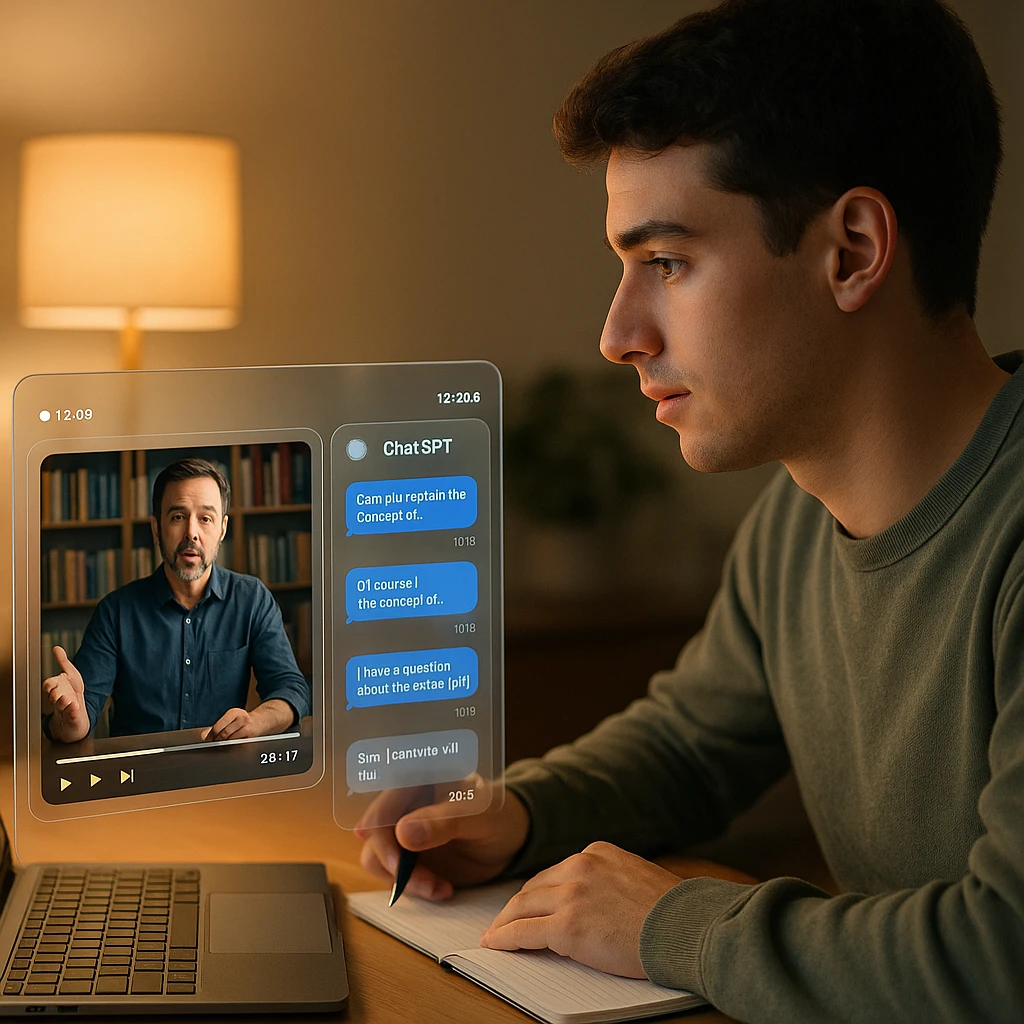
Chatting with the video solves this differently: an AI reads the whole video first (the transcript, and in the better tools the on-screen text and visuals too), and then you just ask. “What are the main arguments?” “Where does she explain the pricing model?” “List the action items from this meeting recording.” The answer comes back in seconds, and in the good tools it comes back with timestamps, so you can click through and verify against the actual video instead of trusting a summary blindly.
We build one of these tools, so I will show the workflow with ScreenApp and be explicit about where it differs from asking ChatGPT or Gemini about a YouTube link (short version: they often cannot actually watch the video, and it matters).
Quick answer
To chat with a YouTube video, paste its URL into an AI video chat tool. The tool pulls or generates a transcript, analyzes the content, and opens a chat where you ask questions in plain language and get answers with timestamps. ScreenApp does this for public and unlisted YouTube links plus uploaded files, with one free session on signup and no card required. ChatGPT and Gemini answer from text and often cannot read the actual video, so their answers can describe a video they never watched.
Related guides: our review of AI tools that watch videos for you, the best AI YouTube summarizers, what happens when you try to upload a video to ChatGPT, and tools for transcribing YouTube videos.
What Does It Mean to Chat with a YouTube Video?
Mechanically, it means the AI turns the video into something a language model can read, then answers questions grounded in that material. The pipeline matters more than the marketing: a tool that only grabs YouTube’s auto-captions knows what was said, roughly. A tool that transcribes the audio properly and also reads on-screen text and visual scenes knows what happened. The difference shows up the first time you ask about a chart the speaker never read aloud.
Once the video is indexed, the chat behaves like a knowledgeable colleague who just watched it for you:
- Ask for the main points and get a structured summary instead of a scrub through the timeline
- Ask “where does he talk about X” and get a timestamp you can click
- Ask it to explain a difficult section in simpler terms, or in your language
- Ask for action items, key quotes, statistics, or study notes pulled from the content
The lecture example from the intro, concretely: instead of watching all two hours, you ask “What are the main points?”, then “Explain the section on monetary policy like I am new to economics”, then “Give me five exam-style questions from this lecture.” Three prompts, maybe four minutes, and you know exactly which ten minutes of the video deserve a real watch.
How AI Chat With YouTube Videos Actually Works
Five stages, and knowing them helps you debug the weird cases later (like a video with no captions, or one where the answer cites the wrong moment).
The video comes in
You paste a YouTube URL, or upload a file directly. This first step is where tools quietly differ the most: public videos work almost everywhere, but unlisted links and your own MP4 recordings only work in tools that fetch and process the media itself rather than relying on YouTube's public caption feed.
The audio becomes a transcript
The AI indexes the content
The transcript (plus on-screen text and visual scenes, in tools that read them) gets analyzed and indexed with its timing intact. This is the step that takes a minute on long videos, and it is what makes timestamped answers possible later: the AI knows not just what was said but when.
You ask, in plain language
"What did the speaker say about pricing?" "Show me every moment someone mentions the H100 chip." "Turn this into study notes." Specific questions get better answers than "analyze this", the same as with any AI, and follow-up questions keep the context of the conversation.
Answers come back with timestamps
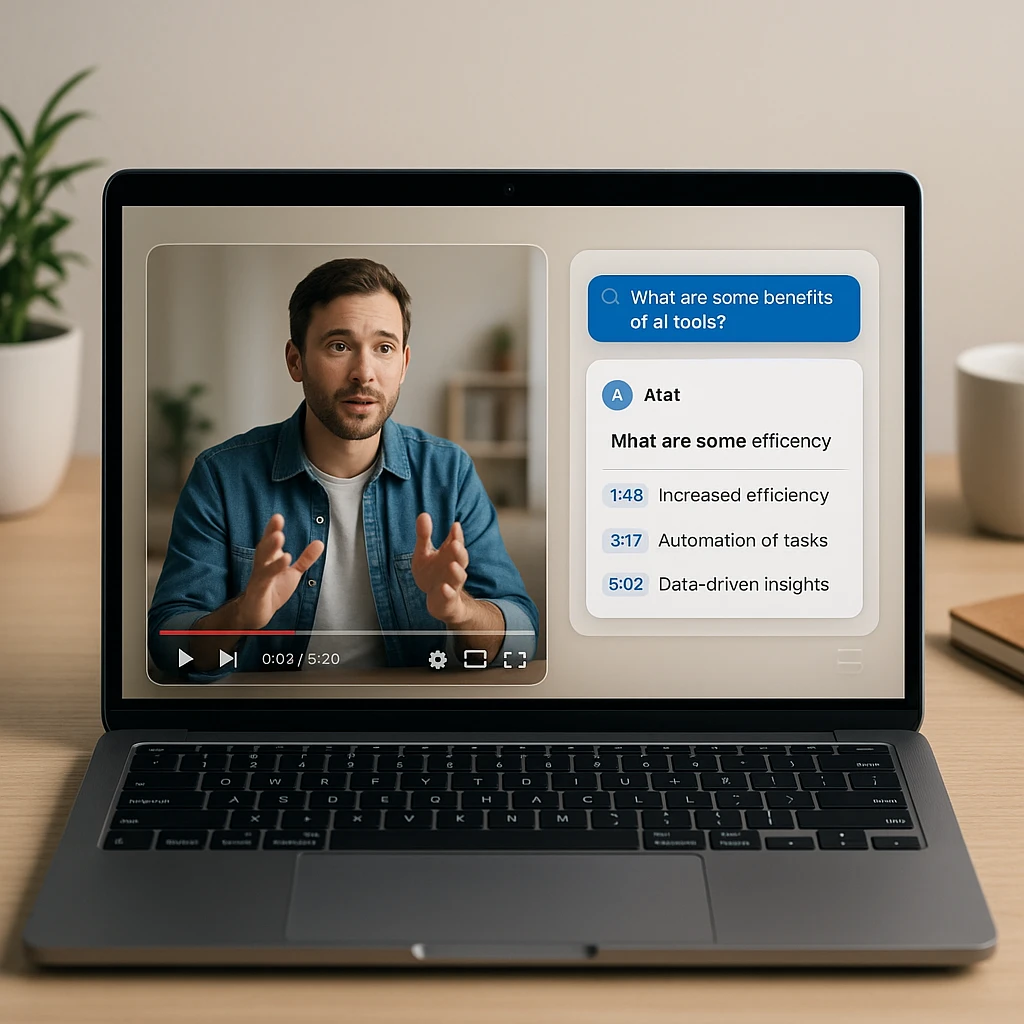
In ScreenApp, each answer cites the moments it drew from; click a timestamp and the player jumps to that second. This is the feature I would not give up, because it turns "trust the AI" into "check the AI." An answer without a source is an opinion; an answer with a timestamp is a claim you can verify in ten seconds.
Why Chat Instead of Watching the Whole Thing?
Because most videos are not entertainment, and information does not need to be consumed in real time. A 40-minute tutorial usually contains about 5 minutes that matter to you specifically; the chat finds those 5 minutes. The honest comparison:
| Task | Watching normally | Chatting with AI |
|---|---|---|
| Finding one specific answer | Scrubbing and guessing | One question, one timestamp |
| Getting the gist | Full runtime, or 2x and hope | Summary in under a minute |
| Taking notes | Pause, type, rewind, repeat | Generated, then you edit |
| Another language | Auto-captions, if lucky | Ask in your language, answer in it |
| Enjoying a film essay | The whole point | Wrong tool; just watch it |
That last row is sincere. Chat is for extraction: study, research, meetings, tutorials, due diligence. It does not replace watching things you actually want to watch.
The Prompts That Earn Their Keep
After a lot of sessions, the questions below are the ones I keep coming back to, grouped by what you are trying to get done. Copy them as-is.
Studying a lecture
"Summarize this lecture in ten bullet points." "Explain the section on [topic] simply, with an example." "Create study notes organized by concept." "Write five exam-style questions with answers." "Which parts should I rewatch in full?"
Meetings and business
"List every decision made and who owns it." "Extract the action items with deadlines if mentioned." "What objections were raised and how were they answered?" "Draft a follow-up email from this recording."
Coding tutorials
"Explain what the code at [timestamp] does." "List the commands used, in order." "What version or setup does this tutorial assume?" "Summarize the debugging approach shown."
Podcasts and interviews
"What advice did the guest give, with timestamps?" "Pull the three best quotes verbatim." "What did they disagree on?" "Summarize each speaker's main argument separately."
Research and fact-finding
"Extract every statistic mentioned, with its timestamp." "What sources or studies does the speaker cite?" "Separate the claims backed by evidence from the opinions." That last one is the research prompt I use most; video essays blur the two constantly, and the timestamped answer lets you check each claim against the original delivery.
One prompt-writing rule covers most failure cases: ask for the summary first, then drill down. A cold “find the part about X” works, but a summary gives you the map, and your follow-ups get sharper once you know the territory.
ScreenApp vs ChatGPT, Gemini, and NotebookLM for YouTube Chat
The comparison everyone actually wants. The rows come from the same capability table we maintain on our video answer AI feature page, where we retest these regularly. The one-line version: general chatbots are text tools, and a YouTube URL is not text.
| Capability | ScreenApp | ChatGPT | Gemini | NotebookLM |
|---|---|---|---|---|
| Public YouTube URL | Yes | Unreliable | Yes | Yes |
| Unlisted YouTube URL | Yes | Fails | Fails | Limited |
| Upload your own MP4 or MOV | Yes | No | No | Limited |
| Timestamp citations in answers | Yes, clickable | No | Rare | Rare |
| Works without captions | Yes, transcribes itself | No | Varies | Varies |
| Free tier | 1 free session, no card | Text only for video | Free with account | Free with account |
Where the others genuinely win: Gemini is convenient for a quick take on a popular public video if you already live in it, and NotebookLM is excellent when the video is one source among many documents in a research notebook. Eightify and similar browser extensions do fast one-click summaries, but a summary is not a chat; you cannot ask the follow-up question, and the follow-up question is the whole point.
The failure mode to watch for with general chatbots: ask ChatGPT about a YouTube link and it will often answer anyway, from the title, the description, and vibes. The answer reads confidently and describes a video nobody watched. If you have hit that, it is why purpose-built tools exist; we wrote up the full picture in our guide to uploading video and audio to ChatGPT.
Getting Better Answers: What Actually Moves the Needle
Three habits, learned from sessions that went badly.
Ask the summary question first, always. It costs one prompt and gives both you and the AI a shared map of the video. Follow-ups grounded in that map (“expand on the second point”, “where exactly does she cover that?”) land better than cold questions.
Ask for timestamps explicitly when they matter. “With timestamps” appended to a prompt turns a paragraph of prose into a verifiable set of claims. For research or anything you will quote, that is the difference between usable and decorative.
And keep questions single-purpose. “Summarize this, extract the stats, and make flashcards” produces a mediocre blend of all three. Three separate prompts produce three good outputs, and the chat keeps context between them anyway. For study material specifically, ask for the notes first and the quiz second; the quiz generated from the notes is consistently better than the quiz generated cold.
When something misbehaves: a video with music over speech or a heavy echo will produce a rough transcript, and every answer inherits that roughness (clear audio in, clear answers out). A very long video takes a minute or two to index before the chat is ready; that is normal, not stuck. And if an answer cites a moment that turns out wrong, re-ask with “quote the exact words”, which forces the AI back to the transcript instead of its paraphrase.
FAQ
Can AI really chat with YouTube videos?
Yes. The AI transcribes or reads the video's content, indexes it with timing, and answers questions grounded in that material. The quality difference between tools comes down to whether they actually process the video (transcript, visuals, on-screen text) or only read the title and caption feed.
Is chatting with YouTube videos free?
Partly, everywhere. ScreenApp gives one free session on signup with no card, which is enough to test the workflow on a real video. Gemini and NotebookLM are free with a Google account, with their own limits. Paid tiers exist across the board for volume use.
Does it work on videos without captions or subtitles?
### Can I chat with private or unlisted videos, or my own recordings? Unlisted YouTube links work in ScreenApp, and your own MP4 or MOV files can be uploaded directly, which covers meeting recordings and lectures that never touch YouTube. Fully private YouTube videos cannot be fetched by any external tool; download and upload the file instead.
How accurate are the answers?
As accurate as the transcript underneath, which is very good on clear speech and rougher on cross-talk, heavy accents, or music over dialogue. The practical safeguard is timestamps: ScreenApp cites the moments each answer draws from, so you verify claims against the video in seconds instead of trusting prose.
Does it handle long videos, like 2-hour lectures or podcasts?
Yes, and long videos are where the workflow pays off most. Expect a short indexing wait after pasting the link. For a marathon recording, ask for a section-by-section summary first, then drill into the sections that matter.
Can it make study notes, flashcards, or quiz questions?
Yes, by asking. "Create study notes organized by concept", then "make ten flashcards from those notes", then "write five exam-style questions." Generating the notes first and the quiz from the notes gives noticeably better questions than asking cold.
Can it translate a video or answer in another language?
Yes. Transcription covers 100+ languages, and you can ask questions in your language about a video recorded in another. For dedicated subtitle-style translation, a video translator workflow fits better than chat.
Why can't I just ask ChatGPT about a YouTube link?
Sometimes you can, and it is a gamble: ChatGPT frequently cannot fetch the actual video and answers from the title and description instead, confidently. If the answer matters, use a tool that processes the media itself and shows timestamps you can check.
Does it work on mobile?
ScreenApp runs in the browser, so the paste-a-link-and-ask flow works on a phone without an app. Long uploads are more pleasant on Wi-Fi, but a YouTube URL is just a link; where you paste it from does not matter.
What types of videos work best?
Anything speech-driven: lectures, tutorials, podcasts, interviews, meetings, webinars, conference talks, product reviews. Music videos and montage-heavy content give the AI little to read. Screen-heavy coding tutorials work well in tools that read on-screen text, less well in caption-only tools.
Can I export the notes and summaries?
Yes; summaries, notes, and transcripts can be copied or exported for your docs. The workflow most students land on: chat produces the notes, notes get exported and trimmed, and the video only gets rewatched at the timestamps that earned it. The pattern behind all of this is simple: the value of most YouTube videos is information, and information should be queryable.