Can You Upload Video - Audio to ChatGPT? How It Works, Limits, Alternatives

On this page
You recorded a lecture, a meeting, or a two-hour podcast, and you want ChatGPT to deal with it. So you tap the attachment button, pick the MP4, and either it refuses the file or it “uploads” and then answers questions about nothing but the filename. Sound familiar?
Here is the honest situation: “upload video or audio to ChatGPT” is not one feature. It is at least four different features (file attachments, live video in Voice, screen sharing, and ChatGPT Record), each with its own availability, plan rules, and limits. Most articles blur them together, which is why half the tutorials you find describe buttons you do not have.
This guide separates them, gives the real limits with sources, walks through desktop, iPhone, and Android, fixes the common upload failures, and covers the one workflow that works no matter what your account supports: converting the recording to a transcript first.
Quick answer
ChatGPT works with audio and video in several ways, but the method depends on your account and device. The standard attachment button handles documents, spreadsheets, and images, and does not reliably process saved video or audio files. Eligible mobile users can share live video in a Voice conversation, paid users on the macOS app can record and transcribe audio with ChatGPT Record, and anyone can upload a transcript. Check your own attachment menu, because features vary by plan, platform, and rollout.
Can You Upload Video or Audio to ChatGPT?
Sometimes, in some ways, on some accounts. That is genuinely the accurate answer, and the table below is the fastest way to see where your task lands.
| Task | Possible? | Method | The catch |
|---|---|---|---|
| Share live camera video | Yes, eligible users | Camera button in Voice | Mobile apps only, usage limits |
| Share your screen | Yes, eligible users | Screen share in Voice | Depends on plan and app |
| Record a meeting or voice note | Yes, where available | ChatGPT Record | macOS app, paid plans, 4-hour cap |
| Upload a transcript or document | Yes | Attachment button | 512 MB and format limits |
| Upload a saved video file | Account-dependent | Attachment menu, when supported | Not a documented standard upload type |
| Upload a saved audio file | Account-dependent | Attachment menu, when supported | Same: test it, do not assume |
| Ask questions about a transcript | Yes, always | Upload or paste the text | Only as good as the transcript |
The load-bearing fact: OpenAI’s supported file types page lists documents, spreadsheets, presentations, text files, and images. Video and audio files are not on that list. Some accounts still show media files as selectable in some interfaces, which is exactly why people get contradictory answers online.
Why everyone gets a different answer
Five reasons, all boring, all real. OpenAI rolls features out gradually, so two people on the same plan can see different buttons. Free and paid plans carry different limits. Mobile and desktop apps have different features (Record is macOS-only right now). Business and school administrators can switch features off for a whole workspace. And live camera sharing keeps getting confused with attaching an MP4, which are entirely different features that both get called “uploading video.”
So before trusting any tutorial (including this one), open your own attachment menu and look. That is the ground truth for your account today.
Four Ways ChatGPT Can Work With Video and Audio
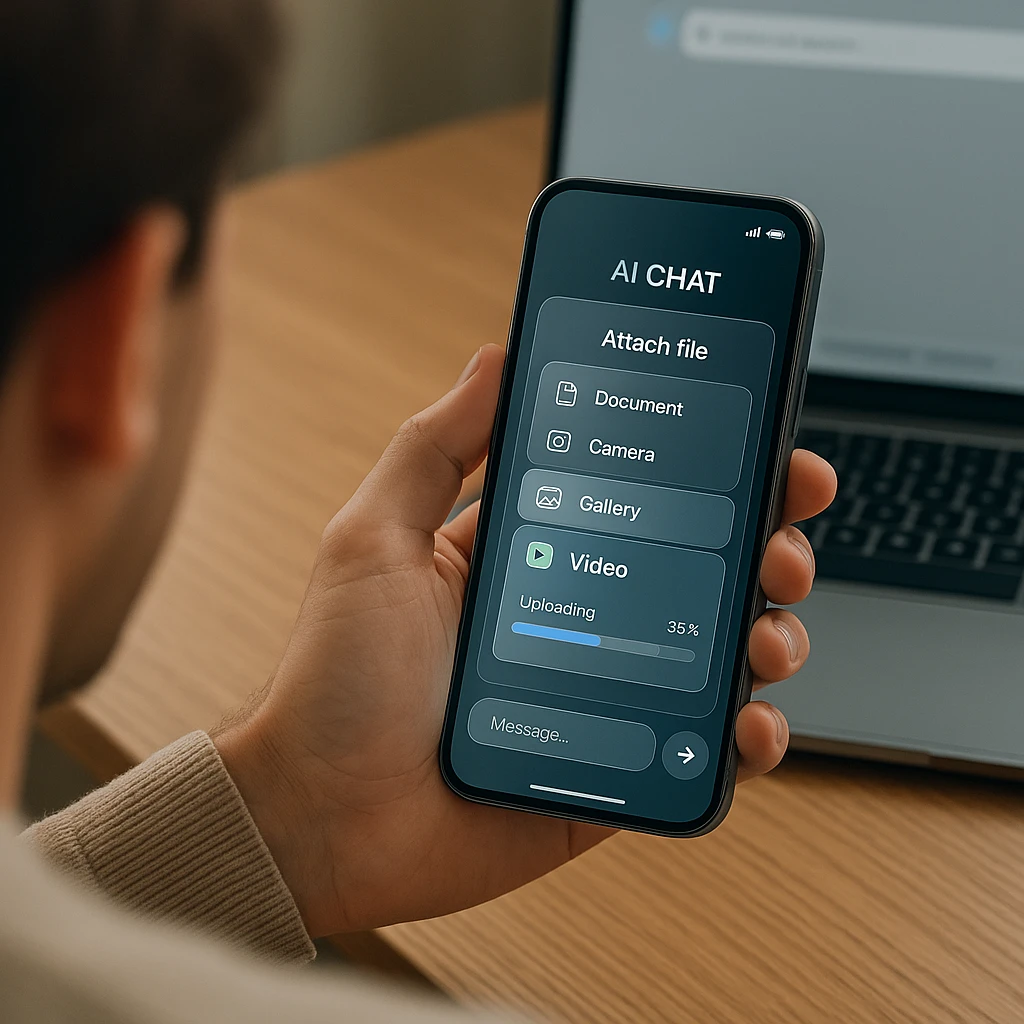
Method 1: Attaching an existing file
Best for: transcripts, PDFs, documents, and media files your account accepts.
- Open a chat and select the plus (+) button.
- Choose your file and wait for it to finish attaching.
- Ask: “Can you access the audio and visuals, or only the file details?”
- If ChatGPT can read it, ask for the summary, transcript, or action items you need.
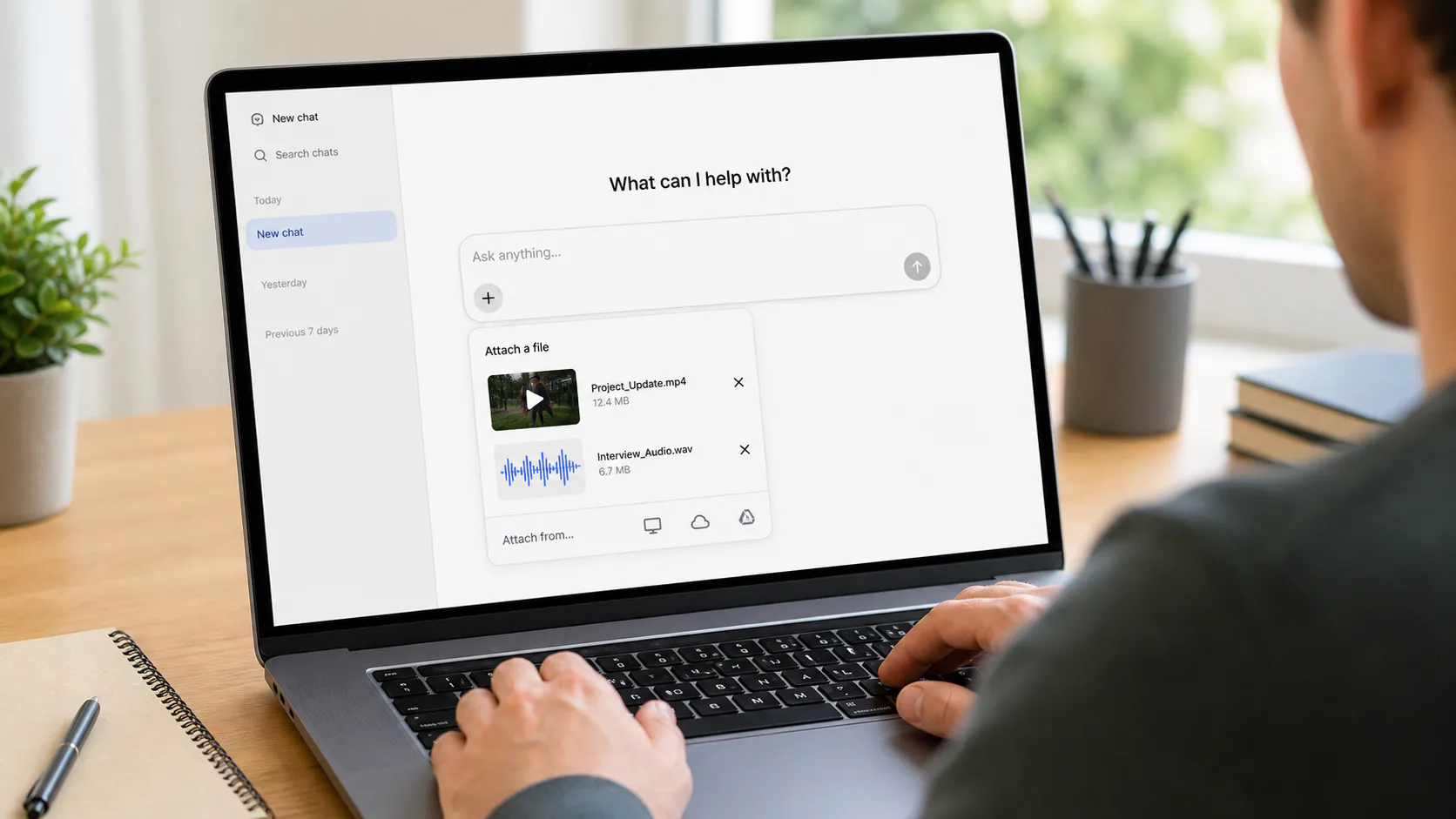
For media files, the visible attachment option does not guarantee the format is supported. A video that attaches without error may still be unreadable to the model beyond its filename. Quick sanity check after any media upload: ask “What can you actually access from this file: the audio, the visuals, or only the metadata?” The answer tells you whether to continue or switch to the transcript workflow below.
Method 2: Live video in a Voice conversation
Best for: getting help with something in front of you right now.
- Open the mobile app and start a Voice conversation.
- Tap the camera button.
- Point your phone at the object, screen, or problem and ask your question.
- Tap the camera button again when you are done.
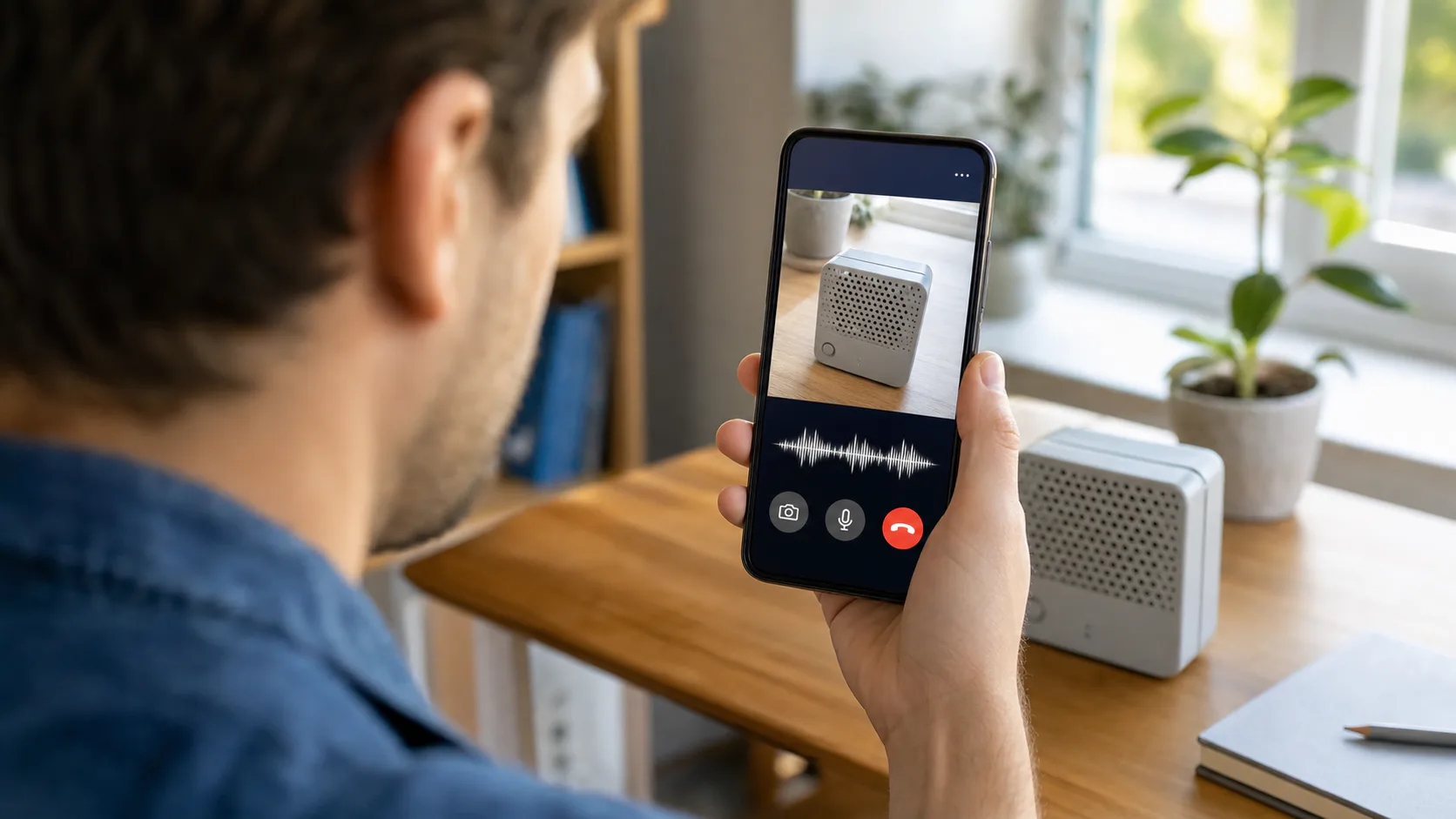
This is real-time help, not file analysis. It cannot watch your saved recording from last week.
Method 3: Screen sharing in Voice
Best for: help with an app, webpage, or settings screen on your phone.
- Start a Voice conversation on mobile.
- Choose Share Screen.
- Open the page you need help with and explain the problem.
- Stop sharing as soon as you are finished.
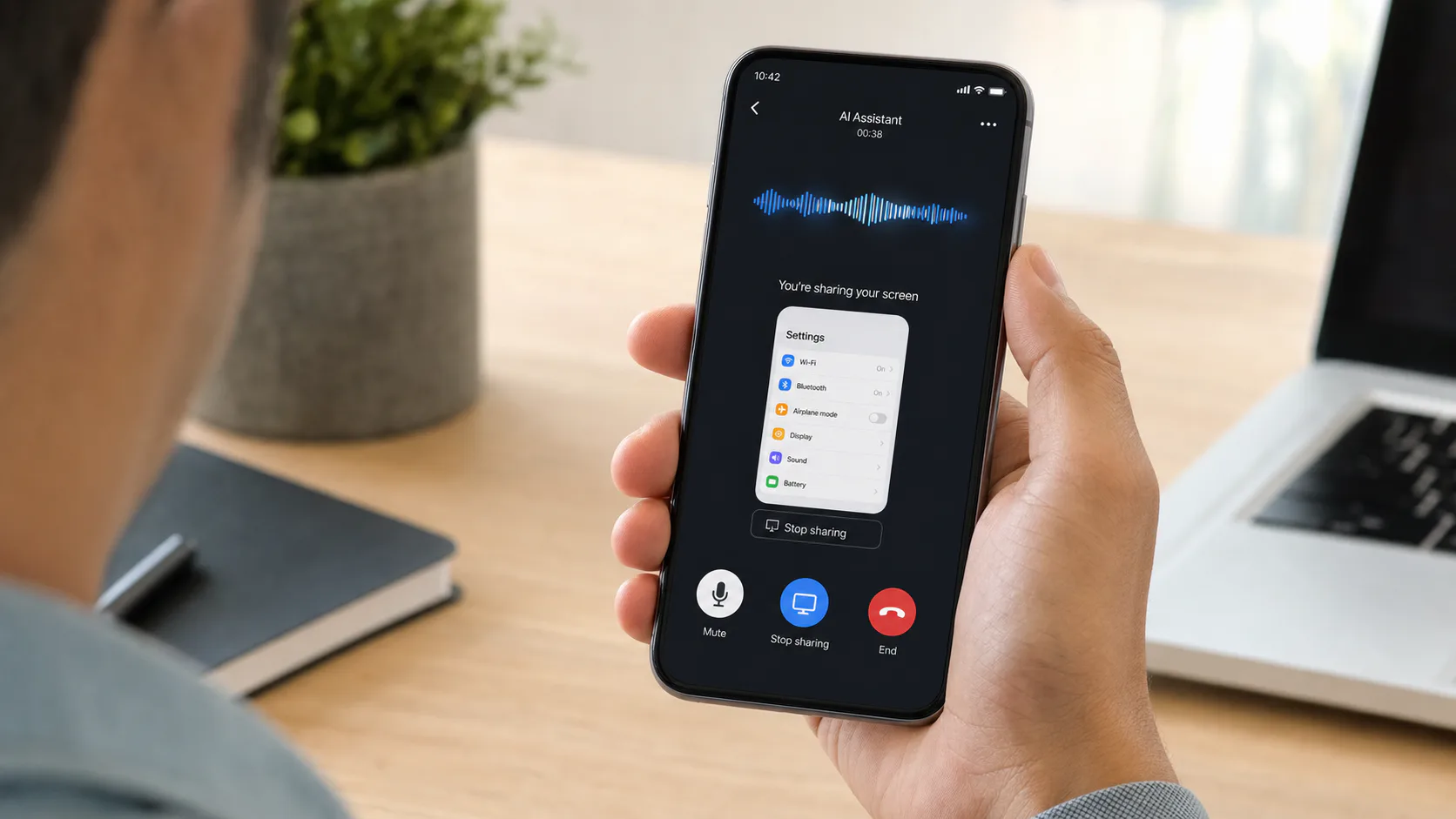
Before sharing, close passwords, private messages, client data, and anything else you do not want visible.
Method 4: ChatGPT Record
Best for: a meeting, brainstorm, or voice note happening now.
- Open the macOS desktop app and select Record.
- Start recording when the meeting begins.
- Stop recording when the session ends.
- Review the transcript, summary, and action items.
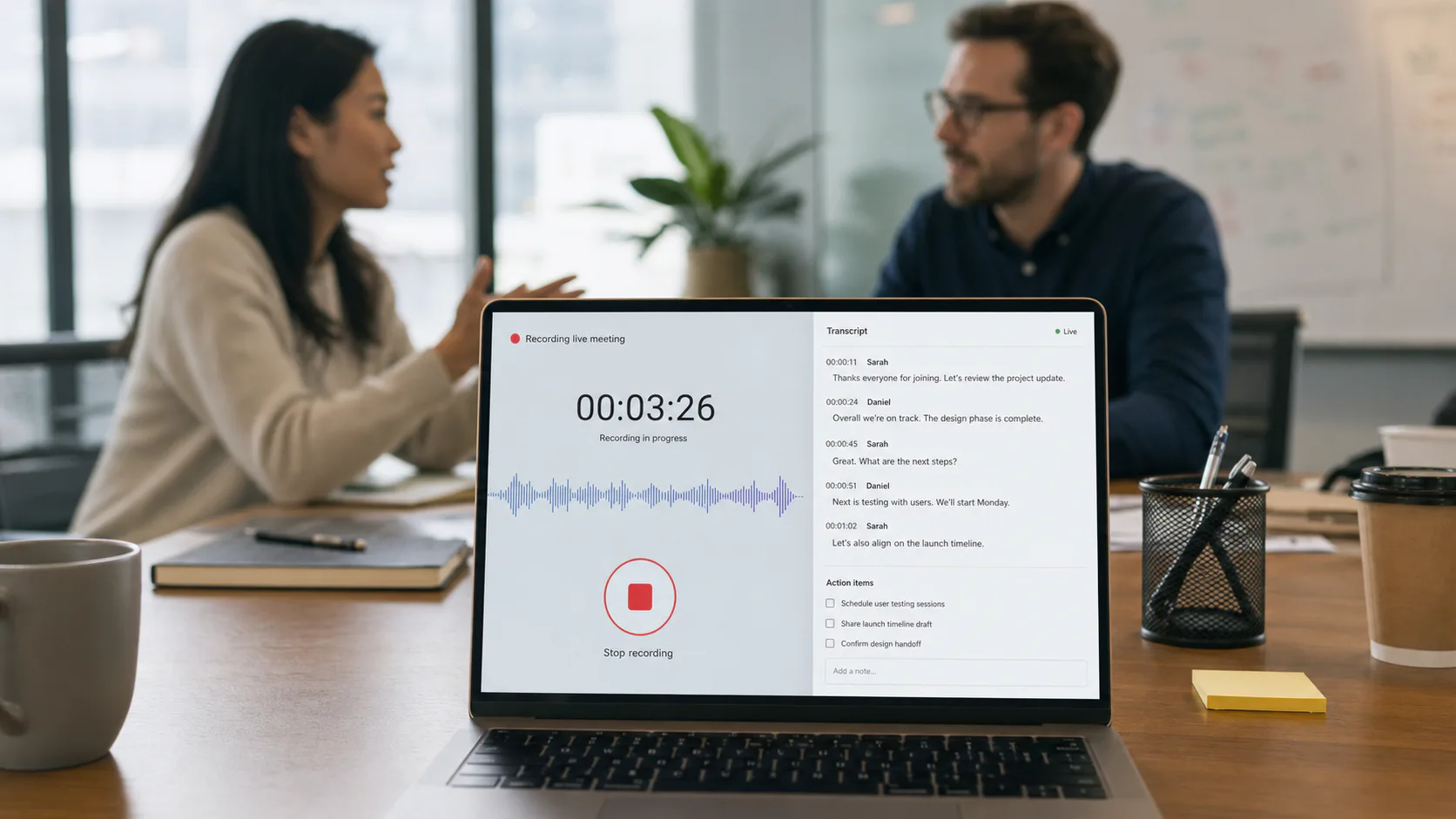
ChatGPT Record is available in the macOS desktop app for eligible paid plans and has a 4-hour session cap. It is not available in the browser, on Windows, or on mobile.
How to Upload a Video to ChatGPT on Desktop
If your account shows video as selectable, here is the clean path:
- Sign in and open a new chat.
- Click the plus (attachment) icon and choose the file source.
- Select the video and let the upload finish processing.
- Ask the sanity-check question: “Can you access the audio and visuals of this file, or only its metadata?”
- If the answer is yes, ask for what you actually want. If not, jump to the transcript workflow.
Prompts that earn their keep after a successful upload:
- “Create a chronological summary with timestamps at each topic change.”
- “List every decision made and who owns each action item.”
- “Turn this into structured meeting notes for someone who was not there.”
- “Separate confirmed facts from assumptions, and flag anything uncertain.”
When the video is not selectable at all: confirm the file shows up in your OS file picker, try another browser or update the app, and test a tiny clip before blaming the big one. If media is simply not accepted on your account, do not fight it. Extract the audio or convert the video to text and upload the transcript instead; the analysis quality is usually better anyway, because the model works from clean text rather than sampled media.
How to Upload a Video to ChatGPT From an iPhone
In the ChatGPT iOS app: open a chat, tap the plus button, choose Photos or Files, pick the saved video, wait for processing, then prompt. If you want live help instead of file analysis, start Voice and tap the camera; that shares what the camera sees right now, which is a different thing from uploading Saturday’s recording.
When an iPhone video will not upload, it is nearly always one of these:
- The ChatGPT app lacks Photos permission (Settings, then ChatGPT, then Photos, allow Full or Selected access).
- The video lives in iCloud and has not downloaded to the device. Open it in Photos once, fully, then retry.
- The file is too large or the format is not supported on your account.
- Storage is nearly full, or the app is outdated.
- You hit an upload or usage limit for the day.
How to Upload a Video to ChatGPT on Android
Same idea, Android flavor. Tap the plus button and pick from Gallery, Photos, or Files. If nothing happens, check media permissions under App info, clear the app cache, and watch for two Android-specific gotchas: files sitting on an SD card sometimes fail where internal-storage copies work, and battery or data-saver settings can kill a large upload mid-transfer. For big files, switch to Wi-Fi and keep the app in the foreground until the upload completes. Live video through Voice works the same as on iOS where your account is eligible.
How to Upload Audio to ChatGPT
Audio has the same asterisk as video: audio files are not on OpenAI’s documented supported-types list, some accounts accept them anyway, and behavior varies. Attach the file if your interface allows it, run the same “what can you access” check, and have the fallback ready.
Keep these five things distinct, because they behave differently:
- A Voice conversation: you talk, it talks back. Nothing is uploaded.
- ChatGPT Record: live transcription of a meeting happening now, macOS only.
- An uploaded audio file: account-dependent, test it.
- Device dictation: your keyboard converting speech to text in the prompt box.
- A pasted transcript: always works, on every plan.
Can ChatGPT Watch and Understand a Video?
“Watching” bundles several skills: hearing the speech, reading on-screen text, describing scenes, tracking events over time, and reasoning about all of it. Even when a video is accepted, coverage is uneven. Long videos may be sampled rather than fully processed, small text and fast motion get missed, and quality drops with poor audio.
So treat the output as a fast first pass, not a witness statement. For anything with stakes (legal evidence, medical content, exact quotes, precise timestamps, who-said-what in a dispute), verify against the original recording yourself. The model will happily produce a confident summary of the parts it caught and stay silent about the parts it did not.
Need a tool that actually watches the video?
ScreenAppWhen ChatGPT rejects the file or only catches fragments, this is the job ScreenApp was built for (yes, we make it, so test the free tier and judge for yourself). Upload the video or paste a YouTube URL and it processes the whole thing, audio and visuals together:
- -Full transcription of any video or audio file (MP4, MOV, MP3, WAV, M4A), with timestamps
- -Scene and object detection that identifies what appears on screen, not just what is said
- -Ask questions about the video and get answers with a timestamp on every claim, so you can verify each one
Can ChatGPT Transcribe a Video or Audio File?
Yes, when it can actually access the audio, via a supported upload on your account, via Record capturing the meeting live, or via you feeding it a transcript to clean up. There is a fourth route that skips the upload entirely: transcribe in a tool that does it properly, then let ChatGPT read the result through a connector. ScreenApp’s ChatGPT MCP connector does that, and nothing leaves your library as a file. A transcription request can return a verbatim transcript, speaker labels, timestamps, chapters, a summary, action items, or a translation.
The prompt that gets the most reliable results:
Copy-paste transcription prompt
PromptTranscribe this recording faithfully. Add speaker labels where reasonably identifiable, include timestamps at each topic change, and mark uncertain words with [unclear]. Do not invent missing dialogue. After the transcript, provide a short summary and a list of action items.
The “do not invent missing dialogue” line matters. Language models fill gaps by default, and a plausible-sounding invented sentence in a meeting transcript is worse than a marked [unclear]. Ask for the raw transcript first, verify names and technical terms, then generate the cleaned version and summary from the verified text. If the raw transcript arrives as one block, a transcript formatter splits it into speaker turns and paragraphs first.
Formats and Upload Limits
What OpenAI actually documents, versus what gets repeated in tutorials:
- Per-file cap: 512 MB, per the official File Uploads FAQ. That ceiling applies to supported upload types; it is not a promise that a 500 MB MP4 will process.
- Text and documents: capped at 2 million tokens per file.
- Images: 20 MB each. Spreadsheets: roughly 50 MB.
- Upload frequency: up to 80 files per 3 hours on paid plans, with much tighter caps on the free tier.
- Supported types: documents, spreadsheets, presentations, text, images. Video and audio are absent from the documented list.
If your file is rejected, the fastest diagnostic is a 10-second test clip in the same format. Small file works: your problem is size. Small file also rejected: your problem is format or account, and no amount of compression will fix it.
Last verified: July 17, 2026, against the OpenAI Help Center. These numbers change; check the linked pages before relying on them for anything important.
Can You Upload Videos to ChatGPT for Free?
Free accounts do get file uploads, with stricter daily caps than paid plans (commonly reported at a few files per day, and OpenAI does not publish a stable exact number). The free tier’s constraint is the same as everyone’s, plus tighter limits: media formats are account-dependent, and Voice with video and Record have their own eligibility rules that paying does not automatically unlock either.
The practical free-plan path for a recording of any length: convert it to a transcript (free elsewhere), then upload or paste that text. A transcript of a two-hour meeting is a modest text file, sails under every limit, and works on every plan.
ChatGPT Video Upload Failed: Causes and Fixes
Roughly in order of frequency:
The file type is not supported. No error message says this cleanly; the file is greyed out, silently dropped, or uploads and then cannot be analyzed. Fix: test a tiny file of the same format. If it fails too, stop converting resolutions and switch to the transcript workflow, because the format is the problem.
The file is too large. Compress a copy, cut silence, split by chapter, or extract the audio track if the visuals do not matter (a 1 GB screen recording is often a 40 MB audio file).
The upload stalls at zero or never finishes processing. Connection or service issues. Switch networks, keep the app in the foreground, disable browser extensions or try incognito, and check OpenAI’s status page before spending an hour debugging your own setup during an outage.
It uploads but the analysis is nonsense. The model may only see metadata. Run the “what can you access” check, then provide the transcript plus a few key screenshots instead; that combination usually beats a half-readable media file.
You hit a limit. Wait for the reset, and stop retrying the same failing upload, since failed attempts can burn quota. Test small first next time.
Why Can’t I Upload Videos to ChatGPT on iPhone?
| Symptom | Likely cause | Fix |
|---|---|---|
| Video missing from picker | Photos permission | Settings, ChatGPT, allow Photos access |
| File greyed out | Unsupported type on your account | Use the transcript workflow |
| Upload starts then dies | Connection or file size | Wi-Fi, smaller copy, foreground app |
| Video will not attach at all | Stored in iCloud only | Play it fully in Photos first, then retry |
| No camera button in Voice | Eligibility or old app | Update the app, verify feature access |
| App closes mid-upload | Low storage | Free space, restart, update iOS |
File Upload vs Live Video vs Record: Which One Fits?
| Method | Best for | Main strength | Main limitation |
|---|---|---|---|
| File attachment | Existing documents, transcripts | Repeatable analysis | Media support varies |
| Live video in Voice | Real-time visual help | Immediate interaction | Mobile, eligibility, no saved files |
| Screen share | App and webpage troubleshooting | Sees your exact context | Privacy risk if careless |
| ChatGPT Record | Meetings happening now | Transcript plus summary | macOS only, paid, 4-hour cap |
| Transcript upload | Long or unsupported media | Works on every plan | Loses purely visual detail |
| Screenshots of key frames | Visual moments that matter | Images are well supported | No motion, no audio |
What to Do When Direct Video Upload Is Unavailable
This is the section to bookmark, because it works on every plan, every device, and every file format, and it is usually what I do first even on accounts where media uploads work.
The simple fallback is: recording → transcript → ChatGPT.
- Upload the video or audio to a transcription tool.
- Generate a timestamped transcript.
- Correct names and technical terms.
- Download the transcript as a text file.
- Attach that text file to ChatGPT and ask for a summary, decisions, or action items.
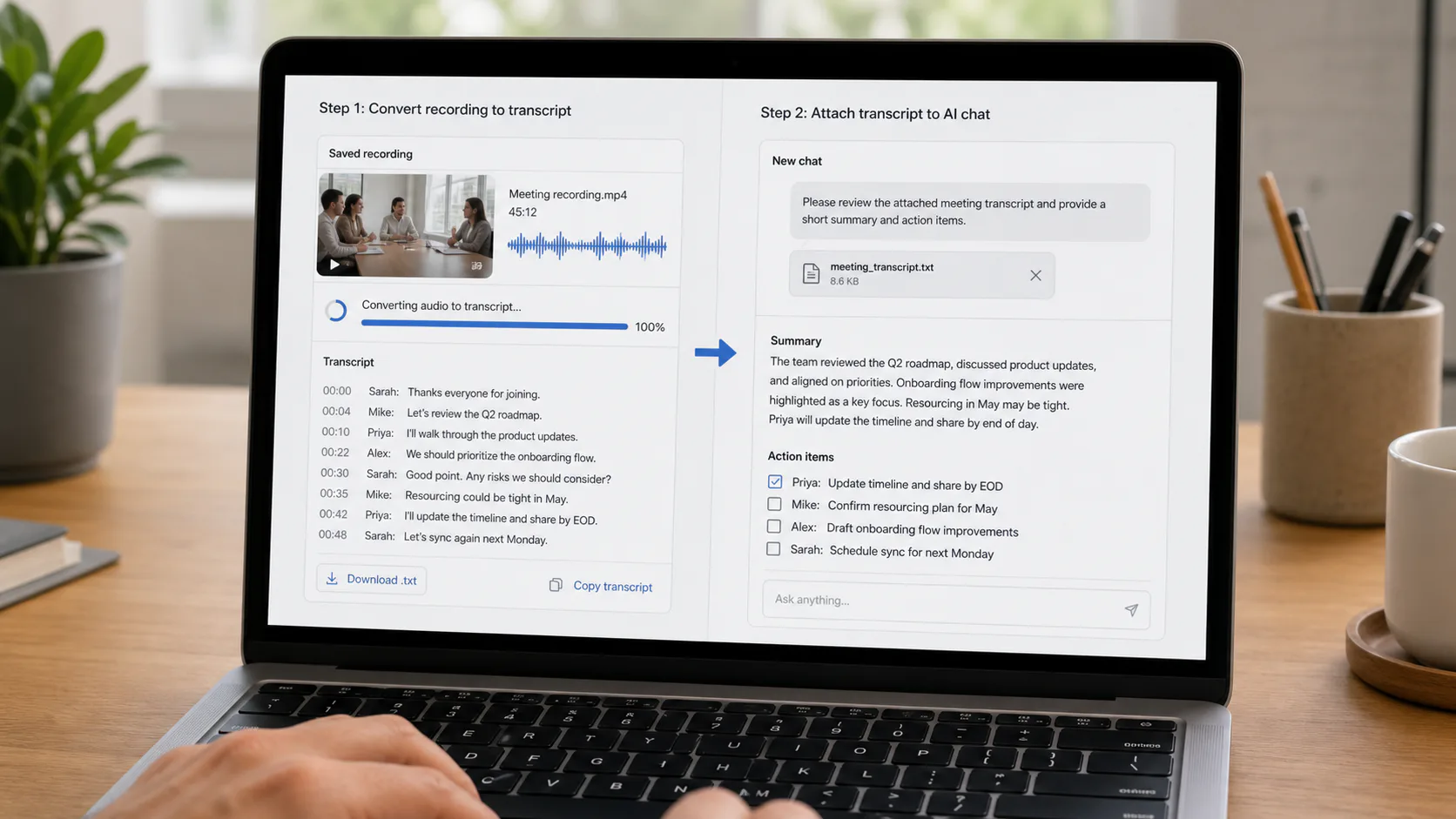
A video to text converter handles video; an audio to text converter handles podcasts, voice notes, and extracted audio. ScreenApp accepts MP4, MOV, MP3, WAV, and M4A and returns timestamps and an AI summary with the transcript.
Three variations depending on the recording:
- Visuals irrelevant (most meetings, lectures, podcasts): extract the audio, transcribe that. Smaller file, same information.
- Visuals essential (UI walkthroughs, demos): transcript plus screenshots of the key frames. ChatGPT handles images well, so this covers both channels.
- Very long recordings: split by chapter and process each with its own prompt. A two-hour recording summarized in one pass produces a shallower result than four half-hour chunks with specific questions.
The transcript route has a quiet advantage beyond compatibility: you can verify it. When ChatGPT summarizes from a media file, you cannot see what it actually heard. When it summarizes from a transcript you read first, the whole chain is checkable.
Privacy Before You Upload Anything
Quick but non-negotiable. Do not casually upload confidential client meetings, recordings with passwords or personal data audible, student information, medical content, or media you do not have rights to process. If people are in the recording, recording-consent laws differ by state and country, and workplace policies apply on top; being in the meeting is not the same as consenting to AI transcription of it.
Before uploading, trim the irrelevant confidential sections, replace real names with labels where they do not matter, and share the minimum that answers your question. On business plans, retention behavior differs by workspace policy; for Record specifically, OpenAI states the audio is deleted after transcription while the transcript follows workspace retention rules. Check your own plan’s data controls rather than assuming any of this generalizes.
FAQ
Can I upload a video to ChatGPT?
Sometimes. Video files are not on OpenAI's documented supported-upload list, but some accounts accept them anyway. Test your own attachment menu with a short clip. If it is rejected or the analysis fails, convert the video to a transcript and upload that; the text route works on every plan.
Can I upload audio to ChatGPT?
Same answer as video: account-dependent, not officially documented as a standard upload type. The reliable alternatives are ChatGPT Record for live audio (macOS, paid plans) or transcribing the file elsewhere and uploading the text.
Can ChatGPT watch videos you upload?
Partially, when the upload works at all. It can catch speech, some on-screen text, and scene descriptions, but long videos may be sampled rather than fully watched, and small text and fast motion get missed. Verify anything important against the original recording.
Can I upload a video to ChatGPT and get a transcript?
When your account accepts the file, yes: ask for a faithful transcript with timestamps and uncertain words marked. When it does not, generate the transcript with a dedicated tool first and have ChatGPT clean, summarize, or translate it. That second path is more accurate for long recordings anyway.
How do I upload a video to ChatGPT from my iPhone?
Open a chat, tap the plus button, choose Photos or Files, and pick the video. If it fails: check Photos permission in Settings, make sure the video is downloaded from iCloud (play it once fully), and try a smaller clip. The camera button in Voice is for live video, not saved files.
Can you upload videos to ChatGPT for free?
Free accounts have file uploads with much stricter daily caps, and media formats carry the same account-dependent asterisk as paid plans. The free-tier workaround that always works: transcribe the recording free elsewhere and upload the transcript, which is a small text file.
What is the maximum upload size for ChatGPT?
512 MB per file, per OpenAI's File Uploads FAQ, with tighter caps inside that: 2 million tokens for text files, 20 MB for images, roughly 50 MB for spreadsheets. The 512 MB ceiling applies to supported file types; it does not guarantee any video that size will process.
Why does my ChatGPT video upload keep failing?
Most failures are format (not supported on your account), size, or connection. Diagnose with a 10-second clip in the same format: if the small clip fails too, it is format or account and compression will not help; if it works, split or shrink the big file. Check OpenAI's status page during odd failures.
Can ChatGPT summarize a two-hour video?
Not well in one pass, even when the upload succeeds. Long media hits duration and sampling limits, and single-pass summaries go shallow. Split the recording by chapter, or transcribe it and summarize the transcript section by section, then merge.
Is ChatGPT Record the same as uploading an audio file?
No, and mixing them up causes most of the confusion on this topic. Record transcribes live audio as it happens, on the macOS desktop app for paid plans, capped at 4 hours per session. It cannot open an existing MP3. For a saved file, you need a supported upload or an external transcription step.
Does ChatGPT keep uploaded audio or video?
It depends on plan and settings. For Record, OpenAI states audio is deleted after transcription and the transcript follows your workspace retention policy. For general uploads, files persist with your chats and storage. Review your own data controls, and do not upload sensitive recordings on assumptions.
Can ChatGPT identify different speakers?
Weakly. Record and transcription output can attempt speaker labels, but multi-person meetings often blur into one voice, and cross-talk makes it worse. If who-said-what matters, use a transcription tool with dedicated speaker separation and verify the labels yourself before quoting anyone. Need to work with a long recording today? Convert it to a searchable transcript first with a video to text converter, then let ChatGPT summarize it, pull decisions, or turn it into content.