
What this does
ChatGPT cannot open your video files. ScreenApp runs an MCP server, so ChatGPT can read the text ScreenApp already produced from them: transcripts, summaries and metadata. You ask a question, ChatGPT fetches what it needs.
The server is hosted by ScreenApp, so there is nothing to install or run on your machine, and it works on every plan, including Free.
ScreenApp’s server implements the search and fetch tools ChatGPT connectors expect, so ChatGPT can find a recording and then pull the transcript behind it in one turn.
Setup
You need a ChatGPT plan that allows custom connectors, and developer mode turned on.
- In ScreenApp, go to Settings, then API, and copy the MCP server URL:
https://screenapp.io/app/api/mcp - In ChatGPT, open Settings, then Plugins, and click the plus button.
- Name it ScreenApp, paste the server URL, and set Authentication to OAuth. Leave the client ID and client secret empty.
- Confirm the warning about custom servers, then click Connect and sign in to ScreenApp.
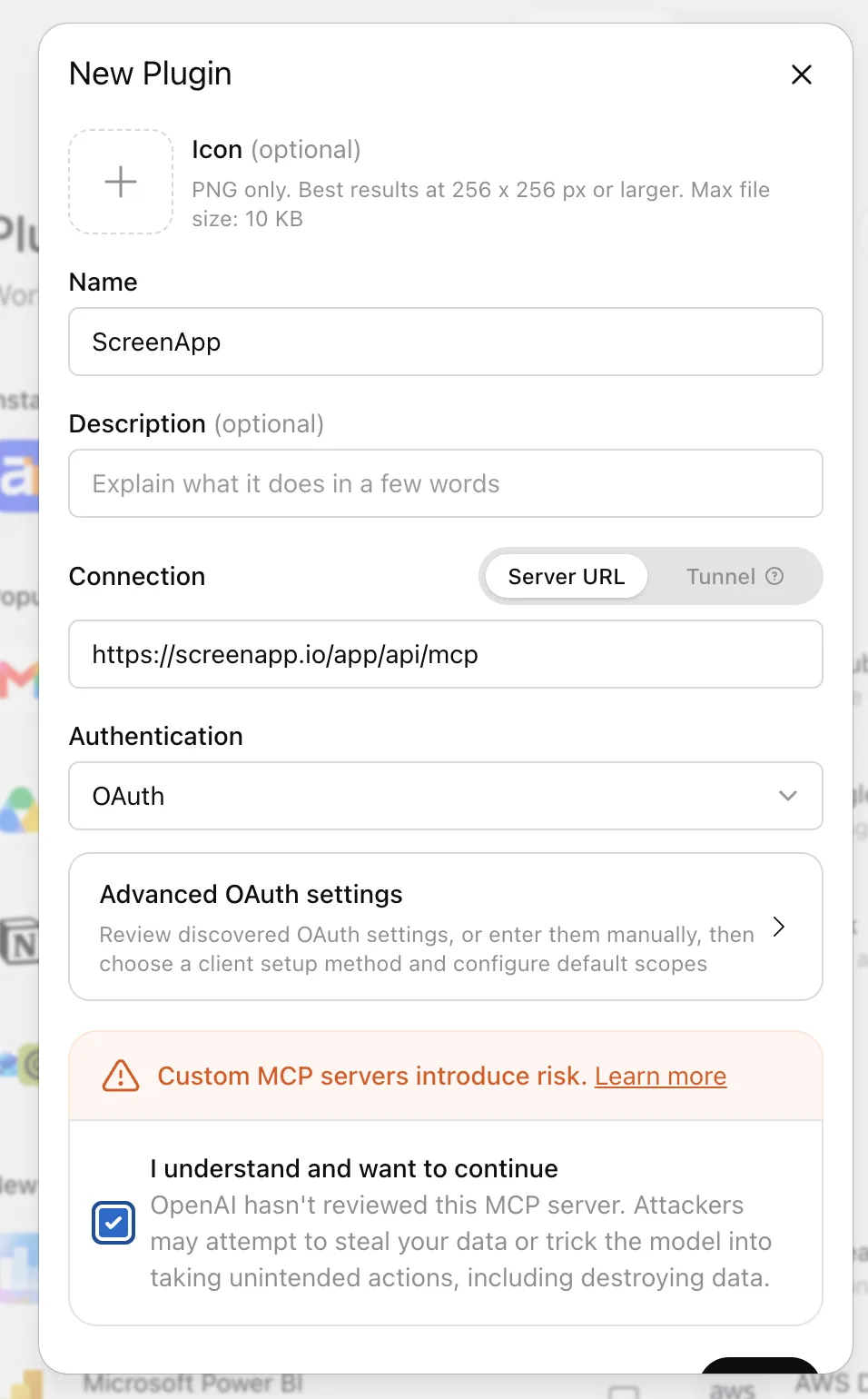
There is no API key to generate. Access uses OAuth sign-in, with no API key, client ID or client secret to enter. We connected ChatGPT to ScreenApp this way on 18 September 2026, in ScreenApp v0.3.0, and the screenshot above is from that session. The step by step version with screenshots covers both ChatGPT and Claude.
What ChatGPT can do once connected
The server exposes ten tools: get_profile, list_teams, list_recordings, list_folders, get_recording, get_transcript, get_summary, search, fetch and get_usage.
- Run full text search across recording titles, speaker names and whole transcripts in one space, then fetch the transcript behind a result
- Answer questions about a specific recording
- List recordings and folders, and filter by team
- Read the summary and chapters ScreenApp generated
- Report your plan usage
ChatGPT reaches your personal space and every team you belong to.
What it cannot do
Access is read only. ChatGPT cannot start or stop a recording, upload a file, edit a transcript, rename, share or delete anything.
only text leaves ScreenApp: the assistant reads transcripts and summaries, not the video or audio itself. Frame reading happens in ScreenApp, where AI reads video frames, not just the audio, and what reaches ChatGPT is the resulting text.
Connecting costs no AI credits against your plan, because nothing on the ScreenApp side calls a language model.
If you would rather build your own
ScreenApp has API keys and a public REST API. If you want an MCP server with your own set of tools, you can write one against the API. There is a worked example in connecting ScreenApp to OpenClaw agents via MCP.
Frequently asked questions
Which ChatGPT plans can add a connector?
Custom connectors are a paid ChatGPT feature and the setting sits behind developer mode. If you cannot see Plugins in Settings, your plan does not allow it yet. Check the current list on OpenAI’s own documentation.
Do I have to upload my recordings to ChatGPT?
No. ChatGPT reads from ScreenApp over the connector. Nothing is uploaded.
Does this cost extra on the ScreenApp side?
No. MCP is on every plan, including Free, and it spends no AI credits. You still need transcription credit to create a transcript in the first place.
How do I revoke access?
Disconnect in Settings, then API, and access stops on the next request. Removing the plugin in ChatGPT also stops it being used, but the ScreenApp side is the one that deletes the tokens.