
ScreenApp runs an MCP server, so an assistant that supports the Model Context Protocol can search your library and read the transcripts and summaries ScreenApp already made. The connector is hosted by ScreenApp, so there is nothing to install or run on your machine, and it is available on every plan, including Free.
We connected it to both on 18 September 2026, in ScreenApp v0.3.0, using Claude and ChatGPT on the web. The screenshots below are from that session. Any other client that supports a remote MCP server over HTTP with OAuth uses the same URL.
Before you start
- You need a ScreenApp account and at least one transcribed recording to test with.
- You need a client that allows custom connectors. In Claude that is Settings, then Connectors. In ChatGPT that is Settings, then Plugins, with developer mode on.
- You do not need an API key. Access uses OAuth sign-in, with no API key, client ID or client secret to enter.
Step 1: copy your server URL
Open ScreenApp, click your avatar, and choose Settings.
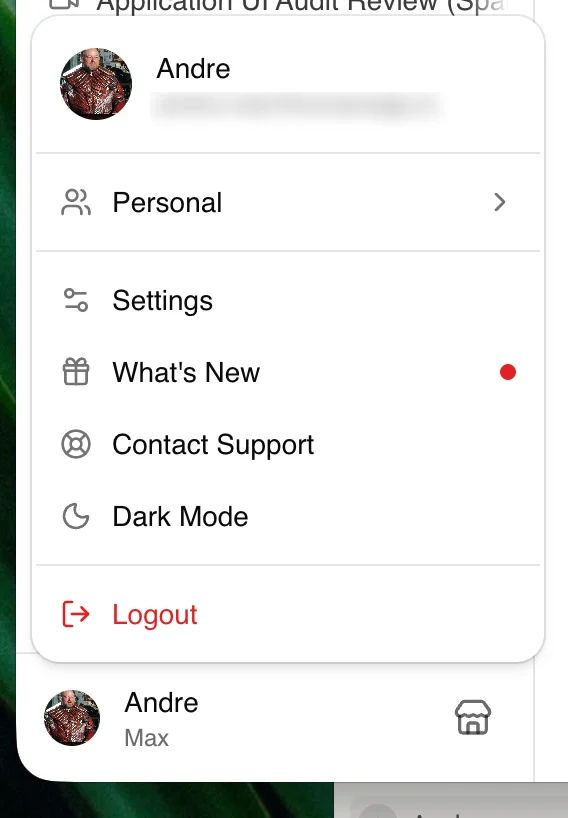
Go to Settings, then API. The section is called “AI assistants (MCP)”. Copy the MCP server URL:
https://screenapp.io/app/api/mcp
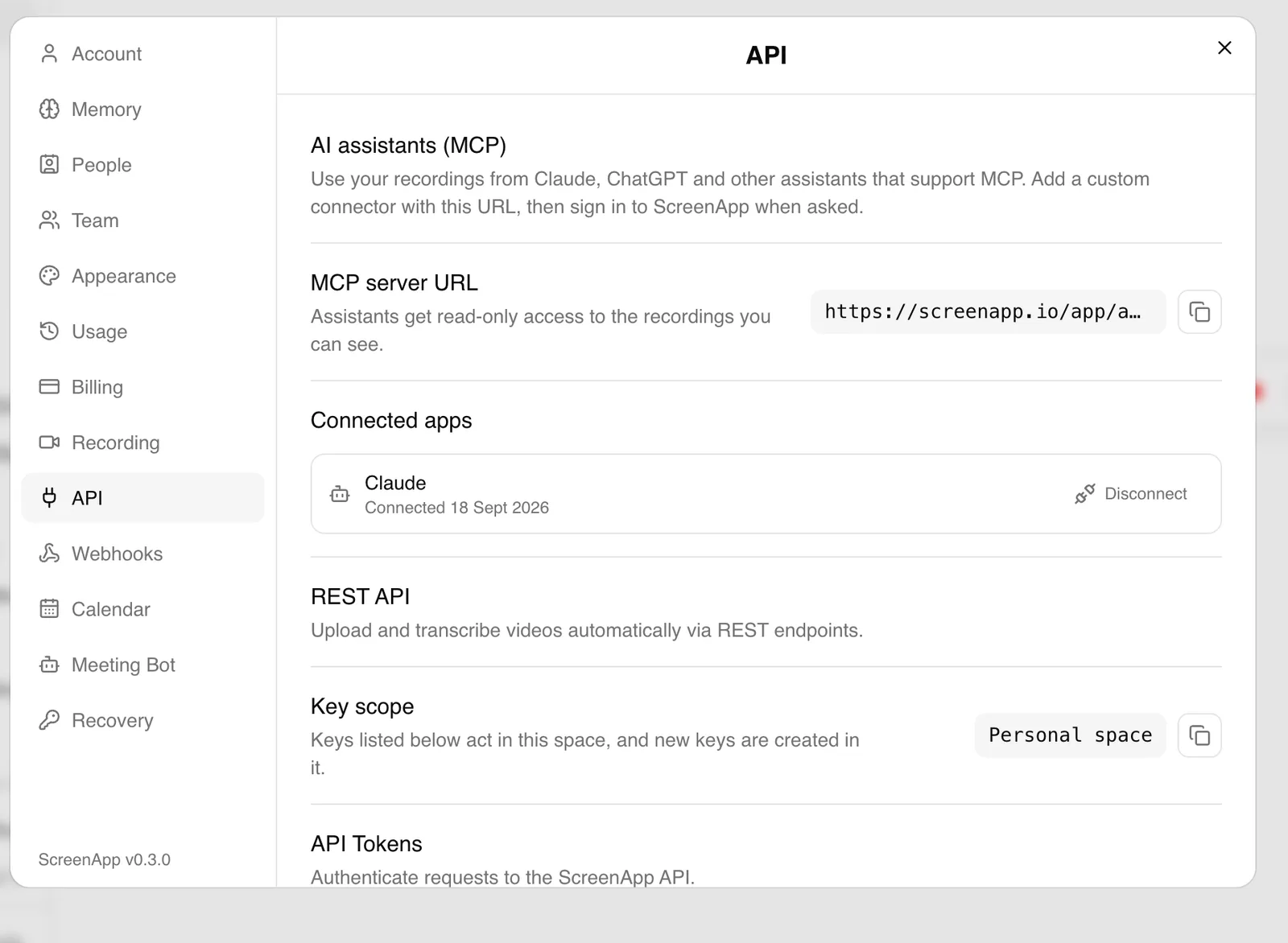
The same screen lists every assistant you have connected, with the date it was connected and a Disconnect button.
Step 2a: add it to Claude
- In Claude, open Settings, then Connectors.
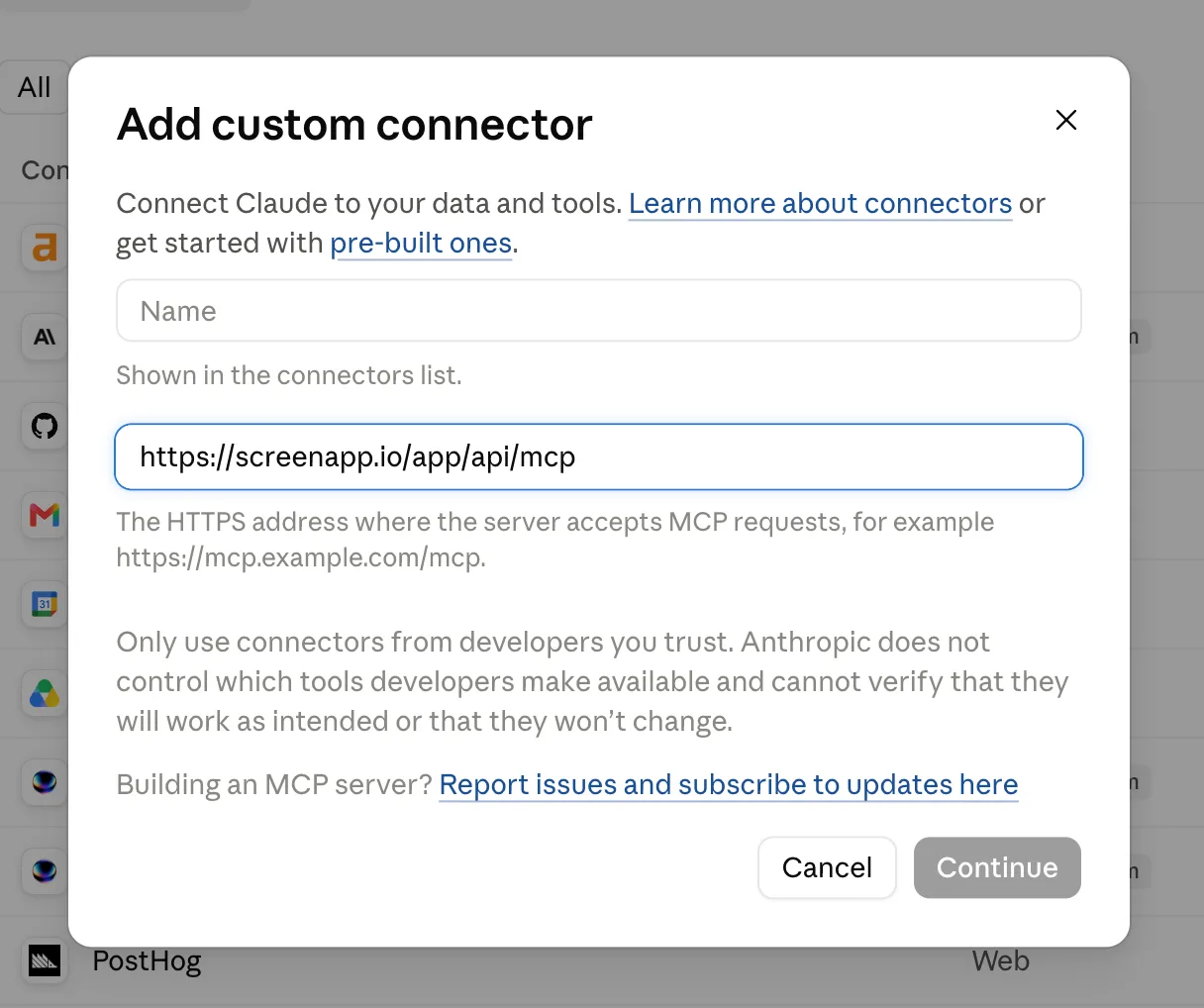
- Click Add, then Add custom connector.
- Name it ScreenApp and paste the server URL. Leave the client ID and client secret empty.
- Click Continue. Claude opens ScreenApp in a new tab. Sign in and approve the connection.
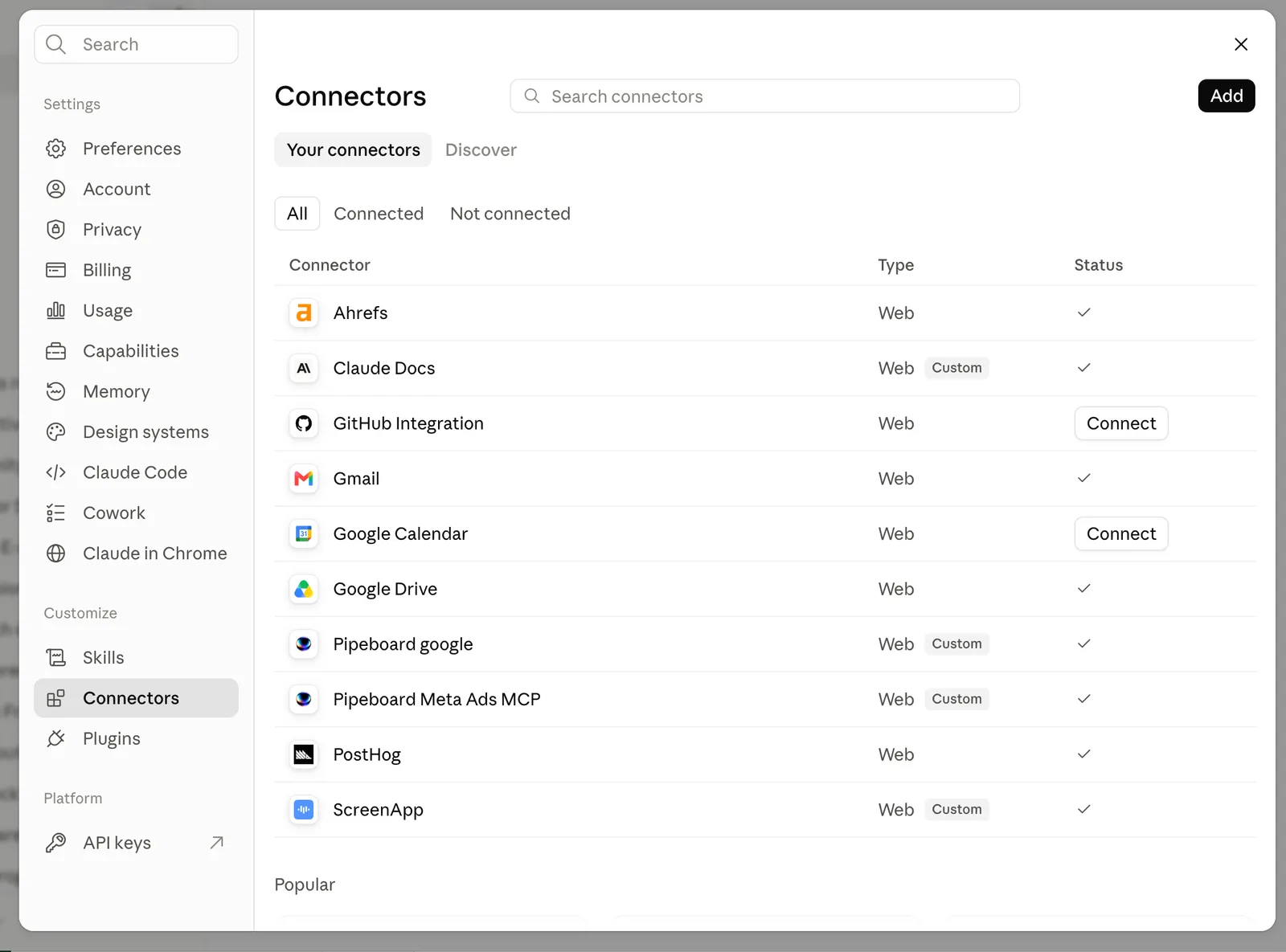
ScreenApp then shows up in your connector list.
Step 2b: add it to ChatGPT
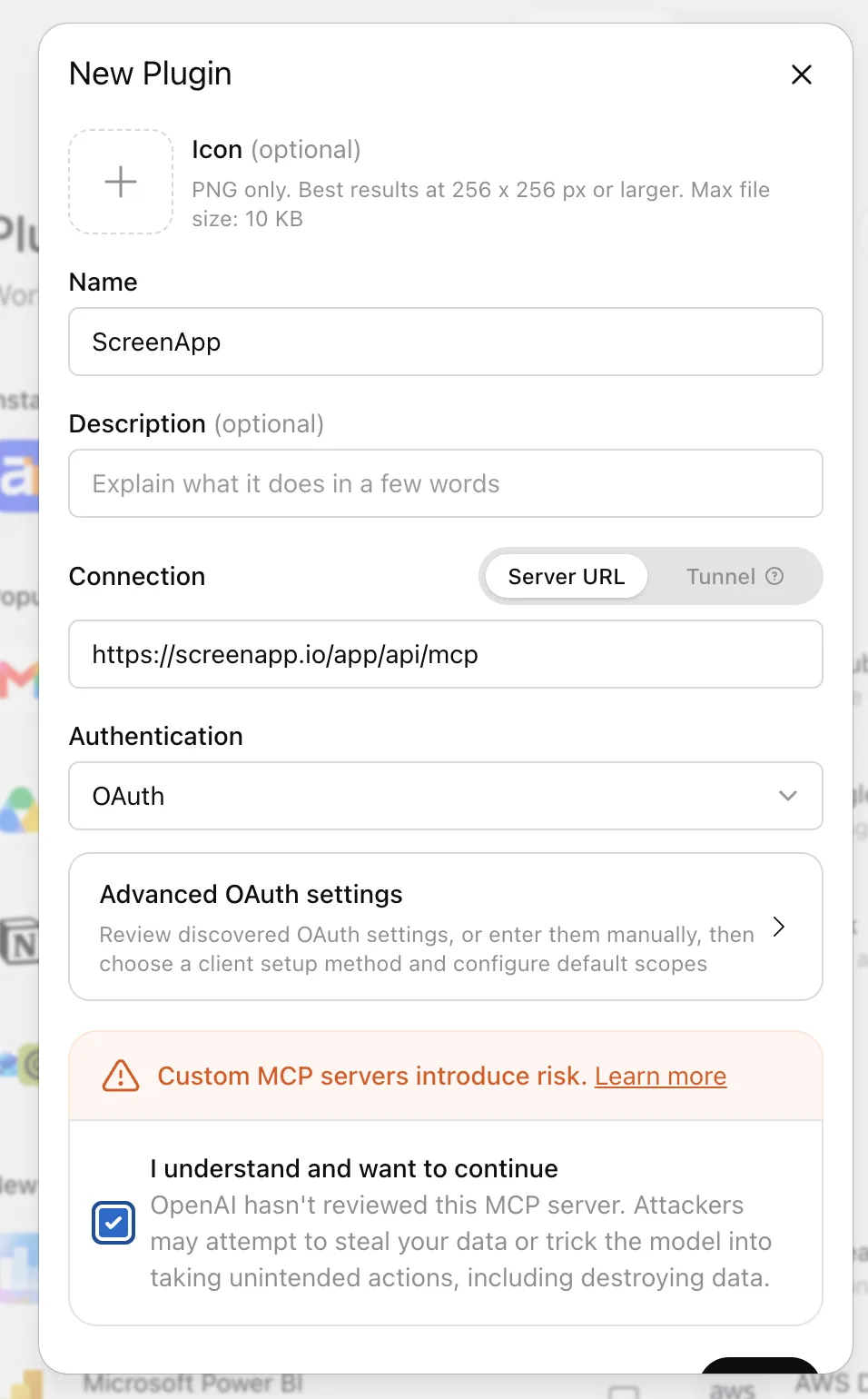
- In ChatGPT, open Settings, then Plugins.
- Click the plus button to create a new plugin.
- Set the name to ScreenApp, paste the server URL under Server URL, and set Authentication to OAuth. Leave the client ID and client secret empty.
- Tick the box to confirm you understand the risk of a custom server, then create it.
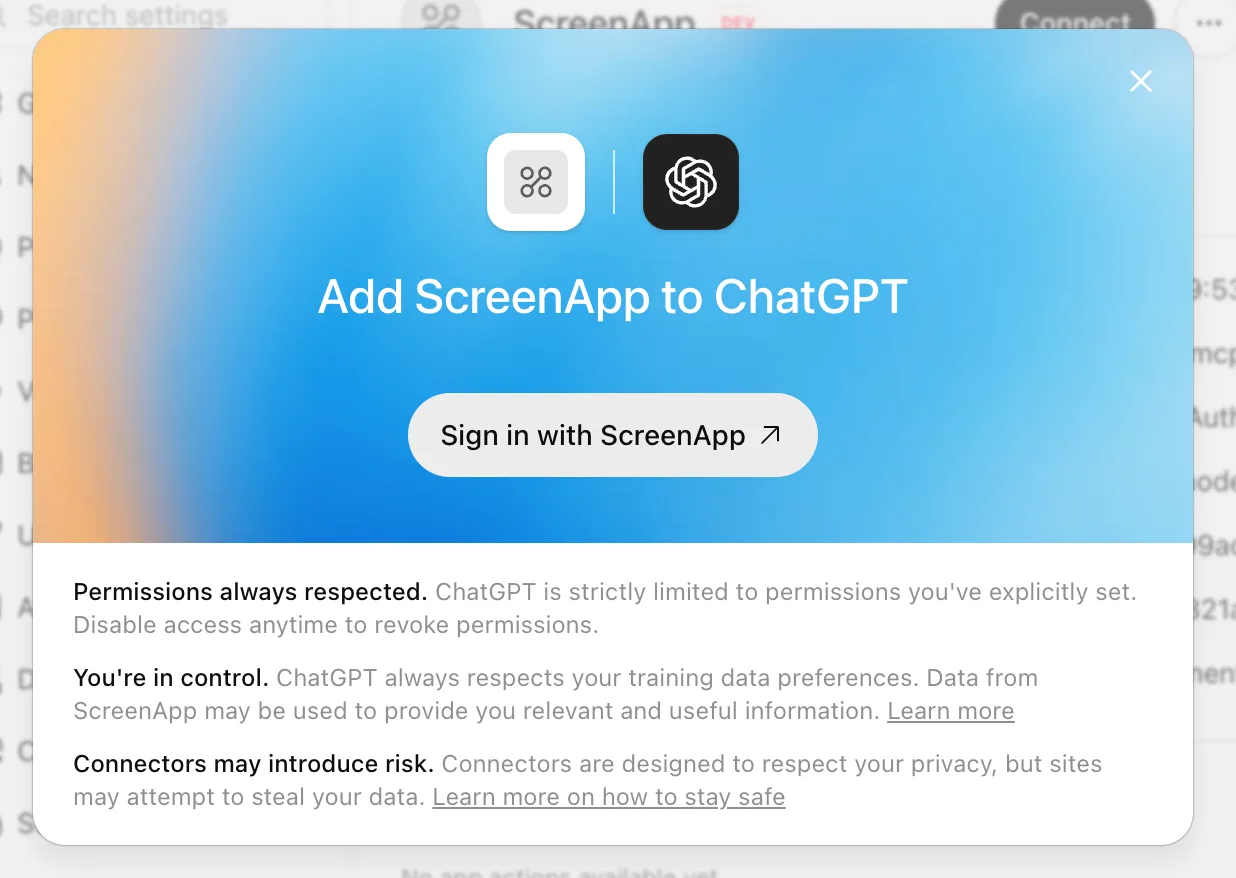
- Click Connect, then Sign in with ScreenApp.
Step 3: approve the access you are granting
ScreenApp shows a consent screen before anything connects. It asks to read your recordings, transcripts and summaries in your personal space and your teams, plus your name, email address and profile picture.
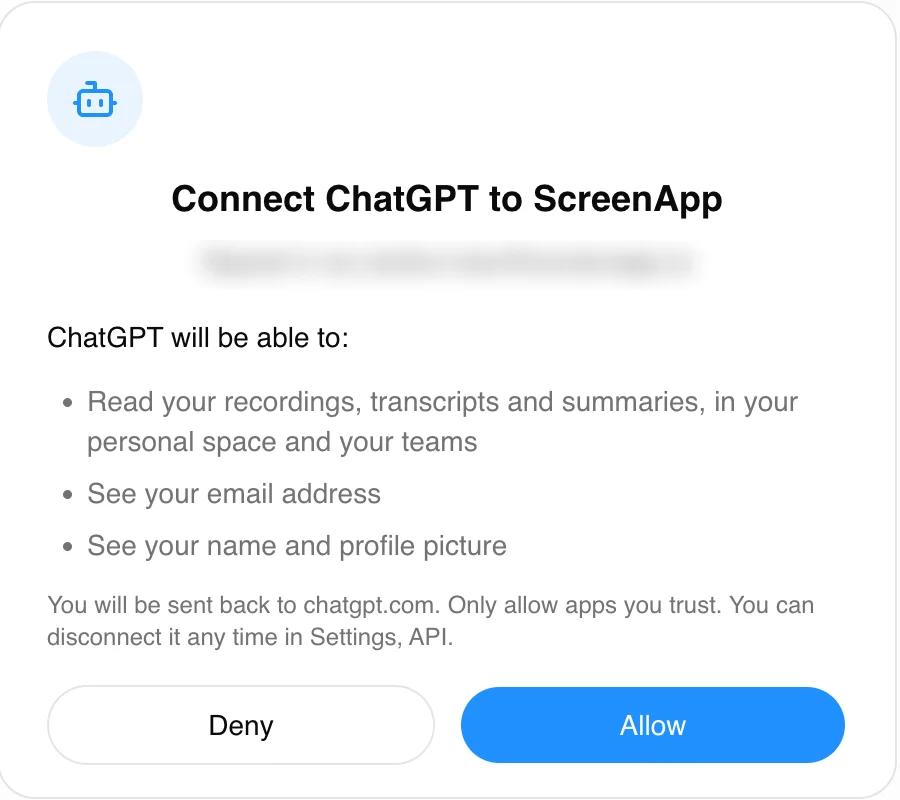
Click Allow and you are sent back to the assistant.
Step 4: check it works
Ask the assistant something it can only answer by reading your library, such as “list my five most recent ScreenApp recordings” or “search my recordings for the pricing objection and quote the line”.
If it answers with real titles, the connection is live.
What the assistant can do
The server exposes ten tools and the assistant chooses between them:
get_profile, list_teams, list_recordings, list_folders, get_recording, get_transcript, get_summary, search, fetch and get_usage
In practice that means it can run full text search across recording titles, speaker names and whole transcripts in one space, read a full transcript or a summary, list your recordings and folders, and check your plan usage. It reaches your personal space and every team you belong to.
What it cannot do
Access is read only. The assistant cannot start or stop a recording, upload a file, edit a transcript, rename, share or delete anything.
only text leaves ScreenApp: the assistant reads transcripts and summaries, not the video or audio itself. Frame reading and audio analysis happen inside ScreenApp, and MCP returns the text.
Using MCP costs no AI credits, because no tool on the ScreenApp side calls a language model.
Disconnect
Disconnect in Settings, then API, and access stops on the next request. You can also remove the connector in the assistant. Doing it in ScreenApp is the one that cuts access, because it deletes the consent and the tokens.
Troubleshooting
The client says it cannot reach the server. Check the URL has no trailing slash and no extra path. It is exactly https://screenapp.io/app/api/mcp.
It asks for a client ID and secret. Leave both empty. ScreenApp registers the client automatically.
The assistant finds no recordings. Confirm you signed in with the account that owns them. If the recordings are in a team, ask the assistant to list your teams first, then search that team.
A recording has no transcript. MCP reads transcripts that already exist. Transcribe the recording in ScreenApp first.
You want write access. There is none, by design. Record, upload and edit in ScreenApp or through the API.
Reference
- The protocol: Model Context Protocol and its specification
- Claude: about custom connectors
- ChatGPT: OpenAI’s MCP documentation
ScreenApp’s server is a remote MCP server using streamable HTTP, and it authenticates with OAuth 2.1 and dynamic client registration, which is why no client ID or secret is needed.