Can Cursor Create Videos? What It Can and Cannot Do

On this page
Cursor cannot generate, edit, or export a video by itself. It is an AI coding editor: it writes code, runs terminal commands, and connects to external tools, and none of those built-in abilities produce a video file directly. What it can do is control tools that make videos, by writing Remotion code, running FFmpeg commands, or calling video services through MCP.
That distinction decides everything else in this article. When someone says “Cursor made this video,” what actually happened is Cursor wrote code or issued commands, and Remotion, FFmpeg, or a video API did the rendering. The difference matters because it tells you what you need beyond Cursor itself, and whether you should be using Cursor for this at all.
| Task | Cursor alone | Cursor + external tools |
|---|---|---|
| Generate a video from a text prompt | No | Yes, via a video API |
| Create an MP4 with code | No | Yes, via Remotion or FFmpeg |
| Edit a video on a visual timeline | No | No, that needs a video editor |
| Build a video-generation app | Yes | Yes |
| Turn a long video into short clips | No | Yes, via the OpusClip MCP |
| Automate repetitive video production | Scripts only | Yes, end to end |
What Cursor is actually designed to do
Cursor is a fork of VS Code with an AI agent built in. Its three abilities that matter for video work:
It writes and edits code across a project, which means it can build a Remotion composition, a video-processing script, or an entire video app if you ask it to.
It runs terminal commands, so it can install FFmpeg, execute a render, and check whether the output file actually appeared. This is the piece people underestimate. The agent runs the command itself, then reads the error when it fails.
And it connects to external services through MCP servers, which is how tools Cursor was never built for, including video clipping services, become callable from inside the editor.
Notice what is missing: a timeline, a preview player, an export button. Cursor has none of those, and no amount of prompting adds them.
There is a second signal worth reading, and it is Cursor’s own. Cursor now runs an official plugin marketplace, launched since this guide first went up. Search it for video, FFmpeg, Remotion, render or media and you get nothing. The featured plugins are Google Drive, Gmail, Google Calendar, Slack, Notion and Granola, which tells you exactly which workflows Cursor expects you to extend into, and video is not one of them.
That is not a criticism. It is a scoping decision, and it is the reason every path below routes through something that is not Cursor.
Four ways to create videos with Cursor
1. Programmatic videos with Remotion
Remotion lets you build videos as React components: text, images, audio, and animations defined in code, previewed in Remotion Studio, and rendered to a real MP4. Cursor is genuinely good at this because it is a React coding task, which is exactly what it was built for. Describe the video, let Cursor write the composition, tweak, render.
The part the tutorials skip: Remotion is free for individuals and companies with up to 3 people. After that you need a paid company license, priced from $25 per seat monthly for internal use or $0.01 per render for automations with a $100 monthly minimum. Budget for that before pitching a Remotion pipeline to your team of five.
Best fit: branded templates, data-driven videos (one video per row of a spreadsheet), product demos where the content changes but the design does not.
2. Batch editing with FFmpeg
FFmpeg is the command-line tool that does the actual cutting, converting, compressing, and subtitle burning. Cursor's role is writing the commands, which is a real service, because FFmpeg's flag syntax is the kind of thing people have kept a cheat sheet for since 2010. Ask Cursor to "trim the first 12 seconds off every MP4 in this folder and compress them for email," and it writes and runs the script.
This path is free, fast, and entirely non-visual. You will not see the video while editing it, which is fine for mechanical operations and useless for creative ones.
3. Video MCP servers
OpusClip runs a hosted MCP server that connects to Cursor, currently in beta. Add it to your MCP config, sign in with OAuth on first use, and Cursor's agent can send a long video to OpusClip and get back short, captioned, reframed clips for TikTok, Reels, and Shorts. The config is one entry:
{ "mcpServers": { "opusclip": { "url": "https://mcp.opus.pro/mcp" } } }
This is the only path of the four where Cursor touches finished, edited video without you writing rendering code. The processing happens on OpusClip's side, on OpusClip's pricing, and the clip selection quality is theirs too, so review a grant of MCP access the same way you would review any tool that gets your content.
OpusClip was the obvious example when this was first written. It is no longer the only one, and the alternatives changed the shape of this path.
A set of purpose-built video MCP servers has appeared, and they wrap FFmpeg rather than a hosted service. The most developed is Kinocut, which describes itself as guardrailed video editing for AI agents: local-first FFmpeg tools, quality gates, Hyperframes, and Shorts and Reels repurposing. Its README badge currently advertises 201 MCP tools on the development build, it is Apache-2.0 and free, and it names Cursor alongside Claude Code as a supported client, so the same workflow transfers if you run Claude rather than Cursor. Worth knowing if you go looking: it was previously published as mcp-video, and that PyPI package is now just a compatibility installer pointing at the same project.
Others in the same space include video-audio-mcp for basic FFmpeg editing, and the Claude Code Video Toolkit, which bundles skills and MCP servers covering Remotion, Manim, screen recording, YouTube clipping and FFmpeg post-processing.
What this changes in practice: paths two and three have collapsed into each other. A video MCP server is FFmpeg, with the flags already wrapped in tool definitions and some guardrails around them, which removes most of the reason to have the agent write raw FFmpeg commands itself. If you were going to do path two, install one of these instead.
What it does not change: something still has to render, and that something is still FFmpeg or Remotion. The MCP layer makes the agent better at driving the renderer. It does not make Cursor a video tool.
4. Wiring up a video-generation API
Text-to-video models, AI avatar services, and cloud renderers all expose APIs, and Cursor can write the integration code for any of them. This is the "can Cursor generate a video from a prompt" answer: yes, if you bring an API account, an authentication key, usage credits, and the patience to build a small app around it. That is a development project, not a button.
If the app itself is the goal, you have crossed from video work into software product development, and this is the same territory we covered in our roundup of AI app builders; if you just want a finished video today, it is the slowest possible route, and the tools in our free AI video generators comparison get you there without writing anything.
A working Remotion setup, condensed
The full workflow, minus the padding you will find elsewhere:
Install Node.js, then run npx create-video@latest and open the project in Cursor.
Describe the video to the agent in concrete terms: duration, resolution, background, what animates, what the last frame says.
Preview in Remotion Studio and fix timing by prompting, not by hand. "The benefits list appears too early, delay it by a second" works.
Render with npx remotion render. The output is a standard MP4.
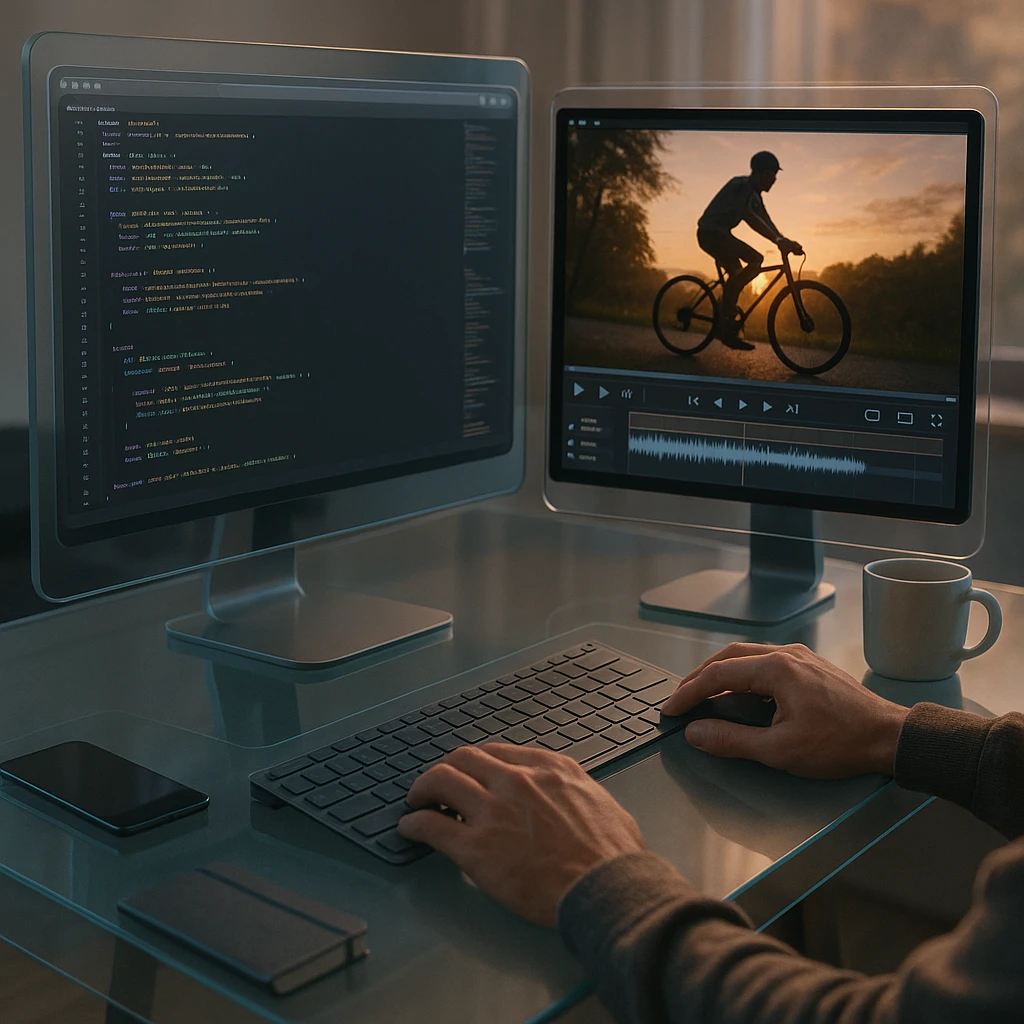
A prompt that produces something usable on the first try:
Create a 15-second 1920x1080 product introduction video in Remotion. Dark blue background, animate the product name in from the left, show three short benefit lines one at a time, end on a "Start Free" call to action. Keep all text on screen at least 2 seconds.
The last sentence is there because the agent’s first draft will otherwise flash text faster than anyone can read it. Ask me how I know.
Can Cursor edit an existing video?
Through FFmpeg, yes, for anything you can express as an instruction: cut at 02:14, join these five files, burn in this subtitle file, strip the audio, convert to vertical. Cursor writing those commands is faster than learning FFmpeg yourself, and the script it writes is reusable forever. If you only need still images, a video frame extractor pulls frames in the browser without writing a command.
What it cannot give you is the editing experience most people actually mean: scrubbing a timeline, dragging a transition, watching the frame while you adjust it. There is no preview. You run the command, open the output file, and check whether it did what you wanted. For a one-off edit of real footage, that loop is slower than any browser editor, including our own AI video editor, which cuts, captions, and exports uploaded footage without a development environment. And viral-moment detection, the thing OpusClip and an AI clip generator do, is not something FFmpeg commands can express at all: that is a judgment call about content, not an operation on frames.
Can Cursor watch a video?
No, and this is the question people ask second, usually right after the output is wrong and they want the agent to look at it.
Cursor’s agent reads text and images. Hand it a .mp4 and it has a binary file it cannot open. There is no frame-by-frame vision, no concept of what happens at 00:42, and no way for it to tell you the caption drifted out of sync halfway through. It will happily discuss your video based on the code that produced it, which is a different thing and easy to mistake for understanding.
There is a workaround, and it is worth knowing because it is the only one that actually functions:
Turn the video into things Cursor can read. Run `ffprobe` for duration, resolution and codec. Extract frames at an interval with FFmpeg and attach those stills to the chat as images. Transcribe the audio and read the transcript as text.
That gets you a sampled approximation: metadata, some frames, and the words. It is enough to catch a black frame or a wrong aspect ratio. It will not catch pacing, a jarring cut, or a caption that sits over someone's face, because those live in the frames you did not sample.
Claude has the same ceiling for the same reason, and we went through exactly where it stops in can Claude watch videos. So if your actual job is asking questions about footage rather than producing it, Cursor is the wrong tool and no MCP server fixes that. The models built for this accept the video itself and answer about what happens inside it. We compared the ones that genuinely do visual analysis against the ones that only read the transcript in our guide to AI that can watch videos.
Worth separating the two jobs plainly, because conflating them is what sends people down this path in the first place. Producing video is a rendering problem, and Cursor is good at driving renderers. Understanding video is a perception problem, and Cursor has no perception of video at all.
Cursor vs dedicated video tools
| Tool | Best use | Coding needed | Processes video itself |
|---|---|---|---|
| Cursor | Building and automating video workflows | Yes | No |
| Remotion | Code-defined videos and templates | Yes | Yes, renders MP4 |
| ScreenApp | Recording, editing, captions, transcripts | No | Yes, in the browser |
| OpusClip | Long videos into short social clips | No, MCP optional | Yes, cloud |
My honest sorting rule: if the video starts from footage (a recording, an interview, a screen capture), Cursor is the wrong first tool, full stop. Record with an AI screen recorder or upload what you have, edit visually, export. If the video starts from data or a design system (200 personalized intro videos, weekly stats clips), Cursor plus Remotion is exactly the right tool, and nothing visual competes with it.
The limitations nobody puts in the demo
Rendering is slow and local by default: a 60-second 1080p Remotion render will occupy your laptop’s CPU for minutes, and cloud rendering costs extra. Video APIs bill per generation on top of your Cursor subscription. The agent’s first draft of any composition needs visual review, because code that compiles happily produces text that overlaps the logo. And an MCP server is a tool with access to your content, so read what a server can do before connecting it.
None of this makes Cursor bad at video work. It makes Cursor a developer tool doing developer things, and if that sentence made you tired, that is the signal to use something with an upload button instead. If it made you curious, you might also want our comparison of Cursor AI alternatives, since several of them handle the same video workflows with different agents.
So, can Cursor create videos? Not alone. It is the automation layer, and a good one: Remotion for videos born as code, FFmpeg for mechanical edits at scale, MCP for clipping services, APIs for generation. For everything that starts with real footage and ends with “just make it look good,” a dedicated editor gets you there before Cursor has finished installing dependencies.
FAQ
Is Cursor an AI video generator?
No. Cursor is an AI coding editor. It can write and run the code that drives video tools like Remotion, FFmpeg, or a text-to-video API, but it has no built-in ability to generate video from a prompt.
Can Cursor generate MP4 videos?
Not directly. With a Remotion project open, Cursor can write the composition and run the render command that produces an MP4. The rendering is done by Remotion, not by Cursor.
Can Cursor edit an existing video?
Yes, through FFmpeg commands: trimming, joining, converting, compressing, burning in subtitles. There is no timeline or preview, so each edit is a command you run and then check. For visual editing, use a dedicated editor.
Can Cursor analyze videos?
No. Cursor reads text and images, so an MP4 is a binary file it cannot open. It has no frame-level vision and cannot tell you what happens at a given timestamp. You can approximate it by extracting frames with FFmpeg and attaching them as images, plus a transcript, but that is sampling rather than watching. For questions about footage, use a model built for video analysis.
Can Cursor create animations?
Yes, as code. Remotion animations are React components, and writing React is Cursor's home ground. Text reveals, chart animations, and transitions all work; you preview them in Remotion Studio, not in Cursor.
Can Cursor work with Remotion?
Yes, and it is the strongest pairing on this page. Remotion's team documents working with coding agents, and the workflow (describe, generate, preview, render) fits Cursor's agent loop well. Remotion needs a paid license once your company passes 3 people.
Is there a video MCP server for Cursor?
Several. Kinocut is the most developed, a free Apache-2.0 server that wraps FFmpeg in MCP tools with guardrails and quality gates, and it lists Cursor as a supported client. video-audio-mcp covers basic editing. OpusClip runs a hosted one for clipping. Installing one is usually a better move than having the agent write raw FFmpeg commands.
Can Cursor use OpusClip?
Yes, through OpusClip's hosted MCP server, currently in beta. Add the server URL to Cursor's MCP config, authenticate with OAuth, and the agent can request clips, captions, and reframing from a long video.
Can Cursor create YouTube videos?
It can produce the video file, via Remotion or an API, but a watchable YouTube video usually needs footage, pacing decisions, and editing judgment that code does not supply. Realistic use: intro templates, data-driven segments, and batch-produced Shorts from a format you designed once.
Is Cursor a free AI video generator?
No on both counts. Cursor's useful agent features sit in paid plans, and it does not generate video. If free generation is what you are after, dedicated free-tier video generators are the honest starting point.