VK Video Downloader

Download a VK video by pasting its link, then let AI watch it for you, a full transcript, a summary, and answers to your questions, so you do not sit through the whole clip.

Loved by over 7.8 million people

Download the VK Video, Then Skip Watching It

Most VK downloaders stop at the file. This one starts there. Paste a VK (VKontakte) video link, get the MP4, and then let the AI do the watching: a full transcript, a summary of what was actually said, and a chat box where you ask the video questions instead of scrubbing a two-hour stream for the one part you need.

That matters on VK specifically, because VK Video is not just short clips. It is bloggers running hour-long monologues, recorded lectures, full shows, conference talks. Downloading a 90-minute VK video is easy. Watching all 90 minutes to find the five that matter is the actual cost, and that is the part the AI removes.

  • Paste a VK video URL and download the MP4, no software to install
  • Get an automatic transcript in the video’s language, part of the same step
  • Ask the AI questions and get answers with timestamps you can jump to
  • Summaries, key moments, and topics pulled out so you do not watch the whole thing
  • Public VK videos only, which is the honest and legal line

If all you want is the raw file with no AI on top, the general video downloader does that across 1000+ sites. This page is for when the point is understanding the video, not just keeping it.

The VK “No Sound” Problem, and Why It Happens

If you have tried a basic VK downloader and ended up with a silent video, you hit VK’s split-stream setup, and it is worth understanding because it is the single most common VK download failure.

VK serves higher-quality video as separate .m3u8 streams: the picture in one, the audio in another, meant to be stitched together by the player at watch time. A naive downloader grabs the video track and walks away, so you get crisp footage and dead silence. Pulling a VK video properly means fetching both streams and muxing them back into one MP4 with the audio aligned. This tool does that stitching for you, which is why the download comes back with sound.

The other VK quirk is the blob URL. VK hands the player a temporary blob: address that expires fast, so a link you copied out of the page source an hour ago is often already dead. Copy the actual video page URL, not a blob link scraped from dev tools, and paste it fresh.

Download, Transcribe, Ask, in That Order

  1. Copy the VK video URL from the address bar (the vkvideo.ru or vk.com/video... link, not a blob).
  2. Paste it here. The tool fetches the video, merges the audio and video streams so nothing comes back silent, and starts a transcript.
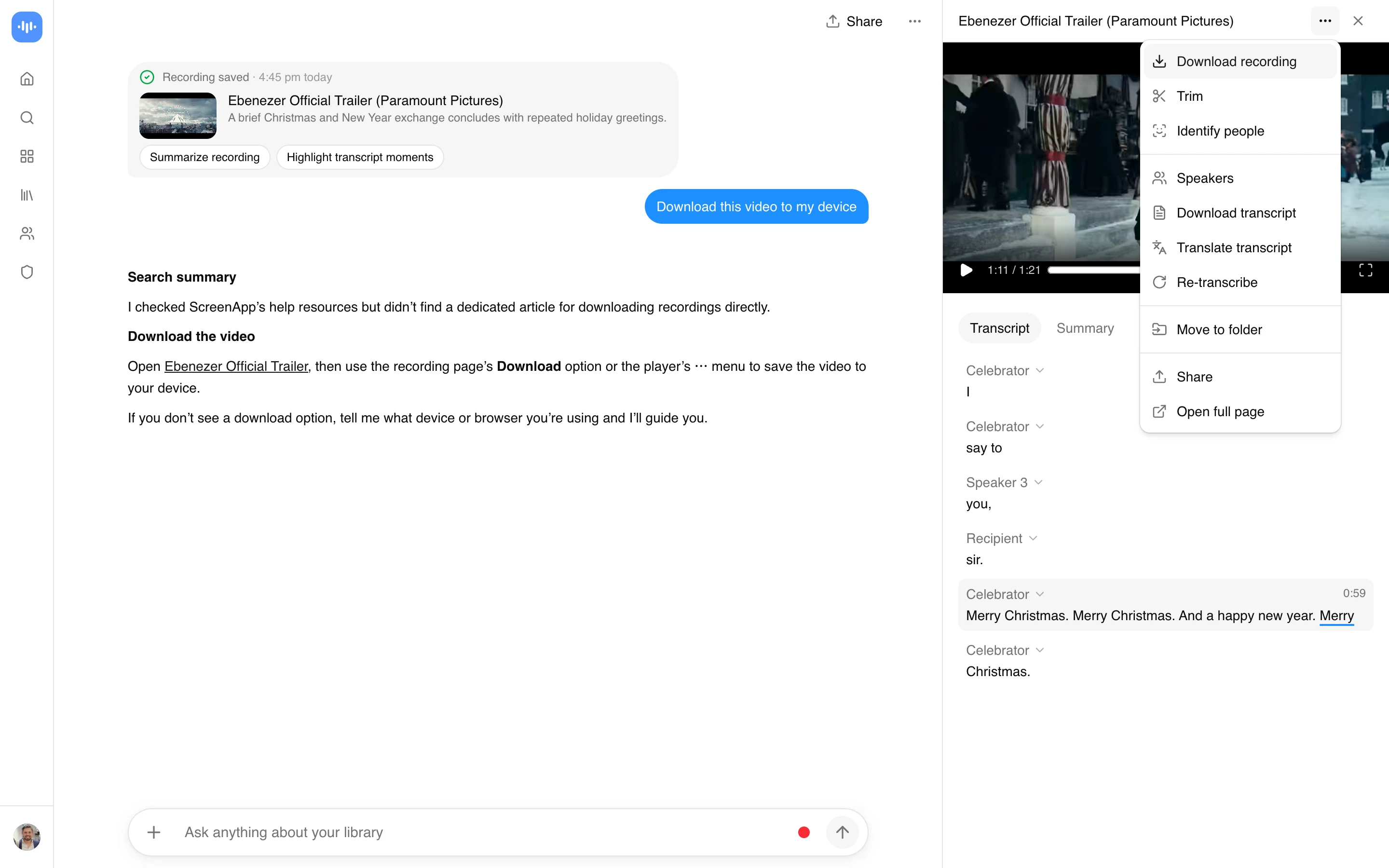
  3. Download the MP4 if you want the file. Then open the transcript, read the summary, or ask the AI a question like “what did they say about pricing” and click the timestamp to land on that moment.

The transcript step is where the time saving lives. A downloaded VK lecture is just a file. A downloaded VK lecture with a searchable transcript and a summary is something you can actually use in an afternoon instead of an evening.

What the AI Is Good For, and What It Is Not

Good for: long VK monologues where you need the gist, recorded talks you have to cite, blogger videos you are researching rather than enjoying, any VK video in a language you do not speak (transcribe, then read it in your own).

Not the tool for: a 20-second clip you were going to watch anyway. If the video is short and you have the time, just watch it. The AI earns its place on length, and on volume, when you have a folder of VK videos to get through rather than one.

Transcription runs on Whisper Large-v3 across 99 languages, which matters for VK given how much of it is Russian, so you can transcribe a Russian video and ask questions about it in English. For a deeper read of a single video, the AI video watcher handles the question-and-answer side, and the AI summarizer is the page for turning it into a written summary.

Who Uses This

Researchers and analysts working Russian-language sources, mostly. VK is where a lot of primary-source video lives, and reading a transcript in your own language beats sitting through a stream you half understand. Download, transcribe, search the text, cite the timestamp.

Students pulling from VK’s educational content, the lectures and explainer channels that never got cross-posted to YouTube. Grab the video, get the transcript, ask it to explain the part that did not land.

And people monitoring VK for work: brand mentions, competitor videos, community content. Batch the videos, let the AI summarize each, and read the summaries instead of the source. That is the whole time trade.

FAQ

How do I download a VK video with sound?

Paste the VK video page URL here rather than a raw stream link. VK splits high-quality video into separate video and audio .m3u8 streams, and basic downloaders grab only the video track, which is why you get a silent file. This tool fetches both streams and merges them, so the downloaded MP4 has its audio. That split-stream design is the number one reason VK downloads come back with no sound.

Can the AI summarize a VK video instead of me watching it?

Yes, that is the main point of this page. After the download, you get an automatic transcript, a summary, and a chat box to ask the video questions, each answer linked to a timestamp. For a long VK lecture or blogger monologue, that turns 90 minutes of watching into a few minutes of reading, which is the actual time saving.

Does it work on Russian-language VK videos?

Yes. Transcription covers 99 languages including Russian, and you can transcribe a Russian video and then ask questions or read the summary in English. For research on Russian-language VK sources, that is usually the reason people use it rather than a plain downloader.

Can I download private VK videos?

No. This works with public VK videos that VK serves to a normal web request. Videos in closed groups, private chats, or friends-only profiles need an authenticated session and are not accessible here. Downloading private content also cuts against VK’s terms, so keep it to public videos.

Why did my other VK downloader give me a video with no audio?

VK’s split-stream format. The video and audio are separate .m3u8 streams that are supposed to be combined at playback, and a downloader that only grabs the video stream produces a silent file. The fix is muxing both streams back together, which this tool does automatically on VK links.

Is it free?

Downloading runs in the browser. The AI side (transcript, summary, Q&A) follows ScreenApp’s plan: your first video is free on signup, then the Growth plan at $19/month billed annually covers ongoing use. So the download is the easy part, and the AI analysis is the paid value on top.

For the raw file across 1000+ sites see the video downloader hub, to turn a link straight into an editable clip use the link to MP4 converter, and to compare VK-specific download tools read our best VK video downloaders roundup.

Download only what you have the right to keep: your own VK videos, public content you are authorized to use, or material in the public domain. A lot of VK Video is copyrighted (films, shows, blogger work), and saving it without the owner’s permission can infringe their rights and breach VK’s terms. That call is yours to make. This tool works only with public VK videos, never private profiles, closed groups, or chat videos.

On privacy, a plain download runs in your browser against VK’s own servers, so it does not route the video or your VK login through a ScreenApp account. If you use the AI features (transcript, summary, or Q&A), that content is processed under ScreenApp’s privacy policy.

Recordings are transcribed by Whisper Large-v3 with SOC 2 Type 2 secure storage, used by 2,163,740 verified accounts as of 2026.

FAQ

How do I download a VK video with sound?

Paste the VK video page URL here rather than a raw stream link. VK splits high-quality video into separate video and audio `.m3u8` streams, and basic downloaders grab only the video track, which is why you get a silent file. This tool fetches both streams and merges them, so the downloaded MP4 has its audio. That split-stream design is the number one reason VK downloads come back with no sound.

Can the AI summarize a VK video instead of me watching it?

Yes, that is the main point of this page. After the download, you get an automatic transcript, a summary, and a chat box to ask the video questions, each answer linked to a timestamp. For a long VK lecture or blogger monologue, that turns 90 minutes of watching into a few minutes of reading, which is the actual time saving.

Does it work on Russian-language VK videos?

Yes. Transcription covers 99 languages including Russian, and you can transcribe a Russian video and then ask questions or read the summary in English. For research on Russian-language VK sources, that is usually the reason people use it rather than a plain downloader.

Can I download private VK videos?

No. This works with public VK videos that VK serves to a normal web request. Videos in closed groups, private chats, or friends-only profiles need an authenticated session and are not accessible here. Downloading private content also cuts against VK's terms, so keep it to public videos.

Why did my other VK downloader give me a video with no audio?

VK's split-stream format. The video and audio are separate `.m3u8` streams that are supposed to be combined at playback, and a downloader that only grabs the video stream produces a silent file. The fix is muxing both streams back together, which this tool does automatically on VK links.

Is it free?

Downloading runs in the browser. The AI side (transcript, summary, Q&A) follows ScreenApp's plan: your first video is free on signup, then the Growth plan at $19/month billed annually covers ongoing use. So the download is the easy part, and the AI analysis is the paid value on top. For the raw file across 1000+ sites see the video downloader hub, to turn a link straight into an editable clip use the link to MP4 converter, and to compare VK-specific download tools read our best VK video download

Real Results from Real Users

Aaron photo

Aaron

Project Manager

★★★★★

Our overall experience with ScreenApp has been nothing but pleasant! Their support is terrific, and ScreenApp is a great recording system.

JP photo

JP

Operations Manager

★★★★★

Finally, a screen recorder that doesn't slap watermarks on everything. The free plan gives me 45 minutes of AI processing monthly - that's enough for most of my training videos.

Trina photo

Trina

Founder

★★★★★

I was skeptical about another AI notetaker, but ScreenApp's generous free tier completely won me over. The quality is professional-grade, and the AI features actually work as advertised. Now I use it for all my client presentations and team demos.

Kelvin photo

Kelvin

Software Engineer

★★★★★

The desktop and mobile apps are fantastic. Recording meetings while I'm mobile has never been easier, and the dictation feature is a huge time-saver.

Millie photo

Millie

Director

★★★★★

Our team was drowning in client feedback until we found ScreenApp. Now we record every presentation and client call, and the AI summaries are spot-on.

Tanmay photo

Tanmay

Marketing Guru

★★★★★

Makes recording and sharing guides effortless. I love how I can capture my screen and instantly turn it into step-by-step guides in any format I need. Smart, simple, and a brilliant use of AI.

Sav photo

Sav

Project Manager

★★★★★

Users consistently praise our web-based platform that requires no installation. Start recording in seconds, not minutes.

Nate photo

Nate

Video Creator

★★★★★

The ability to automatically transcribe and summarize recordings is a major time-saver, turning video content into searchable, useful data.

User
User
User
Join 7,830,551+ users

Ready to boost your productivity?

Try VK Video Downloader and 300+ other AI-powered features for free.

Start Free →

Start using in 60 seconds • No credit card required