Timestamped Video Summaries: How to Use ScreenApp AI Analysis

On this page
Long videos are hard to review. Whether it’s a 90-minute meeting recording or a 2-hour lecture, finding the one moment you need can take forever. Timestamped summaries solve this problem by breaking down a video into sections with clickable time markers. You get an overview of what was said, and you can jump straight to the part that matters.
ScreenApp generates these timestamped summaries automatically using AI. Upload or record any video, and ScreenApp will transcribe it, analyze the content, and produce a structured summary with timestamps. This guide explains how it works, when to use it, and how it compares to other tools.
What Are Timestamped Summaries
A timestamped summary is a written breakdown of a video where each section includes a time marker. Instead of reading a wall of text, you see something like:
- 00:00 - 05:12 Introduction and agenda overview
- 05:12 - 18:45 Q3 revenue discussion
- 18:45 - 32:10 Product roadmap update
- 32:10 - 41:00 Action items and next steps
Each timestamp links back to that exact moment in the video. Click the timestamp, and the video jumps to that point. This makes it easy to skip ahead, revisit a specific topic, or share a particular segment with someone else.
ScreenApp’s AI video summarizer creates these automatically. You don’t need to mark sections yourself. The AI detects topic changes, speaker transitions, and content shifts, then generates a summary for each segment.
How to Use ScreenApp Timestamps
Getting timestamped summaries from ScreenApp takes a few steps.
Step 1: Upload or Record
You can work with any video. Record directly in ScreenApp using screen recording, or upload an existing file. ScreenApp supports MP4, WebM, MOV, and most common video formats. You can also paste a YouTube link or connect a meeting bot to Zoom, Google Meet, or Microsoft Teams.
Step 2: Wait for Transcription
Once the video is in ScreenApp, automatic transcription starts. The AI processes the audio track and converts speech to text. This usually takes a few minutes depending on video length. For a 1-hour video, expect about 2-3 minutes of processing time.
Step 3: Generate the Summary
After transcription completes, click the “Summarize” button. ScreenApp’s AI reads the full transcript and breaks it into logical sections. Each section gets a timestamp and a brief description of what was discussed.
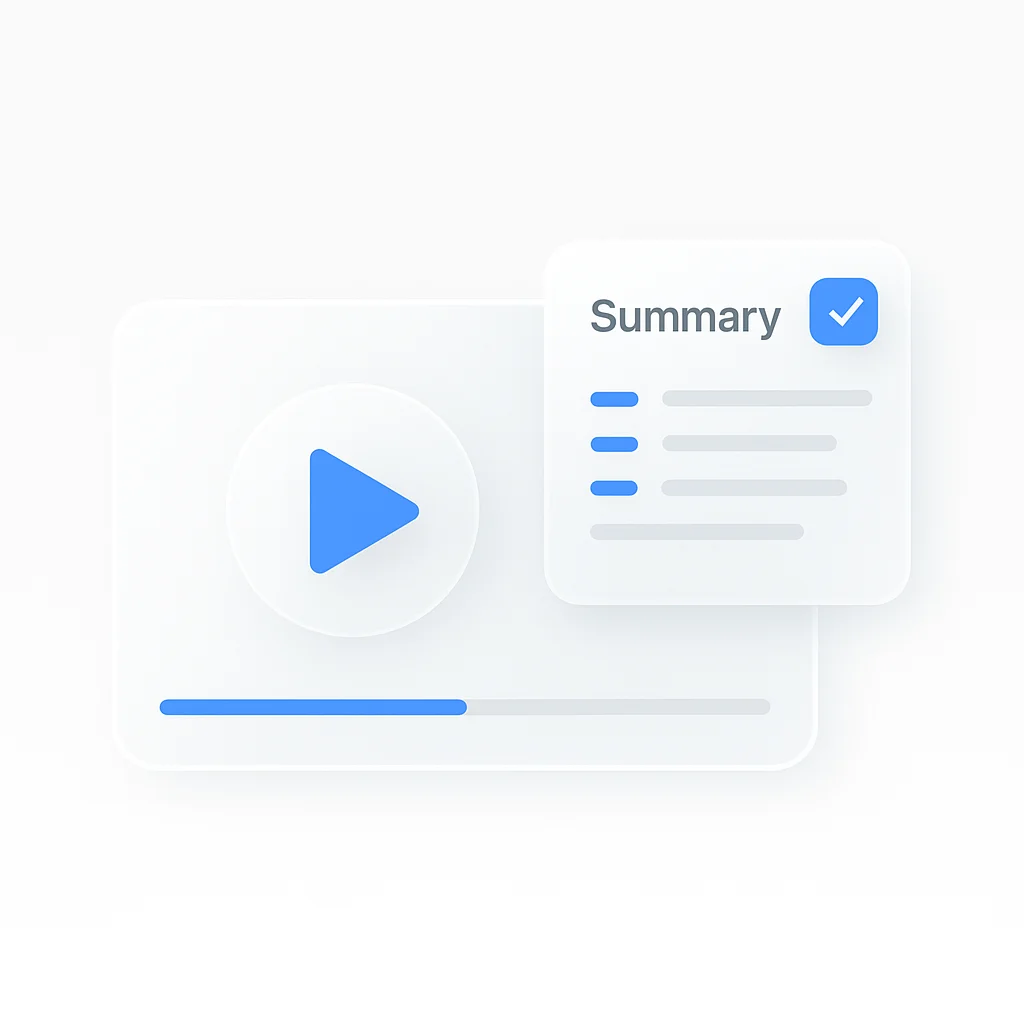
The summary appears in the right-hand panel next to the video player. Each timestamp is clickable - select any one to jump to that point in the recording.
Step 4: Export or Share
You can copy the timestamped summary as text, export it as a document, or share the video link with timestamps included. Team members who receive the link can click any timestamp to jump to that moment.
For developers, ScreenApp also offers an AI video summary API to integrate summarization into custom workflows.
Who Uses This Feature
Timestamped summaries work well for several common situations.
Meeting recordings. After a team call, the timestamped summary lets everyone scan what was covered without rewatching the full meeting. Someone who missed the call can jump to the section about their project. ScreenApp’s AI note taker pairs well with this for automatic meeting documentation.
Lectures and training. Students and trainees can use timestamped summaries to find specific topics in a long recording. Studying for an exam? Jump to the 45-minute mark where the professor covered that formula.
Content creation. Podcasters and YouTubers use timestamped summaries to create show notes and chapter markers. The summary gives you a ready-made outline of your content.
Legal and compliance. Reviewing recorded depositions, interviews, or compliance calls is much faster with timestamped sections. Find the relevant testimony without scrubbing through hours of footage.
Research interviews. Our transcript summarizer works alongside timestamps to help researchers identify themes and quotes in qualitative data.
Tools Compared
Several tools offer some form of video summarization. Here’s how they compare for timestamped summaries specifically.
| Feature | ScreenApp | Summarize.tech | Notta | Mindgrasp |
|---|---|---|---|---|
| Timestamped summaries | Yes | Yes | Yes | Yes |
| Any video format | Yes | YouTube only | Limited | YouTube + uploads |
| Screen recording built-in | Yes | No | No | No |
| Meeting bot (Zoom/Meet/Teams) | Yes | No | Yes | No |
| Clickable timestamp navigation | Yes | Yes | No | No |
| API access | Yes | No | No | No |
| Free tier | Yes | Yes | Yes (limited) | Yes (limited) |
| Starting price | $19/mo | Free | $13.99/mo | $9.99/mo |
| Speaker identification | Yes | No | Yes | No |
| Export options | Text, doc, share link | Text only | Text, SRT | Text, PDF |
ScreenApp handles the widest range of input sources. You can record your screen, upload a file, paste a link, or connect a meeting bot. The summaries include speaker labels when multiple people are talking, and every timestamp is clickable in the player.
Summarize.tech works only with YouTube videos. Paste a YouTube URL and it generates a timestamped breakdown. It’s free and fast, but limited to public YouTube content.
Notta focuses on meeting transcription and has good real-time transcription. Its summaries include timestamps, but they aren’t clickable in the same way. Notta works best for live meetings rather than uploaded recordings.
Mindgrasp targets students with features like flashcard generation and quiz creation alongside summaries. The timestamped summaries are basic compared to ScreenApp, and it doesn’t support meeting recordings.
Tips for Better Summaries
The quality of your timestamped summary depends partly on the source material. A few things help.
Good audio matters. Clear speech with minimal background noise produces better transcriptions, which leads to more accurate summaries. Use a decent microphone for recordings you control.
Structured content works best. Videos where speakers move through distinct topics get cleaner timestamped breakdowns. A meeting with a clear agenda produces better sections than a freeform brainstorm.
Longer videos benefit more. A 5-minute video doesn’t need timestamped navigation. But a 60-minute recording becomes dramatically easier to use with timestamps. The feature pays off most for videos over 20 minutes.
Check and edit. AI-generated summaries are good but not perfect. Skim the output and fix any misheard names or technical terms. ScreenApp lets you edit both the transcript and the summary inline.
Getting Started
Sign up for a free ScreenApp account to try timestamped summaries. The free plan covers 2 transcriptions of recordings up to 45 minutes each and 3 uploads, and needs no credit card. Upload a video or record one directly, and you’ll see the summarize option once transcription finishes.
For teams, ScreenApp has shared workspaces where everyone can access recordings and their timestamped summaries. This is useful for distributed teams who need to stay aligned without sitting through every meeting.
FAQ
How does ScreenApp generate timestamped summaries?
ScreenApp transcribes your video using AI speech recognition, then analyzes the transcript to identify topic changes and sections. It assigns a timestamp to each section and writes a brief description of what was covered. The whole process runs automatically after you upload or record a video.
Can I get timestamps for any video length?
Recording length is capped by plan: 45 minutes on Free, 2 hours on Pro, 3 hours on Max. Uploaded files get timestamps the same way. A 1-hour video typically processes in 2-3 minutes.
Does ScreenApp video analysis work with timestamps?
Yes. ScreenApp's AI video analysis produces timestamped results. When the AI identifies topics, action items, or speaker changes, each one includes a timestamp you can click to jump to that moment in the recording. This makes it easy to verify AI-generated insights against the source material.
What video formats support timestamps?
ScreenApp supports MP4, WebM, MOV, AVI, and most common video and audio formats. You can also use YouTube links, Google Drive files, or live meeting recordings from Zoom, Google Meet, and Microsoft Teams. Timestamps work with all supported input types.
Are timestamped summaries available on the free plan?
Yes. The free plan covers 2 transcriptions of recordings up to 45 minutes each and 3 uploads, which is enough to try it. Pro at $19/mo billed annually raises those limits to 50 transcriptions a month and 2-hour recordings.
Can I share timestamped summaries with my team?
Yes. You can share a link to the video with its timestamped summary. Team members can click any timestamp to jump to that point. You can also copy the summary as plain text or export it as a document for use in other tools.