

You Do Not Need a Windows Program to Download Video in Edge
Search “edge video downloader” and half the results push a Windows program you download and install. You do not need one. Edge is the browser most people get handed on a new Windows PC and never switch away from, so the instinct is to grab a .exe. Skip it. Paste the video link into this page and the MP4 downloads right there in Edge, nothing installed.
Edge is Chromium under the hood, the same engine as Chrome, so it behaves the same way with video: it will happily play a stream but gives you no clean way to save it. This tool fills that gap without an extension and without a desktop app.
- Works in Edge on Windows and Mac, and Edge on Android
- No Windows download and no browser extension
- Stitches streamed HLS video into one MP4, so it saves with sound
- Takes YouTube, Vimeo, and direct links, plus a batch of URLs
- Public web video the site will serve, not DRM-protected streaming
Because Edge is Chromium, it can run the same downloader extensions Chrome does, so if you already trust one, fine. But an extension that downloads video wants permission to read every site you visit, and that is a big grant for a video here and there. A paste-URL tool sees only the one link you give it. Same tool, framed for Chrome, on the Chrome video downloader.
What Edge Actually Blocks, and What It Doesn’t
Edge has a built-in Web Capture (Ctrl+Shift+S) that grabs a screenshot or a scrolling capture of a page. Useful, but it is images, not video. There is no “download this video” button hiding in the menus, and Collections saves links, not files. So the built-in tools stop exactly where you need them to start.
The reason, same as every Chromium browser: most sites stream video as HLS, an .m3u8 playlist broken into hundreds of chunks, with the player pointing at a temporary blob: address. There is no single file for right-click Save As to grab. The tool reads the playlist, pulls the chunks, and rebuilds one MP4. That reassembly is the part Edge will not do on its own.
One honest limit worth stating plainly: DRM-protected streaming (Netflix, Disney+, paid subscription video) will not download, in Edge or anywhere. It is encrypted for that reason.
Paste, Download, Done
- In Edge, copy the video or page URL from the address bar.
- Paste it into the field on this page.
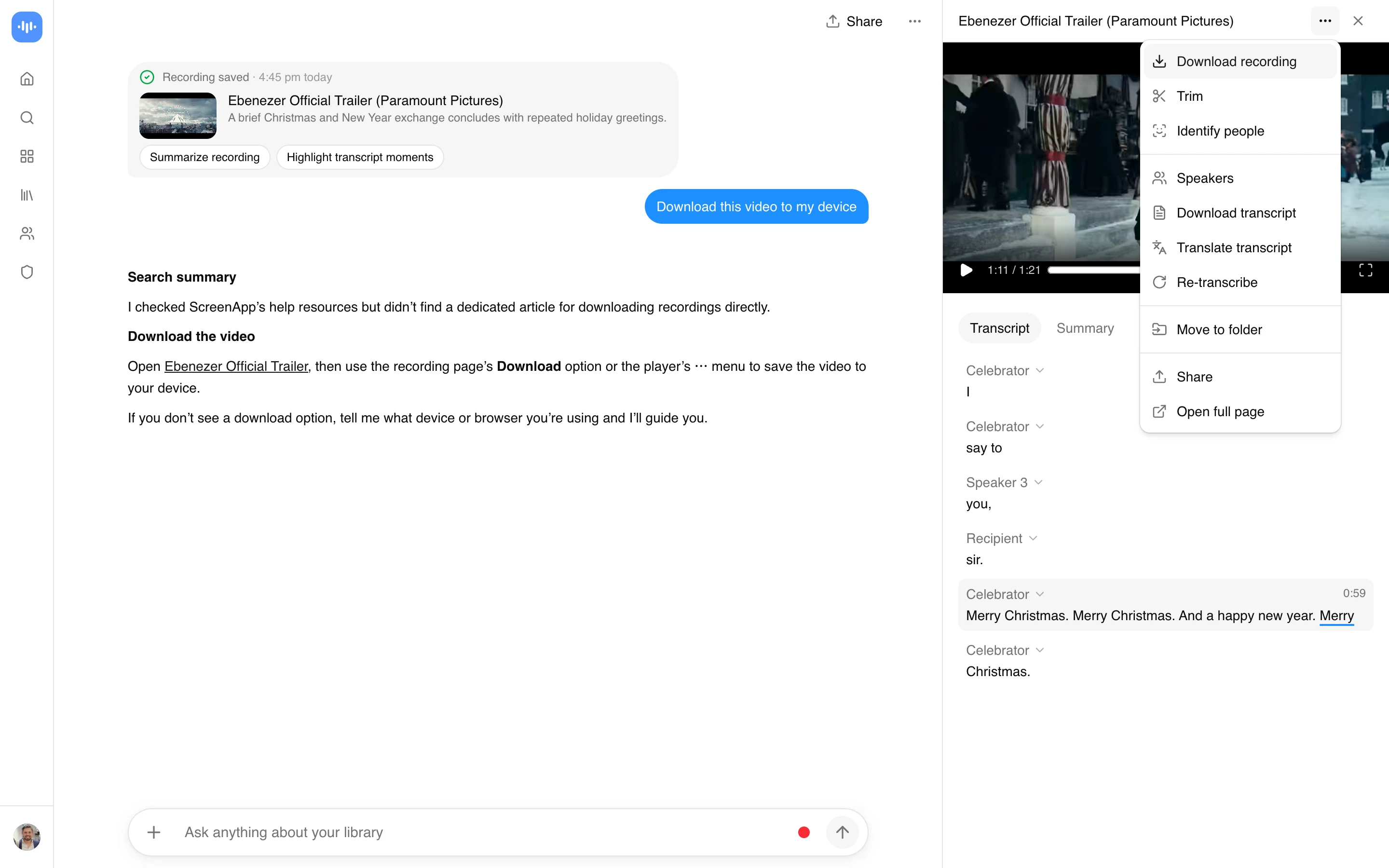
- Download. The MP4 saves to your Downloads folder like any normal Edge download.
On Edge for Android the flow is identical: copy the link from the share menu, paste, save to Downloads. No APK, no sideload.
Do More Than Save It
The download is step one. The same import can hand the video to AI, which is where a saved webinar or lecture stops being just a file. Get a transcript and a written summary with the AI video summarizer, ask the video questions with timestamped answers using the AI video watcher, run scene and content detection with the video analyzer, or turn it into a formatted write-up with video to document. The import runs on ScreenApp’s servers, not on this page. Importing and the transcript are free; the free plan covers 2 transcriptions of recordings up to 45 minutes each, and downloading the MP4 needs a paid plan, from $19/month billed annually on Pro.
Who Downloads Video in Edge
Windows users, overwhelmingly, since Edge is the default and most people who use it never installed it on purpose. Someone on a work laptop who cannot install software (locked-down IT) still needs to save a training video, and a web tool is the only route that does not need admin rights. Students on a school Windows machine, same story.
And people who searched for an “edge video downloader for windows 10,” expected to install a program, and would rather not add another .exe to a machine that already has too many.
Privacy and Copyright
Download only web video you have the right to keep: your own content, public video you are authorized to use, or material in the public domain. Saving copyrighted video without permission can infringe the owner’s rights and breach the source site’s terms, and that responsibility is yours. DRM-protected streaming (Netflix, Disney+, paid subscription video) is off-limits in Edge or any browser, because it is encrypted for exactly that reason.
On privacy, the import runs on ScreenApp’s servers: the link is sent to your ScreenApp account, the video is fetched there, and you download it from your library. So the video does pass through your ScreenApp account, and it, along with any transcript or summary you generate from it, is covered by ScreenApp’s privacy policy.