Make Cornell Notes From a Lecture Recording
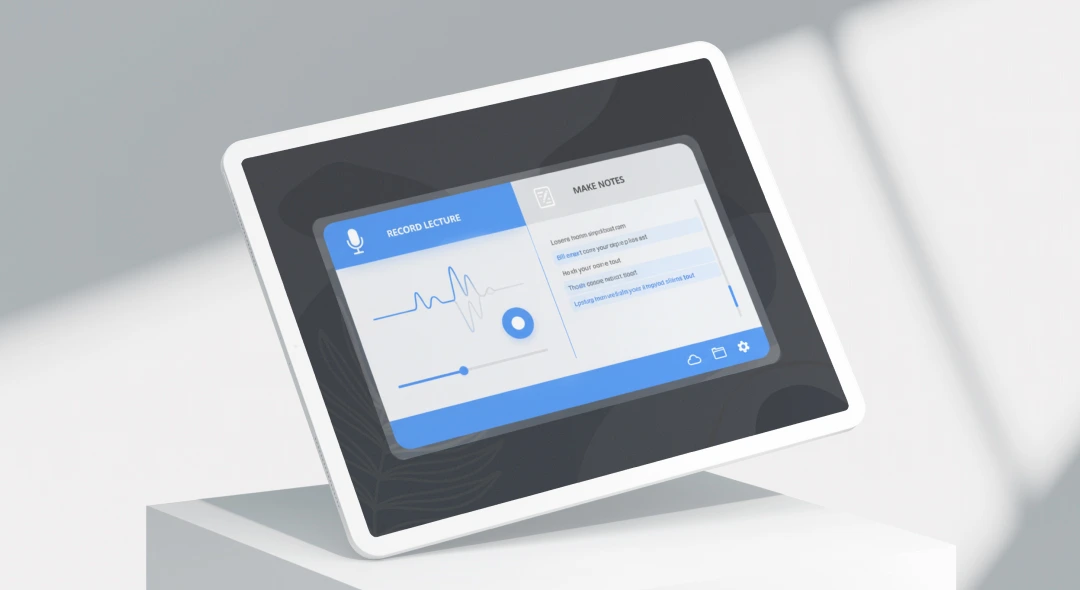
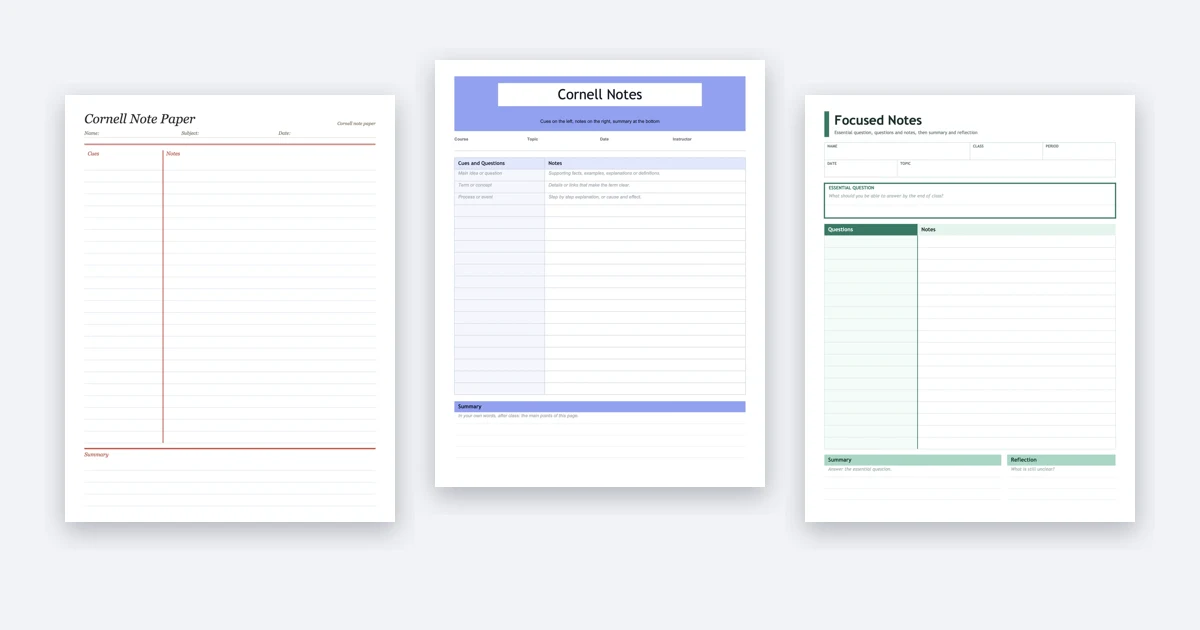
This Cornell notes generator takes a lecture you have already sat through and arranges it in the Cornell format: notes sit on the right, cue questions on the left, with a summary below them. Upload the recording or paste a YouTube link above. ScreenApp writes a transcript first, and the Cornell layout is filled in from that in the chat beside the lecture. Ask the chat for a PDF, or run your saved Cornell template and download the notes as a PDF or Word file to revise from.
Cue Questions
For each point the lecturer made, a question or term sits in the left column.
Notes in Lecture Order
Brief notes fill the right column, following the order the topics came up in.
Summary and Review Questions
A short recap of the whole lecture, then questions you can use to test yourself.
A File You Keep
Grab the notes as PDF, Word, PowerPoint, Markdown or plain text.
Lecture to Cornell Notes in Three Steps
Add the Lecture
Record it, upload the file or paste a YouTube link.
Run a Cornell Template
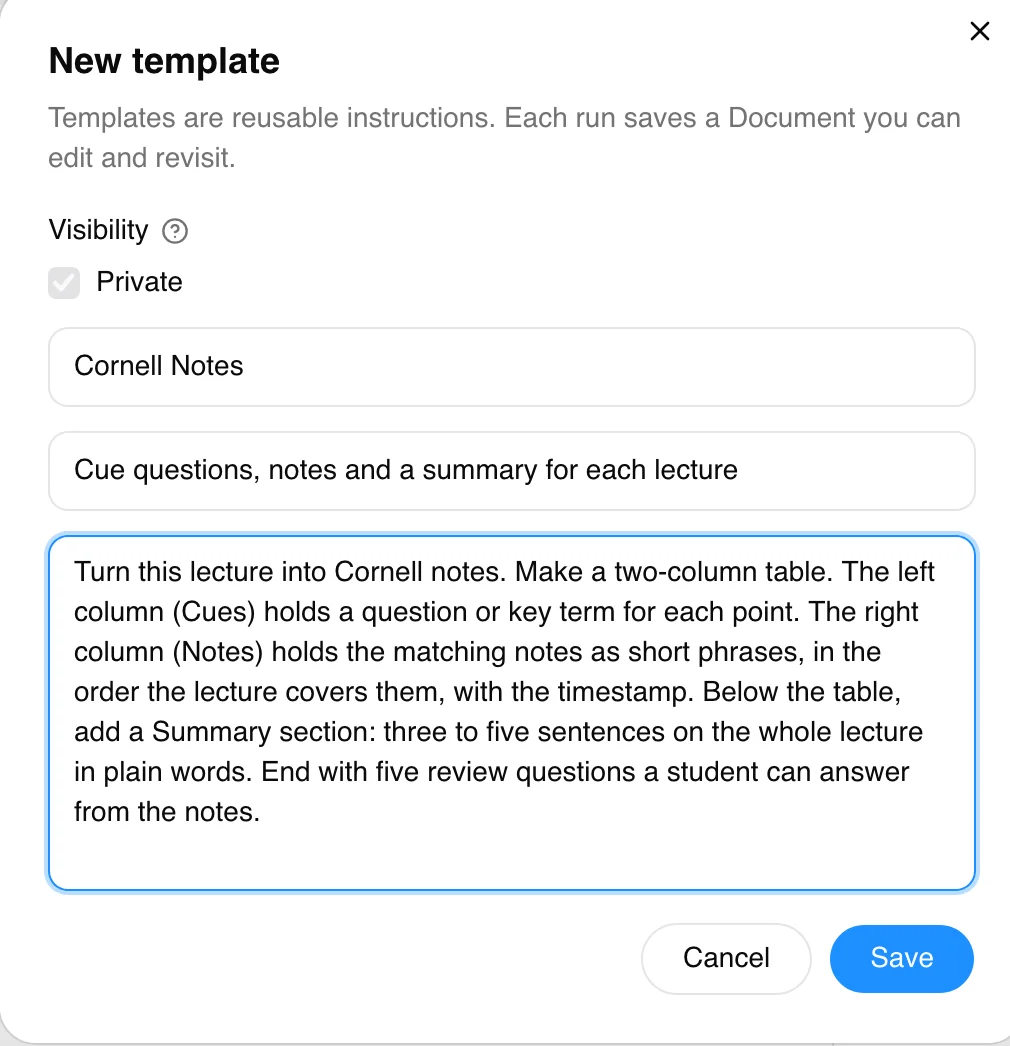
Store the instructions below once as your own template.
Download It
Keep the notes as a PDF or Word file.
How to Make Cornell Notes With ScreenApp
ScreenApp doesn’t ship with a Cornell template. Lecture Notes sits among its 21 stock templates, yet the Cornell layout has to come from a template you create yourself, just once. In ScreenApp you can keep your own templates, written once and reused, with each run saved as a document you can edit and revisit.
- Add the lecture. Put the recording in above, drop in a YouTube link, or capture the class with the lecture recorder. Let the transcript finish.
- Head to the Templates tab beside the player and press New template. Give it the name Cornell Notes, then drop the instructions below into the AI box.
- Hit save, then pick Cornell Notes under Your templates. Your notes land in the Templates tab, ready for edits.
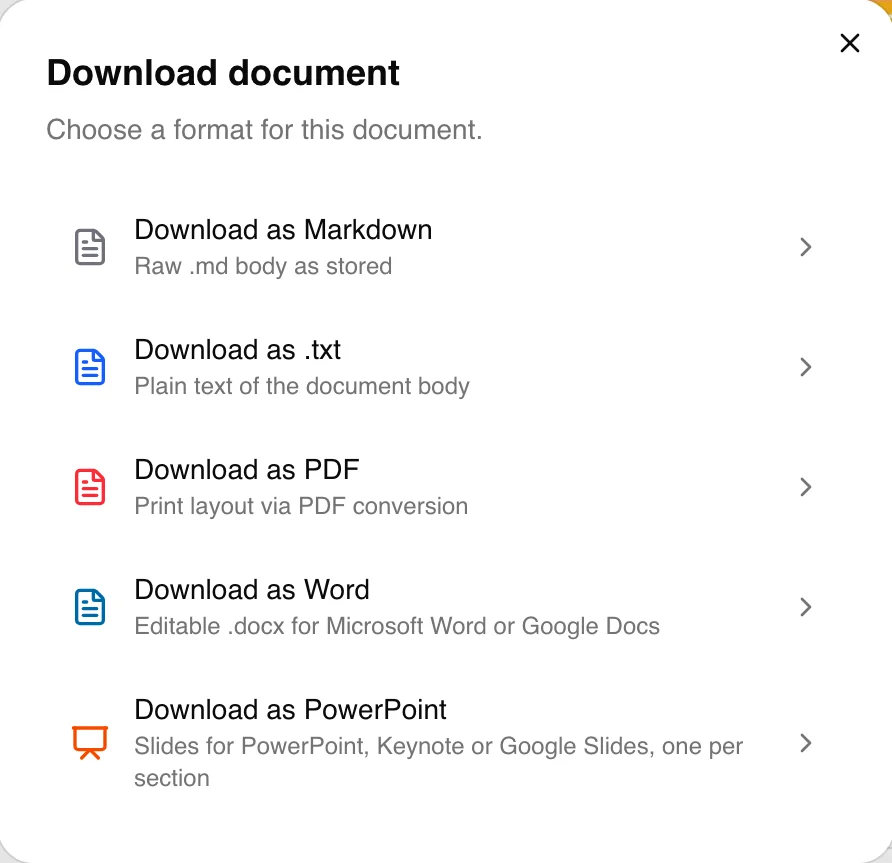
- Download the notes. Above the notes, open the menu, pick Download document, then PDF or Word.
Cornell Notes Template
In Templates, hit New template and paste this into the AI box
Turn this lecture into Cornell notes. Make a two-column table. The left column (Cues) holds a question or key term for each point. The right column (Notes) holds the matching notes as short phrases, in the order the lecture covers them, with the timestamp. Below the table, add a Summary section: three to five sentences on the whole lecture in plain words. End with five review questions a student can answer from the notes.
Each template run uses one of your monthly AI chats and templates: 10 a month on the free plan, 50 on Pro.
What the Cornell Notes Look Like
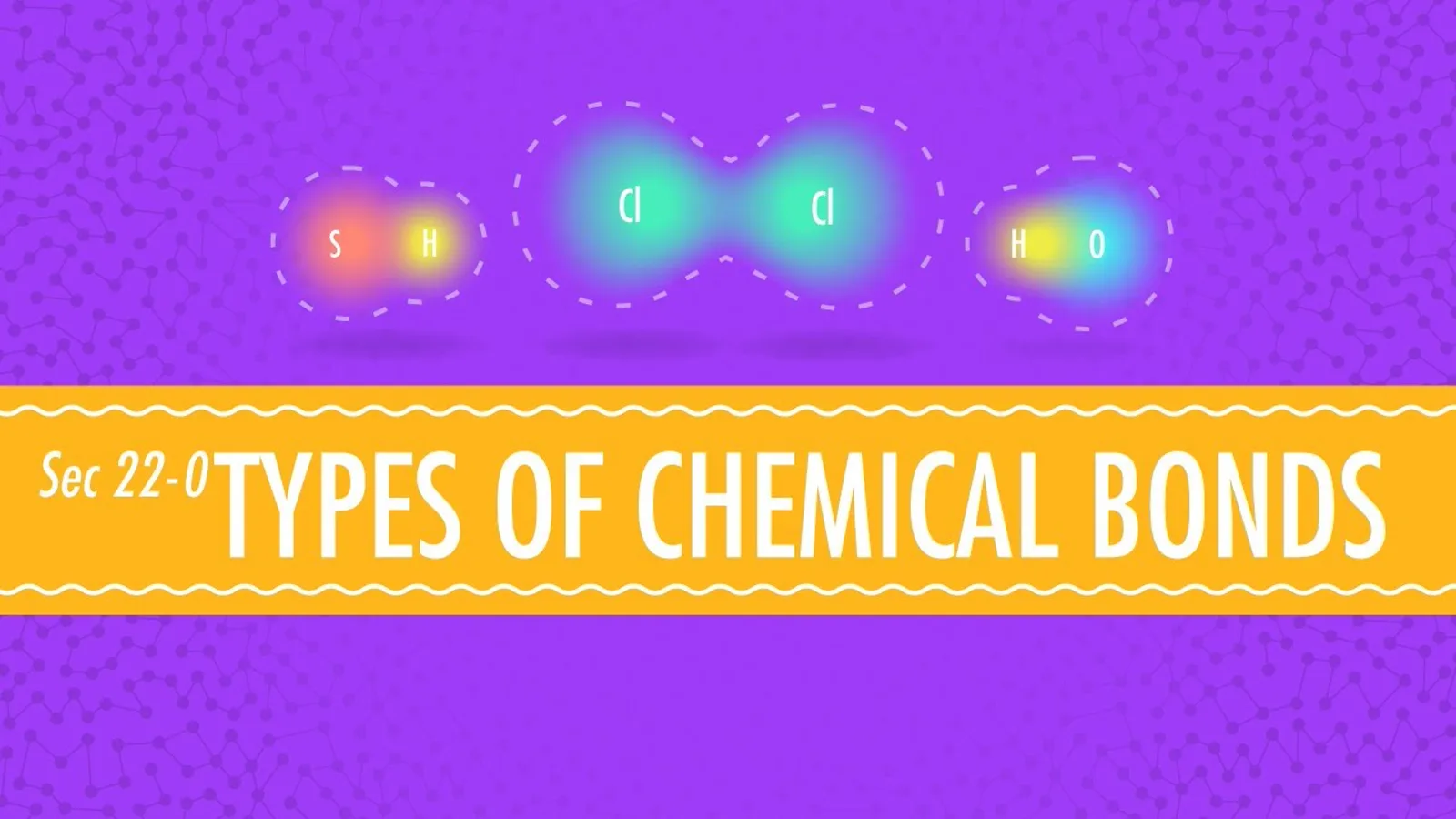
For our test, we ran a real lecture through it: Crash Course Chemistry #22, “Atomic Hook-Ups: Types of Chemical Bonds”, imported straight from YouTube. It came back with a Cues and Notes table first, then a Summary and five Review Questions. The table opened like this:
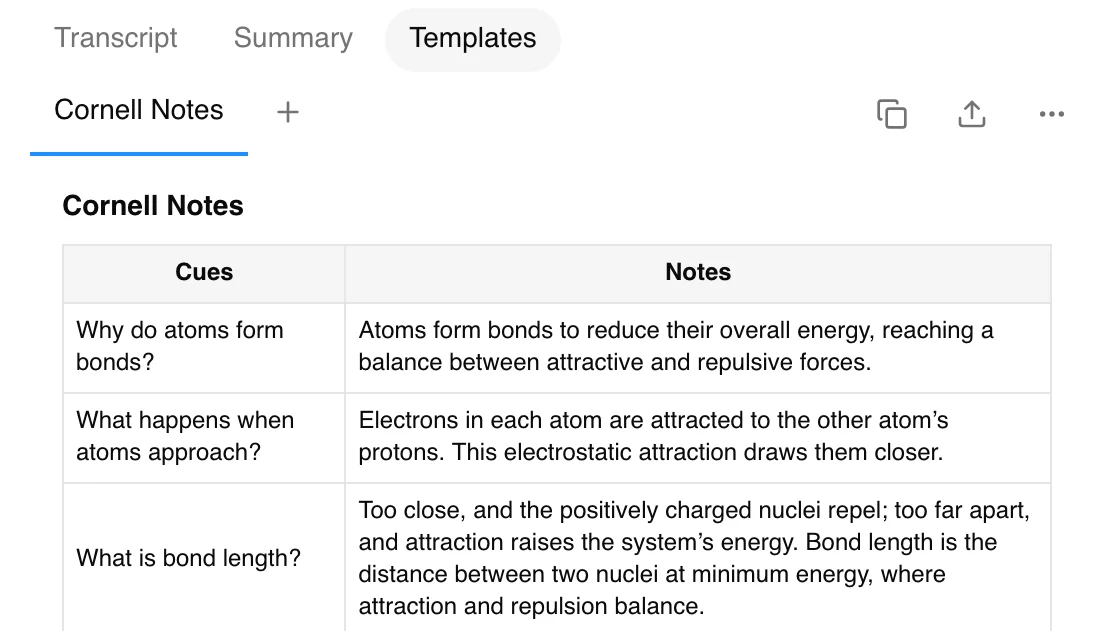
Under the Cornell method, the summary goes at the bottom of each page, written after class. The template holds to that sequence, so the summary lands after the table.
Double-check the numbers before you revise from them. In our test, one row gave a chlorine bond length that looked wrong, and the note said the figure came from the transcript. Any transcript line is clickable, so you can hear that moment again, given that clicking a moment in the transcript jumps the player to that point in the recording.
Get This Week's Lecture as Cornell Notes
Add the recording, run your Cornell template, then keep the PDF for revision.
- Cue questions and notes following lecture order
- A summary and review questions below the table
- Download as PDF, Word, PowerPoint, Markdown or plain text
- Free plan: 2 transcriptions of recordings up to 45 minutes each in total. Pro starts with a 7-day trial on annual plans only and needs a card, then charges $228 for the year ($19/month) unless you cancel during the trial
Save the Format Once, Get It for Every Lecture
Nobody wants to retype the same prompt every week. In ScreenApp, any template, your own included, can run by itself each time a transcription completes. Settings is where you start. Find Auto-run template there, then select Cornell Notes from the dropdown. New recordings from that point on show up with Cornell notes already finished, and each run counts toward your monthly AI chats and templates.
A weekly course is the obvious fit. Use the lecture recorder or the AI lecture note taker to capture every class, and week after week the notes land in that same layout. The free plan covers 2 transcriptions of recordings up to 45 minutes each in total, so a full course needs Pro. Saved templates are private by default.
Adjust the Template to Your Course
Name Your Terms
Ask for the course's own terms in the Cues column.
Set the Length
Specify how long the summary should run.
Add Your Questions
Request review questions in exam style.
A template is just plain instructions, so edit it whenever you like and run it again on the same lecture.
Download Cornell Notes as PDF or Word
ScreenApp saves your notes as a document, and you can keep editing it there. Need a copy? Open the menu above the notes and hit Download document. You get PDF, Word, PowerPoint, Markdown or plain text to choose from. For revision on paper, the PDF is the one to print. Want to add your own notes? Open the Word file in Microsoft Word or Google Docs instead.
Should the document include stills from the lecture slides? Video to PDF puts together a PDF from frames of the video.
The Cornell Method in Brief
Credit for the Cornell note taking method goes to Walter Pauk, a Cornell education professor, who described it in his book How to Study in College. Five steps make up the version taught by Cornell’s Learning Strategies Center note-taking handout: record, questions, recite, reflect and review. Down the page you get a notes column, a cue column running alongside it, and a summary section at the foot.
With a recorded lecture, a generator takes care of the opening two steps. Notes get written and cue questions get drafted. Three steps remain in your hands. Block out the notes column, speak your answers to the cues aloud, puzzle out the connections between ideas, then review: Cornell’s handout says to spend at least ten minutes every week on it.
New to the method? Our guide on how to take Cornell notes walks through each step with examples.
Curious how Cornell stacks up against outlining, mapping and the rest? Our guide to note-taking methods lays the comparison out.
Questions to Ask After
The notes are done. Now the chat panel next to the lecture lets you build on them:
To turn several lectures into one revision guide, reach for the AI study guide maker. For a free layout instead of Cornell’s, the course notes generator and the lecture summarizer do the job.
What It Can and Cannot Do
Good At
- Recorded lectures where speech comes through clearly
- YouTube lectures, pasted in as a link
- One layout across every class in a course
- Notes you can edit, print and hang onto
Not Built For
- A blank sheet to print and write on by hand
- Handling the recite and review steps in your place
- A full playlist in one go, because it handles one link at a time; playlist URLs are not imported as a batch
- Lectures without speech, where there is barely anything to take notes from
Recording length depends on the plan: up to 45 minutes each on the free plan, 2 hours on Pro and 3 hours on Max.
Need a blank sheet to write on by hand instead? Download a free Cornell notes template in PDF or Word.
Who Uses It
College students who record their lectures get the cue column filled in after class and spend their time on reciting and review instead.
Students on recorded or online courses paste each YouTube link or upload the course video, and keep the notes as a PDF for exams.
Teachers and tutors make a Cornell sheet from a recorded lesson to hand to students who missed it.