Image to Video AI Free: Turn Any Photo Into a Video Online

On this page
There are two very different things people mean by “photo to video,” and mixing them up wastes a lot of time.
One is AI generative animation. You hand a tool like Luma or Runway a single still, and it invents motion: the subject breathes, the camera drifts, the background shifts. The other is a slideshow converter. You give it a few photos and it adds a slow pan and zoom, the Ken Burns effect, to turn them into a video. Both are useful. They are not the same tool, and the free ones live in different places.
This guide covers both. First the AI generators, ranked, with what each is actually good at and where the free tier runs out. Then a short section on the free online converters for Ken Burns pan-and-zoom, since that is what a lot of people searching “free photo to video” really want. If you work from a written script instead, our guide to free text-to-video generators covers that, and our roundup of AI tools for video production goes wider than photo animation.
How we compared these tools
- Motion quality. Does the movement look believable, or does the face melt and the background warp?
- Ease of use. How fast a first-timer gets a usable clip out of it.
- Speed. Roughly how long a generation takes, which matters more than it sounds once you start iterating.
- Control. Whether you can steer camera motion, strength, and duration, or just press go and hope.
- The free tier. What you can actually make for nothing, and whether it stamps a watermark on the result.
Picture to Video AI Platforms at a Glance
When photo-to-video is actually worth it
A quick reality check before you animate everything. Video does get more reach than a still on most feeds, that part is real. But a badly animated photo, the warping face, the jittery zoom, looks worse than a clean still, and people scroll past it faster.
So the honest use cases: a portrait that gains a small, believable movement, a landscape with drifting clouds, a product shot that slowly reveals detail, or a slideshow that needs gentle Ken Burns motion instead of hard cuts. If the animation does not add something, leave the photo still. Motion for its own sake is just noise.
The 9 Best Photo to Video AI Generators
1. Luma AI (Dream Machine) : Best Overall for Cinematic Motion - Quality
Luma AI currently leads the pack for creating professional-quality video animations from static images. The Dream Machine produces incredibly smooth, realistic camera movements that rival traditional video production techniques.
What sets Luma AI apart is its understanding of spatial relationships and physics. When you upload a portrait, it naturally creates subtle movements like breathing, eye blinks, or gentle head tilts. For landscape photos, it generates convincing camera pans and atmospheric effects.
The tool excels at maintaining image quality while adding motion. Unlike some competitors that introduce artifacts or blur, Luma AI preserves the original photo’s sharpness and detail throughout the animation.
Key Features:
- High-resolution output up to 1080p
- Natural motion understanding
- Minimal artifacts or distortion
- Supports various aspect ratios
- Advanced physics simulation
- Multiple export formats
Pros
- Industry-leading video quality and realism
- Excellent understanding of physics and motion
- Preserves original image sharpness
- Natural character animations and expressions
- Professional-grade camera movements
- Reliable uptime and fast processing
Cons
- Limited free tier with usage restrictions
- Processing times can be longer than competitors
- Requires good source image quality for best results
- Premium features require paid subscription
Best For: Professional content creators, filmmakers, and anyone prioritizing output quality over speed.
2. Runway (Gen-4.5): Best for Advanced Control
Runway’s image-to-video mode sits inside a full suite of AI creative tools, which is the point: it is for people who want to direct the shot, not just press go. The current Gen-4.5 model takes a still plus a text prompt and handles camera choreography better than most.
The real strength is prompt control. You can ask for “slow zoom in on the subject’s eyes” or “gentle parallax revealing the background” and it mostly listens. That precision is what you are paying for, and it is wasted if you only ever type “make it move.”
Runway also fits into a wider editing workflow, so you can stack animated photos with other AI clips for a longer piece. The flip side: it is the steepest learning curve here.
Key Features:
- Detailed motion prompt system
- Integration with full creative suite
- Professional export options
- Advanced camera control settings
- Custom model training
- API access for developers
Pros
- Exceptional control over animation parameters
- Sophisticated prompt engineering capabilities
- Full creative suite integration
- Professional-grade output quality
- API access for custom workflows
- Regular feature updates and improvements
Cons
- Higher learning curve for beginners
- Premium pricing for advanced features
- Requires technical knowledge for optimal use
- Limited free usage allowance
Best For: Creative professionals, video editors, and users who need precise control over animation parameters.
3. Pika Labs: Best for Fast, Fun Animations - Accessibility
Pika Labs prioritizes speed and simplicity without sacrificing quality. The platform can generate engaging animations in under 30 seconds, making it perfect for social media content creation and quick experiments.
The tool’s strength lies in its intuitive interface and smart defaults. Simply upload an image, and Pika Labs automatically suggests appropriate motion types. For portraits, it might suggest subtle facial animations. For landscapes, it could recommend gentle camera movements or environmental effects.
Pika Labs also excels at creating looping animations that work perfectly for social media posts, website backgrounds, or digital presentations.
Key Features:
- Rapid generation times
- Smart motion suggestions
- Perfect loop creation
- Social media optimization
- Beginner-friendly interface
- Free tier available
Pros
- Fastest generation times in the market
- Extremely user-friendly interface
- Excellent for social media content
- Smart automatic motion suggestions
- Clean looping clips
- Generous free tier
Cons
- Lower resolution output than premium competitors
- Limited advanced customization options
- Simpler animations compared to professional tools
- Queue times during peak usage
Best For: Social media managers, content creators, and anyone who needs quick, engaging animations.
4. InVideo AI: Best All-in-One Video Editor with AI Features
InVideo AI combines photo animation with comprehensive video editing capabilities, making it ideal for users who want to incorporate animated photos into larger video projects. For users who need more advanced editing features, a dedicated online video editor might be a better choice, and for those who want to remove watermarks from their videos, an AI video watermark remover can be a useful tool.
The platform’s strength is its workflow integration. You can animate photos, add text overlays, include background music, and combine multiple clips into a cohesive video, all within the same interface. This eliminates the need to switch between multiple tools.
InVideo AI also offers templates specifically designed for animated photo content, helping users create professional-looking videos even without design experience.
Key Features:
- Full video editing suite
- Template library
- Text and audio integration
- Export in multiple formats
- Brand kit integration
- Team collaboration tools
Pros
- Complete video production workflow
- Extensive template library
- User-friendly interface for beginners
- Good value for comprehensive features
- Strong customer support
- Regular template updates
Cons
- Photo animation quality behind specialized tools
- Can feel overwhelming for simple tasks
- Requires learning curve for advanced features
- Limited free tier functionality
Best For: Marketing teams, small businesses, and creators who need complete video production capabilities.
For users who frequently work with video content, combining InVideo AI’s photo animation with ScreenApp’s AI Video Analyzer creates a powerful workflow. You can animate static images, incorporate them into longer videos, and then use ScreenApp to automatically generate summaries and key insights from your final content. For comprehensive video creation workflows, also explore our detailed review of the top 12 AI video tools for content creators, which covers specialized solutions for social media and professional content creation.
5. Kling AI: Best for Longer Clips
Kling has moved well past the beta it launched as. Kling 3.0 is now a stable, public release with an English interface and free daily credits, and it is best known for one thing: length. Where most tools tap out at 3 to 5 seconds, Kling holds a subject together across 10 seconds or more without the face drifting into someone else.
It also handles busy scenes better than most, keeping multiple elements and their motion roughly consistent across the clip. If your photo has a lot going on, this is the one to try first.
Key Features:
- Extended video duration capabilities
- Superior temporal consistency
- Complex scene handling
- Realistic physics simulation
- Public Kling 3.0 release, English interface
- Free daily credits, no watermark
Pros
- Longest video duration capabilities
- Excellent temporal consistency
- Advanced physics understanding
- Complex scene handling
- Cutting-edge AI technology
- Innovative features in development
Cons
- Longer processing times for 10-second clips
- Free daily credits run out fast if you iterate
- Motion can over-dramatize a calm portrait
- The credit system takes a minute to learn
Best For: Experimental creators, developers, and users who need longer animation sequences.
6. DomoAI - Artistic Style Specialist
DomoAI specializes in specific art styles, particularly anime and illustration animation. If your photos feature artistic or stylized content, DomoAI often produces superior results compared to general-purpose tools.
The platform understands artistic conventions and can add appropriate motion to illustrated characters, anime artwork, or stylized photography. It also offers style transfer capabilities, allowing you to animate photos while simultaneously applying artistic effects.
Key Features:
- Anime and illustration specialization
- Style transfer integration
- Artistic motion understanding
- Character animation focus
- Multiple anime styles
- Custom style training
Pros
- Exceptional anime and art style handling
- Specialized character animation
- Style transfer capabilities
- Understanding of artistic conventions
- Niche market focus
- Creative community support
Cons
- Limited to specific art styles
- Less effective with photorealistic images
- Smaller user community
- Limited general-purpose features
Best For: Artists, anime creators, and users working with stylized or illustrated content.
7. YouCam Video - Best for Social Media Content Creation
YouCam Video stands out as one of the best AI photo-to-video generators, allowing users to breathe life into static images with generative AI technology. Instead of just applying filters or edits, the app transforms photos into dynamic, animated videos with smooth motions, effects, and storytelling elements. This makes it an ideal tool for anyone looking to turn simple portraits, selfies, or product images into scroll-stopping video content.
Key Features (AI Image-to-Video Focused)
- Instantly Convert Static Photos into Videos
- Dynamic Effects & Motion Styles
- Create Depth and Realism
- Face & Expression Enhancement
- Social Media Optimization
Pros
- AI turns photos into engaging videos in just a few taps.
- High realism in facial and background animations.
- Perfect for short-form video trends and storytelling.
- Intuitive interface with minimal learning curve.
- Continuous addition of creative AI styles.
Cons
- Advanced animations require premium subscription.
- Limited manual animation control compared to desktop tools.
- Best suited for short clips rather than long videos.
Best For: Creators and businesses who want to transform static images into eye-catching AI-generated videos for social media.
8. CapCut - Mobile Content Champion: Best Mobile-First Solution
CapCut’s Photo Animator feature brings professional-quality animation to mobile devices. The app includes preset animation effects that work particularly well for TikTok and Instagram Reels.
The mobile-first design makes it incredibly easy to create animated content on the go. You can shoot a photo, animate it, and publish it to social media within minutes, all from your phone.
CapCut also includes trending animation effects that align with current social media preferences, helping content creators stay relevant and engaging.
Key Features:
- Mobile-optimized interface
- Trending effect library
- Social media integration
- Quick publishing workflow
- TikTok-specific features
- Cross-platform synchronization
Pros
- Perfect for mobile content creation
- Excellent TikTok and Instagram integration
- Trending effects library
- Free to use
- Fast processing on mobile devices
- Direct social media publishing
Cons
- Limited advanced customization
- Preset effects can feel generic
- Mobile-only optimization
- Basic animation quality
Best For: Mobile content creators, TikTok users, and Instagram content producers.
9. Canva - Design Workflow Integration: Best Free Design Integration Option
Canva’s Magic Animate feature provides accessible photo animation for users who need simple, effective motion graphics. While not as sophisticated as dedicated AI tools, it’s perfect for basic animations and social media content.
The platform’s strength lies in its simplicity and integration with other design tools. You can create animated photos alongside static graphics, presentations, and marketing materials within the same workspace.
Canva also offers animation templates and presets that work well for business presentations and educational content.
Key Features:
- Simple animation presets
- Design tool integration
- Template library
- Business-focused features
- Brand kit consistency
- Team collaboration
Pros
- Fits right into your Canva design workflow
- User-friendly for non-designers
- Consistent brand kit usage
- Good template variety
- Free tier includes animations
- Reliable and stable platform
Cons
- Basic animation capabilities
- Limited customization options
- Not AI-powered like specialized tools
- Simple preset-based animations
Best For: Small businesses, educators, and users who need basic animation capabilities within a broader design workflow.
Free Online Photo to Video Converters (Ken Burns and Pan-Zoom)
Here is the part most “best AI photo to video” lists skip. If you searched for a free online photo to video converter with a Ken Burns or pan-and-zoom effect, you probably do not want generative AI at all. You want to take a few photos and add a slow, steady zoom, the motion Ken Burns made famous in documentaries. That is a different job, and these free tools do it better than the AI generators above.
The distinction matters. An AI generator invents new motion inside one photo, which is risky on faces and sometimes plain uncanny. A Ken Burns converter just glides the camera across a real photo, so nothing warps. For slideshows, real-estate listings, product shots, or anything where the image has to stay accurate, the converter is the safer pick.
Free tools worth trying for this:
- Kapwing: a one-click slow zoom on any photo, in the browser. Free tier, with a light watermark on free exports.
- VEED: pan-and-zoom on stills with a real timeline. Good if you are stitching several photos into one clip.
- Image Pan Zoom: the no-frills option. Upload one image, set the pan and zoom, export, no sign-up.
- Canva and CapCut: both do Ken Burns on a photo slideshow for free, and you probably already have one open.
My rule of thumb: use a converter when the photo has to stay true to life, and use an AI generator only when you actually want invented motion, like a portrait that blinks or a landscape with drifting clouds.
How to Turn a Photo into Video with AI: A Step-by-Step Guide
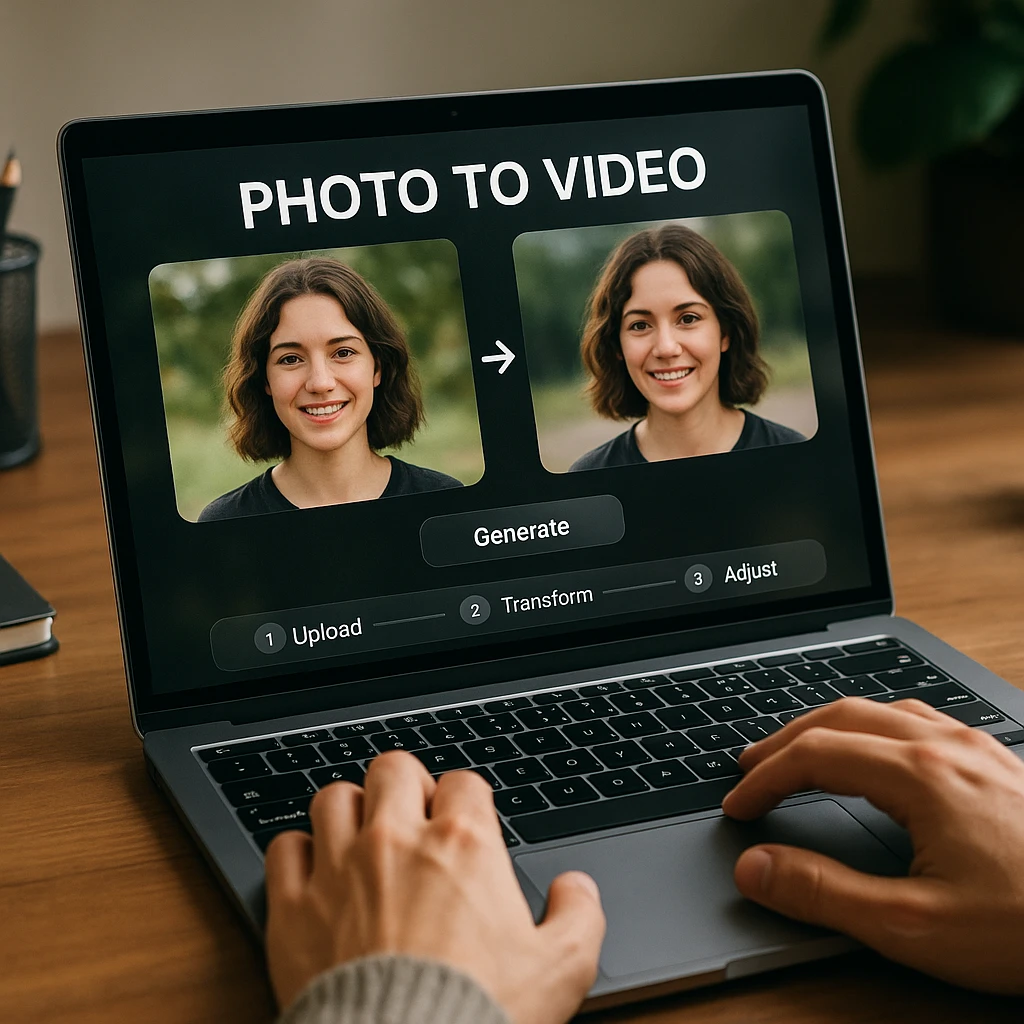
The workflow is roughly the same across every AI generator here. Here is the general flow:
Step 1: Choose Your Tool
Pick a generator based on what you need:
- Quality priority: Luma (Ray3)
- Creative control: Runway (Gen-4.5)
- Longest clips: Kling 3.0
- Speed and simplicity: Pika
- Mobile creation: CapCut
Step 2: Upload Your Source Image
Upload a clear, high-resolution photo. The best results come from images with:
- Clear subjects and good lighting
- Minimal background clutter
- Proper focus and sharpness
- Sufficient resolution (at least 1024x1024 pixels)
Step 3: Write a Motion Prompt (Optional but Recommended)
Guide the AI with specific motion descriptions:
- Subtle effects: “gentle wind blowing through hair”
- Camera movements: “slow zoom in on subject”
- Environmental: “falling snow in background”
- Character animation: “eyes blinking slowly”
Step 4: Adjust Settings
Configure duration, motion strength, and aspect ratio based on your intended use:
- Social media: Square or vertical aspect ratios
- Professional content: 16:9 widescreen
- Duration: 3-5 seconds for most applications
Step 5: Generate and Download
Click generate and wait for processing. Most tools take 30 seconds to 2 minutes depending on complexity and server load.
Once you’ve created your animated content, tools like ScreenApp’s AI video summarizer can help you quickly generate descriptions and social media captions for your animated videos, streamlining your content publishing workflow.
Tips for Getting the Best Results
Choosing the Right Source Image
High-resolution photos with clear subjects work best. Avoid images with excessive compression artifacts or blur, as these issues become more noticeable in motion.
Portrait photography tends to produce the most impressive results. Clear facial features allow AI models to generate natural micro-expressions and subtle movements that bring subjects to life.
Landscape and architectural photos work well with camera movement effects. Images with depth and layered elements create convincing parallax effects when animated.
Writing Effective Motion Prompts
Be specific but simple. Prompts like “gentle camera pan left” work better than vague descriptions like “make it move.”
Consider the image content. For water scenes, try “gentle ripples” or “flowing water.” For portraits, consider “subtle breathing” or “soft eye movement.”
Test different approaches. The same image can produce dramatically different results with various motion prompts. Experiment to find what works best for your specific content.
Optimizing for Different Platforms
Instagram and TikTok prefer vertical (9:16) or square (1:1) formats with short, looping animations.
YouTube and professional content typically use horizontal (16:9) with longer durations and more subtle motion.
Website backgrounds benefit from perfect loops and gentle motion that doesn’t distract from text content.
When creating content for multiple platforms, consider using ScreenApp’s Video Analyzer to automatically assess your animated content’s performance characteristics and optimize for different viewing contexts.
Which one should you use
Short answer: for quality, use Luma (Ray3) or Runway (Gen-4.5). For the longest, most stable clips, Kling 3.0. For speed and a genuinely usable free tier, Pika. And if you only need a slow Ken Burns zoom on a real photo, skip the AI entirely and use Kapwing, Canva, or CapCut.
Two things worth knowing in 2026. Google’s Veo 3.1 is now the all-arounder a lot of pros reach for first, so it is worth a look once you outgrow the tools here. And OpenAI is winding down Sora, so do not build a workflow around it.
For wider AI video work beyond animating one photo, our roundup of AI tools for video production goes deeper. If you want to record and reuse your own footage, an AI screen recorder is a simple place to start. And once you are producing a lot of clips, ScreenApp’s AI Note Taker can turn them into summaries and captions so you are not writing each one by hand.
How we put this together: this is a comparison based on each vendor’s published documentation and pricing pages, checked on the dates shown. We did not run a hands-on benchmark for this article.
FAQ
What is the best free image to video AI?
Pika has the most generous free tier of the high-quality AI generators, with 150 refreshing credits a month and no watermark. Canva gives free users unlimited basic animations, though with less motion control. And for a plain Ken Burns zoom, Kapwing or Image Pan Zoom are free in the browser.
Can I turn a picture into a video without a watermark for free?
Yes, several tools offer watermark-free generations on free plans: - Pika Labs: Limited daily generations - Canva: Basic animations only - CapCut: Full mobile features without watermarks Premium features and unlimited usage typically require paid subscriptions.
How long does it take to generate a video from a photo?
Generation times vary by tool and complexity: - Pika Labs: 15-30 seconds - Luma AI: 1-2 minutes - Runway (Gen-4.5): 30 seconds to 1 minute - CapCut: Near-instant for preset effects Processing times also depend on server load and the complexity of your motion prompts.
Can I use my own photos, or do I need AI-generated images?
All tools work with regular photographs. In fact, real photos often produce better results than AI-generated images because they contain natural lighting, textures, and depth information that AI animation models can interpret effectively. For content creators who need comprehensive video tools beyond photo animation, explore our detailed review of the top 12 AI video tools for content creators, which covers platforms optimized for social media and professional content creation workflows.
What is the best AI tool to animate a face in a photo?
Luma (Ray3) is the strongest for faces, with natural micro-expressions and subtle movement. Runway (Gen-4.5) gives you more control over a specific facial animation through detailed prompts. On mobile, CapCut has decent preset face effects.
How do these tools compare to traditional video creation?
AI photo animation fills a narrow niche between a still photo and full video production. It will not replace real video, but it is good for: - Adding motion to existing photos - Creating engaging social media content - Enhancing presentations and websites - Prototyping video concepts quickly For creators working with existing video content who need to extract insights or create summaries, explore our comprehensive guide to the 10 best video summarizers, which covers AI tools for analyzing and co