Best AI Video Highlights Generators: Long Videos to Short Clips


On this page
Here is the part the free-tier comparisons leave out.
OpusClip’s free plan gives you 60 processing minutes a month, which sounds generous. The exports carry a watermark, and they disappear after three days. Miss the window and you reprocess from scratch, spending the minutes again.
That is not a scandal, it is a normal funnel. But it does mean “free AI clip generator” is doing a lot of work in most listicles, and the honest version of this comparison starts with what each free tier actually hands you. If you only need to find the moments worth cutting rather than have them cut for you, picking the highlights out of a long video is the cheaper first step.
The second thing worth knowing before you pick: these tools all claim to find “viral moments,” and what they are really doing is reading a transcript.
Best free tier: OpusClip, 60 min a month, as long as you download within three days.
Cheapest real plan: OpusClip Starter at $15/mo. Most rivals start at $29.
They read transcripts, not video. Clear speech clips well. A silent product demo does not.
Meetings and webinars: you usually want the transcript and summary more than the clips.
How These Tools Actually Pick
Worth understanding, because it predicts exactly when they work and when they waste your credits.
Almost every AI clip generator follows the same pipeline. Transcribe the audio, run the transcript through a language model, score passages for things that correlate with engagement (a question, a strong claim, a story opening, a number), then cut around the timestamps of the best-scoring passages and reframe to vertical.
Notice what is missing. The model is reading words, not watching the video. “Viral moment detection” is, in practice, interesting-sentence detection with a crop applied afterwards.
That explains the failure cases people run into and blame on the tool:
A silent screen recording produces nothing useful, because there is no transcript to score. A product demo where the good part is something happening on screen gets cut around whatever the presenter happened to be saying. And a two-person conversation where the punchline lands visually, a reaction or a gesture, will be missed every time.
Where it works well is talking-head content: podcasts, interviews, webinars, keynote talks. Anything where the value is genuinely in the speech.
So the honest screening question before you upload anything: is the good part audible? If the answer is no, no amount of credits will fix it.
What Each One Costs
Verified in August 2026. The free-tier column is the one that surprises people.
| Tool | Free tier | Paid from | The catch |
|---|---|---|---|
| OpusClip | 60 min/mo | $15/mo | Free exports watermarked, deleted after 3 days |
| Vizard | 60 credits/mo | $29/mo | Credits, not minutes, so the maths differs |
| Klap | None | $29/mo | No trial, but no watermark either |
| Munch | Trial only | ~$49/mo | Priciest entry point of the group |
| ScreenApp | Yes | Paid tier | Transcript-first, not a vertical-clip specialist |
Two things fall out of that table. Klap having no free tier is not automatically worse, since every export is clean and you skip the watermark problem entirely. And the $29 line repeats often enough that it is clearly the market rate, which makes OpusClip’s $15 Starter the outlier worth noticing if budget is the deciding factor.
The Tools, Ranked
1. OpusClip
Cheapest real plan, and the free tier has a clock on it
OpusClip is the default name in this category and the one most people try first. Upload a long video, it scores the transcript, returns a set of vertical clips with captions burned in and a predicted engagement score attached to each.
The free plan gives you 60 processing minutes a month. Read the terms before you rely on it: free exports carry a watermark and are removed after three days, so a clip you generated on Friday is gone by Monday. Starter at $15/mo clears both limits and is the cheapest paid entry of any tool here.
Pros
- • Cheapest paid plan in the category
- • Generous 60 free minutes monthly
- • Captions burned in automatically
- • Reframes to vertical without manual cropping
- • Engagement score helps triage which clips to post
Cons
- • Free exports deleted after three days
- • Watermark on the free tier
- • Scores are predictions, not results
- • Struggles with low-speech footage
Best For
Creators posting short-form regularly who want the lowest paid entry point, and anyone testing whether AI clipping suits their content at all.
2. Vizard
Similar output, but it bills in credits rather than minutes
Vizard does the same core job and prices it differently. The free tier accumulates 60 credits a month, with Creator at $29/mo.
Credits rather than minutes is the thing to watch. It changes how you budget, because a long upload that produces many clips consumes differently from an hour of processing time. Work out which unit matches your actual usage before comparing the headline numbers against OpusClip.
Pros
- • Genuine free tier that accumulates
- • Clean multi-platform export presets
- • Solid caption styling controls
- • Good with multi-speaker recordings
Cons
- • Credits are harder to forecast than minutes
- • Paid plan twice OpusClip's entry price
- • Same transcript-first blind spots
Best For
Teams who process in bursts rather than steadily, where accumulating credits suits the workflow better than a monthly minute allowance.
3. Klap
No free tier, and no watermark to work around
Klap has no free plan at all, which reads as a downside until you notice the consequence: every export is watermark-free by default, because there is no free tier to differentiate.
That is a real trade rather than a worse deal. You cannot test it without paying, and you never deal with a watermarked clip or a three-day expiry. If you already know AI clipping works for your content, that is a cleaner arrangement than the freemium alternatives.
Pros
- • No watermark on any export
- • No expiring free-tier files
- • Focused specifically on short-form output
- • Simple pricing with no credit maths
Cons
- • Cannot try before paying
- • No free tier for occasional use
- • Market-rate $29 entry
Best For
Creators already committed to short-form who would rather pay from day one than manage watermarks and expiry windows.
4. Munch
The expensive one, aimed at marketing teams
Munch positions itself further up the market, with trials rather than a free plan and pricing that starts around $49/mo for limited minutes.
It is the priciest entry point of the group by a clear margin. That is defensible for a marketing team running paid campaigns off the clips, where the output feeds spend decisions. For an individual creator it is difficult to justify against a $15 or $29 alternative doing the same core job.
Pros
- • Marketing-oriented feature set
- • Trial available before committing
- • Built with campaign workflows in mind
Cons
- • Most expensive starting price here
- • No ongoing free tier
- • Minute limits tight for the price
- • Overkill for solo creators
Best For
Marketing teams repurposing content into paid social, where the clips inform spend and the price is a line item rather than a personal cost.
5. ScreenApp
When the transcript matters more than the clip
The four tools above are built for one job: long talking-head video becomes vertical clips for social. If that is your job, pick from them.
A different case shows up constantly in this search though. Somebody has a webinar, a customer call, or a two-hour lecture, and what they actually need is to find the moments, quote them, and share the substance. Vertical crops with burned-in captions are the wrong output for that.
ScreenApp works transcript-first: video to text gives you the searchable record, AI video summary pulls out what mattered, and the clip generator cuts the segments worth keeping. The transcript is the artefact you keep, and the clips come out of it.
Pros
- • Full searchable transcript, not just clips
- • Summaries and Q&A over the recording
- • Nothing to install, runs in the browser
- • Handles meetings and webinars, not just social content
- • Free tier available
Cons
- • Not a dedicated vertical-clip tool
- • Cloud processing, files are uploaded
- • Less short-form styling than OpusClip or Klap
Best For
Webinars, meetings, lectures and interviews where you need the content findable later, not just a set of clips to post this week.
What “Free” Buys You
The free cluster is the biggest slice of this search, so worth being precise about what each free tier is for.
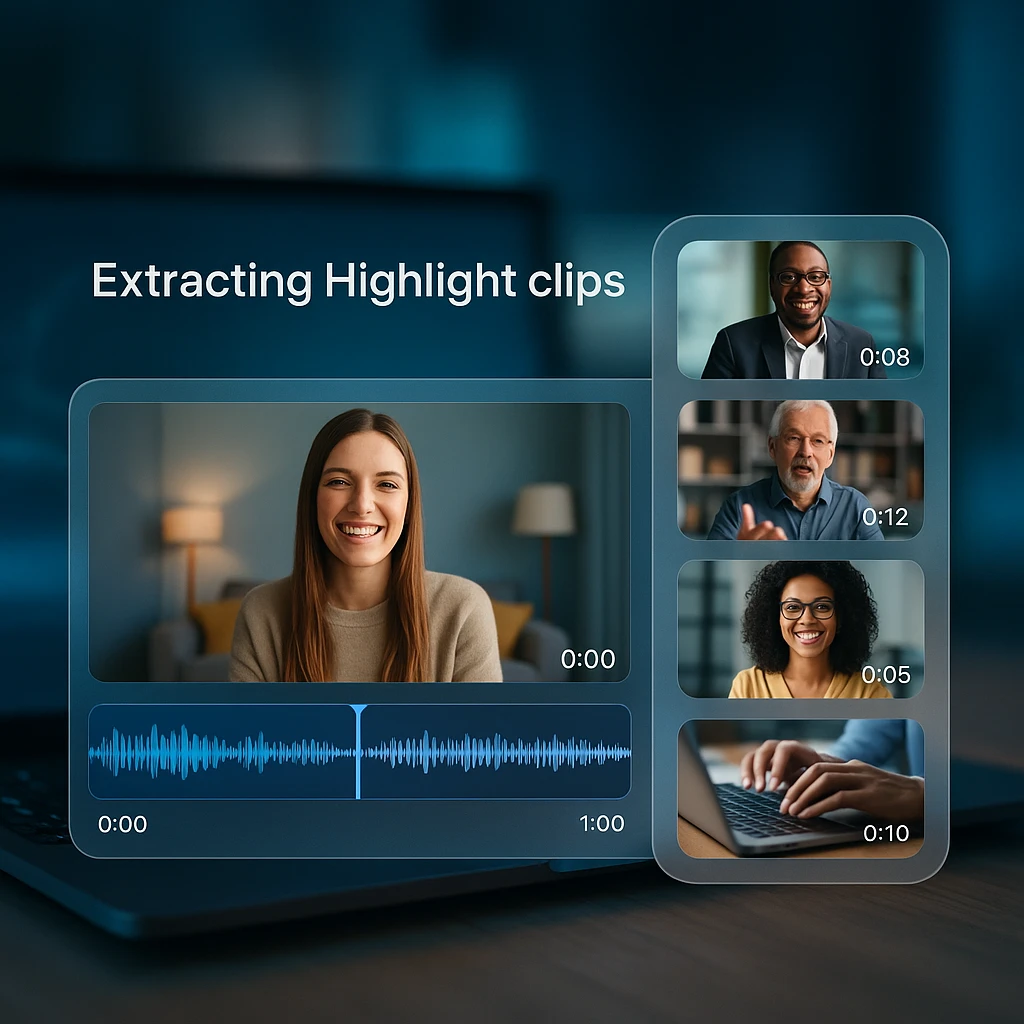
None of these free tiers are meant to be a permanent workflow. They are trials with a monthly reset, and the constraints are deliberate: watermarks, expiry windows, credit caps. OpusClip’s three-day deletion is the sharpest version, and the one most likely to catch you out, because nothing warns you at export time.
If you genuinely need free and ongoing, the honest answer is that you will hit a wall in this category within a month or two. The workaround people actually use is doing the transcript work free, identifying the moments themselves, then cutting a handful of clips manually rather than paying for automated volume they do not need.
Which is fine. Two clips a week does not justify $29 a month. If you are producing the source video too, the roundup of AI video generators for YouTube covers the other end of that pipeline.
Podcasts, Webinars and Meetings
The brief for a podcast clip and the brief for a webinar clip look identical and are not.
Podcasts are the ideal case. Clear audio, two people talking, the value entirely in the speech. If repurposing is the wider goal, the video repurposing strategy guide covers what to do with the clips once you have them. Transcript-scoring works well here and the tools above will find genuinely good pull-quotes. If podcast clips are the whole job, any of the four will do it.
Webinars are messier. Half the value is usually on the shared screen, and a transcript-first tool cannot see the slide that made the point land. You get clips of somebody describing a chart you cannot see. Worth pulling the transcript and summary first and choosing moments yourself.
Meetings and internal calls are usually the wrong input entirely. You rarely want a vertical clip of a client call. What you want is the decision, the action item, and the ability to find it in three months. That is a transcript job, and there is more on that approach in the guide to turning video into notes.
Sports comes up a lot in this cluster and deserves a straight answer: the tools here will not do it. Match highlights depend on what happens on the pitch, and a commentary transcript is a weak proxy. Dedicated sports systems use motion and event detection, which is a different technology from anything in this article.
Where Credits Get Wasted
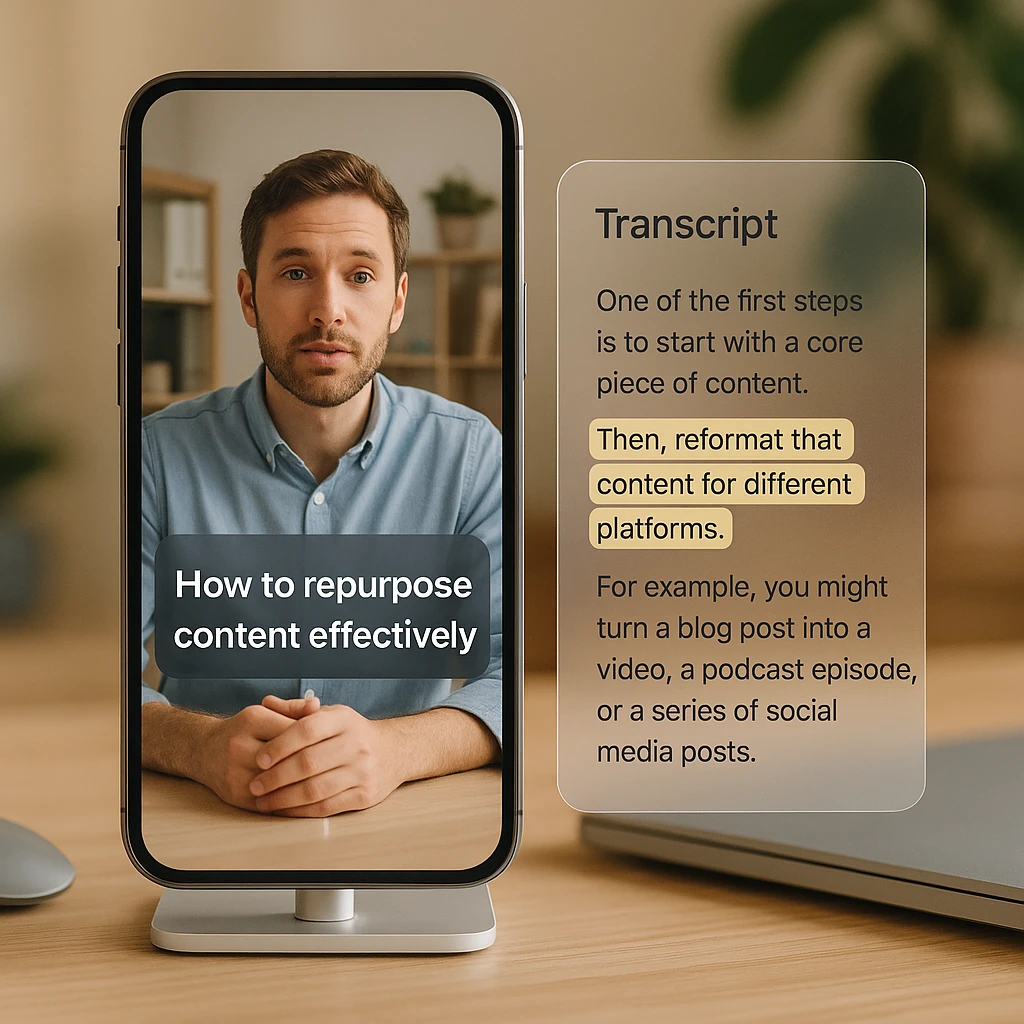
Four patterns account for most of the disappointment, and all four trace back to the transcript-first pipeline.
Long silences and screen-share segments produce nothing, because there is nothing to score. Heavy crosstalk confuses speaker separation and the clip boundaries land mid-sentence. Technical vocabulary transcribes badly, so a passage that was actually the best moment scores low because the model could not read it. And any joke or point that depends on a visual will be cut without the visual.
The habit that saves the most credits: skim the transcript before you generate. Two minutes reading tells you whether there are quotable moments in there at all, and stops you spending 60 minutes of allowance on a recording that was never going to clip well.
For choosing which moments matter across a longer library, an AI video watcher answering questions about the footage gets you there faster than generating clips and reviewing them.
What I Would Actually Do
Podcast or interview content, posting short-form weekly: OpusClip at $15/mo. Cheapest real plan and the output suits talking-head material. Download free-tier clips the same day if you are still testing.
Already sure this works and you hate watermarks: Klap. No free tier is a fair price for never dealing with expiry or branding on an export.
Webinars, lectures, or anything screen-heavy: do not start with a clipper. Get the transcript, pick the moments yourself, cut those. The automation is solving a problem you do not have.
And skim the transcript before every generation run. It is the single habit that separates people who get value here from people who burn a month of credits and conclude AI clipping does not work.
FAQ
What is the best AI video highlights generator?
For most creators, OpusClip, mainly on price: $15/mo is the cheapest real plan in the category and the output suits talking-head content. Klap is the better pick if you want watermark-free exports without managing a free tier.
Can AI automatically create video highlights?
Yes, for speech-driven video. The tools transcribe the audio, score passages with a language model, and cut around the highest-scoring timestamps. Video with little dialogue produces poor results because there is nothing to score.
How does AI find highlights in videos?
It reads the transcript rather than watching the footage. Passages that look engaging in text (questions, strong claims, story openings, numbers) score highest, and the tool cuts around those timestamps and reframes to vertical.
Is there a genuinely free AI highlight generator?
OpusClip gives 60 minutes a month and Vizard gives 60 credits, but free exports are watermarked and OpusClip deletes them after three days. Free tiers here are trials with a monthly reset, not a long-term workflow.
Why did OpusClip delete my clips?
Free-tier exports are removed after three days. Download them the same day you generate. Paid plans do not have that limit.
Which AI creates clips from podcasts?
Any of the four dedicated tools work well, because podcasts are the ideal input: clear audio, minimal visual dependency, value entirely in the speech.
Can AI create sports highlights?
Not these tools. Sports highlights depend on on-field events, and a commentary transcript is a weak proxy. Dedicated sports systems use motion and event detection, which is different technology.
Can AI turn a webinar into social clips?
It can, with a caveat: if the value is on the shared screen, transcript-first tools miss it and you get someone describing a chart nobody can see. Pull the transcript and pick moments yourself for screen-heavy content.
How many clips should I expect from an hour of video?
It varies by tool and content, but expect a shortlist rather than a full set. Most of the work is triage: you review the candidates and post a few. Treat automated engagement scores as a sorting aid, not a prediction.
Do AI clips come with captions?
Yes, all four burn captions in by default, and that is one of the strongest reasons to use them. Manual captioning of vertical clips is tedious work.
Can I use these on a screen recording with no talking?
No. With no speech there is no transcript, and with no transcript there is nothing to score. Silent screen recordings are the clearest waste of credits in this category.
What is the cheapest paid plan?
OpusClip Starter at $15/mo. Vizard and Klap both start at $29, and Munch is around $49, so $15 is the outlier worth knowing about if price decides it.