Best AI Video Generator for YouTube in 2026: 9 Tools Compared

On this page
Quick Answer: Best AI Video Generator for YouTube
The right tool depends on the kind of channel you run:
- Best overall: InVideo AI (prompt to finished video with voiceover and captions)
- Best for talking-head videos: HeyGen (AI avatar presenter, 175+ languages)
- Best for faceless channels: Fliki (900+ voices, script to video)
- Best free option: Canva (real free plan, no card, template library)
- Best for repurposing real footage: ScreenApp (record, transcribe, cut clips)
Pricing and free-tier limits below were checked in July 2026. Most of these tools change their plans every few months, so confirm the current numbers before you subscribe.
ChatGPT can write you a video script. It cannot render the scenes, add a voiceover, burn in captions, and hand you an MP4 you can upload. For that you need an AI video generator, a tool that turns a text prompt or a script into an actual video file ready for YouTube.
The reason people search for this is simple. More than 500 hours of video are uploaded to YouTube every minute, according to Statista, and standing out at that volume without a film crew means leaning on AI for at least part of the pipeline. Video is also where the attention is: in Wyzowl’s State of Video Marketing report, the large majority of marketers say video gives them a positive return, which is why so many creators are trying to ship more of it, faster.
What changed in 2026 is the quality. The big text-to-video models (OpenAI’s Sora 2 and Google’s Veo 3.1) are now wired straight into consumer tools like InVideo and Runway, so a plain-English prompt gets you clips that would have needed a studio two years ago. This guide compares the nine tools that actually make sense for YouTube, splits them by what they are good at (full videos, avatars, faceless narration, cinematic b-roll), and is honest about where a generator stops and real recording begins.
Related reading: For a broader roundup that is not YouTube-specific, see our guide to the best free AI video generators without watermark. If you would rather save existing videos than make new ones, the best YouTube downloaders and YouTube to MP3 guides cover that side.
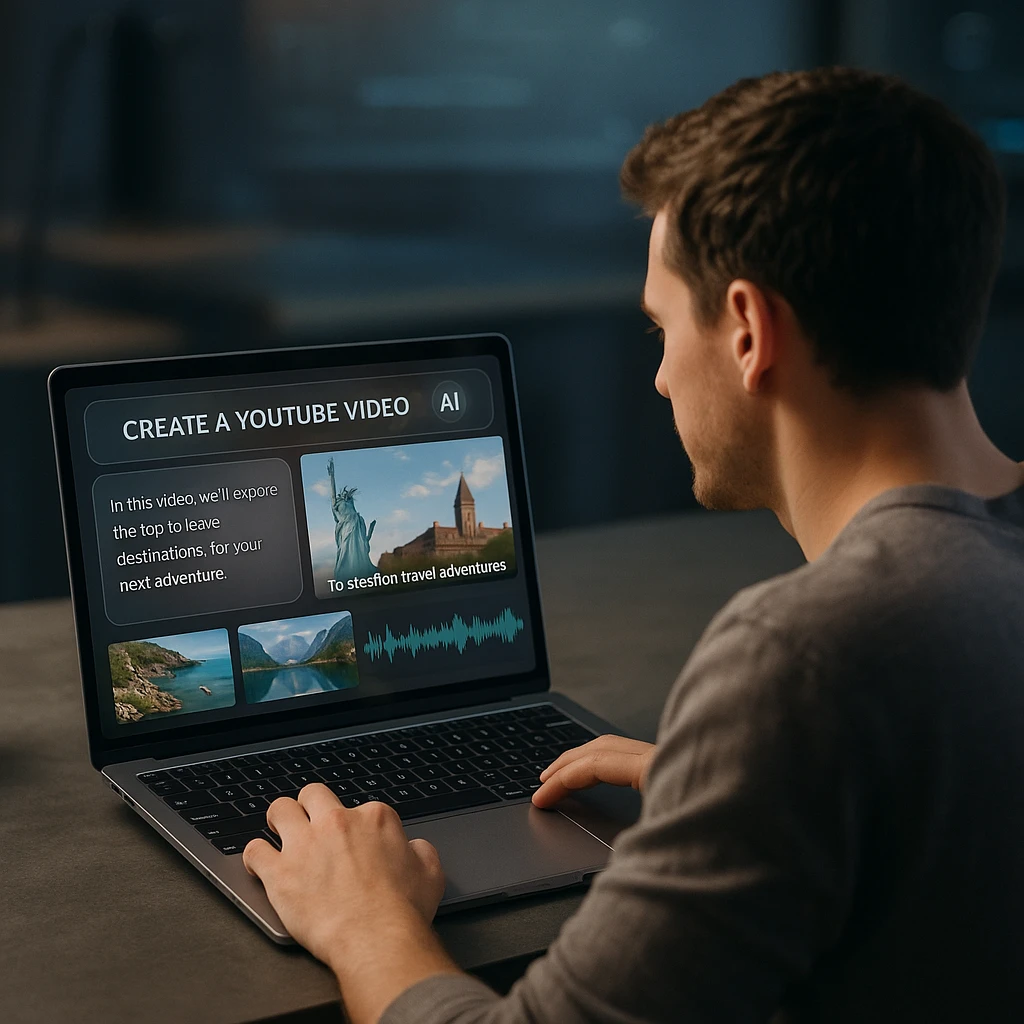
Four Kinds of AI YouTube Video
“AI video generator for YouTube” is one search, but it hides four very different jobs. Pick the tool that matches yours, because a tool built for avatars is a poor fit for cinematic b-roll and the other way round.
- Full videos from a prompt or script. You type an idea or paste a script, and the tool assembles stock footage or AI clips, a voiceover, captions, and music. Best for Shorts and quick explainers. InVideo AI and Pictory live here.
- AI avatar presenters. A synthetic person reads your script to camera. Good for talking-head channels, tutorials, and course intros without filming yourself. HeyGen and Synthesia own this.
- Faceless narration. Script plus a natural AI voice plus rolling visuals, no face on screen. This is the engine behind most “faceless YouTube automation” channels. Fliki is the pick.
- Cinematic b-roll and effects. Pure text-to-video and image-to-video models that generate original shots for intros, transitions, and music videos. Runway, Google Veo 3, and Pika sit here.
If you want a second opinion sorted the same way, Flowjam, a studio that makes launch videos for SaaS and AI companies, keeps its own round-up of AI video generators for YouTube, with picks by job and separate sections for Shorts and faceless channels.
One warning before you build a channel on any of these. YouTube’s policy on mass-produced and repetitive content means fully automated, low-effort AI uploads can be blocked from monetization. The channels that keep earning use AI to speed up production, then add a real voice, a real point of view, or real footage on top. That last part is where recording tools come back into the story.
AI Video Generators for YouTube Compared
| Rank | Tool | Type | Best for on YouTube | Free plan | From |
|---|---|---|---|---|---|
| 1 | InVideo AI | Prompt to video | Full videos and Shorts from a script | Yes (watermark) | $25/mo |
| 2 | HeyGen | AI avatar | Talking-head videos without filming | Yes (3 free/mo) | $24/mo |
| 3 | Pictory | Script to video | Turning blogs and scripts into videos | 14-day trial | $25/mo |
| 4 | Fliki | Faceless narration | Faceless channels in many languages | Yes (5 min/mo) | $21/mo |
| 5 | Synthesia | AI avatar | Educational and training content | Yes (3 min/mo) | $18/mo |
| 6 | Google Veo 3 | Text to video | Realistic AI clips with native audio | Limited (Gemini) | $20/mo |
| 7 | Runway | Text/image to video | Cinematic b-roll and effects | Free credits | $15/mo |
| 8 | Pika | Text/image to video | Quick stylized clips and transitions | Free credits | $10/mo |
| 9 | Canva | Templates + AI | Beginners and free-plan creators | Yes (generous) | $15/mo |
| 10 | Opus Clip | Clip extraction | Turning long videos into viral Shorts | Yes (limited) | $20/mo |
| 11 | Loom | Screen + webcam + repurpose | Tutorial and screen recording channels | Yes (25 min/mo) | $13/mo |
Prices are the entry paid tier as of July 2026, billed annually where that is cheaper. A realistic budget for posting daily Shorts with AI is $20 to $30 a month once you outgrow the free tiers, mostly because free plans cap export minutes and stamp a watermark on your uploads.
AI Video Generator Reviews for YouTube
1. InVideo AI
Best overall: a prompt becomes a finished YouTube video
InVideo AI is the shortest path from an idea to something you can upload. Type a 40-word brief, pick a tone, and it writes a script, pulls stock or AI-generated footage, records a voiceover, burns in captions, and lays a music bed under the whole thing. The 2026 version pipes Sora 2 and Veo 3.1 into the generator, so you can mix real stock with original AI shots in one timeline.
The editing model is unusual: you refine the video by typing commands like "make the intro punchier" or "swap the third clip for something outdoors" instead of dragging on a timeline. That is fast for Shorts and frustrating when you want frame-level control. The free tier watermarks exports and caps weekly generation, so plan to upgrade once you post regularly.
Pros
- •One prompt produces script, footage, voiceover, and captions
- •Handles both 9:16 Shorts and 16:9 long-form
- •Sora 2 and Veo 3.1 built in for original clips
- •Text-command editing is quick for iterating
- •Large stock library and voice cloning
Cons
- •Free tier watermarks and caps weekly exports
- •Stock-heavy videos can look generic
- •No frame-level timeline for precise edits
Best For
Creators who want to publish explainers and Shorts on a schedule and care more about speed than pixel-perfect control.
2. HeyGen
Best for talking-head videos without filming yourself
HeyGen makes a synthetic presenter read your script to camera, which is the closest thing to filming yourself without turning a camera on. You paste a script, pick an avatar (or clone your own from a short consent recording), and it renders a talking-head video with matched lip-sync. The translation feature can re-voice the same video into 175+ languages, which is how a lot of channels quietly go multilingual.
For tutorials, news-style updates, and course intros it is the strongest pick here. The free plan lets you test the full studio with about three watermarked videos a month at 720p. Creator at $24 a month (annual) drops the watermark, unlocks 1080p, and removes the video cap. Big hand gestures still land in the uncanny valley, so scripts that keep the avatar mostly still read best.
Pros
- •Realistic avatars with accurate lip-sync
- •Clone your own avatar from a short recording
- •Re-voice one video into 175+ languages
- •Free plan exposes the full studio
Cons
- •Free videos are watermarked and capped at 720p
- •Large gestures still look slightly off
- •Custom avatar needs a consent video
Best For
Educators, tutorial channels, and creators who want a consistent on-camera presence in several languages without filming.
3. Pictory
Best for turning scripts and blog posts into videos
Pictory is built for repurposing. Paste a blog post or a script and it matches each line to stock footage, adds an AI voiceover, and burns in captions to produce a clean, branded video. Its other trick is pulling short highlight clips out of a long recording, which is how you turn one webinar into a week of Shorts.
It is less cinematic than the pure text-to-video models, but it is reliable and fast for the exact job most creators actually have: converting words they already wrote into watchable video. The Starter plan is $25 a month billed annually with 200 video minutes and no watermark. The catch is that the free option is a 14-day trial rather than a permanent free tier.
Pros
- •Blog post or script to video in minutes
- •Extracts Shorts from long recordings
- •Accurate auto-captions out of the box
- •No watermark on paid plans
Cons
- •Free access is a 14-day trial, not a free tier
- •Stock visuals feel less original than AI clips
- •Voices are good, not the best in class
Best For
Bloggers and course creators who already write scripts and want to turn that text, and their long recordings, into YouTube videos and Shorts.
4. Fliki
Best for faceless YouTube channels in many languages
Fliki is the voice-first option, and voice is what makes or breaks a faceless channel. It pairs a script with one of 900+ AI voices across 75+ languages, then rolls stock visuals underneath to build a narrated video. The voices are the most natural in this group, with control over pace and emphasis, plus voice cloning if you want a consistent narrator.
If you run a "top 10" style channel, a meditation channel, or news recaps, this is the engine most of them use. The visuals lean on stock rather than original AI shots, so the look is functional rather than cinematic. The free plan is real but small at five minutes of export a month, and the Standard plan runs about $21 a month for enough minutes to publish regularly.
Pros
- •The most natural AI voices in this roundup
- •900+ voices across 75+ languages
- •Voice cloning for a consistent narrator
- •Built specifically for faceless workflows
Cons
- •Free plan caps at five export minutes a month
- •Visuals are stock, not original AI footage
- •Less suited to cinematic or effects-heavy videos
Best For
Faceless channel operators who care most about narration quality and want to publish the same video in several languages.
5. Synthesia
Best for educational and training content
Synthesia is the more corporate cousin of HeyGen, and that is a compliment for the right channel. Its avatars and templates are polished in a way that suits course modules, product training, and explainer videos, with 240+ avatars and 140+ languages. If your YouTube channel teaches something, the presenter-and-slides format it produces looks the part.
The trade-off is tone. The avatars read as professional presenters, not casual vloggers, so it fits a training channel far better than a personality-driven one. The free plan gives about three minutes of video a month to test it, and paid plans start around $18 a month billed annually. Per minute it is one of the pricier options once you scale.
Pros
- •Polished avatars and templates for teaching
- •240+ avatars and 140+ languages
- •Slide-and-presenter layouts built in
- •Free plan to test before paying
Cons
- •Formal tone suits training more than vlogs
- •Pricier per minute at scale
- •Limited original b-roll or effects
Best For
Course creators, how-to channels, and brands publishing training and explainer videos that need to look professional.
6. Google Veo 3
Best for realistic AI clips with native audio
Google Veo 3 is the quality ceiling for original AI clips right now. It generates photoreal shots with synchronized native audio, meaning dialogue, ambient sound, and effects come baked into the clip instead of being added later. You can reach it through the Gemini app or Google's Flow filmmaking tool, which lets you string clips into scenes.
This is a model, not a full YouTube editor, so it fits creators who want stunning intros, b-roll, or short cinematic pieces and are happy to assemble the clips themselves. Clips are short, and volume runs on credits, so a heavy week gets expensive. Access comes with Google AI Pro at around $20 a month, with limited free generations through Gemini.
Pros
- •The most realistic clips available today
- •Native synced audio, not a separate step
- •Flow lets you build multi-shot scenes
- •Bundled with a Google AI subscription
Cons
- •Short clips you must assemble yourself
- •Credit limits make heavy use costly
- •Not a captions-and-timeline editor
Best For
Creators who want original, film-grade AI shots for intros and b-roll and do not mind editing the clips into a finished video elsewhere.
7. Runway
Best for cinematic b-roll and creative effects
Runway is the creative tool of the group. Its Gen-4 model turns prompts or a starting image into cinematic clips, and features like motion brush and camera controls give you more direction over the shot than most competitors. Filmmakers and music-video channels lean on it for stylized sequences you cannot get from stock.
Like Veo, it produces clips rather than finished uploads, so it works best alongside an editor. Credits are the real cost: the free tier gives you a taste, then Standard at about $15 a month (annual) adds enough for regular experimenting. Heavy generation weeks can burn through credits quickly, so it rewards a plan before you start prompting.
Pros
- •Cinematic, stylized output from Gen-4
- •Motion brush and camera controls
- •Strong image-to-video for consistent scenes
- •Free credits to try before paying
Cons
- •Credits run out fast on heavy use
- •Produces clips, not finished videos
- •Steeper learning curve than prompt-only tools
Best For
Filmmakers, music-video makers, and creators who want directable, cinematic shots and already edit in a separate app.
8. Pika
Best for quick, stylized clips and transitions
Pika is the fun, fast option. It generates short clips from a prompt or image and is known for playful effects that morph, inflate, or explode a scene, which land well in Shorts and hook moments. It is not chasing photoreal the way Veo is; it is chasing shareable.
For creators who want punchy visuals for a hook, a transition, or a meme-style Short, it delivers in seconds without much of a learning curve. Free credits let you start, and a Standard plan around $10 a month is the cheapest paid entry here. The clips are short and less realistic, so it is a supplement to your main tool rather than the whole pipeline.
Pros
- •Eye-catching effects made for Shorts
- •Fast generations with little setup
- •Cheapest paid plan in this list
- •Free credits to experiment
Cons
- •Less realistic than Veo or Runway
- •Very short clip lengths
- •Better as a supplement than a full pipeline
Best For
Shorts-first creators who want quick, attention-grabbing effect clips to drop into hooks and transitions.
9. Canva
Best free and beginner-friendly option
Canva is where most beginners should start, because it is a full design and video editor with AI generation bolted on rather than a raw model. Its Magic Media feature makes text-to-video and text-to-image clips, and you drop those into a huge library of YouTube thumbnail, Shorts, and intro templates. Nothing here has a gentler learning curve.
The AI generation is basic next to the specialists, but the free plan is genuinely usable and the editor covers everything a new channel needs, thumbnails included. Canva Pro at about $15 a month unlocks more assets and generation. If you want one tool that does 80 percent of a small channel's work for free, this is it.
Pros
- •Genuinely useful free plan
- •Full editor plus thumbnails in one place
- •Huge template library for Shorts and intros
- •Easiest learning curve here
Cons
- •AI generation is basic next to specialists
- •Template look can feel familiar
- •Not built for photoreal or cinematic clips
Best For
New creators on a zero budget who want one easy tool for videos, Shorts, and thumbnails without piecing several apps together.
10. Opus Clip
Best for turning one long video into a week of Shorts
Opus Clip solves a specific problem: you have one long podcast, webinar, or YouTube video and need a dozen Shorts from it. The tool watches the footage, finds the moments people actually pay attention to, and clips them out as vertical videos with captions already burned in. No timeline, no manual cuts, just "upload and get Shorts."
This is how faceless channels and podcasters actually build their Short presence without spending hours in an editor. The clipping is AI-driven so the quality depends on the tool spotting the right moments, which it usually does. The free plan is limited to a few clips a month, and the paid tier at about $20 a month is still cheaper than hiring someone to do it manually.
Pros
- •One upload becomes dozens of Shorts automatically
- •AI finds the interesting moments, not random cuts
- •Captions and vertical format already done
- •No editing skills needed
Cons
- •Free plan is very limited
- •AI clip detection sometimes misses the best moments
- •Not customizable if you want different cuts
Best For
Podcasters, long-form content creators, and anyone with a library of videos who wants to repurpose them into Shorts without manual editing.
11. Loom
Best for tutorial and screen recording channels
Loom is the fastest way to capture screen and webcam footage, and its strength is the instant shareability for internal demos and quick tutorials. Record, add a voiceover or subtitle, and send a link. For YouTube creators, the hidden feature is the repurposing side: Loom now auto-transcribes and clips your recordings, so one tutorial becomes a few Shorts.
The free tier is generous at 25 minutes a month, which covers a couple of solid tutorials. The paid plan at $13 a month gives unlimited minutes and access to the clipping AI. If your channel is tutorial-based or you do product demos, Loom removes the friction of filming and editing entirely.
Pros
- •Record screen and webcam in one click
- •Auto-transcription and clipping
- •Instant link sharing, no file downloads
- •Generous free tier at 25 min/mo
Cons
- •Not a full AI video generator
- •Repurposing tools are newer and still rough
- •Best for tutorial-style content, not cinematic
Best For
Tutorial channels, product demo creators, and anyone who teaches or explains on camera and wants instant sharing plus automatic transcription and clips.
Where ScreenApp Fits: The Other Half of the Workflow
Here is the honest part. ScreenApp is not an AI video generator. It does not turn a prompt into a talking dragon, and we are not going to pretend it does. What it does is the half of a YouTube workflow the generators skip: capturing real footage and turning finished videos into transcripts, captions, and clips.
That matters because the channels dodging YouTube’s repetitive-content rules are the ones adding something real on top of the AI. A generator gives you the b-roll and the voiceover. Your screen recording, your face, your actual demo, and your own commentary are what make the upload yours.
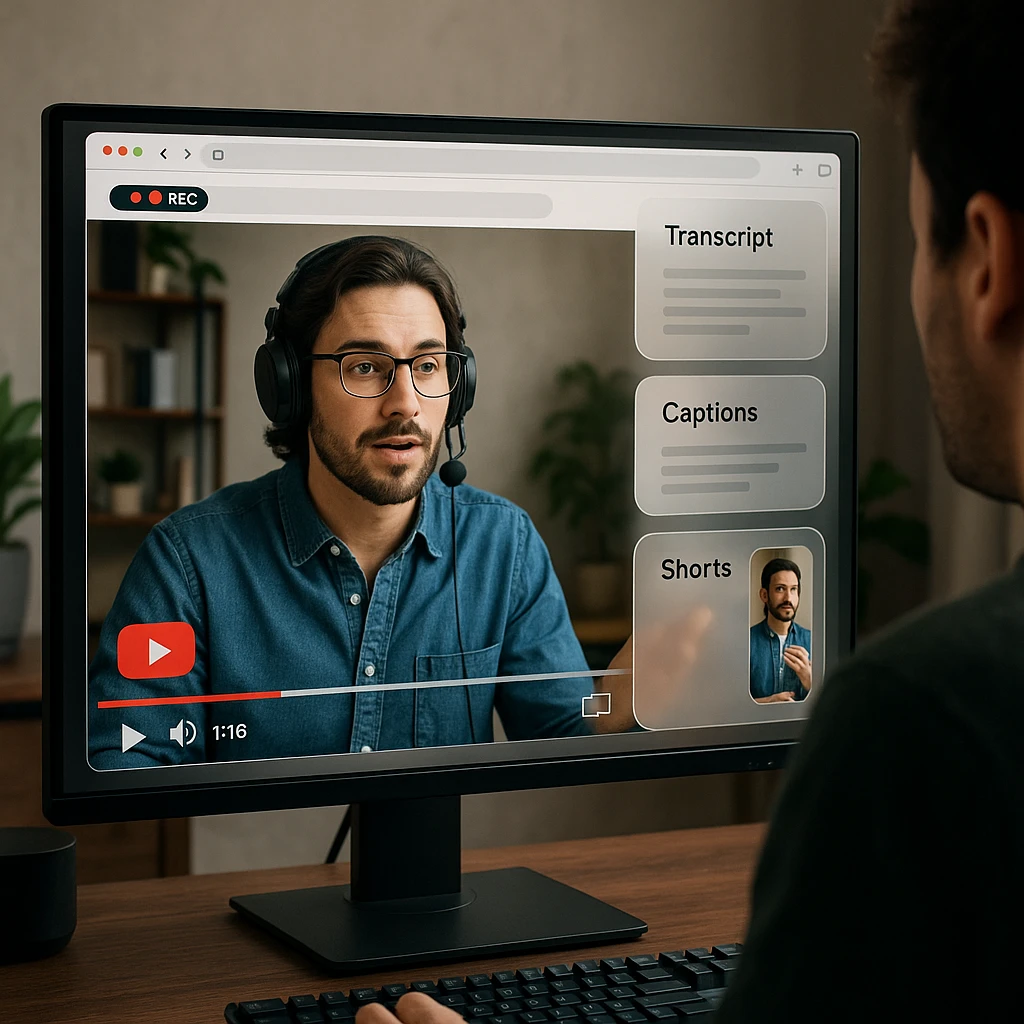
- ×Stock or synthetic footage only
- ×No real screen demos or your own face
- ×Monetization risk from repetitive uploads
- ×No transcript to repurpose later
- ✓Mix AI clips with real screen and webcam footage
- ✓Automatic transcript and captions for every video
- ✓Original commentary that satisfies YouTube's rules
- ✓One recording becomes a week of Shorts
A practical way the two sides fit together:
- Record the real parts. Use the ScreenApp screen recorder to capture your demo, tutorial, or webcam intro. Nothing to install, it runs in the browser.
- Get a transcript and captions. Run video to text to caption the whole video. Captioned videos hold viewers longer and are easier to translate. If you are pulling text out of an existing YouTube upload that already has captions, the transcript generator reads that track from YouTube in about 15 seconds (median 14.7 seconds across 1,774 production imports in July 2026) rather than re-transcribing the audio.
- Cut the long video into Shorts. Use the AI video summarizer to pull the highlights, then trim those moments in the AI video editor for vertical Shorts.
- Repurpose across formats. The same transcript becomes a description, chapters, and a blog post, so one recording feeds several uploads.
If your channel reviews or reacts to other videos, our guide to the best AI video watchers covers tools that analyze footage for you, and if you teach from recorded sessions, recording lectures and converting them to text walks through that exact flow.
Transparency note: We built ScreenApp, so treat this section as the biased part of the article. We did not rank it among the nine generators because it does not generate video, and putting it there would be dishonest. We included it because the recording-and-repurposing step is genuinely missing from every tool above, and it is the step that keeps an AI-assisted channel monetizable.
How to Make a YouTube Video with AI
You do not need every tool above. A working pipeline uses one generator and one editor. Here is the version most creators settle on.
Write the idea, not the whole script
Give the generator a tight brief: topic, audience, tone, and length. A sharper prompt beats a long one. Decide up front whether this is a 9:16 Short or a 16:9 long-form video, because that changes the tool you pick.
Generate the base video
Run it through InVideo AI for a full explainer, HeyGen for a presenter, or Fliki for faceless narration. Generate two or three variations and keep the best. This is the draft, not the final cut.
Add something real
Record a short screen demo or a webcam intro with the ScreenApp recorder and cut it into the AI base. This one step is what separates a channel that gets monetized from one that gets flagged as mass-produced.
Caption, cut, and publish
Caption the final video, pull a few vertical clips for Shorts, and turn the transcript into your description and chapters. Then schedule the upload. One recording session should feed several posts, not one.
The Short Version
Pick by what you make, not by which tool has the loudest homepage.
For most creators
InVideo AI. One prompt gets you a finished, upload-ready video with voiceover and captions.
On a zero budget
Canva. A real free plan, thumbnails, and templates in one editor. HeyGen's free tier is the pick for talking-head videos.
To stay monetizable
A generator plus ScreenApp. Add real footage, captions, and clips so YouTube does not read your channel as mass-produced.
FAQ
What is the best free AI video generator for YouTube?
For a permanent free plan, Canva and HeyGen are the two to start with. Canva gives you a full editor plus thumbnails, and HeyGen's free tier exposes the whole avatar studio at 720p with a watermark. Fliki's free plan is best if voice quality matters most, though it caps at five export minutes a month.
Can I use AI-generated videos on YouTube and still get monetized?
Yes, but not on autopilot. YouTube's policy on mass-produced and repetitive content can block low-effort, fully automated uploads from monetization. Channels that keep earning use AI to speed up production, then add a real voice, original commentary, or their own footage, which is where recording the real parts with a tool like ScreenApp matters.
What is the best AI video generator from text for YouTube?
InVideo AI is the strongest text-to-video option for full uploads, because a single prompt produces the script, footage, voiceover, and captions. For pure text-to-video clips with the highest realism, Google Veo 3 leads, but it makes short clips you assemble yourself rather than a finished video.
Is there an AI video generator for faceless YouTube channels?
Fliki is built for exactly this. It pairs a script with natural AI narration across 900+ voices and 75+ languages, then rolls visuals underneath, so nothing appears on camera. InVideo AI also works well for faceless explainers.
Do free AI video generators put a watermark on your videos?
Most do. InVideo AI, HeyGen, and Pika all watermark free exports, and several also cap resolution or monthly minutes. Canva is the main exception with a usable, watermark-free free plan for its templates. Removing the watermark usually costs $10 to $25 a month.
Can ChatGPT make a YouTube video?
No. ChatGPT can write a script, title, and description, but it cannot render footage, add a voiceover, or export a video file. You need a dedicated AI video generator for that, then an editor to finish it.
Is there an AI video generator app for phones?
Yes. Canva, InVideo, and Fliki all have mobile apps, and Fliki and Canva let you go from text to a shareable Short entirely on a phone. For anything cinematic, though, the desktop web versions of Runway and Veo give you far more control. How we put this together: this is a comparison based on each vendor's published documentation and pricing pages, checked on the dates shown. We did not run a hands-on benchmark for this article.