

Downloading Video in Safari, Especially on iPhone
Safari makes saving video harder than any other browser, and it is worse on the iPhone. There is no “Save Video As” on iOS. Long-press a video and, at best, you get options that save a photo or share a link, and for most streamed video you get nothing savable at all. That gap is why “safari video downloader” is such a common search.
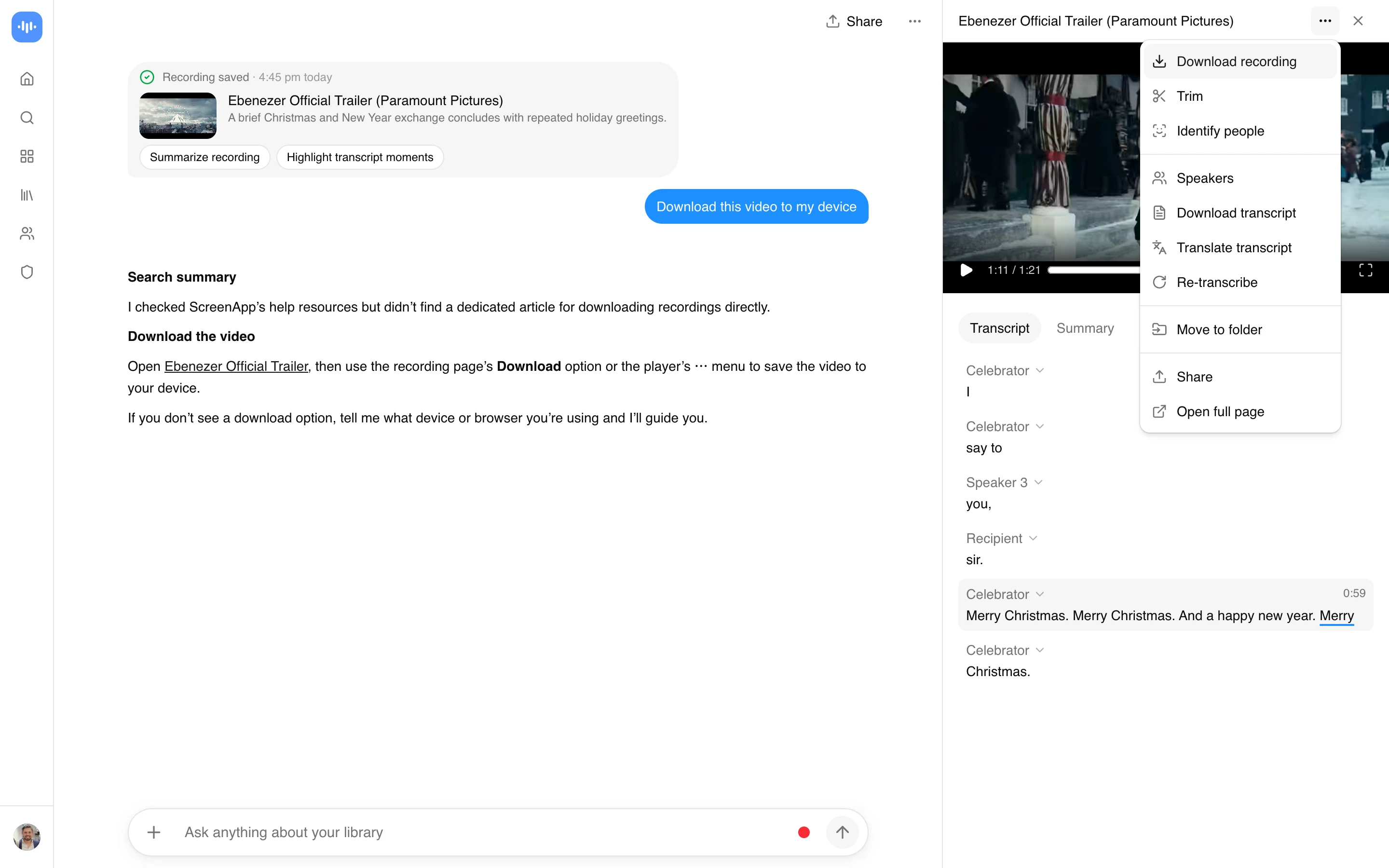
Paste the page or video URL here and the tool pulls the actual file and hands you an MP4. On a Mac it lands in Downloads. On an iPhone or iPad it saves to the Files app, from where you can move it into Photos if you want it in your camera roll. No extension, no app, no jailbreak.
- Works in Safari on iPhone, iPad, and Mac, same paste-a-link flow on all three
- Saves streamed HLS video that a long-press or right-click cannot touch
- Puts the file in Files on iOS or Downloads on macOS, as a plain MP4
- No Safari extension to install (and no App Store download either)
- Public web video the site will serve, not DRM-protected streaming
This is not a Safari extension, and that is on purpose. Safari extensions on iOS are limited, often paid, and awkward to set up. A paste-URL tool skips all of that: you copy the link and get the file, which for a video here and there is simpler than installing anything. For the same tool framed around desktop Chrome, see the Chrome video downloader.
Why Safari Refuses to Save the Video
Two reasons, and both are Safari being Safari.
First, the same streaming reality that affects every browser: most sites now serve video as HLS, an .m3u8 playlist broken into hundreds of small chunks, with the <video> tag pointing at a temporary blob: address. There is no single file to save, so Save As (on Mac) or long-press (on iOS) has nothing to grab. This tool reads the playlist, pulls the chunks, and stitches them into one MP4.
Second, iOS itself. Apple deliberately does not give mobile Safari a general “download this video” action the way desktop browsers have. The Files app added real downloads a few years back, but there is still no right-click, and the share sheet only saves what the page explicitly exposes. So even a plain MP4 that a Mac could save often will not save from an iPhone. Pasting the link into a web tool routes around that, because the tool fetches the file and writes it to Files directly.
One honest limit: DRM-protected streaming (Netflix, Disney+, Apple TV+, paid subscription video) will not download, in Safari or anywhere. Those streams are encrypted, and any tool claiming to save them is lying or installing something you do not want.
Paste, Save to Files, Done
- Copy the URL. On iPhone, tap the share icon in Safari and copy the link, or copy the page address from the address bar. On Mac, copy it from the address bar.
- Paste it into the field on this page.
- Download. On Mac the MP4 lands in Downloads. On iPhone or iPad, choose Save to Files, then open Files to find it. To get it into your camera roll, open the file and share it to Photos.
The iOS step people miss: the video saves to Files, not straight to Photos. That is an Apple rule, not the tool. Once it is in Files you can move it wherever you like, but the first stop is Files.
Who Downloads Video in Safari
iPhone users, mostly, because this is where the pain is sharpest. Someone finds a clip worth keeping, tries the long-press they know from saving photos, and nothing happens for video. The paste-a-link route is the reliable way to get an actual file onto an iPhone.
Mac users hitting the greyed-out Save As on streamed video, the same case as any desktop browser, where the site streams chunks instead of serving a file. And students or researchers on iPad who want a lecture or reference clip saved for offline, where there is no signal, without wrestling the share sheet.
Do More Than Save It
Saving the file is step one. The same import can hand the video to AI, which is where a downloaded lecture or long clip stops being just a file. Get a transcript and a written summary with the AI video summarizer, ask questions and jump to timestamped answers with the AI video watcher, run scene and content detection with the video analyzer, or turn the whole thing into a formatted write-up with video to document. The import runs on ScreenApp’s servers, not on this page. Importing and the transcript are free; the free plan covers 2 transcriptions of recordings up to 45 minutes each, and downloading the MP4 needs a paid plan, from $19/month billed annually on Pro.
Privacy and Copyright
Download only web video you have the right to keep: your own content, public video you are authorized to use, or material in the public domain. Saving copyrighted video without permission can infringe the owner’s rights and breach the source site’s terms, and that responsibility is yours. DRM-protected streaming (Netflix, Disney+, Apple TV+, paid subscription video) is off-limits, in Safari or any browser, because it is encrypted for exactly that reason.
On privacy, the import runs on ScreenApp’s servers: the link is sent to your ScreenApp account, the video is fetched there, and you download it from your library. So the video does pass through your ScreenApp account, and it, along with any transcript or summary you generate from it, is covered by ScreenApp’s privacy policy.