Top Video Resolution Converters: How to Upscale 480p to 1080p and 4K

On this page
We all have old video files stuck at 480p - DVD rips, early YouTube downloads, old phone clips from 2010. On a modern 4K TV or smartphone screen, these videos look blocky and pixelated. The difference is jarring.
Most people search for a “video converter” thinking they can just change the settings from 480p to 1080p like flipping a switch. But if you do that with a standard converter, you just get a bigger, blurrier file. The resolution number changes, but the actual quality doesn’t improve.
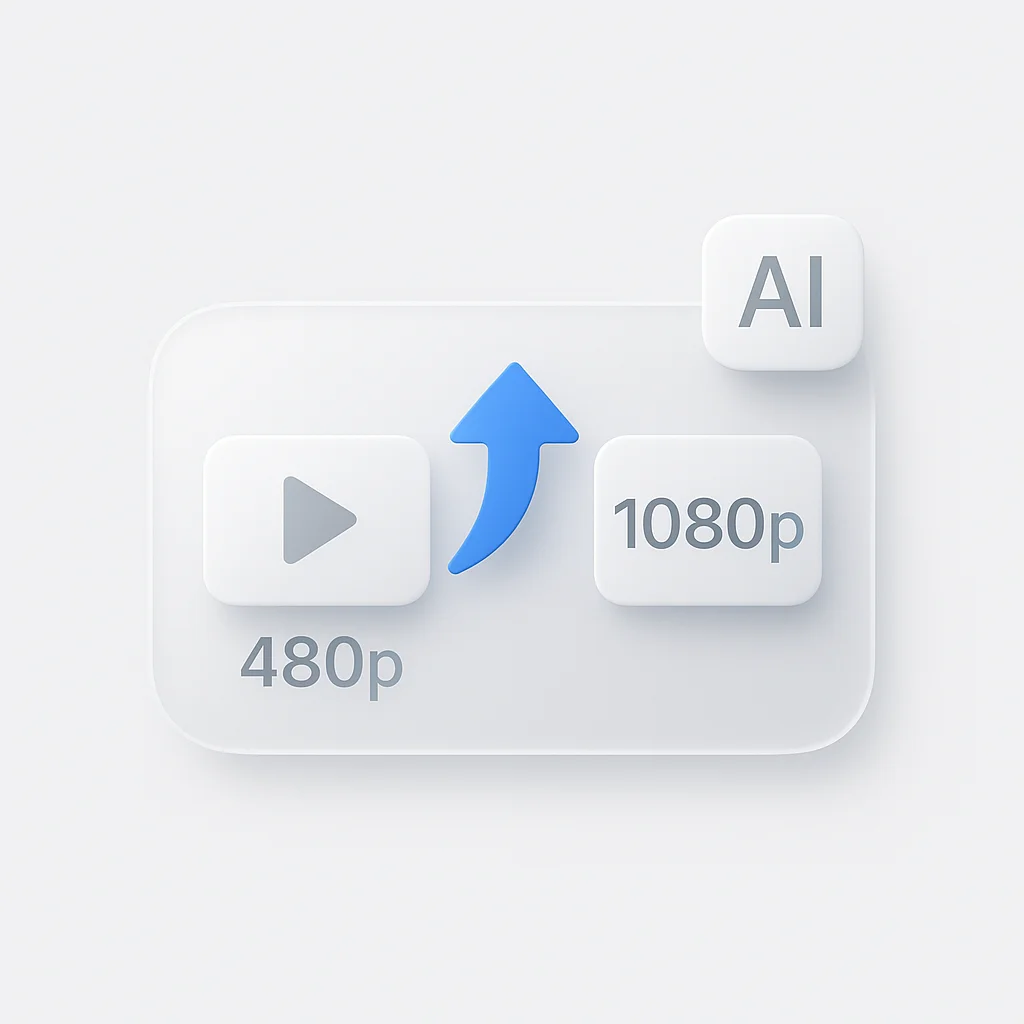
To truly increase video resolution and improve quality, you need an AI video upscaler. This technology doesn’t just stretch pixels - it generates new ones to fill in the gaps.
According to Grand View Research, the global video streaming market is expected to reach $1.9 trillion by 2030, with 4K content becoming the standard. That means your old 480p files look increasingly outdated on modern displays.
For a broader look at fixing video quality beyond just resolution, check out our complete video quality enhancer guide.
The Science: Stretching vs AI Upscaling
Understanding the difference between traditional resizing and AI upscaling is crucial. They produce completely different results.
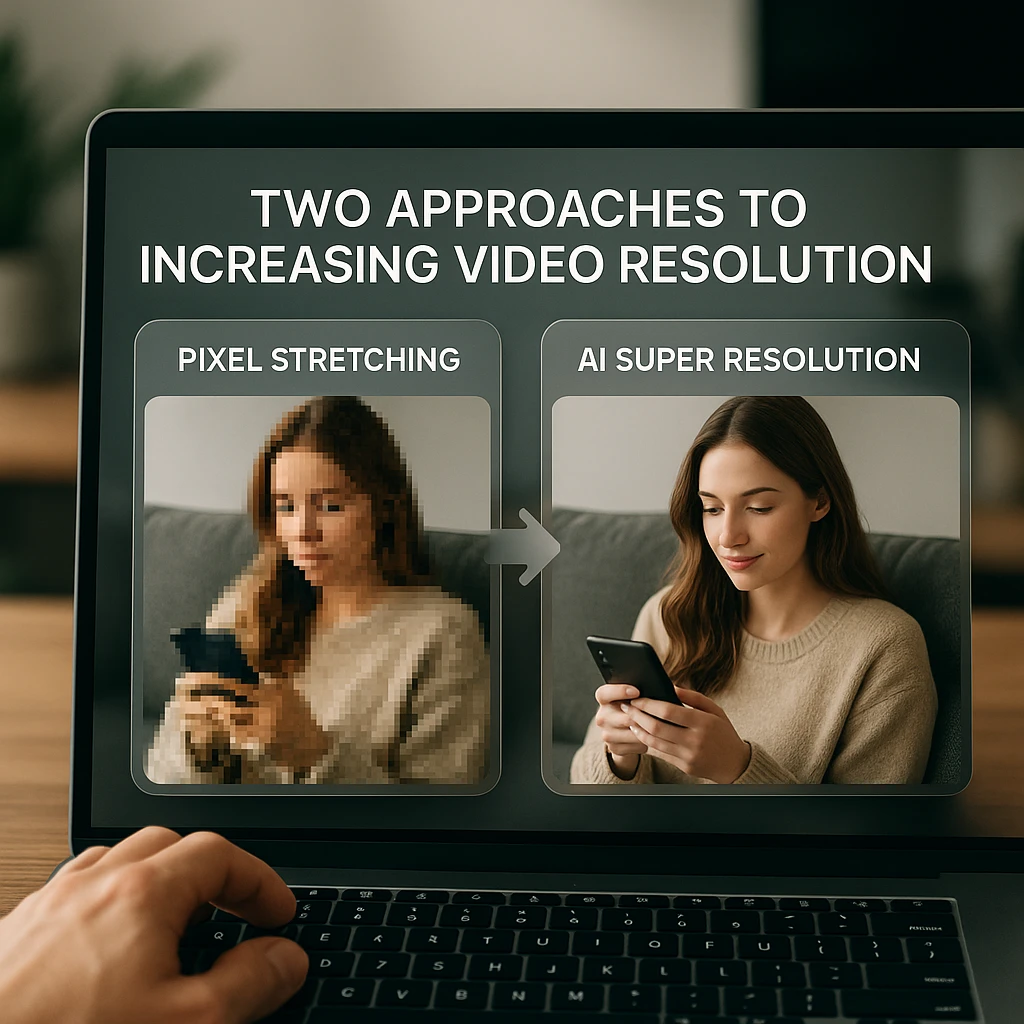
Two Approaches to Increasing Resolution
Pixel Stretching (Bilinear/Bicubic)
Standard video converters duplicate existing pixels to fill the larger frame. Each original pixel becomes 4 identical pixels when going from 480p to 1080p.
Result
A blurry, soft image with no additional detail. The file is bigger, but the quality is the same - or worse.
AI Super Resolution
AI analyzes each frame, recognizes objects (faces, trees, text), and generates new pixels based on what those objects should look like at higher resolution.
Result
Sharper edges, recovered detail, and genuine visual improvement. The AI "invents" plausible detail that wasn't in the original.
Why Bitrate Matters
Increasing resolution without increasing bitrate is pointless. A 4K video at 5 Mbps will look worse than a 1080p video at 15 Mbps. More pixels need more data to avoid compression artifacts. Always export at higher bitrates when upscaling.
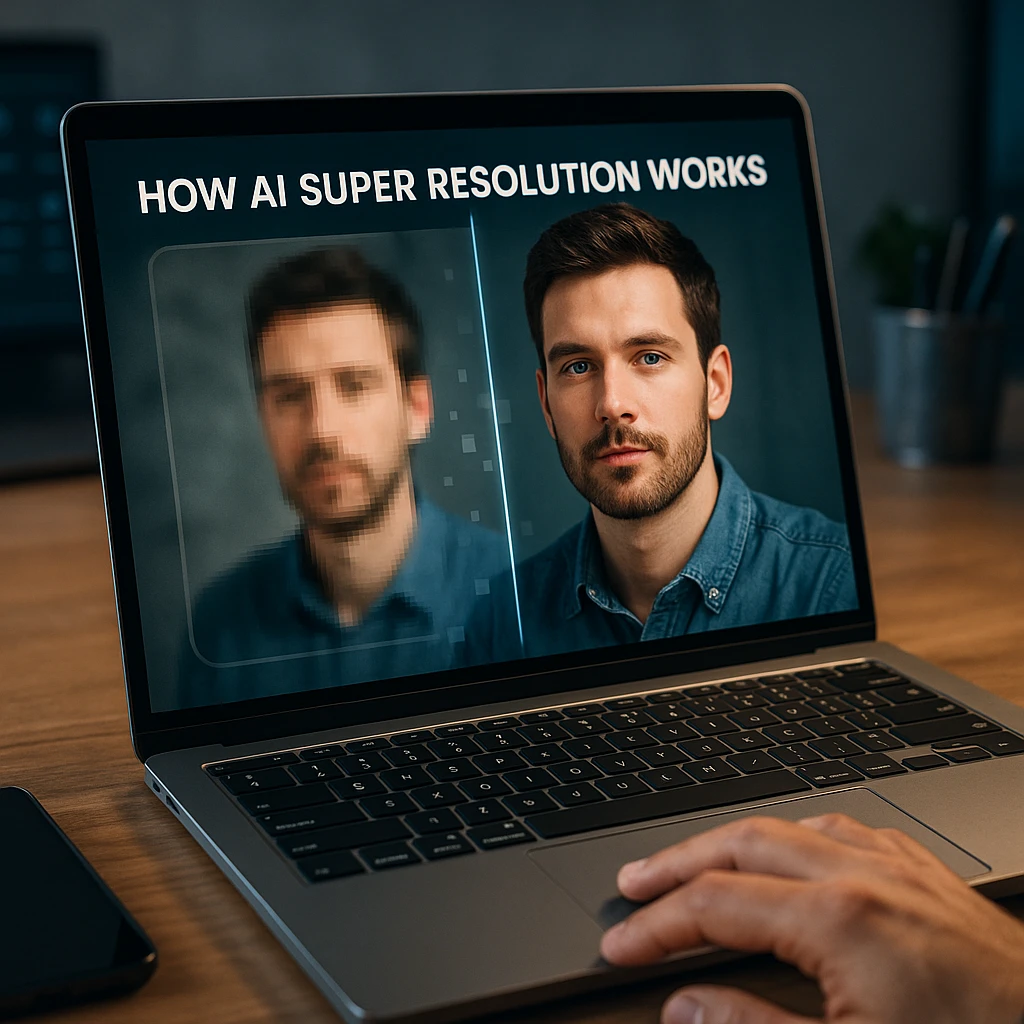
How AI Super Resolution Works
When an AI upscaler sees a blurry 480p tree, it doesn’t just make the blur bigger. It recognizes the shape as a tree, references its training data of millions of tree images, and generates realistic leaves, branches, and texture that weren’t captured in the original low-resolution footage.
This is why AI upscaling works remarkably well for common subjects (faces, nature, architecture) but can struggle with unusual or abstract content.
For AI-powered video analysis and processing, tools like ScreenApp’s AI video analyzer can help you work with your enhanced footage after upscaling.
Top 4 Tools to Convert 480p to 1080p and 4K
| Rank | Tool | Best For | True AI | Price |
|---|---|---|---|---|
| 1 | Topaz Video AI | Cinema-quality 4K results | Yes | $299 one-time |
| 2 | Neural.love | Browser-based AI upscaling | Yes | Subscription |
| 3 | CapCut | Social media quick fixes | Limited | Free |
| 4 | Handbrake | Technical users, batch jobs | No | Free |
Topaz Video AI - The Gold Standard
Professional-grade desktop upscaling for serious projects
Topaz is the industry standard for video upscaling. Its generative AI can recover incredible detail from old footage - turning grainy home videos into something that looks almost modern. Film archivists and restoration professionals rely on it.
Key Features
Pros
- Best-in-class AI upscaling
- Multiple specialized models (faces, anime, general)
- One-time purchase, no subscription
Cons
- $299 price tag
- Requires powerful GPU (RTX 3060+)
- Processing is slow on older hardware
Neural.love - Video Enhancer
Browser-based AI upscaling without installing software
Neural.love runs AI upscaling on their servers, so you don't need a powerful computer. Upload your video, select your target resolution, and let their cloud handle the heavy lifting. Great for users who don't want to install desktop software.
Key Features
Pros
- Works on any computer
- Simple drag-and-drop interface
- Good quality AI enhancement
Cons
- Subscription pricing model
- Upload/download takes time
- Limited free tier
CapCut - Best Free Mobile Converter
Free editor with 4K export capability
CapCut lets you export videos at 1080p, 2K, or 4K resolution for free. It includes "Smart Sharpen" filters that improve clarity. However, it's not true AI upscaling - it's more about sharpening and optimization than generating new detail.
Key Features
Pros
- Completely free
- Easy 4K export option
- Full video editor included
Cons
- Not true AI upscaling
- Limited quality improvement
- Requires account
Handbrake - Best Free Open Source
Open-source video transcoder with full control
Handbrake is the go-to free video converter for technical users. It gives you complete control over resolution, bitrate, and encoding settings. However, it has no AI - it only "stretches" video using traditional algorithms. Useful when you need to change resolution for compatibility, not for quality improvement.
Key Features
Pros
- 100% free, no limitations
- Full control over settings
- Batch conversion support
Cons
- No AI enhancement
- Steep learning curve
- Just stretches pixels
For more video tools, see our guide on best 4K video downloaders that covers high-quality video acquisition.
How to Convert 480p to 1080p Online
Here’s a step-by-step workflow for upscaling low-resolution video using online AI tools. This process works with Neural.love, Media.io, or similar cloud-based enhancers.
Upload Your 480p File
Navigate to your chosen AI upscaler and upload the low-resolution video. Most tools accept MP4, MOV, AVI, and MKV formats. Keep your original file safe - never overwrite it.
Tip: Start with a short 10-second clip to test quality before processing a full video. This saves time and credits.
Select Target Resolution
Choose your output resolution. For 480p footage, 1080p (1920x1080) is usually the sweet spot. Going to 4K from 480p is an 8x increase that may produce artifacts.
Choose the Right AI Model
Most AI upscalers offer specialized models. Select based on your content type for best results.
Process and Wait
Click process and let the AI work. Online tools run on cloud servers, so processing time depends on server load and video length.
Typical Processing Times
Download and Verify
Download the upscaled video and play it on a large screen - your TV or a full-screen monitor. Look for:
Warning signs: "Waxy" skin on faces, blurry text that got worse, or strange artifacts on moving objects. If you see these, try a lower target resolution or different AI model.
If you’re looking to record lectures and convert them to text, ScreenApp can help you capture HD video from the start, eliminating the need for upscaling later.
When Should You NOT Upscale to 4K?
AI upscaling is powerful, but it has limits. Sometimes 1080p is the better target - or upscaling isn’t worth the effort at all.
The 400% Rule
AI upscaling works best up to 400% - meaning doubling width and height. Beyond that, the AI has to guess too much data, leading to artifacts.
Safe zone. AI can generate believable detail without major artifacts.
Risky. Often results in "waxy" faces and blurry fine detail. Consider 1440p instead.
Often a mistake. AI guesses too much, creating artifacts. Stick to 720p or 1080p max.
File Size Warning
An uncompressed 4K upscale can be 10-15x larger than your original file. A 500MB 480p video could become 5-7GB at 4K. Make sure you have storage space and consider whether the quality improvement justifies the size increase.
Signs Your Upscale Went Wrong
Watch for these artifacts when reviewing your upscaled video:
Waxy Skin
Faces look unnaturally smooth, like plastic. The AI over-smoothed fine skin texture trying to remove noise.
Ghosting on Motion
Moving objects have strange trails or duplicated edges. The AI struggled with temporal consistency.
Text Became Worse
On-screen text that was readable at 480p is now blurrier or has halos around it.
Ringing Artifacts
High-contrast edges have visible "echo" lines around them, like a TV with bad reception.
If you see these issues, try reducing your target resolution, switching AI models, or accepting that some footage is too degraded to restore.
For better results from the start, consider using professional recording tools. ScreenApp’s screen recorder captures video in high definition, eliminating the need for upscaling entirely.
Conclusion: Giving Old Videos New Life
You don’t have to settle for pixelated memories. With the right AI video resolution converter, you can modernize your entire video library and make old footage watchable on modern displays.
Quick Recommendations
Best Quality
Topaz Video AI - Professional results, one-time purchase, requires good GPU.
Best Online
Neural.love - Browser-based AI upscaling, no installation needed.
Best Free
CapCut - Free 4K export with sharpening. Not true AI but effective.
Related Guides
Video quality (pillar and clusters):
- Best AI Video Enhancer Apps - Compare the 10 best tools for 2026
- Video Quality Enhancer Guide - Fix grain, noise, and other quality issues
- How to Unblur Video Online - Fix focus and clarity problems
- Free Online Video Quality Enhancers - 7 best tools, no watermark
- How to Restore Old Videos - Bring VHS and vintage footage to 4K
More guides:
- Best Free AI Video Generators - Create original AI video content
- Top YouTube Downloaders - Save videos for offline viewing
Record in HD from the Start
Skip the upscaling hassle entirely. ScreenApp records video in high definition with AI transcription built in - no resolution conversion needed.
Start FreeFree plan, no credit card required - HD recording included
How we put this together: this is a comparison based on each vendor’s published documentation and pricing pages, checked on the dates shown. We did not run a hands-on benchmark for this article.
FAQ
Can I convert 480p to 1080p using VLC?
No. VLC is a video player, not a video remastering tool. You can technically "save" a file as 1080p in VLC, but you'll just get a stretched 480p file with no actual quality improvement. The resolution number changes, but the pixels are just duplicated. For real quality improvement, you need AI upscaling software.
Does YouTube compress upscaled videos?
Yes, YouTube compresses everything. However, uploading in 4K (even if upscaled) forces YouTube to use its superior VP9 or AV1 codec instead of H.264. This results in better visual quality than uploading the original 480p file. So upscaling before YouTube upload can be worthwhile.
How long does it take to upscale a full movie?
Online tools: 1-3 hours depending on server load and file length. Desktop (Topaz): Can take 10-24+ hours for a 2-hour movie, depending on your graphics card. An RTX 3080 is significantly faster than an RTX 2060. Budget for overnight processing on long videos.
Is it possible to convert 480p to true 1080p quality?
AI can significantly improve 480p footage, but it will never match footage originally shot in 1080p. Think of it as intelligent restoration, not magic. The AI generates plausible detail, but it's essentially making educated guesses. Results vary based on the source material - clean 480p footage upscales better than compressed, noisy footage.
Does converting to 4K automatically improve quality?
Only with AI upscaling. Simply re-encoding a 480p file as 4K using traditional software just makes the file bigger without adding detail. The pixels are duplicated, not enhanced. For actual quality improvement, you need AI super resolution technology that generates new detail.
What is the difference between upscaling and resizing?
Resizing (traditional): Changes dimensions by duplicating or averaging existing pixels. No new detail is created. Upscaling (AI): Uses machine learning to generate new pixels based on what the AI thinks should be there. Actual new detail is created, though it's "hallucinated" by the model.
Is there free software to upscale video to 4K?
Free with limitations: CapCut offers 4K export for free, though it's not true AI upscaling. Free but technical: Real-ESRGAN is open-source AI upscaling, but requires command-line knowledge. For a full list of free online video quality enhancers (including no-watermark options), see our dedicated guide.