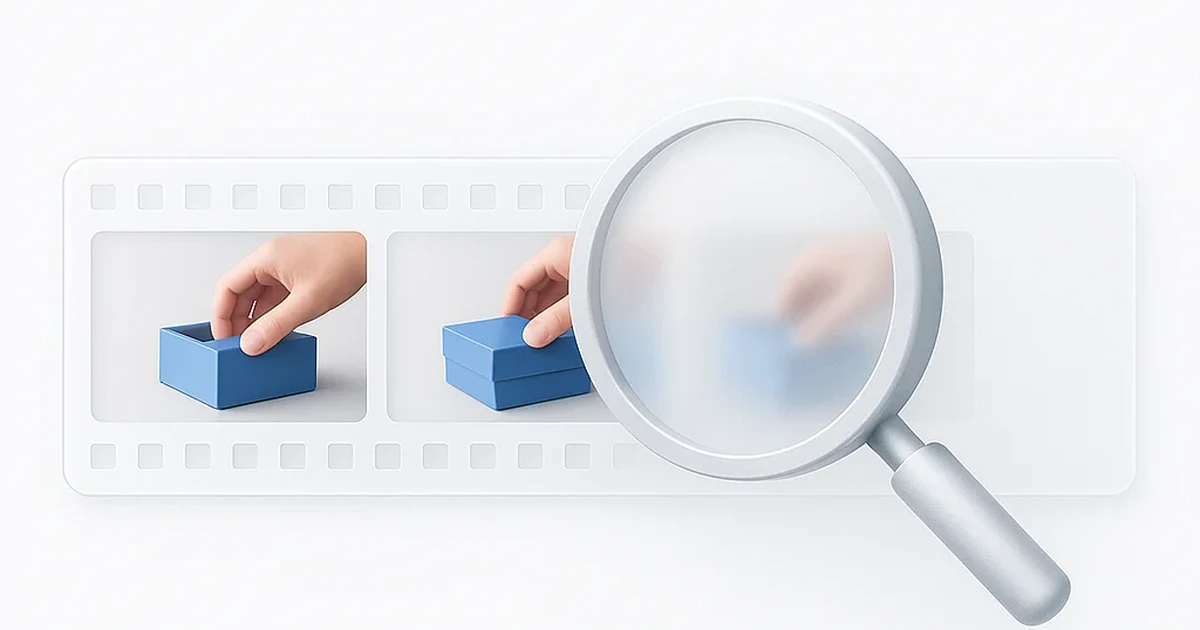
Your most precious memories - first steps, weddings, graduations - are likely trapped on decaying VHS tapes or grainy 8mm film. Every year, the magnetic tape degrades a little more. Colors fade. Audio warps. And eventually, the footage becomes unplayable.
In 2026, you don’t need a Hollywood studio to save them. AI video restoration tools can now “watch” your old footage and reconstruct missing details, remove static, and even add realistic color to black and white recordings.
According to the Library of Congress, magnetic tape has a lifespan of 10-30 years before significant degradation occurs. If your family videos are from the 80s or 90s, the clock is ticking.
For a technical deep dive on the generative AI technology behind video enhancement, read the “How AI Changed the Game” section in our complete video quality enhancer guide.
The Dual-Process of Video Restoration
Restoring old videos isn’t a single-step process. It actually involves two distinct phases that often require different AI models and techniques.
Two Phases of AI Video Restoration
Restoration (The Clean Up)
This phase removes physical damage and technical artifacts from your footage.
- Scratch and dust removal - AI identifies and fills damaged frames
- Denoising - Removes grain and "fuzziness" from low-light footage
- Deinterlacing - Converts horizontal scan lines into smooth progressive video
- Stabilization - Fixes shaky handheld camcorder footage
Colorization (The Enhancement)
This optional phase adds or restores color to your footage using AI analysis.
- Black and white colorization - AI guesses correct colors from grey tones
- Color correction - Re-saturates faded colors from old tapes
- Color grading - Adjusts temperature and tones for modern look
- Upscaling - Increases resolution from SD to HD or 4K
Critical Order
Always run restoration (Phase 1) before enhancement (Phase 2). If you upscale or colorize noisy footage, the noise becomes permanent and much harder to remove. Clean first, enhance second.
Common Problems with Old Footage (And How AI Fixes Them)
Understanding what’s wrong with your footage helps you choose the right AI model and settings. Here are the four most common issues with vintage video.
Interlacing Artifacts (The "Comb" Effect)
Jagged horizontal lines that appear when playing VHS digital rips on computer screens. This happens because old TV broadcasts used interlaced scanning (alternating lines) that modern displays can't render correctly.
AI Fix: Deinterlacing algorithms predict the missing information between scan lines, creating smooth progressive video. Most AI tools have a dedicated "Interlaced" or "VHS" mode.
Heavy Grain and ISO Noise
The "fuzziness" seen in low-light indoor home movies. Old camcorders had poor light sensitivity, so they compensated by boosting gain, which introduced visible noise throughout the image.
AI Fix: Temporal denoising analyzes multiple frames to determine which pixels are static objects and which are random noise. It removes only the noise while preserving real detail.
Camera Shake and Jitter
Handheld camcorders from the 80s and 90s didn't have optical stabilization. The resulting footage is shaky and hard to watch on modern large screens.
AI Fix: Stabilization algorithms crop in slightly and lock onto the subject, smoothing out jitter by creating a virtual "steady" camera path through the shaky footage.
Low Frame Rate (Choppy Motion)
Old 8mm and Super 8 film was often shot at 16fps or 18fps to save film. When played on modern 30fps or 60fps displays, the motion looks "jerky" and unnatural.
AI Fix: Frame interpolation generates new frames between existing ones, smoothing motion up to 60fps. The AI predicts what "in-between" frames should look like.
For fixing blurry footage specifically, see our guide on how to unblur video online with free tools.
Top 3 Tools for Restoring Old Videos (2026)
We tested the leading AI video restoration software on actual VHS and 8mm footage. Here are the three best options for different users and budgets.
| Rank | Tool | Best For | Platform | Price |
|---|---|---|---|---|
| 1 | Topaz Video AI | Heavy-duty restoration | Desktop | $299 one-time |
| 2 | AVCLabs / Winxvideo | Beginner-friendly | Desktop | $99/year |
| 3 | TensorPix / Neural.love | No powerful PC needed | Online | Subscription |
Topaz Video AI - The Professional Choice
The industry standard for serious video restoration projects
Topaz offers specific AI models designed for "Interlaced" and "Noisy" video sources. Its "Face Recovery" feature can restore faces in old home movies with remarkable accuracy - recognizing and reconstructing facial features that were barely visible in the original.
Key Features
Pros
- Best-in-class restoration quality
- Dedicated VHS/interlaced models
- One-time payment, no subscription
Cons
- $299 price tag
- Requires powerful GPU
- Processing is slow on older hardware
AVCLabs / Winxvideo AI - The User-Friendly Choice
Simple interface for beginners who want one-click restoration
Great for users who don't want to learn complex settings. AVCLabs offers a good balance of upscaling and colorization in a single interface - perfect for batch processing entire tape collections without spending hours on each video.
Key Features
Pros
- Very easy to use
- Good for batch jobs
- Colorization included
Cons
- Subscription pricing
- Less control than Topaz
- Quality not quite as good
TensorPix / Neural.love - The Online Choice
Cloud-based restoration for users without powerful hardware
Upload your file, apply filters like "Scratch Removal" and "Colorize," and download the result later. Perfect for users who don't have a powerful PC or who only need to restore a few clips.
Key Features
Pros
- Works on any computer
- No software to install
- Good colorization quality
Cons
- Requires uploading footage
- Processing takes time
- Credit-based pricing
For more free online options, see our guide on free online video quality enhancers that don’t add watermarks.
From VHS to 4K Color: The Complete Restoration Workflow
Here’s the exact process to restore your old family videos, from the initial digitization to the final colorized 4K output.
Phase 1: Digitization (The Crucial First Step)
Before You Begin
You cannot restore a tape until it is a digital file. Use a USB Capture Card (around $30-50) or a professional digitization service to convert your VHS/8mm tapes to MP4 or MOV format. Capture at the highest quality possible - you can't add quality later that wasn't captured initially.
Phase 2: The Restoration Workflow
Denoise and Deinterlace First
Load your digitized footage into your AI restoration tool. Always run the "Deinterlace" and "Denoise" models first. This is critical - if you upscale noisy footage, the noise becomes permanent and much harder to remove.
Tip: In Topaz, use the "Interlaced" input type and select "Progressive" output for VHS tapes.
Enable Face Recovery
If your footage contains people, enable the "Face Enhancement" or "Face Recovery" feature. This clarifies blurry family members by using AI trained specifically on human faces.
Warning: Keep face enhancement strength low (around 40-50%). Going too high makes people look like wax figures with unnaturally smooth skin.
Set Upscale Resolution
Set your output to 1080p or 4K. For most VHS footage, 1080p is the "sweet spot" - 4K can look artificial because you're asking the AI to invent too much detail from the limited source material.
Tip: VHS resolution is approximately 240 lines. Upscaling to 1080p is a 4.5x increase. Going to 4K (2160p) is a 9x increase, which pushes AI too hard.
Export and Verify
Export the restored video and play it back on a large screen to check the results. Look for artifacts, unnatural skin tones, or areas where the AI "hallucinated" incorrect details.
Tip: Use a high-bitrate export format (H.265 at 50+ Mbps) to preserve the restored quality. Low bitrate re-compresses your work.
Phase 3: Colorization (Optional)
If your footage is black and white, or if colors have significantly faded, you can run a colorization pass after restoration.
AI Colorization Tips
Temperature Adjustment
AI colorizers tend to make things too cool (blue) or too warm (orange). Use the temperature slider to correct for this after the initial pass.
Manual Touch-ups
AI might guess wrong on specific objects. Most tools let you manually paint over areas with the correct color reference.
Reference Images
If you have color photos from the same era, use them as references. The AI can match skin tones and clothing colors more accurately.
Faded Color Fix
For footage that's already in color but washed out, use "Color Correction" or "Color Grading" instead of full colorization to re-saturate.
For more on improving video resolution specifically, see our guide on video resolution converters that can upscale 480p to 1080p and 4K.
Frequently Asked Questions
Yes. This is called Color Grading or "Color Correction." AI tools can re-saturate washed-out colors from old tapes to look modern and vibrant. You don't need full colorization - just use the color correction or saturation tools to bring back the original vibrancy.
You need an AI "Object Remover" or In-painting tool. You mask the orange date stamp, and the AI fills in the background behind it by analyzing surrounding frames. Tools like Runway ML and some features in Topaz can handle this. It works best when the background behind the stamp is relatively simple.
Surprisingly, 8mm film often restores better. Film is an optical format (real photography), whereas VHS is magnetic tape with very low resolution (around 240 lines). When properly scanned at high resolution, 8mm film can look like true HD cinema when restored. VHS has fundamental resolution limits that even AI can't fully overcome.
On cloud tools like TensorPix: 2-4 hours depending on queue. On a home PC with Topaz Video AI and a modern GPU (RTX 3070 or better): 4-8 hours for full restoration with upscaling. On older hardware, it can take 12+ hours. Cloud tools are faster but cost more per video.
Yes, but it requires separate audio restoration software. Tools like iZotope RX and Adobe Podcast AI can remove tape hiss, reduce static, and enhance voice clarity. Video restoration tools typically focus on the visual component only - you'll need to process audio separately and re-sync.
Handbrake is free and can help with basic deinterlacing and format conversion, but it lacks AI enhancement. For true AI restoration, most tools are paid because GPU processing is expensive. However, some online tools offer free tiers for short clips - check our guide on free video quality enhancers for options without watermarks.
Professional restoration services typically charge $20-50 per hour of footage for basic enhancement, and $100-300 per hour for premium restoration with colorization and 4K upscaling. DIY with software like Topaz ($299 one-time) is more cost-effective if you have multiple tapes to restore.
You can do light restoration on a phone with apps like Remini or CapCut, but serious restoration (denoising, deinterlacing, 4K upscaling) usually needs a PC or Mac with a decent GPU, or a cloud service. Cloud tools like TensorPix or Neural.love let you upload and process without powerful hardware.
Use a VHS-to-USB capture device or a DVD recorder with a line-in. Connect the VCR's composite or S-Video output to the capture device and record with software like OBS or the device's bundled app. Capture at the highest resolution the tape can deliver (usually 480i for VHS). Then run the digitized file through your AI restoration workflow.
Never work on the only copy. First make a raw digitized backup (no enhancement) and store it somewhere safe. Then work on a duplicate for restoration. Good software does not overwrite the source file; it exports a new file. Keep the original digitized backup in case you want to re-restore with different settings later.
Future-Proof Your History
Restoring old video isn’t just about pixels. It’s about seeing a loved one’s face clearly for the first time in decades. It’s about preserving moments that exist nowhere else on earth.
The good news: AI video restoration has made this accessible to everyone. You don’t need Hollywood equipment or a professional studio. A decent computer and the right software can transform your decaying VHS tapes into clear, colorful 4K files that will last for generations.
Quick Recommendation
Best Quality
Topaz Video AI - for serious restoration projects with damaged or low-quality source footage
Easiest to Use
AVCLabs - for beginners who want one-click fixes and batch processing
No Hardware Needed
TensorPix / Neural.love - for cloud-based restoration without installing software
Preserve Your New Memories in HD
Don't create tomorrow's restoration project. Record video calls, meetings, and screen captures in crystal-clear quality with ScreenApp.
Start Recording Free