How to Convert a Video Interview to DOCX, PDF, or Text

On this page
To convert a video interview into a document, upload the recording to an AI transcription tool, generate and review the transcript, correct the speaker labels, and export the completed interview as DOCX, PDF, or TXT. ScreenApp’s current workflow supports uploading or recording video, creating an editable transcript, and exporting it as Word, PDF, plain text, or subtitle files.
This guide is based on ScreenApp’s published product documentation and current export options, not a live hands-on test with a real candidate recording. Where a claim is specific (an export format, a processing benchmark), it is sourced from the product page or noted as an estimate.
A recorded interview is easy to create and hard to use. The video sits in a folder, nobody wants to scrub through 40 minutes to find one answer, and the hiring manager who missed the call has no way to review it without blocking off time. Turning that recording into text solves the actual problem: a transcript is searchable, shareable, and quotable in a way a video file is not.
Related reading: If you have not picked a video interview platform yet, our guides to one-way video interview platforms and AI video interview software cover that ground first.
Video Interview Conversion Options
| Output | Best for | Editable | Formatting |
|---|---|---|---|
| DOCX | Editing and adding recruiter notes | Yes | Full formatting |
| Sharing, printing, and archiving | Limited | Fixed layout | |
| TXT | Search, analysis, and importing into other tools | Yes | Plain text |
| SRT/VTT | Subtitles and captioning | Yes | Timestamped captions |
How to Convert a Video Interview Using ScreenApp
Five steps take a raw recording to a finished document.
Upload or record the video interview
Bring in an MP4 recording, a Zoom, Microsoft Teams, or Google Meet recording, or any uploaded video file. ScreenApp also supports recording the interview directly in the browser, so live and pre-recorded interviews both feed the same workflow.
Generate the interview transcript
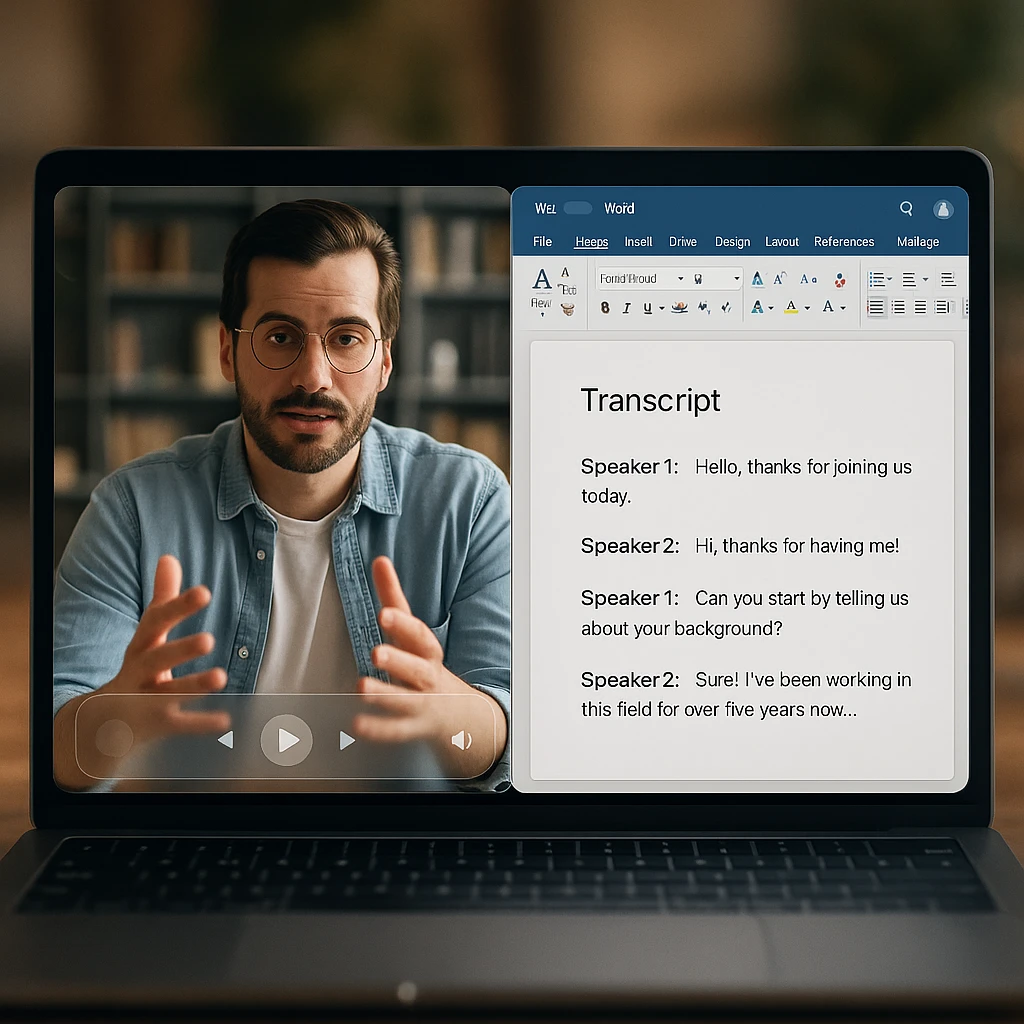
Speech-to-text processing runs automatically once the file or link is submitted. You pick the spoken language (or let it auto-detect), the system identifies separate speakers, and timestamps are attached to each segment, so the interviewer's questions and the candidate's answers stay separated instead of blurring into one wall of text.
Review the transcript
Automated transcription gets most of a clear recording right, but a few things are always worth a manual check: the candidate and interviewer's names, job titles, company names, industry-specific terms, dates and numbers, which speaker label is attached to which person, and any section the audio made genuinely unclear.
Format the interview document
A useful interview document usually opens with the interview title, candidate name, position, interview date, interviewers present, and duration, followed by the conversation itself in Interviewer/Candidate turns, then a short section for key points, follow-up items, and hiring team notes. That structure turns a transcript into something a hiring manager can skim in two minutes.
Export to DOCX, PDF, or TXT
Pick DOCX when the document still needs editing or recruiter comments, PDF for final distribution or archiving, and TXT when the content is headed into an ATS, a database, or an analysis workflow. ScreenApp's export options currently include DOCX, PDF, TXT, SRT, and VTT for the same underlying transcript.
How to Convert a Video Interview to Word
For anyone specifically after an editable Word file:
- Upload the interview recording or paste a link to it.
- Generate the transcript. Processing runs automatically once the file is submitted.
- Review speaker names. Confirm the interviewer and candidate labels are attached to the right person before exporting.
- Select Word or DOCX as the export format.
- Open the document in Microsoft Word or Google Docs, both of which read the exported
.docxfile directly. - Add evaluation notes if the hiring team wants scoring or comments attached before it circulates.
ScreenApp’s video to document converter outputs a .docx file with speaker labels and paragraph formatting intact, so step 6 is a matter of typing into the existing document rather than reformatting it first.
How to Convert a Video Interview to PDF
For a fixed, shareable document:
- Generate the completed transcript, following the same upload-and-transcribe process as above.
- Select a layout. A straight transcript works for detailed review; a structured-notes layout (headings, key points) suits a quick read.
- Include timestamps if the hiring panel might want to jump back to a specific moment in the source video.
- Export as PDF.
- Check the page formatting before sharing. Long transcripts can run to many pages, so a quick scroll-through catches any awkward page breaks before it reaches a hiring manager’s inbox.
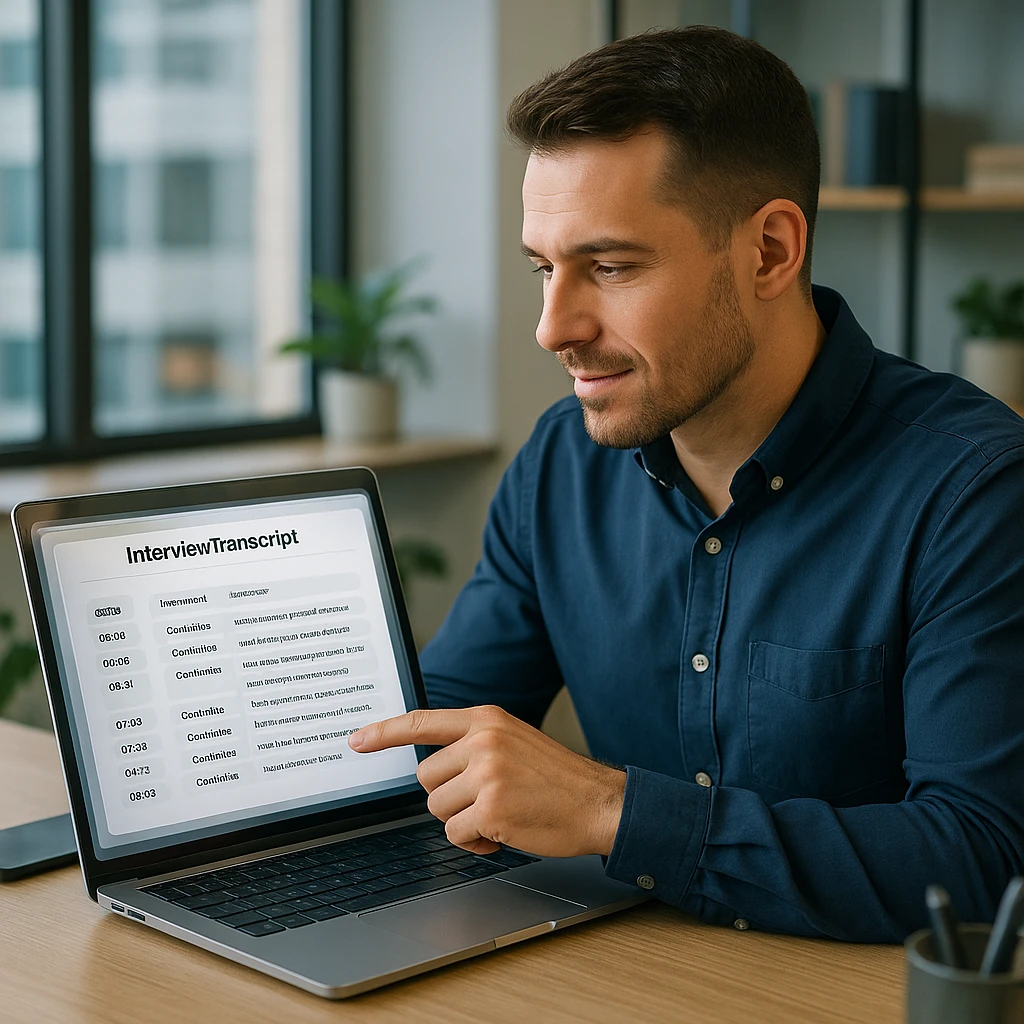
ScreenApp’s video to PDF converter attaches clickable timestamps to each paragraph and can include screenshots of key frames, useful when an interview included a shared screen or portfolio walkthrough.
How to Convert a Video Interview to Plain Text
For search, analysis, or feeding into another system:
- Open the generated transcript.
- Remove visual elements (headings, bullet formatting) if the destination system only needs raw text.
- Select TXT as the export format.
- Save using UTF-8 encoding where the option is available, which avoids broken characters in non-English transcripts.
- Import into another tool, an ATS, a spreadsheet, or a text-analysis workflow, for search or further processing.
How to Format a Video Interview Transcript
Four formats cover most interview use cases, and the right one depends on what happens to the document next.
Verbatim transcript
Includes filler words, pauses, repetitions, and incomplete sentences exactly as spoken. Useful when the exact wording matters, for compliance records or when a response is being quoted directly.
Clean verbatim transcript
Removes unnecessary filler words ("um", "you know") while keeping the candidate's actual meaning intact. This is the most common format for hiring documentation, since it reads clearly without changing what was said.
Question-and-answer format
Organizes the document strictly by interviewer question and candidate response, which makes it easy to compare how different candidates answered the same question side by side.
Structured interview summary
Condenses the interview into candidate experience, key skills mentioned, examples provided, availability, follow-up questions, and hiring-team action items, rather than the full conversation.
How to Improve Video Interview Transcription Accuracy
Transcription quality is mostly a function of the source audio, not the tool. A few habits make a real difference before the recording ever reaches a transcription service:
- Use clear interview audio, ideally with each speaker close to their microphone
- Reduce background noise where possible, closed doors and quiet rooms help more than any setting
- Avoid people speaking simultaneously, since overlapping speech is the single biggest cause of transcription errors
- Use an external microphone rather than a laptop’s built-in mic when the option exists
- Select the correct spoken language rather than relying on auto-detection for less common languages
- Review names and technical terminology manually, since these are the words a general-purpose model is least likely to get right
- Correct speaker labels where the automatic detection assigns the wrong person
- Replay unclear timestamps rather than guessing at what was said
- Proofread the transcript before it factors into an actual hiring decision
How Recruiters Can Use Converted Interview Documents
A transcript is more useful than the video it came from for most of what happens after an interview:
- Sharing candidate responses with a hiring manager who was not on the call
- Reviewing specific answers without replaying the entire recording
- Creating a short interview summary for a hiring committee
- Comparing responses to the same structured question across multiple candidates
- Finding a specific skill, tool, or example a candidate mentioned, by searching the text
- Producing an accessible written record for team members who prefer reading to watching
- Drafting follow-up questions based on what a candidate did or did not cover
- Adding the document into an existing recruitment workflow or ATS record
Video Interview Transcript vs Interview Summary
| Transcript | Summary |
|---|---|
| Contains the complete conversation | Contains only the important points |
| Useful for detailed review | Useful for quick decisions |
| Longer document | Shorter document |
| Usually includes speaker labels | Usually grouped by themes |
| Can include timestamps | May link back to key moments |
Privacy and Responsible Handling of Interview Recordings
A candidate interview recording is personal data, and converting it into a document does not change that. A few practical habits keep the process reasonable:
- Follow your company’s existing recording and consent procedures before the interview starts
- Tell candidates how the recording will be used, and for how long it will be kept
- Limit document access to the people actually involved in the hiring decision
- Remove personal information that is not relevant to the hiring process
- Use secure sharing controls rather than emailing a document to a wide distribution list
- Follow your organization’s retention and deletion policies for both the recording and the transcript
- Review AI-generated content before it factors into an actual hiring decision, since a transcription error in a critical answer can otherwise go unnoticed
Requirements around recording consent and data handling vary by jurisdiction and by organizational policy, so check with your legal or compliance team rather than treating any general guidance, including this one, as a substitute for that review.
Common Conversion Problems
Most common when two speakers have similar voices or the audio has crosstalk. Manually correct the speaker labels during review, before the document is shared further.
General speech-to-text models were not trained on your candidate's name or your company's internal product names, so these are the words most likely to come out wrong. A manual pass over proper nouns catches most of it.
Long transcripts exported straight to PDF can produce awkward page breaks or dense blocks of text. Switching to a structured-notes layout, or reviewing the PDF before sharing, usually fixes this.
No transcription tool fixes bad source audio after the fact. If accuracy is consistently low, check the original recording setup rather than the transcription settings.
This usually happens when a transcript is copy-pasted between tools rather than exported directly. A native `.docx` export preserves paragraph structure and speaker labels; a copy-paste from a browser window often does not.
A full verbatim transcript of a 45-minute interview can run to many pages. If the hiring team mainly needs the key points, a structured summary is usually a better fit than the full transcript.
Panel-style or back-to-back interviews recorded in a single file need to be split by candidate before or after transcription, otherwise the speaker labels and any per-candidate document structure become unreliable.
Convert Your Next Video Interview Into a Document
Upload your interview recording, generate an editable transcript, and export it as Word, PDF, or plain text with ScreenApp’s video to document converter. No manual typing required.
FAQ
Can you convert a video interview to text?
Yes. Upload the recording to an AI transcription tool, which converts the spoken audio into text automatically, then review and export the result. ScreenApp handles this end to end, including speaker separation and timestamps.
How do I convert a video interview to Word?
Upload the interview, generate the transcript, review the speaker names, then select Word or DOCX as the export format. The resulting `.docx` file opens directly in Microsoft Word or Google Docs with formatting intact.
Can an MP4 file be converted to a PDF?
Yes. An MP4 interview recording can be transcribed and exported as a formatted PDF, with the transcript, and optionally timestamps and screenshots of key frames, included in the document.
How do I identify different speakers in an interview?
Automatic speaker detection separates the interviewer from the candidate during transcription, though it is worth confirming the labels are correct during review, particularly on recordings with similar-sounding voices or crosstalk.
How accurate is AI interview transcription?
Accuracy depends heavily on the source audio. Clear, single-speaker segments with minimal background noise transcribe well; overlapping speech, heavy accents, or poor microphone quality reduce accuracy. Proper nouns like names and company terms are the most common source of errors regardless of audio quality.
Can I convert a Zoom interview to a document?
Yes. A Zoom recording, downloaded or exported, can be uploaded the same way as any other video file and processed through the same transcription and export workflow.
What is the best format for an interview transcript?
It depends on what happens next. DOCX suits ongoing editing and recruiter notes, PDF suits final sharing and archiving, and TXT suits importing into an ATS or a search and analysis workflow.
Should interview transcripts include timestamps?
Timestamps are useful whenever someone might want to verify a specific answer against the original recording, which is most of the time in a hiring context. They add minimal overhead and make the document easier to navigate.