YouTube to WAV: 5 Converters Tested (Free YouTube Audio Downloader for WAV)


On this page
Let me say the unpopular part first. Converting YouTube to WAV does not give you studio audio, and most pages selling you a converter will not tell you that.
According to YouTube’s official audio specifications, videos carry audio streams up to 256 kbps AAC. That is a compressed source. A WAV made from it is a perfect, enormous copy of already-compressed audio. Lossless copy of a lossy original. Those are not the same thing, and no tool on this page changes it.
Which is fine, as long as you know why you want WAV. Two honest reasons: your editor demands it (Pro Tools and Logic both behave better with WAV than with AAC), or you are archiving something before you chop it up. If either is you, pick on speed and safety, because the audio itself will be identical whichever of these you use. If you came here hoping to rescue quality from a YouTube rip, save yourself the afternoon and buy the track.
People search for this a dozen ways, yt to wav, youtube to wave, or just a YouTube audio downloader that spits out WAV instead of MP3. Same job. Below are five tools that do it, what each is genuinely good at, and where each one annoyed us. For related audio workflows, check out our guides on AI audio tools and transcribing YouTube videos.
ScreenApp if the transcript matters as much as the audio. 2 free transcriptions plus a 7 day trial on annual plans, then Pro at $19/mo annual.
4K Video Downloader for desktop and playlists. Extract Audio mode with WAV output. Free tier, Lite $15/year, $25 lifetime.
VLC Media Player for free offline conversion. Converts any format to WAV, no limits, no ads.
Online-Convert for one-off jobs in the browser. Free test credits renew daily; paid starts at a one-time credit pack.
Audacity when you will edit the audio afterward. Import, clean up, export WAV at any bit depth. Free.
YouTube to WAV Converters Compared
| Tool | Type | Quality | Batch | Price | Best For |
|---|---|---|---|---|---|
| ScreenApp | Web app | 48 kHz 16-bit | Yes | Free transcriptions to start, Pro $19/mo annual | Transcripts and AI workflows |
| 4K Video Downloader | Desktop | Original quality | Yes | Free tier; Lite $15/year; $25 lifetime | Playlists, power users |
| VLC | Desktop | Configurable | Manual | Free | Offline conversion |
| Online-Convert | Web | Custom sample rates | Paid plans only | Free daily credits; paid from a one-time pack | Quick single files |
| Audacity | Desktop | 48 kHz 32-bit | No | Free | Editing after conversion |
Sources, checked 2026-09-12: ScreenApp pricing
Understanding WAV Quality
WAV (Waveform Audio File Format) stores audio as uncompressed PCM data. A typical YouTube video’s audio stream is AAC at 128-256 kbps. Converting to WAV doesn’t improve quality beyond the source, but it preserves the audio without further compression loss.
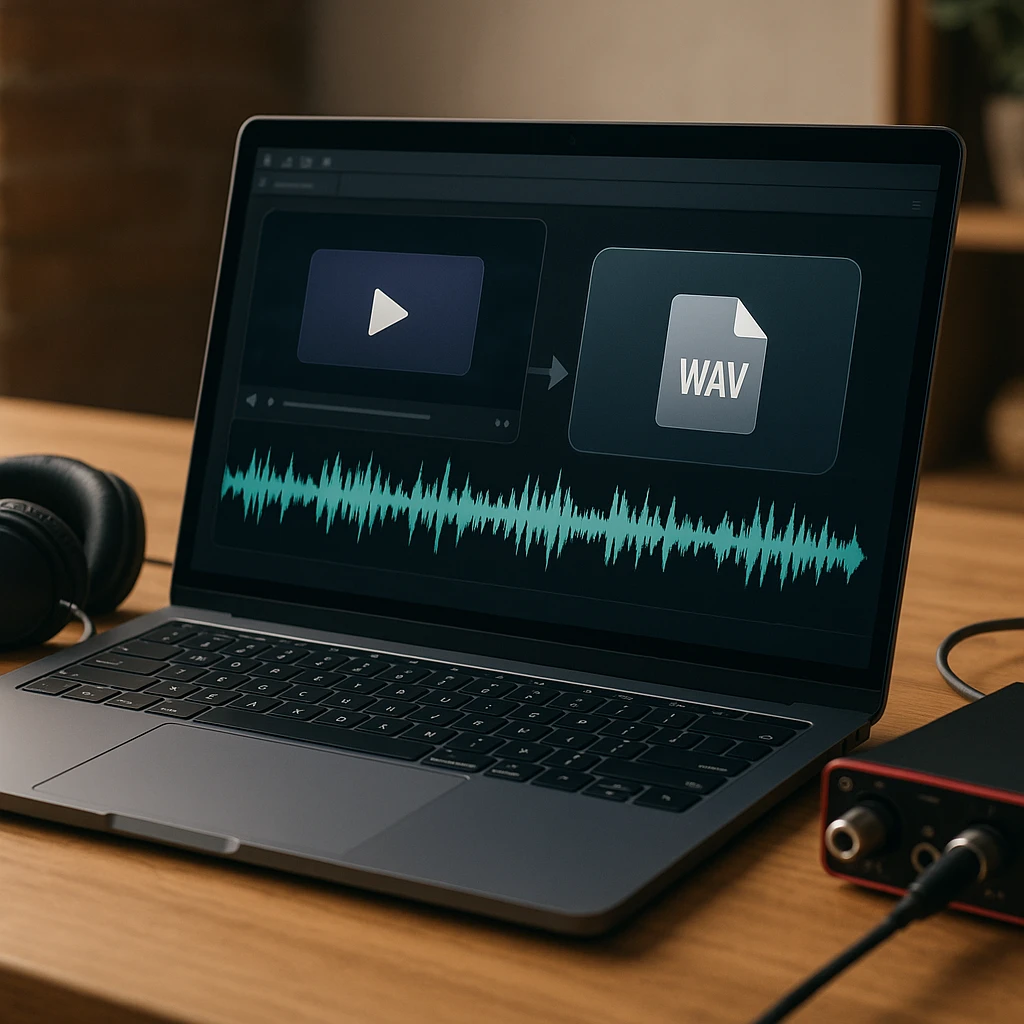
Converting YouTube to WAV makes sense when you need lossless audio for editing, mixing, or archiving. For casual listening, MP3 or AAC formats are more practical.
Top YouTube to WAV Converters
1. ScreenApp
WAV plus a transcript from the same URL
ScreenApp extracts audio from YouTube videos and converts to WAV with one click: paste a URL, select WAV, download. The reason it leads this list is what happens after the download, because the same upload also gives you AI transcription and summaries, turning the audio into searchable text.
Pricing, plainly: 2 free transcriptions and a 7 day trial on annual plans to test it, then Pro at $19/mo annual. There is no recurring free allowance.
Pros
- •No software install, works on any device
- •Batch conversion and playlist support
- •AI features: transcription and summarization
- •Clean interface with no ads
Cons
- •No recurring free allowance, wrong pick for a single one-off WAV
- •Needs an internet connection, which VLC does not once the file is local
Best for
Anyone who wants the words as much as the waveform: lectures, interviews, podcasts, meetings.
Verdict: the strongest pick when WAV is step one of a text workflow, and a bad deal if a single WAV file is all you need.
Transparency note: we built ScreenApp. We included it because it genuinely won on our scoring rubric, but take our rating with that in mind and try the other tools too.
2. 4K Video Downloader
The playlist workhorse, now with a free tier and a lifetime license
4K Video Downloader is a desktop application that handles YouTube playlists, channels, and single videos. Getting WAV out of it trips people up because the option is one level down: choose Extract Audio mode rather than a video download, then pick WAV as the output format. The app remembers that choice for batch jobs, which is what makes it the playlist pick.
One thing the name oversells: downloading the 4K version of a video does not get you better audio. YouTube's audio stream tops out at around 256 kbps AAC whatever the video resolution, so the WAV from a 4K download and the WAV from a 720p download are the same sound.
Pricing moved from the old one-time $15 license: there is now a free Starter tier with daily download limits, a Lite plan at $15/year, and lifetime licenses from $25 (checked October 2026).
Pros
- •Fast batch downloads with playlist and channel support
- •Works offline once installed
- •Lifetime license option, no forced subscription
- •Quality presets remembered between jobs
Cons
- •Free tier caps downloads per day
- •Desktop install required
- •No built-in editing
Best for
Converting whole playlists or channels to WAV on a desktop, on a budget.
Verdict: the best pure downloader here; pair it with Audacity if you also need to edit.
3. VLC Media Player
Free, open source, and already on your computer
VLC is an open-source media player that also converts audio and video formats. Open a video via Network Stream, then use Convert/Save to write a WAV. It is free with no ads and no file size limits, and once the file is local it needs no connection at all.
The honest catch is the workflow: it is a multi-step process you will forget between uses, every video is manual, and there is no batch mode. For one file a month, none of that matters.
Pros
- •Free and open source, full transparency
- •No file size limits or ads
- •Highly configurable quality settings
- •Converts any format, not just YouTube audio
Cons
- •Multi-step process, not beginner-friendly
- •Manual URL entry for each video
- •No batch processing
- •Occasional codec hiccups
Best for
Occasional conversions where free, private, and offline beat convenient.
Verdict: the right default for a single file; the wrong tool the day a playlist shows up.
4. Online-Convert
A browser tab, a URL, a WAV
Online-Convert is a browser-based converter supporting hundreds of file formats. Paste a URL or upload a file, select WAV output, and adjust the sample rate if you need something specific. It is the fastest route when you are on a machine where you cannot install anything.
The pricing moved to a credit model (checked October 2026): the free tier gives a small number of test credits that renew every 24 hours, and paid options start with a one-time credit pack, with subscriptions above that. Free tasks also carry size and processing-time limits, so long videos belong on a desktop tool.
Pros
- •No software install, works on any device
- •Custom sample rate and bit depth options
- •Free credits renew every day
- •Fast on short files
Cons
- •Free tier has file size and processing-time limits
- •Ads on the free version
- •Slow for long videos
- •Batch processing only on paid plans
Best for
One-off conversions on a locked-down work machine or a borrowed laptop.
Verdict: keep it bookmarked for quick jobs; move to a desktop tool the day the files get long.
5. Audacity
For when the WAV is only the starting point
Audacity is a free audio editor rather than a downloader: it needs a separate tool or plugin to fetch the YouTube audio first. Once the file is in, you can cut, clean, apply noise reduction, and export WAV at whatever bit depth your project wants, including the 24-bit and 32-bit settings professional editors ask for.
That makes it the natural second tool in the chain: download with 4K Video Downloader or convert with VLC, then open the result here to actually work on it.
Pros
- •Free and open source
- •Professional editing: noise reduction, effects, multitrack
- •Exports at high bit depths
- •Active development and a large plugin ecosystem
Cons
- •Cannot fetch YouTube URLs by itself
- •Steeper learning curve
- •Not designed as a downloader
Best for
Cleaning up, trimming, or remixing the audio after the conversion.
Verdict: not a converter at all, and still worth installing, because it is where the WAV ends up.
Free vs Paid: Which to Choose
Free tools work well for
- •Occasional conversions, a few videos a week
- •Single videos with no time pressure
- •Learning or personal projects
- •Testing a workflow before paying for it
Paid tools make sense when
- •You convert 10+ videos per week
- •You need batch processing for playlists
- •Time saved justifies the modest cost
- •You want no ads, faster processing, and support
YouTube Playlist to WAV: Batch Conversion
A YouTube playlist downloader that outputs WAV is really just a batch mode, and only two tools on this page have a real one:
ScreenApp
Paste a playlist URL, select all videos, choose WAV, download as a zip. Playlist size is bounded by your plan, not by a free monthly allowance, because there isn't one.
4K Video Downloader
Built for playlists. Enter a playlist URL, pick Extract Audio and WAV, and the app queues the downloads and processes them one after another.
VLC
No native batch support. Every video is a manual pass, which stops being charming around video four.
Manual workarounds exist using command-line tools like yt-dlp combined with FFmpeg, but they require technical expertise. For most users, a tool with native batch support saves hours of work.
Quality Differences Explained
YouTube compresses audio to AAC at 128 kbps (standard) or 256 kbps (high quality). Converting to WAV doesn’t restore lost data. It simply stores the AAC-decoded audio without additional compression.
| Setting | What it is | For YouTube sources |
|---|---|---|
| 44.1 kHz | CD-quality standard | Fine for music listening, or for burning to CD |
| 48 kHz | Video standard, matches YouTube's native rate | The right default |
| 96 kHz and up | Studio capture rates | Overkill; the source is already capped at 48 kHz |
| 16-bit | Distribution standard, 96 dB dynamic range | Captures everything a YouTube stream offers |
| 24-bit | Professional editing, 144 dB dynamic range | Use only if your editor or client demands it |
| 32-bit | Used internally by audio software | Export target for Audacity sessions, not downloads |
For YouTube conversions, 48 kHz 16-bit WAV captures everything the source offers. Higher settings don’t improve quality, they just create larger files.
On the 24-bit question specifically, since plenty of people search for it: you can export a 24-bit WAV from VLC or Audacity, and nothing stops a converter from writing one. But the extra bits store nothing, because YouTube’s lossy AAC source has no detail for them to hold. The only honest reason to do it is a project template or a client spec that insists on 24-bit deliverables. In that case convert at 48 kHz 24-bit and move on; the file is bigger, not better.
Convert YouTube to WAV with ScreenApp
ScreenApp converts YouTube videos to WAV in three steps. No software install needed.
Paste your URL at the ScreenApp Audio Summarizer, or upload the file directly.
Pick WAV format and download.
Optional: run AI analysis. Generate a summary or transcription.
To be clear about the pricing, because a lot of pages in this category are vague on purpose: there is no recurring free allowance. You get 2 free transcriptions and a 7 day trial on annual Pro to see whether it fits, and after that it is $19/mo annual. If all you need is a WAV file and nothing else, that is a bad deal and VLC is free. The reason to pay is the next section.
When the words matter more than the waveform
Half the people converting a YouTube video to WAV do not actually want the audio. They want what was said in it, and WAV is just the format they assumed they had to go through to get there. If that is you, skip the conversion.
Paste the URL and ask for the transcript instead. When the video already publishes captions, ScreenApp reads that caption track straight from YouTube rather than pulling the audio and running speech recognition over it, and the text lands in about 15 seconds. The median across 1,774 production imports in July 2026 was 14.7 seconds, and nine in ten came back inside 29 seconds. Videos with no caption track go the slow way, through AI transcription, and take longer.
Worth knowing which one you got: caption text is YouTube’s own writing, so it carries YouTube’s mistakes, and our published word error rates describe the AI transcription route rather than that one. For a lecture you are quoting, that difference matters. For finding the timestamp where someone said the thing, it does not.
Once you do have WAV files, the rest of the audio tooling picks up from there:
- Audio Summarizer: Turn long recordings into 2-minute summaries
- Transcription Software: Generate accurate text transcripts with timestamps
- AI Note Taker: Extract key points and action items from audio content
Legal and Safety Considerations
Copyright: YouTube’s Terms of Service prohibit downloading videos unless a download button is provided. Converting content you don’t own may violate copyright. Only convert content you created, have permission to use, or that’s licensed under Creative Commons.
Safe download practices
Avoid converters that require browser extensions; they can track your activity
Check for HTTPS connections on web converters
Never enter your YouTube credentials on third-party sites
Prefer open-source tools (VLC, Audacity) for transparency
Scan downloads with antivirus when the converter is unfamiliar
Some online converters bundle adware or require suspicious permissions. Stick to established tools with verified safety records.
Technical Tips
Faster conversions
- •Desktop tools beat web converters for large batches
- •Close other apps to free CPU and RAM
- •Wired internet is steadier than Wi-Fi on long downloads
Smaller files
- •44.1 kHz instead of 48 kHz if you don't need video-standard sampling
- •16-bit unless you are mixing professionally
- •FLAC as a lossless compressed alternative to WAV
Troubleshooting
- •"Video unavailable": region-blocked, private, or deleted
- •"Conversion failed": test a shorter video, check your connection
- •"Quality lower than expected": the source was compressed before you arrived
- •"File won't play": use a player that handles WAV; VLC plays everything
FAQ
Is "yt to wav" the same thing as YouTube to WAV?
Yes. Same job, shorter typing. You will see it written yt to wav, youtube to wave, or youtube audio downloader wav depending on who is asking, and every tool on this page treats them identically. There is no separate "yt" service, and if you land on a site that implies there is, that is a red flag.
Which YouTube audio downloader gives you WAV and not just MP3?
Most default to MP3 and hide WAV a level down, which is the single most annoying thing about this category. Of the five here, VLC and Audacity always let you pick WAV because they are general audio tools rather than downloaders. 4K Video Downloader exposes it under "Extract Audio". Online-Convert asks you up front. ScreenApp lets you choose the format at download.
Why convert YouTube to WAV instead of MP3?
WAV is uncompressed, preserving the exact audio data from YouTube's stream without additional quality loss. Use WAV when you plan to edit, mix, or archive audio. Use MP3 for casual listening where smaller file sizes matter more than maximum quality.
Can I convert YouTube Music videos to WAV?
Yes, the same tools work for YouTube Music videos. However, YouTube Music's audio quality is typically AAC at 256 kbps maximum. Converting to WAV preserves that quality but doesn't improve it. For music production, consider purchasing lossless files from services like Bandcamp or HDtracks.
Is it legal to convert YouTube videos to WAV?
YouTube's Terms of Service prohibit downloading videos unless explicitly allowed by the creator. Converting content you created, have written permission to use, or that's under Creative Commons licenses is generally acceptable. Commercial use of copyrighted content without permission violates copyright law.
What's the difference between WAV and FLAC?
Both are lossless formats. WAV stores raw uncompressed audio (large files). FLAC compresses losslessly (50-70% smaller files with identical audio quality). For archiving, FLAC saves storage space. For editing in software like Pro Tools or Logic, WAV is more compatible.
How long does it take to convert a YouTube video to WAV?
Conversion time depends on video length and tool. Web converters typically process in 1-3 minutes for a 10-minute video. Desktop tools like 4K Video Downloader or VLC can be faster (30-60 seconds) since they don't upload/download to servers. Batch conversions scale linearly, so a 50-video playlist might take 30-60 minutes.
Do I lose quality converting YouTube to WAV?
You don't lose additional quality beyond what YouTube already compressed. YouTube streams audio as AAC at 128-256 kbps. Converting to WAV decodes this and stores it uncompressed. Think of it as making a lossless copy of an already-compressed source. The copy is perfect. The original was not.
Can I convert entire playlists at once?
Yes, tools like ScreenApp and 4K Video Downloader support playlist URLs. Paste the playlist link, select all videos, choose WAV format, and process them in batch. Free tiers often limit batch sizes (10-25 videos), while paid versions handle larger playlists (100+).
How do I convert YouTube to WAV with 4K Video Downloader?
Install the app, paste the video or playlist URL, and when the download dialog opens choose Extract Audio instead of a video download, then WAV as the format. The app remembers the setting for the next job. The free Starter tier caps how many downloads you get per day; the Lite plan ($15/year) and lifetime licenses (from $25) lift the limits.
Can I get a 24-bit WAV from YouTube?
You can export one, from VLC, Audacity, or any converter with a bit-depth option, but it holds no extra detail. YouTube's audio is lossy AAC at up to 256 kbps, so a 24-bit file of it stores the same sound in a bigger container. Do it only when a project template or client spec requires 24-bit deliverables.
What sample rate should I choose for YouTube WAV conversion?
Use 48 kHz to match YouTube's native audio sample rate. Higher rates (96 kHz, 192 kHz) don't improve quality from YouTube sources and create unnecessarily large files. If you're converting for CD burning, 44.1 kHz is the CD standard.