Gemini Video Watermark Remover: Clean Veo and Flow Videos


On this page
If you generated a clip in Google Flow and there is a small “Veo” badge sitting in the bottom-right corner, you can usually clean it off a video you own by covering, cropping, or reconstructing that corner. How cleanly it comes off depends on the clip: a static logo over a plain sky is easy, a moving mark over a busy background is not.
Google’s video model, Veo, runs inside Gemini and Google Flow, and it stamps a visible badge on outputs from the free and mid tiers. People want it gone for legitimate reasons: cleaning up their own drafts, prepping a licensed clip for a slide deck, reformatting content they made for a client who already approved it. One rule before anything else, and I mean this: only edit videos you created, own, or have written permission to change. This guide is for cleaning your own footage, not for passing off someone else’s.
Here is the part most “gemini video watermark remover” pages skip. There are two different marks on these videos. The visible Veo badge is a logo you can edit out. SynthID, Google’s invisible watermark, is baked into the pixels and the audio, stays on every tier including the paid ones, and is built to survive cropping and compression. Editing the corner does not remove it. Keep that difference in your head, because it changes what “removing the watermark” actually means.
Quick Answer
To remove a visible Gemini or Veo watermark from a video you own, upload the clip to a video editor or AI object-removal tool, mark the badge area, pick a method (cover, crop, or reconstruct), preview the full clip for artefacts, then export at the original resolution and frame rate.
- Easiest fix: crop or cover a small static corner badge
- Cleanest fix: re-export from the original Flow project, or use a higher tier with no visible badge
- Hardest fix: a moving mark over a detailed background
- What it will not do: remove the invisible SynthID provenance signal
What Is the Gemini Video Watermark?
The visible watermark is a small “Veo” badge, usually parked in the bottom-right corner of the frame. Sometimes it is a fixed logo, sometimes a semi-transparent mark, and on some exports it sits closer to the edge than others. Google puts it there for content transparency: it labels the clip as AI-generated so a viewer can tell at a glance.
Where it lands and whether it appears at all comes down to your plan. The visible badge shows up on the free and mid Google One tiers of Flow, and the top Ultra tier drops it for Veo 3.1 output. So the fastest “removal” for a lot of people is not editing at all, it is exporting from a tier that never adds the badge in the first place.
Gemini, Veo, and Google Flow: what is the difference
People use these names interchangeably, and that is fine, but they are three things. Veo is the video model doing the actual generation. Gemini is the assistant you chat with, and it can call Veo to make a clip. Google Flow is Google’s AI filmmaking studio, which runs Veo 3.1 for video, Nano Banana for images, and Gemini for natural-language editing. Whatever door you came through, the output is a Veo video with the same badge, so the removal approach is identical.
The visible badge is not the only mark
This is the honest core of the topic. Every video generated in Flow also carries an invisible SynthID watermark, embedded at the pixel and audio level, present on every tier including Ultra. Google DeepMind built SynthID to survive the usual editing you would throw at a video: cropping, compression, transcoding, a re-export or two. So when you cover or crop the visible Veo logo, the file still says “AI-generated” underneath, in a way you cannot see and cannot easily strip.
That is not a reason to skip cleaning your own video. It is a reason to be honest about what you are doing. You are tidying up a visible logo, not erasing the fact that a machine made the clip. If your context needs an AI disclosure, keep one. (The same split applies to Gemini images made with Nano Banana, which is why “Nano Banana watermark remover” is its own search: the sparkle logo is visible, the SynthID layer is not.)
Which Watermarks Can You Actually Remove?
A visible overlay can be edited, cropped, blurred, covered, or reconstructed. Whether the result looks clean is a different question, and it depends almost entirely on the clip. A static badge over a plain background is a two-minute job. A mark that drifts across a detailed, moving scene is where tools start smearing.
The variables that decide difficulty: whether the mark is static or moving, how big it is, how busy the background behind it is, camera motion, resolution, clip length, and whether the badge overlaps a face, text, or an object that matters.
| Watermark Type | Difficulty | Best Approach |
|---|---|---|
| Small fixed corner logo | Low | Crop, cover, or AI removal |
| Semi-transparent badge | Medium | Inpainting or frame reconstruction |
| Moving watermark | High | Motion tracking, frame-by-frame edits |
| Mark over a detailed background | High | AI object removal or manual masking |
| Large central watermark | Very high | Recreate the scene or re-export original |
If your clip lands in the bottom two rows, stop fighting the editor and go back to the source. Regenerating the shot or re-exporting from the original project beats any amount of pixel surgery.
How to Remove a Gemini Video Watermark Online
Most people do this in a browser tool because there is nothing to install and it works the same on a Chromebook or a work laptop. The flow is the same across almost every watermark-removal or video-editing tool, whether the clip came from Gemini, Veo, or Google Flow.

Upload the original file
Use the real export, not a screen recording or a re-download from a chat app. MP4, MOV, and WebM are the safe formats. Starting from the cleanest source is the single biggest factor in the final quality.
Mark the badge area
Brush or draw a box over the visible Veo logo. Go a little larger than the mark so you catch its soft edges, but do not swallow nearby objects or text, or the tool will invent pixels where it should not.
Choose a removal method
Cover it, crop it out, or reconstruct the background with AI object removal. Corner badge over a simple background: reconstruct. Badge near the edge: crop. Informal draft: a blur is fine.
Preview the whole clip
Scrub the full timeline, not just the first second. Watch for flickering, smearing, warping, or an object that vanishes as the background moves behind the mark. This is where cheap tools give themselves away.
Export at the original settings
Match the source resolution, frame rate, aspect ratio, and audio. Re-exporting at lower settings is how a clean edit still comes out looking worse than the original.
The Main Removal Methods
There is no single right method. The badge position and the background decide it for you. Here are the six that actually get used, worst-case honesty included.
The tool guesses what belongs behind the badge and paints it in, frame by frame. Best for a small static logo over a simple background on a short clip. When it goes wrong you get flickering, a soft blurry patch, or a repeated texture that does not quite match. If the background moves, expect errors around the edges.
Fastest option when the badge sits near an edge, and there are no reconstruction artefacts because you are not rebuilding anything. The cost is framing: you lose a strip of the image and can nudge the resolution down. Watch your aspect ratio so a 16:9 clip does not turn into something odd, and keep 9:16, 1:1, or 4:5 intact if the clip is headed for social.
This hides the mark rather than rebuilding the background, so it is honest about being a patch. Fine for internal drafts, rough cuts, or a background corner nobody is looking at. Not the move for anything you want to look finished.
Drop your own authorised logo, a caption box, a lower third, or a decorative border over the corner. Common in real editing and often cleaner than reconstruction. One line you do not cross: replacement branding should not misrepresent where the content came from.
If the mark drifts, you track it across frames and attach a mask or replacement layer that follows it. Then you review the whole timeline and hand-fix the frames where the tracker loses the mark. It works, but it is the slow one, and it is where most people decide regenerating the clip is easier.
Usually the cleanest result, and the one people forget. Go back into the original Gemini or Flow project, check the export settings, use an eligible plan or a permitted download option, and pull the clip from the highest-quality source. On the Ultra tier, Veo 3.1 output has no visible badge to begin with.
Removing the Watermark Without Losing Quality
“Gemini watermark remover without quality loss” is one of the most searched versions of this, and the honest answer is that most quality loss happens before you even touch the watermark. Fix that first.
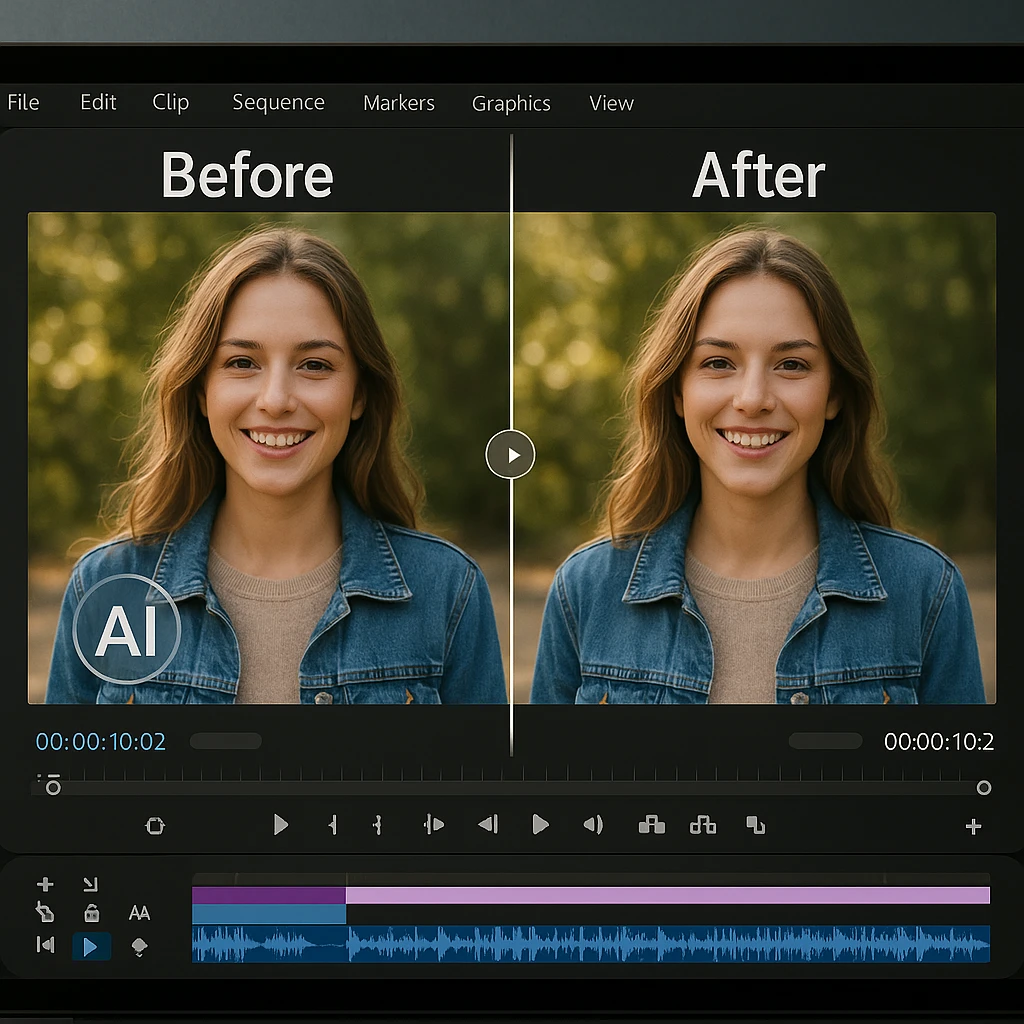
Start from the best source you have. A screen recording of the clip, a version you downloaded off social, or a copy forwarded through a messaging app is already compressed, and no tool rebuilds detail that was thrown away. Pull the original export from Flow.
Match the original resolution and frame rate on the way out. If the source is 1920x1080 at 30fps, export at 1920x1080 at 30fps, not something lower “to save space.” Same for 3840x2160 at 30fps, or 1080x1920 for a vertical clip. Then stop re-exporting: every extra pass through H.264 or H.265 shaves off a little more, and after three or four rounds it shows. Do your edit once and export once.
When you preview, park your eyes on the hard frames. Artefacts hide around hands, faces, hair, water, smoke, reflections, and any on-screen text, and they show up most during fast camera motion. If those look clean across the whole clip, the rest will be fine.
Extensions vs Online Tools
Search “gemini watermark remover extension” and you will find plenty of Chrome and Firefox add-ons promising one-click removal. A browser extension can detect an exported clip, add a quick upload button, send the file to a processing service, drop a fixed corner mask, and hand back the result. Convenient if you do this daily.
The catch is trust. A watermark extension usually needs to read the pages you are on and upload your files, which is a lot of access to hand an unknown publisher. Before you install one, check what permissions it asks for, who made it, whether there is a real privacy policy, what happens to your uploads, and whether the reviews read like real users or filler. If it wants access to your entire browsing activity to mask one corner, that is a no.
| Feature | Browser Extension | Online Tool |
|---|---|---|
| Setup | Requires installation | Nothing to install |
| Privacy | Depends on permissions | Depends on upload policy |
| Best use | Repeat, daily editing | Occasional one-offs |
| Compatibility | Browser-dependent | Works across devices |
| Main risk | Malicious add-ons | Untrusted upload services |
On devices, the split is simple. On Windows, Mac, and Chromebook a browser tool covers it, plus a desktop editor if you already own one. On Android and iPhone you can edit on the phone, but keep an eye on the export settings, because mobile apps love to recompress on save and quietly cost you quality.
Can a Link or a Prompt Do It?
Some people search for a “gemini video watermark remover by link” so they can paste a URL instead of uploading a file. Those tools fetch the file from the link, process it, and hand back a result, which is convenient for a public clip you are allowed to use. Private links and login-gated content will not work, quality can drop in the round trip, and you are trusting that service with your media, so check whether it stores uploads before you paste anything. And the same rule holds: only pull and edit content you own or have permission to use.
Then there is the prompt crowd, searching “gemini remove watermark prompt.” A text prompt on its own will not reliably wipe a visible watermark off a video that already exists, unless the platform actually supports video editing, inpainting, or regeneration. What works better is asking an editing tool to reconstruct the marked area, regenerating the scene without the branding, or reaching for an AI object-removal feature. If your tool does take a prompt, keep it specific and modest, something like: “Reconstruct the selected bottom-right corner to match the surrounding background, lighting, and motion, and leave the rest of the frame untouched.” Prompts do best when the area is small and the background is predictable.
Common Problems and Fixes
When a removal goes sideways, it is almost always one of these.
| Problem | Likely Cause | Fix |
|---|---|---|
| Removed area looks blurry | Low-res source or mask too large | Start from the original file, tighten the mask |
| Background flickers | Frames reconstructed inconsistently | Use a motion-tracked tool, or cover instead |
| Objects vanish near the mark | Mask overlaps real content | Shrink the selection off the object |
| Quality drops after export | Low bitrate or repeated exports | Match original settings, export once |
| Watermark reappears later | Mark moves or resets after a cut | Track it across the whole timeline |
| Audio out of sync | Frame rate changed on export | Keep the original frame rate |
When You Should Not Remove a Watermark
Cleaning a logo off your own draft is one thing. Using removal to mislead people is another, and this is where the topic earns its bad reputation.
Do not remove a watermark to:
- Pass off someone else's video as your own
- Hide the source of content you were not authorised to use
- Get around a platform's rules or licensing terms
- Mislead viewers about whether a clip is AI-generated
- Resell or redistribute content you do not have rights to
- Strip ownership or attribution from copyrighted material
Remember the SynthID point from earlier. Even after the visible badge is gone, the invisible provenance signal is still in the file, so this kind of misuse is both wrong and, increasingly, detectable. If your use calls for an AI-generated label, keep one, just move it somewhere cleaner than a corner badge.
Is It Legal to Remove a Gemini or Veo Watermark?
This is general information, not legal advice for your situation. Whether removal is fine depends on who owns the video, the platform’s terms, any licence conditions, what you plan to do with it, whether the edit misleads anyone, and the copyright, consumer-protection, and AI-disclosure rules where you are.
The short version: removing a visible watermark from your own authorised video is often acceptable, but removing ownership, attribution, or provenance information from content you do not own can create real legal and ethical problems. When in doubt, keep the disclosure and check the terms of the plan you generated the video on.
Instead of stripping an AI label entirely, the cleaner path is to move it: put the disclosure in the caption, add an “AI-generated” note in the description, or build it into a branded lower third. You get a tidy frame without pretending a machine had nothing to do with it.
After Cleanup: Turn the AI Video into Text
Worth being straight about this: ScreenApp does not remove watermarks. It is the step after your edit. Once your authorised Gemini, Veo, or Flow clip is clean, you upload it to ScreenApp to get the words and ideas out of it.
Drop the video in and you can convert the video to text with a full transcript, generate an AI video summary of what happens, translate the spoken audio into another language, or ask AI questions about the footage instead of scrubbing through it again. From there it is a short hop to repurposing a generated clip into an article, a script, study notes, or a slide, and you can send the result straight to a document. No install, all in the browser.
If you are still choosing a generator or want to go deeper on AI video, these help: the best free AI video generators, a closer look at AI video watcher tools, and for other platforms, our guides on the best free AI watermark removers and TikTok watermark removers.
What I Would Actually Do
Small corner badge on your own clip: cover or crop it in a browser tool and export once at the original settings. Mark that moves, or sits over a busy scene: do not fight the editor, go back to the Flow project and re-export, or regenerate the shot. Match the source resolution and frame rate, preview the full timeline before you trust it, and keep an AI disclosure if your use needs one. And only ever do this to video you own or have permission to edit.
FAQ
Can I remove a Gemini watermark online for free?
Yes, for a small static badge. Free tools cap you somewhere, usually shorter clips, lower export resolution, or a watermark of their own, so check the export quality before you rely on one.
Can I remove the Gemini watermark without cropping?
Yes. AI object removal, masking, or covering the badge with your own overlay all keep the framing intact. Cropping is just the fastest option when the mark sits near an edge.
Can Gemini remove its own watermark?
That depends on the editing and export options on your plan. The most reliable route is generating on a tier that never adds the visible badge, rather than editing it out afterward.
Can I remove a Veo watermark without losing quality?
A small static Veo badge is the easy case and comes off cleanly. Perfect quality is never guaranteed, and it drops fast if you start from a compressed copy or export more than once.
Is there a Gemini watermark remover Chrome extension?
They exist, but treat them carefully. Check the permissions, the publisher, and the privacy policy first, because a watermark add-on that wants your full browsing history is not worth it.
Can I paste a Gemini video link to remove the watermark?
Some tools accept a URL. Public links you are allowed to use may work, private or login-gated links usually will not, and quality can drop in the round trip.
Can I remove the watermark from a 4K Gemini video?
Yes, as long as the tool supports 4K on both input and export. Confirm it will not quietly downscale your 3840x2160 clip to 1080p on the way out.
Why does the removed area flicker?
Because the tool rebuilds the background slightly differently on each frame. A motion-tracked tool, or covering the area instead of reconstructing it, clears up most flicker.
Is removing a Gemini watermark legal?
It depends on ownership, permission, the licence, and how you use the result. Editing your own authorised video is usually fine. Stripping ownership or provenance from content you do not own is where the problems start.
Does removing the visible watermark remove the invisible AI marker?
No. The visible badge and the invisible SynthID signal are separate things. SynthID is embedded in the pixels and audio and stays even after you clean the corner.
How do I remove a Gemini watermark from an image?
That is a different job from video, handled by image tools, which is what the "Nano Banana watermark remover" searches are after. Same rules apply: edit only your own images, and the invisible layer is separate from the visible sparkle logo.