Best AI Video Presentation Makers: Text, PPT, Slides to Video 2026


On this page
Making the slides was never the slow part. The slow part is everything after: writing a script that sounds spoken rather than read, recording narration without hating your own voice by take four, timing the transitions, adding captions, and rendering an MP4 someone can actually watch without you in the room.
An AI video presentation maker automates some or most of that chain. Type a prompt or upload a deck, and the tool generates the script, the scenes, the narration (an AI voice or a talking avatar), the captions, and the exported video. The catch, and the reason this comparison exists, is that “some or most” varies wildly between tools, and the free tiers hide their real limits well. Powtoon’s free plan, for one, will let you build the whole video and then not let you download the MP4 at all.
So here are the nine worth knowing, with the free-tier reality spelled out per tool, grouped by the job you are actually trying to do.
Quick answer
The best AI video presentation maker depends on the input you start from. Canva is the strongest free path from slides to a watermark-free MP4. Synthesia and HeyGen lead for AI avatar presenters, with short watermarked videos on their free plans. Gamma is the fastest prompt-to-deck generator but is slides-first, and InVideo AI and Pictory go straight from text to narrated video scenes. Check the free-tier table below before signing up anywhere; watermarks and export caps are where these tools differ most.
Related guides: our broader roundup of AI tools for presentations, how to do a voiceover on PowerPoint, what a keynote presentation is, and the reverse workflow: converting a video into a PPT.
What an AI Video Presentation Maker Does (and What It Does Not)
The distinction that untangles this whole category: an AI presentation maker builds slides you present live and exports PPT or PDF. An AI video presentation maker builds a finished video someone watches without you, with narration, timing, and an MP4 export. Gamma sits mostly in the first camp, Synthesia entirely in the second, and Canva straddles both, which is roughly why those three keep appearing in every comparison with confusingly different verdicts.
Depending on the tool, the AI handles: outline and script generation from a prompt or document, slide and scene design, stock or generated visuals, text-to-speech narration or an avatar presenter, subtitles, background music, and the final render. No tool does all of it equally well. Avatar tools are weak slide editors; slide tools have basic voices; text-to-video tools resist manual control.

The Nine Tools Compared
| Tool | Best for | Text to video | AI avatar | Free plan reality |
|---|---|---|---|---|
| Canva | Slides to MP4, free | Yes (Magic Design) | No | MP4 export, no watermark |
| Synthesia | Avatar-led training video | Yes | Yes, the benchmark | ~1 short video/mo, watermark |
| Gamma | Fastest prompt to deck | Slides, not video | No | 400 one-time credits, watermark |
| HeyGen | Avatar videos on a budget | Yes | Yes | 3 videos/mo, 720p, watermark |
| InVideo AI | Prompt to narrated video | Yes, its core | Limited | Watermark on every free export |
| Pictory | Script or article to video | Yes | No | Trial only, no ongoing free tier |
| Powtoon | Animated explainer style | Limited | Characters, not avatars | 3-min cap, no MP4 download free |
| Google Vids | Workspace teams | Yes, with Gemini | Limited | Depends on Workspace plan |
| Sendsteps | Interactive classroom decks | Yes, prompt to deck | No | Free to start, live-first not video-first |
Free-tier details checked in July 2026 against vendor pages and third-party tests; these change constantly, so confirm before subscribing. The out-of-ten scores below are our editorial read, not a lab benchmark.
1. Canva
Best free path from slides to a finished MP4
Canva wins the most common case: you have (or generate) slides, you want a narrated video, and you do not want to pay yet. Magic Design drafts a deck from a prompt, you record narration per slide or add text-to-speech, set slide timings, and export MP4, without a watermark on the free plan as long as you avoid Pro-marked assets. That free unwatermarked MP4 is the single feature the avatar tools below make you pay for. The AI voices are plainer than Synthesia's and there is no avatar presenter, but for a student assignment or an internal update, plain and free beats polished and paywalled.
Pros
- -Free MP4 export without a watermark
- -Imports PPTX and keeps decks editable
- -The easiest editor here for non-designers
Cons
- -No avatar presenter
- -AI narration is serviceable, not standout
Best For
Students, teachers, and anyone whose presentation starts as slides and needs to end as a free, clean MP4.
2. Synthesia
Best AI avatar presenter for training video
Synthesia is what companies mean when they say "AI training video": upload a deck or paste a script, pick an avatar, and get a video of a realistic presenter delivering it, re-renderable in dozens of languages when the material changes. That last part is the honest reason it took over corporate training; updating a video by editing text beats re-booking a studio every quarter. The free tier is a taste (roughly one short watermarked video a month with a handful of stock avatars), and real use starts on the paid plans, priced accordingly for teams rather than students.
Pros
- -The most natural avatar delivery in the category
- -Edit the script, re-render the video: updates cost minutes
- -Strong multilingual output for global teams
Cons
- -Free plan is a demo, not a workspace
- -Slide design control is thinner than Canva or PowerPoint
Best For
HR, L&D, and product teams producing presenter-led training and onboarding at volume, in multiple languages.
3. Gamma
Fastest prompt-to-presentation generator
Gamma turns a one-line prompt or a pasted document into a designed deck faster than anything else on this list, and the design quality out of the gate is genuinely good. Know two things before relying on it. First, it is slides-first: exports are web decks, PPT, and PDF, so making a narrated MP4 means pairing it with another tool (Canva or a recorder). Second, the free plan's 400 credits are one-time, not monthly, and regenerations eat them faster than you expect; treat free Gamma as an extended trial, not a workflow.
Pros
- -Best-looking AI-generated decks from the shortest input
- -Handles documents and outlines as source material well
Cons
- -Not a video tool; MP4 needs a second step
- -One-time credit pool with watermarked free exports
Best For
Getting from blank page to presentable deck in ten minutes, then narrating or recording it elsewhere.
4. HeyGen
Best avatar videos on a smaller budget
HeyGen is the avatar tool to test first, because its free tier actually lets you: three videos a month, up to three minutes each, at 720p with a watermark, including one custom video avatar. Quality sits close behind Synthesia (delivery is slightly less natural on longer scripts, in our viewing), and the pricing is friendlier for individuals and small teams. If the avatar-presenter format fits your presentations, run the same script through both free tiers and judge with your own eyes; the gap is smaller than the price difference.
Pros
- -The most usable free avatar tier in the category
- -Custom avatar and voice cloning at accessible prices
Cons
- -720p and watermark until you pay
- -Slide handling is basic; script-first workflow
Best For
Solo creators and small teams who want a presenter-led video without Synthesia's team pricing.
5. InVideo AI
Best prompt-to-narrated-video generator
InVideo AI goes straight from a paragraph-long prompt to a complete narrated video: script, stock footage scenes, voiceover, captions, music. For presentation-style content it works best when the material is explanatory rather than slide-bound, think "a 3-minute explainer on our onboarding process" rather than "my quarterly numbers deck." The free tier is for evaluation only: every export carries a watermark and the monthly AI credits run out after roughly one short video, so budget for a paid plan if it fits your workflow.
Pros
- -Prompt to watchable narrated video in minutes
- -Edits by instruction ("make scene 2 shorter") work well
Cons
- -Watermark on every free export, no exceptions
- -Stock-footage look; weak for data-heavy decks
Best For
Marketers turning topics and scripts into explainer-style presentation videos for social and YouTube.
6. Pictory
Best for turning articles and scripts into video
Pictory specializes in one conversion: long-form text (a blog post, a report, a script) into a scene-by-scene video with matched stock visuals and AI narration. Its scene segmentation is the differentiator; it splits your text into visually distinct beats more sensibly than most rivals, which matters for presentation pacing. There is no ongoing free tier, only a trial, so it belongs on this list for people repurposing written content into video regularly enough to justify a subscription.
Pros
- -Smart scene splitting from long text
- -Solid captions and summary-video features
Cons
- -No free plan beyond the trial
- -No avatars; stock-visual aesthetic
Best For
Content teams repurposing written material into presentation-style videos on a schedule.
7. Powtoon
Best animated explainer style
Powtoon owns the animated-explainer look: cartoon characters, whiteboard-style scenes, kinetic text. Teachers and internal comms teams have leaned on it for a decade, and its AI features now help script and assemble scenes. The free plan carries the single harshest catch in this comparison: 3-minute videos at 720p with a watermark, and no MP4 download at all, sharing is by link or embed only. Test on free, but know that walking away with a file requires a paid plan.
Pros
- -Distinct animated style no other tool here matches
- -Large template library for education and comms
Cons
- -Free plan has no MP4 download, link and embed only
- -3-minute cap and watermark until you pay
Best For
Teachers and internal comms teams who want the animated look and are prepared to pay for exports.
8. Google Vids
Best for teams already in Google Workspace
Google Vids is Google's presentation-video app: Gemini drafts an outline and scenes from a prompt or a Drive document, you record or generate narration, and the result lives in Drive with Docs-style sharing and comments. The pull is zero new-tool friction for Workspace teams; the material, permissions, and review flow are already where your company works. Feature depth depends on your Workspace plan and its Gemini access, so check what your admin has enabled before planning a workflow around it.
Pros
- -Lives inside Drive with familiar sharing and review
- -Gemini drafting from documents you already have
Cons
- -Capabilities vary by Workspace plan and admin settings
- -Less styling range than Canva or Powtoon
Best For
Companies on Workspace that want presentation videos inside their existing sharing and permission model.
9. Sendsteps
Best for interactive classroom presentations
Sendsteps - AI presentation maker is the exception on this list: every tool above ends in an exported file someone watches alone, and Sendsteps earns its slot for the classroom case those video tools serve badly, a presentation that happens live with the audience in it. The AI generates the deck from your topic or source material (trained on academic and custom sources rather than generic web data, which matters for teaching content), and then the live layer takes over: polls, quizzes, word clouds, and real-time Q&A that students answer from their own devices. For a teacher, that flips the value question. A narrated MP4 gets watched; a Sendsteps deck gets answered.
Key Features
Pros
- -The only tool here where the audience participates instead of watching
- -Free to start, with paid plans listed at $6.50/month (Pro) and $13.50/month (Professional)
- -Academic-source AI generation suits lesson content
Cons
- -Live-first, not video-first: it is not the tool for producing an MP4
- -The interactive features need an audience present to mean anything
Best For
Teachers and educators who want participation over playback: live lessons where students answer polls and quizzes from their own devices, in class or remote.
The Free-Tier Truth Table
“Free” means something different on almost every one of these nine tools, and the differences decide which one you can actually finish a project on.
| Tool | Watermark | Can you download an MP4? | Main free restriction |
|---|---|---|---|
| Canva | No (avoid Pro assets) | Yes | Premium templates and assets locked |
| Synthesia | Yes | Yes, very limited | About one short video a month |
| Gamma | Yes, on exports | Slides only, no video | 400 credits, one-time not monthly |
| HeyGen | Yes | Yes | 3 videos/mo, 3 min, 720p |
| InVideo AI | Yes, always | Yes | Credits gone after ~1 short video |
| Pictory | Trial exports limited | Trial only | No ongoing free plan |
| Powtoon | Yes | No, link/embed only | 3-min cap, no file download |
| Google Vids | No | Depends on plan | Gated by Workspace and Gemini access |
| Sendsteps | On free tier | Live decks, not video | Free to start; Pro from $6.50/mo |
The pattern worth internalizing: slide-first tools (Canva, Google Vids) are generous with exports because the AI is the add-on. Video-generation tools (Synthesia, HeyGen, InVideo) meter the exports because rendering is the product. If a free, unwatermarked MP4 is non-negotiable, your realistic option is Canva, and that is most of why it ranks first here.
How to Actually Make One (the Workflow That Holds Up)
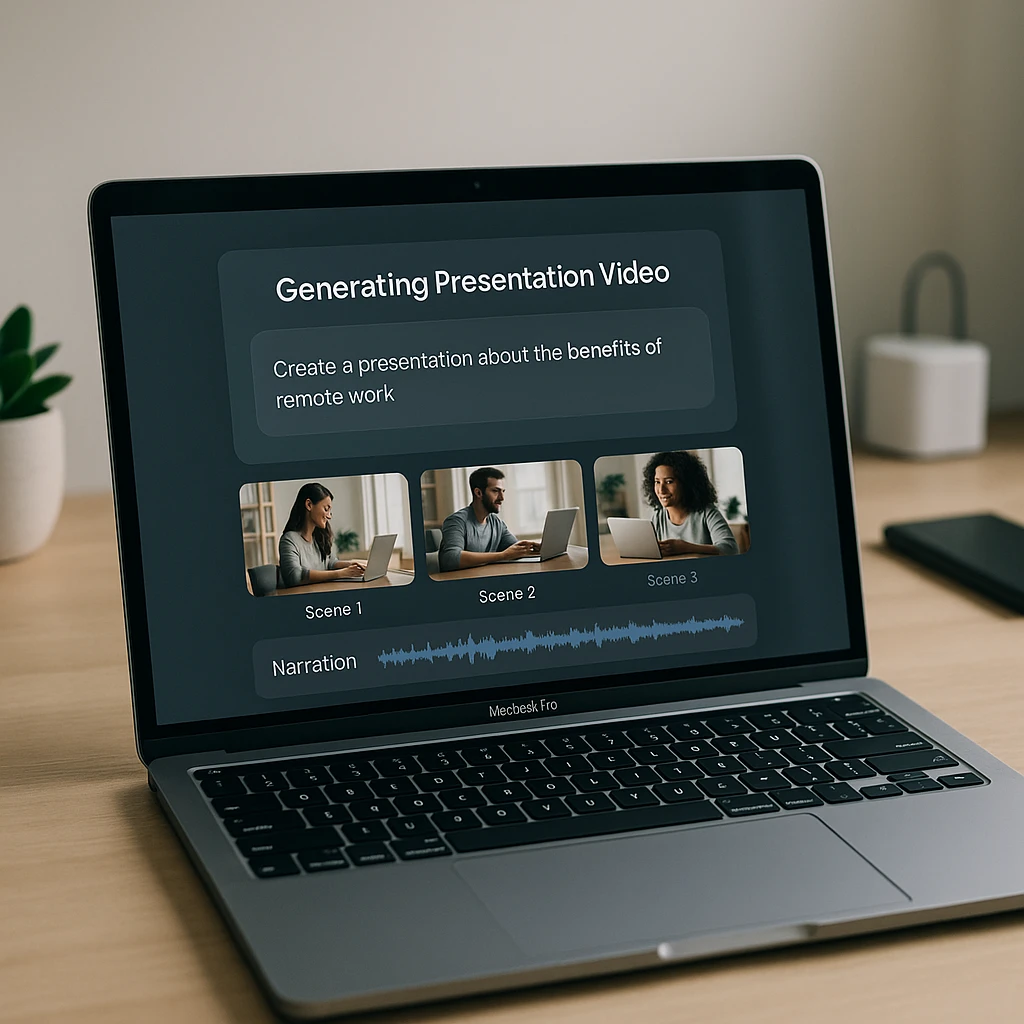
The tools differ; the workflow does not. Start with the audience and the one thing they should remember, because the AI will happily generate ten forgettable slides otherwise. Feed the tool real source material (an outline, a document, an existing deck) rather than a bare topic; the difference in output quality is dramatic. Generate the script first and read it aloud, editing anything you would not say to a colleague, since AI scripts default to slide-caption prose that sounds robotic when narrated. One idea per scene. Then pick narration: an AI voice for speed, your own recording for warmth, an avatar only when a human face genuinely helps (training and onboarding, mostly). Turn captions on regardless, most viewers watch presentations muted at their desk. And before exporting, fact-check every number and name the AI touched; generated scripts invent statistics with total confidence, and a confident wrong number in a company presentation follows you around.
A prompt shape that consistently produces usable first drafts:
Copy-paste generation prompt
PromptCreate a five-minute video presentation about [topic] for [specific audience]. Open with the single most important takeaway, then cover five main points with one concrete example each. Write the narration in a spoken, conversational register, not slide text. Suggest a visual for every scene. End with one clear next step for the viewer.
After the Video Exists: Getting the Words Back Out
Here is the part of this workflow nobody’s marketing page mentions: a presentation video is a dead end for information. Six weeks later someone needs the pricing slide’s exact numbers, or the decisions from the recorded quarterly update, and the answer is buried in an MP4 nobody wants to rewatch.
Turn the finished presentation back into text
ScreenAppThis is the half we build (ScreenApp does not generate presentations; it makes the finished ones useful afterward). Upload the exported MP4 or the recording of the live talk and get:
- -A searchable transcript and presentation summary with the key points and decisions
- -Video-to-text conversion for repurposing the script into docs, posts, or follow-up emails
- -A presentation recorder when the talk is live and you want the transcript from the start
FAQ
What is the best AI video presentation maker?
By job, not universally: Canva for a free slides-to-MP4 path, Synthesia for avatar-led training at team scale, HeyGen for avatars on a budget, Gamma for the fastest prompt-to-deck (paired with another tool for video), and InVideo AI or Pictory for text-straight-to-narrated-video.
Is there a genuinely free AI video presentation maker?
Canva is the closest: free MP4 export with no watermark, provided you avoid Pro-marked assets. Everything else meters you: Synthesia and InVideo watermark free exports, HeyGen caps you at three 720p videos a month, Gamma's 400 credits never refill, and Powtoon's free plan will not give you the file at all.
Can AI create a video presentation from just text?
Yes, that is the core of InVideo AI and Pictory: paste a prompt, script, or article and get scenes, stock visuals, narration, and captions. Quality depends heavily on your input; a structured outline with real facts produces a dramatically better video than a one-line topic.
Can AI turn a PowerPoint into a video?
Yes. Canva imports PPTX and exports narrated MP4s, Synthesia turns a deck into an avatar-presented video, and PowerPoint itself exports slides-plus-recorded-narration as video. Check what survives the import: custom fonts, animations, and embedded charts are the usual casualties.
AI avatar or plain voice-over: which should I use?
Voice-over by default. It is cheaper, faster, and keeps attention on the slides. An avatar earns its cost when a human presence genuinely matters: onboarding, compliance training, and anything where the viewer needs to feel addressed rather than narrated at.
Can I make a video presentation without showing my face or recording my voice?
Yes, and it is the standard case now: AI narration over slides (Canva), an avatar presenter delivering your script (Synthesia, HeyGen), or generated scenes with text-to-speech (InVideo AI). Nothing on this list requires a camera or a microphone.
How long should an AI video presentation be?
Shorter than the live version of the same material. Two to five minutes for demos and social content, five to ten for a class assignment or business update, and long training split into modules under ten minutes each. Past that, completion rates fall off a cliff.
The free plan watermarked my export. Any way around it?
Not legitimately, and watermark-removal sites are a malware category. Either pay for the tool you like, or rebuild in Canva where the free export is clean. Budget-check first: HeyGen and several others cost less per month than the time spent fighting watermarks.
How do I get notes or a summary out of a finished presentation video?
Transcribe it. Upload the MP4 to a presentation summarizer and you get the transcript, key points, and decisions as text you can search, share, and paste into docs, which beats rewatching a 40-minute recording to find one number. The short version of the whole comparison: match the tool to your starting material. Slides in hand, use Canva. Script in hand, InVideo AI or Pictory. Nothing but a topic, Gamma then Canva. Presenter needed, HeyGen first and Synthesia at team scale.