How to Screen Record on Firefox With Sound: Tab Audio, Microphone, and System Audio

On this page
Here is the fact that every “Firefox screen recorder” tutorial should open with and almost none do: when a browser recorder asks Firefox for the screen with audio, Firefox hands over the video and silently drops the audio request. No error, no warning. The recording arrives, you play it back, and the website’s sound simply is not there. Mozilla has tracked this in Bugzilla bug 1541425 since 2019, and it is still open.
So the honest answer to “how to screen record on Firefox with sound” splits in two. Your microphone: fully supported, works beautifully, and covers most narrated tutorials and demos. The sound coming out of the page or your computer: not available through Firefox’s screen capture, full stop, and you will need one of three workarounds I cover below.
That is the whole article in two paragraphs. The rest is the doing: the exact steps for a narrated Firefox recording, the microphone permission layers that silently mute people, the tab-audio workarounds ranked from best to worst, what changes on Windows, Mac, and Linux, and the point at which switching to Chrome for one recording is simply the correct call.
Narration works. A browser recorder in Firefox captures your screen or window plus your microphone with nothing installed.
Tab and system audio do not. Firefox ignores the audio part of screen capture, silently. This is a browser limitation, not your recorder's bug.
For page audio, use a workaround. A desktop recorder with system-audio support, or Chrome for that one recording. Both beat fighting Firefox.
Test 10 seconds first. Record, play it back with volume up, then do the real take. Every audio failure shows itself in that test.
Sort out which sound you actually need before picking a tool, because in Firefox the answer decides everything:
| Audio type | Example | Works in Firefox browser capture? |
|---|---|---|
| Microphone | Your narration over a tutorial | Yes, fully |
| Tab or page audio | A YouTube video or webinar player | No, request is silently dropped |
| System audio | Firefox plus Spotify plus notification pings | No, needs a desktop recorder |
| Microphone + screen | Training videos, product demos | Yes, the sweet spot |
Can you screen record Firefox with sound?
Yes, with one asterisk the size of a browser engine.
Firefox supports the standard getDisplayMedia screen capture API, which is what lets a recording web app ask for your screen, a window, or (in Firefox’s picker) a window or full screen, after you approve it. Video capture through this path is solid. The specification also allows the recorder to request audio alongside the video, and this is where Firefox differs from Chrome and Edge: Firefox accepts the request and returns no audio track. Your recorder does not get an error to show you, which is why so many people discover the problem only on playback.
Microphone capture is a completely separate permission and a completely separate code path, and Firefox handles it fine. A browser recorder can ask for your mic, you approve it once for that site, and your voice records alongside the screen in one file. Which means every narrated recording (tutorials, walkthroughs, demos, lessons, the bulk of what people actually record) works in Firefox today with nothing installed.
So the practical rule for Firefox: if the sound is coming out of your mouth, record in the browser. If the sound is coming out of the page or the computer, plan a workaround before you start, not after the take.
How to screen record on Firefox with sound (the narrated version)
This is the workflow that works natively: screen or window plus microphone. It runs on Windows, Mac, and Linux the same way, because both capture paths are standard Firefox capabilities.
Get the page ready before anything records
Load the site, log in, close cookie banners, and hide the bookmarks bar if it shows client names. Firefox's capture picker offers windows and screens, so whatever else is visible in that window is in the take.
Open a browser-based recorder and enable the microphone
A Firefox screen recorder that runs as a web page needs no add-on and no install. Turn the microphone on in the recorder's controls before the capture starts; adding it mid-recording is not a thing.
Approve both permission prompts
Firefox asks twice: once for the microphone, once for the screen. The prompts appear near the address bar, and each has a device dropdown. Pick the actual mic you are wearing, not the laptop's built-in one from across the desk.
Choose the window or screen in Firefox's picker
For a browser tutorial, pick the Firefox window rather than the entire screen. It keeps notifications and other apps out of the frame, and the recording stays on that window even if you switch away.
Record 10 seconds, play it back, then do the real take
Say one full sentence in the test. If the input meter never moved, the wrong device is selected, and you just saved yourself from finding out twenty minutes in. Then record, stop, and save; most browser recorders hand you the file or a share link within seconds.
If you record rarely and the narrated route covers you, that is the whole workflow, and an online screen recorder does it in any browser you happen to be in, Firefox included.
The microphone permission layers that silently mute people
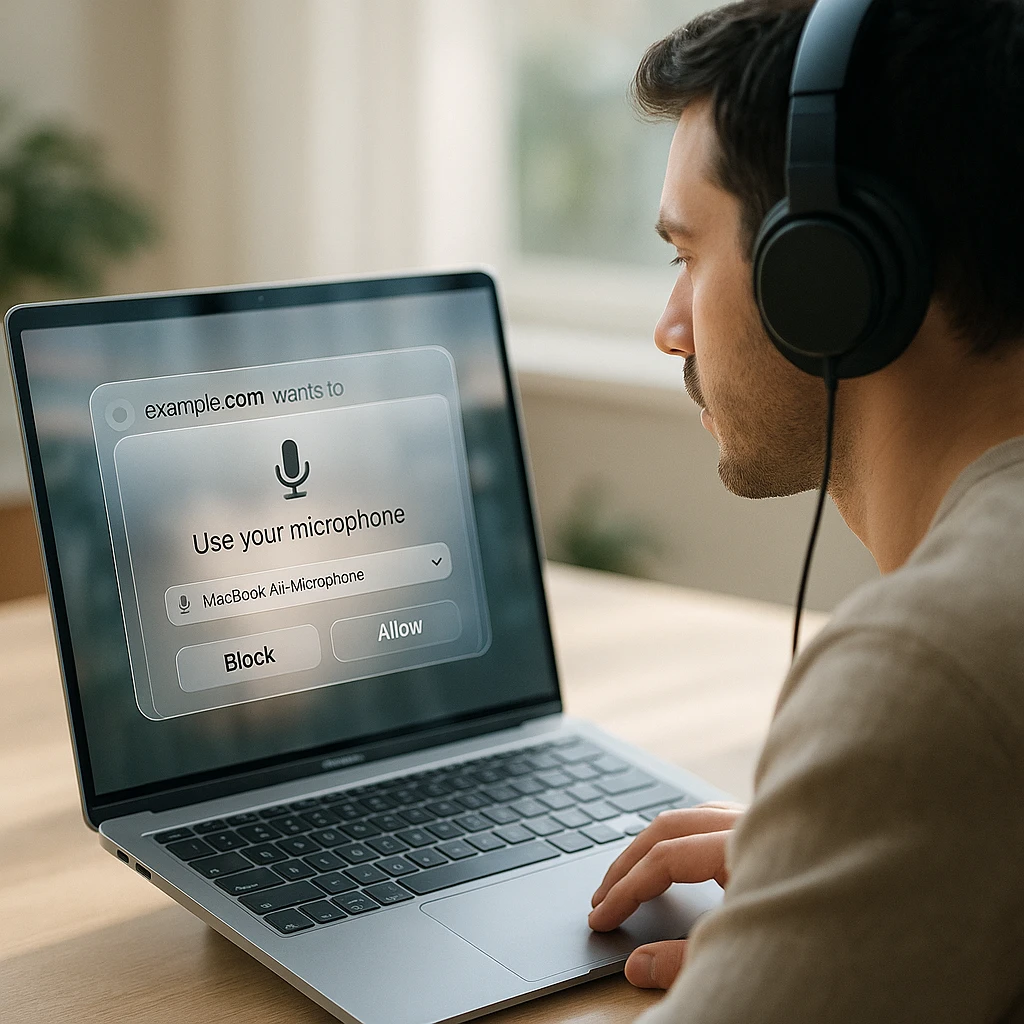
Firefox’s mic permissions live in two places, and a “no” in either produces a flat audio track with no error message.
The site-level layer: click the permissions icon in the address bar, or go to Settings, Privacy and Security, Permissions, Microphone. Mozilla documents the whole flow in its camera and microphone permissions guide. If you clicked “Block” on a recorder site months ago, Firefox remembers, and the recorder just gets silence. Set it back to Allow and reload.
The operating system layer sits above that. On a Mac: System Settings, Privacy and Security, Microphone, and Firefox must be in the allowed list. On Windows 11: Settings, Privacy and security, Microphone. If the OS blocks Firefox, no site permission can help.
And then echo, the classic narrated-recording defect. Your speakers play the page, your mic hears the speakers, and the recording gets everything twice with a small delay. Headphones end the problem completely. If you insist on speakers, keep the volume low and the mic close to your mouth, but headphones are the actual fix and everything else is negotiation.
When you need the website’s audio too
This is the section Firefox forces you into, so here are the three workarounds in the order I would actually use them.
A desktop recorder with system-audio support. OBS Studio (free, all three platforms) captures the whole desktop's sound on Windows and Linux, so Firefox's page audio comes along with everything else the computer plays. Mute notifications first, because the mix is indiscriminate. On a Mac, system-audio capture needs an audio routing driver on top of the recorder, which is real setup work; the platform section below has the details.
Open Chrome for that one recording. Chrome's capture picker has an "Also share tab audio" toggle that does exactly what Firefox cannot, and for a recording of a webinar or a playing video it takes two minutes to switch, record, and come back. I use Firefox daily and this is still my answer when tab audio is the requirement; the full walkthrough is in our guide to screen recording on Chrome with sound.
Let the mic hear the speakers. Play the page audio out loud and record it through the microphone. It works, in the sense that sound ends up in the file, and it sounds exactly like a phone recording of a television. Acceptable for a quick internal bug report, embarrassing in anything a client sees.
One caveat that saves add-on shopping time: a Firefox extension cannot fix this. Add-ons sit on top of the same browser engine, and the engine is where the audio capture is missing. An extension that promises Firefox tab audio is promising something the browser does not expose to it.
Firefox recording on Windows, Mac, and Linux
The narrated workflow is identical everywhere. The differences are all in the workarounds and the permission layers.
Windows 11 and Windows 10
The browser route covers screen plus narration. For Firefox's page audio, a desktop recorder is the clean path: OBS captures desktop audio on Windows without extra drivers, and Game Bar (Win + Alt + R) records the Firefox window with system sound, though it refuses to capture the desktop itself. The built-in options are covered in our guide to screen recording with the Snipping Tool on Windows 10 and 11.
Voice missing on Windows? Settings, Privacy and security, Microphone, and confirm Firefox is allowed. Then check the Volume Mixer (right-click the speaker icon): the per-app slider can mute Firefox independently of the master volume, and it catches people constantly.
Mac
macOS adds its own permission gate: System Settings, Privacy and Security, Screen Recording must list Firefox before the capture picker will even show your windows, and macOS asks exactly once. Same story for the microphone one panel over. Miss either and the failure is silent.
System audio is doubly locked here: Firefox cannot capture it, and macOS does not offer it to desktop recorders either without an audio routing driver installed. If the sound you need is a page playing in Firefox, the two-minute Chrome detour is honestly the path of least resistance on a Mac. The built-in Shift + Cmd + 5 recorder has the same mic-only limit, which we cover in our guide on how to screen record on a Mac.
Linux
Firefox's home crowd, and the platform where the workaround story is actually good. Browser capture works on both Wayland and X11 in current Firefox releases (Wayland goes through the desktop portal, so the picker looks different from X11, which surprises people after a distro upgrade). Microphone permissions behave like any other platform: site prompt plus whatever your desktop environment enforces.
For page and system audio, PipeWire makes Linux the easiest of the three platforms: OBS picks up desktop audio directly, and pavucontrol-style mixers let you route Firefox's output specifically into the recording, which is per-app routing neither Windows nor macOS gives you for free. If you are on an older PulseAudio-only setup, the monitor-source trick does the same job with more clicking.
Add-on or no add-on?
For Firefox, I would skip the add-on entirely, and that is a different recommendation than I would make for Chrome.
The case for a recording extension is one-click convenience and persistent permissions. The case against, in Firefox specifically, is that the add-on cannot do anything the browser recorder cannot: the audio limitation lives in the engine, so an extension records exactly the same screen-plus-mic combination a web page does. You are installing software to get the same capability with one fewer click. If you record several times a day, fine, the click matters. Otherwise a browser-based recorder gives you the same result with nothing to vet, update, or grant permanent permissions to.
If you do shop the add-ons store, judge candidates the way you would any software with screen access: a named publisher, recent updates, a readable privacy policy, and reviews that mention audio working rather than just “great app.”
Getting an MP4 instead of a WebM
Firefox’s native recording format through the MediaRecorder API is WebM, so browser recorders either hand you a WebM or convert before download. WebM plays in every browser and gets shrugged at by Premiere, PowerPoint, older iMovie versions, and half the upload forms in corporate software.
The order of preference: use a recorder that exports MP4 directly, convert afterwards with a screen recording to MP4 converter, or keep the WebM when the destination is a browser anyway. For anything edited, shared with a client, or embedded in slides, MP4 is the default that never bounces.
Why is there no audio in your Firefox screen recording?
Work down this list in order. In Firefox, number one is the answer more often than everything else combined:
- You expected tab or system audio from Firefox’s capture. It is not supported, and it fails without an error. Not your recorder’s fault, not a setting. Use a workaround from the section above.
- The mic permission is blocked at the site level. Address bar permissions icon, or Settings, Privacy and Security, Permissions, Microphone. Set the recorder’s site to Allow.
- The OS is blocking Firefox’s mic access. macOS and Windows both have a privacy panel that overrides anything the browser says.
- The wrong input device is selected. Bluetooth headsets registering twice are the classic; the prompt’s dropdown or the recorder’s settings picks the real one.
- The recorder’s mic toggle was off when recording started. Audio sources are locked at the start of a capture.
- Another app is holding the microphone. A Zoom or Teams call in the background keeps exclusive hold on some setups.
- A Bluetooth headset switched profiles mid-take. If audio cuts out partway rather than missing entirely, suspect this, and use a wired mic for anything long.
| Symptom | Likely cause | Fix |
|---|---|---|
| Video fine, page audio missing | Firefox does not capture it | Desktop recorder or Chrome detour |
| Your voice missing entirely | Mic blocked or toggle off | Allow in site and OS settings, re-record |
| Voice doubled with an echo | Speakers feeding the mic | Wear headphones |
| Voice quiet or muffled | Wrong or distant input device | Select the right mic, raise input level |
| Sound cuts out mid-recording | Bluetooth profile switch | Wired mic or built-in input |
| Picker never shows your windows (Mac) | Screen Recording permission missing | System Settings, Privacy, Screen Recording |
Chrome vs Firefox for screen recording with audio
The comparison people actually want, stated without brand loyalty in either direction.
Both browsers do standards-based screen capture well: window and full-screen video, microphone input, browser-based recorders with nothing installed. If your recordings are narrated tutorials, the two are interchangeable and you should record in whichever browser you live in.
The gap is audio capture from the browser itself. Chrome’s picker offers tab audio on every platform and system audio on Windows, and its extension platform has a dedicated tab-capture API that recording extensions build on. Firefox has none of that: no tab audio, no system audio, no extension escape hatch, one open Bugzilla ticket. That single difference decides the verdict for anyone recording webinars, playing videos, or web app sound.
| Capability | Chrome | Firefox |
|---|---|---|
| Screen and window video capture | Yes | Yes |
| Microphone narration | Yes | Yes |
| Tab audio from the capture picker | Yes, "Also share tab audio" | No, silently dropped |
| System audio via the browser | Yes on Windows | No |
| Single-tab capture mode | Yes | Window or screen only |
| Recording extension ecosystem | Large, with a tab-capture API | Smaller, same engine limits |
| Linux desktop-audio workarounds | Same as Firefox | Excellent via PipeWire routing |
My verdict, as someone who browses in Firefox: for narrated screen recordings, use whichever browser is open. The moment tab audio is the requirement, use Chrome for that recording and go back. Switching browsers per task feels disloyal for about a week and then just feels like using the right tool.
One warning in the other direction: switching browsers does not fix every missing-audio problem. If your voice is what is missing, the cause is a permission or a device, and it will follow you to Chrome. Run through the troubleshooting list before blaming the browser.
The pre-record checklist
Decided where the sound comes from: mic only, or a workaround for page audio
Correct Firefox window selected in the picker
Mic allowed in Firefox and the OS, right device, meter moving
Headphones on if narrating over anything audible
Notifications off at the OS level, private tabs closed
Mac only: Firefox allowed under Screen Recording in System Settings
Bookmarks bar and password manager out of frame
10-second test recorded and played back with volume up
After recording: the transcript is the reusable half
A narrated Firefox recording is already halfway to documentation, because the narration is a script nobody wrote down. Upload the recording to ScreenApp and the free plan’s 2 transcriptions turn it into a searchable transcript, an AI summary, and extractable action items, so the walkthrough you recorded once becomes notes, a wiki page, or a follow-up email without re-watching anything. Students and trainers get the most from this pattern; the study-focused version is in how to record lectures and convert them to text.
So the Firefox answer, compressed: narrate in the browser with nothing installed, wear headphones, test ten seconds. When the page’s own sound matters, use a desktop recorder or borrow Chrome for one take, and never trust an add-on that promises Firefox tab audio, because the browser has none to give. Then transcribe the good recordings, because the text is what you will use next month.
FAQ
Can Firefox screen record with sound?
Yes for your microphone: a browser-based recorder captures the screen or a window plus your narration with nothing installed. No for tab and system audio: Firefox's screen capture ignores the audio request without an error, so the page's own sound needs a desktop recorder or a different browser.
Does Firefox have a built-in screen recorder?
No. Firefox has the screen capture capability that recording websites use after you grant permission, but there is no record button in the browser itself. The recorder is a web app, an add-on, or a desktop program; Firefox supplies the capture and the permission prompts.
Can Firefox record tab audio?
No. Chrome and Edge offer a tab audio toggle in their capture pickers; Firefox has no equivalent, and the request is dropped silently. This is tracked in Mozilla's Bugzilla as bug 1541425 and has been open since 2019. No add-on can work around it, because add-ons rely on the same engine.
Can Firefox record system audio?
Not through the browser. For computer-wide sound, use a desktop recorder: OBS captures desktop audio directly on Windows and Linux, while macOS also needs an audio routing driver on top.
Why does my Firefox screen recording have no audio?
If the page's sound is missing, that is the browser limitation above. If your voice is missing, the mic is blocked in Firefox's site permissions or the OS privacy settings, the wrong input device is selected, or the recorder's mic toggle was off when the capture started. All of these fail silently, which is why a 10-second test before the real take is the habit worth keeping.
How do I enable the microphone in Firefox?
Click the permissions icon in the address bar on the recorder's site and set Microphone to Allow, or go to Settings, Privacy and Security, Permissions, Microphone. On a Mac or Windows machine, also confirm Firefox is allowed in the operating system's microphone privacy panel; that layer overrides the browser.
Can I screen record Firefox without an extension?
Yes, and for Firefox it is the route I would pick. A browser-based recorder uses the same capture capability an add-on would, so the extension adds convenience, never capability. Open the recorder page, grant mic and screen permissions, record.
Can I record Firefox on Linux with sound?
Yes, and Linux is the best platform for the audio workarounds. Browser capture handles screen plus mic on both Wayland and X11, and PipeWire lets a desktop recorder capture or even route Firefox's audio specifically into the recording, which is per-app control the other platforms do not offer for free.
Can Firefox recordings be saved as MP4?
Firefox's native capture format is WebM, so it depends on the recorder: some convert to MP4 before download, otherwise convert the WebM afterwards. For editing and sharing, MP4 is the format that never gets rejected.
Is Chrome better than Firefox for screen recording?
For narrated screen-plus-mic recordings, they are equivalent; use the browser you are in. For tab audio or browser-captured system audio, Chrome is better, and not by a little: it has the capability and Firefox does not. Recording a webinar or a playing video is a legitimate reason to open Chrome for ten minutes.
Where are Firefox screen recordings saved?
The recorder decides, not Firefox. Browser-based tools download to your Downloads folder or store the recording in a cloud library with a download option; desktop recorders save wherever you point them. Check before a long take, not after.