How to Screen Record on Chrome With Sound: Tab Audio, Microphone, and System Audio

On this page
Most silent Chrome recordings come down to one unticked checkbox. When Chrome shows you the screen picker, there is a small “Also share tab audio” toggle in the corner, and if you skip it, you get perfect video and total silence. I have done it. Everyone who records their screen regularly has done it at least once.
To screen record on Chrome with sound: open the tab you want to capture, start a browser-based recorder or extension, pick Chrome Tab in the share dialog, turn on the tab audio toggle, enable your microphone if you want narration, and hit record. That covers the website’s sound and your voice. System audio, meaning sound from apps outside Chrome, is the one part that depends on your operating system, and I will get to that.
The rest of this guide is the detail: which of the three audio sources you actually need, the exact steps, what changes on Windows, Mac, and Chromebook, and how to fix a recording that came out mute.
Pick the right source. Chrome Tab for one website, Entire Screen for everything on your monitor.
Turn on tab audio. The "Also share tab audio" toggle in Chrome's picker is off in some tools by default. This is the number one cause of silent recordings.
Add your mic if you narrate. Chrome will ask for microphone permission the first time. Tab audio and mic can record together in one track.
Run a 10-second test. Record, play it back with sound on, then do the real take. Ten seconds now beats re-recording twenty minutes later.
What you plan to capture decides which audio source you need, so sort that out before touching any recorder:
| What you want to record | Audio source you need | Typical use |
|---|---|---|
| A video or web app playing in one tab | Tab audio | Tutorials, bug reports, demos |
| Your own voice over the screen | Microphone | Walkthroughs, presentations |
| Chrome plus other desktop apps | System audio | Full software walkthroughs |
| A website plus your commentary | Tab audio + microphone | Training videos, reactions |
| Screen, your face, and your voice | Tab audio + mic + webcam | Lessons, sales demos |
Tab audio, microphone, and system audio are three different things
This distinction causes more failed recordings than anything else, so it is worth two minutes before you touch the steps.
Tab audio is the sound coming out of one specific Chrome tab. A YouTube video, a webinar player, a web app’s notification chime. Chrome can hand this audio to a recorder cleanly, tab by tab, which is why browser recording is so good at it. If your Spotify desktop app is playing in the background, tab audio does not hear it. That is a feature, not a bug: your recording stays free of everything except the tab you chose.
Microphone audio is your voice, from whatever input your computer is using: the built-in laptop mic, a headset, a USB mic. Chrome asks permission for this separately, and your operating system has its own permission layer on top. Two places to say yes, two places where a “no” from six months ago can silently mute you.
System audio is everything your computer plays: Chrome, Spotify, Slack pings, all of it mixed together. This is the one Chrome cannot always give you, because it depends on the operating system. Windows exposes it. macOS does not, at least not to the browser. I cover the workarounds per OS below.
The practical rule I use: record tab audio unless you specifically need sound from outside Chrome. It is supported everywhere, it captures only what you chose, and a Slack notification cannot wander into your client demo.
| Question | Tab audio | System audio |
|---|---|---|
| Captures the website's sound | Yes | Yes |
| Captures a desktop app like Spotify | No | Yes, where the OS allows it |
| Can stray notification sounds leak in | No | Yes |
| Works the same on Windows and Mac | Yes | No, Mac is restricted |
| Best for browser tutorials | Yes | Only if other apps matter |
How to record a Chrome tab with sound
This is the workflow that covers most cases: one tab, its audio, optionally your voice. It works on Windows, Mac, Chromebook, and Linux because tab capture is built into Chrome itself. The recorder, whether it is a web app or an extension, just asks Chrome for the stream through the browser’s getDisplayMedia screen capture API, and Chrome shows you a picker to approve it.
Open the tab and get it ready
Load the page, log in, close cookie banners, and cue the video to the right spot if there is one. Everything you do after pressing record is in the take, so do the housekeeping first.
Start your recorder and choose what it should hear
Before the screen picker appears, most recorders ask which audio sources to include. Turn on the microphone here if you want narration. If the tool has separate toggles for mic and browser audio, enable both now rather than hoping to fix it later.
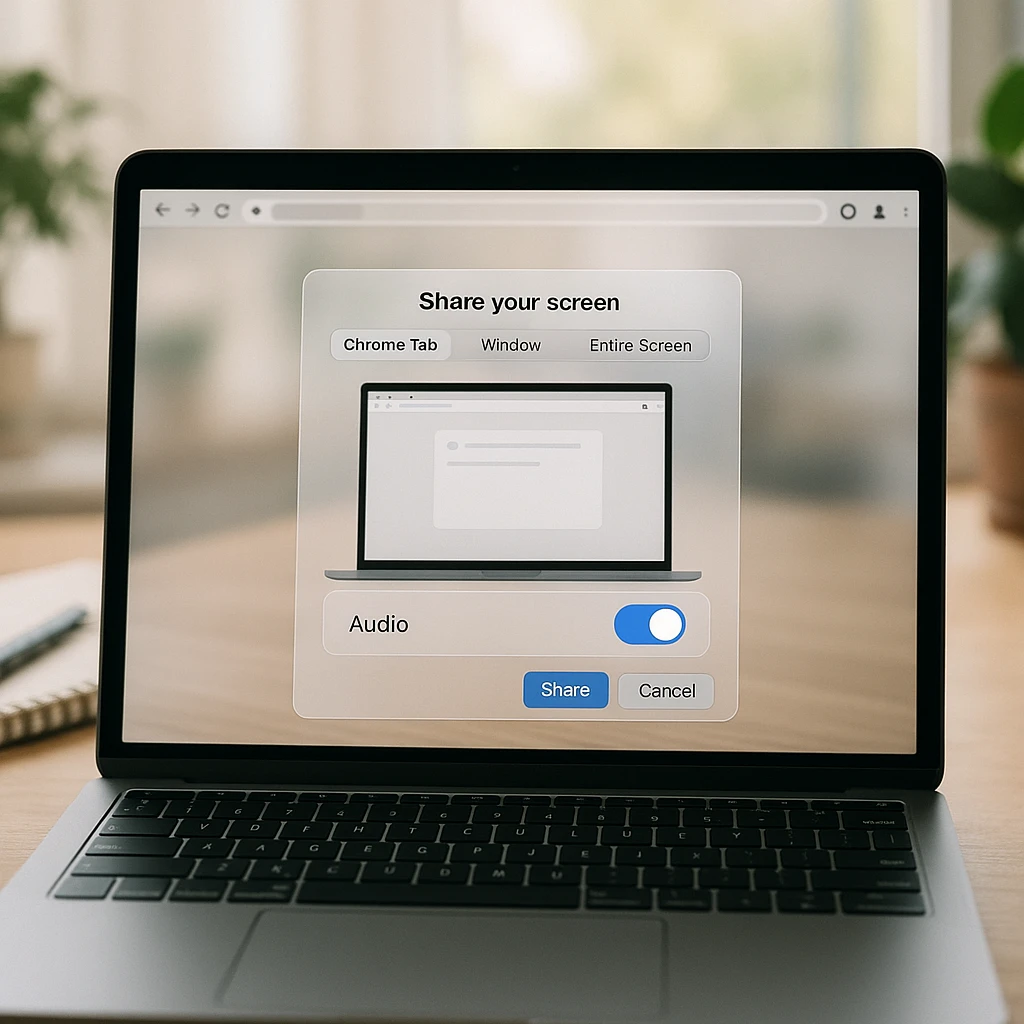
Pick "Chrome Tab" in the share dialog, then the exact tab
Chrome offers three capture modes: Chrome Tab, Window, and Entire Screen. Choose Chrome Tab and click the tab you prepared. Picking the wrong tab here is surprisingly easy when you have fifteen open, and the recording will faithfully capture the wrong one.
Turn on "Also share tab audio"
The toggle sits in the corner of the tab picker. This single switch is the difference between a recording with sound and a recording without it. Check it every time, even when you think it is already on. Chrome remembers the setting inconsistently between tools.
Record a 10-second test, then the real take
Stop, play it back, and listen with the volume up. Tab sound present? Voice present? Then record for real. Skipping this step is how twenty-minute walkthroughs get recorded twice.
One behavior worth knowing: when you record a single tab and then switch to a different tab, the recording stays locked to the tab you picked. It does not follow your focus. That is usually what you want, but it surprises people who expected the recording to track them around the browser. If you need to demonstrate moving between tabs, capture the Window or Entire Screen instead.
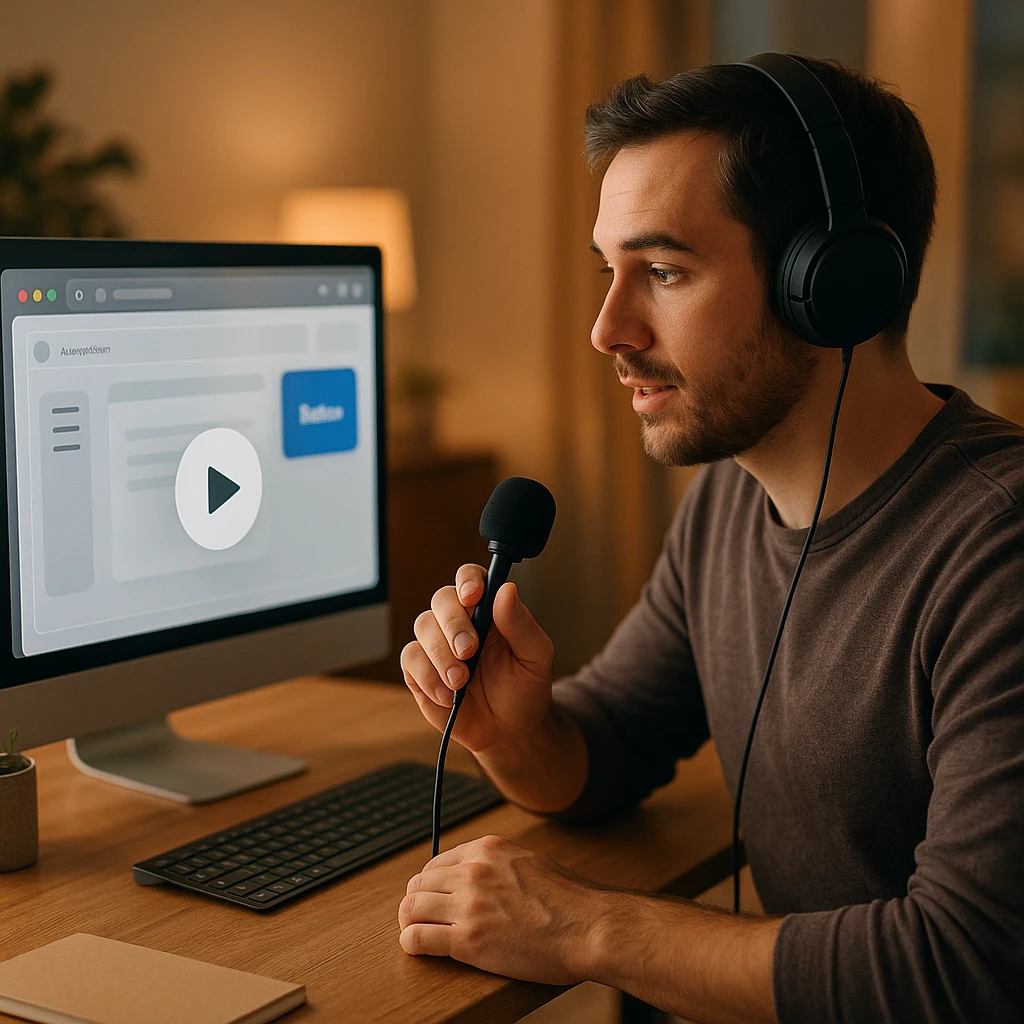
Adding your microphone without recording an echo
Narrated recordings need two permissions to line up. Chrome asks for microphone access the first time a recorder requests it, with a popup near the address bar. If you dismissed that popup at some point, Chrome remembers the “no” and the recorder gets silence with no error. Click the padlock or tune icon in the address bar, open Site settings, and set Microphone back to Allow.
The operating system has its own layer. On a Mac, System Settings, then Privacy and Security, then Microphone must list Chrome as allowed. On Windows 11 it is Settings, Privacy and security, Microphone. If Chrome is blocked there, no site permission in the world will help, and again there is no error message, just a flat audio track.
Then there is echo, which is the most common quality complaint on narrated recordings. It happens when your speakers play the tab audio and your microphone picks it back up, so the recording gets the tab sound twice, slightly offset. The fix is boring and absolute: wear headphones. Tab audio is captured digitally inside Chrome, so it stays clean, and your mic only hears your voice. If headphones are not an option, keep the speaker volume low and the mic far from the speakers, but accept that headphones are the real answer.
Two more mic habits that pay off:
- Say one full sentence before the content starts and watch the input meter move. A meter that does not move means the wrong device is selected. Bluetooth headsets are the usual culprit, since they can register as two devices and Chrome sometimes grabs the idle one.
- If your recorder offers noise suppression, leave it on for voice-over-screen work. It costs a little richness and removes a lot of keyboard clatter.
System audio on Windows, Mac, and Chromebook
Tab audio behaves the same everywhere. System audio is where the operating systems split, and this section is the honest version of what each one allows.
Windows 11 and Windows 10
Windows is the easy case. Chrome's share dialog shows a system audio toggle when you pick Entire Screen, and turning it on captures everything the computer plays: Chrome, desktop apps, notification pings, all mixed into the recording.
Pick Entire Screen in the share dialog
Turn on "Also share system audio"
Mute notifications first, the mix is indiscriminate and every Slack ping lands in the take
Windows also has Game Bar (Win + Alt + R) built in, which records a single app window with system sound, but it refuses to capture the desktop or File Explorer and gives you no tab-level control. For browser work, Chrome's own capture is more precise. If you prefer a system tool, the built-in options are covered in our guide to screen recording with the Snipping Tool on Windows 10 and 11.
System audio missing? Check the Volume Mixer first: right-click the speaker icon, open the mixer, and confirm Chrome is not muted or turned down independently of the master volume. That per-app slider catches people constantly.
Mac
macOS does not let Chrome capture system audio. When you share your Entire Screen or a Window on a Mac, there is no system audio toggle, and that is Apple's restriction rather than a missing feature in any recorder. The built-in Shift + Cmd + 5 recorder has the same gap: it records the screen and the microphone, not what the Mac is playing.
You have two realistic paths:
Record the Chrome Tab instead of the screen. Tab audio capture works fully on macOS. If the sound you need lives in a browser tab, and it usually does, pick Chrome Tab, enable tab audio, and the restriction never touches you. This is my default on a Mac.
Install an audio routing driver if you genuinely need all system sound, which desktop recording apps use to loop system output back in as an input. That is real setup work, and for most browser recording it is overkill.
Permission check: System Settings, Privacy and Security, Screen Recording. Chrome needs to be allowed there before it can capture the screen at all, and macOS only asks once.
The full picture, including the built-in recorder's quirks, is in our guide on how to screen record on a Mac.
Chromebook
ChromeOS has a built-in screen capture tool (Shift + Ctrl + Show windows) that records the full screen, a window, or a region, with a microphone toggle in its settings menu. Recordings land in the Downloads folder as WebM files. It records your voice fine.
Internal audio is the weak spot. For a Chrome tab with its sound, the same tab capture flow from earlier works on a Chromebook exactly as it does on Windows: browser recorder, Chrome Tab, share tab audio.
Do you need an extension at all?
No. This surprises people, but Chrome’s screen capture works for any web page that asks, so an online screen recorder running in a normal tab can record your screen, tab audio, mic, and webcam with nothing installed. You open the page, grant the permissions, record, download. For occasional recording, or on a work machine where you cannot install extensions, this is the sensible route.
An extension earns its place when you record often. It sits in the toolbar, starts in one click, and keeps its permissions between sessions instead of asking every time. The ScreenApp screen recorder Chrome extension records the current tab, a window, or the full screen with microphone and tab audio together, and saves the file as MP4 locally, which matters more than it sounds (more on formats below).
Whichever you pick, the checklist for judging any Chrome recording tool is the same:
Tab audio and mic together, in one track, not either-or
MP4 export, directly or via built-in conversion
Free tier limits stated plainly: duration caps, recording counts, watermarks
1080p at the frame rate you need, 30fps is fine for demos
Webcam overlay if you record lessons or sales demos
A clear answer on storage: local file, cloud, or both, and who can see it
If what you actually need is the audio alone, a video recorder is the wrong tool. We compared the dedicated options in our roundup of Chrome audio capture tools, which strip the problem down to sound only.
| Question | Chrome extension | Online recorder, no install |
|---|---|---|
| Installation | One-time, from the Web Store | None |
| Starting a recording | One click from the toolbar | Open the site first |
| Permissions | Persist between sessions | Granted per session |
| Locked-down work machines | Often blocked by policy | Usually works |
| Best for | Recording several times a week | Occasional recording |
Getting an MP4 instead of a WebM
Chrome’s native recording format is WebM. When a browser tool records through the MediaRecorder API, WebM is what comes out unless the tool converts it, which is why so many people finish a recording and find a file their video editor shrugs at. WebM is a fine format that plays in every browser, but Premiere, some versions of iMovie, PowerPoint, and plenty of upload forms still want MP4.
You have three options, in order of preference:
- Use a recorder that outputs MP4 directly. The conversion happens before you ever see the file, and the problem never exists.
- Convert after the fact. A screen recording to MP4 converter handles WebM in, MP4 out, without re-recording anything.
- Keep the WebM when the destination is a browser anyway. Uploading to a player that accepts WebM? Converting gains you nothing.
For anything you will edit, share with a client, or drop into slides, MP4 is the safe default. It plays on effectively everything made in the last decade.
Why is there no audio when you screen record in Chrome?
Because something between the sound and the file said no, and nothing told you. Silent recordings are almost never a bug in the recorder. They are a permission or a toggle, and the frustrating part is that Chrome fails quietly: the video records perfectly while the audio track sits empty.
Work down this list in order. In my experience the first three cover most cases:
- Tab audio was not shared. The “Also share tab audio” toggle was off when you picked the tab. There is no recovering the sound afterwards; re-record with it on.
- The wrong tab or window was selected. The audio you wanted was playing somewhere else. The recording captured its chosen source faithfully, including its silence.
- The tab itself was muted. Chrome lets you mute individual tabs, and a tab muted last Tuesday stays muted. Look for the crossed-out speaker on the tab strip.
- Chrome’s mic permission is blocked for the recorder’s site. Padlock icon, Site settings, Microphone, Allow.
- The OS is blocking Chrome’s mic access. macOS: System Settings, Privacy and Security, Microphone. Windows: Settings, Privacy and security, Microphone.
- The wrong input device is selected. Usually a Bluetooth headset registering twice, or a monitor’s built-in mic hijacking the default.
- You expected system audio on a Mac. As covered above, Chrome cannot capture it there. Record the tab instead.
- Another app is holding the microphone. Zoom or Teams sitting in a call can keep exclusive hold of the input.
- A Bluetooth device switched profiles mid-recording. Some headsets drop to a low-quality mode when the mic activates, and some recorders lose the stream during the switch. If your audio cuts out partway, suspect this.
| Symptom | Likely cause | Fix |
|---|---|---|
| Video fine, website silent | Tab audio not shared | Re-record with the toggle on |
| Website sound fine, your voice missing | Mic off or blocked | Allow mic in site and OS settings |
| Voice recorded twice with an echo | Speakers feeding the mic | Wear headphones |
| Voice sounds robotic or muffled | Bluetooth profile switch | Use a wired mic or built-in input |
| Voice very quiet | Low input level or distant mic | Raise input gain, move closer |
| Desktop app audio missing | Tab capture only hears the tab | Entire Screen + system audio (Windows) |
| Sound cuts out partway | Audio device changed mid-take | Lock one device before recording |
The habit that makes this whole section irrelevant: the 10-second test. Record, play back with volume up, confirm both audio sources, then do the real thing. Every failure above announces itself in that test, and none of them can be repaired after a long take.
The pre-record checklist
Thirty seconds before any recording that matters:
Correct tab or screen selected in the picker
Tab audio toggle on
Mic selected and the input meter moving
Headphones on if narrating over tab audio
Notifications off, on the OS, not just the browser
Private tabs, bookmarks bar, and password manager out of frame
Browser zoom at a level where text is readable in the final video
10-second test recorded and played back
The privacy items deserve one extra sentence. A screen recording captures whatever crosses the frame: an email preview sliding in, a password manager autofill popup, the client names on your other tabs. Recording just the one Chrome Tab, rather than the whole screen, quietly eliminates most of that risk, which is another reason tab capture is the right default. And review the recording before you share it, at playback speed, not by scrubbing.
One related question that comes up: can websites detect that you are recording? There is no universal detection, but DRM-protected players can refuse to render into a capture (you get a black rectangle where the video should be), and workplaces can monitor managed machines. Respect copyright, platform terms, and meeting consent rules; in many places recording a call without consent is illegal, not just impolite.
After recording: the video is only half the output
Here is the part most screen recording guides stop short of. A twenty-minute walkthrough is useful exactly once, to the person who watches all twenty minutes. The same recording with a transcript is searchable, quotable, and skimmable forever.
This is where ScreenApp does more than the capture. Record the Chrome tab or screen, and the recording lands in your library where you can generate a transcript, get an AI summary, and pull out action items or the moments that matter without scrubbing through the video. The free plan includes 2 transcriptions, enough to see whether the workflow suits you. Ask the recording questions (“what settings did I change in the second half?”) instead of re-watching it.
That workflow turns one recording into several outputs: the video itself, a transcript for documentation, a summary for the person who will not watch, and notes you can paste into a ticket or a wiki. Students and trainers get the most out of this pattern; we wrote up the study version separately in how to record lectures and convert them to text.
So the full answer to “how do I screen record on Chrome with sound” ends up short. Tab capture with the audio toggle on covers the website’s sound anywhere, including on a Mac. Add the mic for narration and wear headphones. Reach for Entire Screen with system audio only on Windows, and only when apps outside Chrome matter. Run the 10-second test every single time. And if the recording is worth keeping, transcribe it, because the text is what you will actually use next month.
FAQ
Does Chrome have a built-in screen recorder?
Not as a standalone feature. Chrome has screen capture built into the browser engine, which is what lets recording websites and extensions work after you grant permission, but there is no record button in Chrome itself. You bring the recorder; Chrome brings the capture and the permission prompts.
How do I record my screen on Chrome with sound?
Start a browser-based recorder or extension, pick Chrome Tab in the share dialog, turn on "Also share tab audio," enable your microphone if you want narration, and record. The tab audio toggle is the step people miss.
Can Chrome record internal or system audio?
On Windows, yes: choose Entire Screen in the share dialog and enable the system audio toggle. On macOS, no, Chrome cannot capture system audio at all; record the Chrome Tab with tab audio instead, or install an audio routing driver for a desktop recorder. Tab audio works on every OS.
Why is there no sound on my Chrome screen recording?
Usually the "Also share tab audio" toggle was off, the wrong tab was selected, or the tab was muted. If your voice is missing, the microphone permission is blocked in Chrome's site settings or in the operating system's privacy settings. All of these fail silently, which is why a 10-second test recording before the real take is worth the bother.
Can I record just one Chrome tab with its audio?
Yes, and it is the cleanest option. Choose Chrome Tab instead of Window or Entire Screen, select the tab, and enable tab audio. The recording stays locked to that tab even if you switch away, and sounds from other apps and tabs stay out of it.
Can I record my microphone and the tab audio at the same time?
Yes. Enable both in the recorder before the capture starts and they mix into one track. Wear headphones while you do it, or the mic will pick the tab audio back up and give you an echo.
Does Chrome screen recording save as MP4?
Chrome's native capture format is WebM, so many browser tools produce WebM files. Some recorders convert to MP4 for you; otherwise a converter can turn the WebM into MP4 after the fact. For editing and sharing, MP4 is the safer format.
Can I screen record on Chrome without an extension?
Yes. An online screen recorder running in a normal tab can capture your screen, tab audio, and mic with nothing installed, because the capture ability lives in the browser, not the extension. Extensions mainly add convenience: one-click start and permissions that persist.
Where do Chrome screen recordings get saved?
It depends on the tool. Local-first recorders download the file to your Downloads folder; cloud recorders store it in your account library, sometimes with a local download option. On a Chromebook, the built-in capture tool saves WebM files to Downloads. Check before a long recording, not after.
Why does my recording have an echo?
Your speakers played the tab audio and your microphone recorded it again, slightly delayed. Headphones fix it completely, because tab audio is captured digitally inside Chrome and never needs to pass through the air.