How to Build a Video Library (Private, Shared, and Public) in 2026

On this page
Most video libraries are not libraries. They are a Google Drive folder called “Videos_FINAL_v2”, a Slack thread with 40 Loom links, and a hard drive nobody has plugged in since the last laptop refresh. It works right up until someone asks “where is the onboarding walkthrough we recorded in March”, and you spend twenty minutes scrolling thumbnails instead of finding it in five seconds.
A video library maker (some people call it a video CMS) fixes the three things that break in that setup: the videos are in one place, the access is controlled per video, and you can actually find what is inside them. Video is not a niche format anymore either. In Wyzowl’s 2026 survey, 91% of businesses use video, which means most teams are now sitting on hundreds of clips with no real system for them.
Before you pick a tool, you have to answer one question: who is allowed to watch. That answer splits into three setups, and the rest of this guide is built around them.
Pick your library by who needs access
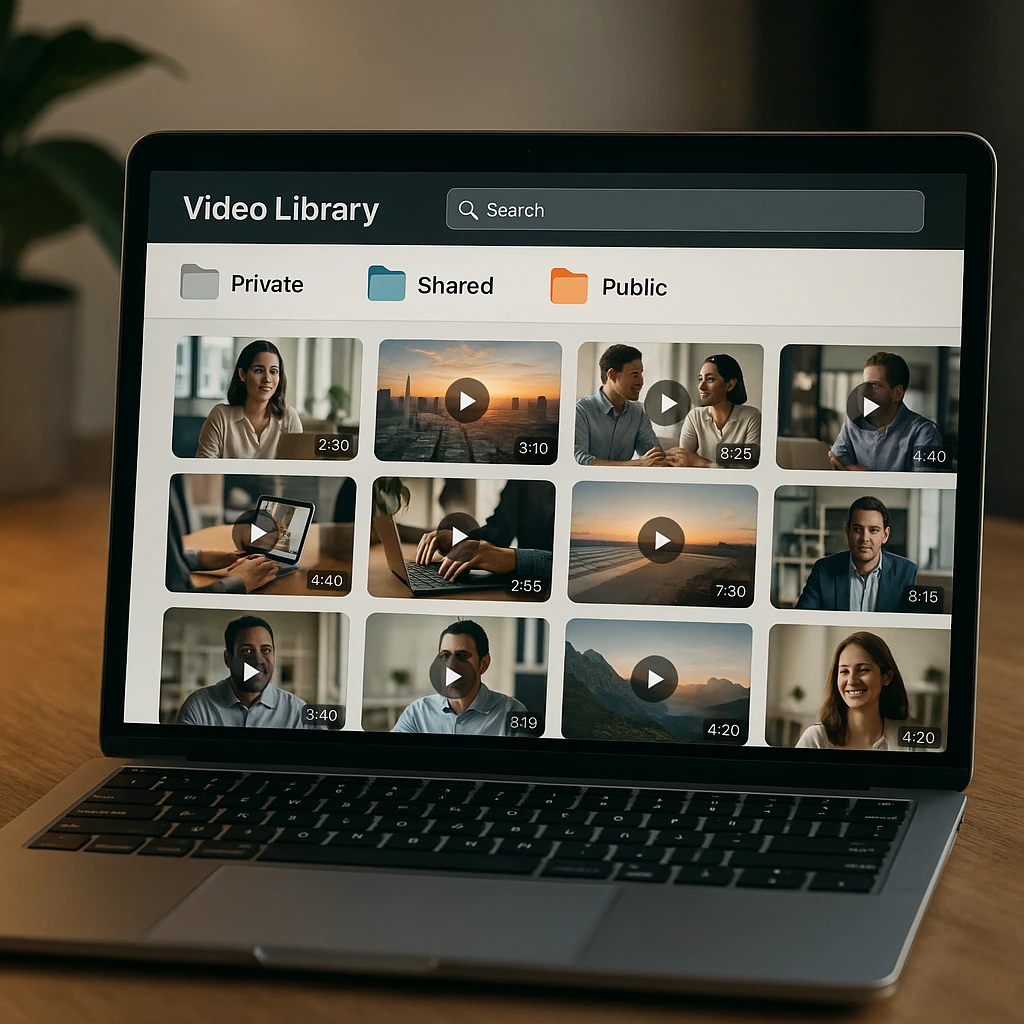
A secure internal vault for HR training is a different job from a client review portal, which is different again from a branded public gallery on your website. Modern cloud tools like ScreenApp handle all three from the same place, so you can set a video to private, shared, or public without moving it or switching apps.
The 3 types of video library, and which one you actually need
Pick wrong here and everything downstream gets harder. Build a locked-down internal vault when you needed a public showcase, and marketing cannot embed anything. Build an open gallery when you needed compliance controls, and legal has a problem. Read the three below and find yourself. Most teams end up needing two of them, rarely all three at once.
Internal and secure
For corporate training, HR onboarding, compliance records, and paid e-learning courses. The goal is a "corporate tube" only authorized employees or paying students can open.
Collaborative and team-based
For video editors, agencies, client review portals, and remote teams. The goal is a workspace where people can work on unfinished files without leaking them to the public.
Marketing and creators
For creators, marketing teams, support hubs, and lead generation. The goal is a Netflix-style showcase on your own site that keeps viewers on your brand, not one that ends with YouTube suggesting a competitor's video.
The line that trips people up is the difference between shared and public. Shared is a locked door you hand keys to. Public is a shop window. A client review portal is shared, even though a client outside your company can see it, because access is still gated to named people. The moment anyone with the link can watch, you are public, and you should be thinking about branding and lead capture, not just permissions.
Top 7 video library makers, ranked by what they are actually good at
None of these tools is best at all three library types. The trick is matching the tool to the job in front of you, not to a feature checklist. Here is the short version, then a closer look at each.
| Rank | Tool | Best for | Library types it fits | The catch |
|---|---|---|---|---|
| 1 | ScreenApp | Flexibility and AI search | Private, shared, and public | Newer brand than the incumbents |
| 2 | Vimeo | Creative professionals | Public and shared review | Enterprise privacy gets pricey |
| 3 | Microsoft Stream | Microsoft 365 enterprises | Private (internal only) | Not built for public marketing |
| 4 | Wistia | B2B marketing | Public with lead capture | Bandwidth limits on lower tiers |
| 5 | Panopto | Universities and education | Private (LMS-based) | Overkill outside education |
| 6 | Kaltura | Enterprise governance | Private, shared, and public | Complex setup and high cost |
| 7 | JW Player | Publishers and monetization | Public with ad tech | Less focus on private use |
A note on the scores below: they are our editorial read after hands-on use, not a lab benchmark. Weigh them against your own use case.
ScreenApp - Best Video Library Maker for AI Search
The video CMS that makes every spoken word searchable
Why It Stands Out: A traditional video library maker stores files. ScreenApp turns them into a searchable video database. Every upload is transcribed automatically, so you can search a spoken word inside a two-hour meeting and jump to that exact second. It runs private, shared, and public video libraries from the same video cloud storage, with an ad-free player.
Key Features
Pros
- •Turns videos into a searchable database, not just storage
- •All three library types (private, shared, public) in one place
- •Ad-free player
- •Free plan covers 2 transcriptions and 3 uploads for testing
- •Recording, transcription, and search in one tool
Cons
- •Newer brand than the legacy incumbents
- •Not built for 8K cinema-grade playback
Best For
Teams that want a searchable video library for training, meetings, or marketing without stitching together separate storage, transcription, and player tools.
Vimeo - Best Video Hosting for Creative Professionals
Premium player and portfolio hosting for filmmakers
Why It Stands Out: Vimeo still has the cleanest-looking player in the business, which is why filmmakers and agencies keep it for showreels and client-facing portfolios. As public video hosting it is hard to beat on looks, and Vimeo Review handles timestamped client feedback well for shared work-in-progress.
Key Features
Pros
- •Best-looking player for a public showcase
- •Strong portfolio and review workflow
- •No ads on any paid tier
- •Trusted brand with creative pros
Cons
- •Real privacy controls sit on pricey enterprise tiers
- •Not a searchable video CMS
- •Weekly upload caps on lower plans
Best For
Filmmakers and agencies who want a beautiful public showreel and a clean client-review workflow.
Microsoft Stream - Best Private Video Library for Microsoft 365
The internal video portal baked into Teams and SharePoint
Why It Stands Out: If your company already runs on Teams and SharePoint, Stream is the path of least resistance for a private, secure internal video library. Recordings live in SharePoint and OneDrive, permissions inherit from accounts you already manage, and there is no separate video hosting vendor to onboard or pay for.
Key Features
Pros
- •No new vendor for M365 organizations
- •Inherits existing enterprise permissions
- •Included in most M365 licensing
- •Solid for internal compliance and training
Cons
- •Internal only, no public marketing library
- •Locked to the Microsoft ecosystem
- •Weak branding and public-gallery options
Best For
Enterprises already on Microsoft 365 that need a secure, private internal video library with no extra vendor.
Wistia - Best Public Video Library for B2B Marketing
Video hosting built as a lead-generation funnel
Why It Stands Out: Wistia treats video as a funnel, not a file. It is public video hosting built for demand-gen teams: heatmap-level engagement analytics, email-gate forms inside the player, and CRM integrations that push viewing data straight into your pipeline. For a public marketing library that has to prove ROI, nothing else is this focused.
Key Features
Pros
- •Best-in-class marketing analytics
- •Lead capture built into the player
- •Clean branded player and public channels
- •Deep CRM and martech integrations
Cons
- •Bandwidth and video caps on lower tiers get pricey fast
- •Overkill for a purely internal library
- •Not built for private compliance vaults
Best For
B2B marketing and demand-gen teams that use a public video library to capture and track leads.
Panopto - Best Private Video Library for Education
Lecture capture and secure hosting for universities
Why It Stands Out: Panopto is built for lecture capture and plugs directly into learning management systems like Canvas and Blackboard. It indexes every word spoken in a lecture, so students can search and jump to the exact moment a topic was covered. For a university that needs secure, private video hosting tied to course enrollment, nothing else fits as neatly.
Key Features
Pros
- •Unmatched LMS integration for education
- •Strong in-video search across lectures
- •Secure private hosting tied to enrollment
- •Per-student completion tracking for accreditation
Cons
- •Education focus makes it heavy for other uses
- •Per-student licensing, not per-video
- •Setup needs institutional support
Best For
Universities, colleges, and schools that need secure, private educational video hosting inside their LMS.
Kaltura - Best for Enterprise Governance
Role-based access control and audit logs for complex orgs
Why It Stands Out: Kaltura is built for enterprises where permissions are not "link on" or "link off" but a complex matrix of who can view, edit, publish, and delete. It runs private, shared, and public libraries from the same platform and integrates deep into existing infrastructure through APIs and webhooks. Governance is the real draw: every role has explicit permissions, and every action is logged.
Key Features
Pros
- •Deepest access-control and governance model here
- •Complete audit logging
- •API-driven enterprise workflows
- •Clean separation for multi-team infrastructure
Cons
- •Expensive, with custom pricing only
- •Complex and slow to implement
- •Overkill for small teams
Best For
Large enterprises with compliance requirements and multiple teams that need governed, audited access across one platform.
JW Player - Best for Publishers and Monetization
A video library with an ad-tech and paywall stack
Why It Stands Out: JW Player is built for publishers who need a library with monetization and detailed viewer analytics. It pairs a fast, customizable HTML5 player with server-side ad insertion for pre-, mid-, and post-roll ads, plus heatmap analytics that show where viewers pause, rewind, or drop off. If you are building a library that generates revenue, JW Player handles the whole stack.
Key Features
Pros
- •Full monetization stack: ads plus paywalls
- •Deep revenue and engagement analytics
- •Lightweight, fast player for scale
- •Built for publishers and media companies
Cons
- •Optimized for public and monetized video, not private vaults
- •Pricing scales with viewer hours, so a viral video surprises you
- •Not the tool for a locked-down internal library
Best For
Media companies and premium publishers building a public, monetized video library with detailed revenue analytics.
The features that separate a video CMS from a shared folder
You can ignore most of the feature lists on vendor pages. Five things actually decide whether your library stays usable a year from now. The first one matters more than the other four combined.
AI search and metadata
A library you cannot search is a hard drive with a login. The tools worth paying for auto-generate a transcript and tags for every upload, so you search the words people actually said on screen, not the filename someone half-remembered to write. This is the single biggest jump in usefulness, and it is why an AI that watches and indexes your video beats any folder structure you could design by hand.
Granular access control
Set a folder to private, share one video as comment-only for review, and embed another publicly, all without duplicating files. If a tool only offers "link on" or "link off", it breaks the first time a client needs feedback access but not download rights.
No ads and your own branding
Your library should carry your logo and colors, not a pre-roll ad or an end screen pushing a competitor's clip. That end screen is the exact reason a serious brand does not just use a public YouTube playlist as its library.
Automatic transcoding
The platform should quietly render 1080p, 720p, and lower versions of every upload so playback adapts to whoever is watching, head-office fiber or a phone on hotel wifi. You should never have to think about this. If you are, the tool is doing it wrong.
In-depth analytics
Who watched, where they paused, and where they dropped off. For training and compliance that is not vanity data, it is your proof that someone actually finished the module, not just opened it and walked away.
Building your library with ScreenApp, start to finish
Here is the actual setup. It takes about ten minutes for the first folder, and less for every one after that.
Create your workspace
Sign up and create your central hub. This is the one place everything lives from now on, which is the whole point.
Upload or record
Drag and drop your existing MP4 and MOV files, or capture new material directly with the built-in screen recorder. The recording route is handy for training walkthroughs you have not made yet, and it is the same workflow people use to record lectures and turn them into text.
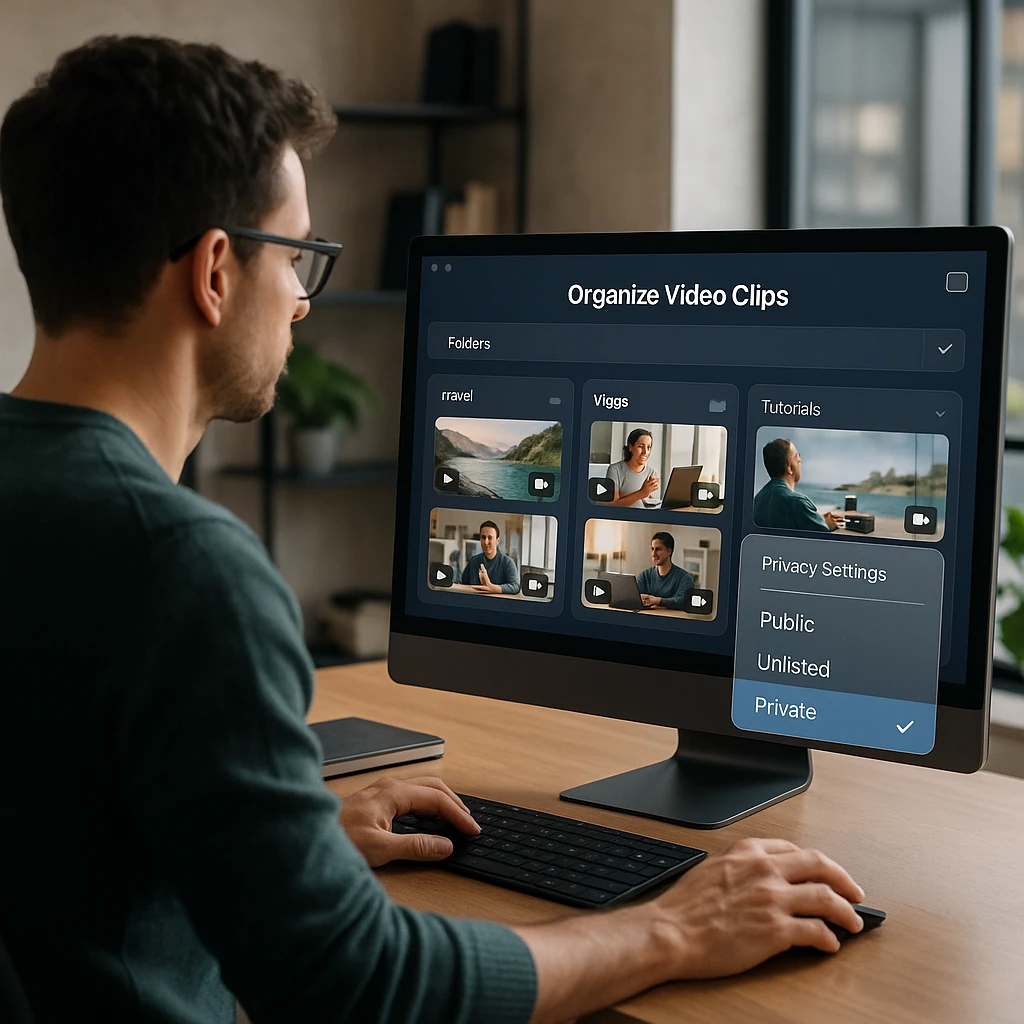
Organize with folders and tags
Create dedicated folders like "Q1 All-Hands", "Client X Drafts", and "Public Webinars". Once you pass a few hundred videos, tags matter more than folders, because one video can carry several tags but only sits in one folder.
Set your privacy levels
This is where the three library types collapse into a single setting per video or folder.
Let AI do the rest
Every upload gets an automatic transcript, a summary, and timestamped chapters. The library indexes itself as it grows, so the search actually works six months from now when you have forgotten what you called anything.
Start building your video library
Related guides
FAQ
Can I build a private video library for free?
Yes, most tools have a free tier, but they cap storage or video count, so a free plan is really for getting started or a small archive. ScreenApp's free plan covers 2 transcriptions and 3 uploads, enough to test the workflow before you pay.
What is the difference between YouTube and a video CMS?
YouTube is a public social network built to keep viewers on YouTube, which is why it runs ads and suggests other creators' videos at the end. A video CMS gives you control over privacy, branding, and where the video plays. If a clip needs to be private, branded, or embedded on your own site, YouTube is the wrong tool.
How do I securely share a video with clients?
Use a shared link with a password and an expiration date, and turn off downloading. That lets a client watch and leave comments without saving the file or forwarding working access to anyone else. For ongoing projects, access tied to named email addresses beats a single shared password.
Can I track whether an employee actually watched a training video?
Yes. Libraries with user-level analytics show watch time and drop-off per viewer, so you can tell "opened it" apart from "watched to the end". For compliance training, that completion record is usually the whole reason to use a real library instead of a shared link.
How much video storage do I actually need?
Rough math: one hour of 1080p video is around 1 to 2 GB once the platform transcodes it. A team recording a few hours of meetings and training a week fills tens of GB a month, not terabytes. Start smaller than you expect and upgrade when you hit the wall, since most free and entry tiers cover the first few months.
Can I move my existing videos out of Google Drive or YouTube?
Yes, and it is mostly a bulk upload. Download the originals, drag them into the library, and let it re-transcode and transcribe them. The slow part is not the upload, it is deciding folders and tags as you go, so do that once, up front, instead of promising yourself you will tidy it later.