How to Convert a Gemini Video to Text, Summary, Transcript, or Audio

On this page
Here is the thing nobody tells you before you upload a Veo clip to a transcription tool. A Veo 3.1 generation is 8 seconds long by default. You can extend it in 7-second steps to roughly two minutes, but the clip most people are holding is eight seconds of footage with maybe twenty words of dialogue, and plenty have no speech at all.
So when someone searches “convert Gemini video to text” and gets back a transcript file with one line in it, nothing is broken. That is just what an 8-second clip contains.
Which does not mean there is nothing to extract. It means the useful output is usually not the transcript. It is the scene description, the on-screen text, the audio track Veo generated for you, or a single document that holds forty clips instead of one. This covers all of it, in the order you will actually need it, with the limits stated up front rather than buried.
Quick Answer
Export the clip as MP4, upload it to an AI video tool, then pick the output that matches what the clip contains: a transcript if there is dialogue, a scene description if there is not, the extracted audio if you want the soundtrack, or a PDF if you are collecting many clips into one document.
- If the clip has dialogue: transcribe it, then summarise from the transcript
- If it has no dialogue: skip transcription, ask for a visual description instead
- If you want the sound: extract the audio, do not re-record it
- If you have forty clips: batch them into one document, that is where the real time goes
What a Veo Clip Actually Is
People say “Gemini video” for three different things, and it does not matter much which door you came through. Veo is the model that generates the footage. Gemini is the assistant that can call it. Google Flow is the filmmaking studio that strings Veo shots into sequences. The file that lands on your drive is the same either way: an MP4, 720p or 1080p or 4K, in 16:9 or 9:16, carrying a native 48kHz audio track that Veo generated alongside the picture.
The length is the part that changes your whole approach. Eight seconds base, extendable to about two minutes. Compare that to the 45-minute lecture recording most transcription advice is written for and you can see why the standard workflow does not fit.
Two other limits are worth knowing before you pick a tool. The Gemini app caps uploads at roughly ten minutes per file, while Google AI Studio and the API handle far longer, up to two hours on the larger context models. And Gemini samples video at one frame per second with audio at 1Kbps mono. One frame per second is fine for a slow scene. It will walk straight past a caption that flashes for half a second, which is exactly the failure people report as “it missed the text on screen.”
If your clip still has the visible Veo badge on it and you want that off before you do anything else, that is a separate job covered in the guide to removing the Gemini video watermark. Still deciding which generator to use in the first place? The roundup of free AI video generators compares them on export limits.
What You Can Extract
Not every output is worth producing from every clip. This is roughly the value order for a short AI-generated video.
| Output | What it contains | Worth it when |
|---|---|---|
| Scene description | What happens, who appears, what changes | Almost always, especially with no dialogue |
| Transcript | Spoken words, optionally timestamped | There is actual dialogue or narration |
| Audio file | The 48kHz track Veo generated | You want the sound design separately |
| On-screen text | Titles, labels, signs, interface text | The clip carries text the audio never says |
| PDF or DOC | Many clips collected into one file | You are cataloguing a batch, not one clip |
| Subtitles | SRT or VTT with timings | The clip is going somewhere public |
| Summary | Condensed version of the above | Rarely on one clip, often on a sequence |
Summarising an 8-second clip is close to pointless, and I would skip it. Summarising a 30-shot Flow sequence is genuinely useful. Same feature, completely different value depending on what you feed it.
Gemini Video to Text
Four things, and only the second one is fiddly.
Export the real file
Download the MP4 straight from Flow or Gemini. Not a screen recording of it, not a copy that went through a messaging app. Both of those have already been recompressed, and no tool recovers audio detail that was thrown away before it arrived.
Set the language before you run it
Auto-detect works fine on thirty seconds of speech. On four seconds it guesses, and it guesses wrong often enough to matter. Set the language manually. This is the single change that fixes most bad short-clip transcripts.
Generate and read it once
Upload it to a video to text converter and read the whole thing, which on a clip this short takes about ten seconds. Invented product names and made-up place names are the usual errors, because Veo cheerfully generates words that do not exist.
Export to something you can use
TXT if you are pasting it somewhere. DOCX if you are editing it. SRT or VTT if it is becoming captions. PDF if it is going in a deck or a client folder. Pick the destination first, then export once.
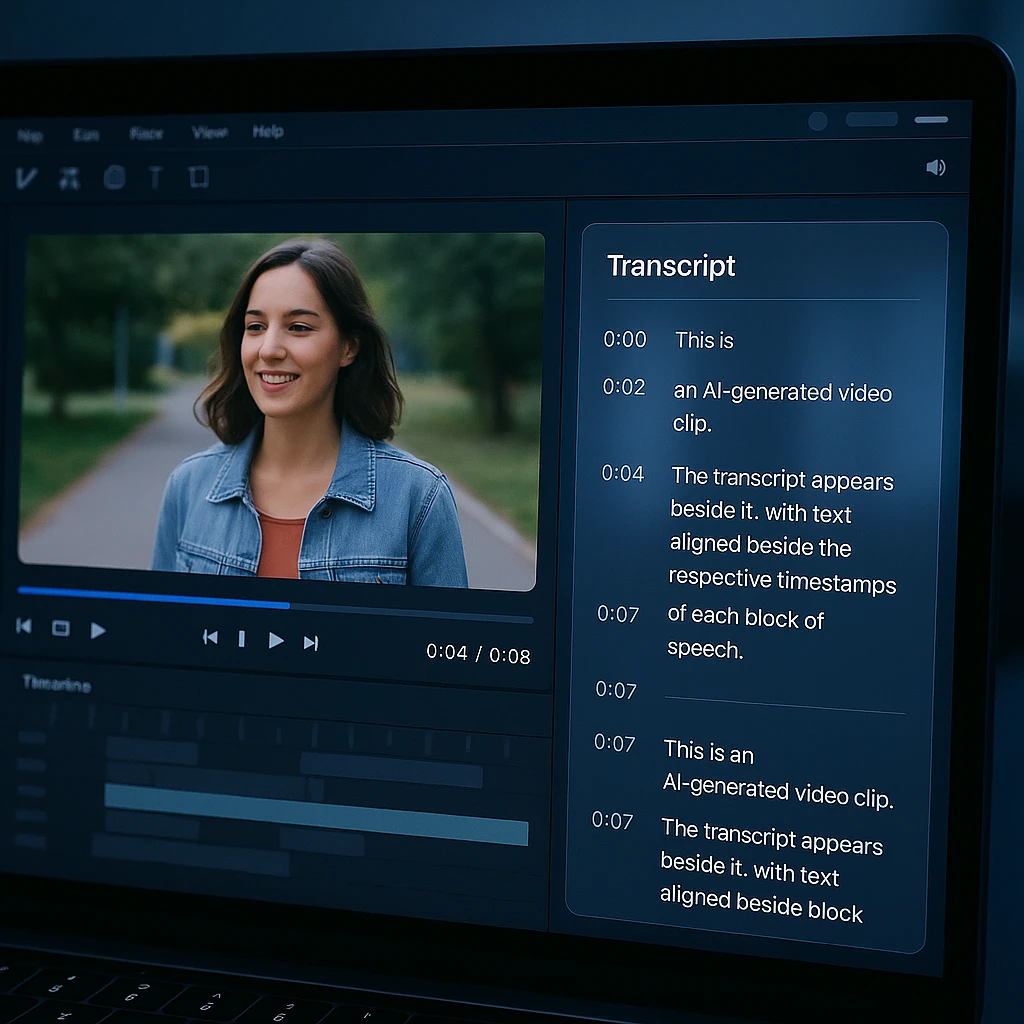
One habit worth building if you generate a lot of clips: transcribe in batches, not one at a time. Forty clips uploaded together and exported as a single document is maybe ten minutes of work. Forty clips done individually is an afternoon, and you end up with forty files you will never open again.
Transcript vs Summary vs Analysis
These three get used interchangeably and they are not the same thing. The distinction matters more on AI-generated video than on anything else, because the transcript is often the least informative of the three.
A transcript is the spoken words. Nothing else. On a Veo clip with narration you get the narration. On a Veo clip of a city at sunset with ambient music, you get an empty file, and the tool did its job correctly.
A summary is a compression of a transcript. Feed it an empty transcript and it has nothing to compress. This is why “summarise my Gemini video” so often returns something vague and useless: the summariser never saw the picture, only the words, and there were no words. An AI video summarizer earns its keep on a long sequence or a batch, not on eight seconds.
Analysis is the one that actually looks at the frames. What is in the shot, what moves, what text appears, how the scene is lit, where the cut lands. For AI-generated footage this is usually the output you wanted all along, and it is the one most people never ask for because they went straight to “transcribe” out of habit.
My rule: ask for analysis first, transcript second, summary only if there is enough material to be worth compressing.
Where Each Tool Breaks
Every option here works. They break in different places, and the break points are what should decide it.
| Tool | Length limit | Reads the picture | Exports | Where it breaks |
|---|---|---|---|---|
| ScreenApp | Full uploads | Yes | TXT, DOCX, PDF, SRT, VTT | Free tier is capped, then paid |
| Gemini app | About 10 min | Yes, 1 frame per second | Copy and paste only | No file exports, no subtitle timings |
| Google AI Studio | Up to 2 hours | Yes, 1 frame per second | Copy and paste, or API | Uploads expire after 48 hours |
| Descript | Full uploads | Transcript first | TXT, SRT, VTT | Heavy for a one-off 8-second clip |
The honest read: if you have one clip and just want to know what is in it, the Gemini app is right there and costs nothing. The moment you need a file out of it, a subtitle track, or the same treatment applied to thirty clips, that copy-and-paste ceiling is what pushes you elsewhere. If comparing analysis tools more broadly is the actual job, the roundup of AI video watcher tools goes deeper than this table can.
Extracting the Audio
Veo generates the sound with the picture, at 48kHz AAC. That soundtrack is often the most reusable thing in the file, and pulling it out does not touch the video.
Small, plays everywhere, fine for listening and sharing. This is what you want unless you have a specific reason to want something else. An audio extractor pulls the existing track rather than re-encoding the whole file.
Uncompressed, so nothing degrades while you cut and layer it. The files are large and that is the point. Use this if the audio is heading into a real edit rather than a listen.
Veo already gives you AAC, so keeping it in that family avoids one generation of re-encoding. Slightly better quality per megabyte than MP3 at the same bitrate.
SynthID, Google's invisible provenance watermark, is embedded in the audio as well as the pixels. Pulling the track out to MP3 carries it along. Worth knowing if you assumed exporting the audio produced a clean, unmarked file. It does not.
There is a second thing people mean by “Gemini video to audio,” which is generating a spoken version of a summary rather than lifting the original track. That is a different job: transcribe, summarise, then run the summary through text to speech. Useful for a long Flow sequence. Overkill for one clip.
Building a PDF or Doc
This is where converting AI video stops being a novelty and starts saving real time, and it is almost entirely a batch problem.
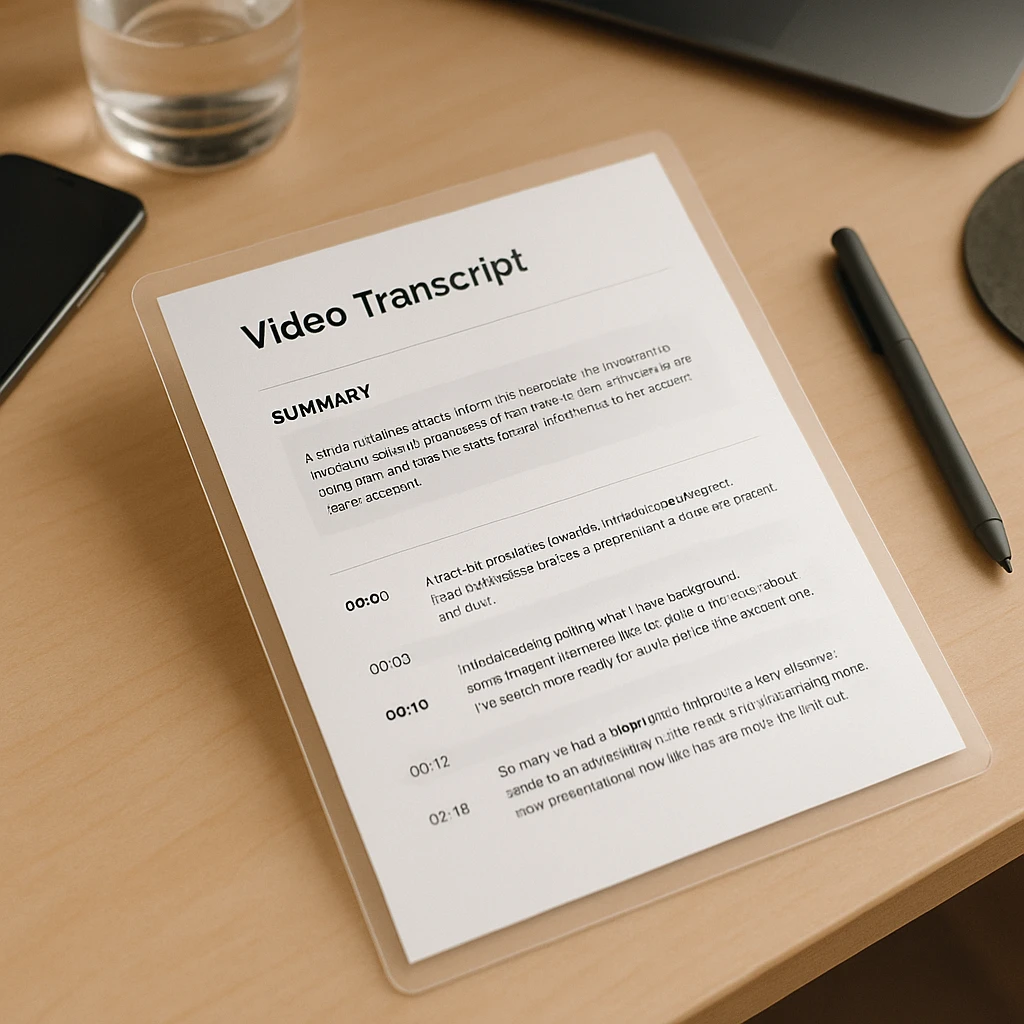
A document built from one 8-second clip is a page with four sentences on it. A document built from a session of forty generations is a catalogue: which prompt produced which shot, what is in each one, which ones are worth keeping. That is the artefact people actually want when they say they need a video to PDF converter, even if they described it as converting a single video.
What belongs in it, roughly in this order: the clip name and its source prompt, a one-line description of what happens, the transcript if there is one, any on-screen text, and the timestamp if it sits inside a longer sequence. Skip the boilerplate title page. Nobody reads it.
DOCX over PDF when you are still working on it, because you will want to reorder and annotate. PDF when it is going to someone else and the layout should hold. That is the whole decision.
Subtitles and Translation
Captions on an 8-second clip sound absurd until you remember that most social platforms autoplay muted, so the words only exist if they are burned into the frame or riding in a subtitle track.
SRT is the format almost everything accepts. VTT is what web players prefer. If you are unsure, export SRT, because the tools that want VTT will usually convert it and the reverse is less reliable.
Burned-in versus sidecar is a real choice, not a formality. A sidecar file can be toggled off, translated, and re-edited later. Burned-in captions become part of the picture and cannot be undone without redoing the export. For anything going to social, burned-in usually wins because you cannot trust the player. For anything you might localise later, keep the sidecar.
Translation runs in an order people get backwards. Transcribe in the original language first, get that transcript right, then translate. Translating a transcript that already contains errors just gives you the same errors in a second language. After that, either generate translated captions or run the translated text through text to speech for a dubbed track.
Short clips have one quirk worth flagging: a caption that would be readable across ten seconds of speech becomes a wall of text across three. Break lines shorter than you think you need to.
On-Screen Text and OCR
Speech transcription and reading text off the screen are separate systems, and conflating them causes most of the “it missed the text” complaints.
If a Veo clip shows a sign, a label, a product name, or an interface, none of that reaches a transcript unless something is actually reading the frames. That is video OCR, and it is a different pass from transcription.
Here is where the 1 frame per second sampling from earlier comes back to bite. A title card that holds for three seconds gets sampled three times and is read fine. A caption that flashes for under a second may fall entirely between samples and simply not exist as far as the model is concerned. Fast cuts, motion blur, small type over a busy background, and decorative fonts all make it worse.
The practical fix is unglamorous: if a specific piece of on-screen text matters, screenshot that frame and read it directly rather than hoping the video pass catches it. There is a fuller walkthrough in the guide to using video OCR.
When the Clip Has No Speech
This is the most common case with generated video and the one nearly every guide ignores.
A silent or music-only clip produces an empty transcript. That is correct behaviour, not a failure, and re-running it will not change the result.
What to ask for instead: a description of what happens, a list of objects and characters, the locations and how they change, the sequence of actions, any text visible on screen, and where the cuts fall. On a batch, ask for all of that in a consistent shape so the outputs line up into a table.
A useful prompt in this situation is closer to “describe what happens in this clip in three sentences, then list every object and any text visible on screen” than to anything with the word transcript in it. You will get something you can actually file.
Fixing Bad Output
Most complaints trace back to one of these, and none of them need a different tool.
| What you see | Why | Fix |
|---|---|---|
| Transcript is empty | The clip has no speech in it | Ask for a scene description instead |
| Wrong language detected | Too little audio to auto-detect | Set the source language manually |
| On-screen text missing | Transcription does not read frames | Run an OCR or visual pass |
| Quick caption skipped | Text fell between 1 fps samples | Screenshot that frame and read it |
| Invented words in the text | Veo generated names that do not exist | Correct them by hand, it is 20 words |
| Summary says nothing | Not enough source material | Summarise the batch, not one clip |
| Upload rejected | Over the file or length limit | Split the sequence, or use a tool with room |
| Audio sounds thin | Exported below the source bitrate | Extract, do not re-encode down |
Using ScreenApp for This
Straight about the scope: ScreenApp does not generate video and it does not remove watermarks. It is the step after the clip exists, when you need the contents of it in a form you can search, quote, or file.
Upload the MP4 and you can pull a transcript, generate a summary across a whole batch, ask questions about what is in the footage rather than scrubbing it frame by frame, translate the speech, and export the result as text, a document, a PDF, or a subtitle file. It runs in the browser, so there is nothing to install on a work laptop.
The part that matters for generated video specifically is the batch behaviour. Forty clips in, one document out, with each clip described and any dialogue transcribed. That is the workflow this article has been circling, and it is the one that saves an afternoon.
One rule that applies whatever tool you use: only upload and process video you generated, own, or have written permission to handle. That covers your own Gemini and Flow output and client work you have been cleared on. It does not cover something you pulled off someone else's feed.
What I Would Actually Do
One clip, and you just want to know what is in it: paste it into the Gemini app and read the answer. Do not open a second tool for this.
One clip that has real narration and is going somewhere public: transcribe it with the language set manually, fix the invented nouns, export SRT.
A whole generation session: batch it. Ask for a description and a transcript per clip in a consistent shape, export the lot as one DOCX, and keep it as the catalogue for that session. This is the only version of this workflow that has ever saved me meaningful time.
And if the transcript comes back empty, stop retrying it. The clip has no speech. Ask what is in the picture instead.
FAQ
Can I convert a Gemini video to text?
Yes. Export it as MP4 and upload it to a transcription tool. Just expect a short result, because a Veo clip is 8 seconds by default and may contain only a sentence or two of speech.
Why is my Gemini video transcript empty?
Almost certainly because the clip has no dialogue. Plenty of generated videos are visuals plus music. The tool is working correctly, it just found no speech. Ask for a scene description instead.
Can I convert a Veo video to text?
Yes, and it is the same process. Veo is the model behind the clip, so a Veo export, a Gemini export, and a Google Flow export all behave identically once they are MP4 files.
Can I transcribe a Google Flow video?
Yes. Flow sequences are usually longer than a single Veo shot, which makes them the case where transcription and summarising actually pay off.
Can I convert a Gemini video to MP3?
Yes. Veo generates a 48kHz AAC track with the picture, and extracting it to MP3 leaves the video untouched. Extract rather than re-encode so you do not lose quality on the way out.
Does extracting the audio remove the SynthID watermark?
No. SynthID is embedded in the audio as well as the pixels, so it carries over into the exported MP3. Extraction gives you the sound, not an unmarked file.
Can I convert a Gemini video to PDF?
Yes. Generate the transcript or description first, then export as PDF. It is worth far more across a batch of clips than on a single 8-second one, where you end up with a mostly empty page.
How long can a Gemini video be?
A Veo 3.1 generation is 8 seconds, extendable in 7-second steps up to roughly two minutes. Flow sequences chain shots together and get longer than that.
Why did the tool miss text shown on screen?
Speech transcription does not read frames. You need an OCR or visual pass. Even then, Gemini samples video at one frame per second, so text that flashes for under a second can fall between samples entirely.
Can I create subtitles from a Gemini video?
Yes. Generate a timestamped transcript and export SRT or VTT. On very short clips, break the caption lines shorter than usual or they will not be readable in time.
Can I translate a Gemini video?
Yes. Transcribe the original language first and correct it, then translate. Translating an uncorrected transcript just reproduces the same errors in another language.
Can I ask questions about what happens in a Gemini video?
Yes, if the tool does visual analysis rather than transcription alone. This is usually the most useful output for generated footage, and it works even when there is no dialogue at all.
Does converting to text change the original video?
No. Every output here is a separate file. The source MP4 is untouched.
What is the best export format for a transcript?
TXT to paste it somewhere, DOCX to edit it, PDF to send it, SRT or VTT for captions. Pick based on where it is going, and export once rather than converting repeatedly.