Can ChatGPT Take Notes From a Lecture? 2026 Guide and Workarounds

On this page
Yes, but only in one specific setup. On a Mac, ChatGPT can record and transcribe a lecture through its Record Mode, up to four hours in a single session. On Windows, an iPhone, or Android, it cannot listen to a live class at all, so you record the audio somewhere else first and paste the transcript in.
That is the short version. The rest of this guide is the part nobody mentions in the demo videos: Record Mode needs a paid plan, campus Wi-Fi dropping for a few seconds can cut your recording short, and the 25 MB upload cap means a two-hour lecture will not fit into the chat box as one file.
The short answer, by device
Mac, paid plan
Use Record Mode. It listens, transcribes, and drops a formatted summary into a Canvas, up to 4 hours per session.
Windows, iPhone, Android
Long lectures
The chat box caps audio uploads at 25 MB. Transcribe the file to text first, then paste the text instead of the audio.
More than half of US teens now use AI chatbots for schoolwork, according to Pew Research Center, so this is a real question a lot of students are typing at 9am in a lecture hall. Here is the honest answer, including where ChatGPT quietly fails and what to run alongside it.
One thing to clear up first. ChatGPT is not designed to sit open on your phone and passively record a 90-minute class. The mobile Voice Mode people point to is a two-way conversation feature, built for talking back and forth, not for silent recording in your bag. That distinction is the whole reason the workarounds below exist.
For more on capturing and studying lectures, see our guides on how to record lectures and convert them to text, the best dictation apps for students, and our Einstein AI vs ScreenApp comparison for lecture note-takers.
How ChatGPT Record Mode Works
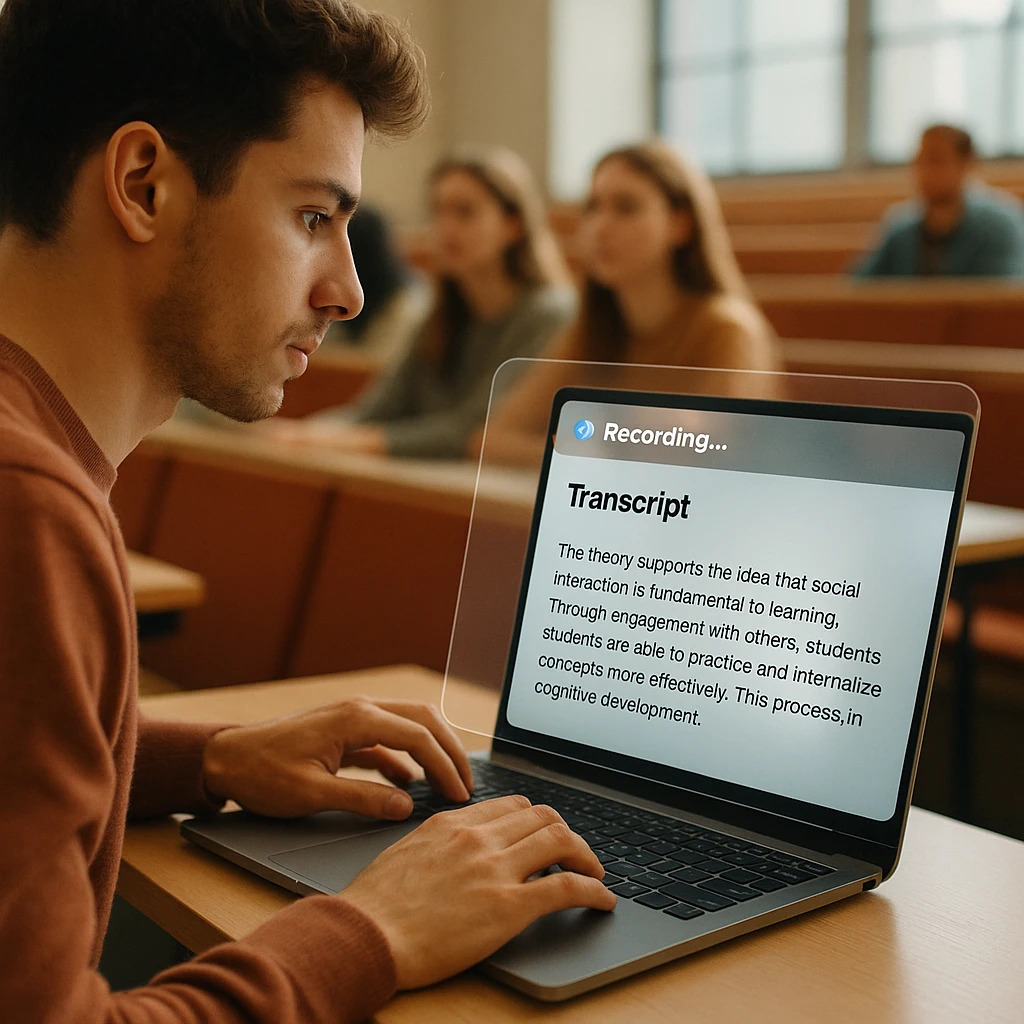
Record Mode is OpenAI’s own feature, built into the ChatGPT desktop app. You click record, it listens to whatever your Mac’s microphone picks up, and when you stop it writes a transcript and a summary. No extension, no upload step. For a single lecture, that is genuinely useful.
The 2026 version raised the session limit to four hours, double the old two-hour cap. A standard 50 or 90 minute lecture fits inside that with room to spare, per the OpenAI Help Center.
The output is the nice part. Instead of a raw wall of text, Record Mode drops a Canvas into your chat, which is ChatGPT’s side-panel document. You get the transcript plus a tidy summary you can then reshape into a study guide, an email, or flashcards without leaving the app.
Here is the catch, and it is a big one.
It runs in the Mac desktop app, on GPT-4o, and only if you are on a paid plan (Plus, Pro, Team, Enterprise, or Edu). It is not on Windows, not in the iOS or Android apps for passive recording, and not on the web. It also processes in the cloud, so it needs a steady internet connection the whole time. If you are a Windows or phone user, or your free plan is all you have, skip to the manual workflow below.
The Manual Workflow
If you are not on a Mac, ChatGPT can still write your notes. It just will not do the listening part. You capture the audio yourself, turn it into text, then hand that text to ChatGPT. Three moves.
Record the audio
Use anything that captures sound reliably and saves a file. Apple Voice Memos on an iPhone, the built-in Voice Recorder on Windows, or a browser recorder that also handles the next step for you. Sit near the front if the room is big, since a weak signal is where transcription accuracy falls apart.
Turn it into text
This is the step most people trip on. You cannot just drag a two-hour MP3 into the ChatGPT chat box. Uploads there are capped at 25 MB, which is only about 20 to 25 minutes of audio before the request fails. So transcribe the recording to plain text first with a dedicated tool.
Shortcut: A tool like ScreenApp transcription records and transcribes in one pass, so you skip straight to a text file with no length ceiling to worry about.
Paste and prompt
Drop the transcript into ChatGPT and tell it exactly what you want. A vague "summarize this" gives you a vague summary. A specific prompt gives you a study guide with definitions, themes, and practice questions. The prompts further down are the ones worth saving.
Where ChatGPT Falls Short
I want to be fair here. For a clean recording of one person talking, ChatGPT does a decent job. But lectures are messy, and three things break in ways that matter when you are studying from the notes weeks later.
No speaker labels
Record Mode returns one continuous block of text. When a classmate asks a question and the professor answers, the two often blur into a single run-on, which is confusing to reread later.
Wi-Fi kills it
Record Mode processes in the cloud. If campus Wi-Fi drops for even a few seconds mid-lecture, the recording can halt and you lose that stretch of the transcript with no way to get it back.
It guesses
Thick accent, or the mic sitting three rows back, and ChatGPT fills the gaps with what sounds plausible. Those invented words are hallucinations, and in technical subjects a wrong term can quietly break your notes.
None of this makes ChatGPT useless for lectures. It just means the recording step is the weak link, and that is exactly the part a purpose-built recorder handles better. More on that split in our hardware vs software AI note-takers breakdown.
Pair ChatGPT With a Recorder
Here is how I would actually run this. Do not ask ChatGPT to be the recorder. Let it do the thinking part, and give the listening part to a tool built for it.
We built ScreenApp, so treat this as the biased pick it is. The reason it fits this job is simple: it records straight from your browser, so there is no Mac requirement and no app to install, and it handles the two things Record Mode does not.
Once the lecture is recorded, you do not have to paste anything back into ChatGPT either. Connect ChatGPT to ScreenApp with MCP and ask it to pull the lecture straight from your library.
The missing piece, not a ChatGPT replacement
Three things ScreenApp does that Record Mode cannot.
Records in any browser
Desktop or phone, no macOS lock-in, and the free plan covers 2 transcriptions of recordings up to 45 minutes each. Start from the AI study guide maker.
Handles long lectures
On Pro, a two-hour class records and transcribes in one pass, so the 25 MB ceiling never comes up.
Labels who spoke
It separates the professor from a student asking a question, the exact thing ChatGPT blends together.
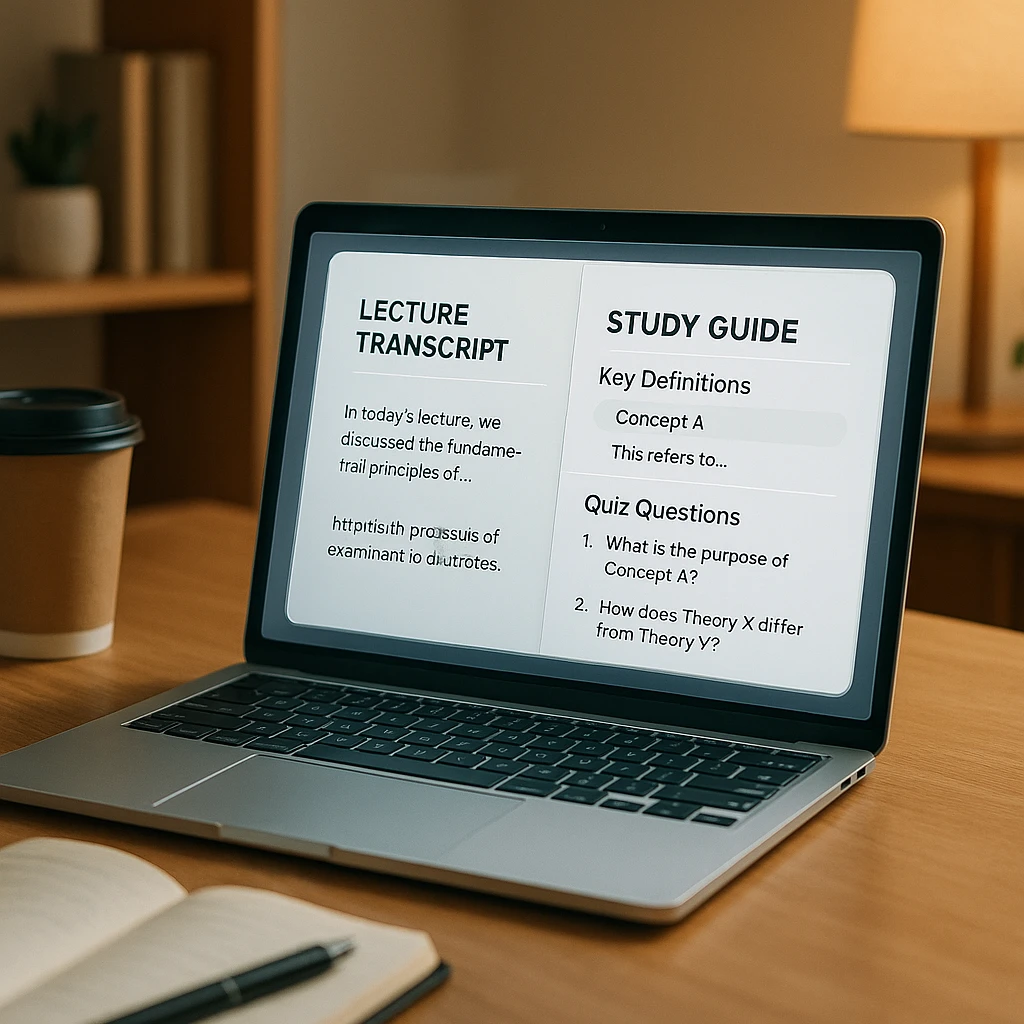
The workflow that works: record the lecture with ScreenApp, let it produce a clean, speaker-labelled transcript, then take that text into ChatGPT or NotebookLM for flashcards and practice quizzes. Or skip the copy-paste and let ScreenApp’s own AI summarize it for you. Either way, the fragile step is off ChatGPT’s plate.
If you want to see how a dedicated note-taker compares head to head, our best AI transcription tools roundup lines up the accurate ones against the cheap ones.
The Best Prompts for Notes
A transcript on its own is not notes. What turns it into something you can revise from is the prompt. Paste the transcript first with Ctrl + V (or Cmd + V on a Mac), then send whichever of these fits what you need.
Best right after class, when you want the whole thing structured for revision.
Best the night before an exam, when you want to test yourself instead of reread.
Best when one part of the lecture went over your head and you need it in plain terms.
Best for spaced repetition, when you want to drop the deck straight into Anki or Quizlet.
Best if your course expects a proper note format, not just a summary.
Best a week out, when you want to aim your revision at what is likely to be tested.
Best when you zoned out for stretches and want to know what to go back over.
One habit that pays off: after the first answer, keep going in the same chat. Ask it to expand a weak section, or to quiz you again on only the questions you got wrong. The transcript stays in context, so each follow-up gets sharper. For more prompt ideas, our guide on AI tools for meeting notes has templates that work just as well on lectures.
FAQ
What is the ChatGPT Record Mode time limit?
As of 2026, one session can run up to 4 hours, or 240 minutes. That is double the earlier 120-minute cap, so a normal lecture fits comfortably.
Is ChatGPT Record Mode free?
No. Record Mode needs a paid ChatGPT plan (Plus, Pro, Team, Enterprise, or Edu) and only runs in the Mac desktop app on GPT-4o. Free-plan users do not get it.
How do I upload an audio file to ChatGPT for notes?
The chat box caps audio uploads at 25 MB, which is only about 20 to 25 minutes of audio before the request fails. For a full lecture, transcribe the recording to text with a separate tool first, then paste the text.
Can ChatGPT take notes on a Windows laptop?
Not by recording. Windows has no Record Mode. The workaround is to record with the built-in Voice Recorder or a browser tool, transcribe it to text, then ask ChatGPT to build your notes from that text.
Is there a ChatGPT app that listens to lectures?
The iOS and Android apps have Voice Mode, but it is a two-way conversation feature, not a passive recorder. It is not built to sit open and capture a 60-minute class, so a dedicated recorder is the better fit for lectures.
Does ChatGPT keep my lecture recordings?
For Record Mode, OpenAI says the audio is used only to make the transcript and is deleted afterward, so the recording itself is not stored long term. The transcript and summary stay in your chat history until you delete them. Check the current help docs before recording anything sensitive.
How accurate is ChatGPT at transcribing lectures?
On a clean recording of one person talking near the mic, it is solid. Accuracy drops fast with a strong accent, background noise, or a professor pacing far from the laptop, and that is where it starts inventing words. Sit near the front, use a decent mic, and it does much better.