Best Productivity Tools for WFH Jobs: 11 Apps for Remote Work in 2026

On this page
Quick Answer: Best Productivity Tools for WFH Jobs
The right tool depends on where your remote workday breaks down:
- Best for meeting notes: ScreenApp (record, transcribe, summarize calls)
- Best for personal tasks: Todoist (simple daily planning)
- Best for team projects: Asana or ClickUp (task workflows)
- Best for team chat: Slack (channels, integrations, async updates)
- Best free time tracker: Clockify (unlimited tracking on free plan)
Free-tier limits and pricing were checked in July 2026. Plans change often, so confirm the numbers before you commit.
Remote work sounds great until your Tuesday disappears into back-to-back Zoom calls with no notes, a Slack thread you forgot to follow up on, and a to-do list that lives across three different apps and a sticky note on your monitor. According to FlexJobs, remote and hybrid roles now make up a significant share of job postings, which means more people than ever are trying to stay productive without the structure of a physical office.
The problem is not a shortage of apps. It is the opposite. Most remote workers use too many tools, and none of them talk to each other. You end up copying action items from a call into a project board, then pinging someone on Slack about it, then logging the time somewhere else. That is not productivity. That is admin.
Related reading: If meetings are your biggest time sink, our AI meeting note taker guide covers the recording and transcription side in more detail. For screen recording workflows, see the online screen recorder breakdown. And if you are still looking for a remote position, our best remote job sites guide compares the top platforms for finding WFH roles.
Quick picks
Records, transcribes, and summarizes remote calls so you stop writing notes by hand.
Clean daily planner with recurring tasks, labels, and filters. Free plan covers most solo needs.
Channels, threads, and integrations that replace most internal email.
Unlimited time tracking on the free plan. Useful for freelancers billing by the hour.
WFH Productivity Tools Compared
| Rank | Tool | Category | Best for | Free plan | Standout feature |
|---|---|---|---|---|---|
| 1 | ScreenApp | AI meeting notes | Recording and summarizing calls | Yes (limited) | AI transcription + summaries |
| 2 | Notion | Workspace / docs | Team wikis and knowledge bases | Yes | All-in-one workspace |
| 3 | Todoist | Task management | Personal daily planning | Yes (5 projects) | Natural-language dates |
| 4 | Trello | Visual boards | Simple kanban workflows | Yes (10 boards) | Drag-and-drop cards |
| 5 | Asana | Project management | Team task workflows | Yes (15 users) | Timeline and workload views |
| 6 | ClickUp | All-in-one work | Replacing multiple tools | Yes | Tasks, docs, goals in one place |
| 7 | Slack | Team messaging | Async team communication | Yes (90 days history) | Channels and integrations |
| 8 | Microsoft Teams | Communication | Microsoft 365 organizations | Yes (limited) | Deep Office 365 integration |
| 9 | Google Workspace | Collaboration | Document sharing and real-time editing | Personal (free) | Real-time co-editing |
| 10 | Clockify | Time tracking | Freelancers and billable hours | Yes (unlimited) | Free unlimited tracking |
| 11 | Freedom / Forest | Focus tools | Blocking distractions at home | Limited / paid | Website and app blocking |
The scores below are our editorial read based on hands-on use and documented features, not a lab benchmark.
Best Productivity Tools for WFH Jobs Reviewed
1. ScreenApp
Best AI tool for meeting notes, recordings, and summaries
The part that matters for WFH workers specifically is the search. Two weeks later, when you need to find what a client said about the project deadline, you search by keyword and jump straight to that moment in the recording. No scrubbing through a 45-minute video. The meeting transcription handles 100+ languages, which is useful for distributed teams. It also works for training videos, webinars, and lectures, not just meetings.
Where it earns its place in a remote stack is the handoff. On an async team, the person who missed the standup does not need a recap written for them and does not need to book a catch-up call. You paste the recording link, they read the summary, they open the transcript if they want the exact wording, done. That is one fewer meeting on everyone's calendar, which for remote work is the whole point. The honest limit: it captures and understands the call, but it will not manage the tasks that come out of it, so you still pair it with a task tool.
Key Features
Pros
- -Records any call platform without a bot joining the meeting
- -Transcripts are searchable across all recordings
- -Summaries include action items, not just a paragraph recap
- -Works for async teams: share a recording link instead of scheduling another call
- -Also handles training videos, webinars, and lectures
Cons
- -No open-ended free tier: you get 2 free transcriptions and a 7-day trial on annual plans, then it is a paid plan
- -Transcript quality dips when multiple people talk over each other
- -Not a project management or task tool, you need something else for that
Best For
Remote workers, virtual assistants, consultants, sales teams, and managers who spend a lot of their day in calls and need the details captured without typing notes during the meeting.
2. Notion
Best all-in-one workspace for remote work
Notion is the tool that tries to be everything, and for many remote workers, it mostly succeeds. You get documents, team wikis, project boards, databases, and calendars in one workspace. The flexibility is both its strength and its trap. A team that sets up Notion well has one place for SOPs, sprint boards, content calendars, meeting notes, and internal docs. A team that does not ends up with a maze of pages nobody can find.
The free plan is generous for individuals (unlimited pages, 10 guests), but team features like admin controls and advanced permissions live behind the paid tiers. Where Notion falls short for WFH workers: it does not record or transcribe meetings. You still need a separate tool (like ScreenApp) for the audio and video side. Think of Notion as the place your meeting summaries live after they are created, not the tool that creates them.
Key Features
Pros
- -Replaces docs, wikis, boards, and spreadsheets in one app
- -Generous free plan for personal use
- -Template library saves hours of setup
- -Good API and integrations for automating workflows
Cons
- -Learning curve is real, especially for teams
- -Can feel sluggish with large databases (a few thousand rows)
- -No built-in meeting recording or transcription
Best For
Remote teams that want one central workspace for documentation, project tracking, and internal knowledge. Also works well for freelancers and students who need a personal second brain.
3. Todoist
Best simple task manager for solo WFH workers
Todoist does one thing and does it well: it keeps a list of what you need to do. That sounds trivial until you compare it to tools like ClickUp or Notion, where setting up a task takes three clicks and a board and a view. Todoist lets you type "Call Sarah about invoice every Friday at 2pm" and it creates a recurring task with the date set. That natural-language input is the reason people stick with it.
For remote workers, the appeal is the morning routine. Open Todoist, see what is due today, work through the list, close it. No boards, no Gantt charts, no dashboards. The free plan covers 5 active projects and basic features, which is enough for most solo workers. The Pro plan at $5 a month adds reminders, labels, filters, and a calendar view. If you work alone and just need to track tasks, Todoist is probably all you need. If you manage a team, you will outgrow it fast.
Key Features
Pros
- -Natural-language task entry saves time
- -Clean interface with zero learning curve
- -Works on every platform (web, desktop, mobile, browser extension)
- -Recurring tasks are genuinely useful for daily routines
Cons
- -Not built for team project management
- -Free plan caps at 5 projects
- -No time tracking, docs, or meeting features
Best For
Solo remote workers, freelancers, and students who want a no-fuss daily planner that works across devices.

4. Trello
Best visual task board for simple WFH workflows
Trello is the tool people choose when they look at Asana or ClickUp and think "that is too much." You get boards, lists, and cards. Drag a card from "To Do" to "In Progress" to "Done." That is the whole workflow. And for a lot of remote workers, especially freelancers and small teams, that is exactly enough.
Trello works well for content workflows (draft, review, publish), simple sprint tracking, and personal task management. The free plan gives you unlimited cards and up to 10 boards per workspace. Where it breaks down: once a project has more than about 50 cards and you need to filter, sort, and report on them, Trello's simplicity becomes its limitation. Power-Ups (integrations) help, but they are capped on the free plan. If your workflow is simple and visual, Trello is perfect. If you need timelines or workload tracking, jump to Asana or ClickUp.
Key Features
Pros
- -Anyone can learn it in five minutes
- -Visual workflow makes task progress obvious
- -Free plan is usable for small teams
- -Good for content and editorial workflows
Cons
- -Gets messy with more than 50 or so cards on a board
- -No timeline, Gantt, or workload views
- -Power-Ups capped on the free plan
Best For
Freelancers, small remote teams, and anyone who thinks visually and wants a task board they can set up in minutes.
5. Asana
Best project management tool for remote teams
Asana is where Trello stops being enough. When a remote team needs to assign tasks across people, set dependencies, track deadlines on a timeline, and automate recurring workflows, Asana handles it without the setup overhead of ClickUp. The layout is clean: you get list view, board view, timeline, and calendar, and switching between them feels natural.
The free plan supports up to 15 users with unlimited tasks and projects, which is more generous than most competitors at that tier. The catch is that timeline view and workflow automations are paid features. For teams of 5 to 50 that run marketing sprints, product launches, or client delivery, Asana is the default pick because it stays out of the way. For solo users, it is overkill. Use Todoist or Trello instead.
Key Features
Pros
- -Free plan supports up to 15 team members
- -Multiple views (list, board, timeline, calendar) for different work styles
- -Workflow automations reduce manual task management
- -Strong integrations with Slack, Google Workspace, and Zoom
Cons
- -Timeline and automations require paid plans
- -Too detailed for simple personal task lists
- -Paid pricing starts at $10.99/user/month
Best For
Remote teams of 5 to 50 that need project visibility, task assignments, and workflow tracking without a steep learning curve.
6. ClickUp
Best all-in-one productivity platform for remote teams
ClickUp is the "replace everything" play. Tasks, docs, goals, dashboards, time tracking, whiteboards, and chat in one platform. The pitch is that you stop paying for five separate tools and use ClickUp for all of it. That pitch actually works for some teams, especially agencies and startups that want one source of truth.
The tradeoff is complexity. ClickUp has so many features that new users spend the first week just figuring out how to organize their workspace (spaces, folders, lists, tasks, subtasks). The free plan is surprisingly complete: unlimited tasks, members, and most views. The Unlimited plan at $7/user/month adds storage, integrations, and advanced reporting. If your team is willing to invest the setup time, ClickUp can genuinely replace Asana, Notion, and a separate time tracker. If your team struggles with adopting new tools, this is not the one to start with.
Key Features
Pros
- -Can genuinely replace multiple tools (project management, docs, time tracking)
- -Free plan is one of the most generous in the category
- -15+ project views including Gantt, mind maps, and workload
- -Built-in time tracking at no extra cost
Cons
- -Steep learning curve, plan a week of setup
- -Can feel slow with large workspaces
- -Feature overload for simple teams who just want a task list
Best For
Remote teams, agencies, and startups that want to consolidate multiple tools into one platform and are willing to invest the setup time.
7. Slack
Best communication tool for remote teams
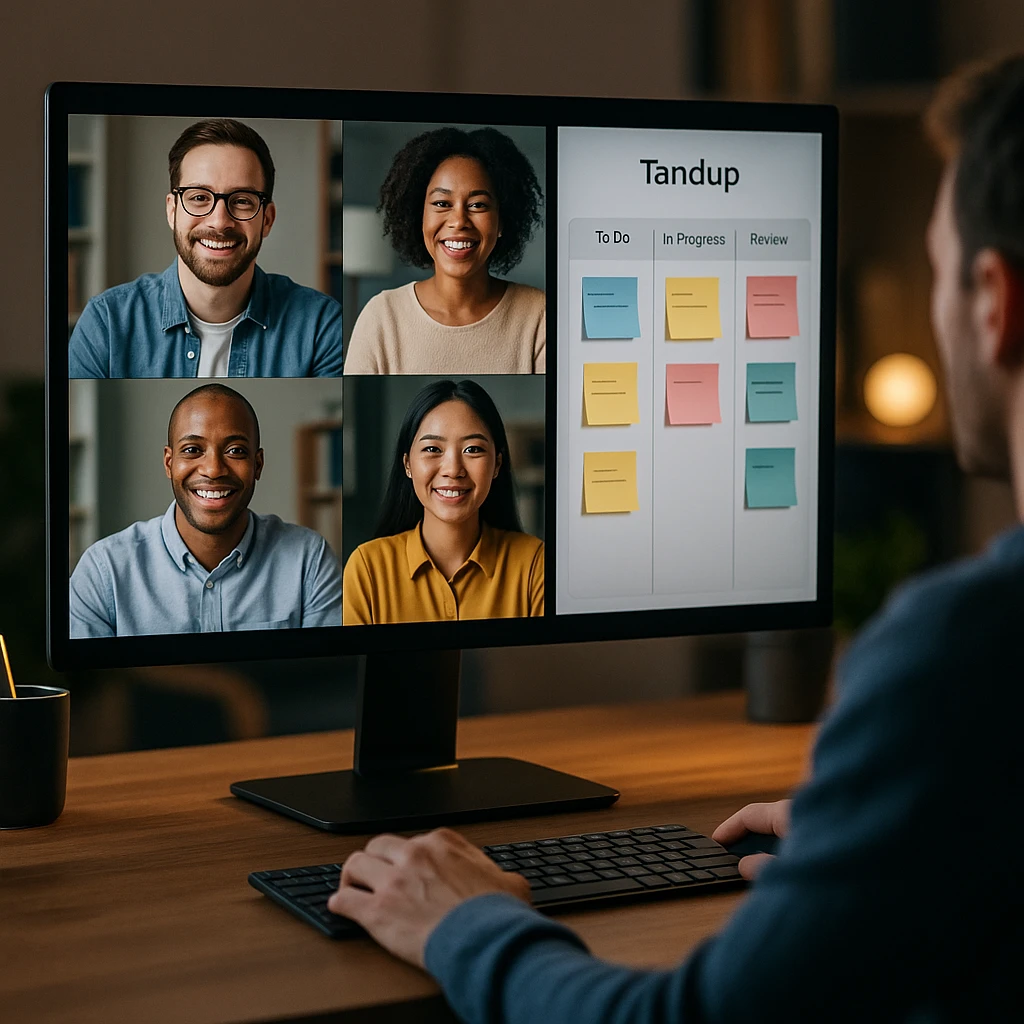
Slack is the tool remote workers either love or blame for their lack of focus. For team communication, nothing else matches the combination of channels, threads, integrations, and quick huddle calls. It replaced internal email for most remote teams, and the search is good enough that you can find a conversation from three months ago in seconds.
Key Features
Pros
- -Channels keep conversations organized by topic or project
- -Integrates with practically every work tool
- -Huddles are useful for quick calls without scheduling a meeting
- -Search actually works well for finding past conversations
Cons
- -Can become a constant distraction without team rules
- -Free plan caps message history to 90 days
- -Per-user pricing adds up quickly for larger teams
Best For
Remote teams, startups, and agencies that need fast async communication and want to connect their other tools (task boards, calendars, bots) in one chat platform.
8. Microsoft Teams
Best for remote meetings and Microsoft 365 users
Microsoft Teams is the default for companies already using Microsoft 365. Chat, video meetings, file sharing, calendar, and deep integration with Word, Excel, PowerPoint, and Outlook all in one app. If your organization runs on Microsoft, Teams is not really a choice. It is the tool your IT department picked for you.
Where Teams earns its spot on this list: the meeting experience is solid, with recording, live captions, breakout rooms, and screen sharing. The free plan supports up to 100 participants for 60-minute meetings. For companies that need compliance, security, and admin controls, the Microsoft 365 Business plans bundle Teams at no extra cost. The downside is the interface. Teams tries to be Slack, Zoom, SharePoint, and a project tool at the same time, and it feels heavy compared to lighter tools. Small teams that do not already use Microsoft are better off with Slack plus Zoom or Google Meet.
Key Features
Pros
- -Bundled with Microsoft 365 at no extra cost for business plans
- -Strong meeting features (recording, live captions, breakout rooms)
- -Deep integration with Word, Excel, PowerPoint, and OneDrive
Cons
- -Interface is cluttered, especially for small teams
- -Feels heavy compared to Slack or Google Meet
- -Mobile app can be slow on older devices
Best For
Corporate remote teams and organizations already using Microsoft 365 that want video meetings, chat, and file collaboration in one app.
9. Google Workspace
Best for document collaboration and file sharing
Google Workspace is not one tool. It is a bundle: Gmail, Docs, Sheets, Slides, Drive, Calendar, Meet, and Chat. Most remote workers already use at least some of these, which is exactly why it works. The real-time collaboration on Docs and Sheets is still the benchmark that competitors try to match. You share a link, multiple people edit at once, and nobody emails a "final_v3_FINAL.docx" back and forth.
Key Features
Pros
- -Real-time collaboration on documents is the industry standard
- -Familiar interface that most people already know
- -Individual tools are free for personal use
- -Google Calendar and Gmail integration is hard to beat
Cons
- -Drive gets messy fast without a clear folder structure
- -Google Meet transcription and recording is basic
- -Business plans have per-user pricing that scales
Best For
Remote teams, students, content teams, freelancers, and agencies that need real-time document collaboration and cloud file storage.
10. Clockify
Best free time tracking tool for WFH jobs
Clockify stands out for one reason: the free plan is genuinely free, with unlimited users, unlimited tracking, and unlimited projects. Most competitors gate those behind paid tiers. For freelancers billing by the hour, that matters. You start a timer, tag it to a project and client, and at the end of the week you have a timesheet you can invoice from.
Clockify also helps remote workers spot where time actually goes. Most people think they spend 2 hours in meetings. Track it for a week and you might find it is closer to 4. That awareness alone can change how you structure your day. The reports break down time by project, client, and tag, which is useful for agencies and VAs managing multiple clients. Paid plans ($3.99/user/month and up) add features like time off tracking, invoicing, GPS tracking, and scheduling, but the core timer and reports stay free.
Key Features
Pros
- -Truly free: unlimited users, projects, and tracking
- -Timesheet reports are useful for invoicing clients
- -Helps identify where your time actually goes
- -Works on web, desktop, and mobile
Cons
- -Tracking only works if you actually remember to start the timer
- -Not a project management tool on its own
- -Interface is functional but not as polished as Toggl Track
Best For
Freelancers, virtual assistants, agencies, and remote employees who need to track billable hours or understand how they spend their workday.
11. Freedom and Forest
Best focus tools for reducing WFH distractions
This is a category, not a single tool. Working from home means the fridge, Netflix, and your phone are all within arm's reach. Focus tools help by making distractions harder to reach, which sounds simple but works surprisingly well.
Freedom blocks distracting websites and apps across all your devices at once. You set a schedule (say, block social media from 9am to noon), and it enforces it. The "locked mode" prevents you from turning it off early, which is the part that actually makes it useful. Forest takes a different approach: you plant a virtual tree when you start focusing, and it dies if you leave the app. It sounds silly, but the gamification works for a lot of people, especially students. Other options in this space include Focus To-Do (Pomodoro timer plus task list) and RescueTime (automatic tracking that shows you how much time you spend on productive versus unproductive apps).
Key Features
Pros
- -Freedom blocks across all devices simultaneously
- -Forest's gamification makes focus sessions oddly satisfying
- -RescueTime gives hard data on where your time goes
- -Pomodoro tools enforce regular breaks
Cons
- -Most focus tools are paid (Freedom is $3.33/mo annually)
- -Only help if you actually commit to using them
- -Cannot fix deeper workflow problems like too many meetings
Best For
Remote workers who get distracted by social media, news, or their phone during deep work. Students, writers, developers, and anyone who needs enforced focus time.
Best Free Productivity Tools for WFH Jobs
Free tools are enough for most solo remote workers and small teams. Paid plans start to matter when you need more storage, longer history, admin controls, advanced automations, or AI features. Here is a breakdown of what you can get without paying.
| What you need | Free tool | What the free plan covers |
|---|---|---|
| Meeting notes | ScreenApp | 2 free transcriptions + 7-day trial on annual plans, with AI summaries |
| Personal tasks | Todoist | 5 projects, basic features, all platforms |
| Visual boards | Trello | 10 boards, unlimited cards |
| Team docs | Google Docs | Full features, 15 GB storage |
| File storage | Google Drive | 15 GB shared with Gmail and Photos |
| Team chat | Slack | 90 days of message history |
| Time tracking | Clockify | Unlimited users, projects, and tracking |
| Focus timer | Forest / Focus To-Do | Basic timer features (limited on free) |
| Project planning | Asana | Up to 15 users, unlimited projects |
| Notes and workspace | Notion | Unlimited pages, 10 guests |
The point where you usually need to upgrade: when your team grows past the free user cap, when you hit storage limits, when you need automations that run without you clicking things, or when the 90-day Slack history becomes a problem. For most solo workers, the free stack above covers 90% of what you need.
Picking the Right Tools by Use Case
Different remote work problems need different tools. Here is where each category fits, with the specific tools that handle it well.
Meetings and notes
If your biggest problem is losing meeting details, the fix is a tool that records and transcribes the call. ScreenApp does this with AI summaries. Microsoft Teams and Google Meet have basic built-in recording, but their transcription and summary features are more limited. For teams that want meeting recordings they can search later, a dedicated meeting recorder makes more sense than relying on the meeting platform’s built-in option.
Daily task management
Todoist for personal tasks. Trello if you think visually. Asana or ClickUp if you are managing a team. The choice comes down to complexity: solo workers do not need a project management tool, and team leads should not try to manage five people from a to-do list app.
Time management
Clockify is the free default. Toggl Track is a more polished alternative if you are willing to pay. RescueTime tracks time automatically in the background without you pressing a timer, which is useful if you forget to start tracking (most people do).
Focus and deep work
Freedom for blocking distracting sites across all devices. Forest for gamified focus sessions. The Pomodoro technique (25 minutes of work, 5 minutes of break) works with any timer, including your phone’s built-in one. The tools help enforce it.
Remote collaboration
Google Workspace for document sharing. Notion for team wikis. Slack or Microsoft Teams for communication. The key is picking one tool for each job, not three.
Freelancers and virtual assistants
Freelancers need tools for client calls, task tracking, time tracking, and file sharing. A practical stack: ScreenApp for recording client calls, Todoist or Trello for tasks, Clockify for billable hours, and Google Workspace for sharing files. That covers the four things clients care about: getting work done, knowing how long it took, accessing the deliverables, and having a record of what was discussed.
Students working remotely
For online classes and group projects: Notion for notes, Todoist for assignments, Google Workspace for group documents, ScreenApp’s AI note taker for recording lectures, and Forest for staying focused during study sessions. For a deeper comparison of lecture recording apps, see our AI lecture note taker app guide.
How to Choose the Right Productivity Tools
Start with your main problem
Do not pick tools first and figure out the workflow second. That is backwards and how you end up with 8 apps and no system. Ask yourself what breaks down in your workday, then pick the tool that fixes it.
| Your problem | What to get |
|---|---|
| I forget what was said in meetings | AI meeting notes tool (ScreenApp) |
| I miss deadlines | Task management (Todoist, Asana) |
| I get distracted constantly | Focus tool (Freedom, Forest) |
| I do not know where my time goes | Time tracker (Clockify) |
| Team communication is messy | Chat tool (Slack, Teams) |
| Files are scattered everywhere | Cloud storage (Google Drive, Notion) |
Do not use too many tools
This is the most common mistake. A remote worker with Todoist, Trello, Asana, and Notion is not more productive. They are spending their time moving tasks between four apps instead of doing the work. Aim for five tools maximum:
- One task tool
- One meeting notes tool
- One communication tool
- One file and document tool
- One time or focus tool
If a single tool covers two of those (like ClickUp for tasks and docs, or Google Workspace for files and communication), that is even better.
Check integrations
The tools you pick should connect to each other. Useful integrations to look for: Google Calendar sync, Slack notifications, Zoom or Google Meet recording triggers, and project management board updates. With meeting summaries, for example, check whether you can export the text into whatever your team already uses rather than retyping it.
Compare free versus paid plans
Before you commit, check: how many users does the free plan support? What is the storage limit? Does the AI feature require a paid plan? Are automations free or paid? Most tools are designed so the free plan gets you hooked and the paid plan removes the friction. That is fine as long as you know where the walls are before you build your workflow around it.
Recommended WFH Productivity Stacks
Instead of picking tools individually, here are three combinations that actually fit together, grouped by how you work. The point is not that these are the only good tools, it is that they cover every layer without overlapping, which is where most stacks go wrong.
Solo remote worker
Remote team (5-50)
Freelancer or VA
The Remote team (5-50) stack covers projects, chat, meeting notes, and files, but it leaves out one layer worth adding. For distributed teams accessing company tools across different networks and locations, pairing your communication stack with PureVPN adds a network-level security layer that most free tool stacks overlook.
Tools Help, but Habits Are the Real System
A common trap: buying every productivity tool on this list and still feeling overwhelmed. That happens because tools organize information. They do not make decisions for you. Here are the habits that actually move the needle for remote workers, with or without any tools.
What works
- +Plan your day before you open Slack or email. Five minutes of planning saves an hour of reactive work.
- +Use time blocking. Put "write proposal" on your calendar like a meeting so it actually happens.
- +Record important meetings or summarize them with a tool like ScreenApp. Decisions made on calls get lost if nobody writes them down.
- +Keep one task list, not four. Pick a tool and stick with it.
- +Set "do not disturb" hours. Tell your team when you are available and when you are heads-down.
- +Use focus sessions (25-50 minute blocks) and take real breaks between them.
- +End the day with a 5-minute review: what got done, what moves to tomorrow.
What does not work
- -Using too many apps and spending more time organizing tasks than doing them
- -Keeping tasks in Slack messages or email threads where they get buried
- -Skipping meeting notes and trying to remember what was decided
- -Checking messages constantly instead of in batches
- -Multitasking during calls (everyone can tell, and you miss the action items)
- -Having no clear daily priorities, so every incoming request feels urgent
The best productivity system for working from home is simple: one place for tasks, one place for meeting records, one channel for team communication, and enough self-discipline to close the rest.
What Are the Best Productivity Tools for WFH Jobs?
| Use case | Our pick | Why |
|---|---|---|
| AI meeting notes | ScreenApp | Records, transcribes, summarizes, and makes calls searchable |
| Personal tasks | Todoist | Clean daily planner with natural-language input |
| Visual task boards | Trello | Simple kanban, 5-minute setup |
| Team projects | Asana | Structured workflows, free for up to 15 users |
| All-in-one work management | ClickUp | Tasks, docs, goals, and time tracking in one platform |
| Team chat | Slack | Channels, integrations, and async updates |
| Microsoft organizations | Microsoft Teams | Bundled with Microsoft 365, strong meeting features |
| Document collaboration | Google Workspace | Real-time co-editing, familiar interface |
| Time tracking | Clockify | Free unlimited tracking, billable hours reports |
| Focus and deep work | Freedom or Forest | Blocks distractions across devices |
| Workspace and docs | Notion | All-in-one workspace for docs, wikis, and boards |
The best productivity tools for WFH jobs depend on where your workday breaks down. If you are losing meeting details, ScreenApp captures and summarizes calls so you can search them later. If your tasks are scattered, Todoist, Trello, Asana, or ClickUp give you a system. For team communication, Slack and Microsoft Teams keep conversations organized. And for freelancers tracking time, Clockify’s free plan is hard to beat.
Pick two or three tools from this list, build a simple daily workflow, and stop adding more apps until you have actually used the ones you have. That is the real productivity hack.
FAQ
What are the best productivity tools for WFH jobs?
The best productivity tools for WFH jobs include ScreenApp for meeting recording and AI summaries, Todoist for daily task management, Trello for visual task boards, Asana for team projects, Slack for team communication, Google Workspace for document collaboration, Clockify for time tracking, and Freedom or Forest for focus. The right combination depends on whether you work solo, freelance, or manage a remote team.
What are the 5 most commonly used productivity tools for remote work?
The five most common categories are a task manager (Todoist or Asana), a calendar app (Google Calendar), a communication tool (Slack or Microsoft Teams), a file-sharing tool (Google Drive or OneDrive), and a meeting tool (Zoom, Google Meet, or ScreenApp for recording and transcription). Most remote workers use at least one tool from each of these categories.
What are the best free productivity apps for work from home?
Todoist (5 free projects), Trello (10 free boards), Notion (unlimited free pages), Clockify (unlimited free time tracking), Google Docs (free with a Google account), Google Drive (15 GB free), Slack (90 days of message history), and Asana (free for up to 15 users). See ScreenApp Pricing for current allowances and trial requirements. Between them, tasks, notes, time tracking, files, and communication are all covered without paying.
Which productivity tools are best for remote workers who attend many meetings?
ScreenApp records, transcribes, and summarizes remote calls with AI, so you do not have to take notes during the meeting. It works across Zoom, Google Meet, Microsoft Teams, and browser tabs. For basic recording without AI features, Microsoft Teams and Google Meet have built-in options. The key difference is searchability: ScreenApp lets you find any moment by keyword across all past recordings.
What tools help freelancers stay productive while working from home?
A practical freelancer stack includes ScreenApp for recording client calls and capturing decisions, Todoist or Trello for task tracking, Clockify for logging billable hours, Google Workspace for sharing files and proposals with clients, and Freedom for blocking distractions during deep work. Most of those have free plans that cover a solo freelancer. ScreenApp is the exception: its free plan is 2 transcriptions of recordings up to 45 minutes each, so regular client calls mean a paid plan.
Are AI productivity tools useful for remote work?
Yes, specifically for the parts of remote work that generate a lot of unstructured information. AI meeting tools like ScreenApp summarize calls, extract action items, and make recordings searchable, which saves 15 to 30 minutes per meeting that would otherwise go to manual note-taking. AI features in Notion and ClickUp can help draft documents and organize information. The value is highest for workers who attend multiple calls per day.
What is the best productivity app for students working remotely?
Notion for organizing notes and course materials, Todoist for tracking assignments and deadlines, Google Workspace for group projects and document sharing, ScreenApp's AI note taker for recording and transcribing lectures, and Forest for staying focused during study sessions. All of these have free plans that cover what most students need.
How do I avoid using too many productivity tools?
Pick one tool for each job: one for tasks, one for meeting notes, one for communication, one for files, and one for time or focus. That is five tools maximum. If one tool covers two jobs (like ClickUp handling tasks and docs, or Google Workspace covering files and email), use fewer. The goal is a simple system you actually use, not a stack of apps that each get opened twice a week.