Best Screenshot Chrome Extensions 2026: 10 Free and Premium Tools

On this page
The simple PrtScn key is not enough. In 2026, capturing, annotating, and sharing information from your screen is a daily task. But with a crowded Chrome Web Store, which screenshot extension should you install?
Many extensions are slow, lack features like scrolling capture, or ask for broad permissions. We compared popular tools using each vendor’s published features and pricing and each extension’s Chrome Web Store listing, to build a list of 10 screenshot extensions for different tasks, from capturing a full page to recording a quick video tutorial.
Vendor information last verified: 18 September 2026. User counts and ratings are the public Chrome Web Store figures on that date. Prices are in US dollars as listed on each vendor’s pricing page.
Our Top Picks: The Best Screenshot Tools at a Glance
The “Best For” column is editorial judgement based on each tool’s listed features, not a hands-on benchmark.
| Extension Name | Best For | Main Feature | Price |
|---|---|---|---|
| Awesome Screen Recorder and Screenshot | All-in-One Screenshots and Recording | Editor and screen recorder in one extension | Freemium |
| GoFullPage | Full-Page Captures | One-click scrolling capture | Freemium |
| Lightshot | Fast, Simple Area Captures | Upload and get a short link | Free |
| Screencastify | Video Recording and Tutorials | Browser video editor and sharing | Freemium |
| FuseBase Pro (formerly Nimbus) | Screenshots Inside a Workspace Tool | Capture, record and save to FuseBase | Freemium |
| FireShot | Full Pages to PDF | PDF export with links, local captures | Freemium |
| Scrnli | Simple Screenshots and Recording | Full page, area and visible captures | Free |
| Loom | Team Collaboration | Async video messaging | Freemium |
| Scribe | Automated Tutorial Creation | Step-by-step visual guides | Freemium |
| Markup Hero | Annotations on Screenshots and PDFs | 30+ annotation tools | Freemium |
The All-in-One Powerhouses (Screenshot, Annotate and Record)
Awesome Screen Recorder and Screenshot
Screenshots, annotation and screen recording in one extension
Our pick for an all-in-one extension (editorial judgement), because it combines screenshots, annotation and screen recording and has a free plan. The extension is now listed as “Awesome Screen Recorder & Screenshot”. Its Chrome Web Store listing shows 4,000,000 users and a 4.7 out of 5 rating from 29.5K ratings, last updated 11 September 2026. The listing says it records your desktop, a tab or your camera in 720p, 1080p or 4K, saves to your disk or your online account, and has no ads.
✅ Pros
- Screenshots and recording in one extension
- Annotation tools, including while recording
- Records in WebM or MP4
- Saves locally or to your online account
- Share links, plus sharing to Jira, Slack, Trello, Asana and GitHub
❌ Cons
- Can be more than you need for simple captures
- Free cloud plan capped at 100 screenshots and 20 recordings
- Free cloud recordings limited to 720p
Pricing
Free: Up to 100 screenshots and 20 recordings in the cloud, unlimited local screenshots
Basic: $5/month billed annually ($6 monthly) - unlimited screenshots
Professional: $6/month billed annually ($8 monthly) - unlimited screenshots and recordings, up to 4K
Source: Awesome Screenshot pricing
FuseBase Pro (formerly Nimbus Screenshot and Screen Video Recorder)
Nimbus Capture now ships as FuseBase, a workspace and client portal product
Nimbus Screenshot’s old Chrome Web Store listing no longer loads. Nimbus Web now sells its products as FuseBase, and its capture page calls the tool “formerly known as Nimbus Capture” and links to the FuseBase Pro extension. That listing shows 10,000 users and a 3.6 out of 5 rating from 37 ratings, last updated 30 April 2026. It captures full or partial pages, has an image editor, and records your screen and webcam. It makes most sense if your team already uses FuseBase.
✅ Pros
- Full-page and partial captures with scrolling
- Image editor for annotation
- Screen and webcam recording
- Step-by-step guide recording
❌ Cons
- Free plan records up to 5 minutes of video
- Blur, watermark, cropping and GIF/MP4 conversion are Premium
- Paid plans are priced as a full workspace product
Pricing
Free: Screenshots, video recording up to 5 minutes
Paid: FuseBase plans start at $32/month (Solo) on the FuseBase pricing page, with a 14-day trial. The Pro plan records up to 10 hours (FuseBase)
Best for Full-Page and Scrolling Captures
GoFullPage - Full Page Screen Capture
A specialist tool that captures an entire webpage with a single click
Our pick for full-page captures (editorial judgement), because the free version has unlimited screenshots and scrolling capture, and it is the most-used extension on this list. Its Chrome Web Store listing shows 10,000,000 users and a 4.9 out of 5 rating from 84K ratings, last updated 10 September 2026.
✅ Pros
- Unlimited screenshots on the free plan
- Advanced scroll capture on the free plan
- One click to capture
- Available for Chrome, Edge and Firefox
❌ Cons
- Cropping and annotations (blur, text, highlight) need Premium
- URL and timestamp stamping and smart PDF splitting need Premium
- Focused on full-page capture
Pricing
Basic: Free - unlimited screenshots and scroll capture
Premium: $1/month with a free 1-week trial - cropping, annotations, URL and date stamps, smart PDF splitting
Source: GoFullPage Premium
FireShot - Take Webpage Screenshots Entirely
Full-page capture with PDF export, done locally on your computer
FireShot fits users who need full pages saved as PDF or images. Its Chrome Web Store listing shows 3,000,000 users and a 4.8 out of 5 rating from 52.2K ratings, last updated 24 May 2026. The listing says captures are stored locally and never leave your computer, and that it can capture all open tabs or a list of URLs.
✅ Pros
- Saves to PDF (with links), PNG and JPEG on the free version
- Entire page, visible part or selection
- Captures all tabs or a list of URLs
- Local, offline captures
❌ Cons
- Editing (crop, text, arrows, blur) is part of the paid upgrade
- PDFs with selectable text, element capture and capturing all tabs to one PDF are in the upgrade
- The Pro editor is Windows-only per the pricing page
Pricing
Free: Full-page capture, save to PDF, PNG and JPEG
Pro: $39.95/year or $99.95 one-time lifetime license (two devices)
Source: FireShot pricing
Fastest and Easiest for Quick Captures
Lightshot (screenshot tool)
Select an area, edit it and upload it for a short link
Lightshot is a simple tool for quick area captures you want to share. Its Chrome Web Store listing shows 2,000,000 users and a 4.4 out of 5 rating from 7K ratings. The extension was last updated on 23 July 2024, so it gets fewer updates than the others here. The listing says you can select any part of the page, edit in place, save to disk or upload to the cloud, and copy to the clipboard.
✅ Pros
- Quick area selection
- Upload and get a short link
- Simple interface
- Free
- Desktop apps for Windows and Mac too (Lightshot)
❌ Cons
- Basic editing only
- No full-page capture listed
- Extension last updated in July 2024
Pricing
Free: Lightshot is offered as a free download (Lightshot)
Scrnli
Screenshots and screen recording in a simple extension
Scrnli is a simpler alternative to the all-in-one tools. Its Chrome Web Store listing shows 1,000,000 users and a 4.7 out of 5 rating from 10.9K ratings, last updated 14 August 2026. The listing says it captures full pages, selected areas or the visible screen, records your screen, a tab or the desktop, and lets you annotate and save locally.
✅ Pros
- Full page, area and visible screen capture
- Screen, tab and desktop recording
- Annotate with text, arrows and highlights
- Saves screenshots and recordings locally
❌ Cons
- Fewer advanced features than the all-in-one tools
- No public pricing page (scrnli.com/pricing returned a 404 when we checked)
Pricing
Free: Installs free from the Chrome Web Store. We could not find a published price list on the vendor site.
Best for Video and GIF Recording
Screencastify - Screen Video Recorder
A screen recorder popular in education, with simple video editing tools
Screencastify is a good fit for video tutorials and classroom content. Its Chrome Web Store listing shows 9,000,000 users and a 3.9 out of 5 rating from 11.7K ratings, last updated 16 September 2026. It is now part of Castify, and records your desktop, a browser tab and your webcam.
✅ Pros
- Records desktop, tab and webcam
- Trim, merge, crop and add text in the browser
- Interactive questions and viewer analytics
- Education-focused features
❌ Cons
- Free plan limited to 10 videos
- Screenshots are not its focus
- Captions, transcripts and downloads need Pro
Pricing
Free: Up to 10 videos, up to 30 minutes each
Starter: $7/user/month billed annually ($19 monthly) - unlimited videos, up to 60 minutes
Pro: $10/user/month billed annually ($25 monthly) - up to 180 minutes, AI features, captions
Source: Screencastify pricing
Loom
Asynchronous video for team collaboration
Loom suits remote teams who send quick video messages instead of long emails. Its Chrome Web Store listing shows 8,000,000 users and a 4.6 out of 5 rating from 10.2K ratings, last updated 18 September 2026.
✅ Pros
- Camera + screen recording
- Instant sharing with links
- Unlimited screenshots on every plan, including free
- Transcriptions in 50+ languages on the free plan
❌ Cons
- Free plan limited to 25 videos of up to 5 minutes
- Paid plans are priced per user
- Requires internet for sharing
Pricing
Starter (Free): 25 videos, 5-minute screen recordings, unlimited screenshots
Business: $18/user/month as listed; Loom says annual billing saves up to 17%
Business + AI: $24/user/month as listed
Source: Loom pricing
The Unique Specialists
Scribe
Creates step-by-step visual guides from the process you click through
Scribe is built for training manuals, SOPs and support documentation. Its Chrome Web Store listing (now titled “Scribe: AI Documentation, SOPs & Process Intelligence”) shows 1,000,000 users and a 4.8 out of 5 rating from 836 ratings, last updated 16 September 2026. Scribe’s site has moved from scribehow.com to scribe.com.
✅ Pros
- Automatic step-by-step guide creation
- Works with any web app on the free plan
- Share with a link or embed
- Pro exports to PDF, HTML and Markdown
❌ Cons
- Desktop and mobile app capture, branding and screenshot redaction need Pro
- Built for documentation rather than general screenshots
- Pro Team starts at 5 seats
Pricing
Basic: Free
Pro Personal: $25/seat/month as listed
Pro Team: $13/seat/month as listed, from 5 seats. Scribe says yearly billing saves 20%
Source: Scribe pricing
Markup Hero
It has a capture tool, but its main strength is annotation for screenshots, PDFs and images
Markup Hero suits users who want to mark up screenshots and PDFs and share them. Its Chrome extension is listed as “Scrolling Screenshot & Full Page Capture”: the Chrome Web Store listing shows 50,000 users and a 4.2 out of 5 rating from 128 ratings, last updated 25 April 2025.
✅ Pros
- 30+ annotation tools
- PDF, multi-page and sharing support
- Collaborative markups
- Low-cost premium plan
- Apps for Mac, Windows, Linux and Chrome
❌ Cons
- Free plan limited to 25 markups
- Free annotations are editable for 24 hours
- Free uploads capped at 8 MB
- More than you need for simple captures
Pricing
Free: 25 markups, 8 MB per upload
Premium: $5/month monthly or $3/month billed annually - unlimited markups, 50 MB uploads
Lifetime: $199 one-time
Source: Markup Hero pricing
Pro Tip: Take Screenshots in Chrome Without an Extension
Chrome's Built-in Screenshot Feature
Chrome DevTools has built-in screenshot commands that many users don't know about (Chrome for Developers). They work for developers or one-off captures without installing extensions.
- Open Developer Tools: Press Ctrl+Shift+I (Windows/Linux) or Cmd+Option+I (Mac)
- Open Command Menu: Press Ctrl+Shift+P (Windows/Linux) or Cmd+Shift+P (Mac) (Command Menu docs)
- Type "screenshot": You'll see several options:
- "Capture full size screenshot" - captures the entire page
- "Capture node screenshot" - captures a selected element
- "Capture area screenshot" - lets you select a specific area
- Select your option: The screenshot will automatically download to your default downloads folder
Verdict: A good option for developers or for a one-off full-page capture without adding another extension.
Features to Consider When Choosing
Capture Modes
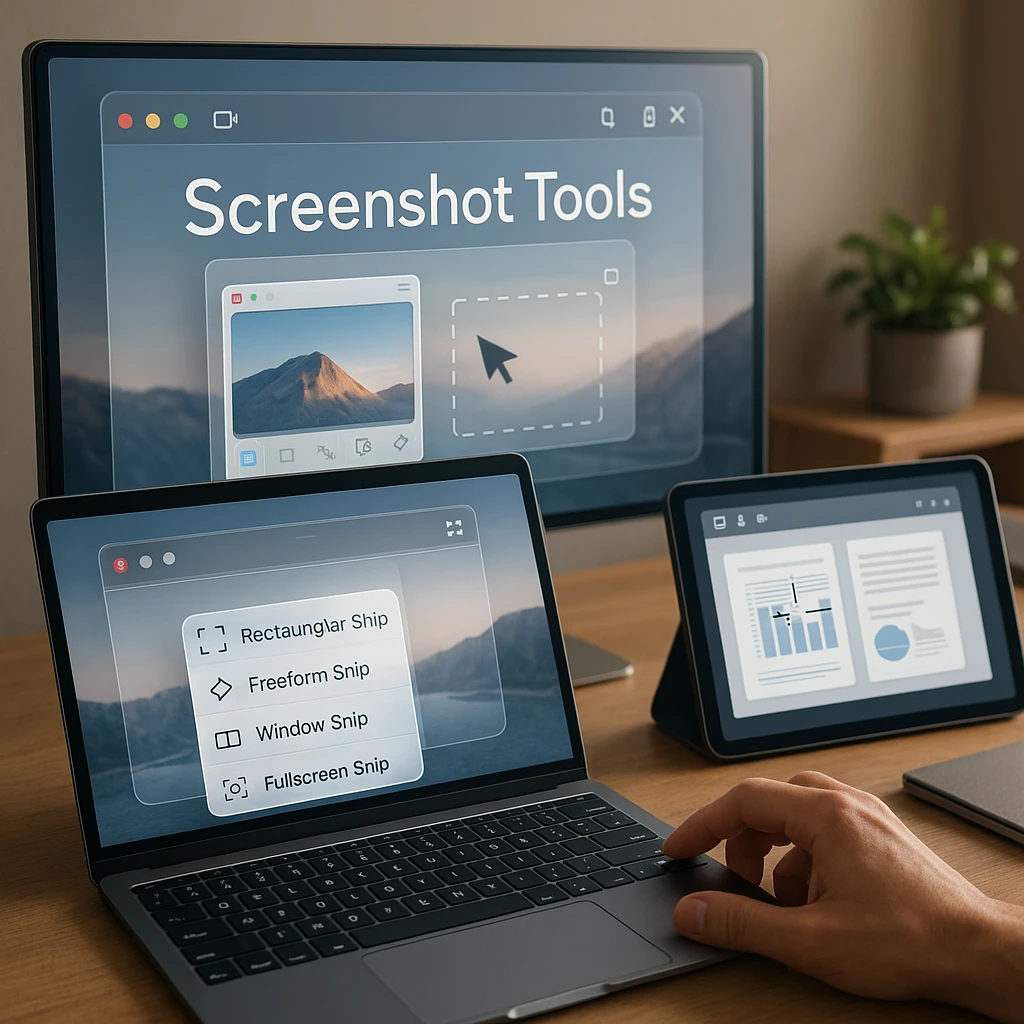
Look for extensions that support your specific needs: visible area, selected region, full page, or window capture. Full-page scrolling capture is particularly useful for documentation.
Annotation Tools
Consider what editing features you need: arrows, text, highlights, blur effects, or shapes. Check whether annotation is on the free plan: on GoFullPage and FireShot it is part of the paid upgrade.
Sharing Options
Evaluate sharing methods: direct links, cloud storage integration, email, or social media. Instant sharing matters most for team collaboration.
File Formats
Check supported export formats: PNG, JPG, PDF, or GIF. PDF export is useful for documentation, while PNG keeps quality for design work.
Update History
Check the "Updated" date on the Chrome Web Store listing. An extension that has not been updated for a long time may break when Chrome changes.
Privacy and Security
Review permissions carefully. Some extensions require broad access to your browsing data, while others operate with minimal permissions. Tools that capture locally, like FireShot, keep screenshots on your computer.
Conclusion: The Best Tool for Your Workflow
Our picks (editorial judgement based on listed features and pricing): for an all-in-one extension, Awesome Screen Recorder and Screenshot, because it combines screenshots, annotation and recording with a free plan. For full-page captures, GoFullPage, because unlimited scrolling captures are free. For fast area captures with a link, Lightshot, though its extension was last updated in July 2024.
Choose one or two extensions that fit your primary needs to keep your browser fast and uncluttered. A full-page capture tool plus a quick annotation tool covers most screenshot needs.
Looking for more productivity tools? Check out our guides on AI video summarizers, screen recording solutions, transcription tools, AI summarization, and essential tools for product managers.
Did we miss your favorite screenshot extension? Let us know which tool you can’t live without in the comments below!
How we put this together: this is a comparison based on each vendor’s published documentation and pricing pages and each extension’s Chrome Web Store listing, checked on 18 September 2026. We did not run a hands-on benchmark for this article.
FAQ
What is the best FREE screenshot extension for Chrome?
Our picks (editorial judgement): GoFullPage for full-page captures, because its free plan has unlimited screenshots and scrolling capture (GoFullPage), and Lightshot for quick area captures with a shareable link. GoFullPage charges $1 a month for annotations and cropping.
How do I take a scrolling screenshot in Chrome?
Use GoFullPage or FireShot for scrolling captures, or try Chrome's built-in Developer Tools method we outlined above.
Are screenshot extensions for Chrome safe?
Most reputable extensions are safe, but always check: - User reviews and ratings - Required permissions (avoid extensions asking for unnecessary access) - Developer reputation - Update frequency The Chrome Web Store policies set rules that extensions must follow, but it's always wise to review permissions carefully.
Where do screenshots from Chrome extensions get saved?
Most extensions save to your default Downloads folder, but some offer cloud storage options. Check the extension's settings to configure your preferred save location.
Can I edit screenshots after taking them?
Yes, most extensions include basic editing tools. Awesome Screen Recorder and Screenshot has annotation tools on its free plan, while Markup Hero focuses on annotation with 30+ tools. If you need to go further than arrows and highlights, a dedicated AI screenshot editor like Pokecut can clean up backgrounds, remove unwanted objects and polish an image before you publish it.