How to Turn a Video Into a QR Code for Free (MP4, YouTube, Drive)

On this page
To turn a video into a QR code, you encode a link, not the video. Copy the video’s URL (or upload the file somewhere shareable first), paste that link into a free video to QR code generator, and download the result as a PNG or SVG. Scan it with a phone camera and the video opens. The whole thing takes about two minutes, and the generator part costs nothing.
The part that trips people up is not the generating. It is the three decisions around it: where the video should live so the code keeps working, how big to print the code so it actually scans, and whether to use a static or dynamic code so you are not reprinting 500 brochures when the video changes. This guide walks the four steps first, then those three decisions, then the fixes for the codes that scan but refuse to play.
Quick answer
About 2 minutesA QR code stores the video's URL, never the video file itself. So the job is: give the video a link, encode the link.
Before printing in bulk: scan the code on two phones, in a private browser window, logged out of everything.
Related guides: how to build a video library for organizing the videos behind your codes, compressing video for smooth mobile playback, and AI video presentation makers if the video does not exist yet.
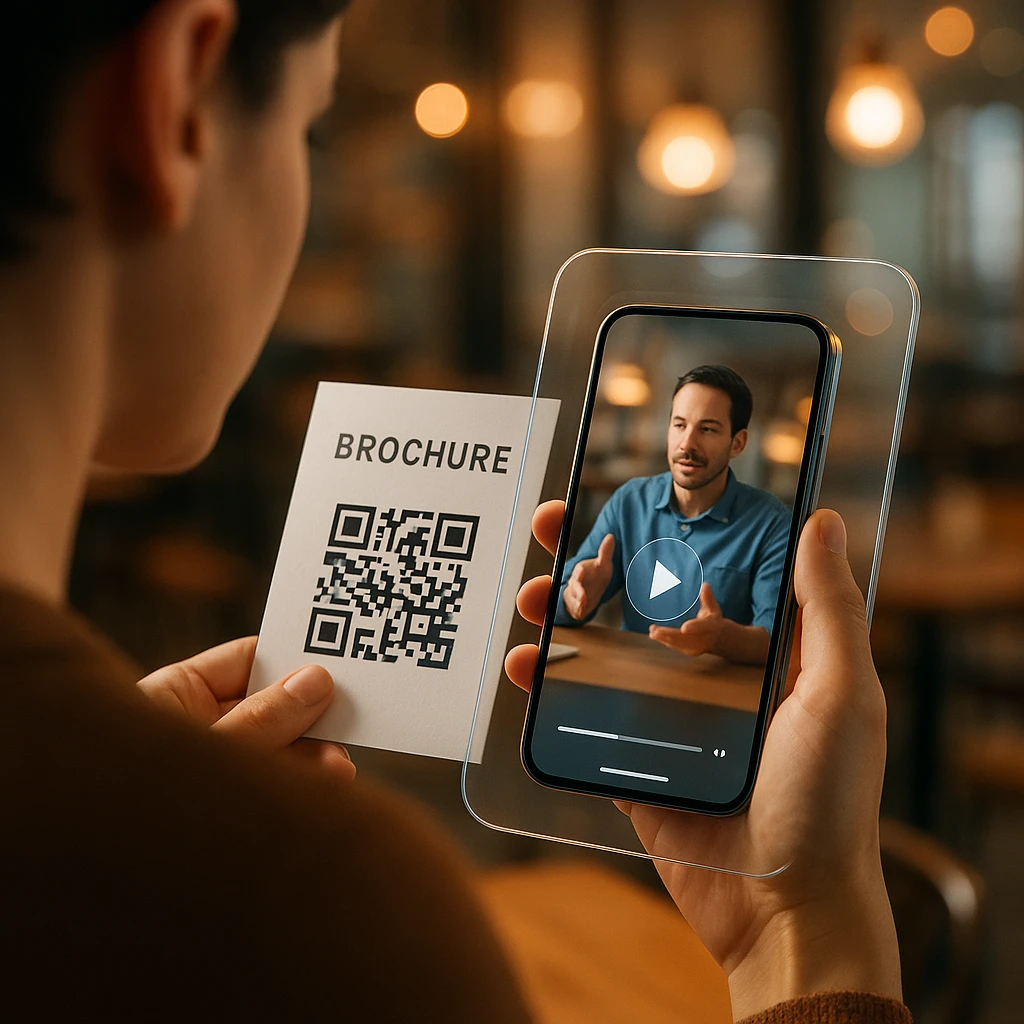
How to Turn a Video Into a QR Code in 4 Steps
Get the video a URL
Two starting points. If the video is already online (YouTube, Vimeo, Google Drive, Loom, a ScreenApp share page), copy its link and skip ahead. If all you have is a file (MP4, MOV, WebM, AVI), it needs to be uploaded somewhere shareable first, because a file sitting on your laptop has no address the code can point to.
Where you upload matters more than people expect; the hosting table further down covers the trade-offs. The short version: use a host you control for anything printed, and check the sharing permissions twice.
Paste the link into the generator
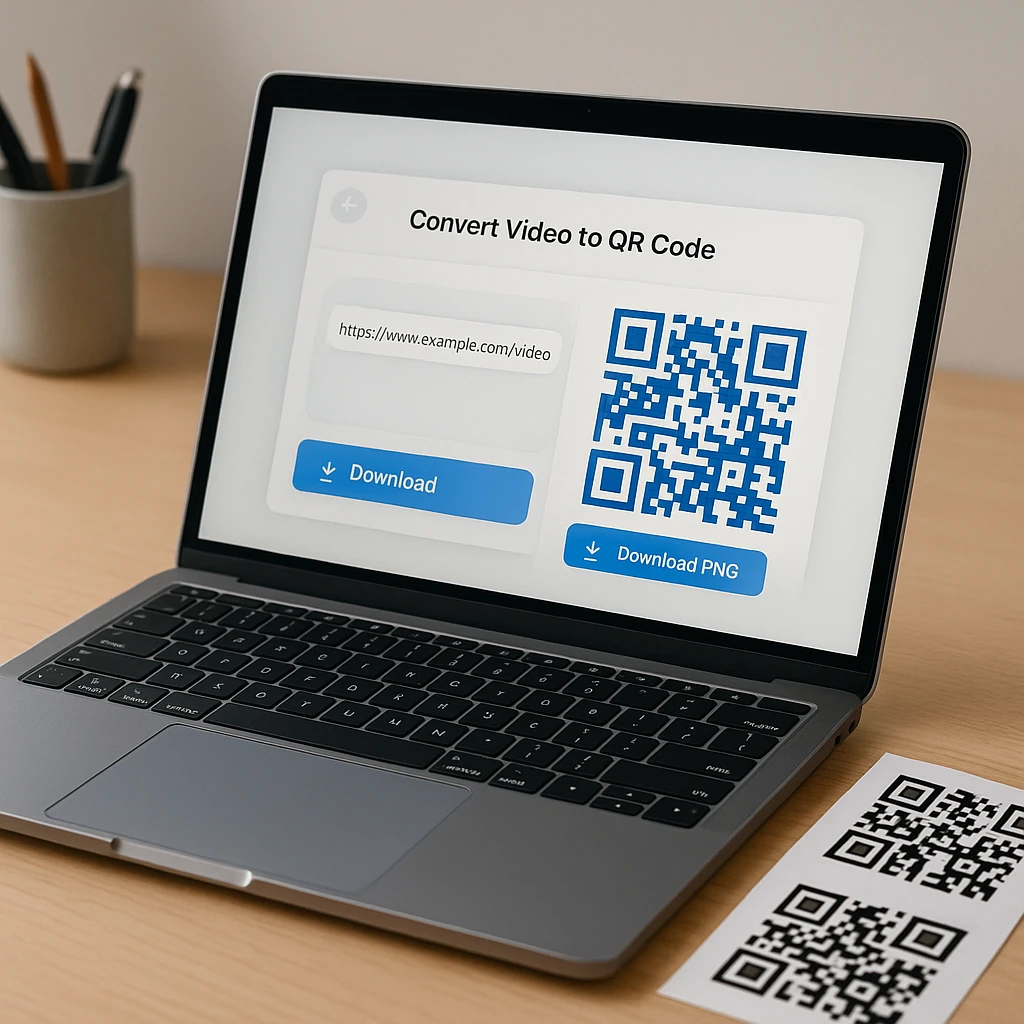
Paste the URL into the video to QR code generator (it also accepts direct file uploads, which handles step 1 and 2 together). YouTube, Drive, Vimeo, Dropbox, Loom, TikTok, and plain MP4 URLs all work, because to the code they are all just links. No account is needed to generate and download the image.
Customize without breaking it
Pick an error correction level: M is the sensible default, H if the code is going on packaging, fabric, or anything that scuffs. Adding a center logo is fine as long as error correction rises to compensate and the logo stays clear of the three corner squares (those are the finder patterns; cover one and no phone will lock on).
Keep the contrast boring: dark code, light background, and leave the white border alone. Every clever design decision a QR code survives is one it did not need.
Download, then test like a stranger
Download PNG (1024px) for slides, documents, and anything on a screen; download SVG for anything a printer touches, because SVG scales to poster size without pixelating.
Then the step everyone skips: scan it with two different phones, in a private browser window, logged out of everything. The single most common video QR failure is a destination that works for the owner and shows "request access" to everyone else. Test as a stranger, because every scanner is one.
Why the QR Code Cannot Hold the Video Itself
This question decides everything else, so here is the actual math. The largest QR code the standard allows (version 40, error correction L, byte mode, per the specification from Denso Wave, the code’s inventor) carries 2,953 bytes. That is 2.88 KB. Ten seconds of 1080p video at a normal bitrate is about 6.25 MB, roughly 2,200 times more than the biggest QR code ever printed can hold.
So every “video QR code” on earth is a URL QR code pointing at a hosted video. There is no encoder, paid tier, or trick that changes this; the ceiling is fixed by the standard. The practical consequences:
- The code and the video are separate things. The printed pattern can be perfect forever while the video behind it gets moved, deleted, or restricted.
- The hosting choice IS the reliability choice. A dead Drive permission kills the code as surely as bad printing.
- Shorter URLs make physically better codes. A short link produces a sparser pattern that scans at smaller print sizes; a long Drive URL with tracking parameters produces a dense one that struggles. Concretely: a youtu.be-style short link needs a 33x33 module grid where a full Drive link at high error correction needs 49x49, and at a 25mm print width that is the difference between 0.61mm and 0.44mm squares, right where older phone cameras start failing.
Turning an MP4 File Into a QR Code
Since a file cannot be encoded directly, the MP4 workflow is upload-then-encode. Drag the file into the generator, let it upload, and the QR code points at the resulting share page: the video plays in the browser with a transcript, summary, and captions alongside, which is a better landing than a raw file. The format does not matter (MP4, MOV, AVI, WebM, MKV all follow the same path), because the code only ever sees the URL.
The alternative is linking a direct MP4 URL from your own server or storage. It works, with caveats worth knowing before printing: some mobile browsers download the file instead of streaming it, a large raw file punishes anyone scanning on mobile data, and there is no player page, captions, or quality adaptation. If the file is heavy, compress it before hosting; a 200 MB video behind a QR code on a poster is a buffering complaint generator.
From an Existing Link: YouTube, Drive, and the Rest
YouTube video to QR code
Open the video, press Share, copy the URL (the short youtu.be form is better for the code density reason above), paste, generate. Two checks before printing: the video must be public or unlisted (private videos show an error to scanners), and remember that age-restricted or region-locked videos will fail for exactly the audiences those restrictions cover. A deleted video obviously kills the code, which matters for material printed to last years.
Google Drive video to QR code
Drive is the platform where video QR codes go to die, and it is always the same wound: permissions. Upload the video, open Share, and set access to “Anyone with the link” before copying it. Then test in an incognito window on a device not signed into your account, because “it works on my phone” is precisely the trap; your phone is logged in and everyone else’s is not. A “request access” screen after scanning is a sharing setting, not a QR problem.
Vimeo, Dropbox, and Loom
All three follow the same copy-link-and-check-permissions pattern. Vimeo: watch for password-protected or private videos, and link a specific video rather than your profile. Dropbox: the preview link is what you want, and test whether it streams or force-downloads on mobile. Loom: workspace-restricted videos will demand a login from outside viewers, so check the share settings allow public viewing.
TikTok, Instagram, and Facebook links
They work, with an asterisk worth taking seriously for print. Social links may open in an app or a login-walled browser view, logged-out visitors get a degraded experience, and the platform (or the creator deleting a post) controls whether the URL survives. Fine for a short campaign. For packaging, signage, or anything with a long shelf life, host a copy somewhere you control and encode that instead.
Where Should the Video Live?
| Host | Best for | The catch |
|---|---|---|
| ScreenApp share page | Training, tutorials, business video | Needs the file uploaded |
| YouTube | Public distribution | Ads, recommendations, platform rules |
| Vimeo | Clean professional player | Some controls need a paid plan |
| Google Drive | Files already in Drive | Permission errors, long dense URLs |
| Direct MP4 URL | Self-hosted simplicity | Downloads instead of streaming, no player |
| Social media post | Short campaigns | Login walls, links you do not control |
The one-question version of this table: who controls the URL? For a code printed on packaging, manuals, wedding invitations, or memorial cards (things that outlive campaigns), the destination should be a page you own, with no login, working captions, and mobile playback. That is also where a ScreenApp share page earns its slot; the scanner lands on the video plus a transcript and summary, which beats a bare file for training and instructional content in particular.
Static or Dynamic: Decide Before You Print
A static code encodes your video URL directly. It never expires, has no scan limit, and depends on nobody’s subscription, but the destination is permanent: change the video, reprint the code. A dynamic code encodes a redirect URL owned by a QR service; the destination behind it can be swapped and scans can be counted, but the code now lives only as long as that provider and your plan with them.
The decision rule that covers most cases: static for permanent URLs and anything where third-party dependency is a risk (the codes on this year’s product packaging should not die with a startup’s pricing change), dynamic when the video will rotate, the print run is large and long-lived, or scan analytics genuinely matter. A middle path worth knowing: encode a static code pointing at a page you control, and change what that page shows. You keep the permanence and the flexibility.
Can you change the video after printing? With a directly-encoded static code, no. With a dynamic redirect or your own landing page, yes. Decide which answer you need before the print run, not after.
Printing: The Sizes That Actually Scan
Starting points, not guarantees: around 3 cm square on business cards and brochures, 5 to 10 cm on table displays, 10 cm and up on posters, and scale with viewing distance for banners. Then adjust for the factors that eat scanability: a long URL (denser grid, bigger minimum size), a logo (higher error correction, denser again), glossy or curved surfaces, and dim lighting.
Test the exact printed artifact before a bulk run. Screens lie; a code that scans from your monitor can fail from matte cardstock under warm restaurant lighting. Two phones (one older), the real material, the real distance, logged out. Ten minutes of testing against a 500-piece reprint is the cheapest insurance in this whole workflow.
Why Is My Video QR Code Not Working?
Split the problem in half first: does the code fail to scan, or does it scan and then the video fails? They have different causes.
It will not scan at all. Physical problem: too small for the URL’s density, low contrast, missing quiet zone, a logo over a finder pattern, blur from upscaling a small PNG, or a curved or reflective surface. Regenerate from SVG at the right size and simplify the design. If the URL is long, shorten it and the whole pattern gets easier.
It scans, but the video will not open. Destination problem, and the top cause by a wide margin is permissions: a Drive video not shared publicly, a private YouTube upload, a Loom locked to a workspace. After that come deleted videos, region or age restrictions, and login walls on social links. The diagnostic is always the same: open the encoded URL in an incognito window on a different device.
It downloads instead of playing. A direct file URL plus certain mobile browsers. Host on a player page instead of linking the raw file.
It buffers forever. The file is too heavy for mobile connections. Compress it, or move it to a host with adaptive streaming.
It worked last month and stopped. The printed pattern did not change; the destination did. Someone moved, deleted, or re-restricted the video. This is the failure mode that makes hosting-you-control the right call for anything with a shelf life.
Before You Print: The 60-Second Checklist
Video QR code pre-flight
- -The video URL opens in an incognito window with no login
- -The URL is as short as practical, tracking parameters stripped
- -Dark code on a light background, white border intact
- -Error correction at M, or H if there is a logo or rough surface
- -SVG used for print, PNG for screens
- -Tested on two phones, one of them older, from the real material
- -A call to action sits next to the code ("Scan to watch the setup video")
- -Someone owns keeping the destination alive for the life of the print
Create your video QR code
ScreenAppThe ScreenApp Video to QR Code Generator does the whole workflow from this guide in one place: paste a YouTube, Drive, Vimeo, Dropbox, or Loom link, or upload the MP4 directly, and download the code as a 1024px PNG or print-ready SVG. No signup to generate, static codes with no scan limits or expiry, logo support with error correction handled, and uploaded videos land on a share page with playback, transcript, and summary built in.
FAQ
Can you turn a video into a QR code?
Yes: give the video a shareable URL (upload it, or copy its existing YouTube, Drive, or Vimeo link), encode that link with a QR generator, and download the image. Scanning opens the video. The code carries the link, not the footage.
Can a QR code hold the entire video file?
No. The largest QR code in the specification stores 2,953 bytes, about 2.88 KB, and ten seconds of 1080p video is roughly 2,200 times bigger. Every working video QR code encodes a URL to a hosted video; nothing changes that ceiling.
How do I turn an MP4 into a QR code?
Upload the MP4 to a shareable host (the ScreenApp generator accepts the file directly and creates the share page for you), then encode the resulting link. MOV, WebM, AVI, and MKV follow the same path; the format never touches the code itself.
Is it really free?
Generating and downloading the QR code is free with no signup, and the code itself is static with no scan limit or expiry. Hosting is the separate question: YouTube and Drive are free with their own rules, and uploaded hosting depends on the platform's plan.
Does a video QR code expire?
The printed pattern never expires; it is just geometry. The destination can. If the video is moved, deleted, or its permissions tightened, the code scans fine and lands on an error. Codes die of hosting, not of age.
Can I change the video after printing the code?
Not if the code encodes the video's URL directly. Yes if it points at a dynamic redirect or a landing page you control, where you can swap what the destination shows. Decide before the print run.
Why does my Google Drive QR code say "request access"?
Sharing permissions. The video must be set to "Anyone with the link" before you copy the URL. Always test in an incognito window on a device not signed into your account; a logged-in owner cannot see this failure.
PNG or SVG?
PNG for anything on a screen: slides, documents, email, web. SVG for anything printed, because it scales from business card to banner without pixelating. Printing an upscaled small PNG is a common reason codes blur and fail.
How small can I print it?
Around 3 cm is a workable floor for close-range materials with a short URL. Long URLs and logos raise the floor because they make the pattern denser; a full Drive link at high error correction needs visibly finer squares than a short YouTube link at the same size. Test the real print.
Does it work offline?
The camera reads the pattern without internet, but an online video cannot load without a connection. If scanning happens somewhere with dead signal (basements, warehouses, event venues with saturated Wi-Fi), test on-site before committing.
Can I use a TikTok or Instagram video?
Yes, via the post's share link, but logged-out scanners may hit app prompts or login walls, and the platform controls whether the URL survives. For anything printed to last, host a copy you control and encode that instead. The pattern behind every reliable video QR code is the same: a destination you control, a short URL, boring contrast, and a real test from a stranger's phone. Get those four right and the rest is decoration.