How to Download Discord Audio 2026 (For PC, Android, iPhone)

On this page
Discord doesn’t have a built-in button to save voice messages or call recordings. If you want to keep a funny voice memo, an important group discussion, or a clip from a Discord Stage, you need a third-party tool.
ChatGPT and other AI assistants cannot download Discord audio because they lack access to Discord’s servers and cannot save media files to your device. You need a dedicated downloader tool or bot to extract and save Discord voice content.
This guide covers 6 tested Discord audio downloaders that still work in February 2026 - bots, browser extensions, web tools, and desktop software. We include step-by-step instructions for downloading Discord voice messages on PC, Android, and iPhone.
February 2026 Note: Discord now requires end-to-end encryption (DAVE protocol) for all voice and video calls starting March 1, 2026. Make sure your client is updated. Voice message downloads are not affected by this change.
Related guides: For converting downloaded audio to text, see our audio-to-text converter. Need to record your screen during a Discord call? Try our online screen recorder.
Legal and Safety Notes
Discord Terms of Service
Recording users without their consent may violate Discord’s Terms of Service. Always review the current TOS before implementing any recording solution in your server.
Copyright and Consent
Recording and distributing private conversations without permission from all parties can be illegal depending on your jurisdiction. Some regions require one-party consent, while others mandate all-party consent.
Golden Rule: Always get explicit consent from everyone involved before recording or downloading private conversations.
Discord Audio Downloader Pricing
| Rank | Tool | Type | Price | Best For | Safety |
|---|---|---|---|---|---|
| 1 | ScreenApp | Extension | Free / $19/mo annual | Recording + AI transcription | ★★★★★ |
| 2 | Craig Bot | Discord Bot | Free / $1/mo | Multi-track live recording | ★★★★★ |
| 3 | DiscordKit | Extension | Free (limited) | Bulk voice message downloads | ★★★★☆ |
| 4 | Vencord | Client Mod | Free | One-click voice message save | ★★★☆☆ |
| 5 | TTOK | Web Tool | Free / Premium | Quick single message download | ★★★☆☆ |
| 6 | OBS Studio | Desktop App | Free (open source) | Full call recording on desktop | ★★★★★ |
Method 1: Craig Bot
Craig is a free Discord bot that joins your voice channel and records each speaker to a separate audio track. This makes it the best option for podcasts, interviews, and team meetings on Discord.
Pricing: Free tier saves files for 7 days, up to 6 hours per recording. Craig Premium ($1/month via Patreon) extends file storage to 14 days and adds video generation.
How to use Craig Bot as a Discord audio downloader:
- Go to craig.chat and invite the bot to your server
- Join a voice channel
- Type
/joinin any text channel - Craig joins and starts recording - Type
/stopwhen you’re done - Craig sends you a DM with download links for each speaker’s audio track
Pros: Multi-track recording, separate file per speaker, free tier works well, trusted by the Discord community
Cons: Only records live audio - can’t download existing voice messages. Requires server admin permissions to invite.
Method 2: DiscordKit Extension
DiscordKit is a Chrome extension that lets you bulk-download audio attachments from Discord channels. It works directly in the Discord web app.
Pricing: Free with limited daily downloads. Premium unlocks unlimited downloads and batch processing.
How to download Discord voice messages with DiscordKit:
- Install the Discord Audio Downloader extension from the Chrome Web Store
- Open Discord in your browser (discord.com/app)
- Navigate to the channel with voice messages
- Click the DiscordKit icon and select the audio files you want
- Optionally set a date range to filter messages
- Click export to download all selected audio files
Pros: Bulk download support, date range filtering, works in-browser, no bot permissions needed
Cons: Only works in Chrome/Chromium browsers, requires Discord web app (not desktop app), extension may break with Discord updates
Method 3: Vencord VoiceDownload
Vencord is a Discord client modification that adds a download button directly to every voice message. The VoiceDownload plugin makes saving voice messages a one-click action.
Pricing: Free and open source.
How to download Discord audio with Vencord:
- Install Vencord from vencord.dev
- Open Discord settings and go to the Plugins section
- Search for “VoiceDownload” and enable it
- A download button now appears on every voice message
- Click the button to save the voice message as an OGG file
Pros: One-click download on every voice message, free, works in the desktop app
Cons: Client modifications may violate Discord’s TOS. Vencord could break after Discord updates. Lower safety rating because third-party client mods carry inherent risk.
Method 4: Web-Based Tools (TTOK)
Web tools like TTOK let you paste a Discord message link and download the attached audio. No software installation required - works on any device with a browser.
Pricing: TTOK is free with daily download limits. Premium removes limits and adds bulk URL support.
How to download a Discord voice message online:
- Open Discord and find the voice message you want to save
- Right-click (PC) or long-press (mobile) the voice message
- Select “Copy Message Link”
- Go to ttok.com/discord-audio-downloader
- Paste the link and click “Save”
- Download the audio file (MP3 or OGG format)
Pros: Works on any device, no installation needed, quick for one-off downloads
Cons: Only downloads individual messages (not live calls), ad-heavy website, Discord links may expire, daily download limits on free tier
Method 5: OBS Studio
OBS Studio is free, open-source desktop software that can record Discord audio from voice channels, calls, or screen shares. It captures system audio, so it works with any Discord client.
Pricing: Free and open source. Available for Windows, macOS, and Linux.
How to record Discord audio with OBS:
- Download and install OBS Studio from obsproject.com
- Open OBS and click the ”+” icon under Sources
- Select “Audio Output Capture” and choose your speakers/headphones
- Optionally add “Audio Input Capture” for your microphone
- Click “Start Recording” before joining the Discord call
- After the call, click “Stop Recording”
- Find the audio file in your OBS output folder (Settings > Output > Recording Path)
Tip: To record audio only without video, go to Settings > Output and select an audio-only format like MP3 or WAV.
Pros: Free, open source, records any audio playing on your computer, high quality, no file size limits
Cons: Requires desktop installation, records all system audio (not just Discord), no multi-track support, more setup than other methods
Method 6: ScreenApp
ScreenApp’s audio capture extension records Discord audio directly from your browser tab with automatic AI transcription. This is the best option if you need searchable transcripts of Discord conversations.
Pricing: Free plan covers 2 transcriptions of recordings up to 45 minutes each. Pro is $19/month billed annually ($30/month monthly) for 50 transcriptions a month and recordings up to 2 hours.
How to record and transcribe Discord audio:
- Install the ScreenApp Chrome extension
- Open Discord in your browser
- Click the ScreenApp icon and select “Record Tab Audio”
- Join your voice channel or play back voice messages
- Click stop when finished
- ScreenApp automatically generates a transcript with speaker labels
Pros: AI transcription included, searchable text output, speaker identification, works with Discord voice chat transcription
Cons: Requires Chrome browser, the free plan is 2 transcriptions, records from browser tab (not desktop app)
How to Download Voice Messages
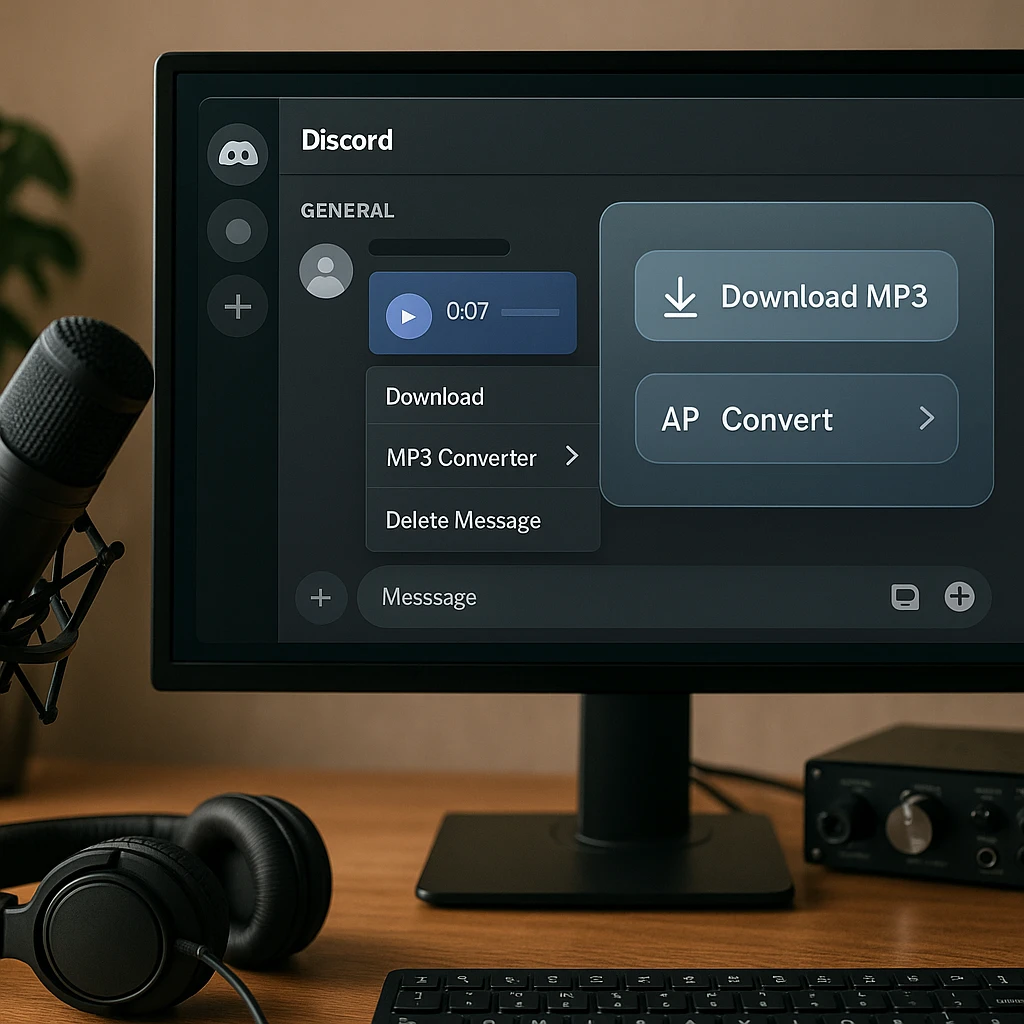
On PC (Windows/Mac)
Fastest method - browser extension:
- Install DiscordKit or ScreenApp extension
- Open discord.com/app in Chrome
- Navigate to the voice message
- Click the download/record button added by the extension
- Save the file to your computer
No-install method - web tool:
- Open Discord (desktop or web)
- Right-click the voice message and select “Copy Message Link”
- Open ttok.com/discord-audio-downloader in a new tab
- Paste the link and click Save
- Download the MP3 or OGG file
On Android
- Open Discord and find the voice message
- Long-press the message and tap “Share” then “Copy Link”
- Open Chrome and go to ttok.com/discord-audio-downloader
- Paste the link and tap Save
- The audio file downloads to your device
On iPhone (iOS)
- Open Discord and find the voice message
- Long-press the message and tap “Copy Link”
- Open Safari and go to ttok.com/discord-audio-downloader
- Paste the link and tap Save
- Tap “Download” when prompted - the file saves to your Files app
How to Record a Live Call
Using Craig Bot (free):
- Make sure you have admin permissions in the server
- Invite Craig from craig.chat
- Join the voice channel
- Type
/joinin any text channel - Craig begins recording with separate tracks per speaker
- Type
/stopwhen done - Craig DMs you download links
Using OBS Studio (free):
- Open OBS and set up Audio Output Capture
- Start recording in OBS
- Join the Discord voice channel
- Have your conversation
- Stop recording in OBS
- Find the file in your OBS recordings folder
Using ScreenApp (free plan covers 2 transcriptions of recordings up to 45 minutes each, then $19/mo billed annually):
- Open Discord in Chrome
- Click the ScreenApp extension and record tab audio
- Join the voice channel
- Stop when done - ScreenApp auto-transcribes the conversation
Troubleshooting
Expired Download Links
Discord voice message links can expire. If a web tool says the link is broken:
- Copy a fresh link from the original message
- Make sure you’re copying the full URL
- Try a different web tool
- Use a browser extension instead, which doesn’t depend on expiring links
OGG Files Won’t Play
Discord voice messages use OGG format. If your media player can’t open them:
- VLC Media Player (free) plays OGG files natively
- Use CloudConvert or Convertio to convert OGG to MP3 online
- ScreenApp’s audio-to-text converter accepts OGG files directly
Poor Audio Quality
If downloaded audio sounds compressed or distorted:
- Check Discord’s voice channel audio quality settings (server settings > channel > bitrate)
- Use Craig Bot for higher quality multi-track recordings
- Record with OBS at a higher bitrate (320kbps for MP3)
- Make sure your internet connection was stable during the original call
Tool Not Working After Update
Discord updates can break third-party tools. If your Discord audio downloader stopped working:
- Check the tool’s website or GitHub for update announcements
- Try an alternative method from the comparison table above
- OBS Studio and Craig Bot break less often since they don’t depend on Discord’s web interface
- For Chrome extensions, check the Chrome Web Store for updated versions
FAQ
What is the best Discord voice message downloader?
It depends on what you need. For downloading existing voice messages, DiscordKit (Chrome extension) is the fastest option with bulk download support. For recording live calls, Craig Bot gives you separate audio tracks per speaker at no cost. For recording plus automatic transcription, ScreenApp's audio capture is the most complete solution.
How do I download a Discord voice message on my phone?
Copy the voice message link in Discord (long-press > Share > Copy Link), then paste it into a web-based Discord audio downloader like TTOK (ttok.com/discord-audio-downloader). This works on both Android and iPhone without installing any app.
Can I download Discord audio as MP3?
Yes. Craig Bot offers MP3 downloads directly. Web tools like TTOK save Discord audio as MP3 or OGG. If you get an OGG file, convert it to MP3 using VLC or an online converter like CloudConvert.
Is it legal to download Discord voice messages?
Downloading your own voice messages is fine. Downloading other people's voice messages or recording calls may require consent depending on your location. Some jurisdictions need one-party consent (just you), while others require all-party consent. Always tell people before you record.
Are Discord audio downloaders safe?
Established tools like Craig Bot and OBS Studio are safe and open source. Browser extensions from the Chrome Web Store go through a review process. Be careful with random web-based tools - stick to ones with reviews and avoid sites that ask you to install software. ScreenApp's extension is listed on the Chrome Web Store.
Can I download audio from a Discord Stage?
Yes, but only through recording. Craig Bot can record Stages if you have the right permissions. OBS Studio captures any audio playing through your speakers, including Stages. You cannot download a Stage recording after it ends unless someone recorded it live.
How do I convert downloaded Discord audio to text?
Upload the audio file to ScreenApp's audio-to-text converter. It supports OGG, MP3, WAV, and other formats. You get a full transcript with timestamps. For live Discord conversations, ScreenApp can transcribe in real time during recording. Also see our Discord voice chat transcription guide.
Does the Discord DAVE encryption affect downloading voice messages?
No. Discord's end-to-end encryption (DAVE protocol, required from March 1, 2026) applies to live voice and video calls only. Voice messages sent in text channels are not affected. All the download methods in this guide still work after the encryption update. How we put this together: this is a guide based on the vendor documentation and pricing pages linked in the article, checked on the dates shown. We did not run a hands-on benchmark for this article.