11 Best AI Photo Restoration Tools (2026) Free, Online, No Watermark

On this page
Do you have a shoebox full of faded, scratched, or torn family photos? You don’t need to be a Photoshop expert to restore them. Powerful AI photo restoration tools can bring your cherished memories back to life in seconds, right from your browser.
This guide covers the best free AI photo restoration tools that work online and, most importantly, don’t add watermarks to your finished photos. We compared the top 11 options, using each vendor’s published features and pricing, to help you fix scratches, colorize black and white images, and improve image quality without spending a cent.
Pricing Comparison Table
| Tool | Best For | Free Plan | Paid Price | Platform |
|---|---|---|---|---|
| VanceAI Photo Restorer | All-in-one restoration | 5 credits/month | $5.94/mo (annual) | Web |
| MyHeritage | Face enhancement | 5 enhancements | $7.83/mo (annual) | Web |
| Remini | Mobile restoration | Free trial | $6.99/week | iOS, Android |
| Adobe Photoshop | Professional editing | 7-day trial | $11.99/mo (Photography Plan) | Desktop |
| Hotpot.ai | Free specific tasks | 2-3 uses/tool | $5 for 100 credits | Web |
| Topaz Photo AI | Upscaling and sharpening | Free trial | $58/mo or $252/year | Desktop |
| Palette.fm | Colorization | 1 HD credit | $6/mo (annual) | Web |
| Fotor | Quick one-click fixes | Limited free | $8.99/mo | Web |
| CapCut | Social media content | Free | In-app purchases | Mobile, Web |
| Photomyne | Scanning + restoration | Basic scanning | $5.99/mo | Mobile |
| Freepik AI Upscaler | Online upscaling | Limited free | $5.75/mo (Essential) | Web |
Top 11 Photo Restoration Tools
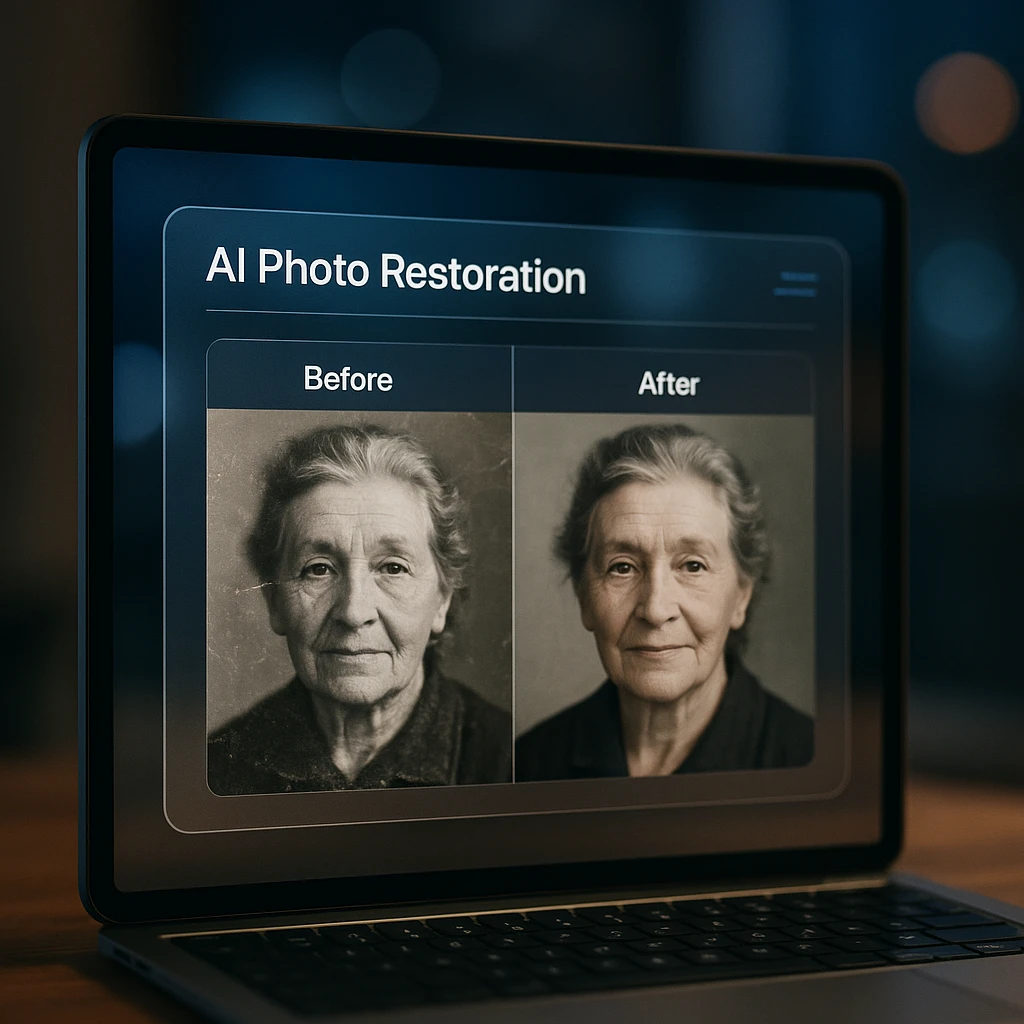
1. VanceAI Photo Restorer: Best All-in-One AI Toolkit
VanceAI combines multiple AI models into a complete restoration platform that handles everything from scratch removal to face improvement. Its strength is the ability to analyze each photo and apply the right restoration techniques automatically.
What it does:
- Advanced scratch and tear repair using ML algorithms
- Intelligent noise reduction for grainy vintage photos
- Face improvement specifically trained on portrait photography
- Batch processing for multiple images at once
- Format support for JPEG, PNG, WEBP, and BMP files
- Cloud-based processing with no software installation required
VanceAI does well at preserving facial features while removing age-related damage, making it particularly effective for family photos and portraits. The AI has been trained on millions of historical photographs, so it understands typical damage patterns and restoration needs.
Pros
- Complete toolkit in one platform
- Excellent face restoration capabilities
- No software installation required
- Maintains high image quality during processing
- Regular AI model updates
- Professional-grade results with minimal effort
Cons
- Limited free credits (5 per month)
- Processing can be slow during peak times
- Requires internet connection for all features
- Some advanced features locked behind premium plans
Pricing: Free plan with 5 monthly credits. Paid plans start at $5.94/month (annual billing) for 100 credits, $7.42/month (semi-annual), or $9.90/month (monthly). 14-day money-back guarantee.
Best For: Users who want complete restoration capabilities without dealing with multiple specialized tools.
2. MyHeritage Photo Enhancer: Best for Faces
MyHeritage gained massive popularity not just for photo restoration, but for its viral “Deep Nostalgia” feature that animates old family photos. Their AI focuses specifically on facial improvement, making it unmatched for portrait restoration.
What it does:
- Superior facial detail recovery
- Deep Nostalgia animation feature for viral content creation
- Automatic color correction optimized for skin tones
- Eye clarity and blemish removal
- Hair texture restoration and detail recovery
- Integration with genealogy research tools
The Deep Nostalgia feature has generated millions of social media shares, letting users create animated versions of historical family photos that appear to blink, smile, and move naturally.
Pros
- Exceptional facial improvement capabilities
- Viral animation features for social sharing
- No account required for basic restoration
- Consistently high-quality results
- Strong reputation and user base
- Integration with family history research
Cons
- Limited to facial focus
- Fewer credits for free users
- Animation feature can be unsettling to some users
- Less effective for landscape or object restoration
Pricing: Free plan with 5 enhancements. Premium subscription at $7.83/month when billed annually, with a 14-day free trial available.
Best For: Family photo restoration and users who want to create engaging animated content from old portraits.
3. Remini: Most Popular Mobile App
With over 100 million downloads, Remini is the clear leader in mobile photo restoration. The app’s strength is its simplicity and powerful face unblurring capabilities that work directly from your phone’s camera roll.
What it does:
- Optimized for mobile photo processing and camera roll integration
- Advanced face unblurring and detail improvement
- Batch restoration for multiple images at once
- Social media integration for instant sharing
- Offline processing capabilities for privacy
- Background noise reduction and artifact removal
Remini’s AI has been specifically optimized for the types of photos typically found on mobile devices, including low-resolution images, blurry selfies, and compressed social media photos.
Pros
- Excellent mobile optimization and user experience
- Powerful face unblurring capabilities
- Works offline for privacy-conscious users
- Regular updates with new AI improvements
- Large, active user community
- Intuitive interface perfect for beginners
Cons
- Limited free usage
- Mobile-only platform with no desktop version
- Can over-process some images
- Premium subscription required for unlimited use
Pricing: Free trial available. Personal plan at $6.99/week (up to 20 photos/week). Business plan at $9.99/week with unlimited photos and commercial use rights. Monthly ($24.99) and yearly ($249.99) billing also available.
Best For: Mobile users who want professional restoration results without desktop software.
4. Adobe Photoshop Neural Filters
Adobe Photoshop’s Neural Filters represent the most advanced AI-powered photo restoration for professionals. With precise control and unmatched quality, it’s the tool of choice for professional photo editors and serious enthusiasts.
What it does:
- Advanced Neural Filters for restoration and colorization
- Precise manual control over all restoration aspects
- Professional-grade tools for complex restoration projects
- Integration with Adobe Creative Cloud ecosystem
- Support for RAW files and professional formats
- Advanced layer system for non-destructive editing
Neural Filters include specialized tools for skin smoothing, style transfer, smart portrait improvement, and historically accurate colorization with full manual override capabilities.
Pros
- Professional-standard tools
- Unmatched control and precision
- Advanced AI combined with manual editing
- Extensive tutorial and learning resources
- Integration with professional workflows
- Continuous updates and new features
Cons
- Steep learning curve for beginners
- Expensive subscription model
- Requires powerful computer hardware
- Overkill for simple restoration tasks
Pricing: Photography Plan (includes Lightroom) at $11.99/month (1TB) or $14.99/month (20GB). Photoshop standalone at $37.99/month. 7-day free trial available.
Best For: Professional photographers, graphic designers, and serious hobbyists who need maximum control and quality.
5. Hotpot.ai: Best for Free Specific Tasks
Hotpot.ai’s approach of offering separate, dedicated tools for specific restoration tasks often produces better results compared to all-in-one solutions. Each tool is specialized and optimized for its particular function.
What it does:
- Separate AI Picture Colorizer for black and white photos
- Dedicated Picture Restorer for damage repair
- Specialized Picture Enlarger for resolution improvement
- Old Photo Filter for age-related discoloration removal
- Art Generator for creative photo transformations
- Background Remover for isolation tasks
Each tool uses AI models specifically trained for individual tasks, resulting in more accurate and natural-looking results than generalized restoration tools.
Pros
- Specialized tools for superior specific results
- Free access to most core features
- No registration required for basic use
- Fast processing with reliable results
- Clean, distraction-free interfaces
- Regular updates with new tools
Cons
- Need multiple tools for full restoration
- Limited free usage per tool
- Less convenient than all-in-one solutions
- Basic feature set compared to premium tools
Pricing: Free with limited usage (2-3 uses per tool). Credit packages start at $5 for 100 credits.
Best For: Users who need specific restoration tasks and prefer specialized tools over full platforms.
6. Topaz Photo AI: Best for Upscaling
Topaz Photo AI is the top choice among photographers for high-quality image upscaling and sharpening. It’s the go-to tool for recovering fine details from low-resolution vintage photographs. Note: Topaz Labs moved to a subscription-only model in October 2025, ending their one-time purchase option.
What it does:
- AI upscaling up to 6x resolution
- Advanced sharpening algorithms for blurry photos
- Noise reduction optimized for various image types
- RAW file support for professional workflows
- Batch processing for large photo collections
- Desktop application for offline processing
Topaz uses proprietary AI models trained on millions of image pairs to reconstruct missing details and improve image quality beyond what traditional methods can achieve.
Pros
- Exceptional upscaling quality and detail recovery
- Offline desktop processing for privacy
- Professional-grade features and controls
- Regular AI model updates
- Excellent for print-quality enlargements
- Strong reputation among professionals
Cons
- Now subscription-only (no more one-time purchase)
- Requires powerful computer hardware
- Steeper learning curve than simple online tools
- Processing can be time-consuming for large files
Pricing: Subscription only since October 2025. Topaz Photo standalone at $58/month or $252/year. Topaz Studio bundle (all apps) at $33/month. Free trial available.
Best For: Serious photographers and professionals who need the highest quality upscaling and detail recovery.
7. Palette.fm: Best for AI Colorization
Palette.fm has gained viral recognition for producing the most natural and historically accurate colorization results available. The platform specializes exclusively in bringing black and white photos to life with realistic colors.
What it does:
- Over 21 unique AI color palette options for different time periods
- Historical accuracy mode for period-appropriate colors
- Advanced skin tone rendering and hair color detection
- Regional colorization for selective color application
- Comparison tools to preview before and after results
- AI prompt system for custom color preferences
The AI has been trained on millions of historically accurate color photographs, so it understands appropriate colors for different time periods, clothing styles, and environmental contexts.
Pros
- Best-in-class colorization accuracy and realism
- Multiple historically appropriate color palettes
- Advanced manual override capabilities
- Excellent for vintage family photographs
- Regular improvements to color accuracy
- User-friendly interface with preview options
Cons
- Limited to colorization only
- Doesn't handle damage repair
- Free plan only offers watermarked low-res downloads
- Requires good source image quality for best results
Pricing: Free plan with watermarked previews and 1 HD credit for new users. Annual plan at $6/month ($72/year) for 480 HD credits. One-time purchase of 75 credits for $49 (valid 2 years). Unused credits roll over.
Best For: Users focused on bringing black and white photos to life with historically accurate, natural-looking colors.
8. Fotor: Best for One-Click Fixes
Fotor’s AI enhancer is widely popular for its simplicity and speed. As part of a full photo editing platform, it provides quick one-click solutions for basic photo restoration without complex settings or lengthy processing times.
What it does:
- One-click automatic improvement and optimization
- Brightness, contrast, and color saturation improvements
- Basic scratch detection and removal capabilities
- Integration with full photo editing suite
- Batch processing for multiple images
- Social media optimization presets
Fotor does well at making subtle but effective improvements to old photos quickly, making it ideal for users who want better results without learning complex restoration techniques.
Pros
- Extremely simple one-click operation
- Fast processing with immediate results
- Part of a full editing platform
- Good for batch processing multiple photos
- No learning curve required
- Affordable pricing for basic features
Cons
- Limited control over restoration process
- Basic features compared to specialized tools
- Watermarks on free plan for some features
- Less effective for severely damaged photos
Pricing: Free with limitations. Pro plans start at $8.99/month with AI tools, beauty touch-up, background remover, and HDR technology.
Best For: Casual users who want quick improvements to old photos without complexity or learning specialized techniques.
9. CapCut: Best for Social Media
While primarily a video editor, CapCut’s “Photo Animator” and improvement features have become extremely popular among TikTok and Instagram users for creating engaging content from old photos. It bridges the gap between photo restoration and social media content creation.
What it does:
- Photo animation effects for social media content
- Basic AI improvement and quality upgrade
- Integration with video editing for multimedia projects
- Trendy effects and filters for modern aesthetics
- Social media format optimization
- Collaborative features for team projects
CapCut does well at making old photos suitable for modern social media platforms, with features specifically designed for viral content creation and engagement.
Pros
- Perfect for social media content creation
- Animation features make old photos engaging
- Free with extensive feature set
- Trending effects and modern aesthetics
- Easy sharing to social platforms
- Regular updates with new effects
Cons
- Limited traditional restoration capabilities
- Focused more on effects than quality improvement
- Requires mobile app for best experience
- May over-stylize historical photos
Pricing: Free with premium effects available through in-app purchases.
Best For: Social media creators who want to transform old photos into engaging, shareable content for TikTok, Instagram, and other platforms.
10. Photomyne: Best for Scanning
Photomyne is unique because it starts with the scanning process, providing a complete solution from physical photo digitization through AI restoration. It’s designed for users who want to digitize entire family photo albums with built-in improvement capabilities.
What it does:
- Advanced photo scanning with automatic edge detection
- Bulk scanning for entire photo albums
- Built-in AI restoration and colorization
- Automatic photo organization and tagging
- Family sharing and collaboration features
- Cloud storage and backup integration
Photomyne handles the entire process from physical photo to improved digital archive, making it ideal for large family photo preservation projects.
Pros
- Complete scanning to restoration workflow
- Excellent for digitizing large photo collections
- Built-in organization and sharing features
- Good for family collaboration projects
- Automatic improvement during scanning
- Cloud backup prevents loss of precious memories
Cons
- Primarily mobile-based scanning
- Restoration features less advanced than specialists
- Requires subscription for full feature access
- Scanning quality depends on mobile camera
Pricing: Free basic scanning. Premium plans start at $5.99/month for improved features and storage.
Best For: Users who need to digitize large collections of physical photos and want basic restoration capabilities in a single workflow.
11. Freepik AI Image Upscaler: Best Online Upscaling
Freepik AI Image Upscaler is a browser-based tool that makes photo upscaling quick and accessible. It offers multiple models, including Classic for general improvements and Magnific AI, which comes in Precision (for accurate detail recovery) and Creative (for adding more texture and depth). This flexibility lets users adapt the upscaling process depending on the project’s needs.
What it does:
- Access to Magnific AI, one of the best upscalers on the market
- Upscaling up to 8x resolution with detail preservation
- Noise reduction and sharpening for clearer results
- Online platform with no software installation required
- Integration with the Freepik AI Suite for editing workflows
- Fast processing for single images or small batches
The tool uses advanced AI training to recover details, sharpen images, and reduce visual noise while keeping results natural. This makes it equally useful for e-commerce photos, marketing visuals, or restoring older images for modern use.
Pros
- Exclusively offers Magnific AI among third-party platforms
- Intuitive online interface, no steep learning curve
- Integrates with other Freepik AI tools for a complete workflow
- Reliable results for both digital and print projects
Cons
- Advanced features require a Premium subscription
- Limited batch processing compared to desktop software
Pricing: Available with Freepik subscription plans starting at $5.75/month (Essential). Premium+ and Pro tiers unlock unlimited generations and access to the Magnific models.
Best For: Marketers, designers, and small businesses looking for an efficient online tool that balances quality, speed, and flexibility.
Restore a Photo in 3 Steps
Step 1: Prepare Your Physical Photo
For optimal results, create a high-quality digital copy of your physical photo:
- Scanner Method: Use a flatbed scanner at 600 DPI or higher
- Phone Method: Use Google PhotoScan or similar apps that eliminate glare
- Camera Method: Photograph in bright, even lighting without shadows
Clean the photo gently with a soft cloth before scanning to remove surface dust and fingerprints.
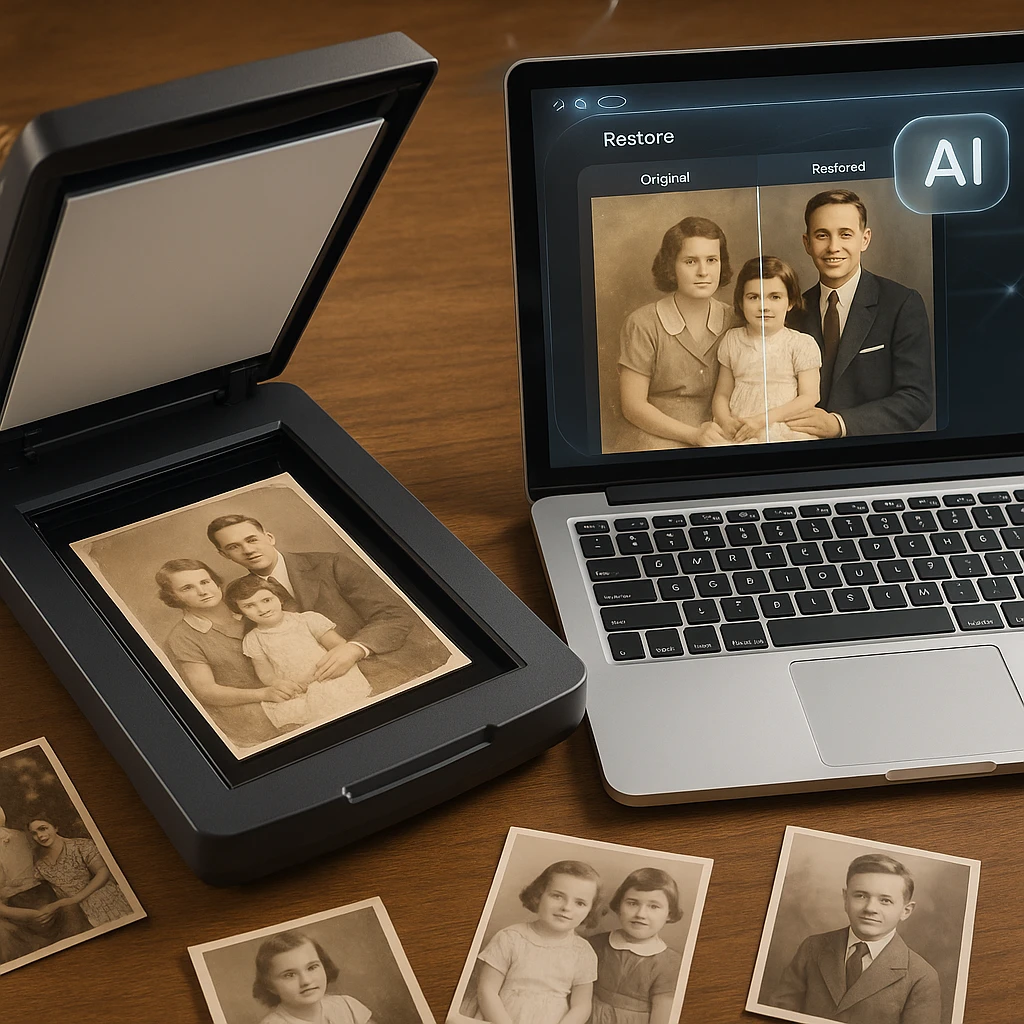
Step 2: Choose Your Restoration Tool
Select the appropriate tool based on your photo’s specific needs:
- Heavy damage (scratches, tears): VanceAI Photo Restorer
- Portrait photos: MyHeritage Photo Enhancer
- Black and white colorization: Palette.fm
- Quick mobile editing: Remini app
- Professional work: Adobe Photoshop Neural Filters
- High-quality upscaling: Topaz Photo AI
Step 3: Apply AI Restoration and Download
- Upload your scanned image to the chosen platform
- Select the appropriate restoration function
- Allow the AI to process (typically 30-90 seconds)
- Preview the results and make adjustments if available
- Download the watermark-free restored image
For severely damaged photos, consider using multiple tools in sequence: start with scratch removal, then apply colorization, and finish with general improvement. If you’re working on video content that includes old photos, AI video summarizer can help create compelling narratives about your restoration projects.
Privacy Tips for Family Photos
When uploading precious family photos to online services, keep these security points in mind:
Security Indicators:
- SSL encryption (https://) during upload
- Clear data deletion policies
- No ownership claims over uploaded images
- GDPR compliance for European users
Recommended Privacy Practices:
- Check each platform’s privacy policy before uploading
- Use tools that delete images from servers after processing
- Consider watermarking family photos before upload
- Keep original files backed up separately
- Document your restoration workflow with Audio Notetaker for future reference
For highly sensitive or irreplaceable photos, consider using downloadable software like GIMP with AI plugins rather than online services. When recording family stories or creating digital archives, tools like AI Note Taker can help document the history behind restored photos.
Advanced Restoration Tips
Combining Multiple AI Tools
For complex restoration projects, using multiple tools strategically produces better results:
- Initial Repair: Use VanceAI for scratch and tear removal
- Face Improvement: Apply MyHeritage for portrait details
- Colorization: Finish with Palette.fm for realistic colors
- Final Polish: Use Fotor for brightness and contrast optimization
Handling Specific Damage Types
Water Damage: Start with noise reduction tools before attempting colorization. Faded Colors: Use color restoration before applying improvement filters. Torn Photos: Repair tears first, then improve overall image quality. Yellowed Photos: Apply color correction before other improvements.
When documenting your restoration process or creating tutorials, ScreenApp can record your screen while you work, making it easy to share your workflow with others. For sharing your restored photos in presentations, Convert Video to PDF can help create professional documentation of your restoration work.
Bringing Your Memories Back
AI photo restoration has made accessible what was once an expensive, time-intensive process requiring professional expertise. These eleven tools represent the best options available in 2026, each with different strengths.
If you’re looking for a professional touch beyond automated AI tools, the photo restoration service offered by FixThePhoto remains a trusted option for complex cases where manual editing expertise is needed.
Start with the least damaged photos to familiarize yourself with each tool’s interface, then gradually work on more challenging restoration projects as you gain confidence with the technology. For creating video presentations of your restored family photos, Audio Summarizer can help generate narrations that bring your family history to life.
FAQ
What is the best AI for blurry photos?
For blurry photo repair, Topaz Photo AI ($58/month) provides the most advanced sharpening algorithms specifically designed for detail recovery. VanceAI Photo Restorer (free 5 credits/month) offers excellent all-around capabilities, while MyHeritage ($7.83/month annual) does well at facial detail recovery and eye sharpening in portraits.
Can AI remove scratches and tears?
Yes, modern AI can effectively remove most scratches and tears from digital photos. The technology works by analyzing surrounding pixels and intelligently filling damaged areas. VanceAI and Hotpot.ai show particularly strong results for this type of restoration, with Adobe Photoshop's Neural Filters offering the most precise control for complex damage.
How do I restore photos without watermarks for free?
Several tools offer watermark-free exports on their free plans: VanceAI provides 5 monthly credits, MyHeritage offers 5 enhancements, Hotpot.ai gives 2-3 uses per tool, and Palette.fm includes 1 free HD credit for new users. The trick is understanding each platform's free tier limitations and using them in combination.
Can AI animate old photos?
MyHeritage's Deep Nostalgia feature can animate faces in restored photos, creating short video clips that show subtle movements like blinking and smiling. This feature gained viral popularity on social media for bringing historical photos to life. CapCut also offers animation features for social media content creation.
What's the best way to scan old photos?
Use a flatbed scanner at 600-1200 DPI for archival quality, or try Google PhotoScan app for mobile scanning that eliminates glare. Clean photos gently before scanning and scan in color even for black-and-white originals to preserve aging details that AI can use for better restoration. For organizing and analyzing large collections of restored photos, Video Analyzer can help process video slideshows of your family photo collections.
Can AI restore severely damaged photos?
AI works best on photos with moderate damage. For severely damaged photos with large missing sections, AI may struggle to recreate lost details accurately. In these cases, combining AI restoration with manual photo editing in tools like Adobe Photoshop often produces the best results. Topaz Photo AI and VanceAI handle significant damage better than simpler tools.
Which tool is best for mobile?
Remini leads mobile photo restoration with over 100 million downloads and excellent optimization for phone cameras. Photomyne offers a complete mobile workflow from scanning to restoration, while CapCut is best at creating social media content from restored photos.
How much do these tools cost?
Costs vary a lot: Adobe Photoshop requires an $11.99/month subscription (Photography Plan), Topaz Photo AI now costs $58/month or $252/year (subscription-only since October 2025), while cloud-based services like VanceAI start at $5.94/month on annual billing. Many platforms offer free trials or credits to test features before committing. See our comparison table above for a full breakdown.
Can I use multiple AI tools on one photo?
Yes, using multiple specialized tools often produces better results. A common workflow involves using VanceAI for damage repair, Palette.fm for colorization, and Topaz Photo AI for final sharpening. Just make sure you maintain the highest quality version throughout the process by saving in TIFF or PNG format between steps.
What file formats work best?
Most AI tools accept JPEG, PNG, TIFF, and BMP formats. For best results, use uncompressed formats like TIFF or PNG when possible. If your scanned photos are in JPEG format, convert them to TIFF before restoration to preserve maximum detail and prevent quality loss during the AI processing. Avoid heavily compressed JPEGs as they may limit restoration quality.