Record System Audio in Chrome, Get an AI Transcript
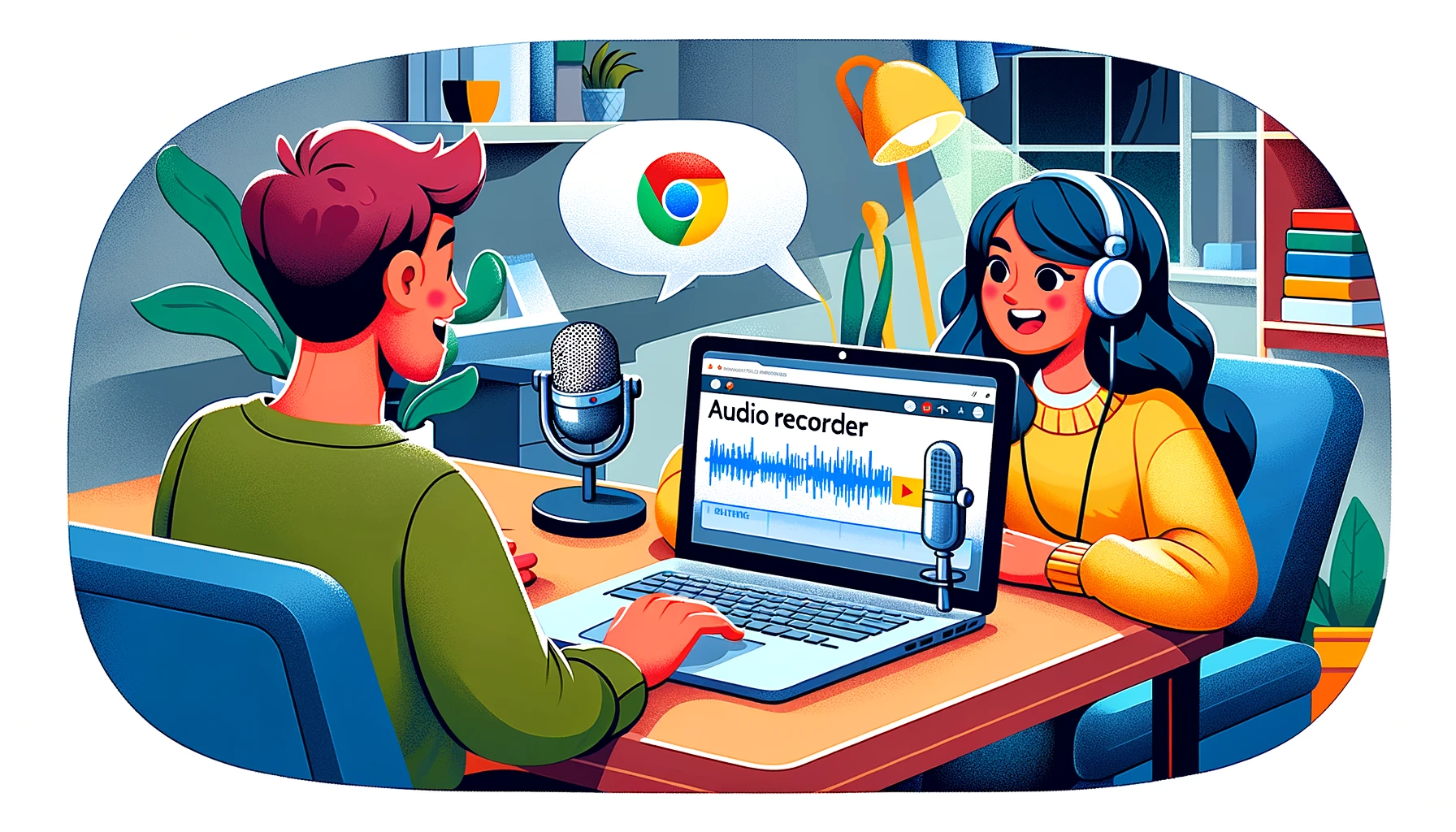
The ScreenApp extension records sound playing on your computer directly in Chrome: a specific browser tab, your whole system output, or your microphone, with no download beyond the extension itself. Point it at a meeting, a podcast, a lecture, or anything else playing in the browser and it saves the audio to your ScreenApp library.
The extension records the audio itself, tab, system output, or microphone, straight to your library. Once a recording is there you can play it back, or send it through transcript and caption translation and transcription instead of listening to the whole thing again.
What you get:
- Recording from screen, window, browser tab, microphone and camera, with system audio
- A transcript with timestamps, in 100+ languages
- AI notes and the ability to ask questions about the recording
- Export the transcript as PDF, Word, SRT or VTT
- Free plan: 2 transcriptions of recordings up to 45 minutes each, with AI chat
How to Record System Audio in Chrome
- Add the extension: Install ScreenApp from the Chrome Web Store, then pin it to your toolbar.
- Choose a source: Pick the tab you want, your system audio, or your microphone, or combine sources.
- Record, then stop: Start the capture, and stop it when you are done. The file saves to your ScreenApp library, where the transcript and AI notes are ready a few minutes later.
Some streaming services use DRM protection that blocks tab capture; most meetings, lectures, podcasts and unprotected video play through cleanly. Recording quality depends on the source audio: a clear tab or a close microphone transcribes better than a noisy one. See how we measure accuracy.
Online Audio Recorder vs Other Apps
| Feature | ScreenApp | Audacity | Audio Recorder Online (Chrome extension) | Apowersoft |
|---|---|---|---|---|
| Free recording limit | 2 transcriptions, up to 45 min each | Free, no limit stated | Unlimited, as stated on the listing | 30 min online, then the app |
| Paid plan | $19/month annual | Free, open source | Free | Not stated |
Sources, checked 2026-09-17: ScreenApp pricing, apowersoft.com/free-audio-recorder-online
- vs Audacity: Audacity is free and open source but is a download, not a browser tool, and has no built-in transcript. ScreenApp records in the browser and adds a transcript and AI notes to what it captures.
- vs Audio Recorder Online: This Chrome extension records tab and microphone audio for free with no transcript. ScreenApp adds a transcript in 100+ languages and AI notes on top of the recording.
- vs Apowersoft: Apowersoft’s online recorder pushes you to its desktop app after 30 minutes. ScreenApp’s free plan covers 2 transcriptions of recordings up to 45 minutes each with the transcript included.
Who Uses an Online Audio Recorder
Professionals capture a video call for reference instead of trying to type notes during it. Afterward they read the transcript, with speaker labels and timestamps, rather than replaying the meeting.
Students record a lecture streamed in a browser tab and get a transcript to study from instead of scrubbing back through the recording.
Content creators pull audio from a browser source for a podcast or video, then use the transcript to find a quote or clip without listening through the whole file.
Researchers record an online interview and get a transcript to work from during analysis, rather than transcribing by hand.
Musicians and producers capture a streamed session or reference track playing in a tab for their own production use.