How to Record a Teams Meeting, Then Find and Download It


On this page
To record a Teams meeting, select More actions, then Record, choose the spoken language, then Confirm. You need a work or school license that includes recording, and everyone in the meeting is notified when recording starts, so there’s no way to do it quietly.
Starting the recording is the easy part. What trips people up comes after: the file lands in the organizer’s OneDrive, only the meeting organizer can download it, and by default it expires after 120 days. This guide covers all of it, plus what to do when the record button is grayed out.
How to Record a Teams Meeting
In the Teams desktop app:
- Join the meeting as someone from the organizer’s company (more on why that matters below).
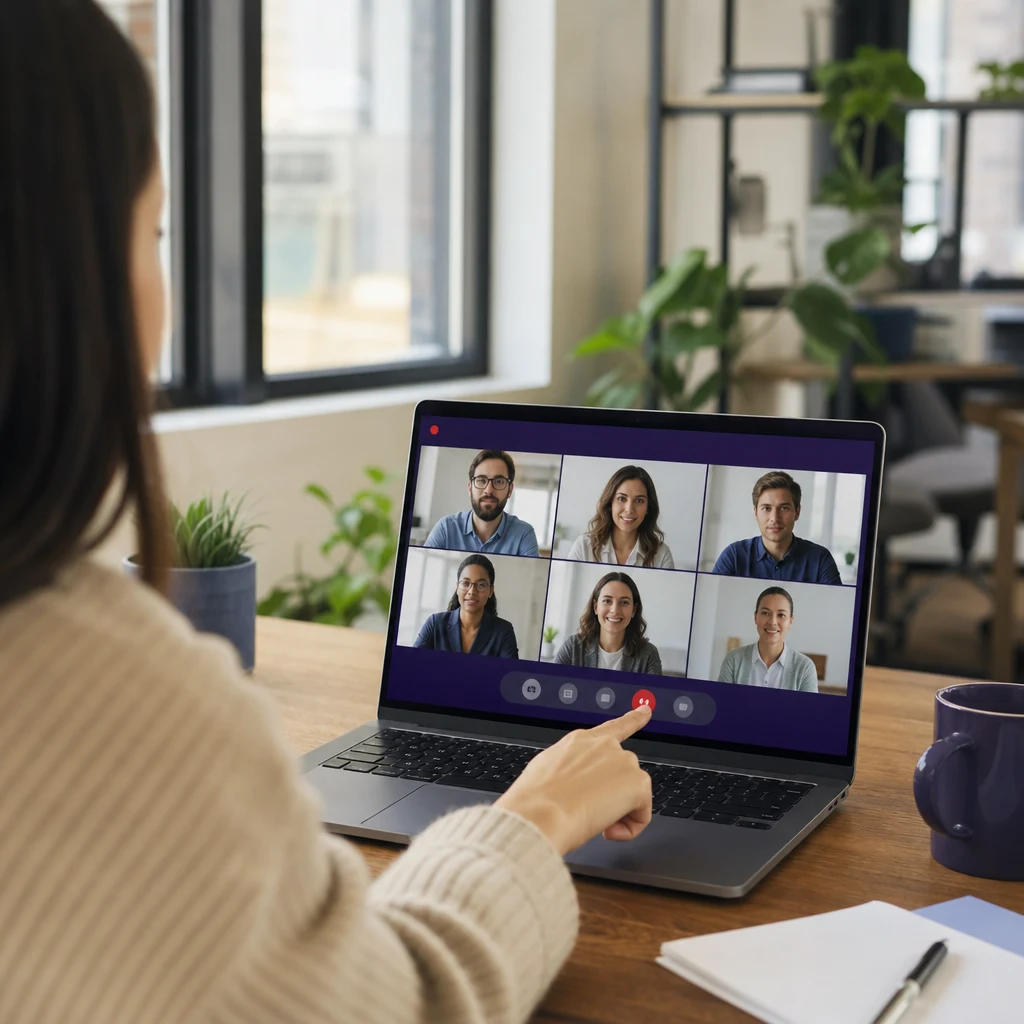
- Open the recording menu. In the meeting controls, select More actions, then Record. The button is labelled Record and transcribe in newer versions.
- Confirm. Choose the language people are speaking and select Confirm. A banner tells everyone the meeting is now being recorded.
- Stop when you’re done. Select More actions, then Recording, and choose to stop the recording. Or just end the meeting, which stops it too.
Teams saves the recording automatically. You don’t pick a location, and the file shows up in the meeting chat a little after the meeting ends.
One thing worth knowing before you hit record: a transcript isn’t automatic. If you want the words as text too, turn on transcription from the same menu. We cover transcripts separately in our guide to getting a transcript of a Microsoft Teams meeting.
How to record a Teams meeting on your phone
In the Teams mobile app, tap More options, then Start recording. To stop, tap More options again, then Stop recording. The same rules about licenses and who can record apply on iPhone and Android. Your phone isn’t a way around them.
How to record a Teams call
One-to-one and group calls use the same More actions, then Record steps as meetings. The difference is the policy behind them: your admin controls call recording separately from meeting recording, so it’s possible to be allowed one and not the other. If the button is grayed out in a call but works in meetings, that’s why.
How to record a Teams meeting automatically
If you organize a meeting you always want recorded, set it up once instead of remembering every time. Open the meeting in your Teams calendar and go to Meeting options, then Recording & transcription, then Record and transcribe automatically. Turn it on before the meeting starts, and the recording starts with the meeting, so nobody has to remember the button.
What a Teams recording doesn’t capture
A Teams recording isn’t a full screen capture. It won’t include more than four people's video at once, whiteboards and annotations, shared notes, content shared by an app, or videos embedded in PowerPoint Live. Long meetings are also split: if people forget to leave, the recording ends and restarts every 4 hours. If you need any of those on the record, a screen recorder is the better tool.
Who Can Record a Teams Meeting?
Three things have to line up: the right license, the right account, and the right meeting settings.
The license. The person recording needs Office 365 Enterprise E1, E3, E5, F3, A1, A3 or A5, or Microsoft 365 Business, Business Premium or Business Essentials, and their IT admin has to allow recording. The organizer needs cloud recording switched on too, though they don’t have to be in the meeting.
The account. You have to belong to the organizer’s company. In Teams, guests, people from another organization and anonymous users can’t start a recording. So if a client invites you to their Teams meeting, you’re a guest there, and the record button won’t work for you even if it works fine in your own company’s meetings.
The meeting settings. By default, people in the organizer’s company can record. But organizers with Teams Premium or a Copilot license can limit recording to organizers and co-organizers, add presenters, or turn it off for everyone. A lot of “why can’t I record?” questions end here.
Recording as a participant, not the host, is fine as long as all three line up. You don’t need to be the organizer.
Can you record in Microsoft Teams Free?
Yes, but not on the free plan alone. Recording in the personal version of Teams is for Microsoft 365 Personal, Family or Premium subscribers. Those recordings work differently from work accounts: they stay in the meeting chat for 30 days and then disappear, so download anything you want to keep.
Why can’t I record a Teams meeting?
Hover over the grayed-out record button first. Teams shows a short reason, and it maps to one of these. They’re taken from Microsoft’s recording troubleshooting page.
"Only people in this org can start recording"
You're a guest, from another company, or not signed in. Sign in with an account from the organizer's company, or ask someone there to record and share the file with you.
"Unavailable due to organization policy"
Your admin has turned recording off for meetings, or for calls if you're in a call. Only an admin can change it, and a newly changed policy can take a while to reach you.
The organizer limited who can record
The meeting options are set to organizers and co-organizers only, or to no one. Ask the organizer to include presenters or make you a co-organizer.
You're an attendee, not a presenter
If only presenters can record, ask the organizer to make you a presenter.
Copilot is turned off for the meeting
This one surprises people. When the organizer sets Allow Copilot to off in the meeting options, recording and transcription switch off with it. Ask them to turn Copilot back on.
Where Do Teams Recordings Go?
Teams saves every recording to the organizer's OneDrive, in a Recordings folder, or the channel's SharePoint site for channel meetings. Nobody else’s OneDrive gets a copy, even the person who pressed record if they weren’t the organizer.
To find a recording, you rarely need to dig through OneDrive. It’s in the Shared tab of the meeting chat, or Recap on the meeting in your Teams calendar. Channel meeting recordings also appear in the channel’s Files tab. And everyone invited can watch it, while guests and external attendees need a direct link from the organizer.
| Meeting type | Where the file lives | Fastest way to it |
|---|---|---|
| Scheduled or ad hoc meeting | Recordings folder in the organizer's OneDrive | Meeting chat, Shared tab |
| Channel meeting | The channel's SharePoint site | Channel, Files tab |
| Any meeting you attended | Same as above | Teams calendar, open the meeting, Recap |
| Teams Free (personal) | The meeting chat only, for 30 days | Meeting chat |
Sources, checked 2026-11-15: Microsoft Teams Free recording help
If the recording isn’t there yet, give it a few minutes. It has to upload first. If the upload fails, Teams keeps it in temporary storage, and it has to be downloaded within 21 days or it’s gone.
How to Download a Teams Recording
To download a Teams meeting recording, open the Shared tab, select the recording, then More options, then Download. You’ll get an .mp4 file.
The catch: only the meeting organizer can do this. Everyone else who was invited can watch the recording in Teams, but the Download option won’t be there for them. If you need a copy and you’re not the organizer, ask them to download it for you or share the file with you from their OneDrive. Some companies also block downloads on purpose, and your admin can confirm whether that’s the case.
How to share a Teams recording with external users
People outside your company can’t see the recording in the meeting chat. The organizer has to send them a direct link: on the Shared tab, select the recording, then More options, then Copy link, and paste that link in an email. If your company restricts external sharing, the link won’t open for them, and that’s a policy question for IT.
How Long Does Teams Keep Recordings?
Not forever. Teams meeting recordings expire after 120 days by default (30 days at most for A1 education licenses), and your admin can set a different period (Microsoft documents this in its recording expiration policy). When a recording expires it moves to the recycle bin, where work and school accounts keep it for 93 days before it’s deleted for good.
If you’re the organizer, you can change the expiry date on your own recordings. For anything you’ll need later, a training session or a client call you might quote, download it and store it somewhere you control. That’s the habit I’d recommend more than any setting.
Can You Record a Teams Meeting Without Others Knowing?
No. When anyone starts a recording, everyone in the meeting is notified when recording starts, and there’s no setting to hide it. Some companies go further: admins can require participants to agree before they're recorded or transcribed, so nobody is recorded until they click to agree.
That also answers “are Teams calls recorded?” Only if someone starts a recording, or if your employer uses compliance recording, where organizations can record calls and meetings automatically with a third-party compliance recording tool. It’s mostly used in regulated work such as banking and support lines, and your company should tell you about it.
People do search for ways to record secretly, usually with a phone or a screen recorder. Don’t. Depending on where you and the other people are, recording a conversation without consent can be illegal, and it’s a quick way to lose a client’s trust even where it isn’t. Our guide to ethical meeting recording covers how to ask, and what to say when someone says no.
What to Do When You Can’t Use the Teams Record Button
Sometimes the built-in recorder isn’t an option. You’re a guest in a client’s meeting, your license doesn’t include recording, or your admin switched it off. You still have two honest routes, as long as everyone knows they’re being recorded:

| Teams record button | A notetaker that joins the call | A screen recorder | |
|---|---|---|---|
| Works as a guest | No | Usually, if the meeting allows outside participants and the host admits it | Yes |
| Others can see it | Yes, a banner | Yes, it's listed as a participant | No, so tell them yourself |
| Who keeps the file | The organizer | You | You |
| Transcript and notes | Transcript if someone turns it on | Transcript and AI notes after the call | Only if you transcribe the file afterwards |
A notetaker is the cleaner of the two. ScreenApp has a meeting bot for Zoom, Google Meet and Microsoft Teams: connect your Google Calendar and Microsoft Outlook calendars, and a participant called <your name>'s Notetaker joins your Teams meetings, records them, and gives you a transcript with speaker labels and action items with an owner and deadline, and decisions listed separately. Because it shows up in the participant list, nobody is recorded without seeing it. It won’t work for meetings that need a sign-in, enterprise SSO or a password, and waiting rooms that require authentication, so for locked-down enterprise meetings, ask the organizer to record instead.
If a visible bot isn’t welcome, record your own screen and audio with a screen recorder after telling everyone, then upload the file to get a transcript. Our guide on meeting notes without bots compares the bot-free options. The same approach works on other platforms too, as in our guide to recording a Zoom meeting.
FAQ
Can you record a Teams meeting?
Yes, if your work or school license includes recording, your admin allows it, and you belong to the organizer's company. Select More actions, then Record, then Confirm.
Are Teams calls recorded automatically?
No. A call or meeting is only recorded if someone starts a recording, the organizer turned on automatic recording, or your employer uses compliance recording. In each case Teams tells participants.
Can a guest record a Teams meeting?
No. In Teams, guests, people from another organization and anonymous users can't start a recording. As a guest, ask the organizer to record and share it, or use a notetaker the host agrees to admit.
Where are Teams meeting recordings stored?
In the organizer's OneDrive, in a Recordings folder, or the channel's SharePoint site for channel meetings. The quickest way to open one is from the meeting chat or the meeting's Recap in your Teams calendar.
How do I download a Teams recording if I'm not the organizer?
You can't directly: only the meeting organizer has the download option. Ask the organizer to download it for you or to share the file from their OneDrive.
How long are Teams recordings kept?
120 days by default, unless your admin set a different period or the organizer changed the expiry date. Expired recordings go to the recycle bin first.
Can I record a Teams meeting on my phone?
Yes. In the Teams mobile app, tap More options, then Start recording. The same license and permission rules apply.
Is there a time limit on Teams recordings?
There's no fixed limit on length, but if people forget to leave, the recording stops and restarts every 4 hours, so a very long meeting ends up as several files.