Best Game Recording App for Android 2026: 10 Options, Settings, and Lag Fixes

On this page
Most people who search for a game recorder on Android do not need a new app. They need to know why their last recording had no game sound, or why the game dropped to 20 fps the moment they hit record. This guide covers the five realistic options, which one to start with, and the settings that decide whether your clip is smooth.
Quick Picks
- Built-in screen recorder. Start here. No install, lowest overhead on most phones, and Android 10 and later can capture game audio. Free.
- XRecorder. Best third-party pick if your phone has no good built-in recorder. Higher frame rate options, no recording time limit. Free with ads.
- AZ Screen Recorder. Best for facecam and quick edits after the match. Free with optional upgrade.
- Samsung Game Tools or Xiaomi Game Turbo. Best on those brands. The recorder sits inside the game overlay and ties into performance modes.
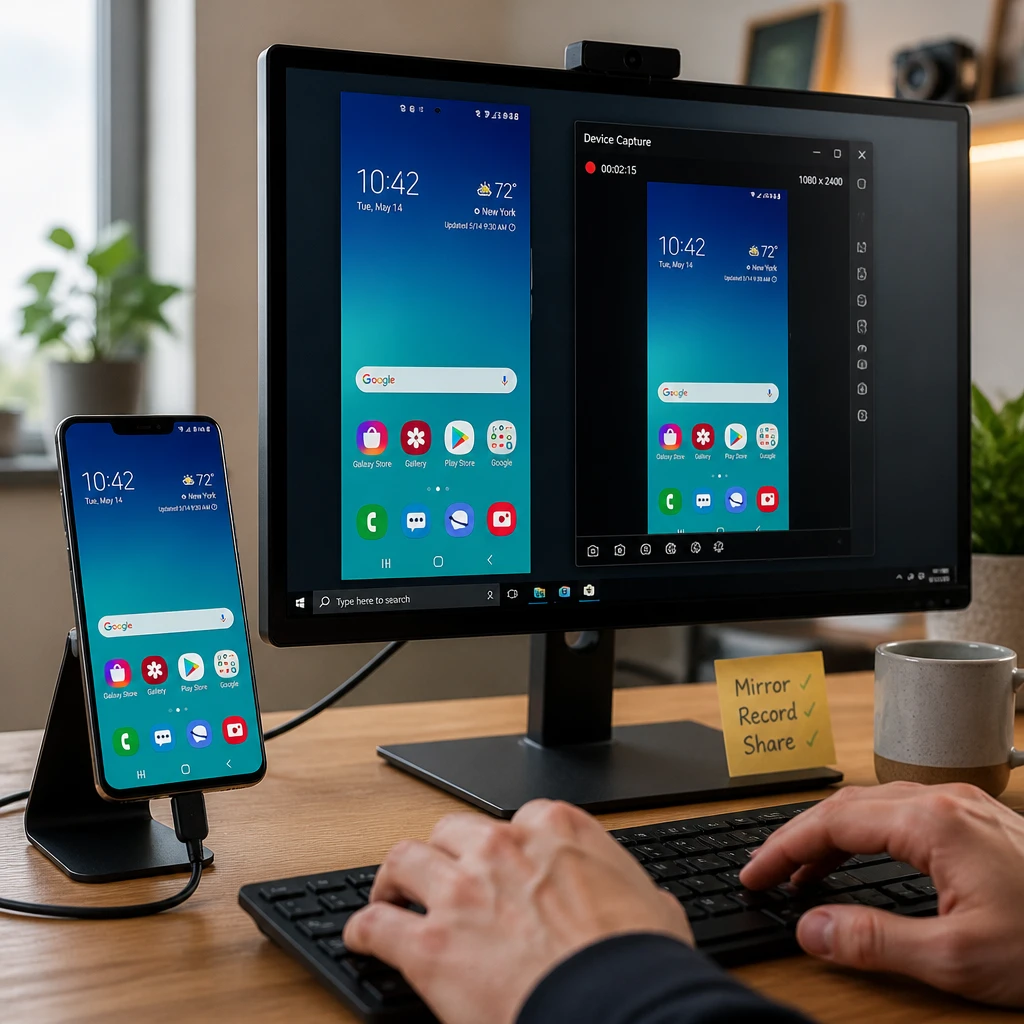
- scrcpy with OBS Studio. Best when you want PC-grade capture. Free, but setup takes real time.
Game Recording Apps Compared
Install counts and update dates below were read from each app’s Google Play listing on 2 November 2026, not from a comparison site. Three apps that still appear in current roundups are not on Play at all, which is covered after the list.
| Option | Works on | Cost | Pick it when |
|---|---|---|---|
| Built-in recorder | Any Android 10+ | Free | Lowest overhead, no install |
| XRecorder | Android | Free with ads | When the built-in one will not do audio |
| AZ Recorder | Android | Free with ads | Facecam over gameplay |
| Mobizen | Android | Free, watermark unclear | Trimming in the same app |
| ADV Screen Recorder | Android | Free | A fallback engine when others fail |
| Screen Recorder Video Recorder | Android | Free | Older or low-memory phones |
| Google Play Games | Android | Free | A quick share, 720p ceiling |
| Samsung Game Booster | Samsung | Free | Any Samsung phone |
| Xiaomi Game Turbo | Xiaomi | Free | Xiaomi, Redmi, POCO |
| scrcpy and OBS | PC + phone | Free | Long sessions without throttling |
The 10 Options, Ranked
1. Your phone's built-in recorder
Start here, because it costs nothing and taxes the GPU least
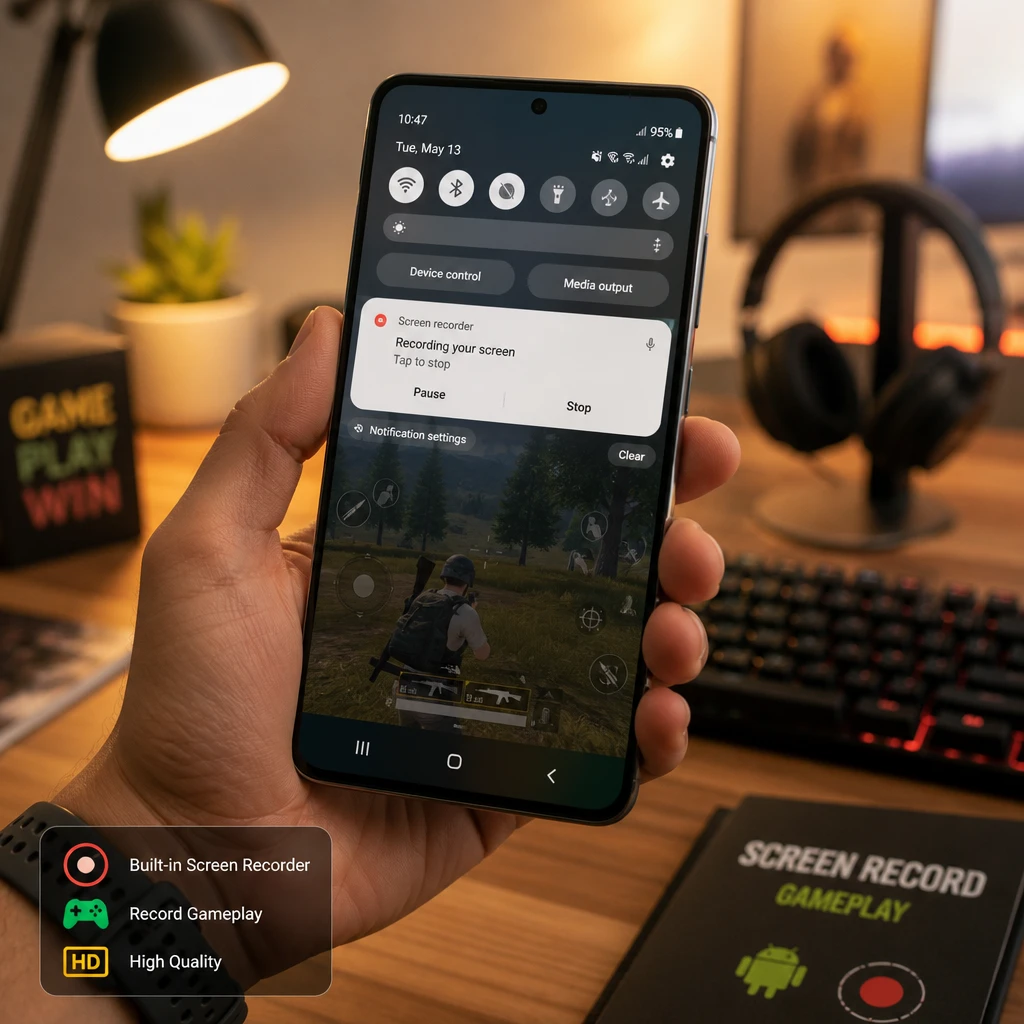
Your phone's built-in recorder lives in the Quick Settings tile on Android 11 and later, and on most Samsung, OnePlus and Xiaomi builds from Android 9. It records internal audio, which is the part people assume they need an app for.
The reason to start here is overhead. A separate recorder app is another process competing with the game for CPU and memory. The system recorder is already in the OS, so it is the lightest option you have. Try it before you install anything, because for a lot of phones it is the end of the search.
Pros
- • No install, nothing to update, no ads
- • Lowest performance cost of any option here
- • Internal game audio on Android 10 and later
- • No watermark and no time limit
Cons
- • Controls vary by manufacturer
- • Older builds may lack it entirely
- • Few settings to tune
Best For
Almost everyone. Rule it out before paying for or installing anything else.
2. Screen Recorder - XRecorder
The default third-party pick, and the biggest install base
Screen Recorder - XRecorder is published by InShot and sits at over 100 million installs, updated most recently on 28 October 2026. That maintenance record matters more than any feature list in a category where apps get abandoned quietly.
It is the one to try when the built-in recorder is missing or will not capture internal audio on your device. Frame rate and bitrate are adjustable, which the system recorder usually does not expose.
Pros
- • Actively maintained, updated October 2026
- • Exposes frame rate and bitrate settings
- • Huge install base, so bugs surface fast
- • No recording time limit
Cons
- • Ads unless you pay
- • Another process competing with the game
- • Free-tier terms change
Best For
Phones where the built-in recorder is absent or will not capture game audio.
3. Screen Recorder - AZ Recorder
The long-running alternative, same scale, same upkeep
Screen Recorder - AZ Recorder also clears 100 million installs and was updated on 29 October 2026, a day after XRecorder. The two are close enough that the honest advice is to try whichever you land on first and switch only if something specific annoys you.
Its facecam overlay is the usual reason people pick it over XRecorder. Roundups disagree on whether 1440p sits behind the paid tier, so check the listing rather than trusting a comparison table, including this one.
Pros
- • Updated October 2026, actively maintained
- • Facecam overlay built in
- • Internal audio support
- • Long track record on Android
Cons
- • Sources conflict on which resolutions are paid
- • Ads on the free tier
- • Overlaps heavily with XRecorder
Best For
Anyone who wants a facecam over gameplay without editing it in afterwards.
4. Mobizen Screen Recorder
Big install base, but check the watermark terms yourself
Mobizen Screen Recorder clears 100 million installs and includes a built-in editor, which saves a round trip to a separate app for simple trims.
One honest caveat. Its last update on the listing is 1 July 2026, months behind XRecorder and AZ, and the roundups flatly contradict each other on whether the free tier watermarks your exports. I could not settle it from the listing, so treat the watermark question as something to verify on your own device before you record anything you care about.
Pros
- • Built-in editor for quick trims
- • Very large install base
- • Facecam and drawing tools
Cons
- • Last updated July 2026, behind its rivals
- • Watermark terms are genuinely unclear
- • More features than a game capture needs
Best For
People who want to trim and share from one app, and who will test the watermark behaviour first.
5. ADV Screen Recorder
Two engines, which is the point of it
ADV Screen Recorder ships two capture engines and lets you switch between them. That sounds like a gimmick until one of them fails on your specific phone, which in this category happens often enough to be worth having a fallback.
It sits at 10 million installs, updated 22 October 2026. Smaller than the big three, actively maintained, and the dual engine makes it a sensible second thing to try when a recorder produces a black screen or silent audio on your device.
Pros
- • Two capture engines, so you have a fallback
- • Actively maintained, updated October 2026
- • Banner and text overlays supported
Cons
- • Smaller install base than the big three
- • Interface is dated
- • Fewer guides when something breaks
Best For
Phones where another recorder produces a black screen or no audio.
6. Screen Recorder Video Recorder
The lightweight option when the others stutter
Screen Recorder Video Recorder is the one worth trying on an older or lower-memory phone, where the heavier recorders add enough overhead to cost you frames. It sits at 10 million installs and was updated on 14 October 2026.
There is less to it than Mobizen or AZ, and on a mid-range phone running a demanding game that is the feature.
Pros
- • Lighter than the big recorders
- • Actively maintained
- • Straightforward, few menus
Cons
- • Fewer features than its rivals
- • Generic name makes it hard to find
- • Less documentation
Best For
Older or low-memory phones where the bigger apps cost frames.
7. Google Play Games
First-party, and capped low enough to matter
Google Play Games has its own gameplay recorder. Open the app, pick a game, tap Record Gameplay, and a floating bubble holds the controls. The file lands in your gallery with a prompt to edit or upload to YouTube.
The catch is resolution. Multiple sources put the capture options at 480p or 720p, and the Play listing notes the feature is only available in some countries. That is fine for sending a clip to a friend and not enough for a channel. Worth knowing it exists before you install anything, since it is already on the phone.
Pros
- • Already installed on most Android phones
- • First-party, no ads, no watermark
- • Upload to YouTube built into the flow
Cons
- • Capped around 720p
- • Not available in every country
- • Only works from the Play Games app
Best For
A quick share when quality does not matter and you want zero setup.
8. Samsung Game Booster
Built into One UI, and it knows it is a game
Samsung Game Booster appears in the Game Launcher on Samsung phones and records from the in-game toolbar. Because it is part of One UI rather than a separate app, it avoids the overhead of a third-party recorder entirely.
It also does the thing a generic recorder cannot: it knows a game is running, so it can block notifications and calls mid-session. That is worth more to a recording than most capture settings.
Pros
- • No extra process competing with the game
- • Blocks notifications and calls while recording
- • Performance controls in the same panel
Cons
- • Samsung phones only
- • Fewer capture settings than a dedicated app
Best For
Any Samsung owner. Check Game Launcher before installing a recorder.
9. Xiaomi Game Turbo
The same idea on Xiaomi, HyperOS and MIUI
Xiaomi Game Turbo is Xiaomi's equivalent, reachable from the sidebar you swipe in during a game. It records, blocks interruptions, and lets you lock brightness so the screen does not dim halfway through a session.
Same reasoning as Samsung's: it is already there and it does not add a process.
Pros
- • No third-party app needed
- • Interruption blocking and brightness lock
- • Reachable mid-game from the sidebar
Cons
- • Xiaomi, Redmi and POCO only
- • Settings move between MIUI and HyperOS versions
Best For
Xiaomi, Redmi and POCO owners. Swipe the sidebar before installing anything.
10. scrcpy and OBS Studio
Moves the encoding off the phone entirely
scrcpy and OBS Studio mirrors your phone to a computer over USB, and you capture that window in OBS Studio. There is no OBS on Android, which is the thing most people searching for it do not realise.
The phone only has to run the game. Encoding happens on the PC, which is why this is the option for long ranked sessions where a phone-side recorder would thermal throttle. Setup is genuinely tedious: developer options, USB debugging, and a driver on Windows. Budget half an hour the first time. If you are weighing OBS against the simpler desktop capture tools once the phone is mirrored, we put them side by side in Bandicam vs OBS.
Pros
- • Zero encoding load on the phone
- • No thermal throttling on long sessions
- • Free and open source
- • Full OBS scene and overlay control
Cons
- • Needs a computer and a USB cable
- • Setup takes real time the first run
- • Not portable
Best For
Long sessions, tournaments, and anyone already streaming from a PC.
Apps That Are Not On Play
Three names that show up in current “best Android game recorder” lists do not return a Play Store listing. I checked each by package ID on 2 November 2026.
DU Recorder is the notable one. Both known package IDs, com.duapps.recorder and com.screen.recorder, return 404. Review sites say it was pulled in the 2019 DU Group ad-fraud removals, but the contemporaneous reporting from Gizmodo, Engadget and PhoneArena names six other apps and never DU Recorder, so treat the reason as undocumented. What is checkable is that you cannot install it from Play today. Vidma and Omlet Arcade also returned nothing under the IDs I tested.
That matters because sideloading a recorder means granting screen capture and storage permissions to an APK with no store review behind it. For a free screen recorder with a dozen live alternatives, that is a bad trade.
Settings That Stop the Lag
Most “this app lags” complaints are setting problems. The same four settings decide quality on desktop too, which is why they show up again in our roundup of AI screen recorders.
- Resolution: 1080p is plenty. Recording at the phone’s native 1440p or higher mostly makes bigger files.
- Frame rate: Match the game. If it runs at 30 fps, recording at 60 only wastes space. If the game hits 60, record at 60.
- Bitrate: 10 to 16 Mbps is a sensible range for 1080p60. Going higher rarely shows on a phone screen.
- Audio: Device audio for gameplay. Add the microphone only if you are narrating.
- Storage: A 10-minute 1080p60 clip at 12 Mbps comes to roughly 900 MB. Check free space first, because a recorder that runs out of storage stops without much warning.
- Heat: Phones throttle when hot, and recording adds load. Take the case off, and do not record while charging fast.
After the Recording
A raw gameplay file is only useful if you can find the part you want. If you narrate runs, coach a teammate, or review scrims, the clip is really a spoken record. Upload it to ScreenApp to get a searchable transcript, then use the AI summarizer to pull out what was said without scrubbing through a 40-minute file. It works in the browser, so there is nothing to install on the phone.
Transparency note: We built ScreenApp. It is not a game recorder, and we have not listed it among the recorders above for that reason. It is here for the step after you hit stop.
For recorders on other platforms, see our screen recorder roundup.
FAQ
What is the best app for recording games on Android?
Start with your phone's built-in recorder, since it adds the least load. If it lacks the frame rate or audio options you need, XRecorder and AZ Screen Recorder are the two most used third-party apps.
How do I record a game on Android with sound?
Open the screen recorder in Quick Settings, open its settings, and set the audio source to device audio. This needs Android 10 or later, and on some phones Android 11. Microphone-only mode picks up room noise instead of the game.
Why is my game recording laggy?
Recording and gaming compete for the same chip. Lower the recording to 1080p and match the game's frame rate. Use the built-in recorder instead of an app with an overlay, and let the phone cool down between sessions.
Is there a game recorder with no watermark?
XRecorder lists no watermark and no time limit. AZ Screen Recorder and the built-in recorders on most brands also add none. Check the free version of any app on a short clip first.
Can I use OBS Studio on an Android phone?
No. OBS runs on Windows, macOS and Linux. To use it for mobile games, mirror the phone to your computer with scrcpy and capture that window.
Do I need root to record games on Android?
No. Every option above works without root on current Android versions.