Best 4K Video Downloader Alternatives in 2026: Desktop and Online Options

On this page
You want to save a 4K YouTube video, grab a TikTok clip, or pull an MP3 from a URL. What you do not want is to install a desktop program, grant it permissions, and keep it updated just to download one file. “Save this video” is one of the most common jobs on the internet, and it should not require a setup wizard.
Desktop tools like 4K Video Downloader Plus and ClipGrab are capable, but they come with the baggage of being desktop tools: hard drive space, constant update prompts, installers that can include optional offers, and free tiers that cap what you can download. On a locked-down work laptop, a school Chromebook, or an iPhone, they are not even an option.
A browser-based tool is the other route. ScreenApp’s video downloader runs in a tab: paste a link and ScreenApp imports the video on its servers, transcribes it, and lets you download the MP4 on a paid plan. It picks a widely compatible MP4 rather than the highest resolution, so for true 4K files a desktop tool is still the better fit. This guide compares the tools people actually use, desktop and online, and says where each one wins.
Only download videos you own or have permission to use, and follow each platform’s terms. YouTube’s terms, for example, don’t allow downloading unless YouTube expressly authorises it or you have permission (YouTube Terms of Service). YouTube Premium has an official offline download feature (YouTube Premium downloads).
Vendor information last verified: 18 September 2026.
Quick picks
- ScreenApp. Our pick if you want the video’s transcript and summary as well as the file, because it runs in a browser with nothing to install. File downloads need a paid plan (Paid plans only).
- 4K Video Downloader Plus. Our pick for desktop, because it downloads whole playlists and channels in one click and goes up to 8K (4K Download product page). The free Starter plan has quantity limits.
- yt-dlp. Our pick for power users, because it is free, open source and supports thousands of sites (yt-dlp README), if you are comfortable in a terminal.
These picks are editorial judgement based on each vendor’s published features and prices, not hands-on tests.
Why You Need a Browser-Based Video Downloader in 2026
The case for downloading in a browser is not convenience alone. It changes what can go wrong.
Zero installer risk
Every desktop installer is a trust decision: bundled offers, browser toolbars, and fake mirror sites distributing lookalike installers. A web tool never touches your file system beyond the download you asked for.
No operating system limits
It works the same in Chrome, Safari, or Edge on Windows, macOS, iOS, and Android. There is no "sorry, desktop only" moment when you are on your phone, and no macOS Gatekeeper warning about an unverified developer.
Cloud processing
Fetching and converting a 4K stream is heavy work. A cloud downloader does it on its own servers, so your laptop's battery and CPU stay out of it, and an old machine downloads exactly as fast as a new one.
Top 8 Video Downloaders Compared (Desktop vs. Online)
All eight of these work. The differences are where they run, what they cost you in setup and upkeep, and who they are actually for.
| Tool | Best for | Platform | Install? | 4K / MP3 |
|---|---|---|---|---|
| ScreenApp | Most people, plus AI features | Web (cloud) | No | MP4 / MP3 (paid plans) |
| 4K Video Downloader+ | Desktop power users, playlists | Win / Mac / Linux, Android | Yes | 8K / Yes |
| yt-dlp | Developers and power users | Command line | Yes | 4K / Yes |
| ClipGrab | Desktop beginners | Win / Mac / Linux | Yes | Limited |
| JDownloader 2 | Large batch downloads | Win / Mac / Linux (Java) | Yes | Varies |
| Stacher | yt-dlp power, no terminal | Win / Mac / Linux | Yes | 4K / Yes |
| SnapDownloader | Paid desktop, up to 8K | Win / Mac | Yes | 8K / Yes |
| VideoProc Converter AI | Download + convert + edit | Win / Mac | Yes | 8K / Yes |
ScreenApp - Best Online Downloader
Cloud downloader with AI transcription, nothing to install
ScreenApp's video downloader runs in the browser and imports YouTube, Vimeo, TikTok, Instagram, Facebook and most other public video links (Twitch, Loom, Dropbox, Google Drive, Pinterest, X, Threads, Douyin, Kuaishou, Bilibili) through a generic importer. It picks a widely compatible H.264 MP4 rather than the highest resolution on offer, so it is not the tool for true 4K files. It can also save the audio as an MP3. Importing and transcribing needs a free account; downloading the file needs a paid plan (download limits).
Transparency note: This comparison is published by ScreenApp. We put our tool first because it is the only browser-based option here and adds transcripts and AI summaries. That is editorial judgement, not a test result. If you need 4K files or playlist and channel batch downloads, 4K Video Downloader Plus or yt-dlp are the better fit.
Pros
- • Nothing to install, works on phones and locked-down computers
- • Cloud processing spares your CPU and battery
- • MP4 video or MP3 audio from the same link
- • Built-in AI transcription, summaries, and chat after the download
- • No watermark on exports (no watermark on any recording or export)
Cons
- • One URL at a time, no playlist or channel batch downloads
- • Needs an internet connection, no offline queue
- • File downloads need a paid plan, and the free plan covers 2 transcriptions of recordings up to 45 minutes each
Best For
Anyone who wants to paste a link and get a file on any device, plus students and professionals who need the video turned into transcripts, notes, or summaries afterward.
4K Video Downloader Plus
The best desktop app, built for playlists and channels
4K Video Downloader Plus is the desktop tool this article's readers are usually trying to replace. It runs on Windows 11, macOS 12 or newer and Ubuntu 22.04 or newer, downloads "720p, 1080p, 4K UHD, and even 8K UHD", and does "one-click downloading of entire playlists and channels" (4K Download product page). Sites include YouTube, Vimeo, Facebook, TikTok, SoundCloud and Dailymotion. The free Starter plan has quantity limits the vendor does not spell out. Paid plans are Lite at $15 a year for one device, Personal at $25 lifetime, Pro at $45 lifetime and a $65 bundle; auto-downloading new uploads from subscribed channels and commercial use need Pro (4K Download pricing).
Pros
- • One-click playlist and channel downloads
- • Channel subscriptions auto-download new uploads (Pro plan)
- • Up to 8K, plus Smart Mode for saved format and quality presets
- • Also has an Android app (Android 10 or newer)
Cons
- • Requires installation and regular updates
- • Free Starter plan has quantity limits
- • Subscriptions and commercial use need the Pro plan
- • No iOS app listed on the vendor site
Best For
Desktop power users who download entire playlists, channels, or subscriptions on a schedule and do not mind paying for a license.
yt-dlp - For Power Users
The open-source command-line engine most tools build on
yt-dlp describes itself as "a feature-rich command-line audio/video downloader with support for thousands of sites" (yt-dlp README). It is released under the Unlicense, and its supported-sites list runs to more than 1,700 extractors, with a number marked as currently broken (yt-dlp supported sites). It needs ffmpeg to merge separate video and audio streams, which is how it gets 4K from YouTube (yt-dlp README). The price you pay is the interface: there is none.
Pros
- • Free and open source (Unlicense)
- • Supports thousands of sites, though some extractors are marked broken at any time
- • Scriptable for automation, playlists, and archives
- • Frequent releases (latest 2026.08.19 when checked)
Cons
- • No graphical interface, terminal only
- • Effectively unusable on phones and tablets
- • Needs ffmpeg installed to merge separate video and audio
Best For
Developers, archivists, and anyone comfortable in a terminal who wants maximum control and zero cost.
ClipGrab - Desktop Beginners
Simple free desktop downloader with built-in search
ClipGrab is "a free downloader and converter for YouTube, Vimeo, Facebook" (ClipGrab site). It runs on Windows 11, 10 and 8 (version 3.9.15), macOS 10.12 or newer (4.0.0 beta) and 64-bit Linux (ClipGrab site), and has a built-in YouTube search (ClipGrab FAQ). Its format and quality options are simpler than the rest of this list.
Pros
- • Free with a simple interface
- • Built-in YouTube search
- • Runs on Windows, Mac, and Linux
Cons
- • Mac version 4.0 is still a beta
- • Fewer format and quality options than alternatives
- • Linux build (3.9.14) trails Windows (3.9.15)
Best For
Desktop beginners who want a simple, free app for occasional downloads.
JDownloader 2 - Batch Files
Open-source download manager for large queues
JDownloader 2 is a free, open-source, Java-based download manager rather than a simple video grabber. It lets you "start, stop or pause downloads, set bandwith limitations, auto-extract archives and much more" (JDownloader site). Its support site says the main Windows installer can include optional software offers and links to an offers-free installer (JDownloader support). For a single video it is overkill; for large queues it is the most capable tool here.
Pros
- • Batch and queue management
- • Start, stop and pause downloads, auto-extract archives
- • Bandwidth limits per download
- • Open source and extensible
Cons
- • Dense interface that takes time to learn
- • Java-based
- • The main Windows installer can include optional software offers; an offers-free installer is available
Best For
Bulk downloaders managing large queues of files who value queue control over simplicity.
Stacher - yt-dlp with a GUI
The power of yt-dlp without touching a terminal
Stacher (now Stacher7) is a graphical front end for yt-dlp: the same engine and site coverage as the command-line tool, in a normal desktop interface for Windows, Mac (Intel and Apple silicon) and Linux. The base app is free with no ads, and a Premium tier is offered through Patreon (Stacher site).
Pros
- • Base app is free with no ads; Premium is offered through Patreon
- • Uses yt-dlp, so it covers the same sites
- • Playlists, queues, and format selection in a clickable UI
- • Runs on Windows, Mac, and Linux
Cons
- • Still a desktop install, with yt-dlp updates to manage
- • Advanced options still assume some yt-dlp knowledge
- • Premium price is not shown on the site
Best For
People who want yt-dlp's coverage and zero cost but closed the terminal window the moment it opened.
SnapDownloader - Paid Desktop
Commercial downloader with up to 8K support
SnapDownloader is a commercial desktop downloader for Windows 11, 10 and 8 and macOS 11 or newer. Its homepage says it covers 900+ sites and saves video up to 8K, with simultaneous and scheduled downloads and a built-in trimmer (SnapDownloader site). Pricing is $7.99 a month, $29.99 a year, $39.99 for a one-device lifetime licence or $69.99 for three devices, with a 48-hour free trial (SnapDownloader pricing).
Pros
- • Simultaneous and scheduled downloads
- • Up to 8K video
- • Built-in trimmer
- • Lifetime licence options as well as subscriptions
Cons
- • No free plan, only a 48-hour trial
- • No Linux or mobile version
- • Still a desktop install to maintain
Best For
Desktop users who want a paid 4K Video Downloader Plus replacement with scheduling and trimming.
VideoProc Converter AI
Downloader inside a full convert, compress, and edit suite
VideoProc Converter AI puts a downloader inside a full video toolbox. The vendor says it downloads up to 8K from 1000+ popular and 2000+ niche sites (VideoProc downloader page), with GPU-accelerated conversion, compression, editing and AI upscaling (VideoProc site). When checked, the site showed sale prices of $34.95 a year, $54.95 lifetime and $79.95 for a family licence; the trial limits conversions to under 5 minutes and downloads to below 1080p (VideoProc site).
Pros
- • Downloader, converter, compressor, and editor in one app
- • GPU-accelerated conversion
- • Downloads up to 8K from 1000+ popular and 2000+ niche sites (vendor figures)
- • AI upscaling at 2x, 3x or 4x
Cons
- • Paid license, with the downloader as just one module
- • Overkill if you only ever download
- • Windows and Mac need separate licences; the trial limits conversions to under 5 minutes and downloads to below 1080p
Best For
People whose downloads feed an editing or conversion workflow and who want one desktop app for the whole pipeline.
How to Convert Any Link to MP4 or MP3 (Without Software)
The online workflow is the same three moves regardless of the source platform.
- Copy the link. Open the video on YouTube, TikTok, X, Instagram, or a Discord CDN link, tap Share (or copy the address bar URL), and you have everything the tool needs.
- Paste the link. Drop the URL into the video downloader. Only want the sound? Use the YouTube to MP3 tool instead.
- Download. The video processes on ScreenApp’s servers and lands in your library with a transcript. On a paid plan you can download the MP4 or MP3 to your device.
If you mostly pull audio rather than video, our link to MP3 guide covers that side of the workflow in detail.
The Technical Truth: Bitrates, Formats, and Quality
A downloader cannot invent quality that is not in the source, and the tools that pretend otherwise are the ones to avoid.
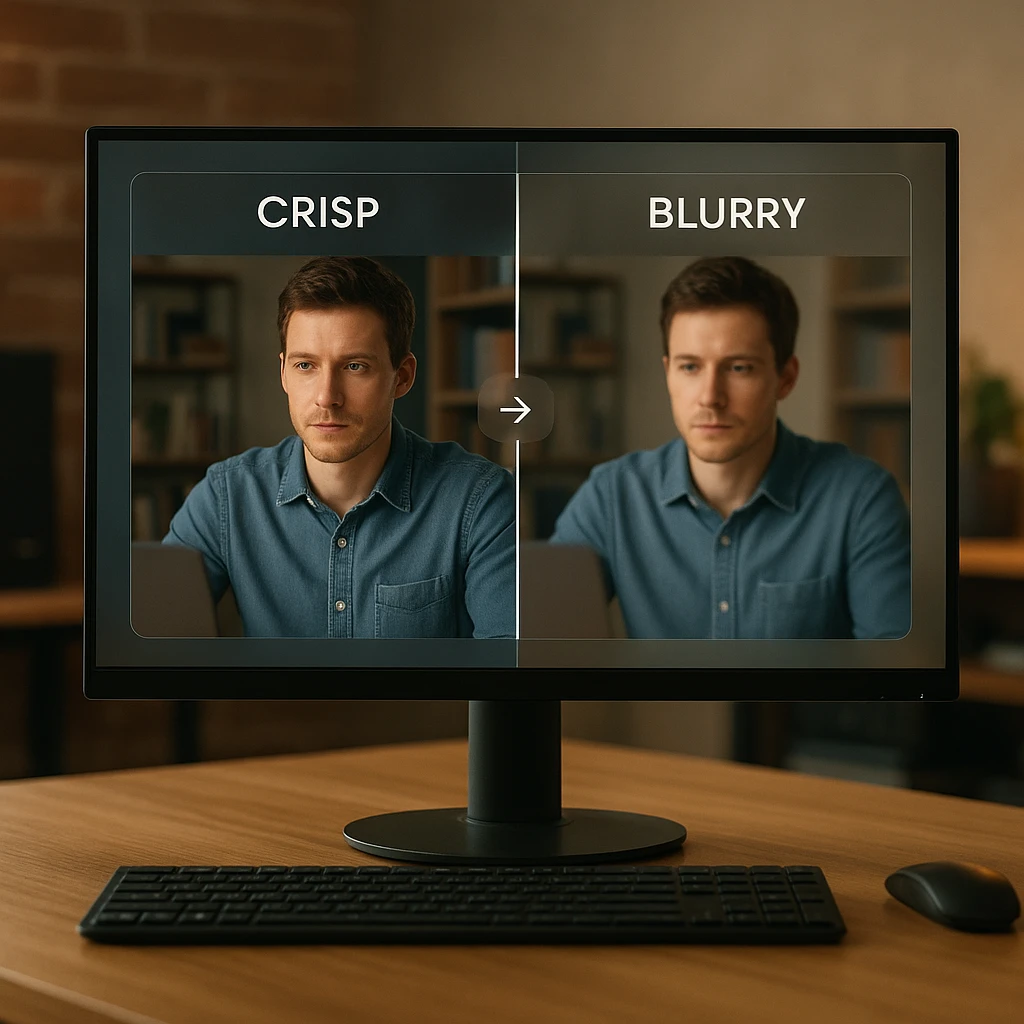
4K only exists if the uploader provided it. A downloader offering “4K” gives you 2160p only when the source video was uploaded at 2160p or higher. If the source is 1080p, every tool on this list delivers the same 1080p, whatever its marketing says.
Audio tops out at 320kbps in MP3. 320kbps is the highest bitrate the MP3 format supports, and a converter cannot add detail the source audio track never had. A tool promising “512kbps MP3” is padding the number, not the sound.
Browser extensions: record and re-compress
Many "downloader" extensions capture your playback rather than the file, then compress the recording again. That second encode is why their output looks soft and sounds muddy.
Result: generational quality loss on every download.
Stream extraction: pull the original
yt-dlp and the reputable desktop tools fetch the platform's own stream data rather than recording your screen.
Result: the exact quality the platform serves.
Beyond Downloading: Turn Your Video into AI Notes
A desktop downloader’s job ends with a large file sitting on your hard drive. ScreenApp treats the download as the starting point. Once a video is in, it can generate a timestamped transcript in 100+ languages, build an AI video summary of the whole recording, and open a chat where you ask the video questions (“where does she explain the pricing model?”) instead of scrubbing the timeline. For lectures, webinars, and tutorials, the AI note taker pulls the structure out for you, which is usually what the download was for in the first place.
Related guides
FAQ
Is it safe to download videos from a URL online?
Yes, if you pick the site carefully. Look for HTTPS, no pop-up ads or fake download buttons, and a clear privacy policy. Ad-heavy converter sites are where the risk lives, so never click a second "Download" button and never install anything a converter asks for.
How do I download a video to my iPhone?
Use a browser tool in Safari, or ScreenApp's iOS and Android apps. With ScreenApp, paste the link, then download the file on a paid plan; it saves to the iOS Files app. Desktop apps like 4K Video Downloader Plus and yt-dlp do not run on iOS. Only save videos you own or have permission to use.
Can I download a video without the watermark?
No downloader can remove a watermark that the platform burned into the picture at upload time. If the watermark is part of the video frames, it stays in every copy of that file.
What is the best alternative to 4K Video Downloader for Mac?
4K Video Downloader Plus itself runs on macOS 12 or newer (4K Download product page), so download it only from 4kdownload.com. Stacher has a native Apple silicon build (Stacher site), and yt-dlp is the command-line option (yt-dlp READM
Can I download an entire playlist online?
No, that is where desktop tools still win. ScreenApp takes one URL at a time, so for full playlists or channel archives use 4K Video Downloader Plus (4K Download product page) or yt-dlp, then bring individual videos to ScreenApp when you want transcripts or summaries.
Is 4K Video Downloader safe to use?
Download it only from the official site (4K Download product page). Lookalike download sites for popular free software are a general risk, so check the domain and read every installer screen.
Can I download 4K videos online without an app?
Yes. Some online tools claim 4K, but check what they actually deliver. ScreenApp processes the link on its servers and works on a phone, a Chromebook, or a locked-down work laptop, but it picks a compatible MP4 rather than the highest resolution, so it is not a 4K tool. For true 4K files, use a desktop tool such as 4K Video Downloader Plus or yt-dlp.
Why is my downloaded 4K video only 1080p?
Two common reasons. Either the source was never uploaded in 4K, in which case no tool can produce it, or the downloader only grabs the combined video-and-audio stream, which platforms cap at around 1080p. True 4K downloads require fetching the video and audio streams separately and merging them, which yt-dlp does when ffmpeg is installed (yt-dlp README).
How do I extract just the audio from a video link?
Paste the URL into ScreenApp's YouTube to MP3 tool instead of the video downloader. ScreenApp saves the audio as an MP3 in your library, and you can download it on a paid plan. yt-dlp can also extract audio from the command line.
What is the best free video downloader online?
There isn't a strong free option online: most free converter sites are ad-heavy, and ScreenApp's file downloads need a paid plan. For free downloads, yt-dlp (command line) is free and open source (yt-dlp README), and Stacher puts a graphical interface on top of it (Stacher site).