How to Search Inside Videos for Specific Words - The Ctrl+F Guide for 2026


On this page
You’re staring at a 2-hour Zoom recording or a long lecture, trying to find the exact moment someone mentioned “budget cuts” or “exam topics.” You scrub the timeline back and forth, wasting precious minutes that turn into hours.
Text documents are easy - just hit Ctrl+F and find what you need in seconds. But videos have traditionally been “black boxes” where data is locked inside, inaccessible to search.
In 2026, that’s changed. Video search technology now lets you index videos just like text documents. According to Statista’s video streaming research, the average person consumes over 100 minutes of video daily - making searchable video not just convenient, but essential.
In this guide, you’ll learn how to search for spoken words and on-screen text inside any video file, YouTube link, or meeting recording. No more scrubbing. No more rewatching. Just search, click, and jump to the exact moment you need.
Can You Ctrl+F a Video? How Video Search Works
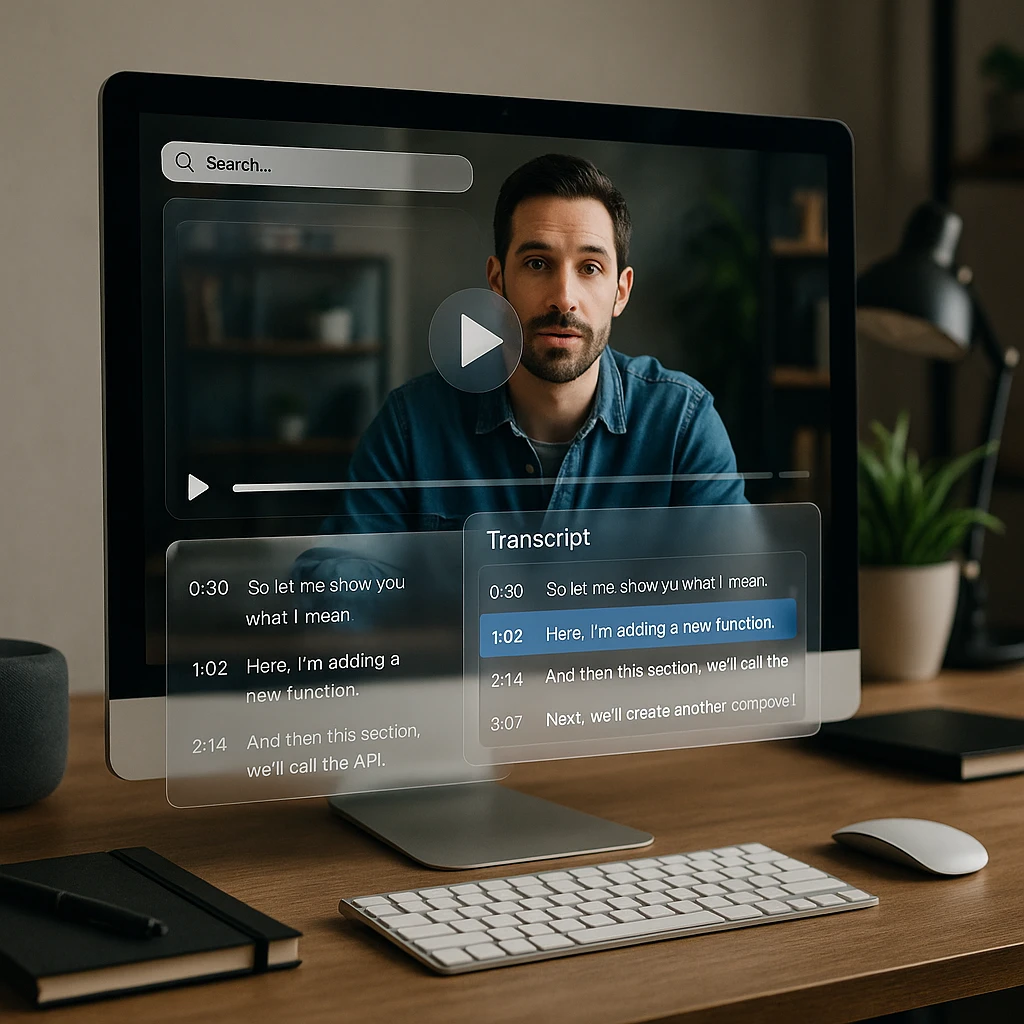
You can’t technically Ctrl+F an MP4 file directly - the raw video file contains no searchable text. But once a video is indexed, every word becomes a clickable timestamp.
The Two Layers of Video Search Technology
Audio Transcription (ASR)
Visual OCR (Text Recognition)
Optical Character Recognition (OCR) reads text that appears on screen - slides, whiteboards, captions, or any visual text. This captures information that's never spoken aloud.
The Result: Once processed, your video becomes a searchable document. Type a keyword, see every occurrence with timestamps, and click to jump directly to that moment.
Method 1: Search Any Video File (The Easiest Way)
The most versatile approach works with any video file - MP4, MOV, WEBM, or even a YouTube link. Tools like ScreenApp’s Video Search create a searchable library from your entire video collection.
Upload Your Video
Drag and drop your video file, paste a YouTube or Google Drive link, or import directly from cloud storage. Supports MP4, MOV, WEBM, AVI, and most common formats.
Auto-Indexing Begins
The system automatically transcribes all spoken audio and scans the screen for visual text. This creates a complete searchable index of your video content. Processing time depends on video length - typically 1-2 minutes per hour of content.
What gets indexed: Spoken words, on-screen text, slide content, captions, and visual elements containing text.
Type and Click to Jump
Type your keyword (e.g., "Revenue" or "deadline"). You'll see a list of every time that word was spoken or shown on screen. Click any result to jump to that exact second in the video.
Want to Extract All Text from Your Video?
Beyond searching, you can convert your entire video into an editable, searchable document. ScreenApp's Video to Text feature transcribes audio while Video OCR extracts all on-screen text - slides, code, menus, and more.
For a complete walkthrough on extracting text from silent screen recordings and presentations, see our detailed guide: How to Use Video OCR to Extract Text from Video Free.
Method 2: Search Inside a YouTube Video (Free Native Method)
For public YouTube videos where you don’t need to save the file, there’s a free built-in method using YouTube’s transcript feature.
YouTube Native Transcript Search
Open the YouTube Video
Navigate to the video you want to search within.
Show Transcript
Click the "More" (...) button below the video, then select "Show Transcript." A sidebar with timestamped text appears.
Use Browser Search
Press Ctrl+F (or Cmd+F on Mac) in your browser. Type your word - the browser highlights matches in the transcript sidebar.
Click to Jump
Click the highlighted line in the transcript to jump to that timestamp in the video.
Limitations of YouTube Native Search
- -Clunky interface that requires multiple clicks
- -Doesn't search visual text (slides, screen content)
- -Can't search across multiple videos at once
- -Transcript not available for all videos
For more powerful YouTube processing, check out our guide on extracting content from YouTube videos.
Method 3: Search Zoom and Teams Recordings
Meeting recordings often contain critical information buried in hours of footage. Here’s how to make them searchable.
The Enterprise Way
Zoom Pro and Microsoft Teams Enterprise include built-in transcript search. You can search keywords within meetings stored on their platforms.
- -Requires paid business plans
- -Limited to that platform's recordings
- -Basic keyword search only
The Better Way
Download your recording and upload it to a dedicated video search tool. This enables Smart Search - asking questions like "What was the decision about marketing budget?" rather than just keywords.
- +Works with any meeting platform
- +AI-powered question answering
- +Search across all your meetings
For recording meetings with automatic transcription, see our guides on video conferencing apps and recording lectures with text conversion.

Top 3 Use Cases: Why You Need Video Search
For Students - Lecture Search
Don't re-watch entire lectures. Search for "homework" or "midterm" to find exactly what you need to study. Jump directly to the professor explaining a specific concept or mentioning exam topics.
Example searches: "assignment due date" - "chapter 5" - "formula" - "exam format" - "study guide"
For Professionals - Meeting Recall
Did your boss mention a deadline? Search your meeting library for "deadline" or "by Friday" to confirm without asking. Never miss action items or commitments buried in hour-long calls.
Example searches: "action item" - "follow up" - "budget" - "timeline" - "decision"
For Content Creators - Clip Finding
Need a clip of you saying a catchphrase? Search your past streams to find it instantly for a TikTok edit. Build compilations, highlight reels, or find that perfect moment for repurposing.
Example searches: your catchphrase - reaction moments - topic mentions - guest names
Comparison: Best Tools for Video Search in 2026
| Tool | Search Type | Visual OCR? | Best For |
|---|---|---|---|
| ScreenApp | Library + Keyword + AI | Yes | Work, Study, Personal Archives |
| YouTube | Single Video Transcript | No | Public Content Only |
| Descript | Editor-Based Search | No | Video Editing Workflows |
| Zoom Native | Transcript Search | No | Enterprise Meetings |
| Vimeo Enterprise | Library Search | Yes | Large Video Libraries |
Key Difference: Most tools only search spoken words (audio transcription). Only tools with Visual OCR can find text that appears on screen but is never spoken - like slide content, whiteboard notes, or on-screen graphics.
Conclusion: Stop Scrubbing, Start Searching
Video shouldn’t be a one-way street where you’re forced to watch linearly. By indexing your content, you turn hours of footage into a searchable database - just like text documents.
The technology exists in 2026 to make every video in your library as searchable as a Google Doc. Whether you’re a student trying to find exam topics in a lecture, a professional confirming what was said in a meeting, or a creator looking for clips to repurpose, video search saves hours of manual scrubbing.
For Any Video
Use ScreenApp Video Search for MP4s, meeting recordings, and YouTube links.
For YouTube Only
Use the native transcript feature with browser Ctrl+F for quick, free searches.
For Visual Text
Choose a tool with OCR to search slides, whiteboards, and screen content.
FAQ
Can I search for text that appears on a slide but isn't spoken?
Only if you use a tool with OCR (Optical Character Recognition) capabilities like ScreenApp. YouTube and Zoom native search only find spoken words from audio transcription. To search visual text - like slide content, whiteboard notes, or screen recordings - you need a tool that processes the video frames for text.
How do I search through a folder of multiple videos at once?
You need a Video Library tool with global search capabilities. Uploading all your videos to a platform like ScreenApp allows you to use a single search bar to find keywords across your entire video collection simultaneously. This is essential for anyone with a large archive of recordings, lectures, or meetings.
Is there a free way to search inside MP4 files?
Yes. ScreenApp offers a free tier that lets you upload and index videos for search. YouTube's native transcript feature is also free for public videos. For local MP4 files without uploading, VLC Media Player can search subtitles if the file has embedded captions, but this is limited.
Can I search for a specific speaker in a multi-person recording?
Yes, if the tool supports speaker diarization. This technology identifies different speakers and labels the transcript accordingly. You can then filter search results by speaker - for example, finding only what your manager said in a meeting, not what everyone else said.
What video formats can be searched?
Most video search tools support common formats including MP4, MOV, WEBM, AVI, MKV, and M4V. Cloud-based tools typically handle format conversion automatically. If you have an unusual format, convert it to MP4 first using a video converter tool.