7 Best AI Answer Generators for Videos and Documents (2026)

On this page
We live in a world of scattered information. You have a 2-hour training video on one tab, a 50-page PDF manual on another, and a specific question that requires checking both. The old way meant watching the video at 2x speed, Ctrl+F searching the PDF, and trying to piece the answer together manually.
In 2026, that changes with multimodal AI answer generators. These tools don’t just read text - they “watch” videos and “read” documents simultaneously, acting as a unified search engine for your personal data. According to Statista’s AI market research, the multimodal AI market is projected to grow significantly as organizations seek tools that bridge video and text understanding.
What Makes a Great “Multimodal” AI Answer Generator?
“Multimodal” means the AI understands video, audio, and text (PDF/Docs) equally well. Rather than switching between separate tools for each format, a true multimodal answer generator processes all your content in one unified workspace.
Cross-Source Reasoning
Can the AI answer a question that requires information from both a video and a PDF simultaneously? This separates true multimodal tools from basic chatbots.
Timestamped Citations
Does the AI prove its answer by linking to the exact second in the video or page in the document? Verifiable citations build trust in AI responses.
Unified Workspace
Can you organize files into "knowledge bases" rather than just one-off chats? Project-based organization is essential for professional workflows.
For those working with meeting recordings and interview content, our AI meeting assistant and interview analysis tools demonstrate how multimodal AI transforms raw recordings into actionable insights.
Quick Comparison: 7 Best AI Answer Generators
| Rank | Tool | Best For | Video Support | PDF Support | Score |
|---|---|---|---|---|---|
| 1 | ScreenApp | Unified Knowledge Workflows | Full + OCR | Full | 9.5/10 |
| 2 | ChatGPT Plus | General Purpose | Limited | Full | 8.5/10 |
| 3 | NotebookLM | Deep Research | YouTube Only | Full | 8.0/10 |
| 4 | Mindgrasp | Students | Full | Full | 7.5/10 |
| 5 | NoteGPT | Lecture Notes | YouTube | Limited | 7.0/10 |
| 6 | ChatPDF | PDF-Only | None | Full | 7.5/10 |
| 7 | Claude | Long Documents | None | Full | 8.0/10 |
Top 7 AI Answer Generators for Videos and Documents
ScreenApp
Best for Unified Knowledge Workflows
The only tool that truly treats video and documents as equals. Unlike chat-only tools, ScreenApp lets you upload a whole folder of mixed media (Zoom recordings + PDF strategy decks) into organized projects. Every answer links back to the exact video frame or document page.
Why It Wins
Project Structure
Organize mixed media into knowledge bases rather than losing answers in endless chat threads.
Timestamped Accuracy
Every answer links to the exact second in video or page in document. Verify any response instantly.
Visual Context (OCR)
Understands on-screen text in videos via Video OCR, not just spoken audio.
Strengths
- True cross-source reasoning (video + PDF together)
- Project-based organization for teams
- Automatic transcription with speaker identification
- Visual OCR captures on-screen text
Limitations
- Free tier has usage limits
- Advanced features require paid plan
Best For
Teams, professionals, and complex research projects where you need to query across multiple videos and documents simultaneously.
ChatGPT Plus / GPT-4o
Best Generalist AI
The most famous AI is also a powerful file reader. GPT-4o brings incredible reasoning capabilities and handles almost any file type you throw at it. However, its chat-based structure makes it harder to maintain organized knowledge bases across sessions.
Strengths
- Best-in-class reasoning capabilities
- Handles almost any file type
- Strong code analysis and data processing
- Constantly improving model
Limitations
- "Siloed" chats - hard to search across old sessions
- Strict upload limits on file size
- Privacy concerns for enterprise data
- Limited native video support
Best For
General-purpose AI tasks, one-off document analysis, and users who need broad capabilities rather than specialized video workflows.
NotebookLM by Google
Best for Deep Research
Google's dedicated research tool excels at synthesizing huge amounts of data. Its standout feature is "Audio Overviews" - automatically generated podcast-style summaries of your sources. Great for researchers who prefer listening to reading.
Strengths
- Excellent at synthesizing large document collections
- Creates audio summaries ("podcasts") from sources
- Free with Google account
- Strong citation tracking
Limitations
- Video support limited to YouTube links only
- No raw video file uploads
- Interface purely for study/research
- Not designed for team collaboration
Best For
Academic researchers, students synthesizing multiple sources, and anyone who needs to digest large document collections with audio summaries.
Mindgrasp
Best for Students
Designed specifically for lectures and study guides. Mindgrasp automatically generates quizzes and flashcards from videos and PDFs, making it ideal for exam preparation and active recall learning.
Strengths
- Auto-generates quizzes from any content
- Creates flashcard decks automatically
- Handles both video lectures and PDFs
- Built-in study tracking features
Limitations
- Geared towards "studying" (memorization) vs "answering"
- Less useful for finding specific work information
- Limited free tier
- Not designed for professional workflows
Best For
Students preparing for exams, anyone learning from video courses, and educators creating study materials from lecture recordings. See also our guide on how to record lectures and convert to text.
NoteGPT
Best for Lecture Notes
A lightweight tool focused on extracting notes and summaries from YouTube videos. NoteGPT offers a simple, free way to get quick answers from online lectures without complex setup.
Strengths
- Simple and fast YouTube video analysis
- Good free tier for basic use
- Quick note generation
- Easy to use without learning curve
Limitations
- YouTube-only video support
- Limited PDF capabilities
- Basic features compared to competitors
- No project organization
Best For
Quick YouTube video summaries, students watching online lectures, and users who need simple note extraction without advanced features.
ChatPDF
Best for PDF-Only Workflows
The classic tool for talking to documents. ChatPDF is extremely simple, fast, and free for small files. If you only work with PDFs and don't need video support, it's a solid dedicated solution.
Strengths
- Extremely simple interface
- Fast PDF processing
- Free for small files
- No learning curve required
Limitations
- No video support whatsoever
- Would need separate tool for video Q&A
- Limited to PDF format only
- No cross-source reasoning
Best For
Users who only work with PDFs and want the simplest possible interface, or as a quick tool for one-off document questions.
Claude
Best for Long Documents
Claude by Anthropic excels at processing extremely long documents with its large context window. It's known for thoughtful, nuanced responses and strong safety features, making it popular for enterprise document analysis.
Strengths
- Massive context window for long documents
- Thoughtful, nuanced responses
- Strong safety and accuracy focus
- Good for complex document analysis
Limitations
- No video support
- Chat-based structure limits organization
- Requires paid plan for best features
- No project-based workflows
Best For
Enterprise document analysis, legal and contract review, and any workflow requiring processing very long documents with high accuracy.
Feature Deep Dive: How to Chat with a Video and PDF Together
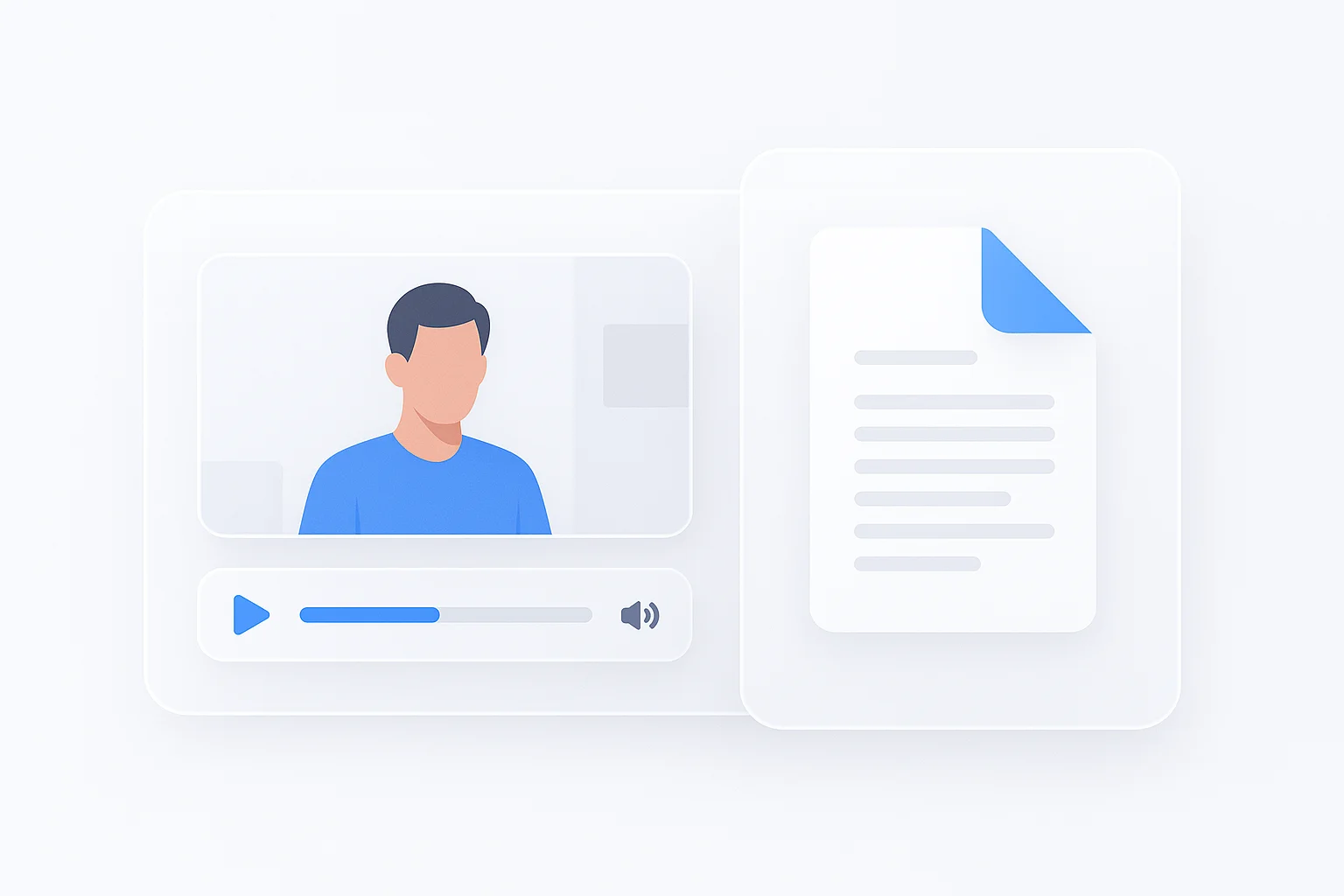
The real test of a multimodal AI answer generator is cross-source reasoning. Can it answer a question that requires information from both a video recording and a PDF document?
Real-World Scenario: IT Support
The Situation: You are an IT support agent. You have a video recording of a bug report from a user and a PDF of the software documentation. You need to find the solution.
Upload Both Files to a Project
Add the bug report video (MP4) and the software documentation (PDF) to a ScreenApp project. The AI indexes both sources together.
Ask a Complex Question
"The user in the video is seeing Error 404. According to the PDF manual, what are the steps to fix this?"
Get a Synthesized Answer
The AI pulls context from the user's complaint (video at 2:34) and the official solution (PDF page 47), citing both sources with timestamps and page numbers.
This cross-source capability transforms how professionals work with information. Instead of manually cross-referencing, you get instant answers with verifiable citations. For teams working with meeting recordings, our video chatbot and transcription software provide similar AI-powered search across your content library.
Stop Searching, Start Asking
You don’t need to be a detective to find answers in your own files. The right AI tool turns your messy folder of videos and documents into an organized, expert assistant that responds in seconds.
The key difference between these tools comes down to multimodal capability. If you only work with PDFs, ChatPDF or Claude work well. If you need video support but only from YouTube, NotebookLM offers strong free features. But if you need true cross-source reasoning - asking questions that require information from both videos and documents - ScreenApp remains the clear leader.
For related workflows, check out our guides on best free video conferencing apps for recording meetings, and best free AI video generators for creating content to analyze.
How we put this together: this is a comparison based on each vendor’s published documentation and pricing pages, checked on the dates shown. We did not run a hands-on benchmark for this article.
FAQ
Can AI watch a 2-hour video and answer questions?
Yes. Tools like ScreenApp use "Long Context Windows" to process hours of video and answer specific questions instantly. The AI doesn't watch in real-time - it processes the transcript and visual elements, then responds to queries in seconds. According to research on long-context language models, modern AI can handle documents equivalent to hundreds of pages or hours of video.
How accurate are AI video answer generators?
Accuracy depends heavily on citations. The best tools provide timestamped references (e.g., [14:02]) so you can verify any answer yourself. Look for tools that show their sources - if an AI can't point to where it found the information, treat the answer with skepticism. ScreenApp provides both video timestamps and document page numbers for full transparency.
Is there a free AI that watches videos and answers questions?
Yes. ScreenApp and NoteGPT both offer free tiers for basic video Q&A. NotebookLM by Google is completely free for YouTube video analysis. For uploaded video files, most tools have usage limits on free plans but provide enough capacity to test the features before committing to a paid subscription.
Can I use AI to search inside meeting recordings?
Yes. This is one of the most practical use cases for AI answer generators. Upload your Zoom, Teams, or Google Meet recordings and ask questions like "What did Sarah say about the Q3 budget?" or "List all action items mentioned." Tools like ScreenApp automatically transcribe meetings and let you search across your entire meeting history.
What file formats do multimodal AI tools support?
Most tools support common formats: MP4, MOV, and WEBM for video; PDF, DOCX, and TXT for documents. Some tools also support audio files (MP3, WAV) and images. ScreenApp additionally supports direct URL imports from YouTube and other video platforms. Always check the specific tool's documentation for format limitations.
Is my data private when using AI answer generators?
Privacy policies vary by tool. Most tools process your files on their servers, which means your content is uploaded to cloud infrastructure. ScreenApp and other enterprise-focused tools offer data encryption and allow you to delete files at any time. For sensitive business content, check if the tool offers on-premise deployment or enhanced privacy controls. Always review the privacy policy before uploading confidential information.
How many videos and documents can I upload at once?
Limits depend on the tool and your plan. Free tiers typically allow 5-10 files per project, while paid plans can handle 50+ files or unlimited uploads. ScreenApp supports organizing multiple files into "knowledge bases" or projects, making it easy to query across dozens of videos and documents simultaneously. Processing time increases with file count, but most tools handle batch uploads efficiently.
Can AI answer generators work with videos in foreign languages?
Yes, most modern tools support multiple languages for transcription and analysis. ScreenApp, ChatGPT, and Claude can process content in dozens of languages including Spanish, French, German, Chinese, and more. The AI can answer questions in the same language as the source material or translate responses to your preferred language. However, accuracy may vary for less common languages or dialects with heavy accents.
How long does it take to process a video or document?
Processing time depends on file size and tool capabilities. A 1-hour video typically takes 2-5 minutes to transcribe and index, while a 50-page PDF processes in under a minute. Once indexed, answers appear instantly. Most tools show progress indicators during upload and processing. ScreenApp and other advanced tools process files in the background, allowing you to start asking questions as soon as basic transcription completes.
Can I share AI-generated answers with my team?
Yes. Most tools allow you to export answers, copy citations, or share entire knowledge bases with team members. ScreenApp supports team workspaces where multiple users can collaborate on the same projects, ask questions, and see each other's queries. Some tools also let you generate shareable reports or export conversations. For enterprise teams, look for tools with role-based access controls and collaboration features.