
7 Best Screen Translator Apps for PC or Mac in 2026

On this page
Finding text on your screen that you cannot copy or paste is a common frustration. You might be playing a game in Japanese, reading a scanned invoice in French, or watching a video with on-screen text you need to understand - and the traditional copy-paste route simply does not work.
The old workaround was tedious: manually typing foreign characters into Google Translate on your phone. This process is slow, error-prone, and becomes impractical when dealing with large amounts of text or fast-moving content.
Screen translator apps solve this problem by using OCR (Optical Character Recognition) to read the pixels on your display and provide instant translations. Whether you are a gamer playing untranslated Japanese RPGs, a business professional dealing with foreign documents, or a manga reader working through raw comics, these tools bridge the language gap without requiring selectable text.
Vendor information last verified: 18 September 2026.
Related Translation and Video Tools: For broader video analysis needs, explore our guide to AI video watcher tools for comprehensive video understanding, or check our live caption tools article for real-time meeting subtitles. You may also find our lecture recording guide helpful for capturing and transcribing educational content.
What is a Screen Translator and How Does It Work?
Translating foreign-language video on Mac? The free ScreenApp Mac app records the screen plus audio and produces a translatable transcript, useful when overlay OCR misses fast-moving subtitles.
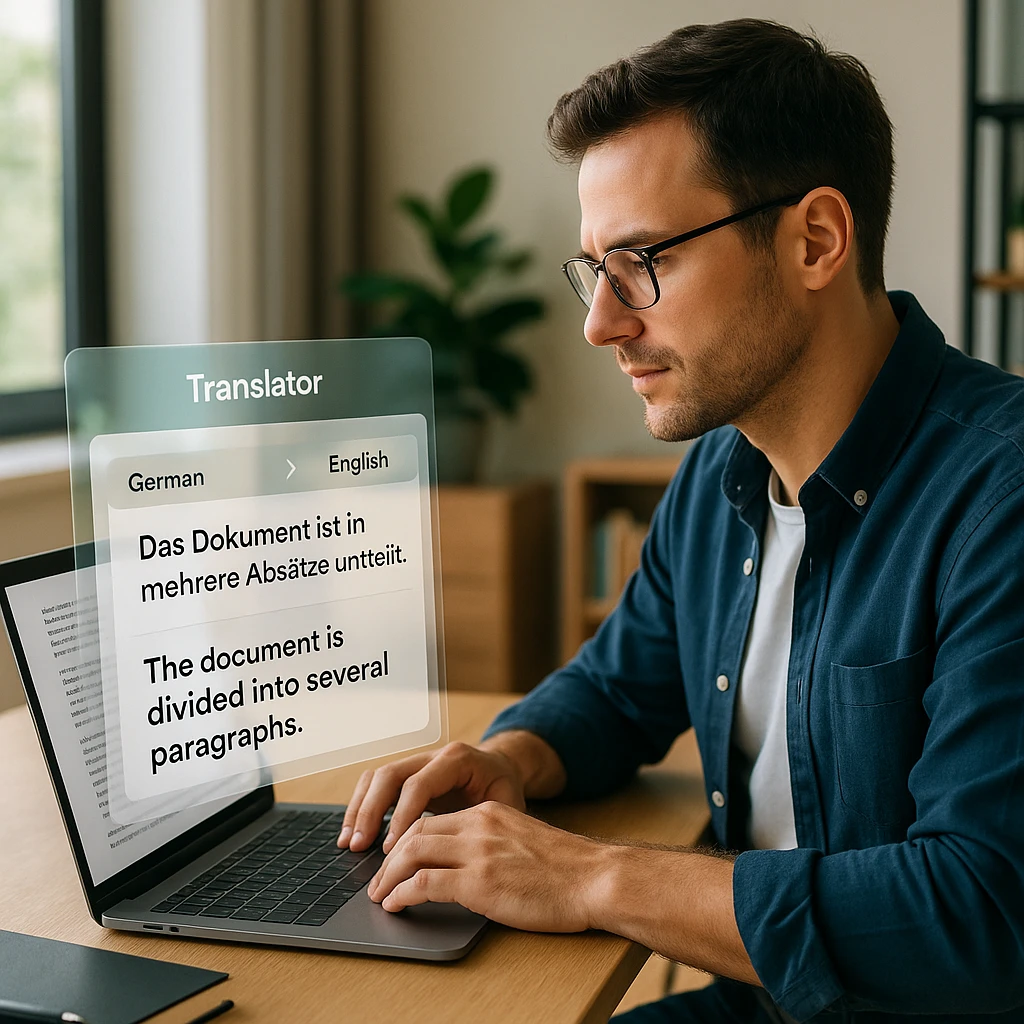
A screen translator is software that captures an area of your display, extracts any visible text using OCR technology, and translates it into your target language. Unlike traditional translation tools that require copy-paste access, screen translators work directly from the visual layer of your screen.
The technology works in three steps. First, the tool takes a screenshot or continuously monitors a region of your screen. Second, OCR algorithms identify and extract the text characters from the image. Third, a translation API converts that text into your chosen language, displaying the result as an overlay or in a separate window.
Two Types of Screen Translation:
-
Overlay (Real-Time): The tool continuously scans your screen and overlays translations directly on top of the original text. This works best for gaming and video content where text changes frequently.
-
Capture (Snapshot): You select a specific region using a snipping tool interface, and the tool provides a one-time translation. This approach works better for documents and static content where you need accurate extraction.
Top 7 Screen Translator Apps Comparison 2026
| Rank | Tool Name | Type | Key Features | Best For |
|---|---|---|---|---|
| 1 | ScreenApp | Web/Desktop | Screenshot Translation + Transcript Translation | Work and Video Content |
| 2 | DeepL | Desktop App | Translation + Screen Capture | Translation Quality |
| 3 | Google Lens | Mobile/Browser | Image Translation + Visual Search | Mobile and Chrome Users |
| 4 | Textractor | Desktop (Open Source) | Game Text Hook + Translation | Visual Novel Gamers |
| 5 | Yandex Translate | Web/Mobile | Image, Document and Website Translation | Image Translation |
| 6 | ShareX | Desktop (Open Source) | Screen OCR + Workflow Automation | Power Users |
| 7 | Manga Translator | Web/Self-Hosted | Text Detection, Removal and Typesetting | Comic and Manga Readers |
Quick Recommendation: For work involving recordings, meetings, and documents, ScreenApp is our pick. Gamers should look at Textractor for visual novels or Google Lens for general game translation.
How we ranked these (editorial judgement, not a hands-on test): each tool had to read text from an image, the screen, or the game itself, and translate it or send it to a translator. We ranked tools higher when they also cover recordings and documents, run on a PC or Mac, and have a free option, based on each vendor’s own pages linked below. ScreenApp is our own product.
Top 7 Screen Translator Apps Reviewed 2026
ScreenApp
Best for Work and Video Content Translation
Why It Stands Out: ScreenApp has two translation paths. The free Screen Translator captures your screen in the browser and lists each piece of visible text with its translation. For recordings, ScreenApp transcribes the audio and translates the transcript and captions into 99 languages. It does not read on-screen text inside a video; for that, pause and capture the frame.
Transcript Translation
Transcribe a recording, then read its transcript or captions in another language.
No AI Training
Your recordings are not used to train AI models (privacy policy).
Screenshot Translation
Share a screen, window, or tab, capture it, and click any line to copy its translation.
Timestamped Lines
Translated transcript lines keep their original timestamps, so you can jump to that moment.
Key Features:
Pros
- • Handles video and screen translation in one tool
- • Reads non-selectable text from a screenshot
- • Translated transcript lines keep their timestamps
- • Your recordings are not used to train AI models
- • Free plan: 2 transcriptions of recordings up to 45 minutes each and 3 uploads, no credit card
Cons
- • Requires internet connection for translation
- • Not designed for real-time game overlays
- • Screen Translator captures a whole screen, window, or tab, not a region you draw
Best For
Business users translating recorded meetings, webinars, or foreign invoices. Researchers working with recordings in several languages. Anyone who needs to translate text from scanned PDFs or other documents they cannot copy from.
DeepL for Windows/Mac
Best for Translation Quality
Why It Stands Out: DeepL for Windows and Mac has a screen capture tool: select an area of your screen and DeepL extracts the text and translates it (DeepL image translation page). Screen capture reads a limited set of source languages: 14 on Windows, including Japanese, Korean, Chinese and Arabic, and 9 on Mac. The iOS and Android apps translate text from the camera or a saved image.
Screen Capture
Capture part of the screen and translate the text in it (DeepL).
Quick Capture
On Windows, select text and press Ctrl+C+C to translate it (DeepL for Windows).
Document Translation
Translate PDFs, including scanned ones, and Word files while keeping the layout (DeepL document translation).
Glossary Support
Apply a glossary so your terms are translated the same way each time (DeepL).
Key Features:
Pros
- • Screen capture built into the desktop apps
- • Keyboard shortcut for translating selected text
- • Document translation preserves original formatting
- • Free plan available; DeepL Pro removes the translation limit
Cons
- • Snapshot tool only, no real-time video overlay
- • Screen capture reads only some source languages, fewer on Mac
- • Free plan caps image translation at 1,500 characters per day
Best For
Professionals who want screen capture and document translation in one desktop app. Writers, translators, and business users who translate screenshots, scans, and files on Windows or Mac.
Google Lens
Best for Mobile and Chrome Browser
Why It Stands Out: Google Lens is part of Chrome, the Google app, Google Photos and the camera app on some Android phones (Google Lens). In Chrome on a computer, right-click a page and choose "Search this tab with Google Lens", then select text to translate it (Chrome Help). Google says Lens translates text from over 100 languages and combines translation with visual search.
Browser Integration
Search the current tab with Lens in Chrome and translate the text it finds.
Camera Translation
Point your phone camera at text for real-time translation.
Visual Search
Identify products, plants, and landmarks while translating.
Copy Text
Copy text from an image and paste it on your phone or on your computer with Chrome (Google Lens).
Key Features:
Pros
- • No separate install if you already use Chrome or the Google app
- • Built directly into Chrome browser
- • Excellent mobile camera translation
- • Over 100 languages
Cons
- • No standalone desktop app; on a computer you use it through Chrome
- • Cannot translate live video streams
- • Page screenshots go to Google for processing
Best For
Mobile users who need quick translations while traveling or shopping. Chrome users who want instant image translation without installing extra software. Anyone translating signs, menus, or labels in real-world situations.
Textractor
Best for Visual Novel and Game Translation
<span class="px-3 py-1 bg-white border border-gray-200 text-gray-700 text-sm rounded-full font-medium">Windows</span>
Why It Stands Out: Textractor is an open-source text hooker for Windows 7 and later (and Wine). It pulls text out of a running game or visual novel instead of reading pixels, then passes it to extensions, including Google, Bing and DeepL translation (Textractor on GitHub). The last stable release is v5.2.0 from January 2022 (releases).
Direct Text Hooking
Reads text from the game process, so there are no OCR misreads when a hook works.
Extension System
Bundled extensions for Google, Bing and DeepL translation (extensions folder).
Clipboard Output
A clipboard extension copies extracted text for use with other tools.
Hook Codes
Enter /H hook codes by hand or let Textractor search for possible hooks.
Key Features:
Pros
- • No OCR misreads when a game hooks correctly
- • Free and open source
- • Can search for hook codes automatically
- • Translation extensions for several engines
Cons
- • Steep learning curve for new users
- • Some games will not hook
- • No new stable release since January 2022
Best For
Visual novel enthusiasts who want to play untranslated Japanese games. Players willing to spend time on setup to get text straight from the game. Anyone frustrated with OCR errors on stylized game fonts.
Yandex Translate
Best for Complex Image Translation
Why It Stands Out: Yandex Translate handles text, documents, images and websites in more than 90 languages (Yandex Translate Help). Upload a photo or image on the web version, select the text, and get a translation; files can be up to 5 MB (Yandex image translation). It is useful for photos of labels, signs and pages.
Image and Document Upload
Accepts JPG, PNG, GIF, Word, PDF, Excel and PowerPoint files up to 5 MB (Yandex).
Website Translation
Translate web pages from the web version (Yandex Help).
Offline Mode
The mobile app translates typed text offline once you download dictionaries; voice needs a connection (Yandex Help).
Russian Offline by Default
English and Russian offline dictionaries come with the mobile app.
Key Features:
Pros
- • Image, document and website translation in one place
- • English and Russian offline dictionaries included on mobile
- • Works in the browser with no install
- • Offline mode for typed text on mobile
Cons
- • No desktop screen capture tool listed in Yandex's help
- • Uploads are limited to 5 MB
- • Read Yandex's privacy terms before uploading sensitive files
Best For
Users translating photos of product packaging, signs, or printed pages. Anyone working often with Russian and English. People who want image, document and website translation in one free web tool.
ShareX
Best for Power Users and Workflow Automation
Why It Stands Out: ShareX is a free, open-source screenshot and screen recording tool for Windows (ShareX). It does not translate on its own, but its OCR extracts text from any region you capture using the OCR languages installed in Windows, and the OCR window has service links that open the text in Google Translate or DeepL (ShareX source). You can also chain capture, OCR and upload steps with hotkeys.
Region OCR
Select any area of your screen and extract all visible text.
Workflow Automation
Chain actions together: capture, OCR, upload, share, or run an external tool.
Upload Destinations
Upload captures to built-in destinations or custom uploaders, such as Amazon S3 (ShareX on GitHub).
GIF and Video Recording
Record screen regions as GIF or video for tutorials.
Key Features:
Pros
- • Detailed control over capture, after-capture and upload steps
- • Free and open source
- • OCR window links to Google Translate and DeepL by default
- • Powerful workflow automation capabilities
Cons
- • No built-in translation; text opens in a web translator
- • Overwhelming for users who want simple solutions
- • Windows only, no Mac or Linux support
Best For
Power users who want complete control over their screen capture and OCR workflow. Developers and IT professionals who need to automate repetitive tasks. Anyone who already uses ShareX and wants a quick OCR-to-translator step.
Manga Translator / Bubble Screen Translate
Best for Comic and Manga Translation
Why It Stands Out: Manga Image Translator is an open-source project that detects text in comics and images, removes it, translates it, and typesets the translation back onto the image (project README). It mainly supports Japanese, plus Chinese, English and about 20 other languages, and has an online version at Cotrans. Bubble Screen Translate, by NIVEN Studio, is an Android app with a comic mode for vertical and horizontal text, a real-time mode, and offline language packs; it contains ads and in-app purchases (Google Play listing).
Speech Bubble Detection
Finds the text regions in a comic page automatically.
Text Overlay
Replaces original text with translated text directly in the image.
Text Removal
Paints over the original text before typesetting the translation.
Batch Processing
The self-hosted version has a batch mode for folders of pages.
Key Features:
Pros
- • Purpose-built for comic translation workflow
- • Translated text replaces the original on the page
- • Free options available
- • Android option for reading on your phone
Cons
- • Manga Image Translator is aimed at comics and images
- • Machine translation quality can be rough
- • The project calls itself early-stage
Best For
Manga and manhwa readers who want to read untranslated series. Comic fans who do not want to wait for official translations. Anyone who prefers reading translated text directly on the page rather than in a separate window.
Use Cases: When Do You Need a Screen Translator?
Understanding the right tool for your situation helps you choose wisely. Here are the most common scenarios where screen translation becomes essential:
Gaming (The "Raw" Experience)
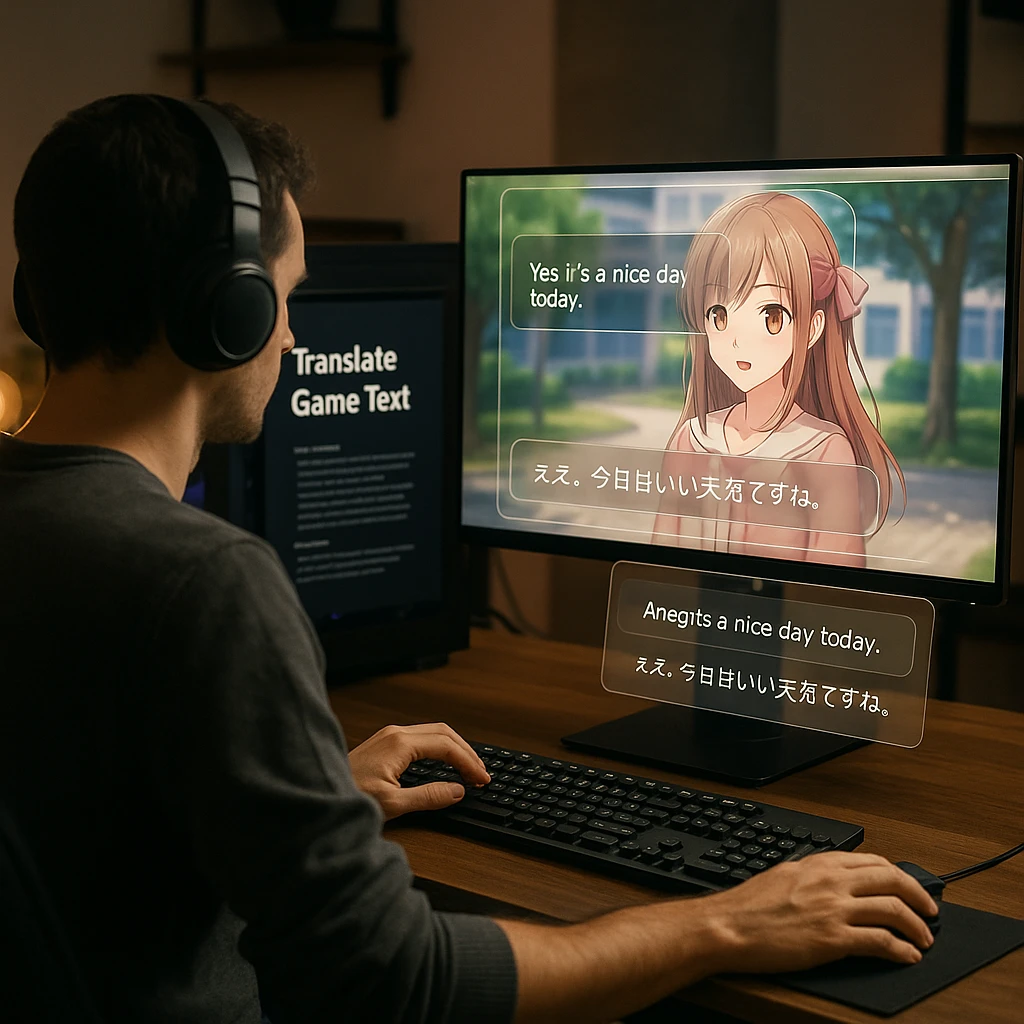
Playing a Japanese RPG, visual novel, or MMO that has not been localized yet. Games like untranslated JRPGs often have thousands of lines of dialogue that screen translators can process on the fly. Tools like Textractor are specifically built for this workflow.
Cross-Border Business
Reading an invoice, contract, or product spec sheet sent as a scanned image (JPG/PDF) from a foreign supplier. When documents come as image scans rather than editable text, you need a tool that reads the image. ScreenApp's Screen Translator and DeepL's screen capture both work from a picture of the page.
Software Debugging
Understanding error messages that appear in foreign language software interfaces. Developers working with Chinese manufacturing software or Japanese engineering tools often encounter error dialogs they cannot copy-paste from. A quick screen capture solves this instantly.
Language Learning
Watching a foreign movie or TV show and wanting to translate the on-screen signs, text messages, or subtitles shown within the video. This is different from subtitle translation - it captures text that is part of the visual scene itself.
For video-heavy workflows, you might also benefit from our AI video analyzer tools guide which covers comprehensive video content analysis.
How to Translate On-Screen Text with ScreenApp
Here is a step-by-step guide to translating non-selectable text using ScreenApp’s screen translator feature:
Open the Screen Translator Feature
Open ScreenApp's Screen Translator in a desktop browser. It runs in the page, so there is nothing to install.
Select the Screen Area or Video
Click the screenshot button and pick the screen, window, or tab to share in your browser's prompt. ScreenApp captures one frame and translates the text in it. For spoken words in a video, upload the file or paste a video link on the same page instead; ScreenApp transcribes the audio, and you can translate the transcript.
Pro Tip: For the best OCR accuracy, ensure the text on screen is not blurry or obscured by other elements.
Choose Your Target Language
- • English, Spanish, French, German, Italian, Portuguese, Dutch, Polish
- • Japanese, Korean, Chinese, Thai, Vietnamese, Indonesian
- • Russian, Arabic, Hindi, Turkish
Review and Save the Translation
The AI lists each piece of text it found with its translation underneath. Click a line to copy it, or pick another language and translate the same capture again.
If you regularly work with video content that needs transcription alongside translation, check out our guide on extracting audio from videos for complementary workflows.
Conclusion: Break the Language Barrier on Your Screen
Language should not stop you from enjoying a game, reading a comic, or completing your work. Modern OCR technology has evolved to the point where any text visible on your screen can be extracted and translated in seconds.
The right tool depends on your specific needs:
- For work involving recordings, meetings, and scanned documents, ScreenApp’s Screen Translator and transcript translation cover screenshots and recordings in one account
- For mobile and browser users, Google Lens translates text in tools you may already use, such as Chrome and the Google app
- For gamers playing Japanese visual novels, Textractor pulls text from the game itself, so there are no OCR misreads when a hook works
- For manga readers, Manga Image Translator and Bubble Screen Translate put the translation back on the page
Ready to Translate Your Screen?
Stop manually typing foreign text into translation apps. Capture your screen and read the translation.
Try ScreenApp Screen Translator FreeRelated Resources:
- Best AI Video Watcher Tools - Summarize and analyze video content with AI
- Best Live Caption Tools - Real-time subtitles for meetings and videos
- Video to Text Converter - Extract transcripts from any video file
- Best Free Video Conferencing Apps - Tools that work with screen translators
FAQ
Can I translate text inside a video game?
Yes, but the approach depends on the game type. For fast-paced games with changing text, you need a real-time overlay tool. For text-heavy RPGs and visual novels, a text hooker like Textractor or a capture tool like ScreenApp's Screen Translator works when you can pause and read.
Is there a screen translator for Windows 10/11?
Yes, several options work on Windows. ScreenApp's Screen Translator runs in a desktop browser, and ScreenApp also has Mac (Apple silicon) and Windows apps. DeepL has a Windows app with screen capture and keyboard shortcuts (DeepL for Windows). ShareX is a Windows-only open source tool with OCR (ShareX).
Can I translate a scanned PDF that does not allow text selection?
Absolutely. This is one of the primary use cases for screen translators. Since the PDF is essentially an image of text, you cannot highlight and copy it normally. A screen translator "reads" the image of the page using OCR and then translates the extracted text.
Can screen translators work offline?
Most screen translators require an internet connection because they use cloud-based translation APIs for accuracy. Some tools offer offline modes with reduced functionality. The Yandex Translate mobile app translates typed text offline after you download dictionaries (Yandex Help), and Bubble Screen Translate on Android offers offline language packs ( Be cautious with unknown browser extensions, as they may access your screen data. Stick to established companies (Google, DeepL, Yandex) or well-known open source projects (ShareX, Textractor), and read each tool's privacy policy. DeepL says Pro plan texts are deleted after translation (DeepL). Is it safe to use free screen translator extensions?
Can I translate real-time video streams?
Most screen translators work on static images or recorded video files rather than live streams. For real-time translation of changing screen text, you need a tool that monitors the screen continuously, such as the real-time mode in Bubble Screen Translate on Android (Google Play listing).
Which tool is best for translating manga and comics?
Specialized tools like Manga Image Translator or Bubble Screen Translate are built for this. Manga Image Translator detects the text, removes it, and typesets the translation onto the image (project README).
How do I translate text from a Zoom meeting in real-time?
ScreenApp does not translate a Zoom call live. It records the meeting either without a bot, from the web app, Chrome extension, Mac and Windows apps, or iOS and Android apps, or with its meeting bot for Zoom, Google Meet and Microsoft Teams. After the recording is transcribed, you can translate the transcript into 99 languages, and each line keeps its timestamp. To translate text on a shared screen, capture it with the Screen Translator.
Related Articles
Movavi vs Filmora: AI Credits, Real Prices, and Who Each Suits
Movavi vs Filmora compared on what actually decides it in 2026: how each one meters its AI, what the published prices really mean, and which editor suits which job.
Best Bot-Free AI Meeting Recorders 2026: Record Without Bots
Record meetings without adding a bot: ScreenApp, Fathom, Granola, Krisp and Jamie compared from vendor docs and pricing. No bot in the participant list on Zoom, Teams or Google Meet.
Best 4K Video Downloader Alternatives in 2026: Desktop and Online Options
4K Video Downloader alternatives in 2026: yt-dlp, Stacher, ClipGrab, JDownloader 2, SnapDownloader, VideoProc and ScreenApp, with prices and limits checked against each vendor page.
Discover More Insights
Start their recordings into insights
Start recording in 60 seconds