7 Best Live Caption Tools for Meetings 2026 (Zoom, Teams, Web)

On this page
In a remote world, audio quality varies wildly. Accents, bad microphones, and background noise make it hard to follow every word. While Zoom and Teams have built-in captions, they only work inside their own apps.
What happens when you’re on a niche webinar platform? Watching a training video without subtitles? Or jumping between three different video calling apps in one day?
You need a universal live caption tool - software that listens to your computer’s audio and generates subtitles for anything playing on your screen. According to World Health Organization data, over 1.5 billion people globally experience some degree of hearing loss, making accessible meeting tools more important than ever.
In this guide, we’ve ranked the top tools for accessibility, documentation, and focus - from platform-specific solutions to universal captioners that work everywhere.
”Native” vs. “Universal” Captions: What’s the Difference?
Before comparing tools, it’s important to understand the two categories of live caption software:
Native Tools (Zoom/Teams)
Built into specific meeting apps. Easy to enable with a single click.
- Works only within that specific app
- Switch to Google Meet? Lose your captions
- Switch to a webinar? Lose your captions
- Speaker identification built-in
Universal Tools (ScreenApp/Chrome)
Run at the browser or OS level. Caption any audio from your computer.
- Works on Zoom, Meet, Teams, webinars
- Caption YouTube videos, podcasts, training
- No platform lock-in
- Often includes save and translate features
For teams that use multiple platforms or need to caption content outside of meetings, universal tools provide significantly more flexibility. For those focused on meeting documentation, our transcription software can turn any audio into searchable text.
Quick Comparison: 7 Best Live Caption Tools
| Rank | Tool | Type | Best For | Saves Text? | Score |
|---|---|---|---|---|---|
| 1 | ScreenApp | Universal | Universal Captioning + Recording | Yes | 9.5/10 |
| 2 | Otter.ai | Bot-Based | Audio Note-Taking | Yes | 8.5/10 |
| 3 | Chrome Live Caption | Universal | Free Browser Captions | No | 7.5/10 |
| 4 | Zoom/Teams Native | Native | Ease of Use | Limited | 7.0/10 |
| 5 | Google Live Transcribe | Mobile | Mobile Accessibility | No | 8.0/10 |
| 6 | Ava | Accessibility | ADA Compliance | Yes | 7.5/10 |
| 7 | Descript | Editing | Post-Meeting Editing | Yes | 7.0/10 |
Top 7 Live Caption Tools for Meetings.
ScreenApp
Best Universal Captioner
It captions, records, saves and translates, and works on any meeting platform. Unlike Chrome's captions (which disappear instantly), ScreenApp saves the transcript so you can search it later.
Why It Wins
Platform Agnostic
Works on Zoom, Google Meet, Teams, Webex, and even random webinar sites. No platform lock-in.
Save and Search
Every caption is automatically saved as a timestamped transcript. Search across all your meetings.
Live Translation
Instantly translate English audio into captions in Spanish, French, Japanese, and 50+ languages.
No Bot Needed
Captures system audio without adding a bot to the call. A meeting bot is also available for Zoom, Google Meet and Microsoft Teams if you want auto-join.
Strengths
- Works on any audio source (meetings, YouTube, podcasts)
- Permanent searchable transcripts
- Real-time translation to 50+ languages
- No visible bot joining calls
Limitations
- Requires browser tab to be open
- Free plan is 2 transcriptions of recordings up to 45 minutes each
Best For
Professionals who want a permanent record of what was said across any platform, international teams needing live translation, and anyone who attends meetings on multiple apps.
Otter.ai
Best for Audio Note-Taking
The famous transcription assistant with an excellent mobile app. Great for in-person meeting recording and creating searchable audio notes. However, for video meetings, it joins as a visible "OtterPilot" bot.
Strengths
- Excellent mobile app for in-person recordings
- Strong speaker identification
- Good integration with Zoom and calendars
- Searchable transcript archive
Limitations
- Joins calls as visible "OtterPilot" bot
- May be banned by company IT policies
- Primarily an audio tool, not live captions
- Limited free tier
Best For
In-person meeting recording via mobile, teams comfortable with visible bot presence, and users who prioritize speaker identification over discretion.
Chrome Live Caption
Best Free Browser Tool
Google's built-in browser feature provides free captions for any audio playing in Chrome. Completely free, no installation needed - just enable in Chrome settings.
Strengths
- Completely free, no limits
- Built into Chrome, no installation
- Works on any website
- Processes locally, private
Limitations
- Ephemeral - captions disappear instantly
- Cannot save transcript or export text
- Cannot scroll back to see previous text
- English only (some language support added)
Best For
Quick accessibility needs, users who don't need to save transcripts, and anyone wanting free captions without any setup or account creation.
Zoom / Microsoft Teams Native Captions
Best for Ease of Use
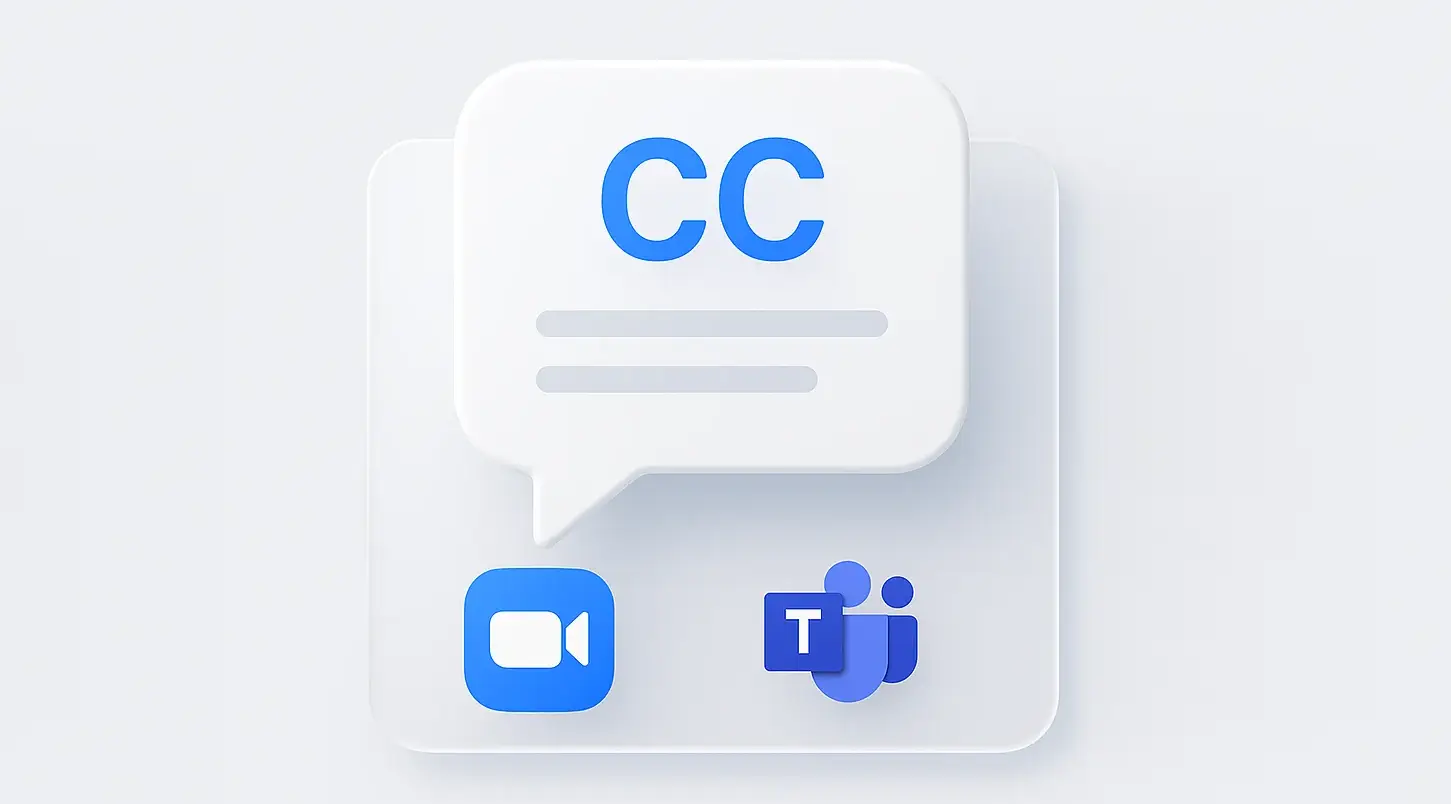
The default "CC" button in your meeting app. No installation needed, identifies who is speaking automatically, and works immediately for anyone already using these platforms.
Strengths
- No installation or setup required
- Automatic speaker identification
- Works immediately for all participants
- Free with meeting subscription
Limitations
- Only works within that specific app
- Accuracy drops with poor audio quality
- Transcripts often hard to find after meeting
- No translation features
Best For
Teams using a single platform exclusively, users who need quick captions without setup, and organizations where IT policy prohibits third-party tools. For more options, see our guide on [best free video conferencing apps](/blog/best-free-video-conferencing-apps).
Google Live Transcribe
Best for Mobile Accessibility
An Android app designed specifically for the Deaf and hard-of-hearing community. Incredible accuracy and detects non-speech sounds like "knocking" or "laughter" - ideal for full situational awareness.
Strengths
- Incredible accuracy, even with accents
- Detects non-speech sounds (doorbell, laughter)
- Completely free, no limits
- Offline mode available
Limitations
- Mobile only (Android)
- Hard to use for desktop meetings
- Requires holding phone near speaker
- No integration with meeting apps
Best For
Personal accessibility use, in-person conversations, and users who need captions on-the-go with their phone.
Ava
Best for Accessibility Compliance
</div>
<div class="grid grid-cols-1 md:grid-cols-2 gap-4">
  <div class="bg-gray-50 rounded-lg p-4">
    <h5 class="text-[#1D90ff] font-semibold mb-3 mt-0 text-sm">Strengths</h5>
    <ul class="text-sm text-gray-700 space-y-1 mb-0 mt-0" style="padding-left: 1rem; margin: 0;">
      <li>Designed for strict ADA compliance</li>

      <li>Group conversation support</li>
      <li>Enterprise-grade features</li>
    </ul>
  </div>
  <div class="bg-gray-50 rounded-lg p-4">
    <h5 class="text-gray-500 font-semibold mb-3 mt-0 text-sm">Limitations</h5>
    <ul class="text-sm text-gray-700 space-y-1 mb-0 mt-0" style="padding-left: 1rem; margin: 0;">
      <li>Very expensive (enterprise pricing)</li>
      <li>Targeted at HR departments, not individuals</li>
      <li>Overkill for casual use</li>
      <li>Requires training to use effectively</li>
    </ul>
  </div>
</div>
<div>
  <h4 class="font-semibold text-base mb-2 text-gray-900 mt-0">Best For</h4>
  <p class="text-sm leading-relaxed text-gray-700">Enterprise HR departments, organizations with strict accessibility requirements, and situations requiring legally compliant captioning with human backup.</p>
</div>
Descript
Best for Post-Meeting Editing
A powerful transcription and editing tool that excels at post-meeting workflows. Edit video by editing text - remove filler words, create clips, and export polished content.
Strengths
- Edit video by editing text
- Automatic filler word removal
- Studio-quality exports
- Podcast and video production features
Limitations
- Not designed for live captions
- Requires desktop app installation
- Steeper learning curve
- Overkill for simple caption needs
Best For
Content creators, podcasters, and anyone who needs to edit meeting recordings after the fact. See also our [best free AI video generators](/blog/best-free-ai-video-generators) for related tools.
How to Get Live Captions on Any Website
Want live subtitles for Google Meet, a webinar, or any video playing in your browser? Here’s how to set up universal captions with ScreenApp:
Open ScreenApp in Your Browser
Navigate to ScreenApp's live caption tool. No installation required - works in any modern browser.
Select "New Recording" and Choose Audio Source
Choose "System Audio" to capture all sounds from your computer, or "Microphone" if you're the one speaking.
Start Your Meeting (Zoom, Webex, etc.)
Join any video call or start any video. ScreenApp will caption whatever audio is playing through your computer.
Watch Live Transcript Appear
Real-time captions appear in the ScreenApp sidebar. Scroll back to see previous text, or search for specific words.
(Optional) Click "Translate" for Other Languages
See captions in Spanish, French, German, Japanese, or 50+ other languages while the speaker talks in English.
This works on any platform - whether it’s a niche webinar site, a training video, or a YouTube livestream. For more on recording and transcribing lectures, see our guide on how to record lectures and convert to text.
Never Miss a Word Again
Whether you have hearing difficulties, speak a second language, or just have a bad audio connection, live captions are a superpower for modern remote work. Don’t rely on a specific app’s “CC” button that only works in one place.
The key difference between these tools comes down to capability scope. Native tools (Zoom, Teams) are convenient but locked to one app. Universal tools (ScreenApp, Chrome Live Caption) work everywhere - but only ScreenApp saves and translates your transcripts.
For related workflows, check out our guides on AI interview assistants and YouTube to MP3 converters for audio content.
How we put this together: this is a comparison based on each vendor’s published documentation and pricing pages, checked on the dates shown. We did not run a hands-on benchmark for this article.
FAQ
Can I save or download the live captions after the meeting?
It depends on the tool. Native tools (like Chrome Live Caption) usually delete the text instantly. Recording tools (like ScreenApp or Otter) automatically save the full transcript to your dashboard, allowing you to search, edit, and share it later.
Do these tools translate languages in real-time?
Yes. Tools like ScreenApp offer live translation. You can hear audio in English but see subtitles appear in Spanish, French, German, or Japanese instantly. That helps international teams working across language barriers.
Is it legal to caption a meeting without consent?
Generally yes, as long as you are not recording the audio/video file itself. Live captioning for personal accessibility is usually considered a personal aid. However, if you use a tool that records and saves the transcript (like ScreenApp or Otter), you should inform participants, just as you would for a video recording.
Do live captions work if I wear headphones?
Yes. Tools like ScreenApp capture your System Audio (the sound card output). This means even if the sound is going directly into your headphones and not playing out loud, the software can still "hear" and caption it.
Can live captions identify who is speaking (Speaker ID)?
Native apps like Zoom and Teams are best at this because they know who is logged in. Third-party tools like Otter use voice fingerprinting to try and identify speakers (Speaker Diarization), though they may label them as "Speaker 1" and "Speaker 2" until you name them.
What is the best free live caption tool?
For simple, temporary captions, Chrome Live Caption is the best free option built into your browser. If you need to save the text, ScreenApp's free plan covers 2 transcriptions of recordings up to 45 minutes each with a transcript you keep.
How much delay (lag) is there in live captions?
Latency is usually very low, between 1 to 3 seconds. This depends on your internet connection speed, as most tools process the audio in the cloud to achieve high accuracy.
Do I need to install software for live captions?
Not necessarily. ScreenApp and Google Meet work entirely in your web browser. However, universal tools like Otter or Descript often require a desktop app or mobile app to function optimally across your whole system.
Can I use live captions on webinars or YouTube livestreams?
Yes. This is the main advantage of a "universal" tool like ScreenApp. Since it captures your computer's audio, it doesn't matter if the video is on a private webinar platform, Twitch, YouTube, or a restricted training portal - it will caption it all.