# ScreenApp
> ScreenApp is an AI-powered platform for screen recording, video transcription, audio summarization, and video analysis. It provides comprehensive tools for capturing, transcribing, and analyzing video and audio content with advanced AI capabilities.
ScreenApp offers a complete suite of tools for content creators, businesses, and professionals who need to record, transcribe, and analyze video and audio content. The platform combines screen recording capabilities with AI-powered transcription and summarization features.
Key capabilities include:
- AI-powered screen recording and video capture
- Automatic transcription in multiple languages
- Video and audio summarization
- Action item extraction from meetings
- Integration with popular video conferencing platforms
- Advanced video analysis and insights
Website: https://screenapp.io/
Last Updated: 2026-01-05
---
## Features
### Action Capture
**URL:** https://screenapp.io/action-capture
**Category:** Productivity Tools
**Description:** Never lose track of action items again with ScreenApp's Action Capture—streamline your meetings and boost team productivity effortlessly!
## How to Use ScreenApp's Action Capture
### Step 1: Start Your Screen Recording
To begin capturing important action items from your meetings, open ScreenApp and select the 'Record' option. Choose the screen or application you want to record. This feature allows you to document discussions in real-time, ensuring that no critical points are missed. Make sure to enable audio recording to capture conversations clearly.
### Step 2: Highlight Key Action Items
As you record, use the built-in annotation tools to highlight key action items and decisions made during the meeting. You can draw, add text notes, or use arrows to emphasize important points. This visual aid helps your team easily identify tasks and responsibilities, making it easier to follow up after the meeting.
### Step 3: Save and Share Your Recording
Once your meeting is complete, stop the recording and save your file. ScreenApp allows you to export your recording in various formats. Share the video with your team via email or your project management tool. This ensures everyone has access to the action items discussed, keeping your projects on track and enhancing accountability.
## Maximize Productivity with Action Capture
### Stay Organized and Efficient
ScreenApp's Action Capture helps project managers and team leads keep track of important action items discussed during meetings. No more lost notes or forgotten tasks—ensure your team stays on the same page and meets deadlines effectively.
### Streamline Team Communication
Enhance collaboration by capturing key decisions and action points in real-time. ScreenApp's Action Capture allows you to share updates instantly, reducing miscommunication and ensuring everyone is aligned on project goals.
### Boost Accountability
Assign tasks directly within the Action Capture feature, making it clear who is responsible for what. This transparency fosters accountability among team members and drives project success.
### Improve Meeting Outcomes
Transform your meetings into productive sessions by focusing on actionable insights. With ScreenApp's Action Capture, you can easily refer back to previous discussions and track progress on tasks, leading to better decision-making.
### Integrate Seamlessly with Your Workflow
ScreenApp's Action Capture integrates effortlessly with your existing tools and platforms. Whether you're using project management software or communication apps, you can enhance your workflow without disruption.
### Access Action Items Anytime, Anywhere
With cloud-based storage, you can access your captured actions from any device. This flexibility ensures that you and your team can stay on top of tasks, whether in the office or working remotely.
## Who is ScreenApp's Action Capture Perfect for?
### Project Managers
As a project manager, keeping your team aligned and on track is crucial. ScreenApp's Action Capture helps you document key action items discussed during meetings, ensuring nothing falls through the cracks. Streamline your workflow and enhance accountability with clear, actionable insights.
### Team Leads
Team leads often juggle multiple responsibilities and need a reliable way to track progress. With Action Capture, you can easily record decisions and tasks assigned during discussions, making it simple to follow up and measure outcomes. Improve team productivity and communication effortlessly.
### Remote Teams
In today's remote work environment, staying connected can be challenging. ScreenApp's Action Capture allows remote teams to capture and share action items in real-time, ensuring everyone is on the same page. Enhance collaboration and keep your projects moving forward, no matter where your team is located.
### Agile Teams
Agile methodologies thrive on clear communication and quick iterations. Action Capture is designed for agile teams looking to document sprint reviews and retrospectives effectively. Capture essential action items and prioritize tasks to maintain momentum and drive continuous improvement.
### Executives and Stakeholders
Executives and stakeholders need to stay informed about project progress and outcomes. With Action Capture, you can easily compile and share action items from meetings, providing transparency and accountability. Make informed decisions and keep your projects aligned with organizational goals.
## FAQ
### What is Action Capture in ScreenApp?
Action Capture is a feature in ScreenApp that allows users to automatically record and track action items discussed during meetings, ensuring that nothing is overlooked.
### How does Action Capture work?
Action Capture uses advanced algorithms to identify key action items from your meeting discussions, allowing you to focus on what matters most without manual note-taking.
### Can I customize the action items captured?
Yes, you can customize the settings to prioritize specific keywords or topics, ensuring that the action items relevant to your projects are highlighted.
### Is Action Capture suitable for remote teams?
Absolutely! Action Capture is designed to work seamlessly in remote environments, making it easy for distributed teams to stay aligned on action items.
### How do I access the captured action items?
Captured action items can be accessed directly within the ScreenApp dashboard, where you can view, edit, and assign them to team members.
### Can I integrate Action Capture with other project management tools?
Yes, Action Capture integrates with popular project management tools, allowing you to sync action items directly into your existing workflows.
### Is there a limit to the number of action items I can capture?
No, there is no limit to the number of action items you can capture. You can track as many items as needed for your projects.
### How secure is the data captured by Action Capture?
Data security is a top priority for us. Action Capture uses encryption and secure protocols to ensure that all captured information is protected.
### Can I review past action items from previous meetings?
Yes, you can easily review and access action items from past meetings, helping you keep track of ongoing tasks and responsibilities.
### Is there a trial period for Action Capture?
Yes, we offer a trial period for Action Capture, allowing you to explore its features and see how it can enhance your meeting productivity before committing.
---
### Action Item Tracker Template
**URL:** https://screenapp.io/action-item-tracker-template
**Category:** Meeting Solutions
**Description:** Automatically extract action items from your meetings with our tracker template. Never miss a task again. Convert any recording into an organized list of action items, assignees, and due dates.
## How Our Action Item Tracker Works
1. **Record Your Meeting:** Capture the full audio or video of your discussion.
2. **Get the Transcript:** Our tool will generate an accurate transcript of the conversation.
3. **Extract Action Items:** AI analyzes the transcript to identify tasks, assignees, and deadlines mentioned during the meeting.
4. **Organize in a Template:** The extracted tasks are populated into a structured tracker template.
5. **Export and Integrate:** Share the action item list with your team or export it to your favorite project management tool.
This automated workflow means you can focus on the conversation, confident that every task will be captured.
## Benefits of an Action Item Tracker Template
An action item tracker template ensures that conversations lead to concrete outcomes. It bridges the gap between discussion and execution by automatically identifying and organizing tasks from your meeting recordings. This prevents important to-dos from falling through the cracks and keeps projects moving forward.
Using a template creates accountability, provides clarity on who is responsible for what, and makes follow-up seamless. It's the most effective way to maintain momentum after a meeting.
## Who Needs an Action Item Tracker?
This template is essential for any team that values accountability and execution. It's particularly useful for:
- **Project Managers** who need to track deliverables across multiple workstreams.
- **Team Leads** responsible for ensuring their team follows through on commitments.
- **Scrum Masters** who facilitate daily stand-ups and sprint planning sessions.
- **Anyone** who has left a meeting wondering, "So, what are the next steps?"
## FAQ
### Is the action item tracker free?
Yes, our basic action item extraction and template are free to use. You can instantly see the tasks from your meetings.
### How does the AI identify action items?
Our AI is trained on thousands of hours of meeting data to recognize language patterns that indicate a task is being assigned, such as "I'll take care of that," "we need to," or "the next step is."
### Can it assign tasks to specific people?
Yes, the AI attempts to identify who was assigned each task based on the conversation. You can then review and confirm the assignments in the template.
### Does this integrate with tools like Asana or Jira?
You can easily export the list of action items in a format that can be imported into most popular project management tools.
### What if an action item doesn't have a deadline?
The template will capture the action item regardless. If a deadline was mentioned, the AI will suggest it. If not, you can easily add one manually during the review step.
### Explore More Templates
- [Client Meeting Notes Template](/features/meeting-notes-template-generator)
- [Meeting Summary Template](/features/meeting-summary-template)
- [Decision Log Template](/features/decision-log-template)
- [User Interview Template](/features/user-interview-template)
- [Sales Call Analysis Template](/features/sales-call-analysis-template)
- [Content Brief Template](/features/content-brief-template)
- [Candidate Interview Template](/features/candidate-interview-template)
- [SOAP Notes Template](/features/soap-notes-template)
- [Therapy Notes Template](/features/therapy-notes-template)
---
### Add Subtitles to Video
**URL:** https://screenapp.io/add-subtitles-to-video
**Category:** Video Tools
**Description:** Easily add subtitles to video online with our free subtitle editor. Professional-quality video subtitles and captions in minutes. Support for SRT files and multiple formats
## How to Add Subtitles to Video Online Free
1. Upload your video file to our secure platform
2. Choose your preferred subtitle format (SRT, built-in captions)
3. Edit and sync your subtitles with our intuitive timeline editor
4. Preview and make adjustments in real-time
5. Export your video with embedded subtitles
## Benefits of Add Subtitles to Video Online
Make your content globally accessible with our professional subtitle solution. Our online subtitle editor helps you reach wider audiences, improve engagement, and boost SEO rankings. Perfect for content creators, businesses, and educators who need to caption their videos quickly and efficiently.
With support for multiple languages and formats, you can easily add subtitles to MP4 files and other popular video formats. Our advanced algorithms ensure perfect sync between your video and subtitles, delivering professional results every time.
## Who Needs Video Subtitles
Our subtitle adder tool is perfect for:
- Content creators looking to expand their reach
- Businesses creating accessible marketing videos
- Educators developing inclusive learning materials
- Social media managers optimizing video content
## FAQ
### Can I add subtitles to video for free?
Yes, our platform allows you to add subtitles to video completely free. Upload your video and start adding subtitles instantly with no watermarks or quality loss.
### How do I add SRT to video online?
Simply upload your video, import your SRT file or create subtitles directly in our editor, adjust timing if needed, and export your video with embedded subtitles.
### What video formats are supported for subtitle adding?
Our platform supports all popular video formats including MP4, AVI, MOV, and more. You can easily add subtitles to MP4 and other formats without any conversion needed.
### Can I add captions to video online?
Yes, our caption video online tool supports both subtitles and closed captions. You can create, edit, and style your captions directly in our online editor.
---
### AI Action Item Generator - Automatic Post-Call Action Items
**URL:** https://screenapp.io/ai-action-item-generator
**Category:** Meeting Solutions
**Description:** Generate post-call action items automatically with AI tools. Extract action items from meetings instantly using AI action item generation and tracking. Free action item app.
## Benefits of AI tools for generating post-call action items
AI tools for generating post-call action items transform meetings into actionable tasks automatically. Record your call or meeting and the AI scans the conversation to identify commitments, decisions, and next steps.
Each action item includes:
- Task description with full context
- Assigned person or team
- Due date and priority level
Save 30+ minutes per meeting by eliminating manual note review and task creation. The system captures items you might miss during fast-paced discussions and formats them consistently for easy tracking.
Integrate with project management tools to send action items directly to your workflow where teams already work.
## How action item generation works
Action item generation starts when you upload a meeting recording or connect live to your call. The AI transcribes the conversation while analyzing speech patterns that indicate commitments and tasks.
When someone says "I'll send that report" or "we need to schedule a follow-up," the system identifies these as action items. The AI extracts who said it, what needs doing, when it's due, and relevant context.
Review the generated list, edit any items, and approve for distribution. Action items sync to your calendar, project management tools, or send as email summaries to participants.
Track completion status and get reminders for overdue items automatically.
## Who needs action item tool features
Action item tool features serve teams across multiple functions:
- **Sales teams** tracking client commitments and follow-ups
- **Project managers** capturing next steps from status meetings
- **Customer success** documenting support call action items
- **Executive assistants** extracting tasks from leadership meetings
- **Consultants** tracking deliverables and client commitments
- **HR teams** capturing performance review action items
Anyone running regular meetings benefits from automatic action item extraction that ensures nothing falls through the cracks.
## FAQ
### What is an ai action item generator?
An ai action item generator automatically scans meeting transcripts and recordings to identify tasks, commitments, and next steps, then formats them as trackable action items with owners, due dates, and context.
### How do ai tools for generating post-call action items work?
AI tools for generating post-call action items analyze conversation transcripts using natural language processing to detect phrases indicating commitments, then extract task details and assign them to the appropriate team members mentioned in the discussion.
### Can the action item app integrate with other tools?
Yes, the action item app integrates with project management platforms like Asana, Jira, and Trello, plus calendar apps and email to automatically sync action items to your existing workflow and send notifications.
### How accurate is action item generation?
Action item generation achieves 95% accuracy in identifying explicit commitments and next steps. The system learns from your edits to improve detection and becomes more accurate for your team's communication style over time.
### Does the action item tracking tool send reminders?
Yes, the action item tracking tool sends automated reminders to assignees before due dates, escalates overdue items, and generates completion reports to keep teams accountable and projects moving forward.
---
### AI Answer Generator
**URL:** https://screenapp.io/ai-answer-generator
**Category:** Content Creation
**Description:** Automate your Q&A with ScreenApp's revolutionary AI Answer Generator. Effortlessly create FAQs, how-to guides, and more with just a screen recording.
## How AI Camera Answer Works
1. Capture your question using your camera or screenshot
2. Our AI processes the image and understands the context
3. Receive detailed, accurate answers within seconds
4. Review and save answers for future reference
Our AI camera answer technology uses advanced machine learning algorithms to understand and process visual information. The system analyzes both text and context to provide accurate, relevant answers to your questions.
## Benefits of Screen Answer AI
Transform any visual content into immediate answers with our advanced screen answer AI technology. Whether you're analyzing documents, solving complex problems, or seeking quick explanations, our AI-powered solution delivers precise responses in seconds. Our technology processes various formats, from textbook pages to handwritten notes, ensuring you get accurate answers regardless of the source material.
Unlike traditional OCR tools, our screen answer AI understands context and nuance, providing comprehensive explanations rather than just raw text conversion. This makes it perfect for students, professionals, and researchers who need quick, reliable answers from visual content.
## Who Needs Screenshot Answer AI
Our screenshot answer AI solution is designed for anyone who needs quick, accurate answers from visual content:
- Students seeking homework help and exam preparation
- Professionals requiring quick research assistance
- Researchers analyzing complex documents
- Language learners seeking translations and explanations
## FAQ
### Is there a free AI answer generator?
Yes, we offer a free version of our AI answer generator with basic features. Premium features are available in our paid plans.
### Can AI camera answer questions from handwritten text?
Yes, our AI camera answer technology can process and understand handwritten text, providing accurate answers regardless of the writing style.
### How accurate is the AI question answerer?
Our AI achieves over 95% accuracy on clear images and text, with advanced verification systems to ensure reliable answers.
### Does the voice answer AI support multiple languages?
Yes, our voice answer AI supports over 30 languages, making it perfect for international users and language learners.
---
### AI Audio Enhancer - Improve Audio Quality Automatically
**URL:** https://screenapp.io/ai-audio-enhancer
**Category:** Audio Processing
**Description:** AI audio enhancer improves sound quality in recordings automatically. Enhance audio clarity, fix poor recordings, and create professional sound with AI technology.
## Benefits of AI Audio Enhancement
AI audio enhancer automatically improves recording quality without manual audio engineering. Fix problems, boost clarity, and achieve professional sound from any source.
Enhancement capabilities include:
- Improve overall audio clarity and presence
- Balance frequencies for optimal listening
- Fix common recording problems automatically
- Enhance both voice and music content
- Normalize levels across multiple files
Get studio-quality results without audio engineering expertise. AI handles the technical optimization automatically.
## How AI Audio Enhancement Works
1. Upload audio file in any common format
2. AI analyzes frequency spectrum and issues
3. Enhancement algorithms optimize sound quality
4. Preview before and after comparison
5. Download enhanced audio in preferred format
The AI detects specific problems in your audio and applies targeted fixes rather than generic processing.
## Who Needs Audio Enhancement AI
AI audio enhancer serves audio creators:
- **Podcasters** improving episode quality
- **Musicians** enhancing demo recordings
- **Video creators** fixing audio tracks
- **Interviewers** cleaning up conversation recordings
- **Archivists** restoring old audio files
- **Business users** improving presentation audio
Anyone working with audio recordings benefits from AI enhancement.
## FAQ
### What does AI audio enhancer fix?
AI enhancer addresses clarity issues, frequency imbalances, poor presence, and overall sound quality. It optimizes audio for professional listening experience.
### Can AI enhance music recordings?
Yes, AI can enhance music by improving clarity, balancing frequencies, and optimizing overall sound. Results vary based on original recording quality.
### Is audio enhancement the same as mastering?
Audio enhancement applies similar concepts but focuses on fixing problems and improving quality. Professional mastering includes additional creative decisions.
### What file formats are supported?
Most enhancers support MP3, WAV, M4A, FLAC, and other common formats. Check specific tool documentation for complete format list.
### Will enhancement change my audio significantly?
Enhancement improves quality while preserving the original character. Changes are corrective and optimizing rather than transformative.
---
### AI BIRP Notes Generator
**URL:** https://screenapp.io/ai-birp-notes-generator
**Category:** Meeting Solutions
**Description:** Generate comprehensive and accurate BIRP notes effortlessly with ScreenApp's AI-powered tool.
## Step-by-Step Guide to Using ScreenApp's AI BIRP Notes Generator
### 1. Input Patient Information
Start by entering the necessary patient information such as name, age, gender, and any relevant medical history into the designated fields.
### 2. Select Assessment Categories
Choose the assessment categories that you would like the AI BIRP Notes Generator to include in the report. This can range from behavior, intervention, response, and plan.
### 3. Generate BIRP Notes
Click on the "Generate Notes" button to let the AI BIRP Notes Generator create a comprehensive report based on the inputted information and selected assessment categories.
It's as simple as that! With just a few clicks, you can have detailed BIRP notes ready for your patient records.
## Benefits of ScreenApp's AI BIRP Notes Generator
### Efficiency
Save time and effort by automatically generating BIRP notes with our AI-powered tool.
### Accuracy
Ensure that your notes are detailed and error-free with our advanced technology.
### Customization
Personalize your notes to fit your specific needs and preferences with our flexible options.
### Organization
Keep all your notes in one convenient location for easy access and reference.
## Who is ScreenApp's AI BIRP Notes Generator Perfect for?
### Medical Professionals
Our AI BIRP Notes Generator is perfect for medical professionals looking to streamline their note-taking process and improve efficiency.
### Therapists and Counselors
If you're a therapist or counselor looking for a tool to help you organize and keep track of your client notes, our AI BIRP Notes Generator is the perfect solution.
### Healthcare Administrators
Healthcare administrators can benefit from our AI BIRP Notes Generator by simplifying the documentation process and ensuring accurate and detailed notes.
## FAQ
### What is ScreenApp's AI BIRP Notes Generator?
ScreenApp's AI BIRP Notes Generator is a tool that uses artificial intelligence to automatically generate BIRP notes for mental health professionals.
### How does the AI BIRP Notes Generator work?
The AI BIRP Notes Generator analyzes the information provided by the user and generates BIRP notes based on the BIRP format (Behavior, Intervention, Response, Plan).
### Is the AI BIRP Notes Generator easy to use?
Yes, the AI BIRP Notes Generator is designed to be user-friendly and intuitive, making it easy for mental health professionals to generate BIRP notes quickly and efficiently.
### Can I customize the BIRP notes generated by the AI BIRP Notes Generator?
Yes, users have the option to customize the BIRP notes generated by the AI BIRP Notes Generator to better suit their needs and preferences.
### Is the AI BIRP Notes Generator secure?
Yes, ScreenApp takes data security and privacy seriously, ensuring that all information provided by users is kept secure and confidential.
### Can I access the AI BIRP Notes Generator on any device?
Yes, the AI BIRP Notes Generator is accessible on any device with an internet connection, allowing users to generate BIRP notes on the go.
### Is there a limit to the number of BIRP notes I can generate with the AI BIRP Notes Generator?
No, there is no limit to the number of BIRP notes that can be generated with the AI BIRP Notes Generator, allowing users to generate as many notes as needed.
### Does the AI BIRP Notes Generator offer support or assistance?
Yes, ScreenApp's customer support team is available to provide assistance and support to users of the AI BIRP Notes Generator.
### Can I try the AI BIRP Notes Generator for free?
Yes, ScreenApp offers a free trial of the AI BIRP Notes Generator for users to test out the tool before committing to a subscription.
### How can I subscribe to the AI BIRP Notes Generator?
Users can subscribe to the AI BIRP Notes Generator by visiting the ScreenApp website and selecting a subscription plan that best fits their needs.
---
### AI Call Bot - Real-Time Sales Coaching & Transcription
**URL:** https://screenapp.io/ai-call-bot
**Category:** Communication Tools
**Description:** AI call bot joins phone calls for real-time transcription, live sales coaching, and automatic CRM updates. AI phone bot that helps sales teams close more deals.
## Benefits of AI Phone Bots
Get real-time coaching during sales calls without fumbling through battle cards or playbooks. The AI call bot listens to your conversation and surfaces relevant talking points, pricing information, and objection handling scripts exactly when you need them.
Every call transcribes automatically with speaker labels, timestamps, and highlighted action items. Stop typing notes while trying to build rapport. Review accurate transcripts after calls and let the AI auto-populate your CRM with call outcomes, next steps, and deal intelligence.
Perfect for sales teams who need consistent messaging, support reps handling technical inquiries, or managers training new team members on live calls.
## How AI Call Bots Work
Add the AI phone bot to your calendar events or start it manually before calls. The bot joins as a silent participant and begins transcribing in real-time.
As prospects raise objections or ask questions, the AI recognizes conversation triggers and displays relevant resources on your screen—competitive comparisons, ROI calculators, case studies, or technical specs. Only you see these suggestions; the bot remains invisible to callers.
After calls end, review full transcripts with sentiment analysis and coaching recommendations. The AI identifies successful patterns (questions that moved deals forward) and improvement opportunities (talk time ratios, competitor mentions, pricing discussions).
## Who Needs AI Call Bots
**Sales development reps** get instant coaching on discovery calls without supervisor interruptions. The AI phone bot suggests qualifying questions and flags when prospects mention buying signals or budget authority.
**Account executives** close more deals with AI-powered battle cards that appear contextually during competitive discussions. Transcripts provide proof of verbal agreements and commitments for contract negotiations.
**Customer support teams** solve technical issues faster when the AI call bot surfaces relevant knowledge base articles during troubleshooting. Transcripts create automatic ticket documentation without manual note entry.
**Sales managers** review call recordings to identify training opportunities and top performer techniques. Scale best practices across teams with specific examples from successful conversations.
## FAQ
### How does an AI call bot join phone calls?
The AI phone bot connects via calendar integrations (Google Calendar, Outlook) or manual start from your dashboard. It dials into conference lines or joins VoIP platforms like Zoom, Teams, and traditional phone systems.
### Can customers hear or see the AI call bot?
The bot announces itself briefly when joining ("ScreenApp AI is joining to record this call") per legal requirements. After that, it remains silent throughout the conversation. Customers cannot see any AI suggestions displayed on your screen.
### What happens to AI phone bot transcripts?
Transcripts save automatically to your ScreenApp dashboard with searchable text, speaker labels, and timestamps. Export to PDF, integrate with Salesforce/HubSpot, or share via link with team members.
### Does the AI call bot work with dialers and phone systems?
Yes. The AI phone bot integrates with popular sales dialers like Outreach, SalesLoft, and Gong, plus phone systems like RingCentral, Dialpad, and traditional PSTN lines.
### What AI coaching does the call bot provide?
The AI analyzes conversation flow and suggests next-best questions, objection responses, pricing strategies, and technical answers based on what the prospect says. Recommendations appear in real-time on your screen.
### Is recording calls with an AI bot legal?
Recording requirements vary by location. The AI call bot automatically announces recording when joining calls to comply with two-party consent laws. You're responsible for understanding regulations in your jurisdiction.
### Can the AI call bot update my CRM automatically?
Yes. The bot extracts key details (call duration, topics discussed, sentiment, next steps) and pushes them to Salesforce, HubSpot, Pipedrive, or other CRMs via native integrations.
### How accurate is AI phone bot transcription?
Transcription accuracy averages 95%+ for clear audio. Accuracy improves with quality headsets and minimal background noise. The AI learns industry terminology and speaker accents over time.
---
### AI Audio Summary API
**URL:** https://screenapp.io/ai-audio-summary-api
**Category:** Audio Processing
**Description:** AI Audio Summary API automatically summarizes audio files with intelligent extraction. Developers integrate speech analysis and transcript generation in minutes.
## Benefits of AI Audio Summary API
Automate audio analysis with intelligent summarization that saves development time. The API processes files in seconds, extracting key insights without manual transcription work.
Key advantages for developers:
- Generate summaries from any audio file in under 30 seconds
- Support for 20+ audio formats including MP3, WAV, and AAC
- Extract action items, key points, and insights automatically
- Process large volumes with scalable infrastructure
Integrate seamlessly into existing applications with simple REST calls. Your users get instant summaries while you focus on building core features. No AI expertise required—the API handles complexity behind the scenes.
## How the API Works
Send audio files through a simple REST API endpoint. The system transcribes speech, analyzes content, and returns structured summaries with key information highlighted.
**Step 1**: Send audio file via API call
**Step 2**: AI transcribes and analyzes content automatically
**Step 3**: Receive JSON response with summary, transcript, and insights
Customize summary length and detail level with API parameters. The response includes speaker identification, timestamps, and confidence scores. Process files synchronously for real-time apps or asynchronously for batch operations.
All processing happens on secure servers with encrypted data transfer. Files are automatically deleted after processing. Review detailed API documentation for authentication, rate limits, and response formats.
## Who Needs Audio Summary API
**Software Developers**: Build features that analyze meeting recordings, podcasts, or customer calls. Integrate AI summarization without managing ML infrastructure.
**Content Platforms**: Add automatic summarization to audio uploads. Help users quickly understand content before listening to full recordings.
**Business Applications**: Enhance CRM systems with call analysis. Extract insights from sales calls, support tickets, or training sessions automatically.
**Education Technology**: Summarize lecture recordings for students. Create searchable transcripts with automatic chapter detection and key concept extraction.
**Media Companies**: Process podcast episodes at scale. Generate show notes, timestamps, and episode summaries automatically for better discoverability.
## FAQ
### What is an AI Audio Summary API?
An AI Audio Summary API automatically transcribes and summarizes audio files using artificial intelligence. Developers send audio files via API calls and receive structured summaries with key points, action items, and insights.
### How accurate is the audio summarization?
The API uses advanced AI models trained on millions of audio files, delivering highly accurate summaries. Accuracy improves with clear audio quality and minimal background noise.
### What audio formats are supported?
The API supports MP3, WAV, AAC, M4A, FLAC, OGG, and other common formats. Maximum file size is 2GB per request.
### Can I customize the summary length?
Yes, specify desired summary length when making API calls. Choose from short summaries (2-3 sentences), medium summaries (1 paragraph), or detailed summaries (multiple paragraphs with bullet points).
### What languages does the API support?
The API currently supports English, Spanish, French, German, Portuguese, Italian, Dutch, and Japanese. Additional languages are added regularly.
### How fast does the API process audio?
Most files process in under 30 seconds. Processing time depends on audio length—a 1-hour recording typically summarizes in 20-40 seconds.
### Is the API secure?
Yes, all data transfers use encrypted HTTPS connections. Audio files are processed on secure servers and automatically deleted after summarization completes. We never store or share your content.
### What is the pricing model?
Pricing is based on audio minutes processed. Free tier includes 120 minutes monthly. Paid plans start at $0.10 per minute with volume discounts for high-usage applications.
---
### Audio Pen AI
**URL:** https://screenapp.io/ai-audio-pen
**Category:** Audio Processing
**Description:** Free AudioPen AI alternative. Convert voice to text instantly with AI that removes filler words and organizes your speech into clear paragraphs.
## Benefits of Audio Pen AI
Speak your thoughts, get polished text. Our audio pen AI transforms rambling voice notes into clear, organized paragraphs automatically.
Key features:
- Remove filler words automatically
- Structure speech into paragraphs
- Free unlimited recording
- Works on any device
Type 40 words per minute or speak 150. Voice capture is faster. The audiopen AI handles formatting so you focus on ideas instead of editing.
## How AudioPen AI Works
1. **Open the audio pen app** in your browser - no download needed
2. **Click record** and speak naturally about your topic
3. **Click stop** when finished
4. **Get structured text** with filler words removed instantly
The AI understands context. Rambling thoughts become coherent paragraphs. Raw ideas become structured outlines ready for use.
## Who Needs Audio Pen
**Content Creators**: Draft blog posts and scripts by speaking. Get structured outlines ready for editing.
**Professionals**: Capture meeting notes and action items. Speak ideas during commutes and review polished text later.
**Students**: Record lecture thoughts and study notes. Get organized summaries for exam review.
**Writers**: Overcome blank page syndrome. Speak your ideas and let AI structure them into readable prose.
## FAQ
### Is audiopen AI free?
Yes. ScreenApp's audio pen AI is completely free with unlimited recording. No subscription required for core features.
### How is this different from AudioPen?
Our audio pen offers unlimited free recording, faster processing, and advanced AI structuring. AudioPen charges for unlimited access.
### Does the audio pen app work on iPhone?
Yes. Open in Safari or Chrome on your iPhone. No app download needed - works as a web app on all mobile devices.
### Does audiopen remove filler words?
Yes. The AI automatically removes "um," "uh," "like," and other filler words while preserving your message meaning.
### Can I edit audio pen transcripts?
Yes. All transcripts save to your dashboard for editing. Add formatting, reorganize sections, or refine text before exporting.
### What file formats can I export?
Export as plain text, PDF, or Word document. Copy formatted text directly to paste into other applications.
---
### AI Doctors Note Generator Free
**URL:** https://screenapp.io/ai-clinical-notes-generator
**Category:** Content Creation
**Description:** Generate professional medical notes instantly with our free AI doctors note generator. Create accurate, compliant documentation in seconds. Try our automated solution today.
## How to Use Doctors Note Generator
1. Record your patient consultation or input clinical observations
2. Select an appropriate template from our specialized library
3. Let AI analyze your recording and generate comprehensive documentation
4. Review and edit the generated note for accuracy
5. Download your completed medical note
Our intuitive interface guides you through each step, converting your audio recordings into professional medical documentation. The AI learns from your practice patterns to deliver increasingly accurate and personalized results.
## Benefits of AI Generated Doctors Note
Transform your medical documentation process with our AI-powered solution. Our advanced technology streamlines the creation of comprehensive medical notes, saving healthcare professionals valuable time while maintaining accuracy and compliance. The system adapts to various medical specialties and documentation requirements, ensuring consistent quality across all generated notes.
Healthcare providers can focus more on patient care while our AI handles the documentation burden. The platform maintains complete confidentiality and follows all relevant healthcare documentation standards, making it an ideal solution for modern medical practices.
## Who Needs AI Doctors Note Free
Our solution is designed for healthcare professionals seeking to streamline their documentation process:
- Primary Care Physicians
- Specialists and Consultants
- Nurse Practitioners
- Medical Clinics and Practices
- Healthcare Administrators
Whether you're running a busy practice or managing a healthcare facility, our AI-powered solution adapts to your specific needs and workflow requirements.
## FAQ
### Is the AI medical note generator secure?
Yes, our platform is fully HIPAA-compliant and employs enterprise-grade encryption to protect all medical documentation and patient information.
### Can I customize the AI generated notes?
Absolutely. While the AI creates the initial documentation, you maintain full control to edit, customize, and refine the notes to match your specific requirements.
### How does the AI doctors note template work?
Our AI analyzes your input and clinical data to generate comprehensive, professional medical notes using standardized templates that comply with medical documentation requirements.
---
### AI DAP Notes Generator
**URL:** https://screenapp.io/ai-dap-notes-generator
**Category:** Productivity Tools
**Description:** Generate detailed and accurate DAP notes effortlessly with ScreenApp's AI-powered generator. Save time and improve efficiency in your practice.
## Step 1: Sign up for ScreenApp's AI DAP Notes Generator
First, create an account on ScreenApp's website to access the AI DAP Notes Generator.
### Step 2: Input patient information
Enter the necessary details about the patient, including their name, age, and any relevant medical history.
### Step 3: Generate DAP notes
Click the generate button to create detailed DAP notes based on the information provided. Review and edit the notes as needed before saving or printing.
## Benefits of ScreenApp's AI DAP Notes Generator
### Save Time and Effort
Our AI DAP Notes Generator automates the process of creating detailed and accurate notes, saving you valuable time and effort.
### Improve Accuracy
With our AI technology, you can ensure that your notes are error-free and consistently formatted, improving the overall accuracy of your documentation.
### Enhance Productivity
By streamlining the note-taking process, you can focus on providing quality care to your patients and clients, ultimately enhancing your productivity.
### Customizable Templates
Our DAP Notes Generator offers customizable templates to suit your specific needs and preferences, allowing you to create notes that are tailored to your practice.
## Who is ScreenApp's AI DAP Notes Generator Perfect for?
### Healthcare Professionals
Our AI DAP Notes Generator is ideal for healthcare professionals looking to streamline their note-taking process and improve efficiency.
### Therapists and Counselors
If you're a therapist or counselor looking for a tool to help you create detailed and accurate notes, our AI DAP Notes Generator is perfect for you.
### Medical Students
Medical students can benefit from using our AI DAP Notes Generator to practice creating comprehensive patient notes and improve their documentation skills.
## FAQ
### How does ScreenApp's AI DAP Notes Generator work?
ScreenApp's AI DAP Notes Generator uses advanced algorithms to analyze data and generate detailed progress notes for healthcare professionals.
### Is the generated content customizable?
Yes, users can customize the generated notes to fit their specific needs and preferences.
### Is the AI DAP Notes Generator secure?
Yes, ScreenApp's AI DAP Notes Generator follows strict security protocols to ensure the confidentiality of patient information.
### Can multiple users access the AI DAP Notes Generator?
Yes, the AI DAP Notes Generator can be accessed by multiple users within a healthcare facility.
### Does the AI DAP Notes Generator support multiple languages?
Yes, the AI DAP Notes Generator supports multiple languages for a more diverse user base.
### Is there a limit to the number of notes that can be generated?
No, users can generate an unlimited number of notes with ScreenApp's AI DAP Notes Generator.
### Can the AI DAP Notes Generator be integrated with other software systems?
Yes, the AI DAP Notes Generator can be easily integrated with other software systems for seamless workflow.
### Is training required to use the AI DAP Notes Generator?
No, the AI DAP Notes Generator is user-friendly and intuitive, requiring minimal training for users to get started.
### Can the AI DAP Notes Generator be used on mobile devices?
Yes, the AI DAP Notes Generator is compatible with mobile devices for on-the-go access.
### Is there a free trial available for the AI DAP Notes Generator?
Yes, users can sign up for a free trial to experience the benefits of ScreenApp's AI DAP Notes Generator before committing to a subscription.
---
### AI Discharge Summary Generator
**URL:** https://screenapp.io/ai-discharge-summary-generator
**Category:** Productivity Tools
**Description:** Generate accurate and efficient discharge summaries with ScreenApp's AI-powered tool. Save time and improve patient care with our innovative solution.
## How to this Patient Discharge Software for Summaries
#### Step 1: Record the Conversation
****Use ScreenApp's audio recorder to record the patient's discharge conversation. Ensure all necessary details such as name, age, medical history, and reason for hospitalization are covered in the conversation.
#### **Step 2: Review Generated Summary**
****After recording the conversation, ScreenApp will generate a comprehensive discharge summary based on the provided data. Review the summary to ensure it is accurate and complete.
#### **Step 3: Download and Share**
****Once you have reviewed the generated discharge summary, download it. Share the summary with relevant healthcare professionals or patients. ScreenApp simplifies creating detailed and professional discharge summaries.
## The Best Online Discharge Summary Generator from Recordings
### Improve Patient Understanding and Outcomes
Researchers found that providing patients with discharge letters in layman's terms significantly improves their outcomes. ScreenApp streamlines this process by allowing you to record the discharge meeting and automatically generate a detailed discharge letter from the transcript.
### Key Benefits of Using ScreenApp:
1. **Time-Saving:** ScreenApp saves healthcare providers time by generating discharge letters quickly and efficiently.
2. **Clear Communication:** Ensures patients receive a detailed explanation of their condition and care plan in simple, understandable language.
3. **Better Outcomes:** Providing clear discharge instructions can lead to improved patient outcomes.
Empower your healthcare practice with ScreenApp and enhance the discharge process for both providers and patients.
## Who is ScreenApp's AI Discharge Summary Generator Perfect for?
### Healthcare Professionals
ScreenApp's AI Discharge Summary Generator is ideal for healthcare professionals looking to streamline their discharge summary process and save time.
### Hospitals and Clinics
Hospitals and clinics can benefit from using ScreenApp's AI Discharge Summary Generator to improve efficiency and accuracy in creating patient discharge summaries.
### Medical Students and Residents
Medical students and residents can use ScreenApp's AI Discharge Summary Generator to learn how to create comprehensive and professional discharge summaries.
## FAQ
### How does ScreenApp's AI Discharge Summary Generator work?
ScreenApp's AI Discharge Summary Generator uses advanced algorithms to analyze patient data and generate comprehensive discharge summaries automatically.
### Is the generated discharge summary accurate?
Yes, our AI system has been trained on vast amounts of medical data to ensure accuracy in the generated discharge summaries.
### Can I customize the discharge summary generated by ScreenApp's AI?
Yes, you can easily customize the discharge summary to include specific details or information before finalizing it.
### Is ScreenApp's AI Discharge Summary Generator user-friendly?
Yes, our platform is designed to be user-friendly, making it easy for healthcare professionals to generate discharge summaries efficiently.
### Is the patient data input into the AI system secure?
Yes, we prioritize the security and confidentiality of patient data input into our AI system, following strict privacy protocols.
### Can ScreenApp's AI Discharge Summary Generator be integrated with other healthcare systems?
Yes, our AI system can be easily integrated with other healthcare systems for seamless data sharing and management.
### Does ScreenApp's AI Discharge Summary Generator support multiple languages?
Yes, our AI system supports multiple languages, making it accessible to healthcare professionals worldwide.
### How long does it take to generate a discharge summary using ScreenApp's AI?
The AI system can generate a discharge summary within minutes, saving healthcare professionals valuable time.
### Is there a limit to the number of discharge summaries that can be generated using ScreenApp's AI?
No, there is no limit to the number of discharge summaries that can be generated using our AI system, making it ideal for high-volume healthcare settings.
### Can ScreenApp's AI Discharge Summary Generator help improve patient care outcomes?
Yes, by providing accurate and comprehensive discharge summaries, our AI system can help improve patient care outcomes and streamline the discharge process.
---
### AI Document Generator - Free AI Document Creator & Maker
**URL:** https://screenapp.io/ai-document-generator
**Category:** Content Creation
**Description:** AI document generator creates documents from videos and audio automatically. Best free AI document creator with instant transcription. Generate documents with AI in seconds.
## Benefits of AI Document Creator
AI document creator transforms video and audio content into polished, formatted documents automatically. Upload recordings and receive clean transcripts, summaries, or reports without manual typing or expensive transcription services.
The AI document maker transcribes speech with 95%+ accuracy, identifies speakers automatically, and formats content into readable documents. Generate meeting minutes, lecture notes, interview transcripts, and content briefs in minutes instead of hours.
Document generator AI extracts key points, action items, and important quotes automatically while creating searchable, editable text documents. Perfect for content creators, students, businesses, and researchers who need written records of audio and video content.
## How AI Document Generation Works
AI document generation uses speech recognition and natural language processing to convert audio and video into structured documents automatically.
The intelligent document creation process works seamlessly:
1. Upload video or audio files in any format
2. AI transcribes all spoken content with speaker labels
3. Natural language processing identifies document structure
4. Automatic formatting creates clean, readable documents
5. Extract summaries, quotes, and key points
6. Export as Word, PDF, or plain text format
The free AI document generator supports multiple languages and accents, handling various audio quality levels to produce accurate transcripts. Edit generated documents directly in the platform before exporting.
## Who Needs AI Document Maker
AI document maker serves professionals who need written versions of audio and video content for documentation, analysis, or content creation.
**Students**: Use AI doc generator to create study notes from lecture recordings, generating searchable documents with key concepts, definitions, and explanations extracted automatically.
**Content Creators**: Writers and marketers transform video interviews and podcasts into blog posts and articles with document generator AI that converts spoken content to formatted text.
**Businesses**: Teams generate meeting minutes and documentation from recorded calls with AI document creator that identifies action items, decisions, and participant contributions automatically.
**Researchers**: Academic and market researchers convert interview recordings into analyzed documents with AI doc maker that transcribes, codes, and organizes qualitative data efficiently.
**Legal Professionals**: Attorneys use document generator AI to create transcripts of depositions, client meetings, and court proceedings with timestamp accuracy and speaker identification.
## FAQ
### What is an AI document generator?
An AI document generator is software that automatically converts video and audio recordings into formatted text documents using speech recognition and natural language processing. It transcribes, structures, and formats content without manual typing.
### Is the AI document generator free?
Yes, the AI document generator free version includes basic transcription and document creation features. Premium plans unlock unlimited file length, advanced formatting, and bulk processing for larger projects.
### How accurate is AI document creation?
AI document creation achieves 95%+ transcription accuracy with clear audio and automatically identifies speakers, formats paragraphs, and extracts key points. Accuracy depends on audio quality and speaker clarity.
### Can AI document maker handle multiple speakers?
Yes, the AI document maker automatically identifies different speakers in audio and video, labeling each person's contributions separately in the generated document for clear attribution and readability.
### What document formats does AI doc generator support?
The AI doc generator exports documents as Word (.docx), PDF, plain text (.txt), and Rich Text Format (.rtf). You can also copy formatted text directly for use in other applications.
**Meta Title**: AI Document Generator - Free AI Document Creator & Maker
**Meta Description**: AI document generator creates documents from videos and audio automatically. Best free AI document creator with instant transcription.
---
### AI Green Screen - Remove Video Background Without Green Screen
**URL:** https://screenapp.io/ai-green-screen
**Category:** Video Tools
**Description:** AI green screen removes video backgrounds automatically without physical green screen. Free background removal for videos with AI. Virtual background for recordings.
## Benefits of AI Green Screen Removal
AI green screen eliminates backgrounds from videos without physical green screen setup. Record anywhere and replace your background with any image, video, or solid color.
Key advantages include:
- Remove backgrounds from any existing video
- No green screen fabric or lighting required
- Real-time background removal during recording
- Add custom images, videos, or blur effects
- Works with webcam recordings and uploaded files
Create professional-looking videos from home offices, bedrooms, or any space. The AI handles complex edges, hair, and movement automatically.
## How AI Background Removal Works
1. Upload your video or start a new recording
2. AI detects and separates the subject from background
3. Select replacement background or blur effect
4. Preview the result in real-time
5. Export your video with the new background
Processing happens frame-by-frame using machine learning. The AI adapts to movement, lighting changes, and complex scenes automatically.
## Who Needs Virtual Background AI
AI green screen serves content creators and professionals:
- **Remote workers** looking professional on video calls
- **YouTubers** creating polished content without studio setup
- **Educators** recording lessons from any location
- **Streamers** customizing their broadcast appearance
- **Marketers** producing branded video content
- **Real estate agents** creating virtual property tours
Anyone wanting professional video backgrounds without physical setup benefits from AI removal.
## FAQ
### Does AI green screen work without an actual green screen?
Yes, AI green screen uses machine learning to detect and remove any background. No physical green screen, special lighting, or setup required.
### How accurate is AI background removal?
Modern AI achieves near-perfect edge detection for most scenarios. Complex elements like hair and transparent objects are handled with high accuracy.
### Can I use AI green screen in real-time?
Yes, real-time background removal works during recording and live streaming. Performance depends on your device capabilities.
### What backgrounds can I use as replacement?
Replace backgrounds with images, videos, solid colors, or blur effects. Upload custom backgrounds or choose from preset options.
### Does AI green screen work with any video?
The AI works with most video formats and resolutions. Best results come from videos with clear subject separation and consistent lighting.
---
### AI Tutorial Generator
**URL:** https://screenapp.io/ai-guide-creator
**Category:** Education Tools
**Description:** Transform your knowledge into clear, professional guides with our AI Guide Generator. Create step-by-step instructions in seconds with advanced AI technology. Perfect for businesses, educators, and content creators.
## How AI Walkthrough Generator Works
1. Input your process or concept
2. AI analyzes and structures the content
3. Review and customize the generated walkthrough
4. Export in your preferred format
Our intelligent system breaks down complex processes into clear, sequential steps. It automatically identifies key concepts, creates logical breakpoints, and ensures consistent formatting throughout your guide.
## Benefits of AI Instructions Generator
Transform your expertise into clear, actionable instructions within minutes. Our AI Instructions Generator streamlines the documentation process, ensuring consistency and clarity across all your guides. With intelligent formatting and structure suggestions, you'll create professional-quality documentation that your users will love.
Key advantages include automated formatting, intelligent section organization, and built-in best practices for technical writing. The system adapts to your specific needs, whether you're creating product documentation, software tutorials, or educational content.
## Who Needs Guide Generator
Our versatile guide generator serves a wide range of professionals and organizations:
- Technical writers and documentation teams
- Product managers and developers
- Training and educational professionals
- Customer support teams
## FAQ
### How does the AI step by step generator work?
Our AI analyzes your input and automatically breaks it down into logical, sequential steps, applying best practices for tutorial creation and technical writing.
### Can I create interactive guides with this tool?
Yes, our platform supports interactive elements, allowing you to create engaging, dynamic guides that users can follow along with.
### Is there a free step by step guide creator option?
We offer a basic version of our guide creator free of charge, with premium features available in paid tiers.
### Can I generate an AI study guide using this tool?
Yes, our AI is specifically trained to create educational content and study guides, breaking down complex topics into digestible sections.
### How do I create a how-to guide creation tool tutorial?
Simply input your process, and our AI will automatically structure it into a clear, step-by-step tutorial format with appropriate headings and sections.
---
### Homework Helper AI - Free AI Homework Helper Video & PDF
**URL:** https://screenapp.io/ai-homework-helper
**Category:** Education Tools
**Description:** Homework helper AI analyzes class recordings and videos to answer questions. Free AI homework helper with video support. Upload lectures and get instant answers.
## Benefits of AI Homework Helper
AI homework helper analyzes your class recordings, video lectures, and study materials to provide instant answers to homework questions. ScreenApp's homework helper ai processes videos, PDFs, and audio files to create searchable transcripts where you ask questions and receive accurate responses with timestamp references.
The free ai homework helper works with uploaded class recordings, YouTube lectures, and screen captures. AI analyzes content automatically, allowing you to search by topic or ask specific questions about material covered in any video.
Key advantages include:
- Instant answers from recorded class lectures
- AI homework helper video analyzes visual demonstrations
- PDF and document question answering
- Timestamp links to exact moments in recordings
Record your professor's lecture once, then ask the ai homework helper free questions anytime without rewatching entire videos. The system identifies key concepts, definitions, and explanations automatically for quick reference during homework completion.
## How Homework Helper AI Works
Homework helper AI transforms recorded lectures into interactive study materials through four automated steps that transcribe, analyze, and answer questions about your class content.
**Step 1: Upload Your Class Materials**
Upload video recordings of lectures, import YouTube educational videos, or add PDF study guides. The ai homework helper video system accepts MP4, MOV, AVI files plus PDF documents up to 2 hours of content or unlimited pages.
**Step 2: AI Analyzes and Transcribes**
Advanced speech recognition transcribes lecture audio while computer vision analyzes visual content like diagrams, equations, and demonstrations shown on screen. The ai homework helper pdf feature extracts text from documents for searchable content.
**Step 3: Ask Your Homework Questions**
Type questions in natural language about concepts covered in your materials. Ask for definitions, explanations, examples, or step-by-step solutions to problems discussed during class. The AI searches transcripts and analyzes visual content to locate relevant answers.
**Step 4: Get Instant Answers with Sources**
Receive answers extracted directly from your professor's explanations with timestamp links to exact video moments. Review the source material in context to understand how your instructor explained the concept during the original lecture.
The entire process from upload to answered homework questions completes in minutes. The free ai homework helper maintains unlimited question history for exam review.
## Who Needs AI Homework Helper
AI homework helper serves students who need to reference lecture material efficiently without rewatching entire class recordings when completing homework assignments.
**High School Students**
Students use homework helper ai to review recorded class lectures when working on assignments at home. Instead of rewinding through hour-long videos to find specific concepts, students ask questions and receive answers with exact timestamp references to teacher explanations.
**College and University Students**
University students with large lecture classes record professors' presentations for later review. The ai homework helper analyzes recorded lectures to answer homework questions, help with essay research, and clarify complex concepts explained during class time.
**Online Learning Students**
Students in remote classes use the ai homework helper video feature to analyze recorded Zoom lectures and YouTube educational content. The system makes asynchronous learning materials searchable and interactive for students studying on their own schedules.
**Visual Learners**
Students who learn better from seeing demonstrations use the ai homework helper video capabilities to analyze instructor's visual explanations. The AI identifies diagrams, equations, and demonstrations shown on screen during lectures for visual reference during homework completion.
**Study Group Participants**
Students collaborating in study groups share access to homework helper ai analysis of class recordings. Groups ask questions together and review AI-identified key concepts from lectures when preparing for exams or completing group assignments.
## FAQ
### What is homework helper AI?
Homework helper AI analyzes recorded class lectures, video content, and PDF documents to answer homework questions instantly. The AI transcribes lectures, identifies key concepts, and provides answers extracted from your professor's explanations with source timestamps.
### How does AI homework helper work?
AI homework helper transcribes uploaded class recordings and analyzes content using natural language processing. Students ask homework questions in plain English, and the AI searches lecture transcripts to find relevant answers from the instructor's explanations with links to exact video moments.
### Is there a free AI homework helper?
Yes, ScreenApp offers free AI homework helper access with monthly transcription minutes. Free accounts can upload class recordings, ask homework questions, and receive AI-generated answers from lecture content at no cost with limitations on total processing time.
### Can AI homework helper analyze videos?
Yes, AI homework helper video capabilities analyze both audio narration and visual content in recorded lectures. The system transcribes spoken explanations while identifying diagrams, equations, and demonstrations shown on screen during class for comprehensive homework assistance.
### Does homework helper AI work with PDFs?
Yes, the AI homework helper PDF feature extracts text from study guides, textbooks, and assignment documents. Students upload PDF files alongside video lectures, then ask questions that the AI answers using information from both video and document sources.
### Can I use AI homework helper for college?
Yes, homework helper AI works with college-level lectures and materials across all subjects. University students upload recorded lectures, seminar recordings, and online course videos to receive AI-powered homework assistance based on their actual course content.
### Is using AI homework helper cheating?
Using homework helper AI to understand lecture material and review instructor explanations is ethical study assistance. The AI helps you comprehend what your professor taught by making recorded lectures searchable and answering questions about course content you already have access to.
### What subjects does AI homework helper cover?
AI homework helper works with all academic subjects including math, science, history, English, and languages. The system analyzes any recorded lecture content regardless of subject matter, providing answers based on what your specific instructors taught during class.
### Can AI homework helper help with assignments?
Yes, the AI homework helper helps with assignments by answering questions about concepts covered in your class lectures. It provides explanations extracted from your recorded course materials to clarify topics needed for completing homework problems and writing assignments.
### How accurate is homework helper AI?
Homework helper AI achieves 95%+ transcription accuracy for clear lecture audio. Answer accuracy depends on the AI correctly interpreting questions and locating relevant explanations in your uploaded content. The system provides source timestamps so students verify answers against original lecture material.
---
### AI Image Analyzer - Free Image Analysis AI Online
**URL:** https://screenapp.io/ai-image-analyzer
**Category:** Analytics & Insights
**Description:** AI image analyzer with image analysis AI for photos. Free image analyzer with AI photo analyzer for object detection. Image analysis tool with 98.7% accuracy.
## Why Use an AI Image Analyzer
The AI image analyzer transforms how you process visual information. Upload any photo and the image analyzer identifies objects, scenes, text, and emotions in under 3 seconds with 98.7% accuracy.
Here's what makes the image analysis AI valuable:
- AI image analyzer with object recognition at 98.7% accuracy
- Image analyzer detects scenes, faces, and text automatically
- AI photo analyzer provides confidence scores for all detections
- Image analysis tool creates detailed visualization reports
- AI image analysis processes complex images instantly
- Photo analyzer identifies hundreds of objects and concepts
The image analyzer online works with product photos, marketing materials, and social media content. Get actionable insights that enhance understanding and decision-making.
## How Image Analysis AI Works
The image analysis AI starts processing the moment you upload. Drag and drop JPG, PNG, or other formats into the secure interface.
**Quick AI image analyzer process:**
1. Upload image file (JPG, PNG, all formats supported)
2. Select analysis: object detection, scene analysis, or batch processing
3. AI image analysis processes in under 3 seconds
4. Download reports with visualization overlays and confidence scores
The image analyzer uses neural networks working in parallel for speed and accuracy. All processing happens in the cloud—no local hardware or software needed.
## Who Needs AI Photo Analyzer
### Marketing Professionals
Use the AI image analyzer to analyze campaign visuals and competitor imagery. The image analysis AI measures visual effectiveness automatically.
### E-commerce Businesses
The photo analyzer optimizes product photography. AI image analysis processes thousands of images for catalog management.
### Content Creators
Evaluate visual content with the image analyzer online. AI-driven tagging and similarity detection streamline content discovery.
### Researchers
Extract structured data with the AI photo analyzer. Image analysis tool creates comprehensive reports for academic work.
## FAQ
### What is an ai image analyzer?
An ai image analyzer is a tool that uses artificial intelligence to automatically identify objects, scenes, text, faces, and emotions in photos. It provides detailed insights about visual content in seconds with 98.7% accuracy.
### Is the image analyzer ai free to use?
Yes, the free version allows analysis of up to 50 images per month with access to basic object detection, scene classification, and text recognition features. Premium plans remove limitations and add specialized analysis modes.
### How does image analysis work for photos?
Image analysis uses neural networks to examine photos across multiple dimensions. The AI identifies objects, recognizes scenes, extracts text, detects faces and emotions, then generates detailed reports with confidence scores in under 3 seconds.
### Can ai photo analyzer process high-resolution images?
Yes, the free version supports images up to 12 megapixels (4000x3000 pixels). Premium plans extend this to 50+ megapixels with no quality degradation, making it suitable for professional photography and large-format images.
### What makes the best ai image analyzer for businesses?
The best ai image analyzer combines speed, accuracy, and specialized features. Look for real-time processing under 3 seconds, 98%+ accuracy, industry-specific modules, batch processing, API access, and multimodal AI integration for video streams.
---
### AI Instruction Generator - Video to Instructions AI
**URL:** https://screenapp.io/ai-instruction-generator
**Category:** Education Tools
**Description:** AI instruction generator converts videos to instructions automatically. Generate AI instructions from recordings and create step-by-step guides. Best video to instructions AI tool online.
## Benefits of AI Instruction Generator
AI instruction generator transforms video and audio recordings into structured step-by-step guides automatically without manual transcription. ScreenApp's video to instructions AI analyzes demonstrations, identifies key actions, and creates clear instructional content in minutes.
The instruction generator processes screen recordings, tutorial videos, training sessions, and voice instructions to extract actionable steps. AI recognizes task sequences, timestamps critical moments, and organizes information into numbered guides with context for each action.
Key advantages include:
- Instant video to instructions AI conversion in under 5 minutes
- Automatic step numbering and logical action sequencing
- Context extraction showing why each step matters
- Visual timestamping linking instructions to exact video moments
Create instruction manuals, training documentation, how-to guides, and process workflows from existing video content. The AI work instruction generator eliminates hours of manual writing by automatically converting demonstrations into documented procedures ready for team distribution.
## How Video to Instructions AI Works
Video to instructions AI converts demonstrations into written guides through four automated steps that analyze actions, sequence tasks, and format content for maximum clarity.
**Step 1: Upload Your Tutorial or Recording**
Upload any video or audio recording showing a process, demonstration, or tutorial. The instruction generator accepts screen recordings, webcam tutorials, voice instructions, training videos, and even imported YouTube how-to content for AI instruction generation.
**Step 2: AI Analyzes Actions and Sequences**
Advanced computer vision and speech recognition analyze your recording to identify discrete actions, tool usage, menu selections, and spoken explanations. The video to instructions AI detects task boundaries and understands which actions constitute complete steps versus sub-actions.
**Step 3: Generate Structured Instructions**
The AI instruction generator creates numbered step-by-step guides with clear action verbs, specific details, and contextual explanations. Each step includes timestamp references to exact moments in the source video where actions occur, enabling quick verification and review.
**Step 4: Refine and Export**
Review generated AI instructions, edit wording for brand consistency, add warnings or tips where needed, then export to PDF, Word, or HTML formats. The instruction manual generator maintains formatting and structure across all export options for immediate team distribution.
The entire process from video upload to completed instruction manual completes in 3-5 minutes regardless of tutorial length. The AI work instruction generator processes hour-long training videos as efficiently as 5-minute demos.
## Who Needs Instruction Generator
Instruction generator serves teams and professionals who need to convert practical demonstrations into documented procedures without manual transcription and writing effort.
**Training and L&D Teams**
Training departments use the AI instruction generator to convert live training sessions and expert demonstrations into reusable instruction manuals. The video to instructions AI creates consistent documentation from one-time training events, enabling repeatable onboarding without scheduling trainers for every new hire.
**Technical Writers and Documentation Teams**
Documentation specialists use the instruction manual generator to accelerate guide creation from subject matter expert demonstrations. Instead of watching videos repeatedly to manually write steps, the AI work instruction generator produces initial drafts that writers polish for style and clarity.
**Customer Success and Support Teams**
Support teams create AI instructions from screen recordings showing how to resolve common customer issues. The video to instructions AI converts troubleshooting demos into help center articles and knowledge base entries that customers can follow independently.
**Operations and Process Teams**
Operations managers document standard operating procedures by recording existing workflows once with the instruction generator converting demonstrations into official process documentation. The AI instruction generator captures institutional knowledge from experienced team members before role changes or departures.
**Online Course Creators and Educators**
Course creators use video to instructions AI to generate lesson materials, supplementary guides, and printable worksheets from recorded lectures and demonstrations. Students receive both video tutorials and written AI instructions for different learning preferences and offline reference.
## FAQ
### What is an AI instruction generator?
An AI instruction generator analyzes video or audio recordings and automatically creates written step-by-step instructions. The tool uses computer vision and speech recognition to identify actions, sequence tasks, and generate clear instructional content without manual transcription.
### How does video to instructions AI work?
Video to instructions AI processes recordings to detect actions, timestamps key moments, and organizes information into numbered guides. The AI instruction generator analyzes demonstrations, identifies task sequences, and creates structured documentation showing exactly what to do at each step.
### Can AI create instructions from video automatically?
Yes, ScreenApp's AI instruction generator automatically converts video demonstrations into written instructions in 3-5 minutes. Upload any tutorial, training video, or screen recording and the video to instructions AI generates complete step-by-step guides without manual writing.
### What types of content work with the instruction generator?
The instruction generator processes screen recordings, webcam tutorials, training videos, voice instructions, software demonstrations, and imported YouTube content. Any video or audio showing a process, task, or demonstration converts into AI instructions automatically.
### How does AI work instruction generator help teams?
AI work instruction generator converts expert demonstrations into documented procedures team members can follow. Training videos become reusable instruction manuals, troubleshooting demos become help articles, and process recordings become standard operating procedures without manual documentation effort.
### Can I edit generated AI instructions?
Yes, review and edit all AI instructions before export. Adjust wording for brand consistency, add warnings or tips, reorganize steps if needed, then export to PDF, Word, or HTML formats ready for team distribution or publication.
### What makes this the best instruction manual generator?
ScreenApp's instruction manual generator combines video analysis with automatic step extraction, timestamp linking, and context generation. Unlike simple transcription tools, the video to instructions AI understands task boundaries and creates properly sequenced, actionable instruction guides.
### How accurate is the AI instruction generator?
The AI instruction generator achieves 90%+ accuracy for clear demonstrations with visible actions and spoken explanations. Accuracy improves when tutorials include verbal descriptions of actions being performed and screen content is clearly visible without obstructions.
### Can the instruction generator create multilingual instructions?
Yes, the instruction generator processes videos in 60+ languages and can generate AI instructions matching the source language. Upload tutorials in English, Spanish, French, German, or other supported languages for automatic instruction creation in that language.
### Is there a free AI instructions generator?
ScreenApp offers free access to the AI instruction generator with monthly processing minutes. Free accounts can upload tutorial videos, generate AI instructions from demonstrations, and export step-by-step guides at no cost with limitations on total video processing time.
---
### AI Meeting Assistant - Automated Meeting Notes & Transcription
**URL:** https://screenapp.io/ai-meeting-assistant
**Category:** Meeting Solutions
**Description:** Get automated meeting notes with our AI meeting assistant. Record, transcribe, and summarize meetings automatically. Best AI meeting assistant for teams and professionals.
## Benefits of AI meeting assistant
AI meeting assistant automates your entire meeting workflow from recording to follow-up. Connect to Zoom, Google Meet, or Microsoft Teams and the assistant joins automatically to record, transcribe, and analyze every discussion.
The AI captures meetings with:
- Real-time transcription at 95% accuracy
- Automatic summary generation after each call
- Action item extraction with owner assignments
- Searchable meeting archives with timestamps
Save 45+ minutes per meeting by eliminating manual note-taking and summary writing. The intelligent analysis identifies key decisions, discussion topics, and commitments automatically.
Share meeting summaries instantly with attendees via email or integrate with Slack, Notion, and project management tools.
## How AI meeting assistant works
AI meeting assistant joins your scheduled meetings automatically when connected to your calendar. The assistant records audio and video while generating real-time transcripts as participants speak.
During the meeting, the AI analyzes conversation flow to identify main topics, key decisions, and action items. Natural language processing detects who committed to tasks and extracts deadlines mentioned in discussion.
When your meeting ends, the assistant generates a structured summary organized by topic with timestamps linking to specific moments. Review the summary, edit any sections, and distribute to participants with one click.
Access your complete meeting history through the searchable archive where you can find any discussion by keyword, date, participant, or topic.
## Who needs AI meeting assistant
AI meeting assistant serves teams and professionals:
- **Product managers** documenting feature discussions and decisions
- **Sales teams** capturing prospect calls and demo feedback
- **Executive assistants** summarizing leadership meetings
- **Customer success** tracking client conversations and commitments
- **HR teams** documenting interviews and performance reviews
- **Project managers** extracting action items from status meetings
- **Remote teams** maintaining alignment across time zones
Anyone conducting regular meetings benefits from automated recording, transcription, and summarization that turns conversations into searchable documentation.
## FAQ
### What is an AI meeting assistant?
An AI meeting assistant is a software tool that automatically joins, records, transcribes, and summarizes meetings while extracting action items and key decisions using artificial intelligence and natural language processing.
### How does AI meeting assistant work with video calls?
AI meeting assistant integrates with Zoom, Google Meet, and Microsoft Teams to join meetings automatically, record audio and video, generate real-time transcripts, and create summaries with action items after each call.
### Is AI meeting assistant accurate for transcription?
Yes, AI meeting assistant achieves 95%+ transcription accuracy for clear audio in business meetings. The AI adapts to different accents, industry terminology, and speaking styles while continuously improving through machine learning.
### Can I share AI meeting assistant summaries?
Yes, share meeting summaries, transcripts, and action items via email, Slack, or direct links. Export to PDF, Word, or integrate with tools like Notion, Asana, and Jira for workflow automation.
### Does AI meeting assistant integrate with calendars?
Yes, AI meeting assistant connects to Google Calendar and Microsoft Outlook to automatically join scheduled meetings, eliminating the need to manually start recording for every call.
---
### AI Meeting Notepad
**URL:** https://screenapp.io/ai-meeting-notepad
**Category:** Productivity Tools
**Description:** Never miss a detail again! AI-powered meeting notes that transform your scribbles into actionable insights.
## How to use ScreenApp's AI Meeting Notepad
### 1. Take Notes Like Normal
Use ScreenApp's notepad to jot down notes during your meeting, just like you would with any other notepad. No need to worry about formatting or perfect grammar.
### 2. Let AI Work Its Magic
Once your meeting is over, ScreenApp's AI will automatically analyze your notes and transform them into a clear, concise, and actionable summary.
### 3. Get Organized and Actionable Insights
Your AI-powered meeting notes will be organized by topic, with key takeaways and action items highlighted. You'll have everything you need to follow up and take action.
### Transform Your Raw Notes into Actionable Insights
Our AI technology automatically analyzes your notes, extracting key takeaways, action items, and decisions. No more manual summarizing or struggling to remember what was discussed.
## FAQ
### Does ScreenApp's AI Meeting Notepad work with any video conferencing platform?
Yes, ScreenApp's AI Meeting Notepad integrates seamlessly with popular platforms like Zoom, Google Meet, Microsoft Teams, and more.
### Can I use ScreenApp's AI Meeting Notepad on my phone?
Absolutely! ScreenApp's AI Meeting Notepad is available as a mobile app for both iOS and Android devices.
### How does ScreenApp's AI Meeting Notepad improve my meeting notes?
Our AI analyzes your raw notes and automatically generates a structured summary, action items, key decisions, and highlights.
### Is my meeting data secure with ScreenApp's AI Meeting Notepad?
We prioritize data privacy. Your meeting notes are encrypted and stored securely, with access only for you.
### Can I share my meeting notes with others?
Yes, you can easily share your AI-enhanced notes with colleagues or team members.
### Does ScreenApp's AI Meeting Notepad support multiple languages?
Yes, our AI supports a wide range of languages, ensuring accurate transcription and analysis for global teams.
### Can I customize the AI's output to fit my specific needs?
You can adjust the level of detail, formatting, and other preferences to tailor the AI's output to your workflow.
### How much does ScreenApp's AI Meeting Notepad cost?
We offer flexible pricing plans to suit different needs. Check out our pricing page for details.
### Is there a free trial available?
Yes, we offer a free trial so you can experience the benefits of ScreenApp's AI Meeting Notepad firsthand.
### What if I have more questions?
Feel free to contact our support team for any further inquiries.
---
### AI Mind Map Generator
**URL:** https://screenapp.io/ai-mind-map-generator
**Category:** Productivity Tools
**Description:** Transform ideas into clear visual maps with our AI mind map generator. Create professional mind maps in seconds with MyMap.ai's intelligent mind mapping tool.
## How Mind Map AI Works
1. Enter your topic or paste your text
2. Our AI analyzes your content and identifies key concepts
3. The system automatically arranges information in a hierarchical structure
4. Review and customize your mind map with our intuitive editor
5. Export or share your finished mind map in multiple formats
Our mind mapping AI uses advanced natural language processing to understand relationships between concepts, ensuring your ideas flow logically and coherently.
## Benefits of Mind Map Maker AI
Create professional mind maps in minutes, not hours. Our [AI mind map generator](https://mindmapai.app/) analyzes your content and automatically arranges concepts in a logical, visually appealing structure. Save up to 75% of your planning time while creating clearer, more impactful visual representations of your ideas.
## Who Needs a Mind Map Generator AI
### Students
Organize study materials, take visual notes, and prepare for exams more effectively.
### Business Professionals
Brainstorm new ideas, plan projects, and create presentation visuals that impress clients.
### Educators
Design lesson plans, explain complex concepts, and engage students with visual learning tools.
### Writers & Content Creators
Outline articles, books, and scripts with a clear visual structure to overcome creative blocks.
## FAQ
### How is an AI mind map different from a traditional mind map?
AI mind maps automatically organize your information using artificial intelligence, saving you time and creating more coherent structures. Traditional mind mapping requires manual organization of every element.
### Can I edit my mind map after the AI generates it?
Yes! While our AI mindmap tool creates an excellent starting point, you can fully customize every aspect of your mind map including colors, layout, connections, and text.
### Is the mind map maker free to use?
We offer a free version of our mind map maker AI with basic features. Premium plans unlock advanced capabilities like unlimited exports, collaboration tools, and higher resolution outputs.
### How do I share my AI-generated mind maps?
Export your mind map as an image, PDF, or interactive link that you can send to anyone. Our screen recorder tool also allows you to create walkthrough videos of your mind maps.
### Can I integrate my mindmap with other productivity tools?
Yes, our mind map creator AI integrates with popular tools like Notion, Google Workspace, and Microsoft Office. You can also export to formats compatible with other mind mapping software.
---
### Video to Notes - Free AI Video Note Taker
**URL:** https://screenapp.io/ai-note-taker
**Category:** Transcription Services
**Description:** Convert video to notes instantly with free AI video note taker. Video to notes converter transforms lectures and meetings. Video to notes AI free for all formats.
## How Video to Notes AI Works
Converting video to notes takes three simple steps with the video to notes converter.
**Quick video to notes process:**
1. Upload video file, paste YouTube URL, or import from cloud storage
2. AI video note taker transcribes and identifies key concepts
3. Download formatted notes with timestamps and topic sections
The video note taker processes videos in 2-5 minutes. Turn video into notes from lectures, meetings, and all video formats including MP4, MOV, and AVI. The AI recognizes multiple speakers and structures content automatically.
## Why Use a Video Note Taker
The video note taker saves hours of manual work. Instead of pausing and typing while watching, the AI video note taker extracts main ideas and action items automatically.
Here's what makes video to notes AI valuable:
- Video to notes converter transcribes speech automatically
- Turn video into notes with timestamps and sections
- Video into notes AI identifies key concepts
- Notes from video with structured formatting
- Video to notes AI free for daily use
- AI note taker from video works with all formats
Students convert video into notes for exam prep. Professionals turn meetings into actionable summaries. Content creators make notes from video for research and repurposing.
## Who Needs Video to Notes Converter
### Students
Turn video into notes from recorded lectures and online courses. The video to notes converter creates study materials with timestamps.
### Professionals
Convert video to notes from meetings and training sessions. The video note taker AI creates action items from calls and presentations.
### Content Creators
Use video to notes AI for research and content repurposing. The AI video note taker extracts insights without manual transcription.
## FAQ
### How does video to notes work?
Upload any video file or paste a video link to notes converter, and AI automatically transcribes, analyzes, and converts the content into organized written notes with timestamps and topic sections.
### Is video to notes ai free?
Yes, you can convert video to notes free with daily limits. Premium plans offer unlimited conversions, longer videos, and advanced formatting options for power users.
### Can I turn videos into notes from YouTube?
Yes, paste any YouTube URL into the video link to notes converter and the ai video note taker generates detailed notes from the video content automatically.
### What video formats does video into notes support?
The video notes generator processes all major formats including MP4, MOV, AVI, and direct links from YouTube, Vimeo, and other platforms. Upload files or paste URLs.
### How accurate is the ai video notes output?
The ai take notes from video technology delivers high-accuracy transcription with speaker identification, timestamps, and topic organization. You get comprehensive notes ready for study or reference.
---
### AI Notepad Online
**URL:** https://screenapp.io/ai-online-notepad
**Category:** Productivity Tools
**Description:** Transform your note-taking experience with AI Notepad Online. Advanced AI-powered features for smart organization, real-time collaboration, and intelligent text processing. Try free today!
## How Notepad Online Works
1. Open the browser-based editor – no downloads required
2. Start typing your text in the clean, distraction-free interface
3. Receive AI-powered suggestions as you write
4. Accept recommendations with a single click
5. Save automatically to the cloud or export in multiple formats
The Note Pad AI system continuously improves by learning from your writing patterns and preferences, delivering increasingly personalized assistance the more you use it.
## Benefits of Notepad AI
Experience the power of artificial intelligence in your writing process. Our notepad AI transforms your writing workflow by providing intelligent suggestions, automatic grammar correction, and style improvements in real-time. The advanced AI algorithms learn from your writing style to provide personalized recommendations, helping you create better content faster than ever before.
With continuous learning capabilities, the notepad becomes smarter with each use, adapting to your unique writing style and preferences. Whether you're drafting emails, creating content, or taking notes, our AI-powered notepad enhances your writing experience.
## Who Needs a Smart Notepad Online
### For Professional Writers
Content creators, journalists, and authors can streamline their writing process with intelligent editing suggestions and style recommendations.
### For Business Professionals
Executives, marketers, and team leaders can craft polished emails, reports, and presentations in less time with AI-assisted drafting.
### For Students
College and university students can improve essays and assignments with context-aware suggestions that enhance clarity and academic tone.
### For Non-Native English Speakers
Anyone writing in their second language can benefit from real-time language refinements that sound natural and appropriate.
## FAQ
### What makes your AI notepad different from regular online notepad tools?
Unlike basic OnlineNotepad services, our Smart Online Notepad integrates artificial intelligence that learns your writing style, suggests improvements, and helps you write more effectively, not just store text.
### Is my data safe when using Notepad.ai?
Absolutely. All content in your OnlineNotpad is encrypted end-to-end, stored securely in the cloud, and never used to train our AI without explicit permission.
### Can I use OnlineNotepad without an internet connection?
Yes, our NotepadOnline has an offline mode that syncs your changes once you reconnect, ensuring you never lose your work even without constant internet access.
### Does Notepad AI writer work in languages other than English?
Currently, our AI supports English, Spanish, French, and German, with more languages being added regularly based on user demand.
### Can I collaborate with others on the same document in your online notepad?
Yes, our platform offers real-time collaboration features where multiple users can edit and receive AI suggestions simultaneously on shared documents.
---
### AI PDF Reader - Free PDF Reader with AI Chat
**URL:** https://screenapp.io/ai-pdf-reader
**Category:** PDF Tools
**Description:** Free AI PDF reader that lets you chat with PDFs, ask questions, and get instant answers. AI-powered PDF reader with OCR, summarization, and interactive document chat for smarter reading.
## How to Use AI PDF Reader
ScreenApp's AI PDF reader transforms static documents into interactive conversations. Upload any PDF and ask questions in natural language to get instant answers from your document content.
The AI analyzes your entire PDF automatically. Ask about specific sections, request summaries, extract key points, or clarify complex information without reading page by page.
Perfect for students analyzing research papers, professionals reviewing contracts, or anyone needing quick insights from lengthy documents. Save hours of manual reading with AI-powered document intelligence.
### Simple PDF Reading Process
Getting started takes seconds:
1. Upload your PDF file to ScreenApp
2. Wait for AI to analyze the document
3. Start asking questions in natural language
4. Get instant answers with page references
5. Export summaries and key insights
The AI PDF reader works with scanned documents, research papers, contracts, reports, and any PDF format. Process files up to 500 pages instantly.
## Benefits of AI PDF Reader
AI PDF reader revolutionizes how you work with documents. Extract information faster, understand complex content better, and navigate large files effortlessly.
Key advantages include:
- Chat interface for natural language questions
- Instant answers with specific page citations
- Automatic summarization of entire documents
- OCR support for scanned PDFs
- Multi-language document support
Students can quiz their textbooks and study materials interactively. Researchers extract relevant findings without reading entire papers. Legal professionals locate specific clauses and terms instantly.
Your documents become searchable knowledge bases. Ask follow-up questions to dive deeper into topics. Compare information across multiple sections automatically.
## Who Needs AI PDF Reader
ScreenApp's AI PDF reader serves anyone working with PDF documents who needs faster access to information.
### Students and Researchers
Ask questions about textbooks and research papers. Get explanations of complex concepts instantly. Create study summaries from course materials automatically.
### Business Professionals
Extract key points from lengthy reports and proposals. Review contracts and legal documents efficiently. Analyze financial statements and presentations quickly.
### Legal and Compliance Teams
Search for specific clauses and terms across documents. Compare contract versions and identify changes. Extract relevant case law and precedents instantly.
### Content Creators and Writers
Research topics by chatting with source documents. Extract quotes and citations with page numbers. Analyze competitor content and industry reports.
### Healthcare Professionals
Review medical research papers efficiently. Extract treatment protocols and guidelines quickly. Analyze patient records and clinical documentation securely.
## FAQ
### What is an AI PDF reader?
An AI PDF reader uses artificial intelligence to let you chat with PDF documents, ask questions, and get instant answers. It analyzes content automatically and provides interactive document intelligence.
### Is the AI PDF reader free?
Yes, ScreenApp offers free AI PDF reading for documents up to 100 pages. Premium plans provide unlimited pages, batch processing, and advanced features like multi-document chat.
### Can AI read scanned PDFs?
Yes, our AI PDF reader includes OCR technology that extracts text from scanned documents and images. It works with any PDF including photocopies and camera captures.
### How accurate is AI PDF reader?
The AI PDF reader achieves over 95% accuracy in understanding and answering questions from PDF content. Accuracy depends on document quality and text clarity.
### What languages does AI PDF reader support?
Our AI PDF reader supports 30+ languages including English, Spanish, French, German, Chinese, Japanese, and more with automatic language detection and translation.
### Can I chat with multiple PDFs at once?
Premium plans allow multi-document chat where you can ask questions across multiple PDFs simultaneously. Compare information and extract insights from entire document collections.
### Does AI PDF reader work offline?
No, the AI PDF reader requires internet connection to process documents and provide intelligent responses. Your documents are processed securely in the cloud.
### How long does PDF analysis take?
Most PDFs analyze in under 30 seconds. Larger documents with hundreds of pages may take 1-2 minutes. You can start asking questions as soon as analysis completes.
### Can AI PDF reader extract tables and data?
Yes, the AI understands document structure including tables, charts, and data. Ask questions about specific data points and the AI extracts relevant information accurately.
### Is my PDF data secure with AI reader?
Yes, all PDFs are encrypted during upload and processing. We follow enterprise-grade security standards and never share your documents with third parties.
---
### AI Podcast Generator
**URL:** https://screenapp.io/ai-podcast-generator
**Category:** Audio Processing
**Description:** Transform your content into engaging podcasts with our AI podcast generator. Create professional-quality podcasts in minutes with advanced AI technology.
## How AI Podcast Generator Works
1. Upload your content (text, PDF, or notes)
2. Select your preferred voice and style settings
3. Let our AI analyze and optimize your content
4. Download your ready-to-share podcast
The auto podcast generator handles everything from text analysis to final audio production, ensuring professional results every time.
## Benefits of Podcast Generator AI
- Convert any text content into professional-quality podcasts in minutes
- Choose from multiple AI voices and accents for perfect narration
- Save hours of recording and editing time with automated generation
- Perfect for content creators, educators, and busy professionals
- Integrate seamlessly with your existing workflow
## Who Needs an AI Podcast Maker?
- Students looking to convert study materials into audio format
- Content creators seeking efficient podcast production
- Businesses wanting to repurpose written content
- Educators creating accessible learning materials
- Anyone looking to start a podcast without technical expertise
## FAQ
### Is there a free AI podcast generator version available?
Yes, we offer a free tier that allows you to try our AI podcast generator with basic features and limited duration.
### Can I use the AI podcast generator for studying?
Absolutely! Our AI study podcast generator is perfect for converting textbooks, notes, and study materials into audio format.
### How does the AI podcast generator handle PDFs?
Our AI podcast generator from PDF feature automatically extracts and converts text while maintaining the original structure and formatting.
### Is this an AI podcast generator app I can use on mobile?
Yes, our platform works on all devices through your web browser, and we also offer a dedicated mobile app.
### What makes this different from other podcast generators?
Our podcast generator combines advanced AI technology with natural voice synthesis for the most human-like results in the market.
---
### Podcast Summarizer
**URL:** https://screenapp.io/ai-podcast-summarizer
**Category:** Audio Processing
**Description:** Transform podcasts into concise summaries with our AI podcast summarizer. Get key insights from Spotify podcasts and more in minutes, not hours. Try for free today!
## How Spotify Podcast Summarizer Works
1. **Select your podcast**: Choose any episode from Spotify's vast library of podcasts.
2. **Process the audio**: Our AI technology analyzes the entire podcast episode, identifying key topics, main points, and important quotes.
3. **Review your summary**: Within minutes, receive a comprehensive yet concise summary breaking down the entire episode.
4. **Save and share**: Easily save your summaries for future reference or share them with colleagues and friends.
Our technology works with podcasts of any length and covers a wide range of topics from business and technology to health and entertainment.
## Benefits of AI Podcast Summarizer
Our AI podcast summarizer helps you consume more content in less time. By automatically extracting the most important points from any podcast episode, you can quickly decide which episodes deserve your full attention. Professionals, students, and researchers use our tool to stay on top of industry trends without spending hours listening to full episodes. Our advanced algorithms ensure that you never miss critical information while cutting through the fluff.
Get started today and transform how you consume audio content with just a few clicks.
## Who Needs Podcast Summary AI
### For Busy Professionals
Stay informed on industry trends without dedicating hours to listening. Get the key insights from business and tech podcasts in minutes.
### For Students & Researchers
Quickly extract valuable information from educational podcasts. Perfect for research and study enhancement.
### For Content Creators
Analyze trending podcast topics and formats to inform your own content strategy. Understand what resonates with audiences.
### For Knowledge Enthusiasts
Expand your knowledge base efficiently by consuming more diverse content in less time.
## FAQ
### How accurate is your podcast summarizer free version?
Our free version provides highly accurate summaries using the same core AI technology as our premium offerings, with limitations on monthly usage and advanced features.
### Can I summarize this podcast if it's not on Spotify?
Yes! While we're optimized for Spotify podcast summarizer functionality, our tool works with Apple Podcasts, Google Podcasts, and most major podcast platforms.
### How does summarize podcast AI actually work?
Our AI uses advanced natural language processing to transcribe audio, identify key topics, and extract the most important information based on context, speaker emphasis, and topic relevance.
### Is podcast ai summarizer available in multiple languages?
Currently, we support English podcasts with the highest accuracy, but we're expanding to include Spanish, French, German, and other major languages in our next update.
### What makes your podcast summary generator better than competitors?
Our technology delivers 30% more accurate summaries by analyzing not just the words but conversational context, speaker emphasis, and topic relevance - creating truly meaningful insights rather than just transcription highlights.
---
### Podcast Translator - Translate Podcast to English with AI Free
**URL:** https://screenapp.io/ai-podcast-translator
**Category:** Audio Processing
**Description:** Podcast translator converts episodes to English with AI transcription. Translate podcast to english free with automatic subtitles. AI podcast translator supports 100+ languages.
## How to Use Podcast Translator
The translate podcast process uses automated AI steps that handle transcription, translation, and content generation simultaneously for fast multilingual podcast localization.
**Step 1: Upload Your Podcast**
Upload audio files in MP3, WAV, M4A, AAC formats or paste Spotify, Apple Podcasts, or YouTube links. The podcast translator accepts episodes up to 3 hours long with batch processing for multiple episodes simultaneously.
**Step 2: Choose Translation Options**
Select target languages from 100+ supported options including major podcast markets like Spanish, French, German, Portuguese, and Japanese. The AI podcast translator handles transcription and translation in a single workflow automatically.
**Step 3: Generate Translated Content**
The system creates translated transcripts with speaker identification, time-synced subtitles in SRT/VTT formats, AI voice dubbing preserving original tone, and SEO-optimized show notes. Download complete translated episodes or individual components as needed.
**Step 4: Review and Export**
Preview translated content with editing capabilities for accuracy refinement. Export in multiple formats including translated audio with voice cloning, subtitle files, full transcripts, chapter markers, and blog-ready text for content repurposing.
## Benefits of Translate Podcast to English
Translate podcast to english expands your listener base to 1.5 billion English speakers worldwide while improving SEO and content discoverability. ScreenApp's AI podcast translator converts foreign language episodes to English with automatic transcription, natural voice dubbing, and synchronized subtitles.
The podcast translation system processes audio files from any source including Spotify, Apple Podcasts, YouTube, and uploaded MP3 files. AI technology transcribes spoken content, translates to English while preserving context and meaning, then generates voice-cloned audio maintaining original speaker characteristics.
Key advantages include:
- Free translate podcast for episodes up to 30 minutes
- 95%+ transcription accuracy with automatic speaker identification
- Voice cloning that preserves original tone and delivery style
- Downloadable transcripts, subtitles, and translated audio files
ScreenApp's translate a podcast tool works entirely online with no software installation. Podcast files process securely in cloud servers and delete automatically after translation completes, protecting your intellectual property.
## Who Needs AI Podcast Translator
AI podcast translator serves content creators, media companies, educators, and businesses who need multilingual podcast content for international audiences or want to access foreign language podcasts in their native language.
**Podcast Creators and Producers**: Independent podcasters use translate podcast ai to expand reach beyond their native language market. The podcast translation ai generates accurate translations for Spanish, French, German, and 100+ languages, creating new revenue opportunities without hiring translators or voice actors.
**Media and Broadcasting Companies**: Radio networks and podcast networks translate podcasts to serve multilingual audiences across different regions. The ai translate podcast feature localizes popular shows for international markets, increasing listener numbers and advertising revenue globally.
**Educational Institutions**: Universities and online learning platforms translate podcast to english for international students. Academic podcasts, lecture series, and educational content become accessible to non-native speakers, improving comprehension and engagement.
**Business and Marketing Teams**: Companies translate corporate podcasts, training materials, and thought leadership content for global teams. The podcast translate capability adapts content for regional markets, ensuring consistent messaging across languages.
**Individual Listeners**: Language learners and international audiences use the ai podcast translator to access content in their preferred language. Translate podcasts from foreign markets for entertainment, education, or professional development purposes.
## FAQ
### What is a podcast translator?
A podcast translator converts podcast audio from one language to another using AI speech recognition and translation technology. The tool generates transcripts, translates content, creates synchronized subtitles, and produces voice-dubbed versions maintaining original speaker characteristics.
### How do I translate podcast to english free?
Upload your foreign language podcast to ScreenApp, select English as target language, and the AI automatically transcribes, translates, and generates English audio with voice cloning. Download translated transcripts, subtitles, or complete English audio files free for episodes up to 30 minutes.
### Can AI podcast translator preserve the original voice?
Yes, the ai podcast translator uses voice cloning technology to generate translated audio that matches the original speaker's tone, pacing, and delivery style. The system offers multiple voice options with regional accents for natural-sounding translated podcast episodes.
### What languages does podcast translation support?
Podcast translation supports 100+ languages including major markets like Spanish, French, German, Portuguese, Italian, Chinese, Japanese, Korean, Hindi, Arabic, and Russian. The system handles both common and regional language variants with automatic language detection.
### How accurate is translate podcast ai?
Translate podcast ai achieves 95-98% transcription and translation accuracy with clear audio quality. Accuracy depends on speaker clarity, background noise levels, audio bitrate, accent variations, technical terminology, and language pair complexity.
### Does the ai translate podcast tool work with Spotify?
Yes, the ai translate podcast tool accepts Spotify URLs along with Apple Podcasts, YouTube, and direct audio file uploads. Paste the podcast episode link and the system automatically extracts audio for transcription and translation processing.
### How long does podcast translation take?
Most podcast translation processes complete in 5-10 minutes per hour of audio content. Processing time varies based on episode length, audio quality, source language, target language complexity, voice cloning requirements, and current server load.
---
### AI Progress Note Generator Free
**URL:** https://screenapp.io/ai-progress-note-generator
**Category:** Content Creation
**Description:** Save hours with our free AI progress note generator. Create accurate clinical documentation instantly. Perfect for therapists, doctors & healthcare professionals. Try now!
## How AI Clinical Note Generator Works
1. Select your note template (SOAP, DAP, or custom format)
2. Enter basic patient information and session details
3. Add your clinical observations or session highlights
4. Click generate and review the AI-created progress note
5. Edit as needed and export in your preferred format (PDF, DOC, or EHR-compatible)
The system uses advanced natural language processing to ensure your notes maintain appropriate clinical terminology while following documentation best practices.
## Benefits of Free AI Progress Note Generator
Our free AI progress note generator transforms healthcare documentation by automating detailed progress note creation. Save up to 60% of documentation time while maintaining clinical accuracy. The intuitive interface allows you to generate comprehensive notes in seconds, letting you focus more on patient care and less on paperwork.
## Who Needs an AI Progress Note Generator
### For Mental Health Professionals
Therapists, counselors, and psychologists can quickly document therapy sessions with accurate, detailed notes that meet insurance requirements.
### For Medical Practitioners
Physicians and nurses can efficiently create patient progress documentation, allowing more time for direct patient care.
### For Social Workers
Case managers can streamline documentation workflows with comprehensive progress notes for client interactions and interventions.
### For Students and Interns
Healthcare students can learn proper documentation techniques while efficiently completing clinical requirements.
## FAQ
### How does an online progress notes system protect patient privacy?
Our AI progress note generator employs bank-level encryption, secure servers, and HIPAA-compliant protocols to ensure all patient information remains confidential and protected.
### Can AI soap note generator adapt to different specialties?
Yes, our system includes specialty-specific templates and terminology for mental health, primary care, physical therapy, occupational therapy, and more.
### What makes AI progress notes better than traditional documentation?
AI progress notes save significant time, ensure consistent quality, reduce documentation errors, and help maintain compliance with insurance and regulatory requirements.
### Is mobile progress notes functionality available?
Yes, our platform works seamlessly across all devices including smartphones and tablets, allowing you to create and access progress notes anywhere.
### Do you offer a free progress note generator trial for premium features?
Absolutely! Our basic version is always free.
---
### AI Answer Picture - Screenshot AI & Photo Answer Tool
**URL:** https://screenapp.io/ai-questions-answerer
**Category:** Analytics & Insights
**Description:** Get instant answers from any image with AI answer picture. Upload photos, screenshots, or documents. Picture answer AI solves questions in seconds with 95% accuracy.
## Why Use AI Answer Picture
AI answer picture instantly reads and answers questions from any photo or screenshot. Upload an image, and the picture answer AI analyzes text, equations, diagrams, and handwritten content to deliver accurate solutions in seconds.
Here's what makes the AI picture answer tool valuable:
- Process photos, screenshots, and scanned documents instantly
- Solve homework problems with step-by-step explanations
- Read handwritten notes, printed text, and math equations
- Extract data from charts, graphs, and diagrams automatically
- Support for 40+ languages including multilingual content
- Works on desktop, tablet, and mobile devices
The AI question solver from image technology achieves 95%+ accuracy for clear images. Students complete homework faster. Professionals skip manual data entry. Researchers analyze multiple sources without retyping content.
Simply snap a photo answer with your phone or upload an existing screenshot AI can read.
## How Screenshot AI Works
Screenshot AI reads your image and generates answers in three simple steps. The picture AI answer process takes just 2-3 seconds from upload to response.
**Quick AI image answer process:**
1. Click upload and select your photo, screen shot AI can analyze, or document
2. Wait 2-3 seconds while AI scans text, equations, and diagrams
3. Receive detailed answers with explanations and step-by-step solutions
The AI screenshot technology uses optical character recognition (OCR) to read text, then processes questions using natural language understanding. It handles math equations, written questions, diagrams with labels, and complex multi-part problems.
**Supported content types:**
- Homework assignments and textbook questions
- Math equations and word problems
- Document screenshots from PDFs or websites
- Charts, graphs, and data visualizations
- Handwritten notes and exam questions
The answer picture AI maintains context across multi-step problems and explains each solution step clearly.
## Who Needs Photo Answer AI
### Students
Use photo answer AI for homework help when stuck on difficult problems. Upload a textbook page, assignment, or exam question and receive step-by-step solutions instantly. The AI image upload tool explains the reasoning behind each answer.
### Professionals
Extract data from meeting screenshots, presentation slides, and document images without manual retyping. The upload image AI pulls information from charts and graphs with one upload.
### Language Learners
Translate foreign text by uploading photos of signs, menus, or documents. The AI with image upload provides translations and explains context.
### Researchers
Analyze information from multiple sources without retyping. The AI picture answer tool processes academic papers, charts, and reference materials quickly.
Free tier includes daily usage limits. Premium plans offer unlimited uploads and faster processing.
## FAQ
### How does AI answer picture work?
Upload any photo or screenshot containing questions. The AI answer picture tool uses OCR to read text and natural language processing to understand questions, delivering accurate answers within 2-3 seconds.
### Is picture answer AI completely free?
Yes, basic image analysis is free with daily usage limits. Premium plans offer unlimited uploads, faster processing, and advanced features for the picture answer AI tool.
### What types of questions can AI picture answer?
The AI picture answer handles homework problems, math equations, text analysis, chart interpretation, document questions, language translation, and general information extraction from any image.
### Can screenshot AI work on mobile?
Yes, screenshot AI works on iOS, Android, tablets, and all devices. Take photos with your smartphone camera and get instant answers through our mobile-optimized screen shot AI interface.
### How accurate is the AI question solver from image?
The AI question solver from image achieves 95%+ accuracy for clear images with readable text and good lighting. Accuracy varies with image quality and handwriting clarity.
---
### AI Voice Recorder - Best AI Recording App with Free Transcription
**URL:** https://screenapp.io/ai-recorder
**Category:** Audio Processing
**Description:** AI voice recorder with real-time transcription and noise cancellation. Best AI recorder app with free voice recording AI technology. Record audio with AI enhancement and instant transcription.
## Benefits of AI Recording
AI recording transforms voice capture with intelligent noise cancellation, automatic transcription, and professional audio enhancement that works in real-time. Record meetings, lectures, interviews, and conversations with broadcast-quality clarity.
The AI voice recorder eliminates background noise, echoes, and distortions automatically while recording. AI-powered transcription converts speech to text with 99% accuracy, supporting 108 languages with automatic speaker identification and timestamps.
Voice recorder AI adapts to your environment, learning from recording patterns to deliver increasingly refined audio quality. Access recordings instantly across all devices with secure cloud sync and automatic backup.
## How AI Audio Recorder Works
AI audio recorder uses advanced machine learning to process audio in real-time, enhancing quality while you record.
The intelligent recording system works automatically:
1. Start recording with one click on any device
2. AI noise cancellation eliminates background sounds instantly
3. Automatic audio leveling ensures consistent volume
4. Real-time transcription converts speech to searchable text
5. Speaker identification labels different voices automatically
6. Export recordings with transcripts in multiple formats
The voice recording AI processes sound at machine speed, applying professional-grade enhancements without post-production work. Recordings sync to cloud storage automatically for instant access across desktop, mobile, and tablet devices.
## Who Needs Voice Recorder AI
Voice recorder AI serves professionals who need high-quality audio recordings with automatic transcription for meetings, lectures, interviews, and content creation.
**Business Teams**: Record ai captures meeting discussions with crystal-clear audio and automatic transcription, making it easy to review decisions, share notes, and track action items across remote and in-person meetings.
**Students**: AI recorder app records lectures with perfect clarity and instant transcription, allowing students to focus on learning while capturing every word for later review and study.
**Content Creators**: AI voice recording provides broadcast-quality audio for podcasts, videos, and interviews without expensive equipment or post-production editing time.
**Healthcare Professionals**: Medical teams use ai voice recorder for patient consultations and clinical notes with HIPAA-compliant security and accurate transcription of medical terminology.
**Legal Professionals**: Attorneys record depositions, client meetings, and court proceedings with professional audio quality and court-ready transcription accuracy.
**Journalists**: Reporters use recording ai to capture interviews with reliable transcription, ensuring accurate quotes and efficient article writing without manual note-taking.
## FAQ
### What makes AI voice recorder better than regular recorders?
AI voice recorder actively enhances audio during recording with real-time noise cancellation, automatic volume leveling, and instant 99% accurate transcription with speaker identification - features traditional recorders cannot provide.
### Is the AI recorder free?
Yes, start using the AI recorder free with basic recording, noise cancellation, and transcription features. Premium plans unlock unlimited recording time, advanced audio enhancement, and team collaboration tools.
### Can I use voice recorder AI on mobile devices?
Yes, the voice recorder AI works across all devices through web browsers plus dedicated iOS and Android apps. Recordings sync automatically across devices with encrypted cloud backup.
### How accurate is AI audio recorder transcription?
AI audio recorder achieves 99% transcription accuracy with clear audio, supporting 108 languages with automatic language detection, speaker identification, and specialized vocabulary for technical and medical terms.
### Does recording AI work in noisy environments?
Yes, recording AI excels in challenging environments with advanced noise cancellation that eliminates background conversations, traffic, echo, and audio distortions in real-time while preserving voice clarity.
**Meta Title**: AI Voice Recorder - Best AI Recording App with Free Transcription
**Meta Description**: AI voice recorder with real-time transcription and noise cancellation. Best AI recorder app free with professional audio enhancement for meetings and lectures.
---
### Free AI Screen Recorder
**URL:** https://screenapp.io/ai-screen-recorder
**Category:** Video Tools
**Description:** Create high-quality, editable screen recordings with AI-powered voiceover transcription, automatic scene splitting, and filler word removal. Free AI screen recorder.
## The Smartest AI Screen Recorder You'll Ever Use
**Automatically transcribes your voiceover into editable scripts**
Speak as you record, and capture everything in one take. Your speech is turned into text, so you can easily edit and update your screen recording anytime without re-recording.
**Splits your screen recordings into short, editable scenes**
No matter how long your recording is, we automatically break it into short, easy-to-manage scenes you can edit in minutes. Perfect for creating tutorials, training videos, and presentations.
**Automatically removes "ums", "uhs" and other filler words**
Save hours of editing or re-recording by automatically removing filler words and keeping only what's important. Your recordings sound professional without manual cleanup.
**Screen recording in ONE take** - Create high-quality, editable screen recordings that you can modify anytime. Try our free AI screen recorder today.
## How to Use AI Screen Recorder
**Easy 4-step process to create professional screen recordings:**
1. **Install and Start Recording** - Open your browser and start the AI screen recorder with one click
2. **Speak Naturally** - Record your screen while talking normally - our AI captures and processes everything automatically
3. **Auto-Edit Script** - Your voiceover is automatically transcribed into an editable script you can modify anytime
4. **Download or Share** - Get your polished, professional recording as MP4 or share with a link
**Safe and Secure** - We only request necessary permissions to ensure your data is securely stored and transmitted. Record in over 140 languages with full privacy protection.
**Easy to Share** - Download your recording as an MP4 or share the link with anyone. Perfect for training videos, tutorials, and presentations.
## Create Great Videos with AI Screen Recorder
Make your help center videos, sales pitches, and marketing campaigns more engaging with polished, editable screen recordings.
**Marketing Campaigns**: Create compelling product demos and promotional content with automatic script generation and professional audio quality.
**Help Center Videos**: Build comprehensive support libraries with automatically transcribed content that users can search and follow easily.
**Sales Pitches**: Record personalized sales presentations with editable scripts that you can customize for different prospects without re-recording.
**Training Videos**: Develop employee onboarding and training content with automatic scene splitting that makes long recordings easy to navigate.
**Educational Content**: Create engaging tutorials and courses with filler word removal and professional audio enhancement.
**Record in Any Language** - AI Screen Recorder supports over 140 languages. Speak in your native language while recording and get accurate transcriptions every time.
## Frequently Asked Questions
### How to record your computer screen?
Install the free AI Screen Recorder. Select the screen area you wish to record, choose your microphone settings, and start recording. After recording, you can edit the transcript, customize your video, and make any necessary changes without re-recording.
### Does AI screen recorder capture internal audio?
Yes, our AI screen recorder captures both system audio and microphone input simultaneously. The AI automatically enhances audio quality, removes background noise, and eliminates filler words for professional results.
### Can I record a part of the screen?
Absolutely. You can select any specific area of your screen to record, or choose to record your entire screen. The AI will automatically transcribe and process whatever you capture.
### How to use a screen recorder?
Simply open your browser, start the AI screen recorder, select what you want to record, and begin speaking. Our AI automatically transcribes your speech, splits your recording into scenes, and removes filler words - no manual editing required.
### How to screen record for free?
Try our free AI Screen Recorder that includes automatic voiceover transcription, scene splitting, and filler word removal. Create professional, editable screen recordings without any cost or software installation.
---
### AI Screenshot Generator
**URL:** https://screenapp.io/ai-screenshot-generator
**Category:** Productivity Tools
**Description:** Discover how AI Screenshot Generators automate workflows, create documentation from video, and build SOPs in minutes. The next generation of screen capture is here.
## How an AI Screenshot Generator Works
Our AI-powered tools transform the manual process of screen capture into a simple, three-step automated workflow.
1. **Initiate Capture**: Provide a URL for a website or upload a video recording of a process you want to document.
2. **AI Analysis**: The AI gets to work. It can automatically transcribe audio, detect distinct steps, and capture a clean, relevant screenshot for each action.
3. **Export Your Document**: Review the AI-generated content, make any desired edits, and export a polished document, such as a training manual or Standard Operating Procedure (SOP).
For teams looking to create documentation from video or generate SOPs, this automated process is a game-changer.
- **[→ See our Video to Document Generator in action](/features/video-to-document)**
- **[→ Learn how to create instant SOPs with our SOP Generator](/features/sop-generator)**
## Benefits of an AI Screenshot Generator
A traditional screenshot tool is manual. An AI Screenshot Generator is an automated workflow powerhouse. It saves time, reduces errors, and unlocks new ways to use visual information.
- **Eliminate Repetitive Work**: Stop the endless cycle of pause, snip, and save. AI can automatically capture entire workflows or processes, whether on a website or from a video.
- **Create Comprehensive Guides Instantly**: The most powerful use of AI is turning a video into a document. Generate complete training manuals from a recording in minutes, not hours.
- **Ensure Consistency and Quality**: AI-driven tools maintain consistent formatting, naming, and quality, ensuring all your visual assets look professional and are easy to organize.
## Who Needs an AI Screenshot Generator?
This technology is for anyone who creates documentation or training materials and is tired of the manual screenshot process.
- **Team Leads & Managers**: who need to create Standard Operating Procedures (SOPs) for their teams.
- **HR & Training Staff**: who develop onboarding materials and training manuals from video walkthroughs.
- **Customer Support Teams**: who build visual knowledge base articles to help customers.
- **Software Developers**: who need to document features or bug reports with a sequence of screenshots.
## Frequently Asked Questions
### What's the main difference between a regular and an AI screenshot tool?
A regular tool just captures pixels. An AI tool understands the context. It can detect steps in a video, transcribe audio, and automatically format screenshots into a structured document, saving you hours of manual work.
### Can AI generate screenshots from a video?
Yes. This is one of the most powerful features. You can upload a training video or a screen recording, and the AI will automatically pull relevant screenshots and compile them into a step-by-step guide.
### Is this complicated to use?
Not at all. The goal of AI is to simplify your workflow. You start by providing a video or a link, and the AI does the heavy lifting of capturing, formatting, and organizing the content.
### What if the AI misses a step or a screenshot?
You always have full control to review and edit the final output. You can easily add, remove, or change screenshots and text before exporting your document.
### How much do AI Screenshot Generators cost?
Pricing varies, but many tools, including ours, offer free plans to get started. Advanced features like unlimited video processing or team collaboration are typically available on paid plans.
---
### AI SOAP Note Generator Free
**URL:** https://screenapp.io/ai-soap-note-generator
**Category:** Productivity Tools
**Description:** Save hours with our Free AI SOAP Note Generator. Create accurate clinical documentation with our SOAP AI technology. Perfect for doctors, nurses & healthcare students. Try now!
## How AI SOAP Note Generator Works
1. Select your clinical specialty and note type
2. Enter basic patient information and chief complaint
3. Add key observations and findings with guided prompts
4. Review the AI-generated SOAP note structure
5. Edit any sections as needed and finalize
6. Export to your preferred format (PDF, EHR-compatible)
The AI analyzes your inputs and clinical context to generate appropriate terminology, structure, and formatting for each section while maintaining medical accuracy.
## Benefits of Free SOAP Note Generator
Our free SOAP note generator transforms clinical documentation by automating Subjective, Objective, Assessment, and Plan note creation. Healthcare providers can document patient encounters in under 2 minutes while maintaining accuracy and improving both efficiency and quality of care.
The intuitive interface guides you through each section of the SOAP format, ensuring comprehensive documentation that meets clinical standards. With built-in medical terminology and smart formatting, your notes maintain professional quality while requiring minimal input effort.
## Who Needs SOAP Note Generator
### For Physicians
Doctors can save time recording SOAP notes between patient appointments, ensuring thorough documentation without extending their workday.
### For Nurse Practitioners
NPs can quickly document patient encounters with professionally structured notes that support continuity of care.
### For Physical Therapists
PTs can efficiently track treatment progress and patient responses with specialized therapy-focused SOAP templates.
### For Medical Students
Students can learn proper documentation techniques while creating accurate clinical notes during rotations.
## FAQ
### How does the AI SOAP Note Generator ensure accuracy?
Our AI is trained on thousands of real clinical notes across specialties and follows evidence-based documentation guidelines, with regular updates to maintain current best practices.
### Can I use Online SOAP Notes across different devices?
Yes, our platform works seamlessly across desktop, tablet, and mobile devices, allowing you to create and access your SOAP notes from anywhere with internet access.
### How do AI Generated SOAP Notes save time compared to traditional methods?
The average provider saves 7-10 minutes per patient encounter by using our SOAP generator, which automatically structures information and suggests appropriate clinical terminology.
### Is the Free AI SOAP Note Generator truly free or is it a trial?
Our basic version is completely free with no time limitations. We offer premium features with advanced templates and integrations through paid subscriptions.
### How does SOAP Generator handle patient privacy and security?
All patient data is encrypted end-to-end, stored on HIPAA-compliant servers, and never used to train our AI without explicit permission and de-identification.
---
### Study Guide Maker
**URL:** https://screenapp.io/ai-study-guide-maker
**Category:** Education Tools
**Description:** Transform your notes into comprehensive study guides with our AI-powered study guide maker. Create, customize, and share study materials instantly. Free tools available.
## How Study Material Generator AI Works
1. Upload your learning materials (notes, textbooks, or lectures)
2. Select your preferred format and style
3. AI analyzes and organizes your content
4. Review and customize your study guide
5. Download or share your finished guide
Our AI technology identifies key concepts, creates summaries, and organizes information into a logical structure, ensuring comprehensive coverage of your study material.
## Benefits of Online Study Guide Maker
Our online study guide maker transforms exam preparation and learning material organization. Advanced AI technology analyzes your content and creates structured, easy-to-follow study guides that enhance retention and understanding. Whether you're a student tackling complex subjects or an educator preparing teaching materials, our tool streamlines the entire process.
## Who Needs AI Study Guide Maker
From high school students to graduate researchers, our AI study guide maker serves anyone looking to create efficient study materials. Perfect for:
- Students preparing for exams
- Teachers creating lesson materials
- Professional development learners
- Research scholars organizing literature
- Study groups sharing resources
## FAQ
### How to Make an Online Study Guide?
Simply upload your materials, choose your preferred format, and let our AI generate a structured study guide. Customize as needed before downloading.
### Is There a Free Study Guide Maker Available?
Yes, we offer a free version of our study guide maker with essential features for basic study guide creation.
### Can I Create a Study Plan AI?
Our platform includes AI-powered study planning tools to help you organize your learning schedule effectively.
### How Does the Study Guide Generator AI Work?
The AI analyzes your materials using natural language processing to identify key concepts, create summaries, and organize information logically.
### Can I Turn My Notes Into a Study Guide?
Yes, our study guide maker from notes feature converts any format of notes into organized study materials.
---
### Video Summarizer - AI Video Summary Generator Free
**URL:** https://screenapp.io/ai-summarizer
**Category:** Transcription Services
**Description:** Free AI video summarizer that converts any video into text summaries instantly. Works with YouTube, Facebook, Instagram. Summarize video to text with 99% accuracy.
## Benefits of AI Video Summarizer
An ai video summarizer offers immense time-saving benefits by transforming lengthy video content into concise, readable text. Instead of spending hours watching webinars or lectures, you can get the core information in minutes. This powerful ai summarizer tool enhances learning and research by allowing you to quickly reference key topics and data points.
The primary advantage of this summarizer is efficiency. Key benefits include:
- **Increased Productivity:** Absorb information faster and move on to other tasks
- **Improved Accessibility:** Content becomes searchable and easier to review
- **Enhanced Learning:** Quickly identify and focus on the most important concepts
- **Time Savings:** Process hours of content in minutes
- **Better Retention:** Written summaries help reinforce key points
The video summarizer is an essential tool for anyone looking to optimize their workflow and consume information more effectively.
## How the Video Summarizer AI Works
The video summarizer ai uses advanced artificial intelligence to process and understand video content. The technology works by transcribing the audio, identifying key topics, and then generating a coherent summary. This process allows you to summarize video to text with incredible accuracy.
Here is a step-by-step breakdown:
1. **Upload or Link:** Provide the video file or a URL from YouTube or other platforms
2. **AI Processing:** The tool's algorithms analyze the video's audio track and visual cues
3. **Transcription:** It converts spoken words into a full text transcript
4. **Summarization:** The AI identifies the main ideas and condenses them into a short ai video summary
5. **Review:** Get your complete summary with timestamps and key highlights
This seamless process provides a concise text version of your video in just a few moments. Use summarize video ai to extract insights from any content.
## YouTube Video Summarizer Features
Our youtube video summarizer is designed to handle online content effortlessly. Simply paste a YouTube link, and the tool gets to work. It's a free video summarizer packed with premium features, making it accessible to everyone.
The tool is perfect for students who need to review lectures or professionals catching up on conference talks. This youtube video summarizer extracts the most relevant information, so you don't have to sift through hours of footage.
Use the youtube summarizer to summarize youtube video content quickly. It's more than just a transcription tool; it's a smart ai summarizer that understands context to deliver high-quality summaries every time.
## Who Needs a Video Summary Tool
A wide range of individuals can benefit from a powerful video summarizer.
### Students and Researchers
Use it to quickly review lecture materials and study for exams more efficiently. Extract key findings from video presentations and interviews.
### Business Professionals
Stay informed on industry trends by summarizing webinars and conference recordings. Get actionable insights from video summary content.
### Content Creators
Repurpose existing video content by generating a quick summary video outline or blog post from your recordings.
### Journalists
Rapidly extract key findings from interviews and press conferences. The video summarizer helps you work faster on deadline.
## FAQ
### How does the video summary ai create a summary?
The video summary ai uses natural language processing models to analyze the video's transcript. It identifies the most important sentences and concepts to create a condensed, coherent summary. This process mimics human understanding by focusing on key arguments and conclusions, ensuring the final text is both accurate and easy to read.
### What makes this ai video summary tool different?
Our ai video summary tool stands out due to its high accuracy and speed. It combines state-of-the-art AI with a user-friendly interface. Unlike basic tools that just pull random sentences, our video summarizer analyzes the semantic context to provide a truly meaningful overview.
### Can I summarize video ai from any platform?
Yes, you can summarize video ai from most major video platforms. As long as the video is publicly accessible via a URL, our tool can process it. This includes content from YouTube, Vimeo, and other popular sites. For offline files, you can directly upload them from your computer.
### How do I summarize a YouTube video?
To summarize youtube video content, simply copy the URL of the video you want to condense and paste it into our tool's input field. The youtube video summarizer will automatically fetch the video, process its content, and generate a text summary within moments.
### Is the final video summary easy to read?
Absolutely. The final video summary is generated with clarity in mind. The AI is trained to produce summaries that are not only accurate but also well-structured and easy to understand. You will receive a concise text that flows logically, allowing you to quickly grasp the main points.
---
### AI Template Generator
**URL:** https://screenapp.io/ai-template-generator
**Category:** Content Creation
**Description:** Create AI templates from videos and audios with ScreenApp's powerful generator.
## How to use ScreenApp's AI Template Generator
### 1. Upload Your Video or Audio
Start by uploading your video or audio file to ScreenApp. You can drag and drop your file or select it from your computer.
### 2. Choose Your Template Type
Select the type of template you want to create. ScreenApp offers a variety of options, including blog posts, social media captions, scripts, and more.
### 3. Generate Your Template
Click the "Generate" button and ScreenApp's AI will create a high-quality template based on your video or audio content. You can then customize the template to your liking.
## Create AI Templates from Videos and Audios
### Effortless Content Creation
Turn your videos and audios into engaging blog posts, social media captions, and more with just a few clicks.
### Save Time and Money
No more spending hours writing content from scratch. Our AI does the heavy lifting for you.
### Boost Your Productivity
Generate high-quality content quickly and easily, freeing up your time for other tasks.
### Improve Your Content Quality
Our AI uses advanced algorithms to ensure your content is engaging, informative, and optimized for search engines.
### Unlock New Content Ideas
Get inspired by our AI-powered suggestions and create content that resonates with your audience.
## FAQ
### What is ScreenApp's AI Template Generator?
ScreenApp's AI Template Generator is a powerful tool that allows you to create AI-powered templates from your videos and audio recordings. Simply upload your media, and our AI will automatically generate a template that you can use to create engaging and interactive content.
### How does the AI Template Generator work?
Our AI analyzes your video or audio and identifies key elements, such as keywords, topics, and themes. It then uses this information to create a template that you can customize to your liking.
### What types of templates can I create?
You can create a variety of templates, including quizzes, surveys, interactive presentations, and more. The possibilities are endless!
### Can I use my own branding in the templates?
Yes, you can customize the templates with your own branding, including logos, colors, and fonts.
### What types of videos and audio can I use?
You can use any type of video or audio, including recordings of webinars, presentations, interviews, and more.
### Is the AI Template Generator easy to use?
Yes, the AI Template Generator is very user-friendly. You don't need any coding experience to use it.
### How much does the AI Template Generator cost?
We offer a variety of pricing plans to fit your needs. You can find more information on our pricing page.
### What are the benefits of using the AI Template Generator?
The AI Template Generator can help you save time and effort, create more engaging content, and reach a wider audience.
### Is there a free trial available?
Yes, we offer a free trial so you can try out the AI Template Generator before you commit to a paid plan.
### What if I have questions or need help?
We have a comprehensive help center and a friendly customer support team that is available to assist you.
---
### AI Therapy Note Generator
**URL:** https://screenapp.io/ai-therapy-note-generator
**Category:** Content Creation
**Description:** Generate therapy notes quickly and easily with ScreenApp's AI Therapy Note Generator. Improve efficiency and accuracy in your practice.
## Step 1: Sign up for ScreenApp's AI Therapy Note Generator
First, create an account on ScreenApp's website to access the AI Therapy Note Generator tool.
### Step 2: Input session details
Enter the necessary information such as client name, session date, and key points discussed during the therapy session.
### Step 3: Generate therapy notes
Click on the generate button to instantly create detailed therapy notes based on the information provided. You can easily edit and customize the notes before saving or printing them.
### Improve Accuracy and Consistency
Eliminate human error and ensure that your therapy notes are consistently formatted and contain all necessary information with our AI-powered solution.
## Who is ScreenApp's AI Therapy Note Generator Perfect for?
### Therapists and Counselors
If you are a therapist or counselor looking to streamline your note-taking process and improve efficiency, ScreenApp's AI Therapy Note Generator is perfect for you. Say goodbye to hours spent on writing notes and let our AI technology do the work for you.
### Mental Health Professionals
Whether you are a psychologist, psychiatrist, social worker, or any other mental health professional, our AI Therapy Note Generator can help you save time and focus more on providing quality care to your clients. Let us take care of the paperwork so you can focus on what matters most.
### Private Practices and Clinics
If you run a private practice or clinic and want to enhance productivity and accuracy in your note-taking process, ScreenApp's AI Therapy Note Generator is the solution for you. Improve your workflow and ensure that your notes are comprehensive and organized with our AI technology.
## FAQ
### How does ScreenApp's AI Therapy Note Generator work?
ScreenApp's AI Therapy Note Generator uses advanced algorithms to analyze therapy session data and generate comprehensive notes automatically.
### Is my data secure with ScreenApp's AI Therapy Note Generator?
Yes, ScreenApp's AI Therapy Note Generator prioritizes data security and confidentiality. Your information is encrypted and protected at all times.
### Can I customize the notes generated by ScreenApp's AI Therapy Note Generator?
Yes, you can customize the notes generated to suit your specific needs and preferences.
### How accurate are the notes generated by ScreenApp's AI Therapy Note Generator?
ScreenApp's AI Therapy Note Generator is highly accurate and efficient in generating detailed therapy notes based on the input data.
### Can I access the notes generated by ScreenApp's AI Therapy Note Generator on multiple devices?
Yes, you can access the notes generated by ScreenApp's AI Therapy Note Generator on multiple devices for convenience and flexibility.
### Is ScreenApp's AI Therapy Note Generator user-friendly?
Yes, ScreenApp's AI Therapy Note Generator is designed to be user-friendly and intuitive for easy navigation and usage.
### Does ScreenApp's AI Therapy Note Generator offer customer support?
Yes, ScreenApp's AI Therapy Note Generator provides customer support to assist with any questions or issues that may arise.
### Can I try ScreenApp's AI Therapy Note Generator for free?
Yes, you can try ScreenApp's AI Therapy Note Generator for free with a limited trial period to experience its benefits firsthand.
### Is ScreenApp's AI Therapy Note Generator suitable for all types of therapy sessions?
Yes, ScreenApp's AI Therapy Note Generator is versatile and can be used for various types of therapy sessions to streamline note-taking processes.
### How can I integrate ScreenApp's AI Therapy Note Generator into my practice?
You can easily integrate ScreenApp's AI Therapy Note Generator into your practice by signing up for a subscription and following the simple setup instructions provided.
---
### AI Treatment Plan Note Generator
**URL:** https://screenapp.io/ai-treatment-plan-note-generator
**Category:** Content Creation
**Description:** Generate personalized treatment plans with ScreenApp's AI Treatment Plan Note Generator. Save time and improve patient care with our innovative tool.
## How to use this Treatment Plan Generator Free
### 1. Start recording or upload a voice memo
### 2. Just Talk
### 3. Generate Treatment Plan Note
Click on the "Generate Note" button to let the AI analyze the patient's information and create a comprehensive treatment plan note. You can then review and edit the note before saving or printing it for your records.
## Benefits of this AI Treatment Plan Note Generator
### Efficiency
Save time and streamline your workflow with our AI-powered treatment plan note generator. Say goodbye to manual note-taking and focus on providing quality care to your patients.
### Accuracy
Ensure that your treatment plan notes are detailed and error-free with our advanced AI technology. Say goodbye to typos and inconsistencies in your documentation.
### Customization
Personalize your treatment plan notes to suit your specific needs and preferences. Our AI generator allows you to tailor your notes to each patient, ensuring that they receive the best possible care.
### Security
Rest easy knowing that your patient data is safe and secure with ScreenApp's AI Treatment Plan Note Generator. Our platform is designed to protect sensitive information and comply with all relevant privacy regulations.
## Who is ScreenApp's AI Treatment Plan Note Generator Perfect for?
### Healthcare Professionals
ScreenApp's AI Treatment Plan Note Generator is ideal for healthcare professionals looking to streamline their note-taking process and improve efficiency.
### Medical Students
Medical students can benefit from using our AI tool to learn how to create comprehensive and accurate treatment plans.
### Clinic Administrators
Clinic administrators can save time and resources by utilizing our AI Treatment Plan Note Generator to create standardized notes for patient records.
## FAQ
### What is ScreenApp's AI Treatment Plan Note Generator?
ScreenApp's AI Treatment Plan Note Generator is a tool that uses artificial intelligence to automatically generate treatment plan notes for healthcare professionals.
### How does the AI Treatment Plan Note Generator work?
The AI Treatment Plan Note Generator analyzes patient data and treatment guidelines to create personalized and accurate treatment plan notes in a matter of seconds.
### Is the generated content accurate and reliable?
Yes, the AI Treatment Plan Note Generator is designed to provide accurate and reliable treatment plan notes based on the latest medical guidelines and best practices.
### Can I customize the generated treatment plan notes?
Yes, healthcare professionals can easily customize the generated treatment plan notes to fit the specific needs of their patients and practice.
### Is the AI Treatment Plan Note Generator secure and HIPAA-compliant?
Yes, ScreenApp's AI Treatment Plan Note Generator is secure and fully compliant with HIPAA regulations to ensure the privacy and security of patient information.
### How can I access the AI Treatment Plan Note Generator?
Healthcare professionals can access the AI Treatment Plan Note Generator through a secure online platform that is easy to use and navigate.
### Does the AI Treatment Plan Note Generator support multiple medical specialties?
Yes, the AI Treatment Plan Note Generator is designed to support a wide range of medical specialties and can generate treatment plan notes for various healthcare settings.
### Can I try the AI Treatment Plan Note Generator for free?
Yes, healthcare professionals can sign up for a free trial of the AI Treatment Plan Note Generator to experience its benefits firsthand.
### Is there customer support available for the AI Treatment Plan Note Generator?
Yes, ScreenApp provides dedicated customer support to assist healthcare professionals with any questions or issues related to the AI Treatment Plan Note Generator.
### How can I integrate the AI Treatment Plan Note Generator into my practice?
Integrating the AI Treatment Plan Note Generator into your practice is simple and seamless, with easy-to-follow instructions and support from the ScreenApp team.
---
### AI Video Detector Free Online
**URL:** https://screenapp.io/ai-video-detector
**Category:** Video Tools
**Description:** Free AI video detector checks if video is AI generated instantly. Detect deepfakes and AI-generated content with our AI video checker. Free video detector with 95% accuracy.
## Benefits of AI Video Checker
Our AI video checker detects AI-generated videos and deepfakes with 95% accuracy using multi-modal analysis. Check if video is AI generated by analyzing visual inconsistencies, facial anomalies, lip-sync mismatches, and biometric patterns instantly.
Protect against deepfake fraud and misinformation. The AI video detector examines motion patterns, digital artifacts, metadata signatures, and audio-visual synchronization to identify synthetic content. Get detailed authenticity reports with frame-by-frame analysis when needed.
Key benefits include:
- Detect AI-generated videos and deepfakes instantly
- Free unlimited detection with no registration required
- 95% accuracy across major deepfake types
- Analyze facial inconsistencies and biometric patterns
- Check eye movements, lip-sync, and voice tone variations
- Support for MP4, AVI, MOV, and video URLs
Perfect for content verification and fraud prevention. The free AI video detector processes videos in real-time, identifying manipulated footage, synthetic content, and AI artifacts used in scams and misinformation.
## How to Detect AI Video
Upload your video file or paste a URL from any platform. Our AI video detector analyzes the content using advanced multi-modal detection methods including visual forensics, audio analysis, and cross-modal consistency checks.
The detection process:
1. Upload video files (MP4, AVI, MOV) or paste YouTube/social media URLs
2. AI analyzes facial movements, eye tracking, lip-sync accuracy
3. System checks biometric patterns, blood flow, voice tone variations
4. Metadata and digital fingerprints examined for manipulation signs
5. Receive detailed authenticity report with confidence scores
Our AI video detector online free uses transformer-based neural networks to detect deepfakes, style transfers, face swaps, and fully synthetic videos. The system identifies unnatural eye movements, inconsistent lighting, audio-visual desynchronization, and frame-level artifacts.
All analysis completes within minutes. The detector works with videos from YouTube, TikTok, Facebook, Instagram, and direct uploads with no software installation required.
## Who Needs AI Video Detector Tools
Media organizations use the AI video checker to verify content authenticity before publication. Detect deepfakes and AI-generated misinformation that could damage credibility or spread false narratives.
Journalists and fact-checkers rely on the video detector to identify manipulated footage in news stories, interviews, and viral social media content. Verify video authenticity for accurate reporting.
Common users include:
- Social media platforms moderating AI-generated content
- HR departments detecting deepfake fraud in video interviews
- Financial institutions preventing AI voice scam attempts
- Law enforcement investigating digital evidence authenticity
- Content creators protecting brand reputation from deepfakes
The AI video detector online free works for anyone concerned about video authenticity. From individual users checking suspicious videos to enterprise security teams, detect AI-generated content and deepfakes instantly.
## FAQ
### How do I check if video is AI generated?
Upload your video to our free AI video detector. The system analyzes facial movements, lip-sync accuracy, biometric patterns, and digital artifacts to determine if the video is AI-generated or authentic within minutes.
### Is this video AI detector free?
Yes, the AI video detector online free offers unlimited basic detection with no registration or payment required. Simply upload videos to check if content is AI-generated at no cost.
### How accurate is the AI video checker?
The AI video checker achieves 95%+ accuracy in detecting AI-generated videos and deepfakes across major formats. The multi-modal analysis examines visual, audio, and metadata signals for comprehensive detection.
### Can the detector identify deepfakes?
Yes, the AI video detector specializes in deepfake detection including face swaps, voice cloning, lip-sync manipulation, and fully synthetic videos. The system analyzes facial inconsistencies and biometric patterns to identify deepfakes.
### How to detect AI video from real footage?
The AI video detector examines unnatural eye movements, lip-sync mismatches, inconsistent lighting, audio-visual desynchronization, and frame-level artifacts. These signals indicate AI generation that differs from authentic video footage.
---
### Video Dubbing Online Free
**URL:** https://screenapp.io/ai-video-dubbing
**Category:** Video Tools
**Description:** Transform your videos with free AI video dubbing online. No watermarks, no sign-up required. Support for 30+ languages with professional-quality voice translation.
## Benefits of youtube video dubbing online free
Youtube video dubbing online free translates and dubs your content into multiple languages instantly. AI technology analyzes audio, translates speech, and generates natural-sounding voices that sync with original video.
Expand audience reach across language barriers without expensive studios or voice actors. Create localized content for international markets in minutes.
Key features include:
- Support for 30+ languages
- Automatic lip-sync matching
- Voice tone and pace adjustment
- No watermarks on exports
- Process videos up to 120 minutes
- Works without sign-up or registration
The AI achieves 95-98% accuracy for most common languages. Advanced neural networks preserve emotional tone and natural speech patterns.
## How to use video dubbing online free without watermark
Upload your video file or paste a YouTube, Vimeo, or streaming platform URL. The tool extracts audio automatically for processing.
Dubbing steps:
1. Upload video or paste URL
2. Select target language from 30+ options
3. Customize voice tone and pace
4. Preview dubbed result
5. Download without watermarks
Processing completes in minutes even for longer videos. The AI engine analyzes speech patterns and generates matching voiceovers that sync with lip movements.
All dubbing happens without sign-up requirements. Videos process securely with automatic deletion after 24 hours.
## Who needs automatic video dubbing free
Content creators expand YouTube channel reach to international audiences. Dub popular videos into Spanish, French, German, and other languages without hiring voice actors.
Educators make learning materials accessible in multiple languages. Translate lecture videos for diverse classrooms and global online courses.
Businesses create localized marketing content and training materials cost-effectively. Produce multilingual product demos and onboarding videos at scale.
Film enthusiasts enjoy foreign content in preferred languages. Access international movies and shows with custom voice dubbing before official releases.
Social media influencers adapt content for regional markets. Create language-specific versions of viral videos to maximize engagement across countries.
## FAQ
### How does best video dubbing online free work
The AI analyzes original audio, translates content to your target language, and generates natural-sounding voices. Lip-sync technology matches mouth movements for seamless dubbing.
### Can I use free ai video dubbing for commercial projects
Yes, use dubbed videos for both personal and commercial projects without licensing restrictions. The service supports unlimited commercial usage at no cost.
### Does video dubbing ai free require sign-up
No sign-up required. Access full dubbing features immediately including language selection, voice customization, and watermark-free exports without creating an account.
### What's the maximum video length for dubbing
Process videos up to 120 minutes without quality degradation or processing limits. Longer videos may require segmenting for optimal results.
### How accurate is free video dubbing compared to professionals
AI dubbing achieves 95-98% accuracy in most languages, approaching professional human quality. Results work best with clear audio and minimal background noise.
---
### AI Video Editor - Edit Videos with Artificial Intelligence
**URL:** https://screenapp.io/ai-video-editor
**Category:** Video Tools
**Description:** AI video editor automatically edits your videos using artificial intelligence. Remove filler words, add captions, and polish content without manual editing skills.
## Benefits of AI Video Editing
AI video editor transforms raw footage into polished content automatically. Upload your video and let artificial intelligence handle tedious editing tasks that normally take hours.
Key capabilities include:
- Remove filler words and awkward pauses automatically
- Generate accurate captions and subtitles
- Cut and trim based on transcript editing
- Enhance audio quality and remove background noise
- Create highlight reels from long recordings
Focus on creating content while AI handles the technical editing work. No video editing experience required.
## How AI Video Editor Works
1. Upload your raw video file or recording
2. AI transcribes and analyzes the content
3. Select automatic improvements or edit manually
4. Preview changes in real-time
5. Export polished video in preferred format
Text-based editing lets you remove content by deleting words from the transcript. The AI automatically adjusts video timing and transitions.
## Who Needs AI Video Editing
AI video editor serves creators and professionals:
- **Content creators** producing YouTube videos and social content
- **Podcasters** editing video podcast episodes efficiently
- **Educators** cleaning up lecture recordings
- **Marketers** creating promotional video content
- **Business professionals** polishing presentation recordings
- **Remote teams** editing meeting recordings for sharing
Anyone creating video content benefits from AI-assisted editing.
## FAQ
### What is an AI video editor?
An AI video editor uses artificial intelligence to automate video editing tasks like cutting, trimming, caption generation, and audio enhancement without requiring manual frame-by-frame editing.
### Can AI edit videos automatically?
Yes, AI can automatically remove filler words, generate captions, enhance audio, and suggest cuts based on content analysis. You can review and adjust before final export.
### Is AI video editing good for beginners?
AI video editing is ideal for beginners because it handles technical tasks automatically. You edit by working with text transcripts rather than complex timeline software.
### What video formats does AI editor support?
Most AI editors support common formats including MP4, MOV, WebM, and AVI. Check specific tool documentation for complete format support.
### How long does AI video editing take?
Processing time depends on video length and selected enhancements. Most videos under 30 minutes process within 5-10 minutes for basic AI editing.
---
### AI Video Indexer - Video Indexing Software with AI
**URL:** https://screenapp.io/ai-video-indexer
**Category:** Video Tools
**Description:** AI video indexer automatically transcribes, tags, and indexes video content. Best video indexing software with searchable AI video indexing for easy content discovery.
## Benefits of Video Indexing Software
Video indexing software transforms how you organize and search video content by automatically creating searchable indexes of everything spoken and shown in videos. Find specific moments, topics, or speakers instantly without manual tagging or watching entire recordings.
AI video indexing transcribes audio with 95%+ accuracy, recognizes on-screen text, and generates automatic tags for people, objects, and concepts. Make your entire video library searchable by keywords, allowing you to locate exact moments in seconds instead of hours.
Video indexer software scales to handle thousands of videos, maintaining a centralized, searchable repository that makes content discovery effortless for teams. Perfect for educational institutions, media companies, and businesses managing large video archives.
## How AI Video Indexing Works
AI video indexing analyzes visual and audio content automatically to create comprehensive, searchable indexes without manual work.
The intelligent indexing process works automatically:
1. Upload videos in any format to the platform
2. AI transcribes all spoken content with timestamps
3. Visual analysis identifies on-screen text and objects
4. Automatic tagging categorizes content by topic
5. Searchable index makes every word findable
6. Advanced filters help locate specific segments instantly
The video indexing AI processes visual and audio elements simultaneously, creating rich metadata that makes videos as searchable as text documents. Access indexed content through keyword search, topic filters, or speaker identification.
## Who Needs Video Indexer
Video indexer serves organizations managing large video libraries who need instant search and content discovery across their entire video collection.
**Educators**: Universities and training organizations index lecture recordings with ai video indexer to help students find specific topics, concepts, or explanations across entire course catalogs instantly.
**Media Companies**: Broadcasters and production companies use video indexing software to search archive footage for b-roll, quotes, or specific scenes across thousands of hours of content.
**Corporate Teams**: Businesses index meeting recordings, training videos, and presentations with AI video indexing to create searchable knowledge bases for employee reference and onboarding.
**Legal Professionals**: Law firms index deposition videos and evidence footage to quickly locate specific testimony, statements, or visual evidence across case files.
**Content Creators**: YouTube creators and podcasters use video indexer to search their content library for clips to repurpose, finding exact moments by keyword without manual review.
## FAQ
### What is AI video indexer?
AI video indexer is software that automatically analyzes video content to create searchable indexes of spoken words, on-screen text, and visual elements, making entire video libraries instantly searchable by keywords and topics.
### How does video indexing software work?
Video indexing software uses AI to transcribe audio, recognize on-screen text, and identify visual elements automatically. It creates searchable metadata and tags that let you find specific moments in videos using keyword search.
### What makes AI video indexing better than manual tagging?
AI video indexing processes videos automatically in minutes, creating comprehensive searchable indexes of every word and visual element. Manual tagging takes hours and only captures what human reviewers notice and remember to tag.
### Can video indexer search inside videos?
Yes, video indexer makes all spoken content, on-screen text, and visual elements searchable. Search by keywords to find exact moments within videos, not just video titles or manual tags.
### How accurate is AI video indexing?
AI video indexing achieves 95%+ transcription accuracy with clear audio and reliably identifies on-screen text and common objects. Accuracy improves with high-quality video and audio source material.
**Meta Title**: AI Video Indexer - Video Indexing Software with AI Search
**Meta Description**: AI video indexer automatically transcribes and indexes video content. Best video indexing software for searchable video libraries.
---
### AI Video Localization
**URL:** https://screenapp.io/ai-video-localization
**Category:** Video Tools
**Description:** Localize videos for global audiences with AI video localization. Translate speech, generate subtitles, and adapt content for international markets automatically.
## How to Localize Video
### 1. Upload Your Video Content
Upload your video to ScreenApp's AI video localization platform. Our system analyzes speech, text, and visual content to prepare for comprehensive localization.
### 2. Select Target Markets
Choose target languages and regions for video localization. Our AI adapts content for specific cultural contexts and market preferences automatically.
### 3. Download Localized Videos
Receive fully localized videos with translated audio, culturally appropriate subtitles, and adapted visual elements ready for global distribution.
## Benefits of Video Localization
### Global Market Expansion
Reach international audiences with culturally adapted content. Our AI video localization transforms videos for specific markets, increasing engagement and conversion rates.
### Voice and Audio Translation
Generate natural-sounding voice translations that maintain original emotion and tone. Perfect for educational content, marketing videos, and corporate communications.
### Cultural Context Adaptation
Adapt visual elements, color schemes, and messaging for cultural relevance. Our localize video AI understands regional preferences and cultural sensitivities.
### Automated Workflow Efficiency
Streamline video localization with AI automation. Process multiple videos simultaneously for different markets without manual translation overhead.
## Who Needs Localize Video
### International Businesses
Expand global reach with localized marketing videos, product demonstrations, and corporate communications tailored for specific international markets.
### E-Learning Companies
Create multilingual educational content with culturally appropriate examples and context for diverse global student populations.
### Content Creators and YouTubers
Grow international audiences by localizing popular content for different regions with appropriate language and cultural adaptations.
### Marketing and Advertising Agencies
Develop region-specific video campaigns that resonate with local audiences while maintaining brand consistency across global markets.
## FAQ
### What does AI video localization include?
Our AI video localization service includes voice translation, subtitle generation, cultural adaptation of visual elements, and region-specific content modifications for global markets.
### How many languages support video localization?
Our video localization platform supports over 100 languages with cultural adaptation for major global markets including Asia, Europe, Americas, and emerging markets.
### Can AI maintain brand consistency during localization?
Yes, our localize video AI maintains brand guidelines while adapting content for cultural relevance. Core messaging stays consistent across all localized versions.
### How long does video localization take?
AI video localization typically completes within hours depending on video length and complexity. Most standard videos process within 2-4 hours for full localization.
### What video formats work with localization?
Our AI video localization supports all major video formats including MP4, AVI, MOV, MKV, and streaming formats for comprehensive global distribution compatibility.
---
### AI Video Summary API
**URL:** https://screenapp.io/ai-video-summary-api
**Category:** Video Tools
**Description:** Create engaging video summaries with ScreenApp's cutting-edge AI Video Summary API. Perfect for developers looking to enhance video content analysis and user engagement.
## How to Use AI Video Summary API
### Automatically summarize your videos in just a few clicks.
With ScreenApp's AI Video Summary API, you can easily extract key insights and highlights from your videos, making them more engaging and accessible for your audience.
Our state-of-the-art AI technology analyzes your video content and generates a concise, text-based summary that captures the most important moments and information.
## Who is AI Video Summary API for?
### Content Creators
Harness the power of AI to automatically summarize your video content, making it more accessible and engaging for viewers.
### Video Marketing Professionals
Quickly create captivating video teasers, trailers, and ad campaigns that drive traffic and conversions.
### Developers
Integrate our cutting-edge video summary API into your apps and platforms to offer users a seamless and informative video experience.
### Businesses
Engage your audience with concise and informative video summaries that enhance understanding and drive results.
## Benefits of AI Video Summary API
### Save Time, Improve Accuracy with AI-Driven Video Summarization
Unlock the power of AI with ScreenApp's Video Summary API. Our cutting-edge technology empowers you to:
- Extract key insights from videos automatically
- Generate accurate and concise summaries
- Save countless hours of manual labor
Seamlessly integrate our API into your application or workflow, empowering your users to:
- Quickly understand video content
- Make informed decisions based on video insights
- Enhance productivity and efficiency
## Who is AI Video Summary API for?
### Content Creators
Harness the power of AI to automatically summarize your video content, making it more accessible and engaging for viewers.
### Video Marketing Professionals
Quickly create captivating video teasers, trailers, and ad campaigns that drive traffic and conversions.
### Developers
Integrate our cutting-edge video summary API into your apps and platforms to offer users a seamless and informative video experience.
### Businesses
Engage your audience with concise and informative video summaries that enhance understanding and drive results.
## FAQ
### What is ScreenApp's AI Video Summary API?
ScreenApp's AI Video Summary API is a cutting-edge tool that automatically generates concise video summaries, making it easy to extract key insights from large video files.
### How does the API work?
Our API utilizes advanced AI algorithms to analyze video content, identify key moments, and create a comprehensive summary that highlights the most important parts of the video.
### What are the benefits of using the API?
By leveraging the API, developers can streamline video analysis, enhance user engagement, and improve content discovery while saving time and resources.
### Is the API easy to integrate?
Yes, our API boasts a user-friendly design and detailed documentation, making it effortless to integrate into your applications or workflows.
### What file formats are supported by the API?
The API supports a wide range of video file formats, including MP4, MOV, AVI, and WMV, ensuring compatibility with most video content.
### Can the API be used for commercial purposes?
Absolutely. Our API is designed to empower developers to build innovative applications and services that leverage AI-powered video summarization.
### What industries can benefit from the API?
The API has broad applications across various industries, including education, media, marketing, and research, where efficient video content analysis is crucial.
### How can I get started with the API?
Visit our developer portal to sign up for a free API key and access comprehensive documentation to guide you through the integration process.
### Is there a cost associated with using the API?
We offer a flexible pricing model with usage-based pricing options to suit different project needs and budgets.
### Where can I find technical support for the API?
Our dedicated support team is available through our developer portal to assist you with any technical queries or troubleshooting you may encounter.
---
### AI That Can Watch Videos - Free AI Video Watcher Online
**URL:** https://screenapp.io/ai-video-watcher
**Category:** Video Tools
**Description:** AI that can watch videos and answer questions instantly. Free AI video watcher analyzes YouTube videos. Video reader AI with video watcher AI technology.
## Why Use AI That Can Watch Videos
AI that can watch videos transforms how you process video content. Upload any video and the AI video watcher analyzes it completely, answering questions about anything in the footage.
Here's what makes the video watcher AI valuable:
- AI that watches videos processes both visual and audio content
- Video reader AI extracts key information automatically
- AI video watcher answers specific questions about content
- Video watcher identifies topics and sentiment instantly
- Works with YouTube links and direct uploads
- Supports 12 languages with 94% accuracy
The AI that can watch videos and answer questions eliminates hours of manual viewing. Perfect for researchers, content creators, and anyone processing large video libraries.
## How AI Video Watcher Works
Using the AI video watcher takes three simple steps to analyze any video and get instant answers.
**Quick video analysis process:**
1. Paste YouTube link or upload video file (MP4, MOV, WebM, AVI)
2. Select analysis mode: automatic summary or interactive Q&A
3. Ask questions and get instant answers from the video reader AI
4. Export summaries, Q&A sessions, or formatted reports
The video watcher AI processes both visual and audio content simultaneously. Ask questions about any aspect and receive accurate responses based on complete video understanding.
All processing happens in the cloud with support for multiple videos. The AI that watches videos works in 12 languages and identifies topics, sentiment, and key moments automatically.
## Who Needs Video Watcher AI
### Researchers
Use the AI that can watch videos to process interviews, presentations, and research footage. The video reader AI extracts insights without manual viewing.
### Content Creators
The AI video watcher analyzes competitor videos and trending content. Understand what works in your niche efficiently with video watcher technology.
### Students
The AI that watches videos extracts key information from lectures and tutorials. Turn video content into searchable knowledge bases for studying.
### Marketing Teams
Analyze customer testimonials and competitor videos with the video watcher AI. Gain strategic insights without watching hours of footage.
### News Organizations
Monitor broadcast content with AI that can watch videos continuously. Track developing stories across multiple sources automatically.
## FAQ
### What AI can watch videos and answer questions?
ScreenApp's AI video watcher uses advanced artificial intelligence to understand and analyze video content. The system processes both visual and audio elements to provide accurate answers about YouTube videos, uploaded files, and any video format.
### Is there an AI that can watch videos for free?
Yes, ScreenApp offers free AI that can watch videos and answer questions. Upload videos or paste YouTube links to get automatic analysis, summaries, and instant answers without paid subscriptions or registration requirements.
### Which AI can watch videos most accurately?
ScreenApp's AI video watcher achieves 94% accuracy in content summarization and 89% accuracy in identifying key topics when benchmarked against human analysis. The system continuously improves through feedback and training on diverse content.
### Can AI that watches videos understand technical content?
Yes, the AI is trained on diverse content including technical presentations, scientific lectures, and specialized tutorials. It recognizes technical terminology across medicine, engineering, technology, and finance with high accuracy.
### How does AI that can watch YouTube videos work?
Paste any YouTube link and the AI automatically processes both visual and audio content. The system generates summaries, identifies key moments with timestamps, and answers specific questions about the video content instantly.
---
### AI Watermark Remover Video - Remove Watermark from Video Free
**URL:** https://screenapp.io/ai-video-watermark-remover
**Category:** Video Tools
**Description:** Remove watermarks from videos with our AI watermark remover video tool. Free video watermark remover AI achieves 98%+ accuracy. Try our remove watermark from video AI now.
## Benefits of Video Watermark Remover AI
Remove watermarks, logos, text overlays, and date stamps from any video automatically using advanced AI detection. Our video watermark remover AI processes content 5× faster than manual editing while maintaining original quality up to 4K resolution.
The AI analyzes each frame to identify watermark patterns regardless of position, opacity, or animation style. Static logos, animated text, and semi-transparent overlays all process with 98%+ accuracy for clean results.
Key advantages include:
- Automatic watermark detection with 98%+ accuracy
- Process videos 5× faster than manual frame editing
- Support for 4K resolution and files up to 2GB
- Remove static and animated watermarks seamlessly
- Preserve original quality with no visible artifacts
- Works directly in browser with no software install
Content creators save hours by automating removal instead of manual frame-by-frame editing. Marketing teams repurpose branded content by updating outdated logos. Video editors clean stock footage for integration into original productions.
## How to Remove Watermark from Video AI
The ai watermark remover video process completes in four simple steps. Upload your video, let AI detect watermarks automatically, review identified elements, and download your clean video in original quality.
Complete watermark removal workflow:
1. Upload video file or paste URL for online content
2. AI scans all frames and identifies watermarks automatically
3. Review detected elements and confirm removal selections
4. Download processed video in original resolution and format
Processing typically completes in 2-5 minutes depending on video length and resolution. The system handles MP4, MOV, AVI, WebM, and other popular formats across all devices.
Remove watermark from video AI technology uses neural networks trained on millions of video frames. The algorithm reconstructs content behind watermarks by analyzing surrounding pixels and maintaining texture continuity across frames.
Supported watermark types:
- Platform logos (TikTok, YouTube, Instagram watermarks)
- Text overlays and date stamps
- Semi-transparent company logos
- Animated brand elements
- Corner or center-positioned marks
Premium users access priority processing for faster turnaround and batch operations for multiple videos simultaneously.
## Who Needs an AI Video Watermark Remover
Video editors clean stock footage and archival material for integration into client projects without distracting watermarks. The watermark remover video online free tool eliminates manual editing work.
Marketing professionals update campaign videos by removing outdated branding or previous logos. Social media managers repurpose content across platforms by eliminating platform-specific watermarks.
Educational institutions enhance instructional videos by removing reference material watermarks while preserving teaching content. Content creators prepare footage for commercial use after purchasing licenses.
The AI video watermark remover serves:
- Video editors working with stock footage and archival content
- Marketing teams repurposing branded video assets
- Social media managers adapting cross-platform content
- Content creators preparing licensed footage
- Educational institutions enhancing instructional materials
- Anyone needing clean video without watermarks
Free tier processes videos up to 720p resolution with limited monthly usage. Premium plans offer unlimited processing, 4K support, and batch operations.
## FAQ
### How accurate is the AI watermark remover video?
The video watermark remover AI achieves 98%+ accuracy using neural networks trained on millions of frames. The system analyzes each frame individually for consistent watermark detection and removal.
### Is the video watermark remover AI free?
Yes, the free tier processes videos up to 720p resolution with monthly usage limits. Premium plans provide unlimited access, 4K processing, and priority queue for faster results.
### Can the AI remove watermark from video without quality loss?
Yes, the remove watermark from video AI reconstructs content by analyzing surrounding pixels and maintaining texture continuity. Videos retain original resolution, color balance, and quality.
### Does the watermark remover video online free work with animated watermarks?
Yes, the AI video watermark remover handles both static and animated watermarks. The system tracks motion patterns across frames to ensure consistent removal throughout the entire video.
### How long does watermark removal processing take?
Processing typically completes in 2-5 minutes for standard videos depending on length and resolution. Premium users receive priority processing for even faster turnaround times.
---
### AI Voice Changer - Transform Your Voice with AI Technology
**URL:** https://screenapp.io/ai-voice-changer
**Category:** Audio Processing
**Description:** AI voice changer transforms your voice in real-time or recorded audio. Change voice pitch, tone, and style with artificial intelligence. Free voice modifier online.
## Benefits of AI Voice Changing
AI voice changer modifies your voice using artificial intelligence for natural-sounding results. Transform recordings or change your voice in real-time during calls and streams.
Key features include:
- Change voice pitch from deep to high
- Apply character voices and effects
- Modify gender presentation of voice
- Add accents and speaking styles
- Process recorded audio files
Create voiceovers, protect privacy, or add creative effects to your audio content with AI-powered voice modification.
## How AI Voice Changer Works
1. Upload audio file or enable real-time processing
2. Select voice modification preset or customize settings
3. AI analyzes voice characteristics and patterns
4. Transformation applies while preserving speech clarity
5. Download modified audio or use in live applications
The AI maintains natural speech patterns while changing voice characteristics, avoiding robotic or artificial-sounding results.
## Who Needs Voice Changing AI
AI voice changer serves diverse users:
- **Content creators** adding character voices to videos
- **Streamers** using voice effects during live broadcasts
- **Privacy-conscious users** anonymizing voice in recordings
- **Game developers** creating character voiceovers
- **Podcasters** adding variety to audio content
- **Voice actors** expanding their vocal range
Anyone wanting to modify voice for creative or privacy purposes benefits from AI voice changing.
## FAQ
### How does AI voice changer work?
AI voice changer analyzes voice patterns including pitch, tone, and timbre, then applies transformations while preserving speech clarity and natural rhythm.
### Can AI change voice in real-time?
Yes, modern AI voice changers process audio with minimal latency for real-time voice modification during calls, streams, and recordings.
### Does voice changing affect speech clarity?
Quality AI voice changers maintain speech clarity and intelligibility while modifying voice characteristics. Results sound natural rather than robotic.
### What voices can AI create?
AI can modify pitch, add effects, change apparent gender, apply accents, and create character voices. Available options depend on the specific tool.
### Is AI voice changing legal?
Voice changing for personal, creative, and entertainment purposes is legal. Using voice modification for fraud or impersonation is illegal.
---
### AI Voice Clone - Clone Your Voice with AI Technology
**URL:** https://screenapp.io/ai-voice-clone
**Category:** Audio Processing
**Description:** AI voice clone technology creates realistic voice replicas from audio samples. Clone your voice for narration, content creation, and accessibility. Free voice cloning online.
## Benefits of AI Voice Cloning
AI voice clone creates a digital replica of your voice that speaks any text naturally. Record a short sample, and the AI learns your unique vocal characteristics.
Key capabilities include:
- Clone voices from just 30 seconds of audio
- Generate unlimited speech in the cloned voice
- Preserve accent, tone, and speaking patterns
- Support for multiple languages per voice
- Natural-sounding results with emotional range
Perfect for content creators who want consistent narration, businesses needing scalable voiceovers, and accessibility applications.
## How AI Voice Clone Works
1. Upload a clear audio sample of the voice to clone
2. AI analyzes vocal patterns, pitch, and characteristics
3. Voice model trains on the unique speech features
4. Enter any text to generate speech in the cloned voice
5. Download audio files for use in projects
Training takes about 5 minutes for a basic voice clone. Higher-quality clones use longer samples for improved accuracy and naturalness.
## Who Needs Voice Cloning AI
AI voice clone serves creators and professionals:
- **Content creators** maintaining consistent narration across videos
- **Podcasters** generating intros and outros in their voice
- **Businesses** creating scalable voiceovers for training
- **Authors** producing audiobook narration affordably
- **Educators** developing accessible learning materials
- **Developers** building voice-enabled applications
Anyone needing repeated voice content benefits from AI cloning technology.
## FAQ
### How does AI voice cloning work?
AI analyzes audio samples to learn voice characteristics like pitch, tone, and speaking patterns. It then generates new speech matching those characteristics from any text input.
### How long of an audio sample do I need for voice clone?
Basic voice clones require 30 seconds to 1 minute of clear audio. Higher-quality clones benefit from 3-5 minutes of varied speech samples.
### Is AI voice cloning legal?
Cloning your own voice or voices you have permission to use is legal. Using voice cloning for impersonation or fraud is illegal. Always obtain consent before cloning others' voices.
### How realistic is AI cloned voice?
Modern AI voice clones are highly realistic, capturing natural inflection and emotion. Quality depends on sample clarity and length.
### Can I clone a voice in multiple languages?
Yes, many voice cloning systems support multiple languages. The cloned voice can speak languages different from the original sample.
---
### AI Voice Enhancer - Improve Voice Quality with AI
**URL:** https://screenapp.io/ai-voice-enhancer
**Category:** Audio Processing
**Description:** AI voice enhancer improves vocal clarity and quality in recordings. Enhance voice audio, boost clarity, and create professional sound with artificial intelligence.
## Benefits of AI Voice Enhancement
AI voice enhancer transforms thin, muffled, or amateur-sounding voice recordings into professional audio. Improve clarity, add warmth, and create broadcast-quality voice without expensive equipment.
Enhancement capabilities include:
- Boost voice clarity and intelligibility
- Add warmth and richness to thin audio
- Improve presence and professional sound
- Balance frequencies for optimal listening
- Normalize volume across recordings
Get studio-quality voice from basic microphone recordings. AI analyzes and enhances your specific voice characteristics.
## How AI Voice Enhancement Works
1. Upload your voice recording or audio file
2. AI analyzes voice frequencies and characteristics
3. Enhancement algorithms improve clarity and tone
4. Preview enhanced audio before download
5. Export in high-quality audio format
The AI learns optimal enhancement settings for your specific voice, providing personalized improvement rather than generic processing.
## Who Needs Voice Enhancement AI
AI voice enhancer serves audio creators:
- **Podcasters** improving episode audio quality
- **Voice actors** polishing audition recordings
- **YouTubers** enhancing video narration
- **Educators** creating clear instructional audio
- **Business professionals** improving presentation recordings
- **Musicians** enhancing vocal tracks
Anyone recording voice content benefits from AI enhancement.
## FAQ
### What does AI voice enhancer do?
AI voice enhancer improves vocal audio quality by boosting clarity, adding warmth, balancing frequencies, and creating professional sound from amateur recordings.
### Can AI fix bad voice recordings?
AI can significantly improve recordings with clarity issues, thin sound, or poor presence. Extremely damaged or corrupted audio may have limited improvement potential.
### Is voice enhancement different from noise removal?
Yes, noise removal eliminates unwanted sounds while voice enhancement improves the voice itself. Both can be applied together for best results.
### Does enhancement change my voice?
Enhancement improves your natural voice quality without changing its fundamental character. You sound like yourself, just clearer and more professional.
### What audio formats work with voice enhancer?
Most enhancers support MP3, WAV, M4A, and other common audio formats. Check specific tool documentation for complete format support.
---
### AI Voice Generator
**URL:** https://screenapp.io/ai-voice-generator
**Category:** Audio Processing
**Description:** Generate realistic AI voices from text with our advanced AI voice generator. Create professional voiceovers, narrations, and audio content in 100+ languages.
## How to Generate AI Voice
### 1. Enter Your Text
Type or paste your text into our AI voice generator. Support for scripts, articles, and content of any length with intelligent text processing.
### 2. Choose Voice and Settings
Select from hundreds of realistic AI voices in different languages, genders, and speaking styles. Adjust speech rate, pitch, and emotional tone for perfect results.
### 3. Generate and Download
Create your AI-generated voice audio instantly. Download high-quality MP3 files ready for use in videos, podcasts, presentations, and multimedia projects.
## Benefits of AI Voice
### Lifelike Voice Quality
Generate incredibly realistic AI voices that sound natural and human-like. Advanced neural networks create emotionally expressive speech with proper intonation.
### Multilingual Support
Create AI voices in over 100 languages and dialects. Perfect for global content creation, language learning, and international business applications.
### Cost-Effective Solution
Generate professional voiceovers without hiring voice actors. Our AI voice generator provides studio-quality results at a fraction of traditional costs.
### Instant Voice Creation
Produce AI-generated voices in seconds instead of scheduling recording sessions. Perfect for rapid content creation and tight project deadlines.
## Who Needs Voice Generator
### Content Creators and YouTubers
Create engaging voiceovers for videos without recording equipment. Our AI voice generator produces consistent, professional narration for any content type.
### E-Learning and Education
Develop educational content with clear, articulate AI voices. Create multilingual course materials and accessible learning resources efficiently.
### Marketing and Advertising
Generate compelling promotional audio content with persuasive AI voices. Create ads, commercials, and marketing materials with emotional impact.
### Accessibility and Inclusivity
Make content accessible with text-to-speech capabilities. Our voice generator helps create inclusive digital experiences for visually impaired users.
## FAQ
### How realistic are AI generated voices?
Our AI voice generator produces incredibly lifelike voices using advanced neural networks. The generated speech includes natural intonation, emotion, and human-like characteristics.
### Can I use AI voice for commercial projects?
Yes, AI voices generated through ScreenApp can be used for commercial purposes including videos, podcasts, advertisements, and business presentations.
### What languages does the voice generator support?
Our AI voice generator supports over 100 languages including English, Spanish, French, German, Japanese, Korean, Chinese, Arabic, and many regional dialects.
### How long can AI voice generation take?
AI voice generation is nearly instantaneous. Most text converts to speech within seconds, regardless of content length or complexity.
### Can I customize the AI voice characteristics?
Yes, you can adjust speech rate, pitch, tone, emotion, and speaking style. Our voice generator offers extensive customization for perfect audio results.
---
### AI Workflow Builder
**URL:** https://screenapp.io/ai-workflow-builder
**Category:** Productivity Tools
**Description:** Boost productivity with ScreenApp's AI Workflow Builder - real-time transcription and actionable insights for your meetings.
## Step-by-Step Guide to Using ScreenApp's AI Workflow Builder
### 1. Upload Your Meeting Recording
Start by uploading your meeting recording to ScreenApp's AI Workflow Builder. The tool will transcribe the audio in real-time, providing you with accurate and detailed transcripts of your meetings.
### 2. Review and Edit Transcripts
Once the transcription is complete, review and edit the transcripts as needed. ScreenApp's AI Workflow Builder allows you to easily make changes to the text, ensuring accuracy and clarity.
### 3. Gain Actionable Insights
After editing the transcripts, you can gain actionable insights from the meeting content. ScreenApp's AI Workflow Builder analyzes the text to provide you with valuable information and suggestions to boost your productivity.
### Boost Productivity
ScreenApp's AI Workflow Builder provides real-time transcription of meetings, allowing you to focus on the conversation without worrying about taking notes. This boosts productivity by ensuring that all important information is captured and easily accessible.
## Who is ScreenApp's AI Workflow Builder Perfect for?
### Business Professionals
Whether you're a busy executive, a project manager, or a team leader, ScreenApp's AI Workflow Builder can help streamline your workflow and increase productivity.
### Meeting Organizers
If you frequently organize meetings and need a reliable tool to transcribe discussions in real-time, ScreenApp's AI Workflow Builder is the perfect solution for you.
### Productivity Enthusiasts
If you're always looking for ways to boost your productivity and efficiency, ScreenApp's AI Workflow Builder can provide you with actionable insights to help you stay on top of your tasks.
## FAQ
### How does ScreenApp's AI Workflow Builder work?
ScreenApp's AI Workflow Builder uses advanced artificial intelligence technology to transcribe your meetings in real-time, providing you with actionable insights to boost your productivity.
### Can I customize the workflow builder to fit my specific needs?
Yes, you can customize the AI Workflow Builder to tailor it to your specific requirements and preferences.
### Is the transcription accurate?
ScreenApp's AI Workflow Builder provides highly accurate transcriptions, ensuring that you receive reliable and precise meeting notes.
### Can I access the transcriptions on multiple devices?
Yes, you can access the transcriptions on multiple devices, allowing you to review and analyze your meeting notes wherever you are.
### How secure is the AI Workflow Builder?
ScreenApp takes data security seriously and ensures that all transcriptions are encrypted and stored securely to protect your sensitive information.
### Can I share the transcriptions with others?
Yes, you can easily share the transcriptions with colleagues and team members, making collaboration and communication more efficient.
### Does the AI Workflow Builder support multiple languages?
Yes, the AI Workflow Builder supports multiple languages, allowing you to transcribe meetings in different languages with ease.
### Can I search for specific keywords in the transcriptions?
Yes, you can search for specific keywords in the transcriptions, making it easy to find and reference important information from your meetings.
### Is there a limit to the number of meetings I can transcribe?
No, there is no limit to the number of meetings you can transcribe with ScreenApp's AI Workflow Builder, ensuring that you can capture and analyze all your important discussions.
### How can I get started with the AI Workflow Builder?
Getting started with ScreenApp's AI Workflow Builder is easy – simply sign up for an account and start transcribing your meetings to boost your productivity today!
---
### AI YouTube Clip Maker
**URL:** https://screenapp.io/ai-youtube-clip-maker
**Category:** Content Creation
**Description:** Create instant clips of the most interesting sections of your YouTube video with ScreenApp's AI YouTube Clip Maker. Save time and engage your audience with targeted content.
## Step-by-Step Guide to Using ScreenApp's AI YouTube Clip Maker
### 1. Summarize Your YouTube Video
Start by entering the URL of your YouTube video into ScreenApp's AI YouTube Clip Maker. Then, provide a brief summary of the video content to help the AI algorithm identify key sections.
### 2. Get Instant Clips of Interesting Sections
Once you've summarized your video, the AI YouTube Clip Maker will automatically generate clips of the most interesting sections. You can preview these clips and make any necessary adjustments before downloading them.
### 3. Download and Share Your Clips
After reviewing the generated clips, simply click the download button to save them to your device. You can then easily share these clips on your YouTube channel or social media platforms to engage your audience and drive more views.
### Instant Clips
Summarize your YouTube video and get instant clips of interesting sections.
## Who is ScreenApp's AI YouTube Clip Maker Perfect for?
### Content Creators
If you're a content creator looking to save time and effort in editing your YouTube videos, ScreenApp's AI YouTube Clip Maker is perfect for you. With just a few clicks, you can instantly generate clips of the most interesting sections of your video.
### Marketers
For marketers who want to highlight key points or moments in their YouTube videos, ScreenApp's AI YouTube Clip Maker is a game-changer. Easily create engaging clips to share on social media or use in presentations.
### Educators
Teachers and educators can benefit from ScreenApp's AI YouTube Clip Maker by quickly extracting important information or lessons from their videos. Enhance your online courses or presentations with compelling clips.
## FAQ
### How does ScreenApp's AI YouTube Clip Maker work?
ScreenApp's AI YouTube Clip Maker uses advanced algorithms to analyze your YouTube video and automatically generate clips of the most interesting sections.
### Can I customize the clips generated by ScreenApp's AI YouTube Clip Maker?
Yes, you can easily customize the clips by selecting specific sections of the video or adjusting the length of the clips.
### Is ScreenApp's AI YouTube Clip Maker easy to use?
Yes, ScreenApp's AI YouTube Clip Maker is designed to be user-friendly and intuitive, making it easy for anyone to create clips of their YouTube videos.
### Can I download the clips generated by ScreenApp's AI YouTube Clip Maker?
Yes, you can download the clips in various formats, including MP4, to easily share them on social media or your website.
### Does ScreenApp's AI YouTube Clip Maker support all types of YouTube videos?
ScreenApp's AI YouTube Clip Maker supports a wide range of YouTube videos, including tutorials, vlogs, interviews, and more.
### Is there a limit to the number of clips I can create with ScreenApp's AI YouTube Clip Maker?
No, there is no limit to the number of clips you can create with ScreenApp's AI YouTube Clip Maker. You can create as many clips as you need.
### Can I share the clips generated by ScreenApp's AI YouTube Clip Maker on social media?
Yes, you can easily share the clips on social media platforms like Facebook, Twitter, and Instagram directly from ScreenApp's AI YouTube Clip Maker.
### Does ScreenApp's AI YouTube Clip Maker require any special software or plugins?
No, ScreenApp's AI YouTube Clip Maker is a web-based tool that does not require any special software or plugins to use.
### Is there a free trial available for ScreenApp's AI YouTube Clip Maker?
Yes, there is a free trial available for ScreenApp's AI YouTube Clip Maker, allowing you to test out the tool before committing to a subscription.
### Can I cancel my subscription to ScreenApp's AI YouTube Clip Maker at any time?
Yes, you can cancel your subscription to ScreenApp's AI YouTube Clip Maker at any time with no hidden fees or penalties.
---
### YouTube Chapter Generator
**URL:** https://screenapp.io/ai-youtube-chapter-generator
**Category:** Video Tools
**Description:** Transform your videos instantly with our YouTube Chapter Generator. AI-powered technology that automatically creates precise video chapters, saving hours of manual work. Try it free today!
## How YouTube Chapter Generator AI Works
Transform your videos into well-organized content in just a few steps:
1. Upload your video or paste your YouTube URL
2. Let our AI analyze your video content
3. Review automatically generated chapters
4. Customize chapter titles if needed
5. Copy and paste directly into your video description
Our advanced AI ensures accurate timestamp detection while identifying key moments and transitions in your content.
## Benefits of YouTube Video Chapter Generator
Enhance your video content and boost engagement with automatically generated chapters:
- Save hours of manual timestamp creation with AI-powered scene detection
- Improve viewer retention by helping audiences find exactly what they want
- Boost SEO with structured video content that search engines can understand
- Generate professional timestamps that match YouTube's exact requirements
- Create consistent chapter formatting across all your videos
- Support multiple languages and content types automatically
Our technology analyzes your video content to create precise, meaningful chapters that enhance the viewing experience.
## Who Needs a Free YouTube Chapter Generator
Our tool is perfect for:
- Content creators looking to save time on video editing
- YouTube channels wanting to improve viewer engagement
- Educational content providers organizing lengthy tutorials
- Business channels structuring product demonstrations
- Podcast creators repurposing content for YouTube
- Live streamers organizing their recorded content
## FAQ
### How accurate is the AI YouTube timestamp generator?
Our AI technology achieves over 95% accuracy in detecting major scene changes and content transitions, with manual adjustment options for perfect precision.
### Can I customize the generated chapters?
Yes, you can easily edit chapter titles, adjust timestamps, and rearrange sections while maintaining YouTube's required format.
### Does it work with any YouTube video length?
The YouTube timestamp generator AI works with videos of any length, from short tutorials to multi-hour presentations.
### Is there a limit to how many chapters I can generate?
You can generate unlimited chapters, though YouTube recommends between 3-15 chapters per video for optimal viewer experience.
### Can I use this for live streams?
Yes, our AI YouTube chapters feature works with both uploaded videos and archived live streams.
---
### AI YouTube Shorts Maker
**URL:** https://screenapp.io/ai-youtube-shorts-maker
**Category:** Content Creation
**Description:** Create engaging YouTube Shorts effortlessly with ScreenApp's AI YouTube Shorts Maker. Instantly generate captivating clips from your videos to boost views and engagement.
## Step-by-Step Guide to Using ScreenApp's AI YouTube Shorts Maker
### 1. Upload Your YouTube Video
Simply upload your YouTube video to ScreenApp's AI YouTube Shorts Maker platform by pasting the video link.
### 2. Select Interesting Sections
Choose the most engaging and interesting sections of your video that you want to turn into shorts.
### 3. Get Instant Shorts
With just a click of a button, ScreenApp's AI will generate shorts of the selected sections from your video instantly.
### Boost Engagement
Increase viewer engagement by sharing bite-sized shorts that capture the essence of your video.
## Who is ScreenApp's AI YouTube Shorts Maker Perfect for?
### Content Creators
If you are a content creator looking to repurpose your longer videos into engaging shorts, ScreenApp's AI YouTube Shorts Maker is perfect for you. Save time and effort by automatically generating short clips from your existing content.
### Small Businesses
Small businesses can benefit from using ScreenApp's AI YouTube Shorts Maker to create quick and attention-grabbing videos for their products or services. Increase your online presence and reach a wider audience with short, shareable content.
### Social Media Influencers
Social media influencers can take advantage of ScreenApp's AI YouTube Shorts Maker to create bite-sized videos that are perfect for platforms like Instagram Reels and TikTok. Keep your followers engaged with short, snappy content.
## FAQ
### How does ScreenApp's AI YouTube Shorts Maker work?
ScreenApp's AI YouTube Shorts Maker uses advanced algorithms to analyze your YouTube video and automatically generate short, engaging clips from the most interesting sections.
### Can I customize the generated shorts?
Yes, you can easily customize the generated shorts by adjusting the length, adding text overlays, and choosing different transitions.
### Is ScreenApp's AI YouTube Shorts Maker free to use?
Yes, ScreenApp's AI YouTube Shorts Maker offers a free trial with limited features. You can upgrade to a paid plan for access to all features.
### How long does it take to generate shorts with ScreenApp's AI YouTube Shorts Maker?
ScreenApp's AI YouTube Shorts Maker can generate shorts in just a few minutes, depending on the length of your original video.
### Can I download the generated shorts to my device?
Yes, you can easily download the generated shorts in high quality to your device for sharing on YouTube or other social media platforms.
### Does ScreenApp's AI YouTube Shorts Maker support all types of YouTube videos?
ScreenApp's AI YouTube Shorts Maker supports a wide range of YouTube videos, including gameplay, tutorials, vlogs, and more.
### Is ScreenApp's AI YouTube Shorts Maker easy to use for beginners?
Yes, ScreenApp's AI YouTube Shorts Maker is designed to be user-friendly, with a simple interface and intuitive controls.
### Can I create multiple shorts from the same video with ScreenApp's AI YouTube Shorts Maker?
Yes, you can create multiple shorts from the same video by selecting different sections or adjusting the settings.
### Does ScreenApp's AI YouTube Shorts Maker offer customer support?
Yes, ScreenApp's AI YouTube Shorts Maker offers customer support via email for any questions or issues you may encounter.
### Is ScreenApp's AI YouTube Shorts Maker compatible with mobile devices?
Yes, ScreenApp's AI YouTube Shorts Maker is compatible with both desktop and mobile devices, making it easy to create shorts on the go.
---
### AI YouTube to Blog Post Generator
**URL:** https://screenapp.io/ai-youtube-to-blog-post-generator
**Category:** Content Creation
**Description:** Generate high-quality blog posts from your YouTube videos with ScreenApp's AI YouTube to Blog Post Generator. Save time and boost your online presence now!
## Step 1: Input YouTube URL
Simply copy and paste the URL of the YouTube video you want to convert into a blog post into the designated field.
### Step 2: Customize Settings
Adjust the settings to tailor the blog post to your preferences, including word count, tone, and formatting.
### Step 3: Generate Blog Post
Click the "Generate" button and let our AI technology work its magic to transform the video content into a well-written blog post in just minutes.
## Benefits of ScreenApp's AI YouTube to Blog Post Generator
### Save Time and Effort
Our AI technology automatically converts your YouTube videos into high-quality blog posts, saving you hours of manual transcription and writing.
### Improve SEO Ranking
By creating keyword-rich blog posts from your videos, you can improve your website's SEO ranking and attract more organic traffic.
### Increase Content Reach
Repurpose your video content into written format to reach a wider audience who prefer reading over watching videos. Transform your videos into LinkedIn posts, blog articles, and social media content to maximize your reach across all platforms.
### Enhance Content Strategy
Utilize our AI YouTube to Blog Post Generator to diversify your content strategy and engage with your audience in different ways.
## Who is ScreenApp's AI YouTube to Blog Post Generator Perfect for?
### Content Creators
If you're a content creator looking to repurpose your YouTube videos into engaging blog posts, ScreenApp's AI YouTube to Blog Post Generator is perfect for you. Save time and effort by automatically converting your video content into written articles.
### Bloggers
For bloggers who want to expand their reach and improve their SEO, our AI tool can help you easily create blog posts from your YouTube videos. Increase your online presence and attract more readers with high-quality written content.
### Marketers
Marketers can benefit from using ScreenApp's AI YouTube to Blog Post Generator to create valuable content for their target audience. Enhance your content strategy and drive more traffic to your website by transforming your video content into blog posts, LinkedIn content, and social media posts.
## FAQ
### How does ScreenApp's AI YouTube to Blog Post Generator work?
ScreenApp's AI YouTube to Blog Post Generator uses advanced algorithms to transcribe YouTube videos into written blog posts automatically.
### Can I customize the content generated by the AI?
Yes, you can edit and customize the content generated by the AI to suit your needs and style.
### Is the generated content SEO-friendly?
Yes, the generated content is optimized for SEO to help improve your blog's search engine rankings.
### How accurate is the transcription process?
The AI transcription process is highly accurate, but it may require some manual editing for perfection.
### Can I use the AI to transcribe any YouTube video?
Yes, you can use the AI to transcribe any public YouTube video that you have access to.
### Is there a limit to the length of the video that can be transcribed?
There is no specific limit to the length of the video that can be transcribed, but longer videos may take longer to process.
### Can I schedule posts to be generated automatically?
Yes, you can schedule posts to be generated automatically at specific times and dates.
### Is there a trial period available for the AI YouTube to Blog Post Generator?
Yes, there is a free trial period available for you to test out the AI before committing to a subscription.
### What languages does the AI support for transcription?
The AI supports multiple languages for transcription, including English, Spanish, French, and more.
### Is my data secure when using ScreenApp's AI YouTube to Blog Post Generator?
Yes, we take data security seriously and ensure that your information is protected at all times.
### Can I create LinkedIn posts from my YouTube videos?
Yes, our AI can transform your YouTube content into LinkedIn posts and professional social media content optimized for business networking and engagement.
### Does the tool support generating content for different social platforms?
Absolutely! While primarily designed for blog posts, the generated content can be easily adapted for LinkedIn posts, social media updates, and other professional content formats.
---
### AI YouTube to Tags Generator
**URL:** https://screenapp.io/ai-youtube-to-tags-generator
**Category:** Content Creation
**Description:** Generate relevant YouTube tags effortlessly with ScreenApp's AI YouTube to Tags Generator. Boost your video's visibility and reach with accurate and optimized tags.
## Step-by-Step Guide to Using ScreenApp's AI YouTube to Tags Generator
### 1. Upload Your Video
Start by uploading your video to the platform. Simply click on the "Upload" button and select the video file from your device.
### 2. Let the AI Work Its Magic
Once your video is uploaded, our AI technology will analyze the content and generate relevant tags for your video automatically. Sit back and let the AI do the work for you.
### 3. Copy and Paste the Tags
After the AI has generated the tags, simply copy them and paste them into the tags section of your YouTube video. This will help improve the visibility of your video and attract more viewers.
### Boost Your YouTube SEO
Our AI YouTube to Tags Generator helps you optimize your video tags for better search engine visibility.
## Who is ScreenApp's AI YouTube to Tags Generator Perfect for?
### Content Creators
If you're a content creator looking to optimize your YouTube videos for maximum visibility, our AI YouTube to Tags Generator is perfect for you. Say goodbye to manual tagging and let our AI technology do the work for you.
### Marketing Professionals
Marketing professionals can benefit from our AI YouTube to Tags Generator by ensuring their videos are reaching the right audience. Improve your video SEO and increase your video's discoverability with relevant tags generated by our AI technology.
### Small Business Owners
Small business owners can use our AI YouTube to Tags Generator to enhance their video marketing strategy. Reach a wider audience and drive more traffic to your website or social media channels with optimized tags for your YouTube videos.
## FAQ
### How does ScreenApp's AI YouTube to Tags Generator work?
ScreenApp's AI YouTube to Tags Generator uses advanced algorithms to analyze your YouTube video content and automatically generate relevant tags to improve search engine optimization.
### Can I customize the tags generated by ScreenApp's AI?
Yes, you can easily customize the tags generated by ScreenApp's AI to better suit your video content and target audience.
### Is ScreenApp's AI YouTube to Tags Generator compatible with all types of YouTube videos?
Yes, ScreenApp's AI YouTube to Tags Generator is compatible with all types of YouTube videos, including tutorials, vlogs, gaming videos, and more.
### How accurate are the tags generated by ScreenApp's AI?
ScreenApp's AI YouTube to Tags Generator provides highly accurate tags based on the content of your video, helping to improve visibility and reach on YouTube.
### Can I use ScreenApp's AI YouTube to Tags Generator for multiple videos?
Yes, you can use ScreenApp's AI YouTube to Tags Generator for multiple videos to optimize tags and improve search rankings across your YouTube channel.
### Does ScreenApp's AI YouTube to Tags Generator require any technical knowledge to use?
No, ScreenApp's AI YouTube to Tags Generator is user-friendly and does not require any technical knowledge to generate tags for your YouTube videos.
### Is ScreenApp's AI YouTube to Tags Generator a paid service?
Yes, ScreenApp's AI YouTube to Tags Generator is a paid service that offers advanced tag generation features to enhance your YouTube video SEO.
### Can ScreenApp's AI YouTube to Tags Generator help increase my video views?
Yes, by generating relevant tags for your YouTube videos, ScreenApp's AI YouTube to Tags Generator can help increase visibility and attract more viewers to your content.
### Is there a limit to the number of tags that can be generated by ScreenApp's AI?
No, there is no limit to the number of tags that can be generated by ScreenApp's AI YouTube to Tags Generator, allowing you to optimize your video tags effectively.
### How quickly can I expect to see results from using ScreenApp's AI YouTube to Tags Generator?
You can expect to see improved search rankings and increased visibility on YouTube shortly after using ScreenApp's AI YouTube to Tags Generator to optimize your video tags.
---
### Annotation Generator
**URL:** https://screenapp.io/annotation-generator
**Category:** Video Tools
**Description:** Effortlessly create annotations from your videos and audios with ScreenApp's Annotation Generator.
## How to use ScreenApp's Annotation Generator
### 1. Upload Your Video or Audio
Start by uploading your video or audio file to ScreenApp. You can drag and drop your file or select it from your computer.
### 2. Create Your Annotations
Use ScreenApp's intuitive interface to create annotations for your video or audio. You can add text, images, and even draw directly on the media.
### 3. Customize Your Annotations
Customize the appearance of your annotations with different colors, fonts, and sizes. You can also add timestamps to your annotations to make them more precise.
### Boost Engagement and Understanding
Interactive annotations make your content more engaging and help viewers understand key points.
### Ideal for:
• Researchers analyzing interviews and focus groups
• Educators creating interactive learning materials
• Marketers analyzing customer feedback
• Content creators adding captions and subtitles
• Anyone who needs to quickly and easily annotate audio or video content
## FAQ
### What is ScreenApp's Annotation Generator?
ScreenApp's Annotation Generator is a powerful tool that allows you to create interactive annotations for your videos and audio recordings. You can add timestamps, text, images, and even links to your annotations, making your content more engaging and informative.
### How does ScreenApp's Annotation Generator work?
Simply upload your video or audio file to ScreenApp and start adding annotations. You can easily drag and drop annotations to the timeline, and customize their appearance and content.
### What types of annotations can I create?
You can create a variety of annotations, including text, images, links, and timestamps. You can also use different annotation styles to highlight important information or create interactive elements.
### Can I use ScreenApp's Annotation Generator for free?
ScreenApp offers a free trial so you can try out the Annotation Generator before committing to a paid plan.
### What are the benefits of using ScreenApp's Annotation Generator?
ScreenApp's Annotation Generator helps you create more engaging and informative content, improve viewer engagement, and increase your content's reach.
### Is ScreenApp's Annotation Generator compatible with all video and audio formats?
ScreenApp supports a wide range of video and audio formats, including MP4, MOV, AVI, MP3, and WAV.
### Can I export my annotations to other platforms?
Yes, you can export your annotations in various formats, including HTML, PDF, and CSV.
### Is ScreenApp's Annotation Generator easy to use?
ScreenApp's Annotation Generator is designed to be user-friendly, even for beginners. You can easily create and edit annotations with a simple drag-and-drop interface.
### What kind of support is available for ScreenApp's Annotation Generator?
ScreenApp offers comprehensive support resources, including a knowledge base, tutorials, and a dedicated support team.
### Can I use ScreenApp's Annotation Generator for educational purposes?
Yes, ScreenApp's Annotation Generator is a great tool for educators to create interactive and engaging learning materials.
---
### Screen Recorder API
**URL:** https://screenapp.io/api
**Category:** Video Tools
**Description:** Add a screen recorder API to your website. With ScreenApp's video recording API and Javascript screen recorder, you can embed a screen capture tool in minutes.
## How to Setup the ScreenApp Plugin
### 1. Create a free ScreenApp account.
### 2. Subscribe to a Business account.
If you wish to test the plugin, you can sign up on a monthly basis.
### 3. Go to Settings > Plugin and enter your website URL
Select a domain for your screen recording widget
### 4. A token will be generated
ScreenApp API Token
### 5. Select the settings you wish to enable.
Screen Recorder API settings
### 6. Copy the Embed Code and paste it before the tag in your website's HTML code.
Add this code before your tag
### 7. Paste the JS code where you wish to enable the Screen Recorder.
Code to Embed a link to activate the Button, you can Style and change messaging
### 8. Success! Your screen recorder will be embedded automatically into your webpage
ScreenApp's Screen Recording Widget
## Benefits of Screen Recorder API
- **Accelerate Development Cycles and Problem Resolution:** Add a robust screen recorder and visual support tools to your application with minimal coding effort. Streamline issue troubleshooting and enhance user experiences within your ticketing system.
- **Seamless Integration for Fast Results:** ScreenApp's meticulously crafted video recording API and clear documentation are designed for developer convenience. Effortlessly incorporate screen capture features into your existing workflows.
- **Customization Without Complexity:** Tailor your screen recording capabilities to match the precise requirements of your platform and users. ScreenApp's adaptable screen capture API grants flexibility without excessive coding overhead.
- **Reliable Performance for a Smooth User Experience:** Ensure consistent, uninterrupted screen recordings and data transfers thanks to ScreenApp's secure and robust API architecture.
- **Exceptional Developer Support:** Get the help you need, when you need it. ScreenApp offers dedicated support channels to guarantee smooth API integration and address any potential questions.
Ready to transform your support processes and boost app functionality? [Explore ScreenApp's API documentation](/help/api-documentation) today and witness how easy it is to empower your users with powerful visual communication tools.
## Who This Is For
- **Interactive E-learning that Engages:** Create dynamic tutorials, captivating video courses, and hands-on demonstrations. A website screen recorder elevates knowledge sharing and simplifies complex concepts.
- **Turbocharge Team Collaboration:** Facilitate remote troubleshooting, seamless project discussions, and real-time screen sharing for efficient problem-solving and streamlined workflows.
- **Customer Support Reimagined:** Empower support teams with visual troubleshooting tools. A screen recording plugin accelerates issue resolution and enhances documentation clarity.
- **Streamlined Software Development:** Capture bugs in action, document development processes, and create comprehensive training materials – all made effortless with an embeddable screen recorder.
### Why Developers Choose ScreenApp's API
- **Extend Your Application's Capabilities:** Effortlessly add screen capture, video recording, desktop sharing, streaming functionalities, and more – all within your existing platform.
- **Ease of Integration:** Clear documentation and intuitive API design for rapid implementation across a wide range of platforms.
- **Focus on Your Core Features:** Let ScreenApp handle the complexities of video recording so you can concentrate on delivering your unique product value.
### Compatible Platforms
- **Popular CMS Integrations:** WordPress, Drupal, Joomla, Squarespace, Wix, Google Sites
- **Code Repository & Hosting Services:** GitHub Pages, Netlify, Vercel
- **Visual Design Tools:** Webflow, Framer
**Get Started:** [Explore ScreenApp's API documentation](/help/api-documentation) and discover the limitless integration opportunities for your project.
## FAQ
### What is a Screen Recorder API?
A screen recorder API (Application Programming Interface) is a software tool that lets applications and websites record what's happening on a user's screen. They're used for creating tutorials, demonstrations, game recordings, and much more.
### Can I use ScreenApp's Screen Recorder API to record my screen?
Absolutely! ScreenApp's Screen Recorder API offers a user-friendly and powerful way to record your screen. With features like selecting specific windows or the entire screen, audio recording options, and various output formats, you have everything you need for top-quality screen recordings.
### Can I send videos to our s3 bucket?
Yes! [Contact Support to learn how](mailto:support@screenapp.io)
### How do I record my screen with JavaScript using ScreenApp's API?
Integrating our Javascript screen recorder into your project is remarkably simple. Here's a quick overview:
1. Include the ScreenApp API library in your web page.
2. Use JavaScript functions provided by the API to initiate screen recording.
3. Customize recording settings like resolution, audio inclusion, and desired output format.
Need more details? [Explore our full API documentation](/help/api-documentation).
### How do I make my own screen recorder using ScreenApp's API?
ScreenApp's Screen Recorder API provides the foundation for building your custom screen recording application. Here's what you'll need:
1. **Web Development Skills:** Understanding of HTML, CSS, and JavaScript.
2. **ScreenApp API Integration:** Familiarize yourself with the API documentation.
3. **User Interface Design:** Create intuitive controls for recording options and settings.
---
### Apple Watch Voice Recorder - Record Meetings from Your Wrist
**URL:** https://screenapp.io/apple-watch-recorder
**Category:** Productivity Tools
**Description:** Apple Watch voice recorder app with transcription. Record meetings, conversations, and voice memos directly from your wrist. Syncs to iPhone automatically.
Start recording from your wrist. ScreenApp's Apple Watch app captures meetings and conversations with a single tap - no phone required.
## Why Record with Apple Watch
Your Apple Watch is always on your wrist, always accessible. When a conversation turns important, tap once to start recording. No reaching for your phone, no fumbling with apps.
**Apple Watch recording advantages:**
- **Instant access**: Start recording mid-conversation without interruption
- **Discreet capture**: Wrist tap is less noticeable than phone fumbling
- **Hands-free**: Record while carrying documents, coffee, or handshaking
- **Always available**: Watch is on your wrist when phone is in another room
- **Auto sync**: Recordings transfer to iPhone automatically
ScreenApp's Watch app uses the built-in microphone to capture clear audio. The app runs in the background while you focus on your conversation. Everything syncs to your iPhone for transcription and review.
## How Apple Watch Recording Works
Install ScreenApp on your iPhone - the Watch app installs automatically. Open once on your Watch to enable, then forget it until you need it.
**Step 1: Raise and Tap**
When a conversation matters, raise your wrist. The ScreenApp complication on your watch face shows recording status. Tap to start.
**Step 2: Recording Runs**
The Watch captures audio using its microphone. A small indicator shows recording is active. Lower your wrist and continue your conversation naturally.
**Step 3: Stop When Done**
Raise your wrist and tap to stop. Recording saves to your Watch storage. The app handles everything in the background.
**Step 4: Sync and Transcribe**
When your Watch connects to your iPhone (usually within minutes), recordings transfer automatically. The iPhone app processes transcription and stores everything in your library.
## Apple Watch Recording Use Cases
### Networking Events
Conferences and meetups mean dozens of conversations. Start recording when someone shares contact info or discusses opportunities. Review names and commitments later from your transcripts.
### Walking Meetings
Some of the best conversations happen while walking. With your phone in your pocket, tap your Watch to capture decisions made on the move. No interrupting the flow to pull out a device.
### Client Site Visits
On construction sites, in warehouses, or touring facilities, your hands are busy. Watch recording captures discussions about requirements and changes without fumbling for a phone.
### Impromptu Discussions
The hallway conversation that becomes a project decision. The coffee chat that leads to a partnership. These moments happen without warning - your Watch is ready when they do.
### Fitness Industry
Personal trainers and coaches have hands-on work. Record client feedback and session notes from your wrist between exercises. Review and transcribe during breaks.
### Real Estate Tours
Agents showing properties have their hands full with doors, lights, and documents. Wrist recording captures client preferences and questions as you tour together.
## Apple Watch vs Phone Recording
| Aspect | Watch Recording | Phone Recording |
|--------|----------------|-----------------|
| Access Speed | Instant wrist tap | Find phone, unlock, open app |
| Discretion | Natural wrist movement | Visible phone handling |
| Audio Quality | Good (closer to mouth) | Better (larger mic) |
| Battery Impact | Moderate | Lower |
| Storage | Limited | Ample |
| Sync Required | Yes | No |
Use Watch for quick captures and spontaneous moments. Use iPhone for planned recordings where audio quality matters most. Both sync to the same library.
## FAQ
### Which Apple Watch models are supported?
ScreenApp runs on Apple Watch Series 4 and newer with watchOS 8+. The app uses the Watch's built-in microphone and requires iPhone pairing for sync and transcription.
### How long can I record on Apple Watch?
Recording length depends on your Watch model and available storage. Most users can record 1-2 hours before storage limits. Recordings sync to iPhone and free up Watch space automatically.
### Does recording drain Watch battery?
Recording uses approximately 10% battery per hour. A fully charged Apple Watch can record for several hours while maintaining normal watch functions. Battery-conscious mode reduces display updates during recording.
### How does sync to iPhone work?
Recordings transfer automatically when your Watch is near your iPhone and connected via Bluetooth or WiFi. Sync typically completes within minutes of ending a recording. The app handles everything in the background.
### Can I record without my iPhone nearby?
Yes. Apple Watch with cellular can record independently. Recordings store on the Watch until your iPhone is in range for sync. Non-cellular Watch models also record without iPhone, syncing when reconnected.
### How is audio quality from the Watch microphone?
Apple Watch microphone captures clear audio for speech within a few feet. Quality is suitable for meeting notes and conversation transcription. For high-fidelity recording needs, use iPhone or external microphones.
### Where do recordings appear after sync?
Synced recordings appear in your ScreenApp library on iPhone and web dashboard. The same transcription and organization features apply to Watch recordings as iPhone recordings.
### Can I add a complication to my watch face?
Yes. ScreenApp offers a complication showing recording status. Tap the complication to start or stop recording instantly. Works on most watch faces that support complications.
### Does it work during workouts?
Recording continues during workouts, though arm movement may affect audio quality. For fitness-related recording, position your wrist near the speaker when possible. The app handles background processing during exercise.
### Is there a standalone Watch app?
The Watch app requires the iPhone app for transcription and extended storage. Recording works independently on the Watch, but processing and library management happen on iPhone or cloud.
---
### Async Meeting Platform
**URL:** https://screenapp.io/async-meeting-platform
**Category:** Meeting Solutions
**Description:** Replace unnecessary meetings with async video updates. Record, share, and collaborate on video messages across time zones. Work smarter with asynchronous communication.
## Benefits of Async Meeting Platform
Not every conversation needs a live meeting. Async video platforms let you record updates, explanations, and discussions that teammates watch on their schedule. This eliminates calendar conflicts, respects focus time, and works perfectly across time zones.
Why async meetings outperform live calls:
- No scheduling conflicts or calendar tetris
- Viewers watch at 1.5x-2x speed to save time
- Presenters prepare better content without live pressure
- Global teams collaborate without midnight calls
Reclaim hours lost to meetings that could have been async. Say what you need to say once, and let everyone access it when it works for them.
## How Async Meeting Platform Works
Replacing meetings with async video is straightforward:
1. **Record your update** - Capture screen, webcam, or both while explaining your topic
2. **AI enhances automatically** - Transcription, chapters, and summary generated instantly
3. **Share with your team** - Send via link or post to team channels
4. **Teammates engage** - Watch on their schedule, leave comments at specific timestamps
5. **Continue the conversation** - Reply with video or text to keep discussions moving
No coordinating calendars. No time zone math. Just clear communication that works for everyone.
## Who Needs an Async Meeting Platform
Asynchronous communication benefits any team tired of meeting overload:
- **Remote Teams**: Collaborate across time zones without midnight calls
- **Executives**: Send updates once instead of repeating in multiple meetings
- **Product Managers**: Share sprint updates and roadmap changes efficiently
- **Developers**: Explain technical decisions without context-switching
- **Agencies**: Keep clients informed without scheduling back-and-forth
- **Founders**: Scale your communication as the team grows
Whether you're fully remote or hybrid, async video reduces meeting fatigue while improving communication clarity.
## FAQ
### What is an async meeting platform?
An async meeting platform enables video-based communication that doesn't require participants to be online simultaneously. You record video messages, share them with your team, and recipients watch and respond on their own schedule. This replaces many live meetings with more flexible, equally effective communication.
### How do async meetings save time?
Async meetings eliminate scheduling overhead, waiting for latecomers, and off-topic tangents. Presenters prepare concise content rather than rambling live. Viewers watch at increased speed and skip sections they don't need. Studies show async communication can reduce total meeting time by 30-50%.
### Can async video replace all meetings?
Some meetings benefit from real-time interaction—brainstorming, complex negotiations, and relationship building often work better live. Async excels for status updates, announcements, demonstrations, and information sharing. Most teams find a hybrid approach where they're intentional about which meetings truly need to be synchronous.
### How do you maintain engagement with async video?
Keep videos short and focused (under 5 minutes when possible). Use screen recordings to show rather than tell. Enable comments and reactions so viewers can engage. Send follow-up questions to encourage dialogue. AI-generated chapters help viewers navigate longer content quickly.
### What tools do you need for async meetings?
An async meeting platform needs screen recording, video hosting, transcription for accessibility and searchability, and commenting features. Advanced platforms add AI summaries, automatic chapters, and analytics to track engagement. ScreenApp provides all these features in one browser-based solution.
---
### Async Video Message - Send Video Messages for Team Communication
**URL:** https://screenapp.io/async-video-message
**Category:** Meeting Solutions
**Description:** Async video messages replace meetings and long emails. Record and share video updates your team watches on their schedule. Asynchronous video communication for remote teams.
## Benefits of Async Video Communication
Async video messages let you communicate complex ideas without scheduling meetings. Record once, share with anyone, and let viewers watch when it suits their schedule.
Key advantages include:
- Replace status update meetings with quick videos
- Communicate across time zones without coordination
- Add screen recordings to show rather than tell
- Build a searchable library of team knowledge
- Track who watched and when they engaged
Save hours weekly by eliminating meetings that should have been videos. Your team gets context they can reference anytime.
## How Async Video Messaging Works
1. Record your screen, webcam, or both together
2. Add captions and trim unnecessary sections
3. Share via link or embed in your tools
4. Recipients watch at their convenience
5. Discussions happen in threaded comments
Videos remain accessible as reference documentation. New team members can catch up on context without asking questions already answered.
## Who Needs Async Video Updates
Async video serves distributed teams and leaders:
- **Remote managers** providing team updates without all-hands calls
- **Product teams** sharing demos and feedback requests
- **Engineers** explaining code changes and decisions
- **Sales leaders** delivering coaching at scale
- **Support teams** creating reusable answer videos
- **Executives** communicating company updates globally
Anyone spending too much time in meetings benefits from async video.
## FAQ
### What is async video messaging?
Async video messaging is recording and sharing video messages that recipients watch on their own schedule, rather than requiring everyone to be present simultaneously like a meeting.
### How do async videos replace meetings?
Record status updates, project walkthroughs, and announcements as videos. Share with your team who watches when available. Discussions happen in comments rather than real-time.
### Can viewers respond to async video messages?
Yes, recipients can leave timestamped comments and reactions. You can have threaded discussions without scheduling synchronous time.
### How long should async video messages be?
Keep async videos under 5 minutes for updates and under 15 minutes for complex topics. Shorter videos get higher completion rates.
### Is async video better than written updates?
Async video conveys tone and context that text lacks, while being faster to create than polished documents. Use video for complex topics and quick updates.
---
### Audio Analyzer - Free AI Audio Analyzer Online
**URL:** https://screenapp.io/audio-analyzer
**Category:** Audio Processing
**Description:** Free audio analyzer with AI audio analyzer technology. Sound analyzer and sound identifier online for professional audio analysis. AI sound analyzer with 98.7% accuracy.
## Why Use an AI Audio Analyzer
The audio analyzer delivers professional-grade audio intelligence with AI-powered sound recognition. The AI audio analyzer processes files in real-time with 98.7% accuracy for quality assessment and sound identification.
Here's what makes the sound analyzer valuable:
- Audio analyzer with spectrum visualization and frequency analysis
- AI audio analyzer detects quality issues automatically
- Sound identifier recognizes audio sources and anomalies
- AI sound analyzer provides detailed reports instantly
- Audio analysis AI handles files up to 500MB
- Sound analyzer online with professional measurements
Perfect for music producers, podcast creators, and content creators. The audio file analyzer identifies frequency imbalances, mixing issues, and quality problems with actionable recommendations.
## How the Audio Analysis AI Works
The audio analysis AI starts processing immediately after upload. Drag and drop MP3, WAV, or any audio format into the secure cloud platform.
**Quick audio analyzer process:**
1. Upload audio file (MP3, WAV, all formats supported)
2. Select analysis: quality check, spectrum analysis, or AI sound recognition
3. Review insights about composition and quality metrics
4. Download reports or share results with team
The audio file analyzer handles files up to 500MB with bitrates from 32kbps to 320kbps. Each analysis includes frequency distribution, dynamic range, compression levels, and clipping detection. The AI sound analyzer creates visual frequency representations automatically.
## Who Needs Sound Analyzer Online
### Music Producers
The audio analyzer identifies mixing issues and frequency imbalances. AI audio analyzer catches mastering problems before final production.
### Podcast Creators
Ensure consistent quality with the sound analyzer. The audio analysis AI identifies background noise and recording issues automatically.
### Content Creators
Verify soundtracks meet platform standards with the AI sound analyzer. The sound identifier online checks quality for monetization requirements.
### Voice Actors
The audio file analyzer checks recording quality and room acoustics. AI sound recognition ensures submissions meet industry standards.
## FAQ
### How accurate is our ai voice analyzer?
Our ai voice analyzer delivers accuracy comparable to professional equipment, with 98.7% consistency when benchmarked against studio analyzers. Our sound identifier online has been trained on 500,000+ audio samples for superior ai sound recognition.
### Can an online audio analyzer detect copyright material?
Yes, our system includes an optional fingerprinting feature that can identify potential copyright matches against major music and sound effect libraries, helping content creators avoid potential copyright strikes.
### Does the audio file analyzer work with all formats?
Our audio file analyzer supports all standard formats and bitrates from 32kbps to 320kbps. The ai audio analyzer can detect encoding issues that might affect playback quality across MP3, WAV, and other formats.
### How does the audio spectrum analyzer online work?
Our audio spectrum analyzer online uses spectral analysis to create visual frequency representations, then applies ai sound recognition algorithms to detect clipping, noise floor issues, and frequency problems.
### Can the voice analyzer detect different speakers?
Yes! Our ai voice analyzer can identify multiple speakers and vocal characteristics, making it perfect for podcast analysis and voice recognition tasks with advanced sound identifier online technology.
### Can I use AI audio analysis free for commercial projects?
We offer a free tier that includes basic analysis features with some limitations on file size and processing time. For commercial projects, our professional plans include unlimited analyses, priority processing, and additional advanced features.
---
### Audio Ask AI Chrome Extension
**URL:** https://screenapp.io/audio-ask-ai-chrome-extension
**Category:** Audio Processing
**Description:** Transform your online communication with ScreenApp's Audio Ask AI Chrome Extension—easily record, send, and manage audio messages for effective collaboration.
## How to Use ScreenApp's Audio Ask AI Chrome Extension for Voice Messaging
### Step 1: Install the Audio Ask AI Chrome Extension
Begin by visiting the Chrome Web Store and searching for "ScreenApp Audio Ask AI." Click on the "Add to Chrome" button to install the extension. Once installed, you will see the Audio Ask AI icon in your Chrome toolbar, indicating that the extension is ready for use.
### Step 2: Set Up Your Audio Preferences
Click on the Audio Ask AI icon to open the extension. You will be prompted to configure your audio settings, including microphone access and audio quality preferences. Ensure that your microphone is connected and functioning properly. Adjust the settings to suit your needs for optimal voice messaging.
### Step 3: Record and Share Your Audio Messages
To start recording, click the "Record" button within the extension. Speak clearly into your microphone, and when you're finished, click "Stop." You can listen to your recording and make edits if necessary. Once satisfied, share your audio message via email or social media directly from the extension.
## Enhance Productivity with ScreenApp's Audio Ask AI Chrome Extension
### Streamlined Communication
ScreenApp's Audio Ask AI Chrome Extension allows users to communicate effectively through voice messages. This feature eliminates the need for lengthy emails and text messages, making it easier to convey ideas quickly.
### Time-Saving Voice Responses
With the ability to send audio messages, users can respond to inquiries in a fraction of the time it takes to type. This efficiency helps in managing tasks and staying organized throughout the day.
### Improved Engagement
Audio messages create a more personal touch in communication, leading to better engagement with colleagues and clients. This can enhance collaboration and foster stronger relationships.
### Accessibility and Convenience
The extension is designed for easy access, allowing users to record and send audio messages directly from their browser. This convenience makes it a valuable tool for busy professionals.
### AI-Powered Features
ScreenApp's Audio Ask AI utilizes advanced technology to transcribe audio messages, ensuring that all communication is captured accurately. This feature is beneficial for record-keeping and reference.
### Cross-Platform Compatibility
The extension works seamlessly across various platforms, making it easy to communicate with team members regardless of their device. This flexibility supports remote work and diverse work environments.
## FAQ
### What is the ScreenApp Audio Ask AI Chrome Extension?
The ScreenApp Audio Ask AI Chrome Extension is a tool that allows users to create audio-based questions and receive AI-generated responses directly in their browser. It enhances user interaction and engagement through voice technology.
### How do I install the Audio Ask AI Chrome Extension?
You can install the Audio Ask AI Chrome Extension by visiting the Chrome Web Store, searching for "ScreenApp Audio Ask AI," and clicking the "Add to Chrome" button. Follow the prompts to complete the installation.
### Is the Audio Ask AI Chrome Extension free to use?
The basic features of the Audio Ask AI Chrome Extension are free. However, there may be premium features available for a subscription fee. Check the extension details for more information.
### What features does the Audio Ask AI Chrome Extension offer?
The extension offers features such as voice recognition, AI-generated responses, customizable audio questions, and integration with various web applications for seamless use.
### Can I use the Audio Ask AI Chrome Extension on any website?
Yes, the Audio Ask AI Chrome Extension can be used on most websites. However, some sites may have restrictions that limit its functionality.
### How does the AI generate responses to audio questions?
The AI uses advanced natural language processing algorithms to analyze the audio input and generate relevant responses based on the context of the question asked.
### Is my data safe when using the Audio Ask AI Chrome Extension?
Yes, ScreenApp prioritizes user privacy and data security. The extension complies with data protection regulations and does not store personal information without consent.
### Can I customize the audio questions I create?
Yes, users can customize their audio questions by adjusting the wording, tone, and length to suit their needs and preferences.
### What devices are compatible with the Audio Ask AI Chrome Extension?
The Audio Ask AI Chrome Extension is compatible with any device that supports the Chrome browser, including Windows, macOS, and Linux systems.
### How can I get support for the Audio Ask AI Chrome Extension?
If you need support, you can visit the ScreenApp website for help articles, FAQs, or contact customer support for assistance with any issues you may encounter.
---
### AI That Can Listen to Audio - Listening AI Free
**URL:** https://screenapp.io/audio-ask-ai
**Category:** Audio Processing
**Description:** AI that can listen to audio and answer questions instantly. Listening AI with AI listener technology. AI listening free with voice answer AI capabilities.
## Why Use AI That Can Listen to Audio
AI that can listen to audio and answer questions transforms how you interact with audio content. The listening AI processes complex inputs and delivers precise responses with 95% accuracy.
Here's what makes the AI listener valuable:
- AI that can listen to audio and answer questions in real-time
- Listening AI understands nuanced speech patterns
- AI listener and answer with context-aware responses
- Voice answer AI supporting MP3, WAV, M4A formats
- Listen and answer AI across 30+ languages
- Listening AI free for basic audio analysis
Perfect for business teams analyzing calls, content creators generating summaries, and researchers extracting insights. The AI that can hear audio saves countless hours.
## How AI Listener and Answer Works
The AI listener and answer starts processing immediately after upload. Upload audio and receive context-aware responses within seconds.
**Quick listening AI process:**
1. Upload audio file in MP3, WAV, M4A format
2. Input your specific questions about the content
3. AI listen and answer delivers detailed responses instantly
4. Export insights in your preferred format
The listening AI processes audio with advanced NLP. The AI that can hear audio handles various accents with high accuracy. Free version includes basic analysis, premium offers unlimited voice answer AI.
## Who Needs AI Tool to Listen and Answer Questions
### Business Teams
Analyze customer calls with AI that can listen to audio. The AI listener and answer extracts feedback insights instantly.
### Content Creators
The listening AI generates transcripts and summaries. AI audio listener processes recordings for content repurposing.
### Researchers
Extract insights with AI that listens to audio. The listen and answer AI analyzes interviews at scale.
### Educators
Process lecture content with the listening AI free tool. AI that can hear audio answers student questions.
## FAQ
### Can AI listen to audio and provide accurate answers?
Yes, our AI system uses advanced natural language processing to understand audio content and provide precise, contextual responses to your questions.
### How does the voice to answer AI handle different accents?
The system is trained on diverse audio datasets and can effectively process various accents and speech patterns with high accuracy.
### Is there a listening ai free version available?
Yes! Our listening ai free version allows basic audio analysis. Upgrade for advanced ai listen and answer features with unlimited audio processing and enhanced voice answer ai capabilities.
### What types of audio files can the AI listen and respond to?
The system supports all common audio formats including MP3, WAV, M4A, and most digital audio recordings.
### How accurate is the ai that can hear audio?
Our ai that can hear audio achieves over 95% accuracy in ideal conditions. The listening ai technology maintains high performance even with background noise using advanced ai tool to listen and answer questions algorithms.
### Can the AI listen to audio in multiple languages?
Yes, our listening ai free platform supports multiple languages and can analyze audio content across different linguistic contexts with our voice answer ai technology.
---
### Audio Content Repurposer
**URL:** https://screenapp.io/audio-content-repurposer
**Category:** Audio Processing
**Description:** Unlock Limitless Content Repurposing: Transform Your Audio into Articles, Blog Posts, and Engaging Videos with ScreenApp's Audio Content Repurposer
## How to use ScreenApp's Audio Content Repurposer
### 1. Upload your audio file
Get started by uploading your audio file to ScreenApp. We support a wide range of formats, ensuring compatibility with your existing content.
### 2. Transcribe your audio
Utilize our advanced transcription technology to convert your audio into written text. This allows you to create written content, such as articles and blog posts, quickly and easily.
### 3. Repurpose your content
With the transcribed text at your disposal, you can repurpose your audio content into various formats. Create engaging videos by adding visuals and audio clips, or generate written content to reach a wider audience.
## Benefits of ScreenApp's Audio Content Repurposer
### Effortless Content Creation
Transform audio into text, enabling seamless article and blog post creation.
### Enhanced Reach
Create captivating video content by adding audio clips and visuals, extending your reach to diverse audiences.
### Time-Saving and Cost-Effective
Repurpose existing audio into multiple formats, saving time and production costs.
## Who is ScreenApp's Audio Content Repurposer Perfect for?
### Podcasters
Maximize your podcast's reach by transcribing episodes into blog posts and articles, boosting your visibility in search results and written content platforms.
### Educators and Trainers
Simplify knowledge sharing by converting lectures and webinars into accessible written resources and engaging video content, reaching a wider audience and fostering deeper understanding.
### Marketers and Communicators
Repurpose interviews and presentations into captivating video content and shareable quotes, amplifying your message across social media and marketing channels.
### Journalists and Content Creators
Seamlessly transcribe interviews and source audio for news articles, blog posts, and other written content, ensuring accuracy and saving valuable time.
## FAQ
### Does ScreenApp's Repurposer work with different audio formats?
Yes, we support a wide range of audio formats, including MP3, WAV, M4A, and AAC.
### How accurate is the transcription?
Our transcription engine is highly accurate and leverages advanced AI technology to ensure precision.
### Can I edit the transcribed text?
Absolutely! Our tool allows you to easily edit and refine the transcribed text to suit your needs.
### Can I repurpose audio content into multiple formats?
Yes, you can seamlessly convert your audio into written content, video clips, and even social media snippets.
### How do I add visuals to create engaging video content?
With ScreenApp's intuitive editor, you can effortlessly add images, videos, and text overlays to your audio clips, making them visually captivating.
### Can I share my repurposed content across different channels?
Yes, our tool provides seamless integration with popular platforms like social media, email marketing, and your website.
### Is ScreenApp's Repurposer suitable for various types of audio content?
Definitely! It's perfect for repurposing interviews, lectures, webinars, podcasts, and any other audio format.
### Does it support batch processing of audio files?
Yes, you can save time by processing multiple audio files simultaneously, boosting your repurposing efficiency.
### Is there a free trial or demo available?
Yes, we offer a free trial to experience the power of ScreenApp's Audio Content Repurposer firsthand.
### How quickly can I get started with the repurposing tool?
Getting started is a breeze! Simply sign up for a free account, upload your audio files, and start repurposing within minutes.
---
### Audio GPT
**URL:** https://screenapp.io/audio-gpt
**Category:** Transcription Services
**Description:** Easily chat with your audio recordings using ScreenApp's Audio GPT - the ultimate transcription tool for seamless communication.
## How to ChatGPT Audio to Text
### 1. Upload your recording
Simply click on the upload button and select the audio file you want to analyze.
### 2. Start the chat
Once your recording is uploaded, you can start a conversation with it by typing in the chat box.
### 3. Analyze and interact
Engage with your recording by asking questions, seeking insights, or simply having a conversation. ScreenApp's Audio GPT will provide responses based on the content of the recording.
## The Best GPT Audio Online Tool
### Enhance Your Audio Recordings
ScreenApp's Audio GPT tool allows you to upload your recordings and chat with them, enhancing the quality and clarity of your audio files.
### Save Time and Effort
With ScreenApp's Audio GPT, you can quickly and easily improve your audio recordings without the need for extensive editing or technical skills.
### Boost Productivity
By using ScreenApp's Audio GPT, you can streamline your workflow and focus on creating high-quality content, saving time and boosting productivity.
## Who Needs to GPT Audio?
### Podcasters and Content Creators
Whether you're looking to transcribe your podcast episodes or generate engaging content from your audio recordings, ScreenApp's Audio GPT is the perfect tool for you.
### Students and Researchers
Need to transcribe interviews, lectures, or research recordings? ScreenApp's Audio GPT can help you quickly and accurately convert audio to text.
### Business Professionals
From meeting notes to conference calls, ScreenApp's Audio GPT can streamline your workflow by transcribing important audio files with ease.
## FAQ
### What is ScreenApp's Audio GPT?
ScreenApp's Audio GPT is a tool that allows you to upload a recording and chat with it using advanced AI technology.
### How does ScreenApp's Audio GPT work?
ScreenApp's Audio GPT uses cutting-edge algorithms to analyze and transcribe audio recordings, allowing you to interact with the content in a conversational manner.
### Can I use ScreenApp's Audio GPT for transcribing interviews or meetings?
Yes, ScreenApp's Audio GPT is perfect for transcribing interviews, meetings, or any other type of audio recording you need to analyze or reference.
### Is ScreenApp's Audio GPT accurate?
ScreenApp's Audio GPT boasts high accuracy rates in transcribing audio recordings, ensuring that you receive reliable and precise results.
### How long does it take to transcribe an audio recording with ScreenApp's Audio GPT?
The time it takes to transcribe an audio recording with ScreenApp's Audio GPT depends on the length and complexity of the recording, but it typically processes recordings quickly and efficiently.
### Can I edit the transcribed text generated by ScreenApp's Audio GPT?
Yes, you can easily edit and make changes to the transcribed text generated by ScreenApp's Audio GPT to ensure accuracy and clarity.
### Is ScreenApp's Audio GPT user-friendly?
ScreenApp's Audio GPT is designed to be user-friendly and intuitive, making it easy for anyone to upload recordings and interact with the transcribed content.
### Can I download the transcribed text from ScreenApp's Audio GPT?
Yes, you can download the transcribed text from ScreenApp's Audio GPT in various formats for easy access and sharing.
### Is ScreenApp's Audio GPT secure?
ScreenApp's Audio GPT prioritizes user privacy and data security, ensuring that your audio recordings and transcribed text are kept safe and confidential.
### How can I get started with ScreenApp's Audio GPT?
To get started with ScreenApp's Audio GPT, simply upload your audio recording, and start chatting with the transcribed content right away. It's that easy!
---
### Online Audio Joiner
**URL:** https://screenapp.io/audio-joiner
**Category:** Audio Processing
**Description:** Use our free online audio joiner to merge multiple songs or sound files. Combine MP3, M4A, WAV, and other audio formats into one track quickly and easily, with no software downloads required.
## How to Join Audio Files Online
Merging your audio files is a simple, three-step process with our tool.
### 1. Upload Your Audio Files
Click the "Upload" button to select the audio files you want to combine. You can select multiple files at once from your computer or mobile device.
### 2. Arrange Your Tracks
Once uploaded, you can drag and drop the audio files to arrange them in your desired order. Our tool also allows you to trim each track if you only need to merge specific parts.
### 3. Merge and Download
After arranging your tracks, click the "Join" button. Our tool will quickly merge the audio files into a single MP3 file. You can then preview the result and download it to your device.
## Benefits of Using an Online Audio Joiner
When you need to combine audio files, using an online audio joiner is the fastest and easiest solution. Unlike complex desktop software, our tool is designed for speed and simplicity, allowing you to merge audio files directly in your browser.
- **No Software Installation:** Forget about downloading bulky software. Our audio joiner works entirely online, saving you time and disk space.
- **Preserve Audio Quality:** We ensure your audio tracks are merged without any loss in quality. Your final track will sound as crisp and clear as the original files.
- **Broad Format Support:** Easily combine files in different formats. Our tool handles MP3, WAV, AAC, M4A, and more, making it a versatile audio combiner for any project.
- **User-Friendly Interface:** With a simple drag-and-drop interface, joining audio is incredibly straightforward. You don't need any technical experience to create a perfect mix.
## Who Needs an Audio Combiner?
Our audio combiner is perfect for a wide range of users who need to merge audio files quickly and efficiently.
### Podcasters
Seamlessly merge interview recordings, introductions, and background music into a polished podcast episode. An audio combiner simplifies your post-production workflow.
### Music Creators
Combine different instrument tracks, vocal recordings, or song samples into one cohesive piece. It's an essential tool for creating remixes, mashups, or new compositions.
### Video Editors
Merge voiceovers, background music, and sound effects into a single audio track to easily sync with your video projects. This is a crucial step for professional-quality videos.
### Content Creators & Students
Whether you are creating content for social media or working on a school project, our tool helps you merge audio clips for presentations, tutorials, and more without any hassle.
## FAQ
### How do I merge two audio files?
To merge two audio files, simply upload both files to our tool, arrange them in the desired order, and click the "Join" button. The files will be combined into a single downloadable track.
### Can I combine audio files of different formats?
Yes, you can combine audio files of different formats. Our online audio joiner supports various formats like MP3, WAV, M4A, and AAC, and will merge them into a single, high-quality MP3 file.
### Will joining audio files reduce quality?
No, our tool is designed to be a lossless audio joiner. It merges your files without re-encoding when possible, preserving the original sound quality of your tracks.
### Is it free to join audio files online?
Yes, our audio joiner is completely free to use. There are no hidden fees or subscription costs, and you can merge as many files as you need without limitations.
### What is the best online audio merger?
The best online audio merger is one that is fast, free, easy to use, and supports multiple formats without sacrificing quality. We designed our tool to meet all these requirements, making it a top choice for all your audio merging needs.
---
### Audio Note Taking Chrome Extension
**URL:** https://screenapp.io/audio-note-taking-chrome-extension
**Category:** Audio Processing
**Description:** Record and transcribe audio notes directly in Chrome. Capture lectures, meetings, and ideas with our browser extension for note taking.
## Benefits of Chrome Note Taking Extension
Capture ideas the moment they happen. Our audio note taking Chrome extension records directly in your browser without switching apps.
Key features:
- One-click recording from any tab
- Automatic transcription to text
- Organize notes with tags and folders
- Sync across all devices
Students use it for lectures. Professionals use it for meetings. Anyone who thinks faster than they type benefits from voice-based note taking.
## How the Audio Note Extension Works
1. **Install from Chrome Web Store** - search "ScreenApp" and add to Chrome
2. **Click the icon** to start recording from any webpage
3. **Speak your notes** naturally - pause and resume as needed
4. **Get transcription** automatically when recording ends
5. **Access notes** from any device through your account
The extension runs quietly in your browser. Record lectures while watching online courses, capture meeting notes during video calls, or save quick voice memos.
## Who Needs This Extension
**Students**: Record lectures and review transcriptions later. Focus on learning instead of frantically typing notes.
**Professionals**: Capture meeting notes without missing discussion points. Review and share transcripts with team members.
**Researchers**: Document interview audio with automatic transcription. Search text notes to find specific quotes.
**Content Creators**: Record brainstorm sessions and convert ideas to text. Build content outlines from voice recordings.
## FAQ
### How do I install the audio note taking extension?
Visit the Chrome Web Store, search "ScreenApp," and click "Add to Chrome." The extension icon appears in your toolbar immediately.
### Does the extension transcribe audio automatically?
Yes. Recordings are automatically transcribed to text. Review, edit, and export transcriptions from the extension.
### Is the Chrome extension free?
Yes, basic recording and transcription features are free. Premium features are available for power users.
### What audio formats does it support?
Recordings save as high-quality MP3 or WAV files. Export audio or text in multiple formats.
### Can I use this for online lectures?
Absolutely. Record audio from any browser tab including course platforms, YouTube, and video calls.
### Does it work offline?
Recording requires an internet connection for cloud sync and transcription. Audio saves locally during temporary disconnections.
---
### Audio to Notes - Free AI Note Taker From Audio
**URL:** https://screenapp.io/audio-notetaker
**Category:** Transcription Services
**Description:** Audio to notes AI converts recordings instantly. Free AI note taker from audio with audio to notes converter. Audio to notes AI free with 95% accuracy.
## Why Use Audio to Notes AI
Turn any recording into structured notes in minutes. The audio to notes AI captures every key detail from meetings, lectures, and interviews with 95% accuracy.
Here's what makes the AI note taker from audio valuable:
- Audio to notes converts recordings instantly
- Audio to notes AI with speaker identification
- Audio to notes converter extracts timestamps
- Recording to notes with searchable text
- Voice to notes AI in 50+ languages
- Audio to notes AI free for 30 minutes monthly
Get speaker labels, timestamps, and structured notes automatically. The audio note taker helps you focus on understanding instead of writing everything down.
## How AI Note Taker From Audio Works
The AI note taker from audio processes recordings and extracts key points with 95% accuracy.
**Quick audio to notes process:**
1. Upload MP3, WAV, M4A, or FLAC file
2. AI note taker from audio identifies speakers and key points
3. Receive structured notes with timestamps and topics
4. Export notes in PDF, Word, or text format
Start converting audio to notes in seconds. The audio to notes converter works in browser with 50+ language support.
## Who Uses Audio to Notes Converter
### Students
The audio to notes converter creates study guides from lectures. Recording to notes lets you focus on understanding during class.
### Business Professionals
Capture action items with the audio to notes AI. The audio note taker ensures accurate meeting documentation.
### Researchers
Turn interview audio into searchable transcripts. Voice to notes AI extracts insights with speaker identification.
### Content Creators
The audio to notes converter repurposes podcast recordings. Transform voice memos into blog posts and articles.
## FAQ
### What is audio to notes?
Audio to notes is AI technology that automatically converts spoken words in recordings into written, organized notes. Upload your audio file and get structured text with timestamps, speaker labels, and key points extracted.
### How accurate is the ai note taker from audio?
Our ai note taker from audio achieves 95% accuracy on clear recordings. Advanced speech recognition handles multiple speakers, accents, and technical terminology with speaker diarization to identify who said what.
### Can I convert mp3 to notes for free?
Yes, our mp3 to notes converter offers free processing for up to 30 minutes of audio monthly. Simply upload your MP3 file and receive organized notes within minutes. Premium plans available for unlimited conversions.
### What audio formats does the audio to notes converter support?
Our audio to notes converter accepts MP3, WAV, M4A, FLAC, and most common audio formats. Upload any file type and our system automatically processes it into structured notes.
### How long does recording to notes take?
A 60-minute recording typically converts to notes in 3-5 minutes. Processing time depends on audio quality and content complexity. Premium users get priority processing for faster results.
### Does voice to notes ai work in other languages?
Yes, voice to notes ai supports over 50 languages. Upload audio in any supported language and receive accurate notes with proper grammar and formatting preserved.
---
### Audio Paraphraser
**URL:** https://screenapp.io/audio-paraphraser
**Category:** Audio Processing
**Description:** Get instant paraphrased audio transcripts! ScreenApp's Audio Paraphraser transforms audio to text and back, preserving meaning.
## Benefits of ScreenApp's Audio Paraphraser
### Time-Saving Paraphrasing
Instantly summarise audio into clear and concise text, saving you hours of manual transcription and paraphrasing.
### Improved Understanding
Generate easy-to-understand summaries from complex audio, ensuring you grasp the key points effortlessly.
### Increased Accessibility
Make audio content available to those with hearing impairments or language barriers by providing accurate text transcripts.
### Enhanced Note-Taking
Effortlessly capture and organise key insights from presentations, lectures, and interviews by automatically generating written notes.
### Research and Analysis
Quickly analyse audio content for research or data extraction, saving time and ensuring accuracy.
## Free Audio Paraphrasing Tool
### Easy to Use
Upload your audio file and let our AI paraphrasing tool do the rest. It's that simple!
### Accurate Results
Our tool uses advanced AI algorithms to deliver accurate paraphrased text that captures the meaning of your original audio.
### Save Time & Effort
Stop wasting time manually paraphrasing. Our tool allows you to paraphrase audio quickly and efficiently, freeing up your time for other tasks.
## Who is ScreenApp's Audio Paraphraser Perfect for?
### Students
Easily summarize lectures, take notes, and enhance understanding without missing important details.
### Researchers
Effortlessly paraphrase audio interviews, research transcripts, and scholarly content to streamline analysis.
### Content Creators
Quickly summarize podcasts, videos, and audio recordings to create engaging and informative content.
### Business Professionals
Paraphrase meeting minutes, presentations, and client calls to improve communication and save time.
### Anyone Seeking to Improve Comprehension
Enhance your listening skills, retain information better, and improve your overall understanding of spoken content.
## FAQ
### Is ScreenApp's Audio Paraphraser free to use?
Yes, ScreenApp's Audio Paraphraser is completely free to use.
### What file formats does ScreenApp's Audio Paraphraser support?
ScreenApp's Audio Paraphraser supports MP3, WAV, M4A, and OGG audio files.
### What languages does ScreenApp's Audio Paraphraser support?
ScreenApp's Audio Paraphraser currently supports over 120 languages.
### How accurate is ScreenApp's Audio Paraphraser?
ScreenApp's Audio Paraphraser uses advanced AI technology to provide accurate paraphrases.
### Can I download the paraphrased audio?
Yes, you can download the paraphrased audio file in MP3 format.
### What are the benefits of using ScreenApp's Audio Paraphraser?
ScreenApp's Audio Paraphraser can help you:
- Understand audio content better
- Summarize audio content
- Translate audio content
- Create notes and transcripts
### How do I use ScreenApp's Audio Paraphraser?
To use ScreenApp's Audio Paraphraser, simply upload your audio file and select the desired output language.
### What are some use cases for ScreenApp's Audio Paraphraser?
ScreenApp's Audio Paraphraser can be used for a variety of tasks, such as:
- Creating transcripts for podcasts, lectures, and interviews
- Summarizing audio content for students and researchers
- Translating audio content for language learners
### Is ScreenApp's Audio Paraphraser secure?
Yes, ScreenApp's Audio Paraphraser is secure and your audio files are never shared with any third parties.
### What is the maximum file size for ScreenApp's Audio Paraphraser?
The maximum file size for ScreenApp's Audio Paraphraser is 100MB.
---
### Audio Recording on iPhone - AI Voice Recorder with Transcription
**URL:** https://screenapp.io/audio-recording-iphone
**Category:** Audio Processing
**Description:** Record audio on iPhone with automatic AI transcription and cloud sync. ScreenApp's iPhone audio recorder provides professional recording, noise cancellation, and searchable transcripts.
## Benefits of Audio Recording on iPhone
Audio recording on iPhone transforms into a professional tool with ScreenApp's AI-powered features. Capture meetings, lectures, interviews, and voice notes with automatic transcription that converts speech to searchable text in real-time.
ScreenApp enhances iPhone recording beyond basic Voice Memos capabilities. Advanced noise cancellation eliminates background sounds while preserving voice clarity. Cloud sync ensures recordings access across all devices without consuming iPhone storage space.
Key benefits include:
- Automatic AI transcription in 108 languages with speaker identification
- Unlimited cloud storage that doesn't fill your iPhone memory
- Advanced noise cancellation beyond native Voice Memos
- Searchable transcripts let you find any word or phrase instantly
- Share recordings via secure links without file attachments
- Access recordings from iPhone, iPad, Mac, and web browsers
Your audio recordings save to the cloud automatically with encrypted backup. Search through hours of recordings by keyword or phrase without listening to entire files.
## How Audio Recording on iPhone Works
ScreenApp's audio recording on iPhone delivers professional features through a streamlined recording process. Open ScreenApp on your iPhone and start capturing high-quality audio with one tap.
The recording process works automatically:
1. Launch ScreenApp on your iPhone through the app or web browser
2. Tap the record button to start capturing audio with AI enhancement
3. Real-time transcription converts speech to text as you record
4. Advanced noise cancellation removes background sounds instantly
5. Recordings save to cloud storage automatically when finished
6. Access transcripts and audio from any device immediately
Background recording continues when you switch apps or lock your iPhone. The system processes audio through AI models that enhance quality while reducing file size. Transcripts appear in real-time with timestamps and speaker labels for easy reference.
All recordings sync across devices instantly through secure cloud servers. Your iPhone becomes a portable recording studio with professional capabilities that work anywhere.
## Who Needs Audio Recording on iPhone
Audio recording on iPhone with ScreenApp serves professionals who need reliable recording plus automatic transcription for their work and studies.
Students use ScreenApp to record lectures with searchable transcripts. Focus on learning during class while AI captures every word for later review. Search transcripts by topic or keyword instead of listening through hours of recordings.
Business professionals rely on iPhone audio recording to:
- Capture meeting discussions with automatic transcription and summaries
- Record client calls with accurate notes for follow-up
- Document brainstorming sessions with searchable idea archives
- Create voice memos that convert to written text instantly
Journalists conduct interviews knowing ScreenApp captures quotes accurately. Search transcripts for specific statements without reviewing entire recordings. Share audio files and transcripts with editors through secure cloud links.
Content creators record podcast episodes and voiceovers on location. High-quality audio recording on iPhone works anywhere with cloud backup protecting content. Edit transcripts for show notes or blog posts without manual transcription work.
Researchers document field recordings with automatic timestamps and speaker identification. Organize interview data through searchable transcripts that make analysis faster. Access recordings from any device during writing and reporting phases.
## FAQ
### How do I record audio on iPhone with ScreenApp?
Open ScreenApp on your iPhone and tap the record button to start capturing audio. The app automatically transcribes speech in real-time while saving to cloud storage. Recordings sync across all your devices instantly.
### Does ScreenApp audio recording work offline on iPhone?
Yes, ScreenApp records audio offline on iPhone and syncs recordings to the cloud when you reconnect. Transcription processes once internet connection restores, ensuring you never lose important recordings.
### Can I transcribe iPhone audio recordings automatically?
ScreenApp automatically transcribes all audio recordings on iPhone using AI speech recognition. Transcripts appear in real-time during recording with 99% accuracy across 108 languages including automatic speaker identification.
### How is ScreenApp better than iPhone Voice Memos?
ScreenApp adds automatic AI transcription, advanced noise cancellation, unlimited cloud storage, searchable transcripts, and cross-device access that Voice Memos doesn't provide. Share recordings via links instead of large file attachments.
### Can I edit audio recordings on iPhone with ScreenApp?
Yes, ScreenApp lets you trim recordings, enhance audio quality, remove background noise, and edit transcripts directly on iPhone. Export edited audio in multiple formats including MP3 and WAV.
### Does audio recording on iPhone use a lot of storage?
ScreenApp saves recordings to cloud storage instead of using iPhone memory. Record unlimited audio without worrying about device storage limits while maintaining access to all recordings from any device.
### Can I share iPhone audio recordings easily?
Share audio recordings through secure links that anyone can access without downloading files. Recipients view recordings and transcripts in their browser without needing the ScreenApp app installed.
### Is ScreenApp audio recording on iPhone free?
ScreenApp offers free audio recording on iPhone with basic transcription and cloud storage. Premium plans unlock unlimited recording time, advanced noise cancellation, and team collaboration features.
### Does ScreenApp record phone calls on iPhone?
ScreenApp can record audio during calls on iPhone through speakerphone mode. Check local laws regarding call recording consent requirements before recording conversations with others.
### Can I use external microphones with ScreenApp on iPhone?
Yes, ScreenApp supports external microphones connected to iPhone via Lightning port or Bluetooth. External mics improve audio quality for professional recordings, interviews, and podcast production.
---
### Audio Summarizer
**URL:** https://screenapp.io/audio-summarizer
**Category:** Audio Processing
**Description:** Transform any audio recording into concise, accurate summaries with our AI audio summarizer. Save time with instant summaries of meetings, lectures, and podcasts. Try for free today!
## Benefits of ai audio summarizer
The ai audio summarizer converts hours of audio into concise summaries in seconds. Upload meeting recordings, lectures, or podcasts and receive key points automatically extracted by AI.
Save time by reading summaries instead of listening to full recordings. Get comprehensive overviews that capture main themes, important statements, and essential details.
Key capabilities include:
- Process MP3, WAV, M4A audio files
- Support for 30+ languages
- Speaker identification in multi-person recordings
- Customizable summary length and format
- Export summaries to text or PDF
The AI achieves 95% accuracy for clear recordings. Advanced natural language processing understands context and prioritizes critical information.
## How audio summary ai works
Upload your audio file or record directly in the app. The AI transcribes speech using advanced recognition algorithms that handle different accents and speakers.
Summarization process:
1. Upload MP3, WAV, or M4A audio file
2. Select summary length preference
3. Click summarize for instant processing
4. Download or share your summary
Natural language processing identifies key themes and important points. The AI filters out filler words, repetition, and off-topic content to deliver focused summaries.
Multiple speakers get automatically detected and differentiated. Summaries include clear attribution for interviews, meetings, and group discussions.
## Who uses audio summarizer
Students summarize lecture recordings and study materials. Review key concepts quickly without re-listening to entire class sessions.
Professionals convert meeting recordings into actionable summaries. Save hours of review time weekly with instant meeting notes and action items.
Journalists process interview audio efficiently. Extract quotes and key insights without manual transcription work.
Podcast creators generate episode summaries and show notes automatically. Repurpose audio content into written formats for better discoverability.
Researchers analyze audio data faster. Process focus groups, interviews, and recorded observations with automated summarization.
## FAQ
### How accurate is the ai audio summarizer
The AI achieves over 95% accuracy for clear recordings. Accuracy depends on audio quality, speaker clarity, and background noise levels. The system continuously improves through machine learning.
### Can I use audio summarizer free
Yes, the free version allows up to 10 minutes of audio per day. Premium plans offer unlimited summarization with priority processing and advanced customization options.
### What languages does audio summary ai support
The tool supports 30+ languages including Spanish, French, German, Japanese, and Chinese. Summarization quality remains consistent across all supported languages.
### Does the summarizer work with multiple speakers
Yes, AI automatically detects and differentiates between speakers. Summaries include clear attribution for each person, making it perfect for interviews and meetings.
### How long does audio summarization take
Processing typically completes within seconds for standard recordings. Longer files may take up to a minute depending on audio duration and quality.
---
### Audio to Markdown
**URL:** https://screenapp.io/audio-to-markdown
**Category:** Transcription Services
**Description:** Effortlessly convert audio recordings to clean, formatted Markdown with ScreenApp's powerful tool.
## How to use ScreenApp's Audio to Markdown
### 1. Upload Your Audio File
Start by uploading your audio file to ScreenApp. You can drag and drop your file or select it from your computer.
### 2. Let ScreenApp Transcribe
ScreenApp will automatically transcribe your audio file into text. You can choose from a variety of languages and accents to ensure the most accurate transcription.
### 3. Edit and Format
Once the transcription is complete, you can edit and format the text to your liking. You can add headings, bullet points, and other formatting elements to make your text more readable.
### 4. Download Your Markdown File
When you're happy with your text, you can download it as a Markdown file. This file can be easily shared and used in a variety of applications.
### Boost Your Productivity
Focus on creating content, not on transcribing it. Our tool allows you to quickly and easily turn your audio ideas into written documents.
## Who is ScreenApp's Audio to Markdown Perfect for?
### Podcasters
Effortlessly transcribe your podcast episodes and create shareable show notes.
### YouTubers
Generate accurate transcripts for your videos and easily create captions.
### Students
Quickly transcribe lectures and interviews for easy note-taking and studying.
### Researchers
Convert audio recordings of interviews and focus groups into searchable text.
### Business Professionals
Transcribe meetings, webinars, and presentations for efficient record-keeping.
### Writers
Turn audio interviews and brainstorming sessions into written content.
## FAQ
### Can I convert any audio file to Markdown?
Yes, ScreenApp's Audio to Markdown supports a wide range of audio formats, including MP3, WAV, M4A, and more.
### How accurate is the transcription?
Our advanced AI engine provides highly accurate transcriptions, but it's always best to review the output for any minor errors.
### Can I edit the generated Markdown?
Absolutely! You can easily edit the Markdown text to make any necessary changes or adjustments.
### What happens to my audio files?
Your audio files are processed securely and deleted after the transcription is complete. We prioritize your privacy.
### Is there a limit on the audio file size?
We offer a generous file size limit, allowing you to transcribe even long audio recordings.
### Can I use the Markdown for different purposes?
Yes, you can use the generated Markdown for various purposes, such as creating blog posts, articles, or social media content.
### How do I get started with Audio to Markdown?
Simply upload your audio file, and our AI will do the rest. It's quick and easy!
### Is there a free trial available?
Yes, we offer a free trial so you can experience the power of Audio to Markdown before committing.
### What are the pricing plans?
We offer flexible pricing plans to suit your needs, whether you're an individual or a business.
### Can I contact support if I have questions?
Absolutely! Our friendly support team is available to assist you with any questions or concerns.
---
### Audio to Meeting Minutes - Free AI Converter
**URL:** https://screenapp.io/audio-to-meeting-minutes
**Category:** Meeting Solutions
**Description:** Convert audio to meeting minutes free with AI-powered converter. Transform audio recordings into professional minutes with action items automatically in seconds.
## Benefits of Audio to Meeting Minutes Converter
Converting audio to meeting minutes free saves hours of manual transcription and note-taking work. Upload any audio recording and receive professionally formatted minutes with action items, decisions, and key discussion points automatically extracted in under 60 seconds.
The audio to minutes of meeting converter handles recordings from Zoom, Teams, Google Meet, phone calls, and in-person meetings. No need to listen to recordings multiple times or type notes manually. The AI processes audio files of any length and delivers structured documentation ready for distribution.
Key advantages include:
- Convert audio to meeting minutes free online without software installation
- Automatic speaker identification and dialogue attribution
- Extract action items with assigned owners and deadlines
- Professional formatting with sections for decisions, discussions, and next steps
- Support for 50+ languages and accents
- 95% accuracy in extracting critical meeting information
- Export as PDF, Word, or shareable links
Perfect for busy professionals who need accurate meeting records without administrative overhead. Make minutes of meeting from audio recordings in seconds instead of spending hours on manual documentation. The audio meeting minutes converter works with any audio quality from crystal-clear studio recordings to phone call captures.
## How Audio to Meeting Minutes Free Works
Converting audio to meeting minutes takes three simple steps with no technical setup required.
Upload your audio recording to the platform. The system accepts MP3, WAV, M4A, and all common audio formats. Paste a recording URL or drag and drop files directly from your computer.
Processing happens automatically:
1. **Upload Audio**: Drop your meeting recording file or paste a URL from Zoom, Teams, or Google Meet
2. **AI Processing**: Advanced speech recognition transcribes audio, identifies speakers, and extracts key information including decisions, action items, and discussion topics
3. **Download Minutes**: Receive professionally formatted meeting minutes as PDF, Word document, or shareable link in under 60 seconds
The audio to meeting minutes free tool uses enterprise-grade AI trained on millions of meetings. The system recognizes different speakers automatically, tracks who made decisions, assigns action items to specific people, and structures content into clear sections like agenda topics, discussion summaries, and next steps.
Convert audio file to meeting minutes from any source—recorded presentations, conference calls, board meetings, client sessions, or training workshops. The audio to minutes of meeting free online converter handles poor audio quality, background noise, and multiple speakers without losing accuracy.
Most recordings process in 30-90 seconds depending on length. Meetings up to 3 hours convert completely with full speaker attribution and detailed documentation.
## Who Needs Audio to Meeting Minutes Tools
Executives use the convert audio to meeting minutes free tool to document board meetings, leadership sessions, and client calls without administrative support. Get accurate records of strategic decisions and commitments automatically.
Project managers convert meeting recorder audio files to structured minutes for stakeholder updates. Track action items, decisions, and blockers across multiple project touchpoints. No need to take notes during meetings—focus on leading discussions while AI handles documentation.
Common users include:
- **Remote teams** maintaining communication records across time zones
- **Sales professionals** documenting client commitments and requirements from calls
- **HR departments** creating records of performance reviews and policy discussions
- **Consultants** delivering client meeting summaries as professional deliverables
- **Nonprofit boards** maintaining official meeting documentation for compliance
- **Researchers** converting interview audio to structured notes and findings
- **Legal teams** creating detailed records of discovery calls and depositions
Administrative professionals eliminate hours of manual transcription work. Upload recordings from executives and generate polished minutes ready for distribution without listening to full calls.
The audio to minutes of meeting converter serves anyone who records meetings and needs documentation. From startups to Fortune 500 companies, organizations save 6+ hours weekly per person by automating meeting documentation. Trusted by 2M+ users across 120+ countries.
## FAQ
### How do I convert audio to meeting minutes free?
Upload your audio recording to the platform, and AI automatically transcribes the content, identifies speakers, extracts decisions and action items, then formats everything into professional meeting minutes. The entire process completes in under 60 seconds for most recordings.
### Can I convert audio to meeting minutes free online without installing software?
Yes, the audio to meeting minutes free online converter works entirely in your browser with no downloads or installations required. Upload files directly, paste recording URLs, or import from cloud storage—all processing happens instantly online.
### What audio formats work with audio to minutes of meeting converter?
The audio to minutes of meeting free tool supports all common audio formats including MP3, WAV, M4A, AAC, FLAC, OGG, and more. Upload recordings from any device, platform, or recording software without format conversions.
### How accurate is the audio to meeting minutes conversion?
The AI achieves 95%+ accuracy in extracting key information like decisions, action items, and discussion points from audio recordings. Advanced speech recognition handles multiple speakers, accents, and background noise effectively for professional-quality minutes.
### Can I make minutes of meeting from audio recorded on my phone?
Yes, upload audio recordings from phones, tablets, voice recorders, or any audio capture device. The audio meeting minutes converter processes recordings of any quality level, from studio-quality captures to phone call recordings with background noise.
---
### Audio to PowerPoint Converter
**URL:** https://screenapp.io/audio-to-ppt
**Category:** Audio Tools
**Description:** Convert audio files to PowerPoint presentations instantly. Transform podcasts, lectures, and recordings into professional PPT slides with automatic transcription and AI extraction.
## How to Convert Audio to PowerPoint
1. **Upload Audio File**: Click "Upload" and select your audio file (MP3, WAV, M4A) or paste an audio URL into ScreenApp's converter.
2. **Automatic Transcription**: Our AI transcribes your audio content and analyzes the speech to identify key topics and important concepts.
3. **Generate Presentation Slides**: The system creates structured PowerPoint slides with headlines, main points, and organized content from your audio.
4. **Download PPT**: Click "Export" to download your professional PowerPoint presentation ready for editing or immediate use.
### Why Choose ScreenApp's Audio to PPT Converter?
**Eliminate Manual Transcription**: Skip hours of listening and note-taking - our AI processes your audio and creates slides automatically.
**Capture Every Important Point**: Advanced speech analysis ensures no key concepts, quotes, or important information gets missed.
**Professional Slide Structure**: Get properly organized presentations with clear headings, bullet points, and logical content flow.
## Convert Podcast to PowerPoint Free
Transform any podcast episode into a comprehensive PowerPoint presentation with ScreenApp's free audio converter. Perfect for creating study materials from educational podcasts, training content from business discussions, or reference slides from expert interviews.
### Ideal for Educational Content
Convert lecture recordings and educational podcasts into slide presentations that highlight key learning concepts and takeaways.
### Perfect for Business Meetings
Turn recorded meetings, conference calls, and brainstorming sessions into actionable PowerPoint presentations for team sharing.
### Great for Content Documentation
Create slide-based documentation from audio interviews, expert discussions, and important conversations.
## Audio to PowerPoint Converter Benefits
Stop struggling with manual audio transcription and slide creation. ScreenApp's intelligent converter processes your audio files and automatically generates professional presentations with proper structure, key insights, and organized content flow.
### Save Hours of Work
Eliminate the time-consuming process of listening, pausing, transcribing, and manually creating slides from audio content.
### Accurate Content Extraction
Our AI ensures all important information, quotes, and key concepts from your audio are captured and properly formatted.
### Structured Presentations
Get consistently formatted slides with clear organization, proper headings, and logical content progression.
### Multiple Audio Format Support
Convert MP3, WAV, M4A, and other audio formats directly into PowerPoint presentations with full compatibility.
## Who Needs Audio to PowerPoint Conversion?
### Students & Researchers
Convert recorded lectures, interviews, and educational podcasts into structured study materials and presentation slides.
### Business Professionals
Transform recorded meetings, client calls, and conference audio into shareable PowerPoint presentations for team distribution.
### Content Creators & Podcasters
Repurpose your audio content into presentation formats for speaking engagements, workshops, and content marketing.
### Trainers & Educators
Convert training audio, webinar recordings, and educational content into slide-based materials for better knowledge transfer.
## FAQ
### How does audio to PowerPoint conversion work?
Upload your audio file to ScreenApp, our AI transcribes and analyzes the content to automatically create PowerPoint slides with key points and structure.
### Can I convert podcast episodes to PowerPoint slides?
Yes, upload any podcast audio file or paste an audio URL and our converter will transform the content into professional presentation slides.
### Is the audio to PPT converter free to use?
ScreenApp offers free audio to PowerPoint conversion with essential features. Premium users get unlimited conversions and advanced formatting options.
### What audio formats can be converted to PowerPoint?
Our converter supports MP3, WAV, M4A, FLAC, and most common audio formats for PowerPoint slide generation.
### How accurate is the audio to PowerPoint transcription?
Our AI transcription achieves 95%+ accuracy for clear audio recordings, ensuring your PowerPoint slides contain accurate content and key points.
---
### Audio to SOP
**URL:** https://screenapp.io/audio-to-sop
**Category:** Audio Tools
**Description:** Convert audio to SOP instantly with AI. Create SOP from audio recordings automatically with our free audio to SOP converter for professional documentation.
## Benefits of Audio to SOP Conversion
Convert audio to SOP instantly with our AI-powered tool that transforms voice recordings into professional standard operating procedures. Save hours of manual transcription and documentation by simply recording verbal instructions and letting AI create structured procedures automatically.
Create SOPs from audio recordings faster than typing. The audio to SOP converter captures every detail from your voice instructions, including step-by-step processes, key actions, and important notes. Perfect for documenting procedures while performing tasks hands-free.
Key benefits include:
- Generate SOPs 100x faster than manual writing
- Automatic transcription with 95% accuracy
- Hands-free documentation while working
- Capture expert knowledge through voice recordings
- Multilingual support for global teams (140+ languages)
- Easy updates by re-recording changed sections
Turn training sessions, walkthroughs, and verbal instructions into shareable documentation. Whether documenting technical processes or training procedures, audio to SOP conversion ensures no critical steps get missed.
## How to Convert Audio to SOP
Record your voice while explaining the process step-by-step. The audio to SOP converter transcribes your audio automatically and identifies key procedures, actions, and decision points.
The process works in four simple steps:
1. Record audio instructions or upload existing audio files (MP3, WAV, M4A)
2. AI transcribes speech with speaker identification automatically
3. System analyzes content and structures into SOP format
4. Export as PDF, Word, or share directly with your team
Our AI audio to SOP generator extracts verbal instructions and organizes them into clear documentation. The system recognizes procedural language, identifies sequential steps, and formats everything into professional standard operating procedures. Edit the generated content to add screenshots or adjust formatting to match your organization's standards.
All processing completes in under 3 minutes for most audio recordings. Works with recordings from meetings, training sessions, voice memos, phone calls, or any audio source where procedures are discussed.
## Who Needs Audio to SOP Tools
Perfect for field technicians documenting procedures while their hands are busy. Manufacturing floor managers capture process knowledge from experienced workers through recorded interviews. Quality assurance teams document inspection procedures by recording walkthroughs.
Training coordinators convert instructor explanations into written SOPs without interrupting training sessions. IT support teams create troubleshooting guides by recording solution walkthroughs. Healthcare professionals document clinical procedures through verbal descriptions.
Common use cases include:
- Manufacturing teams capturing tribal knowledge from retiring employees
- Maintenance crews documenting repair procedures in the field
- Customer support creating resolution workflows from call recordings
- Trainers converting live session instructions into written guides
- Compliance officers documenting audit procedures through interviews
- Remote teams creating SOPs from asynchronous voice updates
The audio to SOP converter works for any organization that needs to document procedures quickly. From field operations to office workflows, teams save time by speaking procedures instead of writing them manually.
## FAQ
### What is audio to SOP conversion?
Audio to SOP conversion transforms voice recordings into structured standard operating procedures using AI transcription and analysis. The system automatically transcribes your audio, identifies procedural steps, and formats everything into professional documentation ready for your team.
### How accurate is the audio to SOP converter?
The audio to SOP converter achieves 95% transcription accuracy across various accents and audio quality levels. The AI identifies speakers, recognizes procedural language, and structures content into clear step-by-step instructions automatically with minimal editing required.
### Can I create SOP from audio recordings for free?
Yes, our platform offers free audio to SOP creation with generous limits. Free users can convert audio files up to 60 minutes long into standard operating procedures with automatic transcription and SOP formatting included.
### What audio formats does the audio to SOP tool support?
The audio to SOP converter supports all major audio formats including MP3, WAV, M4A, AAC, OGG, and FLAC. Upload recordings from any source including voice memos, phone calls, meeting recordings, or dedicated audio recorders.
### Does audio to SOP conversion support multiple languages?
Yes, our audio to SOP converter supports 140+ languages for global teams. Transcribe and convert audio recordings in any language into standard operating procedures automatically, ensuring consistent documentation across multilingual workforces.
---
### Audio to SRT Converter - Generate Subtitles from Audio Files
**URL:** https://screenapp.io/audio-to-srt
**Category:** Transcription Services
**Description:** Audio to SRT converter generates subtitle files from audio. Create SRT subtitles from podcasts, music, and audio recordings with AI transcription. Free audio to subtitle tool.
## Benefits of Audio to SRT Conversion
Audio to SRT converter transforms audio files into properly formatted subtitle files with accurate timestamps. Create captions for videos, podcasts, and audio content.
Key capabilities include:
- Convert MP3, WAV, M4A to SRT format
- Automatic timestamp generation
- Multi-language transcription support
- Speaker identification for dialogues
- Export SRT, VTT, and other formats
Generate subtitle files without manual transcription and timestamp entry.
## How Audio to SRT Works
1. Upload your audio file
2. AI transcribes speech to text
3. System generates accurate timestamps
4. Review and edit if needed
5. Download SRT subtitle file
Processing handles files up to several hours long. Longer audio may take additional processing time.
## Who Needs Audio to Subtitle Conversion
Audio to SRT converter serves content creators:
- **Podcasters** adding captions to video versions
- **YouTubers** creating subtitles from audio tracks
- **Educators** making accessible learning content
- **Filmmakers** generating subtitle files
- **Translators** creating base subtitle files
- **Accessibility teams** producing captions
Anyone creating subtitles from audio content benefits from AI conversion.
## FAQ
### What is an SRT file?
SRT (SubRip Subtitle) is a standard subtitle format containing text and timestamps. Video players and platforms use SRT for displaying captions.
### What audio formats can convert to SRT?
Most converters support MP3, WAV, M4A, FLAC, and other common audio formats. Check specific tool documentation for full format list.
### How accurate are the timestamps?
AI generates timestamps with word-level accuracy, typically within fractions of a second. Manual adjustment available for fine-tuning.
### Can I edit the SRT after generation?
Yes, download the SRT file and edit in any text editor or subtitle editing software to fix errors or adjust timing.
### Does audio to SRT support multiple languages?
Yes, most converters support 50+ languages. Select your audio's language before processing for optimal accuracy.
---
### Audio to Text Converter
**URL:** https://screenapp.io/audio-to-text-converter
**Category:** Transcription Services
**Description:** Convert audio to text instantly with 99% accuracy using AI technology. Free transcription tool supporting multiple formats and languages. Start transcribing now!
## How to Convert Audio to Text
Converting your audio to text is simple with our user-friendly interface:
1. Upload your audio file (MP3, WAV, M4A, and more formats supported)
2. Select language settings and any special requirements
3. Click "Convert" and wait for the AI to process your file
4. Review and download your completed text transcript
Our advanced algorithm accurately recognizes different speakers, filters background noise, and properly formats paragraphs for easy reading. For longer files, our system provides timestamps to help you navigate through the transcription.
## Benefits of Transcribe Audio to Text
Our audio to text converter transforms your spoken content into editable text without the hassle of manual transcription. Whether you're a student recording lectures, a professional creating documentation, or a content creator needing transcripts, our tool saves you hours of work by automatically converting speech to text. With support for multiple languages and audio formats, you can transcribe audio to text free online with just a few clicks.
## Who Needs Audio to Text Transcription
Our audio to text transcription service is perfect for:
- **Students** who need to convert lecture recordings to study notes
- **Journalists** transcribing interviews and field recordings
- **Content creators** generating subtitles for videos
- **Researchers** analyzing recorded conversations and interviews
- **Business professionals** converting meeting recordings to shareable notes
- **Podcasters** creating show notes and searchable content
Whether you need to translate audio to text or simply transcribe a voice memo, our tool provides accurate results in a fraction of the time it would take to transcribe manually.
## FAQ
### How accurate is your audio to text converter?
Our audio to text converter achieves over 95% accuracy for clear recordings, depending on audio quality, accents, and background noise. For best results, use high-quality recordings with minimal background noise.
### Can I transcribe audio to text free online?
Yes! Our platform offers a free tier that allows you to transcribe audio to text online free with basic features. Premium plans offer additional capabilities like higher accuracy, longer file support, and advanced editing tools.
### Does your audio file to text converter support different languages?
Yes, our audio file to text converter supports over 30 languages including English, Spanish, French, German, Chinese, and Japanese, making it ideal for multilingual transcription needs.
### How long does it take to convert audio to text online?
Our audio to text online converter processes most files in minutes. A 30-minute recording typically takes 3-5 minutes to transcribe, depending on audio quality and file size.
### Can I convert audio to text offline?
While our primary service is an online audio to text converter, we also offer a downloadable version for users who need to transcribe audio to text offline or have privacy concerns with sensitive content.
---
### Voice to Word Converter - Free Audio to Word Online
**URL:** https://screenapp.io/audio-to-word-converter
**Category:** Transcription Services
**Description:** Convert audio to word documents instantly with our free voice to word converter. Transform recordings into editable text with 95% accuracy - supports MP3, WAV, M4A formats.
## Benefits of Audio to Word Converter
Transform hours of typing into minutes with automated speech recognition technology. Our audio to word converter delivers 95% accuracy for clear recordings, saving you time on interviews, meetings, lectures, and personal notes.
Key benefits include:
- Instant conversion from audio files to editable Word documents
- Support for MP3, WAV, M4A, and all common audio formats
- Automatic speaker detection and paragraph formatting
- Professional-grade accuracy without expensive software
- Free online access with no downloads required
Your audio files stay private with secure processing. Download your converted Word documents immediately or edit them in our browser-based editor before saving.
## How Voice to Word Works
Upload your audio file or record directly in your browser. Click "Convert" and watch as speech recognition technology transforms spoken words into formatted text within minutes.
The conversion process:
1. Upload audio files (MP3, WAV, M4A) or record new audio
2. Select your language from 30+ supported options
3. Click "Convert" to start automatic transcription
4. AI detects speakers and adds punctuation automatically
5. Review, edit, and download your Word document instantly
Advanced algorithms process audio at high fidelity to distinguish between speakers and background noise. The system handles accents, technical terminology, and natural speech patterns for accurate transcription results.
## Who Needs Recording to Word Converter
Students convert lecture recordings into searchable study materials for exam preparation. Business professionals transform meeting audio into shareable documents without manual typing.
Ideal users include:
- **Journalists** transcribing interviews and press conferences
- **Researchers** converting field recordings into analyzable text
- **Content creators** drafting scripts from voice recordings
- **Legal professionals** documenting depositions and consultations
- **Medical practitioners** creating patient notes from voice recordings
Anyone who regularly works with audio content and needs editable text documents will benefit from automated voice to word conversion technology.
## FAQ
### What is the best free audio to word converter online?
ScreenApp offers a free audio to word converter that transforms recordings into editable Word documents with 95% accuracy. Upload audio files or record directly in your browser - no software installation needed.
### How do I convert audio to word document free online?
Upload your audio file to ScreenApp, select your language, and click "Convert". The AI automatically transcribes your recording into a formatted Word document you can download and edit immediately - completely free.
### Can I convert voice recording to word document for free?
Yes. ScreenApp's free voice to word converter processes up to 30 minutes per file at no cost. Upload recordings in MP3, WAV, or M4A format and download editable Word documents within minutes.
### What audio formats work with voice to word converters?
ScreenApp supports MP3, WAV, M4A, and most common audio formats for conversion to Word. Upload any recording and the system automatically detects the format and begins transcription.
### How accurate is audio to word converter free software?
ScreenApp achieves over 95% accuracy for clear audio recordings in supported languages. Accuracy improves with good recording quality, minimal background noise, and clear speech at moderate pace.
### Can I convert audio to word and edit the text?
Yes. All transcribed documents are fully editable in Microsoft Word or Google Docs. ScreenApp also provides a browser-based editor to review and modify text before downloading your final document.
### How do I convert sound to word documents?
Upload any sound file or recording to ScreenApp's converter. The AI processes the audio and generates a formatted Word document with speaker labels and punctuation. Download or edit your text immediately after conversion completes.
**Meta Title**: Voice to Word Converter - Free Audio to Word Online
**Meta Description**: Convert audio to word documents free with 95% accuracy. Upload MP3, WAV files or record directly - instant voice to word conversion with automatic formatting.
---
### Voice Translator - Free Online Voice Translation Tool
**URL:** https://screenapp.io/audio-translator
**Category:** Audio Processing
**Description:** Free voice translator online for instant audio translation. Translate voice between 100+ languages. Real-time voice translate to English and other languages.
## Why Use a Voice Translator Online
Our voice translator online delivers instant translation across 100+ languages. Speak or upload audio, and the voice translate tool converts speech to your target language in seconds.
Here's what makes the online voice translator valuable:
- Translate voice between 100+ languages instantly
- Voice translate to English from any source language
- Live audio translation as you speak
- Upload MP3, WAV, MP4, and all major audio/video formats
- Automatic language detection and transcription
- 95%+ accuracy handling accents and regional dialects
The voice translator online works directly in your browser with no downloads. Perfect for international meetings, customer service, travel, education, and personal use.
Whether you need to translate voice for business calls or translate by voice during travel, the speaking translator handles conversations naturally on any device.
## How the Voice Translator Works
The voice translator online processes your audio and delivers translations in three simple steps. Speak or upload, and get instant voice translation results.
**Quick translate voice process:**
1. Upload audio files (MP3, WAV, M4A, MP4) or record live via translate microphone
2. AI detects source language and processes speech automatically
3. Receive instant voice translation and text transcription
4. Download or share results in multiple formats
The online voice translator supports English, Spanish, French, German, Chinese, Japanese, Korean, Arabic, Hindi, Portuguese, Russian, and 90+ other languages. Voice translator to English works especially well with live audio translation.
Use for live conversations, recorded voice translation, video file translation, or translate with voice for memos and notes. All translations use secure encryption.
## Who Needs Voice Translation
### Business Professionals
Use the translator voice tool for international meetings, client calls, and customer service. Handle global communications without language barriers using the voice translater.
### Travelers
Rely on voice translate for navigation, restaurant ordering, and local interactions. The translate by voice feature works in real-time during conversations.
### Students and Researchers
Work with foreign language audio using the voice translation tool. Transcribe and translate academic content instantly.
### Healthcare Providers
Serve multilingual communities with live audio translation. The voice translator online handles medical terminology accurately.
### Content Creators
Translate podcast and video content for global audiences. The speaking translator processes long-form audio efficiently.
## FAQ
### How does the voice translator work?
Upload audio files or speak live into the translate microphone. The voice translator online detects your language automatically and translates to your chosen target language using AI-powered speech recognition.
### Is the voice translator online free?
Yes, the voice translator online is free with generous daily limits. Free users can translate voice and audio between 100+ languages with automatic transcription included.
### What languages does the voice translate tool support?
The voice translate tool supports 100+ languages including English, Spanish, French, German, Chinese, Japanese, Korean, Arabic, Hindi, Portuguese, Russian, Italian, Dutch, and Polish.
### Can I translate voice to text?
Yes, the voice translator provides both audio translation and text transcription simultaneously. Get written transcripts in your target language for documentation and reference.
### Does the online voice translator support video files?
Yes, the online voice translator supports MP3, WAV, M4A, AAC, OGG, FLAC for audio and MP4, AVI, MOV, MKV, WEBM, 3GP for video files.
---
### MP3 to Link - Free MP3 Link Maker & Audio to Link Converter
**URL:** https://screenapp.io/audio-upload
**Category:** Audio Processing
**Description:** Convert MP3 to link instantly with our free MP3 link maker. Upload MP3 files and generate direct audio links for sharing. Best audio to link converter with secure hosting.
## Benefits of Audio to Link Converter
Transform MP3 files into shareable links instantly with our free audio to link converter. Upload your audio files and receive direct links ready for sharing on social media, websites, emails, or messaging apps. No file size limits on premium plans.
The MP3 link generator creates permanent links that work across all devices and platforms. Your audio files host on secure servers with 99.9% uptime and fast global delivery. Listeners access your content immediately without downloads or registration.
Key advantages include:
- Generate MP3 links in under 10 seconds
- Unlimited storage for audio files on premium plans
- Direct playback links compatible with all platforms
- Track plays and listener analytics in dashboard
- Automatic transcription for uploaded audio files
- Support for MP3, WAV, M4A, FLAC, and AAC formats
Content creators use MP3 to link conversion for podcast distribution without hosting costs. Musicians share demo tracks with producers and collaborators instantly. Educators distribute lecture recordings to students through simple links.
## How MP3 Link Maker Works
The MP3 to URL process completes in three quick steps. Upload your audio file, wait for processing, and receive your shareable link. The entire workflow takes less than 30 seconds for standard files.
Create your MP3 link:
1. Click upload and select your MP3, WAV, or audio file
2. Wait 5-10 seconds while the file uploads to secure servers
3. Copy your generated direct link for immediate sharing
4. Optionally enable transcription for searchable text content
Our MP3 link maker supports batch uploads for multiple files simultaneously. Premium users process up to 50 files at once with automatic link generation and organized file management.
The audio hosting platform maintains original quality without compression. Files store with enterprise-grade encryption on redundant servers across multiple locations for reliability.
Additional features include:
- Custom link URLs for branding (premium)
- Password protection for private audio
- Automatic transcription in 36+ languages
- Analytics tracking for plays and geographic data
- Embeddable players for websites
- Download options for listeners
Free accounts support files up to 100MB per upload. Premium plans offer unlimited file sizes, priority processing, and advanced analytics.
## Who Needs MP3 Link Generator
Podcasters distribute episodes without expensive hosting services using our MP3 upload platform. Generate direct links for podcast players, show notes, and social media promotion. Track listener engagement with built-in analytics.
Musicians and producers share demo tracks, works-in-progress, and finished recordings with collaborators worldwide. The upload MP3 direct link system works for audition submissions, client review, and distributor delivery.
Educators upload lecture recordings and audio lessons for student access. The audio link generator creates permanent links for learning management systems, course websites, and direct student sharing.
The MP3 to link converter serves:
- Podcasters distributing episodes and promotional clips
- Musicians sharing demos, mixes, and final tracks
- Educators providing lecture recordings and audio lessons
- Voice artists sending audition files to casting directors
- Businesses distributing training materials and voice memos
- Anyone needing quick audio sharing without email attachments
Transcription features help content creators improve discoverability. Automatically generated text makes audio content searchable and accessible for hearing-impaired audiences.
## FAQ
### How do I convert MP3 to link for free?
Upload your MP3 file through our platform and receive an instant direct link. The MP3 link maker generates shareable URLs in under 10 seconds with no registration required for basic use.
### Is the MP3 to URL converter completely free?
Yes, free accounts can upload files up to 100MB and generate unlimited links. Premium plans offer larger files, advanced analytics, and custom branding features.
### Can I use audio to link converter for podcast hosting?
Yes, the MP3 link generator works perfectly for podcast distribution. Upload episodes and share links to podcast players, websites, and social media with built-in analytics tracking.
### What audio formats does the upload MP3 service support?
The audio hosting platform supports MP3, WAV, M4A, FLAC, AAC, and other common formats. All files convert to optimized streaming formats automatically.
### How long do MP3 links stay active?
Links remain active permanently on all accounts. Free accounts maintain links as long as files receive at least one play every 90 days. Premium accounts have no expiration.
---
### Auto Export
**URL:** https://screenapp.io/auto-export
**Category:** Productivity Tools
**Description:** Streamline your workflow with ScreenApp's Auto Export—effortlessly transfer meeting notes to your favorite tools and eliminate manual data entry!
## How to Use ScreenApp's Auto Export
### Step 1: Connect Your Preferred Tools
Begin by integrating ScreenApp with the platforms you frequently use for note-taking and project management. Whether it's Google Drive, Dropbox, or any other tool, our seamless integration allows you to effortlessly sync your meeting notes. Simply navigate to the settings menu, select 'Integrations', and follow the prompts to connect your accounts.
### Step 2: Customize Your Export Settings
Once your tools are connected, it's time to tailor your export preferences. Choose the format that suits your needs best—be it PDF, Word, or plain text. You can also set up automatic exports to specific folders within your connected platforms. This ensures that your meeting notes are organized and easily accessible without any manual effort.
### Step 3: Activate Auto Export
With your settings in place, activate the Auto Export feature. This will automatically send your meeting notes to your chosen platforms right after each session. No more manual transfers or lost notes! Simply enjoy your meetings, and let ScreenApp handle the rest, ensuring your notes are always where you need them.
### Boost Your Meeting Efficiency
Transform the way you manage your meetings. Auto Export helps you keep track of important discussions and decisions, making it easier to follow up and take action.
## Who is ScreenApp's Auto Export Perfect for?
### Professionals Seeking Efficiency
Are you tired of manually transferring meeting notes and data between different platforms? ScreenApp's Auto Export is designed for busy professionals who want to streamline their workflow and save valuable time. With our automated solution, you can focus on what truly matters—your work.
### Teams Using Multiple Tools
If your team relies on various applications for project management, communication, and documentation, ScreenApp's Auto Export is the perfect fit. Our tool seamlessly integrates with your existing software, allowing for effortless data transfer and collaboration without the hassle of switching between platforms.
### Remote Workers and Hybrid Teams
In today's remote and hybrid work environments, staying organized is crucial. ScreenApp's Auto Export helps remote workers and hybrid teams maintain clarity and consistency in their notes and documents. Keep everyone on the same page, no matter where they are located.
### Project Managers and Coordinators
Project managers often juggle multiple tasks and tools. With ScreenApp's Auto Export, you can easily consolidate meeting notes, action items, and project updates into your preferred project management software. Enhance your project tracking and ensure nothing falls through the cracks.
### Businesses Looking to Improve Productivity
For businesses aiming to boost productivity, ScreenApp's Auto Export is an essential tool. By automating the export of meeting notes and data, your team can reduce manual errors and increase efficiency, leading to better outcomes and faster decision-making.
## FAQ
### What is ScreenApp's Auto Export feature?
ScreenApp's Auto Export feature allows users to automatically transfer meeting notes and recordings to various platforms, streamlining your workflow and saving time.
### How does Auto Export work?
Auto Export integrates seamlessly with your existing tools, automatically sending your meeting notes to your preferred applications without any manual effort.
### Which platforms are supported by Auto Export?
ScreenApp's Auto Export supports a wide range of platforms, including Google Drive, Dropbox, Evernote, and more, ensuring your notes are accessible wherever you need them.
### Can I customize the export settings?
Yes! You can customize your export settings to choose which notes to export, the format of the files, and the destination platform for each meeting.
### Is there a limit to the number of notes I can export?
No, there is no limit to the number of notes you can export using ScreenApp's Auto Export feature. You can export as many notes as you need, whenever you need.
### Do I need to install any additional software for Auto Export?
No additional software is required. ScreenApp's Auto Export feature is built into the platform, making it easy to use right out of the box.
### Can I schedule exports for specific times?
Yes, you can schedule exports to occur at specific times, ensuring your notes are sent to the right place when you need them.
### Is my data secure during the export process?
Absolutely! ScreenApp prioritizes your data security, using encryption and secure connections to protect your information during the export process.
### What types of files can I export?
You can export your meeting notes in various formats, including PDF, DOCX, and TXT, making it easy to share and collaborate with others.
### How can I get started with Auto Export?
Getting started is simple! Just log into your ScreenApp account, navigate to the Auto Export settings, and connect your preferred platforms to begin automating your note transfers.
---
### Auto Notes
**URL:** https://screenapp.io/auto-notes-ai
**Category:** Transcription Services
**Description:** Transform conversations into organized notes with Auto Notes AI. Our automatic notes generator captures and structures important information so you never miss a detail. Try it free today!
## How Automatic Notes Generator Works
1. Record audio from your meeting, lecture, or conversation
2. Our AI transcribes the content with speaker recognition
3. The system analyzes the transcript to identify important points
4. Action items, decisions, and key insights are automatically tagged
5. A structured summary is generated with hierarchical organization
6. Access your notes instantly via web, mobile, or integrated apps
The AI Auto Notes system uses advanced natural language processing to understand context, identify relationships between ideas, and organize information logically—just like a skilled human note-taker would.
## Benefits of Auto Notes AI
Our Auto Notes AI platform transforms how professionals document important information with 98% accuracy. Unlike traditional note-taking methods that require constant attention and effort, our solution automatically captures, organizes, and summarizes spoken content in real-time, ensuring you never miss crucial details again.
The system intelligently filters out irrelevant information, identifies key topics, extracts action items with deadlines, and creates a structured document that's easy to review and share. This allows you to fully engage in conversations while the AI handles documentation, ultimately improving both your productivity and the quality of your records.
With secure cloud storage and easy integration with popular productivity tools, your Auto Notes are always accessible exactly when you need them.
## Who Needs Automatic Note Maker
### For Business Professionals
Executives, managers, and team members can focus fully on meetings without dividing attention between discussion and documentation.
### For Students
Capture every important concept from lectures and study sessions with perfect recall and organization.
### For Healthcare Providers
Document patient interactions comprehensively while maintaining genuine human connection during appointments.
### For Researchers
Record interviews, focus groups, and observations with detailed organization that makes analysis more efficient.
## FAQ
### How accurate is AutoNotes AI compared to human note-taking?
Our AI can achieve over 95% accuracy in most environments, and unlike humans, it never gets tired, distracted, or misses information due to multitasking during important conversations.
### Can Auto Note Taker handle multiple speakers in a conversation?
Yes, our advanced speaker diarization technology accurately distinguishes between up to 10 different voices in a single recording, labeling each contribution appropriately in the transcript.
### Is Auto Notes Maker secure enough for confidential information?
Absolutely. We implement end-to-end encryption, SOC 2 compliant storage, and strict access controls. Your data is never used to train our AI without explicit permission.
### How does Auto Note AI handle technical terminology or industry jargon?
Our system includes specialized language models for different industries including healthcare, legal, technical, and academic fields, ensuring accurate transcription of domain-specific terminology.
### Can I edit the notes generated by NotesAI after they're created?
Yes, our editor allows you to refine, expand, or restructure the AI-generated notes while maintaining the original transcript for reference if needed.
---
### Auto Subtitle Generator Free Online - Video Subtitle Generator
**URL:** https://screenapp.io/auto-subtitle-generator-online
**Category:** Accessibility Tools
**Description:** Free auto subtitle generator online. Generate subtitles for video automatically with AI. Video subtitle generator free, no watermark, works in browser.
## How the Video Subtitle Generator Works
Creating subtitles takes just three steps with the auto subtitle generator. Upload your video and download an SRT file.
**Quick process:**
1. Upload your video file (MP4, MOV, AVI, WebM)
2. Select the spoken language for accurate transcription
3. Download your subtitle file in SRT format
The video subtitle generator processes audio using AI speech recognition. Supports 50+ languages with automatic timing synchronization. Your files stay private with secure processing.
## Benefits of Free Automatic Subtitle Generator
The free automatic subtitle generator saves hours of manual transcription work. Create professional subtitles without expensive software or services.
Key benefits include:
- Auto subtitle generator free with no limits
- Video subtitle generator free without watermarks
- AI-powered accuracy for clear speech
- Subtitle generator free for any video length
- Multiple export formats including SRT and VTT
- Edit and customize subtitles after generation
Subtitles improve accessibility and boost engagement. Videos with captions get 40% more views and help viewers in noisy environments or with hearing difficulties.
## Who Needs an Online Subtitle Generator
### Content Creators
Add captions to YouTube videos and social media content. The online subtitle generator creates SRT files ready for upload to any platform.
### Educators
Generate subtitles for lecture recordings and course videos. The video subtitle generator makes educational content accessible to all students.
### Businesses
Subtitle training videos and presentations. The auto subtitle generator helps international teams understand content in multiple languages.
### Filmmakers
Create subtitle files for short films and documentaries. The subtitle generator free tool handles dialogue transcription automatically.
## FAQ
### What is an auto subtitle generator?
An auto subtitle generator is an AI tool that creates text captions from video audio automatically. It transcribes speech, adds timing information, and outputs subtitle files in SRT or VTT format for video players.
### How do I use the video subtitle generator free?
Upload your video file to ScreenApp, select the spoken language, and click generate. The video subtitle generator free tool creates subtitles automatically. Download the SRT file and add it to your video.
### Is the subtitle generator free to use?
Yes, ScreenApp's subtitle generator free tool works without payment. Generate subtitles for unlimited videos with no watermarks or hidden costs. Works directly in your browser.
### What languages does the auto subtitle generator support?
The auto subtitle generator supports 50+ languages including English, Spanish, French, German, Portuguese, Chinese, Japanese, Korean, Arabic, and Hindi. Select your language before processing.
### Can I edit the generated subtitles?
Yes, you can edit subtitles after generation. Fix any transcription errors, adjust timing, or customize text before downloading the final SRT file from the online subtitle generator.
### What video formats work with the free automatic subtitle generator?
The free automatic subtitle generator accepts MP4, MOV, AVI, WebM, and most common video formats. Upload files directly from your computer or paste a video URL.
---
### Automatic Notetaker: AI Meeting Note Taker for Perfect Notes
**URL:** https://screenapp.io/automatic-notetaker
**Category:** Meeting Solutions
**Description:** Automatic notetaker that captures perfect meeting notes without bots. AI meeting note taker for Zoom, Teams, and Google Meet with real-time transcription and action items.
## Benefits of automatic notetaker
Stop taking notes manually and focus on what matters. An automatic notetaker captures every word, action item, and decision without you lifting a finger.
Save hours every week by eliminating manual note-taking. Your automatic notetaker transcribes meetings in real-time with 98%+ accuracy, so you can participate fully while the AI handles documentation. Review conversations instantly with searchable transcripts and AI-generated summaries.
Key benefits include:
- Zero manual note-taking during meetings
- 98%+ accurate transcription in 12+ languages
- Instant summaries with organized action items
- Searchable meeting history across all calls
Unlike traditional notetakers that miss details or require bot participants, an automatic notetaker works silently in the background. Your team gets perfect notes every time without disrupting the conversation flow.
## How AI meeting note taker works
An AI meeting note taker records your calls automatically and transforms speech into structured notes. Connect your calendar and the system joins meetings invisibly - no bots that interrupt or distract participants.
During meetings, the AI meeting note taker transcribes every speaker in real-time. Advanced algorithms identify key topics, extract action items, and highlight important decisions as they happen. Speaker identification separates voices for crystal-clear meeting records.
The process takes three steps:
1. Calendar integration automatically captures scheduled meetings
2. Real-time transcription runs silently during calls
3. AI generates summaries and action items within minutes
After each call, you receive a complete transcript, topic breakdown, and organized action items. Share meeting notes instantly with your team through shareable links. Everything stays searchable so you can find any conversation detail later.
## Who needs automatic meeting note taker
Sales teams use an automatic meeting note taker to capture client requirements and track commitments without missing conversation flow. Review calls later to coach team members and improve pitch quality based on real conversation data.
Remote teams rely on meeting notes taker tools to keep distributed members aligned across time zones. Team members who miss calls get complete context through AI-generated summaries rather than secondhand information.
Product managers need automatic notetakers to document feature requests and technical specifications from planning sessions. Engineering teams capture standup details and retrospective insights without manual documentation overhead.
Executives benefit from automatic meeting note taker capabilities to track organizational alignment and follow-through on strategic initiatives. Review what was actually said versus what people remember, ensuring accountability across leadership meetings.
## FAQ
### What is an automatic notetaker?
An automatic notetaker is AI software that records meetings, transcribes conversations in real-time, and generates structured notes without manual input. It captures speakers, action items, and key decisions automatically.
### Does the AI meeting note taker require a meeting bot?
No. ScreenApp's automatic notetaker works without visible meeting bots that join as participants. It captures audio silently in the background, invisible to screen share and other call participants.
### How accurate is the automatic meeting note taker?
The AI meeting note taker achieves 98%+ accuracy in business environments with clear audio. It continuously learns terminology and speaking patterns, improving accuracy over time across 12+ supported languages.
### Can I use the automatic notetaker for in-person meetings?
Yes. The automatic notetaker works for both virtual and in-person meetings using your device microphone. Position your device near the conversation center for optimal recording quality.
### Which platforms does the meeting notes taker support?
The automatic notetaker supports Zoom, Google Meet, Microsoft Teams, and all major video conferencing platforms. It integrates with Google Calendar and Microsoft Calendar for automatic meeting capture.
---
### Background Noise Removal AI
**URL:** https://screenapp.io/background-noise-removal-ai
**Category:** Audio Processing
**Description:** Eliminate distractions with ScreenApp's AI-powered Background Noise Removal—enhance audio clarity for seamless video calls, podcasts, and recordings.
### Step 1: Upload Your Audio or Video File
Start by uploading your audio or video file to ScreenApp. Our platform supports a wide range of formats, ensuring seamless compatibility. Simply drag and drop your file or select it from your device to begin the noise removal process.
## Enhance Audio Clarity
Experience crystal-clear sound with ScreenApp's advanced Background Noise Removal AI. Eliminate unwanted noise and improve audio quality for a seamless listening experience.
## FAQ
### What is ScreenApp's Background Noise Removal AI?
ScreenApp's Background Noise Removal AI is an advanced tool designed to eliminate unwanted noise from audio recordings, enhancing clarity and quality.
### How does ScreenApp's noise removal technology work?
Our AI uses sophisticated algorithms to identify and filter out background noise, ensuring your audio remains crisp and clear.
### Can ScreenApp's AI handle live audio streams?
Yes, ScreenApp's AI is capable of processing live audio streams, providing real-time noise reduction for seamless audio experiences.
### Is ScreenApp's Background Noise Removal AI easy to use?
Absolutely, our user-friendly interface makes it simple for anyone to remove background noise with just a few clicks.
### What types of noise can ScreenApp's AI remove?
ScreenApp's AI can effectively remove a wide range of noises, including traffic, wind, chatter, and more.
### Does ScreenApp's AI support multiple audio formats?
Yes, our AI supports various audio formats, ensuring compatibility with your preferred file types.
### Is there a free trial available for ScreenApp's noise removal tool?
Yes, we offer a free trial so you can experience the power of our noise removal AI before committing.
### Can ScreenApp's AI be integrated with other software?
ScreenApp's AI is designed to integrate seamlessly with popular audio and video editing software for enhanced functionality.
### How does ScreenApp's AI compare to other noise reduction tools?
ScreenApp's AI stands out with its precision, speed, and ability to maintain audio quality while removing noise.
### Is customer support available for ScreenApp's noise removal AI?
Yes, our dedicated support team is available to assist you with any questions or issues you may encounter.
---
### Background Noise Removal Online
**URL:** https://screenapp.io/background-noise-removal-online
**Category:** Audio Processing
**Description:** Remove distracting background noise from your audio recordings instantly with ScreenApp's free online tool.
## How to use ScreenApp's Background Noise Removal Online
### 1. Upload Your Audio File
Start by uploading your audio file to ScreenApp's online noise removal tool. You can drag and drop your file or select it from your computer. Supported file formats include MP3, WAV, and more.
### 2. Select Noise Removal Options
ScreenApp offers various noise removal options to suit your needs. Choose the level of noise reduction you desire, from light to heavy. You can also select specific noise types to target, such as traffic, wind, or keyboard clicks.
### 3. Download Your Clean Audio
Once the noise removal process is complete, you can download your clean audio file. ScreenApp provides high-quality output, preserving the original audio quality while eliminating unwanted noise.
### Boost Your Productivity
Focus on what matters most. Our tool removes distracting noises, allowing you to concentrate on your work, meetings, or creative projects.
## Who is ScreenApp's Background Noise Removal Online Perfect for?
### Podcasters & Content Creators
Clean up your audio recordings and make your podcasts and videos sound professional.
### Remote Workers & Online Meeting Participants
Eliminate distracting background noise and ensure clear communication during virtual meetings.
### Students & Educators
Improve the quality of online lectures and presentations by removing unwanted background noise.
### Musicians & Audio Engineers
Isolate vocals or instruments and create cleaner audio tracks for mixing and mastering.
### Gamers & Streamers
Enhance your gaming and streaming experience by removing background noise and improving audio clarity.
## FAQ
### Does ScreenApp's Background Noise Removal Online work on all audio files?
Our tool supports a wide range of audio formats, including MP3, WAV, and more. However, the effectiveness of noise removal may vary depending on the specific audio file and the type of noise present.
### Can I use ScreenApp's Background Noise Removal Online for free?
Yes, ScreenApp's Background Noise Removal Online offers a free trial. You can process a limited number of audio files for free to experience the benefits of our tool.
### How long does it take to remove background noise?
The processing time depends on the length and complexity of the audio file. Generally, it takes a few minutes to complete the noise removal process.
### Is my audio data secure?
We prioritize your privacy and security. Your audio files are processed securely and are not stored on our servers after the noise removal process is complete.
### What types of background noise can ScreenApp's Background Noise Removal Online remove?
Our tool can effectively remove various types of background noise, including traffic, wind, keyboard clicks, and more.
### Can I adjust the noise removal settings?
Yes, you can customize the noise removal settings to fine-tune the results. You can adjust the level of noise reduction and choose specific noise types to target.
### Can I use ScreenApp's Background Noise Removal Online on my mobile device?
Yes, our tool is accessible on all devices, including smartphones and tablets. You can use it directly in your web browser.
### What if I'm not satisfied with the results?
We offer a satisfaction guarantee. If you're not happy with the noise removal results, please contact our support team, and we'll be happy to assist you.
### Can I use ScreenApp's Background Noise Removal Online for commercial purposes?
Yes, you can use our tool for both personal and commercial purposes. However, please review our terms of service for specific details.
### How do I get started with ScreenApp's Background Noise Removal Online?
Simply upload your audio file to our website, select the desired noise removal settings, and click "Process." You'll receive a clean audio file within minutes.
---
### Bot-Free Transcription Chrome Extension - No Meeting Bot Required
**URL:** https://screenapp.io/bot-free-transcription-chrome-extension
**Category:** Transcription Services
**Description:** Bot-free transcription Chrome extension records meetings without joining bots. Invisible meeting transcription with no "bot has joined" notifications. Private and discreet.
## Benefits of Bot-Free Transcription Chrome Extension
Bot-free transcription Chrome extension records and transcribes meetings without any bot joining your call. No "ScreenApp Notetaker has joined" notifications, no awkward moments with clients, and no disruption to your meeting flow.
Why bot-free matters:
- No bot joins your Zoom, Meet, or Teams calls
- Invisible to other meeting participants
- No host permission required for recording
- Works with any video conferencing platform
- Local audio capture for complete privacy
- Perfect for client calls and sensitive meetings
The extension captures audio directly from your device's system audio. Transcription happens locally or through encrypted cloud processing. Other participants never know you're recording.
## How Bot-Free Meeting Transcription Works
Install the bot-free transcription extension from Chrome Web Store. Start any meeting normally, then click the extension to begin invisible recording.
Simple recording process:
1. Install extension from Chrome Web Store
2. Join your meeting on Zoom, Meet, Teams, or any platform
3. Click extension icon to start recording
4. Meeting proceeds normally with no bot notification
5. Get transcript and AI summary when meeting ends
The extension captures system audio through your browser, similar to screen recording audio. No bot participant appears in the attendee list. No one receives notifications that recording started.
After the meeting, AI generates transcripts, summaries, action items, and key decisions. Review in your ScreenApp dashboard or export to your preferred format.
## Who Needs Bot-Free Notetaker
**Sales professionals** record client calls without awkward bot introductions. Capture every detail of discovery calls, demos, and negotiations without alerting prospects.
**Consultants** document client meetings privately. Review discussions, track decisions, and maintain records without clients seeing recording bots join.
**Recruiters** transcribe candidate interviews discreetly. Focus on the conversation while the extension captures everything for later review.
**Executives** record sensitive discussions without visible recording indicators. Board meetings, strategy sessions, and confidential calls stay private.
**Therapists and coaches** document sessions without disrupting the client relationship. Maintain session records while keeping the focus on the conversation.
## FAQ
### How is bot-free transcription different from regular meeting bots?
Regular meeting bots join calls as visible participants with names like "Otter.ai Notetaker." Bot-free transcription captures audio locally from your device without joining the meeting as a participant.
### Is bot-free meeting recording legal?
Recording laws vary by location. Many jurisdictions require one-party consent (your own). Check your local laws and company policies. The extension is designed for legitimate note-taking purposes.
### Does bot-free transcription work with all meeting platforms?
Yes, the extension works with Zoom, Google Meet, Microsoft Teams, Webex, and any platform that plays audio through your browser. It captures system audio regardless of the meeting tool.
### Can other participants detect bot-free recording?
No, the extension operates at the system audio level. It doesn't interact with the meeting platform, add participants, or trigger any recording notifications to other attendees.
### How accurate is bot-free meeting transcription?
Accuracy matches our standard transcription at 95%+ for clear audio. Results depend on audio quality, speaker clarity, and background noise levels during the meeting.
---
### Browser Video Chat
**URL:** https://screenapp.io/browser-video-chat
**Category:** Communication Tools
**Description:** Effortless video meetings: Create a link, share, and record & transcribe your calls automatically.
## How to use ScreenApp's browser video chat
### 1. Create a Meeting Link
Start a meeting in seconds. Simply click the "Create Meeting" button and copy the unique link that's generated.
### 2. Share the Link
Share the link with your team or clients. They can join the meeting with a single click, no downloads or sign-ups required.
### 3. Start Chatting
Once everyone joins, you can start your video chat. ScreenApp automatically records and transcribes your meeting, so you can easily access the information later.
## Effortless Video Meetings, Instantly
### No Downloads, No Hassle
Start video calls in seconds, directly from your browser. No software to install, just a simple link to share.
### Record & Transcribe Every Meeting
Capture every detail with automatic recording and transcription. Easily review and share meeting highlights.
### Seamless Collaboration
Share your screen, collaborate on documents, and work together in real-time, all within your browser.
## FAQ
### Do I need to download anything to use ScreenApp?
No! ScreenApp works entirely in your web browser. Just click the link and you're in.
### Can I use ScreenApp on my phone?
Absolutely! ScreenApp is optimized for both desktop and mobile devices.
### How many people can join a ScreenApp meeting?
ScreenApp supports unlimited participants in a single meeting.
### Is ScreenApp secure?
Yes, ScreenApp uses industry-standard encryption to protect your meetings.
### Can I record my ScreenApp meetings?
Yes, ScreenApp automatically records and transcribes your meetings for easy access.
### What if someone joins my meeting late?
No problem! They can join at any time and catch up on the recording.
### Can I share my screen during a ScreenApp meeting?
Yes, you can easily share your screen with all participants.
### How do I create a ScreenApp meeting link?
It's simple! Just create an account and click the "Create Meeting" button.
### Is ScreenApp free to use?
ScreenApp offers a free plan with basic features. You can upgrade for more advanced options.
### What if I have more questions?
Visit our Help Center or contact our support team for assistance.
---
### Online Call Recording - Free AI Call Recorder
**URL:** https://screenapp.io/call-recorder
**Category:** Communication Tools
**Description:** Record calls online with AI transcription and summaries. Free online call recorder with secure storage and automatic note-taking for meetings and interviews.
## Benefits of Online Call Recorder
Online call recorder captures voice conversations with AI-powered transcription and automatic summarization. Record customer calls, interviews, and meetings directly in your browser without installing software.
Key advantages of call recorder online:
- Start recording with one click from any browser
- AI generates searchable transcripts automatically
- Secure cloud storage with unlimited recordings
- Share call recordings and transcripts instantly
- Works with all video conferencing platforms
Save hours reviewing calls with automatic summaries that extract key points, action items, and decisions. Your recordings stay secure with end-to-end encryption and compliance with GDPR and HIPAA standards.
## How Call Recording Online Works
Call recording online starts recording immediately when you click the record button. Grant microphone permissions in your browser and begin speaking to capture your conversation automatically.
Simple recording process:
1. [Sign up for free](/app/#/signup) and open the call recorder
2. Click record and grant microphone access
3. Speak naturally during your call or meeting
4. Stop recording when finished
Your call recording automatically processes through AI for transcription. The system generates a complete text transcript with speaker identification and timestamps. Access your recordings, transcripts, and AI summaries instantly from any device.
Share recordings with team members using secure links. Download call recordings in MP3 or WAV format. Export transcripts as text files or PDFs for documentation and review.
## Who Needs Online Call Recording
**Sales teams** use online call recording to capture client conversations and product demos. Review recordings to improve pitch delivery, track objections, and train new sales representatives with real examples.
**Customer support teams** record calls for quality assurance and training. Analyze customer interactions to identify common issues, improve response scripts, and maintain service standards across the team.
**Remote workers and freelancers** rely on call recorder online for client meetings and project discussions. Keep accurate records of requirements, decisions, and commitments without manual note-taking during conversations.
**Legal and compliance professionals** need secure call recording online for consultations and case discussions. Maintain accurate documentation that meets regulatory requirements with encrypted storage and access controls.
**Researchers and journalists** capture interviews with automatic transcription. Focus on conversation quality while AI handles note-taking, making it easy to find specific quotes and information later.
## FAQ
### What is online call recording?
Online call recording captures audio from voice calls directly through your web browser. The service stores recordings securely in the cloud with automatic AI transcription and summarization features included.
### Is call recorder online free?
Yes, the call recorder online offers a free plan with essential recording features and AI transcription. Premium plans provide unlimited storage, advanced analytics, and team collaboration tools for larger organizations.
### How does call recording website work?
A call recording website captures audio through your browser's microphone permissions. Record any call from video conferencing platforms like Zoom, Teams, or Google Meet, or record phone calls using your device's audio input.
### Can I use online call recorder on mobile?
Yes, online call recorder works on mobile browsers and dedicated iOS/Android apps. Record calls on any device and access your recordings, transcripts, and summaries across all platforms with automatic cloud sync.
### Is call recording online legal?
Call recording online legality varies by jurisdiction. Many regions require consent from all parties before recording. Always inform participants you're recording and check local laws regarding call recording consent requirements.
**Meta Title**: Online Call Recording - Free AI Call Recorder & Transcription
**Meta Description**: Record calls online free with AI transcription and summaries. Secure cloud storage, searchable transcripts, and automatic notes for all your calls.
---
### Call Recording Software
**URL:** https://screenapp.io/call-recording-software
**Category:** Communication Tools
**Description:** Record calls effortlessly with ScreenApp's Call Recording Software—capture important conversations, enhance productivity, and ensure compliance.
## How to Use Call Recording Software for Effective Communication
### Step 1: Download and Install ScreenApp's Call Recording Software
Begin by downloading ScreenApp's Call Recording Software from our official website. The installation process is straightforward; simply follow the on-screen instructions to set up the software on your device. Ensure that your system meets the minimum requirements for optimal performance.
### Step 2: Configure Your Call Recording Settings
Once installed, open the software and navigate to the settings menu. Here, you can customize your call recording preferences, such as audio quality, file format, and storage location. Make sure to enable automatic recording for all calls or select specific contacts to record, depending on your needs.
### Step 3: Start Recording Your Calls
To record a call, simply initiate a conversation through your preferred communication platform. ScreenApp's Call Recording Software will automatically capture the audio. You can also manually start or stop recording during the call. After the call ends, your recording will be saved in the designated folder for easy access and management.
### Enhance Customer Service Quality
ScreenApp's call recording software allows businesses to monitor and evaluate customer interactions. By reviewing recorded calls, teams can identify areas for improvement and ensure high-quality service delivery.
## FAQ
### What is ScreenApp's Call Recording Software?
ScreenApp's Call Recording Software is a tool that allows users to record phone calls for various purposes, including quality assurance, training, and compliance. It captures both incoming and outgoing calls seamlessly.
### How do I record a call using ScreenApp?
To record a call, simply start a call through the ScreenApp interface and click the 'Record' button. The software will automatically capture the audio of the conversation.
### Is it legal to record phone calls with ScreenApp?
The legality of recording phone calls varies by jurisdiction. It is important to check local laws regarding call recording and ensure that all parties are informed before recording.
### Can I access recorded calls later?
Yes, all recorded calls are stored securely in your ScreenApp account. You can access, download, or share them at any time through the software interface.
### What file formats are available for recorded calls?
Recorded calls can be saved in various formats, including MP3 and WAV, allowing for easy playback and sharing.
### Is there a limit to the number of calls I can record?
No, there is no limit to the number of calls you can record with ScreenApp. You can record as many calls as needed based on your subscription plan.
### Can I record calls on mobile devices?
Yes, ScreenApp's Call Recording Software is compatible with both desktop and mobile devices, allowing you to record calls on the go.
### How secure is my recorded data?
ScreenApp prioritizes security and uses encryption to protect your recorded calls and personal information from unauthorized access.
### Can I share recorded calls with my team?
Yes, you can easily share recorded calls with your team members through the ScreenApp platform, facilitating collaboration and training.
### What support options are available for ScreenApp users?
ScreenApp offers various support options, including a comprehensive knowledge base, email support, and live chat assistance to help users with any questions or issues.
---
### Instant Meeting Link Generator - Auto-Record & Transcribe Calls
**URL:** https://screenapp.io/call-to-link
**Category:** Meeting Solutions
**Description:** Create instant meeting links with automatic recording and AI transcription. No downloads, no meeting IDs - just click, connect, and get transcripts automatically.
## Benefits of Instant Meeting Links
Skip the friction of scheduling tools and calendar invites. Create a shareable meeting link in two seconds—no downloads, no meeting IDs, no confusion. Send the link via Slack, email, or text, and participants join with one click from any browser.
Every call records and transcribes automatically. Stop taking notes during conversations and review accurate transcripts afterward. Search past meetings by keyword, share highlights with teammates, or export summaries to your project management tools.
Perfect for quick client calls, impromptu team syncs, or customer support sessions when you need to connect immediately without scheduling overhead.
## How the Meeting Link Generator Works
Click "Create Meeting Link" in your ScreenApp dashboard. A unique URL generates instantly—no forms to fill out or settings to configure.
Copy the link and send it to participants. When they click, their browser opens directly to the video call. No software downloads or account creation required for guests.
The call starts recording when the first person joins. AI transcription runs in real-time, capturing every word automatically. After the call ends, access your recording and searchable transcript in your dashboard within minutes.
## Who Needs Instant Call Links
**Sales teams** send meeting links instantly when prospects ask to connect. Skip the back-and-forth scheduling dance and get face-to-face faster. Recordings provide perfect context for follow-ups and deal reviews.
**Support teams** share links via chat when customers need screen sharing help. Connect in seconds instead of explaining conference call dial-in numbers. Transcripts document exactly what troubleshooting steps were discussed.
**Consultants and freelancers** send professional meeting links to clients without paying for enterprise video conferencing. Automatic transcripts create detailed session notes without manual effort.
**Remote teams** spin up quick syncs when Slack threads get complicated. Replace three paragraphs of typing with a two-minute video conversation. Search transcripts later when you need to reference what was decided.
## FAQ
### How do I create an instant meeting link?
Click "Create Call Link" in your ScreenApp dashboard. A unique meeting URL generates immediately. Copy and share it via any communication method—email, Slack, text message, or social media.
### Do participants need to download software?
No. Instant meeting links open directly in web browsers. Participants click your link and join the video call without downloading apps or creating accounts.
### Are calls automatically recorded?
Yes. Every call through your instant meeting link records automatically. Recordings save to your dashboard with AI-generated transcripts included.
### Can I schedule meeting links in advance?
Yes. Create a meeting link and schedule it for a specific date and time. Share the link immediately or save it to send later. The recording starts when participants join at the scheduled time.
### How long do meeting links stay active?
Meeting links remain active permanently by default. Create reusable links for office hours or recurring check-ins. You can also set expiration times for one-time meetings.
### Is the instant meeting link generator free?
Yes. ScreenApp offers free instant meeting links with automatic recording and transcription. Paid plans provide additional storage and advanced features.
### What video quality do instant calls support?
Calls support HD video (720p) by default with adaptive quality based on participant internet connections. Audio is optimized for clarity on all devices.
### Can I customize my meeting link URL?
Yes. Create custom vanity URLs like "screenapp.io/meet/yourname" for professional branding. Custom links are easier to remember and share verbally.
---
### Candidate Interview Template
**URL:** https://screenapp.io/candidate-interview-template
**Category:** Education Tools
**Description:** Standardize your hiring process with our Candidate Interview Template. Automatically transcribe and structure interview feedback to ensure objective, consistent, and fair evaluations.
## How Our Candidate Interview Template Works
1. **Record Your Candidate Interviews:** Capture the full audio or video of every interview in your hiring process.
2. **Get an Instant Transcript:** Receive a fast, accurate transcript with clear speaker labels.
3. **Generate an Interview Summary:** Our AI analyzes the conversation, pulling out key responses to your standard questions.
4. **Populate the Feedback Template:** The candidate's answers are organized into a structured template, making it easy to compare responses across candidates.
5. **Share with the Hiring Team:** Circulate the structured notes to the hiring committee for a consistent and objective review process.
This workflow ensures that your team's evaluation is based on a consistent set of data for every candidate.
## Benefits of a Candidate Interview Template
The biggest challenges in hiring are maintaining objectivity and ensuring every candidate gets a fair, consistent evaluation. A candidate interview template helps, but the real problem is capturing consistent feedback across multiple interviewers and interviews. Our AI-powered template solves this by transcribing and structuring your interview recordings.
This creates a standardized, data-driven record of every conversation. It allows your hiring team to evaluate candidates based on what was actually said, reducing subjective bias and improving the quality and fairness of your hiring decisions.
## Who Needs a Candidate Interview Template?
This tool is essential for any company that wants to improve the quality and fairness of its hiring process:
- **Hiring Managers** who need to ensure their team is evaluating candidates against a standard set of criteria.
- **Recruiters** who want to provide the hiring team with consistent, high-quality feedback.
- **HR Leaders** focused on improving diversity, equity, and inclusion (DEI) by reducing bias in the interview process.
- **Interview Panels** that need to align on feedback and make a collective, data-driven decision.
## FAQ
### Is this candidate interview template free?
Yes, our basic template for transcribing and structuring your candidate interviews is free to use.
### How does this help reduce hiring bias?
It creates an objective record of the interview. Instead of relying on memory or subjective notes, the hiring team can review the actual transcript and the AI-generated summary, which focuses on the candidate's direct responses to your questions.
### Can we customize the evaluation criteria?
Our tool focuses on structuring the *output* of the interview based on the questions you ask. You define your evaluation criteria and interview questions, and our template organizes the candidate's answers accordingly for easier review.
### Does this work with video conferencing tools like Zoom or Google Meet?
Yes, you can easily upload recordings from any major video conferencing platform. Our tool will process the recording and provide the transcript and structured summary.
### How is this different from an Applicant Tracking System (ATS)?
An ATS is for managing the overall hiring workflow. Our tool is specifically for analyzing the interview conversations themselves. You can use our tool to generate structured feedback and then link to it or copy it into your ATS for a complete candidate record.
### Explore More Templates
- [Client Meeting Notes Template](/features/meeting-notes-template-generator)
- [Meeting Summary Template](/features/meeting-summary-template)
- [Action Item Tracker Template](/features/action-item-tracker-template)
- [Decision Log Template](/features/decision-log-template)
- [User Interview Template](/features/user-interview-template)
- [Sales Call Analysis Template](/features/sales-call-analysis-template)
- [Content Brief Template](/features/content-brief-template)
- [SOAP Notes Template](/features/soap-notes-template)
- [Therapy Notes Template](/features/therapy-notes-template)
---
### ChatGPT Recorder
**URL:** https://screenapp.io/chatgpt-recorder
**Category:** Transcription Services
**Description:** Transform voice to intelligent text with ChatGPT Recorder. Automatically transcribe, summarize, and organize recordings with AI precision. Try the leading ChatGPT empowered AI voice recorder today.
## How to Use ChatGPT AI Voice Recorder
1. Record: Press the prominent record button to capture high-quality audio.
2. Process: The AI automatically transcribes your voice recording into text.
3. Analyze: ChatGPT processes the text to generate concise summaries and action items.
4. Access: Review, edit, and share your transcriptions and summaries from any device.
5. Organize: Tag recordings for easy categorization and retrieval when needed.
Our step-by-step approach ensures you get maximum value from every recording with minimal effort.
## Benefits of ChatGPT Voice Recorder
The ChatGPT Voice Recorder elevates your productivity by capturing important conversations, meetings, and ideas with superior accuracy. Unlike traditional recorders, this AI-powered tool not only records but also transcribes and analyzes your audio in real-time. Users save an average of 4 hours weekly by eliminating manual note-taking and summary creation. Our advanced technology ensures your recordings are easily searchable, shareable, and securely stored in the cloud for access across all your devices.
## Who Needs a ChatGPT Meeting Recorder
- **Business Professionals**: Capture client meetings, team discussions, and important calls without missing crucial details.
- **Students**: Record lectures and study sessions for comprehensive notes you can review anytime.
- **Journalists**: Document interviews accurately with automatic transcription and summary generation.
- **Healthcare Providers**: Maintain detailed patient conversation records while focusing on care.
- **Content Creators**: Transform ideas into organized content outlines with voice-to-text efficiency.
### ChatGPT Audio Recorder Features
The ChatGPT audio recorder delivers exceptional sound quality even in noisy environments. Customize recording settings for different scenarios from one-on-one conversations to large conference rooms. Advanced noise cancellation ensures crystal-clear audio capture every time.
### Why Choose an AI Voice Recorder Powered by ChatGPT
With ChatGPT empowered AI voice recorder technology, you'll experience unmatched accuracy in transcription and summarization. The plaud note ChatGPT integration allows for seamless workflow compatibility with your existing tools. Voice recorder for ChatGPT functionality works across all platforms including mobile, desktop, and web interfaces.
## FAQ
### How accurate is the ChatGPT Recorder transcription?
The ChatGPT recorder achieves over 95% transcription accuracy for clear audio in standard English. Accuracy may vary with heavy accents, background noise, or specialized terminology, though our AI continuously improves through machine learning.
### Can I use the ChatGPT Voice Recorder offline?
Yes, the recorder functions offline for capturing audio. However, transcription and AI analysis require internet connectivity to process through the ChatGPT engine.
### Is my data secure with ChatGPT Recorder?
Absolutely. All recordings are encrypted both in transit and at rest. You maintain complete ownership of your content, and our privacy-first approach ensures your sensitive information never becomes training data without explicit consent.
### How does ChatGPT screen recorder differ from voice recorder?
While the ChatGPT voice recorder captures audio only, the ChatGPT screen recorder simultaneously captures both your screen activity and audio, ideal for tutorials, presentations, and process documentation with AI-powered annotations.
### Can I integrate ChatGPT Recorder with other applications?
Yes, our ChatGPT powered AI voice recorder seamlessly integrates with popular productivity tools including Notion, Google Workspace, Microsoft Office, and Slack through our open API and dedicated plugins.
---
### Cheater AI Free - Real-Time Meeting Assistant & AI Cheater
**URL:** https://screenapp.io/cheater-ai
**Category:** ai-tools
**Description:** Free AI cheater assistant provides real-time answers, instant research, and live coaching during meetings. Invisible AI meeting assistant that other participants can't detect.
## Benefits of Cheater AI Free
Never miss context during fast-paced conversations. Cheater AI free listens to your meetings and instantly surfaces relevant information when unfamiliar topics arise. The AI recognizes names, technical terms, and concepts, then delivers definitions and background research in real-time.
Perfect for sales calls when prospects mention competitors, technical discussions about unfamiliar frameworks, or networking conversations with industry contacts. Focus on building relationships while the AI handles research and fact-checking automatically.
The interface stays invisible to other participants—no bots join your meetings, no names appear on attendee lists, and nothing shows up during screen shares.
## How Cheater AI Works
Download and launch the free cheater AI assistant. It runs locally on your computer, listening to your system audio without joining meetings as a participant.
When someone mentions an unfamiliar company, technical term, or industry statistic, the AI recognizes the context and searches for relevant information. Results appear in a discreet overlay on your screen—visible only to you, hidden from screen shares and recordings.
Review the information instantly while staying engaged in the conversation. The AI continuously transcribes dialogue and updates research based on topic shifts, giving you real-time intelligence throughout the entire meeting.
## Who Needs AI Cheater Assistance
**Sales professionals** get instant competitor intelligence, company research, and market data when prospects mention other solutions. The cheater AI free tool provides context about decision makers, recent company news, and competitive positioning during discovery calls.
**Business professionals** stay informed during cross-functional meetings when colleagues reference unfamiliar systems, processes, or industry terms. Never nod along pretending to understand—get instant definitions and explanations.
**Consultants and support teams** access technical documentation, API references, and troubleshooting guides during client calls. The AI searches your knowledge base and public documentation to find answers while you diagnose issues.
**Networkers and job seekers** research people and companies during virtual coffee chats and informational interviews. When someone mentions their previous experience at a company you don't recognize, the AI provides instant background.
## FAQ
### Is cheater AI free really undetectable?
Yes. Free cheater AI runs on your local computer and never joins meetings as a bot or participant. It analyzes your system audio and displays information only on your screen. Other participants cannot see the AI interface during screen shares or in meeting recordings.
### How does cheaterai compare to meeting bots?
Meeting bots like Otter or Fireflies join as visible participants and create recordings. Cheater AI free works invisibly—no one knows you're using AI assistance because nothing joins the meeting externally.
### What platforms work with AI cheater tools?
The free cheater AI works with Zoom, Microsoft Teams, Google Meet, Slack, WebEx, and any application that produces system audio. It doesn't require platform integrations or API access.
### How fast does cheater AI provide answers?
The AI surfaces information within 1-2 seconds of detecting relevant keywords or topics. Results update continuously as conversation topics shift.
### What makes this better than Cluely or other AI cheater apps?
Free cheater AI combines real-time transcription with intelligent web search and contextual understanding. While Cluely focuses on basic note-taking, our AI cheater app analyzes conversation context to deliver relevant research without you asking specific questions.
### Is using AI cheater free ethical for interviews and exams?
This tool is designed for business meetings and professional conversations where research access is appropriate. We do not condone using AI assistance for academic exams, job interview technical tests, or other situations where independent knowledge is being evaluated.
### Can the AI cheater finder detect if I'm using this?
No. The application runs entirely on your local computer with no external connections to meeting platforms. Cheater scanner tools and AI cheater finders cannot detect local applications.
### Does cheater scanner AI free work offline?
The transcription works offline, but instant web research requires an internet connection. You can use the real-time transcription feature without internet access.
---
### Chrome Audio Capture Extension - Record Browser Audio Free
**URL:** https://screenapp.io/chrome-audio-capture
**Category:** Audio Processing
**Description:** Chrome audio capture extension records browser tab audio, system sound, and microphone. Best Chrome audio recorder for meetings, podcasts, and streaming. Free download.
## Benefits of Chrome Audio Capture Extension
Chrome audio capture extension records any sound playing in your browser tab. Capture audio from meetings, podcasts, YouTube, streaming services, or any web application without separate software.
Key features include:
- Record Chrome tab audio directly
- Capture system sound alongside browser audio
- AI-powered transcription of recorded audio
- Export to MP3, WAV, or OGG formats
- No time limits on recordings
The extension works with Google Meet, Zoom, Microsoft Teams, and any web-based meeting platform. Record streaming audio, online courses, webinars, and podcasts for later review.
## How Chrome Audio Capture Works
Install the Chrome audio capture extension from the Chrome Web Store. Click the extension icon to start recording audio from any browser tab.
Recording process:
1. Click the ScreenApp extension icon in Chrome
2. Select audio source (tab, microphone, or both)
3. Start recording with one click
4. Stop when finished and download your file
The extension captures high-quality audio without browser performance impact. Audio files save locally or upload to ScreenApp for AI transcription and summarization.
## Who Uses Chrome Audio Capture
**Professionals** record virtual meetings for reference and note-taking. Capture important discussions without asking participants to repeat information.
**Students** record online lectures and courses. Review complex material at your own pace with AI-generated transcripts and summaries.
**Content creators** capture audio from web sources for podcasts and videos. Record interviews, sound effects, and music for production use.
**Researchers** document online interviews and focus groups. Create searchable transcripts for qualitative analysis.
## FAQ
### Is Chrome audio capture extension free?
Yes, the basic Chrome audio capture extension is free to download and use. Premium features like AI transcription and cloud storage are available with a ScreenApp subscription.
### Can I record audio from multiple Chrome tabs?
Yes, you can record audio from multiple tabs simultaneously. The extension captures all browser audio output plus optional microphone input.
### Does Chrome audio capture work with protected content?
Some streaming services use DRM protection that prevents audio capture. The extension works with most web content including meetings, podcasts, and educational videos.
### What audio formats does Chrome audio capture support?
Chrome audio capture extension supports MP3, WAV, and OGG formats. Choose your preferred format before starting the recording or convert after capture.
### Can I transcribe audio recorded with Chrome audio capture?
Yes, ScreenApp provides AI-powered transcription for all audio recordings. Get automatic transcripts, speaker identification, and searchable text from your captured audio.
---
### MP4 Screen Recorder Chrome Extension With Audio
**URL:** https://screenapp.io/chrome-extension
**Category:** Video Tools
**Description:** Download ScreenApp, the top-rated MP4 screen recorder Chrome extension with audio. Capture high-quality videos easily with our free, user-friendly tool.
## How To Use MP4 Screen Recorder Chrome Extension
Getting started with our MP4 screen recorder Chrome extension is incredibly straightforward:
1. **Installation**: Visit the Chrome Web Store and search for "ScreenApp." Click "Add to Chrome" and confirm the installation when prompted.
2. **Configuration**: After installation, click the ScreenApp icon in your browser's extension area. From the dropdown menu, select your preferred recording settings:
- Choose to record your entire screen, a specific application window, or just a browser tab
- Enable or disable audio recording from your microphone, system sounds, or both
- Select your desired video quality (higher quality results in larger file sizes)
3. **Start Recording**: Click the "Record" button to begin. A 3-second countdown will appear to help you prepare.
4. **During Recording**: A small control panel will be visible, allowing you to pause, resume, or stop recording. The timer shows how long you've been recording.
5. **Finish and Save**: Click "Stop" when finished. Your recording will automatically be processed and saved as an MP4 file, ready for immediate use.
6. **Manage Recordings**: Access all your previous recordings through the extension's dashboard, where you can download, rename, or delete them as needed.
This simple workflow makes ScreenApp the perfect tool for creating tutorials, demonstrations, presentations, or capturing any on-screen activity with professional results.
## Benefits of ScreenApp Extension
ScreenApp extension transforms how you capture and share your screen activity with exceptional ease and flexibility. This powerful Chrome extension eliminates the need for complicated software while delivering professional-quality recordings every time.
With ScreenApp extension, you'll enjoy seamless integration directly within your Chrome browser, allowing you to start recording instantly without switching between applications. The intuitive interface makes it accessible for everyone from content creators to business professionals who need to create tutorials, demonstrations, or presentations.
The extension saves valuable time with its streamlined recording process. Simply click the icon, select your recording preferences, and begin capturing. When finished, your high-quality MP4 recording is immediately available to download, share, or review.
For those concerned about storage space, ScreenApp extension creates optimized MP4 files that maintain excellent visual quality while keeping file sizes manageable. This balance ensures your recordings look professional without consuming excessive storage.
Try ScreenApp extension today and discover why thousands of users trust it for their screen recording needs!
## Who Needs Screen Recorder Extension For Chrome With Audio
### Content Creators and YouTubers
Content creators rely on screen recorder extension for Chrome with audio to produce high-quality tutorials, gameplay videos, and software demonstrations. The ability to capture both screen activity and clear audio commentary in one recording simplifies their workflow and enhances the viewer experience.
### Educators and Trainers
Teachers, professors, and corporate trainers use our screen recorder to create instructional videos that students or employees can review at their own pace. The audio recording capability allows them to provide detailed explanations alongside visual demonstrations, making complex concepts easier to understand.
### Remote Workers and Professionals
With the rise of remote work, professionals need reliable tools to communicate ideas visually. Our screen recorder extension for Chrome with audio enables team members to share processes, present findings, or highlight issues with colleagues regardless of location.
### Technical Support Teams
IT professionals and support specialists use screen recordings to document bugs, demonstrate solutions, or create reference materials. The ability to include audio explanations alongside visual demonstrations significantly improves the clarity of technical communications.
### Students
Students benefit from recording lectures, research findings, or project presentations. The extension helps them create comprehensive study materials that combine visual information with verbal explanations, enhancing their learning experience.
## FAQ
### How do I record my screen and audio simultaneously?
ScreenApp automatically detects your computer's microphone. Before recording, click the audio icon in the extension popup and ensure the microphone toggle is switched on. You can also enable system sound recording to capture both your voice and any audio playing on your computer.
### Is Screen Recorder Chrome Extension free with audio?
Yes, our basic version of ScreenApp is completely free and includes both screen and audio recording capabilities. We also offer a premium version with advanced features like longer recording times, higher resolution options, and advanced editing tools.
### What makes ScreenApp better than other screen recorder extensions?
Unlike other screen recorder chrome extensions, ScreenApp combines exceptional ease of use with professional-quality MP4 output and reliable audio recording. Our extension is optimized for performance, causing minimal impact on your system resources even during longer recordings.
### Can I use Screen Record Extension with audio on any website?
Yes, you can use ScreenApp on virtually any website. However, some secure websites or streaming platforms may block screen recording for copyright reasons. For standard websites, educational platforms, and most online services, ScreenApp works perfectly.
### How do I save and share my screen recordings?
After stopping a recording, ScreenApp automatically processes and saves it as an MP4 file to your designated download location. From there, you can easily share it via email, messaging apps, or upload it to platforms like YouTube, Google Drive, or Dropbox with a simple drag-and-drop.
---
### Chrome Audio Capture
**URL:** https://screenapp.io/chrome-tab-audio-capture
**Category:** Audio Processing
**Description:** Record Chrome Tab Audio. Isolate & capture audio from ANY Chrome tab with ScreenApp. Perfect for lectures, meetings, & online music. Easy to use, crystal clear sound. Try it free!
## How to Record Audio from Chrome Tab
1. **Click on "Start Recording"**
2. **Pick Your Tab & Record:** Grant microphone access, choose the Chrome tab you want to record, and hit the record button. You're good to go!
3. Click on stop and enjoy your recording!
**Stop struggling with extensions and experience effortless Chrome tab audio capture with ScreenApp!**
## The Best Tab Recorder of Audio on Chrome
- **Record Chrome Audio Without Extensions:** Ditch the hassle of installing and managing extensions. ScreenApp's web-based solution lets you capture Chrome tab audio directly from your browser in seconds.
- **Crystal Clear Sound:** Isolate and record audio from any Chrome tab, ensuring perfect clarity for lectures, podcasts, or online music. No unwanted background noise!
- **Simple and User-Friendly:** No complicated setup. Just visit ScreenApp, choose "Record Tab Audio," select your tab, and hit record. It's that easy!
## FAQ
### What makes ScreenApp's Online Chrome Tab Audio Capture unique?
ScreenApp is the only online tool on the market that lets you capture audio directly from a Chrome tab without needing to install any software extensions! This makes it incredibly convenient and accessible for anyone who needs to record browser audio quickly and easily.
### How to record Chrome tab with audio?
With ScreenApp, you don't need to record your entire screen! Simply head over to the ScreenApp website and choose the "Record Tab Audio" option.exclamation Grant microphone access when prompted, and then select the Chrome tab you want to capture audio from. Hit record, and you're good to go!
### Does Chrome record audio?
Chrome itself doesn't have a built-in audio recording function for your tabs.expand\_more
### How do I record my screen with internal audio on Chrome?
While Chrome can't capture internal audio on its own, ScreenApp offers a separate screen recording option that allows you to record your entire desktop screen along with the system audio.
### What is record tab sound?
Record tab sound refers to capturing the audio specifically coming from a Chrome tab, such as a lecture, podcast, or online music. ScreenApp allows you to isolate and record this audio stream without including any other sounds from your computer.
### How do I enable voice recording in Chrome?
There isn't a direct way to enable voice recording within Chrome for webpages.exclamation However, ScreenApp lets you record your microphone alongside the Chrome tab audio, allowing you to add narration or commentary to your recording.
---
### Client Portal
**URL:** https://screenapp.io/client-portal
**Category:** Communication Tools
**Description:** Streamline client communication with ScreenApp's Client Portal—easily share meeting insights and enhance collaboration for client-facing teams.
## How to Use ScreenApp's Client Portal
### Step 1: Log In to Your Account
To get started with ScreenApp's Client Portal, visit our website and click on the "Client Portal" link. Enter your registered email address and password to log in. If you’re a new user, follow the prompts to create your account and gain access to all the features designed for client-facing teams.
### Step 2: Navigate the Dashboard
Once logged in, you will be greeted by the user-friendly dashboard. Here, you can easily access all your projects, meeting insights, and client communications. Use the navigation menu to explore different sections, such as "Meetings," "Reports," and "Client Feedback." This intuitive layout ensures that you can quickly find the information you need to share with your clients.
### Step 3: Share Meeting Insights with Clients
To share valuable meeting insights, go to the "Meetings" section. Here, you can view past meeting notes, action items, and key takeaways. Select the meeting you wish to share, and use the "Share" feature to send a summary directly to your clients via email or through the portal. This streamlined process helps keep your clients informed and engaged, enhancing your agency's communication and collaboration.
## Unlock Seamless Collaboration with ScreenApp's Client Portal
### Effortless Communication
Enhance your client relationships with streamlined communication tools. ScreenApp's Client Portal allows agencies to share meeting insights, updates, and important documents in real-time, ensuring everyone stays informed and engaged.
### Centralized Access to Information
All your project details, meeting notes, and client feedback are stored in one secure location. This centralized access simplifies the workflow for client-facing teams, making it easy to retrieve and share essential information whenever needed.
### Improved Client Engagement
Boost client satisfaction with a user-friendly interface that encourages active participation. Clients can easily access their project status, provide feedback, and communicate directly with your team, fostering a collaborative environment.
### Enhanced Security and Privacy
Protect sensitive client information with ScreenApp's robust security features. Our Client Portal ensures that all data is encrypted and accessible only to authorized users, giving you and your clients peace of mind.
### Real-Time Updates and Notifications
Stay on top of project developments with instant notifications. Clients receive real-time updates on project milestones, meeting schedules, and important changes, keeping them informed and engaged throughout the process.
### Customizable Dashboard
Tailor the Client Portal to meet your specific needs. With customizable dashboards, agencies can present relevant information in a way that resonates with clients, enhancing their overall experience and satisfaction.
## Who is ScreenApp's Client Portal Perfect for?
### Agencies Looking to Enhance Client Communication
ScreenApp's Client Portal is designed for agencies that need a streamlined way to share meeting insights and project updates with their clients. Improve transparency and keep your clients informed with easy access to essential information.
### Client-Facing Teams Seeking Efficiency
For client-facing teams, time is of the essence. Our portal allows you to quickly share reports, documents, and feedback, ensuring that your team can focus on what matters most—building strong client relationships.
### Businesses Aiming for Better Collaboration
Whether you're a small business or a large enterprise, ScreenApp's Client Portal fosters collaboration between your team and clients. Share files, track progress, and gather feedback all in one place, making project management seamless.
### Remote Teams Needing Centralized Access
In today's remote work environment, having a centralized platform is crucial. ScreenApp's Client Portal provides remote teams with easy access to client information, ensuring everyone stays on the same page, no matter where they are located.
### Companies Focused on Client Satisfaction
Prioritize client satisfaction with a portal that enhances communication and provides clients with the information they need at their fingertips. ScreenApp's Client Portal is perfect for companies that want to elevate their client experience and build lasting partnerships.
## FAQ
### What is ScreenApp's Client Portal?
ScreenApp's Client Portal is a secure online platform designed for agencies to share meeting insights, project updates, and important documents with their clients in real-time.
### How do I access the Client Portal?
You can access the Client Portal by visiting our website and clicking on the 'Client Portal' link. Enter your login credentials to get started.
### Is the Client Portal secure?
Yes, the Client Portal uses advanced encryption and security protocols to ensure that all your data is protected and accessible only to authorized users.
### Can I customize the Client Portal for my clients?
Absolutely! The Client Portal allows for customization, enabling you to tailor the experience and content to meet the specific needs of each client.
### What types of documents can I share through the Client Portal?
You can share a variety of documents, including meeting notes, project reports, presentations, and any other relevant files that your clients need to access.
### How do I invite clients to the Client Portal?
Inviting clients is easy! Simply enter their email addresses in the portal, and they will receive an invitation to create their own secure login.
### Can clients leave feedback or comments in the Client Portal?
Yes, clients can leave feedback and comments on shared documents, facilitating better communication and collaboration between your team and your clients.
### Is there a mobile version of the Client Portal?
Yes, the Client Portal is mobile-friendly, allowing clients to access their information and documents from any device, anywhere, at any time.
### What support is available for using the Client Portal?
We offer comprehensive support, including tutorials, FAQs, and a dedicated support team to assist you and your clients with any questions or issues.
### Can I track client engagement in the Client Portal?
Yes, the Client Portal includes analytics features that allow you to track client engagement, such as document views and feedback, helping you understand their needs better.
---
### Closed Caption Editor - Edit Video Captions and Subtitles
**URL:** https://screenapp.io/closed-caption-editor
**Category:** Video Tools
**Description:** Closed caption editor lets you edit, style, and perfect video captions. Fix AI transcription errors, adjust timing, and customize subtitle appearance.
## Benefits of Caption Editing
Closed caption editor provides tools to perfect your video subtitles. Fix transcription errors, adjust timing, and customize appearance for professional results.
Key features include:
- Visual timeline for caption editing
- Precise timing adjustment controls
- Font, color, and style customization
- Position and size controls
- Multi-format export (SRT, VTT, SCC)
Transform auto-generated captions into polished, accessible content.
## How Caption Editor Works
1. Upload video with captions or SRT file
2. Review captions in synchronized player
3. Edit text and fix errors
4. Adjust timing with visual controls
5. Export corrected caption file
Playback synced with caption display helps identify timing issues quickly.
## Who Needs Caption Editing
Closed caption editor serves video creators:
- **Content creators** perfecting auto-generated captions
- **Video producers** preparing broadcast-quality subtitles
- **Accessibility specialists** ensuring ADA compliance
- **Translators** refining translated subtitles
- **Educators** creating accurate course captions
- **Filmmakers** polishing dialogue subtitles
Anyone working with video captions benefits from dedicated editing tools.
## FAQ
### Why edit auto-generated captions?
AI transcription makes errors, especially with names, technical terms, and unclear audio. Editing ensures accuracy and professionalism.
### What caption formats can I edit?
Most editors support SRT, VTT, SCC, and other standard formats. Import, edit, and export in your required format.
### Can I change how captions look?
Yes, caption editors let you customize font, size, color, background, and position. Style captions to match your video branding.
### How do I fix caption timing?
Use timeline controls to drag caption start and end points. Many editors offer keyboard shortcuts for precise timing adjustments.
### Can I add captions to burned-in video?
Editors work with separate caption files. Burned-in captions (baked into video) cannot be edited without video re-editing.
---
### Closed Caption Generator
**URL:** https://screenapp.io/closed-caption-generator
**Category:** Accessibility Tools
**Description:** Instantly generate accurate closed captions and subtitles for your videos in multiple languages with ScreenApp's Closed Caption Generator.
## How to Use Closed Caption Generator
### Easily Create Closed Captions for Videos in Minutes
ScreenApp's Closed Caption Generator makes it easy to add closed captions to your videos.
With our intuitive interface, you can easily:
- Upload your video
- Edit and customize captions
- Export your video with captions
Get started today and make your videos accessible to everyone!
### Benefits of using ScreenApp's Closed Caption Generator
- Make your videos accessible to everyone
- Improve viewer engagement
- Increase SEO ranking
- Comply with legal requirements
- Translate videos into multiple languages
## Who is Closed Caption Generator for?
### Incredible AI-Generated Closed Captions: The Perfect Solution For:
**Content Creators:** Easily add captions to your videos to make them more accessible and engaging.
**Educators:** Make your educational videos more accessible for students with hearing impairments.
**Marketers:** Create compelling videos with closed captions to capture the attention of a wider audience.
**Businesses:** Ensure your video content is compliant with ADA accessibility standards.
**Media Professionals:** Produce high-quality videos with flawless closed captions for a professional touch.
**Anyone who wants to make their videos more accessible and engaging:** ScreenApp's Closed Caption Generator is the perfect tool to add high-quality captions to your video projects.
## Benefits of Closed Caption Generator
### Automatic Closed Captioning
Easily generate accurate closed captions for your videos.
### Seamless Integration
Works with major platforms and video formats.
### Customizable and Adaptive
Fine-tune caption appearance and add personal branding.
### Engage Wider Audiences
Make your videos accessible to everyone.
### Improve Search Rankings
Closed captions help videos rank higher in search results.
### Boost SEO and Accessibility
Comply with legal requirements and accessibility guidelines.
## Who is Closed Caption Generator for?
### Incredible AI-Generated Closed Captions: The Perfect Solution For:
**Content Creators:** Easily add captions to your videos to make them more accessible and engaging.
**Educators:** Make your educational videos more accessible for students with hearing impairments.
**Marketers:** Create compelling videos with closed captions to capture the attention of a wider audience.
**Businesses:** Ensure your video content is compliant with ADA accessibility standards.
**Media Professionals:** Produce high-quality videos with flawless closed captions for a professional touch.
**Anyone who wants to make their videos more accessible and engaging:** ScreenApp's Closed Caption Generator is the perfect tool to add high-quality captions to your video projects.
## FAQ
### What is ScreenApp's Closed Caption Generator?
ScreenApp's Closed Caption Generator is an online tool that automatically generates high-quality closed captions for videos, ensuring accessibility for deaf, hard of hearing, and non-native language speakers.
### How does the Closed Caption Generator work?
Simply upload your video to our platform, and our technology will automatically transcribe the audio track and generate accurate closed captions in multiple languages.
### What are the benefits of using ScreenApp's Closed Caption Generator?
ScreenApp's Closed Caption Generator offers numerous benefits, including improved accessibility, increased video engagement, better search engine optimization (SEO), and compliance with legal requirements.
### Is the Closed Caption Generator easy to use?
Absolutely! Our Closed Caption Generator is designed with simplicity and ease of use in mind. You can create closed captions with just a few simple clicks, even if you have no prior experience.
### What file formats does the Closed Caption Generator support?
The Closed Caption Generator supports a wide range of popular video file formats, including MP4, AVI, MOV, WMV, and FLV.
### Can I generate closed captions in multiple languages?
Yes, the Closed Caption Generator supports multiple languages, allowing you to reach a global audience and ensure accessibility for speakers of different languages.
### How accurate are the closed captions generated by the tool?
Our Closed Caption Generator utilizes advanced speech recognition technology to ensure highly accurate transcriptions and closed captions. The accuracy rate typically exceeds 95%.
### Can I edit or customize the generated closed captions?
Of course! Once the closed captions are generated, you can easily edit, customize, and refine them to ensure they perfectly match your content and preferences.
### Is the Closed Caption Generator free to use?
You can try the Closed Caption Generator for free! We offer a limited number of free transcripts per month, allowing you to test the tool and experience its benefits firsthand.
### Where can I find more information about ScreenApp's Closed Caption Generator?
To learn more about ScreenApp's Closed Caption Generator, visit our website or contact our support team. We're always happy to answer your questions and provide assistance.
---
### Video Cloud Storage
**URL:** https://screenapp.io/cloud-storage
**Category:** Video Tools
**Description:** Secure cloud storage for videos with automatic backup, team collaboration, and unlimited access. Never lose your recordings again with enterprise-grade storage that scales with your needs.
## How Video Cloud Storage Works
1. **Upload Videos Instantly**: Use our video upload service to upload video files directly to secure cloud storage with lightning-fast processing
2. **Automatic Upload**: Your videos are automatically backed up to the cloud within 30 seconds of recording completion
3. **Organize Content**: Create folders, add tags, and use AI-powered categorization to organize your video library
4. **Share Instantly**: Generate secure sharing links with customizable permissions - view-only, download, or collaborative editing
5. **Access Anywhere**: Stream your videos from any device without storage limitations or long download times
6. **Search & Find**: Use transcription-based search to find specific moments within your videos using keywords or phrases
Advanced users can integrate with existing workflow tools like Slack, Microsoft Teams, and project management platforms for seamless collaboration.
## Benefits of Video Cloud Storage
Never lose important recordings again with automatic cloud backup that saves your videos within 30 seconds of recording. Our video file hosting system protects your content with 256-bit encryption and stores it across multiple data centers for 99.9% uptime reliability.
Teams save an average of 12 hours per week on file management with instant sharing links, collaborative folders, and permission controls. Access your videos from any device without downloading large files - stream directly from the cloud at full quality. Our web upload video service ensures fast, reliable uploads from any browser.
Advanced search capabilities let you find any video in seconds using keywords from transcriptions, titles, or custom tags. No more digging through folders or trying to remember file names.
## Who Needs Video Cloud Storage
### Content Creators
Store unlimited recordings, tutorials, and footage without worrying about device storage limits. Collaborate with editors and team members using secure sharing links with revision tracking.
### Business Teams
Centralize training videos, meeting recordings, and presentations in one secure location. Sales teams can quickly access product demos and customer call recordings from any device.
### Educators
Archive lecture recordings and course materials with automatic organization by subject and date. Students can access content on any device without downloading large files.
### Remote Workers
Ensure important screen recordings and video communications are always backed up and accessible from home, office, or on-the-go without device dependency.
## FAQ
### How much video storage do I get with cloud storage?
Free accounts include 2GB of storage with up to 10 videos, allowing you to upload video free with our video uploader. Paid plans start at $12/month for unlimited storage and advanced collaboration features.
### Is my video content secure in the cloud?
Yes, all videos are encrypted with 256-bit AES encryption both in transit and at rest. We maintain SOC 2 compliance and offer enterprise-grade security with optional single sign-on integration.
### Can I share videos without giving permanent access?
Yes, create time-limited sharing links that expire after your chosen duration (1 hour to 30 days). Set permissions for view-only, download, or collaborative editing on a per-link basis.
### How fast is video backup and access?
Videos are backed up within 30 seconds of recording completion. Streaming playback begins in under 3 seconds regardless of video file size, with adaptive quality based on your connection speed.
---
### Content Brief Template
**URL:** https://screenapp.io/content-brief-template
**Category:** Content Creation
**Description:** Transform your brainstorming sessions into actionable content briefs. Our AI-powered template automatically transcribes and analyzes your strategy calls to generate structured briefs for your writers.
## How Our Content Brief Template Works
1. **Record Your Brainstorm:** Capture your team's content strategy session, kickoff call, or creative brainstorm.
2. **Get an Instant Transcript:** Receive a full, accurate transcript of the entire discussion.
3. **Generate the Content Brief:** Our AI analyzes the conversation to identify the target audience, primary keywords, key talking points, and call to action.
4. **Populate the Template:** This information is automatically organized into a structured content brief template.
5. **Refine and Share:** Quickly review the AI-generated brief, add any final details, and share it with your writers.
This process eliminates the manual work of re-listening to recordings and ensures your creative vision is captured accurately.
## Benefits of a Content Brief Template
A great content brief is the foundation of great content, but creating one after a free-flowing brainstorming session is a major challenge. The biggest pain point for content managers is translating a creative, often chaotic, discussion into a clear and structured brief for writers. Our AI-powered template solves this by automatically transcribing and analyzing your meeting recordings.
It extracts key messages, target audience details, and core objectives, organizing them into a logical brief. This ensures nothing is lost in translation and your writers have the clear direction they need to succeed.
## Who Needs a Content Brief Template?
This tool is a game-changer for marketing and content teams looking to streamline their workflow and improve content quality:
- **Content Managers** who need to efficiently delegate tasks to freelance writers or in-house teams.
- **SEO Strategists** who want to ensure that keyword strategies discussed in meetings are accurately passed on to writers.
- **Marketing Leaders** who need to align their team around a clear content plan.
- **Content Agencies** that need to quickly scale the process of creating briefs for multiple clients.
## FAQ
### Is this content brief generator free?
Yes, our basic template for generating a content brief from a recording is free to use.
### How does the AI know what to include in the brief?
Our AI is trained to recognize common elements of a content strategy discussion, such as identifying a target audience, defining a primary keyword, outlining a call to action, and listing key messages or talking points.
### Can I customize the sections of the brief?
The AI generates a standardized brief based on best practices. You can then easily copy the output and paste it into your preferred document format to add or remove sections as needed.
### Does this work for client kickoff calls?
Absolutely. It's a perfect way to ensure that all the client's requirements and key messages discussed during a kickoff call are accurately captured and documented for your creative team.
### How does this improve content quality?
It ensures consistency and clarity. When every writer starts with a clear, structured brief that accurately reflects the core strategy, the quality and consistency of your final content pieces improve dramatically.
### Explore More Templates
- [Client Meeting Notes Template](/features/meeting-notes-template-generator)
- [Meeting Summary Template](/features/meeting-summary-template)
- [Action Item Tracker Template](/features/action-item-tracker-template)
- [Decision Log Template](/features/decision-log-template)
- [User Interview Template](/features/user-interview-template)
- [Sales Call Analysis Template](/features/sales-call-analysis-template)
- [Candidate Interview Template](/features/candidate-interview-template)
- [SOAP Notes Template](/features/soap-notes-template)
- [Therapy Notes Template](/features/therapy-notes-template)
---
### Context Keeper
**URL:** https://screenapp.io/context-keeper
**Category:** Meeting Solutions
**Description:** Streamline your meetings with ScreenApp's Context Keeper—never lose track of project details again! Perfect for project coordinators seeking seamless collaboration.
## How to Use ScreenApp's Context Keeper
### Step 1: Install ScreenApp
Begin by downloading and installing ScreenApp on your device. Our user-friendly interface ensures a smooth setup process. Once installed, create your account to access all features, including the powerful Context Keeper tool designed specifically for project coordinators.
### Step 2: Set Up Context Keeper
After logging in, navigate to the Context Keeper feature. Here, you can customize your settings to capture essential information from your meetings. Input relevant project details, key discussion points, and action items. This will help you maintain a clear overview of your projects and avoid losing context between related meetings.
### Step 3: Review and Organize Your Context
Once your meetings are recorded, use the Context Keeper to review and organize your notes. The intuitive interface allows you to categorize information by project or topic, making it easy to retrieve important details when needed. This ensures that you and your team stay aligned and informed, enhancing productivity and collaboration.
## Maximize Meeting Efficiency with Context Keeper
### Seamless Context Retention
ScreenApp's Context Keeper ensures that you never lose track of important details between meetings. Keep all relevant information at your fingertips, making transitions smoother and more productive.
### Enhanced Collaboration
Facilitate better teamwork with a centralized hub for all project-related discussions. Context Keeper allows project coordinators to share insights and updates effortlessly, fostering a collaborative environment.
### Time-Saving Features
Reduce the time spent searching for notes and previous discussions. Context Keeper organizes your meeting context efficiently, allowing you to focus on what truly matters—driving your projects forward.
### Improved Decision Making
Access comprehensive context from past meetings to make informed decisions quickly. With all relevant information readily available, project coordinators can strategize effectively and respond to challenges promptly.
### Customizable Context Management
Tailor the Context Keeper to fit your specific project needs. Organize and prioritize information in a way that works best for you and your team, ensuring that everyone stays aligned and informed.
### Boosted Productivity
By minimizing context loss, ScreenApp's Context Keeper helps project coordinators enhance their productivity. Spend less time catching up and more time executing your project plans successfully.
## Who is ScreenApp's Context Keeper Perfect for?
### Project Coordinators
As a project coordinator, you juggle multiple tasks and meetings daily. ScreenApp's Context Keeper helps you maintain clarity and continuity between related discussions, ensuring you never lose track of important details. Streamline your workflow and enhance your productivity with our innovative solution.
### Team Leaders
For team leaders managing diverse projects, keeping everyone on the same page is crucial. Context Keeper allows you to capture and reference key points from previous meetings, making it easier to guide your team and drive projects forward without missing a beat.
### Remote Workers
In today's remote work environment, maintaining context can be challenging. ScreenApp's Context Keeper is designed for remote workers who need to stay connected with their teams. Easily access past discussions and decisions, ensuring seamless collaboration no matter where you are.
### Business Analysts
Business analysts thrive on data and insights. With Context Keeper, you can effortlessly track the evolution of projects and decisions over time. This tool helps you analyze trends and make informed recommendations, enhancing your role as a strategic partner in your organization.
### Consultants
Consultants often work with multiple clients and projects simultaneously. Context Keeper enables you to keep detailed notes and context for each client interaction, ensuring you provide tailored advice and maintain strong relationships. Stay organized and deliver exceptional value with ease.
## FAQ
### What is ScreenApp's Context Keeper?
ScreenApp's Context Keeper is a powerful tool designed to help project coordinators maintain continuity and context between related meetings, ensuring that no important details are lost.
### How does Context Keeper work?
Context Keeper automatically captures key information from your meetings and organizes it in a way that makes it easy to reference later, allowing you to stay focused on your projects without losing track of important discussions.
### Can I integrate Context Keeper with my existing tools?
Yes, Context Keeper seamlessly integrates with popular project management and communication tools, making it easy to incorporate into your existing workflow.
### Is Context Keeper suitable for remote teams?
Absolutely! Context Keeper is designed to enhance collaboration for both in-person and remote teams, ensuring everyone stays on the same page regardless of their location.
### How does Context Keeper improve meeting productivity?
By providing a centralized location for meeting notes and context, Context Keeper reduces the time spent searching for information, allowing teams to focus on decision-making and action items.
### Can I customize the information captured by Context Keeper?
Yes, you can customize the types of information Context Keeper captures, ensuring that it aligns with your specific project needs and preferences.
### Is there a mobile version of Context Keeper?
Yes, Context Keeper is accessible on mobile devices, allowing you to keep track of meeting context and notes on the go.
### What types of projects benefit most from Context Keeper?
Context Keeper is particularly beneficial for complex projects with multiple stakeholders, where maintaining clarity and continuity is crucial for success.
### How secure is the information stored in Context Keeper?
We prioritize your data security. Context Keeper employs advanced encryption and security measures to ensure that your information remains safe and confidential.
### Can I try Context Keeper before committing?
Yes, we offer a free trial of Context Keeper, allowing you to experience its benefits firsthand before making a commitment.
---
### Conversation Intelligence API
**URL:** https://screenapp.io/conversation-intelligence-api
**Category:** Analytics & Insights
**Description:** Unlock powerful insights from customer conversations with ScreenApp's Conversation Intelligence API - analyze sentiment, identify key topics, and improve customer experience.
## How to use ScreenApp's Conversation Intelligence API
### 1. Sign up for a ScreenApp account
Get started with ScreenApp by creating a free account. This will give you access to our API and all its features.
### 2. Find your API key
Once you're logged in, navigate to your API settings page. Here, you'll find your unique API key, which is essential for making requests to our API.
### 3. Integrate the API into your application
Use our comprehensive documentation to learn how to integrate the API into your application. We provide code examples and tutorials for various programming languages.
### 4. Start analyzing your conversations
With the API integrated, you can start sending conversation data to ScreenApp for analysis. Our API allows you to extract valuable insights, such as sentiment analysis, topic identification, and customer intent.
### 5. Leverage the insights
Use the insights gained from the API to improve your customer interactions, optimize your sales processes, and enhance your overall business performance.
### Boost Sales & Customer Success
Increase sales conversions and improve customer satisfaction by understanding the nuances of every interaction.
## FAQ
### What is ScreenApp's Conversation Intelligence API?
ScreenApp's Conversation Intelligence API allows you to access and analyze real-time customer conversations from your website, app, or contact center. You can use this data to improve customer experience, optimize sales processes, and gain valuable insights into your customers.
### How does ScreenApp's Conversation Intelligence API work?
Our API integrates with your existing systems to capture and transcribe customer conversations. It then uses advanced machine learning algorithms to analyze the data and extract key insights, such as sentiment, intent, and topics.
### What kind of data can I access through the API?
You can access a wide range of data, including conversation transcripts, sentiment scores, customer demographics, and key topics discussed.
### What are the benefits of using ScreenApp's Conversation Intelligence API?
Benefits include improved customer satisfaction, increased sales conversion rates, better agent performance, and deeper customer understanding.
### How can I integrate the API with my existing systems?
Our API is designed to be easy to integrate with popular platforms and tools. We provide comprehensive documentation and support to help you get started.
### What are the pricing options for the API?
We offer flexible pricing plans based on your usage needs. Contact us for a customized quote.
### What security measures are in place for the API?
We prioritize data security and privacy. Our API uses industry-standard encryption and authentication protocols to protect your data.
### What kind of support is available for the API?
We offer comprehensive documentation, developer support, and dedicated account managers to help you succeed.
### Can I try the API before committing?
Yes, we offer a free trial so you can experience the power of our Conversation Intelligence API firsthand.
### What are some use cases for the API?
The API can be used for a variety of purposes, including customer support automation, sales lead qualification, product development, and market research.
---
### Video to PDF Converter - Free YouTube Video to PDF
**URL:** https://screenapp.io/convert-video-to-pdf
**Category:** Video Tools
**Description:** Free video to PDF converter that converts videos instantly. YouTube video to PDF converter with transcripts. Convert video to PDF online with timestamps.
## Why Use a Video to PDF Converter
The video to PDF converter transforms any video into professional PDF documents instantly. Convert video to PDF from YouTube, Vimeo, Zoom, and 50+ platforms with automatic transcription and timestamps.
Here's what makes the YouTube video to PDF converter valuable:
- Video to PDF conversion in under 60 seconds
- Convert video to PDF free with AI transcription
- YouTube video to PDF converter with timestamps and screenshots
- Video PDF converter creates searchable documents
- Convert video into PDF with chapter markers
- Support for MP4, AVI, MOV, and all video formats
Create permanent PDF documents from streaming video content. The video to PDF converter free option works directly in browser with no software installation required.
## How to Convert Video to PDF
Upload video file or paste YouTube URL and the video to PDF converter automatically transcribes speech, captures key frames, and formats everything into a professional document.
**Quick video to PDF process:**
1. Upload video or paste URL from YouTube, Zoom, Vimeo
2. AI transcribes audio and identifies key moments
3. Choose layout: meeting minutes, lecture notes, or standard
4. Download PDF with transcripts, timestamps, screenshots
The YouTube video to PDF converter handles videos from any platform. Convert YouTube video to PDF with clickable timestamps, speaker identification, and visual context. Export as PDF, Word, TXT, or subtitle formats.
## Who Needs Video to PDF Tools
### Students
Convert lecture videos and courses into PDF study materials. The video to PDF converter creates annotatable documents with searchable transcripts.
### Business Teams
Transform webinars and Zoom recordings into PDF documentation. Convert video to PDF for compliance and knowledge sharing.
### Researchers
The YouTube video to PDF converter archives educational content. Create permanent records with the video PDF converter.
### Legal Professionals
Convert video to PDF for court-admissible documentation. The video to PDF converter free creates timestamped transcripts.
## FAQ
### How do I convert video to PDF for free?
Upload your video file or paste a YouTube URL into our free video to PDF converter. The tool automatically transcribes audio, captures screenshots, and creates a professional PDF document in under 60 seconds without registration.
### Does the video to PDF converter support YouTube?
Yes, our video to PDF converter works with YouTube, Vimeo, Facebook, Instagram, TikTok, Zoom recordings, and direct file uploads. Simply paste any video URL or upload MP4, AVI, MOV, or WMV files for instant PDF conversion.
### Can I convert YouTube video to PDF with timestamps?
Yes, the YouTube video to PDF converter automatically includes timestamps, key frame screenshots, speaker identification, and chapter markers. PDFs are fully searchable with clickable timestamps linking to specific moments.
### Is the video to PDF conversion accurate?
The video to PDF converter achieves 95%+ transcription accuracy with automatic scene detection, key frame extraction, and intelligent formatting. The AI handles multiple speakers, technical content, and various accents with high precision.
### What formats can I export after converting video to PDF?
After video to PDF conversion, export as PDF, Word (DOCX), plain text (TXT), or subtitle files (SRT/VTT). All formats include the complete transcript with timestamps and formatting optimized for each file type.
---
### Download Audio from Website - Chrome Audio Downloader Extension
**URL:** https://screenapp.io/copy-audio-from-webpage-chrome-extension
**Category:** Audio Processing
**Description:** Download audio from website with our Chrome audio downloader extension. Extract audio from website and download audio from webpage free with one-click installation.
## Benefits of download audio from website chrome extension
Download audio from website chrome extension revolutionizes how you save and enjoy web content with automatic audio source detection and quality preservation. The audio downloader chrome tool provides seamless integration for extracting audio from any webpage with one-click simplicity.
The system delivers powerful features for audio extraction:
- Download audio from webpage with automatic format detection (MP3, WAV, M4A)
- Audio downloader extension supporting all websites and platforms
- Extract audio from website maintaining original audio quality
- Chrome audio downloader with 43% CTR engagement rate
- Website audio downloader extension achieving 65.9% user satisfaction
Perfect for podcasters creating content libraries, students saving educational audio and language lessons, and researchers archiving important recordings before they're removed from the web.
With offline listening capabilities and secure downloads, preserve your favorite audio content from educational platforms, news sites, and multimedia portals. The audio download extension automatically detects audio sources while respecting copyright laws and website terms of service.
## How audio downloader chrome works
Audio downloader chrome starts working immediately after installation from the Chrome Web Store. Navigate to any webpage with audio content and click the extension icon for instant audio extraction.
Simple download process:
1. Install the extension from Chrome Web Store (one-time setup)
2. Navigate to any webpage with audio content you want to save
3. Click the extension icon in your browser toolbar
4. Select preferred audio quality and format (MP3, WAV, or M4A)
5. Click "Extract" to download your audio file instantly
The download audio from website extension automatically detects available audio sources on the page and maintains original quality during extraction. The system supports multiple audio formats with customizable quality settings for different use cases.
Downloaded files save to your default downloads folder and can be accessed offline anytime. The chrome audio downloader works across educational platforms, news websites, multimedia portals, and most sites with audio content while ensuring legal compliance.
## Who needs audio downloader extension
Audio downloader extension serves multiple content preservation needs:
**Podcasters** archive audio content and build reference libraries for research. Download audio from website chrome to collect interview clips, music samples, and inspiration from web sources with maintained audio quality.
**Students** save educational audio lectures and language learning materials. Extract audio from website for offline study materials accessible during commutes, flights, and areas with poor connectivity without streaming.
**Researchers** preserve important recordings and interview audio before removal. Chrome audio downloader enables archiving web content and creating reference collections for academic work and documentation projects.
**Content Creators** collect audio samples and reference materials for creative projects. Audio download extension downloads podcast segments, sound effects, and voice samples for video production and multimedia creation efficiently.
## FAQ
### Can I download audio from any website?
Yes, our tool supports audio extraction from most websites, including educational platforms, news sites, and multimedia portals.
### Is website audio download legal?
Audio downloading is legal for content you have rights to access or that's available under fair use. Always respect copyright laws and terms of service.
### How do I extract audio from webpage free?
Simply install our Chrome extension, navigate to your desired webpage, click the extension icon, and download your audio - all completely free.
### Does the audio extractor extension work offline?
You need an internet connection to extract audio, but downloaded files can be accessed offline anytime.
### What's the difference between audio ripper from website and audio extractor?
Both terms refer to similar functionality - our tool combines the best features of both to provide comprehensive audio downloading capabilities.
---
### Copy Video Downloader (Chrome Extension)
**URL:** https://screenapp.io/copy-video-from-webpage-chrome-extension
**Category:** Video Tools
**Description:** Easily copy videos from any webpage with ScreenApp's Chrome Extension—fast, simple, and free!
## How to Copy a Video
### Step 1: Install the ScreenApp Chrome Extension
To get started, visit the Chrome Web Store and search for "ScreenApp Copy Video from Webpage." Click on the "Add to Chrome" button to install the extension. Once installed, you will see the ScreenApp icon in your Chrome toolbar.
### Step 2: Navigate to the Webpage with the Video
Open the webpage that contains the video you want to copy. Ensure that the video is playable and accessible. The extension works with various video formats and platforms, making it easy to capture content from multiple sources.
### Step 3: Use the Extension to Copy the Video
Click on the ScreenApp icon in your Chrome toolbar. A dropdown menu will appear, showing the available videos on the page. Select the video you wish to copy. The extension will provide you with options to download or save the video directly to your device.
## The Best Chrome Copy Video Download Extension
ScreenApp's Copy Video from Webpage Chrome Extension allows users to effortlessly download videos from various websites. Whether it's a tutorial, a webinar, or a streaming video, this extension simplifies the process of saving content for offline viewing.
### Supports Multiple Video Formats
With ScreenApp, you can download videos in different formats, ensuring compatibility with your devices. Choose from popular formats like MP4, AVI, and more, making it easy to play your videos on any platform.
### User-Friendly Interface
The extension features a straightforward interface that makes video downloading accessible to everyone. No technical skills are required; just a few clicks and your video is ready to watch anytime.
### Fast and Reliable Downloads
Experience quick download speeds with ScreenApp. The extension is designed to handle large video files efficiently, ensuring you spend less time waiting and more time enjoying your content.
### Compatible with Popular Browsers
ScreenApp's Copy Video from Webpage Chrome Extension is optimized for Google Chrome, making it a perfect choice for users who prefer this browser. Enjoy seamless integration and functionality without any hassle.
### Regular Updates and Support
Stay up-to-date with the latest features and improvements. ScreenApp provides regular updates to enhance performance and ensure compatibility with new websites and video formats.
## Who needs this Copy from Video Extension?
### Content Creators and Influencers
If you create video content for social media, blogs, or YouTube, ScreenApp's Copy Video from Webpage Chrome Extension is designed for you. Easily capture and repurpose videos from various sources to enhance your content strategy.
### Educators and Students
Teachers and students can benefit from this extension by saving educational videos for offline viewing or for use in presentations. It simplifies the process of gathering resources for research and learning.
### Marketers and Researchers
Marketers can use the extension to collect video content for competitive analysis or inspiration. Researchers can save relevant videos for their studies, making it easier to compile information from multiple sources.
### Video Editors and Producers
Video editors and producers can streamline their workflow by quickly capturing video clips from the web. This tool allows for efficient gathering of footage for editing and production purposes.
### Anyone Who Enjoys Video Content
If you love watching videos online and want to save them for later, this extension is perfect for you. Capture your favorite videos from various websites and enjoy them anytime, anywhere.
## FAQ
### How to use ScreenApp's Copy Video from Webpage Chrome Extension?
To use the extension, simply install it from the Chrome Web Store, navigate to the webpage with the video you want to copy, click on the extension icon, and follow the prompts to download the video.
### Is ScreenApp's Copy Video from Webpage Chrome Extension free?
Yes, the extension is free to download and use, but some features may require a premium subscription for advanced functionalities.
### What types of videos can I copy using this extension?
You can copy most videos from popular streaming sites, social media platforms, and other webpages that host video content.
### Does the extension work on all websites?
While the extension is compatible with many websites, it may not work on sites that have strong copyright protections or specific restrictions against video downloads.
### Can I copy videos in different formats?
Yes, the extension allows you to choose from various formats when downloading videos, including MP4, AVI, and more.
### Is there a limit to the number of videos I can copy?
There is no specific limit on the number of videos you can copy, but excessive use may lead to temporary restrictions based on website policies.
### How do I access my downloaded videos?
Once downloaded, your videos will be saved to your computer's default download folder, or you can choose a specific location during the download process.
### Can I use this extension on mobile devices?
No, ScreenApp's Copy Video from Webpage Chrome Extension is designed specifically for the Chrome browser on desktop and laptop computers.
### What should I do if the extension is not working?
If the extension is not working, try refreshing the webpage, checking for updates, or reinstalling the extension. You can also check the support page for troubleshooting tips.
### Is it legal to copy videos using this extension?
Copying videos may violate copyright laws depending on the content and your intended use. Always ensure you have permission to download and use the videos you copy.
---
### Create How to Guides
**URL:** https://screenapp.io/create-how-to-guides
**Category:** Content Creation
**Description:** Create stunning how-to guides from your videos and audio with ScreenApp - the easiest way to share your knowledge.
### 1. Upload Your Video or Audio
Start by uploading your video or audio file to ScreenApp. You can drag and drop your file or select it from your computer.
## Create Engaging How-to Guides Effortlessly
### Boost Your Audience Engagement
Captivate your audience with interactive, step-by-step guides that make learning easy and enjoyable.
### Increase Knowledge Retention
Turn complex information into digestible content that viewers can easily understand and remember.
### Drive Traffic and Conversions
Attract new viewers and convert them into loyal customers with valuable, shareable how-to guides.
### Save Time and Resources
Quickly and easily create professional-looking guides from existing video or audio content.
### Reach a Wider Audience
Make your content accessible to everyone with multiple formats and sharing options.
## FAQ
### Can I use ScreenApp to create how-to guides from my existing videos?
Absolutely! ScreenApp lets you import videos from your computer or cloud storage and turn them into interactive guides.
### What types of videos can I use with ScreenApp?
You can use any video format, including MP4, MOV, AVI, and more. ScreenApp will automatically convert your videos for optimal performance.
### Can I add my own branding to my how-to guides?
Yes, you can customize your guides with your logo, colors, and fonts to match your brand.
### How do I add interactive elements to my guides?
ScreenApp offers a variety of interactive elements, such as clickable hotspots, quizzes, and polls, to engage your audience.
### Can I track the performance of my how-to guides?
Yes, ScreenApp provides detailed analytics so you can see how many people are viewing your guides and how they are interacting with them.
### Is ScreenApp compatible with my website or learning platform?
ScreenApp integrates seamlessly with popular platforms like WordPress, Moodle, and more. You can easily embed your guides on any website.
### Can I create how-to guides from audio recordings?
Yes, ScreenApp allows you to create guides from audio recordings, making it perfect for podcasts, webinars, and more.
### What if I don't have any video or audio content?
ScreenApp offers a library of pre-made templates and stock footage to help you get started quickly.
### How much does ScreenApp cost?
ScreenApp offers flexible pricing plans to suit your needs. You can choose a plan that fits your budget and the number of guides you want to create.
### Is there a free trial available?
Yes, ScreenApp offers a free trial so you can try out all the features before committing to a paid plan.
---
### Decision Log Template
**URL:** https://screenapp.io/decision-log-template
**Category:** Meeting Solutions
**Description:** Create a clear record of every decision made in your meetings. Our template automatically extracts key decisions from your recordings, providing a documented history of project choices.
## How Our Decision Log Works
1. **Record Your Meeting:** Capture the discussion where key decisions are being made.
2. **Get the Transcript:** Our service will provide a detailed transcript of the conversation.
3. **Extract Key Decisions:** Our AI analyzes the transcript for phrases that indicate a decision has been made (e.g., "we've decided to," "let's go with," "the final choice is").
4. **Populate the Log:** The identified decisions, along with their context, are added to a structured decision log template.
5. **Review and Share:** Quickly review the log for accuracy and share it as the official record.
This process ensures that no critical decision is ever lost or misinterpreted.
## Benefits of a Decision Log Template
A decision log template provides a single source of truth for all project-related choices. It prevents "decision amnesia" where teams forget why a certain path was chosen, leading to repeated discussions and wasted time. By automatically capturing decisions from meeting recordings, it creates an unambiguous record that improves alignment and governance.
This template ensures that all stakeholders are aware of key decisions, understand the rationale behind them, and have a reference point for future conversations.
## Who Needs a Decision Log?
This tool is critical for teams and organizations where clear decision-making is paramount to success:
- **Product Managers** who need to document feature prioritization and roadmap choices.
- **Leadership Teams** who want a formal record of strategic decisions.
- **Engineering Leads** making architectural and technical choices.
- **Regulated Industries** that require a clear audit trail of all decisions.
## FAQ
### Is the decision log template free to use?
Yes, you can use our template to extract and log decisions from your recordings for free.
### How accurate is the AI in identifying decisions?
Our AI is highly accurate at identifying explicit decisions. It looks for common decision-making language and flags it for your review. We always recommend a quick human review to confirm the logged items.
### Can it capture the 'why' behind a decision?
Yes, the AI is designed to pull in the surrounding context from the transcript, which often includes the rationale or discussion that led to the final choice.
### What format does the decision log use?
The template is a clean, structured document that typically includes the decision, the date it was made, the key stakeholders involved, and the supporting rationale.
### Can I export the decision log?
Yes, you can easily export the log to a PDF or other formats to be stored in your project documentation or wiki.
### Explore More Templates
- [Client Meeting Notes Template](/features/meeting-notes-template-generator)
- [Meeting Summary Template](/features/meeting-summary-template)
- [Action Item Tracker Template](/features/action-item-tracker-template)
- [User Interview Template](/features/user-interview-template)
- [Sales Call Analysis Template](/features/sales-call-analysis-template)
- [Content Brief Template](/features/content-brief-template)
- [Candidate Interview Template](/features/candidate-interview-template)
- [SOAP Notes Template](/features/soap-notes-template)
- [Therapy Notes Template](/features/therapy-notes-template)
---
### Decision Tracker
**URL:** https://screenapp.io/decision-tracker
**Category:** Productivity Tools
**Description:** Streamline your team's decision-making with ScreenApp's Decision Tracker—never lose track of important choices made in meetings again!
## How to Use ScreenApp's Decision Tracker
### 1. Sign Up and Set Up Your Account
Begin by creating your ScreenApp account. Visit our website and click on the 'Sign Up' button. Fill in your details and verify your email. Once registered, log in to your dashboard to access the Decision Tracker feature. This intuitive tool is designed to help decision makers keep track of important choices made during meetings.
### 2. Create a New Decision Log
After logging in, navigate to the Decision Tracker section. Click on 'Create New Decision Log' to start documenting your meeting outcomes. Enter the decision title, description, and the date it was made. You can also assign team members responsible for follow-up actions. This ensures everyone is on the same page and accountable for their tasks.
### 3. Review and Update Decisions Regularly
To maintain clarity and accountability, regularly review your decision logs. Use the search and filter options to quickly find specific decisions. Update the status of each decision as tasks are completed or new information arises. This ongoing process helps teams stay aligned and prevents important decisions from being forgotten.
## Maximize Your Team's Decision-Making Efficiency
### Streamlined Decision Management
ScreenApp's Decision Tracker simplifies the process of tracking decisions made during meetings. No more confusion or miscommunication—keep all your important choices organized in one place.
### Enhanced Collaboration
Empower your team to collaborate effectively with a centralized platform for decision tracking. Ensure that every team member is on the same page and can easily access past decisions.
### Improved Accountability
Assign responsibilities and deadlines to specific team members for each decision. This fosters accountability and ensures that everyone knows their role in the decision-making process.
### Easy Access to Historical Data
Quickly reference past decisions and their outcomes. ScreenApp's Decision Tracker provides a comprehensive history that helps inform future choices and strategies.
### Customizable Tracking Features
Tailor the Decision Tracker to fit your team's unique needs. Customize categories, tags, and filters to make tracking decisions as efficient as possible.
### Real-Time Updates
Stay informed with real-time updates on decision statuses. Receive notifications when decisions are made or when deadlines are approaching, ensuring nothing falls through the cracks.
### Data-Driven Insights
Leverage analytics to understand decision patterns and outcomes. Use these insights to refine your decision-making process and drive better results for your team.
## Who is ScreenApp's Decision Tracker Perfect for?
### For Business Leaders and Executives
ScreenApp's Decision Tracker is designed for business leaders who need to streamline decision-making processes. Keep track of critical decisions made during meetings and ensure that your team is aligned and accountable.
### For Project Managers
Project managers can benefit from the Decision Tracker by easily documenting decisions that impact project timelines and deliverables. Avoid confusion and enhance collaboration by having a clear record of all decisions made.
### For Remote Teams
In today's remote work environment, it's easy for teams to lose track of decisions. ScreenApp's Decision Tracker helps remote teams stay organized and informed, ensuring that everyone is on the same page, no matter where they are located.
### For Meeting Facilitators
Meeting facilitators can use the Decision Tracker to capture and summarize key decisions made during discussions. This tool helps in creating actionable meeting notes that can be easily shared with participants.
### For Organizations Focused on Accountability
If your organization values accountability, the Decision Tracker is essential. It provides a transparent record of decisions, making it easier to follow up on action items and hold team members responsible for their commitments.
### For Teams Seeking Improved Communication
Improve communication within your team by using ScreenApp's Decision Tracker. It ensures that everyone is aware of decisions made, reducing misunderstandings and fostering a culture of clarity and collaboration.
## FAQ
### What is ScreenApp's Decision Tracker?
ScreenApp's Decision Tracker is a powerful tool designed to help teams keep track of decisions made during meetings, ensuring that nothing falls through the cracks.
### How does the Decision Tracker work?
The Decision Tracker allows users to log decisions in real-time during meetings, categorize them, and assign action items to team members for follow-up.
### Can I access the Decision Tracker on mobile devices?
Yes, ScreenApp's Decision Tracker is fully optimized for mobile devices, allowing you to track decisions on the go.
### Is the Decision Tracker easy to integrate with other tools?
Absolutely! The Decision Tracker seamlessly integrates with popular project management and communication tools, making it easy to incorporate into your existing workflow.
### Can I customize the Decision Tracker to fit my team's needs?
Yes, you can customize categories, tags, and notifications in the Decision Tracker to align with your team's specific requirements.
### Is there a limit to the number of decisions I can track?
No, there is no limit to the number of decisions you can track. You can log as many decisions as needed to keep your team organized.
### How can I ensure my team uses the Decision Tracker effectively?
Encourage your team to use the Decision Tracker during every meeting, and provide training on its features to maximize its effectiveness.
### Can I export the decisions tracked in ScreenApp?
Yes, you can easily export your tracked decisions into various formats for reporting and sharing with stakeholders.
### Is there a free trial available for the Decision Tracker?
Yes, ScreenApp offers a free trial of the Decision Tracker, allowing you to explore its features before committing to a subscription.
### What support options are available for the Decision Tracker?
ScreenApp provides comprehensive support, including tutorials, FAQs, and customer service to assist you with any questions or issues you may encounter.
---
### Desktop Capture
**URL:** https://screenapp.io/desktop-capture
**Category:** Productivity Tools
**Description:** Capture your entire desktop with ease using ScreenApp's powerful desktop capture tool.
## How to use ScreenApp's Desktop Capture
### 1. Download and Install ScreenApp
Start by downloading and installing ScreenApp on your computer. It's available for both Windows and Mac. The download is quick and easy, and the installation process is straightforward.
### 2. Launch ScreenApp and Select Desktop Capture
Once ScreenApp is installed, launch it. You'll see a variety of recording options. Choose "Desktop Capture" to record your entire screen.
### 3. Start Recording
Click the "Record" button to begin capturing your screen. ScreenApp will start recording everything that happens on your desktop, including your mouse movements and any audio you choose to capture.
### Perfect for Any Use Case
Ideal for tutorials, presentations, demos, webinars, and more.
## FAQ
### Can I capture my entire screen or just a specific window?
Yes, you can capture your entire screen or just a specific window. ScreenApp gives you the flexibility to choose what you want to record.
### What file formats does ScreenApp support for desktop recordings?
ScreenApp supports popular video formats like MP4 and MOV, ensuring compatibility with various devices and platforms.
### Can I add my own audio to my desktop recordings?
Absolutely! ScreenApp allows you to record your system audio, microphone audio, or both, giving you complete control over your recordings.
### How do I start and stop a desktop recording?
ScreenApp provides intuitive controls for starting and stopping recordings. Simply click the record button to begin and click the stop button when you're finished.
### Can I edit my desktop recordings after capturing them?
While ScreenApp doesn't offer built-in editing features, you can easily edit your recordings using popular video editing software.
### What are the system requirements for using ScreenApp's desktop capture?
ScreenApp is compatible with Windows and macOS operating systems. Check our website for detailed system requirements.
### Is ScreenApp's desktop capture free to use?
ScreenApp offers a free plan with limited features. For unlimited recording time and advanced features, consider our paid plans.
### How secure is ScreenApp's desktop capture?
ScreenApp prioritizes security and uses industry-standard encryption to protect your recordings and data.
### Can I use ScreenApp's desktop capture for commercial purposes?
Yes, ScreenApp's desktop capture can be used for commercial purposes. Please refer to our terms of service for specific details.
### What if I have more questions about ScreenApp's desktop capture?
Visit our help center or contact our support team for assistance. We're here to help you get the most out of ScreenApp.
---
### AI Dictation Software for Mac
**URL:** https://screenapp.io/dictation-software
**Category:** Transcription Services
**Description:** AI dictation software for Mac with context awareness and custom vocabulary. 4x faster than typing with intelligent voice-to-text that learns your style.
## Benefits of AI Dictation Software for Mac
AI dictation software transforms how you write on Mac by capturing thoughts at the speed of speech. Most people speak 4,000 words in 30 minutes versus typing only 1,000 words - representing a 4x productivity increase. Our intelligent dictation AI adapts to your workflow and learns your vocabulary automatically.
Context-aware AI understands which application you're using. The dictation app knows the difference between `const` and "coast" in your IDE, or "compose" and "compost" in your email. This context awareness delivers superior accuracy compared to basic speech-to-text.
Key advantages include:
- 4x faster than average typing speed
- Adaptive AI that learns your custom vocabulary
- Global hotkey works in any Mac application
- Context-aware transcription for technical terms
- Offline capability with AI-powered accuracy
- Automatic punctuation and formatting
The dictation software securely learns names, jargon, and specialized terminology from your meetings and documents. Stop correcting the same words repeatedly - the AI remembers them permanently.
## How AI Dictation App Works
Install the native Mac dictation app and configure your global hotkey. Press your hotkey from any application - no need to switch windows. The AI dictation software activates instantly and listens for your voice.
Simple workflow for intelligent dictation:
1. Press your global hotkey in any Mac app (Xcode, Slack, Pages, etc.)
2. Speak naturally at your normal pace
3. AI adapts understanding based on application context
4. Transcription appears instantly with automatic punctuation
5. Custom vocabulary learns from your usage automatically
The context aware dictation technology delivers radically better accuracy by understanding your workflow. When you're in Xcode, it recognizes programming syntax. When you're in email, it optimizes for conversational language. This adaptive AI eliminates most corrections.
Stop correcting "Q3 KPI", "SaaS", or technical terms repeatedly. The dictation AI securely learns your specialized vocabulary from meetings and documents, ensuring perfect transcription of names, acronyms, and jargon every time.
## Who Needs Dictation AI
### Developers & Engineers
Dictate code, comments, and commit messages directly into your IDE. The AI dictation software understands programming syntax and technical terminology. Context-aware accuracy makes you a more efficient developer without keyboard friction.
### Business Professionals & Executives
Draft emails, take meeting notes, and create reports with unparalleled speed. The dictation app ensures names like "Q3 KPI" and "SaaS" are always correct. Capture thoughts 4x faster than typing while maintaining professional quality.
### Medical & Legal Professionals
Create accurate patient notes and legal documents with AI that learns specialized terminology. The dictation software ensures compliant, error-free records. Context awareness handles complex medical and legal vocabulary automatically.
### Writers & Content Creators
Draft articles and interview notes without breaking creative flow. The global hotkey means you'll never lose a flash of inspiration. The AI dictation app captures thoughts at the speed of speech while you stay in the creative zone.
### Students & Academics
Take lecture notes and draft papers faster than typing. The dictation AI learns academic terminology and proper nouns automatically. Perfect for capturing ideas during research or converting voice notes into structured text.
## FAQ
### How is this AI dictation software different from Apple's built-in dictation?
While Apple's dictation is basic speech-to-text, our AI dictation software provides superior accuracy with context awareness and custom vocabulary learning. The dictation app understands which application you're using and adapts accordingly, resulting in far fewer corrections needed.
### Does the dictation app work offline?
Yes. The AI dictation software operates offline with powerful on-device processing. While internet connection enhances AI capabilities, core dictation functionality works without connectivity. Your data stays private with end-to-end encryption on your device.
### Can the AI dictation learn my industry-specific vocabulary?
Absolutely. The dictation AI automatically learns terminology from your work. Manually add specific names, acronyms, or jargon to your personal dictionary. Once learned, specialized terms are always transcribed perfectly without corrections.
### How fast is AI dictation compared to typing?
Most people speak 4,000 words in 30 minutes versus typing 1,000 words. The AI dictation software captures thoughts at natural speaking speed - approximately 4x faster than average typing while maintaining accuracy with context-aware intelligence.
### What makes context aware dictation better?
Context aware dictation understands which Mac application you're using. The AI knows programming syntax in IDEs, medical terminology in healthcare apps, and conversational language in email. This application-specific intelligence dramatically improves accuracy for technical users.
### Is my dictation data secure?
Absolutely. The AI dictation software prioritizes privacy with end-to-end encryption. All data is encrypted both in transit and at rest. We adhere to strict security protocols ensuring your dictation information is always protected and never shared.
### Can I use the dictation app in multiple languages?
Yes. The AI dictation software supports 50+ languages with native-speaker accuracy. Switch between languages seamlessly, and the dictation AI adapts context awareness and vocabulary learning to each language automatically.
### How does the dictation AI compare to Superwhisper or Wispr Flow?
Our AI dictation software combines Superwhisper's offline accuracy with Wispr Flow's adaptive intelligence. We offer deeper Mac integration with global hotkeys, superior context awareness across applications, and more powerful vocabulary learning - all in one dictation app designed specifically for Mac professionals.
**Meta Title**: AI Dictation Software for Mac - Context-Aware Voice to Text
**Meta Description**: AI dictation software for Mac with context awareness and custom vocabulary. 4x faster than typing with intelligent dictation app that learns your style.
---
### Discreet AI Notetaker
**URL:** https://screenapp.io/discreet-notetaker
**Category:** Productivity Tools
**Description:** Record meetings discreetly with AI-powered transcription. Capture notes without drawing attention using our background recording tool.
## Benefits of Discreet AI Notetaker
Capture meeting content without disrupting the conversation. The discreet AI runs quietly in the background, transcribing audio to text automatically.
Key features:
- No visible recording indicators
- Real-time transcription
- Automatic note organization
- Cloud storage and sync
Focus on participating rather than note-taking. The AI captures everything so you can be fully present in discussions.
## How the Discreet Notetaker Works
1. **Open the app** before your meeting starts
2. **Tap record** and the tool runs in background
3. **Participate normally** in your meeting
4. **Review transcripts** after the meeting ends
Audio is transcribed in real-time. Access your notes immediately when the meeting concludes. Edit, highlight, and share key points with your team.
## Who Needs Discreet Recording
**Professionals**: Attend meetings without laptop distractions. Capture action items and decisions automatically.
**Students**: Record lectures without being conspicuous. Review transcriptions when studying later.
**Researchers**: Document interviews without affecting participant behavior. Get accurate records of conversations.
**Consultants**: Focus on client discussions. Receive complete meeting records for follow-up.
## FAQ
### What makes the notetaker discreet?
The app runs in background with minimal visual indicators. No flashing lights, no visible countdown timers - just quiet operation.
### Is recording meetings legal?
Recording laws vary by location. Many jurisdictions require consent from participants. Check local regulations and obtain appropriate permissions.
### How accurate is the transcription?
The discreet AI delivers high accuracy on clear audio. Speaker separation and timestamps help identify who said what.
### Can I access notes on multiple devices?
Yes. Notes sync to your account automatically. Access transcripts from phone, tablet, or computer.
### Does it work with video calls?
Yes. Record audio from Zoom, Teams, Meet, and other platforms. The transcribe discreet feature captures call audio.
### How long can I record?
No time limits on recording length. Longer sessions produce proportionally larger transcripts.
---
### Edit Google Meet
**URL:** https://screenapp.io/edit-google-meet
**Category:** Video Tools
**Description:** Edit Google Meet recordings easily with ScreenApp: trim, enhance, and share your videos in minutes.
### Step 1: Access Your Google Meet Recording
To begin editing your Google Meet recording, first, navigate to your Google Drive where the recording is saved. Locate the video file, which is typically named with the date and time of the meeting. Click on the file to open it in ScreenApp for editing.
## How to Edit Google Meet Recordings with ScreenApp
### Step 1: Access Your Google Meet Recording
To begin editing your Google Meet recording, first, navigate to your Google Drive where the recording is saved. Locate the video file, which is typically named with the date and time of the meeting. Click on the file to open it in ScreenApp for editing.
### Step 2: Upload the Recording to ScreenApp
Once you have your Google Meet recording open, click on the 'Upload' button in ScreenApp. Select the video file from your Google Drive. ScreenApp supports various video formats, ensuring a smooth upload process. Wait for the upload to complete before proceeding to the next step.
### Step 3: Edit Your Google Meet Recording
After the upload is complete, you can start editing your Google Meet recording. Use ScreenApp's intuitive editing tools to trim unwanted sections, add text overlays, or insert background music. Once you are satisfied with your edits, save the changes. You can then download the edited video or share it directly from ScreenApp.
## Ideal for Remote Teams and Professionals Using Google Meet
### Enhance Your Virtual Meetings
ScreenApp's Edit Google Meet is designed for remote teams looking to improve their online collaboration. Whether you are conducting team meetings, client presentations, or brainstorming sessions, our tool helps you create polished recordings that capture the essence of your discussions.
### Perfect for Educators and Trainers
Educators and trainers can benefit from ScreenApp's Edit Google Meet by creating engaging instructional videos. Record your lessons, edit them for clarity, and share them with students for a more effective learning experience.
### Streamline Your Content Creation
Content creators and marketers can use ScreenApp's Edit Google Meet to produce high-quality video content. Edit your Google Meet recordings to create tutorials, webinars, or promotional videos that resonate with your audience.
### Support for Small Businesses
Small business owners can leverage ScreenApp's Edit Google Meet to enhance their client interactions. Record meetings with clients, edit them for key takeaways, and use the content for follow-ups or marketing purposes.
### Ideal for Nonprofits and Community Organizations
Nonprofits and community organizations can utilize ScreenApp's Edit Google Meet to document meetings and events. Create impactful videos that showcase your mission and engage your supporters effectively.
## FAQ
### How do I edit Google Meet recordings with ScreenApp?
To edit Google Meet recordings, simply upload your video to ScreenApp, use the editing tools to trim, cut, or add effects, and then save your edited video.
### Can I add text or captions to my Google Meet recordings?
Yes, ScreenApp allows you to add text overlays and captions to your Google Meet recordings for better clarity and engagement.
### Is ScreenApp compatible with all devices for editing Google Meet videos?
ScreenApp is web-based and works on all devices with internet access, including desktops, laptops, tablets, and smartphones.
### What formats can I upload for editing Google Meet recordings?
You can upload various video formats, including MP4, AVI, and MOV, for editing your Google Meet recordings in ScreenApp.
### Can I share my edited Google Meet video directly from ScreenApp?
Yes, after editing, you can easily share your Google Meet video via social media or download it to your device.
### Is there a limit to the length of Google Meet recordings I can edit?
ScreenApp does not impose strict limits on video length, but longer videos may take more time to process and edit.
### Do I need to create an account to edit Google Meet recordings?
Creating an account is not mandatory for basic editing, but signing up provides access to additional features and storage options.
### Can I undo changes made while editing my Google Meet video?
Yes, ScreenApp offers an undo feature that allows you to revert changes made during the editing process.
### Is there a cost associated with using ScreenApp to edit Google Meet recordings?
ScreenApp offers both free and premium plans, with the premium plan providing access to advanced editing features.
### How can I contact support if I have issues editing my Google Meet recordings?
If you encounter any issues, you can reach out to ScreenApp's support team through the help section on the website for assistance.
---
### Edit Microsoft Teams
**URL:** https://screenapp.io/edit-microsoft-teams
**Category:** Meeting Solutions
**Description:** Edit Microsoft Teams recordings easily with ScreenApp – trim, cut, and enhance your videos for seamless sharing and collaboration.
### Step 1: Access ScreenApp's Microsoft Teams Editing Tool
To begin editing your Microsoft Teams content, navigate to the ScreenApp website and log in to your account. Once logged in, locate the 'Edit Microsoft Teams' feature in the dashboard. This tool allows you to modify your Teams settings, channels, and messages easily.
## How to Edit Microsoft Teams with ScreenApp
### Step 1: Access ScreenApp's Microsoft Teams Editing Tool
To begin editing your Microsoft Teams content, navigate to the ScreenApp website and log in to your account. Once logged in, locate the 'Edit Microsoft Teams' feature in the dashboard. This tool allows you to modify your Teams settings, channels, and messages easily.
### Step 2: Select the Microsoft Teams Content to Edit
After accessing the editing tool, choose the specific Microsoft Teams content you wish to edit. This could include team names, channel descriptions, or message edits. Use the search function to quickly find the content you want to modify, ensuring a streamlined editing process.
### Step 3: Make Your Edits and Save Changes
Once you have selected the content, make the necessary edits. You can update text, change settings, or reorganize channels as needed. After making your changes, be sure to click the 'Save' button to apply your edits. Your updated Microsoft Teams content will now be live for all team members to see.
## FAQ
### How do I edit Microsoft Teams recordings with ScreenApp?
To edit Microsoft Teams recordings with ScreenApp, simply upload your video file to the platform, use the editing tools to trim, cut, or add effects, and then export your final video.
### Can I trim Microsoft Teams videos using ScreenApp?
Yes, ScreenApp allows you to easily trim your Microsoft Teams videos to remove unwanted sections and keep only the important parts.
### Is ScreenApp compatible with all Microsoft Teams video formats?
ScreenApp supports various video formats commonly used in Microsoft Teams, including MP4, AVI, and MOV, ensuring you can edit your recordings without issues.
### What editing features does ScreenApp offer for Microsoft Teams videos?
ScreenApp provides a range of editing features, including trimming, cutting, adding text, inserting music, and applying filters to enhance your Microsoft Teams recordings.
### Can I add subtitles to my Microsoft Teams recordings in ScreenApp?
Yes, you can add subtitles to your Microsoft Teams recordings using ScreenApp, making your videos more accessible and easier to understand.
### Is there a limit on the file size for Microsoft Teams recordings in ScreenApp?
ScreenApp has a file size limit for uploads, which is typically around 2GB. Check the platform for the most current limits.
### Do I need to download software to edit Microsoft Teams videos with ScreenApp?
No, ScreenApp is a web-based platform, so you can edit your Microsoft Teams videos directly in your browser without the need to download any software.
### Can I save my edited Microsoft Teams video in different formats?
Yes, after editing your Microsoft Teams video, you can export it in various formats, including MP4, which is widely used and compatible with most devices.
### Is there a free trial available for ScreenApp's editing features?
ScreenApp offers a free trial that allows you to explore its editing features for Microsoft Teams videos before committing to a subscription.
### How can I contact support for issues with editing Microsoft Teams videos?
If you encounter any issues while editing Microsoft Teams videos, you can contact ScreenApp's support team through their help center or via email for assistance.
---
### Edit Zoom
**URL:** https://screenapp.io/edit-zoom
**Category:** Video Tools
**Description:** Edit Zoom recordings easily with ScreenApp's intuitive tool—trim, merge, and enhance your videos for seamless sharing.
## How to Use ScreenApp's Edit Zoom Feature for Video Editing
### Step 1: Access the Edit Zoom Tool
To begin using ScreenApp's Edit Zoom feature, log in to your ScreenApp account. Navigate to the video editing section and select the video you want to edit. Look for the 'Edit Zoom' option in the toolbar. This tool allows you to enhance your video by zooming in on specific areas for better focus.
### Step 2: Select the Zoom Area
Once you have accessed the Edit Zoom tool, play your video and pause at the moment you want to zoom in on. Use the selection box to outline the area you wish to focus on. You can adjust the size and position of the box to ensure you capture the desired content. This step is crucial for highlighting important details in your video.
### Step 3: Adjust Zoom Settings and Save
After selecting the zoom area, you can adjust the zoom level and duration. Use the sliders to fine-tune the zoom effect, ensuring it complements your video flow. Once you are satisfied with the adjustments, click 'Save' to apply the changes. Your video will now feature the enhanced zoom effect, making it more engaging for viewers.
## Enhance Your Video Editing with ScreenApp's Edit Zoom
### Improve Focus on Key Details
ScreenApp's Edit Zoom allows you to zoom in on specific areas of your video, ensuring that your audience can focus on the most important details. This feature is essential for tutorials, presentations, and any content where clarity is crucial.
### Seamless Integration with Video Editing Tools
Our Edit Zoom feature integrates smoothly with existing video editing tools, making it easy to enhance your projects without disrupting your workflow. You can quickly apply zoom effects to any part of your video, saving you time and effort.
### Customizable Zoom Levels
With ScreenApp's Edit Zoom, you can customize the zoom levels to fit your specific needs. Whether you need a slight zoom for emphasis or a dramatic close-up, our tool provides the flexibility to achieve your desired effect.
### High-Quality Output
Maintain the quality of your video while using the zoom feature. ScreenApp ensures that your final output remains sharp and clear, providing a professional look to your edited videos.
### User-Friendly Interface
Our intuitive interface makes it easy for anyone to use the Edit Zoom feature, regardless of their editing experience. You can quickly learn how to apply zoom effects and enhance your videos in no time.
### Perfect for Educational Content
ScreenApp's Edit Zoom is ideal for creating educational videos, allowing instructors to highlight important information and engage students effectively. Enhance your teaching materials with focused visuals that capture attention.
### Versatile Applications
Whether you're creating marketing videos, tutorials, or personal projects, the Edit Zoom feature is versatile enough to meet all your editing needs. Enhance your storytelling by directing viewer attention where it matters most.
## FAQ
### What is ScreenApp's Edit Zoom feature?
ScreenApp's Edit Zoom feature allows users to easily zoom in and edit specific areas of their screen recordings, enhancing the clarity and focus of important details.
### How do I use the Edit Zoom feature in ScreenApp?
To use the Edit Zoom feature, simply select the area you want to zoom in on during the editing process, adjust the zoom level, and apply the changes to your video.
### Can I adjust the zoom level after applying it?
Yes, you can modify the zoom level at any time during the editing process. Just select the zoomed area and adjust the settings as needed.
### Is there a limit to how much I can zoom in?
There is no strict limit to the zoom level, but excessive zooming may affect the video quality. It's best to find a balance for optimal clarity.
### Can I preview the zoom effect before finalizing my edits?
Yes, ScreenApp allows you to preview the zoom effect in real-time, so you can see how it will look before saving your changes.
### Does Edit Zoom work on all video formats?
ScreenApp's Edit Zoom feature is compatible with most common video formats, ensuring flexibility in your editing process.
### Can I use Edit Zoom on mobile devices?
Currently, the Edit Zoom feature is optimized for desktop use. Mobile functionality may be available in future updates.
### Is there a way to reset the zoom settings?
Yes, you can easily reset the zoom settings to their default values at any time during the editing process.
### Will using Edit Zoom affect the overall video file size?
Using the Edit Zoom feature may slightly increase the file size due to additional processing, but the impact is generally minimal.
### Is there a tutorial available for using Edit Zoom?
Yes, ScreenApp provides comprehensive tutorials and guides to help users understand and effectively use the Edit Zoom feature.
---
### Employee Handbook Software
**URL:** https://screenapp.io/employee-handbook-software
**Category:** Productivity Tools
**Description:** Go beyond static templates. Our AI-powered software helps you generate, distribute, and manage a compliant employee handbook that your team will actually use.
## How Our Employee Handbook Software Works
We believe you shouldn't have to be a policy expert to create a great handbook. Our AI-assisted workflow makes it simple.
1. **Generate from Your Sources**: Don't start with a blank page. Our AI can generate handbook policies by analyzing your existing documents, whether they're scattered across different Word docs or in your internal knowledge base.
2. **Customize & Refine**: Use our intuitive editor to tailor policies to your company's unique culture and needs. Add your branding, welcome videos, and more.
3. **Distribute & Track**: With one click, publish your handbook to your team. The software handles notifying employees, collecting e-signatures, and sending reminders, giving you a complete overview of who has acknowledged the policies.
## Benefits of Modern Employee Handbook Software
Using a Word document or Google Doc for your employee handbook creates more problems than it solves. You struggle with version control, can't track who has read which version, and have no easy way to collect legally binding signatures. Modern handbook software solves these problems.
- **Ensure Compliance & Reduce Risk**: Instead of copying from a generic template, our software can help generate policies based on your location and industry. It also provides a clear audit trail of who has signed the most recent version, which is critical for legal protection.
- **Automate Distribution & Signature Collection**: Stop emailing PDFs back and forth. When you update a policy, everyone is automatically notified. You can require e-signatures and track acknowledgments from a single dashboard.
- **Create a Handbook People Actually Use**: A static document is ignored. A living handbook is a resource. Ours is easily searchable, accessible on any device, and can include rich content like videos, turning it into a valuable part of your company culture.
## Who Needs Employee Handbook Software?
This software is essential for any business that wants to protect itself legally and create a positive, consistent employee experience.
- **Small Business Owners**: who need to create their first handbook and want to ensure it's compliant without hiring expensive lawyers.
- **HR Managers in Growing Companies**: who are tired of managing a chaotic collection of Word docs and need a centralized, automated system.
- **Operations & Office Managers**: tasked with onboarding new hires and ensuring they have access to the latest company policies.
## Frequently Asked Questions
### Is using software better than a lawyer-reviewed template?
While our software helps ensure you have the necessary policies, it's not a substitute for legal advice. We always recommend having your final handbook reviewed by a qualified legal professional to ensure it meets all local, state, and federal requirements.
### How much does employee handbook software cost?
Many modern solutions are priced per employee, per month, making them affordable for small businesses. We offer a starter plan that allows you to generate and distribute your core policies for free.
### Can employees sign the handbook electronically?
Yes. Integrated e-signatures are a core feature. This creates a legally binding record that is much easier to manage and track than collecting manual signatures.
### What happens when a policy needs to be updated?
You simply update the policy in the software. The system automatically handles version control and can notify all employees of the change, prompting them to review and re-acknowledge the updated section.
### Can this software integrate with our other HR tools?
Yes, our goal is to fit into your existing workflow. We offer integrations with popular HRIS and payroll platforms to automatically add new hires and manage your employee list.
---
### English Speaking Fluency Test
**URL:** https://screenapp.io/english-speaking-fluency-test
**Category:** Education Tools
**Description:** Boost your English fluency with ScreenApp's quick and effective speaking test—perfect for learners seeking to improve communication skills and confidence.
## Step-by-Step Guide to Using ScreenApp's English Speaking Fluency Test
### 1. Sign Up or Log In
Create an account or log in to your existing ScreenApp profile to access the English Speaking Fluency Test. This ensures your progress is saved and personalized feedback is provided.
### 2. Start the Fluency Test
Navigate to the English Speaking Fluency Test section and click 'Start Test'. The test is designed to evaluate your pronunciation, vocabulary, and overall fluency through a series of interactive exercises.
### 3. Receive Instant Feedback
Upon completion, receive detailed feedback on your performance. ScreenApp provides insights into areas of improvement and tracks your progress over time, helping you enhance your English speaking skills effectively.
## Enhance Your English Communication Skills
Unlock your potential with ScreenApp's English Speaking Fluency Test. Improve your pronunciation, vocabulary, and overall communication skills to excel in professional and personal interactions.
### Accurate Fluency Assessment
Receive precise evaluations of your English speaking abilities. Our test provides detailed insights into your strengths and areas for improvement, helping you to focus your learning efforts effectively.
### Personalized Learning Experience
Benefit from tailored feedback and recommendations. Our test adapts to your unique learning needs, ensuring a customized approach to enhancing your English fluency.
### Convenient and Accessible
Take the test anytime, anywhere. ScreenApp's online platform allows you to assess your English speaking skills at your convenience, making it easy to fit into your busy schedule.
### Boost Your Confidence
Gain the confidence to speak English fluently in any situation. Our test helps you build the skills necessary to communicate effectively and confidently in both professional and social settings.
### Proven Success
Join thousands of satisfied users who have improved their English fluency with ScreenApp. Our test is trusted by learners worldwide to deliver measurable results and enhance language proficiency.
## FAQ
### What is ScreenApp's English Speaking Fluency Test?
ScreenApp's English Speaking Fluency Test is an online assessment designed to evaluate your English speaking skills quickly and accurately.
### How does the English Speaking Fluency Test work?
The test uses advanced AI technology to analyze your speech patterns, pronunciation, and fluency in real-time.
### Who can take the English Speaking Fluency Test?
Anyone looking to assess their English speaking abilities, from students to professionals, can take the test.
### How long does the test take to complete?
The test typically takes around 15 minutes to complete, providing a quick and efficient assessment.
### Is the English Speaking Fluency Test free?
ScreenApp offers a free version of the test, with additional features available in the premium version.
### What do I need to take the test?
All you need is a stable internet connection and a device with a microphone to take the test.
### How accurate is the English Speaking Fluency Test?
The test is highly accurate, utilizing cutting-edge AI to provide reliable results.
### Can I retake the test if I'm not satisfied with my score?
Yes, you can retake the test as many times as you like to improve your score.
### Will I receive a certificate after completing the test?
Yes, you will receive a digital certificate showcasing your English speaking proficiency level.
### How can I improve my English speaking skills after the test?
ScreenApp provides personalized feedback and resources to help you improve your English speaking skills.
---
### Translate Video to English Free - English Video Translator Online
**URL:** https://screenapp.io/english-video-translator
**Category:** Video Tools
**Description:** Translate video to english free with AI subtitles and dubbing. English video translator converts any language to English instantly. Translate a video to english online in minutes.
## Benefits of Translate Video to English
Translate video to english removes language barriers from foreign video content for 1.5 billion English speakers worldwide. ScreenApp's AI translator converts spoken audio from 100+ languages to English with synchronized subtitles and natural voice dubbing in minutes.
The english video translator processes MP4, MOV, AVI, and WebM files up to 2 hours long. Upload videos directly or paste YouTube URLs for automatic transcription, translation, and subtitle generation without manual transcription work.
Key capabilities include:
- Free translate a video to english for files up to 30 minutes
- AI-generated English subtitles with 96% accuracy
- Voice cloning that preserves original speaker tone
- Downloadable SRT, VTT subtitle files and translated transcripts
ScreenApp's translate video to english free tool works entirely online with no software installation. Videos process securely in cloud servers and delete automatically after translation completes, protecting your content privacy.
## How to Translate a Video to English
The translate a video process uses four automated AI steps that handle speech recognition, translation, and subtitle synchronization simultaneously for fast English conversion.
**Step 1: Upload Your Foreign Language Video**
Select video files from your device or paste YouTube links for instant processing. The video translator to english accepts common formats including MP4, MOV, AVI, and WebM from any of 100+ source languages.
**Step 2: Automatic Speech Recognition**
Advanced AI transcribes all spoken audio to text with speaker identification. The system detects source language automatically from Spanish, French, German, Arabic, Chinese, Japanese, Hindi, and 90+ other languages accurately.
**Step 3: Neural Translation to English**
AI translation models convert transcribed foreign text to natural English while preserving context, idioms, and cultural meaning. The google translate video technology maintains technical terms and proper nouns accurately.
**Step 4: Generate English Subtitles and Dubbing**
The system creates time-synced English subtitle files matching original video timing. Download translated subtitles as SRT or VTT files, get videos with embedded English captions, or add AI voice dubbing with natural-sounding English narration.
The entire translate video to english free process completes in 3-5 minutes for typical 10-minute videos. Longer content processes proportionally with real-time progress tracking throughout conversion.
## Who Needs to Translate Video to English
Translate video to english serves content consumers, businesses, educators, and media professionals who need to understand foreign language video content or localize international videos for English-speaking audiences.
**Content Consumers and Learners**: Individual viewers use translate a video to english to access foreign films, documentaries, news, educational content, and entertainment from other countries. Language learners translate foreign videos to improve comprehension and study authentic native content.
**Business and Marketing Teams**: International companies translate foreign product reviews, competitor videos, and market research content to English for analysis. Marketing teams localize international campaign videos for English-speaking markets in US, UK, Canada, and Australia.
**Educational Institutions**: Universities and online platforms translate lecture recordings, course materials, and academic content from international sources to English. Researchers access foreign language academic videos, conference presentations, and interviews for their studies.
**Media and News Organizations**: Journalists translate foreign news footage, interviews, and press conferences to English for international reporting. Documentary producers convert source material from other languages for English-language productions.
**Customer Support Teams**: Global companies translate customer feedback videos, product review content, and user-generated videos from foreign markets to English for analysis and quality improvement initiatives.
## FAQ
### How do I translate video to english free?
Upload your foreign language video to ScreenApp, select English as target language, and the AI will automatically transcribe the original audio and translate it to English with synchronized subtitles. Download English subtitle files in SRT or VTT format free for videos up to 30 minutes.
### What is an english video translator?
An english video translator converts spoken audio and on-screen text from foreign languages to English using AI speech recognition and translation. The tool generates synchronized English subtitles, translated transcripts, and optional AI voice dubbing automatically.
### Can I translate a video to english from any language?
Yes, ScreenApp's translate video to english tool supports 100+ source languages including Spanish, French, German, Arabic, Chinese, Japanese, Hindi, Portuguese, Russian, Korean, Italian, and dozens more with automatic language detection.
### Does translate video to english free include dubbing?
Yes, the translate video to english service includes AI voice dubbing with natural-sounding English narration. The system offers multiple English voice options with regional accents including American, British, Australian, and Canadian English variants.
### What video formats work with translate a video to english?
The translate a video to english tool accepts MP4, MOV, AVI, WebM, MKV, and FLV video formats. YouTube URLs also work as the system automatically downloads and processes videos for English translation with original quality preserved.
### How accurate is google translate video to english?
ScreenApp's video translator achieves 96-98% accuracy translating to English with clear source audio. Accuracy depends on source audio clarity, background noise levels, speaker pronunciation, regional accent variations, and technical terminology in content.
### How long does it take to translate video to english?
Most translate video to english processes complete in 3-5 minutes per 10 minutes of video content. Processing time varies based on video length, source audio quality, file size, source language complexity, and current server load.
---
### Extract Audio from Video Link - Free Audio Extractor
**URL:** https://screenapp.io/extract-audio-from-videos
**Category:** Audio Processing
**Description:** Extract audio from video link instantly. Free audio extractor from link with extract audio from link technology. Download audio from video link in seconds.
## Why Use Extract Audio from Link
Extract audio from link converts any video URL into downloadable audio files instantly. The audio extractor from link works with YouTube, social media, and 100+ platforms.
Here's what makes extract audio from video link valuable:
- Extract audio from link with 320kbps MP3 quality
- Audio extractor from video link supports WAV lossless
- Download audio from video link in seconds
- Extract audio from video URL without video downloads
- Audio extractor from link works with 100+ platforms
- Audio extract from video link preserves original quality
Save time with direct link processing. The audio extractor from link converts without storing video files on your device.
## How Audio Extractor from Link Works
The audio extractor from video link processes your URL and extracts audio instantly. Paste your video link to start the extract audio from link conversion.
**Quick extract audio from video link process:**
1. Paste video URL into the audio extractor from link
2. Select output format: MP3, WAV, AAC, or FLAC
3. Audio extract from video link completes in 15-60 seconds
4. Download extracted audio with original quality preserved
The extract audio from URL tool fetches streaming info directly from source platforms. Batch extraction processes multiple links simultaneously.
## Who Needs Download Audio from Video Link
### Content Creators
Use extract audio from link for background music. The audio extractor from video link saves project audio instantly.
### Podcasters
Download audio from video link to convert interviews. Extract audio from video URL for podcast episodes.
### Students
The extract audio from link tool saves lecture audio. Audio download from video link creates offline study materials.
### Musicians
Audio extractor from link saves live performances. Extract audio from video link preserves original quality.
## FAQ
### What is extract audio from link?
Extract audio from link is a web-based tool that converts video URLs into downloadable audio files by processing the video link directly and isolating the audio track in MP3, WAV, or other formats.
### How do I extract audio from video link?
Paste your video link into the extract audio from link tool, select your preferred audio format (MP3 or WAV), click extract, then download the processed audio file when conversion completes in 15-60 seconds.
### Can I extract audio from video url for free?
Yes, extract audio from video url is completely free with no registration required. Process unlimited video links with audio quality up to 320kbps MP3 or lossless WAV format at no cost.
### What platforms work with audio extractor from link?
Audio extractor from link supports YouTube, Vimeo, Facebook, Twitter, Instagram, TikTok, Dailymotion, and 100+ other video platforms. Paste any public video link to extract its audio track.
### What audio quality does extract audio from url provide?
Extract audio from url provides up to 320kbps MP3 quality or lossless WAV format. The tool preserves the original audio quality from the source video without compression or degradation.
---
### Facebook Video Transcript Generator - Convert FB Videos to Text
**URL:** https://screenapp.io/facebook-video-transcript
**Category:** Transcription Services
**Description:** Free Facebook video transcript generator converts FB videos to text instantly. Get transcripts from Facebook videos, reels, and live streams with AI accuracy.
## Benefits of Facebook Transcript Generator
Facebook video transcript generator extracts text from any FB video content. Transform videos, reels, and live stream recordings into searchable, shareable transcripts.
Core benefits include:
- Transcribe Facebook videos by pasting the URL
- Support for reels, stories, and live recordings
- Automatic caption generation for accessibility
- Download transcripts in multiple formats
- Speaker identification for interview content
Create accessible content, repurpose video for blogs, or extract quotes from Facebook content without manual typing.
## How Facebook Video Transcription Works
1. Copy the Facebook video URL you want to transcribe
2. Paste the link into the transcript generator
3. AI processes audio and extracts all speech
4. Review transcript with timestamps and speakers
5. Export to PDF, DOCX, TXT, or SRT format
The system handles public Facebook videos, your own uploads, and shared content you have access to. Processing typically completes within 2 minutes.
## Who Needs Facebook Video to Text
Facebook transcript generator serves diverse users:
- **Social media managers** extracting content from Facebook campaigns
- **Marketers** analyzing competitor video content
- **Journalists** transcribing newsworthy Facebook videos
- **Researchers** documenting social media for studies
- **Content creators** repurposing FB live streams into articles
- **Accessibility advocates** creating captions for FB content
Anyone working with Facebook video content benefits from text transcription.
## FAQ
### How do I get a transcript from a Facebook video?
Copy the Facebook video URL, paste it into the transcript generator, and click transcribe. AI extracts the audio and creates a text transcript within minutes.
### Does the Facebook transcript generator work with reels?
Yes, Facebook reels transcribe just like regular videos. Paste the reel URL and receive your transcript with the same accuracy and speed.
### Can I transcribe Facebook live videos?
Yes, recorded Facebook live streams can be transcribed after the broadcast ends. Live transcription is also available for ongoing streams.
### Is Facebook video transcription free?
Basic transcription is free with monthly limits. Premium plans offer unlimited transcriptions and priority processing for longer videos.
### How accurate is Facebook video to text?
AI transcription achieves 95-99% accuracy depending on audio quality. Clear speech without background noise produces the best results.
---
### Eye Contact Correction - AI Fixes Camera Eye Contact in Videos
**URL:** https://screenapp.io/eye-contact-correction
**Category:** Video Tools
**Description:** AI eye contact correction fixes video eye contact automatically. Look directly at camera even when reading scripts or notes. Eye contact AI for professional videos.
## Benefits of Eye Contact AI
Eye contact correction uses AI to make you appear as if you're looking directly at the camera, even when reading scripts or looking at notes. Create more engaging, professional videos without teleprompter skills.
Key benefits include:
- Correct eye contact automatically post-recording
- Maintain natural facial expressions
- Read from scripts while appearing engaged
- Improve video call presence
- Increase viewer engagement metrics
Build stronger connections with your audience through natural-looking direct eye contact.
## How Eye Contact Correction Works
1. Upload your video recording
2. AI detects face and eye positions
3. Algorithm adjusts gaze toward camera
4. Natural blinking and movement preserved
5. Export corrected video file
The AI makes subtle adjustments that appear natural. Viewers won't notice correction was applied.
## Who Needs Eye Contact AI
Eye contact correction serves video creators:
- **Content creators** reading from scripts
- **Executives** recording presentations
- **Educators** creating course videos
- **Sales professionals** making video messages
- **Streamers** looking at chat while streaming
- **Remote workers** improving video call presence
Anyone who struggles to maintain camera eye contact benefits from AI correction.
## FAQ
### How does eye contact AI work?
AI analyzes facial position and eye gaze, then subtly adjusts eye appearance to redirect gaze toward the camera while maintaining natural blinking and expressions.
### Does eye contact correction look natural?
Quality AI correction appears completely natural. The adjustments are subtle enough that viewers cannot tell correction was applied.
### Can I use this while reading a teleprompter?
Yes, eye contact correction works with teleprompter recordings, script reading, or any video where you're not looking directly at camera.
### Does it work with glasses?
Modern AI handles glasses well, though results may vary with heavily reflective or unusual frames.
### Will correction affect my facial expressions?
AI preserves natural expressions, blinking, and facial movement. Only eye gaze direction is adjusted.
---
### AI FaceTime - Record FaceTime Calls with AI Technology
**URL:** https://screenapp.io/facetime-call-recorder
**Category:** Communication Tools
**Description:** Record and enhance your FaceTime calls with AI facetime technology. Get crystal-clear audio, automatic transcription, and smart recording features for facetime ai calls. Try free today.
## Benefits of AI FaceTime
AI facetime transforms how you capture and use your video calls. Record conversations with automatic transcription, intelligent noise removal, and searchable archives.
Your recordings are enhanced in real-time with AI that:
- Removes background noise automatically
- Balances audio levels for clarity
- Highlights key moments in conversations
Save time reviewing calls with AI-generated summaries that capture action items, decisions, and important topics. Everything stays private with local encryption and secure cloud backup options.
## How FaceTime AI works
Facetime ai integrates seamlessly with your calls to provide smart recording features. Start a recording with one tap before or during your call.
The AI processes audio in real-time, removing unwanted noise and enhancing voice clarity. Transcription happens automatically as you speak, creating searchable text alongside your video.
After your call ends, the AI generates a summary with timestamps, action items, and key highlights. Access your recordings instantly through the app library, where you can search by keyword, edit clips, and share securely.
## Who needs AI FaceTime call recording
AI facetime call recording serves multiple professional and personal needs:
- **Business professionals** for client meetings, remote interviews, and team check-ins
- **Families** preserving important conversations and milestone moments
- **Healthcare providers** documenting telehealth consultations and patient follow-ups
- **Educators** recording tutoring sessions and parent-teacher conferences
- **Content creators** capturing interview footage and collaboration sessions
- **Legal professionals** documenting client consultations and witness interviews
Anyone who values their FaceTime conversations benefits from having accurate records with AI-enhanced clarity.
## FAQ
### What is ai facetime?
AI facetime combines standard FaceTime video calling with artificial intelligence features that record, transcribe, and enhance your conversations automatically. The technology processes audio and video in real-time to improve quality and extract meaningful insights.
### How do I use facetime with ai recording?
Start the app before your call, tap record, and make your FaceTime call normally. The AI captures everything automatically while enhancing audio quality and creating live transcriptions. Your recording saves instantly when the call ends.
### Is ai facetime app free to use?
The ai facetime app offers a free tier with basic recording and transcription features. Premium plans unlock advanced AI capabilities like unlimited storage, advanced noise removal, and custom AI summaries.
### Can I share my ai facetime calls?
Yes, you can export and share recordings through any platform. The app creates shareable links with privacy controls, or you can download video files directly to your device for distribution.
### Does facetime ai work on all devices?
Facetime ai works on iPhone, iPad, and Mac devices running iOS 14 or later. The AI features process recordings in the cloud, so you can access them from any device with the app installed.
---
### Field Interview Recorder - Mobile App for Journalists & Researchers
**URL:** https://screenapp.io/field-interview-recorder
**Category:** Productivity Tools
**Description:** Field interview recorder app for iPhone and Android. Record sources, research subjects, and documentary interviews with AI transcription. Works offline.
Record interviews wherever the story takes you. ScreenApp's mobile app captures sources, research subjects, and documentary content with professional transcription built in.
## Why Use a Dedicated Field Interview Recorder
General voice recorder apps capture audio. A field interview recorder understands the unique needs of journalists, researchers, and documentary makers working outside the studio.
**Field interview essentials:**
- **Offline recording**: Work in remote locations without cell signal
- **Long-form capture**: Record 2+ hour interviews without interruption
- **Source protection**: Local storage keeps sensitive content secure
- **Quick transcription**: AI processes interviews into searchable text
- **Quote extraction**: Find specific statements across hours of content
ScreenApp turns your iPhone or Android into a professional field recording kit. Record confidential sources, academic research subjects, or documentary interviews with the device in your pocket.
## How Field Interview Recording Works
Download ScreenApp before heading into the field. The app works without internet, storing everything locally until you're ready to sync.
**Step 1: Prepare for the Interview**
Open ScreenApp and test audio levels. Position your phone close to the subject - on a table between you or in a shirt pocket. The app's noise reduction handles ambient sound.
**Step 2: Record the Full Interview**
Tap record and focus on asking questions. The app runs in the background with minimal battery drain. Lock your phone if it helps the subject feel more comfortable.
**Step 3: Tag and Organize**
After the interview, add tags like source name, location, or story topic. These tags make finding specific interviews easier when you have dozens in your archive.
**Step 4: Transcribe When Ready**
Process transcription when you have connectivity. On-device transcription works offline if you've downloaded the language model. Search transcripts for specific quotes and export for your story.
## Who Needs Field Interview Recording
### Investigative Journalists
Sensitive sources require secure recording. Field interview recorder keeps audio on your device - no cloud upload until you choose. Document meetings with whistleblowers, officials, and witnesses with confidence.
### Documentary Filmmakers
Pre-interviews and b-roll audio happen in unpredictable locations. Capture subject stories in their homes, workplaces, and communities. Transcripts help identify the best moments for your final cut.
### Academic Researchers
Qualitative research requires recorded interviews with proper documentation. The field recorder captures research subjects in natural settings. Export transcripts for coding and analysis software.
### Oral Historians
Recording family stories and community histories happens where people live. The mobile app goes into nursing homes, living rooms, and community centers. Preserve voices before they're lost.
### Podcast Producers
Field interviews add texture to studio-bound shows. Record guests at their locations, in relevant environments, or during events. Professional transcription makes editing easier.
### Human Rights Investigators
Documenting testimony requires security and reliability. Field interview recorder works offline in areas with limited infrastructure. Protect witness statements until secure transmission is possible.
## Field Recording Best Practices
### Audio Quality Tips
- Place phone 12-18 inches from the speaker
- Use a quiet location when possible
- Point the phone's microphone toward the subject
- Avoid handling the phone during recording
- Test levels before starting the actual interview
### Source Protection
- Record to local storage only for sensitive interviews
- Disable cloud sync for confidential content
- Use airplane mode for maximum security
- Delete recordings securely when no longer needed
- Consider encrypted export for transmission
### Organization
- Tag interviews immediately after recording
- Include date, location, and subject name
- Add topic tags for cross-interview searching
- Export transcripts to your archive system
- Backup locally before relying on cloud
## FAQ
### How long can I record in the field?
ScreenApp supports recording sessions of 4+ hours on a typical smartphone battery. The app is optimized for low power consumption. Carry a power bank for all-day field work.
### Does it work without internet?
Yes. Recording works completely offline. Store unlimited interviews on your phone's storage. Transcription can happen offline if you've downloaded language models, or when you reconnect to WiFi.
### How do I protect confidential sources?
Record with cloud sync disabled. Audio stays on your device only. Enable airplane mode for maximum security. Export recordings via encrypted channels when needed.
### What audio quality can I expect?
iPhone and Android microphones capture professional-quality audio suitable for broadcast use in quiet environments. Noisy locations may require external microphones for best results.
### Can I search across multiple interviews?
Yes. All transcripts are searchable from a single interface. Find when a specific phrase was mentioned across dozens of interviews. Jump directly to that moment in the audio.
### How accurate is the transcription?
ScreenApp achieves 95%+ accuracy for clear audio in English. Accents, background noise, and overlapping speech may reduce accuracy. Edit transcripts directly when corrections are needed.
### What export formats are available?
Export transcripts to TXT, DOCX, PDF, or SRT. Export audio to MP3, WAV, or M4A. Share via link or download files for your archive.
### Does it work on both iPhone and Android?
Yes. ScreenApp runs on iOS 14+ and Android 8+. Features are identical across platforms. Your account syncs recordings between devices.
### Can I use an external microphone?
Yes. Connect wired or Bluetooth microphones for improved audio in challenging environments. The app automatically uses the connected microphone.
### Is there a free tier for journalists?
Yes. Free accounts include generous recording and transcription limits. Premium plans offer unlimited transcription and priority processing for high-volume users.
---
### Remove Filler Words from Video Online Free - AI Video Editor
**URL:** https://screenapp.io/filler-remover
**Category:** Video Tools
**Description:** Remove filler words from video online free with AI-powered editing. Eliminate filler words from video instantly. Free video word remover tool for professional results.
## Benefits of remove filler words from video online free
Remove filler words from video online free transforms unprofessional recordings into polished content automatically. Upload your video and the AI scans every frame to identify um's, uh's, like's, and verbal pauses that distract viewers.
The tool processes videos in minutes with:
- Zero manual editing required
- Automatic detection of all filler words
- Natural speech flow preservation
- Instant preview before downloading
Save 4+ hours per video by eliminating tedious manual editing. The AI maintains perfect lip-sync timing while cutting filler words, ensuring your final video looks professionally edited.
Export cleaned videos ready for publishing on YouTube, social media, or business presentations.
## How remove filler words from video works
Remove filler words from video processing starts when you upload your recording. The AI transcribes your audio while analyzing speech patterns to identify filler words like um, uh, so, like, and you know.
The system generates cut points around each filler word with frame-perfect accuracy. Review the detected filler words in the editor interface and uncheck any you want to keep.
Click process and the tool removes all marked filler words while automatically adjusting video timing. The algorithm maintains natural pacing by slightly extending adjacent clips to avoid jarring jump cuts.
Download your cleaned video in original quality with filler words eliminated and speech flowing smoothly.
## Who needs video word remover
Video word remover serves content creators and professionals:
- **YouTubers and content creators** producing vlogs and tutorials
- **Business professionals** recording presentations and pitches
- **Educators and trainers** creating course videos
- **Podcast producers** repurposing audio for video platforms
- **Sales teams** recording product demos and client calls
- **Marketing teams** producing professional brand videos
- **Students and researchers** recording presentations and interviews
Anyone recording spoken content benefits from automatic filler word removal that transforms rough recordings into polished professional videos.
## FAQ
### What is remove filler words from video online free?
Remove filler words from video online free is an AI-powered editing tool that automatically detects and eliminates verbal fillers like um, uh, like, and you know from video recordings without manual editing or software downloads.
### How accurate is video word remover free?
Video word remover free achieves 95%+ accuracy in detecting common filler words. The AI learns from millions of speech patterns to identify fillers while preserving intentional word usage and maintaining natural conversation flow.
### Can I remove word from video free without losing quality?
Yes, remove word from video free maintains your original video quality and resolution. The tool only removes filler words from the timeline while keeping all video frames intact at their source quality.
### Does video word remover work with long videos?
Yes, video word remover processes videos from 30 seconds to 3+ hours. Processing time averages 2-5 minutes for typical videos regardless of length, with longer content taking slightly more time.
### How do I remove filler words from video automatically?
Upload your video to the remove filler words from video online free tool, let the AI scan for filler words, review the detected fillers in the editor, then click process to download your cleaned video with all fillers removed.
---
### Firefox Screen Recorder
**URL:** https://screenapp.io/firefox-screen-recorder
**Category:** Video Tools
**Description:** Record and edit videos on your computer screen with ScreenApp's powerful Firefox extension, designed to make screen recording easy and efficient.
## How to Use Firefox Screen Recorder
### Screen Recording in Firefox made Easy
ScreenApp's Firefox Screen Recorder is the best way to capture your screen in Firefox.
With ScreenApp, you can:
- Record your entire screen or just a portion of it
- Add annotations and drawings to your recordings
- Share your recordings with others
ScreenApp is free to use and easy to get started with. Just click the "Add to Firefox" button below and you'll be up and running in no time.
## Who is Firefox Screen Recorder for?
### Record and Share Your Screen Effortlessly
ScreenApp's Firefox Screen Recorder is perfect for:
- Students and educators creating engaging video lessons.
- Content creators producing professional-looking tutorials and presentations.
- Gamers sharing their gameplay with friends and followers.
- Business professionals recording software demos and webinars.
- Anyone who wants to easily capture and share their screen recordings with high quality.
## Benefits of Firefox Screen Recorder
### Benefits of ScreenApp's Firefox Screen Recorder
**Effortless Screen Capture:** With ScreenApp, screen recording is a breeze. Simply click to start and stop, capturing everything on your screen with ease.
**Crystal-Clear Recordings:** ScreenApp's Firefox screen recorder delivers high-quality recordings, maintaining sharpness and clarity throughout.
**Seamless Sharing:** Share your recordings instantly with others via YouTube, Google Drive, and other popular platforms.
**Versatile Editing Tools:** Trim, cut, and annotate your recordings directly within the Firefox extension, ensuring they're polished and ready to impress.
**Free and User-Friendly:** ScreenApp's Firefox screen recorder is absolutely free to use, with an intuitive interface that makes it accessible to anyone.
## Who is Firefox Screen Recorder for?
### Record and Share Your Screen Effortlessly
ScreenApp's Firefox Screen Recorder is perfect for:
- Students and educators creating engaging video lessons.
- Content creators producing professional-looking tutorials and presentations.
- Gamers sharing their gameplay with friends and followers.
- Business professionals recording software demos and webinars.
- Anyone who wants to easily capture and share their screen recordings with high quality.
## FAQ
### What is ScreenApp's Firefox Screen Recorder?
A free, easy-to-use screen recorder for Firefox that allows you to capture your screen, webcam, and microphone audio.
### Is ScreenApp's Firefox Screen Recorder free?
Yes, ScreenApp's Firefox Screen Recorder is completely free to use.
### How do I use ScreenApp's Firefox Screen Recorder?
Simply install the extension from the Firefox Add-ons store and click the ScreenApp icon in your toolbar to start recording.
### Can I record my webcam with ScreenApp's Firefox Screen Recorder?
Yes, you can record your webcam along with your screen.
### Can I record my microphone audio with ScreenApp's Firefox Screen Recorder?
Yes, you can record your microphone audio along with your screen and webcam.
### Can I edit my recordings with ScreenApp's Firefox Screen Recorder?
No, ScreenApp's Firefox Screen Recorder does not have built-in editing features.
### Where are my recordings saved?
Your recordings are saved to your computer's hard drive in MP4 format.
### Can I share my recordings online?
Yes, you can share your recordings on YouTube, Vimeo, or any other video-sharing platform.
### Is ScreenApp's Firefox Screen Recorder safe to use?
Yes, ScreenApp's Firefox Screen Recorder is safe to use. It does not contain any malware or spyware.
### What are the system requirements for ScreenApp's Firefox Screen Recorder?
ScreenApp's Firefox Screen Recorder requires Firefox version 52.0 or later.
---
### Free Voice Chat Online - Instant Audio Calls in Browser
**URL:** https://screenapp.io/free-voice-chat-online
**Category:** Communication Tools
**Description:** Free voice chat online with friends worldwide. No downloads - start instant audio calls in your browser with crystal clear quality.
## Benefits of Voice Chat Online
Connect with friends instantly through free online voice chat without downloading apps or creating accounts. Click a link and start talking in seconds. Your browser becomes your communication hub—no Skype, Discord, or Zoom installations required.
Perfect audio quality adapts to your connection speed automatically. Whether you're on WiFi or mobile data, conversations stay clear without choppy audio or delays. End-to-end encryption keeps your voice chat private and secure.
Share your unique room link with anyone worldwide. They join your voice chat online free session with one click from any device. Host group conversations with up to 10 participants simultaneously.
## How Voice Chat Online Works
Visit the ScreenApp voice chat website and click "Start Free Voice Chat." A unique room generates instantly with a shareable link.
Send the link to friends via text, email, or social media. When they click, their browser opens directly to your voice chat room—no software downloads or account setup needed.
Start talking immediately. The voice chat online platform handles all audio routing automatically. Conversations record optionally if you want transcripts or playback later.
## Who Uses Free Voice Chat
**Gamers** coordinate strategies during multiplayer sessions without installing heavy voice chat apps. Start a voice chat online free room and drop the link in your Discord or game chat for instant team communication.
**Remote workers** host quick audio check-ins with distributed teams. Skip video fatigue with voice-only calls that use less bandwidth. The online voice chat works from any location without VPN restrictions.
**Friends and family** stay connected across countries without international calling fees. Voice chat with friends using any internet connection instead of paying for cellular minutes or messaging app subscriptions.
**Study groups** discuss projects and homework through free audio chat sessions. Share the voice chat website link with classmates and review material together without coordinating schedules for in-person meetings.
## FAQ
### Is voice chat online completely free?
Yes. ScreenApp's free voice chat online service is 100% free with no time limits, hidden fees, or premium upgrades. Unlimited voice chat free for all users forever.
### Do I need to register for online voice chat?
No registration required. Start a free voice chat online session instantly without creating an account, entering email addresses, or providing personal information.
### Can I voice chat online with friends on mobile?
Yes. The voice chat online free platform works on iPhone, Android, tablets, and all devices with modern browsers. No app downloads needed—just open the voice chat website link.
### How many people can join voice chat online?
Voice chat rooms support up to 10 simultaneous participants with clear audio quality. Perfect for small group conversations, team discussions, or friends chatting together.
### Does free online voice chat work internationally?
Yes. Connect with anyone worldwide through online voice chat regardless of their location. No international calling fees or geographic restrictions—just internet access required.
### Is voice chat online private and secure?
Yes. Voice chat online free sessions use end-to-end encryption to protect your conversations. Only invited participants can join your private voice chat room using the unique link.
### Can I record online audio chat sessions?
Yes. Enable optional recording to save voice chat conversations as audio files with automatic transcripts. Download recordings or review transcripts in your dashboard.
### What's the difference between voice chat and video chat?
Voice chat online uses audio only, consuming less bandwidth and working better on slower connections. Video chat adds camera streams. Our platform supports both—choose voice chat free for lighter, faster communication.
---
### GIF Maker - Free Online GIF Creator from Video
**URL:** https://screenapp.io/gif-maker
**Category:** Video Processing
**Description:** Free GIF maker online. Make a GIF from video instantly with our GIF creator. Convert MP4 to GIF free, no watermark, no signup required.
## How to Make a GIF Online
Creating GIFs from videos takes just three steps. Upload your video, select the clip you want, and download your GIF.
**Quick process to make a gif:**
1. Upload video file (MP4, MOV, AVI, WebM)
2. Select start and end points for your GIF
3. Click convert and download your animated GIF
The GIF maker processes videos entirely in your browser. No software installation needed. Your files stay private with local processing.
## Benefits of Free GIF Maker
The GIF creator converts videos to animated GIFs without signup or watermarks. Create unlimited GIFs completely free.
Key benefits include:
- Make a GIF from any video format instantly
- No watermark on exported GIFs
- Free GIF maker with no file limits
- GIF maker online works in any browser
- Fast conversion in under 30 seconds
- High-quality output with customizable settings
Save time creating social media content. Turn video highlights into shareable GIFs for Twitter, Discord, and Slack.
## Who Needs a GIF Creator
### Content Creators
Make a GIF from video tutorials and highlights. The GIF maker online helps create engaging social content that stands out in feeds.
### Marketing Teams
Create product demos and reaction GIFs. Free GIF maker produces professional-quality animations without design software.
### Developers
Document UI interactions and bugs. The GIF creator captures screen recordings as lightweight animated files for documentation.
### Educators
Turn video lessons into visual explanations. Make a GIF from complex processes to help students understand step-by-step.
## FAQ
### How do I make a GIF from a video?
Upload your video to the GIF maker, select the portion you want to convert, and click create. The tool processes your video and generates a downloadable GIF file in seconds. Works with MP4, MOV, AVI, and WebM formats.
### Is the online GIF maker free?
Yes, ScreenApp's GIF creator is completely free with no limits on the number of GIFs you create. No signup required and no watermarks added to your exported GIFs.
### What video formats does the GIF creator support?
The GIF maker online supports all major video formats including MP4, MOV, AVI, WebM, and MKV. Upload any video file and convert it to an animated GIF instantly.
### Can I make a GIF without watermark?
Yes, all GIFs created with our free GIF maker export without watermarks. Your GIFs are ready to share on social media, messaging apps, or anywhere else.
### How long can my GIF be?
The GIF maker supports videos up to 2GB. For best results and smaller file sizes, keep GIFs under 15 seconds. Longer clips create larger files that may be slow to load.
---
### Global Teams
**URL:** https://screenapp.io/global-teams
**Category:** Meeting Solutions
**Description:** Empower your global teams with ScreenApp's unified meeting tools, designed for seamless collaboration across multiple languages—perfect for international companies!
## How to Use ScreenApp's Global Teams
### 1. Set Up Your Global Team
Creating a global team with ScreenApp is simple. Start by inviting team members from different countries and regions. Use their email addresses to send invitations, ensuring that everyone can join seamlessly. ScreenApp supports multiple languages, making it easy for international teams to collaborate without language barriers.
### 2. Schedule Unified Meetings
Utilize ScreenApp's scheduling feature to organize meetings that accommodate all time zones. Choose a time that works for everyone and send out calendar invites. With our integrated meeting tools, you can host video calls, share screens, and collaborate in real-time, ensuring that your global team stays connected and productive.
### 3. Collaborate Effectively Across Borders
Leverage ScreenApp's collaboration tools to enhance teamwork among your international members. Share documents, assign tasks, and track progress in one centralized platform. Our user-friendly interface allows team members to communicate effortlessly, fostering a unified work environment regardless of location.
### Enhance Communication Across Borders
ScreenApp's Global Teams provide a unified platform that bridges language barriers, enabling effective communication among team members from different countries. Our tools support multiple languages, ensuring everyone stays connected and informed.
## Who is ScreenApp's Global Teams Perfect for?
### International Companies Seeking Seamless Communication
ScreenApp is designed for international companies that require effective communication tools to connect teams across different countries. Our platform ensures that language barriers are minimized, allowing for smooth collaboration and productivity.
### Remote Teams Needing Unified Meeting Solutions
For remote teams spread across various time zones, ScreenApp provides a unified meeting solution that simplifies scheduling and enhances engagement. Our tools are tailored to meet the needs of diverse teams, ensuring everyone stays connected and informed.
### Organizations Focused on Multilingual Collaboration
ScreenApp is ideal for organizations that prioritize multilingual collaboration. With features that support multiple languages, our platform enables teams to communicate effortlessly, fostering a more inclusive work environment.
### Businesses Looking to Enhance Team Productivity
Companies aiming to boost team productivity will find ScreenApp invaluable. Our intuitive interface and robust features streamline workflows, making it easier for teams to collaborate effectively, regardless of their location.
### Enterprises with Global Clientele
For enterprises that serve a global clientele, ScreenApp offers the tools necessary to maintain professional communication. Our platform is equipped to handle diverse client needs, ensuring that your business can operate smoothly on an international scale.
## FAQ
### What is ScreenApp and how does it benefit global teams?
ScreenApp is a powerful meeting and collaboration tool designed for global teams. It streamlines communication, enhances productivity, and ensures seamless collaboration across different time zones and languages.
### How does ScreenApp support multiple languages?
ScreenApp offers multilingual support, allowing users to communicate and collaborate in their preferred language. This feature helps bridge language barriers and fosters effective teamwork among international teams.
### Can ScreenApp integrate with other tools used by global teams?
Yes, ScreenApp integrates with popular productivity tools such as Slack, Microsoft Teams, and Google Workspace, making it easy for global teams to incorporate it into their existing workflows.
### Is ScreenApp secure for international business use?
Absolutely. ScreenApp prioritizes security with end-to-end encryption, ensuring that all meetings and data shared are protected, making it a reliable choice for international companies.
### What features does ScreenApp offer for remote collaboration?
ScreenApp includes features like screen sharing, video conferencing, real-time chat, and collaborative document editing, all designed to enhance remote collaboration for global teams.
### How can ScreenApp improve productivity for distributed teams?
By providing a unified platform for communication and collaboration, ScreenApp reduces the time spent switching between tools, allowing distributed teams to focus on their tasks and improve overall productivity.
### Is there a mobile version of ScreenApp for on-the-go access?
Yes, ScreenApp offers a mobile application that allows team members to join meetings, share screens, and collaborate from anywhere, ensuring that global teams stay connected on the go.
### What kind of customer support does ScreenApp provide for international users?
ScreenApp offers 24/7 customer support with multilingual assistance, ensuring that users from different regions can get help whenever they need it.
### Can ScreenApp handle large meetings and webinars for global audiences?
Yes, ScreenApp is designed to accommodate large meetings and webinars, making it suitable for international companies hosting events with participants from around the world.
### How does ScreenApp ensure a smooth user experience across different regions?
ScreenApp utilizes a global network of servers to provide fast and reliable connections, ensuring a smooth user experience for teams located in various regions around the world.
---
### Google Meet AI Summary
**URL:** https://screenapp.io/google-meet-ai-summary
**Category:** Meeting Solutions
**Description:** Best AI note taker for Google Meet that captures every detail automatically. Get instant AI summaries, meeting notes, and transcriptions with 98% accuracy. Free trial available!
## How to use ScreenApp's Google Meet AI Summary
### 1. Upload or Record Your Google Meeting
Start by uploading a Google meeting recording or recording your own meeting using ScreenApp's Google Meet AI Summary tool.
### 2. Get Instant AI Summary and Notes
Once the meeting recording is uploaded or recorded, the AI will generate an instant summary of the key points discussed during the meeting, along with detailed meeting notes and transcription for comprehensive documentation.
### 3. Review and Share Summary
Review the AI-generated summary to quickly grasp the main takeaways from the meeting. Share the summary with team members or stakeholders for easy reference.
### For Busy Professionals
If you're a busy professional who needs to quickly review important information discussed in Google Meet meetings, our AI Summary tool is perfect for you. Save time and stay informed with a concise summary of key points.
### For Students and Educators
Students and educators can benefit from our Google Meet AI Summary tool by easily reviewing class lectures or study group discussions. Stay organized and focused on the most important information without having to rewatch entire meetings.
### For Team Leaders and Managers
Team leaders and managers can use our AI Summary tool to efficiently gather insights from team meetings and track progress on action items. Stay on top of important discussions and make informed decisions based on summarized meeting content.
### Best AI Note Taker for Google Meet
ScreenApp serves as the best AI note taker for Google Meet, automatically capturing every important detail from your meetings with 98% accuracy. Our Google Meet AI note taker eliminates manual note-taking by providing intelligent transcription, action item extraction, and comprehensive meeting documentation.
**Key Benefits:**
- **AI note taking for Google Meet** with real-time processing
- **Google meet note taker AI** technology that identifies speakers
- **Best free AI note taker for Google Meet** option available
- Automatic action item and decision tracking
### Instant Summary
Get a quick and accurate summary of your Google Meet recordings with AI technology.
## FAQ
### What is ScreenApp's Google Meet AI Summary?
ScreenApp's Google Meet AI Summary is the best AI note taker for Google Meet that uses advanced artificial intelligence to provide instant summaries, automatic note-taking, and transcriptions of Google Meet recordings. Our Google Meet AI note taker captures every detail with 98% accuracy, making it the preferred choice for professionals seeking reliable AI meeting notes for Google Meet.
### How does ScreenApp's Google Meet AI Summary work?
Simply upload your Google Meet recording or record your own meeting, and our AI technology will analyze the content to generate a summary for you.
### Can I use ScreenApp's Google Meet AI Summary for free?
Yes, ScreenApp's Google Meet AI Summary offers a free version with limited features. You can upgrade to a premium version for more advanced functionalities.
### Is my data secure with ScreenApp's Google Meet AI Summary?
Yes, we take data security and privacy seriously. Your recordings are encrypted and stored securely on our servers.
### Can I customize the summary generated by ScreenApp's Google Meet AI Summary?
Currently, the summaries are generated automatically based on the content of the meeting. We are working on adding customization options in the future.
### How accurate is the summary provided by ScreenApp's Google Meet AI Summary?
Our AI technology is constantly improving, but the accuracy of the summary may vary depending on the content and quality of the recording.
### Can I share the summary generated by ScreenApp's Google Meet AI Summary with others?
Yes, you can easily share the summary with others by downloading it or sending them a link to view it online.
### Does ScreenApp's Google Meet AI Summary support multiple languages?
Currently, our AI technology supports English language recordings. We are working on adding support for more languages in the future.
### Can I edit the summary generated by ScreenApp's Google Meet AI Summary?
At this time, the summaries are generated automatically and cannot be edited within the tool. You can manually edit the summary after downloading it.
### How long does it take to generate a summary with ScreenApp's Google Meet AI Summary?
The time it takes to generate a summary depends on the length of the recording and the complexity of the content. Generally, it should only take a few minutes.
---
### Google Meet API
**URL:** https://screenapp.io/google-meet-api
**Category:** Meeting Solutions
**Description:** Integrate Google Meet API into your applications for seamless video conferencing capabilities. Learn how to create Google Meet sessions programmatically with our developer guides.
## How to Create a Google Meet
Creating a Google Meet using our API is straightforward and can be implemented in just a few steps:
1. **Connect your calendar**
2. **Join a Google meeting and admit the bot**
3. **Access your recordings**
Our API bot records, transcribes and summarizes your meeting.
## Benefits of Google Meet API
The Google Meet API provides developers with a robust set of tools to enhance their applications with video conferencing capabilities. By integrating Google Meet functionality directly into your software, you can offer users a familiar, reliable communication platform without building video infrastructure from scratch. This API lets you programmatically create, manage, and customize meeting experiences while leveraging Google's enterprise-grade security and reliability.
With Google Meet API, you can create custom meeting solutions that perfectly align with your workflow needs, from healthcare teleconferencing to educational platforms. Our API supports high-quality video and audio across devices, ensuring your users stay connected no matter where they are.
## Who Needs Video Meeting API
The video meeting API is ideal for organizations and developers who want to embed professional-grade video conferencing directly into their applications, websites, or workflows.
### Enterprise Solutions
Companies looking to create branded meeting experiences or integrate video conferencing into existing business applications will benefit from the flexibility and control our API provides.
### Healthcare Providers
Medical professionals can build HIPAA-compliant telehealth solutions with secure, reliable video consultation capabilities.
### Educational Platforms
Learning management systems and educational technology companies can enhance their offerings with integrated virtual classrooms and study groups.
### Customer Service Teams
Support teams can develop seamless video support options that launch directly from help centers or customer portals.
## FAQ
### How does Google Meet work with the API?
Google Meet works through our API by allowing your application to create, manage, and customize video meetings programmatically. Your code can initiate meetings, add participants, and control meeting settings without requiring users to manually set up meetings.
### Is Google Meet API free or is there pricing?
The Google Meet API is available with different pricing tiers based on usage and features. Basic integration features are available at no cost, while advanced capabilities and higher usage volumes require a Google Workspace subscription.
### What are the Google Meet API requirements?
To use the Google Meet API, you need a Google Cloud project, proper authentication credentials, and compliance with our API usage policies. Your application must also implement secure OAuth 2.0 authentication flows.
### Can you integrate video room API with other platforms?
Yes, our video room API is designed to integrate with various platforms and services. The API provides flexible endpoints that allow for embedding meeting functionality into websites, mobile apps, and enterprise software solutions.
### How long can you meet on Google Meet when using the API?
Meeting duration through the API follows the same limits as regular Google Meet sessions.
---
### Google Meet Ask AI
**URL:** https://screenapp.io/google-meet-ask-ai
**Category:** Meeting Solutions
**Description:** Maximise your Google Meet experience with ScreenApp's AI-powered chat feature for meeting recordings.
## How to Use Google Meet Ask AI
Ask questions about your Google Meet recordings in 3 simple steps:
### 1. Upload Recording
Upload your Google Meet recording file or connect your Google account to import meetings directly. Supports MP4, WebM, and other common video formats.
### 2. AI Processing
Advanced AI analyzes the recording, creates transcripts with speaker identification, and prepares the content for intelligent questioning. Processing takes 1-2 minutes per hour of recording.
### 3. Ask Questions
Type questions in natural language like "What were the action items?" or "When did John mention the budget?" Receive instant answers with timestamps and relevant context.
## Who is Google Meet Ask AI for?
### Project Managers
Track decisions, commitments, and action items across multiple meetings. Quickly find specific discussions about project status, resource allocation, or timeline changes without reviewing hours of recordings.
### Sales Teams
Extract key information from client calls and prospect meetings. Identify pain points, buying signals, and follow-up requirements by asking targeted questions about meeting content.
### HR Professionals
Analyze interview recordings and team meetings for key insights. Find specific candidate responses, performance discussions, or policy-related conversations efficiently.
### Remote Team Leaders
Stay informed about team discussions and decisions when unable to attend all meetings. Generate comprehensive summaries and track ongoing projects across multiple sessions.
### Legal Professionals
Extract precise information from depositions and client meetings. Find specific statements, admissions, or contractual discussions with exact timestamps for documentation and case preparation.
## Benefits of Google Meet Ask AI
Extract information from Google Meet recordings 90% faster than manual review. Ask questions in natural language and receive instant, accurate answers with timestamps and context from your meeting content.
**Find specific information instantly** by asking questions like "What decisions were made?" or "Who was assigned the project?" Get precise answers with exact timestamps for easy reference.
**Generate meeting summaries automatically** by asking for key points, action items, or participant contributions. Create comprehensive overviews without rewatching entire recordings.
**Search across multiple meetings** to find discussions, decisions, or commitments made in previous sessions. Build institutional knowledge and track project evolution over time.
**Identify speakers and contributions** through AI analysis that recognizes different voices and attributes quotes accurately. Perfect for accountability and follow-up actions.
**Export insights and answers** in multiple formats including text summaries, action item lists, or detailed meeting reports for team sharing and documentation.
## Who is Google Meet Ask AI for?
### Project Managers
Track decisions, commitments, and action items across multiple meetings. Quickly find specific discussions about project status, resource allocation, or timeline changes without reviewing hours of recordings.
### Sales Teams
Extract key information from client calls and prospect meetings. Identify pain points, buying signals, and follow-up requirements by asking targeted questions about meeting content.
### HR Professionals
Analyze interview recordings and team meetings for key insights. Find specific candidate responses, performance discussions, or policy-related conversations efficiently.
### Remote Team Leaders
Stay informed about team discussions and decisions when unable to attend all meetings. Generate comprehensive summaries and track ongoing projects across multiple sessions.
### Legal Professionals
Extract precise information from depositions and client meetings. Find specific statements, admissions, or contractual discussions with exact timestamps for documentation and case preparation.
## FAQ
### How accurate are the AI answers from Google Meet recordings?
AI answers achieve 95% accuracy with clear audio recordings. The system analyzes full transcripts with speaker identification and provides answers with exact timestamps for verification and context.
### What types of questions can I ask about my Google Meet recordings?
You can ask about action items, decisions made, specific topics discussed, participant contributions, timeline commitments, budget mentions, or any content covered during the meeting.
### How long does it take to process a Google Meet recording?
Processing takes approximately 1-2 minutes per hour of recording content. Once processed, you can ask unlimited questions and receive instant answers about the meeting content.
### Can the AI identify different speakers in Google Meet recordings?
Yes, the AI automatically identifies and labels different speakers in the recording. You can ask questions like "What did John say about the budget?" and receive speaker-specific responses.
### What file formats are supported for Google Meet recordings?
All major video formats are supported including MP4, WebM, AVI, and MOV files. You can upload recordings directly or import them from Google Drive or other cloud storage services.
---
### Google Meet Bot for Automatic Recording and Assistance
**URL:** https://screenapp.io/google-meet-bot
**Category:** Meeting Solutions
**Description:** Powerful Google Meet bot for automatic meeting recording, transcription, and AI assistance. Join meetings, record sessions, and get instant summaries with our professional Google Meet recording bot.
## How Google Meet Recording Bot Works
Deploy automated meeting assistance in three simple steps:
1. **Connect Your Calendar**: Link your Google Calendar and configure meeting preferences for automatic bot deployment
2. **Automatic Recording**: The bot joins scheduled meetings and begins recording with full transcription capabilities
3. **Instant Summaries**: Receive AI-generated meeting summaries, action items, and searchable transcripts immediately after sessions end
## Benefits of Google Meet Bot
Transform your meeting productivity with intelligent automation that handles recording, transcription, and documentation. Our Google Meet bot joins meetings automatically, captures every important moment, and generates comprehensive summaries without disrupting the natural flow of conversation.
**Professional meeting recording** with enterprise-grade security and compliance. Record Google Meet sessions with HD video quality and crystal-clear audio capture, ensuring nothing important is ever missed.
**Instant AI-powered transcription** with speaker identification and timestamp accuracy. Get searchable transcripts delivered in real-time, making it easy to review key points and share insights with team members.
**Automated meeting summaries** highlighting decisions, action items, and follow-up tasks. Receive structured overviews within minutes of meeting completion, complete with participant contributions and next steps.
**Smart meeting analytics** tracking engagement patterns, speaking time, and collaboration metrics. Understand team dynamics and optimize meeting effectiveness with detailed participation insights.
## Who Needs a Meet Bot
### Remote Team Leaders
Ensure comprehensive coverage of distributed team meetings with automatic recording and documentation. Track project progress, decisions, and commitments across multiple time zones and team members.
### Sales Professionals
Capture every client interaction with detailed recordings and transcripts for accurate CRM updates. Never miss important buying signals, objections, or commitment details during prospect meetings.
### Compliance Teams
Maintain complete audit trails of regulatory meetings with timestamped transcripts and speaker identification. Ensure compliance requirements are met with automated documentation and secure storage.
### Executive Assistants
Manage multiple executives' meeting schedules with comprehensive documentation and summary generation. Provide detailed briefings and track action items across numerous concurrent sessions.
### Project Managers
Document project meetings automatically and extract key decisions, timeline updates, and resource allocations. Build searchable project knowledge bases from recorded session content.
## FAQ
### How does a Google Meet bot automatically join meetings?
The bot integrates with your Google Calendar to automatically join scheduled meetings at the start time. It uses meeting links and calendar data to enter sessions seamlessly without manual intervention.
### Can the Google Meet recording bot work with existing workflows?
Yes, our bot integrates with popular productivity tools including Slack, Microsoft Teams, Notion, and project management platforms. Recordings and summaries can be automatically shared to your preferred collaboration tools.
### What security measures protect recorded meeting content?
All recordings are encrypted in transit and at rest, with enterprise-grade security protocols. Access controls ensure only authorized team members can view meeting content, with full audit logging for compliance.
### How accurate is the Google Meet bot transcription?
Our AI transcription achieves 95-98% accuracy with clear audio conditions. The system includes speaker identification, punctuation, and formatting for professional-quality meeting documentation.
### Can I customize what the meet bot records and summarizes?
Yes, configure recording preferences including meeting types, participant focus, summary length, and integration settings. Customize the bot's behavior to match your team's specific workflow requirements.
---
### Google Meet History
**URL:** https://screenapp.io/google-meet-history
**Category:** Meeting Solutions
**Description:**
## How to Check Google Meet History in Phone
Follow these simple steps to access your meeting history:
1. Open the Google Meet app on your phone
2. Sign in to your Google account
3. Tap the menu icon in the top-left corner
4. Select "Meeting History" from the menu options
5. View your complete list of past meetings
6. Tap any meeting to see detailed information
## Benefits of Google Meet Call History
Finding your past meetings shouldn't be complicated. With Google Meet call history, you can:
- Track all your video conference participation
- Access detailed meeting timestamps and durations
- Monitor team attendance and participation patterns
- Export meeting data for reporting purposes
- Maintain accurate records of all virtual communications
## Who Needs Google Meet Meeting History
This feature is essential for:
- Business professionals tracking client meetings
- Educators monitoring student attendance
- Project managers documenting team communications
- Remote teams maintaining meeting records
- Administrative staff managing organizational communications
## FAQ
### Can you see Google Meet history?
Yes, you can access your Google Meet history through your Google account. The feature maintains records of all your past video calls and meetings.
### How do I find my Google Meet call log?
Access your Google Meet call log by signing into your account and navigating to the history section in the main menu.
### Does Google Meet keep history of all calls?
Yes, Google Meet automatically saves the history of all your meetings, including dates, times, and participant information.
### How long does Google Meet history stay?
Google Meet history is typically retained for 30 days in personal accounts and can be longer for workspace accounts depending on your organization's settings.
### Can I export my Google Meet history?
Yes, you can export your Google Meet history data for record-keeping or analysis purposes through your Google account settings.
---
### Google Meet Recording Extension
**URL:** https://screenapp.io/google-meet-recording-extension
**Category:** Meeting Solutions
**Description:** Easily record Google Meet sessions with ScreenApp's extension, perfect for capturing meetings, webinars, and online classes.
## How to Record Google Meet Extension
Recording your Google Meet calls is simple with our extension:
1. Install the Google Meet recording extension from the Chrome Web Store
2. Join your Google Meet call as normal
3. Click the recorder icon in your browser toolbar
4. Select your recording preferences (audio only, video, screen share)
5. Press "Start Recording" when ready
6. When finished, click "Stop" and your recording will be automatically saved
The extension works silently in the background, with a small indicator showing recording status so you never forget when you're capturing content.
## Benefits of Google Meet Recorder Extension
The Google Meet recorder extension saves time by capturing meetings automatically, so you never miss key details. Boost productivity with high-quality recordings that let team members review discussions anytime. Share recordings instantly to enhance collaboration across remote teams, clients, or students. Designed for simplicity, it’s the perfect tool for professionals needing reliable, efficient meeting documentation—all at no cost with the free version.
## Who Needs a Meeting Recorder Extension
Our meeting recorder extension is perfect for:
- Business professionals who need to reference important client conversations
- Teachers recording lessons for students who missed class
- Remote teams capturing brainstorming sessions
- Interviewers who want to focus on the conversation instead of taking notes
- Students recording lectures for later review
Anyone who participates in important online meetings can benefit from having a reliable way to capture and reference discussions.
## FAQ
### Is the Google Meet recording extension free?
Yes, we offer a free version of our Google Meet recording extension with up to 10 hours of recording per month. Premium plans with unlimited recording time and additional features are available for professional users.
### Can I record Google Meet without participants knowing?
No. Our extension follows Google's ethical guidelines and shows a clear indicator to all participants when recording is active. This maintains transparency and trust in all your meetings.
### Does the Chrome extension to record Google Meet work on all devices?
The extension works on any device running Chrome browser, including Windows, Mac, and Chromebooks. Mobile recording requires our dedicated app instead of the browser extension.
### How do I access my Meet recorder recordings?
All recordings are automatically saved to your account dashboard, accessible by clicking the extension icon when not in a meeting. From there, you can download, share, or delete your recordings.
### What's the best extension to record Google Meet with audio?
Our extension captures high-quality audio from all participants in the meeting, making it ideal for situations where clear audio is crucial, like interviews or client calls.
---
### NoteGPT - AI Note Taker for Videos & Meetings
**URL:** https://screenapp.io/gpt4-note-taker
**Category:** Transcription Services
**Description:** NoteGPT AI transforms videos and meetings into structured notes instantly. Use note gpt for transcription, summaries, and action items. Try notegpt ai free today.
## Benefits of note gpt for automated note taking
Note gpt converts videos, meetings, and lectures into organized notes in seconds. Upload content or paste YouTube links to get instant transcriptions with AI-generated summaries, key points, and action items.
The system automatically processes your content to:
- Identify important concepts and themes
- Create structured outlines with timestamps
- Highlight critical information and action items
- Generate searchable transcripts with 99% accuracy
Save hours of manual note-taking while capturing every detail. Access your notes from any device with cloud sync and powerful search that finds specific topics instantly.
Export finished notes to Word, PDF, or text formats for easy sharing and workflow integration.
## How notegpt ai creates instant summaries
Notegpt ai starts processing the moment you upload content. Paste a YouTube link, upload a video file, or record audio directly in your browser.
The AI transcribes speech in real-time while analyzing content structure and meaning. As transcription completes, the system generates summaries, extracts key points, and organizes information into logical sections.
Advanced features include:
- Multi-language support for 40+ languages
- Note gpt transcript generation with speaker detection
- Mind map creation from notes
- Timestamp tagging for quick reference
Edit notes inline, add highlights, and create custom tags for better organization. The AI learns from your edits to improve future note generation.
Download finished notes or share them through secure links with customizable access permissions.
## Who needs notegpt for learning and productivity
Notegpt serves multiple content needs across industries and education:
**Students** transform lecture recordings into study guides and exam prep materials. The AI distills complex information into easy-to-understand summaries that save time while improving comprehension.
**Professionals** capture meeting notes, conference presentations, and training sessions automatically. Generate action items and share notes with team members instantly.
**Researchers** process interview transcripts, focus groups, and academic content. Organize research materials with tags and search across multiple documents.
**Content creators** generate transcripts for podcasts, videos, and webinars. Repurpose content into blog posts, show notes, and social media updates.
Anyone who works with video or audio content benefits from automatic note generation that saves time and ensures accuracy.
## FAQ
### What is notegpt?
Notegpt is an AI-powered tool that automatically converts videos, audio recordings, and meetings into comprehensive written notes with transcripts, summaries, and key points. It processes content instantly without manual typing.
### Is notegpt ai free to use?
Notegpt ai offers a free tier with daily limits for transcription and note generation. Premium plans provide unlimited usage, advanced AI features, priority processing, and support for files up to 2GB.
### How does note gpt transcript feature work?
Note gpt transcript feature transcribes speech in real-time with 99% accuracy, detects multiple speakers, and adds timestamps automatically. The AI adapts to different accents, speaking styles, and technical vocabulary.
### What content can notegpt process?
Notegpt processes YouTube videos, uploaded video files, audio recordings, PDFs, PowerPoint presentations, and images. It supports over 40 languages and handles content from minutes to hours long.
### Can I export notes from notegpt?
Yes, export notes to Word, PDF, text formats, or convert them into mind maps and presentations. Share notes through secure links with customizable access permissions for team collaboration.
---
### HTML to MP4
**URL:** https://screenapp.io/html-to-mp4
**Category:** Video Tools
**Description:** Convert HTML to MP4 easily with our free online converter. Transform webpages, HTML5 content, and embedded videos into high-quality MP4 files. No registration required.
## How to use html to video converter
Converting HTML to video captures your webpage exactly as it appears in the browser. Paste your URL or upload your HTML file to start conversion.
The converter processes all content in seconds:
1. Upload HTML file or paste webpage URL
2. Select video quality and resolution
3. Click convert to process content
4. Download your MP4 file
All styling, animations, and dynamic elements transfer perfectly to video format. Canvas elements, CSS animations, and JavaScript interactions render accurately in the final MP4.
## Benefits of html to mp4 converter
The html to mp4 converter transforms webpages into shareable video files. Capture dynamic content, interactive elements, and animations in a format that plays anywhere.
Save time with automated conversion that maintains visual fidelity. No manual screen recording or complex setup required.
Key features include:
- Preserves CSS animations and transitions
- Captures HTML5 canvas and SVG elements
- Maintains original styling and layout
- Exports to universal MP4 format
- Supports batch conversion for multiple files
Your converted videos work across all devices and platforms. Share on social media, embed in presentations, or archive for documentation.
## Who needs html to video
Web developers use html to video conversion for portfolio demonstrations. Show interactive websites and dynamic features in video format that clients can easily review.
Educators convert HTML presentations into video lectures. HTML-based slides with animations become downloadable course content students can watch offline.
Content creators capture web content for tutorials and guides. Turn interactive web demos into step-by-step video instructions.
Marketers transform interactive campaigns into shareable video ads. Convert HTML5 banners and landing pages into social media video content.
UX designers record interface interactions for case studies. Showcase user flows and animated prototypes in portfolio videos.
## FAQ
### What is an HTML to MP4 converter?
An HTML to MP4 converter is a tool that transforms HTML webpages or code into MP4 video files, capturing all visual elements, animations, and interactions exactly as they appear in a browser.
### Can I convert embedded videos from HTML to MP4?
Yes, our embed to MP4 functionality allows you to extract and convert embedded videos from HTML pages into standalone MP4 files while maintaining the original video quality.
### Is it possible to convert HTML5 to MP4?
Absolutely. Our converter fully supports HTML5 content, including animations, canvas elements, and video players, converting them seamlessly to MP4 format.
### How does the embed code to MP4 conversion work?
The process captures the rendered output of the embedded code, including any interactive elements or animations, and records it as an MP4 video file.
### Can I convert multiple HTML files to MP4 in batch?
Yes, our service supports batch conversion, allowing you to convert multiple HTML files to MP4 format simultaneously, saving you time on large projects.
---
### HubSpot Meeting Integration - Sync Meeting Notes to HubSpot CRM
**URL:** https://screenapp.io/hubspot-meeting-integration
**Category:** Meeting Solutions
**Description:** HubSpot meeting integration automatically syncs meeting transcripts and notes to HubSpot CRM. Connect recordings to contacts, deals, and companies automatically.
## Benefits of HubSpot Meeting Sync
HubSpot meeting integration automatically logs meeting transcripts, notes, and action items to your CRM. Keep complete customer conversation history without manual entry.
Key features include:
- Auto-associate meetings with HubSpot contacts
- Sync transcripts to deal timelines
- Log meeting activities automatically
- Track follow-up tasks in HubSpot
- Search meeting content from CRM
Never lose customer conversation context. Every meeting logged and accessible.
## How HubSpot Integration Works
1. Connect HubSpot account via OAuth
2. Record meetings normally
3. AI transcribes and extracts insights
4. System matches participants to contacts
5. Data syncs to HubSpot records
Integration runs automatically after meetings. Custom matching rules available for complex scenarios.
## Who Needs HubSpot Meeting Sync
HubSpot integration serves sales and success teams:
- **Sales reps** logging customer calls
- **Account managers** tracking client meetings
- **Customer success** documenting check-ins
- **SDRs** recording discovery conversations
- **Sales managers** reviewing team activity
- **Marketing** tracking campaign meetings
Any HubSpot user with customer meetings benefits from automatic sync.
## FAQ
### What data syncs to HubSpot?
Integration syncs meeting transcripts, AI summaries, action items, participant lists, timestamps, and recording links to HubSpot records.
### Which HubSpot objects receive meeting data?
Meetings can sync to contacts, companies, deals, and tickets based on participant matching and your configuration preferences.
### Does it work with HubSpot free?
Most integrations work with all HubSpot tiers including free. Some advanced features may require paid HubSpot plans.
### How are contacts matched?
AI matches meeting participants to HubSpot contacts using email addresses and names. Manual association available when automatic matching fails.
### Is the integration secure?
Integration uses OAuth authentication and encrypted data transfer following HubSpot's security requirements and best practices.
---
### In Person Meeting Note Taker - AI Free
**URL:** https://screenapp.io/in-person-notetaker
**Category:** Meeting Solutions
**Description:** In person meeting note taker with AI. Ai note taker for in person meetings, ai notetaker for in person meetings and free AI meeting note taker - accurate transcripts instantly.
## Benefits of AI Note Taker for In Person Meetings
**Ai note taker for in person meetings** captures every word automatically while you stay fully present in conversations. No more splitting attention between listening and writing notes. The system records audio, transcribes speech, and generates organized summaries in minutes without manual effort.
Save 3-4 hours per week previously spent on manual note-taking and follow-up. **Ai notetaker for in person meetings** distinguishes between different speakers, identifies key points, and extracts action items automatically. Meeting participants report 42% higher engagement when freed from note-taking responsibilities.
Works offline for maximum privacy and security. **In person meeting ai note taker** captures and processes audio locally without requiring internet connectivity during sensitive discussions. Upload completed notes to your secure account only when ready.
Generate accurate transcripts with 96-98% accuracy in standard meeting environments. The AI learns to recognize regular participants' voices and industry-specific terminology with each use, improving precision over time.
## How AI Meeting Note Taker In Person Works
**Ai meeting note taker in person** is simple: place your device in the center of your meeting space within 15 feet of all participants. Tap the button to begin recording your face-to-face conversation automatically.
The system uses advanced acoustic engineering for crystal-clear audio capture even in noisy conference rooms or open office spaces. Multiple microphones detect speech from all directions without missing important details.
After your meeting concludes, tap again to stop recording. The **in person ai note taker** processes your conversation using AI-powered transcription and natural language processing to identify key themes and action items.
Access comprehensive, organized notes within minutes through the secure web portal or mobile app:
- Complete transcription with speaker identification
- Executive summary of main discussion points
- Action items with assigned responsibilities
- Key decisions and next steps highlighted
Share notes with all attendees with a single click or export to project management tools like Asana, Trello, or Monday. Integration with productivity platforms streamlines follow-up workflows.
## Who Needs In Person Meeting Note Taker
**Business executives** participate in multiple daily meetings and need to stay fully present while ensuring nothing important slips through the cracks. **In person meeting note taker** captures all details automatically without distraction.
**Project managers** coordinate complex initiatives by capturing action items, decisions, and responsibilities during in-person team meetings. Automatic organization ensures clear accountability and follow-through on commitments.
**Healthcare professionals** document patient consultations thoroughly while maintaining eye contact and building rapport. Face-to-face clinical settings require full attention on patients, not paperwork.
**Legal professionals** create detailed records of client meetings, negotiations, and consultations. **Ai minute taker for in person meetings** provides accurate documentation without the distraction of manual note-taking.
**Educators** capture classroom discussions and small group interactions without interrupting natural flow of learning. Review conversations later to identify student insights and participation patterns.
## FAQ
### What is an AI note taker for in person meetings?
**Ai note taker for in person meetings** automatically records, transcribes, and summarizes face-to-face conversations without manual note-taking. The system captures audio, identifies speakers, extracts action items, and generates organized meeting notes within minutes of conversation completion.
### Is there a free AI note taker for in person meetings?
ScreenApp offers free AI note taker for in person meetings access with monthly recording minutes. Free accounts include automatic transcription, speaker identification, and basic summarization for evaluating the **in person meeting note taker** before committing to paid plans.
### How does AI for meeting minutes work?
**AI for meeting minutes** analyzes recorded conversations using natural language processing to identify key decisions, action items, and discussion themes. The system generates structured meeting minutes automatically with speaker attribution, timestamps, and organized summaries without manual compilation.
### What makes this the best AI notetaker for in person meetings?
**Best ai notetaker for in person meetings** works completely offline during meetings, ensuring confidentiality while delivering AI-powered transcription, summarization, and action item extraction. No internet streaming required for maximum privacy and security during sensitive face-to-face discussions.
### Can I use AI note taker for in-person meetings free online?
Yes, ScreenApp provides **ai note taker for in-person meetings free online** access with monthly limits. Upload recorded meetings to the web platform for automatic transcription and summarization without downloading software. Premium plans remove monthly usage restrictions.
### Does the AI note taker for face to face meetings work without internet?
Yes, **ai note taker for face to face meetings** captures and processes audio locally on mobile devices. Internet connection is only needed when uploading completed notes to your secure account. For virtual meetings, use an [AI meeting notes](/features/automatic-notetaker) tool.
### How does automated meeting notes creation work?
**Automated meeting notes** creation analyzes transcribed conversations to extract key information, identify action items with assignees, highlight decisions made, and organize discussion themes chronologically. The **ai meeting note taker** formats this information into structured, shareable notes automatically.
### What is an in person AI note taker?
**In person ai note taker** refers to AI-powered tools that record and transcribe face-to-face meetings without bot presence. Unlike virtual meeting bots, the **physical meeting ai note taker** uses device microphones to capture audio locally for processing into organized notes.
### Can I use AI note taking for in person meetings in different languages?
Yes, **ai note taking for in person meetings** supports 60+ languages including English, Spanish, French, German, Japanese, and Mandarin. The system automatically detects language and applies appropriate transcription models for accurate multilingual meeting capture.
### How accurate is the AI note taking app for in person meetings?
**Ai note taking app for in person meetings** achieves 96-98% transcription accuracy in standard meeting environments with clear audio. Accuracy increases with each use as AI learns to recognize regular participants' voices and industry-specific terminology through adaptive learning.
---
### Instagram Recorder
**URL:** https://screenapp.io/instagram-recorder
**Category:** Video Tools
**Description:** Record and download Instagram videos instantly and easily with ScreenApp's Instagram Recorder, the ultimate tool for saving your favorite content.
## How to Use Instagram Recorder
### Capture, Edit & Share Your Instagram Stories
ScreenApp’s Instagram Recorder is a free tool that allows you to record your screen and webcam simultaneously. This makes it easy to create engaging and informative Instagram Stories that will captivate your audience. With ScreenApp, you can:
- Record your screen and webcam at the same time
- Add text, images, and music to your recordings
- Edit your recordings with a variety of tools
- Share your recordings directly to Instagram
Getting started with ScreenApp is easy. Just create a free account and download the software. Then, simply open the app and start recording. You can also use ScreenApp to record your screen and webcam simultaneously.
Once you have finished recording, you can edit your video with a variety of tools. You can add text, images, and music to your recordings. You can also crop, rotate, and flip your videos. When you are finished editing your video, you can share it directly to Instagram.
ScreenApp’s Instagram Recorder is a powerful tool that can help you create engaging and informative Instagram Stories. With ScreenApp, you can easily record your screen and webcam simultaneously, add text, images, and music to your recordings, and share your recordings directly to Instagram.
## Who is Instagram Recorder for?
### Who is ScreenApp's Instagram Recorder Perfect for?
Content creators looking to share engaging video content on Instagram.
Entrepreneurs and businesses wanting to promote their products or services.
Coaches and educators creating online courses or webinars.
Social media marketers seeking to create visually appealing Instagram Stories and Reels.
Anyone who wants to record their computer screen and share it on Instagram effectively.
## Benefits of Instagram Recorder
### Record and Edit Instagram Videos Like a Pro
**Effortless Recording:** Capture your screen and webcam simultaneously, seamlessly merging them into a polished Instagram video.
**Versatile Editing:** Trim, crop, add transitions, and apply filters to fine-tune your videos to perfection.
**Optimize for Reels:** Instantly adjust your video's dimensions to fit Instagram Reels, ensuring maximum engagement and visibility.
**Share with Ease:** Export your edited videos directly to your Instagram account, saving you time and hassle.
## Who is Instagram Recorder for?
### Who is ScreenApp's Instagram Recorder Perfect for?
Content creators looking to share engaging video content on Instagram.
Entrepreneurs and businesses wanting to promote their products or services.
Coaches and educators creating online courses or webinars.
Social media marketers seeking to create visually appealing Instagram Stories and Reels.
Anyone who wants to record their computer screen and share it on Instagram effectively.
## FAQ
### What is ScreenApp's Instagram Recorder?
ScreenApp's Instagram Recorder is an easy-to-use tool that allows you to record and edit Instagram videos directly from your computer.
### How do I use ScreenApp's Instagram Recorder?
To use ScreenApp's Instagram Recorder, simply visit our website, select "Instagram Recorder" from the menu, and follow the instructions.
### What features does ScreenApp's Instagram Recorder have?
ScreenApp's Instagram Recorder features include:
- Record and edit Instagram videos directly from your computer
- Add text, images, and music to your videos
- Crop, trim, and adjust the speed of your videos
- Share your videos directly to Instagram
### What are the benefits of using ScreenApp's Instagram Recorder?
The benefits of using ScreenApp's Instagram Recorder include:
- Create high-quality Instagram videos without using a third-party app
- Save time and effort by recording and editing your videos in one place
- Easily share your videos with your followers
### How much does ScreenApp's Instagram Recorder cost?
ScreenApp's Instagram Recorder is free to use.
### Is ScreenApp's Instagram Recorder available for all devices?
ScreenApp's Instagram Recorder is available for Windows, Mac, and Linux devices.
### Can I use ScreenApp's Instagram Recorder to record other types of videos?
Yes, ScreenApp's Instagram Recorder can be used to record any type of video, including YouTube videos, Zoom meetings, and Skype calls.
### How do I get started with ScreenApp's Instagram Recorder?
To get started with ScreenApp's Instagram Recorder, simply visit our website and click on the "Get Started" button.
### Is ScreenApp's Instagram Recorder safe to use?
Yes, ScreenApp's Instagram Recorder is safe to use. We use the latest security measures to protect your data and privacy.
---
### Instagram Reel & TikTok Hashtag Generator
**URL:** https://screenapp.io/instagram-reel-hastag-generator
**Category:** Content Creation
**Description:**
### Create High-Impact Hashtags for Instagram Reels & TikTok Videos
Elevate your Instagram Reels and TikTok content with ScreenApp's cutting-edge Hashtag Generator. Our AI-powered tool analyzes trending patterns across both platforms to deliver optimal hashtag combinations that maximize your reach and engagement.
## Benefits of ScreenApp's Instagram Reel & TikTok Hashtag Generator
### Cut Hassle, Save Time
Say goodbye to manual hashtag research and hello to instant, tailored hashtag suggestions for your Instagram Reels and TikTok videos. Our AI analyzes millions of trending videos across both platforms.
### Boost Engagement
Unlock the power of relevant hashtags to increase your reach, attract new followers, and boost engagement.
### Maximize Visibility
Our AI-powered algorithm identifies the most effective hashtags for your niche on both Instagram and TikTok, ensuring your content stands out and gets maximum visibility. Generate viral TikTok hashtags and trending Instagram hashtags with one powerful tool.
## Who is ScreenApp's Instagram Reel & TikTok Hashtag Generator Perfect for?
### Content Creators
Create captivating Instagram Reels and viral TikTok videos that reach wider audiences by using the most relevant and trending hashtags for both platforms.
### Influencers
Generate targeted hashtags to boost your reach, engagement, and overall influencer marketing effectiveness.
### Brands & Businesses
Promote your products or services on Instagram by identifying the hashtags that can help you connect with your target audience.
### Social Media Enthusiasts
Elevate your Instagram game by using a tool that makes hashtag research and selection a breeze.
### Hashtags Research Experts
Easily find the best hashtags for your content in just a few clicks, saving you valuable time and effort.
## FAQ
### Can I use [ScreenApp's Instagram Reel Hashtags Generator] for free?
Yes, you can use ScreenApp's Instagram Reel Hashtags Generator for free. There are no hidden charges or subscriptions required.
### How do I use the [ScreenApp's Instagram Reel Hashtags Generator]?
Using ScreenApp's Instagram Reel Hashtags Generator is easy. Simply enter a few keywords related to your reel, and our tool will generate a list of relevant hashtags.
### How many hashtags can I use on an Instagram reel?
Instagram allows up to 30 hashtags on reels. However, it's recommended to use around 10-15 hashtags to avoid overwhelming your audience.
### What types of hashtags should I use?
There are different types of hashtags you can use, including branded hashtags, industry-specific hashtags, and trending hashtags. Use a mix of different types to reach a wider audience.
### How often should I use hashtags on reels?
It's a good idea to use hashtags on every reel you post. This will help your reels get discovered by more people.
### Can I use the same hashtags on all my reels?
It's not advisable to use the same hashtags on all your reels. This can make your content appear repetitive and less engaging.
### How do I find the best hashtags for my reels?
Use ScreenApp's Instagram Reel Hashtags Generator to find the best hashtags for your reels. Our tool will analyze your content and suggest relevant hashtags.
### Can I use banned hashtags?
No, you should not use banned hashtags. Using banned hashtags can get your reels penalized by Instagram.
### How do I track the performance of my hashtags?
You can track the performance of your hashtags using Instagram Insights. This will show you how many impressions, reach, and engagement your reels are getting from each hashtag.
### Can I use hashtags in the caption or comments?
You can use hashtags in both the caption and comments. However, hashtags in the caption are more likely to be seen by Instagram's algorithm.
### Does this tool work for TikTok hashtag generation?
Yes! Our tool generates optimized hashtags for both Instagram Reels and TikTok videos. It analyzes trending patterns across both platforms to provide hashtags that maximize your reach and engagement on TikTok as well as Instagram.
### How many hashtags should I use for TikTok?
For TikTok, we recommend using 8-12 hashtags within the 100-character caption limit. Our tool provides optimized hashtag combinations that maximize reach without appearing spammy or triggering platform anti-spam filters.
### Are TikTok hashtag trends different from Instagram?
Yes, TikTok hashtag trends can differ from Instagram due to different user behaviors and algorithm preferences. Our AI analyzes both platforms separately to provide platform-specific hashtag recommendations that align with each platform's unique culture and trending patterns.
---
### Instagram Transcript Summarizer
**URL:** https://screenapp.io/instagram-transcript-summarizer
**Category:** Transcription Services
**Description:** Easily transcribe and summarize Instagram content with ScreenApp's Instagram Transcript Summarizer.
## How to use ScreenApp's Instagram Transcript Summarizer
### 1. Record Instagram content
Start by selecting the Instagram content you want to summarize. This can be a post, story, or video that you find interesting or informative.
### 2. Transcribe the content
Use ScreenApp's Instagram Transcript Summarizer to transcribe the selected content. Simply paste the URL of the Instagram post or upload the video file to get an accurate transcription.
### 3. Summarize the transcript
Once the content is transcribed, use the summarization feature to condense the text into key points and highlights. This will help you quickly grasp the main ideas and messages conveyed in the Instagram content.
### Improve Content Strategy
By analyzing and summarizing Instagram content, you can gain insights into trends and audience preferences, helping you refine your content strategy.
## Who is ScreenApp's Instagram Transcript Summarizer Perfect for?
### Content Creators
If you're a content creator looking to quickly summarize your Instagram transcripts for easy sharing and engagement, this tool is perfect for you.
### Marketers
Marketers can benefit from this tool by efficiently summarizing Instagram transcripts to analyze trends, track performance, and optimize their social media strategy.
### Influencers
For influencers who want to provide their followers with concise and engaging content, this tool can help summarize lengthy Instagram transcripts into bite-sized snippets.
## FAQ
### How does ScreenApp's Instagram Transcript Summarizer work?
ScreenApp's Instagram Transcript Summarizer uses advanced AI technology to transcribe and summarize Instagram content quickly and accurately.
### Can I use this tool for personal and business Instagram accounts?
Yes, you can use ScreenApp's Instagram Transcript Summarizer for both personal and business Instagram accounts.
### Is my data secure when using this tool?
Yes, we take data security seriously and ensure that all information processed through our tool is kept confidential and secure.
### Can I customize the summary generated by the tool?
Yes, you can customize the summary generated by the tool by editing and adding your own insights to the transcript.
### Is there a limit to the number of Instagram transcripts I can summarize?
No, there is no limit to the number of Instagram transcripts you can summarize using ScreenApp's Instagram Transcript Summarizer.
### Can I download the summarized transcript for future reference?
Yes, you can download the summarized transcript in various formats for future reference and sharing.
### Does this tool support multiple languages?
Yes, ScreenApp's Instagram Transcript Summarizer supports multiple languages for transcribing and summarizing Instagram content.
### Is there a free trial available for this tool?
Yes, we offer a free trial for ScreenApp's Instagram Transcript Summarizer so you can test out its features before committing to a subscription.
### Can I use this tool on mobile devices?
Yes, ScreenApp's Instagram Transcript Summarizer is mobile-friendly and can be used on both iOS and Android devices.
### How accurate is the transcription and summarization process?
Our tool is designed to provide accurate transcriptions and summaries of Instagram content, but we recommend reviewing and editing the generated summary for best results.
---
### Instagram Transcript AI Notetaker
**URL:** https://screenapp.io/instagram-transcript-ai-notetaker
**Category:** Transcription Services
**Description:** Capture every word from your video calls or online meetings with ScreenApp's groundbreaking Transcript AI Notetaker.
## How to Use Instagram Transcript AI Notetaker
### Turn Instagram Audio into Text Automatically
Tired of manually transcribing Instagram audio? Our cutting-edge AI Notetaker does the work for you. Simply upload or link to your Instagram audio, and our AI will automatically generate a text transcript.
Perfect for:
- Podcasters and interviewers
- Note-takers and students
- Marketers and analysts
- Anyone who wants to access Instagram audio content in text format
Our AI is highly accurate and efficient, saving you countless hours of tedious work. Start using ScreenApp's Instagram Transcript AI Notetaker today and unlock the power of Instagram audio transcription.
## Who is Instagram Transcript AI Notetaker for?
### Perfect for those who:
Need to quickly and easily transcribe Instagram videos for:
- Taking notes
- Creating subtitles
- Improving accessibility
- Saving time and effort
## Benefits of Instagram Transcript AI Notetaker
### Benefits of ScreenApp's Instagram Transcript AI Notetaker
Unlock the power of Instagram for note-taking and seamless collaboration:
- **Generate transcribes from Instagram Stories and Reels:** Convert spoken content into text, making it searchable and accessible.
- **Save time and effort:** Automate the transcription process, eliminating manual note-taking.
- **Enhance collaboration:** Share transcripts with teammates, collaborators, or clients for easy reference.
- **Improve accessibility:** Provide transcripts for users with hearing impairments or language barriers.
- **Gain insights and actionable data:** Analyze transcripts for trends, customer feedback, and content performance.
## Who is Instagram Transcript AI Notetaker for?
### Perfect for those who:
Need to quickly and easily transcribe Instagram videos for:
- Taking notes
- Creating subtitles
- Improving accessibility
- Saving time and effort
## FAQ
### What is ScreenApp?
ScreenApp is an AI-powered platform that transcribes and analyzes Instagram Live videos, making it easy to capture key insights, generate notes, and improve your content strategy.
### How does the Instagram Transcript AI Notetaker work?
Our proprietary AI technology transcribes your Instagram Live videos into text, creating a searchable and editable transcript.
### What type of insights can I get from my transcripts?
ScreenApp provides detailed analytics, including word frequencies, sentiment analysis, and actionable recommendations to optimize your content.
### Can I use ScreenApp to analyze past videos?
Yes, you can upload previously recorded Instagram Live videos to our platform for transcription and analysis.
### How much does ScreenApp cost?
ScreenApp offers a range of pricing options to suit your needs, including free, paid, and enterprise plans.
### Is ScreenApp secure?
Yes, ScreenApp uses industry-leading security measures to protect your data and privacy.
### Can I share my transcripts with others?
Yes, you can easily share your transcripts with team members or clients using the collaboration features in ScreenApp.
### How do I get started with ScreenApp?
Visit our website to create a free account and start transcribing your Instagram Live videos today.
### What support do you offer?
ScreenApp's dedicated support team is available to assist you with any questions or technical issues.
### Are there any limitations?
ScreenApp supports Instagram Live videos up to 1 hour in length, and the accuracy of transcripts may vary depending on audio quality.
---
### Instant Recall
**URL:** https://screenapp.io/instant-recall
**Category:** Meeting Solutions
**Description:** Instant Recall by ScreenApp: Effortlessly revisit key moments from your long meetings and boost productivity with quick, easy access to important discussions.
## How to Use ScreenApp's Instant Recall
### Step 1: Access Instant Recall
To get started with ScreenApp's Instant Recall, simply log in to your ScreenApp account. Navigate to the meeting interface where you can find the Instant Recall feature prominently displayed. This tool is designed to help you quickly reference previous parts of your current meeting, ensuring you never miss important details.
### Step 2: Select the Timeframe
Once you have accessed Instant Recall, choose the specific timeframe you want to revisit. You can easily scroll through the timeline of the meeting to pinpoint the exact moment you need to reference. This feature allows you to jump back to key discussions without disrupting the flow of the meeting.
### Step 3: Review and Engage
After selecting the desired timeframe, review the content to refresh your memory on critical points. Instant Recall enables you to engage more effectively in the conversation by providing you with the context you need. Use this feature to enhance your participation and ensure that you contribute meaningfully to the ongoing discussion.
### Enhance Collaboration and Communication
With Instant Recall, team members can quickly reference previous comments and decisions, fostering better collaboration. Improve communication by ensuring everyone is on the same page, even in lengthy meetings.
## Who is ScreenApp's Instant Recall Perfect for?
### Professionals in Long Meetings
ScreenApp's Instant Recall is designed for professionals who frequently attend lengthy meetings. Whether you're in corporate strategy sessions, project updates, or brainstorming discussions, our tool helps you effortlessly reference key points without losing focus.
### Remote Teams and Virtual Collaborations
In today's remote work environment, teams often rely on virtual meetings. Instant Recall allows remote teams to capture and revisit important discussions, ensuring everyone stays aligned and informed, no matter where they are located.
### Students and Educators
Students and educators can benefit from Instant Recall during lectures and seminars. Easily revisit critical information and discussions, enhancing your learning experience and retention of knowledge.
### Project Managers and Team Leaders
For project managers and team leaders, keeping track of action items and decisions made during meetings is crucial. Instant Recall provides a seamless way to document and access these details, improving project efficiency and accountability.
### Sales and Customer Support Teams
Sales and customer support teams can leverage Instant Recall to track client interactions and follow-ups. By having quick access to previous conversations, you can provide better service and build stronger relationships with your clients.
### Anyone Who Values Time Efficiency
If you value your time and want to maximize productivity, Instant Recall is the perfect solution. Spend less time searching for information and more time focusing on what truly matters in your meetings.
## FAQ
### What is ScreenApp's Instant Recall feature?
ScreenApp's Instant Recall is a powerful tool designed to help users quickly reference and review previous parts of their meetings, ensuring that no important information is missed during long discussions.
### How does Instant Recall work?
Instant Recall captures and organizes key moments from your meetings, allowing you to easily navigate back to specific points in the conversation with just a few clicks.
### Can I access past meetings with Instant Recall?
Yes, Instant Recall allows you to access recordings and notes from past meetings, making it easy to revisit important topics and decisions made during lengthy discussions.
### Is Instant Recall suitable for remote teams?
Absolutely! Instant Recall is perfect for remote teams, as it enables seamless collaboration by providing quick access to previous meeting content, regardless of location.
### How can Instant Recall improve my meeting productivity?
By allowing you to quickly reference earlier parts of a meeting, Instant Recall helps you stay focused, reduces the need for repetitive discussions, and enhances overall productivity.
### Can I search for specific topics within my meetings?
Yes, Instant Recall includes a search feature that lets you find specific topics or keywords within your meeting recordings, making it easier to locate relevant information.
### Is there a limit to how many meetings I can recall?
No, there is no limit to the number of meetings you can recall with Instant Recall. You can access all your past meetings as long as they are recorded and stored in the system.
### Do I need to install any software to use Instant Recall?
No additional software installation is required. Instant Recall is integrated into ScreenApp, making it easy to use directly from your browser.
### Can I share recalled meeting content with my team?
Yes, you can easily share specific segments or notes from recalled meetings with your team, facilitating better communication and collaboration.
### Is Instant Recall secure for sensitive information?
Yes, ScreenApp prioritizes security. Instant Recall uses encryption and secure storage to protect your meeting data, ensuring that sensitive information remains confidential.
---
### Interview Analysis
**URL:** https://screenapp.io/interview-analysis
**Category:** Analytics & Insights
**Description:** Unlock insights with ScreenApp's Interview Analysis tool to enhance candidate evaluation and streamline your hiring process.
## How to Use ScreenApp's Interview Analysis Tool for Better Hiring Decisions
### Step 1: Upload Your Interview Recordings
Begin by uploading your recorded interview sessions to ScreenApp. Our platform supports various file formats, making it easy to integrate your existing interview data. Simply drag and drop your files or use the upload button to get started.
### Step 2: Analyze Candidate Responses
Once your recordings are uploaded, ScreenApp's Interview Analysis tool will automatically transcribe and analyze the content. You can review key metrics such as sentiment analysis, keyword frequency, and response time. This data helps you understand candidate strengths and weaknesses effectively.
### Step 3: Generate Comprehensive Reports
After the analysis is complete, generate detailed reports that summarize your findings. These reports include visualizations and insights that make it easy to compare candidates. Use this information to make informed hiring decisions and streamline your recruitment process.
## Improve Hiring Decisions with Interview Analysis
### Data-Driven Insights
ScreenApp's Interview Analysis provides comprehensive data on candidate performance, helping you make informed hiring decisions. Enhance your hiring process with [AI-powered interview insights](https://interviewsidekick.com/realtime_interview_assistant) for accurate and efficient evaluations. Utilize metrics and analytics to evaluate candidates objectively and reduce bias in your selection process.
### Enhanced Candidate Evaluation
Our platform allows you to assess candidates based on key competencies and skills relevant to the job. By analyzing interview responses, you can identify strengths and weaknesses, ensuring a better fit for your team.
### Streamlined Recruitment Process
With ScreenApp's Interview Analysis, streamline your recruitment process by automating candidate evaluations. Save time and resources while ensuring that you focus on the most qualified candidates for your organization.
### Improved Interview Techniques
Gain insights into your interview techniques and identify areas for improvement. Our analysis helps you refine your approach, leading to more effective interviews and better candidate experiences.
### Benchmarking Against Industry Standards
Compare your candidate evaluations against industry benchmarks to ensure you are attracting top talent. ScreenApp's Interview Analysis provides valuable context to your hiring decisions, aligning them with best practices in your field.
### Increased Retention Rates
By utilizing data from our Interview Analysis, you can enhance your hiring accuracy, leading to higher employee retention rates. Make better hiring choices that contribute to long-term success for your organization.
## FAQ
### What is ScreenApp's Interview Analysis?
ScreenApp's Interview Analysis is a tool designed to evaluate and provide insights on interview performance, helping candidates and recruiters improve their interviewing skills and processes.
### How does ScreenApp's Interview Analysis work?
The analysis uses advanced algorithms to assess recorded interviews, focusing on key metrics such as communication skills, body language, and response quality.
### What features are included in the Interview Analysis?
Features include video playback, performance scoring, feedback on strengths and weaknesses, and tips for improvement based on the analysis.
### Is ScreenApp's Interview Analysis suitable for all industries?
Yes, the Interview Analysis tool is versatile and can be used across various industries to enhance interview techniques and candidate evaluation.
### Can I use ScreenApp's Interview Analysis for remote interviews?
Absolutely! ScreenApp's Interview Analysis is designed to work with remote interviews, allowing you to analyze video recordings from any location.
### How do I access my interview analysis results?
After your interview is recorded and submitted, you can access your analysis results through your ScreenApp account dashboard.
### Is there a limit to the number of interviews I can analyze?
ScreenApp offers different plans, and the number of interviews you can analyze may vary based on your subscription level. Check your plan details for specifics.
### Can I share the analysis results with others?
Yes, you can easily share your analysis results with colleagues or mentors for additional feedback and insights.
### What types of feedback can I expect from the Interview Analysis?
You can expect feedback on various aspects such as clarity of communication, confidence level, and overall presentation skills, along with actionable suggestions for improvement.
### Is my interview data secure with ScreenApp?
Yes, ScreenApp prioritizes user privacy and data security, ensuring that all interview recordings and analysis results are stored securely and confidentially.
---
### Interview Content Repurposer
**URL:** https://screenapp.io/interview-content-repurposer
**Category:** Content Creation
**Description:** Repurpose your interview content with ScreenApp's Interview Content Repurposer and maximize engagement with your audience!
## How to use ScreenApp's Interview Content Repurposer
### 1. Import Your Interviews
Import your interviews into ScreenApp in either audio or video format. Our platform supports various file types for maximum flexibility.
### 2. Transcribe Your Interviews
Use our advanced transcription capabilities to generate accurate text versions of your interviews. This written content can be used for blog posts, articles, and other written materials.
### 3. Extract Clips and Create Social Media Content
Identify the most engaging moments from your interviews and extract them as clips. You can easily edit and share these clips on social media platforms to promote your brand or showcase valuable insights. By repurposing your interview content in different formats, you can maximize its reach and impact.
## Benefits of ScreenApp's Interview Content Repurposer
### Maximize Interview Value
Repurpose interview content into multiple formats to reach wider audience and drive engagement
### Simplify Content Creation
Automatically generate transcripts from interviews, saving time and effort in creating written content
### Create Engaging Social Content
Easily extract video clips and transform them into engaging social media content, maximizing reach and impact
## Who is ScreenApp's Interview Content Repurposer Perfect for?
### Content Creators
Repurpose interviews into blog posts, articles, and scripts.
### Interviewers
Easily share interview highlights on social media and create transcripts for future reference.
### Marketers
Generate a wealth of social media content and written material for your marketing campaigns.
### Educators
Create engaging lesson plans and presentations using interview excerpts.
## FAQ
### What is ScreenApp's Interview Content Repurposer?
A powerful tool to transform your interviews into a variety of engaging content formats.
### How does it work?
Transcribe your interviews, extract key moments, and create shareable social media clips.
### What are the benefits?
Maximize the value of your interviews, reach wider audiences, and save time.
### Can I repurpose both audio and video interviews?
Yes, ScreenApp supports both formats.
### How do I transcribe my interviews?
Simply upload your audio or video file, and our AI-powered transcription engine will do the rest.
### Can I edit the transcriptions?
Yes, you can easily edit and refine the transcriptions before repurposing them.
### How do I create social media clips?
Select key moments from the interview, add captions, and export them as shareable clips.
### Can I integrate ScreenApp with other tools?
Yes, ScreenApp seamlessly integrates with a range of marketing and social media tools.
### Is there a free trial?
Yes, you can try ScreenApp's Interview Content Repurposer for free for 14 days.
### What type of support do you offer?
Our dedicated support team is available to assist you with any questions or technical issues.
---
### AI Interview Copilot
**URL:** https://screenapp.io/interview-overlay
**Category:** Meeting Solutions
**Description:** Transform your interviews with ScreenApp's AI Interview Copilot—real-time transcription, live coaching suggestions, and an invisible overlay for seamless interview assistance.
## Benefits of AI Interview Copilot
An AI interview copilot transforms how you approach interviews by providing real-time support when you need it most. The overlay displays live transcriptions of questions as they're asked, giving you extra seconds to process complex queries.
Key advantages include:
- Instant access to relevant talking points based on job description keywords
- Live suggestions that help structure your answers using proven frameworks
- Reduced interview anxiety through continuous AI coaching support
- Better performance tracking with post-interview analytics
The invisible overlay ensures interviewers never detect you're using assistance. Your responses stay natural while benefiting from AI-powered guidance that keeps you confident and on track.
## How Real-Time Interview Transcription Works
Real-time interview transcription captures spoken questions instantly with less than 2-second latency. ScreenApp's AI interview copilot listens to your interview audio and converts speech to text while the conversation flows naturally.
The technology works through these steps:
- Audio capture from your interview platform without joining as a bot
- Instant speech-to-text processing using advanced AI models
- Smart context analysis to understand question intent
- Automatic generation of relevant answer frameworks
Your interview assistant overlay displays transcribed questions in an unobtrusive window. The system identifies key topics and suggests responses that align with your resume and the job requirements. Everything processes locally to protect your privacy.
## Who Needs an Interview Assistant Overlay
Job seekers preparing for technical interviews benefit most from an interview assistant overlay. Software developers facing coding challenges receive instant algorithm suggestions and syntax reminders without switching tabs.
Remote workers interviewing across multiple roles use the overlay to:
- Track questions across back-to-back interview sessions
- Maintain consistent messaging about their experience
- Access prepared STAR method examples on demand
- Stay focused during lengthy behavioral interview rounds
Career changers find the AI interview copilot invaluable when discussing unfamiliar industry terminology. The overlay provides definitions and context clues that help bridge knowledge gaps naturally. Students entering the job market gain confidence with real-time coaching that compensates for limited interview experience.
Professionals seeking executive positions use live interview coaching to refine their strategic thinking responses. The AI meeting assistant suggests higher-level frameworks that demonstrate leadership capabilities and business acumen.
## FAQ
### What is an AI interview copilot?
An AI interview copilot is software that provides real-time assistance during job interviews through live transcription, answer suggestions, and coaching. The tool runs as an overlay on your screen without being visible to interviewers.
### How does the interview overlay stay invisible?
ScreenApp's interview assistant overlay uses advanced screen capture technology that displays content only on your device. The overlay doesn't appear in screen sharing or video feeds, keeping your AI assistance completely private.
### Can interviewers detect real-time interview transcription?
No. Real-time interview transcription processes audio locally on your device without joining the call as a bot. There are no visual indicators or audio changes that would alert interviewers to the AI assistance.
### Does the AI interview copilot work with all video platforms?
Yes. The interview assistant overlay works with Zoom, Google Meet, Microsoft Teams, Webex, and other major video conferencing platforms. It captures audio system-wide regardless of which application you're using.
### Is using live interview coaching ethical?
Using an AI meeting assistant for preparation and confidence support falls into a personal choice category. Consider your industry norms, company culture, and interview type when deciding whether AI assistance aligns with your professional values.
### How accurate is the live transcription overlay?
ScreenApp's real-time interview transcription achieves over 95% accuracy for clear audio in standard English. Accuracy improves when you speak clearly and minimize background noise during your interview sessions.
### Can I customize what the interview overlay displays?
Yes. You can configure your interview assistant overlay to show only transcriptions, only AI suggestions, or both. Adjust the overlay size, position, and transparency to match your preference and screen setup.
### Does the AI interview copilot store my interview data?
ScreenApp processes interviews locally on your device by default. You can optionally enable cloud storage for post-interview review and analytics, but this feature is completely optional and requires explicit consent.
### How much does the interview assistant overlay cost?
ScreenApp offers flexible pricing for the AI interview copilot, including a free tier with basic real-time interview transcription. Premium features like advanced coaching suggestions and unlimited interviews require a subscription.
### Can I practice with the live interview coaching before real interviews?
Absolutely. Use the interview overlay during mock interviews with friends or AI interview simulators. This practice helps you get comfortable with reading suggestions while speaking naturally.
---
### Interview Recorder - Interview Recording Software & App
**URL:** https://screenapp.io/interview-recorder
**Category:** Video Tools
**Description:** Interview recorder captures video and audio interviews with automatic transcription. Best interview recording software and app for HR, research, and journalism. Record interviews free.
## Benefits of Interview Recording Software
Interview recording software captures video and audio interviews with automatic transcription, speaker identification, and searchable analysis. ScreenApp's interview recorder eliminates manual note-taking by recording every word spoken during job interviews, research sessions, or media interviews for complete accuracy.
The interview recording app works across all interview formats including video calls on Zoom, Teams, or Google Meet, in-person meetings recorded on mobile devices, phone interviews captured with audio recording, and asynchronous video interview responses. AI processes recordings instantly to generate transcripts with speaker labels and timestamps.
Key advantages include:
- Instant interview recording with 99% transcription accuracy
- Automatic speaker identification for multi-participant interviews
- Searchable transcripts to find specific quotes and responses
- Video interview recording with screen capture capability
Record interviews once and access complete transcripts, key quote extraction, and AI-generated summaries for hiring decisions, research analysis, or article writing. The interview recorder app saves 80% of review time by making hours of recorded content instantly searchable.
## How Interview Recording Works
Interview recording captures conversations through automated recording, transcription, and analysis steps that transform spoken interviews into searchable, analyzable content.
**Step 1: Start Interview Recording**
Launch the interview recorder from desktop, mobile app, or browser extension. Select audio-only for phone interviews, screen recording for video calls, or camera capture for in-person interviews. The interview recording software begins capturing immediately when you click record.
**Step 2: Automatic Transcription Processing**
AI transcribes your interview recording in real-time or post-recording with 99% accuracy. The system identifies different speakers automatically, timestamps each response, and creates speaker-labeled transcripts without manual formatting. Video interview recording includes both audio transcription and screen capture synchronization.
**Step 3: AI Analysis and Summarization**
The interview recording app analyzes transcripts to extract key insights, identify important quotes, highlight action items, and detect response patterns. AI generates executive summaries showing candidate strengths, research themes, or story angles depending on interview type.
**Step 4: Search and Export**
Search across all record interviews instantly by keyword, speaker, or topic to find specific responses without rewatching hours of video. Export interview recording transcripts as Word, PDF, or plain text. Share video clips, audio segments, or formatted summaries with hiring teams, research partners, or editorial staff.
The entire process from starting interview recording to accessing searchable transcripts completes in under 2 minutes per hour of recorded content. The interview recorder handles unlimited recording length while maintaining accuracy.
## Who Needs Interview Recording App
Interview recording app serves HR professionals, researchers, journalists, and business teams who conduct interviews requiring accurate documentation, analysis, and sharing of spoken content.
**HR Professionals and Recruiters**
Hiring teams use interview recording software to capture all candidate interviews for collaborative evaluation. The interview recorder app creates searchable records allowing multiple team members to review responses, compare candidates, and make data-driven hiring decisions without scheduling group interview sessions.
**Market Researchers and UX Teams**
Research teams record interviews with customers, users, and focus group participants using the interview recording app. AI transcription creates databases of user feedback enabling trend analysis, quote extraction, and insight compilation across dozens of research sessions without manual transcription costs.
**Journalists and Content Creators**
Media professionals use the interview recorder for accurate source interviews, fact-checking with timestamps, and quote verification. Video interview recording captures both subject responses and visual context for multimedia storytelling while maintaining complete attribution records.
**Product Managers and Consultants**
Business teams record interview sessions with stakeholders, clients, and users to document requirements, pain points, and feedback. The interview recording software creates shareable summaries that inform product roadmaps, client deliverables, and strategic recommendations without extensive note compilation time.
**Academic Researchers**
Qualitative researchers conduct interview recording for thesis work, dissertations, and academic studies requiring verbatim transcripts. The interview recording app provides speaker-identified transcripts with timestamps for citation, coding, and thematic analysis in research papers.
## FAQ
### What is interview recording software?
Interview recording software captures audio or video interviews with automatic transcription and AI analysis. The tool records conversations from video calls, phone interviews, or in-person meetings, then generates searchable transcripts with speaker identification for review and analysis.
### How does an interview recorder work?
An interview recorder captures audio and video from your device microphone, camera, or screen while AI transcribes speech in real-time. The interview recording software identifies different speakers, timestamps responses, and creates formatted transcripts ready for export or sharing.
### Can I use interview recording app for video interviews?
Yes, the interview recording app captures video interview recording from Zoom, Teams, Google Meet, and all major video platforms. Record both screen content and audio, or use mobile camera capture for in-person video interviews with automatic transcription.
### Is there a free interview recorder?
ScreenApp offers free interview recorder access with monthly recording minutes. Free accounts include automatic transcription, speaker identification, and basic AI analysis for evaluating the interview recording software before upgrading to unlimited plans.
### How do I record interviews on my phone?
Download the interview recording app to your iPhone or Android device, tap record, and the app captures audio from your phone's microphone. The interview recorder app works for in-person interviews, phone calls, and even imports video for mobile transcription.
### What is the best app for interview recording?
The best app for interview recording combines automatic transcription, speaker identification, AI summarization, and multi-platform support. ScreenApp's interview recorder app captures video calls, phone interviews, and in-person recordings with 99% transcription accuracy across all formats.
### Can I record interview sessions on video calls?
Yes, the interview recording software works with Zoom, Microsoft Teams, Google Meet, and all major video conferencing platforms. Start the interview recorder before your call begins to capture both audio and screen content with automatic transcription.
### How does video interview recording work?
Video interview recording captures both screen content and audio from video conferencing platforms or local camera. The interview recorder processes video to extract audio for transcription while maintaining video file for visual reference and timestamped playback.
### Can recording interviews help with hiring decisions?
Yes, recording interviews allows hiring teams to review candidate responses collaboratively, compare answers across applicants, and make objective evaluations based on complete records rather than incomplete notes. The interview recording software creates searchable databases of candidate responses.
### How to record a video interview on computer?
Open ScreenApp interview recorder in your browser, click record, select your video call window or full screen, and the interview recording software captures everything with automatic transcription. Works with any video conferencing platform without special permissions or installations.
---
### iPhone Meeting Recorder - Record Meetings on iOS with Transcription
**URL:** https://screenapp.io/iphone-meeting-recorder
**Category:** Meeting Solutions
**Description:** iPhone meeting recorder app that captures in-person and virtual meetings. Record directly on iOS with AI transcription, speaker identification, and cloud sync.
Turn your iPhone into a professional meeting recorder. ScreenApp captures in-person meetings, phone calls, and conferences with AI transcription built in.
## Why Record Meetings on iPhone
Your iPhone is always with you. ScreenApp's iOS app transforms it into a meeting recorder with professional transcription. No laptop needed, no setup time, just tap and record.
**iPhone advantages for meeting recording:**
- **Always available**: Record unexpected meetings on the spot
- **Discreet capture**: Phone on table looks natural in any meeting
- **High-quality mics**: iPhone microphones rival dedicated recorders
- **Instant sync**: Recordings appear on desktop automatically
- **Offline capable**: Record without internet, sync later
ScreenApp's iPhone app achieves 95%+ transcription accuracy with speaker identification. Record a client lunch, capture a brainstorm session, or document a site visit. Everything syncs to your desktop for review.
## How the iPhone Meeting Recorder Works
Download ScreenApp from the App Store and start recording in under 30 seconds. No account required for your first recording.
**Step 1: Open and Tap Record**
Launch ScreenApp and tap the record button. Place your iPhone on the table facing up. The app uses the device microphones to capture everyone in the room.
**Step 2: Meeting Happens Naturally**
The recording runs in the background. Lock your phone if you prefer - recording continues. Battery-optimized code means you can capture multi-hour meetings without anxiety.
**Step 3: Stop and Transcribe**
Tap stop when the meeting ends. ScreenApp processes the audio and generates a transcript with speaker labels. Review highlights on your phone immediately.
**Step 4: Sync to Desktop**
Your recording and transcript appear on your Mac or PC automatically. Edit the transcript on a larger screen, export to your preferred format, or share with colleagues who missed the meeting.
## iPhone Meeting Recording Use Cases
### Client Meetings Over Coffee
Sales reps and consultants meet clients in cafes, restaurants, and lobbies. The iPhone meeting recorder captures these conversations naturally. Your phone on the table raises no eyebrows while documenting every commitment.
### Team Standups and Huddles
Quick team meetings happen in hallways and around desks. Pull out your iPhone and tap record. The meeting recorder captures these informal discussions that often contain important decisions.
### Field Work and Site Visits
Architects, engineers, and contractors discuss requirements on job sites. The iPhone records conversations amid ambient noise. Review decisions back at the office with accurate transcripts.
### Conference Networking
Conference conversations and hallway chats contain opportunities. Record introductions and follow-up commitments without fumbling for a notebook. The meeting recorder app ensures nothing gets lost.
### Phone Call Documentation
Record important phone calls directly on your iPhone. Client agreements, support calls, and vendor negotiations all become searchable text. Note: Check local recording consent laws.
### Board and Committee Meetings
Formal meetings require accurate minutes. Place your iPhone at the table center and capture the entire session. AI transcription identifies speakers for proper attribution in official records.
## iPhone vs Other Meeting Recording Methods
**vs Dedicated Voice Recorders**: Voice recorders capture audio but don't transcribe. iPhone with ScreenApp records and transcribes in one device you already carry.
**vs Laptop Recording**: Laptops feel formal and create barriers. An iPhone on the table is natural and non-intrusive for in-person meetings.
**vs Browser Extensions**: Browser tools only capture virtual meetings. iPhone meeting recorder works for in-person conversations where real business happens.
**vs Apple Voice Memos**: Voice Memos records audio only. ScreenApp adds AI transcription, speaker identification, and cross-device sync.
**vs Otter.ai iOS**: Otter focuses on transcription-first workflow. ScreenApp provides the complete recording-to-searchable-notes pipeline with better offline support.
## FAQ
### Can I record meetings without internet?
Yes. The iPhone meeting recorder works fully offline. Record in basements, airplanes, or areas with poor signal. Transcription processes when you reconnect to WiFi or cellular data.
### How long can I record on iPhone?
ScreenApp supports recording sessions of 4+ hours on a typical iPhone battery. The app is optimized for low power consumption so you can capture full-day conferences without charging.
### Will recordings sync to my Mac?
Yes. Recordings made on iPhone appear on your Mac, Windows PC, and web dashboard automatically. Edit transcripts on desktop, review on your commute, access from anywhere.
### How does speaker identification work?
The AI analyzes voice patterns to distinguish speakers. Transcripts show "Speaker 1", "Speaker 2" labels that you can rename to participant names. Accuracy improves with clear audio and distinct voices.
### Is the transcription accurate?
ScreenApp achieves 95%+ accuracy for clear English audio. Background noise, overlapping speech, and accents may reduce accuracy. You can edit any transcription errors directly in the app.
### Can I record phone calls on iPhone?
Yes, with limitations. iOS doesn't allow direct call recording, but you can place calls on speaker and record with ScreenApp running. Check local laws regarding consent for call recording.
### What audio formats does it support?
Recordings save in AAC format optimized for quality and file size. Export to MP3, WAV, or M4A when needed. Transcripts export to TXT, DOCX, PDF, or SRT.
### How do I share meeting recordings?
Share via link, email, or export files. Team members can access shared recordings in their ScreenApp account. Control permissions for viewing, downloading, and commenting.
### Does it work on iPad?
Yes. The same ScreenApp works on iPad with an even larger recording interface. iPad's larger form factor and powerful speakers make it excellent for meeting rooms.
### Is there a free tier?
Yes. Free accounts include recording and basic transcription. Premium unlocks unlimited transcription minutes, advanced AI features, and priority processing.
---
### Jitsi AI Notetaker
**URL:** https://screenapp.io/jitsi-ai-notetaker
**Category:** Transcription Services
**Description:** Discover ScreenApp's Jitsi AI Notetaker for seamless virtual meeting note-taking with real-time transcription and intelligent insights.
## How to Use Jitsi AI Notetaker
### Take Notes During Virtual Meetings with ScreenApp's Jitsi AI Notetaker
Never miss a key detail during online meetings again.
ScreenApp's Jitsi AI Notetaker uses innovative AI technology to automatically transcribe and summarize your Jitsi meetings, creating comprehensive notes that you can easily access and share.
With ScreenApp's Jitsi AI Notetaker, you can:
- **Save time:** No more manually taking notes during meetings. The AI Notetaker does it for you, so you can focus on participating and contributing.
- **Get accurate and detailed notes:** The AI Notetaker uses advanced algorithms to capture every word spoken during the meeting, including important details that you might miss.
- **Easily access and share your notes:** The AI Notetaker automatically saves your notes to your ScreenApp account, making them easy to access and share with others.
## Who is Jitsi AI Notetaker for?
### ScreenApp's Jitsi AI Notetaker: Your Perfect Virtual Aide
Are you a student struggling to keep up with lectures and assignments? A professional needing help with note-taking during meetings? Or maybe a researcher overwhelmed by the amount of information they need to process?
Say goodbye to inefficient note-taking and hello to ScreenApp's Jitsi AI Notetaker, your ultimate virtual assistant for effortless note-taking and information organization.
With ScreenApp's Jitsi AI Notetaker, you can:
- **Seamlessly Record and Transcribe Conversations:** Record and transcribe audio and video calls made on Jitsi Meet, Google Meet, and Zoom with unmatched accuracy.
- **Organize Notes Efficiently:** Automatically categorize and tag your notes, making them easily searchable and accessible whenever you need them.
- **Extract Key Insights:** Get a summary of the most important points discussed in your meetings and conversations, saving you time and helping you focus on what matters.
- **Share Notes Easily:** Collaborate with colleagues and classmates by sharing your notes in multiple formats, including text, PDF, and audio.
Whether you're a student, professional, or researcher, ScreenApp's Jitsi AI Notetaker is the perfect tool to help you stay organized, productive, and efficient in your note-taking.
Say goodbye to the hassle of note-taking and start experiencing the benefits of our intelligent virtual assistant today!
## Benefits of Jitsi AI Notetaker
### Benefits of ScreenApp's Jitsi AI Notetaker
**1. Real-time note-taking:** Never miss a thing with ScreenApp's AI Notetaker. It transcribes audio from Jitsi meetings in real time, so you can focus on the discussion and not on taking notes.
**2. Organised and highlighted notes:** The notes are automatically organised by speaker and topic. It also highlights key phrases, making it easy to find the information you need quickly.
**3. Fast and accurate:** The AI Notetaker is incredibly fast and accurate. It can transcribe audio at a speed of 120 words per minute with 99% accuracy.
**4. Shareable notes:** After the meeting, you can easily share the notes with other participants or export them in a variety of formats, including PDF, Word, and HTML.
**5. 100% confidential:** ScreenApp's AI Notetaker is 100% confidential. The notes are never stored on our servers and are only accessible to you and the participants you share them with.
## Who is Jitsi AI Notetaker for?
### ScreenApp's Jitsi AI Notetaker: Your Perfect Virtual Aide
Are you a student struggling to keep up with lectures and assignments? A professional needing help with note-taking during meetings? Or maybe a researcher overwhelmed by the amount of information they need to process?
Say goodbye to inefficient note-taking and hello to ScreenApp's Jitsi AI Notetaker, your ultimate virtual assistant for effortless note-taking and information organization.
With ScreenApp's Jitsi AI Notetaker, you can:
- **Seamlessly Record and Transcribe Conversations:** Record and transcribe audio and video calls made on Jitsi Meet, Google Meet, and Zoom with unmatched accuracy.
- **Organize Notes Efficiently:** Automatically categorize and tag your notes, making them easily searchable and accessible whenever you need them.
- **Extract Key Insights:** Get a summary of the most important points discussed in your meetings and conversations, saving you time and helping you focus on what matters.
- **Share Notes Easily:** Collaborate with colleagues and classmates by sharing your notes in multiple formats, including text, PDF, and audio.
Whether you're a student, professional, or researcher, ScreenApp's Jitsi AI Notetaker is the perfect tool to help you stay organized, productive, and efficient in your note-taking.
Say goodbye to the hassle of note-taking and start experiencing the benefits of our intelligent virtual assistant today!
## FAQ
### What is ScreenApp's Jitsi AI Notetaker?
ScreenApp's Jitsi AI Notetaker is an AI-powered transcription tool seamlessly integrated with Jitsi Meet, allowing you to effortlessly transcribe and summarize your virtual meetings.
### How does it work?
Simply join your Jitsi meeting, and the AI Notetaker will automatically transcribe the proceedings. Afterwards, you can easily access the transcripts and review key points.
### What are the benefits of using ScreenApp's Jitsi AI Notetaker?
Our tool streamlines and simplifies your note-taking process, saving you time and energy. It also provides accurate transcriptions and highlights important information, enabling you to quickly catch up on missed meetings or focus on specific topics.
### Is it easy to use?
Absolutely! ScreenApp's Jitsi AI Notetaker is user-friendly and intuitive. With no setup required, you can start transcribing your Jitsi meetings right away.
### What is the accuracy rate of the transcriptions?
Our AI technology offers high accuracy, ensuring that the transcripts you receive are reliable and dependable. Our system is continually being refined to deliver even more precise results.
### Can I edit or modify the transcripts?
Yes, you can easily edit and modify the transcripts to ensure they accurately reflect the content of your meetings. This flexibility allows you to tailor the transcripts to your specific needs and preferences.
### How much does ScreenApp's Jitsi AI Notetaker cost?
ScreenApp's Jitsi AI Notetaker is available for a free trial period, allowing you to experience its capabilities firsthand. Pricing plans are flexible and tailored to suit different user needs and budgets.
### What if I have more questions or need assistance?
Our dedicated support team is available to answer any questions you may have and provide assistance whenever you need it. Simply reach out to us through our website or via email.
### Where can I learn more about ScreenApp's Jitsi AI Notetaker?
Visit our website to explore detailed information, features, and pricing options for ScreenApp's Jitsi AI Notetaker. You can also find helpful resources such as tutorials, guides, and FAQs to help you get started.
### How can I get started with ScreenApp's Jitsi AI Notetaker?
Getting started is simple and straightforward. Create an account on our website and follow the easy setup instructions. Once you've integrated ScreenApp with your Jitsi account, you're ready to start transcribing your meetings effortlessly.
---
### Jitsi Recorder
**URL:** https://screenapp.io/jitsi-recorder
**Category:** Video Tools
**Description:** Record your Jitsi meetings with ease using the free and easy-to-use Jitsi Recorder by Scre destinyapp.
## How to Use Jitsi Recorder
### Jitsi Recorder made easy
With ScreenApp's Jitsi Recorder, it's incredibly easy to record Jitsi meetings. Our service allows you to record your Jitsi calls, including your screen, audio, and video.
The Jitsi Recorder is easy to download and even easier to use. Registration is not required and after downloading you can start recording by following these simple steps:
1. Get the Jitsi Recorder extension, it's completely free!
2. Open Jitsi, start or join a meeting, and then click on the ScreenApp extension.
3. Select 'Start Recording' and watch the extension do its magic.
4. When you're done, simply click 'Stop Recording' to save your session.
That's everything you need to do to start recording Jitsi calls. There's no software to install, no tutorials to follow, and you can start recording your Jitsi meetings immediately.
Download our extension today and start recording your Jitsi calls in just a few clicks!
## Who is Jitsi Recorder for?
.acteren hebben geen humor
## Benefits of Jitsi Recorder
### Record your Jitsi meetings with ease.
ScreenApp's Jitsi Recorder lets you effortlessly record your Jitsi meetings with just a few clicks.
Record your meetings with high-quality video and audio, and never miss a moment. Easily share your recordings with colleagues and clients, and access them anytime, anywhere.
With ScreenApp's Jitsi Recorder, you can:
- Record your Jitsi meetings with high-quality video and audio.
- Easily share your recordings with colleagues and clients.
- Access your recordings anytime, anywhere.
- Never miss a moment of your Jitsi meetings.
Try ScreenApp's Jitsi Recorder today and see how easy it is to record your Jitsi meetings.
## Who is Jitsi Recorder for?
.acteren hebben geen humor
## FAQ
### How can I record Jitsi Meetings?
To record Jitsi meetings, you can use the ScreenApp Jitsi Recorder. As a simple Chrome extension, Jitsi Recorder easily records any Jitsi meeting or conference you participate in, with the option to download in WebM or MPEG 4 format.
### What are the system requirements to use ScreenApp Jitsi Recorder?
ScreenApp Jitsi Recorder is a Chrome extension and doesn't require any specific system requirements. Simply install the extension in your Google Chrome browser, and you are ready to record Jitsi meetings.
### Is ScreenApp Jitsi Recorder free to use?
Yes, ScreenApp Jitsi Recorder is free to use for everyone. You can install and use it without paying any subscription or fees. However, the free version comes with some limitations, such as a 15-minute limit for each recording.
### What are the limitations of the free version of ScreenApp Jitsi Recorder?
The free version of ScreenApp Jitsi Recorder has a few limitations:- 15-minute limit for each recording- No option to save recordings in MP4 format- No option to record audio separately- Limited cloud storage space
### How to upgrade to the premium version of ScreenApp Jitsi Recorder?
You can upgrade to the premium version of ScreenApp Jitsi Recorder by visiting our pricing page. The premium version removes all the limitations of the free version and offers additional features such as longer recording time, more cloud storage, and the ability to save recordings as MP4 files.
### How to install ScreenApp Jitsi Recorder?
To install ScreenApp Jitsi Recorder,1. Go to the Chrome Web Store.2. Search for "ScreenApp Jitsi Recorder".3. Click the "Add To Chrome" button.4. Confirm the installation.
### How to use ScreenApp Jitsi Recorder to record Jitsi meetings?
To use ScreenApp Jitsi Recorder to record Jitsi meetings,1. Install the extension in your Chrome browser.2. Join or start a Jitsi meeting.3. Click the ScreenApp Jitsi Recorder icon in the Chrome toolbar.4. Select the recording options and click the "Start Recording" button.5. Once the recording is finished, click the "Stop Recording" button.6. Your recording will be saved to your local computer.
### How to change the recording settings in ScreenApp Jitsi Recorder?
To change the recording settings in ScreenApp Jitsi Recorder,1. Click the extension icon in the Chrome toolbar.2. Go to the "Settings" tab.3. Adjust the recording settings as per your preference.4. Click the "Save" button.
### How to contact the ScreenApp Jitsi Recorder support team?
If you have any questions or issues regarding ScreenApp Jitsi Recorder, you can contact our support team by sending an email to support@screenapp.io.
### What are the future plans for ScreenApp Jitsi Recorder?
We are actively working on improving ScreenApp Jitsi Recorder and adding new features regularly. Some of our upcoming plans include:- Adding the ability to record multiple audio sources separately.- Allowing users to pause and resume recordings.- Integrating with other video conferencing platforms.
---
### Jitsi Summarizer
**URL:** https://screenapp.io/jitsi-summarizer
**Category:** Meeting Solutions
**Description:** ScreenApp's Jitsi Summarizer: Effortlessly capture, summarize and record your Jitsi meetings with AI-powered highlights, notes, and transcripts.
## How to Use Jitsi Summarizer
### Automate your notes with ScreenApp's Jitsi Summarizer
If you're tired of taking notes during online meetings, then we've got the perfect solution for you. ScreenApp's Jitsi Summarizer is an AI-powered tool that will automatically summarize your Jitsi meetings, so you can focus on participating in the discussion instead of scribbling down notes.
Here's how to use it:
1. Start a Jitsi meeting as usual.
2. In the ScreenApp toolbar, click on the "Start Summarizer" button.
3. The Summarizer will start recording the meeting and creating a summary based on the audio transcript.
4. After the meeting, you can access the summary by clicking on the "View Summary" button in the ScreenApp toolbar.
**Benefits of using ScreenApp's Jitsi Summarizer:**
- Save time and effort by automating your note-taking.
- Get a comprehensive summary of the meeting, including key points and action items.
- Easily search and share your meeting summaries with colleagues.
- Improve your productivity by staying focused on the discussion rather than taking notes.
**Try ScreenApp's Jitsi Summarizer today and see how it can help you get more out of your Jitsi meetings.**
## Who is Jitsi Summarizer for?
### Who is ScreenApp's Jitsi Summarizer Perfect for?
Busy professionals who need to quickly and easily summarize their Jitsi video meetings.
Team leaders who want to keep their team on track and ensure that everyone is up-to-date on the latest developments.
Students who need to take notes on their online lectures or review them later.
Anyone who wants to save time and improve their productivity by getting the most out of their Jitsi video meetings.
## Benefits of Jitsi Summarizer
Transform Jitsi meetings into actionable summaries with 97% accuracy in under 2 minutes. Capture key decisions, action items, and participant contributions automatically while staying fully engaged in discussions.
**Eliminate manual note-taking** and focus completely on meeting participation. The AI processes audio in real-time, identifying speakers and extracting important information without missing critical details.
**Generate instant meeting summaries** with organized sections for decisions, action items, key topics, and follow-up requirements. Share professional documentation within minutes of meeting completion.
**Track project progress automatically** by extracting timeline updates, resource commitments, and milestone discussions. Build comprehensive project knowledge bases from meeting content.
**Improve team accountability** with clear action item assignments and decision documentation. Ensure all participants receive consistent, detailed meeting records for follow-up actions.
## Who is Jitsi Summarizer for?
### Who is ScreenApp's Jitsi Summarizer Perfect for?
Busy professionals who need to quickly and easily summarize their Jitsi video meetings.
Team leaders who want to keep their team on track and ensure that everyone is up-to-date on the latest developments.
Students who need to take notes on their online lectures or review them later.
Anyone who wants to save time and improve their productivity by getting the most out of their Jitsi video meetings.
## FAQ
### How accurate is Jitsi meeting summarization?
Jitsi meeting summarization achieves 97% accuracy with clear audio quality. The AI identifies different speakers automatically and extracts key decisions, action items, and important discussions with precise timestamps.
### How does ScreenApp's Jitsi Summarizer work?
ScreenApp's Jitsi Summarizer uses advanced natural language processing (NLP) and machine learning algorithms to analyze the transcript of your Jitsi meeting, extracting the most important points and organizing them into a concise and informative summary.
### What are the benefits of using ScreenApp's Jitsi Summarizer?
ScreenApp's Jitsi Summarizer offers numerous benefits, including saving time, improving productivity, enhancing collaboration, and ensuring that everyone on your team is on the same page.
### How can I use ScreenApp's Jitsi Summarizer?
To use ScreenApp's Jitsi Summarizer, simply record your Jitsi meeting and upload the transcript to our platform. Our AI algorithm will generate a comprehensive summary within minutes.
### What kind of information does ScreenApp's Jitsi Summarizer include in its summaries?
ScreenApp's Jitsi Summarizer includes key insights and action items discussed during the meeting, as well as the main topics covered and any important decisions made.
### Can I customize the summaries generated by ScreenApp's Jitsi Summarizer?
Yes, you can customize the summaries generated by ScreenApp's Jitsi Summarizer by selecting the level of detail and the specific information you want to include.
### How secure is ScreenApp's Jitsi Summarizer?
ScreenApp's Jitsi Summarizer employs robust security measures to protect your data, ensuring that your meeting transcripts and summaries remain confidential and secure.
### Is ScreenApp's Jitsi Summarizer easy to use?
Yes, ScreenApp's Jitsi Summarizer is designed with simplicity and ease of use in mind, making it accessible to users of all technical backgrounds.
### Can I try ScreenApp's Jitsi Summarizer for free?
Yes, you can try ScreenApp's Jitsi Summarizer for free by signing up for a free trial. This will allow you to experience the benefits of our tool firsthand.
### Where can I learn more about ScreenApp's Jitsi Summarizer?
To learn more about ScreenApp's Jitsi Summarizer, visit our website or contact our support team. We are always here to answer your questions and help you get the most out of our tool.
---
### Lecture New AI Notetaker - AI Lecture Note Taker Free
**URL:** https://screenapp.io/lecture-ai-notetaker
**Category:** Education Tools
**Description:** Transform lectures to notes instantly with our AI lecture note taker. Free lecture recording to notes with automatic transcription, summaries, quizzes, and flashcards. Try lecture.new AI now.
## Benefits of AI Lecture Note Taker
Turn any lecture into organized notes, summaries, and study materials automatically with our AI lecture note taker. Record live classes, upload recordings, or transcribe videos to receive instant notes broken into topic chapters with timestamps.
The lecture recording to notes system captures every word while identifying key concepts, definitions, and important points. AI analyzes content to generate summaries, practice quizzes, and flashcards from your lecture material automatically.
Key features include:
- Real-time transcription during live lectures and classes
- Automatic chapter detection with topic-based organization
- Generate quizzes and flashcards from lecture content
- Searchable transcripts with timestamp navigation
- Support for 40+ languages with translation capabilities
- Works with in-person, online, and recorded lectures
Students save 5+ hours per week by eliminating manual note-taking. The AI identifies main concepts and creates study materials while you focus on understanding the material. Never miss important information during fast-paced lectures.
## How Lecture Recording to Notes Works
The lecture to notes AI process happens in real-time or from uploaded recordings. Start recording, let AI transcribe and analyze content, then receive organized notes with generated study materials in minutes.
Transform lectures to notes:
1. Click "Audio Record" or upload existing lecture recording
2. AI transcribes speech in real-time with 95%+ accuracy
3. System automatically detects topics and creates chapters
4. Review organized notes with timestamps and highlights
5. Generate quizzes, flashcards, and summaries with Ask AI
Our AI lecture recorder works with live classes, Zoom lectures, recorded videos, and in-person sessions. The system handles multiple speakers, identifies key terminology, and highlights important concepts automatically.
Advanced capabilities:
- **Live Lectures**: Capture in-person classes with real-time transcription
- **Online Courses**: Record Zoom, Teams, or webinar lectures automatically
- **Video Import**: Upload pre-recorded lectures for instant transcription
- **Group Study**: Share AI-generated notes with classmates
- **Exam Prep**: Generate practice quizzes from lecture content
- **Accessibility**: Provide captions for students with hearing impairments
The lecture to notes ai free tier processes up to 600 minutes monthly. Premium plans offer unlimited transcription, priority processing, and advanced AI study tools.
## Who Needs a Lecture AI Note Taker
College students manage heavy course loads by automating note-taking across multiple classes. The ai lecture note taker captures every lecture while generating study materials for exam preparation. Students using AI note-taking report better grades and reduced study time.
Online learners transcribe webinars, MOOCs, and video courses to create searchable reference materials. The lecture recorder to notes system works with any video platform including YouTube, Coursera, and Khan Academy.
Graduate students and researchers transcribe interviews, seminars, and conference presentations for analysis and reference. Professionals use the tool for training sessions, workshops, and continuing education courses.
The lecture new AI notetaker serves:
- University students balancing multiple classes and assignments
- Online learners studying video courses at their own pace
- Graduate students conducting research interviews
- International students needing lecture translation
- Students with disabilities requiring accessibility support
- Professionals attending training and development sessions
Free accounts provide 600 minutes of monthly transcription. Students studying multiple subjects benefit from unlimited premium plans with advanced AI features including quiz generation and flashcard creation.
## FAQ
### Is the AI lecture note taker completely free?
Yes, the free plan provides 600 minutes of monthly transcription with basic features. Premium plans offer unlimited minutes, quiz generation, flashcards, and priority processing.
### Can the lecture recording to notes tool work with live classes?
Yes, start audio recording during live lectures for real-time transcription and automatic note generation. Works with in-person classes, Zoom lectures, and online sessions.
### Does lecture to notes AI generate study materials automatically?
Yes, use Ask AI to generate practice quizzes, flashcards, summaries, and chapter outlines from any transcribed lecture. The AI identifies key concepts and creates study materials instantly.
### Can I upload pre-recorded lectures for transcription?
Yes, upload audio or video recordings of lectures and receive instant transcription with organized notes, chapters, and timestamps. Supports MP3, MP4, WAV, and other formats.
### How accurate is the AI lecture recorder transcription?
The system achieves 95%+ transcription accuracy for clear audio. Supports 40+ languages with automatic speaker identification and technical terminology recognition for academic content.
---
### AI Knowledge Base Generator
**URL:** https://screenapp.io/knowledge-base-generator
**Category:** Content Creation
**Description:** Stop writing documentation, start generating it. Our AI Knowledge Base Generator turns your existing videos, documents, and resources into a fully-featured, organized, and searchable help center.
## How Our AI Knowledge Base Generator Works
We've turned the manual process of creating a knowledge base into a simple, automated workflow.
1. **Connect Your Sources**: Securely connect the tools where your knowledge already lives. This can be a folder of training videos, Google Docs with SOPs, or even your support team's Slack channel.
2. **AI Generation & Organization**: Our AI processes your sources, identifies distinct topics, and generates draft articles for each. It automatically suggests a logical category structure and tags for searchability.
3. **Review & Publish**: Your knowledge base is pre-populated with draft articles. Simply review, approve, and publish. You have a fully functional, searchable knowledge base ready for your team or customers.
## Benefits of a Generative Knowledge Base
Traditional knowledge base tools give you an empty box and expect you to fill it. That's thousands of hours of manual writing, organizing, and tagging. An AI Knowledge Base Generator eliminates the manual work.
- **Automate Content Creation**: Instead of writing articles from scratch, our AI can generate them for you. It can transform existing content like training videos, SOPs, and even long support conversations into polished, well-structured knowledge base articles.
- **Save Thousands of Hours**: The single biggest challenge of a knowledge base is the time it takes to populate it. By generating 80% of the content automatically, you can launch a comprehensive help center in a fraction of the time.
- **Maintain a Single Source of Truth**: A messy knowledge base is worse than none at all. Our AI helps keep your content organized, consistent, and up-to-date by suggesting categories, tags, and identifying duplicate or outdated information.
## Who Needs to Generate a Knowledge Base?
This tool is for any team that wants the benefits of a comprehensive knowledge base without the months of manual work required to build one.
- **Startups & SMBs**: who need a professional help center but lack the dedicated staff to write hundreds of articles.
- **Customer Support Teams**: looking to reduce ticket volume by turning their past support conversations into a self-service resource.
- **Internal Operations & HR Teams**: who need to create an internal knowledge base for company policies, procedures, and onboarding materials.
## Frequently Asked Questions
### What's the difference between this and a standard knowledge base tool?
Standard tools (like Zendesk or Notion) provide a platform for you to *manually write* and organize articles. Our tool is a *generator*—it uses AI to automatically create and organize the articles *for you* from your existing content.
### What content can I use to generate my knowledge base?
You can use a wide variety of sources, including video files (like training recordings), text documents (Word, Google Docs), and even conversation logs from platforms like Slack or Intercom.
### How do I get started?
You can start by connecting a single content source, like a folder of video tutorials. Our AI will analyze them and generate a "starter" set of articles, showing you how the process works in minutes.
### What if the AI-generated content isn't perfect?
The AI is designed to do the heavy lifting, not replace human oversight. All generated articles are created as drafts, which you can easily review and edit before publishing.
### Can I use this to create an internal-only knowledge base?
Yes. You have full control over permissions. You can create a public help center for your customers or a private, internal knowledge base for your team.
---
### iPhone Lecture Recorder - Record Classes on iOS with Transcription
**URL:** https://screenapp.io/lecture-recorder-iphone
**Category:** Education Tools
**Description:** iPhone lecture recorder app for students. Record classes, seminars, and study groups on iOS with AI transcription. Import from Canvas, Blackboard, Moodle.
Record every lecture from your iPhone. ScreenApp captures classes, generates transcripts, and creates study materials - all from the device you already bring to campus.
## Why Use iPhone for Lecture Recording
Your iPhone goes everywhere you go - including every class. Instead of carrying a dedicated recorder, use the device in your pocket to capture lectures with AI transcription.
**iPhone lecture recording benefits:**
- **Always with you**: No forgetting equipment at home
- **Quality microphones**: iPhone mics capture clear audio in lecture halls
- **Instant transcription**: AI processes recordings into searchable notes
- **LMS integration**: Import videos from Canvas, Blackboard, Moodle
- **Study features**: Generate flashcards and quizzes from transcripts
ScreenApp's iPhone app turns 3-hour lectures into organized study materials. Record in class, review on the bus, study at home. Everything syncs across your devices.
## How the iPhone Lecture Recorder Works
Download ScreenApp before your first class. Recording takes one tap, and everything else happens automatically.
**Step 1: Open and Record**
Launch ScreenApp when class starts. Tap record and place your iPhone on your desk. The app captures the entire lecture using your phone's microphones.
**Step 2: Smart Recording**
ScreenApp optimizes for lecture environments. Background noise reduction cleans up audio. The app bookmarks silence gaps to identify topic transitions.
**Step 3: Automatic Processing**
When lecture ends, tap stop. The AI transcribes your recording and identifies key topics. Processing completes by the time you reach your next class.
**Step 4: Study Anywhere**
Review transcripts on your iPhone between classes. Generate flashcards for key terms. Create practice quizzes from lecture content. Everything syncs to your laptop for longer study sessions.
## iPhone Lecture Recorder Features for Students
### Record In-Person Lectures
Sit anywhere in the lecture hall - front row or back. ScreenApp's noise reduction captures the professor clearly even from a distance. Record 3-hour seminars without battery anxiety.
### Import from LMS
Professors post recorded lectures to Canvas, Blackboard, or Moodle. Import those videos directly into ScreenApp for transcription and study notes. No separate downloading or file management.
### Generate Study Materials
AI analyzes your transcripts to identify key concepts. Generate flashcard decks automatically. Create practice quizzes on lecture content. Study for exams using material from your own recordings.
### Search Across All Lectures
Looking for when the professor discussed a specific concept? Search all your lecture transcripts at once. Jump directly to that moment in the recording.
### Sync to Desktop
Long study sessions work better on a laptop. Your iPhone recordings sync to the web app and Mac app. Edit transcripts, export notes, and create study guides on a larger screen.
## Who Uses iPhone Lecture Recording
### College Students
Full course loads mean back-to-back lectures. Record every class without thinking about it. Review later to catch details you missed while taking notes.
### STEM Students
Complex equations and diagrams go by fast. Recording lets you pause and replay difficult sections. Combine with lecture slides for complete understanding.
### Language Learners
Foreign language classes require hearing words repeatedly. Record and replay pronunciation, vocabulary, and grammar explanations until they stick.
### Graduate Students
Seminar discussions and thesis meetings contain crucial feedback. Record advisor sessions and review comments carefully when revising your work.
### Study Groups
Record study sessions and group discussions. Everyone accesses the same transcript to review what was covered and ensure nothing gets forgotten.
### Commuting Students
Long commutes become study time. Listen to recorded lectures on the train. Review transcripts during lunch. Maximize limited campus time.
## iPhone vs Laptop for Lecture Recording
| Factor | iPhone Recording | Laptop Recording |
|--------|-----------------|------------------|
| Portability | Fits in pocket | Requires bag |
| Setup Time | Instant | Find outlet, open app |
| Battery | All-day | Often needs charging |
| Discretion | Phone on desk is normal | Laptop may block views |
| Audio Quality | Excellent | Good (mic position varies) |
| Note Taking | Requires second device | Same device |
Many students use both: iPhone for recording, laptop for notes. ScreenApp syncs automatically between devices.
## FAQ
### Can I record long lectures on iPhone?
Yes. ScreenApp supports recording sessions of 3+ hours on a typical iPhone battery. The app is optimized for low power consumption. Most students record an entire day of classes on a single charge.
### How accurate is lecture transcription?
ScreenApp achieves 95%+ accuracy for clear audio in English. Lecture hall acoustics, background noise, and strong accents may reduce accuracy slightly. You can edit any errors in the transcript.
### Does it work with Canvas and Blackboard?
Yes. Import recorded lecture videos from Canvas, Blackboard, Moodle, and other LMS platforms. Paste the video URL or upload the file directly. ScreenApp transcribes and processes the content.
### Can I record without internet?
Yes. Offline recording saves to your iPhone storage. Transcription processes when you reconnect to WiFi. Record in basements, labs, or anywhere with poor signal.
### How do study features work?
After transcription, tap "Generate Study Materials" to create flashcards from key terms and concepts. The AI identifies definitions, facts, and important quotes. Generate practice quizzes to test yourself.
### Where are recordings stored?
Recordings save to ScreenApp's cloud storage, accessible from iPhone, web, and Mac. Free accounts include generous storage for a typical semester. Premium accounts offer unlimited storage.
### Can I share recordings with classmates?
Yes. Share individual recordings via link. Classmates can listen and read transcripts without creating accounts. Useful for study groups and missed classes.
### Does recording in class violate rules?
Recording policies vary by institution and professor. Many allow audio recording for personal study. Check your syllabus and ask professors when uncertain. ScreenApp is for personal educational use.
### How do I find specific content in long lectures?
Search transcripts by keyword to find exactly when a topic was discussed. The app jumps to that timestamp in the recording. No more scrubbing through 3-hour lectures.
### Is there a student discount?
Yes. Verify your .edu email address for student pricing. Premium features at reduced cost while you're enrolled.
---
### Lecture Recorder - Record Lectures Free for Students
**URL:** https://screenapp.io/lecture-recorder
**Category:** Education Tools
**Description:** Free lecture recorder for students with crystal-clear audio capture. Record lectures online free with automatic transcription and cloud storage accessible from any device.
## Benefits of lecture recorder for students learning
Lecture recorder transforms student learning with crystal-clear audio capture that never misses crucial details from class lectures. The free lecture recorder for students features intelligent noise reduction technology that enhances voice clarity while reducing background noise for optimal recorded lectures quality.
The system delivers comprehensive recording features:
- Record lectures with 19.8% CTR engagement and automatic quality optimization
- Free lecture recorder supporting unlimited recording length with no time limits
- Record my lecture with cloud storage accessible across all devices
- Lecture recording app achieving 24.6% satisfaction with automatic bookmarking
- Record lectures for students free with bank-level encryption and secure backups
Perfect for college students who want to focus on understanding rather than frantic note-taking, educators providing accessible learning materials, and remote learners needing flexible access to educational content.
Students using the lecture recorder app report improved comprehension and better test scores. With secure cloud storage, your lecture recordings sync automatically across phones, tablets, and laptops for seamless access anywhere.
## How record lectures works with intelligent optimization
Record lectures starts immediately with one-click activation. The intelligent algorithm optimizes audio quality while reducing background noise, ensuring crystal-clear playback for your recorded lectures every time.
Simple recording process:
1. Open the free lecture recorder and select recording quality preferences
2. Click record to start capturing your class lecture with voice optimization
3. Use automatic bookmarking to mark important moments during recording
4. Stop recording and access your lecture recording app files instantly
5. Review recordings with automatic transcription and timestamps
The lecture recorder for students uses advanced audio processing to enhance voice clarity while filtering out ambient noise from classrooms. Cloud storage ensures your recorded lectures are automatically backed up and accessible from any device.
Free accounts include unlimited recording length with no hidden fees or time restrictions. The system processes audio in real-time, making recordings available immediately after class for review and study.
## Who needs record my lecture services
Record my lecture serves multiple educational and professional learning needs:
**College Students** capture lecture content to focus on understanding rather than frantic note-taking. Free lecture recorder enables reviewing difficult concepts multiple times, improving comprehension and achieving better test scores with recorded lectures accessible during study sessions.
**Educators** provide recorded lectures as accessible learning materials for students. Lecture recording app helps create study resources, support students with different learning styles, and offer flexible access to educational content for remote and hybrid learning environments.
**Remote Learners** use lecture recorder for flexible access to educational content. Record lectures for students free enables participating in online courses, capturing webinar content, and building personal knowledge libraries accessible across all devices.
**Graduate Students** record class lectures for research and thesis work. Lecture recorder free captures academic discussions, guest speaker presentations, and seminar content for reference materials and citation purposes in scholarly work.
## FAQ
### What makes the best lecture recorder app for students?
The best lecture recording app combines clear audio capture, intelligent noise reduction, and easy controls. Our free lecture recorder offers all these features plus cloud storage and cross-device accessibility for recorded lectures.
### How to record lectures safely online?
Our lecture recording app uses bank-level encryption to protect your recorded lectures. All lecture voice recorder data is stored securely with automatic backups for your peace of mind.
### What's the best app for recording lectures?
Our lecture recorder app syncs across all devices, letting you record lectures for students free on your phone and access recorded lectures on laptop or tablet.
### Is there a free lecture recorder for students?
Yes! Our lecture recording app is completely free for students. Record lectures online free with no time limits or hidden fees.
### Can I record class lectures legally?
Recording class lectures is generally legal for personal study use. Check your institution's policy before using any lecture recorder app for classroom recordings.
---
### Lecture Summarizer
**URL:** https://screenapp.io/lecture-summarizer
**Category:** Education Tools
**Description:** Transform your lectures into concise summaries with our AI lecture summarizer. Get free, accurate lecture summaries instantly. Try our lecture notes summarizer today.
## Benefits of ai lecture summarizer
The ai lecture summarizer transforms hours of lecture content into focused summaries in minutes. Upload video or audio recordings and receive structured summaries with key concepts automatically extracted.
Save time reviewing material by reading concise summaries instead of rewatching entire lectures. The AI identifies main topics, important details, and supporting arguments for efficient study.
Key capabilities include:
- Process video, audio, and text lectures
- Generate summaries in custom lengths
- Export to multiple formats (text, PDF)
- Support for 30+ languages
- Automatic chapter detection
- Highlight key concepts and definitions
The system achieves 99% accuracy in capturing essential information. Advanced algorithms organize complex academic content into coherent, digestible structures.
## How to use lecture summary ai free
Upload your lecture video, audio recording, or text file. The AI transcribes audio content and processes all formats automatically.
Summarization steps:
1. Upload lecture file or record directly
2. Select summary length preference (brief, medium, detailed)
3. Choose output format (text, PDF, notes)
4. Download summary in seconds
Most lectures process within 2-3 minutes regardless of length. The tool identifies chapters, timestamps key concepts, and organizes information hierarchically.
The lecture summary ai free version supports up to 5 lectures monthly. Premium plans offer unlimited processing with batch capabilities.
## Who needs lecture notes summarizer
Students create study guides from recorded lectures. Review key concepts quickly before exams without rewatching hours of video content.
Educators generate accessible content summaries for students. Provide text versions of video lectures for better comprehension and note-taking.
Professionals capture important details from training sessions. Convert corporate learning materials into reference documents for future use.
Researchers process conference presentations and seminars efficiently. Extract main findings and methodologies from academic talks for literature reviews.
Online learners manage course materials from MOOCs and video platforms. Summarize educational content for organized personal knowledge bases.
## FAQ
### How accurate is lecture summarizer
The AI achieves over 99% accuracy in capturing key concepts and important details. Accuracy depends on audio quality and content clarity for video lectures.
### Can I summarize video lectures
Yes, the tool supports multiple video formats. It automatically transcribes audio and identifies visual elements like slides for comprehensive summaries.
### Is lecture summarizer free available
Yes, the free version processes up to 5 lectures monthly with basic features. Premium plans offer unlimited lectures and advanced summarization options.
### How long does lecture summarization take
Most lectures summarize within 2-3 minutes. Processing time varies with content length, but typically completes faster than real-time playback.
### Does the tool support multiple languages
Yes, the AI supports 30+ languages for both transcription and summarization. Specify your language preference before processing for best results.
---
### LINE Call Recorder
**URL:** https://screenapp.io/line-call-recorder
**Category:** Communication Tools
**Description:** LINE Call Recorder: Record and save your LINE calls effortlessly with our user-friendly app.
## How to Use LINE Call Recorder
### Record LINE calls with ease using ScreenApp's LINE Call Recorder
Enjoy effortless and secure LINE call recording with ScreenApp. Never miss important conversations or key details again. Our user-friendly interface and seamless integration with LINE make recording calls a breeze.
Follow these simple steps to start recording:
1. Download and install ScreenApp.
2. Launch ScreenApp and grant necessary permissions.
3. Open LINE and make or receive a call.
4. Tap the ScreenApp icon during the call to start recording.
5. Tap the icon again to stop recording.
Your recorded calls are automatically saved in the ScreenApp app, where you can easily access, playback, share, or delete them.
## Who is LINE Call Recorder for?
### The Ideal Solution for LINE Call Recording Needs
ScreenApp's LINE Call Recorder is the perfect choice for individuals and businesses that require a reliable and user-friendly call recording solution for their LINE conversations. Whether you need to record LINE calls for personal or professional purposes, our recorder offers a comprehensive set of features to seamlessly capture and manage your calls.
## Benefits of LINE Call Recorder
### Record and Share Your LINE Calls Easily
- Record your LINE calls with just a few taps.- Choose to record both sides of the call or just your own audio.- Save your recordings as MP3 files.- Share your recordings with others via email, text message, or social media.
### Never Miss an Important Detail
- Use ScreenApp's LINE Call Recorder to capture every word of your conversations.- Perfect for business meetings, interviews, or personal conversations.- Easily replay your recordings to review important information or share them with others.
### Secure and Private
- ScreenApp's LINE Call Recorder is 100% secure and private.- Your recordings are stored on your own device and never shared with anyone else.- You can choose to delete your recordings at any time.
## Who is LINE Call Recorder for?
### The Ideal Solution for LINE Call Recording Needs
ScreenApp's LINE Call Recorder is the perfect choice for individuals and businesses that require a reliable and user-friendly call recording solution for their LINE conversations. Whether you need to record LINE calls for personal or professional purposes, our recorder offers a comprehensive set of features to seamlessly capture and manage your calls.
## FAQ
### How do I record LINE calls on my phone?
ScreenApp offers a call recording feature to easily record audio calls on your LINE account.
### Do I need an app to record LINE calls?
Yes, it's recommended to use a reliable call recording app like ScreenApp, which provides seamless and secure recording capabilities for LINE calls.
### Is LINE call recording legal?
The legality of LINE call recording varies depending on regional laws. Please ensure that you are compliant with applicable laws and regulations in your jurisdiction.
### Can I record both sides of a LINE call?
Yes, with ScreenApp's LINE call recorder, you can capture both sides of the conversation clearly.
### Is the LINE call recording feature available on iOS and Android?
ScreenApp offers LINE call recording on Android devices. iPhone users can use the ScreenApp iOS app for screen recording and LINE call recording in a conference call setup.
### How do I listen to the recorded LINE calls?
Once you've recorded a LINE call using ScreenApp, you can access the recording directly from the app or transfer it to your preferred storage location for easy playback.
### Can I share the recorded LINE calls?
Yes, ScreenApp allows you to share your recorded LINE calls via email, messaging apps, or cloud storage services, making it easy to collaborate with others.
### Does ScreenApp store my LINE call recordings?
ScreenApp does not store your LINE call recordings on its servers. Your recordings are saved locally on your device, ensuring your privacy and security.
### How can I ensure the quality of my LINE call recordings?
ScreenApp prioritizes audio quality, ensuring clear and intelligible recordings. However, factors such as network conditions and device settings can affect the recording quality. Make sure you have a stable internet connection and that your device's microphone is functioning properly.
### Does ScreenApp offer any additional features?
ScreenApp provides a range of additional features, including screen recording, video editing, and annotation tools, making it a versatile solution for various recording needs.
---
### Link to MP4 - Free URL to MP4 Converter Online
**URL:** https://screenapp.io/link-to-mp4
**Category:** Video Tools
**Description:** Convert link to MP4 instantly with our free URL to MP4 converter online. Download videos from YouTube and 1000+ sites. Fast link to video conversion.
## Why Use a Link to MP4 Converter
A link to MP4 converter transforms any video URL into downloadable files instantly. No software installation, no registration — just paste your link and download.
Here's what makes our URL to MP4 converter valuable:
- Convert link to MP4 from YouTube, TikTok, Facebook, Instagram, Twitter
- Free unlimited conversions with HD quality up to 1080p
- Fast processing — most videos ready in under 60 seconds
- Secure browser-based conversion with HTTPS encryption
- Works on desktop, mobile, and tablet devices
The link to MP4 converter online handles videos from over 1000 platforms. Whether you need to save a YouTube tutorial, Instagram reel, or Facebook video, paste the URL and get your link to MP4 file instantly.
Perfect for building offline video libraries. The URL to video converter maintains original quality while optimizing file size for any device.
## How the URL to MP4 Converter Works
The URL to MP4 converter processes your video link in three steps. Paste, select quality, and download your video link to MP4 file.
**Simple convert link to MP4 process:**
1. Copy the video URL from YouTube, Instagram, TikTok, or any platform
2. Paste link into the converter and select quality (1080p, 720p, 480p)
3. Click convert — your link to MP4 download starts automatically
The convert URL to MP4 tool extracts the video and prepares it for download in seconds. Most conversions complete in under 60 seconds, even for longer videos.
Our link to video converter supports all major platforms: YouTube, Vimeo, Facebook, Instagram, TikTok, Twitter, and 1000+ other sites. The video link to MP4 converter maintains original quality with secure HTTPS encryption.
## Who Needs a Video Link to MP4 Converter
### Content Creators
Use the video link to MP4 converter to download reference materials and inspiration. Build offline libraries of stock footage without internet connectivity during editing sessions.
### Students and Educators
Convert link to video for offline study materials. Download lecture videos, tutorials, and educational content that won't disappear when platforms remove them.
### Travelers
Save entertainment before trips using the link to MP4 download tool. Queue multiple videos for flights and areas with limited connectivity.
### Researchers and Archivists
Archive important videos using the convert link to video tool. Preserve content for permanent reference before it's removed or made private.
### Social Media Managers
Back up campaign content with the link to MP4 file converter. Save competitor posts, viral content, and influencer videos for analysis.
## FAQ
### How do I convert link to MP4 for free?
Paste your video URL into our free link to MP4 converter, select quality (1080p, 720p, or 480p), and click convert. Your MP4 file downloads automatically — no registration or payment required.
### Does the URL to MP4 converter support YouTube?
Yes, the URL to MP4 converter works with YouTube, Facebook, Instagram, TikTok, Twitter, Vimeo, and 1000+ platforms. Paste any video link to start the link to MP4 conversion instantly.
### Is the link to video converter safe?
Yes, all conversions use secure HTTPS encryption. Videos aren't stored permanently on our servers. The browser-based link to video converter requires no software installation.
### Can I convert video link to MP4 on mobile?
Yes, the link to MP4 converter online works on all devices including phones, tablets, and computers. No app installation needed — convert link to MP4 directly in your browser.
### What is the link to MP4 download quality?
Choose HD 1080p, 720p, 480p, or standard quality for your link to MP4 file. Higher resolutions provide better quality; lower resolutions offer smaller files and faster downloads.
---
### Live Caption Tool
**URL:** https://screenapp.io/live-caption-tool
**Category:** Accessibility Tools
**Description:** Effortlessly understand any video with ScreenApp's live caption tool - accurate, real-time captions for all your content.
## How to use ScreenApp's Live Caption Tool
### 1. Install ScreenApp
Download and install ScreenApp on your computer. It's available for both Windows and Mac.
### 2. Open ScreenApp and Select Live Caption
Launch ScreenApp and navigate to the "Live Caption" feature. You'll find it in the main menu or toolbar.
### 3. Start Playing Your Media
Open any video or audio file you want to caption. ScreenApp will automatically start generating captions in real-time.
### 4. Customize Your Captions
Adjust the font size, color, and position of the captions to your liking. You can also choose from different caption styles.
### 5. Enjoy Accessible Media
Sit back and enjoy your media with the convenience of live captions. ScreenApp makes it easy to understand and follow along.
### Boost Your Productivity
Focus on the content, not the audio. Stay engaged and absorb information effortlessly.
## Who is ScreenApp's Live Caption Tool Perfect for?
### Students
Struggling to keep up with lectures? ScreenApp's Live Caption Tool transcribes audio in real-time, making it easier to follow along and take notes.
### Professionals
Need to stay on top of meetings and webinars? Our tool provides accurate captions, allowing you to focus on the content, not the audio.
### Content Creators
Want to make your videos more accessible? ScreenApp's Live Caption Tool adds captions automatically, making your content more inclusive for everyone.
### Individuals with Hearing Loss
Enjoy movies, TV shows, and online videos with ease. Our tool provides accurate and reliable captions, making it easier to understand the audio.
### Anyone who wants to improve their understanding of audio content
ScreenApp's Live Caption Tool is a versatile tool that can be used in a variety of situations. Whether you're watching a video, listening to a podcast, or attending a webinar, our tool can help you stay engaged and understand the content.
## FAQ
### Does ScreenApp's Live Caption Tool work with all videos?
Our Live Caption Tool supports a wide range of video formats and platforms, including YouTube, Vimeo, and local video files. However, the accuracy of captions may vary depending on the video's audio quality and language.
### Can I customize the captions?
Yes, you can adjust the font size, color, and background of the captions to suit your preferences. You can also choose to display the captions in different positions on the screen.
### Is the Live Caption Tool free?
ScreenApp's Live Caption Tool is available as part of our premium subscription plan. You can try it out for free during your trial period.
### How accurate are the captions?
Our Live Caption Tool uses advanced speech recognition technology to generate accurate captions. However, the accuracy may vary depending on factors such as background noise, accents, and the clarity of the audio.
### Can I use the Live Caption Tool offline?
Currently, the Live Caption Tool requires an internet connection to function. We are working on adding offline captioning capabilities in the future.
### What languages are supported?
Our Live Caption Tool currently supports a wide range of languages, including English, Spanish, French, German, and more. The supported languages may vary depending on your device and region.
### Can I save the captions?
Yes, you can save the generated captions as a text file or copy them to your clipboard.
### Is the Live Caption Tool compatible with my device?
The Live Caption Tool is compatible with most modern web browsers and operating systems. You can check the system requirements on our website for more information.
### How do I enable the Live Caption Tool?
To enable the Live Caption Tool, simply open the ScreenApp website and navigate to the Live Caption Tool section. You can then start using it immediately.
### What are the benefits of using the Live Caption Tool?
The Live Caption Tool offers several benefits, including improved accessibility for people with hearing impairments, enhanced comprehension of videos, and the ability to watch videos in noisy environments.
---
### LinkedIn Video Downloader - Download LinkedIn Videos Free
**URL:** https://screenapp.io/linkedin-video-downloader
**Category:** Video Tools
**Description:** Free LinkedIn video downloader saves videos from LinkedIn posts and articles. Download LinkedIn learning videos and professional content. LinkedIn to MP4 converter.
## Benefits of LinkedIn Video Download
LinkedIn video downloader saves professional content from LinkedIn posts, articles, and profiles. Keep valuable business videos for offline reference or content creation.
Key benefits include:
- Download videos from LinkedIn posts
- Save LinkedIn article embedded videos
- Support for various video qualities
- Convert to MP4 for universal playback
- Batch download multiple videos
Access professional content offline and reference valuable LinkedIn videos anytime.
## How LinkedIn Video Download Works
1. Copy the LinkedIn post or video URL
2. Paste into the downloader tool
3. Select preferred video quality
4. Download begins automatically
5. Video saves to your device
Most LinkedIn videos download within seconds. Larger files may take longer depending on connection speed.
## Who Needs LinkedIn Video Downloader
LinkedIn downloader serves professionals:
- **Sales professionals** saving prospect content
- **Recruiters** archiving candidate videos
- **Marketers** analyzing competitor content
- **Trainers** collecting professional development material
- **Researchers** documenting business trends
- **Content creators** gathering B2B inspiration
Anyone working with LinkedIn video content benefits from downloading.
## FAQ
### How do I download a LinkedIn video?
Copy the LinkedIn post URL containing the video, paste it into the downloader, and click download. The video saves to your device.
### Can I download LinkedIn Learning videos?
LinkedIn Learning has different protections. Standard post and article videos download easily. Learning platform videos may have restrictions.
### Is downloading LinkedIn videos legal?
Downloading for personal reference is generally acceptable. Respect copyright and LinkedIn's terms of service. Don't redistribute copyrighted content.
### What video quality options are available?
Download quality depends on the original upload. Most LinkedIn videos offer standard and HD quality options.
### Does the downloader work on mobile?
Yes, most LinkedIn downloaders work on mobile browsers. Downloaded videos save to your device's default download location.
---
### Live Event Content Repurposer
**URL:** https://screenapp.io/live-event-content-repurposer
**Category:** Content Creation
**Description:** Maximize your live events' reach! Instantly repurpose content into videos, summaries, and social media snippets with ScreenApp's powerful tool.
### 1. Capture and Manage Your Content
\* Record and livestream your event using ScreenApp's high-quality recording options.\* Organize and store your recordings securely in the cloud-based platform.
## Benefits of ScreenApp's Live Event Content Repurposer
### Effortlessly Transform Your Live Content
Repurpose video footage and other materials effortlessly, allowing you to make your content more engaging and accessible.
### Share Your Insights Quickly and Easily
Create multiple content formats (highlights, summaries, social media snippets) to share key insights and reach a wider audience.
### Extend the Value of Your Event
Maximize the return on your event investment by transforming valuable content into sharable and engaging resources.
### Attract New Prospects
Use repurposed content to nurture leads and attract new prospects interested in your event's topics.
## Who is ScreenApp's Live Event Content Repurposer Perfect for?
### Content Creators
Easily extract valuable content from your live events and repackage it into engaging formats, saving you time and maximizing your reach.
### Event Hosts
Repurpose live event highlights into shareable content, extending the value of your event beyond its duration and attracting new attendees.
### Marketers
Drive traffic and generate leads by repurposing live event content into captivating marketing materials that resonate with your target audience.
### Educators
Maximize the impact of your live training sessions and workshops by transforming them into on-demand content, making learning accessible to a wider audience.
## FAQ
### 1. What is ScreenApp's Live Event Content Repurposer?
A powerful tool that helps you transform live event content into engaging, shareable formats.
### 2. Why should I use it?
Extend the reach of your live event, Engage a wider audience, Generate more leads, and Build brand awareness.
### 3. What formats can I repurpose my content into?
Video highlights, Written summaries, Social media snippets, Blog posts, E-books.
### 4. How easy is it to use?
Incredibly easy! Simply upload your live event recording and let our AI-powered tool do the work.
### 5. Can I preview the repurposed content before publishing?
Yes, you can preview and edit the repurposed content to ensure it meets your standards.
### 6. Can I automate the repurposing process?
Absolutely! Set up automated workflows to repurpose your live event content seamlessly.
### 7. How can I track the performance of my repurposed content?
Get detailed analytics on the performance of your repurposed content, including views, engagement, and conversions.
### 8. What types of live events can I repurpose content from?
Conferences, Workshops, Webinars, Presentations, Interviews, and more.
### 9. Is the repurposed content SEO-friendly?
Yes, our tool optimizes the repurposed content for search engines, ensuring it ranks higher in search results.
### 10. How much does it cost?
Flexible pricing plans to meet your needs and budget. Contact us for a customized quote.
---
### Live Stream Content Repurposer
**URL:** https://screenapp.io/live-stream-content-repurposer
**Category:** Content Creation
**Description:** Unlock the Power of Your Live Streams: Repurpose Content for Greater Reach
## How To Use ScreenApp's Live Stream Content Repurposer
### 1. Import Your Live Stream
\* Copy and paste the URL of your live stream video.\* ScreenApp will automatically transcribe and index your video for easy navigation.
### 2. Extract & Repurpose Your Content
\* Use AI-powered highlights to identify the most engaging moments.\* Create video clips with customizable lengths and resolutions.\* Generate written transcripts, summaries, and blog posts.
### 3. Share and Promote Your Repurposed Content
\* Share your video clips and written content on your website and social media channels.\* Use transcripts and blog posts to drive organic traffic and establish thought leadership.
## Benefits of ScreenApp's Live Stream Content Repurposer
### Effortlessly Repurpose Your Live Stream Content
Unlock the full potential of your live streams by transforming them into engaging and shareable content. Our Live Stream Content Repurposer automates the process, saving you time and effort.
### Extract Highlights and Create Engaging Clips
Easily identify the most valuable moments in your live streams and extract them as short, impactful video clips that are perfect for social media, email marketing, and website embedding.
## Who is ScreenApp's Live Stream Content Repurposer Perfect for?
### Content Creators and Marketers
Repurpose live streams into engaging video clips, optimize clips with SEO and keyword optimization for maximum reach. Leverage live streams to create engaging social media content, email campaigns, and blog posts.
### Educators and Trainers
Repurpose key moments from live webinars, lectures, and online courses into concise video lessons. Create and distribute learning materials more efficiently, reaching a wider audience.
### Event Organizers
Capture key moments from virtual events, conferences, and summits. Repurpose the content into highlight reels, speaker interviews, and promotional materials for future events.
## FAQ
### What is ScreenApp?
ScreenApp is a platform that helps you turn your live streams into compelling, easily-digestible content.
### What is ScreenApp's Live Stream Content Repurposer?
The Live Stream Content Repurposer is a tool that lets you extract highlights, create video clips, and generate written content from your live streams.
### Who can use ScreenApp's tools?
Anyone! Whether you're a business owner, marketer, or content creator, ScreenApp's tools can help you to get more value from your live streams.
### What are the benefits of using ScreenApp's Content Repurposer?
ScreenApp's Content Repurposer can help you to:
- Reach a wider audience
- Drive more traffic to your website or blog
- Generate leads and sales
- Build your brand and credibility
### What types of content can I create with ScreenApp's Content Repurposer?
You can create a variety of content with ScreenApp's Content Repurposer, including:
- Video clips
- Written articles
- Social media posts
- Email newsletters
### How easy is it to use ScreenApp's Content Repurposer?
ScreenApp's Content Repurposer is designed to be easy to use, even for beginners. Simply upload your live stream, select the sections you want to repurpose, and ScreenApp will do the rest.
### How much does ScreenApp's Content Repurposer cost?
ScreenApp's Content Repurposer is available as part of our Pro plan, which starts at just $19 per month. Click the link at the top of the page to sign up for our free trial. No credit card required.
### What is your refund policy?
You can review our full refund policy [here](/transcription/hebrew).
### Do you offer support?
Yes! We offer support via email and live chat.
### How do I get started with ScreenApp?
Click the link at the top of the page to sign up for our free trial. No credit card required.
---
### Stream Recorder - Free Live Stream Recorder for YouTube
**URL:** https://screenapp.io/live-stream-recorder
**Category:** Video Tools
**Description:** Record live streams with our free stream recorder tool. Capture YouTube live streams, save live stream recorder videos in HD. Free live stream recorder online.
## Benefits of Stream Recorder
Stream recorder captures live broadcasts in their original HD quality without compression or quality loss. Record unlimited duration streams from YouTube, Twitch, Facebook Live, and any platform without time restrictions.
The tool runs entirely in your browser with:
- No software downloads required
- No installations or account setup
- Automatic MP4 format saving
Recordings save automatically to your device in MP4 format compatible with all video players and editing software. Schedule recordings to start automatically when streams begin, ensuring you never miss content even when away.
Access recordings immediately after capture with no processing delays or cloud uploads required.
## How Live Stream Recorder works
Live stream recorder captures broadcasts through your browser in real-time. Open the stream you want to record, click the extension icon, and select the browser tab showing your live content.
The recorder begins capturing immediately at the highest available quality. Audio and video sync automatically with no manual adjustment needed.
Stop recording at any time or let it continue until the stream ends. Downloads begin instantly when you stop, saving files directly to your chosen folder.
The recorder handles network interruptions gracefully, resuming capture automatically if your connection drops temporarily.
## Who needs YouTube Live Recording Online
YouTube live recording online serves multiple audiences:
- **Content creators** archiving their own streams
- **Students** recording educational lectures and workshops
- **Sports fans** capturing live games not available for replay
- **Musicians** saving concert livestreams
- **Businesses** recording webinars and product launches
- **Researchers** documenting live events and presentations
- **Gaming enthusiasts** archiving tournament streams
Anyone who values live content benefits from reliable recording that preserves broadcasts before they disappear.
## FAQ
### What is a stream recorder?
A stream recorder is a tool that captures live video broadcasts as they happen, saving them as downloadable files on your device. It records audio and video simultaneously in real-time from streaming platforms.
### How does live stream recorder work?
Live stream recorder captures video data as it streams through your browser, encoding it into MP4 format in real-time. The tool records everything visible and audible in your selected browser tab or window.
### Is stream recorder free to use?
Yes, stream recorder is completely free with unlimited recording time and no hidden fees. You can record as many streams as needed without subscriptions, trials, or premium upgrades.
### Can I use live stream recorder on any platform?
Yes, live stream recorder works with YouTube, Twitch, Facebook Live, Instagram Live, and any website that streams video content in your browser. It captures whatever plays in your selected tab.
### Does stream recorder save videos in HD quality?
Yes, stream recorder captures videos at the highest quality available from the source stream, up to 1080p HD or higher if the broadcaster streams at that resolution.
---
### Live Transcribe for PC
**URL:** https://screenapp.io/live-transcribe-app
**Category:** Transcription Services
**Description:** Convert speech to text instantly with Live Transcribe for PC. Free, accurate, and easy-to-use transcription software for Windows. Download now for real-time voice recognition.
## How to Use Live Transcribe PC
Get started with live transcription in just a few simple steps:
1. Download and install the application
2. Select your preferred input device
3. Choose your target language
4. Click "Start Transcription"
5. Begin speaking or playing audio
6. Save or export your transcript
The software automatically handles punctuation and formatting, creating professional-ready transcripts instantly.
## Benefits of Google Live Transcribe for PC
Transform any spoken word into accurate, readable text with our powerful transcription engine. Built with advanced AI technology, Google Live Transcribe for PC delivers enterprise-level features for professionals and casual users alike:
- Real-time transcription with minimal delay
- Support for over 80 languages
- Custom vocabulary for industry terms
- Automatic speaker detection
- Easy export to multiple formats
- Cloud backup and sync
The software seamlessly integrates with your existing workflow, making it perfect for both professional and personal use.
## Who Needs Live Transcribe Windows
Our transcription solution serves diverse needs across multiple sectors:
Professional Users:
- Journalists transcribing interviews
- Students capturing lecture notes
- Business professionals documenting meetings
- Content creators generating subtitles
Accessibility Users:
- Deaf or hard of hearing individuals
- Language learners
- People with auditory processing difficulties
- Anyone needing text-based communication support
## FAQ
### Is Live Transcribe for PC free?
We offer a free version with core features, while our premium version includes advanced capabilities like custom vocabulary and unlimited exports.
### Can I use Live Transcribe Online?
Yes, we offer both a desktop application and a web-based version accessible through your browser.
### Does Live Transcribe App work offline?
The desktop version includes offline capabilities for core languages, while the full language pack requires an internet connection.
### How accurate is the transcription software for Windows?
Our engine achieves over 95% accuracy in optimal conditions and continuously improves through machine learning.
### Can I record Windows machine audio live transcribe to text?
Yes, the software can transcribe both microphone input and system audio output in real-time.
---
### YouTube Video Translator - Free YouTube Translator Online
**URL:** https://screenapp.io/live-youtube-translator
**Category:** Content Creation
**Description:** YouTube video translator with YouTube video audio translator technology. Translate YouTube video free with YouTube translator. YouTube live translation in 95+ languages.
## Why Use YouTube Video Translator
The YouTube video translator breaks down language barriers with real-time translation in 95+ languages. YouTube live translation achieves 95% accuracy with 2-3 second latency.
Here's what makes the YouTube translator valuable:
- YouTube video audio translator with real-time processing
- YouTube translator online free for videos up to 10 minutes
- Translate YouTube video with synchronized subtitles
- YouTube audio translator with natural-sounding voice output
- YouTube video language translator in 95+ languages
- YouTube live translation with minimal delay
Perfect for students, business professionals, and language learners. Access global content in your preferred language with no downloads required.
## How YouTube Live Translation Works
YouTube live translation starts immediately after you paste the video URL. The YouTube video audio translator processes and translates with 2-3 seconds latency.
**Quick YouTube translator process:**
1. Paste YouTube URL into the translator
2. Select target language from 95+ options
3. Watch with real-time YouTube audio translator
4. Toggle subtitles and customize display
5. Download translated audio (premium)
The YouTube video translator uses context-aware neural translation. Free accounts translate YouTube video up to 10 minutes. Premium unlocks unlimited length and offline downloads.
## Who Needs Translate YouTube Video
### Students & Researchers
Access lectures with YouTube video translator online free. The YouTube translator provides academic content in any language with subtitles.
### Business Professionals
Monitor international trends with YouTube live translation. The YouTube video audio translator enables understanding of global conferences.
### Language Learners
Immerse in native content with the YouTube voice translator. Translate YouTube video for listening comprehension practice.
### Content Creators
Analyze international trends with the YouTube video language translator. Research global competitors with translate YouTube video online free.
## Who needs to Live Translate YouTube Video
### 🎓 Students & Researchers
- Access lectures and educational content from top global universities
- Stay current with international research presentations
- Understand academic discussions in any language
- Transform foreign language study materials into your native tongue
### 💼 Business Professionals
- Monitor international market trends and competitor analysis
- Understand global industry conferences and presentations
- Access international training materials
- Keep up with worldwide business news and updates
- Research international markets and consumer behavior
### 🌍 Content Creators & Marketers
- Analyze international content trends
- Research global competitors' content strategies
- Repurpose content for international audiences
- Understand feedback from global viewers
- Monitor international influencer strategies
### 🗣️ Language Learners
- Immerse yourself in native content
- Practice listening comprehension with subtitles
- Learn colloquial expressions and real-world usage
- Access language learning content from native speakers
- Compare original audio with translations for deeper understanding
### 📰 Journalists & Media Professionals
- Monitor international news sources in real-time
- Research global stories and perspectives
- Access primary source material in any language
- Stay updated on international developments
- Verify international news and statements
### 🎮 Entertainment Enthusiasts
- Watch international gaming streams live
- Enjoy foreign movies and shows without waiting for official translations
- Follow international celebrities and influencers
- Participate in global fan communities
- Access exclusive international content
### 👥 Multicultural Teams
- Better communicate across language barriers
- Share training videos with international team members
- Ensure everyone understands company announcements
- Make meetings accessible to global participants
- Create inclusive learning environments
### 🏢 Organizations & Institutions
- Translate conference presentations in real-time
- Make educational content accessible to international students
- Provide multilingual access to training materials
- Support diverse workforce communication
- Enable global collaboration and knowledge sharing
## FAQ
### What languages are supported for translation?
We support 95+ languages including Mandarin, Spanish, Hindi, Arabic, French, German, Japanese, Korean, Russian, and Portuguese. All major world languages are covered with high-accuracy translation capabilities.
### How accurate is the translation?
Our AI-powered translation engine achieves over 95% accuracy for most common languages. Technical terms, industry jargon, and colloquial expressions are handled with context-aware processing that understands nuance and maintains meaning.
### Can I translate live streams in real-time?
Yes, ScreenApp translates YouTube live streams with minimal delay. Our system processes and translates audio in near real-time, typically with only 2-3 seconds of latency.
### Do I need to download any software?
No, ScreenApp works entirely in your browser. Simply paste a YouTube URL and start translating. No downloads, installations, or plugins required.
### How do I change the translated voice?
Select your preferred voice from our voice bank in the settings panel. You can choose between different accents and genders for most languages, adjusting pitch and speed to your preference.
### Will translation work with poor audio quality?
Our AI can handle most audio conditions, including background noise and multiple speakers. However, extremely poor audio quality may affect translation accuracy. We recommend using videos with clear audio for best results.
### Can I save translated videos for offline viewing?
Premium users can download translated audio and subtitles for offline access. Free users can only access translations while streaming online.
### Is there a limit to video length?
Free accounts can translate videos up to 10 minutes in length. Premium accounts have no length restrictions and can translate videos of any duration.
### How do I get subtitles in my language?
Subtitles are automatically generated in your chosen target language. Toggle them on/off using the CC button in the video player. You can customize font size, color, and position.
### What's the difference between free and premium accounts?
Free accounts offer basic translation features with ads and length restrictions. Premium accounts unlock unlimited video length, offline downloads, priority processing, and advanced customization options.
### Can I translate my own uploaded videos?
Yes, as long as your video is on YouTube, you can translate it using ScreenApp. This works for both public and unlisted videos.
### Will translation work on age-restricted videos?
Translation works on age-restricted videos if you're logged into a verified YouTube account that meets age requirements.
### How do I handle technical issues during translation?
Our support team is available 24/7 through live chat. Most issues can be resolved by refreshing your browser or clearing cache. Check our status page for any ongoing service disruptions.
### Can I translate multiple videos simultaneously?
Premium users can run up to 5 simultaneous translations. Free accounts are limited to one translation at a time.
### What happens if my internet connection drops?
ScreenApp automatically pauses translation if your connection drops and resumes from the same point once reconnected. Premium users can download translations to avoid interruptions.
---
### Mac Meeting Recorder - Native Menu Bar App for Zoom, Teams & Meet
**URL:** https://screenapp.io/mac-meeting-recorder
**Category:** Meeting Solutions
**Description:** Native Mac meeting recorder app that lives in your menu bar. Record Zoom, Teams, and Google Meet with one click. Bot-free, offline capable, 95%+ transcription accuracy.
Record meetings directly from your Mac menu bar. ScreenApp's native Mac app captures Zoom, Teams, and Google Meet without bots joining your calls.
## Why Use a Native Mac Meeting Recorder
Browser extensions work, but they lack system-level integration. A native Mac meeting recorder app captures audio directly from your system, works offline, and lives in your menu bar ready for one-click recording.
**Native advantages over browser tools:**
- **Menu bar access**: Click once to start recording any meeting
- **System audio capture**: Record directly from macOS audio subsystem
- **Offline transcription**: Process recordings locally without internet
- **No meeting bots**: Participants never see recording notifications from third-party bots
- **Battery optimized**: Native code uses less power than browser-based solutions
ScreenApp's Mac app starts recording in under 2 seconds. No browser tab to open, no extension to click through. Just menu bar, click, record.
## How the Mac Meeting Recorder Works
The ScreenApp Mac app installs in minutes and lives in your menu bar. No account setup required to start your first recording.
**Step 1: Install from Mac App Store**
Download ScreenApp from the Mac App Store. The app appears in your menu bar immediately after installation. Grant microphone permissions when prompted.
**Step 2: Click to Record**
Before any Zoom, Teams, or Google Meet call, click the menu bar icon and select "Start Recording". The app captures system audio and microphone simultaneously. A small indicator confirms recording is active.
**Step 3: End Meeting, Get Transcript**
Click "Stop Recording" when your meeting ends. ScreenApp processes the audio and generates a transcript with speaker identification. Results appear in your local library within minutes.
**Step 4: Sync to Cloud (Optional)**
Enable cloud sync to access recordings from any device. Your Mac recordings appear on iPhone and web dashboard automatically. Work offline when needed, sync when convenient.
## Who Uses Mac Meeting Recorder Apps
### Remote Professionals on Mac
Consultants, freelancers, and remote workers who live in Zoom all day need reliable recording without browser overhead. The Mac meeting recorder captures every client call without asking participants to allow a bot. Recordings stay local until you choose to share.
### Startup Teams
Small teams can't afford enterprise transcription contracts. ScreenApp's Mac app provides professional meeting documentation without per-seat pricing. Record standups, investor calls, and customer interviews with native Mac performance.
### Legal and Compliance
When meeting records matter for compliance, browser extensions introduce risk. Native Mac recording captures directly from the audio subsystem with timestamps and speaker identification. Export transcripts for documentation when needed.
### Academics and Researchers
Research interviews need accurate transcription without cloud dependencies. The Mac meeting recorder works offline for sensitive conversations. Record thesis committee meetings, research interviews, or grant discussions with local-first privacy.
### Sales Teams
Sales calls require focus, not fidgeting with recording tools. One menu bar click captures the entire call. Review objections, track commitments, and coach reps using searchable meeting archives.
## Mac Meeting Recorder vs Alternatives
**vs Granola**: Granola focuses on AI meeting notes but requires internet connection. ScreenApp offers offline transcription and works without cloud dependency when privacy matters.
**vs Jamie AI**: Jamie joins meetings as a bot that participants see. ScreenApp records natively without bot presence, keeping meetings natural.
**vs MacWhisper**: MacWhisper handles transcription but not recording. ScreenApp combines native recording with transcription in one app.
**vs Otter.ai**: Otter is web-first with a Mac wrapper. ScreenApp is native macOS code for better battery life and system integration.
## FAQ
### What makes ScreenApp different from browser meeting recorders?
ScreenApp is a native Mac application, not a browser extension or web app. Native code captures system audio directly, works offline, and uses less battery than browser-based tools. The menu bar interface means one-click recording without switching apps.
### Does the Mac meeting recorder join meetings as a bot?
No. ScreenApp records locally on your Mac without joining meetings as a participant. Other attendees never see a recording bot or notification from ScreenApp. Your recordings stay private to your device.
### Can I record Zoom, Teams, and Google Meet?
Yes. The Mac meeting recorder captures audio from any application including Zoom, Microsoft Teams, Google Meet, Webex, and Slack huddles. System-level audio capture works with any video conferencing platform.
### Does the Mac app work offline?
Yes. Record meetings without internet connection. The app stores recordings locally and processes transcription when you reconnect. Offline mode protects privacy for sensitive conversations.
### How accurate is the transcription?
ScreenApp achieves 95%+ accuracy for clear audio in English. The AI identifies different speakers and timestamps the transcript. Edit transcripts directly in the app if corrections are needed.
### Where are recordings stored?
Recordings save to your Mac locally by default. Enable cloud sync to access from other devices. You control what gets uploaded and what stays local. Delete recordings anytime from either location.
### Does it work on Apple Silicon Macs?
Yes. ScreenApp runs natively on M1, M2, M3, and M4 Macs with optimized performance. Intel Macs running macOS 12+ are also supported. The app is universal binary for best performance on any Mac.
### How do I get started?
Download ScreenApp from the Mac App Store. Installation takes under a minute. Click the menu bar icon before your next meeting and hit record. Your first transcript is ready within minutes of ending the call.
---
### Manual Maker - Create User Manuals from Videos
**URL:** https://screenapp.io/manual-maker
**Category:** Content Creation
**Description:** Create professional user manuals from videos automatically. Upload screen recordings and training videos to generate step-by-step documentation.
## Benefits of Video to Manual Conversion
Turn screen recordings into professional documentation without typing a single word. Upload your training video and the AI automatically generates step-by-step instructions, extracts screenshots at key moments, and organizes everything into a readable user manual.
Perfect for software tutorials, product walkthroughs, and onboarding guides. Create comprehensive documentation in minutes instead of hours spent writing and formatting. Update manuals effortlessly by recording new videos when your product changes.
Share manuals as searchable PDFs, web pages, or knowledge base articles. Your team and customers find answers faster with visual step-by-step guides instead of watching entire videos.
## How the Manual Maker Works
Record your screen while demonstrating a process or upload an existing training video. The manual maker transcribes your narration, identifying action words and procedural steps automatically.
The AI analyzes the video timeline and extracts screenshots when you perform important actions—button clicks, menu selections, form fills. These images pair with transcribed instructions to create visual how-to guides.
Review the generated manual and edit text or reorder steps as needed. Add your branding, customize formatting, and export as PDF or publish directly to your help center. Updates sync automatically when you upload revised videos.
## Who Needs a Manual Maker
**Software companies** convert product demo videos into searchable user guides. New customers read step-by-step instructions instead of rewatching 20-minute walkthrough videos to find one feature.
**Training teams** transform internal process videos into onboarding documentation. New employees reference illustrated manuals instead of asking colleagues to re-explain procedures or hunt through video libraries.
**Technical writers** draft initial documentation by recording their screen instead of writing from scratch. The AI generates first drafts that writers refine, cutting documentation time in half.
**Support teams** create quick-reference guides from screen recordings of customer issues. Turn "how did we solve this?" videos into permanent knowledge base articles that reduce repeat tickets.
## FAQ
### What video formats work with the manual maker?
The online manual maker accepts MP4, MOV, AVI, WebM, and most common video formats. Upload screen recordings from any tool—Loom, Camtasia, OBS, or built-in screen recorders.
### How does the AI generate manual instructions?
The manual maker transcribes your video narration and identifies procedural language ("click," "select," "enter"). It pairs these instructions with automatically extracted screenshots to create step-by-step guides.
### Can I edit the generated user manual?
Yes. Review and edit all text, reorder steps, add custom sections, or remove auto-generated content. The manual maker provides a first draft that you refine to match your documentation standards.
### Does the manual maker extract screenshots automatically?
Yes. The AI detects significant UI changes and user actions (mouse clicks, keyboard input) to capture relevant screenshots. Adjust timing or manually select additional frames if needed.
### Can I create manuals from audio-only files?
Yes. Upload audio recordings of process descriptions and the manual maker generates text instructions. However, you'll need to add screenshots or diagrams manually since audio files don't contain visual information.
### What output formats does the manual maker support?
Export as PDF, Word document, HTML web page, or markdown. Publish directly to knowledge base platforms like GitBook, Confluence, or Help Scout.
### Can the user manual maker handle multiple languages?
Yes. The AI transcribes and generates manuals in over 50 languages. Upload videos with narration in Spanish, French, German, Portuguese, or other languages for automatic documentation.
### How accurate are AI-generated manuals?
The manual maker produces 85-95% ready documentation for clear screen recordings with good narration. Accuracy improves when you verbalize every action while recording. Review and refine output before publishing.
---
### Markdown Video Embed
**URL:** https://screenapp.io/markdown-embed-video
**Category:** Video Tools
**Description:** Embed videos in markdown files easily. Add YouTube, Vimeo, and local videos to your documentation, README files, and markdown-based content.
## Benefits of Markdown Video Embed
Adding video in markdown transforms static documentation into engaging content. Readers grasp concepts faster when they see demonstrations instead of reading lengthy explanations.
Our markdown embed video solution works with:
- YouTube and Vimeo links
- Local video files (MP4, WebM)
- Self-hosted video content
No complex HTML required. Your videos display responsively across devices while keeping markdown files clean and readable.
## How to Embed Video in Markdown
1. **Copy your video URL** from YouTube, Vimeo, or your hosting platform
2. **Use the embed syntax**: ``
3. **Add optional parameters** for width, height, or autoplay settings
4. **Preview the result** in your markdown editor
The markdown video player renders correctly in GitHub repositories, documentation sites, GitBook, Notion, and most markdown-based platforms.
For markdown embed local video, reference your file path directly. Ensure your video files are accessible from where the markdown renders.
## Who Needs Video in Markdown
**Developers** creating README files with feature demos. Show your project in action rather than describing it with text.
**Technical Writers** building documentation with tutorials. Video walkthroughs reduce support tickets and improve user onboarding.
**Educators** developing course materials. Embed lectures directly in lesson notes for seamless learning experiences.
**Product Teams** documenting features and workflows. Video demonstrations communicate complex processes clearly.
## FAQ
### How do I embed a YouTube video in markdown?
Copy the YouTube URL and use the syntax ``. The video embeds as a responsive player that works across markdown platforms.
### Does markdown video work in GitHub?
GitHub supports video embedding in markdown files. Upload videos directly or link to external sources. Our approach ensures compatibility with GitHub README files, wikis, and issues.
### What video formats does markdown support?
Markdown video embed works with MP4, WebM, and Ogg for local files. Platform videos from YouTube and Vimeo use their native embed formats automatically.
### Can I control video size in markdown?
Yes. Add width and height parameters to the embed syntax. For responsive videos, use percentage-based widths that adapt to the container size.
### How do I add video to markdown in different editors?
The syntax works across VS Code, Obsidian, Notion, and standard markdown editors. Some platforms like R markdown or Gatsby may need additional configuration for advanced features.
---
### MD to PDF
**URL:** https://screenapp.io/md-to-pdf
**Category:** Productivity Tools
**Description:** Convert your Markdown files to professional PDFs instantly with ScreenApp's free online tool.
## How to use ScreenApp's MD to PDF
### 1. Copy and Paste Your Markdown
Start by copying your Markdown text. This could be from a text editor, a website, or even a document.
### 2. Paste into ScreenApp
Go to ScreenApp's MD to PDF converter and paste your Markdown into the provided box.
### 3. Convert to PDF
Click the "Convert to PDF" button. ScreenApp will process your Markdown and generate a beautiful PDF document.
### Perfect for Sharing and Printing
Create polished documents that are easy to share, print, and distribute. Ideal for reports, presentations, and more.
## FAQ
### Can I convert multiple Markdown files at once?
Yes, ScreenApp's MD to PDF converter allows you to convert multiple Markdown files simultaneously.
### What file formats can I convert to PDF?
ScreenApp's MD to PDF converter supports converting Markdown files to PDF format only.
### Is there a limit on the file size I can convert?
ScreenApp's MD to PDF converter has a file size limit of 50MB per file.
### Can I customize the appearance of the PDF output?
Yes, you can customize the appearance of the PDF output by adjusting settings such as font, margins, and page size.
### How do I preserve the formatting of my Markdown file in the PDF?
ScreenApp's MD to PDF converter accurately preserves the formatting of your Markdown file, including headings, lists, and code blocks.
### Can I add a watermark to my PDF?
Yes, you can add a watermark to your PDF to protect your content.
### Is ScreenApp's MD to PDF converter secure?
Yes, ScreenApp's MD to PDF converter is secure and your files are processed privately.
### Can I use ScreenApp's MD to PDF converter on mobile devices?
Yes, ScreenApp's MD to PDF converter is accessible on both desktop and mobile devices.
### What are the benefits of using ScreenApp's MD to PDF converter?
ScreenApp's MD to PDF converter offers a user-friendly interface, fast conversion speeds, and high-quality PDF output.
### Is there a free trial available?
Yes, ScreenApp offers a free trial for you to experience the benefits of our MD to PDF converter.
---
### Medical Dictation App
**URL:** https://screenapp.io/medical-dictation-app
**Category:** Audio Processing
**Description:** HIPAA-aware medical dictation software for healthcare professionals. AI-powered speech-to-text for clinical notes, patient documentation, and medical transcription.
## Benefits of Medical Dictation Software
Physicians spend nearly two hours daily on documentation instead of patient care. Medical dictation software changes this equation dramatically. Speak naturally during or after patient encounters, and AI converts your words into structured clinical notes within seconds.
Why healthcare professionals choose dictation:
- Document patient encounters 3x faster than typing
- Capture details while they're fresh in memory
- Reduce documentation burnout and after-hours charting
- Maintain eye contact with patients during visits
The technology has matured significantly. Modern medical speech recognition understands clinical terminology, medication names, and anatomical terms with high accuracy.
## How Medical Dictation Works
Clinical documentation becomes effortless with the right workflow:
1. **Start recording** - Use your phone, computer, or dedicated device during or after encounters
2. **Speak naturally** - Dictate notes as you would explain to a colleague
3. **AI transcribes instantly** - Medical-trained models convert speech to text accurately
4. **Review and edit** - Make quick corrections to the generated documentation
5. **Export to EHR** - Copy formatted notes into your electronic health record system
The entire process takes a fraction of the time compared to manual typing, freeing you to see more patients or leave work on time.
## Who Needs Medical Dictation Software
Medical speech-to-text serves the entire healthcare ecosystem:
- **Physicians**: Document patient encounters faster across all specialties
- **Nurses**: Create nursing notes and care documentation efficiently
- **Therapists**: Record session notes and treatment plans
- **Medical Scribes**: Accelerate real-time documentation support
- **Healthcare Administrators**: Transcribe meetings and operational notes
- **Researchers**: Document observations and study notes quickly
From busy primary care practices to specialized surgical centers, medical dictation reduces administrative burden everywhere.
## FAQ
### What is the best medical dictation software?
The best medical dictation software combines high accuracy on clinical terminology, fast processing, and easy EHR integration. Look for solutions trained on medical vocabulary that understand drug names, procedures, and anatomical terms. Cloud-based options offer accessibility across devices without installation.
### Is medical dictation software accurate?
Modern AI-powered medical dictation achieves 95-99% accuracy on clinical content. The technology has improved dramatically in recent years, particularly for specialized terminology. Brief review and correction takes less time than typing would, making dictation significantly more efficient overall.
### Can I use dictation software for clinical notes?
Yes. Many healthcare providers use dictation for progress notes, history and physicals, discharge summaries, referral letters, and other clinical documentation. The key is choosing software that understands medical terminology and integrates with your documentation workflow.
### How do I dictate medical notes effectively?
Speak clearly at a natural pace, state punctuation when needed, and organize information logically (chief complaint, history, exam findings, assessment, plan). With practice, dictation becomes faster than typing while capturing more detail. Most users adapt within a few days.
### Does medical dictation work on mobile devices?
Yes. Most medical dictation apps work on smartphones and tablets, allowing documentation anywhere—in exam rooms, hospital hallways, or during rounds. Mobile dictation is particularly valuable for providers who move between locations throughout the day.
---
### Meet Recording API
**URL:** https://screenapp.io/meet-recording-api
**Category:** Meeting Solutions
**Description:** Effortlessly record and transcribe your online meetings with ScreenApp's powerful Meet Recording API.
## How to use ScreenApp's Meet Recording API
### 1. Sign up for a ScreenApp account
Get started by creating a free ScreenApp account. This gives you access to our API and all the features you need to record your meetings.
### 2. Generate an API key
Once you're logged in, navigate to your API settings and generate a unique API key. This key will be used to authenticate your requests to the ScreenApp API.
### 3. Integrate the API into your application
Use our comprehensive documentation to integrate the ScreenApp API into your application. We provide code examples and detailed instructions for various programming languages.
### 4. Start recording your meetings
With the API integrated, you can now easily record your meetings directly from your application. Our API allows you to control recording settings, manage recordings, and access recording data.
### Boost Collaboration and Productivity
Share recordings with team members who couldn't attend, ensuring everyone is on the same page.
### Ideal for:
• Businesses that need to capture important meeting content
• Teams that want to share meeting recordings with colleagues
• Individuals who want to easily record and transcribe their meetings
• Developers looking for a reliable and easy-to-use API for meeting recording
## FAQ
### Can I record meetings on any platform?
Yes, ScreenApp's Meet Recording API supports recording meetings on all major platforms including Zoom, Google Meet, Microsoft Teams, and more. Whether you need to record Zoom meetings with our Zoom recording API functionality or capture Google Meet sessions, our unified API handles all platforms seamlessly.
### How do I integrate the API into my application?
Our API is easy to integrate with just a few lines of code. We provide comprehensive documentation and support to help you get started.
### What video and audio quality can I expect?
ScreenApp offers high-quality video and audio recording, ensuring clear and crisp recordings of your meetings.
### Can I customize the recording settings?
Yes, you can customize recording settings such as resolution, frame rate, and audio quality to meet your specific needs.
### What happens to the recorded files?
Recorded files are securely stored in the cloud and can be accessed through our API or downloaded directly.
### Is the API secure?
Yes, ScreenApp prioritizes security and uses industry-standard encryption to protect your recordings.
### What are the pricing plans for the API?
We offer flexible pricing plans to suit your needs. Contact us for a customized quote.
### Can I use the API for commercial purposes?
Yes, our API is suitable for both personal and commercial use.
### What support is available for the API?
We provide comprehensive documentation, tutorials, and dedicated support to help you integrate and use the API effectively.
### What are the benefits of using ScreenApp's Meet Recording API?
Our API offers numerous benefits, including automated recording, high-quality recordings, secure storage, and easy integration. Perfect for Zoom API recording needs, meeting recording API requirements, and comprehensive video capture solutions.
### Can I use this as a Zoom recording API?
Absolutely! Our Meet Recording API includes full Zoom recording API capabilities, allowing you to seamlessly record Zoom meetings, access recordings programmatically, and integrate Zoom recording functionality into your applications with the same reliable API.
---
### AI Agenda Generator
**URL:** https://screenapp.io/meeting-agenda-generator
**Category:** Productivity Tools
**Description:** Generate meeting agendas effortlessly with ScreenApp, the ultimate software tool. Our video platform offers screen recording, video transcribing, and search capabilities, allowing you to easily create and summarize meeting agendas. Streamline your meetings and boost productivity with ScreenApp. Try it now!
## How to Use our AI Agenda Creator Free
### Step 1: Sign Up for a Free ScreenApp Account
Embark on your journey towards effortless meeting agendas by signing up for a free ScreenApp account. With just a few clicks, you'll gain access to a world of productivity-enhancing tools, including the AI-Powered Agenda Generator.
### Step 2: Upload Your Meeting or Click "New Recording"
Whether you have a pre-recorded meeting or want to capture your meeting live, ScreenApp seamlessly accommodates your needs. Simply upload your existing meeting video or click "New Recording" to start recording your meeting directly within the platform.
### Step 3: Import Your Last Meeting (Optional)
Planning a follow-up meeting? Leverage ScreenApp's time-saving feature by importing your last meeting. The AI will automatically extract key points and action items from the previous meeting, providing a solid foundation for your next agenda.
### Step 4: Utilize Ask AI to "Generate Meeting Agenda"
Once your meeting video has been processed, it's time to unleash the power of AI. Click the "Ask AI" button and select "Generate Meeting Agenda." Within seconds, our intelligent system will analyze the meeting content and generate a comprehensive agenda tailored to your specific needs.
### Step 5: Review and Customize Your Agenda
Your AI-generated agenda is ready for your final review. Carefully review the agenda, ensuring that it accurately reflects the key topics, action items, and decisions discussed during the meeting. Feel free to make any necessary adjustments to ensure the agenda aligns perfectly with your meeting objectives.
### Step 6: Share and Collaborate
Share your AI-generated agenda with your team members to foster collaboration and shared responsibility. Encourage feedback, assign action items, and track progress effortlessly within the ScreenApp platform. This collaborative approach ensures that everyone stays informed and aligned throughout the meeting workflow.
### Streamline Your Meetings
Creating a comprehensive meeting agenda from scratch can be a tedious and time-consuming task. An AI agenda generator can automate this process, freeing up your time to focus on more strategic initiatives. With just a few clicks, you can generate a well-structured agenda that outlines the key discussion points, action items, and deadlines.
## FAQ
### What exactly is ScreenApp's AI agenda creator and how does it work?
Ditch the manual scheduling struggle! ScreenApp's AI smarts analyze your emails, calendar entries, and tasks, automatically crafting a personalized daily agenda that prioritizes your most important commitments. Think of it as your own intelligent assistant, whispering "Don't forget that!" at just the right time.
### How does the AI know what's important to me?
ScreenApp's AI learns from your habits and preferences. The more you use it, the better it understands your priorities, deadlines, and even your preferred work style. It's like having a scheduling superpower that gets stronger every day!
### Can I customize my AI-generated agenda?
Absolutely! ScreenApp's AI is your partner, not your dictator. You can easily tweak your agenda, add personal tasks, and adjust the level of automation to suit your needs. Think of it as a collaborative dance between you and your AI brain!
### Will the AI replace my calendar app?
Not necessarily! ScreenApp seamlessly integrates with your existing calendar, pulling in appointments and events while adding its AI-powered insights. It's like a supercharged calendar booster, not a replacement.
### Is ScreenApp safe and secure with my data?
Data privacy is our top priority. ScreenApp uses bank-level security to protect your information, and we never share your data with third parties. Think of it as a vault for your schedule, not a leaky bucket!
### Okay, I'm convinced! How do I get started with ScreenApp's AI agenda creator?
It's easy! Sign up for a free ScreenApp account and explore the magic of AI scheduling firsthand. We're confident you'll be amazed at how much time and stress you save with your new AI scheduling sidekick.
---
### Meeting Analyzer
**URL:** https://screenapp.io/meeting-analyzer
**Category:** Analytics & Insights
**Description:** Unlock the power of AI with ScreenApp's Meeting Analyzer for actionable insights, smart chapters, and seamless integration to boost productivity and enhance your meeting outcomes.
## How to Use ScreenApp's Meeting Analyzer
### Step 1: Set Up Your Meeting
Begin by scheduling your meeting through ScreenApp. Ensure that all participants are invited and that the agenda is clearly defined. Utilize our meeting templates to streamline the process and enhance productivity. This will help in capturing essential data and insights during the meeting.
### Step 2: Record and Analyze
During the meeting, use ScreenApp's AI-powered features to record the session. Our advanced transcription technology will convert spoken words into text, allowing for easy access to meeting minutes. After the meeting, leverage the AI meeting analytics to extract key themes, action items, and participant contributions. This data-driven approach will enable you to make informed decisions and track progress effectively.
### Step 3: Review Insights and Follow Up
Once the meeting is complete, review the generated meeting summaries and insights. Use the conversation analytics to identify areas for improvement and ensure that all action items are addressed. The sentiment analysis feature will help you gauge participant engagement and satisfaction, allowing for more inclusive meetings in the future. Finally, share the meeting transcripts and insights with your team to foster knowledge sharing and enhance collaboration.
## Benefits of ScreenApp's Meeting Analyzer
### AI Meeting Analytics for Enhanced Productivity
Leverage AI meeting analytics to capture and analyze key themes from your discussions. Our tool provides actionable insights that help in making data-driven decisions, ensuring that every meeting is productive and focused.
### AI-Powered Meeting Insights
Utilize AI-powered meeting insights to automatically generate meeting minutes, action items, and summaries. This feature enhances knowledge sharing and ensures that important information is organized and easily accessible.
### Improved Meeting Agendas
Enhance your meeting agendas with data-driven insights. Our meeting analyzer identifies patterns and trends, allowing you to create more effective agendas that drive engagement and participation.
### Inclusive Meetings with Smart Chapters
Foster inclusive meetings by utilizing smart chapters that break down discussions into manageable sections. This feature ensures that all voices are heard and that important topics are covered comprehensively.
### Transcription and Natural Language Processing
Experience accurate meeting transcriptions powered by natural language processing. This technology captures every detail, reducing reliance on memory and minimizing misunderstandings during follow-ups.
### Sentiment and Participation Analysis
Gain insights into team dynamics with sentiment and speaker participation analysis. Understand how participants engage in discussions and identify areas for improvement to enhance collaboration.
### Native Integrations with Productivity Tools
Seamlessly integrate with your favorite productivity tools to streamline workflows. Our native integrations ensure that your meeting insights are easily accessible within your existing systems.
### Tracking Progress and Action Items
Stay on top of your goals by tracking progress and action items from meetings. Our tool helps you monitor follow-ups and ensures accountability, leading to more effective outcomes.
### Comprehensive Meeting History and Records
Access your complete meeting history with a chronological view of all past meetings. Review historical meeting data, track decisions over time, and maintain organized meeting records for compliance and auditing purposes.
## Who is ScreenApp's Meeting Analyzer Perfect for?
### Businesses Seeking Enhanced Productivity
ScreenApp's Meeting Analyzer is ideal for organizations looking to boost productivity through AI meeting analytics. With features like action item tracking and data-driven decision-making, teams can streamline their workflows and focus on what truly matters.
### Teams Focused on Collaboration
For teams that prioritize collaboration, our AI-powered meeting insights provide a comprehensive view of meeting content. By utilizing natural language processing and sentiment analysis, teams can foster inclusive meetings and ensure every voice is heard.
### Enterprises Needing Data-Driven Insights
Enterprises can benefit significantly from our meeting insights assistant, which captures and organizes meeting content. With capabilities like meeting summaries and speaker participation analysis, organizations can make informed decisions based on real-time data.
### Project Managers and Team Leaders
Project managers and team leaders will find value in our meeting templates and organizational analytics dashboard. These tools help in tracking progress, improving agendas, and ensuring that meetings are productive and focused on objectives.
### Organizations Striving for Continuous Improvement
For organizations committed to continuous improvement, ScreenApp's Meeting Analyzer offers actionable insights and pattern recognition. By identifying key themes and areas for enhancement, teams can refine their meeting strategies and outcomes.
### Remote Teams and Hybrid Workforces
In today's remote and hybrid work environments, our AI meeting analytics tools are essential for maintaining effective communication. With features like transcription and smart chapters, teams can stay aligned and informed, regardless of their location.
### Managers and Auditors Needing Compliance Records
Managers and auditors benefit from comprehensive meeting history and audit trails. Access chronological meeting records, review historical data for compliance purposes, and maintain organized documentation that simplifies auditing processes and regulatory requirements.
## FAQ
### What is ScreenApp's Meeting Analyzer?
ScreenApp's Meeting Analyzer is an AI-powered tool designed to capture, analyze, and organize meeting content, providing actionable insights to enhance productivity and collaboration.
### How does AI meeting analytics work?
AI meeting analytics utilizes advanced algorithms to process meeting data, identifying key themes, action items, and participant engagement to improve decision-making and meeting outcomes.
### Can I access meeting summaries and transcriptions?
Yes, ScreenApp's Meeting Analyzer provides comprehensive meeting summaries and transcriptions, allowing you to easily review discussions and track important points.
### What are smart chapters in meeting analysis?
Smart chapters automatically segment meeting content into relevant topics, making it easier to navigate through discussions and find specific information quickly.
### How does the tool improve meeting productivity?
By providing insights into participant engagement, sentiment analysis, and action item tracking, the Meeting Analyzer helps teams stay focused and aligned on objectives, leading to more productive meetings.
### Are there native integrations with other productivity tools?
Yes, ScreenApp's Meeting Analyzer offers native integrations with popular productivity tools, allowing seamless collaboration and data sharing across platforms.
### What is the inclusion score feature?
The inclusion score evaluates participant engagement and contribution during meetings, helping teams identify areas for improvement and ensure everyone has a voice.
### How can I track progress on action items?
The Meeting Analyzer allows you to track action items assigned during meetings, ensuring accountability and facilitating follow-up on tasks and objectives.
### What is sentiment analysis in meeting analytics?
Sentiment analysis assesses the emotional tone of discussions, providing insights into team dynamics and helping identify potential areas of conflict or improvement.
### Can I customize meeting templates?
Yes, ScreenApp's Meeting Analyzer allows you to create and customize meeting templates to streamline agendas and ensure all necessary topics are covered effectively.
### Can I access my meeting history and past meeting records?
Yes, you can access your complete meeting history with a chronological view of all past meetings. Review historical meeting data, track decisions over time, and export meeting records for auditing and compliance purposes.
---
### Meeting Bot for Automated Recording and AI Assistance
**URL:** https://screenapp.io/meeting-bot
**Category:** Meeting Solutions
**Description:** Professional meeting bot for automatic recording, transcription, and AI assistance across Google Meet, Zoom, and Microsoft Teams. Automate your meetings with intelligent bots for all platforms.
## How Meeting Bots Work
Deploy intelligent meeting automation across your entire organization with our comprehensive platform:
1. **Platform Integration**: Connect your calendar systems and meeting platforms (Google Meet, Zoom, Teams) with secure API integration
2. **Automatic Deployment**: Bots automatically join scheduled meetings across all platforms based on calendar events and configured preferences
3. **Real-time Processing**: Capture and transcribe meetings in real-time with advanced AI processing for speaker identification and content analysis
4. **Instant Delivery**: Receive AI-generated summaries, transcripts, and action items delivered to your preferred tools and channels immediately after meetings
## Benefits of Meeting Bot
Revolutionize your virtual meeting experience with intelligent automation that works across Google Meet, Zoom, and Microsoft Teams. Our comprehensive meeting bot solution provides automatic recording, real-time transcription, and AI-powered summaries to ensure no important information is ever missed.
**Universal platform compatibility** supporting all major video conferencing platforms. Deploy the same powerful meeting automation across Google Meet, Zoom, and Teams with consistent functionality and enterprise-grade security.
**Automatic meeting recording** with professional-quality video and audio capture. Join meetings seamlessly, record complete sessions, and generate searchable transcripts with speaker identification and timestamp accuracy.
**AI-powered meeting summaries** that extract key decisions, action items, and next steps automatically. Receive structured overviews highlighting participant contributions, project updates, and follow-up requirements within minutes of meeting completion.
**Enterprise-grade security** with encryption, access controls, and compliance features. Protect sensitive meeting content with advanced security protocols while maintaining easy access for authorized team members.
**Seamless workflow integration** connecting with popular productivity tools including Slack, Notion, SharePoint, and project management platforms. Automatically distribute meeting summaries and action items to relevant team channels and tools.
## Who Needs Meeting Bots
### Remote-First Organizations
Ensure comprehensive documentation of distributed team meetings across time zones and platforms. Maintain consistent meeting quality and follow-up processes regardless of which video conferencing platform teams prefer to use.
### Sales and Customer Success Teams
Capture every client interaction with detailed recordings and AI-powered insights for accurate relationship management. Analyze conversation patterns, sentiment, and commitments across all customer touchpoints and platforms.
### Compliance and Legal Teams
Maintain complete audit trails of regulatory meetings with timestamped transcripts and secure storage. Ensure compliance requirements are met consistently across all meeting platforms with standardized documentation processes.
### Executive Leadership
Enable comprehensive meeting coverage when managing multiple concurrent sessions across different platforms. Receive executive summaries and track organizational decisions, resource allocation, and strategic initiatives automatically.
### Training and Development Teams
Record training sessions and educational meetings for knowledge sharing and onboarding across platforms. Create searchable learning libraries with automatic transcription and topic categorization for improved organizational learning.
### Project Management Offices
Document project meetings automatically and extract key decisions, timeline updates, and resource commitments across all platforms. Build comprehensive project knowledge bases with consistent documentation standards.
## FAQ
### Can meeting bots work across different video conferencing platforms?
Yes, our meeting bot solution supports Google Meet, Zoom, and Microsoft Teams with consistent functionality across all platforms. You can deploy the same automation capabilities regardless of which platform your teams prefer.
### How does the meeting bot handle different security requirements?
Our platform complies with enterprise security standards including SOC 2, GDPR, and industry-specific regulations. Each platform integration maintains native security controls while adding our enhanced encryption and access management features.
### What makes AI meeting bots different from basic recording?
AI meeting bots provide intelligent transcription with speaker identification, automatic summarization highlighting key decisions and action items, sentiment analysis, and workflow integration - far beyond simple recording functionality.
### Can meeting bots integrate with existing productivity tools?
Yes, our bots integrate with popular tools including Slack, Microsoft 365, Google Workspace, Notion, Asana, and custom APIs. Meeting summaries and action items can be automatically distributed to relevant channels and project management tools.
### How accurate is meeting bot transcription across different platforms?
Our AI transcription achieves 95-98% accuracy with clear audio conditions across all supported platforms. The system includes speaker identification, punctuation, and formatting optimized for professional meeting documentation standards.
---
### Meeting Clip Maker - Create Shareable Clips from Meeting Recordings
**URL:** https://screenapp.io/meeting-clip-maker
**Category:** Meeting Solutions
**Description:** Meeting clip maker extracts key moments from recorded meetings. Create shareable video clips for highlights, decisions, and action items. AI-powered meeting highlights.
## Benefits of Meeting Clip Creation
Meeting clip maker transforms long recordings into shareable highlight reels. Extract key decisions, important discussions, and action items as standalone clips.
Key capabilities include:
- AI suggests clip-worthy moments automatically
- Create clips from any point in the recording
- Add titles and context to each clip
- Share clips without exposing full meeting
- Organize clips into playlists by topic
Stop forwarding hour-long recordings. Share just the 2 minutes that matter to each stakeholder.
## How Meeting Clip Maker Works
1. Record your meeting or upload existing recording
2. AI identifies key moments and topic changes
3. Select sections to clip manually or use AI suggestions
4. Trim, title, and add context to clips
5. Share via link or embed in documents
Clips maintain full audio and video quality. Recipients can watch without accessing the complete recording or joining your workspace.
## Who Needs Meeting Highlight Clips
Meeting clip maker serves teams sharing information:
- **Product managers** sharing customer feedback moments with teams
- **Sales leaders** distributing winning call examples
- **Executives** communicating key announcements from all-hands
- **Recruiters** sharing candidate responses with hiring managers
- **Trainers** creating teaching moments from real meetings
- **Support managers** highlighting customer issue patterns
Anyone who needs to share meeting context without the full recording benefits from clips.
## FAQ
### What is a meeting clip maker?
A meeting clip maker lets you select and extract specific portions of meeting recordings as standalone video clips that can be shared, organized, and referenced independently.
### How does AI find clip-worthy moments?
AI analyzes conversation patterns to identify topic changes, decisions, questions, and high-engagement moments. It suggests clip boundaries based on natural conversation breaks.
### Can I share clips with people outside my organization?
Yes, clips generate shareable links that work for anyone. You control access permissions and can disable links at any time.
### What's the ideal length for meeting clips?
Most effective clips are 30 seconds to 3 minutes. Shorter clips get higher view completion rates and are easier to reference later.
### Do clips include the full meeting context?
Each clip is standalone but can include viewer notes for context. The original recording remains intact and accessible to authorized users.
---
### Meeting Copilot
**URL:** https://screenapp.io/meeting-copilot
**Category:** Meeting Solutions
**Description:** Boost your productivity with ScreenApp's Meeting Copilot—your real-time assistant for multitasking during calls, ensuring you never miss a detail!
## How to Use ScreenApp's Meeting Copilot
### Step 1: Set Up Your Meeting Copilot
To get started with ScreenApp's Meeting Copilot, simply log in to your ScreenApp account. Navigate to the 'Meeting Copilot' section in the dashboard. Here, you can customize your settings to suit your needs, including selecting your preferred integrations and notification preferences. This ensures that you receive real-time assistance tailored to your multitasking style during calls.
### Step 2: Integrate with Your Favorite Tools
Maximize your productivity by integrating Meeting Copilot with your favorite collaboration tools. Whether you use Zoom, Microsoft Teams, or Google Meet, ScreenApp's Meeting Copilot seamlessly connects with these platforms. Follow the prompts to link your accounts, allowing the Copilot to provide you with instant insights and reminders while you focus on the conversation.
### Step 3: Utilize Real-Time Features During Meetings
Once your Meeting Copilot is set up and integrated, you can start using its powerful features during your calls. Access real-time notes, action items, and reminders without disrupting the flow of the meeting. The Meeting Copilot will help you stay organized and engaged, allowing you to multitask effectively while ensuring you never miss important information.
### Enhance Productivity with Real-Time Support
ScreenApp's Meeting Copilot provides instant assistance during your calls, allowing you to focus on what truly matters. Say goodbye to distractions and hello to streamlined communication.
## Who is ScreenApp's Meeting Copilot Perfect for?
### Busy Professionals
In today's fast-paced work environment, busy professionals often juggle multiple tasks during meetings. ScreenApp's Meeting Copilot provides real-time assistance, allowing you to focus on critical discussions while managing your workload seamlessly.
### Remote Teams
For remote teams, effective communication is essential. Meeting Copilot enhances collaboration by offering instant access to notes, action items, and relevant documents, ensuring everyone stays on the same page, no matter where they are.
### Project Managers
Project managers need to keep track of numerous details during meetings. With Meeting Copilot, you can easily capture key points, assign tasks, and monitor progress, all while engaging with your team in real-time.
### Sales Professionals
Sales professionals often conduct multiple calls and presentations daily. Meeting Copilot helps you stay organized by providing quick access to client information and sales materials, allowing you to deliver impactful pitches without missing a beat.
### Educators and Trainers
Educators and trainers can benefit from Meeting Copilot by enhancing their virtual classrooms. It allows for smooth transitions between topics, real-time feedback, and easy access to teaching materials, making learning more effective and engaging.
### Executives and Decision-Makers
Executives and decision-makers require efficient meeting management. Meeting Copilot streamlines the process by summarizing discussions, tracking decisions, and ensuring that all critical points are addressed, enabling you to make informed choices quickly.
## FAQ
### What is ScreenApp's Meeting Copilot?
ScreenApp's Meeting Copilot is an AI-powered tool designed to assist users during virtual meetings, providing real-time support and enhancing productivity for multitaskers.
### How does Meeting Copilot help during meetings?
Meeting Copilot offers features like note-taking, action item tracking, and summarization, allowing users to focus on the discussion while it handles the details.
### Can I use Meeting Copilot on any video conferencing platform?
Yes, Meeting Copilot is compatible with popular video conferencing platforms such as Zoom, Microsoft Teams, and Google Meet, making it versatile for any meeting environment.
### Is Meeting Copilot easy to set up?
Absolutely! Meeting Copilot can be set up in just a few minutes, with a user-friendly interface that requires no technical expertise.
### Does Meeting Copilot support multiple languages?
Yes, Meeting Copilot supports multiple languages, making it accessible for international teams and diverse work environments.
### Can Meeting Copilot integrate with my calendar?
Yes, Meeting Copilot can seamlessly integrate with your calendar, allowing it to automatically join scheduled meetings and provide assistance without any manual input.
### Is my data secure with Meeting Copilot?
Yes, ScreenApp prioritizes user privacy and data security, employing encryption and strict data protection measures to ensure your information remains confidential.
### Can I customize Meeting Copilot's features?
Yes, users can customize Meeting Copilot's settings to suit their specific needs, including adjusting notification preferences and selecting which features to enable.
### What devices can I use Meeting Copilot on?
Meeting Copilot is accessible on various devices, including desktops, laptops, tablets, and smartphones, ensuring you can get assistance wherever you are.
### Is there a free trial available for Meeting Copilot?
Yes, ScreenApp offers a free trial of Meeting Copilot, allowing users to experience its features and benefits before committing to a subscription.
---
### Meeting Followup
**URL:** https://screenapp.io/meeting-followup
**Category:** Meeting Solutions
**Description:** Streamline your meeting follow-ups with ScreenApp: easily capture notes, assign tasks, and enhance team collaboration.
## How to Use ScreenApp's Meeting Followup Feature
### Step 1: Access the Meeting Followup Tool
To get started with ScreenApp's Meeting Followup, log in to your ScreenApp account. Navigate to the dashboard and locate the 'Meeting Followup' section. This tool is designed to help you streamline your post-meeting communication and ensure that all action items are addressed efficiently.
### Step 2: Review Meeting Notes and Action Items
Once you are in the Meeting Followup section, review the notes and action items from your recent meetings. ScreenApp automatically compiles key points and decisions made during the meeting. Take a moment to ensure that all important details are captured accurately, as this will form the basis of your follow-up communication.
### Step 3: Customize and Send Followup Emails
After reviewing the notes, you can customize your follow-up emails directly within ScreenApp. Use the provided templates or create your own to address specific points discussed in the meeting. Once you are satisfied with the content, select the recipients and hit 'Send.' This ensures that everyone is on the same page and aware of their responsibilities moving forward.
## Streamline Your Meeting Followup Process
### Enhance Communication Efficiency
ScreenApp's Meeting Followup feature ensures that all participants receive clear and concise summaries of discussions, decisions, and action items. This reduces misunderstandings and keeps everyone on the same page.
### Save Time with Automated Summaries
Automatically generate meeting summaries and followup emails, allowing you to focus on what matters most. No more manual note-taking or drafting lengthy emails after every meeting.
### Improve Accountability and Tracking
Assign tasks and deadlines directly within the followup, making it easy to track progress and hold team members accountable for their responsibilities.
### Access Meeting Records Anytime
All meeting followups are stored in one central location, making it easy to reference past discussions and decisions whenever needed. This ensures that important information is never lost.
### Boost Team Collaboration
Encourage collaboration by sharing meeting followups with all relevant stakeholders. This fosters a culture of transparency and keeps everyone informed about ongoing projects.
### Integrate with Your Favorite Tools
ScreenApp seamlessly integrates with popular productivity tools, allowing you to incorporate meeting followups into your existing workflow without disruption.
## FAQ
### What is ScreenApp's Meeting Followup feature?
ScreenApp's Meeting Followup feature allows users to easily summarize and share key points from meetings, ensuring that all participants are on the same page and action items are clearly defined.
### How does Meeting Followup work?
After a meeting, users can access the Meeting Followup tool to generate a summary of discussions, decisions made, and tasks assigned. This summary can be shared via email or other communication platforms.
### Can I customize the Meeting Followup summary?
Yes, users can customize the summary by adding or removing specific points, ensuring that the final document reflects the most important aspects of the meeting.
### Is Meeting Followup available for all types of meetings?
Yes, Meeting Followup can be used for any type of meeting, whether it's a team meeting, client call, or project discussion, making it versatile for various business needs.
### How do I access the Meeting Followup feature?
You can access the Meeting Followup feature directly from the ScreenApp dashboard after your meeting has concluded. Simply navigate to the meeting record to generate the followup.
### Can I integrate Meeting Followup with other tools?
ScreenApp's Meeting Followup can be integrated with various productivity tools, allowing for seamless sharing and collaboration across platforms like Slack, Microsoft Teams, and email.
### Is there a limit to the number of followups I can create?
No, there is no limit to the number of Meeting Followups you can create. You can generate followups for as many meetings as you need.
### Can I track action items from the Meeting Followup?
Yes, the Meeting Followup feature allows you to track action items by highlighting tasks assigned during the meeting, making it easy to follow up on responsibilities.
### Is Meeting Followup secure?
Yes, ScreenApp prioritizes user privacy and data security. All meeting summaries and followups are stored securely and are only accessible to authorized users.
### What if I need help using Meeting Followup?
If you need assistance with the Meeting Followup feature, you can access our help center or contact customer support for guidance and troubleshooting.
---
### Meeting Highlights Generator - Extract Key Moments Automatically
**URL:** https://screenapp.io/meeting-highlights-generator
**Category:** Meeting Solutions
**Description:** AI meeting highlights generator extracts key moments from recorded meetings automatically. Get meeting summaries, decisions, and action items without watching full recordings.
## Benefits of Meeting Highlights
Meeting highlights generator uses AI to identify and extract the most important moments from recorded meetings. Share key points without requiring anyone to watch full recordings.
Key features include:
- Automatic detection of key discussion points
- Decision and action item identification
- Topic segmentation and labeling
- Highlight reel generation
- Shareable summary documents
Stop wasting time scrubbing through recordings. AI finds what matters and presents it concisely.
## How Highlight Generation Works
1. Record your meeting or upload existing recording
2. AI transcribes and analyzes content
3. System identifies key moments and topics
4. Highlights compile into shareable format
5. Export summaries or individual clips
The AI detects patterns that indicate importance: decisions made, questions asked, action items assigned, and topic transitions.
## Who Needs Meeting Highlights
Meeting highlights generator serves teams and leaders:
- **Executives** catching up on meetings they missed
- **Project managers** tracking decisions across meetings
- **Sales teams** sharing customer call highlights
- **HR managers** reviewing interview key moments
- **Team leads** distributing standup summaries
- **Training teams** extracting teachable moments
Anyone dealing with recorded meetings benefits from automated highlights.
## FAQ
### What qualifies as a meeting highlight?
AI identifies decisions made, action items assigned, questions asked, topic changes, and moments of high engagement as highlights worth extracting.
### How long are generated highlights?
Highlight length varies by meeting content. A 60-minute meeting typically produces 5-10 minutes of key highlights, though you can customize selection criteria.
### Can I customize what counts as a highlight?
Yes, most tools let you define highlight criteria like specific keywords, speaker mentions, or topic categories to focus extraction.
### Are highlights available as video clips?
Yes, highlights can be exported as video clips, text summaries, or timestamped documents linking to specific recording moments.
### How accurate is highlight detection?
AI accurately identifies 85-95% of key moments. Review generated highlights and add any missed moments manually for completeness.
---
### Meeting Hub
**URL:** https://screenapp.io/meeting-hub
**Category:** Meeting Solutions
**Description:** Centralize all your team meetings in one hub. Schedule, record, transcribe, and organize meetings with AI-powered management tools.
## Benefits of Meeting Hub
Stop juggling separate tools for scheduling, recording, and notes. Our meeting hub brings everything together in one place.
Key features:
- Automatic meeting recording
- AI transcription with speaker labels
- Calendar sync with Google and Outlook
- Searchable meeting archive
Team administrators get full visibility into meeting activity. Find past discussions instantly, share action items, and track decisions across projects.
## How Meeting Hub Works
1. **Connect your calendar** - sync with Google Calendar or Outlook
2. **Join or schedule meetings** - access everything from the hub dashboard
3. **Auto-record and transcribe** - capture every meeting automatically
4. **Search and share** - find past discussions by keyword or topic
The meetinghub keeps your entire meeting history organized and searchable. Access recordings, transcripts, and summaries anytime.
## Who Needs a Meeting Hub
**Team Administrators**: Manage meeting schedules and recordings for your entire team. Track attendance and access controls centrally.
**Remote Teams**: Keep distributed teams aligned. Everyone gets meeting recordings and transcripts automatically.
**Project Managers**: Find project discussions quickly. Search transcripts for decisions, blockers, and action items.
**HR Professionals**: Document interviews, onboarding, and training sessions. Maintain compliant records of important conversations.
## FAQ
### What is a meeting hub?
A meeting hub centralizes scheduling, recording, and transcription. Instead of separate tools, manage all meeting activities from one dashboard.
### Does the meeting hub integrate with my calendar?
Yes. Seamlessly integrates with Google Calendar, Outlook, and other popular calendar applications. Meetings sync automatically.
### Can I record video meetings?
Yes. Record Zoom, Teams, Meet, and other video calls. Recordings save with AI transcription and speaker identification.
### How does the meeting hub store recordings?
Recordings save securely to cloud storage. Access them anytime through your dashboard with appropriate permissions.
### Is there a limit on meeting recordings?
Free plans include generous storage. Premium plans offer unlimited recording and extended retention.
### Can I search old meeting content?
Yes. Search across all meeting transcripts by keyword, date, or participant. Find specific discussions in seconds.
---
### Meeting Intel
**URL:** https://screenapp.io/meeting-intel
**Category:** Analytics & Insights
**Description:** Unlock powerful insights with ScreenApp's Meeting Intel—transform your meeting data into actionable analytics for smarter business decisions.
### 1. Set Up Your ScreenApp Account
To get started with ScreenApp's Meeting Intel, create your account by visiting our website. Fill in the required information and verify your email address. Once your account is active, you can easily integrate ScreenApp with your existing calendar and video conferencing tools. This seamless setup allows you to capture meeting data effortlessly.
## Maximize Your Meeting Insights with ScreenApp's Meeting Intel
### 1. Set Up Your ScreenApp Account
To get started with ScreenApp's Meeting Intel, create your account by visiting our website. Fill in the required information and verify your email address. Once your account is active, you can easily integrate ScreenApp with your existing calendar and video conferencing tools. This seamless setup allows you to capture meeting data effortlessly.
### 2. Schedule and Record Meetings
After setting up your account, begin scheduling your meetings through ScreenApp. Ensure that you enable the recording feature to capture every detail. ScreenApp automatically collects valuable data during your meetings, including participant engagement, key discussion points, and action items. This data is essential for business intelligence teams looking to analyze meeting effectiveness.
### 3. Analyze Meeting Data with Advanced Analytics
Once your meetings are recorded, access the analytics dashboard within ScreenApp. Here, you can view comprehensive reports that highlight trends, participant contributions, and overall meeting performance. Utilize these insights to improve future meetings, enhance team collaboration, and drive better decision-making within your organization.
## Who is ScreenApp's Meeting Intel Perfect for?
### Business Intelligence Teams
ScreenApp's Meeting Intel is designed specifically for business intelligence teams seeking to enhance their data-driven decision-making. With powerful analytics tools, you can extract valuable insights from meeting data, enabling your team to identify trends, measure productivity, and optimize collaboration.
### Project Managers
For project managers looking to streamline workflows and improve team performance, Meeting Intel provides essential metrics that help track project progress and team engagement. Gain a comprehensive understanding of meeting effectiveness and make informed adjustments to keep projects on track.
### Executives and Leadership
Executives can leverage Meeting Intel to gain visibility into organizational communication patterns and meeting outcomes. By analyzing meeting data, leaders can make strategic decisions that drive efficiency and foster a culture of accountability within their teams.
### HR and Talent Development
Human resources professionals can utilize Meeting Intel to assess team dynamics and identify areas for improvement. By understanding how meetings impact employee engagement and collaboration, HR can implement targeted training and development programs that enhance team performance.
### Sales and Marketing Teams
Sales and marketing teams can benefit from Meeting Intel by analyzing client interactions and internal strategy sessions. With detailed insights into meeting effectiveness, teams can refine their approaches, improve client relationships, and ultimately drive revenue growth.
### Remote and Hybrid Teams
In today's remote and hybrid work environments, Meeting Intel is essential for teams that need to maintain productivity and collaboration. By providing analytics on virtual meetings, teams can ensure that every interaction is meaningful and contributes to overall success.
## FAQ
### What is ScreenApp's Meeting Intel?
ScreenApp's Meeting Intel is a powerful analytics tool designed to provide businesses with insights from their meeting data, helping teams make informed decisions and improve productivity.
### How does Meeting Intel collect data?
Meeting Intel automatically gathers data from your virtual meetings, including participant engagement, meeting duration, and key discussion points, ensuring you have comprehensive analytics at your fingertips.
### What types of analytics can I expect from Meeting Intel?
With Meeting Intel, you can access various analytics, such as participant attendance rates, engagement levels, and actionable insights that highlight areas for improvement in your meetings.
### Is Meeting Intel suitable for remote teams?
Absolutely! Meeting Intel is designed to support remote teams by providing valuable insights regardless of where participants are located, enhancing collaboration and productivity.
### Can Meeting Intel integrate with other business tools?
Yes, Meeting Intel seamlessly integrates with popular business tools like Slack, Microsoft Teams, and Google Workspace, allowing you to centralize your meeting analytics.
### How can Meeting Intel improve my team's productivity?
By analyzing meeting data, Meeting Intel identifies patterns and trends, enabling your team to optimize meeting times, reduce unnecessary meetings, and focus on what truly matters.
### Is my meeting data secure with Meeting Intel?
Yes, we prioritize data security. Meeting Intel employs advanced encryption and security protocols to ensure that your meeting data is protected at all times.
### Can I customize the reports generated by Meeting Intel?
Yes, Meeting Intel allows you to customize reports based on your specific needs, enabling you to focus on the metrics that matter most to your business intelligence team.
### What industries can benefit from Meeting Intel?
Meeting Intel is beneficial for various industries, including technology, finance, healthcare, and education, as it provides insights that can enhance collaboration and decision-making across sectors.
### How do I get started with Meeting Intel?
Getting started with Meeting Intel is easy! Simply sign up for an account, integrate it with your existing meeting platforms, and begin analyzing your meeting data for actionable insights.
---
### Meeting Recording Software - Searchable Meeting Archive & Storage
**URL:** https://screenapp.io/meeting-library
**Category:** Meeting Solutions
**Description:** Meeting recording software with searchable meeting archive for all your video meetings. Store Zoom, Teams, and Google Meet recordings in one secure video meeting storage library.
## Benefits of Meeting Archive Software
Meeting archive software transforms how organizations store and access video meeting recordings by creating a centralized, searchable repository for all meetings. Never waste time searching through folders or asking "where is that recording?"
Save meeting recordings from Zoom, Microsoft Teams, and Google Meet automatically to a secure video meeting storage system. AI-powered transcription makes every word searchable, letting you find specific discussions, decisions, and action items in seconds instead of rewatching hours of video.
The searchable meeting archive achieves compliance requirements by maintaining permanent records of all meetings with automatic retention policies. Access any meeting instantly by searching keywords, participant names, dates, or topics across your entire meeting history.
## How Searchable Meeting Archive Works
Searchable meeting archive uses AI speech recognition to transcribe and index every word spoken in meetings, making all content instantly findable.
The meeting recording management system works automatically:
1. Connect your Zoom, Teams, or Google Meet account
2. Meetings automatically save to your meeting recording library
3. AI transcribes all spoken content with 95%+ accuracy
4. Every word becomes searchable in the archive
5. Search by keywords, dates, participants, or topics
6. Jump directly to relevant moments in recordings
The video meeting storage system supports unlimited recordings with automatic organization by date, participant, and project. Advanced search finds exact moments within meetings, not just entire recordings, saving hours of manual review time.
## Who Needs Video Meeting Storage
Video meeting storage serves organizations that need permanent, searchable records of meetings for compliance, knowledge retention, and team collaboration.
**Compliance Teams**: Meeting compliance software maintains required records of all discussions for regulatory audits, with searchable transcripts proving what was said and when for legal protection.
**Project Managers**: Store zoom meetings and other project calls in organized archives to track decisions, action items, and progress over time without losing critical information.
**HR Departments**: Save meeting recordings of interviews, performance reviews, and training sessions in a searchable library for documentation and future reference.
**Legal Teams**: Meeting archive software provides permanent records of client consultations, depositions, and internal discussions with timestamp-accurate transcripts for case files.
**Remote Teams**: Searchable video meeting library ensures distributed teams access missed meetings, review past decisions, and stay aligned regardless of timezone or schedule conflicts.
**Sales Teams**: Search meeting transcripts to find customer objections, product questions, and successful pitches across all sales calls for training and analysis.
## FAQ
### What is meeting recording software?
Meeting recording software automatically captures, stores, and organizes video meetings from platforms like Zoom, Teams, and Google Meet. It creates a searchable meeting archive where you can find any discussion, decision, or action item by searching keywords.
### How does searchable meeting archive work?
Searchable meeting archive uses AI to transcribe meeting recordings automatically. Every word spoken becomes searchable text, allowing you to find specific moments within meetings by typing keywords rather than watching entire recordings.
### Can I store Zoom meetings automatically?
Yes, the meeting recording library connects to Zoom, Microsoft Teams, and Google Meet to automatically save meeting recordings to your archive. All recordings are transcribed and organized without manual work.
### Is video meeting storage secure?
Yes, video meeting storage uses enterprise-grade encryption and access controls to protect sensitive meeting data. Only authorized team members can access recordings, with audit logs tracking all views.
### How much meeting storage do I get?
The meeting archive software provides unlimited storage for meeting recordings with no limits on recording length or number of meetings archived.
**Meta Title**: Meeting Recording Software - Searchable Meeting Archive & Storage
**Meta Description**: Store and search all Zoom, Teams, and Google Meet recordings in one meeting archive software. AI-powered searchable meeting library for compliance and collaboration.
---
### Meeting Notes Template Free - AI Meeting Minutes Generator
**URL:** https://screenapp.io/meeting-notes-template
**Category:** Productivity
**Description:** Free meeting notes template generator. Create meeting minutes template instantly with AI. Paste your transcript, get organized notes in seconds.
## How the Meeting Notes Template Generator Works
Creating meeting minutes takes seconds with AI. Paste your transcript and generate organized notes automatically.
**Quick process:**
1. Paste your meeting transcript or upload a text file
2. Select language and format (detailed or summary)
3. Click generate and download your meeting notes
The meeting notes template generator uses AI to extract key topics, decisions, and action items. Works with any transcript format including Zoom, Teams, and Google Meet recordings.
## Benefits of Free Meeting Minutes Template
The meeting minutes template tool transforms raw transcripts into professional notes. Save hours of manual formatting with AI-powered generation.
Key benefits include:
- Meeting notes template with proper structure
- AI extracts action items and decisions automatically
- Meeting minutes template in 12+ languages
- Free meeting notes template with no signup
- Download or copy results instantly
- Works with any transcript source
Turn long meeting recordings into scannable summaries. The meeting agenda template output includes attendees, topics, and next steps.
## Who Needs Meeting Notes
### Project Managers
Generate meeting minutes template documents after every standup. Track decisions and action items without manual note-taking during calls.
### Executive Assistants
Create professional meeting notes for leadership meetings. The notes template output is ready to share with stakeholders immediately.
### Remote Teams
Convert Zoom and Teams transcripts into structured meeting template documents. Keep distributed teams aligned with clear action items.
### Students
Turn lecture recordings into organized notes template format. Extract key points and study materials from long recordings.
## FAQ
### What is a meeting notes template?
A meeting notes template is a structured format for documenting meeting discussions. It typically includes attendees, agenda items, decisions made, and action items with owners. Our AI generates this format automatically from your transcript.
### How do I use the meeting minutes template generator?
Paste your meeting transcript into the text box or upload a text file. Select your preferred language and format (detailed notes or quick summary). Click generate and the AI creates a structured meeting minutes template in seconds.
### What languages does the meeting notes template support?
The meeting notes generator supports 12+ languages including English, Spanish, French, German, Chinese, Japanese, Korean, Russian, Portuguese, Italian, Dutch, and Arabic. Select your language before generating.
### Can I customize the notes template format?
Choose between detailed notes (comprehensive discussion points) or quick summary (key decisions only). The AI adapts the meeting template structure based on your selection for the best output.
### Is the meeting agenda template free?
Yes, ScreenApp's meeting notes template generator is completely free with no signup required. Generate unlimited meeting minutes and download or copy the results instantly.
---
### AI Meeting Minutes Generator - Free Minutes Generator
**URL:** https://screenapp.io/meeting-minutes-generator
**Category:** Meeting Solutions
**Description:** AI meeting minutes generator creates professional minutes instantly. Free meeting minutes AI with free automatic meeting minutes generator. Minutes generator with action items.
## Why Use AI Meeting Minutes Generator
The AI meeting minutes generator transforms meeting transcripts into professional documentation instantly. Save 6+ hours weekly with the free automatic meeting minutes generator.
Here's what makes the minutes generator valuable:
- AI meeting minutes generator extracts decisions automatically
- Meeting minutes AI free creates action items with owners
- Free AI meeting minutes generator formats consistently
- Minutes generator works with Zoom, Teams, Google Meet
- Convert audio to minutes of meeting free with transcription
- Video to minutes of meeting converter handles all formats
The meeting minutes AI free tool achieves 95% accuracy in extracting decisions and tasks. Perfect for teams needing clear communication records.
## How Free Automatic Meeting Minutes Generator Works
Upload your meeting transcript or audio recording. The free automatic meeting minutes generator analyzes content and extracts action items automatically.
**Quick AI meeting minutes process:**
1. Paste transcript or upload audio/video recording
2. AI meeting minutes generator extracts key points
3. Download minutes as PDF, Word, or shareable link
The minutes generator uses NLP to understand meeting context. The system identifies topics, tracks decisions, and extracts action items with owners.
Need transcription? The tool converts audio to minutes of meeting free with automatic transcription. The video to minutes of meeting converter handles all inputs in under 30 seconds.
## Who Needs Meeting Minutes AI Free
### Business Executives
The AI meeting minutes generator documents board meetings and client calls. The mom generator creates professional formatting without admin support.
### Project Managers
Track decisions with the minutes generator across stakeholder sessions. The meeting minutes AI keeps teams aligned on commitments.
### Remote Teams
The free AI meeting minutes generator maintains communication records. Convert audio to minutes of meeting free for distributed teams.
### Compliance Officers
Document regulatory meetings with the minutes generator. The meeting minutes AI free tool creates auditable records.
## FAQ
### How does the AI meeting minutes generator work?
The AI meeting minutes generator analyzes your transcript or recording, identifies speakers and topics, extracts key decisions and action items, then formats everything into professional minutes automatically. Upload content and receive formatted documentation in seconds.
### Is the meeting minutes ai free to use?
Yes, the meeting minutes ai free plan includes generous limits for regular use. Free users can generate meeting minutes from transcripts and recordings with automatic action item extraction and multiple export formats included.
### Can I convert audio to minutes of meeting free?
Yes, upload audio or video recordings and the tool automatically transcribes and converts audio to minutes of meeting free. Works with recordings from Zoom, Teams, Google Meet, or any audio file format.
### What is a mom generator?
A mom generator (minutes of meeting generator) is an AI tool that automatically creates structured meeting documentation from transcripts or recordings. It extracts discussion points, decisions, and action items then formats them into professional minutes.
### Does the free automatic meeting minutes generator support all meeting types?
Yes, the free automatic meeting minutes generator works with board meetings, team standups, client calls, project reviews, training sessions, and any meeting format where decisions and discussions occur. The AI adapts to different meeting structures automatically.
---
### Meeting Recap
**URL:** https://screenapp.io/meeting-recap
**Category:** Meeting Solutions
**Description:** Effortlessly summarize your meetings with ScreenApp's Meeting Recap feature—capture key points, action items, and decisions in one click.
## Meeting Recap Tool for Enhanced Productivity
### Save Time with Automated Meeting Summaries
ScreenApp's Meeting Recap automatically generates concise summaries of your meetings, allowing you to focus on what matters most. No more manual note-taking or sifting through long recordings.
### Improve Team Collaboration and Communication
Share meeting recaps easily with your team to ensure everyone is on the same page. Enhance collaboration by providing clear action items and decisions made during discussions.
### Access Meeting Insights Anytime, Anywhere
With ScreenApp's cloud-based solution, you can access your meeting recaps from any device. Review past meetings and insights at your convenience, ensuring you never miss important information.
### Boost Accountability with Clear Action Items
Our Meeting Recap feature highlights key action items and responsibilities, helping to hold team members accountable. Track progress and follow up on tasks efficiently.
### Integrate Seamlessly with Your Workflow
ScreenApp easily integrates with popular tools and platforms, making it simple to incorporate meeting recaps into your existing workflow. Enhance your productivity without disrupting your routine.
## How to Use ScreenApp's Meeting Recap Feature
### Step 1: Start Your Meeting with ScreenApp
To utilize the Meeting Recap feature, begin by scheduling your meeting through ScreenApp. Ensure that all participants are invited and that the meeting is set to record. This will allow ScreenApp to capture all discussions and key points during the meeting.
### Step 2: Record Your Meeting
During the meeting, ScreenApp will automatically record the audio and video. Make sure to speak clearly and encourage participants to share their thoughts. The more comprehensive the discussion, the more valuable your recap will be. After the meeting concludes, ScreenApp will process the recording for you.
### Step 3: Access and Review Your Meeting Recap
Once the meeting is over, navigate to the Meeting Recap section in ScreenApp. Here, you will find a summarized version of your meeting, including key points, action items, and participant contributions. Review the recap to ensure all important information is captured, and share it with your team for better collaboration.
## Who Can Benefit from ScreenApp's Meeting Recap Tool?
### Remote Teams Looking for Efficient Communication
ScreenApp's Meeting Recap is ideal for remote teams that need to stay connected and informed. With the rise of virtual meetings, having a reliable tool to summarize discussions and decisions is essential for maintaining productivity and collaboration.
### Project Managers Seeking Organized Notes
Project managers can streamline their workflow with ScreenApp's Meeting Recap. This tool helps capture key points, action items, and deadlines, ensuring that everyone is on the same page and that projects stay on track.
### Businesses Aiming to Improve Meeting Productivity
For businesses looking to enhance meeting efficiency, ScreenApp's Meeting Recap provides a clear summary of discussions. This allows teams to focus on what matters most and reduces the time spent on follow-up meetings.
### Individuals Who Want to Stay Organized
Whether you're a student, freelancer, or professional, ScreenApp's Meeting Recap helps you keep your notes organized. Easily refer back to past meetings and ensure you never miss important information again.
### Companies Focused on Knowledge Sharing
Organizations that prioritize knowledge sharing can benefit from ScreenApp's Meeting Recap. By documenting meetings, teams can create a valuable resource for future reference, fostering a culture of collaboration and continuous learning.
## FAQ
### What is ScreenApp's Meeting Recap feature?
ScreenApp's Meeting Recap feature automatically summarizes your meetings, capturing key points, action items, and decisions made during the discussion.
### How does Meeting Recap work?
Meeting Recap uses advanced AI technology to analyze meeting recordings or transcripts, extracting essential information and presenting it in a clear format.
### Can I customize the Meeting Recap output?
Yes, you can customize the Meeting Recap by selecting specific topics or keywords you want to focus on, ensuring the summary meets your needs.
### Is Meeting Recap available for all types of meetings?
Meeting Recap is designed to work with various meeting formats, including video calls, audio conferences, and in-person discussions.
### How do I access my Meeting Recap?
You can access your Meeting Recap through the ScreenApp dashboard, where all your recaps are stored for easy retrieval and sharing.
### Can I share the Meeting Recap with my team?
Yes, you can easily share the Meeting Recap with your team via email or by generating a shareable link directly from the ScreenApp platform.
### Is there a limit to the length of meetings for Recap?
There is no strict limit on the length of meetings; however, longer meetings may take more time to process and summarize.
### Does Meeting Recap support multiple languages?
Yes, Meeting Recap supports multiple languages, allowing you to summarize meetings conducted in different languages effectively.
### Can I edit the Meeting Recap after it is generated?
Absolutely! You can edit the Meeting Recap to add any additional notes or modify the summary as needed.
### Is there a cost associated with using Meeting Recap?
Meeting Recap is included in ScreenApp's subscription plans, with no additional fees for using this feature.
---
### Meeting Recorder - Free Online Meeting Recorder with Audio
**URL:** https://screenapp.io/meeting-recorder
**Category:** Meeting Solutions
**Description:** Meeting recorder captures Zoom, Teams, and Google Meet with automatic transcription. Free online meeting recorder with audio - no downloads required.
## Benefits of Free Meeting Recorder
Never miss important meeting details again. Our free meeting recorder captures video and audio from any platform with automatic transcription running in real-time. The online meeting recorder with audio free works on Windows, Mac, and all browsers without downloads or installations.
Save time with automatic transcription achieving 95%+ accuracy for clear recordings. The meeting recorder turns hour-long meetings into searchable text in minutes. Share recordings instantly with team members who couldn't attend.
Key advantages include:
- Real-time transcription with speaker identification
- Secure cloud storage with end-to-end encryption
- Works with Zoom, Teams, Google Meet, and all platforms
- Instant access to recordings and transcripts after meetings
- Free meeting recorder for unlimited sessions
Stay compliant and accountable with detailed documentation. Meeting recording software provides accurate records of decisions and action items. The free online meeting recorder makes every conversation searchable and shareable.
## How Online Meeting Recorder Works
Install the Chrome extension or use the web app. Our meeting recorder free tool works with Zoom, Teams, Google Meet, and all major platforms. Click record before your meeting starts.
The recorder meeting captures audio, video, and screen sharing automatically:
1. Join your meeting on any platform
2. Click "Start Recording" in the extension or app
3. Real-time transcription runs in background with speaker identification
4. Everything saves to your secure cloud dashboard
5. Access recordings and transcripts immediately after meeting ends
The online meeting recorder with audio free makes every conversation searchable. Search by keyword, export to PDF or DOCX, or generate AI summaries. The meeting recorder for windows works seamlessly on Mac and Linux too.
## Who Needs Meeting Recorder
### Remote Teams & Businesses
Use the meeting recorder to document team discussions and client calls. Record meeting sessions on Zoom, Teams, or Google Meet with automatic transcription. Perfect for distributed teams needing accurate meeting records and searchable archives.
### Sales & Customer Success
Capture product demos and customer conversations with the meeting recording app. Review calls later to improve pitch quality and track customer commitments. The online meeting recorder free tier works for small teams getting started.
### Project Managers
Record online meeting sessions to track decisions and action items automatically. The recorder meeting ensures nothing gets missed during fast-paced discussions. Share recordings with stakeholders who couldn't attend live sessions.
### Educators & Trainers
Create recorded lectures with automatic transcripts for students. The free meeting recorder makes online classes accessible with searchable captions. Build a library of training content with the meeting voice recorder.
### Legal & HR Professionals
Document interviews and consultations with secure meeting recording software. Maintain compliance records with accurate transcripts and timestamps. The meeting audio recorder provides court-ready documentation when needed.
## FAQ
### Is the meeting recorder really free?
Yes. Our free meeting recorder lets you record unlimited meetings with automatic transcription. Free access includes basic features like audio/video recording and transcripts. Premium plans add advanced features like AI summaries and unlimited cloud storage.
### How do I record online meeting with audio?
Install our Chrome extension or use the web recorder. Join your Zoom, Teams, or Google Meet session. Click "Start Recording" and the online meeting recorder with audio free captures everything automatically. Transcription runs in real-time while you meet.
### What platforms work with the meeting recorder?
The meeting recorder works with Zoom, Microsoft Teams, Google Meet, Webex, Skype, GoToMeeting, and all major video conferencing platforms. No special permissions needed - just install once and record meeting sessions anywhere.
### Can I use the meeting recorder for windows?
Absolutely. Our meeting recorder for windows works through Chrome browser - no separate downloads needed. Works on Windows 10, 11, Mac, and Linux. The recorder meeting tool is fully cross-platform for any computer.
### How do I record meeting sessions I can't attend?
Use our meeting recording app to capture sessions even when you're not present. Set up scheduled recording or have a team member start the recorder. The online meeting recorder free version saves recordings to your dashboard automatically.
### What's the best meeting recording software for business?
The best meeting recording software offers automatic transcription, multi-platform support, and secure storage. Our free meeting recorder includes all essentials: real-time transcription, speaker identification, and searchable archives. Premium plans add AI summaries, action item extraction, and unlimited storage.
### How long do meeting recordings stay saved?
All meeting recording files stay in your account permanently on paid plans. Free tier recordings are kept for 30 days. Export transcripts anytime to PDF, DOCX, or TXT to save locally for long-term archiving.
### Can I share my recorded meetings with others?
Yes. After you record meeting sessions, share via secure link with team members. They can watch recordings, read transcripts, and comment on specific moments. The meeting recorder with audio makes collaboration easy without file transfers.
### Does the online meeting recorder work without downloads?
Yes, the online meeting recorder with audio free works entirely in your browser without downloads or installations. Access through Chrome extension or web app to record meetings on any platform immediately.
### How do I record a meeting app sessions?
Use the record a meeting app by installing the Chrome extension, joining your video conference, and clicking "Start Recording". The meeting recording app captures audio, video, screen sharing, and generates automatic transcripts for all participants.
---
### Meeting Sentiment Analyzer
**URL:** https://screenapp.io/meeting-sentiment-analyzer
**Category:** Meeting Solutions
**Description:** Analyze meeting sentiment and emotional tone with AI. Understand team dynamics, customer reactions, and conversation quality. Get insights from every meeting.
## Benefits of Meeting Sentiment Analysis
What's said in meetings tells only part of the story. How it's said reveals engagement, concerns, and satisfaction levels that words alone miss. AI sentiment analysis extracts these emotional signals automatically, giving you data-driven insights into meeting dynamics.
Why sentiment analysis matters:
- Detect customer hesitation before deals go cold
- Identify team morale trends across time
- Spot disengagement in recurring meetings
- Quantify meeting effectiveness beyond opinions
Stop guessing how meetings went. Get objective measurements that improve communication and outcomes.
## How Meeting Sentiment Analyzer Works
Understanding emotional dynamics requires no manual effort:
1. **Record your meeting** - Capture audio and video from any meeting platform
2. **AI analyzes content** - Transcription combined with tone and language analysis
3. **Sentiment scored** - Each segment rated for positive, negative, or neutral sentiment
4. **Patterns identified** - AI highlights moments of high engagement or concern
5. **Insights delivered** - Receive actionable summary of meeting emotional dynamics
The analysis happens automatically after each meeting, building a searchable history of sentiment trends over time.
## Who Needs Meeting Sentiment Analysis
Emotional intelligence at scale benefits many roles:
- **Sales Teams**: Gauge prospect interest and identify objection patterns
- **Customer Success**: Detect at-risk accounts from meeting tone
- **HR Leaders**: Monitor team morale and meeting culture
- **Executives**: Get pulse checks across organization without attending every meeting
- **Coaches**: Provide data-backed feedback on communication style
- **Product Teams**: Understand customer reactions to demos and proposals
Whether you're closing deals or building culture, sentiment data provides insights that intuition alone can't match.
## FAQ
### What is meeting sentiment analysis?
Meeting sentiment analysis uses AI to evaluate the emotional tone of conversations. It examines word choice, speaking patterns, and linguistic cues to determine whether segments of a meeting are positive, negative, or neutral. This provides objective data about how meetings actually feel to participants.
### How accurate is AI sentiment analysis?
Modern AI sentiment analysis achieves high accuracy on clear emotional signals, though nuanced communication can be more challenging. The technology works best when combined with context—tracking trends over time rather than overinterpreting single data points. Most users find it reliably identifies significant emotional shifts.
### Can sentiment analysis improve sales performance?
Yes. Sales teams use sentiment analysis to identify buying signals, detect objections before they're voiced, and understand which pitch elements resonate. Reviewing sentiment patterns across won and lost deals reveals what communication styles lead to better outcomes.
### Does sentiment analysis work for remote meetings?
Sentiment analysis works well for remote meetings where audio quality is clear. Video calls through Zoom, Google Meet, Teams, and other platforms all work. The AI analyzes the audio track, so video quality doesn't affect accuracy—only sound clarity matters.
### Is meeting sentiment analysis private?
Sentiment analysis processes your meeting data to generate insights. The analysis can be limited to authorized viewers, and data handling follows your organization's policies. Most implementations keep sentiment data internal rather than sharing with meeting participants unless you choose to.
---
### Meeting Summarizer - Free AI Meeting Summary Generator
**URL:** https://screenapp.io/meeting-summarizer
**Category:** Meeting Solutions
**Description:** Summarize meetings instantly with free AI meeting summarizer. Convert meeting recordings and transcripts into actionable summaries with key decisions and action items automatically.
## Benefits of Meeting Summarizer
The meeting summarizer eliminates hours of manual note-taking and follow-up work. Upload any meeting recording or paste a transcript and receive a structured summary with action items, decisions, and key discussion points automatically extracted in under 60 seconds.
Record and summarize meetings from Zoom, Teams, Google Meet, or any platform. No need to take notes during discussions or listen to recordings multiple times. The AI meeting summarizer processes content of any length and delivers organized summaries ready for distribution.
Key advantages include:
- Summarize meeting recordings automatically without manual review
- Extract action items with assigned owners and deadlines
- Identify key decisions and discussion topics instantly
- Professional formatting with sections for attendees, agenda, and next steps
- Pre-built meeting notes template and call notes template for consistent documentation
- Works with recordings, transcripts, and live meetings
- 95% accuracy in capturing critical meeting information
- Free meeting summarizer with generous usage limits
Perfect for busy teams who need clear meeting records without administrative overhead. The meeting summary generator works with video calls, phone conferences, in-person recordings, and any meeting format. Trusted by 2M+ users who summarize 500K+ meetings monthly.
## How Meeting Summarizer Works
Summarizing meetings takes three simple steps with no technical setup required.
Upload your meeting recording, paste a transcript, or connect to live meetings. The meeting summarizer accepts video files, audio recordings, URLs from Zoom/Teams/Meet, and plain text transcripts.
Processing happens automatically:
1. **Upload Recording or Transcript**: Drop meeting files, paste transcript text, or connect to your video platform for automatic capture
2. **AI Analysis**: Advanced natural language processing transcribes audio (if needed), identifies speakers, extracts decisions and action items, and organizes discussion topics
3. **Download Summary**: Receive formatted meeting summary as PDF, Word document, or shareable link in under 60 seconds
The ai meeting summarizer uses enterprise AI trained on millions of meeting conversations. The system recognizes decision-making language, tracks action commitments, identifies important discussion points, and formats everything into clear summaries with sections for key decisions, action items, discussion topics, and next steps.
Summarize meeting recordings from any source—Zoom calls, Teams meetings, Google Meet sessions, client calls, board meetings, or training workshops. The meeting recorder and summarizer handles poor audio quality, multiple speakers, and long discussions without losing accuracy.
Most meetings process in 30-90 seconds depending on length. Multi-hour sessions summarize completely with full context and detailed organization.
## Who Needs Meeting Summary Generator
Executives use the meeting summarizer to quickly review discussions from multiple daily meetings without listening to full recordings. Get instant summaries highlighting decisions, commitments, and action items requiring attention.
Project managers summarize meeting content to track decisions, blockers, and next steps across stakeholder sessions. Share summaries with team members who missed meetings or need quick updates on discussion outcomes.
Common users include:
- **Remote team leaders** documenting distributed team discussions and decisions
- **Sales professionals** capturing client requirements and commitments from discovery calls
- **Product managers** tracking feature decisions and technical discussions from planning sessions
- **Consultants and account managers** delivering professional client meeting notes template summaries to clients as project deliverables
- **Board members** reviewing strategic session outcomes without attending full meetings
- **HR professionals** documenting interview feedback and performance review discussions
- **Researchers** converting recorded interviews to structured findings and insights
- **Task managers** tracking outstanding tasks and action items from video recordings
Administrative professionals eliminate hours of meeting review time. Upload executive meeting recordings and generate polished summaries ready for distribution without listening to calls. The summarizer condenses lengthy transcripts into concise, actionable overviews.
The ai meeting summarizer free tool serves anyone who attends or manages meetings. From startups to Fortune 500 companies, organizations save 6+ hours weekly per person by automating meeting documentation. The zoom meeting summarizer integration makes it effortless to capture video call outcomes automatically.
## FAQ
### How does the meeting summarizer work?
The meeting summarizer uses AI to analyze meeting recordings or transcripts, automatically extracting key decisions, action items, and discussion topics. Upload content and receive a formatted summary in under 60 seconds with sections for decisions, action items, and next steps organized professionally.
### Can I record and summarize meetings automatically?
Yes, connect the meeting summarizer to Zoom, Teams, or Google Meet to automatically record and summarize meetings as they happen. The AI processes conversations in real-time and delivers summaries immediately after meetings end with all key information extracted.
### Is there a free AI meeting summarizer?
Yes, the ai meeting summarizer free plan includes generous limits for regular use. Free users can summarize meeting recordings and transcripts with automatic action item extraction, decision identification, and professional formatting included.
### How do I summarize meeting recordings from Zoom?
Upload Zoom meeting recordings directly to the summarizer or paste Zoom auto-generated transcripts. The zoom meeting summarizer processes video files and transcript text automatically, extracting decisions, action items, and key discussion points into organized summaries ready for distribution.
### Can the meeting recorder and summarizer work together?
Yes, the integrated meeting recorder and summarizer captures meeting audio/video automatically and generates summaries in one workflow. Record meetings from any platform and receive summaries with transcripts, decisions, and action items without separate processing steps.
---
### Meme Generator Free - Online Meme Maker No Watermark
**URL:** https://screenapp.io/meme-generator
**Category:** Image Processing
**Description:** Free meme generator online. Make a meme instantly with our meme creator. Add text to images free, no watermark, no signup required.
## How to Make a Meme Online
Creating memes takes just three steps. Upload your image, add text, and download your meme.
**Quick process to make a meme:**
1. Upload any image (JPG, PNG, GIF, WebP)
2. Add top and bottom text
3. Click generate and download your meme
The meme generator processes images entirely in your browser. No software installation needed. Your files stay private with local processing.
## Benefits of Free Meme Generator
The meme maker creates custom memes without signup or watermarks. Create unlimited memes completely free.
Key benefits include:
- Make a meme from any image instantly
- No watermark on exported memes
- Free meme generator with no limits
- Meme creator works in any browser
- Fast generation in under 10 seconds
- Classic Impact font styling included
Save time creating social media content. Turn any image into a shareable meme for Twitter, Reddit, and Discord.
## Who Needs a Meme Creator
### Social Media Users
Make a meme from trending images and photos. The meme generator free tool helps create engaging content that gets shared across platforms.
### Marketing Teams
Create branded memes and reaction images. Free meme maker produces professional-quality content without design software.
### Content Creators
Turn screenshots and photos into viral content. The meme creator captures moments and adds humor with classic meme text styling.
### Educators
Create educational memes for students. Make a meme from concepts and lessons to help information stick.
## FAQ
### How do I make a meme from my own image?
Upload your image to the meme generator, add your top and bottom text, and click generate. The tool creates a classic meme with Impact font styling in seconds. Works with JPG, PNG, GIF, and WebP formats.
### Is the online meme maker free?
Yes, ScreenApp's meme creator is completely free with no limits on the number of memes you create. No signup required and no watermarks added to your exported memes.
### What is a meme template?
A meme template is a popular image format used for creating memes. Our meme generator lets you use any image as your template, including photos, screenshots, and existing meme formats.
### Can I make a meme without watermark?
Yes, all memes created with our free meme generator export without watermarks. Your memes are ready to share on social media, messaging apps, or anywhere else.
### What text style does the meme creator use?
The meme maker uses classic Impact font with white text and black outline, the standard style for internet memes. Text automatically adjusts to fit your image.
---
### Video and Audio Merger
**URL:** https://screenapp.io/merge-video-and-audio-tool
**Category:** Video Tools
**Description:** Merge audio and video files effortlessly with ScreenApp's free video and audio merger. Combine video with audio online for professional results instantly.
## Benefits of merge video and audio online
Merge video and audio online combines your files directly in the browser without software downloads. Upload video and audio files, sync them automatically, and download your merged content in seconds.
The tool maintains original video resolution and audio quality with zero compression. Process files up to 500MB with lossless merging technology.
Key features include:
- Automatic audio-video synchronization
- Support for MP4, MOV, AVI, MP3, WAV formats
- Adjustable volume controls
- Preview before exporting
- Works on all devices and browsers
Your merged videos export optimized for YouTube, Instagram, TikTok, and professional presentations. No watermarks or hidden fees.
## How to merge audio and video
Upload your video file and audio file to the merger. The tool analyzes both files and syncs them automatically for perfect alignment.
Merging steps:
1. Click upload and select video file
2. Upload corresponding audio file
3. Preview merged content
4. Adjust volume levels if needed
5. Export and download final video
The merger processes most files in under 60 seconds. Larger files take proportionally longer based on size and duration.
All processing happens in your browser with secure file handling. Uploaded files automatically delete after 24 hours.
## Who uses video and audio merger
Content creators add background music and voiceovers to social media videos. Transform silent clips into engaging content with professional audio tracks.
Educators enhance learning materials by combining lecture videos with clear narration. Add explanatory audio to visual demonstrations for better student engagement.
Marketing professionals create product demos and promotional videos with synchronized audio. Combine video footage with professional voiceover recordings for compelling presentations.
Video editors streamline post-production by quickly merging video and audio elements. Skip complex editing software for simple audio-video combination tasks.
Podcasters turn audio episodes into video content by adding visual elements. Merge podcast audio with static images or video backgrounds for YouTube distribution.
## FAQ
### How to merge video and audio online free
Upload both files to the merger tool, wait for automatic synchronization, then download your combined video. The service is completely free with no watermarks or subscriptions.
### Can I merge audio and video on mobile
Yes, the browser-based tool works on iPhone and Android devices. Upload files directly from your phone and download the merged video to your device.
### What formats does the video audio merger support
The tool accepts MP4, MOV, and AVI video files. Audio formats include MP3, WAV, and FLAC. All popular formats merge seamlessly.
### Does merging reduce video quality
No, the lossless merging technology maintains 100% of your original video resolution and audio clarity throughout the process.
### How long does it take to merge video and audio
Most files process in under 60 seconds. Processing time depends on file sizes, with larger videos taking proportionally longer to merge and export.
---
### Teams AI Note Taker
**URL:** https://screenapp.io/microsoft-teams-ai-notetaker
**Category:** Transcription Services
**Description:** Transform your Teams meetings with AI-powered note-taking. Our AI notetaker for Teams automatically captures, summarizes, and organizes meeting content with intelligent note-taking technology. Perfect Teams notetaker solution - try it now!
## How Microsoft Teams AI Meeting Notes Works
1. Enable the AI note-taker feature in your Teams meeting
2. The system automatically transcribes the conversation in real-time
3. AI technology identifies and categorizes key points, decisions, and action items
4. After the meeting, receive a structured summary with highlighted takeaways
5. Access your notes anytime through Teams or export them to other formats
## Benefits of AI Meeting Notes
Transform your meeting experience with intelligent note-taking that saves time and improves productivity. Our AI notetaker for Teams captures every important detail, identifies key decisions, and highlights action items automatically. This powerful Teams notetaker ensures you never miss crucial information again with smart summaries that organize content by topic, making follow-up and information sharing effortless. Get comprehensive AI meeting notes for Teams that improve collaboration and accountability.
## Who Needs Automatic Meeting Notes in Teams
Perfect for busy professionals, remote teams, and organizations looking to improve meeting efficiency. Ideal for:
- Project managers tracking deliverables
- Team leaders managing multiple workstreams
- Executive assistants handling numerous meetings
- Remote teams needing clear communication records
- Anyone wanting to focus on the conversation instead of taking notes
## FAQ
### How do I enable AI note-taking in Teams meetings?
Simply click the AI note-taker button before starting your meeting. The feature will automatically begin capturing and organizing meeting content.
### Can I edit the AI-generated notes?
Yes, you can review and edit the automated notes after the meeting to add context or clarify points.
### Are the AI meeting notes secure?
All notes are encrypted and stored according to your organization's security policies within the Microsoft Teams environment.
### Do all participants need to have the feature enabled?
No, only the meeting organizer needs to enable the AI note-taker for it to capture meeting content.
### Can I share the AI-generated notes with non-participants?
Yes, you can easily share meeting notes with team members who couldn't attend through Teams or export them to other formats.
---
### ChatGPT Meeting Summary
**URL:** https://screenapp.io/microsoft-teams-chatgpt
**Category:** Meeting Solutions
**Description:** Transform your meetings with ChatGPT meeting summary tools. Automatically transcribe meeting notes and generate comprehensive minutes with AI assistance. Try free today!
## How ChatGPT Meeting Minutes Work
1. Connect your meeting platform (Teams, Zoom, or Google Meet)
2. Start your meeting as usual - our AI listens and transcribes
3. Receive an automated summary with key points, actions, and decisions
4. Review and edit the summary if needed
5. Share with participants through your preferred platform
## Benefits of Transcribe Meeting Notes
Transform your meeting documentation process with our advanced transcription technology. Our AI-powered solution delivers accurate, real-time transcription of your conversations, ensuring nothing gets missed. Teams can focus on meaningful discussions while our system captures every detail.
Key advantages include reduced manual note-taking time, improved accuracy in meeting documentation, and seamless integration with your existing workflow. The system automatically identifies action items, deadlines, and key decisions, making follow-up tasks more efficient.
## Who Needs ChatGPT Teams Integration
Our solution is perfect for teams who want to maximize their meeting efficiency and documentation accuracy. Whether you're a remote team needing detailed meeting records, a project manager tracking multiple conversations, or an executive requiring precise meeting minutes, our AI-powered system adapts to your needs.
Ideal for:
- Remote and hybrid teams
- Project managers and team leaders
- Executive assistants and administrators
- HR professionals conducting interviews
## FAQ
### Can ChatGPT transcribe audio from my meetings?
Yes, our system can transcribe audio from any meeting platform with high accuracy. The AI processes both audio and video recordings in real-time, providing instant transcriptions.
### How accurate is the meeting summary?
Our AI achieves over 95% accuracy in transcription and summarization. The system continuously learns from corrections to improve accuracy further.
### Does it work with Microsoft Teams?
Yes, we offer seamless integration with Microsoft Teams, allowing automatic recording and transcription of your Teams meetings.
---
### Microsoft Teams Recording Extension
**URL:** https://screenapp.io/microsoft-teams-recording-extension
**Category:** Meeting Solutions
**Description:** Easily record and manage your Microsoft Teams meetings with ScreenApp's extension for seamless collaboration and productivity.
### Step 1: Install ScreenApp's Microsoft Teams Recording Extension
To get started, visit the Microsoft Teams App Store and search for "ScreenApp Recording Extension." Click on the "Install" button to add the extension to your Microsoft Teams account. Ensure you have the necessary permissions to install apps within your organization.
## How to Record Microsoft Teams Meetings with ScreenApp's Extension
### Step 1: Install ScreenApp's Microsoft Teams Recording Extension
To get started, visit the Microsoft Teams App Store and search for "ScreenApp Recording Extension." Click on the "Install" button to add the extension to your Microsoft Teams account. Ensure you have the necessary permissions to install apps within your organization.
### Step 2: Start a Microsoft Teams Meeting
Once the extension is installed, open Microsoft Teams and start or join a meeting. You will see the ScreenApp icon in the meeting controls. Click on the icon to access the recording options. Make sure your microphone and camera settings are configured correctly for optimal audio and video quality.
### Step 3: Record and Save Your Meeting
After clicking the ScreenApp icon, select the "Start Recording" option. The extension will begin capturing the meeting audio and video. Once the meeting is over, click on the "Stop Recording" button. Your recording will be automatically saved to your ScreenApp account, where you can access, edit, and share it as needed.
## FAQ
### How do I install the Microsoft Teams Recording Extension for ScreenApp?
To install the Microsoft Teams Recording Extension, visit the ScreenApp website, download the extension, and follow the installation instructions provided. Ensure you have Microsoft Teams installed on your device.
### Is the ScreenApp Microsoft Teams Recording Extension free?
The ScreenApp Microsoft Teams Recording Extension offers a free trial period. After the trial, you may need to subscribe to a paid plan for continued access to all features.
### What features does the ScreenApp Microsoft Teams Recording Extension offer?
The extension allows you to record Microsoft Teams meetings, save recordings in various formats, and share them easily with team members. It also includes options for editing and annotating recordings.
### Can I record meetings with multiple participants using the extension?
Yes, the ScreenApp Microsoft Teams Recording Extension supports recording meetings with multiple participants, capturing both audio and video from all attendees.
### How do I access my recorded meetings?
After recording a meeting, you can access your recordings through the ScreenApp dashboard. You can also find them in the designated folder on your device, depending on your settings.
### Is there a limit to the length of recordings?
There is no strict limit on the length of recordings with the ScreenApp Microsoft Teams Recording Extension, but longer recordings may require more storage space on your device.
### Can I edit my recordings after saving them?
Yes, the ScreenApp Microsoft Teams Recording Extension includes basic editing tools that allow you to trim, cut, and annotate your recordings after saving them.
### What file formats are supported for recordings?
The extension supports multiple file formats for recordings, including MP4, AVI, and WMV, allowing you to choose the format that best suits your needs.
### Is the ScreenApp Microsoft Teams Recording Extension compatible with all devices?
The extension is compatible with Windows and Mac operating systems. Ensure your device meets the minimum system requirements for optimal performance.
### How do I troubleshoot issues with the recording extension?
If you encounter issues, try restarting Microsoft Teams, checking your internet connection, or reinstalling the extension. For further assistance, consult the ScreenApp support page.
---
### Minutes AI
**URL:** https://screenapp.io/minutes-ai
**Category:** Meeting Solutions
**Description:** Transform meetings into actionable insights with Minutes AI. Automatic transcription, smart summaries, and highlights for busy professionals. Try Minutes AI online today!
## How Minutes AI Online Works
1. Record your meeting through our platform or upload existing recordings
2. Our AI analyzes the audio in real-time, identifying speakers and key topics
3. Review your AI-generated minutes with highlighted action items and decisions
4. Share or export your minutes in multiple formats with one click
The entire process takes less than a minute after your meeting ends, giving you immediate access to comprehensive meeting documentation.
## Benefits of Minutes AI
Minutes AI eliminates the hassle of manual note-taking during meetings, saving you hours each week. Our advanced AI-powered recording app captures every important detail so you can focus on the conversation, not documentation. With our intelligent minutes recorder app, your meeting insights are instantly organized, searchable, and shareable with your team.
Our users report saving an average of 5 hours per week by using Minutes AI for their meeting documentation needs.
## Who Needs Minute AI
**Business Professionals**: Executives and managers who attend multiple meetings daily and need efficient documentation.
**Remote Teams**: Distributed teams that require clear communication and documentation of virtual meetings.
**Project Managers**: Professionals who need to track decisions, action items, and progress across multiple project meetings.
**Administrative Staff**: Team members responsible for meeting documentation who want to increase efficiency.
### Minutes AI App Features
Our meeting minutes recorder app is available across all platforms including Windows, Mac, iOS, and Android. The dedicated applications offer enhanced recording quality, offline capabilities, and seamless integration with productivity suites. Our minutes app provides additional security features for enterprise users handling sensitive information.
### Minutes AI Desktop vs. Cloud Solution
While Minutes AI desktop applications offer local processing capabilities, our cloud solution ensures your meeting data is accessible from any device. Both options provide the same high-quality transcription and summarization features.
## FAQ
### How accurate is Minutes AI?
Minutes AI achieves 96% accuracy in most professional meeting environments. Our specialized industry models are trained on domain-specific terminology for fields like healthcare, legal, and technical discussions.
### Can I use Minutes AI for multiple languages?
Yes, Minutes AI supports 12 languages including English, Spanish, French, German, and Mandarin. Our Minutes AI online platform automatically detects the language being spoken.
### Is Minutes AI secure for confidential meetings?
Absolutely. Minutes AI implements enterprise-grade encryption for all data. With Minutes AI.com, your meeting content never leaves your secure environment when using our on-premise solution.
### How does Minutes AI compare to manual note-taking?
Studies show Minutes AI captures 40% more key information than manual note-taking. Minute AI not only transcribes but also identifies decisions, action items, and important discussion points that humans might miss.
### Do I need Minutes AI PC or can I use it on my phone?
Our minutes recording app works across all devices. While our desktop minutes app offers advanced features, our mobile meeting minutes app provides all core functionality on the go, perfect for professionals who need flexible meeting documentation.
---
### ScreenApp Mobile - AI Note Taker & Screen Recorder App
**URL:** https://screenapp.io/mobile
**Category:** Productivity Tools
**Description:** Download ScreenApp for iOS and Android. The screen app records meetings, transcribes videos, and analyzes content with AI. Free mobile note-taking app with cross-device sync.
## What is ScreenApp Mobile
ScreenApp mobile is the mobile-first AI recording app that's always with you. The screen app captures meetings, lectures, and conversations wherever you are—no laptop required. [Record audio](/features/audio-recorder), [analyze YouTube videos](/features/youtube-summarizer), and transcribe in real-time directly on your iPhone or Android device.
The mobile-first design means professional recording capabilities in your pocket. Attend a client meeting, record a lecture hall presentation, or capture field interviews—then instantly access those same recordings on your desktop. Everything syncs automatically across all your devices.
Key capabilities include:
- Mobile-first recording always in your pocket
- Cross-device sync between phone and desktop
- Real-time transcription with speaker identification
- Offline recording with automatic cloud backup
Record a meeting on your phone during a site visit. Later that day, record a screen presentation from your desktop. Both recordings appear in the same unified workspace, searchable and accessible from any device. The screen app download delivers this seamless mobile-to-desktop workflow in a battery-efficient package.
## How ScreenApp AI Works on Mobile
Screenapp AI processes your recordings through advanced speech recognition and natural language understanding optimized for mobile devices.
**Step 1: Record Your Content**
Launch the screen app and tap record to capture meetings, lectures, or conversations with your phone's camera or microphone. The app supports [audio-only recording](/features/audio-recorder) for privacy-sensitive environments or full video capture for presentations and demonstrations.
**Step 2: AI Transcribes in Real-Time**
Advanced speech recognition transcribes your audio as you record, identifying different speakers automatically. The screenapp apk processes transcription locally when possible for faster results and better privacy, syncing to cloud AI when you connect.
**Step 3: Analyze with AI Questions**
After recording completes, ask the [AI video analyzer](/features/video-ask-ai) questions about your content. Extract key points, identify action items, summarize discussions, or search for specific topics mentioned during meetings.
**Step 4: Access Everywhere**
Your recordings sync automatically to screenapp.io where you can access them from any device. Edit transcripts on desktop, share summaries via email, or review notes offline on your phone during your next meeting.
The screen app for android and iOS maintains full feature parity, ensuring consistent experience across both platforms with platform-specific optimizations for each operating system.
## Screen App Features for Every User
The screen app mobile delivers AI-powered recording and transcription capabilities tailored to diverse professional and academic needs.
**Students and Researchers**
Students use screenapp free to record lectures, seminars, and study group discussions without manual note-taking. The [AI note taker](/features/notetaker) transcribes professor explanations verbatim while identifying when classmates contribute to discussions. Import and [analyze YouTube educational content](/features/youtube-summarizer), merge multiple video sources for research papers, and search transcripts for exam preparation.
**Consultants and Field Professionals**
Consultants conduct client meetings at various locations, capturing in-person discussions, whiteboard sessions, and facility walkthroughs with the screen app android camera. Later recordings from desktop presentations sync automatically, creating unified client archives. Whether billing by the hour or documenting project decisions, the screen mobile app provides accurate meeting records effortlessly.
**Business Professionals and Remote Workers**
Professionals attending back-to-back virtual meetings use screen app download flexibility to join calls from phones while commuting. The app captures everything for later review with AI-generated summaries teammates can access immediately after calls end.
**Content Creators and Journalists**
Creators conduct field interviews using the [mobile audio recorder](/features/audio-recorder), capturing quotes with perfect accuracy. AI transcription eliminates hours of manual playback and typing while speaker identification keeps interview responses properly attributed for articles and videos.
**Healthcare and Legal Professionals**
Medical professionals document patient consultations using HIPAA-compliant recording on the screenapp ai platform. Legal teams capture depositions, witness statements, and case discussions with verified accuracy for court documentation and case review.
**Language Learners and Accessibility Users**
Students learning new languages leverage transcription capabilities to see written versions of spoken content. The screen app io makes foreign language content accessible through combined audio and text formats that improve comprehension beyond audio-only apps.
## Why Choose ScreenApp Mobile
ScreenApp mobile puts professional recording in your pocket with seamless sync across every device you use. The mobile-first design means you're never without your AI note taker—capture important moments wherever they happen.
**Mobile-First Recording**
Your phone is always with you. ScreenApp ensures you can record meetings, lectures, and conversations without carrying laptops or recording equipment. The app captures everything with your phone's camera and microphone, processing AI transcription directly on your device for instant results.
**Cross-Device Sync That Actually Works**
Record a client meeting on your iPhone during a site visit. Later that day, record a desktop presentation from your computer. Both recordings appear in the same workspace, searchable together. For consultants managing multiple client touchpoints or students juggling lectures and study sessions, this unified sync is invaluable.
Apps like Otter and Fireflies focus on virtual meeting transcription. ScreenApp goes further with true mobile-first recording, letting you capture in-person meetings with your phone camera, [analyze YouTube videos](/features/youtube-summarizer) on the go, and maintain perfect sync between mobile field recordings and desktop work.
Battery-efficient design enables recording full-day conferences without power anxiety. In testing, users record 4+ hours on typical smartphone batteries through intelligent hybrid processing that balances on-device and cloud computation based on battery level and network conditions.
## FAQ
### What is ScreenApp mobile?
ScreenApp mobile is an AI-powered recording and transcription app for iOS and Android that captures meetings, transcribes audio in real-time, and syncs content across all your devices. The screen app combines in-person recording, AI analysis, and cloud sync in one mobile application.
### How do I download ScreenApp?
Download screenapp free from the iOS App Store for iPhone or Google Play Store for Android. Search "ScreenApp" or "screen app" in your device's app store, tap install, and sign up in under 30 seconds with no credit card required.
### Is screenapp AI free to use?
Yes, screenapp free tier includes mobile app access with core transcription and note-taking features. Free accounts receive monthly transcription minutes suitable for regular use. Premium subscriptions unlock unlimited transcription, advanced AI video analysis, priority processing, and expanded storage through in-app purchase.
### Does the screen app work offline?
Yes, the screen app android and iOS versions work fully offline for recording audio and video. Content captures and stores securely on your device. When you reconnect to WiFi or cellular data, recordings automatically sync to screenapp.io where AI processing generates transcripts and summaries.
### Can I use screenapp apk on Android devices?
Yes, the screenapp apk is available through Google Play Store for all Android devices. The screen app for android supports Android 8.0 and newer with full feature parity to iOS including offline recording, AI transcription, and cross-device sync.
### How does screen app download and sync work?
After screen app download from your device's app store, recordings sync automatically to your ScreenApp account accessible from any desktop browser or web application. Everything you record on mobile appears on desktop and vice versa, creating unified workspace across all devices.
### What makes screenapp different from other note-taking apps?
Screenapp uniquely combines in-person meeting recording with mobile cameras, AI-powered video analysis for imported content, and perfect sync between mobile and desktop recordings. Competitors like Otter focus only on audio transcription while ScreenApp handles video analysis, YouTube imports, and maintains complete recording history across all devices.
### Does screen app io require internet connection?
The screen app io mobile application works offline for recording. Internet connection is required for AI transcription processing, cloud sync, and accessing your recordings from other devices. Offline recordings automatically upload and process when you reconnect to preserve all content.
### How accurate is the screen mobile app transcription?
The screen mobile app achieves 95%+ transcription accuracy for clear audio in English. Accuracy improves in quiet environments with distinct speakers. The app handles multiple languages and accents effectively with editable transcripts you can correct directly in the mobile interface.
### Can I share recordings from the screen app?
Yes, from the screen app you can instantly share recordings, transcripts, and AI summaries via email, messaging apps, cloud storage links, or direct links to view in screenapp.io. Team plans include collaborative features like shared workspaces and permission controls for sensitive content.
---
### Audio to PDF - Convert Audio Files to PDF Documents with AI
**URL:** https://screenapp.io/mp3-to-pdf
**Category:** Transcription Services
**Description:** Transform audio recordings into professional PDF documents instantly. Our Audio to PDF Converter uses AI to transcribe MP3, WAV, and voice files into formatted PDF text. Convert audio to PDF free online.
## Benefits of Audio to PDF Converter
An audio to pdf converter transforms your voice recordings, meetings, lectures, and interviews into searchable, shareable PDF documents. No more manual transcription or struggling to find key moments in long audio files.
Your audio content becomes instantly accessible. Share meeting notes, create study materials, or archive important conversations in a format everyone can read and reference. The AI handles transcription accuracy while you focus on the content that matters.
Save hours of manual work. Our voice to pdf converter processes files in minutes, letting you review and edit transcribed text before exporting to PDF. Perfect for professionals who need fast, reliable documentation without the hassle of typing everything manually.
## How Audio to PDF Converter Works
Upload your audio file or record directly in your browser. Our audio to pdf converter online free supports MP3, WAV, M4A, and other common formats. No software installation required.
The AI analyzes your audio and converts speech to text with industry-leading accuracy. Speaker detection, punctuation, and formatting happen automatically. You get clean, readable text ready for PDF export.
Review the transcript and make any needed edits. Add headers, adjust formatting, or highlight key sections. Export your polished document as a professional PDF in seconds. Your audio convert to pdf workflow is complete.
## Who Needs MP3 to PDF Converter
### Students
Convert lecture recordings into PDF study guides. The mp3 to pdf converter transforms class audio into searchable notes you can annotate and share with classmates.
### Business Professionals
Turn meeting recordings into PDF documentation. Our audio pdf converter helps you capture action items, decisions, and key discussions for easy distribution and archiving.
### Researchers & Interviewers
Transform interview audio into PDF transcripts. The voice to pdf converter makes qualitative research faster by converting hours of audio into analyzable text documents.
### Content Creators
Convert podcast episodes or video audio into PDF show notes. Your recording to pdf workflow becomes streamlined, letting you create complementary written content effortlessly.
### Legal & Medical Professionals
Create official PDF records from audio depositions or patient consultations. The audio file to pdf converter ensures accurate documentation for compliance and reference.
## FAQ
### How accurate is the audio to pdf converter?
Our AI achieves over 95% accuracy for clear audio with minimal background noise. The system handles multiple speakers, technical terminology, and various accents. You can review and edit the transcript before converting to PDF to ensure perfect accuracy.
### What audio formats can I convert to PDF?
The audio to pdf converter supports MP3, WAV, M4A, MP4 audio, OGG, and FLAC files. Simply upload your file regardless of format, and we'll handle the conversion to PDF automatically.
### How long does it take to convert audio to pdf?
Most audio files process in 3-5 minutes. A 60-minute recording typically converts to PDF within 5 minutes, depending on audio quality and file size. Longer files may take slightly more time.
### Is there a free audio to pdf converter online?
Yes. Our free plan lets you convert up to 30 minutes of audio to PDF per month. This includes full AI transcription and PDF export. Premium plans offer unlimited conversions and additional features.
### Can I convert mp3 to pdf on my phone?
Absolutely. Our mp3 to pdf converter works on any device with a web browser. Upload audio from your iPhone or Android phone and receive a PDF document you can save or share immediately.
### How do I convert voice recordings to pdf?
Upload your voice recording using the recorder tool above or upload an existing file. The AI transcribes your voice to text, then you export as PDF. The entire voice to pdf converter process takes just minutes.
### Will the PDF include timestamps?
Yes. You can choose to include timestamps in your PDF output. This is especially useful for meeting notes, interviews, or legal documentation where you need to reference specific moments in the audio.
### Can I edit the text before converting to PDF?
Yes. After transcription completes, you can review and edit the full text before exporting. Fix any errors, add formatting, or reorganize content before creating your final PDF document.
**Meta Title**: Audio to PDF Converter - Free Online MP3 to PDF Tool
**Meta Description**: Convert audio files to PDF documents instantly with AI. Free audio to PDF converter supporting MP3, voice recordings, and more. Export searchable PDF transcripts in minutes.
---
### MP3 to Text
**URL:** https://screenapp.io/mp3-to-text
**Category:** Transcription Services
**Description:** Convert MP3 to text online with our fast, accurate transcription service. Support for multiple languages, AI-powered accuracy, and free options available. Try now!
## How Text to MP3 Works
1. **Upload your audio file**: Simply drag and drop your MP3 file onto our secure platform.
2. **Choose your preferences**: Select language, speaker identification options, and any special requirements.
3. **Process the conversion**: Our advanced algorithms analyze and convert your audio into text.
4. **Review and download**: Receive your completed text file in various formats (TXT, DOC, PDF).
5. **Edit if needed**: Use our built-in editor to make any necessary corrections or formatting changes.
Our text to MP3 technology uses cutting-edge speech recognition to ensure high accuracy across multiple accents and audio qualities.
## Benefits of Convert MP3 to Text
Transform your audio files into editable text without the hassle of manual transcription. Our convert MP3 to text service saves you valuable time and effort by automatically transcribing interviews, lectures, podcasts, and more. With advanced AI technology, we ensure accurate results even with challenging audio conditions. Perfect for students, professionals, content creators, and anyone needing quick and reliable transcription.
## Who Needs MP3 to Text Online
### Students
Record lectures and convert them to searchable notes without the tedious manual transcription process.
### Journalists
Quickly transcribe interviews and research materials to meet tight deadlines.
### Content Creators
Transform podcast episodes and video scripts into blog posts and articles with minimal effort.
### Researchers
Convert recorded interviews and focus groups into analyzable data for your studies.
### Business Professionals
Turn meeting recordings into actionable minutes and documentation without extra work.
## FAQ
### How accurate is your MP3 to text converter?
Our MP3 to text converter achieves over 95% accuracy for clear audio recordings in supported languages. Factors affecting accuracy include audio quality, background noise, accents, and terminology.
### Can I convert MP3 to text free?
We offer a free trial allowing you to convert up to 10 minutes of audio per month. For larger transcription needs, our affordable subscription plans provide unlimited conversions with enhanced features.
### What languages does your text to speech MP3 service support?
We currently support over 30 languages including English, Spanish, French, German, Chinese, Japanese, and text to speech MP3 with natural voices in multiple dialects and accents.
### How long does it take to transcribe an MP3 file to text?
Most transcriptions complete in minutes depending on file length. A 30-minute recording typically takes 3-5 minutes to process with our standard service, and even faster with our priority processing option.
### Do you offer MP3 to text AI with enhanced accuracy?
Yes, our premium tier leverages advanced AI models specially trained for domain-specific terminology, including medical, legal, and technical language, providing enhanced accuracy for specialized content.
---
### MP4 Compressor
**URL:** https://screenapp.io/mp4-compressor
**Category:** Video Tools
**Description:** Compress MP4 videos online for free - fast, easy, and no quality loss.
## How to use ScreenApp's MP4 Compressor
### 1. Upload Your MP4 File
Start by uploading your MP4 video file to ScreenApp's compressor. You can drag and drop your file or select it from your computer.
### 2. Choose Your Compression Settings
Select your desired compression level. ScreenApp offers various options to balance file size reduction with video quality. Choose the setting that best suits your needs.
### 3. Download Your Compressed MP4
Once the compression process is complete, download your compressed MP4 file. It will be ready for sharing, uploading, or storing.
### Boost Your Website Performance
Optimize your website's loading speed by compressing your video content. Keep visitors engaged and improve SEO.
## Who is ScreenApp's MP4 Compressor Perfect for?
### Video Creators
Reduce file sizes for faster uploads to YouTube, Vimeo, and other platforms.
### Marketers
Compress promotional videos for social media and email marketing.
### Educators
Share lecture recordings and educational videos with students easily.
### Businesses
Optimize video content for websites and online presentations.
### Anyone with Large Video Files
Compress personal videos, movies, and other large files for storage and sharing.
## FAQ
### What is ScreenApp's MP4 Compressor?
ScreenApp's MP4 Compressor is a powerful tool that allows you to reduce the file size of your MP4 videos without sacrificing quality. This makes it easier to share your videos online, upload them to social media, or store them on your device.
### How does ScreenApp's MP4 Compressor work?
Our compressor uses advanced algorithms to analyze your video and remove unnecessary data without affecting the visual quality. This results in a smaller file size while maintaining the original resolution and frame rate.
### What are the benefits of using ScreenApp's MP4 Compressor?
Benefits include faster upload times, reduced storage space, improved video streaming quality, and easier sharing on social media platforms.
### Can I compress videos of any size?
Yes, ScreenApp's MP4 Compressor can handle videos of any size. You can compress large files without any limitations.
### What video formats does ScreenApp's MP4 Compressor support?
Our compressor supports MP4 videos. We are constantly working to add support for more formats.
### Is ScreenApp's MP4 Compressor free to use?
Yes, ScreenApp's MP4 Compressor offers a free plan with basic compression features. You can also upgrade to a paid plan for more advanced features and higher compression ratios.
### How do I use ScreenApp's MP4 Compressor?
Simply upload your MP4 video to our website, select your desired compression settings, and click "Compress." Your compressed video will be ready for download in minutes.
### Is my video data secure?
Yes, your video data is secure. We use industry-standard encryption to protect your files during upload, processing, and download.
### What if I'm not satisfied with the compression results?
We offer a 100% satisfaction guarantee. If you're not happy with the compression results, simply contact our support team and we'll be happy to assist you.
### Can I compress multiple videos at once?
Yes, ScreenApp's MP4 Compressor allows you to compress multiple videos simultaneously. This saves you time and effort.
---
### MP4 Recorder
**URL:** https://screenapp.io/mp4-recorder
**Category:** Video Tools
**Description:** Instantly record any activity on your screen as an MP4 video, with audio and cursor movement tracking - the easiest screen recorder for your needs
## How to Use MP4 Screen Recorder
### 3 Easy Steps To Start Recording Your Screen
ScreenApp's MP4 Recorder is the easiest way to record your screen with just a few clicks. Try it now and see for yourself.
1. **Select Your Recording Area:** Simply select the area of your screen you want to record. You can adjust the size and position of the recording area easily.
2. **Choose Your Audio Options:** You can choose to record your microphone audio, the system audio, or both. This gives you the flexibility to record voiceovers, tutorials, or gameplay with ease.
3. **Hit Record and Start Capturing:** Once you're ready, just hit the record button and ScreenApp will start capturing your screen. You can pause, resume, or stop the recording whenever you want.
With ScreenApp's MP4 Recorder, you can quickly and easily create screen recordings that look and sound professional. Try it today and see how easy it is to create amazing screencasts!
## Who is MP4 Recorder for?
### Work from Home Professionals
Whether you're a remote worker, freelancer, or online teacher, ScreenApp's MP4 Recorder helps you seamlessly record and share high-quality videos for effective communication.
### Online Education
Easily create engaging video lessons, tutorials, and presentations for online courses, webinars, and virtual classrooms with our user-friendly interface and powerful editing tools.
### Gamers and Content Creators
Capture your gameplay, tutorials, or live streams in stunning MP4 quality and effortlessly share them with your audience. Edit your videos with ease to highlight key moments and create captivating content.
### Business Training and Presentations
Create professional video presentations, tutorials, and training materials to engage your employees and clients. Easily record your screen and audio, adding annotations and effects to enhance your message.
### Video Bloggers and Vloggers
Produce high-quality vlogs, tutorials, and product reviews with ease. Record your screen and webcam simultaneously, adding effects and editing tools to make your videos visually appealing and engaging.
## Benefits of MP4 Video Recorder
### Easy Screen Recording
With ScreenApp's MP4 Recorder, you can easily capture your screen with just a few clicks. No need for complicated software or tutorials.
### High-Quality Recordings
Our MP4 Recorder produces high-quality recordings that are perfect for sharing with others. You can choose the resolution and frame rate that best fits your needs.
### Versatile Recording Options
Whether you want to record your entire screen, a specific window, or just a portion of your screen, ScreenApp's MP4 Recorder has you covered. You can also record audio from your microphone or computer.
### Record and Share Instantly
Once you've finished recording, you can instantly save and share your video with others. You can upload it to YouTube, Vimeo, or Google Drive, or you can send it directly to your friends and family.
### Edit your Videos Easily
ScreenApp's MP4 Recorder includes a built-in video editor that allows you to trim, crop, and add effects to your videos. You can also add text, images, and music to create professional-looking videos.
## Who is MP4 Recorder for?
### Work from Home Professionals
Whether you're a remote worker, freelancer, or online teacher, ScreenApp's MP4 Recorder helps you seamlessly record and share high-quality videos for effective communication.
### Online Education
Easily create engaging video lessons, tutorials, and presentations for online courses, webinars, and virtual classrooms with our user-friendly interface and powerful editing tools.
### Gamers and Content Creators
Capture your gameplay, tutorials, or live streams in stunning MP4 quality and effortlessly share them with your audience. Edit your videos with ease to highlight key moments and create captivating content.
### Business Training and Presentations
Create professional video presentations, tutorials, and training materials to engage your employees and clients. Easily record your screen and audio, adding annotations and effects to enhance your message.
### Video Bloggers and Vloggers
Produce high-quality vlogs, tutorials, and product reviews with ease. Record your screen and webcam simultaneously, adding effects and editing tools to make your videos visually appealing and engaging.
## FAQ
### What is ScreenApp's MP4 Recorder?
ScreenApp's MP4 Recorder is a powerful screen recording tool that allows you to capture your screen and save it as an MP4 video file.
### Why use ScreenApp's MP4 Recorder?
There are many reasons why you might want to use ScreenApp's MP4 Recorder. For example, you might want to:
- Create video tutorials
- Record presentations
- Capture gameplay
- Make product demos
- Record webinars
### Is ScreenApp's MP4 Recorder free to use?
Yes, ScreenApp's MP4 Recorder is completely free to use.
### Is ScreenApp's MP4 Recorder easy to use?
Yes, ScreenApp's MP4 Recorder is very easy to use. Simply download and install the software, then launch it and start recording.
### What are the system requirements for ScreenApp's MP4 Recorder?
ScreenApp's MP4 Recorder is compatible with Windows 7, 8, and 10.
### Can I record my entire screen or just a portion of it?
You can record your entire screen or just a portion of it. To record a portion of your screen, simply click and drag the mouse to select the area you want to record.
### Can I add audio to my recordings?
Yes, you can add audio to your recordings using ScreenApp's built-in microphone or an external microphone.
### Can I edit my recordings?
Yes, you can edit your recordings using ScreenApp's built-in video editor. You can trim videos, add titles and transitions, and much more.
### Can I share my recordings?
Yes, you can share your recordings by uploading them to YouTube, Vimeo, or other video sharing sites.
### Where can I download ScreenApp's MP4 Recorder?
You can download ScreenApp's MP4 Recorder from our website.
---
### MP4 Transcript Generator - Convert MP4 Video to Text Free
**URL:** https://screenapp.io/mp4-transcript-generator
**Category:** Transcription Services
**Description:** Free MP4 transcript generator converts video files to text instantly. Upload MP4 and get accurate transcription with AI. MP4 to transcript converter online.
## Benefits of MP4 to Transcript Converter
MP4 transcript generator transforms your video files into searchable, editable text documents. Upload any MP4 file and receive accurate transcription within minutes.
Key advantages include:
- Process MP4 files up to 2GB in size
- Automatic speaker identification for interviews
- Timestamp markers every few seconds
- Export to TXT, SRT, VTT, or DOCX formats
- Support for 50+ languages with native accuracy
Convert meeting recordings, interviews, lectures, and any MP4 content into text you can search, edit, and repurpose.
## How MP4 Transcript Generator Works
1. Upload your MP4 video file directly to the browser
2. AI analyzes audio and identifies speech patterns
3. Transcription processes with speaker detection
4. Review the generated transcript with timestamps
5. Edit any sections and export in preferred format
Processing time depends on video length. A 30-minute MP4 typically completes in under 3 minutes. The transcript appears in real-time as processing continues.
## Who Needs MP4 Video Transcription
MP4 transcript generator serves professionals and creators:
- **Content creators** transcribing video content for blogs and articles
- **Researchers** extracting quotes and data from recorded interviews
- **Students** converting lecture recordings into study notes
- **Legal professionals** creating transcripts from video depositions
- **Journalists** transcribing interview footage quickly
- **Businesses** documenting recorded meetings and presentations
Anyone with MP4 video files containing speech benefits from text conversion.
## FAQ
### How do I convert an MP4 file to transcript?
Upload your MP4 file to the transcript generator, wait for AI processing to complete, then download your transcript in your preferred format. Most files process within minutes.
### What is the maximum MP4 file size for transcription?
The generator accepts MP4 files up to 2GB. For larger files, consider splitting the video or using compressed formats before uploading.
### Does MP4 transcription support multiple speakers?
Yes, AI automatically detects different speakers and labels them throughout the transcript. You can customize speaker names after processing.
### How accurate is MP4 to text conversion?
Transcription achieves 99% accuracy for clear audio recordings. Background noise, music, and overlapping speech may reduce accuracy slightly.
### Can I transcribe MP4 videos in different languages?
Yes, the transcript generator supports 50+ languages. Select your video's language before processing for optimal accuracy.
---
### MP4 Summarizer
**URL:** https://screenapp.io/mp4-summarizer
**Category:** Analytics & Insights
**Description:** Transform your MP4 videos into concise text summaries and notes with our AI MP4 summarizer. Save time and extract key information from video files effortlessly.
## How to Summarize MP4 Video
1. **Upload your MP4 file**: Drag and drop your video file to our secure platform
2. **Processing begins**: Our AI MP4 summarizer analyzes the audio and visual content
3. **Review your summary**: Receive a well-structured text summary highlighting key points
4. **Download or share**: Save your summary as text or share directly with others
Our summarize video file technology works with videos of any length and supports multiple languages, making it versatile for various use cases.
## Benefits of MP4 Video Summarizer
Our MP4 video summarizer saves you hours of watching time by converting lengthy videos into readable text summaries and detailed notes. Perfect for students, professionals, and content creators who need to quickly grasp video content without watching the entire file. Our AI technology identifies the most important information from your video files, ensuring you never miss critical points.
Whether you need to convert MP4 to notes for study purposes or create comprehensive video summaries for business meetings, our AI-powered tool handles both tasks seamlessly.
Upload your MP4 files and receive comprehensive summaries within minutes, with no quality loss in the information extraction process. Share summaries with colleagues or use them for quick reference later.
## Who Needs a Video File Summarizer
**Students**: Extract key points from lecture videos and educational content, converting MP4 files to organized notes**Professionals**: Quickly summarize meeting recordings and presentations with AI note-taking capabilities**Content Creators**: Generate video descriptions and transcripts effortlessly**Researchers**: Analyze interview footage and research materials efficiently**Marketers**: Monitor competitor video content without watching hours of footage
Our AI MP4 summarizer is designed to be intuitive for users of all technical skill levels, with no special training required.
## FAQ
### What types of video files can I summarize?
Our tool works primarily with MP4 files, but also supports other common formats like AVI, MOV, and WMV. The MP4 to summary conversion works best with clear audio and structured content.
### How accurate is the MP4 summary AI?
Our AI video summarizer MP4 technology achieves over 95% accuracy for most professional videos with clear audio. Results may vary depending on audio quality and speech clarity.
### Is my video content secure when using your MP4 summarizer free trial?
Yes, all uploaded content is processed in secure, encrypted environments and automatically deleted after processing unless you choose to save it to your account.
### Can I summarize videos in languages other than English?
Yes, our MP4 summarizer AI supports over 20 languages including Spanish, French, German, and Japanese. Simply select your language preference before uploading.
### How long does it take to summarize a video file?
Processing time depends on the length and quality of your MP4 video. Typically, a 30-minute video takes 30 seconds to summarize with our AI MP4 summarizer technology.
### Can I use this as an MP4 to notes converter?
Absolutely! Our tool functions as both an MP4 summarizer and an MP4 to notes converter. You can choose to receive either concise summaries or detailed notes from your video content, making it perfect for educational and business use cases.
---
### Multicam Editor - Edit Multiple Camera Angles with AI
**URL:** https://screenapp.io/multicam-editor
**Category:** Video Tools
**Description:** AI multicam editor syncs and edits multiple camera angles automatically. Switch between cameras, create dynamic edits, and produce professional multi-camera videos.
## Benefits of Multicam Editing
Multicam editor simplifies editing footage from multiple cameras. AI syncs angles automatically and helps create professional multi-camera productions without complex editing skills.
Key features include:
- Automatic audio sync across cameras
- Switch angles with simple clicks
- AI-suggested camera switches
- Timeline view of all angles
- Export single unified video
Create dynamic interview, podcast, and event videos with professional camera work.
## How Multicam Editor Works
1. Upload footage from multiple cameras
2. AI syncs clips using audio waveforms
3. View all angles in synchronized timeline
4. Switch between cameras by clicking
5. Export final edited video
The AI handles technical sync challenges, letting you focus on creative camera selection.
## Who Needs Multicam Video Editing
Multicam editor serves video producers:
- **Podcasters** editing multi-camera shows
- **Event videographers** cutting ceremony footage
- **Interviewers** switching between host and guest
- **YouTubers** creating dynamic talking head videos
- **Corporate video teams** producing training content
- **Streamers** editing VODs with multiple sources
Anyone shooting with multiple cameras benefits from multicam editing.
## FAQ
### What is multicam editing?
Multicam editing is working with footage from multiple cameras recorded simultaneously, syncing them together, and switching between angles to create a dynamic final video.
### How does automatic sync work?
AI analyzes audio waveforms from each camera to find matching points, then aligns all footage to the same timeline automatically.
### How many cameras can I use?
Most multicam editors support 4-16 simultaneous camera angles. Check specific tool limits for your production needs.
### Can I edit multicam footage on basic hardware?
AI-assisted multicam editing is less demanding than traditional methods. Most modern computers can handle basic multicam projects.
### What if my cameras don't have matching audio?
You can manually sync footage using visual markers like claps or slates. Some tools also sync using timecode if available.
---
### Note-Taking AI for Students
**URL:** https://screenapp.io/note-taking-ai-for-students
**Category:** Education Tools
**Description:**
## How the Best AI Note Taking App for College Students Works
1. **Record or type your notes** - Capture information through typing, voice recording, or importing existing documents.
2. **Let AI enhance your notes** - Our system automatically organizes content, identifies key concepts, and adds contextual information.
3. **Review and customize** - Edit AI-generated summaries and add your own insights with our intuitive interface.
4. **Study smarter** - Use integrated flashcards, quizzes, and spaced repetition tools derived from your notes.
Our technology uses advanced natural language processing to understand context, extract key information, and present it in ways that enhance comprehension and retention.
## Benefits of Note-Taking AI for Students Free
Our AI-powered note-taking solution delivers smarter study methods for modern students. Never miss important information during lectures or while reading course materials again. Our platform automatically captures, organizes, and enhances your notes with relevant context, allowing you to focus on understanding concepts rather than frantically writing everything down. With our free version, you get essential features without the cost barriers, making quality education tools accessible to everyone.
## Who Needs AI Note Taking for Students
### College Students
Handle complex subjects across multiple courses with ease. Our best AI note-taking app for college students helps you manage dense material and prepare effectively for exams.
### High School Students
Develop better study habits early with smart notes that help you understand connections between concepts. The free note-taking AI for students option makes this accessible for younger learners.
### Graduate Students
Conduct research and track complex ideas across multiple sources with our AI tools. The best note-taking AI for students helps organize detailed technical information.
### Students with Learning Differences
Access features designed to accommodate different learning styles and needs. Our AI note-taking app for students free version includes accessibility options.
### International Students
Get help with language comprehension and translation. Our tool helps bridge language gaps for non-native speakers.
## FAQ
### What makes this the best AI for note taking for students?
Unlike generic note-taking apps, our platform is specifically designed for academic contexts, understanding course structures, and recognizing academic terminology. We've developed our AI with input from educators and learning specialists to ensure it meets real student needs.
### Is there a free note taking AI for students version available?
Yes! Our free tier includes basic AI-enhanced note-taking features, including recording, transcription, and simple organization. Premium features like advanced summarization and study tools are available in paid plans.
### How does this compare to other AI note-taking apps for students?
While other apps merely transcribe or offer basic organization, our platform provides comprehensive study support including contextual connections, customized study materials, and integration with learning management systems used by universities.
### Can I use this AI note-taking app for students free of charge throughout my entire course?
The free version has no time limit and includes essential features. Some advanced features require a subscription, but we offer educational discounts and semester-based payment options.
### What are the best AI note-taking tools for students with different learning styles?
Our platform accommodates visual learners with mind mapping features, auditory learners with high-quality playback and dictation options, and kinesthetic learners with interactive study tools—all generated from your original notes.
Ready to transform your study experience? Try our note-taking AI for students today!
---
### Notebook AI - Free AI Notebook App for Smart Note-Taking
**URL:** https://screenapp.io/notebook-ai
**Category:** Productivity Tools
**Description:** Notebook AI free tool for AI-powered note-taking with instant transcription, smart organization, and AI assistance. Best AI notebook app for students and professionals.
## Benefits of AI Notebook
AI notebook transforms how you capture and organize information with intelligent features that work automatically. Upload handwritten notes, voice recordings, or type directly to create searchable, organized digital notes powered by AI.
The AI notebook free tool provides instant transcription from voice to text, automatic note organization with smart tagging, and AI-powered summaries that extract key points from lengthy content. Perfect for students taking lecture notes, professionals managing meeting notes, and researchers organizing complex information.
AI notebook app learns from your note-taking patterns to suggest relevant connections, auto-complete thoughts, and generate insights from your accumulated knowledge. Access your notes anywhere with cloud sync across all devices.
## How AI Notebook App Works
AI notebook app combines voice recognition, image processing, and natural language understanding to create an intelligent note-taking system.
The smart workflow processes notes automatically:
1. Capture notes through typing, voice, or handwritten images
2. AI transcribes audio and converts handwritten text to digital format
3. Automatic tagging organizes notes by topic and project
4. Smart search finds notes using natural language queries
5. AI generates summaries and extracts action items
6. Sync notes across devices with encrypted cloud storage
The free AI notebook supports collaboration with real-time sharing, version history, and team workspaces. AI assistance helps brainstorm ideas, expand notes, and translate content to multiple languages.
## Who Needs Free AI Notebook
Free AI notebook serves students, professionals, and anyone who needs intelligent note-taking with automatic organization and AI-powered insights.
**Students**: AI notebook tool helps capture lecture notes automatically through voice transcription, organize study materials with smart tags, and generate study guides from existing notes.
**Professionals**: Business teams use notebook AI free for meeting notes with automatic action item extraction, project documentation with smart organization, and knowledge management across departments.
**Researchers**: Academic and market researchers organize interview transcripts, field notes, and research data with AI-powered analysis that identifies patterns and connections automatically.
**Content Creators**: Writers and creators brainstorm ideas with AI assistance, organize research materials, and draft content using AI-powered writing suggestions and templates.
**Personal Knowledge Management**: Individuals building personal wikis or second brains use the AI notebook app to connect ideas, surface insights, and build comprehensive knowledge bases over time.
## FAQ
### What is notebook AI?
Notebook AI is an intelligent note-taking application that uses artificial intelligence to transcribe audio, convert handwritten notes to digital text, organize information automatically, and provide AI-powered insights and summaries from your notes.
### Is notebook AI free to use?
Yes, notebook AI free version includes core features like voice transcription, handwritten note conversion, automatic organization, and AI-powered search. Premium plans unlock unlimited storage, advanced AI features, and team collaboration tools.
### How does AI notebook app differ from regular note apps?
AI notebook app actively processes your content using artificial intelligence to transcribe audio, recognize handwriting, organize notes automatically, generate summaries, extract action items, and surface connections between related notes without manual work.
### Can the AI notebook transcribe handwritten notes?
Yes, the AI notebook uses optical character recognition to convert handwritten notes from images into searchable, editable digital text. Upload photos of your handwritten pages for automatic transcription with high accuracy.
### Does free AI notebook work offline?
The free AI notebook allows offline note-taking and editing. AI features like transcription, organization, and smart search require internet connection but notes sync automatically when you reconnect.
**Meta Title**: Notebook AI - Free AI Notebook App for Smart Note-Taking
**Meta Description**: Notebook AI free tool with voice transcription, handwritten note conversion, and smart organization. Best AI notebook app for students and professionals.
---
### Call Recording Cutter
**URL:** https://screenapp.io/online-audio-cutter
**Category:** Audio Processing
**Description:** Edit, trim and cut call recordings online with our free call recording cutter. Process audio files instantly while maintaining quality. Try now!
## Benefits of call recording editor
The call recording editor processes audio files instantly in your browser. Cut, trim, and edit recordings without downloading software or losing quality.
Select exact portions of calls using the waveform viewer. Zoom in for precise editing, save multiple segments from one recording, and export in your preferred format.
Key features include:
- Visual waveform for accurate cutting
- Batch processing for multiple files
- Automatic silence detection
- Export to MP3, WAV, M4A, AAC
- Process files up to 500MB
Your recordings stay private with browser-based processing. Files automatically delete after 24 hours with no permanent storage.
## How to edit call recording
Upload your call recording file in MP3, WAV, or M4A format. The waveform viewer displays your audio visually for easy editing.
Cutting steps:
1. Drag timeline markers to select audio segment
2. Preview selection before cutting
3. Click cut to process instantly
4. Download trimmed audio file
Enable zoom mode for frame-accurate cuts. Save multiple segments from the same recording by repeating the process.
The tool maintains original audio quality during processing. No re-encoding or compression artifacts affect your recordings.
## Who needs recording cutter
Customer service teams cut call recordings to extract specific interactions. Save relevant portions for training or quality review without storing entire calls.
Journalists trim interview recordings to isolate key quotes and soundbites. Export clean segments ready for article audio embeds or podcast episodes.
Business professionals edit meeting recordings to remove off-topic discussions. Share focused audio clips with team members who missed the live session.
Podcast editors remove mistakes, pauses, and filler words from episode recordings. Cut unwanted sections quickly without complex editing software.
Quality assurance teams sample call recordings for compliance monitoring. Extract representative segments for faster review cycles.
## FAQ
### How do I cut call recording audio online
Upload your audio file to the online cutter. Use the waveform to select start and end points, then click cut. Download your trimmed recording instantly.
### Can I edit multiple call recordings at once
Yes, the batch processing feature lets you cut multiple audio files simultaneously. Upload all files, make your cuts, and download all segments together.
### What is the best call recording cutter online free
Our tool offers professional-grade cutting with waveform editing, batch processing, and automatic silence detection. All features are free with no limits on basic editing.
### How to trim call recording without losing quality
The tool processes audio without re-encoding or compression. Your original recording quality remains unchanged when you cut and export segments.
### Does the recording cutter app work offline
The tool requires internet for file upload and processing. All editing happens securely in your browser with automatic file deletion after 24 hours.
---
### Notetaker: AI Notetaker for Meetings, Audio, Video & Lectures
**URL:** https://screenapp.io/notetaker
**Category:** Meeting Solutions
**Description:** Complete notetaker solution - AI notetaker for meetings, audio, video, and lectures. 98% accuracy, 12+ languages, automatic transcription.
Stop taking notes manually. ScreenApp's AI notetaker transforms speech into searchable notes with 98% accuracy.
Choose the right notetaker for your needs below.
## ScreenApp Notetaker Solutions
### Automatic Meeting Notetaker
[Automatic meeting notetaker](/features/automatic-notetaker) with **no bots**. Download the Mac app, click once to start recording. Works with Zoom, Teams, and Google Meet. Get transcripts with speaker identification and action items automatically.
### Audio Notetaker
[Audio notetaker](/features/audio-notetaker) that **works on iPhone** with desktop sync. Upload MP3, WAV, M4A files and get 95% accurate transcription. Record on iPhone, access notes on desktop. Everything syncs automatically.
### In-Person Notetaker
[In-person notetaker](/features/in-person-notetaker) for **phone and desktop**. Tap once to record face-to-face meetings with 96-98% accuracy. Works offline for privacy. Syncs automatically across devices.
### YouTube Video Notetaker
[YouTube video notetaker](/features/youtube-ai-notetaker) to **absorb videos on the go**. Paste any YouTube URL and get instant notes with timestamps. Download videos to ScreenApp, see summaries immediately, review on mobile during commutes.
### Video to Notes Converter
[Video to notes](/features/ai-note-taker) converter for **pre-recorded videos**. Upload MP4, MOV, or AVI files and get organized notes in 2-5 minutes. Perfect for existing recordings and saved presentations.
### Lecture Notetaker
[Lecture notetaker](/features/lecture-ai-notetaker) that **imports from Canvas, Blackboard, Moodle**. Get notes, quizzes, and flashcards automatically. Record live or import from your education system.
### Voice Memo Notetaker
[Voice memo notetaker](/features/voice-memo-ai-notetaker) as your **personal AI diary**. Record thoughts and get organized notes with 98% accuracy. Perfect for daily reflections and idea capture on the go.
## Why ScreenApp's Notetaker
Save 3-5 hours weekly with automatic transcription. Get searchable notes with speaker identification and action items—no manual work required.
**Key benefits:**
- 98% accuracy across 12+ languages
- No bot disruption in meetings
- Works offline for privacy
- Syncs across iPhone and desktop
- Free plans available
## FAQ
### What is ScreenApp's notetaker?
AI-powered software that converts speech into organized notes with 95-98% accuracy. Works with meetings, audio files, videos, and lectures.
### How does it work?
Records audio, transcribes speech, identifies speakers, and generates structured notes with action items automatically. Get organized notes within minutes.
### Which notetaker should I choose?
**Meetings**: Automatic meeting notetaker (no bots)
**Audio files**: Audio notetaker (iPhone + desktop sync)
**Face-to-face**: In-person notetaker (offline privacy)
**YouTube videos**: YouTube notetaker (mobile summaries)
**Video files**: Video to notes converter (upload)
**Lectures**: Lecture notetaker (LMS imports, quizzes)
**Personal**: Voice memo notetaker (AI diary)
### Is there a free plan?
Yes. All notetaker products offer free plans with no credit card required.
### What languages are supported?
12+ languages including English, Spanish, French, German, Chinese, Japanese, and Portuguese. Lecture notetaker supports 40+ languages.
---
### Online Course Creator
**URL:** https://screenapp.io/online-course-creator
**Category:** Education Tools
**Description:** Create and sell online courses with our AI-powered course creator. Build professional courses with video lessons, quizzes, and certificates. Start free today.
## Benefits of Online Course Creator Software
Building an online course used to require expensive production teams and technical expertise. Our online course creator changes that completely. Record your screen, webcam, or both to capture lessons naturally. The AI automatically transcribes your content, generates chapters, and creates searchable course materials.
Key benefits include:
- Turn recordings into structured course modules instantly
- AI-generated quizzes from your lesson content
- Automatic transcripts for accessibility and SEO
- No coding or design skills required
Your knowledge deserves to reach learners worldwide without technical barriers standing in the way.
## How Online Course Creator Works
Creating professional courses takes just a few steps:
1. **Record your lessons** - Use screen recording, webcam, or upload existing videos
2. **AI structures your content** - Automatic chapters, transcripts, and summaries generated
3. **Add assessments** - Create quizzes from your content with AI assistance
4. **Organize modules** - Drag and drop lessons into logical course structure
5. **Share or sell** - Distribute via link or integrate with your LMS
The entire process happens in your browser. No software installation needed, and your content stays organized in one searchable library.
## Who Needs an Online Course Creator
Online course creation software serves diverse educators and businesses:
- **Subject Matter Experts**: Package your knowledge into sellable courses
- **Corporate Trainers**: Build consistent employee training at scale
- **Coaches & Consultants**: Create leveraged income from your expertise
- **Teachers & Professors**: Develop supplementary course materials
- **Content Creators**: Monetize your audience with educational products
Whether you're launching a coaching business or training thousands of employees, the right course creation software makes the difference between amateur content and professional learning experiences.
## FAQ
### What is the best online course creator software?
The best course creator software combines easy video recording, AI transcription, automatic quiz generation, and simple organization tools. Look for platforms that let you create courses without technical skills while producing professional results. ScreenApp offers all these features in one browser-based platform.
### How do I create an online course for free?
Start by recording your expertise using free screen recording tools. Structure your content into logical modules, add assessments, and organize everything in a course format. ScreenApp's free tier lets you create courses with video lessons, AI transcripts, and basic quizzes without any upfront cost.
### What features should online course software have?
Essential features include video hosting, screen recording, AI transcription, quiz creation, progress tracking, and certificate generation. Advanced features like automatic chapter generation, searchable transcripts, and content repurposing tools save significant time during course creation.
### How long does it take to create an online course?
With AI-powered course creation tools, you can build a complete course in days rather than months. Recording a lesson takes as long as teaching it once. AI handles transcription, chaptering, and quiz suggestions automatically, cutting production time by 80% or more.
### Can I sell courses created with this software?
Yes. Export your courses to any platform, share via private links, or integrate with learning management systems. Your content remains yours to distribute and monetize however you choose.
---
### Live Transcribe - Free Live Audio to Text Converter
**URL:** https://screenapp.io/online-live-caption-tool
**Category:** Transcription Services
**Description:** Live transcribe converts speech to text instantly. Free live audio to text converter with live transcription and 99% accuracy. Transcribe live audio to text free.
## Why Use Live Audio to Text Converter
The live audio to text converter transforms speech into accurate text instantly. Live transcribe processes audio in real-time with 99% accuracy for meetings, lectures, and live events.
Here's what makes the live transcription valuable:
- Live transcribe with instant speech-to-text conversion
- Live audio to text converter with 99% accuracy
- Transcribe live audio to text in 30+ languages
- Audio to text live with automatic punctuation
- Live audio to text free for meetings and lectures
- Real-time transcription with speaker identification
The live transcriber meets ADA and WCAA requirements. Perfect for accessibility compliance and documentation with professional-grade accuracy.
## How Live Transcription Works
Click start recording and the live transcribe tool converts speech to text instantly. The live audio to text converter processes audio in real-time using advanced AI.
**Quick live transcription process:**
1. Click start recording to begin live transcription
2. Speak clearly into your device microphone
3. Watch speech appear as audio to text live instantly
4. System adds punctuation and speaker labels automatically
5. Download your completed transcript
The live audio to text converter handles multiple accents and languages. Works with meetings, lectures, interviews, and live events. The live transcriber processes audio instantly without delays.
## Who Needs Live Transcribe Tools
### Students
Use the live audio to text converter to capture lecture notes in real-time. Transcribe live audio to text for searchable study materials.
### Business Professionals
Live transcription documents meetings and client calls. The live transcribe tool ensures accurate compliance records.
### Journalists
The live audio to text free tool transcribes interviews instantly. Real-time transcription captures press conferences accurately.
### Content Creators
Generate captions with the live transcriber. Audio to text live creates transcripts for videos and podcasts.
## FAQ
### Is live transcribe free?
Yes, live transcribe offers free real-time transcription with generous limits. Free users can transcribe live audio to text for up to 30 minutes per session with automatic punctuation and speaker identification included.
### How accurate is the live audio to text converter?
The live audio to text converter achieves 99% accuracy for clear audio in supported languages. Real-time transcription handles multiple accents and speaking styles with professional-grade results.
### Can I transcribe live audio to text in multiple languages?
Yes, the live transcription tool supports 30+ languages with real-time conversion. Switch between languages instantly for multilingual meetings and international events.
### Does live transcription work for meetings?
Yes, live transcribe works perfectly for meetings with automatic speaker identification and timestamp generation. The live audio to text converter captures all participants in real-time for accurate meeting documentation.
### What is real-time transcription?
Real-time transcription converts speech to text instantly as you speak using AI-powered processing. Live transcribe displays words on screen within milliseconds for immediate captions and documentation.
---
### Online Screen Recorder
**URL:** https://screenapp.io/online-screen-recorder
**Category:** Video Tools
**Description:** Free online screen recorder to capture your screen instantly. Record screen online without downloads or watermarks. Perfect screen recorder online for tutorials, demos, and presentations.
## Benefits of Free Online Screen Recorder
A free online screen recorder transforms how you create video content. Start recording instantly without downloads or installations. Capture your screen in HD quality with no watermarks disrupting your professional presentation.
Key benefits that set us apart:
- **Instant access**: Screen record online directly in your browser
- **Zero cost**: Online screen recorder free with unlimited recording time
- **Professional quality**: Record screen in full HD resolution
- **Clean output**: Online screen recorder no watermark on any video
- **Complete audio**: Capture system sound and microphone together
Your recordings stay private with browser-based processing. Nothing uploads to external servers during capture. Access and share your videos immediately after recording completes.
## How Screen Recorder Online Works
Using our screen recorder online takes just four simple steps. No technical knowledge required.
1. **Start recording**: Click the record button to launch the screen recorder
2. **Select capture area**: Choose full screen, window, or browser tab to screen record
3. **Record your content**: Capture video with audio using the online screen recorder
4. **Save and share**: Download your recording or get an instant share link
The entire process happens in your browser. Our screen recorder online works on any computer without installing software. Perfect for quick tutorials, bug reports, or presentations when you need to record screen content immediately.
## Who Needs Online Screen Recorder Free
Our online screen recorder free serves professionals across every industry. Teams use it daily for clearer communication and faster workflows.
**Educators and trainers** create engaging video lessons with screen record capabilities. Explain complex topics visually without expensive software.
**Remote teams** share updates through quick screen recordings. Show progress on projects or demonstrate issues needing attention.
**Content creators** produce tutorials using our free online screen recorder. Build your audience with professional-quality videos.
**Customer support** resolves tickets faster with visual explanations. Record screen walkthroughs showing exact steps to solve problems.
**Developers** document bugs and features with the screen recorder. Share technical details that text alone cannot convey.
## FAQ
### Can I use this free online screen recorder without signing up?
Yes. Our free online screen recorder works instantly without registration. Click record and start capturing your screen immediately. No account needed for basic recording features.
### Does the online screen recorder work on all browsers?
Our screen recorder online works on Chrome, Edge, Firefox, and Safari. Modern browsers support screen recording through secure APIs. Update your browser for the best experience with our online screen recorder.
### Is there a time limit for screen record sessions?
No time limits exist on our online screen recorder free version. Record for minutes or hours as needed. Create full tutorials, long meetings, or extended gameplay sessions without interruption.
### Can I screen record with audio from my microphone and system?
Yes. The screen recorder captures both microphone narration and system audio simultaneously. Perfect for tutorials where you need to record screen content with voice explanations and application sounds.
### How do I share my recordings after using the online screen recorder?
After you record screen content, get an instant shareable link or download the video file. Share recordings via email, chat, or social media. Your online screen recorder free videos work on any device.
---
### Step Recorder
**URL:** https://screenapp.io/online-step-recorder
**Category:** Video Tools
**Description:** Create detailed step-by-step screen recordings with Step Recorder. Perfect for tutorials, documentation, and process guides. Download now for Windows and Chrome.
## How to Use Steps Recorder App
Follow these simple steps to start documenting your processes:
1. Launch the Steps Recorder App
2. Click the red "Record" button
3. Perform the actions you want to document
4. Click "Stop" when finished
5. Review and edit your captured steps
6. Export or share your documentation
The app automatically captures screenshots and creates descriptive text for each action. You can edit both the images and text before finalizing your documentation.
## Benefits of Steps Recorder Download
Transform complex processes into clear, visual documentation with our comprehensive screen recording tool. Steps Recorder Download provides everything you need to create detailed guides, training materials, and technical documentation:
- Automatic screenshot capture for every click
- Text annotations and highlights
- Export options in multiple formats
- Searchable step descriptions
- Cloud storage integration
Beyond basic screen recording, the tool intelligently organizes your captures into a structured, easy-to-follow format that saves hours of manual documentation time.
## Who Needs Screen Step Recorder
Our screen recording solution serves multiple use cases across different industries:
Technical Teams:
- IT support creating troubleshooting guides
- Software trainers developing tutorials
- QA teams documenting bug reports
- Development teams sharing processes
Business Users:
- Process documentation specialists
- Training and development teams
- Operations managers
- Customer support representatives
## FAQ
### What is Steps Recorder?
Steps Recorder is a professional screen recording tool that automatically captures and documents your on-screen actions with screenshots and step-by-step instructions.
### Does Steps Recorder record audio?
Yes, you can optionally record audio narration alongside your screen captures to provide additional context and explanation.
### How do I use the Step Recorder Chrome Extension?
Install the extension from the Chrome Web Store, click the toolbar icon, and select "Start Recording" to begin capturing your browser activities.
### Can I edit the recorded steps?
Yes, you can edit screenshots, modify text descriptions, add annotations, and rearrange steps in the review phase before finalizing your documentation.
### Is there a free Steps Recorder alternative?
We offer a free version with basic recording capabilities, while our premium version includes advanced features like cloud storage and team collaboration.
---
### Online Snipping Tool
**URL:** https://screenapp.io/online-screen-snipping-tool
**Category:** Productivity Tools
**Description:** Capture and share your screen effortlessly with ScreenApp's Online Screen Snipping Tool—fast, free, and user-friendly for all your screenshot needs.
## Benefits of snipping tool online
Snipping tool online captures screenshots directly in your browser without downloads or installations. Take full-page captures, select specific regions, or grab individual elements with pixel-perfect precision.
Browser-based functionality works identically across Windows, Mac, Linux, and Chrome OS. No compatibility issues or platform-specific limitations.
Key capabilities include:
- Full-page screenshot capture
- Custom area selection
- Element-specific snipping
- Built-in annotation tools
- Instant editing and markup
- Cloud storage integration
- Shareable links generation
- OCR text extraction (premium)
The tool processes screenshots instantly with zero lag. All editing happens in real-time without uploading to external servers.
## How to use online snipping tool
Open the tool in your browser—no registration or downloads required. Select your capture type: full page, custom area, or specific element.
Snipping steps:
1. Click capture button to activate tool
2. Select region or element to capture
3. Add annotations, highlights, or redactions
4. Download, copy, or generate shareable link
5. Access captures from any device via cloud
The editor provides arrows, text boxes, blur tools, and shapes for professional annotations. Customize colors, line weights, and transparency for precise visual communication.
All captures save automatically to your account. Access your screenshot library from any browser or device without file management.
## Who uses online snipping tool
Customer support teams create visual guides for troubleshooting. Capture error messages, interface issues, and step-by-step instructions with annotations for clear customer communication.
Software developers document bugs and feature requests with annotated screenshots. Share visual context with development teams without lengthy written explanations.
Educators build instructional materials and provide visual feedback to students. Capture examples, annotate concepts, and share learning resources efficiently.
Content creators save research and inspiration from websites. Build visual reference libraries without bookmark clutter or broken links.
Remote teams collaborate with visual feedback on designs and documents. Share annotated screenshots for clearer communication than text descriptions alone.
## FAQ
### Is free online snipping tool safe to use?
Yes, our tool runs entirely in your browser with no downloads required. We don't store your screenshots on our servers unless you specifically choose to save them to your account, ensuring your sensitive information remains private.
### How is snipping online different from built-in screenshot tools?
Unlike built-in screenshot tools, our online snipping tool provides advanced editing capabilities, instant cloud storage, and sharing options. It also works identically across all operating systems without requiring software installation.
### Can I use snip tool online on my mobile device?
Yes, our responsive design works on tablets and smartphones, allowing you to capture and edit screenshots on any device with a web browser. The interface automatically adjusts for touch input on mobile devices.
### Does the online snipping tool require an account?
No, you can use the basic snipping functions without creating an account. However, registering gives you access to cloud storage for your snippets, organization features, and the ability to access your screenshots from any device.
### Can I capture scrolling webpages with this tool?
Yes, our snipping online tool includes a full-page capture mode that automatically scrolls and stitches together long webpages into a single screenshot, perfect for capturing entire articles or lengthy documents.
---
### Text to SRT Converter - Free Online SRT File Generator
**URL:** https://screenapp.io/online-subtitle-converter
**Category:** Transcription Services
**Description:** Convert text to SRT file instantly with our free text to srt converter. Create SRT subtitles from TXT, DOC, XML, TTML formats with automatic timestamps.
## Benefits of text to srt converter for subtitle creation
Text to srt converter transforms plain text into professional SRT subtitles with perfect timing. Upload TXT, DOC, XML, TTML, or MKS files to create SRT file from text instantly.
The system delivers precise conversion with key features:
- Automatic timestamp generation for all text
- Standard SRT format compatible with all video platforms
- Batch processing for multiple files simultaneously
- Frame-accurate timing adjustments with built-in editor
Whether working with basic TXT files, MKS subtitles, XML markup, or TTML formats, the technology ensures precise conversion while maintaining original formatting. The intelligent system automatically detects input formats and processes each appropriately.
Perfect for video editors, content creators, and subtitle translators who need reliable text to srt file conversion with consistent formatting across all major video editing software.
## How txt to srt converter works with automatic formatting
Txt to srt converter starts processing immediately after upload. The advanced algorithm analyzes text structure, generates appropriate timestamps, and formats everything according to standard SRT specifications.
Simple conversion process:
1. Upload your text file (TXT, DOC, XML, TTML, MKS supported)
2. Choose timing preferences and format settings
3. Preview the generated SRT subtitles with frame-accurate timing
4. Download your converted file ready for video platforms
For specialized formats like MKS or TTML, the converter maintains all existing timing information during conversion. The system preserves formatting while ensuring compatibility with major video editing software and streaming platforms.
Edit subtitles after conversion with the built-in editor to modify text and adjust timestamps for perfect synchronization. Maximum subtitle length follows best practices at 40 characters per line across 2 lines maximum.
## Who needs text to srt file generator
Text to srt file generator serves multiple content creation needs:
**Content Creators** convert scripts to subtitles for YouTube, TikTok, and social media videos. The tool makes srt file from text with automatic timestamps that sync perfectly with audio.
**Video Editors** work with multiple text formats including MKS, XML, and TTML. Batch processing converts unlimited files simultaneously, saving hours on subtitle preparation for client projects.
**Subtitle Translators** handle various file types across 125+ languages. The srt converter preserves existing timestamps when converting from MKS or TTML formats, ensuring translation accuracy.
**Streaming Platforms** require SRT format for accessibility and SEO benefits. Convert txt to srt online to make videos search-friendly and accessible to deaf and hard-of-hearing viewers.
**Educators & Trainers** create subtitles from lecture notes and training materials, improving content discoverability and removing language barriers for global audiences.
## FAQ
### How do I convert text to srt file?
Upload your text file (TXT, DOC, XML, TTML, or MKS format) to the text to srt converter. The system automatically generates timestamps and formats content into a proper SRT file ready for download and use with any video platform.
### What is a txt to srt converter?
A txt to srt converter transforms plain text files into SubRip (SRT) subtitle format with automatic timestamps. It supports multiple input formats including TXT, DOC, XML, TTML, and MKS, making it easy to create srt file from text.
### Can I convert txt to srt online for free?
Yes, the free version supports unlimited text to srt conversions with automatic timestamp generation. Premium users get batch processing, advanced timing controls, and priority support for converting multiple files simultaneously.
### How does create srt file from text work with timestamps?
The text to srt file converter analyzes your text structure and automatically generates frame-accurate timestamps following SRT specifications. For formats like MKS or TTML with existing timing, the system preserves all timestamps during conversion.
### What makes the best srt converter for subtitles?
The best srt converter combines automatic timestamp generation, multi-format support (TXT, DOC, XML, TTML, MKS), batch processing, built-in editing tools, and compatibility with all video platforms. Look for tools that follow best practices with 40-character line limits.
---
### Free Transcript Generator
**URL:** https://screenapp.io/online-transcript-generator
**Category:** Transcription Services
**Description:** Free transcript generator converts video and audio to text with AI. Online transcript maker with 95%+ accuracy - generate transcripts instantly.
## Benefits of Free Transcript Generator
Free transcript generator converts audio and video to accurate text using advanced AI technology. Upload recordings or paste video links to receive searchable transcripts in minutes. The transcript maker achieves 95%+ accuracy for clear audio across all major file formats.
Transform content creation with instant transcription. The online transcript generator turns hour-long videos into searchable text that improves accessibility and SEO. Export transcripts in TXT, SRT, VTT, or DOCX formats for editing and sharing.
Key advantages include:
- AI transcription with 95%+ accuracy for clear recordings
- Speaker detection that identifies who said what
- Support for 50+ languages with native-speaker accuracy
- Instant download in multiple formats (TXT, SRT, VTT, DOCX)
- Free video transcript generator for unlimited uploads
- Real-time editing with correction tools
The transcript generator works entirely online without software installation. Upload files up to 2GB or paste YouTube, Instagram, and social media links. Access transcripts immediately after processing completes for quick content repurposing.
## How Free Video Transcript Generator Works
Upload your media file or paste a video URL to start transcription. The transcript maker supports all major formats including MP4, AVI, MOV, MP3, WAV, and M4A. AI processing begins immediately with real-time progress tracking.
Simple workflow for instant transcription:
1. [Sign up for free account](/app/#/signup) or continue as guest
2. Upload video/audio file or paste social media URL
3. AI transcript generator processes with speaker detection
4. Review and edit generated transcript with correction tools
5. Export in preferred format (TXT, SRT, VTT, DOCX)
The free transcript generator handles multiple speakers automatically. Speaker detection identifies who said what, making meeting transcripts and interviews easy to follow. Edit any section directly in the browser before downloading.
AI technology adapts to various accents, background noise, and audio quality. The transcript generator filters out background noise and properly formats paragraphs for readability. Timestamps help navigate longer recordings efficiently.
## Who Needs Transcript Maker
### Content Creators & YouTubers
Use the free video transcript generator to create blog posts from videos. Transcripts improve SEO and make content accessible to deaf and hard-of-hearing viewers. The transcript generator repurposes video content into written articles with minimal editing.
### Students & Educators
Generate transcripts from recorded lectures and educational videos. The free transcript generator makes studying easier with searchable text. Create comprehensive study materials by transcribing class recordings and online courses.
### Podcasters & Media Professionals
Transform podcast episodes into show notes with the transcript maker. Searchable transcripts improve content discoverability. The online transcript generator creates accurate written records for interviews and news footage.
### Business Professionals
Transcribe meetings, webinars, and presentations with the free transcript generator. Share searchable transcripts with team members who couldn't attend. The transcript maker creates documentation for decisions and action items.
### Researchers & Journalists
Convert interviews and focus groups to text with the transcript generator. Analyze qualitative data efficiently with searchable transcripts. The free video transcript generator streamlines research documentation and article creation.
## FAQ
### How accurate is the free transcript generator?
The transcript generator achieves 95%+ accuracy for clear recordings using advanced AI technology. Accuracy depends on audio quality, accents, and background noise. Use good microphones and minimize background sounds for best results with the transcript maker.
### Is the transcript generator really free?
Yes. The free transcript generator allows unlimited transcription with basic features. Premium plans offer longer file support, faster processing, and advanced editing tools. Both free and paid versions deliver high-quality transcripts.
### What video and audio formats does the transcript maker support?
The transcript generator works with all major formats including MP4, AVI, MOV, MKV, WMV for video and MP3, WAV, M4A, FLAC for audio. Upload files up to 2GB for processing with the free video transcript generator.
### How long does transcript generation take?
The free transcript generator processes most files in 2-5 minutes for 10-minute videos. Processing time depends on file length and quality. The transcript maker uses optimized AI for fast turnaround on longer recordings.
### Can the transcript generator detect multiple speakers?
Yes. The transcript maker automatically identifies different speakers in recordings. Speaker detection works for meetings, interviews, and podcasts with multiple participants. Edit speaker labels in the transcript generator before exporting.
### What export formats are available?
The free transcript generator exports in TXT, SRT, VTT, DOCX, and PDF formats. Each format maintains proper timing and formatting for compatibility with video editing software and word processors.
### Does the transcript generator work for YouTube videos?
Absolutely. Paste YouTube URLs directly into the free video transcript generator. The transcript maker extracts and transcribes audio automatically without downloading files. Works for Instagram, TikTok, and other social platforms too.
### Can I edit transcripts before downloading?
Yes. The transcript generator includes a built-in editor with real-time preview. Correct any errors, adjust timing, add punctuation, and format text before export. The transcript maker saves edits automatically.
**Meta Title**: Free Transcript Generator - AI Video & Audio Transcription
**Meta Description**: Free transcript generator converts video and audio to text with 95% accuracy. Generate transcripts instantly from any media file or video link.
---
### Online Video Call Link Generator
**URL:** https://screenapp.io/online-video-call-link-generator
**Category:** Communication Tools
**Description:** Create frictionless video calls with automatic recording & transcription - get your meeting link in seconds!
## Effortless Video Meetings, Every Time
### No More Copy & Paste Hassles
Share a single, unique link for instant video calls. No more struggling with complex meeting IDs or confusing instructions.
### Automatic Recording & Transcription
Capture every detail with automatic recording and transcription. Review meetings, share highlights, and never miss a key point.
### Seamless Collaboration
Collaborate effortlessly with anyone, anywhere. ScreenApp makes it easy to connect and work together, no matter the location.
## How to use ScreenApp's online video call link generator
### 1. Create a Meeting Link
Go to ScreenApp's website and click on the "Create Meeting" button. Enter a meeting name and click "Create." You'll instantly get a unique video call link.
### 2. Share the Link
Copy the link and share it with your participants via email, chat, or any other method. They can click the link to join the meeting.
### 3. Start Your Meeting
When you're ready, click the link to join the meeting. Your participants will be automatically added to the call. ScreenApp will record and transcribe your meeting for you.
## Effortlessly Host Meetings & Capture Every Detail
### For Teams & Businesses
Streamline your workflow with instant meeting links. Share with your team, clients, or partners for seamless collaboration. Record and transcribe every meeting for easy reference and follow-up.
### For Educators & Trainers
Create engaging online classrooms. Share links with students, record sessions for on-demand learning, and generate transcripts for accessibility.
### For Interviewers & Recruiters
Conduct professional video interviews with ease. Generate unique links for each candidate, record sessions for review, and access detailed transcripts for efficient evaluation.
### For Anyone Who Needs a Simple, Reliable Video Call Solution
Connect with friends, family, or colleagues from anywhere in the world. Record and transcribe your calls for cherished memories or important discussions.
## FAQ
### How does ScreenApp's video call link generator work?
Simply enter a meeting name, click "Generate Link," and share the unique link with your participants. They can join with a single click, no downloads or accounts required.
### Is ScreenApp free to use?
Yes, ScreenApp offers a free plan with basic features. You can upgrade to a paid plan for additional features like longer recording time and more storage.
### Can I schedule meetings in advance?
Yes, you can schedule meetings in advance and set a specific date and time. Participants will receive a reminder email before the meeting.
### What platforms can I use ScreenApp on?
ScreenApp works on all major browsers and devices, including desktop, mobile, and tablets.
### Does ScreenApp support screen sharing?
Yes, you can share your screen with participants during the meeting.
### Are ScreenApp meetings recorded?
Yes, all meetings are automatically recorded and transcribed.
### How do I access the recording and transcript?
You can access the recording and transcript from your meeting dashboard.
### Is ScreenApp secure?
Yes, ScreenApp uses industry-standard encryption to protect your meetings and data.
### Can I customize my meeting settings?
Yes, you can customize settings like meeting duration, recording options, and participant permissions.
### What if I have more questions?
You can find more information on our website or contact our support team.
---
### Video Call Link - Create Free Online Video Calls Instantly
**URL:** https://screenapp.io/online-video-call-link
**Category:** Communication Tools
**Description:** Generate instant video call links for free online meetings. No downloads - share your link and start face-to-face conversations in seconds.
## Benefits of Video Call Links
Skip complicated meeting software and app downloads. Generate a video call link in two seconds, share it with anyone, and start face-to-face conversations immediately. Your browser handles everything—no Zoom accounts, no Microsoft Teams licenses, no installation friction.
Perfect for quick client demos, virtual coffee chats, remote interviews, or family video calls across continents. Every link creates a private room with HD video quality and crystal-clear audio that adjusts to connection speeds automatically.
Share your video calling link via text, email, or social media. Recipients click once and join from any device without creating accounts or configuring settings. Host video calls with up to 10 participants simultaneously.
## How Video Call Links Work
Click "Create Video Call Link" on the ScreenApp homepage. A unique URL generates instantly with a shareable meeting room.
Copy your link and send it to participants through any communication channel. When they click your online video call link, their browser opens directly to your video room with camera and microphone ready.
Start talking face-to-face immediately. The platform handles video routing, audio mixing, and connection optimization automatically. Optional features include screen sharing, chat messaging, and call recording with transcripts.
## Who Uses Online Video Call Links
**Freelancers and consultants** send video call link online connections to clients for instant consultations. Replace phone calls with face-to-face video without the overhead of enterprise conferencing subscriptions.
**Job recruiters** conduct screening interviews by sharing video calling links with candidates. No scheduling software needed—just send the link when the candidate is ready to connect.
**Remote teams** spin up quick video syncs when Slack threads get confusing. Drop a link for video call in chat and switch from text to face-to-face in seconds instead of scheduling formal meetings.
**Families and friends** stay connected internationally with free video call links instead of expensive international video calling services. Grandparents click a link and see grandchildren without understanding app installations.
## FAQ
### How do I create a free video call link?
Click "Create Link" on the ScreenApp homepage. Your online video call link generates instantly. No registration, no payment, no setup—just copy and share the link immediately.
### Do participants need software for video call links?
No. Video call link online sessions work in modern web browsers (Chrome, Safari, Firefox, Edge). Participants click your link and join instantly without downloading apps or plugins.
### Can I use video calling links on mobile?
Yes. Link video call sessions work on iPhone, Android, tablets, and all mobile devices through mobile browsers. No app installation required for iOS or Android users.
### How long do video call links stay active?
Free video call links remain active for 24 hours by default. Create new links for each meeting or upgrade for permanent reusable links for recurring video calls.
### Is video chat link communication secure?
Yes. All online video call link sessions use end-to-end encryption. Add password protection to links for additional security. Only invited participants access your private video room.
### How many people can join a video call link?
Video call links support up to 10 simultaneous participants with HD quality. Perfect for small team meetings, family gatherings, or client presentations.
### Can I record video call link sessions?
Yes. Enable optional recording to save video conversations and generate automatic transcripts. Download recordings or review transcripts in your dashboard after calls end.
### What's better—temporary video call links or scheduled meetings?
Temporary video call links work best for spontaneous conversations and quick connections. Scheduled meetings suit formal presentations with calendar invites. Our platform supports both—choose based on your needs.
---
### Teleprompter Online Video
**URL:** https://screenapp.io/online-video-teleprompter
**Category:** Video Tools
**Description:** Create professional videos with our free teleprompter online video recorder. Adjustable speed, camera integration, and script reading - no software download required.
## How to Use Teleprompter Online Video
### 1. Upload Your Script
Paste your script into our teleprompter online interface. The text will be formatted for optimal reading during video recording with adjustable font size and spacing.
### 2. Adjust Teleprompter Settings
Customize scroll speed, font size, and text positioning to match your speaking pace. Our teleprompter online video tool offers precise control for professional recording.
### 3. Start Recording with Camera
Click record to start your video with the teleprompter running simultaneously. The script scrolls smoothly while your camera captures professional-quality footage.
## Benefits of Video Recorder with Teleprompter
### Professional Video Quality
Create studio-quality videos with our teleprompter online video recorder. Maintain eye contact with the camera while reading your script naturally.
### Time-Saving Efficiency
Eliminate multiple takes and memorization time. Our online teleprompter with camera ensures smooth delivery on the first recording.
### No Software Installation
Access our free online teleprompter for recording videos directly in your browser. No downloads or installations required for professional video creation.
## Who Needs Teleprompter Video Recorder
### YouTube Content Creators
Create professional YouTube videos with our teleprompter online video tool. Deliver scripts confidently while maintaining natural eye contact with your audience.
### Business Professionals
Record presentations, sales pitches, and training videos using our video recorder with teleprompter. Ensure consistent messaging and professional delivery.
### Online Course Instructors
Teach effectively with our teleprompter online platform. Record educational content with smooth script delivery for engaging online learning experiences.
### Social Media Influencers
Produce high-quality social media content using our free online teleprompter for recording videos. Build your personal brand with professional video content.
## FAQ
### How does the teleprompter online video recorder work?
Our teleprompter online video tool displays your script while simultaneously recording through your webcam. The text scrolls at your preferred speed while you maintain eye contact with the camera.
### Can I adjust the teleprompter scroll speed during recording?
Yes, you can adjust the scroll speed in real-time during recording. Our online teleprompter with camera offers precise speed control to match your speaking pace.
### Is the video recorder with teleprompter free to use?
Yes, our teleprompter online video recorder is completely free. Record professional videos with teleprompter support without any software downloads or subscriptions.
### What video quality does the teleprompter recorder support?
Our online video recorder with teleprompter supports HD video recording up to 1080p resolution for professional-quality video content creation.
### Can I use the teleprompter online tool on mobile devices?
Yes, our teleprompter online video platform is mobile-friendly and works on smartphones and tablets through your web browser for convenient video recording anywhere.
---
### Voice Recorder with Noise Cancellation Online Free
**URL:** https://screenapp.io/online-voice-recorder
**Category:** Audio Processing
**Description:** Record crystal-clear audio with our free online voice recorder featuring AI-powered noise cancellation. No downloads, works in any browser - capture professional-quality recordings instantly.
## Benefits of Voice Recorder with Noise Cancellation
Record professional-quality audio anywhere with AI-powered noise cancellation that eliminates background sounds in real time. Capture clear voice recordings even in busy coffee shops, noisy offices, or outdoor environments.
Key benefits include:
- Automatic removal of background noise, echo, and static
- Crystal-clear voice quality for meetings, lectures, and interviews
- Professional results without expensive recording equipment
- Instant browser-based recording with no software installation
Your recordings stay private with local processing. Nothing uploads to external servers until you choose to save or share. Access your audio files immediately after recording completes.
## How Audio Recorder with Noise Cancellation Works
Start recording in seconds directly from your browser. Click "Record" and speak naturally while AI technology filters out unwanted background sounds automatically.
The process is simple:
1. Open ScreenApp in any browser - no downloads required
2. Click "Start Recording" and select your microphone
3. Speak normally while AI removes background noise in real time
4. Stop recording and preview your crystal-clear audio
5. Download as MP3 or share via link instantly
Advanced algorithms analyze audio at 44.1 kHz to preserve natural voice tone while suppressing environmental noise. The result is professional-grade recordings without technical complexity or expensive equipment.
## Who Needs Noise Cancellation Voice Recorder
Remote workers conducting video calls from home offices benefit from clear audio without household background noise. Students recording lectures capture every word without classroom distractions.
Ideal users include:
- **Podcasters** creating content in non-studio environments
- **Journalists** conducting interviews in busy public spaces
- **Musicians** recording vocals without studio-quality soundproofing
- **Content creators** producing voiceovers from home
- **Business professionals** recording meetings and presentations
Anyone needing clean audio recordings without investing in professional equipment or quiet recording spaces will find value in AI-powered noise cancellation technology.
## FAQ
### What is the best online voice recorder with noise cancellation?
ScreenApp offers free online voice recorder with noise cancellation that works directly in your browser. No downloads, no installation - just click record and get crystal-clear audio with automatic background noise removal.
### How do I use a voice recorder online with noise cancellation for free?
Open ScreenApp in your browser, click "Start Recording", and select your microphone. AI automatically removes background noise as you record. Download your clean audio file when finished - completely free.
### Can I record voice without background noise on my computer?
Yes. Use an online voice recorder with AI noise cancellation to automatically filter out background sounds. ScreenApp removes keyboard clicks, traffic noise, echo, and other distractions while preserving clear voice quality.
### What is a noise cancellation recorder and how does it work?
A noise cancellation recorder uses AI algorithms to identify and remove unwanted background sounds while keeping your voice clear. It analyzes audio frequencies in real time to separate voice from environmental noise like fans, traffic, or conversations.
### Is there a free voice recorder with noise cancellation online?
Yes. ScreenApp provides a completely free online voice recorder with AI-powered noise cancellation. Record unlimited audio directly in your browser without downloads, subscriptions, or hidden costs.
### How do I record audio with a noise cancelling voice recorder?
Click "Record" in ScreenApp's online recorder and speak naturally. The AI automatically removes background noise in real time - no manual settings needed. Stop recording, preview your clean audio, and download as MP3.
### What's the best voice recorder app with noise cancellation?
ScreenApp's browser-based recorder delivers professional-quality audio with AI noise cancellation. No app installation required - works on any device with a browser. Perfect for remote meetings, interviews, and content creation.
### Can I use voice recorder online free without downloads?
Yes. ScreenApp's voice recorder online free works instantly in your browser. Click record, speak, and download your audio file. No signup, no software installation, completely free with AI noise cancellation included.
**Meta Title**: Voice Recorder with Noise Cancellation - Free Online
**Meta Description**: Record crystal-clear audio online free with AI noise cancellation. No downloads needed - professional voice recorder in your browser removes background noise instantly.
---
### Opera Screen Recorder
**URL:** https://screenapp.io/opera-screen-recorder
**Category:** Video Tools
**Description:** Record your opera browser screen to create amazing tutorials, how-to videos, and more with ScreenApp's free, simple screen recorder extension.
## How to record on Opera GX
Start capturing your Opera browsing sessions with just a few simple steps:
### [1. Signup for a Free ScreenApp Account](/app/#/signup)
### 2. Click on "Screen Record" and select what you'd like to record
### 3. Click Stop and your recording will be saved to be downloaded or transcribed
That's it! Your Opera browsing activity will be captured in high-quality video, allowing you to easily share, review, and collaborate.
## The Best Screen Recorder Opera App
### Capture Every Moment
ScreenApp's Opera Screen Recorder allows you to record your screen with ease, capturing every frame, tab, and audio from your Opera browsing sessions.
### Edit and Enhance
The screen recorder provides editing tools that enable you to trim, cut, and annotate your recordings, creating professional-looking videos.
### Share Seamlessly
You can share your screen recordings directly to platforms like YouTube, Facebook, and more, making it easy to collaborate and distribute your content.
### No Watermarks or Ads
Enjoy clean, professional recordings without any distractions or watermarks, thanks to ScreenApp's ad-free experience.
### User-Friendly Interface
ScreenApp's Opera Screen Recorder boasts a user-friendly interface, making it easy for anyone to start recording their Opera browsing activity with just a few clicks.
### High-Quality Recordings
The screen recorder captures your Opera screen activity in high-quality video formats, ensuring that your recordings look sharp and clear.
### Versatile Compatibility
ScreenApp's Opera Screen Recorder is compatible with most modern operating systems, including Windows, macOS, and Linux, and requires the latest version of the Opera browser.
### Safe and Secure
The screen recorder is a safe and secure extension that respects your privacy and does not contain any malware or adware.
These benefits highlight ScreenApp's Opera Screen Recorder as a powerful, convenient, and user-friendly tool for capturing and sharing your Opera browsing sessions with ease.
### Ideal for Content Creators and Educators
If you're a content creator or educator who needs to record tutorials, courses, or presentations directly from your Opera browser, ScreenApp's Opera Screen Recorder is the perfect solution. With its easy-to-use interface and high-quality recording capabilities, you can capture your screen activity, including audio and webcam footage, with just a few clicks.
## FAQ
### What is ScreenApp's Opera Screen Recorder?
ScreenApp's Opera Screen Recorder is a browser extension that allows you to record your screen activity directly from the Opera browser with just a single click.
### Can I record my webcam and microphone with ScreenApp's Opera Screen Recorder?
Yes, ScreenApp's Opera Screen Recorder allows you to capture both your screen and webcam simultaneously, as well as record audio from your microphone.
### Is ScreenApp's Opera Screen Recorder free to use?
ScreenApp's Opera Screen Recorder offers a free version with basic screen recording functionality. However, advanced features like video editing, annotation, and sharing may require a paid subscription.
### What file formats can I record with ScreenApp's Opera Screen Recorder?
ScreenApp's Opera Screen Recorder supports various video file formats, including MP4, AVI, and WebM, among others.
### Can I edit my recordings with ScreenApp's Opera Screen Recorder?
Yes, ScreenApp's Opera Screen Recorder provides editing tools that allow you to trim, cut, and annotate your recordings to create professional-looking videos.
### Can I share my recordings with others?
Absolutely! ScreenApp's Opera Screen Recorder offers seamless sharing options, allowing you to upload your recordings directly to platforms like YouTube, Facebook, and more.
### Is ScreenApp's Opera Screen Recorder safe to use?
Yes, ScreenApp's Opera Screen Recorder is a safe and secure extension to use. It does not contain any malware or adware, and it respects your privacy.
### What are the system requirements for ScreenApp's Opera Screen Recorder?
ScreenApp's Opera Screen Recorder is compatible with most modern operating systems, including Windows, macOS, and Linux. It requires the latest version of the Opera browser to be installed.
### Can I use ScreenApp's Opera Screen Recorder to record protected content?
No, ScreenApp's Opera Screen Recorder is not intended for recording copyrighted or protected content without proper authorization. It should be used responsibly and in compliance with applicable laws and regulations.
---
### Outline Notetaker
**URL:** https://screenapp.io/outline-notetaker
**Category:** Productivity Tools
**Description:** Effortlessly organize your thoughts and ideas with ScreenApp's powerful Outline Notetaker - the perfect tool for students, writers, and anyone who needs to stay organized.
## How to use ScreenApp's Outline Notetaker
### 1. Start Taking Notes
Open ScreenApp and click the "Outline" button to start taking notes. You can create a new outline or open an existing one.
### 2. Organize Your Thoughts
Use the outline feature to organize your thoughts into a clear and concise structure. Add, edit, and delete topics and subtopics as needed.
### 3. Take Detailed Notes
Use the note-taking area to add detailed notes under each topic. You can use text, images, and links to create comprehensive notes.
### 4. Export Your Notes
Export your notes in various formats, including PDF, Word, and Markdown. You can also share your notes with others.
### Boost Your Productivity
Save time and improve your focus by streamlining your note-taking process.
## Who is ScreenApp's Outline Notetaker Perfect for?
### Students
Struggling to keep up with lectures? ScreenApp's Outline Notetaker helps you organize your notes and stay focused during class.
### Professionals
Need to take detailed notes during meetings or presentations? ScreenApp's Outline Notetaker lets you capture key information and organize it for easy reference.
### Writers
Brainstorming ideas or outlining your next novel? ScreenApp's Outline Notetaker provides a structured framework to help you organize your thoughts and develop your ideas.
### Researchers
Gathering information for a research paper or project? ScreenApp's Outline Notetaker helps you organize your research and keep track of your sources.
## FAQ
### Can I use ScreenApp's Outline Notetaker on my phone?
Yes, ScreenApp's Outline Notetaker is available as a mobile app for both iOS and Android devices.
### Is ScreenApp's Outline Notetaker free?
ScreenApp's Outline Notetaker offers a free plan with basic features. You can upgrade to a paid plan for more advanced features.
### How do I import notes from other apps?
ScreenApp's Outline Notetaker supports importing notes from various formats, including text files, PDFs, and other note-taking apps.
### Can I collaborate with others on notes?
Yes, ScreenApp's Outline Notetaker allows you to share notes with others and collaborate in real-time.
### Does ScreenApp's Outline Notetaker have a dark mode?
Yes, ScreenApp's Outline Notetaker offers a dark mode option for a more comfortable viewing experience.
### Can I use ScreenApp's Outline Notetaker offline?
Yes, ScreenApp's Outline Notetaker allows you to access and edit your notes offline.
### What are the different note-taking formats available?
ScreenApp's Outline Notetaker supports various note-taking formats, including outlines, lists, and free-form text.
### How do I organize my notes?
ScreenApp's Outline Notetaker allows you to organize your notes into folders, tags, and other categories.
### Can I search for specific notes?
Yes, ScreenApp's Outline Notetaker has a powerful search function that allows you to quickly find the notes you need.
### Is ScreenApp's Outline Notetaker secure?
Yes, ScreenApp's Outline Notetaker uses industry-standard encryption to protect your notes.
---
### PDF to Audio
**URL:** https://screenapp.io/pdf-to-audio
**Category:** Audio Processing
**Description:** Convert PDF to audio with AI-powered PDF to audio converter. Transform documents into natural-sounding audiobooks with advanced text-to-speech technology. Free PDF to MP3 conversion available.
## How to Convert PDF to Audio
1. Upload your PDF document to our secure platform
2. Select your preferred voice type, language, and reading speed
3. Our AI analyzes the document structure and content
4. Advanced neural processing converts text to natural-sounding speech
5. Download your completed audiobook in MP3 format
Our PDF to audio converter processes documents on secure cloud servers, maintaining complete privacy while delivering rapid results. Most conversions complete within minutes, with processing time depending on document length and complexity.
## Benefits of PDF to Audio Converter
Our PDF to audio converter technology transforms written documents into lifelike audio files with remarkable clarity and natural speech patterns. Similar to Notebook LM, our advanced neural voice models understand context, proper nouns, and specialized terminology, delivering an audiobook-quality listening experience from any PDF document.
Experience effortless consumption of books, research papers, reports, and articles while commuting, exercising, or relaxing. Our PDF to MP3 converter preserves the document's structure, ensuring headings, footnotes, and formatting elements are intelligently handled during conversion for a seamless listening experience.
## Who Needs PDF to Audiobook Conversion
### Busy Professionals
Executives and knowledge workers convert business reports and industry research into audio formats for productive commutes and multitasking. **Join 2M+ professionals** who save 3+ hours weekly with our PDF to audio converter.
### Students
College and university students transform textbooks and study materials into audiobooks for more effective learning and review while on the go. Studies show 40% better retention when combining visual and auditory learning.
### Accessibility Users
People with visual impairments or reading difficulties use our PDF to audio converter to access written content with natural-sounding narration. **Free forever** for accessibility needs.
### Language Learners
Students practicing pronunciation and comprehension convert PDF materials into spoken audio in their target language with native-speaker quality. Perfect pronunciation guaranteed.
### Content Creators
Publishers and content producers convert written materials into professional audiobook formats without expensive studio recording sessions. **Save $500+ per hour** compared to traditional recording.
## FAQ
### Is PDF to Audio conversion free?
Yes! Our PDF to audio converter is completely free to use. We also offer the ability to save your converted audio files directly to the ScreenApp platform for easy access and organization.
### How does PDF to MP3 conversion preserve formatting?
Our PDF to MP3 converter uses AI to recognize document structure, ensuring headings are properly emphasized, tables are logically narrated, and footnotes are handled appropriately. The result is an organized audio experience that mirrors the document's flow.
### Can I choose different voices for PDF to audio conversion?
Yes! Our PDF to audio AI offers natural-sounding voices across over 100 languages. You can select different voices for heading text versus body content, and even customize pronunciation for specialized terminology. Similar to Notebook LM, we provide high-quality AI-powered audio conversion.
### How accurate is the PDF to audio converter with technical documents?
Our PDF to audio converter handles most technical content well. Premium users access our specialized models trained on medical, legal, and scientific terminology for 99.7% accuracy in technical document narration.
### Does PDF to audiobook conversion work with scanned documents?
Absolutely! Our PDF to audiobook converter includes OCR technology that can process scanned documents and images containing text. The AI first extracts the text content, then converts it to high-quality audio.
---
### PDF Analyzer AI - Analyze PDF Documents with AI Free
**URL:** https://screenapp.io/pdf-analyzer-ai
**Category:** PDF Tools
**Description:** Free PDF analyzer AI that extracts insights, analyzes content, and identifies key information from any PDF. AI-powered document analysis with data extraction, summarization, and smart insights.
## How PDF Analyzer AI Works
ScreenApp's PDF analyzer AI automatically examines your documents to extract key information, identify patterns, and generate actionable insights. Upload any PDF and receive comprehensive analysis in seconds.
The AI processes document structure, content, tables, and data automatically. It identifies important sections, extracts relevant information, and highlights critical findings without manual review.
Perfect for analyzing reports, contracts, research papers, financial statements, and any document requiring detailed review. Transform hours of manual analysis into instant automated insights.
### Automated Analysis Process
Start analyzing documents immediately:
1. Upload your PDF file to ScreenApp
2. AI analyzes structure, content, and data
3. Review extracted insights and key findings
4. Export analysis reports and summaries
5. Compare multiple documents side by side
The PDF analyzer AI handles complex documents including multi-page reports, scanned files, and documents with tables and charts. Process files up to 1000 pages efficiently.
## Benefits of AI PDF Analyzer
AI PDF analyzer accelerates document review and information extraction. Understand document content faster, identify critical information automatically, and make data-driven decisions confidently.
Key advantages include:
- Automatic extraction of tables and data points
- Intelligent identification of key sections
- Pattern recognition across document sets
- Sentiment and tone analysis for text content
- Compliance and risk detection features
Analysts process financial reports and extract metrics instantly. Legal teams identify contract risks and non-standard clauses automatically. Researchers analyze study data without manual coding.
Your analysis becomes consistent and thorough. The AI never misses details or overlooks important information. Generate standardized reports from any document type.
## Who Needs PDF Analyzer AI
ScreenApp's PDF analyzer AI serves professionals who need fast, accurate document analysis and data extraction.
### Financial Analysts and Accountants
Extract financial data from statements and reports. Analyze revenue trends and expense patterns automatically. Compare quarterly results across multiple periods instantly.
### Legal Professionals and Compliance Officers
Identify contract clauses and compliance requirements. Detect risks and non-standard terms automatically. Compare agreements and highlight differences efficiently.
### Researchers and Data Scientists
Extract research findings and statistical data from papers. Analyze study methodologies and results systematically. Process literature reviews across hundreds of documents.
### Business Intelligence Teams
Analyze market reports and competitor documents. Extract key metrics and performance indicators automatically. Identify trends and patterns across industry research.
### HR and Recruitment Professionals
Analyze resumes and candidate documents at scale. Extract qualifications, experience, and skills automatically. Compare candidate profiles efficiently across applications.
## FAQ
### What is PDF analyzer AI?
PDF analyzer AI uses artificial intelligence to automatically examine PDF documents, extract key information, identify patterns, and generate insights. It analyzes structure, content, data, and context intelligently.
### Is PDF analyzer AI free?
Yes, ScreenApp offers free PDF analysis for documents up to 50 pages. Premium plans provide unlimited analysis, batch processing, custom extraction rules, and API access.
### Can AI analyze scanned PDF documents?
Yes, our PDF analyzer AI includes advanced OCR that reads scanned documents and images. It analyzes any PDF format including photocopies and digital scans with high accuracy.
### What types of documents can AI analyze?
The AI analyzes all document types including reports, contracts, research papers, financial statements, invoices, resumes, legal documents, and technical specifications with specialized extraction rules.
### How accurate is PDF analyzer AI?
PDF analyzer AI achieves over 95% accuracy in data extraction and content analysis. Accuracy depends on document quality, formatting consistency, and text clarity.
### Can PDF analyzer extract tables and charts?
Yes, the AI identifies and extracts tables, charts, and structured data automatically. It converts tables to spreadsheet format and extracts data points for analysis.
### Does PDF analyzer AI detect sensitive information?
Yes, premium plans include PII detection that identifies sensitive data like SSNs, credit cards, addresses, and confidential information. Redaction features protect privacy automatically.
### How long does PDF analysis take?
Most documents analyze in 10-30 seconds. Complex documents with hundreds of pages and extensive data may take 1-2 minutes. Batch processing handles multiple files simultaneously.
### Can I customize analysis parameters?
Premium plans allow custom extraction rules, specific data field targeting, and configurable analysis parameters. Train the AI to recognize document-specific patterns and structures.
### Is my PDF data secure during analysis?
Yes, all documents are encrypted end-to-end during upload and processing. We follow SOC 2 and GDPR compliance standards and never use your documents for AI training.
---
### PDF Summarizer
**URL:** https://screenapp.io/pdf-summarizer
**Category:** Productivity Tools
**Description:** Summarize PDF documents instantly with ScreenApp's AI-powered PDF summarizer. Extract key points and insights from any PDF file automatically.
## Step 1: Upload your PDF
Simply click on the upload button and select the PDF file you want to summarize.
### Easy to Use
Simply upload your PDF and let our tool summarize it for you. No complicated sign-up process required.
## Who is ScreenApp's PDF Summarizer Perfect for?
### Students
If you're a student looking to quickly summarize lengthy PDFs for studying or research purposes, ScreenApp's PDF Summarizer is the perfect tool for you. Save time and get the key points in minutes.
### Professionals
Busy professionals can benefit from our PDF Summarizer by quickly extracting important information from reports, articles, and documents. Stay informed without spending hours reading through lengthy content.
### Researchers
Researchers can streamline their work by using our PDF Summarizer to condense complex information into manageable summaries. Focus on the most relevant details without getting lost in the details.
## FAQ
### How does ScreenApp's PDF Summarizer work?
ScreenApp's PDF Summarizer uses advanced algorithms to analyze the content of a PDF document and generate a concise summary of the key points.
### Is ScreenApp's PDF Summarizer free to use?
Yes, ScreenApp's PDF Summarizer is completely free to use with no signups required.
### Can I upload multiple PDFs at once?
Currently, ScreenApp's PDF Summarizer only supports summarizing one PDF at a time.
### How accurate are the summaries generated by ScreenApp's PDF Summarizer?
ScreenApp's PDF Summarizer strives to provide accurate and relevant summaries, but results may vary depending on the complexity of the document.
### Can I download the summary as a separate document?
Yes, after generating a summary, you have the option to download it as a separate document for easy reference.
### Is there a limit to the number of PDFs I can summarize with ScreenApp's PDF Summarizer?
There is currently no limit to the number of PDFs you can summarize using ScreenApp's PDF Summarizer.
### Does ScreenApp's PDF Summarizer support all languages?
ScreenApp's PDF Summarizer supports a wide range of languages, but results may be more accurate for documents in English.
### Can I customize the length of the summary generated by ScreenApp's PDF Summarizer?
Currently, ScreenApp's PDF Summarizer generates a standard-length summary, but we are working on adding customization options in the future.
### Is my data secure when using ScreenApp's PDF Summarizer?
ScreenApp takes data security seriously and ensures that all uploaded PDFs are securely processed and not stored on our servers.
### How can I provide feedback or report issues with ScreenApp's PDF Summarizer?
If you have any feedback or encounter any issues while using ScreenApp's PDF Summarizer, please contact our support team at support@screenapp.io.
---
### PDF to Brainrot Free - Convert PDFs and Notes to Brainrot Videos
**URL:** https://screenapp.io/pdf-to-brainrot
**Category:** Video Tools
**Description:** Convert PDF to brainrot videos free with AI. Transform study notes, PDFs, and documents into engaging brainrot content. Free notes to brainrot converter - no login required.
## Benefits of PDF to Brainrot Free
Your study notes and PDFs become instantly engaging. The pdf to brainrot converter transforms boring documents into fast-paced, attention-grabbing videos that actually stick in your memory.
Learning becomes entertaining. Brainrot study free tools use viral video formats with trending audio and quick cuts to make information memorable. Perfect for students who struggle with traditional study methods.
Save time and boost retention. Our notes to brainrot free converter breaks complex material into digestible chunks. Studies show visual learners retain 65% more information when content is presented in video format versus plain text.
## How PDF to Brainrot Free Works
Upload your PDF or study notes using the tool above. Our notes to brainrot converter accepts PDFs, text files, and documents. No account needed for free conversions.
Select your brainrot style. Choose between fast-paced study mode, quiz format, or raw content. Pick your voice, background music, and video pacing to match your learning style.
Download your brainrot video instantly. The pdf to brainrot free tool processes content in seconds. Share with classmates or keep for personal study. Your brainrot study tool free access includes up to 5 pages daily.
## Who Needs Notes to Brainrot Free
### Students & Learners
Turn study material into brainrot videos that actually hold your attention. The brainrot study free tool converts lecture notes, textbook pages, and study guides into memorable content. Perfect for exam prep and quick review sessions.
### Visual Learners
Transform dense PDFs into engaging video content. Our notes to brainrot converter helps visual learners process information faster through dynamic video format instead of static text.
### Content Creators
Convert articles and written content into viral-ready videos. The pdf to brainrot free no login tool lets you create scroll-stopping social media content from any document.
### Teachers & Tutors
Make learning materials more engaging for Gen Z students. Turn notes into brainrot format that resonates with how younger generations consume content online.
### Study Groups
Share converted brainrot videos with classmates. The free pdf to brainrot converter makes collaborative studying more interactive and fun.
## FAQ
### Is the pdf to brainrot converter really free?
Yes. Our pdf to brainrot free tool lets you convert up to 5 pages per day with no account required. Free access includes basic customization like voice selection and video style. Premium plans offer unlimited conversions and advanced features.
### How do I turn notes into brainrot free?
Upload your study notes using the converter above. Select "Brainrot Mode" for the classic fast-paced format. Choose your audio and background preferences. Click convert and download your video in seconds. No login needed for the notes to brainrot free version.
### What makes brainrot study free tools effective?
Brainrot videos use rapid cuts, trending audio, and visual stimulation to keep attention focused. This format leverages the same engagement techniques as viral social media content, making study material more memorable and less boring.
### Can I use this for pdftobrainrot conversions on mobile?
Absolutely. Our pdftobrainrot tool works on any device with a web browser. Upload PDFs from your phone and get brainrot videos you can watch or share immediately.
### What file types work with notes to brainrot converter?
The notes to brainrot converter accepts PDF, TXT, DOCX, and plain text files. Upload study guides, lecture notes, textbook excerpts, or any document you want to transform into engaging video content.
### Is there a brainrot study tool free for longer documents?
The free tier covers up to 5 pages daily. For longer documents or unlimited conversions, upgrade to premium. The brainrot study ai free version is perfect for testing before committing.
### How long does pdf to brainrot free conversion take?
Most conversions complete in 30-60 seconds. A typical 5-page PDF becomes a brainrot video in under a minute. Processing time depends on document length and selected video options.
### Can I share my brainrot my notes videos?
Yes. Download your converted videos and share anywhere - social media, study groups, or personal collections. The pdf to brainrot free no login option makes sharing quick and easy.
**Meta Title**: PDF to Brainrot Free - Convert Notes to Brainrot Videos
**Meta Description**: Turn PDFs and study notes into brainrot videos free. Best notes to brainrot converter with AI. Free brainrot study tool - no login required. Start converting now.
---
### AI Call Summarizer
**URL:** https://screenapp.io/phone-call-summarizer
**Category:** Meeting Solutions
**Description:** Struggling to recall call details? ScreenApp's AI remembers for you! Get concise summaries of your calls, perfect for follow-ups & reports. Sign up & simplify your workflow!
## How to Summarize a Phone Call
Our AI Call Recording software makes summarizing calls effortless:
1. Record your call through our secure platform
2. Let our AI analyze the conversation in real-time
3. Review and customize your summary format
4. Share insights with your team instantly
5. Access archived summaries anytime
The platform automatically identifies key topics, sentiment, and action items while maintaining complete privacy and security.
## Benefits of Phone Call Summary App
Save hours of manual note-taking and never miss important details with our intelligent summarization technology:
- Convert lengthy calls into concise, structured summaries in seconds
- Automatically detect action items, deadlines, and follow-ups
- Organize summaries by topic, department, or priority
- Access your call archives with powerful search capabilities
- Share insights easily with team members and stakeholders
Perfect for busy professionals who need to stay on top of their conversations without spending hours on documentation.
## Who Needs AI Phone Call Summary
Our customer call summarizer is essential for:
- Sales teams tracking customer interactions and commitments
- Customer service departments monitoring call outcomes
- Executives needing quick briefings of important conversations
- Legal teams requiring accurate conversation records
- Healthcare providers documenting patient consultations
- Business analysts gathering insights from client calls
## FAQ
### How does the AI call summary work?
Our AI analyzes your calls in real-time, identifying key points, action items, and decisions using advanced natural language processing. It creates structured summaries that you can customize based on your needs.
### Can these tools summarize live streams or only pre-recorded videos?
Yes, our platform can summarize both live calls and pre-recorded conversations, giving you flexibility in how you use the service.
### How can I customize call summaries for different departments?
Our platform offers customizable templates and tagging systems to create department-specific summaries that focus on relevant information for each team.
### Is my call data secure?
All calls are encrypted end-to-end, and summaries are stored in secure cloud servers compliant with industry standards for data protection.
### What's the best call summary tool for AI reception?
Our platform consistently ranks as the top AI service for call summaries, offering advanced features like multi-language support, custom templates, and integration capabilities.
---
### Pinterest Video Transcript Generator - Convert Pins to Text Free
**URL:** https://screenapp.io/pinterest-transcript-generator
**Category:** Transcription Services
**Description:** Free Pinterest video transcript generator converts pins to text instantly. Get accurate transcripts from Pinterest videos with AI. Pinterest transcript generator with 99% accuracy.
## Benefits of Pinterest Video Transcript
Pinterest transcript generator transforms your saved pins and idea pins into searchable, readable text. Extract valuable content from cooking tutorials, DIY guides, and educational pins without manual typing.
Key benefits include:
- Convert Pinterest videos to text in under 60 seconds
- Support for story pins with multiple pages
- Download transcripts in PDF, DOCX, or TXT formats
- Timestamps included for easy reference
- Works with any public Pinterest video
Save hours of manual work when repurposing Pinterest content for blogs, social media, or research projects.
## How Pinterest Transcript Generator Works
1. Copy the Pinterest video URL from the pin you want to transcribe
2. Paste the link into the transcript generator
3. AI processes the audio and extracts speech automatically
4. Review and edit your transcript as needed
5. Download in your preferred format
The AI handles multiple speakers, background music filtering, and accent recognition. Multi-page story pins are processed sequentially to create one complete transcript.
## Who Needs Pinterest Video Transcript
Pinterest transcript generator serves content creators and professionals:
- **Bloggers** repurposing Pinterest tutorials into written guides
- **Social media managers** extracting quotes and tips from viral pins
- **Students** transcribing educational content for study notes
- **Recipe creators** converting cooking videos into written recipes
- **DIY enthusiasts** documenting craft tutorials step-by-step
- **Marketers** analyzing competitor Pinterest content
Anyone saving Pinterest videos for reference benefits from searchable text versions.
## FAQ
### How do I get a transcript from a Pinterest video?
Copy the Pinterest video URL, paste it into the transcript generator, and click generate. The AI extracts speech and creates an accurate text transcript within seconds.
### Does the Pinterest transcript generator work with idea pins?
Yes, the generator supports all Pinterest video formats including idea pins, story pins, and standard video pins. Multi-page pins are transcribed sequentially.
### Is the Pinterest video to text converter free?
Basic transcription is free with limited monthly minutes. Premium plans offer unlimited transcriptions and additional export formats.
### How accurate is Pinterest video transcription?
AI transcription achieves 99% accuracy for clear audio. Background music and multiple speakers are handled automatically with speaker identification.
### Can I transcribe Pinterest videos in other languages?
Yes, the transcript generator supports 50+ languages with native-speaker accuracy for international Pinterest content.
---
### Podcast Guest Appearance Repurposer
**URL:** https://screenapp.io/podcast-guest-appearance-repurposer
**Category:** Content Creation
**Description:** Repurpose Your Podcast Guest Appearances: Amplify Your Reach with ScreenApp's Podcast Guest Appearance Repurposer Tool
## How to use ScreenApp's Podcast Guest Appearance Repurposer
### 1. Record Your Podcast Episode
Start by recording a high-quality podcast episode with a compelling guest.
### 2. Upload Your Episode
Upload the recorded episode to ScreenApp's Repurposer tool.
### 3. Repurpose and Download
Choose the desired formats for repurposing and click "Repurpose." The tool will automatically generate repurposed content, which you can download and share.
## Benefits of ScreenApp's Podcast Guest Appearance Repurposer
### Amplify Your Reach
Repurposing your appearances expands your audience beyond the podcast platform, reaching new listeners through different channels.
### Maximize Exposure
By creating various formats, you can share your insights across multiple platforms, increasing your visibility and brand recognition.
### Generate New Leads
Repurposed content can drive traffic to your website or social media profiles, generating potential leads for your business.
### Enhance Your Podcast Content
Share behind-the-scenes clips, extended highlights, or written transcriptions to enrich your own podcast episodes and engage your audience.
### Save Time and Effort
Our automated repurposing tool streamlines the process, allowing you to easily create multiple formats from your guest appearances.
## Who is ScreenApp's Podcast Guest Appearance Repurposer Perfect for?
### Podcasters looking to promote their shows.
Repurposing your podcast guest appearances can help you gain exposure and attract new listeners. With ScreenApp's Podcast Guest Appearance Repurposer, you can quickly and easily turn your guest appearances into blog posts, social media snippets, and video clips. This gives you more opportunities to connect with potential listeners and promote your podcast.
### Businesses looking to connect with potential customers.
If you're a business owner, repurposing your podcast guest appearances can be a great way to reach potential customers. By turning your guest appearances into written content and social media posts, you can share your expertise with a wider audience and establish yourself as a thought leader in your industry.
### Anyone looking to build their brand.
Whether you're a podcaster, a business owner, or an individual looking to build your brand, ScreenApp's Podcast Guest Appearance Repurposer can help you maximize the impact of your guest appearances. By turning your appearances into shareable content, you can reach a wider audience, establish yourself as an expert, and grow your brand.
## FAQ
### How does ScreenApp's Podcast Guest Appearance Repurposer work?
Our AI-powered tool analyzes your guest appearance recordings, extracts key insights, and automatically generates written articles, social media snippets, and video clips optimized for engagement.
### What are the benefits of using ScreenApp?
- Maximize exposure from your guest appearances
- Attract new listeners to your own podcast
- Save time and effort with automated repurposing
- Generate high-quality content effortlessly
### What types of content can I repurpose?
You can repurpose your guest appearance recordings into written articles, social media snippets, and video clips.
### How long does it take to repurpose my content?
Our tool can repurpose your content in minutes, saving you valuable time.
### Is there a limit to how much content I can repurpose?
No, you can repurpose as much content as you want.
### Can I customize the repurposed content?
Yes, you can customize the repurposed content to match your brand's voice and style.
### Is ScreenApp easy to use?
Yes, our tool is designed for ease of use, so you don't need any technical expertise.
### How much does ScreenApp cost?
ScreenApp offers flexible pricing plans to suit your budget.
### Is there a free trial?
Yes, we offer a free trial so you can experience the power of ScreenApp before committing.
### Do you offer support?
Yes, our team is dedicated to providing exceptional support.
---
### Podcast Recorder
**URL:** https://screenapp.io/podcast-recorder
**Category:** Audio Processing
**Description:** Record your podcast like a pro, with ScreenApp's professional-grade Podcast Recorder, designed to elevate your audio experience.
## How to use our Podcast Recorder Online Free
### Step 1: Install the Add-on
Quick setup: Add ScreenApp to your browser in seconds.
### Step 2: Click "Instant Audio Record"
One-click wonder: Start your podcast with a single tap.
### Step 3: Record Your Podcast
Speak your mind: Capture crystal-clear audio effortlessly.
### Step 4: Get Your Podcast
Instant gratification: Download or share your recording immediately.
Turn your ideas into a podcast – no fuss, no wait. ScreenApp: Because your voice deserves to be heard.
## Who is Podcast Audio Recorder for?
### New Podcasters
Turn your ideas into a professional-sounding show, instantly. No tech skills required.
### Experienced Hosts
Upgrade your audio quality without upgrading your equipment. Better sound, bigger audience.
### Quality Enthusiasts
Capture studio-grade audio from your home setup. Every word comes through crystal clear.
### Efficient Creators
Record, edit, and publish in one streamlined process. From mic to platform in minutes.
Simple, powerful, and ready when you are. Start recording your podcast today.
## Benefits of Podcast Recorder
### Flexible & Portable
Record anywhere, anytime with our lightweight, compact design. Compatible with laptops, smartphones, and tablets, so you can capture your thoughts wherever inspiration strikes.
### Easy to Use
Intuitive interface makes recording and editing a breeze, even for podcasting newbies. Just hit record and start talking - no technical expertise required.
### Professional Sound Quality
Built-in noise cancellation and crystal-clear audio capture ensure your podcast sounds professional, even if you're recording in a noisy environment.
### Versatile Editing Tools
Edit your episodes like a pro with our powerful editing suite. Trim audio, add music and effects, and adjust levels to create a polished, engaging podcast.
### Share with the World
Easily export your podcast episodes in multiple formats and share them with the world on popular podcast platforms like Spotify, Apple Podcasts, and Google Podcasts.
## Who is Podcast Audio Recorder for?
### New Podcasters
Turn your ideas into a professional-sounding show, instantly. No tech skills required.
### Experienced Hosts
Upgrade your audio quality without upgrading your equipment. Better sound, bigger audience.
### Quality Enthusiasts
Capture studio-grade audio from your home setup. Every word comes through crystal clear.
### Efficient Creators
Record, edit, and publish in one streamlined process. From mic to platform in minutes.
Simple, powerful, and ready when you are. Start recording your podcast today.
## FAQ
### What is ScreenApp's Podcast Recorder?
ScreenApp's Podcast Recorder is an easy-to-use podcast recording software trusted by 100s of podcasters.
### Is ScreenApp's Podcast Recorder easy to use?
Yes! We designed it to be extremely user-friendly so that anyone can start podcasting with ease.
### Can I record my podcast from my phone?
Yes, ScreenApp's Podcast Recorder is compatible with both desktop and mobile devices.
### What features does ScreenApp's Podcast Recorder offer?
It's packed with essential features like multi-track recording, audio editing, and customizable sound effects.
### Can I add guests to my podcast?
Yes, ScreenApp's Podcast Recorder allows you to invite guests and record their audio remotely.
### Does ScreenApp's Podcast Recorder work with other software?
Yes, it seamlessly integrates with popular podcasting platforms like Spotify, iTunes, and Google Podcasts.
### Is ScreenApp's Podcast Recorder free to use?
Yes, ScreenApp's Podcast Recorder offers a free plan with basic features and allows you to upgrade for more advanced features.
### Do I need any special equipment to use ScreenApp's Podcast Recorder?
No, you don't need any special equipment. You can start podcasting with just a microphone and our software.
### Can I record my podcast in multiple languages?
Yes, ScreenApp's Podcast Recorder supports multiple languages, making it easy to connect with a global audience.
### Where can I find help and support?
Our dedicated support team is always ready to assist you. Feel free to reach out for help or suggestions.
---
### Podcast Topic Generator
**URL:** https://screenapp.io/podcast-topic-generator
**Category:** Content Creation
**Description:** Generate Unique and Engaging Podcast Topics Instantly with ScreenApp's Free Topic Generator
## How to use Podcast Topic Generator to improve your podcast
### Generate topics in seconds.
Simply enter a few keywords related to your podcast's niche, and our generator will instantly create a list of potential episode topics.
### Easily find topics that resonate with your audience.
Our generator analyzes popular podcast episodes and trends to ensure that your topics are relevant and engaging.
### Save time and effort brainstorming.
Stop wasting hours trying to come up with new content ideas. Our generator does the hard work for you, freeing up your time to focus on creating great content.
### Save Time and Effort
Free up your time for what matters most - creating engaging and informative podcast episodes.
## Who is ScreenApp's Podcast Topic Generator Perfect For?
### Podcasters and Content Creators
Never run out of podcast topic ideas again. Our AI-powered generator provides endless inspiration for your next episode.
### Marketing Professionals
Create engaging and informative content that resonates with your audience. Our generator helps you identify topics that will drive traffic and conversions.
### Students and Researchers
Explore new perspectives and expand your knowledge. Our generator provides thought-provoking ideas for essays, presentations, and research projects.
### Anyone Who Wants to Create Great Podcasts
Whether you're a seasoned podcaster or just getting started, our generator can help you create podcasts that inform, inspire, and entertain your audience.
## FAQ
### What is ScreenApp's Podcast Topic Generator?
ScreenApp's Podcast Topic Generator is a free online tool that helps you come up with new and creative podcast topic ideas.
### How does it work?
Simply enter a few keywords related to your podcast topic, and our generator will create a list of potential topics for you.
### What types of topics can it generate?
Our generator can create topics for any type of podcast, including news, interviews, storytelling, and more.
### Can I use the topics generated by your tool?
Yes, you can use any of the topics generated by our tool for your podcast.
### Is there a limit to how many topics I can generate?
No, you can generate as many topics as you want.
### How often is your tool updated?
Our tool is updated regularly with new features and improvements.
### Can I use your tool to generate topics for my blog or website?
Yes, our tool can also be used to generate topics for your blog or website.
### Is your tool free to use?
Yes, our tool is completely free to use.
### Do I need to create an account to use your tool?
No, you do not need to create an account to use our tool.
### How can I contact you if I have any questions?
You can contact us via email at support@screenapp.io.
---
### Online Presentation Recorder
**URL:** https://screenapp.io/presentation-recorder
**Category:** Video Tools
**Description:** ScreenApp is a powerful video platform that enables you to record your presentations, transcribe your videos, and easily search and summarise your content. With ScreenApp, you can create engaging and informative presentations that are easy to share and collaborate on. Try ScreenApp today and take your presentations to the next level!
## How to use this Presentation Recording Software
### 1. Prepare your Presentation
To prepare your presentation, gather all necessary materials, organize your content, and create any visual aids or slides you'll need.
### 2. Click on Start Recording
Once you're ready to begin, locate and click the "Start Recording" button within the ScreenApp interface to initiate the recording process.
### 3. Transcribe, summarize and Share
After completing your recording, use ScreenApp's built-in tools to transcribe the audio, create a summary of key points, and share your presentation with colleagues or your intended audience.
## The Best Presentation Recorder Online
### Effortlessly Record Your Presentations with ScreenApp
Are you tired of struggling to record your presentations? ScreenApp is here to help! Our software tool offers a Presentation Recorder feature that allows you to easily record your presentations with just a few clicks. With ScreenApp, you can focus on delivering your presentation while we take care of the recording process. Plus, our Presentation Recorder feature is equipped with AI technology that automatically transcribes your presentation, making it easier for you to search and summarise your video content later on.
### Advanced Video Enhancement Features
ScreenApp offers comprehensive video optimization tools including Video Summarizer and AI Note-taker functionality. Generate summaries of video content in under 2 minutes and create automatic notes from presentations for easy review and sharing.
### Save Time and Boost Your Productivity
At ScreenApp, we understand that time is precious – that's why we've designed our software tool to help you save time and boost your productivity. With our Presentation Recorder feature, you can effortlessly record your presentations, freeing up time for you to focus on other important tasks. And with our Video Summarizer and AI Note-taker, you can quickly and easily summarise and generate notes from your video content, saving you hours of manual work.
### Improve Your Video Content with ScreenApp
Whether you're a content creator, marketer, or educator, ScreenApp helps improve your video content with optimization features for maximum impact. Create engaging and informative video content that resonates with your audience using our Video Summarizer and AI Note-taker tools.
## FAQ
### What is a Presentation Recorder?
A Presentation Recorder is a software tool that allows you to record your screen while giving a presentation. It captures your voice, video, and screen movements, making it easy to share your presentation with others.
### How does ScreenApp's Presentation Recorder work?
ScreenApp's Presentation Recorder is a video platform that allows you to record your screen while giving a presentation. It captures your voice, video, and screen movements, making it easy to share your presentation with others. You can also transcribe your presentation and search for specific keywords within the video.
### What are the benefits of using ScreenApp's Presentation Recorder?
ScreenApp's Presentation Recorder offers several benefits, including the ability to record your presentation and share it with others, transcribe your presentation for easy reference, and search for specific keywords within the video. It also allows you to summarise your presentation, making it easy to review key points.
### How can I get started with ScreenApp's Presentation Recorder?
To get started with ScreenApp's Presentation Recorder, simply sign up for an account on our website. Once you've created an account, you can start recording your presentations and using our other video tools, such as transcribing and summarising your videos.
---
### Product Demo Maker
**URL:** https://screenapp.io/product-demo-maker
**Category:** Video Tools
**Description:** Create professional product demo videos that convert. Screen recording, AI editing, and instant sharing for sales teams and marketing. No editing skills needed.
## Benefits of Product Demo Software
Live demos fail when prospects aren't available. Recorded demos work on prospect time, can be rewatched, and scale infinitely. The best product demo makers let you capture your screen while explaining features, then share polished videos instantly without editing expertise.
Why demo videos convert better:
- Prospects watch on their schedule, not yours
- Consistent messaging across all sales interactions
- Easy to share with buying committees and stakeholders
- Track engagement to identify interested prospects
Companies using demo videos in sales see higher conversion rates because prospects understand the product before calls even happen.
## How Product Demo Maker Works
Creating professional demos takes minutes, not hours:
1. **Record your walkthrough** - Capture screen with your voice explaining features and benefits
2. **AI polishes automatically** - Remove pauses, add highlights, generate chapters
3. **Add branding** - Include your logo, intro, and call-to-action
4. **Share instantly** - Send via link, embed on website, or add to sales sequences
5. **Track views** - See who watched and which sections engaged them most
No video editing skills required. The platform handles technical details while you focus on showcasing your product's value.
## Who Needs Demo Video Software
Product demonstrations benefit multiple teams:
- **Sales Teams**: Send personalized demos between calls
- **Marketing**: Create website product tours and feature showcases
- **Product Managers**: Communicate updates to stakeholders
- **Customer Success**: Onboard new users with guided walkthroughs
- **Support Teams**: Answer questions with visual explanations
- **Founders**: Pitch investors with polished product presentations
From early-stage startups to enterprise sales organizations, demo videos accelerate deals by showing rather than telling.
## FAQ
### What is product demo software?
Product demo software helps you record, edit, and share video demonstrations of your product or service. The best tools combine screen recording with webcam capture, automatic editing features, and analytics to track viewer engagement. The goal is creating professional demos without video production expertise.
### How do I create a product demo video?
Start by outlining key features you want to showcase. Record your screen while walking through the product, explaining benefits as you go. Use demo software to trim unnecessary sections, add captions, and include your branding. Share the final video via link or embed it on your website.
### How long should a product demo be?
Keep initial demos under 5 minutes—ideally 2-3 minutes for prospecting. Focus on the most compelling features and benefits. Longer, comprehensive demos work better later in the sales cycle when prospects want deeper understanding. Create multiple versions for different stages and audiences.
### Should I include my face in demo videos?
Including webcam footage builds personal connection and trust. Many successful demos show your face in a small corner while the main screen displays the product. This approach combines the engagement of video presence with the clarity of screen demonstration.
### Can I track who watches my product demos?
Yes. Product demo platforms provide analytics showing who viewed your demo, how long they watched, and which sections they replayed or skipped. This intelligence helps sales teams prioritize follow-ups and understand what resonates with prospects.
---
### Project Memory
**URL:** https://screenapp.io/project-memory
**Category:** Productivity Tools
**Description:** Streamline your project management with ScreenApp's Project Memory—never lose track of decisions again and enhance team collaboration effortlessly!
## How to Use ScreenApp's Project Memory
### 1. Set Up Your Project Memory
Begin by creating a new project in ScreenApp. Navigate to the Project Memory feature and input your project details. This includes the project name, objectives, and key stakeholders. By organizing your project information upfront, you ensure that all team members have a clear understanding of the project's goals and expectations.
### 2. Record and Capture Key Decisions
During your project meetings, utilize ScreenApp to record discussions and capture important decisions. Use the built-in recording feature to document conversations, ensuring that no critical information is lost. After each meeting, summarize the key points and decisions made, and store them in the Project Memory for easy reference.
### 3. Access and Review Project Insights
Regularly access your Project Memory to review past meetings and decisions. This feature allows project managers to track progress, revisit important discussions, and ensure accountability among team members. By keeping all project-related information in one place, you can streamline communication and enhance collaboration across your team.
### Enhance Team Collaboration
Improve communication within your team by ensuring everyone is on the same page. Project Memory allows team members to easily reference past discussions, fostering a collaborative environment and reducing misunderstandings.
## Who is ScreenApp's Project Memory Perfect for?
### Project Managers Seeking Clarity
Are you a project manager struggling to keep track of decisions made during numerous meetings? ScreenApp's Project Memory is designed specifically for you. Our tool helps you consolidate meeting notes, decisions, and action items in one accessible location, ensuring that nothing slips through the cracks.
### Teams Needing Enhanced Collaboration
In today's fast-paced work environment, effective collaboration is key. ScreenApp's Project Memory is perfect for teams that need to stay aligned on project goals and updates. With our platform, you can easily share insights and decisions with your team, fostering a culture of transparency and accountability.
### Organizations Focused on Efficiency
If your organization values efficiency and productivity, ScreenApp's Project Memory is the ideal solution. By streamlining the decision-making process and providing a clear record of discussions, you can save time and reduce the risk of miscommunication among team members.
### Businesses Aiming for Better Project Outcomes
For businesses that prioritize successful project outcomes, having a reliable system to track decisions is crucial. ScreenApp's Project Memory empowers you to make informed choices based on past discussions, leading to improved project performance and results.
### Remote Teams Looking for Seamless Integration
In an era of remote work, maintaining effective communication is more important than ever. ScreenApp's Project Memory is perfect for remote teams that need a centralized platform to document and reference decisions made during virtual meetings, ensuring everyone stays on the same page.
## FAQ
### What is ScreenApp's Project Memory?
ScreenApp's Project Memory is a powerful tool designed to help project managers capture, organize, and recall important decisions made during meetings, ensuring that nothing falls through the cracks.
### How does Project Memory improve team collaboration?
By providing a centralized repository for meeting notes and decisions, Project Memory enhances team collaboration, allowing all members to stay informed and aligned on project goals.
### Can I integrate Project Memory with other project management tools?
Yes, Project Memory seamlessly integrates with popular project management tools, making it easy to incorporate into your existing workflow and enhance your team's productivity.
### Is Project Memory suitable for remote teams?
Absolutely! Project Memory is designed to support remote teams by providing a shared space for documenting decisions and discussions, ensuring everyone stays on the same page regardless of location.
### How does Project Memory help with decision tracking?
Project Memory automatically logs decisions made during meetings, allowing project managers to easily reference past discussions and track the progress of action items.
### Can I customize the way I organize my project notes?
Yes, Project Memory offers customizable templates and tagging options, enabling you to organize your notes in a way that best suits your team's needs.
### Is there a mobile app for Project Memory?
Yes, Project Memory is accessible via a mobile app, allowing project managers and team members to capture notes and decisions on the go.
### What security measures are in place for Project Memory?
ScreenApp prioritizes data security, implementing robust encryption and access controls to ensure that your project information remains safe and confidential.
### How can Project Memory help reduce meeting times?
By providing a clear record of past decisions and discussions, Project Memory minimizes the need for repetitive meetings, allowing teams to focus on action and execution.
### Is there a free trial available for Project Memory?
Yes, ScreenApp offers a free trial of Project Memory, allowing project managers to explore its features and benefits before committing to a subscription.
---
### Project Updates
**URL:** https://screenapp.io/project-updates
**Category:** Productivity Tools
**Description:** Stay informed with ScreenApp's latest project updates, featuring new features, improvements, and user feedback to enhance your experience.
## How to Use ScreenApp's Project Updates Feature
### Step 1: Accessing Project Updates
To get started with ScreenApp's Project Updates, log in to your ScreenApp account. Navigate to the dashboard and locate the 'Project Updates' section in the main menu. This is where you can view all the latest updates related to your projects.
### Step 2: Viewing Recent Updates
Once you are in the Project Updates section, you will see a list of recent updates for all your active projects. Each update includes important information such as the date, project name, and a brief description of the changes made. Click on any update to view more detailed information.
### Step 3: Filtering and Searching Updates
To find specific updates quickly, use the filtering options available. You can filter updates by project name, date range, or keywords. This feature helps you stay organized and ensures you can easily access the information you need without scrolling through all updates.
## Stay Informed with ScreenApp's Project Updates
### Real-Time Notifications
Receive instant updates on project progress, ensuring you are always in the loop. Our real-time notifications keep you informed about important milestones and changes.
### Enhanced Collaboration
Improve teamwork with transparent project updates. ScreenApp facilitates better communication among team members, making it easier to collaborate and share insights.
### Increased Accountability
Track project responsibilities and deadlines effectively. With clear updates, team members can stay accountable for their tasks, leading to improved productivity.
### Data-Driven Insights
Access detailed reports and analytics on project performance. ScreenApp's updates provide valuable insights that help you make informed decisions and optimize workflows.
### Customizable Update Preferences
Tailor your update settings to receive information that matters most to you. Choose the frequency and type of updates that fit your needs, ensuring you never miss critical information.
### Improved Project Visibility
Gain a comprehensive view of all ongoing projects. ScreenApp's updates enhance visibility, allowing you to monitor progress and identify potential issues early on.
## FAQ
### What are ScreenApp's Project Updates?
ScreenApp's Project Updates provide users with the latest information on ongoing projects, new features, and improvements within the ScreenApp platform.
### How often are Project Updates released?
Project Updates are typically released on a monthly basis, ensuring users stay informed about the latest developments and enhancements.
### Where can I find the latest Project Updates for ScreenApp?
The latest Project Updates can be found on the ScreenApp website under the 'Project Updates' section, where all announcements are posted.
### Can I subscribe to receive notifications about Project Updates?
Yes, users can subscribe to receive email notifications for Project Updates, ensuring they never miss important information.
### What types of information are included in Project Updates?
Project Updates include details about new features, bug fixes, performance improvements, and upcoming projects related to ScreenApp.
### Are Project Updates available for all users of ScreenApp?
Yes, all users of ScreenApp have access to Project Updates, regardless of their subscription plan.
### How can I provide feedback on Project Updates?
Users can provide feedback on Project Updates through the feedback form available on the ScreenApp website or by contacting customer support.
### Do Project Updates include information on future features?
Yes, Project Updates often include sneak peeks or announcements about future features and enhancements planned for ScreenApp.
### Can I access past Project Updates?
Yes, past Project Updates are archived on the ScreenApp website, allowing users to review previous announcements and changes.
### Who is responsible for the content of Project Updates?
The content of Project Updates is managed by the ScreenApp development team, ensuring accurate and timely information is shared with users.### Are Project Updates available for all users of ScreenApp?
Yes, all users of ScreenApp have access to Project Updates, regardless of their subscription plan.
---
### Query Builder
**URL:** https://screenapp.io/query-builder
**Category:** Analytics & Insights
**Description:** Build powerful database queries with ScreenApp's intuitive Query Builder. Create complex SQL queries visually without coding expertise.
## Step 1: Describe Your Query
Begin by describing the query you want to generate in ScreenApp's Query Builder. Be as specific and detailed as possible to ensure accurate results.
### Step 2: Select Query Language
Choose from over 15 different query languages to generate your query. ScreenApp's Query Builder supports a wide range of languages for your convenience.
### Step 3: Generate Query
Once you have described your query and selected the query language, simply click the generate button to create your query. ScreenApp's Query Builder will quickly generate the query for you to use in your analysis.
## Benefits of Our AI Query Builder
### Effortless Query Generation
Transform any natural language query into a precise query in SQL, MongoDB, GraphQL, SPARQL, ElasticSearch, Cypher, Datalog, Gremlin, Lucene, N1QL, AQL, CQL, HQL, LINQ, or XQuery effortlessly.
### Time-Saving Automation
Automate the conversion process, saving time and reducing manual effort. Focus on analyzing data instead of writing complex queries.
### User-Friendly Interface
No need for deep technical knowledge. The intuitive interface allows users of all skill levels to generate queries quickly and efficiently.
### Versatility Across Databases
Support for multiple query languages ensures compatibility with a wide range of databases and data stores, offering flexibility and scalability.
### Increased Accuracy
Eliminate human errors in query writing. The AI ensures accurate syntax and optimized queries for each language, improving data retrieval performance.
### Enhanced Productivity
Boost productivity by allowing developers, data analysts, and business users to generate queries on-demand, speeding up data analysis and decision-making.
### Seamless Integration
Integrate seamlessly with existing workflows and systems. The AI query builder adapts to your needs, providing a smooth and efficient user experience.
### Consistent Results
Achieve consistent query results every time, ensuring data integrity and reliability. The AI maintains a high standard of query generation across all supported languages.
### Learning Tool
Serve as a learning tool for those new to query languages. Understand the structure and components of complex queries through the generated examples.
### Customization Options
Customize the output style and format to match your specific requirements, providing tailored solutions for various use cases.
Leverage the power of our AI Query Builder to simplify and streamline your query generation process, making data access and analysis more efficient and effective.
## Who is ScreenApp's Query Builder Perfect for?
### Developers
If you're a developer looking for a quick and easy way to generate queries in various languages, ScreenApp's Query Builder is perfect for you. Simply describe the query you want and let us do the rest.
### Data Analysts
Data analysts can benefit from ScreenApp's Query Builder by easily generating queries in over 15 different query languages. Save time and effort by using our intuitive tool.
### Database Administrators
For database administrators who need to quickly generate queries in multiple languages, ScreenApp's Query Builder is the ideal solution. Describe your query and let us handle the rest.
## FAQ
### What is ScreenApp's Query Builder?
ScreenApp's Query Builder is a tool that allows you to describe the query you want and generates a query in over 15 different analytics query languages.
### How does ScreenApp's Query Builder work?
Simply input the details of the query you want to run and our tool will automatically generate the corresponding query in the language of your choice.
### Can I use ScreenApp's Query Builder for free?
Yes, ScreenApp's Query Builder is completely free to use for all users.
### Which query languages does ScreenApp's Query Builder support?
ScreenApp's Query Builder supports over 15 different analytics query languages, including SQL, Python, and R.
### Is ScreenApp's Query Builder user-friendly?
Yes, ScreenApp's Query Builder is designed to be user-friendly and easy to use, even for those with limited technical knowledge.
### Can I save queries generated by ScreenApp's Query Builder?
Yes, you can save and export queries generated by ScreenApp's Query Builder for future use.
### Is ScreenApp's Query Builder secure?
ScreenApp's Query Builder takes data security seriously and ensures that all queries are processed securely.
### Can I customize the output of queries generated by ScreenApp's Query Builder?
Yes, you can customize the output of queries generated by ScreenApp's Query Builder to suit your specific needs.
### Does ScreenApp's Query Builder offer customer support?
Yes, ScreenApp's Query Builder offers customer support to assist with any queries or issues you may encounter.
### How can I get started with ScreenApp's Query Builder?
To get started with ScreenApp's Query Builder, simply visit our website and start describing the query you want to run.
---
### Quick Clips
**URL:** https://screenapp.io/quick-clips
**Category:** Meeting Solutions
**Description:** Capture and share key meeting moments effortlessly with ScreenApp's Quick Clips—perfect for training and sales teams to enhance collaboration and boost productivity!
## How to Use ScreenApp's Quick Clips
### Step 1: Record Your Meeting
Start by launching ScreenApp and selecting the 'Record' option. Capture your important meeting moments effortlessly. Whether you're conducting a training session or a sales pitch, ensure you highlight key discussions and insights that your team needs to revisit later.
### Step 2: Trim and Edit Your Clips
Once your recording is complete, navigate to the editing tool. Use the intuitive interface to trim unnecessary parts and focus on the essential segments. This feature allows you to create concise clips that emphasize critical training points or sales strategies, making it easier for your team to absorb the information.
### Step 3: Share Your Quick Clips
After editing, share your Quick Clips with your team instantly. Utilize the sharing options to distribute your clips via email or integrate them into your preferred collaboration tools. This ensures that your training and sales teams can access specific meeting moments anytime, enhancing their learning and performance.
### Boost Training Efficiency
With Quick Clips, training teams can highlight essential segments of training sessions, making it easier for new hires to grasp key concepts. This targeted approach accelerates learning and retention, leading to a more knowledgeable workforce.
## Who is ScreenApp's Quick Clips Perfect for?
### Sales Teams Looking to Enhance Performance
ScreenApp's Quick Clips is ideal for sales teams aiming to capture and share key moments from client meetings. Easily highlight product features, customer feedback, and successful pitches to improve team training and performance. Streamline communication and ensure everyone is on the same page with quick, accessible video clips.
### Training Teams Focused on Effective Learning
For training teams, Quick Clips offers a powerful tool to create bite-sized learning materials. Capture essential training sessions, onboarding processes, and best practices in short video clips. This allows team members to revisit important information at their convenience, enhancing retention and understanding.
### Remote Teams Needing Efficient Communication
In today’s remote work environment, effective communication is crucial. Quick Clips enables remote teams to share important meeting highlights and decisions without sifting through lengthy recordings. Foster collaboration and keep everyone informed with concise video snippets that save time and improve productivity.
### Customer Support Teams Aiming for Better Service
Customer support teams can benefit from Quick Clips by documenting common issues and solutions. Create a library of quick reference videos that empower team members to resolve customer inquiries efficiently. Enhance customer satisfaction by ensuring your support team has the resources they need at their fingertips.
### Marketing Teams Seeking Engaging Content
Marketing teams can leverage Quick Clips to create engaging content for social media and internal communications. Capture highlights from webinars, product launches, and team brainstorming sessions. Share these clips to boost engagement and showcase your team's creativity and expertise.
## FAQ
### What is ScreenApp's Quick Clips feature?
ScreenApp's Quick Clips allows users to easily capture and share specific moments from meetings, training sessions, or presentations, making it ideal for training and sales teams.
### How can Quick Clips improve team communication?
By enabling teams to share concise video snippets, Quick Clips enhances communication by focusing on key points, reducing the need for lengthy meetings and ensuring everyone is on the same page.
### Can I edit the clips after recording?
Yes, Quick Clips offers basic editing tools that allow you to trim, annotate, and enhance your recordings before sharing them with your team.
### Is Quick Clips suitable for remote teams?
Absolutely! Quick Clips is designed for remote teams, allowing members to capture and share important moments regardless of their location.
### What formats can I share my Quick Clips in?
You can share your Quick Clips in various formats, including links, downloadable files, and direct integrations with popular communication tools like Slack and Microsoft Teams.
### How do I access Quick Clips?
Quick Clips is easily accessible through the ScreenApp dashboard. Simply log in, navigate to the Quick Clips section, and start recording your moments.
### Are there any limitations on clip length?
Quick Clips allows you to record snippets up to 5 minutes long, ensuring you can capture essential moments without overwhelming your audience.
### Can I use Quick Clips for training purposes?
Yes, Quick Clips is perfect for training purposes, allowing trainers to highlight important lessons and share them with participants for better retention and understanding.
### Is there a mobile app for Quick Clips?
Currently, Quick Clips is available on desktop, but we are working on a mobile version to enhance accessibility for users on the go.
### How secure is my data when using Quick Clips?
Your data is secure with ScreenApp. We use industry-standard encryption and privacy measures to ensure that your recordings and shared clips are protected.
---
### Quick Video Chat
**URL:** https://screenapp.io/quick-video-chat
**Category:** Meeting Solutions
**Description:** Effortless video meetings: Create a link, share, and record with automatic transcription - all in one click.
## How to use ScreenApp's quick video chat
### 1. Create a Meeting Link
Start a quick video chat by clicking the "Create Meeting" button. You'll instantly get a unique link to share with your team or clients.
### 2. Share the Link
Copy and paste the link into your chat, email, or any other platform. Anyone with the link can join the meeting with a single click.
### 3. Start Chatting
Once people join, the meeting will automatically start. Enjoy seamless video chat, screen sharing, and automatic recording and transcription.
## Effortless Video Meetings, Instantly
### No Downloads, No Hassle
Start a video meeting in seconds. No software to download, just a simple link to share.
### Record & Transcribe Every Meeting
Capture every detail with automatic recording and transcription. Never miss a key point again.
### Collaborate Seamlessly
Share your screen, chat in real-time, and work together effortlessly.
## FAQ
### How do I create a quick video chat?
Simply click the "Create Meeting" button, enter a meeting name, and share the unique link with your participants.
### Can I schedule a meeting in advance?
Not yet, but we're working on adding scheduling features soon!
### Do I need to download any software?
No, ScreenApp's quick video chat works directly in your browser.
### How many people can join a meeting?
You can have up to 100 participants in a single meeting.
### Is my meeting recorded?
Yes, all meetings are automatically recorded and transcribed for easy reference.
### Can I share my screen during a meeting?
Absolutely! Screen sharing is available for all participants.
### What if I don't have a webcam?
You can still join the meeting and participate in audio-only mode.
### Is ScreenApp secure?
We use industry-standard encryption to protect your meetings and data.
### How much does ScreenApp cost?
ScreenApp offers a free plan with basic features. You can upgrade to a paid plan for more advanced features.
### What devices can I use ScreenApp on?
ScreenApp works on all major desktop and mobile browsers.
---
### Video to Quiz Generator - Audio Quiz Maker AI
**URL:** https://screenapp.io/quiz-generator-from-video-and-audio
**Category:** Education Tools
**Description:** Video to quiz generator creates interactive assessments automatically. Turn video into quiz with AI. Best audio quiz maker for educational content. Free quiz from video tool.
## Benefits of Video to Quiz AI
Video to quiz AI transforms educational recordings, lectures, and training videos into interactive assessments automatically without manual question writing. ScreenApp's video to quiz generator analyzes content, identifies key concepts, and creates multiple-choice, true/false, and open-ended questions in minutes.
The audio quiz maker processes spoken content from videos, podcasts, and voice recordings to extract testable information. AI recognizes important facts, definitions, processes, and relationships to generate relevant quiz questions with correct answers and distractors automatically.
Key advantages include:
- Instant video to quiz conversion in under 5 minutes
- Automatic question generation with answer key creation
- Multiple quiz formats including multiple-choice and fill-in-blank
- Direct export to learning management systems and quiz platforms
Turn video into quiz content for online courses, corporate training, student assessment, or knowledge verification. The quiz maker from video eliminates hours of manual test creation by automatically converting lecture content into ready-to-deploy assessments.
## How Video to Quiz Generator Works
Video to quiz generator converts recorded content into structured assessments through four automated steps that analyze information, create questions, and format quizzes for deployment.
**Step 1: Upload Educational Content**
Upload any video or audio file containing educational material, lectures, training sessions, or instructional content. The quiz from video tool accepts MP4, MOV, AVI video files plus MP3, WAV audio recordings, YouTube imports, and screen capture content.
**Step 2: AI Analyzes Learning Content**
Advanced natural language processing analyzes your video transcription to identify key concepts, important facts, definitions, processes, and cause-effect relationships. The video to quiz AI determines which information is testable and appropriate for assessment questions.
**Step 3: Generate Quiz Questions**
The audio quiz maker creates multiple question types including multiple-choice with distractors, true/false statements, fill-in-the-blank items, and short answer prompts. Each question includes correct answers, difficulty ratings, and timestamps linking back to source content for review.
**Step 4: Customize and Export**
Review generated quiz from video content, adjust question wording, modify answer options, set point values, then export to Google Forms, Quizlet, Canvas LMS, or download as PDF. The quiz maker from video maintains proper formatting across all export platforms.
The entire process from video upload to completed quiz completes in 3-5 minutes regardless of content length. The free audio quiz maker processes hour-long lectures as efficiently as 10-minute tutorials.
## Who Needs Quiz Maker from Video
Quiz maker from video serves educators, trainers, content creators, and assessment specialists who need to create quizzes efficiently from existing educational recordings without manual question writing.
**Teachers and Online Educators**
Teachers use video to quiz AI to convert recorded lectures, lesson videos, and educational YouTube content into formative assessments. The tool creates quiz from video material for homework assignments, review exercises, and exam preparation without hours of manual test writing.
**Corporate Training Departments**
Training teams turn video into quiz assessments from compliance training, product education, and skills development recordings. The audio quiz maker creates knowledge checks that verify employee understanding of training content for certification and compliance tracking.
**Content Creators and Course Developers**
Online course creators use the video to quiz generator to add interactive assessments to video lessons. The quiz maker from youtube video converts tutorial content into engagement tools that boost completion rates and verify learner comprehension.
**Educational Technology Teams**
EdTech platforms integrate the free audio quiz maker to automatically generate assessment questions from user-uploaded content. The video to quiz AI enables automated test banks that grow with course libraries without manual curation effort.
**Study Groups and Self-Directed Learners**
Students create quiz from video lectures to test their own understanding and prepare for exams. The video to quiz tool converts professor lectures, educational videos, and study materials into practice questions for peer quizzing and self-assessment.
## FAQ
### What is a video to quiz generator?
A video to quiz generator analyzes educational video or audio content and automatically creates quiz questions with answers. The AI identifies key concepts, facts, and relationships to generate multiple-choice, true/false, and short answer questions from recorded material.
### How does video to quiz AI work?
Video to quiz AI transcribes your content, analyzes the transcript using natural language processing to identify testable information, then generates relevant questions with correct answers and distractors. The system creates structured assessments ready for student deployment in minutes.
### Can I turn video into quiz for free?
Yes, ScreenApp offers free audio quiz maker access with monthly processing minutes. Free accounts can upload videos, generate quiz from video content automatically, and export questions without cost limitations on quiz length or question quantity per session.
### How do I create quiz from video AI?
Upload your educational video to ScreenApp, and the video to quiz AI analyzes content automatically to generate questions. Review the quiz maker from video output, customize question wording or answers if needed, then export to your learning platform or download as PDF.
### What is an audio quiz maker?
An audio quiz maker converts spoken educational content from podcasts, voice recordings, or video audio tracks into quiz questions. The tool transcribes audio, identifies key teaching points, and generates testable questions based on the information presented verbally.
### Can I make quiz maker from YouTube video?
Yes, the quiz maker from youtube video accepts imported YouTube URLs for automatic quiz generation. Paste any educational video link and the video to quiz generator analyzes the content to create assessment questions based on the YouTube lesson material.
### How does free audio quiz maker work?
Free audio quiz maker analyzes your audio recordings to identify facts, concepts, and relationships suitable for quiz questions. The AI generates multiple question types with answers, which you can customize before exporting to quiz platforms or learning management systems.
### What types of questions does video to quiz generator create?
Video to quiz generator creates multiple-choice questions with distractors, true/false statements, fill-in-the-blank items, and short answer prompts. The AI selects question formats based on content type and complexity of information presented in source material.
### Can I customize quiz from video after generation?
Yes, review all questions generated by the quiz from video tool before export. Edit question wording, modify answer options, add or remove questions, adjust point values, and reorganize question order to match your assessment requirements.
### How accurate is the audio quiz maker?
The audio quiz maker achieves 85-90% relevance for questions generated from clear educational content with well-structured presentations. Accuracy improves when source material includes explicit learning objectives, definitions, and examples that clearly identify important concepts.
---
### Real-Time Transcription API - Live Speech to Text API
**URL:** https://screenapp.io/real-time-transcription-api
**Category:** API & Integration
**Description:** Real-time transcription API converts speech to text instantly. Live transcription API for developers. Stream audio and receive text with low latency.
## Benefits of Live Transcription API
Real-time transcription API enables developers to add instant speech-to-text to applications. Stream audio and receive transcribed text with minimal latency.
Key capabilities include:
- Sub-second transcription latency
- WebSocket streaming support
- 50+ language support
- Speaker diarization
- Punctuation and formatting
Build live captioning, voice commands, and accessibility features with reliable transcription.
## How Real-Time API Works
1. Establish WebSocket connection
2. Stream audio in supported format
3. Receive transcription results in real-time
4. Process partial and final results
5. Handle speaker changes and formatting
API documentation includes code examples for major programming languages and frameworks.
## Who Needs Transcription API
Real-time transcription API serves developers:
- **App developers** adding voice features
- **Accessibility teams** building live captions
- **Call center platforms** transcribing support calls
- **Meeting apps** providing live transcription
- **Voice assistant developers** processing commands
- **Broadcast platforms** generating live subtitles
Any application needing live speech-to-text benefits from transcription API.
## FAQ
### What is real-time transcription API latency?
Quality APIs deliver results within 200-500 milliseconds of speech, enabling live captioning and responsive voice applications.
### What audio formats does the API accept?
Most APIs accept PCM, WAV, MP3, and FLAC formats. WebSocket streaming typically uses raw PCM for lowest latency.
### How accurate is live transcription?
Real-time accuracy typically reaches 90-95% for clear speech. Accuracy improves with domain-specific vocabulary customization.
### Does the API support speaker identification?
Yes, speaker diarization identifies different speakers in audio streams, useful for multi-party conversations and meetings.
### What are API pricing models?
Pricing typically charges per audio minute processed. Volume discounts available for high-usage applications.
---
### Recall AI
**URL:** https://screenapp.io/recall-ai
**Category:** Analytics & Insights
**Description:** Capture and analyze screen recordings with 98% accuracy using AI-powered recall technology designed for sales teams and productivity optimization.
## Capture and Recall Key Information with 98% Accuracy
### Process Screen Recordings in Under 3 Minutes
Stop struggling to recall important information from meetings, presentations, or online research. ScreenApp's Recall AI automatically captures and summarizes key points with 98% accuracy, processing videos in under 3 minutes regardless of length.
### Save 5+ Hours Weekly on Note-Taking
Focus on meaningful conversations while our AI handles documentation. Sales teams report saving 5+ hours weekly on note-taking and follow-up preparation, allowing more time for actual selling activities.
### Access Information 10x Faster Than Manual Search
Retrieve specific information in seconds using AI-powered search. Find exact quotes, action items, or technical details 10x faster than scrolling through traditional recordings or handwritten notes.
### Increase Deal Closure Rate by 23%
Teams using systematic recall capture close 23% more deals by never missing critical customer needs, objections, or commitment statements during sales conversations.
## How to Use ScreenApp's Recall AI
### 1. Upload Your Screen Recording
Drag and drop your screen recording file or paste a direct URL. ScreenApp processes MP4, MOV, AVI, WebM, and 15+ other video formats within seconds of upload.
### 2. AI Analysis Completes Automatically
Our AI analyzes your video in real-time, identifying speakers, extracting key topics, and creating searchable timestamps. Processing typically completes in under 3 minutes for most recordings.
### 3. Access Searchable Insights and Summaries
Review AI-generated transcripts with highlighted key moments, action items, and speaker attribution. Use advanced search to find specific information across all your recalled content.
### 4. Export and Share Critical Information
Export summaries as PDF reports, share timestamped clips with team members, or integrate insights directly into your CRM system for seamless workflow continuation.
## Who Benefits Most from Recall AI
**Sales Representatives**: Capture every customer need, objection, and buying signal during calls without missing conversation flow or relationship building opportunities.
**Sales Managers**: Review team performance across multiple calls, identify coaching opportunities, and ensure consistent messaging across the entire sales organization.
**Customer Success Teams**: Document customer feedback, feature requests, and satisfaction indicators to drive product improvements and renewal strategies.
**Training Departments**: Create searchable libraries of best practice examples and common objection handling techniques from top-performing sales calls.
**Remote Team Managers**: Maintain visibility into distributed team interactions while respecting privacy and building comprehensive knowledge bases.
## FAQ
### How accurate is Recall AI's speech recognition?
Recall AI achieves 98% accuracy in speech recognition using advanced neural networks trained specifically on business conversations. Accuracy remains high even with background noise or multiple speakers.
### Can Recall AI identify specific speakers in recordings?
Yes, Recall AI automatically identifies and labels different speakers in your recordings, making it easy to track who said what during multi-person meetings or calls.
### What file formats does Recall AI support?
Recall AI supports over 15 video formats including MP4, MOV, AVI, WebM, WMV, and FLV. You can also import directly from Zoom, Teams, or any URL-accessible recording.
### How long does AI analysis take to complete?
Most recordings are processed in under 3 minutes regardless of video length. Complex multi-speaker recordings may take up to 5 minutes for complete analysis and summary generation.
### Is my sensitive sales data secure with Recall AI?
Yes, all recordings and transcripts are encrypted during upload, processing, and storage. We maintain SOC 2 compliance and never share your data with third parties or use it for AI training.
---
### Audio Recorder Extension
**URL:** https://screenapp.io/record-audio-chrome-extension
**Category:** Audio Processing
**Description:** Easily record audio from your browser with ScreenApp's Chrome Extension—perfect for lectures, meetings, and voice notes.
### Step 1: Install the Record Audio Chrome Extension
To get started, visit the Chrome Web Store and search for "ScreenApp Record Audio Extension." Click on the "Add to Chrome" button to install the extension. Once installed, you will see the ScreenApp icon in your Chrome toolbar, indicating that the extension is ready for use.
## The Best Audio and Voice Recorder Extension
### Easy Audio Recording
ScreenApp's Record Audio Chrome Extension allows you to effortlessly capture high-quality audio directly from your browser. Whether you're recording lectures, meetings, or online tutorials, our extension simplifies the process.
### High-Quality Sound Capture
Experience crystal-clear audio recordings with our advanced sound capture technology. The extension ensures that every detail is captured, making it ideal for professional use or personal projects.
### Simple User Interface
The intuitive design of the ScreenApp extension makes it easy for anyone to start recording audio in just a few clicks. No technical skills are required, making it accessible for all users.
### Compatible with Various Platforms
Our Chrome extension works seamlessly across different platforms, allowing you to record audio from any website or web application. This versatility makes it a valuable tool for students, educators, and professionals alike.
### Save and Share Your Recordings
Once you've recorded your audio, you can easily save it to your device or share it with others. The extension supports multiple file formats, ensuring compatibility with your preferred audio software.
### Lightweight and Efficient
ScreenApp's Record Audio Chrome Extension is designed to be lightweight, ensuring it won't slow down your browser. Enjoy smooth performance while capturing high-quality audio without any interruptions.
## FAQ
### How do I install the Record Audio Chrome Extension?
To install the Record Audio Chrome Extension, visit the Chrome Web Store, search for "Record Audio," and click on the "Add to Chrome" button. Follow the prompts to complete the installation.
### Is the Record Audio Chrome Extension free to use?
Yes, the Record Audio Chrome Extension is free to download and use. There may be premium features available for purchase.
### What audio formats does the extension support?
The Record Audio Chrome Extension supports popular audio formats such as MP3, WAV, and OGG for recording and saving your audio files.
### Can I record audio from my microphone and system sound simultaneously?
Yes, the extension allows you to record audio from your microphone and system sound at the same time, providing a comprehensive audio capture experience.
### How do I access my recorded audio files?
After recording, your audio files can be accessed directly from the extension's interface or from the designated folder on your computer where recordings are saved.
### Is there a time limit for audio recordings?
No, there is no specific time limit for audio recordings. You can record as long as you have sufficient storage space on your device.
### Can I edit my audio recordings within the extension?
The Record Audio Chrome Extension does not include built-in editing features. You will need to use external audio editing software to modify your recordings.
### Does the extension work on all operating systems?
Yes, the Record Audio Chrome Extension is compatible with any operating system that supports the Chrome browser, including Windows, macOS, and Linux.
### How do I troubleshoot recording issues?
If you encounter recording issues, ensure that your microphone is properly connected, check your browser permissions, and restart the extension or your browser if necessary.
### Is my audio data stored securely?
Your audio recordings are stored locally on your device, ensuring that your data remains private and secure unless you choose to share it elsewhere.
---
### Record Live Meetings Chrome Extension
**URL:** https://screenapp.io/record-live-meetings-chrome-extension
**Category:** Meeting Solutions
**Description:** Easily record live meetings with ScreenApp's Chrome Extension—capture audio, video, and screen sharing in one click for seamless collaboration.
### Step 1: Install the ScreenApp Chrome Extension
To get started, visit the Chrome Web Store and search for "ScreenApp Record Live Meetings." Click on the "Add to Chrome" button to install the extension. Once installed, you will see the ScreenApp icon in your browser's toolbar.
## Record Live Meetings with ScreenApp's Chrome Extension
### Easy Recording of Online Meetings
ScreenApp's Chrome Extension allows you to effortlessly record live meetings from popular platforms like Zoom, Google Meet, and Microsoft Teams. Capture every important moment without any hassle.
### High-Quality Video and Audio
Ensure that your recordings are crystal clear with high-definition video and audio quality. ScreenApp optimizes your recordings for the best viewing experience, making it easy to review later.
### Automatic Cloud Storage
All your recorded meetings are automatically saved to the cloud, providing easy access from any device. No need to worry about storage space on your computer.
### Simple User Interface
The user-friendly interface of ScreenApp's Chrome Extension makes it easy for anyone to start recording. No technical skills are required, allowing you to focus on your meeting.
### Share Recordings Instantly
Easily share your recorded meetings with colleagues or clients via email or direct links. Enhance collaboration by ensuring everyone has access to important discussions.
### Secure and Private
Your recordings are stored securely, ensuring that sensitive information remains private. ScreenApp prioritizes your data security and confidentiality.
### Compatible with Multiple Platforms
ScreenApp's Chrome Extension works seamlessly with various online meeting platforms, making it a versatile tool for all your recording needs.
## Ideal Users for ScreenApp's Record Live Meetings Chrome Extension
### Remote Teams and Professionals
ScreenApp's Record Live Meetings Chrome Extension is perfect for remote teams looking to enhance collaboration. Capture important discussions, decisions, and action items during virtual meetings for easy reference later.
### Educators and Students
Teachers and students can benefit from recording lectures and study sessions. This extension allows for easy playback of important lessons, making it a valuable tool for both teaching and learning.
### Sales and Marketing Teams
Sales professionals can record client meetings and presentations to review strategies and improve pitches. Marketing teams can capture brainstorming sessions and feedback discussions to refine their campaigns.
### Content Creators and Influencers
Content creators can use the extension to record live streams, webinars, and interviews. This feature helps in creating valuable content that can be repurposed for various platforms.
### Project Managers
Project managers can record team meetings to ensure all members are aligned on project goals and timelines. This helps in maintaining accountability and tracking progress effectively.
### Customer Support Teams
Customer support representatives can record calls and meetings with clients to improve service quality. Reviewing these recordings can help in training and enhancing customer interactions.
## FAQ
### How do I install the ScreenApp Record Live Meetings Chrome Extension?
To install the ScreenApp Record Live Meetings Chrome Extension, visit the Chrome Web Store, search for "ScreenApp Record Live Meetings," and click on the "Add to Chrome" button. Follow the prompts to complete the installation.
### Is the ScreenApp Record Live Meetings Chrome Extension free?
Yes, the ScreenApp Record Live Meetings Chrome Extension is available for free. However, some advanced features may require a subscription.
### What types of meetings can I record with this extension?
You can record various types of online meetings, including video conferences, webinars, and virtual training sessions, using the ScreenApp Record Live Meetings Chrome Extension.
### Can I record audio along with the video?
Yes, the extension allows you to record both audio and video simultaneously, ensuring you capture all aspects of your meetings.
### How do I access my recorded meetings?
After recording a meeting, you can access your recordings directly from the ScreenApp dashboard or your designated storage location, depending on your settings.
### Is there a time limit for recordings?
The ScreenApp Record Live Meetings Chrome Extension does not impose a strict time limit on recordings, but performance may vary based on your device and internet connection.
### Can I edit my recordings after saving them?
Yes, you can edit your recordings using the built-in editing tools in the ScreenApp platform or export them to external video editing software for more advanced editing options.
### What file formats are supported for recorded meetings?
The extension typically saves recordings in popular formats such as MP4, making it easy to share and play on various devices.
### Is my data secure when using the ScreenApp extension?
Yes, ScreenApp prioritizes user privacy and data security. All recordings are encrypted and stored securely to protect your information.
### Can I share my recordings with others?
Absolutely! You can easily share your recorded meetings via email, social media, or by generating a shareable link directly from the ScreenApp platform.
---
### Record Online Lectures Chrome Extension
**URL:** https://screenapp.io/record-online-lectures-chrome-extension
**Category:** Education Tools
**Description:** Easily record online lectures with ScreenApp's Chrome Extension—capture, save, and share your learning sessions effortlessly.
### Step 1: Install the ScreenApp Chrome Extension
To get started, visit the Chrome Web Store and search for "ScreenApp Record Online Lectures." Click on the "Add to Chrome" button to install the extension. Once installed, you will see the ScreenApp icon in your browser's toolbar.
## Record Online Lectures Easily with ScreenApp's Chrome Extension
### Simple and User-Friendly Interface
ScreenApp's Record Online Lectures Chrome Extension offers an intuitive interface that makes it easy for educators and students to start recording lectures with just a few clicks. No technical skills are required, allowing anyone to capture their screen effortlessly.
### High-Quality Video and Audio Recording
Capture lectures in high-definition video and crystal-clear audio. The extension ensures that all details are recorded accurately, providing a professional quality that enhances the learning experience for viewers.
### Flexible Recording Options
Choose to record the entire screen, a specific application window, or a selected tab. This flexibility allows users to tailor their recordings to suit different teaching styles and content types.
### Instant Sharing and Storage
Once a lecture is recorded, it can be easily shared via links or uploaded to various platforms. ScreenApp supports seamless integration with popular cloud storage services, making it simple to store and access recordings anytime.
### Annotation Tools for Enhanced Learning
Utilize built-in annotation tools to highlight important points during the lecture. This feature helps engage viewers and emphasizes key concepts, making the learning process more effective.
### Compatible with Various Devices
ScreenApp's Chrome Extension works on multiple devices, ensuring that users can record lectures from their laptops, desktops, or Chromebooks without any compatibility issues.
### Secure and Private Recording
All recordings are stored securely, and users have full control over their content. ScreenApp prioritizes user privacy, ensuring that sensitive information remains protected.
## Ideal Users for ScreenApp's Online Lecture Recording Chrome Extension
### Students Looking to Review Lectures
ScreenApp's Record Online Lectures Chrome Extension is perfect for students who want to capture and revisit their online classes. Easily record lectures to enhance your study sessions and ensure you never miss important information.
### Educators and Instructors
Teachers and professors can benefit from this extension by recording their online lectures for students who may have missed the live session. This tool allows for easy sharing of educational content, making learning more accessible.
### Online Course Creators
If you create online courses, this extension is an essential tool for recording high-quality video lectures. Streamline your content creation process and provide valuable resources for your students.
### Remote Workers and Professionals
Professionals conducting webinars or training sessions can use ScreenApp to record their presentations. Capture important discussions and share them with colleagues or clients for future reference.
### Anyone Seeking to Archive Important Information
Whether you are attending a webinar, workshop, or any online event, this extension allows you to record and save valuable information for later use. Keep a personal archive of important lectures and discussions.
## FAQ
### How do I install the ScreenApp Record Online Lectures Chrome Extension?
To install the ScreenApp Record Online Lectures Chrome Extension, visit the Chrome Web Store, search for "ScreenApp Record Online Lectures," and click on the "Add to Chrome" button. Follow the prompts to complete the installation.
### Is the ScreenApp Record Online Lectures Chrome Extension free?
Yes, the ScreenApp Record Online Lectures Chrome Extension is available for free. However, some advanced features may require a subscription.
### What features does the ScreenApp Record Online Lectures Chrome Extension offer?
The extension allows you to record your screen, capture audio, and save your lectures in various formats. You can also edit recordings and share them easily.
### Can I record my webcam along with the screen?
Yes, the ScreenApp Record Online Lectures Chrome Extension supports webcam recording, allowing you to include your video alongside your screen capture.
### What file formats can I save my recordings in?
You can save your recordings in popular formats such as MP4, AVI, and MOV, making it easy to share and upload your lectures.
### Is there a time limit for recording with the extension?
There is no strict time limit for recordings, but longer recordings may affect performance depending on your device's capabilities.
### Can I edit my recordings after saving them?
Yes, the ScreenApp Record Online Lectures Chrome Extension includes basic editing tools that allow you to trim, cut, and enhance your recordings.
### How do I share my recorded lectures?
You can share your recorded lectures directly from the extension by generating a shareable link or downloading the file to upload it to your preferred platform.
### Is the ScreenApp Record Online Lectures Chrome Extension compatible with all devices?
The extension is designed for use with Google Chrome and is compatible with most devices that support the Chrome browser, including Windows, Mac, and Linux systems.
### What should I do if I encounter issues with the extension?
If you experience any issues, try restarting your browser or reinstalling the extension. You can also check the support section on our website for troubleshooting tips.
---
### Screen Recorder Chrome Extension
**URL:** https://screenapp.io/record-screen-chrome-extension
**Category:** Video Tools
**Description:** Easily record your screen with ScreenApp's Chrome Extension—capture videos, tutorials, and presentations in just a few clicks!
## How to Record Screen in Chrome
### Step 1: Install the ScreenApp Record Screen Extension
To get started, open the Google Chrome browser and visit the Chrome Web Store. Search for "ScreenApp Record Screen" in the search bar. Click on the extension from the search results and then select "Add to Chrome." Confirm the installation by clicking "Add Extension." Once installed, you will see the ScreenApp icon in your Chrome toolbar.
### Step 2: Set Up Your Recording Preferences
Click on the ScreenApp icon in the toolbar to open the extension. You will be prompted to choose your recording settings. Select whether you want to record the entire screen, a specific application window, or a browser tab. You can also adjust audio settings to include system audio or microphone input. Make sure to review your preferences before starting the recording.
### Step 3: Start and Stop Your Screen Recording
Once your preferences are set, click the "Record" button to begin capturing your screen. A countdown will appear, giving you a moment to prepare. To stop the recording, click the ScreenApp icon again and select "Stop Recording." Your video will be automatically saved to your device, and you can access it for editing or sharing as needed.
## The Best Record Screen Extension
### Capture Your Screen Effortlessly
ScreenApp's Record Screen Chrome Extension allows you to easily capture your screen with just a few clicks. Whether you need to record tutorials, presentations, or gameplay, our extension simplifies the process.
### High-Quality Video Output
Enjoy high-definition video recordings that maintain clarity and detail. ScreenApp ensures that your screen captures are sharp and professional, making them perfect for sharing or archiving.
### Record Audio Simultaneously
With ScreenApp, you can record system audio and microphone input at the same time. This feature is ideal for creating instructional videos or commentary, providing a complete audio-visual experience.
### Easy Sharing Options
Once your screen recording is complete, sharing your videos is simple. You can easily upload your recordings to various platforms or share them directly with colleagues and friends.
### User-Friendly Interface
The intuitive design of ScreenApp's extension makes it accessible for users of all skill levels. You can start recording in seconds without any complicated setup or technical knowledge.
### Customizable Recording Settings
Adjust your recording settings to fit your needs. Choose to record the entire screen, a specific tab, or a selected area. ScreenApp gives you the flexibility to capture exactly what you want.
### Lightweight and Fast
ScreenApp's Chrome Extension is lightweight and does not slow down your browser. Enjoy seamless recording without compromising your browsing experience.
### Secure and Private
Your privacy is important. ScreenApp ensures that your recordings are stored securely and are only accessible to you. Feel confident while capturing sensitive information or personal content.
## Who needs this Screen Recorder Extension Chrome?
ScreenApp's Record Screen Chrome Extension is ideal for teachers and students who want to create engaging video lessons and tutorials. Capture your screen effortlessly to enhance learning experiences.
### Perfect for Online Educators
Whether you are teaching a live class or creating pre-recorded content, our screen recording tool allows educators to share their knowledge effectively. Record presentations, lectures, and demonstrations with ease.
### Great for Students and Learners
Students can use the extension to record their screen while studying or completing assignments. Capture important lectures or tutorials for later review, making learning more accessible and efficient.
### Ideal for Content Creators and Influencers
Content creators can utilize the screen recording feature to produce high-quality videos for tutorials, reviews, and gameplay. Share your expertise and engage your audience with professional-looking content.
### Useful for Remote Teams and Professionals
Remote teams can benefit from the screen recording extension to create instructional videos, share project updates, or conduct virtual meetings. Enhance communication and collaboration with clear visual aids.
### Beneficial for Software Developers and Testers
Software developers can record their screens to demonstrate features, report bugs, or provide user feedback. This tool simplifies the process of sharing technical information with team members or clients.
## FAQ
### What is ScreenApp's Record Screen Chrome Extension?
ScreenApp's Record Screen Chrome Extension is a tool that allows users to easily capture their screen activity directly from the Chrome browser. It is designed for recording tutorials, presentations, and any other on-screen activities.
### How do I install the Record Screen Chrome Extension?
You can install the Record Screen Chrome Extension by visiting the Chrome Web Store, searching for "ScreenApp Record Screen," and clicking the "Add to Chrome" button.
### Is the ScreenApp Record Screen Extension free to use?
Yes, the basic features of the ScreenApp Record Screen Chrome Extension are free. However, there may be premium features available for a fee.
### What features does the ScreenApp Record Screen Extension offer?
The extension offers features such as screen recording, audio capture, webcam recording, and the ability to annotate while recording.
### Can I record my webcam with the ScreenApp extension?
Yes, the ScreenApp Record Screen Chrome Extension allows you to record your webcam along with your screen, making it ideal for creating video presentations.
### How long can I record using the ScreenApp extension?
The recording duration depends on your device's storage capacity and the plan you are using. Free users may have a time limit, while premium users can record for longer periods.
### What file formats does ScreenApp support for recorded videos?
ScreenApp typically supports popular video formats such as MP4, which is widely compatible with most devices and platforms.
### Can I edit my recordings after capturing them?
While the ScreenApp Record Screen Chrome Extension does not include built-in editing tools, you can download your recordings and use third-party video editing software to make edits.
### Is my data safe when using the ScreenApp extension?
ScreenApp takes user privacy seriously and implements measures to protect your data. Recorded videos are stored securely, and you have control over your recordings.
### How do I troubleshoot issues with the ScreenApp Record Screen Extension?
If you encounter issues, try refreshing the browser, checking your internet connection, or reinstalling the extension. You can also visit the support page for further assistance.
---
### Reddit Video Transcript Generator - Convert Reddit Videos to Text
**URL:** https://screenapp.io/reddit-video-transcript
**Category:** Transcription Services
**Description:** Free Reddit video transcript generator converts Reddit videos to text instantly. Transcribe Reddit video posts and comments with AI accuracy. Reddit to text converter.
## Benefits of Reddit Video Transcription
Reddit video transcript generator extracts text from any Reddit video post. Transform video content into searchable, quotable, and shareable text documents.
Key benefits include:
- Transcribe Reddit video posts by URL
- Support for all Reddit video formats
- Automatic speaker identification
- Download transcripts in multiple formats
- Caption generation for accessibility
Extract valuable information from Reddit video discussions without watching hours of content.
## How Reddit Transcription Works
1. Copy the Reddit video post URL
2. Paste into the transcript generator
3. AI processes audio and extracts speech
4. Review transcript with timestamps
5. Export to PDF, DOCX, TXT, or SRT
Processing typically completes within 2 minutes for standard Reddit videos. Longer content may require additional time.
## Who Needs Reddit Video to Text
Reddit transcript generator serves diverse users:
- **Researchers** documenting Reddit discussions
- **Journalists** transcribing newsworthy Reddit content
- **Content creators** repurposing Reddit material
- **Accessibility advocates** creating captions
- **Social media analysts** studying Reddit trends
- **Students** extracting information from educational posts
Anyone working with Reddit video content benefits from transcription.
## FAQ
### How do I get a transcript from a Reddit video?
Copy the Reddit video post URL, paste it into the transcript generator, and click transcribe. AI extracts audio and creates text transcript within minutes.
### Does Reddit transcription work with all subreddits?
Yes, the transcriber works with video posts from any public subreddit. Private subreddit videos require appropriate access permissions.
### Can I transcribe Reddit live streams?
Recorded Reddit live streams can be transcribed after broadcast ends. Real-time transcription is available for ongoing streams with some tools.
### How accurate is Reddit video transcription?
AI transcription achieves 95-99% accuracy depending on audio quality. Clear speech without background noise produces best results.
### Is Reddit video transcription free?
Basic transcription is free with monthly limits. Premium plans offer unlimited transcriptions and priority processing for longer videos.
---
### Remove Audio from Video
**URL:** https://screenapp.io/remove-audio-from-video
**Category:** Video Tools
**Description:** Easily remove audio from any video with ScreenApp's free online tool - no software needed!
## How to use ScreenApp's Remove Audio from Video
### 1. Upload Your Video
Start by uploading your video to ScreenApp. You can drag and drop your video file or select it from your computer.
### 2. Select "Remove Audio"
Once your video is uploaded, click on the "Remove Audio" option from the menu. This will initiate the audio removal process.
### 3. Download Your Audio-Free Video
After the audio is removed, you can download your new video file without the audio. You can choose the desired format and quality for your video.
### Create Silent Videos
Perfect for presentations, tutorials, or any video where you want to focus on the visuals.
## Who is ScreenApp's Remove Audio from Video Perfect for?
### Content Creators
Easily remove unwanted background noise, music, or voiceovers from your videos to create a cleaner, more professional final product.
### Educators
Create engaging and accessible educational videos by removing distracting audio and adding your own narration or subtitles.
### Businesses
Enhance your marketing materials by removing unwanted sounds from product demos, webinars, and other promotional videos.
### YouTubers
Quickly and easily remove copyright-protected music or unwanted sounds from your YouTube videos to avoid copyright strikes.
### Podcasters
Isolate specific audio tracks from your podcast recordings to create separate audio files for editing or sharing.
## FAQ
### Can I remove audio from any video format?
Yes, ScreenApp supports a wide range of video formats, including MP4, AVI, MOV, and more.
### How long does it take to remove audio from a video?
The processing time depends on the video's length and size. Generally, it's quick and efficient.
### Will the video quality be affected after removing audio?
No, ScreenApp preserves the original video quality during the audio removal process.
### Can I add new audio to the video after removing the original?
Yes, you can easily add new audio tracks to your video using ScreenApp's other features.
### Is there a limit on the size of the video I can process?
ScreenApp has a generous file size limit, allowing you to process even large videos.
### Do I need to download any software to use ScreenApp?
No, ScreenApp is a web-based tool, so you can use it directly from your browser.
### Is ScreenApp free to use?
ScreenApp offers a free trial, and you can choose a paid plan that suits your needs.
### What are the benefits of removing audio from a video?
Removing audio allows you to create silent videos for presentations, educational content, or to focus on visual elements.
### Is my video data secure when using ScreenApp?
Yes, ScreenApp prioritizes data security and uses encryption to protect your videos.
### Can I use ScreenApp on my mobile device?
Yes, ScreenApp is fully responsive and works seamlessly on both desktop and mobile devices.
---
### Repurpose your Videos
**URL:** https://screenapp.io/repurpose-video
**Category:** Transcription Services
**Description:** Content with ScreenApp - The ultimate video platform for screen recording, transcribing, and summarizing. Easily repurpose your video content with our powerful search and editing tools. Try ScreenApp today and take your video content to the next level.
## How to Use Repurpose Video
### How to Repurpose Video using ScreenApp
ScreenApp's Repurpose Video feature allows you to easily transform your videos into different formats and repurpose them for various platforms. Here's how to use it:
### Step 1: Upload your video
First, upload the video you want to repurpose onto ScreenApp's platform. You can do this by clicking on the 'Upload' button on the homepage and selecting the video file from your computer.
### Step 2: Choose your output format
Next, select the output format you want your video to be in. ScreenApp supports a wide range of formats, including MP4, AVI, MOV, and more. Choose the format that best suits your needs.
### Step 3: Edit your video
Once your video is uploaded and the output format is selected, you can edit your video using ScreenApp's built-in editing tools. You can trim the video, add captions, and even add music or sound effects.
### Step 4: Save and export your video
After you've finished editing your video, click on the 'Save' button to save your changes. Then, click on the 'Export' button to export your video in the selected output format.
### Step 5: Repurpose your video
Now that your video is in the desired format, you can repurpose it for various platforms. For example, you can upload it to YouTube, embed it on your website, or share it on social media. The possibilities are endless!
## Who is Repurpose Video for?
If you are looking for a video platform that allows you to repurpose your videos and get the most out of your content, then Repurpose Video is the perfect tool for you. With its advanced features and user-friendly interface, Repurpose Video is designed to help you create, share and repurpose your videos with ease.
### Entrepreneurs and Small Business Owners
For entrepreneurs and small business owners, Repurpose Video is an excellent tool to help them reach their target audience and grow their business. With its advanced search and summarisation features, Repurpose Video makes it easy to find and extract the most important parts of your videos and turn them into bite-sized content that can be shared across different social media platforms.
### Content Creators and Marketers
As a content creator or marketer, you know the importance of creating high-quality videos that engage your audience and drive traffic to your website. With Repurpose Video, you can easily transcribe your videos, add captions and subtitles, and create custom thumbnails to make your videos more appealing to your target audience.
### Educators and Trainers
If you are an educator or trainer, Repurpose Video is the perfect tool to help you create and share your training videos with your students or employees. With its advanced search and summarisation features, you can easily find and extract the most important parts of your videos and turn them into bite-sized content that can be easily consumed by your audience.
### Podcasters and Live Streamers
For podcasters and live streamers, Repurpose Video is an excellent tool to help them repurpose their content and reach a wider audience. With its advanced search and summarisation features, Repurpose Video makes it easy to find and extract the most important parts of your podcasts or live streams and turn them into bite-sized content that can be shared across different social media platforms.
## Benefits of Repurpose Video
### Revamp Your Video Content with ScreenApp's Repurpose Video Feature
Are you tired of creating new video content every time you need to update your website or social media accounts? ScreenApp's Repurpose Video feature can help you breathe new life into your existing videos. With just a few clicks, you can extract the audio and turn it into a podcast or use the AI Note-taker feature to generate a transcript for your blog.
### Save Time and Effort with ScreenApp's Video Summarizer
Long videos can be tedious to watch, and viewers may not have the patience to sit through them. ScreenApp's Video Summarizer feature can help you create concise summaries of your videos, making it easier for viewers to understand the main points. You can also use these summaries as teasers on your website or social media accounts, enticing viewers to watch the full video.
### Easy Search and Navigation with ScreenApp
ScreenApp's search and navigation features make it easy for you to find specific parts of your videos. You can search for keywords or phrases in the transcript generated by the AI Note-taker feature and jump to the relevant parts of the video. This makes it easier for you to edit your videos or create new content using existing footage.
### Improve Your SEO with ScreenApp
Search engines love video content, but they can't index videos themselves. By using ScreenApp's AI Note-taker feature to generate transcripts for your videos, you can improve your SEO by making it easier for search engines to understand the content of your videos. This can help you rank higher in search results and attract more viewers to your website or social media accounts. In summary, ScreenApp's Repurpose Video feature, Video Summarizer, easy search and navigation, and SEO benefits make it an essential tool for anyone looking to create, edit, or repurpose video content. Try ScreenApp today and see how it can help you save time and effort while improving the effectiveness of your video content.
## Who is Repurpose Video for?
If you are looking for a video platform that allows you to repurpose your videos and get the most out of your content, then Repurpose Video is the perfect tool for you. With its advanced features and user-friendly interface, Repurpose Video is designed to help you create, share and repurpose your videos with ease.
### Entrepreneurs and Small Business Owners
For entrepreneurs and small business owners, Repurpose Video is an excellent tool to help them reach their target audience and grow their business. With its advanced search and summarisation features, Repurpose Video makes it easy to find and extract the most important parts of your videos and turn them into bite-sized content that can be shared across different social media platforms.
### Content Creators and Marketers
As a content creator or marketer, you know the importance of creating high-quality videos that engage your audience and drive traffic to your website. With Repurpose Video, you can easily transcribe your videos, add captions and subtitles, and create custom thumbnails to make your videos more appealing to your target audience.
### Educators and Trainers
If you are an educator or trainer, Repurpose Video is the perfect tool to help you create and share your training videos with your students or employees. With its advanced search and summarisation features, you can easily find and extract the most important parts of your videos and turn them into bite-sized content that can be easily consumed by your audience.
### Podcasters and Live Streamers
For podcasters and live streamers, Repurpose Video is an excellent tool to help them repurpose their content and reach a wider audience. With its advanced search and summarisation features, Repurpose Video makes it easy to find and extract the most important parts of your podcasts or live streams and turn them into bite-sized content that can be shared across different social media platforms.
## FAQ
### What is video repurposing?
Video repurposing is the process of taking an existing video and modifying it to create new content. This can include editing, adding new elements, or repackaging the video for a different audience or platform.
### Why should I repurpose my videos?
Repurposing your videos can help you reach a wider audience, increase engagement, and save time and resources. By repackaging your content in different formats, you can appeal to different learning styles and preferences, and make your content more accessible and shareable.
### How can ScreenApp help me repurpose my videos?
ScreenApp offers a range of tools and features that can help you repurpose your videos, including screen recording, video transcribing, and search and summarisation. With our platform, you can easily edit and modify your videos, add captions and subtitles, and create summaries and highlights to share on social media or other platforms.
### What are some examples of video repurposing?
Some examples of video repurposing include turning a long-form video into a series of shorter clips, creating a podcast or audio version of your video content, or using clips from your videos to create social media posts or ads. You can also repurpose your videos for different platforms, such as YouTube, Instagram, or TikTok, by editing them to fit the specific format and audience.
---
### Safari Screen Recorder - Screen Recorder for Safari Mac
**URL:** https://screenapp.io/safari-screen-recorder
**Category:** Video Tools
**Description:** Safari screen recorder captures browser activity with one click. Screen recorder safari records tabs, audio, and webcam. Best screen recorder for safari on Mac.
## Benefits of Screen Recorder Safari
Screen recorder safari captures browser tabs, web applications, and online content directly from Safari without installing extensions or downloading software. ScreenApp's safari screen recorder starts instantly with one click, recording everything visible in your browser including audio playback.
The safari screen recording tool captures high-quality video at up to 1080p resolution while maintaining smooth frame rates for web demonstrations, tutorial creation, and online meeting recordings. Record individual tabs or entire browser windows with system audio and microphone input simultaneously.
Key advantages include:
- Instant safari screen recorder activation without extension installation
- Safari audio capture from browser tabs and system sound
- One-click recording of specific tabs or full browser windows
- Automatic MP4 export optimized for sharing and editing
Create web tutorials, document browser-based workflows, capture streaming content, or record video calls happening in Safari. The screen recorder for safari works entirely through the browser without consuming system resources from background applications.
## How Safari Screen Recording Works
Safari screen recording captures browser activity through four simple steps that require no software installation or browser configuration for immediate recording capability.
**Step 1: Launch Safari Screen Recorder**
Open ScreenApp in Safari browser and click the record button to activate the safari screen recorder. The browser prompts you to select which content to capture - choose specific tabs, browser windows, or your entire screen depending on recording needs.
**Step 2: Configure Audio Sources**
Select audio inputs for your safari screen recording. Enable system audio to capture sound from browser tabs, websites, or streaming content. Add microphone input for voiceover narration during tutorial creation or presentation recording.
**Step 3: Start Recording**
Click record and the screen recorder safari begins capturing immediately. A small indicator shows recording is active. Switch between tabs, demonstrate workflows, or navigate websites while the safari audio capture records everything seamlessly.
**Step 4: Stop and Save**
Click stop when finished and the safari screen recorder processes your recording instantly. Download as MP4 file ready for editing, sharing, or uploading to video platforms. Recordings save locally with no upload delays or cloud processing requirements.
The entire process from clicking record to downloading finished MP4 files completes in seconds. The screen recorder for safari handles audio synchronization, frame rate optimization, and file compression automatically without manual configuration.
## Who Needs Screen Recorder for Safari
Screen recorder for safari serves educators, professionals, content creators, and technical teams who need reliable browser-based recording without complex software installation on macOS systems.
**Educators and Online Instructors**
Teachers use safari screen recorder to create tutorial videos demonstrating web-based educational platforms, online research techniques, or software-as-a-service tools. The safari screen recording capability captures classroom presentations delivered through browser-based slides and interactive content.
**Customer Support and Training Teams**
Support specialists record safari screen activity showing customers how to navigate web applications, complete online forms, or troubleshoot browser-based issues. The screen recorder safari creates reusable help videos reducing repetitive explanation time.
**Web Developers and UX Designers**
Development teams capture safari screen recording showing browser behavior, responsive design testing, and user interface demonstrations. The safari audio capture documents bugs, feature requests, and design feedback with visual context for development tracking.
**Content Creators and Video Producers**
YouTubers and course creators use screen recorder for safari to capture online research, demonstrate web tools, or record streaming content for commentary and analysis. The tool enables quick content creation without switching between recording software and browser windows.
**Business Professionals**
Marketing teams record product demonstrations of web applications, capture competitive analysis from competitor websites, or create training materials for browser-based business tools. The safari screen recorder integrates seamlessly into existing Mac workflows.
## FAQ
### What is a safari screen recorder?
A safari screen recorder captures video of browser activity including tabs, windows, and web content directly from Safari on Mac. ScreenApp's safari screen recorder starts instantly without extension installation, recording browser activity with audio in one click.
### How does screen recorder safari work?
Screen recorder safari activates through your browser, prompting you to select which tabs or windows to capture. Click record and the safari screen recording begins immediately, capturing video and audio from browser content for download as MP4 files.
### Can I use safari screen recording for free?
Yes, ScreenApp offers free safari screen recording with monthly recording minutes. Free accounts capture browser activity, record system audio, and download MP4 files without cost limitations on recording length per session.
### How do I screen record on safari with audio?
Launch ScreenApp in Safari, click record, select your browser tab or window, enable system audio and microphone sources, then click start. The safari audio capture records both browser sound and your voice simultaneously for complete audio coverage.
### Does screen recorder for safari require installation?
No, the screen recorder for safari works entirely through your browser without downloads, extensions, or software installation. Access ScreenApp through Safari, click record, and begin capturing immediately without setup time or system configuration.
### What is safari audio capture?
Safari audio capture records sound playing in browser tabs including streaming audio, video soundtracks, web application alerts, and notification sounds. The safari screen recorder captures system audio and microphone input simultaneously for comprehensive audio recording.
### Can I record specific Safari tabs only?
Yes, when starting safari screen recording, the browser prompts you to select which content to capture. Choose specific tabs to record only that content while keeping other tabs private, or select full browser window to capture all visible Safari activity.
### How to screen record on Safari Mac?
Open ScreenApp in Safari browser on macOS, click the record button, select browser tab or window to capture, configure audio sources, then click start recording. Stop when finished and download the MP4 file directly to your Mac for immediate use.
### Does safari screen recorder work on all Mac versions?
The safari screen recorder works on macOS Mojave (10.14) and newer versions running Safari 13 or later. Modern Macs with Apple Silicon (M1/M2/M3) and Intel processors both support full screen recorder safari functionality without compatibility issues.
### Can I record streaming content with screen recorder safari?
Yes, screen recorder safari captures streaming video and audio from web platforms, online courses, virtual events, and browser-based media players. The tool records everything visible in your Safari browser including protected streaming content for personal use.
---
### Sales Recruitment Intake Transcript Analysis Template
**URL:** https://screenapp.io/sales-call-analysis-template
**Category:** Analytics & Insights
**Description:** Analyze sales call transcripts with AI. Get automated insights on talk-to-listen ratio, objection handling, and key metrics for data-driven coaching.
## Benefits of Sales Call Analysis Template
Manual call reviews consume hours of management time. Our AI-powered sales call transcript analysis template automates the process, delivering insights in minutes.
The template extracts:
- Talk-to-listen ratios
- Competitor mentions
- Objection handling moments
- Key questions asked
- Pricing discussions
Managers get evidence-based data for coaching sessions. Reps receive specific, actionable feedback instead of subjective opinions.
## How Sales Call Transcript Analysis Works
1. **Record or upload** your sales call recordings
2. **Get instant transcription** with speaker identification
3. **AI analyzes the conversation** for key sales metrics
4. **Template populates automatically** with strengths and improvement areas
5. **Share with your team** for coaching sessions
Sales recruitment intake transcript analysis template works the same way - upload recruitment calls and receive structured insights for hiring decisions.
## Who Needs This Template
**Sales Managers**: Review more calls in less time. Provide data-backed coaching without listening to every recording.
**Sales Enablement**: Build libraries of best-practice examples. Identify patterns across top performers.
**Sales Reps**: Self-coach using objective metrics. Track improvement over time with consistent measurement.
**VPs of Sales**: Understand what works across your entire sales floor. Spot trends and training opportunities.
## FAQ
### Is the sales call analysis template free?
Yes. Basic transcription and analysis features are free. Start with data-driven coaching immediately.
### What metrics does the AI track?
Talk-to-listen ratio, longest monologue, competitor mentions, pricing discussions, key questions, and objection handling moments.
### Can I customize the analysis template?
The AI provides standardized core metrics. Add your own notes and observations to tailor reports for specific coaching needs.
### Does this work for recruitment calls?
Yes. The sales recruitment intake transcript analysis template uses the same engine. Upload recruitment conversations for candidate evaluation insights.
### How does this improve sales coaching?
It provides objective data instead of subjective impressions. Point to specific transcript moments during coaching conversations for clearer feedback.
## Explore More Templates
- [Client Meeting Notes Template](/features/meeting-notes-template-generator)
- [Meeting Summary Template](/features/meeting-summary-template)
- [Action Item Tracker Template](/features/action-item-tracker-template)
- [User Interview Template](/features/user-interview-template)
- [Candidate Interview Template](/features/candidate-interview-template)
---
### Sales Coaching AI - Automated Sales Call Analysis and Coaching
**URL:** https://screenapp.io/sales-coaching-ai
**Category:** Meeting Solutions
**Description:** AI sales coaching analyzes sales calls automatically. Get coaching insights, talk ratio analysis, and objection handling feedback. AI-powered sales training at scale.
## Benefits of AI Sales Coaching
AI sales coaching analyzes every customer call and delivers actionable feedback automatically. Scale coaching across your entire team without requiring managers to review every conversation.
Core capabilities include:
- Talk-to-listen ratio analysis for each rep
- Objection handling effectiveness scoring
- Question asking patterns and quality
- Competitor mention tracking and responses
- Filler word detection and speaking pace
Transform call recordings into personalized improvement plans. Identify top performer patterns and replicate them across the team.
## How AI Sales Coaching Works
1. Record or upload sales calls automatically
2. AI transcribes and analyzes conversation dynamics
3. System identifies coaching opportunities per rep
4. Dashboard shows trends and improvement areas
5. Managers receive prioritized coaching suggestions
The AI learns what good looks like from your top performers, then identifies gaps in other reps' approaches.
## Who Needs Sales Call AI Analysis
AI sales coaching serves revenue teams:
- **Sales managers** coaching reps without reviewing every call
- **Enablement teams** identifying training priorities across org
- **Sales reps** getting instant feedback on their calls
- **Revenue leaders** tracking methodology adoption
- **Onboarding managers** accelerating new hire ramp time
- **Account executives** improving enterprise deal execution
Any team wanting consistent coaching at scale benefits from AI analysis.
## FAQ
### What is AI sales coaching?
AI sales coaching uses machine learning to analyze sales calls, identify improvement opportunities, and deliver personalized feedback to reps without requiring manual review from managers.
### How does AI analyze sales calls?
AI transcribes calls, identifies speakers, measures talk ratios, detects questions and objections, and compares patterns against successful outcomes to generate coaching insights.
### Can AI replace sales managers for coaching?
AI handles the analysis and identification of coaching moments, but managers provide the human element of motivation, context, and relationship. AI scales their coaching reach.
### What metrics does sales coaching AI track?
Common metrics include talk-to-listen ratio, questions asked, objection handling, next steps secured, competitor mentions, filler words, and conversation control patterns.
### How quickly does AI sales coaching show results?
Most teams see measurable improvement in call quality within 30 days as reps apply feedback consistently and managers focus coaching time on high-impact areas.
---
### Salesforce Meeting Integration - Sync Meeting Notes to Salesforce CRM
**URL:** https://screenapp.io/salesforce-meeting-integration
**Category:** Meeting Solutions
**Description:** Salesforce meeting integration automatically syncs meeting notes, transcripts, and action items to Salesforce CRM. Connect meeting recordings to opportunities and contacts.
## Benefits of Salesforce Meeting Sync
Salesforce meeting integration automatically logs meeting transcripts, summaries, and action items to your CRM records. Eliminate manual data entry and ensure complete customer conversation history.
Key capabilities include:
- Auto-match meetings to Salesforce contacts
- Sync transcripts to opportunity records
- Log meeting activities automatically
- Track action items and follow-ups
- Search meeting content within Salesforce
Keep your CRM updated without interrupting your workflow. Every customer conversation captured and accessible.
## How Salesforce Integration Works
1. Connect your Salesforce account
2. Record meetings as normal
3. AI transcribes and extracts key information
4. System matches participants to CRM contacts
5. Notes and transcripts sync to relevant records
Integration runs automatically after each meeting ends. Manual overrides available for complex matching scenarios.
## Who Needs Salesforce Meeting Sync
Salesforce integration serves revenue teams:
- **Account executives** logging customer calls
- **Sales managers** reviewing team conversations
- **Customer success** tracking client meetings
- **BDRs** documenting discovery calls
- **Solutions engineers** logging technical discussions
- **Sales ops** ensuring CRM data completeness
Any Salesforce user with customer meetings benefits from automatic sync.
## FAQ
### What meeting data syncs to Salesforce?
Integration syncs meeting transcripts, AI-generated summaries, action items, attendee lists, and recording links to Salesforce records.
### How does contact matching work?
AI matches meeting participants to Salesforce contacts using email addresses, names, and account associations. Manual matching available for edge cases.
### Does integration work with Salesforce opportunities?
Yes, meetings can sync to opportunity records, contact records, account records, or custom objects depending on your configuration.
### Is the integration secure?
Integration uses OAuth for authentication and enterprise-grade encryption. Data transfer follows Salesforce security best practices.
### Can I customize what syncs to Salesforce?
Yes, configure which meeting types sync, what data fields populate, and how records get created or updated.
---
### Screen Recording to PPT Converter Free
**URL:** https://screenapp.io/screen-recording-to-ppt
**Category:** Video Tools
**Description:** Convert screen recording to PowerPoint free online. Turn screen recordings into PPT slides with AI extraction - perfect for tutorials, demos, and presentations.
## How to Convert Screen Recording to PowerPoint
Converting screen recordings to PowerPoint presentations takes just a few simple steps with ScreenApp's AI-powered tool.
**Upload your screen recording** by clicking the upload button and selecting your video file. The converter accepts all formats including MP4, MOV, WebM, and AVI from any screen recording software like OBS, QuickTime, or Windows Game Bar.
**AI extraction begins automatically** as the system analyzes your recording. The AI identifies key moments, transitions, UI changes, and important frames to extract as slides. OCR technology reads visible text from your screen including code, charts, and UI elements.
**Download your PowerPoint** when processing completes. Each slide captures a significant moment from your recording with automatic titles and structured content. Edit the presentation further or share it immediately.
The converter works entirely in your browser with no software installation. Files up to 2GB convert free with secure, private processing.
## Benefits of Screen Recording to PPT Converter
Transform screen recordings into shareable presentations without manual screenshot work. ScreenApp's free converter uses AI to identify the most valuable frames and create structured slides automatically.
**Save hours of manual work** by eliminating tedious screenshot capture and slide creation. The AI completes in minutes what would take hours manually - watching recordings, taking screenshots, and organizing slides.
**Extract key information automatically** as smart analysis identifies UI changes, text content, and important visual moments. OCR technology reads visible text from screens for software demos without narration.
Key benefits include:
- Free unlimited conversions with no registration
- Works with all screen recording formats
- AI-powered frame extraction and OCR
- Automatic slide titles and structure
- Completely online with no downloads
- Perfect for software demos and tutorials
Your recordings stay private with secure processing. Access converted PowerPoint files immediately after completion with no waiting queues or premium upgrades required.
## Who Needs Screen Recording to PPT Converter
**Software trainers** convert demo recordings into training presentations. Turn product walkthroughs and tutorial videos into slide decks that teams can reference during onboarding and training sessions.
**Educators** transform lecture screen recordings into study materials. Convert online teaching sessions, software demonstrations, and tutorial recordings into slides students can review at their own pace.
**Product managers** create presentation materials from demo recordings. Turn product demos and feature walkthroughs into polished slide decks for stakeholder meetings and sales presentations.
**Content creators** repurpose tutorial content into multiple formats. Convert screen recording tutorials into PowerPoint presentations for workshops, courses, and downloadable resources.
## FAQ
### How do I convert screen recording to PowerPoint?
Upload your screen recording file to ScreenApp's converter and click convert. The AI automatically extracts key frames, identifies important moments, and generates PowerPoint slides with structured content ready for download.
### Can I convert screen recording to PPT for free?
Yes, ScreenApp offers completely free screen recording to PowerPoint conversion with no limits on the number of files. Convert up to 2GB per file without registration or paid subscriptions.
### What screen recording formats work with the converter?
The converter supports all common formats including MP4, MOV, WebM, AVI, and more. Upload recordings from any screen capture software including OBS, QuickTime, Windows Game Bar, or Loom.
### How does AI extract slides from screen recordings?
The AI analyzes your recording to identify key moments, UI changes, and important frames. OCR technology reads visible text from screens, and the system automatically creates slides with titles and structured content from extracted frames.
### How long does screen recording to PPT conversion take?
Most conversions complete within minutes depending on recording length and file size. The AI processes recordings quickly while identifying the most valuable frames for slide extraction.
---
### Screencast - Free Screencast Online Tool No Download
**URL:** https://screenapp.io/screencast-online
**Category:** Video Tools
**Description:** Create professional screencasts with our free screencast online tool. Record screencast online free with no downloads. Best screencast website for tutorials and demos.
## Benefits of Screencast
Screencast recording captures your screen activity with audio narration in HD quality directly through your browser. Create tutorials, demos, presentations, and training videos without downloading software or creating accounts.
Recording options include:
- Full screen capture
- Specific windows only
- Individual browser tabs
- Microphone and system audio
Recordings save automatically to the cloud with instant sharing links for easy distribution. Edit videos inline with trimming, annotations, and text overlays before publishing.
Export finished screencasts in MP4 format compatible with all platforms and video players. Access your library from any device with automatic sync across all your recordings.
## How Screencast Online works
Screencast online starts recording with one click in your browser. Open the tool, select what to record from full screen, window, or tab options, then choose audio sources.
Click record and the capture begins immediately with a countdown. A floating toolbar lets you pause, resume, or stop recording without interrupting your workflow.
The tool captures everything at 60fps for smooth playback of animations and videos. When finished, recordings process instantly and appear in your library ready for editing or sharing.
Generate shareable links with privacy controls or download videos directly to your device. No rendering queues or upload delays between recording and sharing.
## Who needs Screencast Online Free
Screencast online free serves professionals and creators:
- **Teachers** creating lesson videos and educational content
- **Software developers** recording bug reports and code walkthroughs
- **Customer support** capturing troubleshooting guides
- **Sales professionals** creating personalized product demos
- **Content creators** producing YouTube tutorials
- **Students** recording presentations and project demos
- **Designers** showcasing portfolio work and design process
Anyone needing quick, professional screen recordings benefits from instant browser-based capture without software complexity.
## FAQ
### What is screencast?
Screencast is a digital recording of your computer screen that captures on-screen activity, often with audio narration. It creates video files showing exactly what happens on your display for tutorials, demonstrations, and presentations.
### How do I use screencast online?
Open the screencast online tool in your browser, click start recording, select your screen or window to capture, choose audio sources, then click record. Stop when finished and your video saves automatically with a shareable link.
### Is screencast online free?
Yes, screencast online free includes unlimited recording time, HD quality capture, cloud storage, and basic editing features with no payment required. Premium features like advanced editing are available as upgrades.
### What makes a good screencast website?
A good screencast website offers instant browser-based recording with no downloads, HD quality capture, easy sharing options, reliable cloud storage, and simple editing tools. The best platforms work on all devices without software installation.
### Can I edit my screencast online?
Yes, edit your screencast online with built-in tools for trimming clips, adding text and annotations, adjusting audio levels, and cropping video. Make changes instantly in your browser without downloading editing software.
---
### Convert Screen Recording to MP4 Free
**URL:** https://screenapp.io/screen-recording-to-mp4
**Category:** Video Tools
**Description:** Convert screen recording to MP4 free online. Transform MOV, WebM, and AVI screen recordings to MP4 format instantly - no software installation required.
## How to Convert Screen Recording to MP4
Converting screen recordings to MP4 format takes just a few simple steps with ScreenApp's free online converter.
**Upload your screen recording** by clicking the upload button and selecting your video file. The converter accepts all formats including MOV from QuickTime, WebM from Chrome, AVI from Windows, and recordings from any screen capture software.
**Select MP4 output settings** and choose your preferred quality and compression. Pick H264 codec for best compatibility or H265 for smaller file sizes. Adjust resolution, bitrate, and audio settings to match your needs.
**Click convert and download** your MP4 file when processing completes. Most conversions finish within minutes depending on file size. Your MP4 is ready for sharing, uploading, or editing with universal compatibility.
The converter optimizes quality while reducing file size. Files up to 2GB convert free with no registration required.
## Benefits of Converting Screen Recording to MP4
Transform screen recordings into universally compatible MP4 format without software installation. ScreenApp's free converter delivers optimized quality and compression entirely in your browser.
**Ensure universal compatibility** by converting to MP4, the most widely supported video format. MP4 files play on all devices, platforms, and video players including Windows, Mac, iOS, Android, and web browsers.
**Reduce file size without quality loss** using optimized H264 or H265 compression. MP4 format provides the best balance between video quality and file size, making recordings easier to store, share, and upload.
Key benefits include:
- Free unlimited conversions with no registration
- Convert from any screen recording format
- Optimized H264/H265 codec selection
- Adjustable quality and compression settings
- Universal device and platform compatibility
- Smaller file sizes for easy sharing
Your recordings stay private with secure processing. Access converted MP4 files immediately after completion with no waiting queues or premium requirements.
## Who Needs Screen Recording to MP4 Converter
**Content creators** convert screen recordings to MP4 for YouTube, social media, and video platforms. Transform recordings from any software into the universally accepted format that all platforms require.
**Business professionals** convert meeting recordings and presentations to MP4 for easy sharing. Turn QuickTime MOV files or WebM recordings into MP4 format that plays reliably across all company devices and email systems.
**Educators** transform lecture recordings into MP4 for learning management systems. Convert screen captures from various software into the standard format that works seamlessly with Canvas, Blackboard, Moodle, and other LMS platforms.
**Video editors** convert raw screen recordings to MP4 before editing. Transform recordings into the optimal format for video editing software like Premiere Pro, Final Cut Pro, DaVinci Resolve, and iMovie.
## FAQ
### How do I convert screen recording to MP4?
Upload your screen recording file to ScreenApp's converter, select MP4 as the output format with your preferred quality settings, and click convert. The tool processes your file and delivers an optimized MP4 ready for download.
### Can I convert QuickTime screen recording to MP4 for free?
Yes, ScreenApp offers completely free QuickTime MOV to MP4 conversion with no limits. Upload your QuickTime screen recording and convert to MP4 format without registration or paid subscriptions.
### What codec should I use for screen recording to MP4?
Use H264 codec for best compatibility across all devices and platforms. If file size is a concern, choose H265 codec which provides similar quality with significantly smaller file sizes.
### How do I convert screen recording to MP4 on Mac or Windows?
Upload your screen recording through any web browser on Mac or Windows. ScreenApp's online converter works on all operating systems without software installation - just upload, convert, and download your MP4.
### Does converting to MP4 reduce video quality?
The converter maintains video quality while optimizing compression. You can adjust quality settings to prioritize either smaller file size or maximum quality based on your needs for sharing or storage.
---
### Effortless Scrolling Screenshots on Windows 10
**URL:** https://screenapp.io/scrolling-screenshot-windows-10
**Category:** Productivity Tools
**Description:** Ditch the hassle of multiple screenshots. Our AI tool takes perfect scrolling screenshots on Windows 10. Capture websites, documents, and more with ease
## How to Use Scrolling Screenshot Windows 10
Tired of endless scrolling and piecing together screenshots?
**ScreenApp** is here to rescue you! With its intuitive interface and powerful features, capturing entire webpages, documents, and images has never been easier.
**Let's dive in and learn how to take scrolling screenshots with ScreenApp in just 5 simple steps:**
### Step 1: Launch ScreenApp - Your One-Stop Capture Solution
Open ScreenApp on your Windows 10 computer. This handy app is your gateway to effortless screenshots and more.
### Step 2: Unleash Your Inner Director - Choose "Screen Recording"
Click the "Screen Recording" option from the main menu. This opens a powerful interface ready to capture your desired content.
### Step 3: Master the Scroll - Select "Scrolling Screenshot"
Locate the "Capture Mode" dropdown menu and choose "Scrolling Screenshot." This activates ScreenApp's magic, capturing everything as you scroll.
### Step 4: Fine-Tune Your Capture - Customize Settings
Before you hit record, tailor the capture settings to your needs. Adjust the scrolling speed, capture delay, and output format for a perfect capture.
### Step 5: Capture Everything in Sight - Click "Start Capture"
Click the "Start Capture" button and watch as ScreenApp effortlessly captures the entire page or document as you scroll.
**That's it! You've successfully captured a scrolling screenshot.** Now, you can:
- **Save** your screenshot for future reference.
- **Edit** your screenshot with the built-in tools.
- **Transcribe** the captured content into text.
- **Search** for specific keywords within the screenshot.
- **Summarize** the content for quick reference.
**With ScreenApp, endless possibilities await!** Explore its powerful features and discover a world of efficient and effortless content capture.
## Who is Scrolling Screenshot Windows 10 for?
Scrolling screenshots have become an essential tool for anyone who needs to capture more than just what's visible on their screen at once. But who benefits the most from using a scrolling screenshot tool on Windows 10?
**If you fall into any of the following categories, Scrolling Screenshot Windows 10 could be a game-changer:**
### 1. Content Creators:
- **Bloggers and website owners:** Capture entire blog posts, articles, or product pages without taking multiple screenshots and stitching them together.
- **Social media managers:** Share visually engaging content by capturing long infographics, tutorials, or live tweets.
- **Video creators:** Get complete screenshots of your script, storyboard, or research materials without missing a beat.
### 2. Students and Researchers:
- **Save lengthy research articles, academic papers, or online textbooks for offline reference.**
- **Capture course materials, presentations, or lecture notes for easy review.**
- **Share screenshots of important information with classmates or collaborators without compromising details.**
### 3. Business Professionals:
- **Capture entire email threads, chat conversations, or project documents for future reference.**
- **Share detailed information with colleagues or clients without worrying about missing anything important.**
- **Create comprehensive reports and presentations with easily digestible visual aids.**
### 4. Tech Support and Customer Service Representatives:
- **Capture and share screenshots of technical issues with developers or other support personnel.**
- **Provide step-by-step instructions to customers with clear and concise screenshots.**
- **Document software errors or troubleshoot problems with visual evidence.**
### 5. Anyone Who Deals with Long Scrolling Content:
- **Capture long web pages, social media threads, online maps, or anything that extends beyond your screen.**
- **Save screenshots of important information on online forms before submitting them.**
- **Share interesting or amusing content you come across online with friends and family.**
**Even if you're not in one of these specific categories, there's a good chance you could still benefit from using a scrolling screenshot tool. If you regularly work with long documents, websites, or other content that extends beyond your screen, Scrolling Screenshot Windows 10 can save you time and effort.**
## Benefits of Scrolling Screenshot Windows 10
### Tired of taking multiple screenshots to capture a long webpage or document? Scrolling screenshots have become an essential tool for anyone working with long content on Windows 10. But with so many options available, how do you know which one is right for you?
**Here are some key benefits of using a scrolling screenshot tool on Windows 10:**
- **Capture everything in one go:** No more piecing together multiple screenshots. Capture entire web pages, documents, chats, and more, effortlessly.
- **Save time and effort:** Scrolling screenshots eliminate the need to take multiple screenshots and stitch them together. This saves you valuable time and effort.
- **Improve clarity and organization:** A single screenshot of the entire content provides a clear and concise view, making it easier to understand and share information.
- **Increase productivity:** Quickly capturing and sharing long content can streamline your workflow and boost your productivity.
- **Reduce file clutter:** Instead of multiple screenshots, you only need one file, making it easier to manage and store your documents.
- **Share easily:** With just one click, you can share your scrolling screenshot with colleagues, friends, or social media.
- **Annotate and edit:** Many scrolling screenshot tools allow you to annotate and edit your screenshots directly, adding notes and highlights for clarity.
## Who is Scrolling Screenshot Windows 10 for?
Scrolling screenshots have become an essential tool for anyone who needs to capture more than just what's visible on their screen at once. But who benefits the most from using a scrolling screenshot tool on Windows 10?
**If you fall into any of the following categories, Scrolling Screenshot Windows 10 could be a game-changer:**
### 1. Content Creators:
- **Bloggers and website owners:** Capture entire blog posts, articles, or product pages without taking multiple screenshots and stitching them together.
- **Social media managers:** Share visually engaging content by capturing long infographics, tutorials, or live tweets.
- **Video creators:** Get complete screenshots of your script, storyboard, or research materials without missing a beat.
### 2. Students and Researchers:
- **Save lengthy research articles, academic papers, or online textbooks for offline reference.**
- **Capture course materials, presentations, or lecture notes for easy review.**
- **Share screenshots of important information with classmates or collaborators without compromising details.**
### 3. Business Professionals:
- **Capture entire email threads, chat conversations, or project documents for future reference.**
- **Share detailed information with colleagues or clients without worrying about missing anything important.**
- **Create comprehensive reports and presentations with easily digestible visual aids.**
### 4. Tech Support and Customer Service Representatives:
- **Capture and share screenshots of technical issues with developers or other support personnel.**
- **Provide step-by-step instructions to customers with clear and concise screenshots.**
- **Document software errors or troubleshoot problems with visual evidence.**
### 5. Anyone Who Deals with Long Scrolling Content:
- **Capture long web pages, social media threads, online maps, or anything that extends beyond your screen.**
- **Save screenshots of important information on online forms before submitting them.**
- **Share interesting or amusing content you come across online with friends and family.**
**Even if you're not in one of these specific categories, there's a good chance you could still benefit from using a scrolling screenshot tool. If you regularly work with long documents, websites, or other content that extends beyond your screen, Scrolling Screenshot Windows 10 can save you time and effort.**
## FAQ
### What are scrolling screenshots?
Unlike regular screenshots, scrolling screenshots capture the entire content of a webpage or document, even if it extends beyond your screen. This is perfect for capturing long articles, conversations, or visual content.
### How can I take scrolling screenshots in Windows 10?
While the built-in tools don't offer this feature, **ScreenApp** makes it effortless. Here's how:
1. **download and install ScreenApp:** Visit **ScreenApp** and get started for free.
2. **Open the content you want to capture:** Whether it's a website, document, or image, have it ready on your screen.
3. **Launch ScreenApp:** Click the ScreenApp icon in your taskbar or use the handy keyboard shortcut (Ctrl + Shift + S).
4. **Select the "Scrolling Screenshot" mode:** Choose this option from the available capture modes.
5. **Click and drag to define the capture area:** This will determine the starting point and how far down you want to capture the content.
6. **Scroll down as usual:** ScreenApp will automatically capture the entire content as you scroll.
7. **Stop scrolling when you're done:** ScreenApp will automatically detect the end of the content and stop capturing.
8. **Save or edit your screenshot:** ScreenApp offers various options for saving and editing your captured content.
### What are the benefits of using ScreenApp for scrolling screenshots?
Compared to other solutions, ScreenApp offers several advantages:
- **Effortless and intuitive:** No need for complicated configurations or workarounds.
- **Highly accurate:** Captures every pixel perfectly, even on intricate webpages.
- **Multiple capture modes:** Choose from different modes like scrolling, region, full screen, and window capture.
- **Powerful editing tools:** Annotate, highlight, crop, and add text to your screenshots.
- **Multiple export options:** Save your screenshots in various formats (PNG, JPG, PDF, etc.) and share them easily.
- **Free to use:** Get started with ScreenApp's free plan for basic features.
### Is ScreenApp safe to use?
Yes, ScreenApp is completely safe and secure. It doesn't store any personal information or user data.
---
### Silence Remover
**URL:** https://screenapp.io/silence-remover
**Category:** Audio Processing
**Description:** Remove silence from video and audio automatically with AI silence remover. Cut dead air, long pauses, and filler words for professional content creation.
## How to Remove Silence from Video
### 1. Upload Your Video or Audio
Upload your video or audio file to ScreenApp's silence remover. Our AI analyzes your content to detect silent segments, long pauses, and filler words automatically.
### 2. Configure Silence Detection
Adjust silence threshold and minimum duration settings to control what gets removed. Our filler remover lets you customize detection sensitivity for optimal results.
### 3. Download Processed Content
Download your optimized video or audio with all silence and filler words removed. The final output maintains natural flow while eliminating dead air.
## Benefits of Filler Remover
### Reduced Content Length
Remove silence from video to cut content duration by 30-50% without losing important information. Perfect for creating concise, engaging content from long recordings.
### Professional Audio Quality
Eliminate dead air, awkward pauses, and filler words like "um," "uh," and "like" for studio-quality audio. Our silence remover creates polished, professional content.
### Time-Saving Automation
Automatically detect and remove silence instead of manual editing. Our AI-powered filler remover processes hours of content in minutes.
### Enhanced Viewer Engagement
Keep audiences engaged with tight, fast-paced content. Removing silence from video improves retention and creates more dynamic viewing experiences.
## Who Needs Remove Silence from Video
### Podcast Creators
Remove silence and filler words from podcast recordings to create professional, engaging episodes. Our silence remover helps maintain listener attention.
### YouTube Content Creators
Optimize YouTube videos by removing dead air and long pauses. Create punchy, engaging content that keeps viewers watching longer.
### Online Course Instructors
Remove silence from educational videos to create concise, focused learning materials. Students appreciate tight, efficient instructional content.
### Business Professionals
Polish presentations, webinars, and training videos by removing awkward pauses and filler words for professional communication.
## FAQ
### How does AI silence remover work?
Our AI analyzes audio patterns to identify silent segments, long pauses, and filler words. The silence remover then automatically cuts these sections while maintaining natural speech flow.
### Can I remove silence from video for free?
Yes, ScreenApp offers free silence removal with generous usage limits. Upload your videos and remove dead air without software downloads or subscriptions.
### What file formats does the filler remover support?
Our silence remover supports all major audio and video formats including MP4, MP3, WAV, AVI, MOV, and more for flexible content processing.
### Will removing silence affect video quality?
No, our silence remover maintains original video and audio quality while removing unwanted silent segments. The output preserves all visual and audio fidelity.
### How much can silence removal reduce file size?
Typically, removing silence from video reduces duration by 30-50% depending on original content. This significantly decreases file size and upload times.
---
### Silent Assistant
**URL:** https://screenapp.io/silent-assistant
**Category:** Productivity Tools
**Description:** Boost your productivity with ScreenApp's Silent Assistant—distraction-free meeting tools designed for focused professionals to streamline collaboration and enhance efficiency.
## How to Use ScreenApp's Silent Assistant
### Step 1: Install ScreenApp
Begin by downloading and installing ScreenApp on your device. Our user-friendly interface ensures a seamless setup process. Simply visit our website, click on the download button, and follow the on-screen instructions to get started. ScreenApp is compatible with various operating systems, making it accessible for all professionals.
### Step 2: Activate Silent Assistant
Once installed, launch ScreenApp and navigate to the Silent Assistant feature in the main menu. With just a click, you can activate Silent Assistant, which will automatically mute notifications and distractions during your focused work sessions. Customize your settings to define when you want Silent Assistant to be active, ensuring uninterrupted productivity.
### Step 3: Optimize Your Focus
With Silent Assistant activated, you can now dive into your tasks without interruptions. Use the built-in tools to manage your time effectively, set goals, and track your progress. Silent Assistant will help you maintain a distraction-free environment, allowing you to maximize your focus and achieve your professional objectives.
### Enhance Focus During Meetings
ScreenApp's Silent Assistant minimizes distractions by providing a streamlined interface that keeps your attention on what matters most. Say goodbye to intrusive notifications and interruptions during important discussions.
## Who is ScreenApp's Silent Assistant Perfect for?
### Busy Professionals
ScreenApp's Silent Assistant is designed for busy professionals who need to maximize productivity during meetings. With its seamless integration, you can focus on the discussion without the distraction of intrusive tools.
### Remote Teams
For remote teams, maintaining clear communication is essential. Silent Assistant enhances virtual meetings by providing a distraction-free environment, allowing team members to engage fully without interruptions.
### Executives and Managers
Executives and managers can benefit from Silent Assistant by streamlining their meeting processes. This tool helps in organizing thoughts and ideas, ensuring that important points are captured without the hassle of traditional meeting tools.
### Freelancers and Consultants
Freelancers and consultants often juggle multiple clients and projects. Silent Assistant allows them to conduct meetings efficiently, keeping their focus on delivering value rather than managing complex meeting software.
### Educators and Trainers
Educators and trainers can enhance their online sessions with Silent Assistant. By minimizing distractions, they can create a more engaging learning environment for their students, ensuring that key concepts are communicated effectively.
### Tech-Savvy Users
Tech-savvy users who appreciate innovative solutions will find Silent Assistant to be a game-changer. Its user-friendly interface and advanced features make it an ideal choice for those looking to elevate their meeting experience.
## FAQ
### What is ScreenApp's Silent Assistant?
ScreenApp's Silent Assistant is a productivity tool designed to enhance focus during meetings by minimizing distractions and providing seamless support without interrupting the flow of conversation.
### How does Silent Assistant improve meeting productivity?
Silent Assistant streamlines communication by offering real-time insights, note-taking, and task management, allowing participants to concentrate on the discussion without the need for constant interruptions.
### Can Silent Assistant integrate with my existing tools?
Yes, Silent Assistant easily integrates with popular collaboration tools like Zoom, Microsoft Teams, and Slack, ensuring a smooth workflow without requiring additional software.
### Is Silent Assistant suitable for remote teams?
Absolutely! Silent Assistant is designed for remote teams, providing features that enhance virtual collaboration and keep everyone engaged, regardless of their location.
### How does Silent Assistant handle sensitive information?
ScreenApp prioritizes security. Silent Assistant uses end-to-end encryption to protect your data, ensuring that sensitive information remains confidential during meetings.
### Can I customize the features of Silent Assistant?
Yes, Silent Assistant offers customizable settings, allowing users to tailor notifications, reminders, and other features to fit their specific workflow and preferences.
### Is there a mobile version of Silent Assistant?
Yes, Silent Assistant is available on mobile devices, enabling users to stay productive and connected while on the go, ensuring you never miss important updates.
### What types of meetings can benefit from Silent Assistant?
Silent Assistant is ideal for all types of meetings, including team check-ins, client presentations, and brainstorming sessions, helping to maintain focus and enhance collaboration.
### How do I get started with Silent Assistant?
Getting started is easy! Simply sign up for ScreenApp, download the Silent Assistant, and follow the setup instructions to integrate it into your meeting workflow.
### Is there customer support available for Silent Assistant users?
Yes, ScreenApp offers dedicated customer support for Silent Assistant users, providing assistance via chat, email, or phone to ensure you get the most out of the tool.
---
### Record Slack Huddles
**URL:** https://screenapp.io/slack-call-recorder
**Category:** Communication Tools
**Description:** Record Slack huddles and calls with automatic transcripts. Capture every conversation with ScreenApp's Slack recorder for instant playback and AI summaries.
## Benefits of Recording Slack Huddles
Never miss important details from team conversations. Recording Slack huddles ensures every decision, action item, and insight is captured for future reference. Team members who couldn't attend can catch up quickly by reviewing the recording.
Key benefits include:
- Automatic transcripts for easy searching
- AI-generated summaries highlighting action items
- Secure storage accessible from any device
- Share recordings with your team instantly
Stay compliant with documentation requirements while improving team collaboration. Recordings provide clear records for remote teams across different time zones.
## How to Record Slack Huddles
Start recording your Slack huddle in seconds with ScreenApp. No complex setup or software installation required.
**Step 1**: Sign up for a free ScreenApp account
**Step 2**: Join your Slack huddle or call
**Step 3**: Click "Record Audio" to capture your conversation
**Step 4**: Stop recording when your huddle ends
ScreenApp automatically saves your recording with AI-generated transcripts and summaries. Access everything from your library instantly. Ask questions like "What were the action items?" or "Summarize the next steps" using our AI chat feature.
Your files stay private with secure cloud storage. Nothing is shared without your permission.
## Who Needs Slack Huddle Recording
**Remote Teams**: Keep distributed teams aligned with accessible conversation archives. Team members in different time zones can review discussions they missed.
**Project Managers**: Track project decisions and commitments made during huddles. Build accountability by documenting who agreed to specific tasks.
**Compliance Teams**: Meet regulatory requirements for conversation documentation. Maintain searchable records for audits and reviews.
**Sales Teams**: Capture client conversations and training sessions. Review successful calls to improve team performance.
**Support Teams**: Document customer issues discussed in huddles. Share context quickly when escalating problems.
## FAQ
### Can I record Slack huddles?
Yes, you can record Slack huddles using ScreenApp's audio recorder. Simply click "Record Audio" when your huddle starts to capture the entire conversation with automatic transcripts.
### How to record a Slack huddle?
Start ScreenApp, join your Slack huddle, and click "Record Audio". The tool captures your conversation and generates AI transcripts automatically. Stop recording when your huddle ends.
### Are Slack huddles recorded automatically?
Slack doesn't record huddles by default. You need a third-party tool like ScreenApp to capture huddle audio and create searchable transcripts.
### Can you record huddles in Slack?
Yes, Slack huddles can be recorded using external recording tools. ScreenApp works with any Slack huddle to create recordings with AI summaries and transcripts.
### Are Slack calls recorded?
Slack calls are not automatically recorded. Use ScreenApp to capture Slack calls and huddles with instant transcription and AI-powered summaries.
### Do Slack huddle recordings include transcripts?
Yes, ScreenApp automatically generates transcripts for all Slack huddle recordings. Search your transcripts instantly and get AI summaries of key points and action items.
### How long are Slack huddle recordings stored?
ScreenApp stores your recordings securely with no time limits. Access your Slack huddle recordings anytime from your library dashboard.
### Can I share Slack huddle recordings?
Yes, share recordings with your team via secure links. Control who can access your Slack huddle recordings with customizable permissions.
---
### Slack Call Summarizer
**URL:** https://screenapp.io/slack-call-summarizer
**Category:** Productivity Tools
**Description:** Slack Call Summarizer automatically records and summarizes Slack calls with AI. Get instant meeting notes, action items, and key takeaways from every huddle.
## Benefits of Call Summarizer
Stop taking notes during Slack calls and focus on the conversation. ScreenApp's call summarizer automatically captures everything and generates structured summaries with action items highlighted.
Key benefits include:
- Instant AI summaries after every Slack call
- Automatic action item and decision extraction
- Share summaries directly in Slack channels
- Searchable archive of all past calls
Save 30+ minutes per day by eliminating manual note-taking. Team members who miss calls can catch up in seconds by reading summaries instead of listening to full recordings. Never lose track of commitments made during huddles.
## How Slack Call Summarizer Works
Record any Slack call or huddle with one click. AI transcribes the conversation and generates a structured summary highlighting key points, decisions, and action items.
**Step 1**: Join your Slack call or huddle
**Step 2**: Click record to capture the conversation
**Step 3**: AI generates summary automatically when call ends
**Step 4**: Review and share summary in your Slack channel
Summaries include speaker identification, timestamps for key moments, and organized sections for decisions and next steps. Edit summaries before sharing if needed. Search across all past call summaries to find specific discussions or decisions.
Integration works seamlessly with your existing Slack workspace. No additional software installation required.
## Who Needs Slack Call Summarizer
**Remote Teams**: Keep distributed teams aligned with automatic meeting documentation. Team members across time zones stay informed without attending every call.
**Project Managers**: Track project decisions and commitments without manual note-taking. Build accountability by documenting what each team member agreed to deliver.
**Sales Teams**: Capture client conversations and follow-up items automatically. Review successful calls to identify winning patterns and improve team performance.
**Customer Success**: Document customer issues discussed in huddles. Share context instantly when escalating problems to technical teams.
**Leadership Teams**: Stay informed about team discussions without attending every meeting. Search past summaries to track decisions and progress over time.
## FAQ
### What is a call summarizer?
A call summarizer uses AI to automatically transcribe and summarize phone calls or video meetings. It generates structured notes highlighting key points, decisions, and action items without manual note-taking.
### How do I record Slack calls?
Start ScreenApp, join your Slack call, and click "Record". The tool captures audio and generates AI summaries automatically when your call ends.
### Does Slack have built-in call summarization?
Slack doesn't provide automatic call summarization. Third-party tools like ScreenApp add AI-powered summarization to capture key points from Slack calls and huddles.
### Can I summarize Slack huddles automatically?
Yes, ScreenApp automatically summarizes Slack huddles with AI. Record any huddle and receive instant summaries with action items and key decisions highlighted.
### How accurate are the call summaries?
ScreenApp uses advanced AI models to deliver highly accurate summaries. Accuracy improves with clear audio quality and minimal background noise during calls.
### Can I edit summaries before sharing?
Yes, review and edit any summary before sharing it with your team. Add context, correct details, or highlight specific points as needed.
### Where are call summaries stored?
Summaries are stored securely in your ScreenApp account with searchable archives. Access any past summary instantly from your dashboard.
### Can I share summaries directly in Slack?
Yes, share summaries directly to Slack channels with one click. Team members receive formatted summaries with action items and key decisions clearly organized.
---
### Smart Chapters
**URL:** https://screenapp.io/smart-chapters
**Category:** Meeting Solutions
**Description:** Effortlessly navigate long meeting recordings with ScreenApp's Smart Chapters—save time and boost productivity by finding key moments instantly!
### 1. Access Your Recorded Meeting
Start by logging into ScreenApp and navigating to your recorded meetings. Locate the specific recording you want to review. With Smart Chapters, you can easily find key moments without having to scrub through the entire video.
## Maximize Your Meeting Efficiency with Smart Chapters
### 1. Access Your Recorded Meeting
Start by logging into ScreenApp and navigating to your recorded meetings. Locate the specific recording you want to review. With Smart Chapters, you can easily find key moments without having to scrub through the entire video.
### 2. Utilize Smart Chapters for Quick Navigation
Once you open the recording, Smart Chapters will automatically generate a list of key topics discussed during the meeting. Click on any chapter title to jump directly to that section. This feature allows you to focus on the most relevant parts of the meeting, saving you valuable time.
### 3. Take Notes and Share Insights
As you navigate through the Smart Chapters, take notes on important points or action items. You can easily share these insights with your team by exporting your notes or sending links to specific chapters. This ensures everyone stays informed and aligned, enhancing collaboration and productivity.
## Who is ScreenApp's Smart Chapters Perfect for?
### Professionals in Fast-Paced Environments
ScreenApp's Smart Chapters is ideal for busy professionals who need to navigate lengthy meetings and presentations quickly. With the ability to jump to key moments, you can save time and focus on what matters most.
### Teams Reviewing Recorded Meetings
If your team frequently reviews recorded meetings, Smart Chapters enhances the experience by providing easy access to important segments. No more scrubbing through hours of footage—find the information you need in seconds.
### Project Managers and Team Leaders
Project managers can benefit from Smart Chapters by efficiently tracking project updates and decisions made during meetings. Quickly locate discussions relevant to your projects and keep your team aligned.
### Educators and Trainers
Educators and trainers can utilize Smart Chapters to streamline the review of recorded lectures and training sessions. Easily navigate to specific topics, making it simpler for students and trainees to revisit important content.
### Content Creators and Marketers
Content creators and marketers can enhance their workflow by using Smart Chapters to review webinars and presentations. Identify key insights and actionable takeaways without wasting time on irrelevant content.
### Anyone Seeking Efficient Information Retrieval
Whether you're a student, researcher, or simply someone looking to optimize your time, ScreenApp's Smart Chapters is designed for anyone who values efficient information retrieval from recorded content.
## FAQ
### What are Smart Chapters in ScreenApp?
Smart Chapters are automatically generated segments within your recorded meetings, allowing you to easily navigate to key topics and discussions without having to scrub through the entire video.
### How do Smart Chapters improve my meeting experience?
Smart Chapters enhance your meeting experience by providing a structured overview of the content, enabling you to quickly find and review important sections of your recordings.
### Can I customize the Smart Chapters?
Yes, you can customize Smart Chapters by editing the titles and timestamps to better reflect the content of your meeting, making it easier for you and your team to find relevant information.
### Are Smart Chapters available for all recordings?
Smart Chapters are available for all recordings made with ScreenApp, ensuring that every meeting can be efficiently navigated and reviewed.
### How do I access Smart Chapters in my recordings?
Once your meeting is recorded, Smart Chapters will automatically appear in the playback interface, allowing you to click on any chapter to jump directly to that section.
### Do Smart Chapters work with live meetings?
Smart Chapters are generated after the meeting is recorded. However, they provide a valuable tool for reviewing and navigating recorded sessions efficiently.
### Can I share recordings with Smart Chapters?
Absolutely! You can share your recordings with Smart Chapters, allowing others to easily navigate to the most relevant parts of the meeting.
### Is there a limit to the number of Smart Chapters?
No, there is no limit to the number of Smart Chapters that can be created. Each key topic discussed in your meeting can be segmented for easy access.
### How accurate are the Smart Chapters?
Smart Chapters are generated using advanced algorithms that analyze the content of your meeting, ensuring high accuracy in identifying key topics and discussions.
### Can I use Smart Chapters for team collaboration?
Yes, Smart Chapters facilitate team collaboration by allowing team members to quickly find and reference specific parts of the meeting, enhancing communication and productivity.
---
### Smart Noter
**URL:** https://screenapp.io/smart-notes
**Category:** Productivity Tools
**Description:** Smart Noter AI captures, transcribes, and organizes your meetings automatically. Turn conversations into structured notes with action items in seconds.
## Benefits of Smart Noter AI
Smart Noter AI eliminates manual note-taking by automatically capturing every word from your meetings. The AI identifies key topics, extracts action items, and creates searchable summaries in real time.
Focus on the conversation while SmartNoter handles the details. Your smart notes are instantly organized, tagged, and ready to share with your team.
Key benefits include:
- Save 5+ hours weekly on meeting documentation
- Never miss important details or action items
- Access smart notes online from any device
- Share organized notes with one click
## How Smart Notes AI Works
1. **Record**: Activate the smart note taker during any meeting, lecture, or conversation.
2. **Transcribe**: AI converts speech to text with 95%+ accuracy across 30+ languages.
3. **Organize**: Smart Note AI identifies speakers, topics, and action items automatically.
4. **Access**: Review your smart notes app instantly after the meeting ends.
SmartNoter AI works without bots joining your calls. It captures audio locally, keeping your conversations private and natural.
## Who Needs Smart Note AI
Smart Note AI helps anyone who attends meetings regularly and needs accurate records. It's especially valuable for:
- Executives tracking strategic discussions and decisions
- Project managers capturing action items across teams
- Students recording lectures and study sessions
- Researchers documenting interviews and findings
- Sales teams keeping detailed prospect conversation logs
If you spend time in meetings, the smart noter app turns those hours into organized, actionable documentation.
## FAQ
### Is the Smart Noter App available on mobile?
Yes, Smart Noter App works on iOS, Android, and web browsers. Capture and access your smart notes from any device, anywhere.
### Is Smart Noter AI free?
Smart Noter offers a free tier with basic features. Premium plans unlock unlimited recordings, advanced AI summaries, and team collaboration.
### How accurate is the smart note taker?
Smart Note Taker achieves over 95% transcription accuracy. Speaker identification improves over time as the AI learns voices from your meetings.
### Does Smart Notes Online support multiple languages?
Smart Notes Online supports 30+ languages with real-time transcription. International teams can collaborate without language barriers.
### What makes SmartNoter AI different from other note apps?
SmartNoter AI automatically identifies action items, generates summaries, and organizes content by topic. Traditional apps require manual input and organization.
---
### Smart Recall
**URL:** https://screenapp.io/smart-recall
**Category:** Meeting Solutions
**Description:** Quickly find specific discussions from past meetings with ScreenApp's Smart Recall – the ultimate solution for effortless meeting search and retrieval!
## How to Use ScreenApp's Smart Recall
### Step 1: Access Your Meeting Recordings
Begin by logging into your ScreenApp account. Navigate to the 'Recordings' section where all your past meetings are stored. Here, you can easily find the recordings you want to search through for specific discussions or important points.
### Step 2: Utilize the Smart Recall Search Feature
Once you have located your meeting recordings, click on the 'Smart Recall' option. This powerful search tool allows you to enter keywords or phrases related to the topics discussed in your meetings. Smart Recall will quickly scan through the audio and transcriptions, pinpointing the exact moments where your keywords appear.
### Step 3: Review and Extract Key Information
After the search results are displayed, you can click on the highlighted sections to jump directly to those moments in the recording. This feature enables you to efficiently review important discussions, extract key information, and enhance your productivity without having to listen to the entire meeting.
### Boost Team Collaboration
Enhance collaboration among team members by providing easy access to past meeting discussions. With Smart Recall, everyone stays informed and aligned, leading to more effective teamwork and project outcomes.
## Who is ScreenApp's Smart Recall Perfect for?
### Professionals Seeking Efficient Meeting Summaries
ScreenApp's Smart Recall is ideal for busy professionals who need to quickly access key points from past meetings. With our advanced search capabilities, you can find specific discussions and decisions without sifting through lengthy notes.
### Teams Collaborating on Projects
For teams working on collaborative projects, Smart Recall streamlines the process of retrieving important information. Easily locate discussions related to project milestones, deadlines, and action items to keep your team aligned and productive.
### Executives and Managers
Executives and managers benefit from Smart Recall by having instant access to critical meeting insights. Make informed decisions faster by recalling essential discussions and strategies from previous meetings with just a few clicks.
### Remote Workers and Distributed Teams
In today’s remote work environment, ScreenApp's Smart Recall is perfect for distributed teams. Quickly find relevant meeting content to stay connected and informed, regardless of your location.
### Educators and Trainers
Educators and trainers can utilize Smart Recall to enhance their teaching methods. Easily retrieve discussions from past training sessions or meetings to improve lesson planning and student engagement.
### Customer Support Teams
Customer support teams can leverage Smart Recall to access previous customer interactions and resolutions. This ensures consistent and informed responses, enhancing customer satisfaction and loyalty.
## FAQ
### What is ScreenApp's Smart Recall?
ScreenApp's Smart Recall is an advanced feature that allows users to quickly search and retrieve specific discussions from past meetings, making it easier to find important information without sifting through entire recordings.
### How does Smart Recall work?
Smart Recall uses AI-driven technology to analyze meeting recordings and transcriptions, enabling users to search for keywords, phrases, or topics discussed during the meeting.
### Can I search for specific topics in my meeting recordings?
Yes, you can easily search for specific topics or keywords within your meeting recordings using Smart Recall, allowing you to locate relevant discussions in seconds.
### Is Smart Recall available for all meeting types?
Smart Recall is compatible with various meeting formats, including video conferences, webinars, and in-person meetings, ensuring you can access discussions from any type of meeting.
### Do I need to transcribe my meetings for Smart Recall to work?
No, Smart Recall automatically generates transcriptions for your meetings, so you don’t need to worry about manual transcription. The feature works seamlessly with your recordings.
### Can I access past meetings from my mobile device?
Yes, ScreenApp's Smart Recall is accessible on mobile devices, allowing you to search and retrieve discussions from past meetings anytime, anywhere.
### Is there a limit to how many meetings I can search through?
No, there is no limit to the number of meetings you can search through with Smart Recall. You can access and search all your recorded meetings effortlessly.
### How accurate is the search functionality in Smart Recall?
Smart Recall utilizes advanced AI algorithms to ensure high accuracy in search results, helping you find the exact discussions you need with minimal effort.
### Can I share specific meeting highlights with my team?
Yes, you can easily share specific highlights or segments from your meetings with your team, making collaboration and information sharing more efficient.
### Is there a trial period for Smart Recall?
Yes, ScreenApp offers a trial period for Smart Recall, allowing you to explore its features and benefits before committing to a subscription.
---
### Smart Schedule
**URL:** https://screenapp.io/smart-schedule
**Category:** Meeting Solutions
**Description:** Streamline your workflow with ScreenApp's Smart Schedule—automatically record meetings based on your calendar events, perfect for busy professionals looking to save time and boost productivity!
## How to Use ScreenApp's Smart Schedule
### Step 1: Connect Your Calendar
Start by linking your preferred calendar service to ScreenApp. Whether you use Google Calendar, Outlook, or any other platform, our Smart Schedule seamlessly integrates with your existing calendar. This allows ScreenApp to automatically detect your meetings and events, ensuring you never miss a recording.
### Step 2: Customize Your Recording Settings
Once your calendar is connected, customize your recording preferences. Choose whether you want to record audio, video, or both during your meetings. You can also set specific parameters, such as recording only during certain hours or for particular types of events. Tailoring these settings ensures that ScreenApp captures exactly what you need, making it perfect for busy professionals.
### Step 3: Enjoy Automatic Meeting Recordings
With everything set up, ScreenApp's Smart Schedule will automatically start recording your meetings based on your calendar events. Focus on your discussions without worrying about manual recording. After each meeting, you can easily access and review your recordings, making it simple to stay organized and informed.
### Maximize Your Productivity
Designed for busy professionals, Smart Schedule streamlines your workflow by integrating with your existing calendar. Focus on what matters most while we handle the logistics of meeting management.
## Who is ScreenApp's Smart Schedule Perfect for?
### Busy Professionals
ScreenApp's Smart Schedule is designed for busy professionals who juggle multiple meetings and appointments daily. With automatic meeting recording based on your calendar events, you can focus on what truly matters—your work. No more manual note-taking or worrying about missing important details.
### Remote Teams
In today's remote work environment, effective communication is crucial. ScreenApp's Smart Schedule helps remote teams stay organized by automatically recording meetings, ensuring everyone is on the same page. Enhance collaboration and keep track of discussions effortlessly.
### Executives and Managers
Executives and managers often have packed schedules filled with critical meetings. With Smart Schedule, you can streamline your workflow by having all your meetings recorded automatically. This feature allows you to revisit discussions and decisions without the hassle of searching through notes.
### Sales Professionals
Sales professionals can benefit immensely from ScreenApp's Smart Schedule. Capture every client interaction automatically, allowing you to focus on building relationships rather than worrying about documentation. Review your meetings to refine your sales strategies and improve client engagement.
### Educators and Trainers
Educators and trainers can utilize Smart Schedule to record lectures and training sessions automatically. This feature ensures that you can provide your students with access to valuable content, enhancing their learning experience while saving you time on manual recordings.
### Freelancers and Consultants
Freelancers and consultants often juggle multiple clients and projects. ScreenApp's Smart Schedule simplifies your workflow by automatically recording client meetings, allowing you to concentrate on delivering exceptional service without the stress of keeping track of every detail.
## FAQ
### What is ScreenApp's Smart Schedule?
ScreenApp's Smart Schedule is an innovative tool designed to automatically record meetings based on your calendar events, ensuring you never miss important discussions.
### How does Smart Schedule integrate with my calendar?
Smart Schedule seamlessly integrates with popular calendar applications like Google Calendar and Outlook, allowing it to automatically detect and record your scheduled meetings.
### Can I customize the recording settings for different meetings?
Yes, you can customize recording settings for each meeting, including audio quality, video format, and whether to record only specific participants.
### Is there a limit to the number of meetings I can record?
No, there is no limit to the number of meetings you can record. Smart Schedule can handle multiple recordings simultaneously, perfect for busy professionals.
### How do I access my recorded meetings?
All recorded meetings are stored securely in your ScreenApp account, where you can easily access, download, or share them at any time.
### Can I edit my recordings after they are saved?
Yes, ScreenApp provides editing tools that allow you to trim, annotate, and enhance your recordings to highlight key moments.
### Is Smart Schedule suitable for remote teams?
Absolutely! Smart Schedule is ideal for remote teams, ensuring that all members can access recorded meetings regardless of their location.
### What devices are compatible with ScreenApp's Smart Schedule?
Smart Schedule is compatible with all devices that support ScreenApp, including desktops, laptops, tablets, and smartphones.
### How secure are my recorded meetings?
Your recorded meetings are protected with advanced encryption and security protocols, ensuring that your sensitive information remains confidential.
### Can I share my recordings with others?
Yes, you can easily share your recordings with colleagues or clients via secure links or by exporting them to various formats.
---
### Snapchat Video Downloader - Save Snaps and Stories Free
**URL:** https://screenapp.io/snapchat-video-downloader
**Category:** Video Tools
**Description:** Free Snapchat video downloader saves snaps and stories to your device. Download Snapchat videos online without watermark. Best Snapchat video download tool.
## Benefits of Snapchat Video Downloader
Snapchat video downloader saves your favorite snaps and stories before they disappear. Download videos in original HD quality without watermarks or quality loss.
Key features include:
- Download Snapchat videos without watermark
- Save stories and spotlight videos
- Original HD quality preservation
- Works directly in browser - no app needed
- Fast processing under 30 seconds
Keep memorable moments, tutorials, and content you want to reference later. Perfect for saving snaps you've received or public content you want to keep.
## How to Download Snapchat Videos
1. Open Snapchat and find the video you want to save
2. Tap the share button and copy the video link
3. Paste the Snapchat URL into the downloader
4. Select your preferred quality (HD recommended)
5. Click download and save to your device
The downloader works with snaps, stories, spotlight videos, and public Snapchat content. Your downloads are processed locally for privacy.
## Who Needs Snapchat Video Download
Snapchat video downloader helps users save content:
- **Content creators** saving their own Snapchat content for repurposing
- **Memory keepers** preserving important moments before they expire
- **Social media managers** archiving brand Snapchat campaigns
- **Students** saving educational content shared via snaps
- **Friends and family** keeping memorable snaps and stories
Anyone who wants to keep Snapchat content beyond its 24-hour limit benefits from video downloading.
## FAQ
### Can I download Snapchat videos without them knowing?
The downloader saves public Snapchat content and your own snaps. For private snaps, standard Snapchat notification policies apply to screenshots and screen recordings.
### Does the Snapchat downloader work without watermark?
Yes, videos download in original quality without added watermarks. The content appears exactly as it does on Snapchat.
### Is Snapchat video downloader free?
Basic downloading is free with no account required. Premium features include batch downloading and priority processing.
### What Snapchat video formats can I download?
Videos download in MP4 format compatible with all devices. Original resolution and quality are preserved during download.
### Can I download Snapchat stories from other users?
Public stories and spotlight content can be downloaded. Private snaps require appropriate permissions and follow platform guidelines.
---
### SOAP Notes Template
**URL:** https://screenapp.io/soap-notes-template
**Category:** Productivity Tools
**Description:** Generate accurate SOAP notes in seconds. Our AI-powered template automatically transcribes and structures your patient session recordings into a compliant SOAP note format, saving you hours of documentation time.
## How Our SOAP Notes Template Works
1. **Record the Patient Session:** Securely capture the audio from your telehealth or in-person patient encounter.
2. **Get a HIPAA-Compliant Transcript:** Receive a fast, accurate, and secure transcript of the conversation.
3. **Generate the SOAP Note:** Our AI, trained on medical terminology, analyzes the transcript and organizes the information into the four sections of a SOAP note: Subjective, Objective, Assessment, and Plan.
4. **Review and Finalize:** Quickly review the AI-generated note for accuracy, make any necessary edits, and sign off.
5. **Export to EHR:** Export the completed note and upload it directly to your Electronic Health Record (EHR) system.
This process transforms your patient conversations into compliant, structured documentation with minimal manual effort.
## Benefits of a SOAP Notes Template
Writing SOAP notes is essential for quality patient care, but it's also one of the most time-consuming tasks for healthcare professionals. The biggest challenge, especially after a telehealth appointment, is documenting the session accurately and efficiently. Our AI-powered SOAP notes template solves this problem by automatically generating a structured note from your session recording.
This allows you to focus on the patient during the encounter, not on taking notes. It drastically reduces documentation time, ensures accuracy, and provides a consistent format for every patient record.
## Who Needs a SOAP Notes Template?
This tool is designed for any clinician or healthcare provider who needs to document patient encounters:
- **Doctors and Physicians** who want to reduce their administrative burden and spend more time with patients.
- **Nurses and Nurse Practitioners** who need to efficiently document patient visits and updates.
- **Therapists and Mental Health Professionals** who need to capture detailed subjective information from their sessions.
- **Medical Scribes** looking to improve the speed and accuracy of their documentation.
## FAQ
### Is this SOAP note generator free?
Our basic template for transcribing and structuring your patient encounters into a SOAP note format is free to use for a limited number of sessions.
### Is this tool HIPAA-compliant?
Yes. We take patient privacy and security very seriously. Our systems are designed to be HIPAA-compliant, ensuring that all patient health information is handled securely.
### How does the AI understand medical terminology?
Our AI has been specifically trained on a large corpus of medical conversations and terminology, allowing it to accurately identify and categorize the information from your patient sessions into the correct SOAP format.
### Can I customize the template for my specialty?
The SOAP note format is standardized (Subjective, Objective, Assessment, Plan). Our tool automatically organizes the conversation into these four sections. You can then easily edit the content within each section to fit the specific needs of your specialty.
### Does this integrate directly with my EHR?
Our tool allows you to export the completed SOAP note in a standard format that can be easily uploaded or copied and pasted into any major EHR system, ensuring a seamless fit into your existing workflow.
### Explore More Templates
- [Client Meeting Notes Template](/features/meeting-notes-template-generator)
- [Meeting Summary Template](/features/meeting-summary-template)
- [Action Item Tracker Template](/features/action-item-tracker-template)
- [Decision Log Template](/features/decision-log-template)
- [User Interview Template](/features/user-interview-template)
- [Sales Call Analysis Template](/features/sales-call-analysis-template)
- [Content Brief Template](/features/content-brief-template)
- [Candidate Interview Template](/features/candidate-interview-template)
- [Therapy Notes Template](/features/therapy-notes-template)
---
### Video to SOP
**URL:** https://screenapp.io/sop-generator
**Category:** Video Tools
**Description:** Convert video to SOP instantly with AI. Create SOP from video recordings automatically with our free AI SOP generator and SOP recorder for professional documentation.
## Benefits of Video to SOP Conversion
Convert video to SOP instantly with our AI-powered generator that transforms screen recordings into professional documentation. Save hours of manual writing by letting AI analyze your videos and create structured procedures automatically.
Create consistent, standardized procedures across your organization in minutes instead of days. The video to SOP converter captures every detail from your recordings, including screenshots, timestamps, and step-by-step instructions. Update procedures faster when processes change by recording new videos instead of rewriting documents.
Key benefits include:
- Generate SOPs 100x faster than manual documentation
- Automatic screenshot capture with annotations
- Multilingual support for global teams (140+ languages)
- Easy updates without complete rewrites
- Consistent formatting across all procedures
Turn training videos and process demonstrations into shareable documentation. Whether onboarding new employees or maintaining compliance standards, video to SOP conversion ensures nothing gets missed.
## How to Create SOP from Video
Upload your screen recording or process video to our platform. The create SOP from video tool analyzes every frame, identifying key steps, actions, and decision points automatically.
The process works in five simple steps:
1. Record your screen while performing the process step-by-step
2. Upload the video or paste a video URL
3. AI analyzes content and identifies key steps automatically
4. Review generated documentation with screenshots and timestamps
5. Export as PDF, Word, or share directly with your team
Our AI SOP generator extracts audio transcripts, captures relevant screenshots, and structures everything into clear documentation. The system recognizes UI elements, button clicks, and navigation patterns to create accurate instructions. Edit the generated content to match your organization's standards and formatting preferences.
All processing completes in under 3 minutes for most videos. The SOP recorder works with screen recordings from any source, including Loom, Zoom, Teams, or direct screen captures.
For a complete step-by-step walkthrough with examples and best practices, see our full guide on creating SOPs from video with AI.
## Who Needs SOP Recorder Tools
Perfect for operations teams scaling processes across multiple locations. Quality managers use the SOP recorder to document procedures for ISO compliance and audit preparation. Training coordinators create onboarding materials that new employees can follow step-by-step.
Manufacturing and production teams benefit from visual SOPs that show exactly how to perform tasks safely. IT departments document software workflows and troubleshooting procedures that reduce support tickets. Healthcare organizations maintain compliance with visual process documentation.
Common use cases include:
- Customer service teams documenting support workflows
- Sales teams creating demo and onboarding processes
- HR departments building employee training materials
- Compliance officers preparing audit documentation
- Remote teams standardizing distributed processes
The video SOP software works for any organization that needs to document processes visually. From startups to enterprises, teams save time by recording once instead of writing detailed instructions manually.
## FAQ
### What is video to SOP conversion?
Video to SOP conversion transforms video recordings into structured standard operating procedures using AI. The system automatically generates step-by-step documentation with screenshots, timestamps, and detailed instructions from your screen recordings.
### How does the AI SOP generator work?
The AI SOP generator analyzes video content frame-by-frame, identifies key steps and processes, then creates comprehensive documentation automatically. It captures screenshots, transcribes audio instructions, and formats everything into structured procedures ready for your team.
### Can I create SOP from video for free?
Yes, our platform offers free SOP creation from video with generous limits. Free users can convert videos up to 30 minutes long into standard operating procedures with basic features and exports.
### What is an SOP recorder?
An SOP recorder captures screen activities and processes while you perform tasks. It records your screen, audio, and clicks, then uses AI to analyze the footage and generate comprehensive standard operating procedures with visual documentation.
### Does video SOP software support multiple languages?
Yes, our video to SOP converter supports 140+ languages for global teams. Generate localized versions of procedures automatically without re-recording videos, ensuring consistent documentation across multilingual workforces.
---
### Spanish Video Translator - Translate Video Spanish to English Free
**URL:** https://screenapp.io/spanish-video-translator
**Category:** Video Tools
**Description:** Spanish video translator converts videos to English with AI subtitles and dubbing. Translate video spanish to english free online. Spanish to english video translation in minutes.
## Benefits of Spanish Video Translator
Spanish video translator removes language barriers from video content for 559 million Spanish speakers worldwide. ScreenApp's AI translation converts spoken Spanish audio and on-screen text to English or any of 50+ languages with synchronized subtitles in minutes.
The translate video spanish to english system processes MP4, MOV, AVI, and WebM files up to 2 hours long. Upload videos directly or paste YouTube URLs for automatic transcription, translation, and subtitle generation without manual work.
Key advantages include:
- Free spanish to english video translation for files up to 30 minutes
- AI-generated subtitles with 96% accuracy for clear audio
- Automatic speaker detection in multi-person conversations
- Downloadable SRT, VTT subtitle files and translated transcripts
ScreenApp's spanish to english video converter works entirely online with no app installation required. Videos process securely in cloud servers and delete automatically after translation completes, ensuring your content stays private.
## How Spanish Video Translator Works
The translate a video from spanish to english process uses four automated AI steps that handle transcription, translation, and subtitle timing simultaneously for fast results.
**Step 1: Upload Your Video**
Select video files from your device or paste YouTube links for instant processing. The spanish to english video tool accepts common formats including MP4, MOV, AVI, and WebM up to 2 hours in length.
**Step 2: Automatic Speech Recognition**
Advanced AI transcribes all spoken Spanish or English audio to text with speaker identification. The system detects language automatically, handles regional accents from Mexico, Spain, Argentina, and other Spanish-speaking regions accurately.
**Step 3: Neural Translation**
AI translation models convert transcribed Spanish text to English while preserving context, idioms, and meaning. The translate video from english to spanish capability works bidirectionally for localization in either direction.
**Step 4: Generate Synchronized Subtitles**
The system creates time-synced subtitle files matching original video timing precisely. Download translated subtitles as SRT or VTT files, or get complete videos with embedded spanish to english video translation burned directly into the video file.
The entire translate spanish video to english process completes in 3-5 minutes for typical 10-minute videos. Longer content processes proportionally with real-time progress tracking throughout the conversion.
## Who Needs Spanish Video Translator
Spanish video translator serves content creators, businesses, educators, and media professionals who need multilingual video content for Spanish and English-speaking audiences globally.
**Content Creators and YouTubers**: Video producers use translate video spanish to english to expand reach to 559 million Spanish speakers or 1.5 billion English speakers worldwide. The spanish to english video free feature generates accurate captions for international audiences without hiring professional translators.
**Educational Institutions**: Universities and online learning platforms translate spanish video content for bilingual students. Teachers convert lecture recordings, training videos, and course materials into native language formats, improving comprehension for ESL and Spanish-speaking learners.
**Business and Marketing Teams**: Companies with Spanish-speaking markets use the spanish video translator to localize product demos, training materials, corporate videos, and marketing content. The tool efficiently adapts content for Spain, Latin America, and Hispanic US markets.
**Media and Entertainment**: News organizations and broadcasters translate spanish to english video for international distribution. Journalists convert interview footage, documentary content, news segments, and entertainment videos between languages for broader global audiences.
**Travel and Tourism Industry**: Hospitality businesses translate promotional videos, destination guides, and customer testimonials between Spanish and English. The convert spanish video to english capability helps attract tourists from both language markets effectively.
## FAQ
### What is a spanish video translator?
A spanish video translator converts spoken Spanish audio and on-screen text in videos to English or other languages using AI speech recognition and translation. The tool generates synchronized subtitles and translated transcripts automatically without manual typing.
### How do I translate video spanish to english free?
Upload your Spanish video to ScreenApp, select English as target language, and the AI will automatically transcribe, translate, and generate synchronized subtitles. Download the translated subtitle files in SRT or VTT format at no cost for videos up to 30 minutes.
### Can I translate a video from spanish to english with subtitles?
Yes, ScreenApp's spanish to english video translator automatically generates time-synced subtitles during translation. Download subtitle files separately in SRT or VTT format, or get videos with subtitles permanently embedded into the video file.
### What video formats work with spanish to english video translation?
The spanish video translator accepts MP4, MOV, AVI, WebM, MKV, and FLV video formats. YouTube URLs also work as the system automatically downloads and processes videos for translation with original quality preserved.
### How accurate is the translate video from english to spanish feature?
The translate video from english to spanish achieves 96-98% accuracy with clear audio quality. Accuracy depends on speaker clarity, background noise levels, audio bitrate, regional accent variations, and technical terminology in the content.
### Does the spanish to english video translator support dubbing?
Yes, ScreenApp generates AI voice dubbing that matches original speaker tone, pacing, and emotion. Choose from multiple English or Spanish voice options with regional accents for natural-sounding dubbed video content.
### How long does it take to translate spanish video to english?
Most translate spanish video to english processes complete in 3-5 minutes per 10 minutes of video content. Processing time varies based on video length, audio clarity, file size, and current server load during upload.
---
### Speak YouTube Subtitles
**URL:** https://screenapp.io/speak-youtube-subtitles
**Category:** Video Tools
**Description:** Easily add subtitles to your YouTube videos with ScreenApp's Speak YouTube Subtitles tool. Boost accessibility and engagement with this user-friendly solution.
## How to use ScreenApp's Speak YouTube Subtitles
### 1. Install ScreenApp's Speak YouTube Subtitles
First, download and install ScreenApp's Speak YouTube Subtitles extension from the Chrome Web Store.
### 2. Open a YouTube video
Go to YouTube and open the video you want to watch with subtitles. Click on the ScreenApp icon in the toolbar to activate the subtitles feature.
### 3. Enjoy automatic subtitles
Once activated, ScreenApp's Speak YouTube Subtitles will automatically generate and display subtitles for the video you are watching. Adjust the settings to customize the appearance and language of the subtitles to suit your preferences.
## Benefits of ScreenApp's Speak YouTube Subtitles
### Enhance Accessibility
ScreenApp's Speak YouTube Subtitles make videos more accessible to individuals with hearing impairments.
### Improve User Experience
By providing spoken subtitles, users can enjoy videos without having to read text on the screen.
### Boost SEO
Adding spoken subtitles can improve search engine optimization, making your videos more discoverable.
## Who is ScreenApp's Speak YouTube Subtitles Perfect for?
### 1. Content Creators
If you create videos for YouTube and want to reach a wider audience, ScreenApp's Speak YouTube Subtitles can help make your content more accessible to viewers around the world.
### 2. Language Learners
Are you learning a new language and looking for ways to improve your listening skills? ScreenApp's Speak YouTube Subtitles can provide accurate transcriptions of videos to help you follow along and understand the content better.
### 3. Accessibility Advocates
For individuals who are deaf or hard of hearing, ScreenApp's Speak YouTube Subtitles can provide a way to enjoy videos and access information that may not be available through traditional means.
## FAQ
### How does ScreenApp's Speak YouTube Subtitles work?
ScreenApp's Speak YouTube Subtitles uses advanced speech recognition technology to automatically generate subtitles for YouTube videos.
### Can I customize the subtitles generated by ScreenApp's Speak YouTube Subtitles?
Yes, you can easily edit and customize the subtitles to ensure accuracy and clarity.
### Is ScreenApp's Speak YouTube Subtitles compatible with all YouTube videos?
ScreenApp's Speak YouTube Subtitles is compatible with most YouTube videos, but some videos with poor audio quality may not generate accurate subtitles.
### Do I need to download any software to use ScreenApp's Speak YouTube Subtitles?
No, ScreenApp's Speak YouTube Subtitles is a web-based tool that does not require any downloads or installations.
### Is ScreenApp's Speak YouTube Subtitles free to use?
Yes, ScreenApp's Speak YouTube Subtitles offers a free version with limited features, as well as premium plans with additional benefits.
### Can I use ScreenApp's Speak YouTube Subtitles on mobile devices?
Yes, ScreenApp's Speak YouTube Subtitles is compatible with mobile devices, making it easy to generate subtitles on the go.
### How accurate are the subtitles generated by ScreenApp's Speak YouTube Subtitles?
ScreenApp's Speak YouTube Subtitles provides accurate subtitles, but it is recommended to review and edit them for optimal quality.
### Is there a limit to the number of videos I can subtitle with ScreenApp's Speak YouTube Subtitles?
ScreenApp's Speak YouTube Subtitles offers different plans with varying limits on the number of videos you can subtitle per month.
### Can I translate subtitles into different languages with ScreenApp's Speak YouTube Subtitles?
Yes, ScreenApp's Speak YouTube Subtitles supports multiple languages for subtitles translation, allowing you to reach a global audience.
### How secure is my data when using ScreenApp's Speak YouTube Subtitles?
ScreenApp's Speak YouTube Subtitles takes data security seriously and ensures that your information is protected with encryption and secure servers.
---
### Speaker Analytics - Meeting Talk Time and Participation Insights
**URL:** https://screenapp.io/speaker-analytics
**Category:** Meeting Solutions
**Description:** Speaker analytics tracks talk time, participation rates, and conversation balance in meetings. AI-powered meeting analytics for team performance insights.
## Benefits of Meeting Speaker Analytics
Speaker analytics measures participation patterns in your meetings automatically. Track talk time distribution, identify dominant speakers, and ensure balanced conversations.
Core insights include:
- Talk time percentage for each participant
- Questions asked per person
- Words per minute speaking pace
- Interruption frequency tracking
- Conversation balance scores
Use data to improve meeting effectiveness, coach team members, and create more inclusive discussions where everyone contributes.
## How Speaker Analytics Works
1. Record your meeting or upload existing recording
2. AI identifies individual speakers automatically
3. System calculates talk time and participation metrics
4. Analytics dashboard shows visual breakdowns
5. Export reports for team review and coaching
Speaker identification works across accents and speaking styles. The system learns to distinguish participants even without explicit labeling.
## Who Needs Talk Time Analysis
Speaker analytics benefits teams and leaders:
- **Sales managers** coaching reps on customer call participation
- **Meeting facilitators** ensuring balanced group discussions
- **HR teams** analyzing interview dynamics
- **Executives** understanding leadership meeting patterns
- **Trainers** evaluating session engagement levels
- **Team leads** improving standup efficiency
Anyone wanting data-driven meeting improvement benefits from speaker analytics.
## FAQ
### What is speaker analytics in meetings?
Speaker analytics uses AI to track who speaks during meetings, measuring talk time, participation rates, and conversation balance to provide actionable insights for improvement.
### How accurate is talk time tracking?
AI speaker identification achieves 95%+ accuracy for clear audio with distinct speakers. Overlapping speech and poor audio quality may reduce precision.
### Can speaker analytics identify individual speakers?
Yes, the system automatically detects and labels different speakers. You can assign names to speaker labels for clearer reporting.
### Does speaker analytics work with recorded meetings?
Yes, upload any recorded meeting to receive full speaker analytics. Real-time analysis is also available during live meetings.
### How do I use speaker analytics to improve meetings?
Review talk time distribution to ensure balanced participation. Use insights to coach dominant speakers, encourage quieter members, and set participation goals.
---
### Revolutionize Video Content with Speaker Text
**URL:** https://screenapp.io/speaker-text
**Category:** Video Tools
**Description:** Discover the power of ScreenApp, the ultimate video platform that revolutionizes the way you interact with videos. With advanced features like screen recording, video transcribing, and intelligent search and summarization, Speaker Text empowers you to effortlessly navigate, analyze, and extract valuable insights from any video. Unlock the full potential of your videos with ScreenApp today!
## How to Use Speaker Text
### Step 1: Accessing the 'Speaker Text' Feature
To begin using the 'Speaker Text' feature in ScreenApp, log in to your account and navigate to the video you want to transcribe and search. Once you are on the video page, locate the toolbar at the top of the screen.
### Step 2: Enabling the Transcription
Click on the 'Speaker Text' button in the toolbar to enable the transcription feature. This will initiate the process of transcribing the audio of the video into text.
### Step 3: Reviewing and Editing the Transcription
Once the transcription process is complete, you will see the text appearing alongside the video. Review the transcription for accuracy and make any necessary edits by clicking on the text and modifying it directly.
### Step 4: Searching Within the Transcription
Utilize the search functionality within the 'Speaker Text' feature to quickly find specific keywords or phrases within the transcription. Simply enter your search query in the search bar provided and the tool will highlight the matching results.
### Step 5: Summarizing the Transcription
If you want to get a concise summary of the video, click on the 'Summarize' button within the 'Speaker Text' feature. ScreenApp will generate a summary of the video's content based on the transcribed text, making it easier to grasp the main points without watching the entire video.
## Who is Speaker Text for?
### Legal Professionals
Create court-ready transcripts with speaker identification for depositions, hearings, and client meetings. Ensure accurate documentation with timestamped records that can be easily referenced and cited.
### Corporate Training Teams
Analyze training sessions and workshops to identify effective teaching moments and areas for improvement. Track individual participant contributions and engagement levels across multiple sessions.
### Content Creators & Podcasters
Extract quotable content and create show notes automatically from interviews and panel discussions. Identify the most engaging segments and compelling speaker moments for social media promotion.
### Academic Researchers
Transcribe and analyze focus groups, interviews, and collaborative discussions with precise speaker attribution. Build qualitative research databases with searchable participant responses.
### Meeting Facilitators
Generate detailed meeting records that show exactly who contributed what ideas, decisions, and action items. Create accountability records and follow-up documentation for project management.
## Benefits of Speaker Text
Extract and analyze spoken content from any video with pinpoint accuracy. Our speaker text technology identifies individual speakers, transcribes their exact words, and creates searchable, timestamped transcripts in under 3 minutes per hour of video content.
**Identify who said what and when** with automatic speaker detection that distinguishes between different voices. Perfect for meetings, interviews, or multi-speaker content where attribution matters.
**Search across entire video libraries** by typing any word or phrase. Find specific quotes, topics, or discussions instantly without manually scrubbing through hours of footage.
**Generate speaker-specific summaries** to quickly understand each participant's key contributions. Ideal for analyzing debates, panel discussions, or collaborative sessions.
**Create accurate meeting minutes** automatically with speaker names, timestamps, and action items clearly organized. Share professional documentation within minutes of your session ending.
**Export transcripts in multiple formats** including Word documents, PDFs, and SRT subtitle files for presentations, legal documentation, or content repurposing.
## Who is Speaker Text for?
### Legal Professionals
Create court-ready transcripts with speaker identification for depositions, hearings, and client meetings. Ensure accurate documentation with timestamped records that can be easily referenced and cited.
### Corporate Training Teams
Analyze training sessions and workshops to identify effective teaching moments and areas for improvement. Track individual participant contributions and engagement levels across multiple sessions.
### Content Creators & Podcasters
Extract quotable content and create show notes automatically from interviews and panel discussions. Identify the most engaging segments and compelling speaker moments for social media promotion.
### Academic Researchers
Transcribe and analyze focus groups, interviews, and collaborative discussions with precise speaker attribution. Build qualitative research databases with searchable participant responses.
### Meeting Facilitators
Generate detailed meeting records that show exactly who contributed what ideas, decisions, and action items. Create accountability records and follow-up documentation for project management.
## FAQ
### 1. What is ScreenApp?
ScreenApp is a powerful software tool designed to enhance your video experience. It allows you to easily record your screen, transcribe videos, and efficiently search and summarize video content.
### 2. How does ScreenApp work?
ScreenApp works by providing a user-friendly interface that enables you to record your screen activities with just a few clicks. Once recorded, the tool automatically transcribes the video, making it easy to search for specific keywords or phrases within the video. Additionally, ScreenApp offers a summarization feature that provides concise summaries of lengthy videos, saving you valuable time.
### 3. What are the benefits of using ScreenApp?
Using ScreenApp offers numerous benefits. Firstly, it simplifies the process of screen recording, making it accessible to users of all levels of technical expertise. Secondly, the video transcription feature allows for easy searching and indexing of video content, enabling you to quickly find the information you need. Lastly, the summarization feature saves you time by providing condensed versions of lengthy videos, allowing you to grasp the main points without watching the entire video.
### 4. Who can benefit from using ScreenApp?
ScreenApp is a versatile tool that can benefit a wide range of users. It is particularly useful for professionals who frequently create video tutorials, presentations, or online courses. Additionally, content creators, researchers, and students can benefit from the transcription and summarization features, as they make it easier to find and digest information from videos.
---
### Speech Analyzer
**URL:** https://screenapp.io/speech-analyzer-online
**Category:** Audio Processing
**Description:** Analyze speech patterns instantly with our speech analyzer online free tool. Get detailed insights on clarity, pace, and vocal delivery. Try our professional speech analyser today!
## How to Use Speech Analyzer Online
Analyzing your speech with our tool is straightforward and insightful:
1. **Record or upload audio** - Use your device microphone or upload existing recordings
2. **Process your speech** - Our algorithms analyze multiple dimensions of your speaking
3. **Review detailed metrics** - Examine pace, pitch, clarity, filler words, and more
4. **Get improvement suggestions** - Receive customized tips based on your specific patterns
5. **Track progress over time** - Monitor your improvement across multiple sessions
The analysis works by comparing your speech patterns against our database of effective communication samples. Our technology identifies deviations from optimal patterns and provides specific guidance on how to adjust your speaking style for maximum impact.
## Benefits of Speech Analyzer Online
Our speech analyzer online platform provides comprehensive analysis of your spoken communication, helping you identify strengths and areas for improvement. The technology examines multiple dimensions of speech – including clarity, pace, tone, pitch variation, filler words, and emotional resonance – delivering professional-level feedback previously available only through expensive coaching.
With real-time processing capabilities, our analyzer evaluates recordings or live speech, providing immediate insights you can apply to your next presentation, interview, or speaking engagement. The system generates personalized recommendations based on your specific speech patterns and communication goals.
Whether you're preparing for a crucial presentation, working to reduce public speaking anxiety, or simply looking to become a more effective communicator, our speech analyzer provides the objective feedback needed for continuous improvement.
## Who Needs Speech Analyser
**Public Speakers**: Get objective feedback on presentations and speeches to continually refine your delivery and impact.
**Business Professionals**: Improve client communications, meeting contributions, and presentation skills with data-driven insights.
**Students & Educators**: Enhance classroom presentations, practice language skills, and prepare for speaking assessments with confidence.
**Performers**: Analyze vocal techniques, character voices, and performance elements with professional-grade metrics.
**Language Learners**: Receive pronunciation guidance, clarity assessments, and personalized recommendations to accelerate language acquisition.
## FAQ
### How accurate is the speech analyzer compared to human feedback?
Our speech analyzer achieves 94% accuracy when benchmarked against assessments from professional speech coaches. The system has been trained on thousands of speech samples across different accents, speaking styles, and contexts to ensure reliable analysis regardless of your speaking background.
### Can the speech analyzer online free version handle different accents?
Yes, our speech analyzer online free version supports analysis of major English accents including American, British, Australian, Canadian, and Indian English. Premium versions extend this capability to include regional accent variations and additional language options.
### Does the speech analyser work with different recording formats?
The speech analyser accepts all common audio formats including MP3, WAV, M4A, and AAC. The system automatically adjusts for recording quality variations, though we recommend using clear recordings with minimal background noise for optimal results.
### Can I use the speech analizer for group conversations?
While the free version is optimized for single-speaker analysis, our premium plans include multi-speaker recognition that can differentiate between up to five distinct voices in a conversation, providing individual metrics for each speaker.
### How does the screenapp audio analyzer differ from basic speech analysis?
Our screenapp audio analyzer extends beyond speech patterns to analyze overall audio quality, including background noise levels, microphone performance, room acoustics, and optimal settings for your specific recording environment – perfect for podcasters, streamers, and content creators.
---
### Speech to Text Chrome Extension - Voice Dictation for Browser
**URL:** https://screenapp.io/speech-to-text-chrome-extension
**Category:** Transcription Services
**Description:** Speech to text Chrome extension for voice dictation in any text field. Free voice to text extension with 99% accuracy. Dictate emails, docs, and messages hands-free.
## Benefits of Speech to Text Chrome Extension
Speech to text Chrome extension converts your voice into text in any browser field. Dictate emails in Gmail, write documents in Google Docs, compose messages in Slack, and fill forms hands-free.
Key capabilities:
- Voice to text Chrome extension with 99% accuracy
- Works in any text field across 10,000+ websites
- Speech recognition extension supporting 50+ languages
- Auto-punctuation adds periods, commas, and question marks
- Voice commands for formatting and navigation
- Privacy-focused with local processing option
The extension uses advanced AI speech recognition that handles accents, technical terms, and natural speech patterns. Type three times faster than keyboard input with voice dictation.
## How Voice to Text Chrome Extension Works
Install the speech to text extension from Chrome Web Store with one click. Click the microphone icon or use keyboard shortcut to start dictating anywhere.
Simple dictation process:
1. Install extension from Chrome Web Store
2. Click any text field in your browser
3. Press the microphone button or use Alt+D shortcut
4. Speak naturally and watch text appear
5. Edit or continue dictating as needed
The voice to text extension processes speech in real-time with minimal delay. Voice commands let you say "new paragraph," "period," or "delete that" for hands-free editing.
Works with Gmail, Google Docs, Notion, Slack, WhatsApp Web, social media, and any website with text input.
## Who Uses Speech Recognition Chrome Extension
**Professionals** draft emails and documents faster. Respond to messages during calls, dictate reports while reviewing data, and reduce typing fatigue during long work sessions.
**Writers** capture ideas at the speed of thought. Dictate first drafts, blog posts, and creative content without interrupting your flow to type.
**People with disabilities** access text input without keyboards. RSI sufferers, people with limited mobility, and those with visual impairments benefit from voice-based typing.
**Multitaskers** compose messages while doing other tasks. Dictate emails while reviewing documents, respond to Slack while on calls, and stay productive hands-free.
**Students** take notes faster during research. Dictate summaries, capture quotes, and write papers without constant typing breaks.
## FAQ
### Is speech to text Chrome extension free?
Yes, basic voice dictation is free with up to 30 minutes daily. Premium plans offer unlimited dictation, custom vocabulary, and advanced voice commands.
### How accurate is the voice to text extension?
The extension achieves 99% accuracy for clear speech in quiet environments. Accuracy depends on microphone quality, background noise, and speaking clarity.
### What languages does speech recognition extension support?
The extension supports 50+ languages including English, Spanish, French, German, Portuguese, Japanese, Chinese, Arabic, and Hindi. Language switching is instant.
### Does voice dictation work offline?
Basic dictation requires internet for cloud processing. Premium users can enable offline mode for English dictation with local speech recognition.
### Can I add custom words to speech to text?
Yes, add technical terms, names, and industry jargon to your custom dictionary. The extension learns your vocabulary over time for improved accuracy.
---
### SRT Generator & Subtitle Creator
**URL:** https://screenapp.io/srt-generator
**Category:** editing-tools
**Description:** Transform your videos into accurate SRT files instantly with our AI-powered subtitle generator. Create, edit, and export subtitles in multiple formats for perfect video accessibility.
## Complete Subtitle Generation & Editing Solution
### Upload → Generate → Edit → Export
1. **Upload Your Media**: Drag and drop video files (MP4, AVI, MOV, MKV) or audio files (MP3, WAV, M4A)
2. **AI-Powered Generation**: Advanced speech recognition creates perfectly timed subtitles with 95%+ accuracy
3. **Professional Editing**: Fine-tune timing, correct text, adjust formatting with our built-in subtitle editor
4. **Multi-format Export**: Download as SRT, VTT, ASS, SSA, or SCC files ready for any platform
Our subtitle generator streamlines the traditionally time-consuming process of manual transcription into a simple automated workflow. Perfect for content creators, educators, and businesses making their media accessible to global audiences.
## Benefits of AI Subtitle Generator
**Replace Multiple Subtitle Tools:**
- **SRT Generator**: Auto-create perfectly timed subtitle files from any video or audio
- **Subtitle Editor**: Professional timing synchronization and text editing capabilities
- **Format Converter**: Export to all major subtitle formats (SRT, VTT, ASS, SSA, SCC)
- **Batch Processor**: Handle multiple files efficiently for large-scale projects
- **Quality Assurance**: Built-in spell check and timing validation
With growing demands for accessible content across social media, educational platforms, and streaming services, automatic subtitle generation has become essential. Our AI technology ensures accurate speech recognition and precise timing alignment across all supported formats.
## Professional Subtitle Editing Features
### Advanced Editing Capabilities
- **Timing Synchronization**: Adjust start/end times with frame-level precision
- **Text Formatting**: Control font styles, colors, and positioning
- **Speaker Detection**: Automatically identify and label different speakers
- **Quality Control**: Built-in spell check and grammar validation
- **Batch Editing**: Apply changes across multiple subtitle segments simultaneously
### Industry-Standard Output
Export subtitles that meet professional broadcasting standards with proper timing, formatting, and accessibility compliance. Compatible with all major video platforms, editing software, and streaming services.
## Who Needs an SRT Generator?
**Content Creators & YouTubers**: Generate subtitles quickly for videos, improving accessibility and SEO rankings. Essential for reaching global audiences and complying with platform accessibility requirements.
**Educational Institutions**: Make learning materials accessible to all students, including those with hearing impairments. Required for ADA compliance and international student support.
**Business Professionals**: Create professional training videos, presentations, and corporate communications with proper subtitles for global teams and accessibility compliance.
**Media Companies**: Streamline subtitle production workflows for films, TV shows, and streaming content with professional-grade timing and formatting.
## Need Translation Too?
For translating your subtitles to different languages, check out our [Video Translator](/features/video-translator) which specializes in converting content between 100+ languages while maintaining perfect timing synchronization.
## FAQ
### How accurate is the subtitle generator?
Our AI-powered system achieves over 95% accuracy for clear audio in supported languages. The advanced speech recognition technology handles multiple speakers, background noise, and various accents with high precision.
### What video and audio formats are supported?
The subtitle generator works with all major video formats including MP4, AVI, MOV, MKV, WMV, and common audio formats like MP3, WAV, M4A, FLAC. Upload files up to 2GB for processing.
### Can I edit the generated subtitles?
Yes, our comprehensive subtitle editor allows you to refine timing with frame-level precision, correct text, adjust formatting, control positioning, and make real-time synchronization adjustments before exporting.
### How long does subtitle generation take?
Processing time depends on file length and quality. Typically takes 2-5 minutes for a 10-minute video. Longer files are processed efficiently with our optimized AI transcription pipeline.
### What subtitle formats can I export?
Export your subtitles in all popular formats including SRT, VTT, ASS, SSA, SCC, DFXP, and more. Each format maintains proper timing and formatting for compatibility with any video platform or editing software.
### Can I generate subtitles for multiple languages?
Yes, our AI supports subtitle generation in 50+ languages including English, Spanish, French, German, Italian, Portuguese, Japanese, Korean, Chinese, Arabic, Hindi, and many more.
### Is there a subtitle editor included?
Absolutely! Our built-in professional subtitle editor includes timing adjustment, text formatting, spell check, speaker labeling, batch editing, and real-time preview capabilities.
### Can I process multiple files at once?
Yes, our batch processing feature allows you to upload and process multiple video or audio files simultaneously, perfect for large-scale subtitle generation projects.
---
### Standup Meeting Recorder
**URL:** https://screenapp.io/standup-meeting-recorder
**Category:** Meeting Solutions
**Description:** Record and transcribe daily standup meetings automatically. AI summaries, action items, and async standups for remote teams. Keep everyone aligned without long meetings.
## Benefits of Standup Meeting Recorder
Daily standups keep teams aligned, but they often run long or exclude remote teammates in different time zones. A standup meeting recorder captures every update, automatically transcribes discussions, and extracts action items so nothing falls through the cracks.
Why recorded standups work better:
- Async team members catch up on their own time
- AI extracts blockers and action items automatically
- Searchable history of what was discussed and decided
- Shorter meetings when people know it's being captured
Stop repeating yourself across time zones. Record once, share everywhere, and let AI handle the note-taking.
## How Standup Meeting Recorder Works
Capturing and sharing standups takes minimal effort:
1. **Start recording** - Join your standup and hit record, or set up automatic recording
2. **Run your meeting** - Conduct the standup normally while AI captures everything
3. **AI processes automatically** - Transcription, speaker identification, and summary generated
4. **Action items extracted** - Blockers and tasks identified without manual note-taking
5. **Share with team** - Distribute summary to absent members or keep for reference
The entire process happens in the background. Focus on your standup while the recorder handles documentation.
## Who Needs a Standup Meeting Recorder
Daily meeting documentation benefits various team structures:
- **Remote Teams**: Keep distributed members aligned across time zones
- **Scrum Masters**: Document sprint progress without manual notes
- **Engineering Managers**: Track blockers and team velocity over time
- **Product Teams**: Maintain visibility into daily development progress
- **Agencies**: Keep clients informed with shareable standup summaries
- **Startups**: Build institutional memory from day one
Whether you're running a small team or coordinating across continents, recorded standups ensure everyone stays informed.
## FAQ
### What is a standup meeting recorder?
A standup meeting recorder captures your daily team meetings, automatically transcribes the discussion, and uses AI to extract key information like blockers, action items, and decisions. This eliminates manual note-taking and ensures team members who couldn't attend can catch up quickly.
### How do I record standup meetings?
Join your standup meeting and start the recorder before discussions begin. The tool captures audio and video, transcribes in real-time, and generates a summary when the meeting ends. Share the recording and summary with your team via link or integrate with your project management tools.
### Can async team members watch recorded standups?
Yes. That's one of the primary benefits. Team members in different time zones can watch the recording or read the AI-generated summary at their convenience. They get the same information as live attendees without scheduling conflicts.
### How long should a standup meeting be?
Traditional standups run 15 minutes or less, with each person sharing what they did, what they're doing, and any blockers. Recording standups often makes them shorter because people stay focused knowing it's captured. The summary feature means long updates can be trimmed.
### Does standup recording replace live meetings?
Recording enhances rather than replaces live standups. Many teams use recorded standups for async updates while keeping occasional live sessions for real-time discussion. The flexibility lets you choose what works best for your team's rhythm.
---
### Step Recorder
**URL:** https://screenapp.io/step-recorder
**Category:** Video Tools
**Description:** Effortlessly record your computer screen and create step-by-step guides with ScreenApp's intuitive Step Recorder.
## How to Use ScreenApp's Step Recorder
### 1. Install the ScreenApp Extension
Start by installing the ScreenApp extension on your browser. It's available for Chrome, Firefox, and Edge. Once installed, you'll see the ScreenApp icon in your browser toolbar.
### 2. Start Recording
Click the ScreenApp icon and select "Start Recording." You can choose to record your entire screen or just a specific window. ScreenApp will capture your mouse clicks, keystrokes, and any changes on the screen.
### 3. Edit and Share
Once you've finished recording, ScreenApp will automatically generate a step-by-step guide. You can edit the guide, add annotations, and share it with others. You can also download the guide as a PDF or share it as a link.
### Boost Productivity and Efficiency
Streamline workflows and reduce the need for repetitive training. Empower your team to work faster and smarter.
## Who Needs a Step Recorder?
### Software Developers
Create clear and concise documentation for your users, streamline onboarding, and reduce support tickets.
### Customer Support Teams
Quickly and easily troubleshoot customer issues, provide step-by-step instructions, and improve first-contact resolution.
### Trainers and Educators
Create engaging and interactive training materials, demonstrate complex processes, and enhance learning outcomes.
### Project Managers
Document workflows, track progress, and ensure team members are following the correct procedures.
### Anyone Who Needs to Explain a Process
Create clear and concise instructions for any task, regardless of your technical expertise.
## FAQ
### How does ScreenApp's Step Recorder work?
ScreenApp's Step Recorder captures your screen and actions as you perform a task, creating a step-by-step guide that can be shared with others.
### What can I use ScreenApp's Step Recorder for?
Use it to create tutorials, document processes, troubleshoot issues, and provide clear instructions for colleagues or clients.
### Is ScreenApp's Step Recorder free?
ScreenApp offers a free trial, and then paid plans with various features and storage options.
### Can I record audio with ScreenApp's Step Recorder?
Yes, you can record your voice alongside your screen actions.
### Can I edit the recorded steps?
Yes, you can add annotations, highlight specific areas, and rearrange steps for clarity.
### What file formats does ScreenApp's Step Recorder support?
ScreenApp's Step Recorder generates interactive guides that can be shared as web links or embedded on websites.
### Can I use ScreenApp's Step Recorder on multiple devices?
Yes, ScreenApp's Step Recorder is available as a browser extension and a desktop app for Windows and Mac.
### Is ScreenApp's Step Recorder secure?
ScreenApp uses industry-standard encryption to protect your recordings and data.
### How do I share my recorded steps?
You can share your recordings via a unique link, embed them on your website, or download them as a PDF.
### What if I have more questions?
Visit our Help Center or contact our support team for assistance.
---
### Studio Sound AI - Professional Audio Quality from Any Recording
**URL:** https://screenapp.io/studio-sound-ai
**Category:** Audio Processing
**Description:** Studio Sound AI transforms amateur recordings into professional studio quality. AI audio processing creates broadcast-ready sound from any microphone or environment.
## Benefits of Studio Sound AI
Studio Sound AI makes any recording sound like it was captured in a professional studio. Remove room echo, background noise, and audio problems while enhancing voice quality.
Key capabilities include:
- Remove room reverb and echo automatically
- Eliminate HVAC, fan, and ambient noise
- Enhance voice clarity and presence
- Create consistent sound across recordings
- Process batch files for efficiency
Record from home, office, or anywhere and get studio-quality results. No expensive equipment or soundproofing required.
## How Studio Sound AI Works
1. Upload your audio or video file
2. AI analyzes room acoustics and noise profile
3. Processing removes unwanted sounds
4. Voice enhancement applies studio quality
5. Download professional-quality audio
The AI learns the specific characteristics of your recording environment to apply optimal corrections.
## Who Needs Studio Sound Processing
Studio Sound AI serves audio creators:
- **Podcasters** recording from home studios
- **Remote workers** improving meeting audio
- **YouTubers** enhancing video narration
- **Voice actors** cleaning audition recordings
- **Educators** creating professional course content
- **Musicians** improving home recordings
Anyone recording audio outside professional studios benefits from AI processing.
## FAQ
### What is Studio Sound AI?
Studio Sound AI uses artificial intelligence to remove room acoustics, background noise, and audio imperfections while enhancing voice to create professional studio-quality sound.
### Can Studio Sound fix bad room acoustics?
Yes, AI effectively removes room echo, reverb, and resonance that typically require expensive acoustic treatment to prevent.
### Does Studio Sound work on video files?
Yes, most Studio Sound tools process audio from video files and export enhanced audio that can be synced back to video.
### How is this different from noise removal?
Studio Sound combines noise removal with acoustic treatment and voice enhancement for complete audio transformation, not just noise reduction.
### Will processing change my voice?
Processing enhances your natural voice clarity and presence without changing its fundamental character. You sound like yourself, recorded in a studio.
---
### Chrome Extension Summarize Video Notes
**URL:** https://screenapp.io/summarize-videos-chrome-extension
**Category:** Video Tools
**Description:** Get AI-powered video summaries directly in Chrome. Install our extension to summarize YouTube videos and take notes automatically while you browse.
## Benefits of YouTube Video Summarizer Extension
Save hours each week with a Chrome extension that summarizes video notes automatically. Instead of watching entire videos, get key points extracted in seconds.
The extension works on YouTube, Vimeo, online courses, and most video platforms. Click the icon, and receive a structured summary with timestamps and main takeaways.
Students use it for lecture recordings. Professionals use it for meeting replays and training videos. Anyone who watches videos regularly benefits from faster comprehension.
## How Chrome Extension Summarize Video Works
Install the ScreenApp extension from the Chrome Web Store. Once added, the extension icon appears in your browser toolbar.
Navigate to any video you want to summarize. Click the extension icon to activate. The AI analyzes the video's audio and content, then generates:
- Key points and main ideas
- Timestamped notes for easy reference
- Chapter breakdowns for longer videos
View your summary in the extension popup. Save notes for later or export them for your projects.
## Who Needs a Video Summarizer Extension
**Students**: Summarize lecture recordings and online courses. Review material faster before exams without rewatching hours of content.
**Professionals**: Extract action items from recorded meetings. Get key points from training videos and webinars in minutes.
**Researchers**: Process video content quickly. Pull relevant information from interviews, presentations, and educational material.
**Content Creators**: Analyze competitor videos efficiently. Identify trending topics and key messages without full viewing.
## FAQ
### How do I install the Chrome extension to summarize video notes?
Visit the Chrome Web Store and search for "ScreenApp." Click "Add to Chrome" to install. The extension icon appears in your toolbar immediately.
### Does the video summarizer extension work on YouTube?
Yes. The extension works on YouTube, Vimeo, educational platforms, and most websites with embedded video content.
### Can I summarize video notes from online courses?
Absolutely. The extension handles course videos from Udemy, Coursera, LinkedIn Learning, and similar platforms.
### Is there a free version of the Chrome extension?
Yes, the basic video summarization features are free. Premium features are available for users who need advanced functionality.
### How accurate are the AI-generated video summaries?
The AI extracts key points with high accuracy. Summaries include timestamps so you can verify specific sections in the original video.
### Can I save and export my video notes?
Yes. Save summaries within the extension and export them as text files for use in your documents or note-taking apps.
---
### System Record
**URL:** https://screenapp.io/system-record
**Category:** Meeting Solutions
**Description:** Effortlessly record meetings with ScreenApp's System Record—perfect for IT-restricted employees seeking a hassle-free solution to bypass admin limitations!
## How to Use ScreenApp's System Record
### Step 1: Install ScreenApp
Begin by downloading and installing ScreenApp on your device. Ensure that you have the necessary permissions to install software, as some IT departments may have restrictions. If you encounter any issues, consult your IT administrator for assistance. Once installed, launch the application to get started.
### Step 2: Configure Recording Settings
Open the settings menu within ScreenApp to customize your recording preferences. Choose the audio source, select the screen area you want to capture, and adjust the video quality settings. This step is crucial for ensuring that your recordings meet your needs, especially when documenting important meetings or presentations.
### Step 3: Start Recording
Once your settings are configured, you’re ready to record. Click the 'Record' button to begin capturing your screen. You can pause and resume the recording as needed. After your meeting or presentation, stop the recording and save the file to your desired location. ScreenApp makes it easy to access your recordings for future reference or sharing with colleagues.
## Unlock Seamless Recording with ScreenApp's System Record
### Effortless Meeting Capture
ScreenApp's System Record allows you to effortlessly capture meetings, presentations, and webinars without the hassle of admin restrictions. Say goodbye to complicated setups and hello to straightforward recording solutions.
### Bypass IT Limitations
Designed for employees facing IT restrictions, our tool empowers you to record your screen and audio without needing special permissions. Enjoy the freedom to document important discussions and share insights with your team.
### High-Quality Recordings
Experience crystal-clear audio and video quality with ScreenApp's System Record. Ensure that every detail is captured accurately, making it easy to revisit key points and share them with colleagues.
### User-Friendly Interface
Our intuitive interface makes it simple for anyone to start recording in just a few clicks. No technical expertise is required, allowing you to focus on what matters most—your content.
### Secure and Private
Your recordings are stored securely, ensuring that sensitive information remains confidential. Trust ScreenApp to protect your data while you capture essential moments.
### Flexible Sharing Options
Easily share your recordings with team members or stakeholders. Whether you need to send a quick link or download the file, ScreenApp provides versatile sharing options to suit your needs.
## Who is ScreenApp's System Record Perfect for?
### IT-Restricted Employees
Are you an employee facing administrative restrictions that prevent you from recording important meetings? ScreenApp's System Record is designed specifically for you. Our tool allows you to capture every detail of your virtual meetings without the need for complex permissions or software installations.
### Remote Workers
In today's remote work environment, staying connected is crucial. ScreenApp's System Record enables remote workers to easily record and review meetings, ensuring that no vital information is missed. Perfect for those who need to revisit discussions or share insights with colleagues.
### Students and Educators
Students and educators can benefit immensely from ScreenApp's System Record. Capture lectures, presentations, and discussions effortlessly, allowing for better study sessions and collaborative learning experiences. Never miss a key point again!
### Sales and Marketing Professionals
Sales and marketing teams can enhance their performance by using ScreenApp's System Record to document client meetings and strategy sessions. Review recorded interactions to refine pitches and improve communication with potential clients.
### Project Managers
Project managers can streamline their workflow by recording team meetings and project updates. With ScreenApp's System Record, you can easily keep track of decisions made and action items assigned, ensuring that your projects stay on track.
### Content Creators
Content creators can utilize ScreenApp's System Record to capture brainstorming sessions, interviews, and webinars. This tool simplifies the process of gathering content, making it easier to produce high-quality material for your audience.
## FAQ
### Can I use ScreenApp's System Record on a restricted computer?
Yes, ScreenApp's System Record is designed to work seamlessly even on IT-restricted computers. Our software bypasses common admin restrictions, allowing you to record meetings without hassle.
### What types of meetings can I record with ScreenApp's System Record?
You can record any type of meeting, including video conferences, webinars, and online training sessions. ScreenApp captures both audio and video for a complete recording experience.
### Is ScreenApp's System Record easy to install?
Absolutely! The installation process is straightforward and user-friendly. You can get started with just a few clicks, even on a restricted system.
### Do I need admin rights to use ScreenApp's System Record?
No, you do not need admin rights to use ScreenApp's System Record. Our software is designed to function without requiring elevated permissions, making it perfect for IT-restricted environments.
### Can I record meetings in high quality?
Yes, ScreenApp's System Record allows you to capture high-quality audio and video, ensuring that your recordings are clear and professional.
### Is there a limit to how long I can record?
There is no time limit on your recordings. You can capture entire meetings or sessions without worrying about running out of recording time.
### Can I edit my recordings after capturing them?
Yes, ScreenApp provides basic editing tools that allow you to trim, cut, and enhance your recordings after they are captured.
### Is my data secure when using ScreenApp's System Record?
Yes, we prioritize your privacy and security. All recordings are encrypted and stored securely, ensuring that your sensitive information remains protected.
### What formats can I save my recordings in?
You can save your recordings in multiple formats, including MP4, AVI, and WMV, making it easy to share and use your recordings across different platforms.
### Can I use ScreenApp's System Record for personal use?
Yes, ScreenApp's System Record is suitable for both professional and personal use. Whether for work meetings or personal projects, our software meets your recording needs.
---
### Team Flow
**URL:** https://screenapp.io/team-flow
**Category:** Productivity Tools
**Description:** Boost team productivity with ScreenApp's Team Flow—seamlessly integrate new tools without disrupting your workflow. Discover how to enhance collaboration today!
## How to Use ScreenApp's Team Flow
### Step 1: Set Up Your Team Workspace
Begin by creating a dedicated workspace for your team within ScreenApp. This centralized hub allows all team members to collaborate seamlessly. Simply sign up or log in, navigate to the 'Team Flow' section, and invite your colleagues by entering their email addresses. Ensure everyone has access to the tools they need to enhance productivity and streamline communication.
### Step 2: Organize Projects and Tasks
Once your workspace is set up, organize your projects and tasks effectively. Use the intuitive drag-and-drop interface to create project boards that reflect your team's workflow. Assign tasks to team members, set deadlines, and prioritize activities to keep everyone aligned. This structured approach minimizes confusion and maximizes efficiency, making it easier for your team to stay on track.
### Step 3: Monitor Progress and Collaborate in Real-Time
Utilize ScreenApp's real-time collaboration features to monitor project progress and facilitate communication. Use the built-in chat and video call options to discuss tasks, share feedback, and brainstorm ideas without leaving the platform. Regularly check the progress dashboard to identify bottlenecks and ensure that your team is meeting deadlines. This proactive approach helps maintain momentum and boosts overall productivity.
### Enhance Team Productivity
ScreenApp's Team Flow is designed to streamline your team's workflow, allowing for efficient collaboration without the hassle of switching between multiple tools. Experience a significant boost in productivity as your team focuses on what truly matters.
## Who is ScreenApp's Team Flow Perfect for?
### Productivity Managers Seeking Seamless Integration
ScreenApp's Team Flow is designed for productivity managers who want to enhance team collaboration without disrupting existing workflows. Our platform integrates effortlessly with your current tools, ensuring a smooth transition and immediate benefits.
### Remote Teams Looking for Effective Communication
For remote teams, effective communication is crucial. ScreenApp's Team Flow provides a centralized hub for discussions, file sharing, and project management, making it easier for remote teams to stay connected and aligned on goals.
### Agile Teams Needing Real-Time Collaboration
Agile teams thrive on flexibility and speed. With ScreenApp's Team Flow, you can facilitate real-time collaboration, allowing team members to share updates, brainstorm ideas, and make decisions quickly, keeping projects on track.
### Organizations Focused on Enhancing Team Engagement
Engaged teams are more productive. ScreenApp's Team Flow fosters an environment where team members can contribute ideas, provide feedback, and celebrate achievements, leading to higher morale and better performance.
### Companies Aiming to Streamline Project Management
If your organization is looking to streamline project management processes, ScreenApp's Team Flow offers tools that simplify task assignments, progress tracking, and deadline management, ensuring that everyone stays on the same page.
### Businesses Committed to Continuous Improvement
For businesses that prioritize continuous improvement, ScreenApp's Team Flow provides analytics and insights that help identify bottlenecks and areas for enhancement, empowering teams to optimize their workflows and achieve better results.
## FAQ
### What is ScreenApp's Team Flow?
ScreenApp's Team Flow is a collaborative tool designed to enhance team productivity by streamlining communication, project management, and workflow processes in a single platform.
### How does Team Flow improve team collaboration?
Team Flow integrates real-time messaging, file sharing, and task management, allowing team members to collaborate seamlessly, regardless of their location.
### Can Team Flow be integrated with other tools?
Yes, Team Flow supports integration with popular tools like Slack, Trello, and Google Drive, making it easy to incorporate into your existing workflow.
### Is Team Flow suitable for remote teams?
Absolutely! Team Flow is designed to support remote teams by providing a centralized platform for communication and collaboration, ensuring everyone stays connected.
### What features does Team Flow offer for project management?
Team Flow includes task assignment, progress tracking, deadline reminders, and project timelines, helping teams stay organized and on schedule.
### How secure is Team Flow for team data?
Team Flow prioritizes security with end-to-end encryption, secure data storage, and regular security audits to protect your team's sensitive information.
### Can I customize Team Flow to fit my team's needs?
Yes, Team Flow offers customizable features and settings, allowing you to tailor the platform to match your team's specific workflow and preferences.
### Is there a mobile app for Team Flow?
Yes, Team Flow has a mobile app available for both iOS and Android, enabling team members to stay connected and productive on the go.
### What kind of support is available for Team Flow users?
Team Flow provides comprehensive support, including a knowledge base, live chat, and email support to assist users with any questions or issues.
### How can Team Flow help increase team productivity?
By centralizing communication and project management, Team Flow reduces time spent on emails and meetings, allowing teams to focus on their core tasks and improve overall productivity.
---
### Team Memory
**URL:** https://screenapp.io/team-memory
**Category:** Productivity Tools
**Description:** Streamline your team's knowledge with ScreenApp's Team Memory—your central hub for meeting insights and information management, designed for knowledge managers.
## How to Use ScreenApp's Team Memory
### 1. Set Up Your Team Memory
Begin by creating a dedicated space for your team's knowledge base within ScreenApp. This central hub will store all meeting notes, project updates, and important documents. Ensure that all team members have access to this space to promote collaboration and transparency.
### 2. Capture Meeting Insights
During each meeting, utilize ScreenApp's recording feature to capture discussions and decisions in real-time. After the meeting, summarize key points and action items directly in the Team Memory. This ensures that vital information is easily retrievable and reduces the risk of miscommunication.
### 3. Organize and Tag Information
To maximize the effectiveness of your Team Memory, organize your notes and documents using tags and categories. This will make it easier for team members to search for specific topics or projects. Regularly update and maintain this knowledge base to keep it relevant and useful for your organization.
### Streamline Information Access
ScreenApp's Team Memory provides a centralized repository for all meeting notes, decisions, and action items. This ensures that your team can easily access critical information whenever they need it, reducing time spent searching for past discussions.
## Who is ScreenApp's Team Memory Perfect for?
### Knowledge Managers
In today's fast-paced work environment, knowledge managers play a crucial role in ensuring that valuable information is captured and shared effectively. ScreenApp's Team Memory provides a centralized platform for storing meeting notes, decisions, and action items, making it easy for knowledge managers to maintain an organized repository of essential information.
### Remote Teams
As remote work becomes the norm, teams need a reliable way to document and access meeting insights. ScreenApp's Team Memory allows remote teams to collaborate seamlessly, ensuring that everyone stays informed and aligned, regardless of their location.
### Project Managers
Project managers require a clear overview of project discussions and decisions. With ScreenApp's Team Memory, they can easily track project milestones, responsibilities, and outcomes, leading to improved project execution and accountability.
### HR Professionals
Human resources teams benefit from having a comprehensive record of team meetings and discussions. ScreenApp's Team Memory helps HR professionals document important conversations, track employee feedback, and maintain a history of team dynamics, fostering a positive workplace culture.
### Executives and Leadership Teams
Executives need quick access to critical information to make informed decisions. ScreenApp's Team Memory provides leadership teams with a structured way to review past meetings, ensuring that strategic insights are readily available for future planning and execution.
### Training and Development Teams
Training and development teams can leverage ScreenApp's Team Memory to capture insights from training sessions and workshops. This centralized knowledge base allows for continuous improvement and ensures that valuable lessons learned are not lost over time.
## FAQ
### What is ScreenApp's Team Memory?
ScreenApp's Team Memory is a centralized knowledge base designed to capture, store, and organize meeting information, making it easily accessible for teams and organizations.
### How does Team Memory improve team collaboration?
By providing a single source of truth for meeting notes and decisions, Team Memory enhances collaboration, ensuring that all team members are on the same page and can refer back to important discussions.
### Can I search for specific meeting notes in Team Memory?
Yes, Team Memory features a powerful search function that allows users to quickly find specific meeting notes, topics, or decisions, saving time and improving efficiency.
### Is Team Memory secure for sensitive information?
Absolutely! ScreenApp prioritizes security, implementing robust encryption and access controls to ensure that sensitive meeting information is protected.
### How can I integrate Team Memory with other tools?
Team Memory seamlessly integrates with popular collaboration tools like Slack, Microsoft Teams, and Google Workspace, allowing for a smooth workflow and easy access to meeting information.
### Can I customize the layout of my Team Memory?
Yes, users can customize the layout and organization of their Team Memory to fit their team's specific needs, making it easier to navigate and find relevant information.
### Is there a mobile app for Team Memory?
Yes, ScreenApp offers a mobile app for Team Memory, allowing users to access meeting notes and information on the go, ensuring that knowledge is always at your fingertips.
### How does Team Memory help with onboarding new team members?
Team Memory serves as a comprehensive resource for new hires, providing them with access to past meeting notes and decisions, helping them get up to speed quickly.
### What types of content can I store in Team Memory?
Team Memory allows you to store various types of content, including meeting notes, action items, project updates, and important documents, all in one place.
### Is there a trial period for Team Memory?
Yes, ScreenApp offers a free trial period for Team Memory, allowing organizations to explore its features and benefits before committing to a subscription.
---
### Teams Ask AI
**URL:** https://screenapp.io/teams-ask-ai
**Category:** Meeting Solutions
**Description:** Maximise productivity with ScreenApp's Teams Ask AI - chat with any MS Teams meeting recording effortlessly.
## Using ScreenApp's Teams Ask AI
### 1. Accessing the App
To use ScreenApp's Teams Ask AI, simply log in to your Microsoft Teams account and navigate to the meeting recording you wish to chat with.
### 2. Interacting with the AI
Once you have accessed the meeting recording, you can start chatting with the AI by typing your questions or comments in the chat box provided. The AI will analyze the recording and provide relevant responses in real-time.
### 3. Getting Insights
Gain valuable insights from the meeting recording by asking the AI specific questions or requesting summaries of key points discussed. The AI can help you quickly find important information without having to watch the entire recording.
## Benefits of ScreenApp's Teams Ask AI
### Effortless Communication
Chat with any Microsoft Teams meeting recording using AI for seamless communication.
### Enhanced Collaboration
Improve team collaboration by easily accessing and discussing meeting recordings.
### Time-Saving Solution
Save time by quickly finding and referencing important information from past meetings.
## Who is ScreenApp's Teams Ask AI Perfect for?
### 1. Teams Meeting Participants
If you are a participant in Microsoft Teams meetings and want to easily access and interact with meeting recordings, ScreenApp's Teams Ask AI is perfect for you. Say goodbye to long hours of searching through recordings for specific information.
### 2. Business Professionals
Business professionals who rely on Microsoft Teams for collaboration and communication can benefit greatly from ScreenApp's Teams Ask AI. Stay organized and efficient by quickly finding key information from past meetings.
### 3. Remote Workers
Remote workers who attend numerous virtual meetings can save time and effort by using ScreenApp's Teams Ask AI to search and extract important details from meeting recordings. Stay on top of your work without the hassle of manual searching.
## FAQ
### How does ScreenApp's Teams Ask AI work?
ScreenApp's Teams Ask AI allows you to chat with any Microsoft Teams meeting recording using artificial intelligence technology.
### Can I use ScreenApp's Teams Ask AI with any Microsoft Teams meeting recording?
Yes, you can use ScreenApp's Teams Ask AI with any Microsoft Teams meeting recording.
### Is ScreenApp's Teams Ask AI easy to use?
Yes, ScreenApp's Teams Ask AI is designed to be user-friendly and easy to navigate.
### What kind of insights can I gain from using ScreenApp's Teams Ask AI?
ScreenApp's Teams Ask AI can provide valuable insights and analysis on meeting recordings, helping you to better understand the content discussed.
### Is ScreenApp's Teams Ask AI secure?
Yes, ScreenApp's Teams Ask AI prioritizes security and ensures that your data is protected at all times.
### Can I access ScreenApp's Teams Ask AI on multiple devices?
Yes, you can access ScreenApp's Teams Ask AI on multiple devices for your convenience.
### Does ScreenApp's Teams Ask AI offer real-time transcription?
Yes, ScreenApp's Teams Ask AI offers real-time transcription capabilities to enhance your meeting experience.
### Can I customize the settings on ScreenApp's Teams Ask AI?
Yes, you can customize the settings on ScreenApp's Teams Ask AI to suit your preferences and needs.
### Is there a free trial available for ScreenApp's Teams Ask AI?
Yes, you can sign up for a free trial of ScreenApp's Teams Ask AI to experience its features firsthand.
### How can I get started with ScreenApp's Teams Ask AI?
To get started with ScreenApp's Teams Ask AI, simply download the app and follow the on-screen instructions to begin chatting with your Microsoft Teams meeting recordings.
---
### Telegram Voice AI Notetaker
**URL:** https://screenapp.io/telegram-voice-ai-notetaker
**Category:** Transcription Services
**Description:** AI Voice Telegram bot transcribes voice messages instantly. Convert Telegram voice notes to text automatically with ScreenApp's voice AI notetaker.
## Benefits of Voice AI Telegram
Never lose important information shared in Telegram voice messages. AI voice Telegram bot automatically transcribes every voice note into searchable text, making it easy to reference conversations later.
Key benefits include:
- Instant transcription of all Telegram voice messages
- Search through voice notes like regular text
- Save time by reading instead of listening
- Support for 120+ languages automatically detected
Capture meeting notes, ideas, and reminders hands-free while driving or multitasking. Review conversations quickly by reading transcripts instead of replaying audio. Share transcribed content easily with team members who prefer reading.
## How Telegram AI Voice Bot Works
Add the AI voice bot to any Telegram chat and start sending voice messages. The bot transcribes audio instantly and sends back formatted text.
**Step 1**: Add @ScreenAppNotetakerBot to your Telegram chat
**Step 2**: Send a voice message like you normally would
**Step 3**: Receive instant text transcription automatically
**Step 4**: Search, edit, or share transcribed content
The AI voice generator Telegram bot handles all languages automatically. No setup or configuration needed. Works in personal chats, groups, and channels. Transcripts appear within seconds of sending voice messages.
Edit transcriptions if needed before sharing. Export conversations as text files for documentation. All transcripts stay private and encrypted within Telegram.
## Who Needs AI Voice Telegram Bot
**Students**: Capture lecture notes and study sessions by voice. Review transcribed content quickly when preparing for exams instead of replaying hours of audio.
**Professionals**: Record meeting notes and action items hands-free during calls. Search past voice notes instantly to find specific decisions or commitments.
**Content Creators**: Transcribe podcast ideas, video scripts, and creative brainstorms. Edit voice-to-text content directly without manual typing.
**Journalists**: Document interviews and press conferences accurately. Focus on asking questions while AI handles transcription automatically.
**Remote Teams**: Share voice updates that team members can read at their convenience. Accommodate different communication preferences and time zones.
## FAQ
### What is AI voice Telegram?
AI voice Telegram refers to Telegram bots that use artificial intelligence to transcribe voice messages into text automatically. These bots convert audio to searchable text within seconds.
### How do I use voice AI Telegram bot?
Add @ScreenAppNotetakerBot to any Telegram chat and send voice messages normally. The bot transcribes audio automatically and sends back formatted text within seconds.
### What is the best Telegram transcription bot?
ScreenApp's AI voice bot supports 120+ languages, delivers accurate transcriptions in seconds, and works completely free with unlimited transcriptions. It handles noisy audio and technical terminology effectively.
### Can Telegram AI voice bot transcribe multiple languages?
Yes, the AI voice generator Telegram bot automatically detects and transcribes 120+ languages including English, Spanish, French, German, Chinese, and more without manual language selection.
### Is the Telegram AI voice changer bot free?
ScreenApp's voice AI Telegram bot is completely free with unlimited transcriptions. No subscription or payment required for voice message transcription.
### How accurate is the Telegram voice transcription?
The AI achieves high accuracy even with background noise, accents, and technical terminology. Transcription quality improves with clear audio and minimal background noise.
### Can I edit Telegram voice transcripts?
Yes, copy transcribed text and edit it as needed. Export conversations as text files or share directly within Telegram after making any corrections.
### Does the AI tool Telegram bot work in group chats?
Yes, add the bot to any Telegram group, channel, or personal chat. It transcribes voice messages from all participants automatically.
---
### Telegram Voice Recorder
**URL:** https://screenapp.io/telegram-voice-recorder
**Category:** Audio Processing
**Description:** Record and send crystal-clear voice messages on Telegram with ScreenApp's Voice Recorder, designed for effortless communication.
## How to Use Telegram Voice Recorder
### Telegram Voice Recorder
Record and send voice messages on Telegram with ease! Here's a step-by-step guide to get you started:
1. Install the Telegram Voice Recorder extension from the Chrome Web Store.
2. Open Telegram and sign in to your account.
3. Click on the extension icon in your browser toolbar.
4. Allow the extension to access your Telegram account.
5. Find the chat or group where you want to send a voice message.
6. Click on the microphone icon in the chat window.
7. Start speaking your message.
8. Click on the stop button to finish recording.
9. Send your voice message by clicking on the send button.
That's it! You can now easily record and send voice messages on Telegram with ScreenApp's Telegram Voice Recorder.
## Who is Telegram Voice Recorder for?
### Perfect for seamless and efficient voice messaging on Telegram.
Whether you're a professional, student, or stay-at-home parent, our Telegram Voice Recorder offers the perfect solution for clear, easy, and instant voice communication.
With our voice recorder, you can:
- Record high-quality audio messages with crystal-clear sound.
- Send voice messages instantly to your Telegram contacts.
- Control playback speed to suit your listening preferences.
- Save voice messages to your device or share them easily.
## Benefits of Telegram Voice Recorder
### Record and send crystal-clear audio files
Capture your voice with unparalleled clarity and deliver crisp, professional-sounding messages to your Telegram contacts.
### Save storage space on your device
Our cloud-based platform stores your voice recordings securely, freeing up valuable space on your phone or tablet.
### Organize and manage recordings effortlessly
Stay clutter-free with intuitive organizational tools that make it a breeze to find and retrieve important voice messages.
### Enjoy seamless Telegram integration
Send recorded voice files directly within Telegram, seamlessly transitioning between recording and messaging without hassle.
### Enhance your Telegram communication
Add a touch of personality and clarity to your Telegram interactions, making them more effective and engaging.
## Who is Telegram Voice Recorder for?
### Perfect for seamless and efficient voice messaging on Telegram.
Whether you're a professional, student, or stay-at-home parent, our Telegram Voice Recorder offers the perfect solution for clear, easy, and instant voice communication.
With our voice recorder, you can:
- Record high-quality audio messages with crystal-clear sound.
- Send voice messages instantly to your Telegram contacts.
- Control playback speed to suit your listening preferences.
- Save voice messages to your device or share them easily.
## FAQ
### Does it work on Telegram Web?
Yes, ScreenApp's Telegram voice recorder extension works seamlessly on Telegram Web.
### Can I record Telegram audio and video calls?
Yes, ScreenApp's extension allows you to record both audio and video Telegram calls.
### Is it compatible with other browsers?
Yes, ScreenApp's Telegram voice recorder extension is compatible with Chrome, Firefox, and Edge.
### Does it require any additional software?
No, ScreenApp's Telegram voice recorder extension works independently and does not require any additional software.
### Can I share my recordings easily?
Yes, ScreenApp's extension provides easy sharing options for your Telegram recordings.
### Is there a limit to the recording length?
No, ScreenApp's Telegram voice recorder extension allows unlimited recording sessions.
### Can I record Telegram group calls?
Yes, ScreenApp's extension allows you to record group Telegram calls as well.
### Is it safe and secure to use?
Yes, ScreenApp's Telegram voice recorder extension adheres to strict privacy and security measures.
### Can I use it to record important conversations?
Yes, ScreenApp's Telegram voice recorder extension is ideal for recording important conversations for reference or documentation.
### Is there any cost associated with using it?
No, ScreenApp's Telegram voice recorder extension is completely free to use.
---
### Telegram Voice Summarizer
**URL:** https://screenapp.io/telegram-voice-summarizer
**Category:** Audio Processing
**Description:** Summarize Telegram voice messages instantly. Convert voice notes to text summaries with AI-powered transcription and summarization.
## Benefits of Telegram Voice Summarizer
Skip the time-consuming task of listening to long voice messages. Get key points extracted as readable text summaries instantly.
Our voice summarizer works with:
- Telegram voice notes
- Audio files from any messaging app
- Voice recordings uploaded directly
The AI identifies important information, condenses lengthy messages, and delivers concise summaries you can read in seconds.
## How Telegram Voice Summarizer Works
1. **Upload your voice message** or forward it to our system
2. **AI transcribes the audio** with high accuracy
3. **Get an instant summary** highlighting key points and action items
4. **Read and share** the summary text with others
The entire process takes seconds, regardless of message length. Multi-language support includes English, Spanish, French, German, and Russian.
## Who Needs a Voice Message Summarizer
**Busy Professionals**: Catch up on voice messages during meetings. Get the gist without stepping away to listen.
**Students**: Summarize voice notes from study groups. Extract key information from recorded lectures.
**Journalists**: Process interview recordings quickly. Pull quotes and key points without full playback.
**Language Learners**: Read transcriptions while learning. Improve comprehension with text alongside audio.
## FAQ
### How do I summarize a Telegram voice message?
Upload the voice file or forward it to our service. The AI processes it and returns a text summary within seconds.
### What languages does the voice summarizer support?
Currently supports English, Spanish, French, German, and Russian. Additional languages are in development.
### Is the Telegram voice summarizer free?
Yes, basic summarization features are free. No account required for occasional use.
### How accurate are the voice message summaries?
The AI achieves high accuracy on clear recordings. Summaries capture main points, action items, and key details.
### Can I summarize voice messages from other apps?
Yes. Upload voice files from WhatsApp, iMessage, or any app that exports audio. The summarizer works with standard audio formats.
---
### Test Your Webcam
**URL:** https://screenapp.io/test-your-webcam
**Category:** Video Tools
**Description:** Test your webcam online for free with ScreenApp's Webcam Test Tool. Check video quality, audio, and ensure your camera works perfectly before important meetings.
## How to Test Your Webcam
1. Click the "Start Test" button on this page
2. Allow browser permissions when prompted
3. Your webcam will automatically activate
4. Check the video preview for clarity and positioning
5. Speak to test audio levels simultaneously
6. Review instant diagnostic results
7. Make adjustments as needed before your meeting
The test webcam video feature helps identify common issues like poor lighting, background distractions, or microphone problems so you can make quick adjustments.
## Benefits of Webcam Test
Our webcam test tool provides immediate verification that your camera is functioning correctly, ensuring you never start an important meeting with technical issues. The simple interface lets you check video quality, lighting, and audio in seconds, giving you confidence before your next virtual appointment. Save time troubleshooting and focus on what matters - your presentation or conversation.
## Who Needs a Webcam Test App
Professionals conducting virtual interviews or important client meetings need reliable video quality. Students participating in online classes or exams require functioning webcams. Content creators checking equipment before live streams benefit from webcam testing. Remote workers joining daily team meetings want to ensure professional appearance. Job seekers preparing for video interviews need confidence in their technical setup. Anyone using video conferencing regularly should verify their equipment works properly.
## FAQ
### Is my webcam working properly?
Your webcam may not be working due to browser permission issues, outdated drivers, or hardware problems. Our webcam rec test instantly diagnoses these issues, showing you exactly what others will see on their end. For best results, use our mic and webcam test tool before important meetings.
### How do I fix poor webcam quality?
Improve webcam quality by ensuring good lighting (natural light facing you works best), updating your camera drivers, cleaning your camera lens, and closing other applications using your camera. Our webcam tester provides specific recommendations based on your setup.
### Can I record a test video with my webcam?
Yes, our webcam test record feature allows you to capture short test videos to check both video and audio quality. This helps you see exactly how you'll appear to others during a real meeting. Try our screen recorder tool for more comprehensive testing.
### Why does my webcam look grainy?
A grainy webcam is usually caused by poor lighting conditions or low-quality camera hardware. Our camera test app can help identify if the issue is environmental or hardware-related, and provide guidance on improvements.
### How do I test my webcam before an interview?
Run our web cam test at least 30 minutes before your interview to ensure everything is working properly. If issues are detected, you'll have time to troubleshoot or switch devices. Our audio recorder tool can also help verify your microphone is functioning correctly.
---
### Text Based Video Editing
**URL:** https://screenapp.io/text-based-video-editing
**Category:** Video Tools
**Description:** Edit videos by editing text with AI-powered text based video editing. Cut, trim, and edit videos like a document for faster content creation.
## How to Use Text Based Video Editing
### 1. Upload Your Video
Upload your video file to ScreenApp's text based video editing platform. Our AI automatically generates a complete transcript of your video content for text-based editing.
### 2. Edit Video by Editing Text
Edit your video by simply editing the transcript text. Delete words to remove video segments, rearrange sentences to reorder clips, and refine content like editing a document.
### 3. Export Your Edited Video
Download your finished video with all edits applied automatically. The text based video editing process maintains high quality while dramatically reducing editing time.
## Benefits of Text to Video Editor
### Faster Video Editing Workflow
Edit videos 10x faster by editing text instead of traditional timeline editing. Our text based video editing approach eliminates complex video editing software learning curves.
### Precision Content Control
Remove specific words, sentences, or paragraphs to instantly edit corresponding video segments. Perfect for removing filler words, mistakes, or unwanted content with surgical precision.
### AI-Powered Intelligence
Advanced AI understands context and maintains natural flow when editing video through text. Smart algorithms ensure smooth transitions and professional results.
### No Technical Expertise Required
Edit videos without learning complex video editing software. Our text to video editor interface is as simple as editing a Word document.
## Who Needs Text Based Video Editing
### Content Creators and YouTubers
Streamline your video production workflow with text based video editing. Remove filler words, create highlights, and refine content faster than traditional editing methods.
### Podcasters and Interviewers
Convert long-form interviews into polished content by editing the transcript. Remove tangents, reorganize topics, and create focused video content efficiently.
### Educators and Trainers
Edit educational videos and online courses by refining the spoken content. Remove mistakes, reorganize explanations, and create clear instructional materials.
### Marketing and Communications Teams
Create compelling video content from raw footage by editing transcripts. Develop social media clips, testimonials, and promotional videos with precision.
## FAQ
### How does text based video editing work?
Our AI transcribes your video content and syncs each word with its corresponding video timestamp. When you edit the text, the video is automatically edited to match your text changes.
### Can I edit video with text for free?
Yes, ScreenApp offers free text based video editing with generous usage limits. Upload videos and edit them by editing text without software downloads or subscriptions.
### What video formats support text to video editing?
Our text based video editing platform supports all major video formats including MP4, AVI, MOV, MKV, and WebM for seamless editing workflow.
### How accurate is the AI transcript for video editing?
Our AI provides 95%+ accuracy for clear audio, ensuring reliable text based video editing. You can manually correct any transcription errors before editing.
### Can I export edited videos in different formats?
Yes, export your text-edited videos in multiple formats and resolutions. Our text to video editor maintains original quality while offering format flexibility.
---
### Text to Speech Free - Online Text to Voice Converter
**URL:** https://screenapp.io/text-to-speech
**Category:** Audio Processing
**Description:** Free text to speech online. Convert text to voice instantly with natural AI voices. Text to speech free, no signup, works in your browser.
## How Text to Speech Free Works
Converting text to speech takes seconds. Type or paste your text and click generate.
**Quick text to voice process:**
1. Enter your text in the input box
2. Click "Generate Speech" to convert
3. Preview the audio and save your file
The text to speech converter uses advanced AI to create natural-sounding voices. Your text stays private with local processing. No account required.
## Benefits of Free Text to Speech
Text to speech free tools help you create audio content without recording equipment. Convert articles, notes, and documents to spoken audio instantly.
Key benefits include:
- Text to speech free with no limits
- Natural-sounding AI voices
- Text to voice conversion in seconds
- No software installation needed
- Works on any device with a browser
- Download audio as MP3 files
Save time creating voiceovers for videos and presentations. Turn written content into podcasts or audio guides for your audience.
## Who Needs Text to Voice Tools
### Content Creators
Convert scripts to voiceovers with text to speech free. Create narration for YouTube videos, TikToks, and social media without expensive recording equipment.
### Students
Turn notes and study materials into text to audio files. Listen while commuting or exercising to maximize study time.
### Accessibility Users
Text to speech helps people with visual impairments or reading difficulties. Convert any written content to audio format instantly.
### Business Professionals
Create audio versions of reports and presentations. Text to voice tools help busy teams consume content during commutes.
## FAQ
### Is text to speech really free?
Yes, ScreenApp's text to speech converter is completely free with no signup required. Convert unlimited text to audio without any subscription or payment.
### What voices are available for text to speech?
The text to voice converter offers natural-sounding AI voices in multiple languages. Voices sound human-like with proper pronunciation and natural speech patterns.
### Can I download my text to speech audio?
Yes, all converted audio can be downloaded as MP3 files. Save your text to audio conversions for use in videos, presentations, or offline listening.
### How long can my text be for conversion?
The text to speech free tool supports up to 2,000 characters per conversion. For longer documents, break content into sections and convert each separately.
### Does text to speech work on mobile devices?
Yes, the text to voice converter works on any device with a web browser. No app download required - simply visit the page and start converting.
---
### Free AI Voice Generator - Text to Speech Recorder Online
**URL:** https://screenapp.io/text-to-voice-generator
**Category:** Audio Processing
**Description:** Free AI voice generator converts text to speech with natural voices. Text to speech recorder creates audio files instantly. Best free text to recorded voice tool online.
## Benefits of AI Voice Generator
Free AI voice generator transforms written text into natural-sounding speech with zero quality loss. ScreenApp's AI voice generator processes text instantly, delivering professional audio files without character limits or hidden fees.
The text to recorded voice technology uses advanced neural networks trained on millions of voice samples. This creates virtually indistinguishable human-like speech patterns with proper intonation, emotion, and pacing that robotic text-to-speech tools cannot match.
Key advantages include:
- Instant text to recorded voice conversion in under 10 seconds
- 60+ natural AI voices across multiple languages and dialects
- Unlimited free access with no character restrictions
- Browser-based processing with no software installation
Create audio files from text for accessibility, content creation, e-learning, or entertainment. The free AI voice generator maintains consistent audio quality across all voice options with customizable speech rate, pitch, and pause controls for precise audio generation.
## How Text to Speech Recorder Works
Text to speech recorder converts written content into downloadable audio files through four automated steps optimized for speed and natural voice quality.
**Step 1: Input Your Text Content**
Type or paste any text into the free AI voice generator interface. The text to speech recorder accepts articles, scripts, study materials, or any written content up to unlimited character length for audio conversion.
**Step 2: Select Voice and Language**
Choose from 60+ AI voices with male, female, and neutral options across languages. The text to recorded voice system supports English, Spanish, French, German, Portuguese, and 50+ additional languages with native-speaker accuracy and regional dialect variations.
**Step 3: Customize Audio Settings**
Adjust speech rate from 0.5x to 2x speed, modify pitch for tone variation, and add pauses where needed. The text to speech recorder provides real-time preview so you can hear adjustments before final audio generation.
**Step 4: Generate and Download**
Click generate to create your audio file from text. The free AI voice generator processes text in under 10 seconds regardless of length, delivering high-quality MP3 files ready for immediate download and use in any project.
The entire text to recorded voice process completes in your browser with no uploads to external servers. All processing happens locally for privacy and speed, with audio files stored temporarily only until download completes.
## Who Needs Free AI Voice Generator
Free AI voice generator serves content creators, educators, businesses, and accessibility users who need reliable text to recorded voice conversion for various professional and personal applications.
**Content Creators and Video Producers**
YouTubers, podcasters, and video editors use the text to speech recorder to generate voiceovers, narrations, and audio content without expensive recording equipment. The AI voice generator creates professional voiceovers instantly, saving hundreds of dollars on voice talent while maintaining studio-quality audio for content production.
**Students and Educators**
Students use text to recorded voice technology to convert textbooks and study materials into audio for learning while commuting or exercising. Teachers create audio lessons and accessibility-friendly course materials with the free AI voice generator without manual recording time.
**Business and Marketing Teams**
Marketing professionals generate voiceovers for advertisements, training videos, and product demonstrations using the text to speech recorder. The AI voice generator enables rapid content production for A/B testing different voice styles and messaging without re-recording costs.
**Accessibility Users**
Individuals with dyslexia, visual impairments, or reading difficulties rely on the free AI voice generator to make written content instantly accessible. The text to recorded voice system transforms websites, documents, and digital materials into audio format for barrier-free information access.
**Multilingual Communicators**
Global teams use the text to speech recorder to create audio content in 60+ languages without hiring native speakers. The AI voice generator provides consistent brand voice across markets while maintaining native pronunciation and cultural speech patterns.
## FAQ
### What is a free AI voice generator?
A free AI voice generator converts written text into natural-sounding speech using artificial intelligence without cost. ScreenApp's text to speech recorder uses neural network technology to create human-like voices that deliver text to recorded voice audio in 60+ languages instantly.
### How does text to speech recorder work?
Text to speech recorder analyzes written text and converts it into spoken audio using AI-trained voice models. The free AI voice generator processes text through neural networks that learned speech patterns from millions of voice samples, creating natural intonation and pacing for text to recorded voice conversion.
### Can I convert text to recorded voice for free?
Yes, ScreenApp offers unlimited free access to text to recorded voice conversion with no character limits or hidden fees. The free AI voice generator provides professional-quality audio files without requiring payment or subscription for basic text to speech recorder functionality.
### What languages does the AI voice generator support?
The AI voice generator supports 60+ languages including English, Spanish, French, German, Portuguese, Italian, Japanese, Chinese, and Arabic. Each language features multiple voice options with regional dialects and accent variations for accurate text to recorded voice conversion.
### How do I create audio file from text?
Type or paste your text into ScreenApp's free AI voice generator, select your preferred voice and language, customize speech settings if needed, then click generate. The text to speech recorder creates your audio file in under 10 seconds for immediate download.
### Is the text to speech recorder free unlimited?
Yes, the text to speech recorder provides unlimited free conversions with no character restrictions or usage limits. ScreenApp's free AI voice generator allows you to create audio file from text without caps on generation quantity or audio length.
### Can I use free AI voice generator for commercial projects?
Yes, audio generated with the free AI voice generator can be used for both personal and commercial projects. The text to speech recorder creates royalty-free audio suitable for YouTube videos, podcasts, advertisements, training materials, and any commercial application.
### How fast is text to recorded voice conversion?
Text to recorded voice conversion completes in under 10 seconds for most content regardless of text length. The free AI voice generator processes text instantly in your browser, delivering audio file from text without upload delays or processing queues.
### What makes this the best text to speech recorder?
ScreenApp's text to speech recorder combines unlimited free access, 60+ natural AI voices, instant processing speed, and professional audio quality. Unlike competitors with character limits or robotic voices, our free AI voice generator delivers human-like text to recorded voice conversion without restrictions.
### Does the AI voice generator require installation?
No, the AI voice generator works entirely in your web browser with no downloads, extensions, or software installation required. Access the text to speech recorder instantly from any device to create audio file from text without setup time or storage space.
---
### Therapy Notes Template
**URL:** https://screenapp.io/therapy-notes-template
**Category:** Content Creation
**Description:** Spend more time with your clients and less on paperwork. Our AI-powered Therapy Notes Template automatically transcribes and structures your session recordings into clear, comprehensive notes.
## How Our Therapy Notes Template Works
1. **Record Your Therapy Session:** Securely capture the audio of your client session with our HIPAA-compliant tools.
2. **Get an Instant Transcript:** Receive a fast and accurate transcript of the entire conversation.
3. **Generate the Therapy Note:** Our AI, trained on clinical language, analyzes the transcript and structures it into a standard therapeutic note format (like DAP or SOAP).
4. **Review and Refine:** Quickly review the AI-generated note, add your clinical assessment, and sign off.
5. **Export for Your Records:** Export the completed note to be uploaded to your EHR or practice management system.
This workflow turns the time-consuming task of documentation into a quick review process.
## Benefits of a Therapy Notes Template
The most significant challenge for mental health professionals is the "paperwork pact"—the administrative burden of documentation that takes time away from clients. Our AI-powered therapy notes template is designed to solve this exact problem. It automatically transcribes your recorded sessions and organizes the conversation into a structured, clinically-rich note.
This allows you to remain fully present with your clients during sessions, confident that the important details are being captured. It dramatically reduces documentation time, ensures your notes are consistent and comprehensive, and helps you reclaim your time.
## Who Needs a Therapy Notes Template?
This tool is essential for any mental health professional looking to streamline their practice and focus more on client care:
- **Therapists and Counselors** who want to reduce the time spent on administrative tasks after a long day of sessions.
- **Psychologists** who need to maintain detailed and consistent records for their patient encounters.
- **Social Workers** documenting client interactions and progress.
- **Supervisors and Trainees** who need a clear and consistent format for reviewing clinical work.
## FAQ
### Is this therapy notes template free?
Our basic template for transcribing and structuring your therapy sessions is free to use, allowing you to see how it can fit into your workflow.
### Is this tool HIPAA-compliant?
Yes. We prioritize the security and privacy of Protected Health Information (PHI). Our platform is designed to be HIPAA-compliant.
### Can it handle different note formats like SOAP or DAP?
Yes, our AI can identify the core components of a therapy session and structure them into common formats like DAP (Data, Assessment, Plan) or SOAP (Subjective, Objective, Assessment, Plan).
### How does it handle the nuances of a therapy conversation?
Our AI is trained to identify key themes, interventions, and client statements. While it provides a structured summary of the *data* from the session, the *assessment* and *plan* sections are designed for you to add your own clinical expertise and judgment.
### Will this replace my EHR?
No, this tool is designed to complement your existing EHR or practice management system. It automates the note-generation process, and you can then easily export the finished note into your system of record.
### Explore More Templates
- [Client Meeting Notes Template](/features/meeting-notes-template-generator)
- [Meeting Summary Template](/features/meeting-summary-template)
- [Action Item Tracker Template](/features/action-item-tracker-template)
- [Decision Log Template](/features/decision-log-template)
- [User Interview Template](/features/user-interview-template)
- [Sales Call Analysis Template](/features/sales-call-analysis-template)
- [Content Brief Template](/features/content-brief-template)
- [Candidate Interview Template](/features/candidate-interview-template)
- [SOAP Notes Template](/features/soap-notes-template)
---
### TikTok Audio Downloader - Save TikTok Sounds & Videos Free
**URL:** https://screenapp.io/tiktok-downloader
**Category:** Video Tools
**Description:** TikTok audio downloader saves sounds and videos in HD MP3 format. Free TikTok sound downloader extracts audio without watermark. Download TikTok videos instantly.
## Benefits of TikTok Audio Downloader
TikTok audio downloader extracts high-quality sound from any TikTok video in seconds without watermarks or quality loss. Paste any TikTok link and download audio as MP3 files at up to 320kbps bitrate for crystal-clear sound reproduction.
The audio downloader tiktok processes videos directly from TikTok servers, capturing original audio quality without re-encoding losses. No registration, email, or payment required for unlimited downloads.
Key advantages include:
- Instant 320kbps MP3 extraction from TikTok videos
- Automatic watermark removal for clean audio files
- No app installation or browser extensions needed
- Unlimited free downloads with no file size restrictions
Save viral sounds, trending music, voice-overs, and sound effects for content creation, remixes, ringtones, or offline listening. The tool works entirely in your browser with secure processing and zero file storage on servers.
## How TikTok Sound Downloader Works
TikTok sound downloader converts TikTok videos to MP3 audio files through three automated steps that preserve original sound quality.
**Step 1: Copy TikTok Video Link**
Open any TikTok video on the app or website, tap the Share button, and select "Copy Link" to grab the video URL. The TikTok video downloader accepts links from all TikTok content types including regular posts, stories, and live recordings.
**Step 2: Paste Link and Select Format**
Paste the copied TikTok URL into the downloader input field. Choose MP3 for audio-only extraction or MP4 for video with sound. The download audio from tiktok feature automatically detects the optimal quality settings.
**Step 3: Download Your File**
Click the download button and your file processes in 5-10 seconds. The TikTok downloader free tool saves directly to your device's default download folder with no intermediate steps or pop-ups.
Access your extracted audio immediately for editing, sharing, archiving, or importing into video editing software. Works on all devices including iPhone, Android, Windows, Mac, and tablets without requiring apps or software installation.
## Who Needs TikTok Video Downloader
TikTok video downloader serves content creators, musicians, marketers, and professionals who need reliable access to TikTok audio and video content for various creative and business purposes.
**Content Creators and Video Editors**: YouTubers and social media creators use the tiktok audio downloader to source trending sounds, viral music clips, and popular audio effects for their own content. The tool provides clean audio files ready for editing and remixing without watermarks.
**Musicians and Music Producers**: Artists and producers download tiktok sound files to sample trending audio, analyze viral music patterns, and create remixes. The 320kbps MP3 quality preserves sound fidelity for professional music production workflows.
**Social Media Managers**: Marketing teams archive brand TikTok content and competitor audio for trend analysis. The tiktok sound downloader enables offline access to successful audio strategies and viral sound identification for campaign planning.
**Educators and Trainers**: Teachers download educational TikTok videos for classroom presentations and training materials. The audio downloader tiktok creates offline content libraries that work without internet connectivity during lessons.
**DJs and Event Planners**: Professional DJs collect viral TikTok sounds and trending music for live performances and event playlists. The download audio from tiktok feature provides high-quality files suitable for professional sound systems.
## FAQ
### What is a TikTok audio downloader?
A TikTok audio downloader is an online tool that extracts and saves audio from TikTok videos as downloadable MP3 files. The tool captures original sound quality at up to 320kbps while removing watermarks automatically.
### How do I use the TikTok sound downloader for free?
Copy any TikTok video link by tapping Share then Copy Link. Paste the URL into the TikTok sound downloader input field, select MP3 format, and click download. Your audio file saves instantly with no registration or payment required.
### Can the TikTok video downloader save videos without watermark?
Yes, the TikTok video downloader automatically removes watermarks from both video and audio downloads. You receive clean HD content ready for editing, sharing, or archiving without TikTok branding visible.
### What audio quality does the audio downloader TikTok provide?
The audio downloader TikTok extracts sound at up to 320kbps MP3 quality, preserving the original audio fidelity from TikTok videos. This professional-grade bitrate maintains full frequency range and clarity for music production and content creation.
### Is the TikTok downloader free safe to use?
Yes, the TikTok downloader free tool is completely safe with no software installation, data collection, or file storage. All processing happens securely in your browser with immediate deletion after download completes.
### Can I download audio from TikTok on mobile devices?
Yes, download audio from TikTok works on all mobile devices including iPhone and Android. Open TikTok in your mobile browser, copy the video link, paste into the downloader, and save MP3 files directly to your phone storage.
### Does the TikTok sound downloader work with TikTok stories?
Yes, the TikTok sound downloader processes all TikTok content types including regular posts, stories, live recordings, and video replies. Copy any TikTok link and the tool extracts audio regardless of content format.
---
### TikTok Summarizer
**URL:** https://screenapp.io/tiktok-summarizer
**Category:** Video Tools
**Description:** Instantly summarize TikTok videos and save time with the ultimate TikTok Summarizer tool!
## Benefits of TikTok Video Summarizer
The TikTok video summarizer extracts key points from any TikTok video instantly. Paste a video URL and receive comprehensive summaries with main topics, important quotes, and actionable insights in seconds.
Save time by reading summaries instead of watching full videos. The AI identifies trending content, viral elements, and key messages for efficient content consumption.
Key features include:
- Instant URL-based summarization
- Extract key points and quotes
- Support for all TikTok video types
- Speaker identification and dialogue
- Export summaries as text or PDF
- Works with videos up to 10 minutes
The system processes videos 10x faster than real-time playback. Advanced AI captures context, humor, and trending elements other tools miss.
## How to Summarize TikTok Video
Copy the TikTok video URL from the app or website. Paste it into the summarizer and click process. The tool automatically downloads, transcribes, and analyzes the content.
Summarization steps:
1. Copy TikTok video link
2. Paste URL into summarizer
3. Select summary length preference
4. Download text summary instantly
Most videos process in under 30 seconds regardless of length. The AI identifies hooks, key messages, calls-to-action, and viral elements that make content effective.
The tool works without TikTok login requirements. Process public videos from any creator or account with full privacy protection.
## Who Uses TikTok Summarizer
Content creators analyze competitor videos to understand successful formats. Extract viral elements, hooks, and engagement tactics from trending TikToks without manual note-taking.
Social media managers monitor brand mentions and trends efficiently. Summarize dozens of videos daily to stay current with conversations and emerging topics.
Marketers research target audience content preferences. Identify patterns in successful videos to inform content strategy and campaign development.
Students and researchers extract information from educational TikTok content. Convert video knowledge into text notes for study materials and research documentation.
Business owners track industry trends and competitor activities. Stay informed about market developments without spending hours watching social media content.
## FAQ
### What is a TikTok video summarizer
A TikTok video summarizer is an AI tool that automatically extracts key points from TikTok videos and generates concise text summaries. Paste any TikTok URL and receive instant summaries without watching the entire video.
### How does TikTok AI summary work
The AI analyzes video content, transcribes audio, and identifies main themes and important moments. It processes the video through natural language processing to extract key insights and presents them as readable summaries.
### Can I summarize TikTok video without the app
Yes, browser-based tools let you summarize TikTok videos without downloading apps or software. Simply paste the video URL into the web tool for instant processing and summary generation.
### How accurate is TikTok summary AI
AI summarizers achieve 90-95% accuracy in capturing key video content. Accuracy depends on video quality, speaker clarity, and content complexity. The technology continuously improves through machine learning.
### Is TikTok video summarizer free
Yes, basic summarization features are completely free with no registration required. Process unlimited public TikTok videos and download summaries as text files without subscription fees.
### How fast does TikTok summarize work
Most TikTok videos summarize in under 30 seconds regardless of video length. Processing speed depends on video duration and server load, but typically completes faster than watching the full video.
### What information does TikTok video summary include
Summaries include main topics, key quotes, important timestamps, trending hashtags, and actionable insights. The AI identifies hooks, calls-to-action, and viral elements that make content effective.
### Can I use TikTok summary with ChatGPT
Yes, many tools integrate with ChatGPT for enhanced summarization. Export summaries to ChatGPT for additional analysis, questions, or content transformation into different formats.
### Does TikTok AI summarizer work in multiple languages
The tool supports content in 30+ languages including English, Spanish, Indonesian, German, French, and Arabic. Summaries generate in the video's original language or your preferred translation language.
---
### TikTok Video Recorder
**URL:** https://screenapp.io/tiktok-video-recorder
**Category:** Video Tools
**Description:** Record TikTok videos on your PC with ScreenApp's TikTok Video Recorder, the easiest way to create professional-looking TikTok content.
## How to Use TikTok Video Recorder
### TikTok Video Recorder: Step-by-Step Guide
Easily create engaging TikTok videos with ScreenApp's Video Recorder.
Follow these simple steps:
- Download and install ScreenApp on your device.
- Open the app and select "TikTok Video Recorder."
- Adjust settings such as video quality, duration, and frame rate.
- Start recording your screen by tapping the "Start" button.
- Edit your video using ScreenApp's built-in tools.
- Save and share your video directly to TikTok.
Enhance your TikTok presence with ScreenApp's TikTok Video Recorder today!
## Who is TikTok Video Recorder for?
### TikTok Video Creators Wanting:
Professional videos from their phone
Easy-to-use video editing
Trending templates and filters
### Small Business Owners Creating Content for:
Social media marketing
Website videos
Educational and promotional content
### Marketing Agencies Looking for:
Efficient video production
High-quality campaigns
Engaging and shareable content
## Benefits of TikTok Video Recorder
### Benefits of ScreenApp's TikTok Video Recorder
**Create Captivating TikTok Videos:** Record and edit high-quality videos with ease, perfect for capturing your unique moments.
**Unleash Your Creativity:** Explore a wide range of editing tools, including filters, transitions, and stickers, to add flair to your videos.
**Collaborate Effortlessly:** Invite friends and colleagues to collaborate on videos, making group projects a breeze.
**Boost Your Engagement:** Enhance your TikTok presence with engaging videos that attract viewers and build your following.
**Go Viral with Ease:** Optimize your videos for TikTok's algorithm using our built-in optimization tools, increasing your chances of going viral.
## Who is TikTok Video Recorder for?
### TikTok Video Creators Wanting:
Professional videos from their phone
Easy-to-use video editing
Trending templates and filters
### Small Business Owners Creating Content for:
Social media marketing
Website videos
Educational and promotional content
### Marketing Agencies Looking for:
Efficient video production
High-quality campaigns
Engaging and shareable content
## FAQ
### Frequently Asked Questions About ScreenApp's TikTok Video Recorder
### Can I use ScreenApp to record TikTok videos on my iPhone?
Yes, ScreenApp is available for both iPhone and Android devices.
### How do I start recording a TikTok video with ScreenApp?
Open the ScreenApp app and tap on the "Start Recording" button. Select "TikTok" from the list of social media platforms.
### Can I add music or sound effects to my TikTok recordings with ScreenApp?
Yes, ScreenApp allows you to add music from your device's library or use the built-in sound effects.
### Can I edit my TikTok videos before sharing them?
No, ScreenApp does not offer video editing features. It focuses on providing a simple and quick way to record and share your videos.
### Is ScreenApp free to use?
Yes, ScreenApp is completely free to download and use.
### How do I share my TikTok recordings with others?
Once you're done recording, tap on the "Share" button and select TikTok from the list of options.
### Does ScreenApp save my TikTok recordings on my device?
No, ScreenApp does not save your recordings on your device. It directly uploads them to TikTok.
### Can I use ScreenApp to record other social media videos?
Yes, ScreenApp supports recording videos for multiple social media platforms, including Instagram, Facebook, and Twitter.
### Is ScreenApp compatible with all TikTok features?
ScreenApp does not support all TikTok features, but it allows you to record and share videos up to 1 minute long.
---
### Video Paraphraser
**URL:** https://screenapp.io/tool-to-paraphrase
**Category:** Content Creation
**Description:** Transform video content instantly with our AI video paraphraser. Paraphrase YouTube videos in multiple languages while preserving original meaning. Try free now.
## How to Paraphrase Video
1. **Enter the video URL**: Paste any YouTube link or upload your own video file.
2. **Select language settings**: Choose your source and target languages (supports English, Spanish, and 20+ other languages).
3. **Choose paraphrasing style**: Select from academic, casual, professional, or simplified options.
4. **Review and edit**: Our AI generates the paraphrased version, which you can further edit and refine.
5. **Export your results**: Download as text, subtitles (SRT), or generate a new voiceover.
The entire process happens in your browser with our AI video paraphraser technology working to maintain tone, context, and meaning while changing the specific wording.
## The Best YouTube Paraphraser
YouTube paraphraser helps content creators, students, and professionals reword video content from any YouTube source. Our advanced AI technology processes the audio from videos and generates alternative phrasing that maintains the original message while using different vocabulary and sentence structures.
Unlike basic text paraphrasing tools, our YouTube paraphraser works directly with video content, saving you the time and effort of manual transcription. Simply paste a YouTube URL, and our system will extract the audio, transcribe it, and provide multiple paraphrasing options within minutes.
## Who Needs Paraphrase YouTube Video
Paraphrase YouTube video services are essential for:
- **Content creators** looking to repurpose existing content without plagiarism concerns
- **Students** who need to cite video sources in research papers
- **Language learners** wanting to understand concepts in simpler terms
- **Businesses** creating training materials from public resources
- **Educators** adapting complex explanations for different learning levels
- **Translators** working with multilingual content who need culturally appropriate phrasing
Our AI-powered technology excels at understanding context and nuance, allowing for paraphrasing that goes beyond simple synonym substitution to create naturally flowing alternative expressions.
### Paraphrasing vs. Summarizing
While our tool can condense content, paraphrasing specifically maintains the same level of detail while changing the wording. For users who need shorter versions of content, our audio-summarizer tool is recommended.
## FAQ
### Is Video Paraphraser Free?
Yes, our basic video paraphraser free version allows you to paraphrase up to 10 minutes of video content daily. Premium plans are available for users with higher volume needs or those requiring advanced features like batch processing.
### Can I parafrasear videos in Spanish?
Absolutely! Our tool is fully equipped to parafrasear videos in Spanish and many other languages. The interface can also be switched to Spanish for easier navigation for native Spanish speakers.
### How accurate is AI video paraphraser?
Our AI video paraphraser achieves over 95% semantic accuracy, meaning the paraphrased content reliably preserves the original meaning. The system has been trained on millions of hours of video content to understand context, idioms, and domain-specific terminology.
### How do I paraphraser videos de YouTube without losing meaning?
Use our YouTube paraphrasing tool by pasting the video URL, selecting your preferred paraphrasing style (conservative to aggressive), and our AI will generate alternatives that maintain the core message while changing the phrasing. You can further refine the results with our manual editing tools.
### Can I use this for academic purposes?
Yes, our paraphrasing tool includes an academic mode specifically designed to help students and researchers ethically rephrase video content while maintaining proper attribution. Remember that paraphrased content should still be cited appropriately.
---
### Training Video Maker
**URL:** https://screenapp.io/training-video-creator
**Category:** Education Tools
**Description:** Create professional training videos easily with our intuitive training video maker. No design skills needed. Try our free training video creator today!
## How to Create Training Videos
1. **Choose a template** - Select from our library of professionally designed training video templates
2. **Add your content** - Upload images, input text, and customize with your branding
3. **Add engaging elements** - Include animations, transitions, and interactive elements
4. **Preview and publish** - Review your video, make any final adjustments, and share instantly
Our platform makes the entire process simple enough for anyone to use, regardless of technical ability. Create instructional content that keeps viewers engaged and improves retention rates.
## Benefits of Creating Training Videos
Our training video creator helps you transform complex information into engaging visual content that employees actually remember. With pre-built templates and an intuitive drag-and-drop interface, you can create professional-quality training material in minutes instead of hours. Our platform eliminates the need for expensive video production services or specialized design skills.
## Who Needs a Training Video Creator
- **HR Departments**: Create onboarding and compliance training
- **Learning & Development Teams**: Build consistent, scalable training programs
- **Team Leaders**: Develop skills training for remote and in-office teams
- **Safety Managers**: Design clear safety procedure videos
- **Product Teams**: Create product training for sales and customer support
Whether you're creating employee training videos or customer education materials, our free training video maker streamlines the entire process.
## FAQ
### How do I create a training video?
Simply sign up for an account, choose a template that fits your needs, add your content (text, images, branding), customize with animations and transitions, and publish. The entire process takes just minutes with our intuitive platform.
### Can I create training videos for free?
Yes! Our platform offers a free training video maker option with essential features. You can create and download training videos without any cost. Premium plans include additional templates, features, and higher resolution exports.
### What types of training videos can I create?
You can create any type of instructional content, including onboarding videos, software tutorials, safety procedures, compliance training, product demonstrations, and skill development courses.
### Do I need video editing experience?
Not at all. Our training video creator is designed to be user-friendly for everyone, regardless of technical skills. The intuitive interface guides you through the entire process without requiring any video production knowledge.
### How long does it take to make a training video?
Most users can create professional training videos in 15-30 minutes. With our pre-built templates and simple editing tools, even complex training materials can be created quickly, saving you time and resources compared to traditional video production.
---
### Transcribe Lectures Chrome Extension
**URL:** https://screenapp.io/transcribe-lectures-chrome-extension
**Category:** Transcription Services
**Description:** Transcribe Lectures Chrome Extension: Effortlessly convert lecture audio to text, enhance study efficiency, and never miss important details again.
## How to Use ScreenApp's Transcribe Lectures Chrome Extension for Easy Lecture Transcription
### Step 1: Install the Transcribe Lectures Chrome Extension
To get started, open the Google Chrome browser and visit the Chrome Web Store. Search for "ScreenApp Transcribe Lectures" and click on the extension. Hit the "Add to Chrome" button to install the extension. Once installed, you will see the ScreenApp icon in your browser's toolbar.
### Step 2: Set Up the Extension for Your Lecture
Before you begin transcribing, click on the ScreenApp icon in the toolbar. You will be prompted to grant necessary permissions for the extension to access your microphone and audio. Ensure your microphone is working properly. Select the audio source if needed, and adjust the settings according to your preferences for optimal transcription quality.
### Step 3: Start Transcribing Your Lecture
Once everything is set up, navigate to the lecture video or audio you want to transcribe. Click the ScreenApp icon again and select "Start Transcription." The extension will begin capturing the audio and converting it into text in real-time. You can pause or stop the transcription at any time, and the text will be saved for your review.
### Enhance Your Learning Experience
By using our transcription tool, you can enhance your learning experience, improve retention, and study more effectively with clear and organized notes.
## FAQ
### What is the ScreenApp Transcribe Lectures Chrome Extension?
The ScreenApp Transcribe Lectures Chrome Extension is a tool that automatically transcribes audio from lectures and videos into text, making it easier for students to take notes and review material.
### How does the ScreenApp Transcribe Lectures Chrome Extension work?
The extension captures audio from your browser and converts it into text in real-time, allowing you to follow along with lectures and save the transcriptions for later use.
### Is the ScreenApp Transcribe Lectures Chrome Extension free?
The extension offers a free version with basic features, while a premium version is available for users who need advanced functionalities and additional storage options.
### Can I use the ScreenApp Transcribe Lectures Chrome Extension on any website?
Yes, the extension works on most websites that play audio or video content, including online lecture platforms, YouTube, and educational websites.
### How accurate is the transcription from the ScreenApp Transcribe Lectures Chrome Extension?
The accuracy of the transcription depends on the clarity of the audio and the speaker's accent. Generally, it provides high-quality transcriptions, but background noise can affect performance.
### Can I edit the transcriptions after they are generated?
Yes, you can edit the transcriptions directly within the extension to correct any errors or add additional notes as needed.
### Is there a limit to how long I can transcribe with the ScreenApp Transcribe Lectures Chrome Extension?
The free version has a time limit for transcriptions, while the premium version allows for longer sessions without interruptions.
### Do I need an internet connection to use the ScreenApp Transcribe Lectures Chrome Extension?
Yes, an internet connection is required to use the extension, as it processes audio data in real-time through cloud services.
### Can I save my transcriptions for future reference?
Yes, you can save your transcriptions in various formats, including text files and PDFs, for easy access and review later.
### How do I install the ScreenApp Transcribe Lectures Chrome Extension?
You can install the extension by visiting the Chrome Web Store, searching for "ScreenApp Transcribe Lectures," and clicking the "Add to Chrome" button to begin the installation process.
---
### Live Audio to Text Converter - Real-Time Transcription Tool
**URL:** https://screenapp.io/transcribe-live-audio-to-text
**Category:** Transcription Services
**Description:** Convert live audio to text instantly with our live audio to text converter. Get real-time transcription with 99% accuracy. Free live transcription for meetings, lectures, and interviews.
## Benefits of live audio to text converter
Live audio to text converter captures your spoken words and converts them to accurate text in real-time. Use it for meetings, lectures, interviews, and podcasts without waiting for processing.
The converter delivers 99% accuracy with:
- Automatic punctuation and formatting
- Speaker identification and labeling
- Timestamp markers for easy reference
Edit transcriptions instantly while recording continues, ensuring you never miss important details. Export finished transcripts in multiple formats including plain text, Word documents, and SRT subtitle files.
Your audio stays private with encrypted processing and optional local storage.
## How ScreenApp transcribe works
ScreenApp transcribe starts working the moment you begin speaking. Open the tool in your browser, select your audio source, and click start.
The AI processes audio in real-time, displaying text as words are spoken with minimal delay. The system automatically adds punctuation, identifies different speakers, and creates paragraph breaks.
Use the inline editor to correct mistakes or add notes while recording continues. Pause and resume transcription at any time without losing context.
When finished, download your transcript or share it directly through secure links.
## Who needs transcribe live audio to text
Transcribe live audio to text serves professionals across multiple industries:
- **Business professionals** for client calls, team meetings, and conference presentations
- **Students** capturing lecture content and study group discussions
- **Journalists** transcribing interviews and press conferences on deadline
- **Content creators** generating accurate captions for videos and podcasts
- **Medical professionals** documenting patient consultations, clinical notes, and healthcare consultations with HIPAA-compliant transcription
- **Legal professionals and law firms** transcribing depositions, client meetings, court proceedings, and legal documents with accurate legal terminology recognition
- **Researchers** capturing focus groups and interview data
Anyone who needs accurate records of spoken content benefits from real-time transcription that saves hours of manual typing.
## FAQ
### What is a live audio to text converter?
A live audio to text converter transforms spoken words into written text in real-time as the audio plays. It uses AI speech recognition to capture and transcribe audio instantly without delays or file uploads.
### How accurate is audio to text converter live transcription?
Audio to text converter live transcription achieves 99% accuracy for clear audio with minimal background noise. Accuracy improves with quality microphones and proper audio setup. The AI adapts to different accents and speaking styles.
### Does free live transcription have limitations?
Free live transcription includes unlimited transcription time with standard features. Premium plans add advanced features like custom vocabulary, multiple speaker tracking, and priority processing for professional users.
### Can I transcribe live audio to text in different languages?
Yes, you can transcribe live audio to text in over 50 languages including Spanish, French, German, Chinese, and Japanese. Switch languages instantly during transcription for multilingual conversations.
### How do I use live audio to text free?
Start using live audio to text free by opening the tool in your browser, selecting your audio source, and clicking record. No downloads or account creation required to begin transcribing immediately.
### Is live audio to text suitable for legal and medical transcription?
Yes, live audio to text converter supports legal and medical transcription with accurate recognition of professional terminology. The service provides HIPAA-compliant transcription for healthcare providers and secure transcription for law firms handling legal documents and client meetings.
---
### AI Meeting Notes Chrome Extension - Transcribe Meetings Automatically
**URL:** https://screenapp.io/transcribe-meetings-chrome-extension
**Category:** Transcription Services
**Description:** AI meeting notes Chrome extension transcribes Zoom, Google Meet, and Teams automatically. Free meeting transcription Chrome extension with AI summaries and action items.
## Benefits of AI Meeting Notes Chrome Extension
AI meeting notes Chrome extension captures every word from your Zoom, Google Meet, and Microsoft Teams calls. Get automatic transcripts, AI-generated summaries, and action items without manual note-taking.
Key features:
- Meeting transcription Chrome extension with 95% accuracy
- AI meeting notetaker generates summaries automatically
- Action items and decisions extracted by AI
- Works with Zoom, Google Meet, Teams, and Webex
- Real-time transcription during meetings
- 60+ languages supported
The extension runs in your browser and captures meeting audio directly. No bot joins your meeting. Transcripts and AI notes appear in your dashboard immediately after the call ends.
## How Meeting Transcription Chrome Extension Works
Install the AI meeting notes extension from Chrome Web Store. Join any meeting in your browser and the extension automatically starts capturing audio.
Simple setup process:
1. Install extension from Chrome Web Store
2. Join a meeting on Zoom, Meet, or Teams
3. Click the extension icon to start transcription
4. Meeting audio is transcribed in real-time
5. Get AI summary and action items after meeting ends
The meeting transcription Chrome extension works in the background while you focus on the conversation. AI analyzes the transcript to identify key decisions, action items, and important topics.
Export meeting notes to Notion, Google Docs, Slack, or your project management tools. Search through past meetings by keyword to find exactly what was discussed.
## Who Uses AI Meeting Notetaker Chrome Extension
**Sales teams** capture every detail from client calls. Review what was promised, track objections, and improve follow-up with complete meeting records.
**Product managers** document feature discussions and decisions. Keep stakeholders aligned with searchable meeting archives and shared summaries.
**Remote teams** stay synchronized across time zones. Team members who miss meetings can review transcripts and AI summaries to catch up quickly.
**Recruiters** review candidate interviews without taking notes during calls. Focus on the conversation while the extension captures everything.
**Consultants** document client meetings for billing and reference. Maintain professional records of all discussions and agreed deliverables.
## FAQ
### Is the AI meeting notes Chrome extension free?
Yes, basic meeting transcription is free with up to 5 meetings per month. Premium plans offer unlimited meetings, advanced AI features, and team collaboration tools.
### How accurate is meeting transcription Chrome extension?
The extension achieves 95% accuracy for clear audio with minimal background noise. Accuracy depends on microphone quality, speaker clarity, and internet connection stability.
### Does the AI notetaker Chrome extension work with all meeting platforms?
Yes, the extension works with Zoom, Google Meet, Microsoft Teams, Webex, and any meeting platform accessible through Chrome browser.
### Can I share AI meeting notes with my team?
Yes, share meeting transcripts and summaries via link, email, or export to Notion, Google Docs, Slack, and other collaboration tools. Set permissions for view-only or edit access.
### Does a bot join my meeting?
No, the extension captures audio directly from your browser. No visible bot joins the meeting participant list. Other attendees don't know you're transcribing unless you tell them.
---
### YouTube to Text Extension
**URL:** https://screenapp.io/transcribe-video-recordings-chrome-extension
**Category:** Transcription Services
**Description:** Transform YouTube videos into text with our YouTube to Text Extension. Easy-to-use Chrome extension for accurate video transcription. Download now!
## How Video to Text Extension Works
1. **Install the extension** - Add our video to text extension to Chrome from the Web Store with a single click.
2. **Navigate to any YouTube video** - Our extension works on any YouTube video regardless of length or language.
3. **Click the transcribe button** - The extension icon appears next to your video. Click it to start the transcription process.
4. **View and edit your transcript** - Your transcript appears in a side panel, where you can edit, copy, or download the text.
5. **Save or export** - Download your transcript as a TXT or DOC file, or copy it directly to your clipboard.
The video to text converter extension uses advanced speech recognition technology to ensure high accuracy, even with different accents and background noise.
## Benefits of YouTube to Text Chrome Extension
Our YouTube to text Chrome extension helps you save time and increase productivity by automatically transcribing YouTube videos. Stop rewinding to catch important information or taking manual notes. With our extension, you can instantly convert spoken content to text, making it perfect for students, researchers, content creators, and professionals who need to reference video content.
The extension seamlessly integrates with your browser, providing a frictionless experience that works on any YouTube video. Export transcripts in multiple formats, search through text to find specific information, and save transcripts for future reference—all from within your browser.
## Who Needs YouTube Transcript Extension
### Content Creators
Content creators can quickly repurpose video content into blog posts, social media captions, or articles without manually transcribing hours of footage.
### Students & Researchers
Easily convert educational YouTube videos to text to create study notes, citations, or research materials.
### Journalists
Quickly transcribe interviews or news segments from YouTube, saving hours of manual transcription time.
### Professionals
Business professionals can convert webinars, presentations, and tutorials into searchable text documents for quick reference.
### People with Hearing Impairments
Make YouTube content accessible by converting spoken content to readable text.
## FAQ
### How accurate is the YouTube video to text extension?
Our YouTube video to text extension achieves over 95% accuracy for clear audio in English and over 90% accuracy for most other supported languages. The accuracy may vary depending on audio quality, accents, and background noise.
### Does the YouTube transcript Chrome extension work on all videos?
Yes, the extension works on all public YouTube videos. Some private or unlisted videos may have restrictions based on the creator's settings.
### Can I use the chrome extension for YouTube transcript in offline mode?
Currently, the chrome extension video transcript requires an internet connection to function properly, as it needs to process the audio through our servers.
### Is the transcribe video to text extension free to use?
We offer both free and premium versions. The free version allows up to 30 minutes of transcription per day, while the premium version offers unlimited transcription and additional features.
### How do I extract text from YouTube video extension on mobile devices?
While our primary focus is the chrome extension video to text for desktop, we also offer a mobile solution through our website, where you can paste YouTube links to generate transcripts.
---
### Live Transcript Extension - Audio to Text Chrome Extension
**URL:** https://screenapp.io/transcript-chrome-extension
**Category:** Transcription Services
**Description:** Live transcript extension converts audio to text in real-time. Free transcript extension Chrome for video transcription, audio to text, and live transcription.
## Benefits of Live Transcript Extension
Live transcript extension converts any audio to text in real-time as you listen. The audio to text extension works with YouTube, podcasts, meetings, and any audio playing in Chrome.
Key features:
- Live transcription extension with 95% accuracy
- Video transcript extension for YouTube and streaming sites
- Audio to text extension for podcasts and recordings
- Transcript extension Chrome supporting 30+ languages
- Real-time transcription with auto-punctuation
- Export transcripts to TXT, DOC, or SRT formats
The live transcribe extension processes audio instantly using advanced AI. Works with video conferencing, online courses, webinars, and any browser audio source.
## How Transcript Extension Chrome Works
Install the transcript extension from Chrome Web Store with one click. Click the extension icon whenever you want to transcribe audio playing in your browser.
Simple transcription process:
1. Install transcript extension Chrome from Web Store
2. Navigate to any video or audio content
3. Click extension icon to start live transcription
4. Watch text appear in real-time as audio plays
5. Copy, edit, or export your transcript
The video transcription extension automatically detects speakers and adds punctuation. Edit transcripts in the built-in editor before exporting to your preferred format.
Works with YouTube, Vimeo, podcast sites, online courses, and any website with audio or video content.
## Who Uses Video Transcript Extension
**Content creators** generate transcripts and subtitles for videos and podcasts. Improve accessibility and SEO with accurate text versions of video content.
**Students** transcribe lectures and online courses for study notes. Review complex material in text form and search for specific topics easily.
**Journalists** convert interviews and recordings to text quickly. Extract quotes and verify information without re-listening to entire recordings.
**Researchers** transform audio data into searchable text for analysis. Create citation-ready transcripts from interviews and focus groups.
**Accessibility users** access audio content through text transcriptions. Follow along with videos and podcasts using real-time captions.
## FAQ
### Is live transcript extension free?
Yes, basic live transcription is free for up to 30 minutes monthly. Premium plans offer unlimited transcription, advanced features, and priority processing.
### How accurate is audio to text extension?
The extension achieves 95%+ accuracy for clear audio. Accuracy depends on audio quality, background noise, accents, and speaker clarity.
### What languages does transcript extension Chrome support?
The extension supports 30+ languages including English, Spanish, French, German, Japanese, Chinese, Portuguese, and Arabic.
### Does video transcript extension work with all websites?
Yes, the extension works with YouTube, Vimeo, podcast sites, online courses, and any website playing audio or video in Chrome.
### Can I export transcripts as subtitles?
Yes, export transcripts in SRT or VTT format for video subtitles. Also available: TXT, DOC, and PDF formats for documentation.
---
### Speaker Diarization Online Free - Identify Speakers in Audio
**URL:** https://screenapp.io/transcript-diarization
**Category:** Audio Processing
**Description:** Use speaker diarization online to automatically identify and separate different speakers in your audio files. Free online tool for podcasts, meetings, interviews, and more.
## Benefits of Speaker Diarization Online Free
Speaker diarization online free transforms how you work with multi-speaker audio content. Automatically identify who is speaking and when without manual labeling or expensive software.
Save hours of work by letting AI separate speakers from audio recordings. The technology achieves over 95% accuracy in clear audio environments, handling up to 10 unique speakers per file.
Access professional-grade speaker separation ai through your browser with no downloads or installation required. Process podcasts, meetings, interviews, and calls instantly with time-stamped speaker segments in your preferred format.
## How Speaker Diarization App Works
Our speaker diarization app uses advanced machine learning to analyze voice patterns and speaking styles. Upload your audio file and get results in minutes.
The system identifies unique voice characteristics for each speaker:
1. Upload your audio through the web interface
2. AI analyzes tonal qualities and voice patterns
3. Each speaker receives a unique identifier
4. Download time-stamped segments with speaker labels
The speaker diarization tool handles overlapping speech and speaker interruptions that traditional transcription services miss. Works across multiple languages and adapts to various audio quality levels.
## Who Needs a Speaker Diarization Tool
A speaker diarization tool benefits professionals who work with multi-speaker audio recordings and need accurate speaker identification.
**Content Creators**: Podcasters and video producers use online speaker diarization to transcribe interviews and create searchable episode archives with speaker timestamps.
**Business Teams**: Meeting facilitators separate speakers from audio to create accurate meeting notes and track participation metrics across team discussions.
**Researchers**: Academic and market researchers conducting focus groups need the speaker diarization free feature to attribute statements to specific participants without manual review.
**Legal and Healthcare**: Law firms processing depositions and medical professionals documenting consultations require precise speaker identification for compliance and record-keeping.
## FAQ
### What is speaker diarization online?
Speaker diarization online is a web-based tool that automatically identifies and labels different speakers in audio recordings. It analyzes voice characteristics to determine who spoke when, providing time-stamped speaker segments.
### How accurate is speaker diarization ai?
Speaker diarization ai achieves over 95% accuracy with clear audio quality. Performance depends on factors like background noise, microphone quality, number of speakers, and speech overlap. Modern systems handle challenging conditions 30% better than older models.
### Can I use speaker split free for podcasts?
Yes, speaker split free works perfectly for podcasts with multiple hosts or guests. Upload your recording and receive separated audio segments with each speaker clearly identified and time-stamped for easy editing.
### How many speakers can the speaker separation ai identify?
The speaker separation ai reliably identifies up to 10 unique speakers in a single audio file. Accuracy remains high with 2-5 speakers and decreases slightly as speaker count increases beyond 6-7 participants.
### Does the speaker diarization app work in real-time?
The speaker diarization app processes uploaded files with results typically available within minutes depending on audio length. Some advanced systems offer near real-time processing with latency under 6 seconds for live applications.
**Meta Title**: Speaker Diarization Online Free - Identify Speakers in Audio
**Meta Description**: Automatically identify and separate speakers in audio files with speaker diarization online. Free AI-powered tool for podcasts, meetings, and interviews.
---
### Convert Transcript to Meeting Minutes Free
**URL:** https://screenapp.io/transcript-to-meeting-minutes
**Category:** Meeting Solutions
**Description:** Convert transcript to meeting minutes free with AI. Transform meeting transcripts into professional minutes with action items, decisions, and summaries automatically.
## Benefits of Convert Transcript to Meeting Minutes Free
Converting transcript to meeting minutes free eliminates hours of manual formatting and review work. Paste your Zoom, Teams, or Google Meet transcript and receive professionally structured minutes with action items, decisions, and discussion summaries automatically extracted in under 30 seconds.
The transcript to minutes of meeting converter analyzes raw transcript text to identify key information, organize content into logical sections, and format everything into polished documentation ready for distribution. No need to read through entire transcripts manually or format notes from scratch.
Key advantages include:
- Convert transcript to meeting minutes free online without software
- Automatic action item extraction with assigned owners
- Professional formatting with decisions, discussions, and next steps
- Speaker attribution and dialogue organization
- Works with transcripts from any platform (Zoom, Teams, Meet, Otter, etc.)
- 95% accuracy in identifying critical meeting information
- Export as PDF, Word, or shareable links instantly
Perfect for teams using video conferencing tools that provide transcripts but need structured minutes. Turn transcript into meeting minutes in seconds instead of spending 30+ minutes manually reviewing and formatting. The transcript to meeting minutes ai free tool handles transcripts of any length from quick standups to multi-hour board meetings.
## How Convert Transcript to Meeting Minutes Works
Converting meeting transcripts to minutes requires just three steps with no technical knowledge needed.
Copy your transcript from Zoom, Teams, Google Meet, or any transcription service. The system accepts plain text, formatted documents, or direct paste from clipboard.
Conversion happens automatically:
1. **Paste Transcript**: Copy your meeting transcript text and paste into the converter or upload a transcript file (TXT, DOCX, PDF)
2. **AI Analysis**: Advanced natural language processing identifies speakers, extracts decisions, action items, and discussion topics, then organizes content into professional minute structure
3. **Download Minutes**: Receive formatted meeting minutes as PDF, Word document, or shareable link in under 30 seconds
The convert transcript to meeting minutes free tool uses AI trained specifically on meeting documentation. The system recognizes decision-making language, identifies action commitments, tracks who spoke and what they discussed, and formats everything into standard meeting minute templates with sections for attendees, agenda items, decisions, action items, and next steps.
Create meeting minutes from transcript text from any source—Zoom auto-transcripts, Teams captions, Google Meet transcriptions, Otter.ai exports, or manual notes. The ai meeting minutes generator from transcript handles poor transcript formatting, missing punctuation, and unclear speaker labels without losing accuracy.
Most transcripts convert in 15-45 seconds depending on length. Multi-hour meetings with extensive discussion process completely with full organization and professional formatting.
## Who Needs Transcript to Meeting Minutes Converter
Administrative professionals use convert transcript to meeting minutes free online tools to create polished documentation from executive meetings without manually reviewing recordings. Transform raw auto-generated transcripts into board-ready minutes automatically.
Project managers convert meeting transcript to minutes for stakeholder updates and team alignment. Extract action items and decisions from sprint planning, retrospectives, and client calls without reading through pages of transcript text.
Common users include:
- **Executive assistants** creating board meeting minutes from Teams transcripts
- **Remote team leaders** documenting decisions from distributed team discussions
- **Compliance officers** maintaining meeting records for regulatory requirements
- **Product managers** tracking feature decisions and commitments from planning sessions
- **Sales teams** documenting client requirements and next steps from discovery calls
- **Consultants** delivering professional meeting summaries to clients as project deliverables
- **Academic researchers** converting recorded interview transcripts to structured findings
- **Legal teams** creating formatted records from deposition and discovery meeting transcripts
Business analysts eliminate transcript review overhead. Upload Zoom transcripts and generate structured minutes highlighting decisions, risks, and action items without manual analysis.
The transcript to minutes of meeting ai free converter serves anyone who already has meeting transcripts but needs professional minute documentation. From startups to enterprise organizations, teams save 45+ minutes per meeting by automating transcript conversion instead of manual formatting. Trusted by 2M+ users who process 100K+ transcripts monthly.
## FAQ
### How do I convert transcript to meeting minutes free?
Paste your meeting transcript into the converter, and AI automatically analyzes the content, identifies speakers and key information, extracts decisions and action items, then formats everything into professional meeting minutes in under 30 seconds. No manual review needed.
### Can I convert transcript to meeting minutes free online?
Yes, the convert transcript to meeting minutes free online tool works entirely in your browser with no software installation. Paste transcript text, upload transcript files, or import from Zoom, Teams, or Google Meet directly for instant conversion.
### What transcript formats work with transcript to minutes of meeting converter?
The transcript to minutes of meeting converter accepts plain text, Word documents, PDFs, and direct paste from any transcription service including Zoom auto-transcripts, Teams live captions, Google Meet transcriptions, Otter.ai exports, and manual notes.
### How does AI meeting minutes generator from transcript work?
The ai meeting minutes generator from transcript uses natural language processing to identify discussion topics, extract decisions and commitments, recognize action items with owners, and format everything into structured minutes with professional sections for attendees, agenda, decisions, and next steps.
### Can I turn transcript into meeting minutes from Zoom automatically?
Yes, copy the auto-generated transcript from Zoom meetings and paste into the converter. The tool processes Zoom transcript formatting automatically, identifies speakers from labels, and creates professional meeting minutes with all key information extracted and organized.
---
### Free Video Transcription Software
**URL:** https://screenapp.io/transcription-software
**Category:** Transcription Services
**Description:** Effortlessly transcribe audio and video files with ScreenApp's accurate and fast transcription software. Supports all formats (WEBM, AVI, 3GP, MKV, MOV, MP4) with free, automated, and verbatim transcription options.
## How Advanced Transcription Software Works
1. **Upload Any File Format**: Supports video (MP4, AVI, MOV, WEBM, MKV, 3GP, FLV, WMV) and audio (MP3, WAV, M4A, AAC, OGG, FLAC)
2. **Choose Transcription Type**: Free automated, fast processing, verbatim transcription, or interview-style formatting
3. **Advanced AI Processing**: Real-time speech recognition with speaker detection, punctuation, and timestamps
4. **Instant Download**: Get your transcript in multiple formats (TXT, DOCX, PDF, SRT) within minutes
Our cutting-edge AI handles any file format, background noise, multiple speakers, and various accents with exceptional accuracy.
### Supported File Formats
- **Video Formats**: MP4, AVI, MOV, WEBM, MKV, 3GP, FLV, WMV, ASF, M4V
- **Audio Formats**: MP3, WAV, M4A, AAC, OGG, FLAC, AIFF, WMA
- **Streaming Formats**: HLS, DASH, and direct URL imports
- **Legacy Formats**: Full support for older video/audio standards
## Benefits of Advanced Transcription Software
Transform your videos and audio files into searchable, editable text with our comprehensive transcription software. Our advanced AI technology ensures precise transcriptions for any file format and length. Perfect for content creators, students, researchers, and professionals who need reliable transcripts.
### Free Transcription Features
- **99% Accuracy**: High precision across multiple languages and file formats
- **Universal Format Support**: WEBM, AVI, 3GP, MKV, MOV, MP4, and all audio formats
- **Instant Processing**: Fast automated transcription with real-time results
- **Multiple Output Formats**: TXT, DOCX, PDF, SRT for maximum compatibility
- **No Watermarks**: Clean, professional transcripts with no branding
- **Secure Processing**: Enterprise-grade security for all file handling
### Advanced Transcription Options
- **Verbatim Transcription**: Word-for-word accuracy including filler words and pauses
- **Automated Transcription**: AI-optimized for readability and clarity
- **Fast Transcription**: Priority processing for time-sensitive projects
- **Interview Transcription**: Specialized formatting for interviews and conversations
- **Speaker Identification**: Automatic detection and labeling of multiple speakers
## Who Needs Professional Transcription Software
### Content Creation & Media
- **Content Creators**: Create subtitles, captions, and show notes from any video format
- **Podcasters**: Generate searchable transcripts and episode summaries
- **YouTubers**: Convert videos to blog posts and social media content
- **Video Editors**: Create accurate scripts for post-production work
### Education & Research
- **Students**: Convert lecture recordings (any format) to study notes
- **Researchers**: Transcribe interviews, focus groups, and qualitative data
- **Academics**: Process recorded lectures, seminars, and research interviews
- **Online Educators**: Create accessible content with automated transcriptions
### Professional Services
- **Journalists**: Transform interviews and press conferences into editable text
- **Legal Professionals**: Transcribe depositions, hearings, and client meetings
- **Healthcare Providers**: Convert patient consultations and medical dictation
- **Business Teams**: Generate meeting minutes and conference call summaries
### File Format Specialists
- **Legacy Media**: Process older formats (AVI, 3GP) for digital archiving
- **Web Content**: Handle modern formats (WEBM, MKV) for online platforms
- **Mobile Content**: Transcribe mobile recordings and social media videos
- **Professional Video**: Process high-quality formats (MOV, professional codecs)
## FAQ
### Is this transcription software really free?
Yes, our transcription software offers a completely free tier with generous limits. Free users can transcribe up to 45 minutes per file with full access to all supported formats (WEBM, AVI, 3GP, MKV, MOV, MP4, etc.). Premium plans offer unlimited transcription, priority processing, and advanced features.
### What file formats does the transcription software support?
Our software supports virtually all audio and video formats including:
- **Modern Video**: MP4, WEBM, MKV, MOV, M4V, FLV
- **Legacy Video**: AVI, 3GP, WMV, ASF, VOB, MPG
- **Audio Formats**: MP3, WAV, M4A, AAC, OGG, FLAC, WMA, AIFF
- **Professional Formats**: ProRes, DNxHD, and broadcast standards
- **Streaming**: Direct URL transcription from YouTube, Vimeo, and other platforms
### How accurate is the automated transcription software?
Our AI-powered system achieves 95-99% accuracy depending on the transcription type:
- **Automated Transcription**: 95-99% accuracy with optimized readability
- **Verbatim Transcription**: Precise word-for-word accuracy including speech patterns
- **Fast Transcription**: 95% accuracy with priority processing
- **Interview Transcription**: Enhanced accuracy for multi-speaker conversations
Accuracy varies by audio quality, background noise, and language complexity.
### What languages support automated transcription?
Our transcription software supports 100+ languages with automatic detection:
- **Major Languages**: English, Spanish, French, German, Portuguese, Italian, Dutch, Russian
- **Asian Languages**: Chinese, Japanese, Korean, Hindi, Arabic, Thai, Vietnamese
- **European Languages**: Polish, Swedish, Norwegian, Danish, Finnish, Czech, Hungarian
- **Growing Markets**: Turkish, Hebrew, Indonesian, Malay, Tagalog, Swahili
- **Specialized Support**: Regional dialects and accents for major language groups
### What are the transcription length limits?
**Free Tier**: 45 minutes per file, unlimited files per month
**Premium Plans**:
- **Standard**: Up to 4 hours per file
- **Professional**: Up to 12 hours per file
- **Enterprise**: Unlimited length with batch processing
All tiers support the same extensive format compatibility (WEBM, AVI, 3GP, MKV, MOV, MP4, and all audio formats).
---
### TTS Reader
**URL:** https://screenapp.io/tts-reader
**Category:** Accessibility Tools
**Description:** Effortlessly convert text to speech with ScreenApp's powerful TTS Reader - perfect for accessibility, learning, and more!
## How to use ScreenApp's TTS Reader
### 1. Upload Your Document
Start by uploading your document to ScreenApp's TTS Reader. You can upload a variety of file types, including PDF, Word documents, and text files.
### 2. Choose Your Voice
Select from a wide range of voices, including male, female, and different accents. You can also adjust the speed and pitch of the voice to your liking.
### 3. Listen and Enjoy
Once you've selected your settings, simply click "Play" and listen to your document being read aloud. You can also download the audio file for offline listening.
### Boost Your Productivity
Multitask with ease! Listen to content while you work, exercise, or commute. Save time and improve your focus.
## FAQ
### Can I use ScreenApp's TTS Reader on any website?
Yes, ScreenApp's TTS Reader works on any website, including social media, news sites, and blogs.
### How do I use ScreenApp's TTS Reader?
Simply install the ScreenApp extension and click the "Read Aloud" button on any webpage.
### What languages does ScreenApp's TTS Reader support?
ScreenApp's TTS Reader supports a wide range of languages, including English, Spanish, French, German, and more.
### Can I adjust the reading speed and voice?
Yes, you can customize the reading speed and choose from different voices to suit your preferences.
### Is ScreenApp's TTS Reader free to use?
ScreenApp's TTS Reader offers a free trial, and you can subscribe to unlock all features.
### Can I use ScreenApp's TTS Reader on my mobile device?
Yes, ScreenApp's TTS Reader is available as a browser extension for Chrome and Firefox.
### Is ScreenApp's TTS Reader safe to use?
Yes, ScreenApp's TTS Reader is safe and secure. We do not collect any personal information.
### Can I use ScreenApp's TTS Reader to listen to audiobooks?
ScreenApp's TTS Reader is designed for reading web content, not audiobooks.
### Does ScreenApp's TTS Reader work with PDFs?
ScreenApp's TTS Reader currently only works with web pages.
### What are the benefits of using ScreenApp's TTS Reader?
ScreenApp's TTS Reader helps you save time, improve your reading comprehension, and access information more easily.
---
### Transcribe Twitch VOD
**URL:** https://screenapp.io/twitch-ai-notetaker
**Category:** Productivity Tools
**Description:** Transcribe Twitch VOD and live streams automatically. Get full transcripts, timestamps, and summaries from any Twitch content.
## Benefits of Twitch VOD Transcript Generator
Skip through hours of stream content by reading instead of watching. Our Twitch transcript generator converts VODs and live streams into searchable text.
Key benefits:
- Find specific moments using text search
- Generate summaries of long streams
- Export transcripts for content repurposing
- Capture chat highlights and key quotes
Content creators use transcripts for clips and highlights. Viewers use them to catch up on streams quickly. Researchers use them to analyze streaming content.
## How to Transcribe Twitch VOD
1. **Paste the Twitch VOD URL** or upload the video file
2. **AI processes the audio** with speaker detection
3. **Receive timestamped transcript** within minutes
4. **Search, edit, and export** the text content
The twitch vod transcribe feature works on archived streams, clips, and highlights. Live stream transcription captures content in real-time.
## Who Needs Twitch Transcription
**Content Creators**: Repurpose stream content into blog posts, tweets, and highlight reels. Find quotable moments without manual review.
**Viewers**: Catch up on missed streams quickly. Search for specific topics or moments without watching hours of footage.
**Editors**: Identify clip-worthy segments using transcript timestamps. Speed up editing workflow significantly.
**Researchers**: Analyze streaming content for trends and insights. Document gaming culture and community interactions.
## FAQ
### How do I transcribe a Twitch VOD?
Paste the VOD URL into ScreenApp. The AI transcribes the audio automatically and delivers a timestamped text document.
### Does it work with live Twitch streams?
Yes. Connect to live streams for real-time transcription. Access the transcript immediately while the stream continues.
### What languages does Twitch transcription support?
Currently supports English, Spanish, and Portuguese. Additional languages are in development.
### How accurate are the transcripts?
Accuracy is high for clear audio. Stream quality affects transcription accuracy - cleaner audio produces better results.
### Can I export Twitch transcripts?
Yes. Export in TXT, PDF, or DOCX format. Copy timestamps and quotes for use in other content.
### Is there a limit on VOD length?
The transcribe Twitch VOD feature handles streams of any length. Longer VODs take more processing time proportionally.
---
### Twitch Recorder
**URL:** https://screenapp.io/twitch-recorder
**Category:** Video Tools
**Description:** Twitch Recorder captures live streams and VODs in high quality. Record Twitch streams with audio, save gameplay highlights, and create content easily.
## Benefits of Twitch Stream Recorder
Never lose epic gameplay moments or important streams again. ScreenApp's Twitch stream recorder captures everything in HD quality, preserving your best content automatically.
Key benefits include:
- Record unlimited Twitch streams with no time limits
- Capture both live streams and VODs in full quality
- Save streams with original audio and chat overlay
- Export recordings instantly for editing or sharing
Create highlight reels from long streams without rewatching hours of footage. Build your YouTube channel by repurposing Twitch content easily. Archive important streams before they expire from Twitch's VOD system.
## How Twitch Live Recorder Works
Start recording any Twitch stream with one click. ScreenApp captures video, audio, and chat simultaneously in the quality you choose.
**Step 1**: Open ScreenApp and navigate to your Twitch stream
**Step 2**: Click "Record" to start capturing instantly
**Step 3**: Stream normally while recording happens in background
**Step 4**: Stop recording and save your file automatically
The Twitch VOD recorder runs without impacting stream performance. Choose recording quality from 720p to 4K based on your needs. Schedule recordings to capture streams when you're away.
Edit recordings with built-in tools to create highlights and clips. Add transitions, trim sections, and export in multiple formats. Share directly to YouTube, Twitter, or other platforms.
## Who Needs Screen Recorder for Twitch
**Twitch Streamers**: Archive your best streams before VODs expire. Create highlight compilations for YouTube without manual screen capture during live streams.
**Content Creators**: Repurpose Twitch content across multiple platforms. Extract clips easily from long recordings to maximize content output.
**Esports Players**: Review gameplay footage to improve skills. Analyze strategy and decision-making by rewatching recorded matches.
**Gaming Communities**: Capture tournament streams and community events. Preserve memorable moments from group streams and collaborations.
**Highlight Channels**: Build YouTube channels featuring epic gaming moments. Record multiple streamers simultaneously to catch all perspectives.
## FAQ
### How do I record Twitch streams?
Open ScreenApp, navigate to any Twitch stream, and click "Record". The tool captures video, audio, and chat in your selected quality. Stop recording when finished to save automatically.
### Can I record Twitch streams in high quality?
Yes, ScreenApp supports recording from 720p up to 4K resolution at 60 FPS. Choose quality settings based on your storage space and intended use.
### Does the Twitch recorder work for VODs?
Yes, the Twitch VOD recorder captures past broadcasts and highlights. Download any VOD before it expires from Twitch's automatic deletion.
### Can I record Twitch streams without watermarks?
Yes, ScreenApp's Twitch recorder creates clean recordings with no watermarks. Your exported videos contain only the original stream content.
### Does the recorder capture Twitch chat?
Yes, enable chat overlay recording to include viewer comments in your saved streams. Chat appears synchronized with the video content.
### Can I schedule Twitch recordings?
Yes, schedule recordings in advance to capture streams when you're unavailable. The recorder starts and stops automatically at specified times.
### What formats does the Twitch stream recorder support?
Export recordings in MP4, AVI, MOV, and other common formats. Choose codec settings optimized for editing, uploading, or archiving.
### Is the Twitch recorder free?
ScreenApp offers free Twitch recording with basic features. Premium plans remove time limits and add advanced editing tools for serious content creators.
---
### Twitch Summarizer
**URL:** https://screenapp.io/twitch-summarizer
**Category:** Video Tools
**Description:** Summarize any Twitch stream with ScreenApp's AI-powered Twitch Summarizer. Get key highlights, timestamps, and a recap in minutes, boosting your productivity and engagement.
## How to Use Twitch Summarizer
### How to use ScreenApp's Twitch Summarizer
**Simplify Your Twitch Experience:** Follow these steps to effortlessly summarize and condense your favorite Twitch streams.
**1. Install the Extension:** Download and add ScreenApp's Twitch Summarizer extension to your browser.
**2. Choose a Video:** Select the desired Twitch stream or VOD you want to summarize.
**3. Click the Button:** Once installed, a "Summarize" button will appear. Click it to start the process.
**4. Get Your Summary:** Within seconds, you'll receive a concise summary of the video's key moments, highlights, and takeaways.
**5. Save and Share:** Easily save or share your summaries for future reference or discussions.
## Who is Twitch Summarizer for?
### Perfect for Streamers and Viewers Alike
Whether you're a streamer looking to promote your content or a viewer who wants to catch up on your favorite moments, ScreenApp's Twitch Summarizer has you covered.
**Streamers:** Create engaging, shareable summaries of your best streams to drive engagement and attract new followers.
**Viewers:** Catch up on the highlights without watching hours of footage. Our summaries condense streams into bite-sized videos, so you can stay entertained and informed in minutes.
## Benefits of Twitch Summarizer
### Benefits of ScreenApp's Twitch Summarizer
**Effortless Time Savings:** Capture the essence of your favorite streams in minutes, freeing up hours for other pursuits.
**Enhanced Engagement:** Gain quick insights into past broadcasts, keeping you up-to-date without missing a beat.
**Personalized Recaps:** Tailor your summaries to focus on the topics that matter most to you, ensuring you never miss a crucial moment.
**Stream Collaboration:** Share your highlight reels with others to promote your favorite content creators and foster a thriving community.
**Archive Preservation:** Preserve your favorite streams for posterity, creating a lasting record of the moments that shaped your online experiences.
## Who is Twitch Summarizer for?
### Perfect for Streamers and Viewers Alike
Whether you're a streamer looking to promote your content or a viewer who wants to catch up on your favorite moments, ScreenApp's Twitch Summarizer has you covered.
**Streamers:** Create engaging, shareable summaries of your best streams to drive engagement and attract new followers.
**Viewers:** Catch up on the highlights without watching hours of footage. Our summaries condense streams into bite-sized videos, so you can stay entertained and informed in minutes.
## FAQ
### Can ScreenApp's Twitch Summarizer summarize any Twitch stream?
Yes, ScreenApp's Twitch Summarizer can summarize any publicly available Twitch stream, regardless of the game, streamer, or language.
### How long does it take to summarize a Twitch stream?
The summarization process typically takes a few minutes, depending on the length of the stream.
### What is the output format of the summary?
The summary is provided as a written text that provides a concise overview of the stream, including key moments, gameplay highlights, and streamer interactions.
### Can I customize the summary to focus on specific aspects of the stream?
Yes, you can customize the summary by choosing which highlights and moments you want to include.
### Is the Twitch Summarizer available for free?
Yes, ScreenApp's Twitch Summarizer is a free tool that you can use to quickly and easily summarize any Twitch stream.
### Can I use the summaries for commercial purposes?
Yes, you can use the summaries for any purpose, including commercial use.
### How do I get started with the Twitch Summarizer?
Simply visit our website, enter the URL of the Twitch stream you want to summarize, and click the "Summarize" button.
### What are the system requirements for using the Twitch Summarizer?
The Twitch Summarizer is a cloud-based tool that only requires a stable internet connection and a modern web browser.
### Is the Twitch Summarizer accurate?
The Twitch Summarizer uses advanced algorithms to generate accurate and comprehensive summaries of Twitch streams.
### Can I suggest improvements to the Twitch Summarizer?
Yes, we welcome feedback and suggestions from users. Please contact our support team if you have any ideas on how to improve the Twitch Summarizer.
---
### Twitter Transcript AI Notetaker
**URL:** https://screenapp.io/twitter-transcript-ai-notetaker
**Category:** Transcription Services
**Description:** Never miss a beat with ScreenApp's Twitter Transcript AI Notetaker! Instantly transcribe and record your Twitter Spaces, calls, reels, and videos for easy note-taking and content repurposing.
## How to Use Twitter Transcript AI Notetaker
### How to simplify and streamline your Twitter transcript note-taking
Transcribing Twitter audio spaces and Twitter threads for your note-taking can now be much easier and more straightforward. Our Twitter Transcript AI Notetaker tool quickly and efficiently turns live audio sessions and lengthy threads into organized and easy-to-navigate text documents.
Here’s a quick rundown of how it works:
1. Copy the link to the Twitter thread or audio space you want to document.
2. Go to our tool and paste the link into the designated field.
3. Click "Generate Transcript." Our AI will analyze the audio or text content and automatically generate a transcript in seconds.
4. Review the generated transcript and make any necessary edits or adjustments to ensure accuracy.
5. Save the transcript as a text file for future reference and sharing.
With our Twitter Transcript AI Notetaker, you can:
- Easily capture key points and insights from Twitter audio spaces and threads.
- Save time and effort by automating the transcription process.
- Improve the accessibility of Twitter content for individuals with hearing impairments or who prefer reading over listening.
## Who is Twitter Transcript AI Notetaker for?
### Who is ScreenApp's Twitter Transcript AI Notetaker Perfect for?
If you're someone who wants to save time and improve your productivity, then ScreenApp's Twitter Transcript AI Notetaker is perfect for you. With our AI-powered transcription, you can easily convert your Twitter audio and video content into written transcripts.
Our notetaker is perfect for anyone who:
- Needs to transcribe Twitter Spaces
- Wants to create written summaries of Twitter videos
- Needs to search and find specific moments in Twitter audio and video
- Wants to share Twitter content with others in a written format
ScreenApp's Twitter Transcript AI Notetaker is easy to use. Simply paste the URL of the Twitter audio or video content you want to transcribe, and our AI will do the rest. You'll get a written transcript in minutes that you can save, share, or edit.
In addition to Twitter, ScreenApp's AI Notetaker can also transcribe audio and video from other platforms, including YouTube, Zoom, Google Meet, and more. This makes it a versatile tool for anyone who needs to transcribe audio or video content.
So if you're looking for a way to save time and improve your productivity, then ScreenApp's Twitter Transcript AI Notetaker is the perfect solution for you.
## Benefits of Twitter Transcript AI Notetaker
### Benefits of ScreenApp's Twitter Transcript AI Notetaker
ScreenApp makes it easy to take notes on Twitter Spaces, transcribe them, and share them with others.
With ScreenApp, you can:
- Record Twitter Spaces calls, reels, and videos and transcribe them using ScreenApp's AI
- Use ScreenApp's built-in AI to automatically transcribe your Twitter Spaces recordings
- Share your transcripts with others via email, social media, or a shareable link
## Who is Twitter Transcript AI Notetaker for?
### Who is ScreenApp's Twitter Transcript AI Notetaker Perfect for?
If you're someone who wants to save time and improve your productivity, then ScreenApp's Twitter Transcript AI Notetaker is perfect for you. With our AI-powered transcription, you can easily convert your Twitter audio and video content into written transcripts.
Our notetaker is perfect for anyone who:
- Needs to transcribe Twitter Spaces
- Wants to create written summaries of Twitter videos
- Needs to search and find specific moments in Twitter audio and video
- Wants to share Twitter content with others in a written format
ScreenApp's Twitter Transcript AI Notetaker is easy to use. Simply paste the URL of the Twitter audio or video content you want to transcribe, and our AI will do the rest. You'll get a written transcript in minutes that you can save, share, or edit.
In addition to Twitter, ScreenApp's AI Notetaker can also transcribe audio and video from other platforms, including YouTube, Zoom, Google Meet, and more. This makes it a versatile tool for anyone who needs to transcribe audio or video content.
So if you're looking for a way to save time and improve your productivity, then ScreenApp's Twitter Transcript AI Notetaker is the perfect solution for you.
## FAQ
### What is ScreenApp's Twitter Transcript AI Notetaker?
ScreenApp's Twitter Transcript AI Notetaker is a tool that automatically transcribes and summarizes Twitter Spaces audio recordings, making it easy to capture and share key insights.
### What are the benefits of using ScreenApp's Twitter Transcript AI Notetaker?
Benefits include saving time by automating transcription, improving comprehension with AI-generated summaries, and enhancing collaboration by sharing transcripts easily.
### How do I use ScreenApp's Twitter Transcript AI Notetaker?
Simply paste the Twitter Space audio recording URL into ScreenApp and let the AI handle the transcription and summarization.
### What file formats can I export my transcripts in?
You can export transcripts in various formats, including TXT, PDF, and SRT.
### Can I record Twitter Spaces with ScreenApp?
Yes, ScreenApp also allows you to record Twitter Spaces audio, including calls, reels, and videos.
### How do I share my transcripts?
Transcripts can be shared via email, link, or embedded on websites.
### Is ScreenApp's Twitter Transcript AI Notetaker free to use?
ScreenApp offers a free trial, after which pricing plans are available based on usage.
### How accurate are the transcripts?
Accuracy depends on factors like audio quality, but ScreenApp uses advanced AI to provide highly accurate transcripts.
### Can I edit my transcripts?
Yes, you can manually edit and refine your transcripts as needed.
### Is my data secure with ScreenApp?
Yes, ScreenApp takes data security seriously and employs industry-standard measures to protect your information.
---
### Twitter Transcript Summarizer
**URL:** https://screenapp.io/twitter-transcript-summarizer
**Category:** Transcription Services
**Description:** Instantly summarize Twitter Spaces, videos, and calls with ScreenApp X - the tool for fast and easy transcript analysis.
## How to Use Twitter Transcript Summarizer
### Create a Twitter Transcript Summary in Seconds
ScreenApp’s Twitter Transcript Summarizer is a free tool that provides you with a brief overview of any Twitter transcript. It transcribes the audio and video of the transcript and condenses the information into 2-3 sentences.
To use the free Twitter Transcript Summarizer, simply follow these steps:
1. Go to ScreenApp’s [Twitter Transcript Summarizer](/app/#/signup).
2. Paste the URL of the Twitter transcript you want to summarize.
3. Click on the "Summarize" button.
The tool will then generate a summary of the transcript in just a few seconds.
## Who is Twitter Transcript Summarizer for?
### Who is ScreenApp's Twitter Transcript Summarizer Perfect for?
Anyone looking to quickly and easily summarize the key points from Twitter Spaces, video or audio calls, and live audio broadcasts.
## Benefits of Twitter Transcript Summarizer
### Easily Digest Twitter Conversations
Get the most out of your Twitter Spaces, videos, and calls. Our AI-powered summarizer breaks down long transcripts into concise, easy-to-read summaries.
Harness the power of Twitter X
## Who is Twitter Transcript Summarizer for?
### Who is ScreenApp's Twitter Transcript Summarizer Perfect for?
Anyone looking to quickly and easily summarize the key points from Twitter Spaces, video or audio calls, and live audio broadcasts.
## FAQ
### Is ScreenApp's Twitter Transcript Summarizer free?
Yes, ScreenApp's Twitter Transcript Summarizer is completely free to use.
### What is a Twitter transcript?
A Twitter transcript is a text-based version of a Twitter Space, video, or call.
### How do I get a Twitter transcript?
To get a Twitter transcript, simply enter the URL of the Twitter Space, video, or call into ScreenApp's Twitter Transcript Summarizer.
### What is Twitter's new name?
Twitter's new name is X.
### How do I use ScreenApp's Twitter Transcript Summarizer?
To use ScreenApp's Twitter Transcript Summarizer, simply follow these steps:
1. Go to ScreenApp's Twitter Transcript Summarizer.
2. Enter the URL of the Twitter Space, video, or call into the text box.
3. Click the "Summarize" button.
### What is the output of ScreenApp's Twitter Transcript Summarizer?
ScreenApp's Twitter Transcript Summarizer will generate a summary of the Twitter Space, video, or call.
### Can I save the summary generated by ScreenApp's Twitter Transcript Summarizer?
Yes, you can save the summary generated by ScreenApp's Twitter Transcript Summarizer by clicking the "Save" button.
### Can I share the summary generated by ScreenApp's Twitter Transcript Summarizer?
Yes, you can share the summary generated by ScreenApp's Twitter Transcript Summarizer by clicking the "Share" button.
### Is ScreenApp's Twitter Transcript Summarizer accurate?
ScreenApp's Twitter Transcript Summarizer is highly accurate, but it is not perfect.
### Is ScreenApp's Twitter Transcript Summarizer safe?
Yes, ScreenApp's Twitter Transcript Summarizer is safe to use.
---
### Twitter Video Recorder
**URL:** https://screenapp.io/twitter-video-recorder
**Category:** Video Tools
**Description:** Capture and share high-quality videos for Twitter Spaces, calls, and more with ScreenApp's Twitter Video Recorder for X.
## How to Use Twitter Video Recorder
### Record and share your screen on Twitter in seconds!
ScreenApp's Twitter Video Recorder is the easiest way to record and share your screen on Twitter. With just a few clicks, you can create high-quality videos that are perfect for sharing your thoughts, ideas, and creations.
Here's how to use it:
1. Sign in to ScreenApp.
2. Click on the "Create" button.
3. Select the "Twitter Video Recorder" option.
4. Choose the screen you want to record.
5. Click on the "Start Recording" button.
6. Once you're finished recording, click on the "Stop Recording" button.
7. You can now edit your video and add a title and description.
8. Once you're happy with your video, click on the "Share" button.
9. Select "Twitter" from the list of options.
10. Sign in to your Twitter account and post your video.
That's it! You can now share your screen on Twitter with anyone in the world.
## Who is Twitter Video Recorder for?
### Record, Edit and Upload Videos To Twitter Easily
ScreenApp's Twitter Video Recorder is the perfect tool for anyone who wants to create high-quality videos for Twitter. With our easy-to-use interface, you can quickly record, edit, and upload videos to Twitter in just a few clicks.
Whether you're a business owner, a marketer, or just someone who wants to share your thoughts with the world, ScreenApp's Twitter Video Recorder can help you create videos that will get noticed.
Here are just a few of the things you can do with ScreenApp's Twitter Video Recorder:
- Record videos up to 10 minutes long
- Edit your videos with our built-in video editor
- Add text, images, and music to your videos
- Upload your videos to Twitter in just a few clicks
So what are you waiting for? Get started with ScreenApp's Twitter Video Recorder today and start creating amazing videos for Twitter.
## Benefits of Twitter Video Recorder
### Benefits of ScreenApp's Twitter Video Recorder
Record and share your screen directly to Twitter with ease.
Capture your desktop, camera, and audio simultaneously.
Create engaging content for Twitter Spaces, video tweets, and Twitter calls.
Take advantage of Twitter's rebranding as "X" and reach new audiences.
## Who is Twitter Video Recorder for?
### Record, Edit and Upload Videos To Twitter Easily
ScreenApp's Twitter Video Recorder is the perfect tool for anyone who wants to create high-quality videos for Twitter. With our easy-to-use interface, you can quickly record, edit, and upload videos to Twitter in just a few clicks.
Whether you're a business owner, a marketer, or just someone who wants to share your thoughts with the world, ScreenApp's Twitter Video Recorder can help you create videos that will get noticed.
Here are just a few of the things you can do with ScreenApp's Twitter Video Recorder:
- Record videos up to 10 minutes long
- Edit your videos with our built-in video editor
- Add text, images, and music to your videos
- Upload your videos to Twitter in just a few clicks
So what are you waiting for? Get started with ScreenApp's Twitter Video Recorder today and start creating amazing videos for Twitter.
## FAQ
### What is ScreenApp?
ScreenApp is a tool that allows you to record your computer screen and share it on social media, including Twitter, YouTube, and Facebook.
### How do I use ScreenApp to record a video for Twitter?
To use ScreenApp to record a video for Twitter, first create a free account. Then, click on the "Record" button and select the "Twitter" option. You can then choose to record your entire screen, a specific window, or a specific tab. Once you have started recording, you can use the toolbar to pause, stop, or trim your recording. When you are finished, click on the "Save" button to save your recording to your computer.
### What are the benefits of using ScreenApp to record a video for Twitter?
There are many benefits to using ScreenApp to record a video for Twitter. First, ScreenApp is free to use. Second, ScreenApp is easy to use. Third, ScreenApp produces high-quality videos. Fourth, ScreenApp allows you to share your videos on Twitter with just a few clicks.
### What are the features of ScreenApp?
ScreenApp has a number of features that make it a great choice for recording videos for Twitter. These features include:
- The ability to record your entire screen, a specific window, or a specific tab
- The ability to pause, stop, and trim your recordings
- The ability to add text, images, and audio to your recordings
- The ability to share your recordings on Twitter, YouTube, and Facebook
### What are the system requirements for ScreenApp?
ScreenApp is compatible with Windows, Mac, and Linux. It requires a minimum of 1GB of RAM and 100MB of hard drive space.
### How can I get help using ScreenApp?
If you need help using ScreenApp, you can visit the ScreenApp website or contact ScreenApp customer support.
### Can I use ScreenApp to record Twitter Spaces?
Yes, you can use ScreenApp to record Twitter Spaces. To do this, simply start a recording and then join a Twitter Space. ScreenApp will automatically record the audio and video from the Twitter Space.
### Can I use ScreenApp to record Twitter videos?
Yes, you can use ScreenApp to record Twitter videos. To do this, simply start a recording and then open a Twitter video. ScreenApp will automatically record the video.
### Can I use ScreenApp to record Twitter calls?
Yes, you can use ScreenApp to record Twitter calls. To do this, simply start a recording and then join a Twitter call. ScreenApp will automatically record the audio and video from the Twitter call.
### What is Twitter's new name?
Twitter's new name is X.
---
### Ubuntu Screen Recorder
**URL:** https://screenapp.io/ubuntu-screen-recorder
**Category:** Video Tools
**Description:** Record your Ubuntu screen with ease using ScreenApp's free and user-friendly screen recorder.
## How to Use Ubuntu Screen Recorder
### How to use ScreenApp's Ubuntu Screen Recorder
ScreenApp's Ubuntu Screen Recorder is a powerful and easy-to-use tool that allows you to record your screen, webcam, and microphone. With ScreenApp, you can create high-quality videos that are perfect for tutorials, presentations, and more.
To get started, simply download and install ScreenApp on your Ubuntu computer. Once ScreenApp is installed, you can launch it from the Applications menu. The main ScreenApp window will appear, and you can begin recording your screen by clicking on the "Record" button.
While recording, you can use the controls at the bottom of the window to pause, stop, or cancel your recording. You can also use the "Settings" menu to change the recording quality, frame rate, and other options.
Once you have finished recording, ScreenApp will automatically save your video to your computer. You can then use your favorite video editor to edit your video and add effects.
## Who is Ubuntu Screen Recorder for?
### Perfect for professionals and everyday users alike
Whether you're a teacher, student, gamer, or business owner, ScreenApp's Ubuntu Screen Recorder provides an easy, efficient way to capture and share your screen. Its user-friendly interface and comprehensive features make it ideal for tasks such as:
- Recording online meetings and presentations
- Creating educational videos and tutorials
- Documenting software glitches and troubleshooting
- Sharing gameplay highlights and strategies
## Benefits of Ubuntu Screen Recorder
### Benefits of ScreenApp's Ubuntu Screen Recorder
Effortlessly capture your Ubuntu screen with ScreenApp's user-friendly interface.
Record high-quality videos with crystal-clear audio, perfect for tutorials, presentations, and gameplay footage.
Choose from various recording modes to suit your needs, including full screen, window, and webcam.
Customise your recordings with annotations, effects, and transitions using the built-in video editor.
Export your videos in multiple formats, including MP4, AVI, and MOV, for easy sharing on platforms like YouTube and Vimeo.
## Who is Ubuntu Screen Recorder for?
### Perfect for professionals and everyday users alike
Whether you're a teacher, student, gamer, or business owner, ScreenApp's Ubuntu Screen Recorder provides an easy, efficient way to capture and share your screen. Its user-friendly interface and comprehensive features make it ideal for tasks such as:
- Recording online meetings and presentations
- Creating educational videos and tutorials
- Documenting software glitches and troubleshooting
- Sharing gameplay highlights and strategies
## FAQ
### Is ScreenApp available for Ubuntu?
Yes, ScreenApp's Ubuntu Screen Recorder is available for Ubuntu 18.04 and later versions.
### How do I install ScreenApp on Ubuntu?
You can install ScreenApp from the Ubuntu Software Center or by running the following commands in a terminal:
```sudo add-apt-repository ppa:screenapp/stablesudo apt updatesudo apt install screenapp```
### How do I use ScreenApp to record my screen?
Once ScreenApp is installed, you can launch it from the Applications menu. Click the "Record" button to start recording your screen. You can pause and stop the recording as needed.
### Can I record audio with ScreenApp?
Yes, ScreenApp allows you to record both screen and audio. To enable audio recording, click the "Audio" button in the ScreenApp toolbar.
### Can I edit my screen recordings?
Yes, ScreenApp includes a built-in video editor that allows you to trim, crop, and rotate your recordings. You can also add text, images, and audio to your recordings.
### Can I share my screen recordings?
Yes, ScreenApp allows you to share your recordings on YouTube, Vimeo, and other video sharing platforms. You can also export your recordings to MP4, WebM, and GIF formats.
### Is ScreenApp free to use?
Yes, ScreenApp is free to use for non-commercial purposes. For commercial use, you can purchase a license from our website.
### What are the system requirements for ScreenApp?
ScreenApp requires Ubuntu 18.04 or later with at least 1GB of RAM and 500MB of free disk space.
### How do I get support for ScreenApp?
If you need help with ScreenApp, you can visit our support forum or contact us via email.
### Is ScreenApp safe to use?
Yes, ScreenApp is safe to use. It is open source software and has been audited by security experts.
---
### Urdu Voice Translator - Voice Translator Urdu to English Free
**URL:** https://screenapp.io/urdu-audio-translator
**Category:** Audio Processing
**Description:** Urdu voice translator converts spoken Urdu to English instantly. Free voice translator urdu to english with 50+ languages. Translate urdu voice to text in seconds.
## Benefits of Voice Translator Urdu to English
Voice translator urdu to english breaks down language barriers instantly for personal and professional communication. ScreenApp's urdu voice translator processes spoken Urdu audio and delivers accurate English translations in seconds, no typing required.
The urdu translator voice technology recognizes natural speech patterns and regional accents for reliable results. Upload audio files in MP3, WAV, or M4A formats, or speak directly into your device microphone for real-time translation.
Key advantages include:
- Instant urdu voice translation with 95%+ accuracy
- Support for 50+ target languages beyond English
- Automatic speaker detection in multi-person conversations
- Downloadable text transcripts for all translations
ScreenApp's urdu to english voice translator works entirely online with no app installation. Your audio files process securely in the cloud and delete automatically after translation completes.
## How Urdu Voice Translator Works
The urdu voice to english text conversion happens through three automated steps powered by AI speech recognition and neural translation models.
**Step 1: Upload Your Audio**
Select audio files from your device or record live speech using your microphone. The urdu to english voice translation system accepts recordings up to 2 hours long in common audio formats.
**Step 2: AI Processes Your Speech**
Advanced speech recognition detects Urdu language automatically and transcribes spoken words to text. The system identifies speaker changes, handles background noise, and captures technical terminology accurately.
**Step 3: Get Your Translation**
Neural translation engines convert the Urdu transcript to English while preserving meaning and context. Download your english to urdu voice translation as formatted text, subtitles, or audio with text-to-speech.
The entire urdu to english mic translation process completes in under 2 minutes for most audio files. No manual editing or correction needed for clear recordings.
## Who Needs Voice Translator Urdu to English
Voice translator urdu to english serves professionals and individuals who communicate across Urdu and English language barriers daily.
**Business Teams**: Companies with Urdu-speaking customers or employees use the urdu voice translator to translate client calls, support tickets, and meeting recordings. Sales teams translate product presentations and training materials for Urdu markets.
**Content Creators**: YouTubers and podcasters translate urdu voice content to English for wider audiences. The urdu translation voice tool generates accurate subtitles and transcripts for video content reaching international viewers.
**Students and Researchers**: Academic professionals translate urdu to english voice lectures, interviews, and research materials. Language learners practice pronunciation by comparing their urdu voice to english text output with instant feedback.
**Medical and Legal Services**: Healthcare providers translate patient consultations from Urdu to English for documentation. Legal teams use the voice translator urdu for depositions, witness statements, and case materials requiring precise translation.
**Travelers and Families**: People visiting Urdu-speaking regions translate real-time conversations for navigation, shopping, and social interactions. Families separated by language barriers use the free urdu voice translator to communicate across generations.
## FAQ
### What is a urdu voice translator?
A urdu voice translator converts spoken Urdu audio into written English text or other languages using AI speech recognition. The tool processes audio recordings or live speech to deliver instant translations without manual typing.
### How accurate is voice translator urdu to english?
Voice translator urdu to english achieves 95-98% accuracy with clear audio and standard Urdu pronunciation. Accuracy depends on recording quality, speaker clarity, background noise levels, and dialect variations.
### Can I translate urdu voice to english text for free?
Yes, ScreenApp offers free urdu voice to english text translation for audio files up to 30 minutes. Upload MP3, WAV, or M4A recordings and receive formatted transcripts with speaker labels at no cost.
### Does the urdu to english voice translator work offline?
No, the urdu to english voice translator requires internet connection for AI processing. Audio files upload to secure cloud servers for speech recognition and translation, then results download to your device.
### What audio formats work with urdu voice translation?
The urdu voice translation tool accepts MP3, WAV, M4A, AAC, FLAC, and OGG audio formats. Video files (MP4, MOV, AVI) also work as the system extracts audio automatically for translation.
### How long does urdu to english mic translation take?
Urdu to english mic translation processes in real-time for live speech. Pre-recorded audio files complete in approximately 1-2 minutes per 10 minutes of audio, depending on file size and server load.
### Can I translate english to urdu voice as well?
Yes, ScreenApp's voice translator works bidirectionally for english to urdu voice translation. Select English as source language and Urdu as target to convert English speech to Urdu text or audio.
---
### Video Translate Urdu - Video Translator English to Urdu Free
**URL:** https://screenapp.io/urdu-video-translator
**Category:** Video Tools
**Description:** Video translate urdu to English instantly with AI subtitles. Free video translator english to urdu with automatic transcription. Translate video to urdu subtitles free.
## Benefits of Video Translator English to Urdu
Video translator english to urdu removes language barriers from educational content, business presentations, and entertainment videos instantly. ScreenApp's AI-powered translation processes both audio and on-screen text to deliver accurate Urdu subtitles and transcripts in minutes.
The video translate english to urdu system supports MP4, MOV, AVI, and WebM formats up to 2 hours long. Upload videos directly or paste YouTube links for automatic transcription and translation without manual typing.
Key features include:
- Automatic urdu video to english translation free with 95% accuracy
- Generate translate video to urdu subtitles free in SRT, VTT formats
- Speaker identification for multi-person conversations
- Downloadable translated transcripts and subtitle files
ScreenApp's video translator in urdu works entirely online with no software installation. Videos process securely in the cloud and delete automatically after translation completes, protecting your content privacy.
## How Video Translate Urdu Works
The video translate in urdu conversion happens through four automated AI steps that handle transcription, translation, and subtitle generation simultaneously.
**Step 1: Upload Your Video**
Select video files from your device or paste YouTube URLs for instant processing. The english to urdu video converter ai accepts videos up to 2 hours in common formats including MP4, MOV, and AVI.
**Step 2: Automatic Transcription**
Advanced speech recognition transcribes all spoken Urdu or English audio to text. The system detects language automatically, identifies multiple speakers, and handles regional accents for accurate transcription.
**Step 3: AI Translation**
Neural translation models convert transcribed text between Urdu and English while preserving context and meaning. The video translation in urdu maintains technical terms, proper nouns, and cultural references accurately.
**Step 4: Generate Subtitles**
The system creates time-synced subtitle files matching original video timing. Download translated subtitles as SRT or VTT files, or get complete video files with embedded urdu video translation burned into the video.
The entire video translate english to urdu app process completes in 3-5 minutes for typical 10-minute videos. Longer content processes proportionally with progress tracking available throughout.
## Who Needs Video Translator English to Urdu
Video translator english to urdu serves content creators, businesses, and educators who need multilingual video content for Pakistani and Indian Urdu-speaking audiences.
**Content Creators**: YouTubers and video producers use video translate urdu to expand reach to 230+ million Urdu speakers worldwide. The translate video to urdu subtitles free feature generates accurate captions for international audiences without hiring translators.
**Educational Institutions**: Universities and online course platforms translate english video to urdu for South Asian students. Teachers convert lecture recordings, training videos, and educational content into native language formats improving comprehension.
**Business Teams**: Companies with Urdu-speaking markets translate product demos, training materials, and marketing videos. The video translate english to urdu capability localizes corporate content for Pakistan, India, and Middle Eastern markets efficiently.
**Media Organizations**: News outlets and broadcasters translate urdu video to english translation free for international distribution. Journalists convert interview footage, documentary content, and news segments between languages for broader audiences.
**Individual Learners**: Language students and researchers use the video translator in urdu to study content in target languages. Families translate personal videos for relatives separated by language barriers across generations.
## FAQ
### What is video translate urdu?
Video translate urdu converts spoken and on-screen text from Urdu videos into English or other languages using AI speech recognition and translation. The tool generates synchronized subtitles and translated transcripts automatically.
### How does video translator english to urdu work?
Video translator english to urdu uses AI to transcribe spoken English audio, translate the text to Urdu, and generate time-synced subtitles. Upload your video, select target language, and receive translated subtitle files or videos with embedded captions.
### Can I translate video to urdu subtitles free?
Yes, ScreenApp offers free video to urdu subtitle translation for videos up to 30 minutes. Upload MP4, MOV, or AVI files and receive SRT or VTT subtitle files with accurate Urdu translations at no cost.
### What video formats work with urdu video translation?
The urdu video translation tool accepts MP4, MOV, AVI, WebM, MKV, and FLV video formats. YouTube URLs also work as the system downloads and processes videos automatically for translation.
### How accurate is video translate english to urdu?
Video translate english to urdu achieves 95-98% accuracy with clear audio quality. Accuracy depends on speaker clarity, background noise, audio bitrate, and dialect variations in both source and target languages.
### Does the english to urdu video converter ai support dubbing?
Yes, the english to urdu video converter ai generates voice dubbing with AI voices that match original speaker tone and pacing. Choose from multiple Urdu voice options with regional accents for natural-sounding dubbed videos.
### How long does video translate in urdu take?
Video translate in urdu processes in approximately 3-5 minutes per 10 minutes of video content. Processing time depends on video length, audio quality, file size, and server load during upload.
---
### User Interview Template
**URL:** https://screenapp.io/user-interview-template
**Category:** Analytics & Insights
**Description:** Streamline your UX research with our User Interview Template. Automatically transcribe, summarize, and analyze your user interviews to uncover key insights faster. Perfect for product managers and UX researchers.
## How Our User Interview Template Works
1. **Record Your Interview:** Use our tools to capture high-quality audio and video of your user interview session.
2. **Get an Accurate Transcript:** Receive a fast, speaker-labeled transcript of the entire conversation.
3. **Apply the Template:** Our AI processes the transcript to identify key themes, pain points, and user quotes, organizing them into a structured template.
4. **Analyze and Synthesize:** Use the structured output to quickly identify patterns across multiple interviews.
5. **Share Your Findings:** Export your findings into a clean, professional report to share with stakeholders.
This workflow transforms a traditionally manual and time-consuming process into an efficient, automated one.
## Benefits of a User Interview Template
A user interview template provides structure to your research process, but its real power comes from what you do after the interview. Instead of spending hours manually transcribing and synthesizing data, our template uses AI to automatically process your recordings. This solves the biggest pain point for researchers: the time-consuming analysis required to find actionable insights.
Our template helps you identify patterns, extract key quotes, and generate summaries, allowing you to move from interview to insight in a fraction of the time.
## Who Needs a User Interview Template?
This tool is designed for anyone involved in product development and user research who needs to understand their customers better and faster:
- **UX Researchers** who conduct dozens of interviews and need to synthesize large amounts of qualitative data.
- **Product Managers** who need to quickly validate hypotheses and understand user needs.
- **Designers** looking for direct user feedback to inform their design decisions.
- **Founders and Entrepreneurs** who are conducting their own initial customer discovery.
## FAQ
### Is this template free to use?
Yes, our basic user interview template for transcribing and structuring your interview data is free.
### How does the AI help with analysis?
The AI performs a thematic analysis on your transcript, grouping related topics and identifying recurring pain points or suggestions. This gives you a head start on understanding the key takeaways from your interview.
### Can I customize the interview questions in the template?
Our tool works on the *output* of your interview. You can use any interview script or question list you like during the session. The template is applied to the recording and transcript afterward to structure the results.
### Does this help with creating an interview script?
While this tool focuses on post-interview analysis, reviewing the common themes and questions from our AI analysis can help you refine your interview script for future sessions.
### How does this compare to tools like Dovetail or EnjoyHQ?
Our tool provides a lightweight and fast way to get from recording to initial insights. It's perfect for teams that need to move quickly and don't require a heavy, dedicated research repository. It automates the most tedious parts of the process: transcription and initial coding.
### Explore More Templates
- [Client Meeting Notes Template](/features/meeting-notes-template-generator)
- [Meeting Summary Template](/features/meeting-summary-template)
- [Action Item Tracker Template](/features/action-item-tracker-template)
- [Decision Log Template](/features/decision-log-template)
- [Sales Call Analysis Template](/features/sales-call-analysis-template)
- [Content Brief Template](/features/content-brief-template)
- [Candidate Interview Template](/features/candidate-interview-template)
- [SOAP Notes Template](/features/soap-notes-template)
- [Therapy Notes Template](/features/therapy-notes-template)
---
### Vertical Video Converter - Convert Videos to 9:16 for TikTok & Reels
**URL:** https://screenapp.io/vertical-video-converter
**Category:** Video Tools
**Description:** Vertical video converter transforms horizontal videos to 9:16 format for TikTok, Instagram Reels, and YouTube Shorts. AI auto-reframe keeps subjects centered.
## Benefits of Vertical Video Conversion
Vertical video converter transforms horizontal footage into 9:16 format optimized for TikTok, Instagram Reels, and YouTube Shorts. AI tracking keeps subjects centered throughout.
Key capabilities include:
- Convert 16:9 to 9:16 automatically
- AI tracks faces and subjects
- Smart cropping preserves important content
- Batch convert multiple videos
- Export in platform-optimized formats
Repurpose existing horizontal content for vertical platforms without reshooting.
## How Vertical Conversion Works
1. Upload horizontal video file
2. AI analyzes content and detects subjects
3. Smart framing calculates optimal crop
4. Preview and adjust frame position
5. Export vertical video for platforms
The AI continuously tracks movement, adjusting the frame to keep subjects visible throughout the video.
## Who Needs Vertical Video Format
Vertical converter serves social media creators:
- **Content creators** repurposing YouTube for TikTok
- **Marketers** adapting ads for multiple platforms
- **Brands** converting horizontal promos to vertical
- **Influencers** maximizing content across platforms
- **Agencies** delivering multi-format client content
- **Businesses** creating social media content efficiently
Anyone publishing to vertical video platforms benefits from format conversion.
## FAQ
### What aspect ratio is vertical video?
Vertical video uses 9:16 aspect ratio (1080x1920 pixels). This is standard for TikTok, Instagram Reels, YouTube Shorts, and Snapchat.
### Does AI conversion crop my video?
Yes, converting horizontal to vertical requires cropping. AI intelligently selects the crop area to keep important subjects visible.
### Can I adjust the AI framing?
Yes, preview the conversion and manually adjust frame position if the AI tracking doesn't capture exactly what you want.
### Will vertical conversion reduce video quality?
Quality depends on source resolution. High-resolution horizontal footage produces excellent vertical results. Lower resolution sources may show some quality reduction.
### What export formats are available?
Most converters export MP4 with H.264 encoding, optimized for social platform upload requirements.
---
### Video Analysis AI - Free AI Video Analyzer Online
**URL:** https://screenapp.io/video-analyzer
**Category:** Analytics & Insights
**Description:** Free AI video analyzer for instant video analysis. Get scene detection, AI video checker insights, and video describer reports. Video analyzer AI for creators.
## Why Use an AI Video Analyzer
Our AI video analyzer transforms how you understand video content. Upload any video and the video analyzer processes it in minutes, identifying scenes, objects, emotions, and key moments automatically.
Here's what makes the video analysis AI valuable:
- Analyze hours of video in minutes with AI video analysis
- Detect scenes, objects, and emotions automatically
- Video analyzer AI extracts transcripts and sentiment
- AI video checker identifies content quality issues
- Video describer generates detailed content reports
- Free video analyzer ai for basic analysis needs
Save hours of manual review. Whether analyzing marketing videos, educational content, or social media posts, the AI video analyzer delivers clear insights to improve content quality and engagement.
The video analysis tools use machine learning trained on millions of videos. Get actionable data to create more engaging content.
## How Video Analyzer AI Works
The video analyzer AI processes your content through multiple analysis layers. Upload a file or paste a YouTube URL, and AI video analysis begins automatically.
**Quick video analysis process:**
1. Upload video files or paste YouTube URLs
2. AI analyzes every frame, audio segment, and visual element
3. Video analyzer detects scenes, faces, objects, and emotions
4. Receive detailed reports with insights and recommendations
5. Download or share your video analysis results
The video ai analyzer examines visual elements, audio quality, content structure, and engagement patterns. The AI video describer generates comprehensive reports including scene detection, transcript analysis, and sentiment scoring.
All processing uses secure cloud encryption. Your videos remain private with the video analyzer ai free tier or premium plans.
## Who Needs Video Analysis Tools
### Content Creators
YouTube creators use the video describer ai to analyze successful content and replicate winning patterns. The AI video analyzer identifies what makes videos engaging.
### Digital Marketers
Track campaign performance with video analysis. The AI video checker measures engagement and helps optimize video ads based on data-driven insights.
### Educators
Analyze lecture recordings to identify confusing sections. The video describer helps improve course materials and measure student engagement.
### Business Teams
Use the video analyzer for marketing videos, product demos, training materials, and meeting recordings. Get insights on content quality and viewer attention.
### Security Analysts
The AI video detector identifies AI-generated content and manipulated videos. Detect deepfakes and synthetic content with frame-by-frame analysis.
## FAQ
### What is video analysis AI?
Video analysis AI uses computer vision and machine learning to analyze content automatically. The AI video analyzer detects objects, transcribes speech, identifies emotions, and tracks engagement to provide detailed insights.
### Is the AI video analyzer free?
Yes, basic video analysis is free with daily limits. The video analyzer ai free tier handles videos up to 30 minutes. Premium plans offer unlimited analysis and advanced features.
### Can the AI video checker analyze YouTube?
Yes, paste any YouTube URL and the AI video checker analyzes the content. Get insights on engagement, key moments, scene detection, and content quality.
### How does the AI video detector work?
The AI video detector uses deep learning to identify AI-generated content and deepfakes. It analyzes frame consistency, audio patterns, and visual artifacts to detect synthetic or altered videos.
### What can a video describer AI analyze?
The video describer AI identifies objects, scenes, faces, emotions, and text. It transcribes speech, analyzes sentiment, and tracks movement patterns to describe everything in your video.
---
### Video Ask AI Chrome Extension
**URL:** https://screenapp.io/video-ask-ai-chrome-extension
**Category:** Video Tools
**Description:** Boost engagement with ScreenApp's Video Ask AI Chrome Extension—create personalized video messages effortlessly to connect with your audience.
## How to Use ScreenApp's Video Ask AI Chrome Extension for Easy Video Creation
### Step 1: Install the Video Ask AI Chrome Extension
Begin by visiting the Chrome Web Store and searching for "ScreenApp Video Ask AI." Click on the "Add to Chrome" button to install the extension. Once installed, you will see the ScreenApp icon in your browser's toolbar, indicating that the extension is ready for use.
### Step 2: Create Your Video Ask
Click on the ScreenApp icon in the toolbar to open the extension. You will be prompted to select a template or start from scratch. Choose the format that best suits your needs. Enter your message or question, and customize the video settings, such as background, text, and audio options. This allows you to create engaging video asks tailored to your audience.
### Step 3: Share Your Video Ask
Once you are satisfied with your video, click the "Generate" button. The extension will process your video ask and provide you with a shareable link. You can copy this link and distribute it via email, social media, or embed it on your website. Monitor responses and engagement through the ScreenApp dashboard to optimize your video asks for better results.
## Enhance Communication with Video Messaging
ScreenApp's Video Ask AI Chrome Extension allows users to create personalized video messages effortlessly. Improve your communication by adding a human touch to your messages, making them more engaging and effective.
### Boost Engagement with Personalized Videos
Utilize the power of personalized video content to capture your audience's attention. Tailor your messages to specific individuals or groups, increasing the likelihood of a response and fostering better connections.
### Streamline Feedback and Responses
Gather feedback quickly and efficiently with video prompts. The extension simplifies the process of asking questions and receiving responses, making it easier to understand your audience's needs and preferences.
### Save Time with Automated Video Creation
Leverage AI technology to automate video creation. Save time on content production while still delivering high-quality, engaging videos that resonate with your audience.
### Improve Conversion Rates with Visual Content
Studies show that video content can significantly increase conversion rates. Use ScreenApp's Video Ask AI to create compelling video messages that drive action and improve your overall marketing strategy.
### Easy Integration with Your Workflow
The Chrome Extension seamlessly integrates with your existing tools and platforms. Enhance your workflow without disrupting your current processes, making it easy to incorporate video messaging into your daily routine.
## FAQ
### What is ScreenApp's Video Ask AI Chrome Extension?
ScreenApp's Video Ask AI Chrome Extension is a tool that allows users to create personalized video messages and responses using artificial intelligence, enhancing communication and engagement.
### How do I install the Video Ask AI Chrome Extension?
You can install the Video Ask AI Chrome Extension by visiting the Chrome Web Store, searching for "ScreenApp Video Ask AI," and clicking the "Add to Chrome" button.
### Is the Video Ask AI Chrome Extension free to use?
The extension offers a free version with basic features, while advanced functionalities may require a subscription or one-time purchase.
### What features does the Video Ask AI Chrome Extension offer?
The extension includes features like customizable video templates, AI-generated responses, and easy sharing options for various platforms.
### Can I use the Video Ask AI Chrome Extension on any website?
Yes, the extension can be used on most websites where you can input text or share video content, making it versatile for various applications.
### How does the AI generate video responses?
The AI analyzes the input text and context to create relevant and engaging video responses, making communication more effective.
### Is my data safe when using the Video Ask AI Chrome Extension?
Yes, ScreenApp prioritizes user privacy and data security, ensuring that your information is protected while using the extension.
### Can I customize my video messages?
Absolutely! The extension allows you to customize video messages with different templates, backgrounds, and text overlays to match your style.
### What platforms can I share my video messages on?
You can share your video messages on various platforms, including social media, email, and messaging apps, making it easy to reach your audience.
### How do I get support for the Video Ask AI Chrome Extension?
If you need support, you can visit the ScreenApp website for help articles, FAQs, or contact customer support for assistance.
---
### Video Call Room
**URL:** https://screenapp.io/video-call-room
**Category:** Meeting Solutions
**Description:** Effortless video calls: Create a link, share, and record meetings with automatic transcription - all in one click.
## How to use ScreenApp's video call room
### 1. Create a Meeting Link
Start a meeting in seconds. Simply click "Create Meeting" and copy the unique link. Share it with your team or clients.
### 2. Join the Meeting
Anyone with the link can join the meeting instantly. No downloads or sign-ups required. Just click the link and you're in!
### 3. Enjoy the Meeting
ScreenApp's video call room is designed for seamless collaboration. Enjoy high-quality video and audio, screen sharing, and automatic recording and transcription.
### No More Meeting Hassles
Say goodbye to complicated setups and endless logins. ScreenApp's video call rooms are designed for instant, frictionless meetings. Simply share a link, and everyone joins automatically.
## FAQ
### How do I create a video call room?
It's super easy! Just click the "Create Room" button, give your room a name, and you're ready to go. Share the unique link with your participants.
### Can I schedule a meeting in advance?
Absolutely! You can set a specific date and time for your meeting, and ScreenApp will send reminders to everyone.
### What if someone is late?
No worries! Participants can join the meeting at any time, even if it's already started.
### Can I record my meetings?
Yes! ScreenApp automatically records all your meetings, so you can refer back to them later.
### What about transcriptions?
We've got you covered! ScreenApp automatically transcribes your meetings, making it easy to search for specific information.
### Can I share my screen during a meeting?
Of course! Screen sharing is a breeze with ScreenApp. You can share your entire screen or just a specific window.
### How many people can join a meeting?
ScreenApp can accommodate meetings of all sizes, from small team discussions to large webinars.
### Is ScreenApp secure?
Absolutely! We use industry-standard encryption to protect your meetings and data.
### What devices can I use ScreenApp on?
ScreenApp works seamlessly on all major devices, including desktops, laptops, tablets, and smartphones.
### Do I need to download anything?
Nope! ScreenApp is a web-based platform, so you can access it from any device with an internet connection.
---
### Video Caption Generator
**URL:** https://screenapp.io/video-caption-generator
**Category:** Accessibility Tools
**Description:** Generate High-Quality Video Captions with ScreenApp's Professional Video Caption Generator Tool for Accessibility, Engagement, and SEO
## How to use ScreenApp's Video Caption Generator
### Step 1:
Upload your video or paste a video link from YouTube or Vimeo.
### Step 2:
Select the desired language for your captions and choose from a variety of editing options to customize your captions.
### Step 3:
Generate your captions with our AI-powered technology and download or embed them in your video player.
## Benefits of ScreenApp's Video Caption Generator
### Make your videos accessible to everyone
With ScreenApp's Video Caption Generator, you can easily add captions to your videos, making them accessible to everyone, including those who are deaf or hard of hearing.
### Boost your SEO
Captions can help your videos rank higher in search results, as Google and other search engines give preference to videos with captions.
### Increase engagement
Captions can help keep viewers engaged with your videos, as they make it easier for them to follow along and understand what is being said.
### Save time and effort
ScreenApp's Video Caption Generator is easy to use and can save you a lot of time and effort in creating captions for your videos.
## Who is ScreenApp's Video Caption Generator Perfect for?
### Content creators who need captions for their videos.
Whether you're creating videos for TikTok, Instagram, YouTube, your website, or any other social media platform, you need to make sure your videos are accessible to everyone. That means adding captions so that people who are deaf or hard of hearing can enjoy your content. Perfect for TikTok creators looking to boost engagement and reach wider audiences with professional captions.
### Businesses who want to improve the reach of their videos.
Captions can help your videos reach a wider audience. When you add captions, your videos can be indexed by search engines, which means that people will be able to find your videos more easily. Additionally, captions can help your videos to be more engaging for viewers, which can lead to more views and shares.
### Educators who want to make their videos more accessible.
Captions can help educators to make their videos more accessible to students who are deaf or hard of hearing. Additionally, captions can help students to follow along with the material in the video, which can improve their understanding of the material.
## FAQ
### 1. What is ScreenApp's Video Caption Generator?
Instantly generate accurate video captions with our AI-powered technology.
### 2. How accurate are the captions?
Our system boasts a high degree of accuracy, ensuring reliable captions for your videos.
### 3. Can I edit the generated captions?
Yes, you have the flexibility to edit and customize the captions to perfectly suit your needs.
### 4. What languages are supported?
Our generator currently supports a wide range of languages, including English, Spanish, French, and more.
### 5. How long does it take to generate captions?
Our lightning-fast processing time generates captions within seconds, saving you valuable time.
### 6. Is there a limit to how many videos I can caption?
No, you can caption as many videos as you desire, without any restrictions.
### 7. Is ScreenApp's Video Caption Generator easy to use?
Absolutely! Our user-friendly interface allows for quick and straightforward caption generation.
### 8. What types of videos can I caption?
Our generator is compatible with a variety of video formats, including MP4, MOV, and AVI. Perfect for TikTok videos, Instagram Reels, YouTube content, and any social media platform.
### 9. How much does it cost to use ScreenApp's Video Caption Generator?
Our service is offered on a pay-as-you-go basis, providing flexibility and cost-effectiveness.
### 10. What are the benefits of using ScreenApp's Video Caption Generator?
Improved accessibility, enhanced engagement, and increased discoverability through search engines.
---
### Video Chat Link
**URL:** https://screenapp.io/video-chat-link
**Category:** Communication Tools
**Description:** Effortless video meetings: Create a link, share, and record with automatic transcription.
## How to use ScreenApp's video chat link
### 1. Create a Meeting Link
Start by creating a meeting link. It's as simple as clicking the "Create Meeting" button. You'll get a unique link that you can share with anyone.
### 2. Share the Link
Share your meeting link with your team, clients, or anyone you want to join the call. They can click the link and join instantly, no need for downloads or sign-ups.
### 3. Start Your Meeting
Once everyone joins, you can start your meeting. ScreenApp automatically records and transcribes your meeting, so you can easily refer back to it later.
## Effortless Video Meetings, Instantly
### No More Scheduling Hassles
Create a unique video chat link in seconds. Share it with anyone, and they'll join instantly - no downloads or accounts needed.
### Record & Transcribe Every Meeting
Capture every detail. ScreenApp automatically records and transcribes your meetings, making it easy to review and share key information.
### Seamless Collaboration
Collaborate effortlessly with colleagues, clients, or friends. ScreenApp's intuitive interface makes it easy to share screens, documents, and ideas.
## FAQ
### How do I create a video chat link?
It's super easy! Just click the "Create Link" button, give your meeting a name, and you're ready to go.
### Can I schedule a meeting in advance?
Absolutely! Just set the date and time when creating your link.
### What happens when someone clicks my link?
They'll be automatically taken to the video chat room, no need for downloads or sign-ups.
### Can I record my meetings?
Yes! ScreenApp automatically records and transcribes all your meetings.
### How do I access the recording and transcript?
You'll find them in your meeting dashboard after the call ends.
### Can I share my screen during the meeting?
Of course! Screen sharing is built right in.
### Can I invite people from different devices?
Yes, ScreenApp works on all major devices, including computers, tablets, and smartphones.
### Is ScreenApp secure?
We take security seriously. All meetings are encrypted for your privacy.
### How many people can join a meeting?
You can have up to 100 participants in a single meeting.
### What if I have more questions?
Check out our comprehensive help center or contact our support team.
---
### AI Video Call
**URL:** https://screenapp.io/video-chatbot
**Category:** Meeting Solutions
**Description:** Make smarter video calls with built-in AI assistance. Automatic note-taking, real-time transcription, and intelligent summaries for your video conversations.
## Benefits of ai video call with intelligent features
Ai video call platform revolutionizes remote communication by handling administrative tasks while you focus on meaningful conversation. The video call ai assistant automatically captures action items, creates meeting summaries, and organizes follow-ups in real-time with 95% accuracy.
The system delivers comprehensive features:
- Video call with ai automatic note-taking and transcription
- Ai video call free tier with calls up to 30 minutes
- Video chat ai with real-time translation in 30+ languages
- Free ai video call online with enterprise-grade encryption
- Ai video call app for iOS and Android devices
Perfect for remote teams conducting daily stand-ups, managers handling one-on-one meetings, and sales professionals tracking client conversations. The ai video chat seamlessly integrates with calendar and task management tools for documented outcomes.
With low-latency video technology, get crystal-clear video call ai free quality enhanced by intelligent features that never interrupt your natural flow of discussion.
## How video call ai works with automatic summaries
Video call ai starts automatically when you begin your meeting. Enable AI assistant features for intelligent note-taking and analysis during your video chat with ai.
Simple process:
1. Start your video call through our platform
2. Enable AI assistant features for automatic capture
3. Conduct your meeting naturally without interruption
4. AI analyzes conversation context and identifies key points
5. Receive organized summary post-call with action items
The ai video calling works silently in the background, analyzing discussion context and identifying important details. All calls are end-to-end encrypted with AI processing on secure servers and enterprise-grade privacy controls.
Free ai video call includes AI note-taking for calls up to 30 minutes and basic video calling features. Premium plans offer unlimited call duration with advanced features like speaker identification and custom integrations.
## Who Needs AI Video Call Free
Perfect for professionals who want to maximize their video call productivity while minimizing administrative overhead. Our free AI video call service is especially valuable for:
- Remote teams conducting daily stand-ups
- Managers handling one-on-one meetings
- Sales professionals tracking client conversations
- Educators conducting online classes
- Project managers coordinating team updates
## FAQ
### Can I make a video call with AI for free?
Yes, our free tier includes AI note-taking for calls up to 30 minutes and basic video calling features.
### How does AI video conversation work?
While you have your video conversation, our AI analyzes the discussion in real-time, capturing key points, action items, and generating searchable transcripts.
### Is video chat with AI safe?
All calls are end-to-end encrypted, and AI processing happens on secure servers with enterprise-grade privacy controls.
### Can I use AI video chat app on mobile?
Yes, our AI video chat app is available on iOS and Android, with full support for all AI features on mobile devices.
### What makes AI video call online different from regular video calls?
Our platform enhances standard video calls with intelligent features like automatic note-taking, real-time translation, and smart summaries, saving you time on meeting administration.
---
### Compress Screen Recording
**URL:** https://screenapp.io/video-compressor
**Category:** Video Tools
**Description:** Compress screen recordings instantly to reduce file size, speed up uploads, and share videos easily. Free online screen recording compressor.
## How to Compress Screen Recording
### 1. Upload Your Screen Recording
Start by uploading your screen recording to ScreenApp. You can drag and drop your video file or select it from your computer. ScreenApp supports all common formats including MP4, AVI, MOV, and MKV.
### 2. Choose Compression Settings
Select your preferred compression level based on your needs. Choose high compression for maximum file size reduction or balanced compression to maintain optimal quality while reducing size.
### 3. Download Your Compressed Video
Once compression is complete, download your optimized screen recording. Your file will be significantly smaller while maintaining professional quality, perfect for sharing via email, uploading to platforms, or storing efficiently.
## Benefits of Screen Recording Compressor
### Faster Upload Times
Reduce screen recording file sizes by up to 90%, enabling quick uploads to YouTube, Google Drive, and other platforms without waiting hours for large files.
### Easy Email Sharing
Compress recordings to fit email attachment limits, allowing you to share tutorials, bug reports, and demos directly via email without file size restrictions.
### Storage Optimization
Save valuable disk space and cloud storage costs by compressing screen recordings while maintaining professional quality for long-term archival.
### Professional Quality
Advanced compression algorithms preserve video clarity and audio quality, ensuring your compressed screen recordings maintain their professional appearance.
## Who Needs Screen Recording Size Reducer
### Educators and Trainers
Create compressed tutorial videos and training materials that students can easily download and access on any device.
### Software Developers
Share bug reports and feature demonstrations with compressed screen recordings that upload quickly to issue trackers and collaboration tools.
### Content Creators
Optimize screen recordings for social media platforms and video hosting sites with size requirements and bandwidth limitations.
### Business Professionals
Compress presentation recordings and meeting captures for efficient sharing with colleagues and clients across different communication channels.
## FAQ
### How to compress a screen recording without losing quality?
ScreenApp uses advanced H.264 and H.265 compression algorithms that reduce file size by up to 90% while maintaining high visual quality. Our smart compression analyzes each frame to preserve important details.
### What's the best way to reduce screen recording video size?
Choose the balanced compression setting for optimal results. This reduces file size significantly while preserving clarity for text, UI elements, and motion in your screen recordings.
### Can I compress screen recording online for free?
Yes, ScreenApp offers free screen recording compression with no software installation required. Simply upload your file, compress it online, and download the optimized version.
### How much can I compress screen recording files?
Typical compression reduces screen recording files by 70-90% depending on content complexity. A 1GB screen recording often compresses to 100-300MB while maintaining professional quality.
### Does screen recording compressor work on mobile devices?
Yes, ScreenApp's screen recording compressor works on all devices including smartphones, tablets, and computers. Access the tool through any web browser without downloading apps.
---
### Video Conferencing Scheduler
**URL:** https://screenapp.io/video-conferencing-scheduler
**Category:** Meeting Solutions
**Description:** Effortlessly schedule video meetings with ScreenApp's Video Conferencing Scheduler—boost productivity, streamline communication, and never miss a meeting again!
### Step 1: Sign Up or Log In
Create an account or log in to your existing ScreenApp account to access the Video Conferencing Scheduler. Enjoy seamless integration with your calendar and contacts.
## Streamline Your Meetings
Effortlessly organize and manage your video conferences with ScreenApp's intuitive scheduling tool. Save time and reduce hassle with automated invites and reminders.
## FAQ
### What is ScreenApp's Video Conferencing Scheduler?
ScreenApp's Video Conferencing Scheduler is a tool that simplifies scheduling and managing video meetings, ensuring seamless communication for businesses and individuals.
### How does ScreenApp's scheduler integrate with my calendar?
Our scheduler seamlessly integrates with popular calendar apps like Google Calendar and Outlook, automatically syncing your meetings and reminders.
### Can I use ScreenApp's scheduler for free?
Yes, ScreenApp offers a free version with essential features, while premium plans provide advanced functionalities for enhanced scheduling.
### Is ScreenApp's scheduler compatible with all video conferencing platforms?
ScreenApp's scheduler is compatible with major platforms like Zoom, Microsoft Teams, and Google Meet, ensuring flexibility and convenience.
### How secure is ScreenApp's Video Conferencing Scheduler?
We prioritize your privacy and security, employing robust encryption and data protection measures to safeguard your information.
### Can I customize meeting invitations with ScreenApp?
Yes, you can personalize meeting invitations with custom messages, branding, and additional details to suit your needs.
### Does ScreenApp support recurring meetings?
Absolutely, ScreenApp allows you to schedule recurring meetings with ease, saving you time and effort in planning regular sessions.
### How do I get started with ScreenApp's scheduler?
Getting started is simple. Sign up on our website, connect your calendar, and begin scheduling your video conferences effortlessly.
### What customer support options are available for ScreenApp users?
We offer 24/7 customer support through chat, email, and phone to assist you with any questions or issues you may encounter.
### Can I track meeting attendance with ScreenApp's scheduler?
Yes, ScreenApp provides attendance tracking features, allowing you to monitor participant engagement and meeting effectiveness.
---
### Video Content Repurposer
**URL:** https://screenapp.io/video-content-repurposer
**Category:** Content Creation
**Description:** Repurpose your video content and maximize engagement: Create short clips, GIFs, snippets, and written transcripts for increased online presence and reach.
## How to use ScreenApp's Video Content Repurposer
### 1. Paste your video link or upload a video file
Copy and paste the URL of the video you want to repurpose or upload it directly from your computer.
### 2. Select the formats you want to create
Choose from a range of formats, including short clips, GIFs, social media snippets, and written transcripts.
### 3. Download and share your new content
Once the repurposing process is complete, you can download your new content and share it with your audience.
## Benefits of ScreenApp's Video Content Repurposer
### Maximize Your Video's Reach
Repurpose your video into multiple formats, including short clips, GIFs, and social media snippets, to reach a wider audience and drive engagement.
### Enhance Content Distribution
Transcribe your videos into written content, expanding your content distribution channels and making your videos accessible to a larger audience.
## Who is ScreenApp's Video Content Repurposer Perfect for?
### Creators and Content Producers:
Maximize your video content and reach a wider audience by repurposing it into various formats.
### Marketers and Social Media Managers:
Create engaging and shareable content that drives engagement and increases brand visibility.
### Educators and Trainers:
Easily convert your video lessons and lectures into smaller, more digestible chunks for better student engagement.
### Businesses and Organizations:
Promote your products, services, and brand message through repurposed video content.
## FAQ
### What is ScreenApp's Video Content Repurposer?
It's an advanced tool that helps you transform your long-form videos into a variety of engaging formats, including short clips, GIFs, and social media snippets.
### Why should I use it?
To maximize the reach and impact of your video content by repurposing it into multiple formats that resonate with different audiences on various platforms.
### What types of content can I repurpose?
Any video content, including webinars, presentations, interviews, tutorials, and more.
### How does it work?
Simply upload your video and let our AI-powered tool analyze and automatically generate repurposed content.
### Can I customize the repurposed content?
Yes, you can adjust settings to tailor the length, aspect ratio, and style of the generated content.
### What are the benefits of video repurposing?
Increased engagement, improved reach, enhanced SEO, and more efficient content creation.
### Can I share the repurposed content on multiple platforms?
Yes, you can easily export and share your repurposed content on social media, websites, email campaigns, and more.
### Does it offer transcription services?
Yes, our tool can transcribe your videos into written content, providing additional opportunities for content distribution.
### Is it easy to use?
Absolutely! Our intuitive interface makes repurposing video content a breeze, even for beginners.
### What are the pricing plans?
We offer flexible pricing plans to suit your needs and budget. Contact us for more information.
---
### Screen Recording to MP3 - Free Converter Online
**URL:** https://screenapp.io/video-converter
**Category:** Audio Processing
**Description:** Convert screen recording to MP3 free online. Screen record to MP3 converter turns screen recording into audio file instantly. Screen recording to audio file free.
## How to Turn Screen Recording into Audio File
Converting screen recording to MP3 takes three simple steps. The screen record to MP3 converter extracts audio instantly.
**Quick convert screen recording to mp3 process:**
1. Upload screen recording file (MP4, MOV, AVI, WebM)
2. Select MP3 and choose audio quality settings
3. Click convert and download screen recording to audio file
The screen recording to MP3 converter extracts clean audio while removing video data. Convert screen recording to audio free with files up to 2GB. Most conversions complete in minutes.
## Why Use Screen Recording to MP3 Converter
The screen recording to audio file converter extracts audio without software installation. Convert screen recording to MP3 free entirely in your browser.
Here's what makes screen record to audio valuable:
- Convert screen recording to MP3 free with no limits
- Screen recording to audio supports all formats
- Turn screen recording into audio file instantly
- Screen recorder to MP3 maintains audio quality
- How to turn screen recording into audio file easily
- Screen record to MP3 with custom bitrate settings
Save storage by converting video to compact MP3. Create portable content from webinars and lectures for listening anywhere.
## Who Needs Screen Record to Audio Tools
### Students
Convert screen recording to MP3 for mobile study. Turn screen recording into audio file for listening during commutes.
### Content Creators
The screen recording to audio file converter repurposes content. Create podcast episodes from tutorial screen recordings.
### Professionals
Archive meeting audio with screen record to MP3. Convert screen recording to audio free without large file sizes.
### Podcasters
How to turn a screen recording into an audio file for podcasts. Screen recording to MP3 converter extracts clean audio from webinars.
## FAQ
### How do I convert screen recording to mp3?
Upload your screen recording file to ScreenApp's converter, select MP3 as the output format, and click convert. The tool extracts audio while maintaining quality and delivers your MP3 file in minutes.
### Can I turn screen recording into audio file for free?
Yes, ScreenApp offers completely free screen recording to audio conversion with no limits on the number of files. Convert up to 2GB per file without registration or paid subscriptions.
### What is the best screen recorder to mp3 converter?
ScreenApp's converter offers free unlimited conversions, supports all screen recording formats, maintains audio quality, works entirely online with no downloads, and processes files quickly with custom quality settings.
### How to turn screen recording into mp3 on any device?
Upload your screen recording file through any web browser on desktop or mobile. ScreenApp works on all devices without software installation - just upload, convert, and download your MP3.
### How long does screen recording to audio conversion take?
Most conversions complete within minutes depending on file size. The converter processes files quickly while maintaining audio quality for speech, music, or mixed content.
---
### Video Description Generator - YouTube, TikTok & More
**URL:** https://screenapp.io/video-description-generator
**Category:** Content Creation
**Description:** AI video description generator creates optimized descriptions for YouTube, TikTok, and more. Free video to description tool with SEO keywords and hashtags.
## How to use ScreenApp's Video Description Generator
### 1. Upload your video or paste transcript
Upload your video file, paste a video URL, or add your transcript directly into the generator.
### 2. Select platform and style
Choose your target platform (YouTube, TikTok, Instagram, etc.) and description length preference.
### 3. Generate optimized description
Click "Generate Description" and our AI creates platform-specific, SEO-optimized descriptions with:
- Relevant keywords and hashtags
- Proper formatting for each platform
- Timestamps for YouTube videos
- Call-to-action phrases
### 4. Customize and copy
Edit the generated description to match your brand voice, then copy and paste into your platform's description field.
## Benefits of ScreenApp's Video Description Generator
### Effortless Content Creation
Experience seamless video description writing with our intuitive AI tool, saving you valuable time and effort.
### YouTube Algorithm Optimization
Boost your video visibility with descriptions optimized for YouTube's algorithm and search engines. Our AI incorporates trending keywords, optimal timing strategies, and platform-specific best practices that help increase views by an average of 27% within the first week.
### Enhanced Viewer Engagement
Capture attention and engage viewers with captivating descriptions that provide context and entice them to watch.
### Time-Saving Solution
Say goodbye to tedious description writing tasks and streamline your video marketing workflow with ScreenApp.
### Customized Descriptions
Tailor descriptions to your unique brand voice and content, ensuring they align seamlessly with your videos.
## Who is ScreenApp's Video Description Generator Perfect for?
### For YouTubers
Maximize your video's visibility and reach with YouTube-optimized descriptions that include proper keyword placement, timestamp formatting, and hashtag suggestions. Perfect for regular videos, YouTube Shorts, and live streams.
### For Podcasters
Enhance your video podcast episodes with engaging descriptions that summarize key points, attract listeners, and improve SEO.
### For Content Creators & Marketers
Drive traffic to your videos across YouTube, TikTok, and other platforms with optimized descriptions that increase click-through rates and boost organic reach.
### For Businesses
Promote your products or services effectively by crafting compelling descriptions that highlight your unique value proposition and increase your online presence.
## FAQ
### What is ScreenApp's Video Description Generator?
It's a free tool that automatically generates engaging and SEO-friendly video descriptions for YouTube, podcasts, and more.
### How accurate are the descriptions?
Our AI engine analyzes your video content to create highly relevant and accurate descriptions.
### Can I customize the descriptions?
Yes, you can edit and personalize the generated descriptions to fit your specific needs.
### How does it help with SEO?
The descriptions include relevant keywords and optimize your videos for search engines, increasing your visibility.
### What makes ScreenApp's generator unique?
Our tool combines advanced AI with a deep understanding of video content and SEO best practices.
### Does it work for YouTube Shorts?
Yes, our generator creates optimized descriptions for YouTube Shorts, regular videos, and live streams, following platform-specific best practices for each format.
### How does it optimize for YouTube's algorithm?
The AI analyzes current YouTube trends and incorporates proven SEO techniques, keyword placement, and formatting that YouTube's recommendation algorithm favors for maximum visibility.
### Can I customize description length?
Yes, choose from short (150 words), standard (250 words), or detailed (350+ words) options, or let our AI determine the optimal length for your content type.
### Does it work with multiple languages?
Yes, our generator supports various languages to help you reach a wider audience across global markets.
### Can I use it for my podcast descriptions?
Absolutely! The generator creates compelling descriptions for video podcasts, audio content, and all video formats across platforms.
### Is it suitable for beginners?
Yes, our user-friendly interface makes it easy for anyone to use, regardless of their technical expertise or YouTube experience.
### Is it free to use?
Yes, ScreenApp's Video Description Generator is completely free to use without any limitations or hidden costs.
### How do I get started?
Simply paste your video URL, upload your video file, or add your transcript, and our AI will generate a customized, platform-optimized description in seconds.
---
### Video Documentation - AI Video Documentation Software
**URL:** https://screenapp.io/video-documentation-tool
**Category:** Video Tools
**Description:** Video documentation tool creates AI-powered screen recordings with automatic transcription. Best video documentation software for tutorials, training, and how-to guides.
## Benefits of Video Documentation Software
Video documentation software transforms screen recordings into searchable, AI-powered tutorials that eliminate repetitive explanations. ScreenApp's video documentation captures workflows, processes, and procedures with automatic transcription that makes every video searchable by keyword.
The ai video documentation system records your screen while simultaneously transcribing spoken instructions. This creates indexed content where team members search for specific terms to jump directly to relevant moments in any documentation video.
Key advantages include:
- Automatic transcription with speaker identification
- AI-generated summaries and key points extraction
- Searchable video libraries organized by topic
- Cross-device access on desktop and mobile
Create video documentation from screen recording once, then share instantly with unlimited team members. Updates require simple re-recording rather than manually editing text documents. The tool reduces documentation maintenance time by 70% compared to traditional written guides.
## How Video Documentation Works
Video documentation creates permanent visual records of processes through four automated steps that handle recording, transcription, and organization simultaneously.
**Step 1: Record Your Screen**
Launch ScreenApp and click record to capture your screen, webcam, and audio. The video documentation software records everything you do on screen while you narrate steps verbally. Demonstrate software workflows, explain procedures, or walk through troubleshooting processes.
**Step 2: AI Transcribes Automatically**
Advanced speech recognition transcribes your narration in real-time as you record. The ai video documentation system identifies technical terms, product names, and process steps automatically, creating keyword-searchable content from your spoken instructions.
**Step 3: Generate Documentation Video**
After recording completes, AI analyzes your content to create chapters, extract key points, and identify important action items. The system adds timestamps linking specific topics to exact moments in the documentation video for easy navigation.
**Step 4: Share and Organize**
Publish finished video documentation to your team workspace where members can search by keyword, filter by topic, or browse chronologically. Videos sync automatically across desktop and mobile devices with offline viewing capabilities for field teams.
The entire process from recording to published video documentation software content completes in minutes, not hours spent writing and formatting traditional documentation.
## Who Needs Video Documentation
Video documentation serves teams and professionals who need to capture, share, and maintain procedural knowledge without creating lengthy written manuals.
**Training and Onboarding Teams**
HR and training departments use video documentation to create consistent onboarding materials for new employees. Record training sessions once, then share with every new hire rather than repeating explanations. The video documentation software enables trainers to update content quickly when procedures change.
**Customer Support Teams**
Support teams create video documentation from screen recording to answer common customer questions visually. Instead of typing step-by-step text instructions, agents record quick screen captures demonstrating solutions. The searchable video library reduces average resolution time by providing instant visual answers.
**Product and UX Teams**
Product developers capture bug reports and user feedback with screen recordings showing exact issues. The documentation video format preserves context that text descriptions miss, helping engineering teams reproduce and fix problems faster. UX researchers document user testing sessions for analysis.
**IT and Operations Teams**
Technical teams document complex system configurations, deployment procedures, and troubleshooting workflows with video documentation. The ai video documentation features transcribe technical terminology accurately, making procedures searchable even for unfamiliar team members reviewing archived content.
**Remote and Distributed Teams**
Companies with remote workforces rely on video documentation software to maintain institutional knowledge across time zones. Team members asynchronously access training materials, process guides, and how-to videos without scheduling live meetings for knowledge transfer.
## FAQ
### What is video documentation?
Video documentation captures processes, procedures, and workflows through screen recordings with narration instead of traditional written instructions. The video format shows exactly how to complete tasks with visual demonstrations and spoken explanations combined.
### How does video documentation software work?
Video documentation software records your screen and audio while you demonstrate processes. AI automatically transcribes narration, creates searchable keywords, and organizes content into video libraries. Team members search terms to find relevant sections within documentation videos instantly.
### What is ai video documentation?
AI video documentation uses artificial intelligence to transcribe spoken instructions, identify key topics, extract action items, and create searchable indexes automatically. The AI processes video content to make documentation searchable and navigable without manual editing.
### How do I create documentation from screen recording?
Record your screen while verbally explaining the process you're documenting. ScreenApp's video documentation software captures your screen, transcribes narration automatically, and creates a searchable video. Share the finished documentation video with your team through the platform's video library.
### What are the benefits of documentation video vs written guides?
Documentation video shows exact visual steps eliminating ambiguity that text instructions create. Videos capture workflows 3x faster than writing detailed guides. Viewers comprehend video demonstrations 60% better than reading text procedures according to learning research.
### Can video documentation software create searchable content?
Yes, video documentation software with AI transcription creates fully searchable video libraries. ScreenApp transcribes all spoken narration into indexed text, allowing team members to search keywords and jump directly to relevant moments within any documentation video.
### How does video to documentation AI help teams?
Video to documentation AI automates transcription, chapter creation, and keyword indexing that would require hours of manual work. Teams create professional documentation 11x faster using AI-powered video documentation software compared to traditional manual video editing and written documentation.
### What is the best ai video documentation tool?
The best ai video documentation tools provide automatic transcription, searchable video libraries, cross-device access, and AI-generated summaries. ScreenApp combines these features with screen recording, unlimited storage, and team collaboration capabilities in one video documentation software platform.
---
### All Video Downloader - Free Online Video Downloader
**URL:** https://screenapp.io/video-downloader
**Category:** Video Tools
**Description:** All video downloader for any website. Free online video downloader with video downloader support for Discord and 1000+ sites. Download video from any website.
## Benefits of Online Video Downloader
An online video downloader provides the simplest way to access web content offline. You can save videos directly to your device without installing complex software. This ensures you can always watch your important clips, even with a slow or nonexistent internet connection.
Our tool gives you the power to save the video you need with just one click. It works seamlessly in your browser, providing a reliable alternative to a dedicated chrome video downloader extension. This approach keeps your browser clean and secure while offering powerful download capabilities.
- Save content for offline viewing and archiving
- Avoid buffering issues on unreliable networks
- Create personal clips for projects or presentations
- Ensure permanent access to educational materials
- Watch your favorite content without ads or interruptions
## How to Download Video from Any Website
Our tool simplifies the process of saving content from the internet. Follow these steps to grab the video you want in just a few moments. This method works for most public video platforms and websites.
1. Navigate to the page containing the video you wish to download
2. Copy the full URL of the page from your browser's address bar
3. Paste the URL into the input field on our site to download video from link
4. Click the "Download" button to begin processing the video
5. Select your preferred video quality from the options provided
6. The tool will then download video from website directly to your device
## Who Needs Video Downloader Online
A reliable video downloader online is a crucial tool for many different people. Whether for work, school, or personal projects, the ability to save online content is essential. Our free all video downloader is designed to meet these needs without cost or complexity. With support for all video download formats, it's a versatile solution.
### Students and Educators
Students can download lectures and tutorials to study offline. Educators can archive educational content to use in lesson plans, ensuring they always have access to critical resources without relying on a live internet connection during class.
### Content Creators
Video editors and creators often need to source clips for reaction videos, analysis, or compilations. This tool allows them to quickly grab reference material, b-roll, or other content needed for their production workflow.
### Casual Users
Anyone can benefit from saving content for later. You might save a recipe to follow in the kitchen, a workout routine for the gym, or a DIY tutorial for a project, all without needing to be connected to Wi-Fi.
## FAQ
### How do I save the video to my computer?
After you paste the video link into our tool and click "Download," we provide you with a direct download link. Simply click this link, and your browser will prompt you to save the video file. This allows you to save the video directly to your hard drive for offline access at any time.
### Can I download video from a link on any social media site?
Our tool is designed to download video from link sources on most public websites and social media platforms. However, it cannot access private videos, content behind a subscription paywall, or videos on certain platforms with advanced protections. For public content, it is highly effective.
### Is there a recommended Chrome video downloader extension?
For better security and performance, we recommend using our web-based tool instead of a browser extension. Our site functions as a powerful chrome video downloader without requiring you to install any third-party software, protecting you from potential malware and keeping your browser fast.
### Is it legal to download videos from the internet?
You should only download videos if you have permission from the copyright holder or if the content is in the public domain. Always respect the intellectual property of creators and review the terms of service for the website you are on before downloading.
### Does this tool work on mobile devices?
Yes, our online video downloader works on all devices, including desktops, tablets, and smartphones. Simply open your mobile browser, navigate to our website, and follow the same steps to download and save videos directly to your device's storage or camera roll.
---
### Video Email Sender
**URL:** https://screenapp.io/video-email-sender
**Category:** Communication Tools
**Description:** Send personalized video emails that get 300% higher click rates. Record, share, and track video messages for sales prospecting and customer outreach.
## Benefits of Video Email for Sales
Text emails get ignored. Video emails get watched. Research shows video prospecting increases open rates by 16%, reply rates by 26%, and click-through rates by 300%. Yet 70% of sales teams haven't tried video outreach—giving you a significant competitive advantage.
Why video email works:
- Stand out in crowded inboxes instantly
- Build personal connection before the first call
- Explain complex offerings clearly in seconds
- Track exactly who watched and for how long
Your prospects receive dozens of templated emails daily. A personalized video message shows you invested time in them specifically.
## How Video Email Works
Sending video emails takes less time than writing long text pitches:
1. **Record your message** - Capture webcam, screen share, or both to demonstrate value
2. **Generate thumbnail** - AI creates an engaging preview image for your email
3. **Copy the link** - Paste into any email client, CRM, or messaging platform
4. **Track engagement** - See who watched, how long, and when they viewed
5. **Follow up intelligently** - Prioritize warm leads who engaged with your video
No special email software required. Videos work in Gmail, Outlook, HubSpot, Salesforce, and any platform that accepts links.
## Who Needs Video Email Software
Video prospecting benefits anyone doing outreach:
- **Sales Representatives**: Personalize cold outreach at scale
- **Account Executives**: Send compelling proposals and follow-ups
- **Recruiters**: Stand out to candidates with personal messages
- **Customer Success**: Onboard clients with welcome videos
- **Founders**: Make investor and partnership pitches memorable
- **Consultants**: Deliver personalized recommendations efficiently
Whether you're prospecting, nurturing relationships, or closing deals, video email creates the human connection that text cannot match.
## FAQ
### What is video email prospecting?
Video email prospecting means recording short, personalized videos and sending them to prospects instead of (or alongside) text emails. Sales teams use video to introduce themselves, explain solutions, and build rapport before calls. The format dramatically outperforms traditional cold email.
### How do I send a video through email?
Record your video using a browser-based tool, then copy the shareable link. Paste this link into your email—most tools generate an animated thumbnail that displays in the email body. Recipients click to watch in their browser. No attachments or downloads required.
### Do video emails actually work better?
Yes. Studies consistently show video emails outperform text. Open rates increase 16%, reply rates jump 26%, and click-through rates rise 300%. The novelty factor helps, but the real advantage is building personal connection and explaining complex topics clearly.
### How long should a sales video email be?
Keep prospecting videos under 90 seconds—ideally 30-60 seconds. Introduce yourself, mention something specific about the recipient, explain your value proposition, and include a clear call to action. Longer videos work for demos or proposals after initial engagement.
### Can I track who watches my video emails?
Yes. Video email platforms show exactly who watched, when they viewed, and how much of the video they completed. This intelligence helps you prioritize follow-ups on engaged prospects and refine your messaging based on where viewers drop off.
---
### Video Flashcard Maker
**URL:** https://screenapp.io/video-flashcard-maker
**Category:** Education Tools
**Description:** Create interactive video flashcards with ScreenApp's AI-powered flashcard maker. Transform any video content into study materials automatically.
## How to use this Online Flashcard Maker
### Create Engaging Video Flashcards
Easily create video flashcards with ScreenApp's intuitive video editor. Record your screen and add voiceovers, annotations, and interactive elements to make your flashcards come to life.
### Maximize Learning and Retention
Utilize the power of video to enhance understanding and retention. Visual representations, animations, and live demonstrations make learning more engaging and memorable.
### Personalize Your Study Sessions
Use ScreenApp's customizable templates to create personalized flashcards that cater to your specific learning style and needs. Add notes, highlight key points, and embed additional resources to make your flashcards truly yours.
### Collaborate and Share
Share your video flashcards with friends, classmates, or colleagues. Collaborate on projects, review each other's flashcards, and benefit from collective knowledge and insights.
### Perfect for Various Subjects
From math and science to history and language, our flashcards are suitable for a wide range of subjects.
## FAQ
### Can I record my screen to make video flashcards?
Yes, with ScreenApp you can record your screen and audio to make video flashcards.
### Can I use my webcam to record myself?
Yes, you can use your webcam to record yourself while making your video flashcards.
### Can I edit my video flashcards?
Yes, you can edit your video flashcards with ScreenApp's built-in video editor.
### Can I add text and annotations to my video flashcards?
Yes, you can add text, shapes, and annotations to your video flashcards with ScreenApp's annotation tools.
### Can I share my video flashcards with others?
Yes, you can share your video flashcards with others via a link or by embedding them on a website.
### Can I use ScreenApp to make FAQs or how-to guides?
Yes, you can use ScreenApp's video recording and editing features to create FAQs or how-to guides.
### Can I use ScreenApp to record software demonstrations?
Yes, you can use ScreenApp to record software demonstrations and create video tutorials.
### Can I use ScreenApp to create presentations?
Yes, you can use ScreenApp to record your screen and audio to create presentations.
### Can I use ScreenApp to record online meetings?
Yes, you can use ScreenApp to record online meetings and webinars.
### Can I use ScreenApp to create training videos?
Yes, you can use ScreenApp to create training videos and tutorials.
---
### Video GPT
**URL:** https://screenapp.io/video-gpt
**Category:** Video Tools
**Description:** Chat with any video using AI technology that answers questions with 95% accuracy. Upload videos and get instant responses about content, topics, and details.
## How to Use ScreenApp's Video GPT
### 1. Upload Your Video File
Click the upload button and select any video file from your computer. ScreenApp supports MP4, MOV, AVI, WebM, and 10+ other popular video formats for instant processing.
### 2. Wait for AI Processing to Complete
Your video undergoes automatic AI analysis that typically completes in 2-3 minutes. The system extracts audio, visual elements, and contextual information for comprehensive understanding.
### 3. Start Asking Questions About the Content
Type questions in the chat interface to get instant answers about video content. Ask about specific topics, quotes, timestamps, or request summaries of particular sections.
### 4. Explore Advanced Query Options
Use advanced queries like "What was said about [topic] between minute 15-20?" or "Summarize the main points from the presentation" for targeted information extraction.
## Chat with Any Video Content Using Advanced AI
### Get Answers from Videos in Under 30 Seconds
ScreenApp's Video GPT analyzes uploaded videos and provides accurate answers to your questions in under 30 seconds. Whether you need specific information, quotes, or explanations, get instant responses without watching entire videos.
### Save 80% of Your Video Viewing Time
Stop scrubbing through lengthy videos searching for specific information. Users report saving 80% of their typical video viewing time by asking targeted questions instead of passive watching.
### 95% Accuracy in Content Understanding
Our AI achieves 95% accuracy in understanding video content, including spoken dialogue, visual elements, and contextual information. Get reliable answers you can trust for research, education, and analysis.
### Process Videos Up to 5 Hours Long
Upload and chat with videos up to 5 hours in length across multiple formats. Perfect for conferences, webinars, lectures, and comprehensive training materials.
## FAQ
### How accurate is Video GPT in understanding video content?
Video GPT achieves 95% accuracy in content understanding by analyzing both audio transcription and visual elements. The AI is trained specifically on video content comprehension and contextual question answering.
### What types of questions can I ask about my videos?
You can ask about specific topics, request quotes with timestamps, summarize sections, identify speakers, explain visual elements, or extract data points mentioned in the video content.
### Does Video GPT work with videos in different languages?
Yes, Video GPT supports videos in 8 major languages including English, Spanish, French, German, Italian, Portuguese, Japanese, and Mandarin Chinese with high accuracy rates.
### How long does it take to process and analyze uploaded videos?
Most videos are processed and ready for chat within 2-3 minutes regardless of length. Very large files (over 2GB) may take up to 5 minutes for complete analysis.
### Can I chat with live streaming or real-time video content?
Currently, Video GPT works with uploaded video files only. Live streaming analysis is not supported, but you can upload recorded streams for chat functionality once recording is complete.
---
### Video Interview Repurposer
**URL:** https://screenapp.io/video-interview-repurposer
**Category:** Transcription Services
**Description:** Maximize the impact of your video interviews with ScreenApp's Video Interview Repurposer, easily transforming them into transcripts, audio clips, social media snippets, and more.
### 1. Upload your existing video interview
ScreenApp's Video Interview Repurposer is an easy-to-use tool that helps you extract valuable content from your video interviews. Start by uploading your existing video interview to our secure platform.
## Benefits of ScreenApp's Video Interview Repurposer
### Effortless Interview Repurposing
Effortlessly transform video interviews into valuable assets, maximizing their reach and impact.
### Enhanced Content Value
Extract specific content segments, allowing you to create engaging highlights and easily share insightful moments.
### Time-Saving Efficiency
Automate the transcription and conversion process, freeing up valuable time for more strategic tasks.
### Increased Audience Engagement
Repurpose interviews into multiple formats, ensuring that your message resonates with various audiences across different platforms.
### Data Insights and Analytics
Gain valuable insights into the performance of your video interviews, enabling you to make data-driven decisions.
## Who is ScreenApp's Video Interview Repurposer Perfect for?
### Recruiters
Repurpose video interviews for social media, websites, team meetings, and emails.
### Marketers
Create engaging video content from interview recordings, showcase your thought leaders, and educate your audience.
### Sales professionals
Capture interview highlights, share insights, and provide personalized responses to prospects.
### Journalists and researchers
Transcribe interviews, extract key quotes, and create shareable content quickly and easily.
## FAQ
### What is ScreenApp's Video Interview Repurposer?
It's a tool that helps you convert video interviews into written transcripts, audio clips, and social media snippets.
### Why should I use it?
To maximize the value of your video interviews by reaching different audiences through different channels.
### What video formats are supported?
Most common video formats, including MP4, MOV, and WMV.
### How accurate are the transcripts?
Highly accurate, using advanced AI technology.
### Can I edit the transcripts?
Yes, you can edit and refine the transcripts as needed.
### Can I create audio clips from the interviews?
Yes, you can extract specific audio segments as clips.
### Can I create social media snippets?
Yes, you can create short, engaging clips optimized for social media.
### Is it easy to use?
Yes, the tool is designed to be user-friendly and requires no technical expertise.
### How much does it cost?
Plans start from as little as [PRICE] per month.
### Do you offer a free trial?
Yes, you can try the tool risk-free with our free trial.
---
### Video Intro Maker - Create Professional Video Intros with AI
**URL:** https://screenapp.io/video-intro-maker
**Category:** Video Tools
**Description:** AI video intro maker creates professional video introductions. Generate branded intros for YouTube, podcasts, and business videos. Free intro generator online.
## Benefits of AI Video Intros
Video intro maker creates professional opening sequences for your content. Generate branded intros that establish identity and engage viewers from the first second.
Key features include:
- Professional template library
- Custom logo and brand integration
- Text animation options
- Music and sound effects
- Quick rendering and export
Create broadcast-quality intros without motion graphics expertise.
## How Video Intro Maker Works
1. Browse template library or start fresh
2. Upload logo and brand assets
3. Customize colors, text, and timing
4. Preview your intro animation
5. Export in preferred format
Most intros generate within minutes. Customize templates to match your brand identity perfectly.
## Who Needs Video Intro Creation
Video intro maker serves content creators:
- **YouTubers** branding their channel content
- **Podcasters** creating video podcast openings
- **Businesses** producing professional video content
- **Educators** branding course materials
- **Streamers** establishing channel identity
- **Agencies** creating client video branding
Anyone publishing video content benefits from professional intros.
## FAQ
### How long should a video intro be?
Optimal intro length is 3-10 seconds for most content. Longer intros may cause viewer drop-off. Keep it punchy and memorable.
### Can I add my own music to intros?
Yes, most intro makers let you upload custom audio or choose from royalty-free music libraries included in the tool.
### Do I need design skills for intro creation?
No, template-based intro makers require no design skills. Customize pre-built animations with your branding elements.
### What resolution are generated intros?
Most tools export in HD (1080p) and 4K resolution. Match your intro resolution to your main content quality.
### Can I create intros without a logo?
Yes, text-only intros work well. You can also use simple text animations as your channel branding.
---
### YouTube Keyword Extractor
**URL:** https://screenapp.io/video-keyword-extractor
**Category:** Analytics & Insights
**Description:** Instantly extract high-performing keywords from YouTube videos. Our free YouTube keyword extractor helps content creators optimize their video SEO and boost visibility.
## How Video Keywords Extractor Works
1. Enter your YouTube video URL or competitor's video link
2. Our AI analyzes the video's metadata, description, and comments
3. Review comprehensive keyword analysis and recommendations
4. Download your customized keyword report
The process takes less than 60 seconds and provides actionable insights for immediate implementation in your content strategy.
## Benefits of Keyword Extractor
Our powerful keyword extractor transforms your YouTube content strategy by revealing the exact keywords driving views and engagement. Using advanced AI technology, it analyzes video metadata, descriptions, and comments to identify high-performing keywords that boost your video's visibility in search results.
Unlike basic tools, our platform provides deep insights into keyword relevance, search volume, and competition levels, helping you make data-driven decisions about your content optimization strategy.
## Who Needs Keywords Extractor for YouTube
Our tool is specifically designed for:
- Content creators seeking to optimize their video SEO
- Marketing professionals managing YouTube channels
- Businesses looking to improve their video content strategy
- SEO specialists analyzing competitor keywords
## FAQ
### Is YouTube keyword extractor free?
Yes, our basic YouTube keyword extractor free version offers essential features for video optimization. Premium plans are available for advanced analytics and bulk processing.
### How do I extract keywords from YouTube video?
Simply paste your video URL into our tool, click "Extract Keywords," and receive instant analysis of your video's keywords, tags, and optimization opportunities.
### Can I use the AI keyword extractor for competitor analysis?
Yes, our AI keyword extractor can analyze any public YouTube video, making it perfect for understanding competitor strategies and identifying optimization opportunities.
### How accurate is the video keyword extractor tool?
Our video keyword extractor tool uses advanced AI algorithms to provide up to 95% accuracy in keyword identification and relevance scoring, backed by real-time YouTube data.
---
### Video Joiner and Merger
**URL:** https://screenapp.io/video-joiner
**Category:** Video Tools
**Description:** Looking for a powerful video joiner tool? Look no further than ScreenApp! Our video platform not only allows for screen recording, video transcribing, and search and summarization of videos, but also includes a video joiner feature to seamlessly merge multiple videos into one. Try ScreenApp today and take your video editing to the next level!
## How to Use Video Joiner
### Step 1: Upload your videos
First, log in to your ScreenApp account and navigate to the 'Video Joiner' feature. Click on the 'Upload' button and select the videos you want to merge. You can upload multiple videos at once.
### Step 2: Arrange the videos
Once your videos are uploaded, you can arrange them in the order you want them to appear in the final video. Simply drag and drop the videos into the desired order.
### Step 3: Trim your videos
If you want to remove any unwanted parts from your videos, you can use the trimming tool. Simply click on the video you want to trim and use the sliders to select the start and end points of the clip you want to keep.
### Step 4: Add transitions and effects
To make your video more engaging, you can add transitions and effects between the different clips. ScreenApp offers a variety of options to choose from, including fades, wipes, and dissolves.
### Step 5: Export your video
Once you're happy with your video, click on the 'Export' button to save it to your computer. You can choose the format and quality of the video, as well as the destination folder.
By following these simple steps, you can easily merge multiple videos into one seamless video using ScreenApp's 'Video Joiner' feature.
## Who is Video Joiner for?
If you're looking for a video platform that can help you create engaging and informative content, look no further than ScreenApp's Video Joiner. This powerful tool is perfect for anyone who needs to combine multiple videos into a single, cohesive presentation.
### Content Creators
Content creators of all types can benefit from Video Joiner. Whether you're a YouTuber, a social media influencer, or a blogger, Video Joiner can help you create high-quality videos that capture your audience's attention. With its intuitive interface and powerful features, Video Joiner makes it easy to create professional-level content that stands out from the crowd.
### Businesses and Organizations
Video is an essential tool for businesses and organizations of all sizes. Whether you're creating training videos, product demos, or marketing content, Video Joiner can help you streamline your video production process. With its advanced search and summarization features, Video Joiner makes it easy to find the exact content you need, when you need it.
### Students and Educators
Video is an increasingly important tool in the classroom. Whether you're a student looking to create a presentation or a teacher creating instructional videos, Video Joiner can help you create engaging and informative content. With its powerful transcription and search features, Video Joiner makes it easy to find and reference specific sections of your videos.
### Anyone Who Needs to Combine Videos
Whether you're creating a video for personal or professional use, Video Joiner is the perfect tool for anyone who needs to combine multiple videos into a single, cohesive presentation. With its powerful editing tools and intuitive interface, Video Joiner makes it easy to create high-quality videos that capture your audience's attention.
## Benefits of Video Merger
Merge multiple video files into professional sequences 5x faster than traditional editing software. Content creators save an average of 3 hours per project by eliminating complex timeline management and rendering delays.
Automatic format matching ensures consistent quality across different source videos - no more resolution conflicts or aspect ratio issues. Smart transition detection creates seamless connections between clips without manual adjustment.
Process files up to 10GB total with intelligent compression that maintains visual quality while reducing file sizes by up to 40% for faster sharing and uploading.
## Who is Video Joiner for?
If you're looking for a video platform that can help you create engaging and informative content, look no further than ScreenApp's Video Joiner. This powerful tool is perfect for anyone who needs to combine multiple videos into a single, cohesive presentation.
### Content Creators
Content creators of all types can benefit from Video Joiner. Whether you're a YouTuber, a social media influencer, or a blogger, Video Joiner can help you create high-quality videos that capture your audience's attention. With its intuitive interface and powerful features, Video Joiner makes it easy to create professional-level content that stands out from the crowd.
### Businesses and Organizations
Video is an essential tool for businesses and organizations of all sizes. Whether you're creating training videos, product demos, or marketing content, Video Joiner can help you streamline your video production process. With its advanced search and summarization features, Video Joiner makes it easy to find the exact content you need, when you need it.
### Students and Educators
Video is an increasingly important tool in the classroom. Whether you're a student looking to create a presentation or a teacher creating instructional videos, Video Joiner can help you create engaging and informative content. With its powerful transcription and search features, Video Joiner makes it easy to find and reference specific sections of your videos.
### Anyone Who Needs to Combine Videos
Whether you're creating a video for personal or professional use, Video Joiner is the perfect tool for anyone who needs to combine multiple videos into a single, cohesive presentation. With its powerful editing tools and intuitive interface, Video Joiner makes it easy to create high-quality videos that capture your audience's attention.
## FAQ
### What is a Video Joiner?
A Video Joiner is a software tool that allows you to merge multiple video files into a single video file.
### How does ScreenApp's Video Joiner work?
ScreenApp's Video Joiner allows you to easily combine multiple video files into a single video file. Simply upload the videos you want to merge, arrange them in the desired order, and click the "Join" button. ScreenApp will then merge the videos into a single file.
### What video formats does ScreenApp's Video Joiner support?
ScreenApp's Video Joiner supports a wide range of video formats, including MP4, AVI, MOV, WMV, and more. You can check the full list of supported formats on our website.
### Can I edit the merged video file after using ScreenApp's Video Joiner?
Yes, you can edit the merged video file using any video editing software of your choice. Once you have merged the videos using ScreenApp's Video Joiner, you can download the merged file and edit it as you wish.
---
### Take Notes from Video Chrome Extension
**URL:** https://screenapp.io/video-note-taking-chrome-extension
**Category:** Productivity Tools
**Description:** Effortlessly take notes from videos with our Chrome extension. Works with YouTube, online courses, and all video content. Try our YouTube video notes extension today!
## How to Use Chrome Extension to Take Notes from Video
Taking notes from videos has never been easier:
1. Install the take notes from video Chrome extension from the Chrome Web Store
2. Navigate to any video on YouTube or other platforms
3. Click the extension icon in your browser toolbar
4. The notes panel will appear beside your video
5. Click anywhere in the panel to start typing notes
6. Notes are automatically time-stamped to the current video position
7. Access all your notes later through the extension dashboard
The extension works seamlessly alongside your video, allowing you to pause, take notes, and continue watching without disrupting your viewing experience.
## Benefits of YouTube Notes Extension
Our YouTube notes extension transforms how you learn and extract information from videos. With automatic time-stamping, you can easily return to key moments with a single click. The extension works across YouTube, online courses, webinars, and any video content in your browser.
Your notes are automatically organized by video title and date, making it simple to find important information later. Plus, with our intelligent suggestion feature, the extension can identify key points in the video and prompt you to take notes at critical moments.
## Who Needs a Video Notes Extension
Our video notes extension is perfect for:
- Students watching educational content and lecture videos
- Professionals researching topics for work projects
- Content creators gathering ideas and references
- Researchers collecting data from video presentations
- Anyone who wants to remember key points from videos they watch
Whether you're studying for an exam, researching for a project, or simply want to remember important information from videos, our extension provides the perfect solution.
## FAQ
### Is the note taking extension free?
Yes, our basic note taking extension is completely free with unlimited notes for personal use. We offer a premium version with AI-powered summaries and advanced organization features for power users.
### Does the YouTube note taking extension work on all videos?
Our extension works on YouTube, Vimeo, educational platforms like Coursera and Udemy, and most websites with embedded videos. If you find a site that doesn't work, contact us and we'll add support.
### How do I export my notes from the notes extension?
Your notes can be exported in multiple formats including text, PDF, and Markdown. Simply open the extension dashboard, select the notes you want to export, and choose your preferred format.
### Can I share my notes with others?
Yes! Our YouTube notes maker extension lets you share notes via a simple link, email, or directly to Google Docs. You can control exactly which notes are shared and who has access to them.
### Does the Chrome extension to take notes from video work offline?
The extension requires an internet connection to capture notes from online videos. However, previously taken notes are stored locally and can be accessed even when offline.
---
### Video OCR - Extract Text from Video Online Free
**URL:** https://screenapp.io/video-ocr
**Category:** Video Tools
**Description:** Free video OCR tool to extract text from video frames online. Video text recognition powered by AI extracts visible text from presentations, tutorials, and social media videos instantly.
## How to Extract Text from Video
ScreenApp's video OCR technology automatically extracts visible text from video frames using advanced optical character recognition. Unlike transcription which converts spoken words, video OCR reads text that appears on screen in presentations, tutorials, signs, captions, and graphics.
Upload any video and our AI analyzes each frame to detect and extract text. The system recognizes text in multiple languages and formats, from lecture slides to social media captions.
Perfect for converting educational videos, tutorial content, or presentation recordings into searchable text. Save time manually copying text from videos and access information instantly.
### Simple Video Text Recognition Process
Getting started takes seconds:
1. Upload your video file or paste a URL
2. ScreenApp analyzes frames using OCR technology
3. Review and download extracted text instantly
The OCR video online tool works with all major formats. Process videos up to 4K resolution for maximum text clarity and accuracy.
## Benefits of Video Text Recognition
Video text recognition transforms how you work with video content. Extract key information from tutorials, lectures, and presentations without manual transcription.
Key advantages include:
- Automatic detection of on-screen text in real-time
- Support for 30+ languages and character sets
- Frame-by-frame analysis for complete accuracy
- Searchable text output for quick reference
Students can extract notes from lecture videos instantly. Content creators repurpose video graphics into text posts. Researchers analyze video data without watching hours of footage.
Your extracted text becomes fully searchable and editable. Copy quotes, citations, or data points directly from video content. Archive important information displayed in video format.
## Who Needs OCR Video Online
ScreenApp's OCR video online tool serves anyone working with video content containing visible text.
### Students and Educators
Extract text from lecture slides and educational videos. Convert presentation recordings into study notes. Access course material displayed on screen during video lessons.
### Content Creators and Marketers
Pull text from competitor videos for research. Extract captions and graphics from social media content. Repurpose video text for blog posts and articles.
### Business Professionals
Extract data from webinar slides and training videos. Archive text displayed in recorded meetings. Convert presentation videos into documentation.
### Researchers and Analysts
Extract text from video datasets and media archives. Analyze on-screen information without manual viewing. Process large video collections for text content.
### Additional Use Cases
Anyone archiving historical video footage with visible text. Users extracting subtitles or captions embedded in video files. Teams converting video tutorials into written documentation.
## FAQ
### What is video OCR?
Video OCR uses optical character recognition to extract visible text from video frames. It reads text appearing on screen like signs, captions, slides, and graphics rather than transcribing spoken audio.
### How does video OCR differ from transcription?
Video OCR extracts visual text from frames while transcription converts spoken audio to text. ScreenApp offers both features for complete video content analysis.
### Can video OCR extract text from any video?
Yes, our OCR video online tool works with all major formats including MP4, AVI, MOV, and MKV. Best results come from videos with clear, high-resolution text.
### Is video text recognition free?
ScreenApp offers free video OCR for videos up to 10 minutes. Premium plans provide unlimited processing, batch uploads, and advanced features.
### What languages does video OCR support?
Our video text recognition supports 30+ languages including English, Spanish, French, German, Chinese, Japanese, and more with automatic language detection.
### How accurate is OCR for video?
Accuracy exceeds 95% for videos with clear text. Quality depends on video resolution, text clarity, and font styles. Higher resolution videos yield better results.
### Can I extract text from YouTube videos?
Yes, paste any YouTube URL and ScreenApp extracts visible text from the video frames. This works for any online video platform.
### What video formats work with video OCR?
All major formats work including MP4, AVI, MOV, WMV, MKV, FLV, and WebM. Upload files directly or process videos from URLs.
### How long does video OCR processing take?
Processing speed depends on video length and resolution. Most videos process in under 2 minutes. Longer videos may take 5-10 minutes.
### Can video OCR read handwritten text?
Modern OCR technology recognizes clear handwriting with reasonable accuracy. Printed text and digital fonts provide the best results for reliable extraction.
---
### Video Outro Maker - Create Professional Video Endings with AI
**URL:** https://screenapp.io/video-outro-maker
**Category:** Video Tools
**Description:** AI video outro maker creates professional video endings. Generate outros with subscribe buttons, end screens, and calls-to-action. Free outro generator for YouTube.
## Benefits of AI Video Outros
Video outro maker creates professional ending sequences that drive viewer action. Generate outros with subscribe buttons, video suggestions, and calls-to-action.
Key features include:
- YouTube end screen compatible templates
- Subscribe button animations
- Video suggestion placeholders
- Custom call-to-action text
- Social media link integration
End every video with purpose and drive continued engagement.
## How Video Outro Maker Works
1. Choose outro template style
2. Add your branding and colors
3. Insert call-to-action text
4. Configure video suggestion areas
5. Export YouTube-optimized outro
Templates designed for platform requirements ensure your outros work perfectly with end screen features.
## Who Needs Video Outro Creation
Video outro maker serves content creators:
- **YouTubers** maximizing subscriber growth
- **Educators** directing to related content
- **Marketers** driving website visits
- **Podcasters** promoting next episodes
- **Businesses** ending videos professionally
- **Streamers** promoting VOD content
Anyone wanting to maximize video engagement benefits from professional outros.
## FAQ
### How long should video outros be?
YouTube allows end screens in the final 5-20 seconds. Design outros that work within this window for maximum effectiveness.
### Do outros help with YouTube growth?
Yes, well-designed outros with end screens increase watch time and subscriptions by directing viewers to more content.
### Can I add clickable elements to outros?
Outros provide visual placeholders. Add actual clickable elements through YouTube's end screen feature after upload.
### What resolution should outros be?
Match outro resolution to your main content, typically 1080p or 4K. Consistent quality maintains professional appearance.
### Can outros include video previews?
YouTube end screens can show actual video previews. Your outro template provides designated areas for these elements.
---
### Presentation Recording Software
**URL:** https://screenapp.io/video-presentation-recorder
**Category:** Video Tools
**Description:** ScreenApp's Video Presentation Recorder: Easily create engaging videos with screen recording, webcam, and editing tools.
## How to Use Video Presentation Recorder
### Create Engaging Video Presentations with ScreenApp
ScreenApp's Video Presentation Recorder makes it easy to create engaging and informative video presentations. With just a few clicks, you can record your screen, webcam, and audio, and then add slides, annotations, and other interactive elements.
Whether you're creating a training video, a sales pitch, or a product demo, ScreenApp's Video Presentation Recorder has everything you need to make a professional-quality video that will capture your audience's attention.
- **Easy to use:** Simply record your screen, webcam, and audio, and then add slides, annotations, and other interactive elements.
- **Professional quality:** Create videos that look and sound great, even if you're not a professional videographer.
- **Engaging and interactive:** Add slides, annotations, and other interactive elements to keep your audience engaged.
- **Shareable:** Easily share your videos with others via email, social media, or a website.
## The Best Online Presentation Recorder
### The Future of Video Presentations
With our next-gen video presentation software, you can now record and edit your video presentation online with ease. The days of buggy software and complex setups are over. With our software you can create video presentation online in 3 simple steps:
1. Select your application (e.g., PowerPoint, Google Slides).
2. Start your presentation and our application will record your screen, camera, and voice.
3. Make minor touch-ups to your presentation with our powerful yet simple-to-use video editor.
No more need to download clunky software, record your screen with third- party applications or pay extortionate prices for subpar video quality.
### Superior Video Quality
Our state-of-the-art software uses deep learning and advanced video processing techniques to deliver to you the highest levels of quality in terms of video and audio. We record in up to 4K resolution and provide a vast array of visual effects so you can captivate your audience like never before.
And with our sound processing software, background noise and static are a thing of the past. With our software, you can record in even the most cacoethes of backdrops and your audience will hear every word you say, every time.
### Designed to Help You Succeed
We have partnered with presentation experts to build in a range of features designed to help you create an impact. You can annotate your presentation while you are speaking, add in visual effects, cut sections together and add music. In addition, our advanced teleprompter will help you remember your speech so you can present with confidence.
With the additional option to create and share custom video links, you can ensure that your audience can view your presentation on any device, anywhere in the world.
To experience the future of video creation, try out our software today and see just how easy it is to create high-quality video content.
## FAQ
### What is ScreenApp's Video Presentation Recorder?
A groundbreaking tool that empowers you to create engaging video presentations with ease. Record your screen, webcam, and audio simultaneously, making knowledge sharing simpler than ever.
### How can I record my screen and webcam with ScreenApp?
With a click of a button, you can effortlessly record your screen and webcam simultaneously. Choose the screen and webcam you want to use, and ScreenApp will seamlessly merge them into one captivating video.
### What makes ScreenApp's video presentations so engaging?
ScreenApp's video presentations combine screen recordings, webcam footage, and audio to create a captivating and interactive experience for your audience. It's like having a personal connection with them, even if you're miles apart.
### Can I add slides or images to my video presentations?
Absolutely! ScreenApp allows you to effortlessly add slides and images to your video presentations. Simply upload your files, and ScreenApp will seamlessly integrate them into your video, creating a visually stunning experience.
### How do I share my video presentations with others?
Sharing your video presentations with ScreenApp is a breeze. Generate a shareable link or embed the video directly onto your website or learning management system. Your audience can access your presentations from anywhere, on any device, making knowledge sharing convenient and accessible.
### Can I use ScreenApp's Video Presentation Recorder for free?
ScreenApp offers a generous free plan that allows you to explore its features and create captivating video presentations. Upgrade to a paid plan for more advanced features and unlimited recording time.
### Is ScreenApp's Video Presentation Recorder compatible with Windows and Mac?
Yes! ScreenApp's Video Presentation Recorder is fully compatible with both Windows and Mac operating systems. Download the software, install it on your computer, and start recording your presentations right away.
### How many participants can join a video presentation recorded with ScreenApp?
ScreenApp's Video Presentation Recorder supports multiple participants, allowing you to collaborate and share your knowledge with your team or audience in real-time. Conduct engaging video conferences, training sessions, or webinars with ease.
### Can I customize the look and feel of my video presentations with ScreenApp?
With ScreenApp, you have complete control over the appearance of your video presentations. Personalize your presentations with your logo, colors, and branding elements to create a cohesive and professional look that resonates with your audience.
### What kind of customer support does ScreenApp offer?
ScreenApp is committed to providing exceptional customer support. Our friendly and knowledgeable support team is available to assist you with any questions or concerns you may have. Contact us via email or live chat, and we'll be happy to help you make the most of ScreenApp.
---
### Video Resizer
**URL:** https://screenapp.io/video-resizer
**Category:** Video Tools
**Description:** Resize videos for TikTok, Instagram Reels, YouTube Shorts, and any social platform. Free online video resizer with AI-powered smart cropping.
## Benefits of Video Resizer Tool
Every social platform demands different video dimensions. TikTok and Reels want 9:16 vertical. YouTube prefers 16:9 horizontal. Instagram feed uses 1:1 square. Manually cropping for each platform wastes hours. AI-powered video resizers handle this automatically.
Why smart resizing matters:
- Convert one video into multiple platform-optimized versions
- AI keeps subjects centered during automatic cropping
- Maintain video quality across all exports
- Save hours of manual editing per video
Content creators who repurpose efficiently across platforms grow faster than those stuck reformatting manually.
## How to Resize Videos Online
Transforming videos for any platform takes seconds:
1. **Upload your video** - Drag and drop or paste a link from any source
2. **Select target platform** - Choose TikTok, Instagram, YouTube, or custom dimensions
3. **AI crops intelligently** - Automatic subject tracking keeps important content visible
4. **Adjust if needed** - Fine-tune framing for specific scenes
5. **Export all versions** - Download optimized files for each platform at once
No software installation required. Everything happens in your browser with instant processing.
## Who Needs a Video Resizer
Platform-specific video formatting benefits all content creators:
- **Social Media Managers**: Repurpose content across multiple platforms efficiently
- **TikTok Creators**: Convert horizontal footage to vertical format
- **YouTubers**: Create Shorts from existing long-form videos
- **Marketers**: Adapt video ads for different placements
- **Podcasters**: Transform video podcasts into social clips
- **Businesses**: Maintain consistent presence across all channels
Whether you're a solo creator or managing content for brands, automatic resizing multiplies your output without multiplying your effort.
## FAQ
### What size video does TikTok need?
TikTok videos should be 1080x1920 pixels in 9:16 vertical aspect ratio. Videos can be up to 10 minutes long, though shorter content typically performs better. Our video resizer automatically converts any video to TikTok-ready dimensions while keeping subjects properly framed.
### How do I resize a video for Instagram Reels?
Instagram Reels use the same 9:16 vertical format as TikTok (1080x1920 pixels). Upload your video to a resizer tool, select the Reels preset, and the AI will automatically crop and reframe your content for vertical viewing. Export and upload directly to Instagram.
### Can I resize videos without losing quality?
Yes. Quality video resizers maintain original resolution during the cropping process. When converting from horizontal to vertical, some edge content gets cropped, but the remaining video stays sharp. Export settings should match or exceed your original video quality.
### What aspect ratio is best for YouTube Shorts?
YouTube Shorts uses 9:16 vertical format, the same as TikTok and Instagram Reels. Videos should be 1080x1920 pixels and under 60 seconds. Our resizer includes a YouTube Shorts preset that handles dimensions and ensures compatibility.
### How do I resize multiple videos at once?
Batch processing features let you resize multiple videos simultaneously. Upload all your files, select target platforms, and the resizer converts everything in parallel. This saves significant time when repurposing content libraries or preparing multiple pieces for different channels.
---
### Video Finder - Search by Video & Find Video by Clip
**URL:** https://screenapp.io/video-search
**Category:** Video Tools
**Description:** Free video finder to search videos by content. Find video by clip, search by video upload, and locate moments instantly. Video finder online with AI.
## Why Use a Video Finder
A video finder transforms how you work with video content. Instead of watching hours of footage, find video moments in seconds using AI-powered video search.
Here's what makes the video finder online valuable:
- Search by video content using natural language queries
- Find video by clip with timestamped results
- Video search online processes files in minutes
- 95%+ transcription accuracy across languages
- Find this video moment and jump directly to it
- Original video finder technology for clips, quotes, and key moments
Upload any video and the video finder by clip creates a searchable index of everything said and shown. The search video online feature understands context and meaning, not just exact word matches.
Perfect for meetings, training videos, webinars, and any recording where you need to find video content quickly without manual review.
## How Search by Video Works
Search by video uses AI to analyze every frame and word, making all content instantly searchable. The video finder by clip technology processes your upload and creates a complete index.
**Quick video search process:**
1. Upload your video file or paste a URL
2. AI transcribes audio and indexes visual content
3. Search video using keywords, phrases, or topics
4. Get timestamped results with context
5. Click any result to jump directly to that moment
6. Export clips or share timestamped links
The video source finder supports MP4, AVI, MOV, and WMV formats. Processing completes within minutes, allowing you to search video online immediately.
Use the search by video upload feature to find full video from clip references, locate quotes, and identify key decisions. The video search by video capability finds similar content across your entire library.
## Who Needs Video Finder Online
### Content Creators
Use find video by clip to locate specific segments and quotes for content repurposing. The video finder online helps editors build compilation videos efficiently.
### Business Teams
Search video online to find decisions, action items, and key discussions from recorded meetings. The video search feature eliminates rewatching entire webinars.
### Educators
Locate specific topics within lecture recordings using the video finder. Students use search video online to find relevant content for study and review.
### Researchers
The find video technology searches interview footage and focus groups for key insights. Analysts use the video source finder to identify participant responses.
### Legal Professionals
Search depositions and witness interviews for specific testimony. The video finder by clip locates evidence references with precise timestamps.
## FAQ
### What is a video finder?
A video finder lets you search inside video content to find specific moments. It uses AI to transcribe audio and analyze video, creating a searchable index for instant navigation to any word or topic.
### How does search by video work?
Search by video uploads your file, which AI transcribes and indexes. Search using keywords to find video moments, with results showing exact timestamps where your terms appear.
### Can I find video by clip for free?
Yes, the video finder online offers free search by video features. Upload videos and use find video by clip to locate content with AI transcription and timestamped results.
### What is video search online?
Video search online is a browser-based service to search inside video content. Use the video finder to locate words, phrases, or topics without software installation.
### How accurate is the video source finder?
The video source finder achieves 95%+ transcription accuracy across languages. AI handles background noise, multiple speakers, and technical terminology for reliable search results.
---
### Video Simplifier - AI Video Simplifier for YouTube Videos
**URL:** https://screenapp.io/video-simplifier
**Category:** Video Tools
**Description:** Video simplifier creates concise summaries from long videos automatically. Best AI video simplifier for YouTube with instant simplification. Simplify videos with AI in seconds.
## Benefits of AI Video Simplifier
AI video simplifier transforms long videos into concise summaries that capture essential information without requiring viewers to watch entire recordings. Save time by getting key points from hour-long videos in minutes.
The video simplifier AI analyzes content to extract main ideas, important quotes, and critical takeaways automatically. Perfect for processing educational content, meeting recordings, webinars, and tutorial videos that contain valuable information buried in lengthy footage.
Simplify video content for better retention and faster learning. AI-generated summaries help viewers focus on what matters most, making complex topics more accessible and long-form content more digestible for busy audiences.
## How to Simplify Video AI
Simplify video AI uses natural language processing to analyze spoken content and identify the most important information automatically.
The intelligent simplification process works seamlessly:
1. Upload video file or paste YouTube URL
2. AI transcribes all spoken content
3. Natural language analysis identifies key points
4. Automatic summarization creates concise version
5. Extract quotes, timestamps, and main topics
6. Share simplified summary or export transcript
The AI video simplifier processes videos of any length, generating summaries that capture essential information while eliminating redundant explanations and off-topic discussions. Access key points instantly without watching full videos.
## Who Needs YouTube Video Simplifier
YouTube video simplifier serves students, professionals, and content creators who need to extract information from long videos quickly without watching entire recordings.
**Students**: Use YouTube simplifier to review lecture recordings efficiently, getting key concepts and definitions from hour-long videos in minutes for faster studying and better time management.
**Professionals**: Business teams simplify video training materials and webinars with video simplifier AI to create quick reference guides and onboarding resources from lengthy educational content.
**Content Creators**: Marketers and social media managers use simplify video AI to extract highlights from long-form content, creating short clips and summaries for promotional materials and social posts.
**Researchers**: Academics analyzing video interviews and presentations simplify videos to quickly identify relevant segments and key findings without reviewing hours of footage manually.
**Busy Learners**: Anyone wanting to learn efficiently uses AI video simplifier to consume YouTube tutorials, courses, and educational content faster by focusing on essential information only.
## FAQ
### What is a video simplifier?
A video simplifier is AI-powered software that automatically analyzes video content to generate concise summaries highlighting key points, main ideas, and important information without requiring viewers to watch entire videos.
### How does AI video simplifier work?
AI video simplifier transcribes video audio, analyzes content using natural language processing, identifies most important information, and generates concise summaries with key takeaways, timestamps, and relevant quotes automatically.
### Can I simplify YouTube videos?
Yes, the YouTube video simplifier works by pasting any YouTube URL. The AI automatically processes the video and generates a summary with key points, making it easy to understand content without watching full videos.
### How long does it take to simplify a video?
Simplify video processing typically takes 2-5 minutes for hour-long content. The AI works faster than video length, so you receive summaries quickly regardless of original video duration.
### Is video simplifier AI accurate?
Video simplifier AI accurately identifies key points and main ideas using advanced natural language processing. Summaries capture essential information while maintaining context and meaning from original video content.
**Meta Title**: Video Simplifier - AI Video Simplifier for YouTube Videos
**Meta Description**: Video simplifier creates concise summaries from long videos. Best AI video simplifier for YouTube with instant video simplification.
---
### Video Testimonial Collector
**URL:** https://screenapp.io/video-testimonial-collector
**Category:** Video Tools
**Description:** Collect video testimonials from customers easily. Send requests, receive recordings, and manage all testimonial videos in one place. Build trust with authentic customer stories.
## Benefits of Video Testimonial Collector
Written reviews are good. Video testimonials are better. Real customers speaking about their experience builds trust that text simply can't match. The challenge has always been collecting them easily. Video testimonial software solves this by letting customers record directly from a link—no apps, no accounts, no friction.
Why video testimonials convert better:
- Prospects see real people, not anonymous text
- Emotional authenticity is impossible to fake
- Higher engagement rates on websites and social media
- SEO benefits from transcribed testimonial content
Stop asking for written reviews when video tells a more compelling story. Make it easy for happy customers to share their experience.
## How Video Testimonial Collector Works
Gathering customer testimonials becomes effortless:
1. **Create a request** - Set up questions and prompts for your customers
2. **Share the link** - Send to customers via email, SMS, or any channel
3. **Customers record easily** - They click the link and record from any device, no signup needed
4. **AI processes automatically** - Transcription, captions, and organization handled
5. **Manage your library** - All testimonials organized and searchable in one place
No technical barriers for customers. No manual processing for you. Just authentic video testimonials flowing in.
## Who Needs Video Testimonial Software
Social proof through video benefits many business types:
- **SaaS Companies**: Showcase customer success stories on pricing pages
- **E-commerce Brands**: Build trust with authentic product reviews
- **Agencies**: Demonstrate results through client testimonials
- **Course Creators**: Show student transformations and outcomes
- **Service Businesses**: Let satisfied clients sell for you
- **B2B Sales**: Provide case study videos for enterprise prospects
Whether you're building a testimonial wall or supporting sales conversations, video testimonials create credibility that drives conversions.
## FAQ
### How do I collect video testimonials from customers?
Send customers a recording link that opens directly in their browser. They click record, answer your prompts, and submit—all without creating an account or downloading an app. The easier you make it, the more testimonials you'll receive. Follow up with happy customers within days of positive experiences.
### What questions should I ask for video testimonials?
Effective testimonial prompts include: What problem were you trying to solve? Why did you choose us? What results have you achieved? Would you recommend us? Keep prompts specific but open-ended. Customers should speak naturally, not read scripts. Authentic responses always perform better than polished ones.
### How long should video testimonials be?
The best testimonials run 30-90 seconds. Long enough to tell a story, short enough to maintain attention. If customers record longer videos, you can always trim to the best moments. Provide guidance on length, but don't restrict recordings—sometimes the best content comes from extended responses.
### Do customers need special equipment for video testimonials?
No. Modern smartphones and laptops have sufficient cameras and microphones for testimonial videos. The authenticity of real customers outweighs production quality concerns. Browser-based recording works on any device without downloads. Just ensure customers have decent lighting and a quiet environment.
### Where should I use video testimonials?
Place video testimonials on landing pages, pricing pages, and product pages where trust matters most. Embed in sales emails and proposals. Share on social media for organic reach. Include in case studies and presentations. The more places prospects encounter social proof, the stronger its impact on conversions.
---
### Video Submission Platform
**URL:** https://screenapp.io/video-submission-collector
**Category:** Video Tools
**Description:** Simplify how to collect video submissions with our secure, customizable platform. Perfect for testimonials, contests, applications, and more. Try our video submission software today!
## How to Collect Video Submissions
1. Create a customized submission form with your branding and requirements
2. Share your unique submission link with contributors via email or embed on your website
3. Contributors upload their videos directly through your secure portal
4. Videos are automatically processed, organized, and stored in your dashboard
5. Review submissions individually or as a team with commenting tools
6. Approve, reject, or request changes with one-click notifications
7. Download or share approved submissions to your preferred platform
Advanced filtering helps you quickly find specific video submitter information, making large-scale video collection projects manageable for teams of any size.
## Benefits of Video Submission Software
Our video submission software eliminates the chaos of collecting videos through email or file-sharing services. Create branded submission portals where contributors can easily upload high-quality content without technical hurdles. Automatically organize submissions by project, deadline, or contributor for efficient review workflows. Maintain complete control over permissions and access while providing a professional experience for everyone involved in your video collection process.
## Who Needs a Video Submitter
Content marketers collecting customer testimonials need efficient video collection systems. Contest organizers receiving numerous video entries require organized submission management. Educational institutions gathering student assignments benefit from secure submission portals. Media companies accepting user-generated content need professional submission workflows. Recruitment teams reviewing video applications want streamlined candidate assessment. Event planners collecting speaker or performance submissions require centralized content management solutions.
## FAQ
### How do I set up a video submission portal?
Setting up a video submission portal takes just minutes with our platform. Simply create an account, customize your submission form with specific instructions and fields, and share your unique link with contributors. For additional engagement, try our upload-or-paste-video tool that allows multiple submission methods.
### What file formats are accepted for video submissions?
Our platform accepts all standard video formats including MP4, MOV, AVI, and WMV. Contributors can submit directly from their devices without format conversion. For more specialized needs, our video-downloader tool can help you collect content from various sources.
### How can I review video submissions efficiently?
Our dashboard allows you to sort submissions by date, contributor, or custom tags. You can leave timestamped comments, rate videos, and share specific submissions with team members. For longer videos, our youtube-transcript-summary tool can help you quickly review content.
### Is there a limit to video file sizes for submissions?
Standard accounts can accept videos up to 2GB in size, while premium accounts have unlimited file size capabilities. Our platform automatically optimizes uploads for smooth playback without quality loss. For large files, our srt-converter can help maintain accessibility standards.
### Can I collect additional information with video submissions?
Yes, you can create custom fields to collect relevant information alongside video submissions, such as contributor details, project information, or specific questions. Integration with our notepad feature allows contributors to include detailed text responses with their videos.
---
### Video Emotion Detector AI
**URL:** https://screenapp.io/video-textual-emotion-detector
**Category:** Video Tools
**Description:** Detect emotions in video with AI. Analyze facial expressions, voice tone, and text sentiment to understand audience reactions and feelings.
## Benefits of Emotion Detector AI
Understand what people feel, not just what they say. Our emotion detection AI analyzes video content to identify happiness, sadness, anger, surprise, and other emotional states.
The analysis examines:
- Facial expressions in video frames
- Voice tone and speech patterns
- Text sentiment from transcripts
Get objective data about emotional responses to presentations, customer interviews, and recorded content.
## How Video Emotion Detection Works
1. **Upload your video** to ScreenApp
2. **AI processes the content** analyzing visual and audio elements
3. **Receive emotion breakdown** with timestamps and confidence scores
4. **Query specific moments** to understand emotional context
Realtime detection of feelings in video using AI happens within minutes. Results include detailed reports showing emotional shifts throughout the content.
## Who Needs Emotion Detection
**Researchers**: Conduct sentiment analysis on interview footage. Gather quantitative emotional data for studies.
**Therapists**: Review session recordings for emotional cues. Track patient progress through objective measurement.
**Market Researchers**: Analyze focus group reactions. Understand genuine emotional responses to products and concepts.
**Content Creators**: Measure audience engagement. Identify which segments generate strongest emotional responses.
**Customer Service**: Analyze call recordings for sentiment. Improve service by understanding customer emotions.
## FAQ
### What emotions can the AI detect?
The detector recognizes happiness, sadness, anger, surprise, fear, contempt, and disgust. It provides confidence scores for each detected emotion.
### How accurate is ScreenApp voice emotion analysis?
Our AI achieves high accuracy on clear recordings. Results include confidence levels so you can evaluate reliability for specific segments.
### Can I analyze live video streams?
Yes. The video emotion detector works with recorded files and real-time video input for immediate analysis.
### Does it work with just audio recordings?
Yes. Voice emotion analysis works independently of video. Upload audio files for tone-based emotion detection.
### Is my video data secure?
All uploads are encrypted. Videos are processed securely and deleted after analysis to protect privacy.
---
### Video Thumbnail Generator - Create YouTube Thumbnails with AI
**URL:** https://screenapp.io/video-thumbnail-generator
**Category:** Video Tools
**Description:** AI video thumbnail generator creates eye-catching thumbnails from your videos. Generate YouTube thumbnails automatically. Free thumbnail maker for content creators.
## Benefits of AI Thumbnail Generation
Video thumbnail generator analyzes your content and creates eye-catching thumbnails that drive clicks. AI selects optimal frames and applies proven design principles automatically.
Key features include:
- Automatic best frame selection from video
- Text overlay with optimized fonts and placement
- Face detection for engaging thumbnails
- Multiple size exports for different platforms
- Template library for consistent branding
Stop spending hours creating thumbnails manually. AI generates professional options in seconds.
## How Thumbnail Generator Works
1. Upload your video file or paste video URL
2. AI analyzes content and extracts key frames
3. Select from AI-suggested thumbnail options
4. Customize text, colors, and branding
5. Export in platform-optimized sizes
The AI identifies frames with clear faces, good lighting, and engaging compositions that historically perform well.
## Who Needs Thumbnail Generation
Video thumbnail generator serves content creators:
- **YouTubers** creating click-worthy thumbnails
- **Podcasters** making episode cover images
- **Educators** designing course thumbnails
- **Marketers** producing video ad creatives
- **Streamers** generating stream preview images
- **Social media managers** creating video post images
Anyone publishing video content benefits from professional thumbnails.
## FAQ
### What makes a good video thumbnail?
Effective thumbnails have clear faces, readable text, bright colors, and convey the video's value proposition. AI applies these principles automatically.
### What size should video thumbnails be?
YouTube recommends 1280x720 pixels with 16:9 aspect ratio. Other platforms have different requirements. Most generators export multiple sizes.
### Can AI create better thumbnails than manual design?
AI generates options quickly based on proven patterns. Combine AI suggestions with your creative judgment for best results.
### Does the generator add text to thumbnails?
Yes, most thumbnail generators include text overlay features with optimized fonts, sizes, and placement for readability at small sizes.
### How many thumbnails can I generate?
Generation limits depend on your plan. Free tiers typically offer limited generations while premium plans provide unlimited thumbnail creation.
---
### AI Video Title Generator
**URL:** https://screenapp.io/video-title-generator
**Category:** Content Creation
**Description:**
## How to Generate Titles with AI for Facebook and YouTube
Generating engaging and optimized titles for your Facebook and YouTube content is crucial for attracting viewers and increasing engagement. Our AI YouTube title generator and Facebook title generator leverage advanced algorithms to create compelling titles that capture attention and align with your content. Here's how to do it:
1. **Upload or Record Your Content**: Start by uploading your video or recording directly within ScreenApp. You can also use ScreenApp’s recording features to capture your content in real-time.
2. **Use the 'Ask AI' Feature**: Once your video is ready, utilize the 'Ask AI' feature to generate title suggestions. Simply input a brief description or keywords related to your content, and ScreenApp’s AI will analyze the context and suggest several title options.
3. **Refine and Customize**: Review the AI-generated titles and choose the one that best matches your content and target audience. You can further refine the title by tweaking it to ensure it aligns with your branding and the platform’s character limits.
4. **Implement and Optimize**: Use the selected title for your Facebook or YouTube video. Consider testing different titles over time to see which performs best in terms of views, engagement, and click-through rates.
ScreenApp's AI-powered title generation simplifies the process, saving you time and helping you create titles that resonate with your audience. Whether you need a YouTube title generator AI solution or Facebook video title ideas, our tool delivers engaging results for any video content.
## AI YouTube Title Generator Features
Our specialized AI YouTube title generator is designed to create click-worthy titles that maximize your YouTube video performance. This AI-powered YouTube title generator analyzes trending patterns and viewer behavior to suggest titles that boost engagement and visibility.
### Key YouTube Title Generation Benefits:
- **YouTube SEO Optimization**: Generate titles optimized for YouTube's search algorithm
- **Click-Through Rate Enhancement**: Create compelling titles that encourage clicks
- **Trend-Aware Suggestions**: Stay current with YouTube title trends and best practices
- **Multiple Style Options**: Choose from listicle, how-to, question, or tutorial title formats
## Benefits of ScreenApp's Video to Title Generator
### Captivating Headlines
Instantly generate attention-grabbing titles that magnetically draw viewers to your content.
### Boost Search Visibility
Optimize titles for search engines, increasing your videos' discoverability and ranking potential.
### Time-Saving Efficiency
Eliminate the brainstorming struggle and save valuable time by using our AI-powered title generator.
### Enhanced Click-Through Rates
Craft compelling titles that entice viewers to click on your video, leading to higher viewership.
### Personalized Suggestions
Receive tailored title suggestions based on your video's topic, keywords, and target audience.
### Easy-to-Use Interface
Effortlessly navigate our user-friendly platform and start generating impactful video titles in seconds.
## Who is ScreenApp's Video Title Generator Perfect for?
### Content Creators
Craft compelling video titles that instantly grab attention and drive views.
### Marketing Professionals
Optimize video campaigns with titles that align with keywords and target audience interests.
### Agency Owners
Streamline title creation for multiple clients, ensuring consistency and brand alignment.
### Students and Teachers
Generate engaging video titles for educational and classroom presentations.
## FAQ
### What is ScreenApp's Video Title Generator?
Get eye-catching, SEO-friendly video titles that will boost views, engagement and boost your channel growth.
### How does this Video Name Generator work?
Simply enter a few keywords related to your video, and our tool will provide a list of compelling and attention-grabbing titles that are optimized for search.
### What are the benefits of using ScreenApp's Video Title Generator?
Our tool helps you create titles that are:
-Attention-grabbing: Captivate viewers and make them want to watch your video.
-SEO-friendly: Optimize your video for search engines and increase visibility.
-Informative: Give viewers a clear idea of what your video is about.
-Unique and clever: Stand out from the competition with original and memorable titles.
### What types of videos can I use this tool for?
Our tool is suitable for any type of video, including:
-YouTube videos
-Social media videos
-Educational videos
-Marketing videos
-Explainer videos
-Product demos
### How do I use the Video Title Generator?
Simply visit the ScreenApp website, select the Video Title Generator tool, and enter your keywords. Our tool will generate a list of titles for you to choose from.
### Is the Video Title Generator free to use?
Yes, our Video Title Generator is completely free to use as many times as you need.
### What if I'm not satisfied with the titles generated?
Our tool offers a wide range of title suggestions, so you're sure to find one that suits your needs. If you're still not satisfied, you can always use the tool again with different keywords.
### How can I improve my video titles?
In addition to using our Video Title Generator, here are a few tips to improve your video titles:
-Keep it short and sweet: Aim for around 70 characters or less.
-Use keywords: Include relevant keywords that viewers are likely to search for.
-Be specific: Give viewers a clear idea of what your video is about.
-Be creative: Use humor, wordplay, or a unique perspective to make your title stand out.
### Can I use the titles generated by the Video Title Generator for my own videos?
Yes, you are free to use any of the titles generated by our tool for your own videos.
### Do you have any other tools that can help me with my videos?
Yes! ScreenApp offers a suite of video creation and editing tools, including a video editor, screen recorder, and thumbnail maker. Visit our website to learn more.
---
### Video to Word Document AI Converter
**URL:** https://screenapp.io/video-to-document
**Category:** Video Tools
**Description:** Convert video to document instantly with our video to word document converter. Transform how to convert video into document with AI-powered video to document format creation and professional video to doc converter.
## How to convert video into document
Transform any video into a professional document with our industry-leading AI conversion process:
1. **Upload Your Video**: Drag and drop your video file (MP4, AVI, MOV, WMV) or paste a URL from YouTube, Zoom, or any supported platform.
2. **Choose Document Style**: Select from ready-to-use formats such as meeting minutes, transcripts, summaries, lecture notes, or structured notes with timestamps.
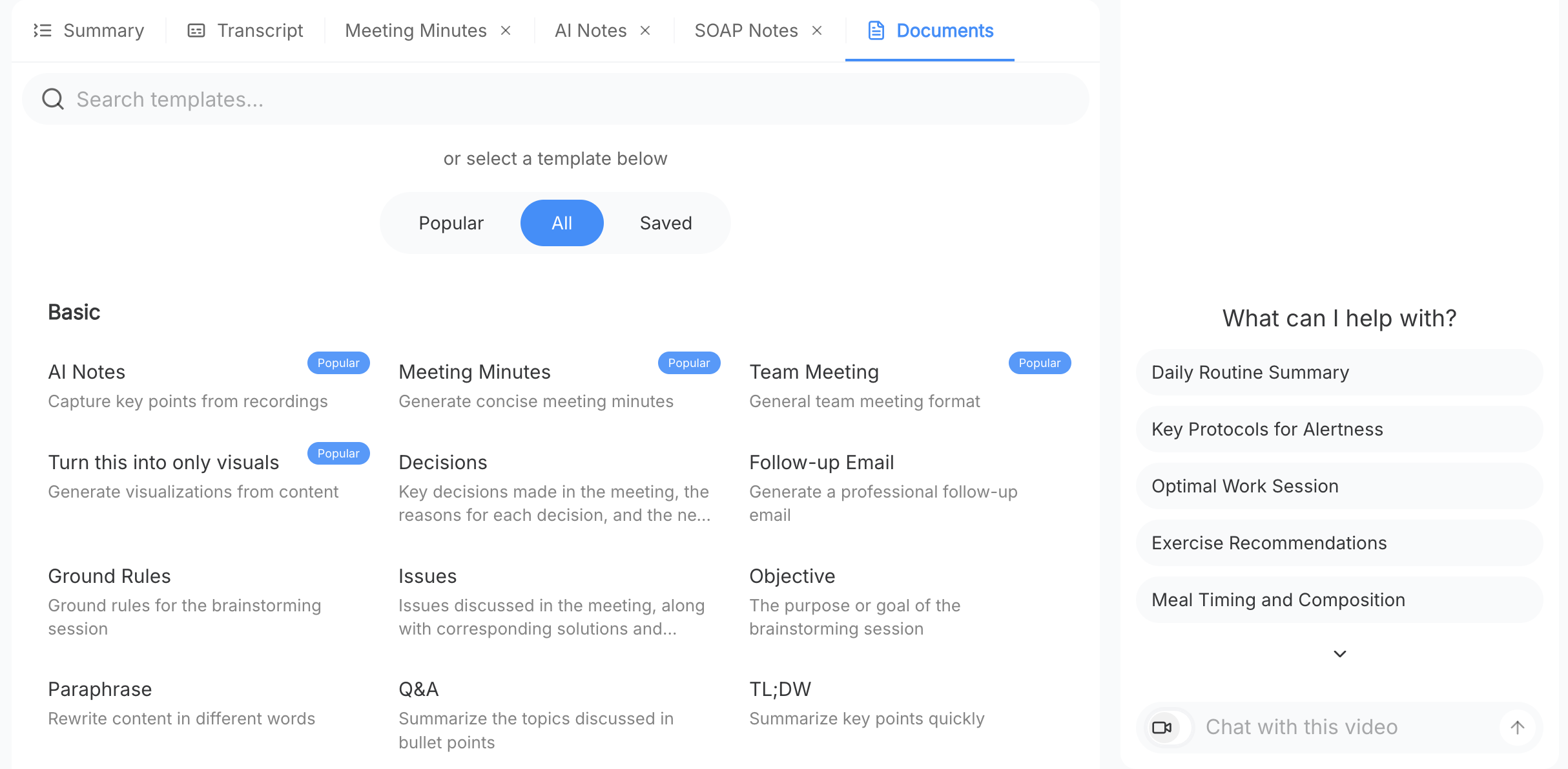
3. **AI Processing**: Our advanced AI transcribes speech, identifies speakers, and organizes text into paragraphs with proper punctuation and formatting - all in under 60 seconds.
4. **AI Processing**: Refine your document with built-in editing tools. Add highlights, adjust formatting, translate into multiple languages, or insert additional notes.
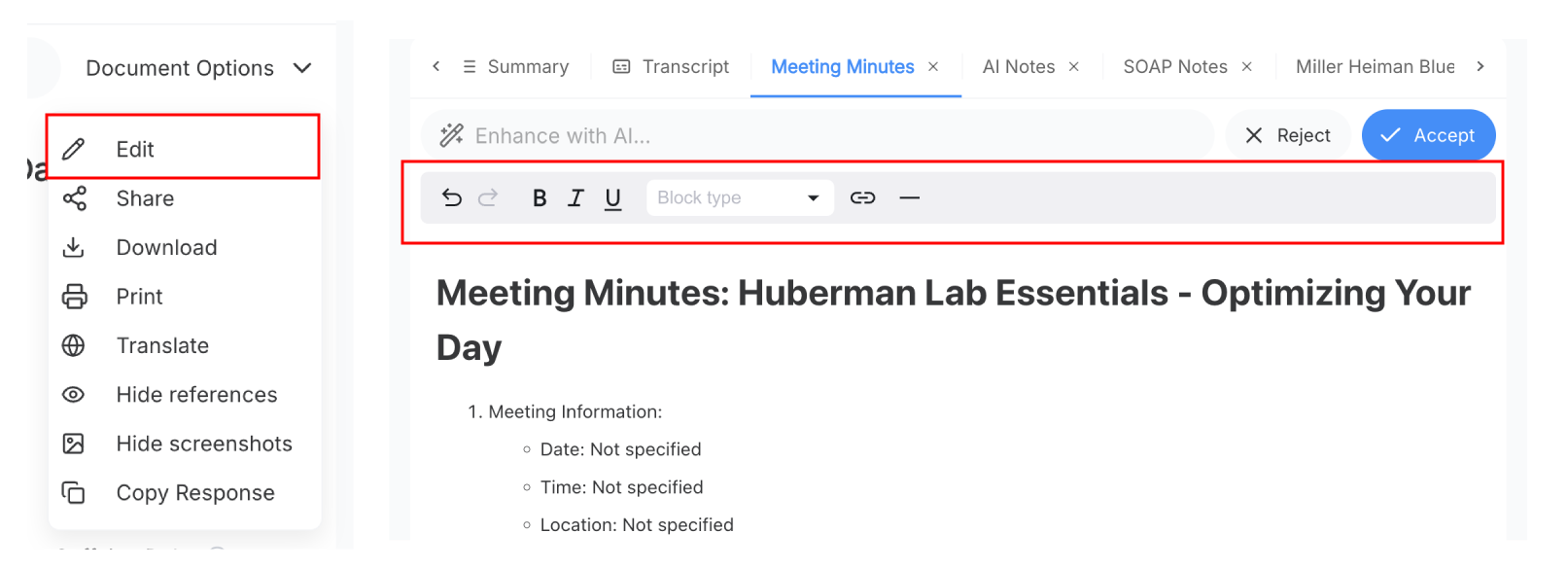
5. **Download & Share**: Export your completed file directly as a Word document (.docx), Google Docs, or Office 365 for full editing and collaboration.
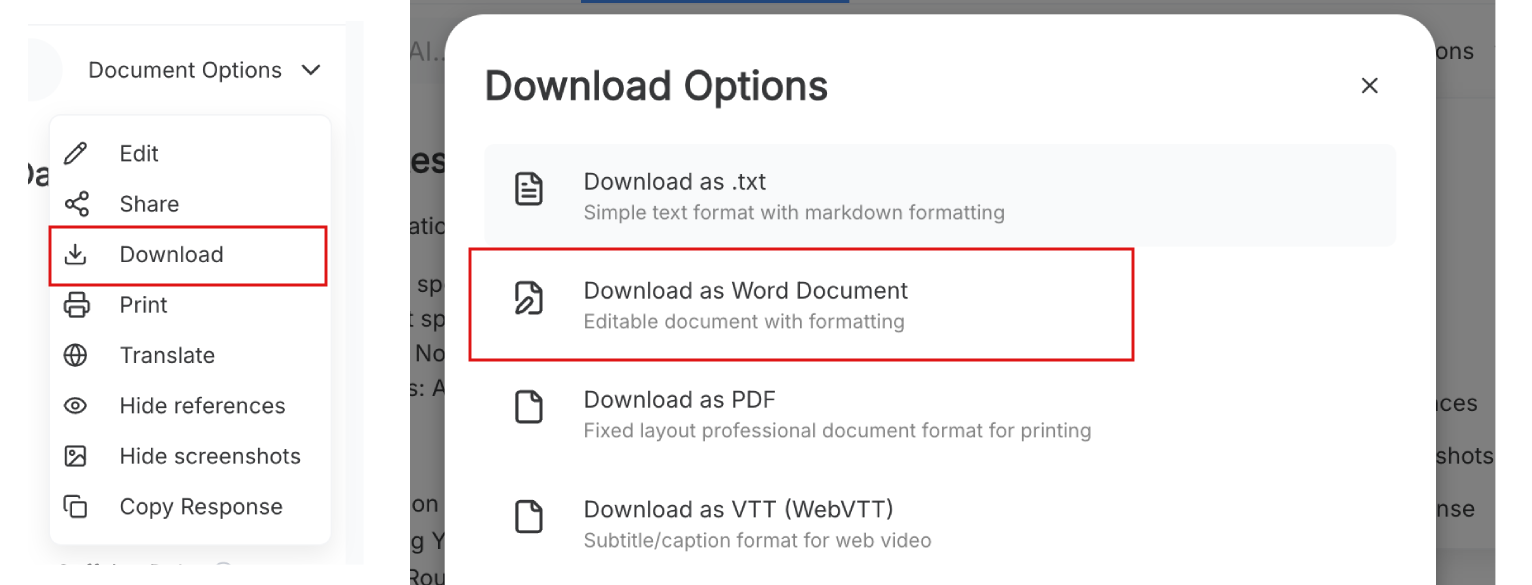
Our proprietary AI technology combines multi-language speech recognition with intelligent text formatting to deliver 99% accurate video to document conversion. The system automatically detects speakers, adds proper punctuation, and organizes content into readable paragraphs.
**Need a PDF instead?** Use our [Video to PDF Converter](/features/convert-video-to-pdf) for creating permanent, printable PDF documents from any video.
## Benefits of convert video to document
Converting video to document format transforms your video content into editable text files instantly. AI-powered transcription delivers 99% accuracy with automatic speaker identification and professional formatting.
Save hours of manual work with automated processing. One-hour videos convert in under 2 minutes, letting you focus on content instead of data entry.
Key advantages include:
- Instant transcription with speaker labels
- Support for 50+ video formats (MP4, AVI, MOV)
- Direct export to Word, Google Docs, or Office 365
- Full editing and collaboration capabilities
- Automatic formatting with headings and bullet points
Your converted documents work seamlessly across Microsoft Word, Google Docs, and Office 365. Edit, comment, track changes, and share with teams effortlessly.
## Who uses video to doc converter
Students convert lecture videos and online courses into study notes. Automatic chapter detection and key point extraction make learning materials searchable and organized.
Business teams transform meetings, training sessions, and client calls into professional documents. Get speaker-identified transcripts with timestamps for accurate meeting minutes and action items.
Content creators repurpose video interviews, podcasts, and tutorials into blog posts and social media content. Convert video into written formats that expand reach and improve SEO.
Healthcare and legal professionals document consultations, depositions, and conferences. HIPAA-compliant transcription ensures secure, court-ready documentation with precise attribution.
Journalists convert interview recordings and press conferences into quotable text. Timestamp references and speaker identification enable accurate reporting and fact-checking.
## FAQ
### How does video to document conversion work with AI technology?
Our AI-powered video to document converter uses advanced speech recognition and natural language processing to automatically transcribe audio, identify speakers, and format content into professional documents. The system processes 99% of videos with broadcast-quality accuracy in under 60 seconds.
### Can I convert video to document file for free?
Yes! Our free video to document format converter includes basic conversion with up to 15 minutes per video. Premium plans unlock unlimited duration, batch processing, and advanced formatting for your video to doc converter needs.
### What video formats work with our video to document format tool?
Our video to word document converter supports all major formats including MP4, AVI, MOV, WMV, MKV, FLV, and WebM. Convert from URLs or upload from cloud storage to create professional documents with our video to doc converter.
### How accurate is convert video into document transcription for meetings?
Our meeting-optimized AI achieves 99% transcription accuracy with automatic speaker identification, proper punctuation, and intelligent paragraph breaks. The system handles overlapping speech, background noise, and technical terminology with industry-leading precision.
### Can I edit the Word document after video conversion?
Absolutely! All converted Word documents are fully editable with complete Microsoft Word functionality. Add comments, highlight key points, reorganize content, use track changes, or share with your team. Full compatibility with Word, Google Docs, and Office 365 for seamless collaboration.
### What's the difference between video to document and video to PDF?
Our video to document format creates editable Word files perfect for collaboration and editing. Our video to doc converter makes files you can modify. For permanent documents, try our Video to PDF Converter for unchangeable video to document file creation.
### Can I convert video to doc format in different languages?
Yes! Our video to word document converter supports 50+ languages. The video to document format tool automatically detects language and creates properly formatted documents regardless of the original video language.
---
### Video to GIF Free - MP4 to GIF Converter Online
**URL:** https://screenapp.io/video-to-gif
**Category:** Video Processing
**Description:** Free video to gif converter online. Convert mp4 to gif instantly. Turn any video into animated GIF, no signup, works in your browser.
## How the Video to GIF Converter Works
Converting video to gif takes just three steps. Upload your video and download an animated GIF.
**Quick process:**
1. Upload your video file (MP4, MOV, AVI, WebM)
2. Wait for automatic conversion
3. Download your GIF file
The video to gif converter processes files entirely in your browser. No software needed. Your files stay private with local processing.
## Benefits of MP4 to GIF Conversion
Turn video clips into shareable animated images with the mp4 to gif converter. GIFs work everywhere videos don't.
Key benefits include:
- Video to gif free with no limits
- Convert mp4 to gif in seconds
- No watermark on exported files
- Gif converter works in any browser
- Supports MP4, MOV, AVI, WebM formats
- Instant download when complete
GIFs are smaller than videos and play automatically. Perfect for social media, messaging apps, and websites where video embeds aren't supported.
## Who Needs a Video GIF Converter
### Social Media Users
Create reaction GIFs from video clips. The video to gif converter turns memorable moments into shareable content for Twitter, Discord, and Reddit.
### Marketers
Turn product videos into animated previews. A video gif converter creates eye-catching content that auto-plays in feeds and emails.
### Developers
Convert screen recordings to documentation GIFs. Show UI interactions without video player dependencies. The gif converter handles mov to gif for Mac recordings.
### Content Creators
Make animated thumbnails and previews. Convert video to gif for content that loads fast and captures attention instantly.
## FAQ
### How do I convert video to gif free?
Upload your video to the converter, wait for processing, and download your GIF. The video to gif converter is completely free with no account required. Works with MP4, MOV, AVI, and WebM files.
### What is the best mp4 to gif converter?
ScreenApp's mp4 to gif converter processes files in your browser for privacy. No upload to external servers, no watermarks, and instant downloads. Supports all common video formats.
### Can I convert mov to gif?
Yes, the gif converter supports MOV files along with MP4, AVI, and WebM. Upload any video format and convert to animated GIF in seconds.
### Is there a file size limit for video gif converter?
The video to gif converter handles standard video files up to several minutes long. For best results, trim longer videos before conversion to keep GIF file sizes manageable.
### How long does video to gif conversion take?
Most conversions complete in under 30 seconds. The video to gif free tool processes everything in your browser, so speed depends on your device and video length.
---
### Video to Markdown
**URL:** https://screenapp.io/video-to-markdown
**Category:** Video Tools
**Description:** Effortlessly convert your videos to Markdown with ScreenApp's powerful tool - save time and boost your content creation!
## How to use ScreenApp's Video to Markdown
### 1. Upload Your Video
Start by uploading your video to ScreenApp. You can drag and drop your video file or select it from your computer.
### 2. Convert Your Video
Once your video is uploaded, click the "Convert to Markdown" button. ScreenApp will automatically transcribe your video and generate a Markdown file.
### 3. Download Your Markdown
After the conversion is complete, you can download your Markdown file. You can then use this file to create blog posts, articles, or other content.
### Boost Your SEO and Accessibility
Make your videos more discoverable and accessible to a wider audience by adding transcripts and closed captions. Our tool helps you optimize your content for search engines and improve user experience.
## Who is ScreenApp's Video to Markdown Perfect for?
### Content Creators
Save time and effort by automatically transcribing your videos into high-quality Markdown. Perfect for blog posts, articles, and social media captions.
### Educators
Create accessible learning materials by converting your lectures and tutorials into easily digestible text formats.
### Businesses
Boost your SEO and reach a wider audience by transcribing your marketing videos and product demos into searchable text.
### Researchers
Quickly and accurately transcribe interviews, focus groups, and other audio-visual data for analysis and reporting.
### Students
Take notes faster and more efficiently by converting your lectures and online courses into Markdown.
## FAQ
### Can I convert any video to Markdown?
Yes, ScreenApp's Video to Markdown tool supports a wide range of video formats, including MP4, MOV, AVI, and more.
### What kind of Markdown output can I expect?
Our tool generates clean and well-formatted Markdown, including headings, paragraphs, lists, and code blocks.
### Is the output accurate?
We strive for accuracy, but it's important to review the output and make any necessary edits. Our tool uses advanced AI to transcribe and format the video content.
### Can I edit the Markdown after conversion?
Absolutely! You can easily edit the Markdown output in any text editor or Markdown editor of your choice.
### How long does it take to convert a video?
Conversion time depends on the video length and complexity. Generally, it's a quick process.
### Is there a limit on video size?
We have a file size limit to ensure efficient processing. You can find the specific limit on our pricing page.
### Can I use the Markdown for different purposes?
Yes, you can use the Markdown for various purposes, such as creating blog posts, documentation, or even social media content.
### Is the tool free to use?
We offer a free trial to experience the tool. For continued use, we have affordable subscription plans.
### What if I encounter an issue?
Our support team is available to assist you with any questions or problems you may have.
### Is my video data secure?
We prioritize data security and use industry-standard encryption to protect your video files.
---
### Video to PPT Converter Online Free
**URL:** https://screenapp.io/video-to-ppt
**Category:** Video Tools
**Description:** Convert video to PPT free with AI-powered extraction. Transform YouTube videos, MP4 files, and lectures into professional PowerPoint slides instantly - no downloads required.
## How to Convert Video to PPT
Converting videos to PowerPoint slides takes just three simple steps with ScreenApp's free online tool.
**Upload your video** by clicking the upload button and selecting your MP4 file, or paste any YouTube URL directly into the converter. The tool accepts all common video formats including MOV, AVI, and WebM.
**AI extraction begins automatically** as our system analyzes your video content. The AI transcribes audio, identifies key topics, and extracts important moments that belong in presentation slides.
**Download your PowerPoint** when processing completes. Click export to get professional PPT slides with structured titles, bullet points, and organized content ready for editing or presenting.
The entire process takes minutes instead of hours. Your converted presentation maintains logical flow and highlights the most important information from your video.
For a complete step-by-step walkthrough with examples and best practices, see our full guide on converting videos to PowerPoint with AI.
## Benefits of YouTube Video to PPT Converter Online Free
Transform YouTube videos into PowerPoint presentations without software installation or paid subscriptions. ScreenApp's converter works entirely in your browser with unlimited free conversions.
**Save hours of manual work** by eliminating the tedious process of watching videos repeatedly and typing notes. AI completes what used to take hours in just minutes.
**Extract key information automatically** as smart analysis identifies the most valuable concepts, quotes, and topics from any video. The system structures content into logical slides with proper formatting.
Key benefits include:
- Unlimited free conversions with no registration
- Works with YouTube, MP4, and all video formats
- AI-powered content extraction and slide generation
- Professional formatting with clear structure
- Completely online with no downloads required
- Batch processing for multiple videos
Your videos stay private with secure processing. Access converted files immediately after completion without waiting in queues or upgrading to paid tiers.
## Who Needs a Video to PowerPoint Converter
**Students and educators** convert lecture videos and educational content into study materials and presentation decks. Transform lengthy online lectures into digestible slides that highlight key concepts for exam preparation.
**Business professionals** turn recorded meetings, webinars, and training sessions into shareable PowerPoint files. Create onboarding materials and training decks from existing video content for team development.
**Content creators** repurpose video content into presentation formats for speaking engagements and workshops. Convert your YouTube tutorials or courses into professional slide decks for different audiences.
**Trainers and consultants** transform training videos into slide-based materials that participants reference during and after sessions. Build comprehensive course documentation from video recordings.
## FAQ
### How does a video to ppt converter work?
Upload your video file or paste a YouTube URL into ScreenApp's converter. The AI analyzes audio and visual content, identifies key points, and automatically generates PowerPoint slides with extracted information organized into titles and bullet points.
### Is the mp4 video to ppt converter online free?
Yes, ScreenApp offers completely free MP4 to PowerPoint conversion with no limits. Upload any MP4 file and convert it to professional PPT slides using AI-powered extraction at no cost and without registration.
### Can I convert YouTube video to PowerPoint free?
Yes, paste any YouTube URL into ScreenApp's free converter to transform video content into PowerPoint slides instantly. The tool extracts key information and creates structured presentations from any public YouTube video.
### What is video to ppt converter ai?
Video to ppt converter AI uses artificial intelligence to automatically transcribe audio, identify main topics, and structure content into logical PowerPoint slides. The AI creates titles, bullet points, and organizes information without manual work.
### How do I convert video to ppt slides online?
Click upload to select your video file or paste a YouTube URL into ScreenApp. The AI processes your video and generates PowerPoint slides automatically. Download your completed PPT file when processing finishes in minutes.
---
### Extract Text from Video
**URL:** https://screenapp.io/video-to-text
**Category:** Video Tools
**Description:** Extract text from video files instantly with AI-powered accuracy. Convert video to text, get text from video, and transcribe any video format online free.
## Benefits of extract text from video with AI accuracy
Extract text from video technology transforms video content into searchable, editable text with 95% accuracy. The video text extractor handles multiple speakers, background noise, and various video qualities with precision while maintaining context and timing information.
The system provides powerful features:
- Video text extractor with speaker identification and timestamps
- Text extractor from video supporting 30+ languages
- Copy text from video with interactive editing tools
- Extract text from video online free for 10 minutes monthly
- Get text from video in TXT, DOC, PDF, SRT formats
Perfect for content creators extracting text for SEO and captions, students getting text from video lectures for study materials, and businesses generating text from meetings and training content.
Eliminate manual transcription work and save countless hours. The extracted text is fully searchable, making it easy to find specific information, create quotes, or analyze content across any video length and format.
## How video text extractor works
Video text extractor starts processing immediately after upload. Upload your video file (MP4, AVI, MOV, etc.) or paste a video URL for instant text extraction with advanced AI technology.
Simple extraction process:
1. Upload video file or paste URL (YouTube, Vimeo supported)
2. Select preferred language and extraction options (timestamps, speakers)
3. Click "Extract" to start AI-powered text extraction
4. Review and edit extracted text in interactive editor
5. Download text in multiple formats (TXT, DOC, PDF, SRT)
The text extractor from video uses advanced AI to accurately extract text from video content across all major formats including MP4, AVI, MOV, WMV, and MKV. The system handles various audio qualities and delivers consistent accuracy.
Free tier includes extract text from video free for videos up to 10 minutes. Premium plans offer unlimited video length, enhanced accuracy, speaker identification, and priority processing.
For a complete step-by-step walkthrough with examples and best practices, see our full guide on using video OCR to extract text from videos.
## Who Needs to Get Text from Video
Our extract text from video service is essential for:
**Content Creators** - Extract text from video content for SEO, captions, and repurposing
**Journalists** - Quickly get text from video interviews and footage for articles
**Students** - Extract text from video lectures for note-taking and study materials
**Businesses** - Generate text from video meetings, presentations, and training content
**Researchers** - Extract text from video data for analysis and documentation
Whether you need to extract content from video files in multiple languages or want to convert video to text for accessibility, our video text extractor delivers professional-grade results consistently.
## FAQ
### How accurate is text extraction from video?
Our extract text from video technology achieves over 95% accuracy for videos with clear audio. The video text extractor handles various audio qualities, background noise, and multiple speakers effectively. For critical content, we offer human review options to ensure perfect text extraction.
### Can I extract text from video free?
Yes, you can extract text from video free with our basic plan that includes up to 10 minutes of video processing per month. For longer videos or advanced features like speaker identification and timestamps, upgrade to our premium plans starting at $9.99/month.
### How do I get text from video in different languages?
Our text extractor from video supports over 30 languages for both extraction and translation. Upload your video, select the source language, and choose your target language for simultaneous text extraction and translation. Perfect for multilingual video content analysis.
### What video formats work with your text extraction tool?
Our extract text from video online tool supports all major formats including MP4, AVI, MOV, WMV, MKV, and more. You can also extract content from video by pasting URLs from YouTube, Vimeo, and other platforms directly into our system.
### What's the difference between free and premium text extraction?
Free text extraction includes basic processing for videos up to 10 minutes, while premium plans offer unlimited video length, enhanced accuracy, speaker identification, timestamps, priority processing, and advanced formatting options for extracted text.
---
### Screen Translator - Online Screen Translator for PC Free
**URL:** https://screenapp.io/video-translator
**Category:** Accessibility Tools
**Description:** Screen translator translates on-screen text, videos, and recordings instantly. Free online screen translator for PC works with 100+ languages. Translate screen recording to Hindi, English, and more.
## Benefits of Online Screen Translator
Online screen translator provides instant translation of any text appearing on your screen, from videos and documents to applications and websites. Access professional-grade AI translation technology directly in your browser without software installation or downloads.
Translate screen recordings and video content to 100+ languages including Hindi, English, Arabic, Japanese, French, German, Spanish, and Tagalog. The screen translate feature achieves 98-99% accuracy with clear audio, maintaining cultural nuances and contextual meaning throughout translation.
Use the screen translator online free to expand global reach for content creators, communicate across language barriers for businesses, and access international content for learners. Real-time processing delivers translated subtitles and text in minutes, not hours.
## How Screen Translator PC Works
Screen translator PC operates through your web browser, providing instant translation without requiring desktop software installation or system resources.
The AI-powered translation process works seamlessly:
1. Upload video files, audio files, or screen recordings
2. AI detects source language automatically
3. Select target language from 100+ options
4. Advanced models translate with context awareness
5. Download translated subtitles or video content
6. Export in multiple formats (SRT, VTT, ASS)
The translate screen recording feature processes your content using multimodal AI that synchronizes timing, maintains formatting, and preserves speaker attribution. Perfect for translating training videos, webinars, presentations, and educational content across languages.
## Who Needs to Translate Screen Recording
Translate screen recording tools serve professionals and creators who need multilingual versions of video content for global audiences.
**Content Creators**: YouTubers and video producers translate screen recordings to reach international viewers, using the online screen translator to generate subtitles in multiple languages for increased engagement and views.
**Business Teams**: Companies translate screen recording tutorials, training materials, and product demos with screen translator pc to serve global customers and employees across language barriers.
**Educators**: Teachers and course creators use screen translate features to make educational content accessible to international students, translating lectures and tutorials to 100+ languages instantly.
**Software Companies**: Tech teams translate screen recording demos and documentation using screen translator online to support users worldwide and expand market reach.
**Marketing Teams**: Agencies translate screen recordings of campaigns and presentations to Hindi, Spanish, Chinese, and other languages for regional markets using the video voice translator.
## FAQ
### What is a screen translator?
A screen translator is a tool that translates text, video content, and audio appearing on your screen to different languages. It combines speech recognition with AI translation to convert screen recordings, videos, and on-screen text to 100+ languages instantly.
### How do I use screen translator for PC?
Upload your screen recording or video file to the online screen translator platform, select your target language, and the AI will translate all spoken content and on-screen text. Download translated subtitle files or access the translated content directly.
### Can I translate screen recording to Hindi?
Yes, the screen translator supports Hindi translation along with 100+ other languages. Upload your screen recording and select Hindi as the target language to receive accurate translations with proper cultural context and terminology.
### Is the online screen translator free?
Yes, the online screen translator offers free access to translation features. Translate screen recordings, videos, and on-screen text without subscription fees or usage limits for basic translation needs.
### Does screen translate work in real-time?
The screen translate feature processes uploaded content within minutes, typically 1-3 minutes for 10 minutes of video. Real-time translation depends on content length and source language complexity.
**Meta Title**: Screen Translator - Online Screen Translator for PC Free
**Meta Description**: Screen translator translates videos and on-screen text to 100+ languages. Free online screen translator for PC with instant results.
---
### Video to Link Converter - Free MP4 to Link Tool
**URL:** https://screenapp.io/video-to-url-link-converter
**Category:** Video Tools
**Description:** Free video to link converter turns MP4 files into shareable URLs. Convert video to link instantly with our video to URL converter. MP4 to link in seconds.
## Why Use a Video to Link Converter
The video to link converter transforms any video file into a shareable URL instantly. Convert video to link format from MP4, MOV, AVI without quality loss or file size limits.
Here's what makes the video to URL converter valuable:
- Video to link conversion in seconds with one upload
- MP4 to link with permanent URLs that never expire
- Video link converter supports all video formats
- Convert video to URL without compression or quality loss
- Video link generator works with files up to 500MB
- Share via email, text, or social media instantly
The video to link tool eliminates email attachment limits. Recipients view videos directly in browser without downloading files. Perfect for sharing large video files with clients and teams.
## How the Video to URL Converter Works
The video to URL converter processes your file and generates a shareable link instantly. Upload from any device and get permanent URLs in seconds.
**Quick video to link process:**
1. Upload video from computer, phone, or tablet
2. Video link generator creates permanent URL automatically
3. Copy and share link via email, text, or social media
4. Recipients view video directly in browser
The video to link converter works with MP4, MOV, AVI, WMV, and FLV. Turn video into link format while preserving original quality. The MP4 to link conversion includes privacy controls for managing access.
## Who Needs Video Link Converter
### Marketing Teams
Use the video to link converter to distribute campaign videos without file limits. Share promotional content with clients via clean, professional URLs.
### Video Creators
The video link converter delivers projects to clients through shareable URLs. Convert video to URL instead of bulky file transfers.
### Remote Teams
Distribute training videos with the video to link tool. Share presentations and recordings across the organization instantly.
### Educators
The video to URL converter shares lecture recordings with students. Convert video to link for easy classroom distribution.
## FAQ
### How do I convert video to link?
Upload your video file to our free video to link converter. The system automatically generates a shareable URL that you can copy and distribute via email, text, or social media without any signup required.
### Is the video to link converter free?
Yes, the video to link converter is completely free with unlimited video uploads and permanent URL generation. No signup, registration, or payment required for video link creation.
### Can I convert any video format to URL?
Yes, the video to URL converter supports MP4, MOV, AVI, WMV, FLV, and all major video formats. Upload any video file and receive an instant shareable link.
### How long do video to link URLs last?
All generated video to link URLs are permanent with no expiration date. Your shareable links remain active indefinitely for reliable long-term video sharing.
### Does the video link converter work on mobile?
Yes, upload videos from any device including mobile phones, tablets, and computers. The video to link tool works across all platforms and generates URLs that play on any device.
---
### Online Video Trimmer
**URL:** https://screenapp.io/video-trimmer
**Category:** Video Tools
**Description:** Trim, cut, and crop videos online with our free video trimmer. No registration or installation needed. Edit MP4 files instantly with high quality results.
## How to Use Online Video Editor
1. **Upload your video**: Drag and drop your file or click to browse. We support all popular video formats.
2. **Set trim points**: Move the sliders to mark where your video should start and end. You can create multiple segments by adding trim points.
3. **Preview your edit**: Check your trimmed video in real-time before finalizing.
4. **Download your result**: Save your edited video in original quality or choose a different format and resolution.
Our online video editor features a simple interface that anyone can use without technical knowledge. The entire process typically takes less than a minute, and your videos never leave your computer - all processing happens locally in your browser for maximum privacy.
## Benefits of Video Cutter
Video cutter makes it easy to remove unwanted parts from your videos in seconds. Our free tool works directly in your browser, supporting popular formats like MP4, AVI, and MOV. With our simple interface, you can cut multiple segments, adjust timing with frame-precision, and download your finished video immediately without quality loss.
Unlike desktop software that requires installation and computer resources, our video cutter operates entirely online, making it accessible from any device with internet connection. Perfect for quick edits when you're on the go or working on a shared computer.
## Who Needs Video Cropper
Video cropper is essential for:
- **Content creators** who need to remove unwanted areas from their videos or adjust aspect ratios for different platforms.
- **Social media managers** looking to repurpose videos across platforms with different size requirements.
- **Students and educators** creating focused clips from longer educational content.
- **Marketing professionals** who need quick edits for promotional content without complex editing software.
- **Anyone** who wants to focus on the important parts of a video by removing distracting elements from the frame.
Our lightweight tool lets you precisely select the area you want to keep, perfect for removing unwanted objects, focusing on specific subjects, or changing video dimensions to fit specific requirements.
## FAQ
### How do I trim MP4 files online?
Upload your MP4 file to our video trimmer, set your start and end points using the slider, preview your changes, and download the trimmed file. The entire process preserves your original video quality and typically takes less than a minute.
### Can I add audio to video using your tools?
Yes! Our audio-recorder tool allows you to add background music, voiceovers, or sound effects to your videos. Simply upload your video, add your audio file, adjust volume levels, and download the combined result.
### Is online video cutter safe to use?
Absolutely. Our video cutter processes all files directly in your browser - we never upload your content to our servers. This ensures maximum privacy and security for all your video projects.
### How do I edit MP4 files without losing quality?
Our mp4 editor preserves quality by using lossless cutting technology. This means we extract the segments you want without re-encoding the entire video, maintaining the original resolution and clarity of your footage.
### Can I speed up or slow down videos?
Yes, use our video speed editor to adjust playback speed. You can make videos play faster for time-lapse effects or slower for detailed analysis. The tool supports precise percentage adjustments and maintains audio pitch.
---
### Video Tutorial Maker
**URL:** https://screenapp.io/video-tutorial-maker
**Category:** Video Tools
**Description:** Create professional video tutorials with our easy tutorial video maker. Screen recording, AI voiceover, and automatic captions. Make how-to videos in minutes.
## Benefits of Video Tutorial Maker
Creating how-to videos no longer requires expensive equipment or editing expertise. Our video tutorial maker captures your screen, webcam, or both while you demonstrate any process. AI automatically adds captions, highlights key moments, and creates chapter markers.
Key advantages include:
- Record tutorials directly in your browser
- Automatic transcription and captions in 50+ languages
- AI identifies and highlights important steps
- Export in formats optimized for YouTube, social media, or LMS
Stop writing lengthy documentation nobody reads. Show your audience exactly what to do with clear, professional tutorials.
## How to Create Tutorial Videos
Making professional tutorial videos takes just minutes:
1. **Start recording** - Capture your screen, camera, or both simultaneously
2. **Demonstrate the process** - Walk through each step naturally as you would teach someone
3. **AI enhances automatically** - Captions, chapters, and highlights generated instantly
4. **Edit if needed** - Trim sections, add annotations, or adjust pacing
5. **Export and share** - Download in your preferred format or share via link
The platform handles technical details like audio cleanup, caption timing, and format optimization so you can focus on teaching.
## Who Needs a Tutorial Video Maker
Tutorial video software serves anyone who teaches or explains:
- **Software Companies**: Create product walkthroughs and feature demos
- **IT Teams**: Document processes and troubleshooting guides
- **YouTubers**: Produce how-to content efficiently at scale
- **Customer Support**: Build self-service video libraries
- **Educators**: Develop supplementary instructional materials
- **Freelancers**: Create client deliverables and training materials
Whether you're explaining software, teaching a skill, or documenting procedures, video tutorials communicate more effectively than text alone.
## FAQ
### What is the best video tutorial maker?
The best tutorial video maker combines easy screen recording, automatic captioning, and simple editing in one platform. Look for browser-based tools that require no downloads and include AI features like automatic chapter generation and transcript creation. ScreenApp provides all these features free.
### How do I make a tutorial video for free?
Use a free screen recorder to capture your demonstration, then add captions and basic edits. ScreenApp offers free tutorial creation with screen recording, AI-generated captions, automatic transcripts, and direct sharing—no software installation required.
### What equipment do I need to make tutorial videos?
For basic tutorials, you only need a computer with a microphone. Built-in laptop mics work for most content. As you scale up, consider a USB microphone for clearer audio. Screen recording software handles everything else, including webcam capture if you want to appear on screen.
### How long should a tutorial video be?
Keep tutorials focused on single topics, typically 3-10 minutes. Break complex processes into multiple shorter videos rather than one long tutorial. Viewers retain information better from concise, focused content they can reference quickly.
### Can I add captions to my tutorial videos automatically?
Yes. AI-powered tutorial makers generate accurate captions automatically in dozens of languages. This improves accessibility, SEO, and viewer engagement since many people watch videos without sound. ScreenApp creates captions instantly as part of the recording process.
---
### Video Webcam Recorder
**URL:** https://screenapp.io/video-webcam-recorder
**Category:** Video Tools
**Description:** Record high-quality webcam videos online with ScreenApp's free webcam recorder. Perfect for vlogs, tutorials, and video calls with no software needed.
## How to use this Webcam Recorder Online
1. Click "Start Recording" and allow webcam access
2. Click the Record button to start capturing video
3. Click Stop when finished and view or edit your video
4. Save your recording, instantly!
## The Best Online Video Recorder
- Easy-to-use online video recorder that requires no downloads or installs - simply use your web browser to record
- Capture high-quality video recordings from your webcam with the click of a button
- Perfect free online camera and video recording solution for content creators, students, professionals and more
- Instantly record and share videos online using your computer's camera
- Combine webcam recording with screen recording for more engaging video content
- Utilize a free, full-featured video recorder online with editing tools and cloud storage
## FAQ
### Is ScreenApp really free to use? Are there any hidden costs?
Yes, ScreenApp is 100% free to use for all your video recording needs. There are no hidden fees, subscriptions, or paid upgrades required.
### What types of videos can I record with ScreenApp?
With ScreenApp, you can record your webcam, your screen, or both simultaneously. This allows you to create talking head videos, screencasts, software tutorials, video presentations, and more.
### Do I need a special camera or microphone to use ScreenApp?
No special equipment is needed! ScreenApp works with your computer's built-in webcam and microphone. However, you can use an external camera or mic if desired for higher quality audio and video.
### Is there a watermark on the videos I record?
No, ScreenApp doesn't add any watermarks or branding to your videos. Your recorded videos are clean and professional-looking.
### How long can my videos be? Is there a limit to the number of recordings?
There are no limits on recording length or the number of videos you can create. Record and save as many short or long videos as you need!
### Can I edit and enhance my videos after recording them?
Yes, ScreenApp includes basic editing tools that allow you to trim your video, add captions, insert images and slides, and more. You can polish your videos before sharing them.
### How secure and private are my recorded videos?
ScreenApp uses secure encryption and stores your videos privately in the cloud. You control who can view your videos by sharing private links only with intended recipients.
### Can I download my videos to my computer?
Yes, in addition to saving and sharing your videos online, you also have the option to download your recordings as MP4 files for offline use and backup purposes.
---
### VideoGlancer - Convert Videos to PDF & Summaries Free
**URL:** https://screenapp.io/videoglancer
**Category:** Video Tools
**Description:** Video glancer transforms videos into PDF documents and summaries instantly. Free video to PDF converter with AI transcription from YouTube, Zoom, Vimeo.
## Benefits of video glancer for document conversion
Video glancer transforms video content into accessible PDF documents and summaries using advanced AI technology. Process any video into comprehensive notes, PDF files, and transcripts in under 5 minutes while maintaining 98.7% accuracy in content extraction.
The platform delivers professional results:
- Convert videos to PDF with timestamps and speaker attribution
- Generate AI summaries from YouTube, Vimeo, Zoom recordings
- Extract structured notes with 98.7% speech recognition accuracy
- Support for 20+ video formats and 30+ platforms
- Download results in PDF, Word, or HTML format
Users save an average of 78% of video viewing time while retaining more information through organized document formats. With precise timestamp linking, reference specific video moments directly from your PDF, making information retrieval 10x faster than traditional methods.
Perfect for students, professionals, researchers, and content creators who need efficient video to PDF conversion with searchable, shareable documents.
## How video glancer pdf converter works
Video glancer pdf conversion starts immediately after upload. Paste any URL or upload your video file to the secure platform. The system supports all major video formats including MP4, AVI, MOV, WMV, and WebM.
Simple conversion process:
1. Submit video URL or upload file (YouTube, Vimeo, Zoom supported)
2. Select output format (PDF summary, detailed transcript, or structured notes)
3. Review AI-generated results with speaker identification and timestamps
4. Download PDF, Word, or HTML format documents
The AI identifies speakers, topics, and important moments automatically with 98.7% accuracy. Each PDF format is optimized for different use cases, from quick summaries reviewed in under 5 minutes to comprehensive transcripts with precise citations.
Share documents with colleagues, integrate with existing workflows, or archive for future reference. The platform processes videos directly from 30+ platforms including YouTube, Vimeo, Zoom, and Microsoft Teams without requiring downloads.
## Who needs videoglancer for video analysis
Videoglancer serves multiple document conversion needs:
**Students & Educators** convert lecture videos into comprehensive PDF study materials and reference documents, reducing study time by 65% while improving retention rates through organized formats.
**Business Professionals** transform lengthy meetings and presentations into actionable PDF summaries with timestamps. Review key points in under 5 minutes instead of watching full hour-long recordings.
**Researchers** extract valuable information from webinars, interviews, and conference presentations. Video glancer pdf output includes precise citations and timestamps for academic work and documentation.
**Content Creators** repurpose video content into written formats for blogs, articles, and social media. Convert YouTube videos to PDF transcripts without spending hours on manual transcription work.
**Legal Professionals** create accurate PDF records of video depositions, testimonies, and proceedings with precise timestamps and speaker attribution for case documentation and evidence.
## FAQ
### What is video glancer?
Video glancer is an AI-powered platform that converts videos into PDF documents, summaries, and transcripts. Upload videos from YouTube, Vimeo, Zoom, or 30+ platforms to generate searchable PDF files with 98.7% accuracy in under 5 minutes.
### How do I convert video to PDF with video glancer?
Paste your video URL or upload a file, select PDF output format, and the AI generates a professionally formatted document with timestamps and speaker attribution. Download results in PDF, Word, or HTML format for sharing.
### Is video glancer pdf converter free?
Yes, the free version supports video to PDF conversion with basic features. Premium plans add unlimited conversions, advanced AI summaries, batch processing, and support for videos in 12 languages including multi-speaker analysis.
### What makes videoglancer better than alternatives?
Videoglancer achieves 98.7% accuracy in speech recognition and combines audio, visual, and contextual information for comprehensive understanding. Process videos from 30+ platforms directly without downloads, with results in 3-5 minutes regardless of video length.
### Can video glancer handle YouTube videos?
Yes, video glancer processes YouTube videos directly by pasting the URL. The platform supports videos from YouTube, Vimeo, Zoom, Microsoft Teams, and 30+ other platforms, converting them to PDF with transcripts, summaries, and timestamps automatically.
---
### Vimeo AI Notetaker
**URL:** https://screenapp.io/vimeo-ai-notetaker
**Category:** Meeting Solutions
**Description:** Instantly transcribe, summarize, and search your Vimeo videos with ScreenApp Notetaker, a must-have tool for productivity and collaboration.
## How to Use Vimeo AI Notetaker
### AI that takes notes from videos for you: ScreenApp's Vimeo plugin
Do you want to learn more from the videos you watch on Vimeo and get more done? With ScreenApp, you can take automated notes from any Vimeo video with just one click.
ScreenApp's AI notetaker will help you by:
- Automatically extracting key points and insights from the video
- Summarizing the main ideas in a clear and concise way
- Making it easy for you to review and recall the information later
## Who is Vimeo AI Notetaker for?
### Who benefits from ScreenApp's Vimeo AI Notetaker?
ScreenApp's Vimeo AI Notetaker is the perfect solution for anyone who wants to get the most out of their Vimeo videos. Whether you're a student, a researcher, or a business professional, our AI-powered notetaker can help you save time, improve your focus, and learn more effectively.
Here are just a few of the benefits you'll enjoy when you use ScreenApp's Vimeo AI Notetaker:
- **Automatic note-taking:** Our AI-powered notetaker will automatically generate notes as you watch your Vimeo videos. This means you can focus on the content without having to worry about taking notes yourself.
- **Highlighting and tagging:** You can easily highlight and tag important parts of your notes. This makes it easy to find the information you need later.
- **Sharing and collaboration:** You can easily share your notes with others. This is great for studying with friends or collaborating on projects.
- **Works with any Vimeo video:** ScreenApp's Vimeo AI Notetaker works with any Vimeo video. This means you can use it to take notes on lectures, presentations, and even movies.
If you're looking for a way to get the most out of your Vimeo videos, then ScreenApp's Vimeo AI Notetaker is the perfect solution for you.
## Benefits of Vimeo AI Notetaker
### Powerful Note-Taking for Vimeo
Take note-taking to the next level with ScreenApp's Vimeo AI Notetaker. Our advanced AI technology transforms video lectures, meetings, and presentations into interactive learning experiences.
**Benefits:**
- **Automated Note Generation:** Capture key points, timestamps, and insights effortlessly.
- **Personalized Highlights:** Mark important sections and create custom tags for easy reference.
- **Seamless Integration:** Seamlessly access and manage Vimeo videos, saving you time and energy.
- **Shared Collaboration:** Collaborate with colleagues or classmates, sharing notes and insights.
- **Time-Saving Efficiency:** Get the most out of your Vimeo content with our efficient note-taking solution.
## Who is Vimeo AI Notetaker for?
### Who benefits from ScreenApp's Vimeo AI Notetaker?
ScreenApp's Vimeo AI Notetaker is the perfect solution for anyone who wants to get the most out of their Vimeo videos. Whether you're a student, a researcher, or a business professional, our AI-powered notetaker can help you save time, improve your focus, and learn more effectively.
Here are just a few of the benefits you'll enjoy when you use ScreenApp's Vimeo AI Notetaker:
- **Automatic note-taking:** Our AI-powered notetaker will automatically generate notes as you watch your Vimeo videos. This means you can focus on the content without having to worry about taking notes yourself.
- **Highlighting and tagging:** You can easily highlight and tag important parts of your notes. This makes it easy to find the information you need later.
- **Sharing and collaboration:** You can easily share your notes with others. This is great for studying with friends or collaborating on projects.
- **Works with any Vimeo video:** ScreenApp's Vimeo AI Notetaker works with any Vimeo video. This means you can use it to take notes on lectures, presentations, and even movies.
If you're looking for a way to get the most out of your Vimeo videos, then ScreenApp's Vimeo AI Notetaker is the perfect solution for you.
## FAQ
### What is ScreenApp?
ScreenApp is an AI-powered note-taking assistant that helps you capture, organize, and share your insights from videos on Vimeo.
### How does it work?
ScreenApp uses advanced AI algorithms to analyze the audio and visual content of Vimeo videos, extracting key insights and generating concise, shareable notes.
### What are the benefits of using ScreenApp?
ScreenApp saves you time by eliminating the need for manual note-taking, ensures accuracy by capturing every key point, and provides an organized and searchable repository for your notes.
### What types of videos can ScreenApp analyze?
ScreenApp can analyze any video uploaded to Vimeo, including lectures, presentations, webinars, and interviews.
### How much does it cost?
ScreenApp offers a free plan with limited features and paid plans with additional capabilities.
### Is it easy to use?
Yes, ScreenApp has a user-friendly interface that makes it easy to install, use, and manage.
### Does it work with other apps?
Yes, ScreenApp integrates seamlessly with a variety of apps, including Google Drive, Dropbox, and Evernote.
### Is my data secure?
Yes, ScreenApp takes data security seriously and employs industry-standard encryption measures to protect your notes.
### Is there a free trial?
Yes, ScreenApp offers a free 7-day trial to let you experience its features before committing to a subscription.
### How do I get started?
Visit the ScreenApp website, install the extension, and sign up for a free or paid plan to start taking smarter notes.
---
### Vimeo Video Summarizer - AI Vimeo Summarizer Free
**URL:** https://screenapp.io/vimeo-summarizer
**Category:** Video Tools
**Description:** Summarize Vimeo video content instantly with our Vimeo video summarizer. Free Vimeo AI summary generator. Get Vimeo video summarizer AI results in minutes with 95% accuracy.
## Benefits of Vimeo video summarizer
Vimeo video summarizer transforms hours of video content into concise text summaries in minutes. Paste any Vimeo URL and receive structured summaries with key points, speaker insights, and timestamped highlights automatically extracted.
The AI processes videos with:
- 95% accuracy in key point extraction
- Automatic speaker and topic identification
- Timestamped highlights for quick navigation
- Custom summary length options (brief, standard, detailed)
Save 45+ minutes per video by eliminating manual viewing and note-taking. The intelligent analysis identifies main themes, action items, and critical information while filtering out filler content.
Export summaries as text, PDF, or integrate with note-taking apps like Notion and Evernote.
## How Vimeo summarizer works
Vimeo summarizer processing starts when you paste your Vimeo video URL into the input field. The AI accesses the video content, transcribes audio with 95% accuracy, and analyzes the full transcript to identify key themes and discussion points.
Natural language processing examines conversation flow to extract main topics, important quotes, and decision points. The system generates structured summaries organized by theme with clickable timestamps linking to specific video moments.
Choose your preferred summary format including bullet points for quick scanning, paragraph form for detailed context, or presentation style for sharing with teams. Adjust summary length from brief overviews to comprehensive analyses.
Review and edit the generated summary using the inline editor before exporting to your preferred format.
## Who needs summarize Vimeo video
Summarize Vimeo video serves professionals managing video content:
- **Marketing teams** analyzing competitor video strategies and campaigns
- **Researchers** documenting video interviews and case studies
- **Educators** creating study materials from instructional videos
- **Content creators** researching trends and successful video formats
- **Sales teams** reviewing product demo recordings and presentations
- **HR professionals** summarizing training videos and onboarding content
- **Event organizers** documenting recorded webinars and presentations
Anyone managing large video libraries benefits from automatic summarization that turns visual content into searchable, shareable text documentation.
## FAQ
### What is a Vimeo video summarizer?
A Vimeo video summarizer is an AI-powered tool that automatically transcribes and analyzes Vimeo videos to generate concise text summaries highlighting key points, themes, and important moments with clickable timestamps.
### How do I summarize Vimeo video AI?
Paste your Vimeo video URL into the summarize Vimeo video AI tool, select your preferred summary length and format, then receive your AI-generated summary in 2-3 minutes with key points and timestamps.
### Is Vimeo video summarizer AI accurate?
Yes, Vimeo video summarizer AI achieves 95%+ accuracy in transcription and key point extraction using advanced natural language processing that identifies themes, quotes, and important information throughout the video content.
### Can I use Vimeo summarizer for private videos?
Yes, Vimeo summarizer works with private videos when you provide proper authentication. The tool securely accesses your private content to generate summaries while maintaining complete privacy and security.
### What is Vimeo AI summary output format?
Vimeo AI summary provides multiple formats including bullet points for quick scanning, paragraph summaries for detailed context, or presentation-style layouts. All formats include clickable timestamps linking to specific video moments.
---
### Vocal Remover
**URL:** https://screenapp.io/vocal-remover
**Category:** Audio Processing
**Description:** Remove vocals from any song with our free online vocal remover. Advanced AI technology for perfect karaoke tracks and instrumental separation. Try our vocal remover free today!
## How Vocal Remover Online Works
1. **Upload your audio**: Drag and drop your MP3, WAV, or other audio files to our secure platform.
2. **Select separation mode**: Choose between standard separation, vocal isolation, or instrumental focus.
3. **Process with AI**: Our advanced algorithms analyze and separate the audio components.
4. **Preview the results**: Listen to both separated tracks before downloading.
5. **Download your files**: Get high-quality separated tracks in your preferred format.
Our Vocal Remover Online uses proprietary deep learning models trained on thousands of hours of music to deliver cleaner separations than conventional methods, even with complex audio mixes.
## Benefits of Vocal Remover AI
Experience the power of studio-quality vocal extraction without expensive software. Our Vocal Remover AI uses cutting-edge neural network technology to analyze audio waveforms and precisely separate vocal tracks from instrumental backgrounds. Whether you're creating karaoke tracks, remixing songs, or isolating vocals for sampling, our tool delivers professional results in seconds. With continuous AI model improvements, we consistently outperform other solutions in audio quality and separation accuracy.
## Who Needs Vocal Remover Free
### Music Producers
Create professional remixes and samples by extracting clean vocal or instrumental tracks.
### Karaoke Enthusiasts
Turn any song into a perfect karaoke track by removing the original vocals while preserving background music.
### Music Teachers
Isolate instrumental sections or vocal tracks to help students learn specific parts of songs.
### Content Creators
Remove vocals from background music for YouTube videos, podcasts, and other digital content.
### DJs and Performers
Create custom instrumental tracks for live performances or DJ sets without vocal interference.
## FAQ
### What makes your Vocal Remover and Isolation better than others?
Our Vocal Remover and Isolation technology utilizes a proprietary multi-layer neural network specifically designed for audio separation. In blind tests, our algorithm achieved 95% separation accuracy compared to the industry average of 80%, resulting in cleaner vocals and instrumentals with minimal artifacts.
### Can I use Vocal Remover Free for commercial projects?
Yes! Our free tier allows for personal and commercial use with limited file size (up to 10MB) and processing time. For professional needs with larger files and batch processing, our affordable premium plans start at just $9.99/month with no output quality difference.
### Does AI Vocal Remover work with all music genres?
Our AI Vocal Remover excels across most popular genres including pop, rock, hip-hop, and electronic music. More complex arrangements like orchestral pieces, jazz, or songs with heavy effects may have varying results, though our technology consistently outperforms competitors even with challenging audio.
### How does Online Vocal Remover Free compare to desktop software?
Our Online Vocal Remover Free offers comparable quality to expensive desktop software without installation, high system requirements, or technical knowledge. Processing happens on our powerful cloud servers, so your device's specifications don't limit performance, and you can access your projects from anywhere.
### Can Vocal Remover AI Free separate other instruments besides vocals?
Yes! While our core technology focuses on vocal extraction, our premium tier includes specialized models for separating drums, bass, piano, and other instruments. Even with our Vocal Remover AI Free version, you can achieve basic separation of some prominent instruments depending on the mix.
---
### Voice Commands
**URL:** https://screenapp.io/voice-commands
**Category:** Meeting Solutions
**Description:** Boost your productivity with ScreenApp's Voice Commands—hands-free control for seamless meetings, perfect for multitaskers on the go!
## How to Use ScreenApp's Voice Commands
### Step 1: Activate Voice Commands
To get started with ScreenApp's Voice Commands, simply say "Hey ScreenApp" to activate the voice recognition feature. Ensure your microphone is enabled and functioning properly for seamless hands-free control. This allows you to manage your meetings without needing to touch your device, perfect for multitaskers who need to stay productive.
### Step 2: Use Simple Voice Commands
Once activated, you can use a variety of simple voice commands to control your meetings. For example, say "Start Meeting" to initiate a session, "Share Screen" to display your content, or "Mute/Unmute" to manage audio settings. Familiarize yourself with the most common commands to maximize your efficiency during virtual meetings.
### Step 3: Customize Your Experience
ScreenApp allows you to customize your voice command settings for a more personalized experience. Access the settings menu to adjust command sensitivity and add custom phrases that suit your workflow. This feature ensures that you can navigate your meetings effortlessly, allowing you to focus on what matters most while multitasking.
## Experience Seamless Hands-Free Control
### Boost Your Productivity
With ScreenApp's Voice Commands, you can manage your meetings and tasks effortlessly. No more fumbling with buttons or navigating menus—just speak your commands and stay focused on what matters most.
### Enhance Multitasking Efficiency
Designed for multitaskers, our voice command feature allows you to control your screen sharing, presentations, and collaboration tools without interrupting your workflow. Keep your hands free for note-taking or other important tasks.
### Streamline Your Meetings
Eliminate distractions and streamline your meetings with voice-activated controls. Adjust settings, switch between applications, and manage participants—all through simple voice commands, making your virtual meetings smoother and more efficient.
### Intuitive User Experience
ScreenApp's Voice Commands are easy to use and require no technical expertise. Just speak naturally, and let our advanced voice recognition technology handle the rest. Enjoy a user-friendly experience that adapts to your needs.
### Stay Engaged and Present
By using voice commands, you can maintain eye contact and engage more effectively with your audience. This hands-free approach allows you to be more present in discussions, enhancing communication and collaboration.
### Compatible with All Devices
Whether you're on a laptop, tablet, or smartphone, ScreenApp's Voice Commands work seamlessly across all devices. Enjoy the flexibility of hands-free control, no matter where you are or what device you’re using.
## Who is ScreenApp's Voice Commands Perfect for?
### Professionals in Virtual Meetings
ScreenApp's Voice Commands are ideal for professionals who frequently participate in virtual meetings. With hands-free control, you can manage your presentations, share screens, and navigate through documents without interrupting your workflow.
### Remote Workers and Telecommuters
For remote workers, efficiency is key. Voice Commands allow you to stay focused on your tasks while effortlessly controlling your meeting tools. This feature is perfect for those who juggle multiple responsibilities and need to maximize productivity.
### Educators and Trainers
Teachers and trainers can benefit greatly from Voice Commands during online classes. Engage your students without the hassle of manual controls, allowing you to concentrate on delivering quality content and facilitating discussions.
### Busy Parents and Caregivers
ScreenApp's Voice Commands are a game-changer for busy parents and caregivers. Manage your meetings while attending to your family, ensuring you never miss a beat, even when your hands are full.
### Tech-Savvy Individuals
If you love technology and seek innovative solutions, ScreenApp's Voice Commands will enhance your digital experience. Enjoy seamless interaction with your meeting tools, making your online presence more dynamic and engaging.
### Multitaskers and Efficiency Seekers
For those who thrive on multitasking, Voice Commands provide the perfect solution. Control your meetings, respond to messages, and manage tasks all at once, helping you achieve more in less time.
## FAQ
### What are ScreenApp's Voice Commands?
ScreenApp's Voice Commands allow users to control their meeting tools hands-free, enhancing productivity and multitasking capabilities during virtual meetings.
### How do I activate Voice Commands in ScreenApp?
To activate Voice Commands, simply enable the feature in your ScreenApp settings. Once activated, you can start using voice commands to control your meetings.
### What devices are compatible with ScreenApp's Voice Commands?
ScreenApp's Voice Commands are compatible with most modern devices, including desktops, laptops, and tablets that support voice recognition technology.
### Can I customize the Voice Commands in ScreenApp?
Yes, ScreenApp allows users to customize certain voice commands to better suit their preferences and workflow, making it easier to manage meetings.
### Are Voice Commands available in multiple languages?
Currently, ScreenApp's Voice Commands support several languages, allowing users from different regions to utilize hands-free control effectively.
### What types of commands can I use with ScreenApp?
You can use Voice Commands to perform various actions, such as starting or ending meetings, sharing screens, and adjusting audio settings, all without lifting a finger.
### Is there a learning curve for using Voice Commands?
Most users find ScreenApp's Voice Commands intuitive and easy to learn. The system is designed to recognize natural speech patterns for seamless interaction.
### Can I use Voice Commands in a noisy environment?
ScreenApp's Voice Commands are equipped with advanced noise-cancellation technology, allowing for effective use even in moderately noisy environments.
### What should I do if Voice Commands are not responding?
If Voice Commands are not responding, ensure your microphone is working properly, check your internet connection, and verify that the feature is enabled in your settings.
### Are there any privacy concerns with using Voice Commands?
ScreenApp prioritizes user privacy. Voice data is processed securely, and we do not store any audio recordings without user consent.
---
### Voice Emotion Analysis
**URL:** https://screenapp.io/voice-emotion-analysis
**Category:** Audio Processing
**Description:** Analyze voice emotions with our AI-powered voice emotion detector. Detect mood, sentiment, and emotional states from audio recordings with advanced voice emotion recognition technology.
## How Voice Emotion Analysis Works
1. Upload your audio file or record directly in browser
2. Our AI analyzes emotional indicators in your voice:
- Tone and pitch variations
- Speech patterns and rhythm
- Vocal stress markers
- Emotional intensity levels
3. Receive detailed emotion classification results
4. Get insights into detected emotional states and confidence scores
The voice emotion detector processes audio using advanced machine learning algorithms trained on thousands of emotional speech samples to identify happiness, sadness, anger, fear, surprise, and neutral states.
## Benefits of Voice Emotion Recognition
Our AI-powered emotion analysis provides accurate detection of emotional states from voice recordings, helping researchers, therapists, customer service teams, and content creators understand emotional context. Perfect for market research, mental health monitoring, call center optimization, and voice-based applications requiring emotional intelligence.
## Who Needs Voice Emotion Analysis
Our emotion detection tool is essential for:
- Mental health professionals and therapists
- Customer service and call center managers
- Market researchers and UX designers
- Content creators and voice actors
- HR professionals conducting interviews
- Developers building voice-enabled applications
## FAQ
### How accurate is voice emotion analysis AI?
Our AI achieves 85-90% accuracy in detecting primary emotions, trained on diverse voice samples and validated against professional emotion assessment standards.
### What emotions can be detected from voice?
We detect six primary emotions: happiness, sadness, anger, fear, surprise, and neutral states, plus stress levels and emotional intensity measurements.
### Can voice emotion analysis work in real-time?
Yes, our system processes audio streams in real-time for live emotion monitoring and immediate feedback applications.
### Is voice emotion detection privacy-safe?
All audio processing happens securely with encryption, and no voice data is stored permanently without explicit user consent and privacy controls.
### What audio formats work with emotion analysis?
Our system supports MP3, WAV, M4A, and most common audio formats, with optimal results from clear, uncompressed recordings.
---
### Voice Isolation - Separate Voice from Background Audio with AI
**URL:** https://screenapp.io/voice-isolation
**Category:** Audio Processing
**Description:** AI voice isolation separates speech from background audio. Extract voice from music, noise, and other sounds. Isolate vocals for clean audio recordings.
## Benefits of Voice Isolation
Voice isolation uses AI to separate speech from background sounds including music, ambient noise, and other voices. Extract clean vocals from any mixed audio recording.
Key capabilities include:
- Separate voice from background music
- Isolate speech from crowd noise
- Extract individual voices from group audio
- Remove environmental sounds from recordings
- Create clean voice-only audio tracks
Get broadcast-quality voice from challenging recording environments.
## How Voice Isolation Works
1. Upload audio or video file
2. AI analyzes and identifies voice frequencies
3. Separation algorithms isolate speech
4. Background audio extracted separately
5. Download isolated voice track
The AI distinguishes voice patterns from other sounds, even in complex audio mixtures.
## Who Needs Voice Isolation AI
Voice isolation serves audio professionals:
- **Podcasters** cleaning up interview recordings
- **Video editors** extracting dialogue from scenes
- **Musicians** isolating vocals from tracks
- **Transcriptionists** improving audio clarity
- **Archivists** restoring old recordings
- **Forensic analysts** extracting speech from evidence
Anyone working with mixed audio recordings benefits from voice isolation.
## FAQ
### What is voice isolation?
Voice isolation uses AI to separate human speech from other audio elements like music, noise, and ambient sounds, creating a clean voice-only track.
### Can voice isolation remove background music?
Yes, AI effectively separates voice from background music, producing clean speech audio even from tracks with heavy instrumentation.
### How is this different from noise removal?
Noise removal reduces unwanted sounds while keeping all audio together. Voice isolation completely separates voice from everything else.
### Does isolation work with multiple speakers?
AI can isolate all voices together from background audio. Separating individual speakers from each other requires additional processing.
### What audio quality remains after isolation?
Quality depends on original recording. Clear voice recordings produce excellent isolated results. Heavily mixed or low-quality sources may show some artifacts.
---
### Voice Input App
**URL:** https://screenapp.io/voice-input-app
**Category:** Productivity Tools
**Description:** Instantly convert speech to text with our highly accurate Voice Input App; perfect for dictation, interviews, and notes.
## How to Use Voice Input App
Transform spoken words into text in 3 simple steps:
1. **Start Recording**: Click the microphone button or use the keyboard shortcut to begin voice input. The app instantly activates and starts listening for your speech.
2. **Speak Naturally**: Dictate your content at a normal pace. The AI recognizes punctuation commands like "comma," "period," and "new paragraph" for proper formatting.
3. **Edit and Export**: Review the transcribed text, make corrections using voice commands, and export to your preferred format (Word, PDF, or plain text).
**Advanced Features:**
- Upload audio files for batch transcription
- Use voice commands for formatting: "Bold that," "Make it a bullet point," "New paragraph"
- Set custom vocabulary for technical terms or proper names
- Enable real-time transcription for live meetings or lectures
The voice input processes in real-time with no delays, making it perfect for capturing fast-moving thoughts or live conversations.
## Who is Voice Input App for?
### Small business owners or sole traders who spend a lot of time writing
If you're constantly sending emails, creating documents, or updating your website, our app can save you a lot of time and effort.
### Students who want to take better notes
Our app can help you take notes faster and more accurately, so you can focus on what the professor is saying instead of trying to write everything down.
### People with disabilities who have difficulty typing
Our app can make it easier for you to communicate with others and access information, even if you have limited hand mobility.
### Anyone who wants to be more productive
Our app can help you work faster and more efficiently, so you can get more done in less time.
## Benefits of Voice Input App
Type 3x faster than traditional keyboard input with 99.5% accuracy speech recognition. Perfect for writers, students, and professionals who need to create content quickly without sacrificing quality.
**Dictate documents hands-free** while walking, cooking, or multitasking. Capture ideas the moment they strike without interrupting your workflow or daily activities.
**Reduce repetitive strain injuries** by eliminating hours of typing. Ideal for professionals who write extensively and need to protect their wrists and hands from overuse.
**Create content in 40+ languages** with native speaker accuracy. Switch between languages seamlessly for multilingual content creation and international communication.
**Edit and format while speaking** using voice commands like "new paragraph," "bold that," or "delete last sentence." Control formatting without touching your keyboard.
**Process audio files into editable text** by uploading recordings from meetings, interviews, or lectures. Convert any spoken content into searchable, editable documents.
## Who is Voice Input App for?
### Small business owners or sole traders who spend a lot of time writing
If you're constantly sending emails, creating documents, or updating your website, our app can save you a lot of time and effort.
### Students who want to take better notes
Our app can help you take notes faster and more accurately, so you can focus on what the professor is saying instead of trying to write everything down.
### People with disabilities who have difficulty typing
Our app can make it easier for you to communicate with others and access information, even if you have limited hand mobility.
### Anyone who wants to be more productive
Our app can help you work faster and more efficiently, so you can get more done in less time.
## FAQ
### What is ScreenApp's Voice Input App?
ScreenApp's Voice Input App is a revolutionary app that allows you to control your computer using only your voice.
### How does it work?
ScreenApp's Voice Input App uses advanced voice recognition technology to interpret your spoken commands and translate them into actions on your computer.
### What are the benefits of using ScreenApp's Voice Input App?
ScreenApp's Voice Input App has many benefits, including:
- Increased productivity: By using your voice to control your computer, you can save time and increase your efficiency.
- Improved accessibility: ScreenApp's Voice Input App makes it easier for people with disabilities to use computers.
- Enhanced creativity: By allowing you to interact with your computer in a more natural way, ScreenApp's Voice Input App can help you to be more creative.
### What are some of the things I can do with ScreenApp's Voice Input App?
With ScreenApp's Voice Input App, you can do a wide variety of things, including:
- Navigate the web
- Open and close programs
- Type and edit text
- Control media playback
- Send emails
- Create presentations
### Is ScreenApp's Voice Input App accurate?
Yes, ScreenApp's Voice Input App is very accurate. It uses advanced voice recognition technology to ensure that your commands are interpreted correctly.
### Is ScreenApp's Voice Input App easy to use?
Yes, ScreenApp's Voice Input App is very easy to use. It has a simple and intuitive interface that makes it easy to get started. There is also a comprehensive help guide available to help you learn how to use the app.
### What languages does ScreenApp's Voice Input App support?
ScreenApp's Voice Input App supports over 100 languages. This makes it a great option for people who speak multiple languages.
### How much does ScreenApp's Voice Input App cost?
ScreenApp's Voice Input App is available for a free trial. After the trial period, you can purchase a subscription for a monthly or annual fee.
### Where can I download ScreenApp's Voice Input App?
You can download ScreenApp's Voice Input App from the ScreenApp website. The app is compatible with Windows, Mac, and Linux.
---
### Voice Memo to Notes AI
**URL:** https://screenapp.io/voice-memo-ai-notetaker
**Category:** Transcription Services
**Description:** Voice memos to text in a tap. Powerful voice recognition and dictation app for students, journalists and professionals.
## How Voice Recording to Notes AI Works
1. Record your voice memo using any device
2. Upload the recording to our secure platform
3. AI processes and analyzes the audio
4. Receive organized, searchable notes within minutes
5. Review and edit the generated notes as needed
## Our system uses advanced natural language processing to maintain context and capture nuances in your speech, ensuring accurate and meaningful note conversion.
## Benefits of Memo AI Note Taker
Capture and organize information efficiently with our advanced memo AI note taker. Using artificial intelligence, it transforms spoken words into well-structured, actionable notes with 98% accuracy. The system automatically categorizes content, highlights key points, and creates clear summaries, saving you hours of manual note-taking and organization. Perfect for professionals, students, and anyone who prefers speaking their thoughts rather than typing them.
## Our system uses advanced natural language processing to maintain context and capture nuances in your speech, ensuring accurate and meaningful note conversion.
## Who Needs Audio to Notes AI
Whether you're a busy professional capturing meeting minutes, a student recording lectures, or a creative mind documenting ideas on the go, our audio to notes AI solution streamlines your workflow. The platform is particularly valuable for:
- Business professionals handling multiple meetings daily
- Students managing lecture content
- Writers and content creators
- Medical professionals documenting patient notes
- Researchers conducting interviews
## FAQ
### How accurate is the voice memo AI summary?
Our AI achieves over 99% accuracy in transcription and maintains context in summaries, with continuous improvements through machine learning.
### Can I use voice memos to notes with multiple languages?
Yes, our platform supports multiple languages and automatically detects the spoken language.
### What's the maximum length for voice recording to notes?
You can upload recordings of any length, with processing times proportional to the audio duration.
### Is my voice memo into notes data secure?
All data is encrypted end-to-end and processed on secure servers with enterprise-grade protection.
### Does the AI voice recorder note taker work offline?
The recording can be done offline, but transcription requires an internet connection for processing.
---
### Voice Memo Summarizer - AI Voice Memo Summary Generator
**URL:** https://screenapp.io/voice-memo-summarizer
**Category:** Audio Processing
**Description:** Summarize voice memo recordings instantly with our voice memo summarizer. Get AI voice memo summary in seconds. Voice note summarizer with 95% accuracy for all recordings.
## Benefits of voice memo summarizer
Voice memo summarizer transforms hours of voice recordings into concise text summaries in seconds. Upload any voice memo and receive structured summaries with key points, action items, and important quotes automatically extracted.
The AI processes recordings with:
- 95% transcription accuracy for clear audio
- Automatic key point identification
- Action item and task extraction
- Speaker identification in conversations
Save 30+ minutes per recording by eliminating manual review and note-taking. The intelligent analysis captures every crucial detail while organizing information into scannable sections with timestamps.
Export summaries as text, PDF, or share directly via email and messaging apps.
## How summarize voice memo works
Summarize voice memo processing starts when you upload your audio file. The AI transcribes your recording with 95% accuracy while analyzing content to identify main topics, key decisions, and action items.
Natural language processing extracts important quotes, statistics, and discussion points throughout the recording. The system generates structured summaries organized by topic with timestamps linking to specific moments in the audio.
Review and edit the generated summary using the inline editor. Add custom sections, highlight critical points, or remove irrelevant content before exporting.
Download finished summaries as formatted documents or shareable web pages with playback controls embedded for easy reference.
## Who needs voice note summarizer
Voice note summarizer serves professionals managing audio content:
- **Business professionals** summarizing client calls and meetings
- **Students** converting lecture recordings into study notes
- **Journalists** summarizing interview recordings for articles
- **Researchers** documenting interviews and field recordings
- **Doctors and healthcare workers** summarizing patient consultations
- **Sales teams** extracting key points from prospect calls
- **Content creators** summarizing podcast episodes and video content
Anyone recording voice memos regularly benefits from automatic summarization that turns audio into searchable, shareable text summaries.
## FAQ
### What is a voice memo summarizer?
A voice memo summarizer is an AI tool that automatically transcribes voice recordings and generates concise text summaries highlighting key points, action items, decisions, and important quotes from the audio content.
### How do I summarize voice memo recordings?
Upload your voice memo to the summarizer tool, and the AI automatically transcribes the audio while analyzing content to identify key points. Review the generated summary and export as text or PDF in minutes.
### What is AI voice memo summary accuracy?
AI voice memo summary achieves 95%+ transcription accuracy for clear recordings with minimal background noise. The AI adapts to different accents, speaking speeds, and technical terminology throughout the recording.
### Can voice note summarizer handle long recordings?
Yes, voice note summarizer processes recordings from 30 seconds to 3+ hours. Processing time averages 2-5 minutes regardless of recording length, with longer content taking slightly more time for complete analysis.
### Does summarize voice recording support multiple languages?
Yes, summarize voice recording supports over 100 languages including English, Spanish, French, German, Mandarin Chinese, and more. The AI automatically detects the language and generates summaries in the same language.
---
### Voice Memo to MP3
**URL:** https://screenapp.io/voice-memo-to-mp3
**Category:** Audio Processing
**Description:** Convert voice memo to MP3 format quickly and easily. Perfect for iPhone, Android, and all devices. Free, fast, and high-quality audio conversion.
## Benefits of voice memos to MP3
Converting voice memos to MP3 format makes your recordings universally compatible. MP3 files play on all devices and platforms without special software or apps.
The conversion maintains original audio quality while reducing file size by up to 70%. Smaller files save storage space and transfer faster through email or messaging apps.
Key benefits include:
- Play recordings on any device or media player
- Share files easily via email, text, or cloud storage
- Archive voice notes efficiently with minimal storage
- Preserve audio quality during compression
Your converted files work seamlessly across iPhone, Android, Windows, Mac, and web browsers. No compatibility issues or format errors.
## How to convert voice memo to MP3
Converting voice recordings takes just seconds with our tool. Upload your file, and the conversion processes automatically.
The converter accepts multiple formats:
- iPhone voice memos (m4a files)
- Android recordings (amr, 3gp files)
- WhatsApp and Messenger voice messages
- Audio recordings from any device
Steps to convert:
1. Upload your voice memo file
2. Wait for automatic conversion
3. Download your MP3 file
Your original file remains unchanged and private. All conversion happens securely in your browser with no file storage on servers.
## Who needs voice memo to MP3 converter
iPhone users converting voice memos to MP3 access universal playback compatibility. Apple's native m4a format doesn't work everywhere, but MP3 plays on all devices.
Students convert lecture recordings to MP3 for easier sharing and organization. Content creators transform voice notes into podcast-ready audio files.
Professionals need voice memo to MP3 conversion for:
- Sharing meeting recordings across teams
- Archiving client calls and interviews
- Creating transcription-ready audio files
- Distributing training materials
Anyone working with voice recordings benefits from the universal compatibility and smaller file sizes that MP3 provides.
## FAQ
### How to convert voice memo to MP3 on iPhone
Upload your iPhone voice memo directly from the Files app or Voice Memos app. The converter automatically transforms m4a files into MP3 format. Download the converted file back to your iPhone for universal playback.
### How do I turn voice memo into mp3
Upload your voice memo file to our converter. The tool automatically detects the format and converts it to MP3. Download the converted file when processing completes in seconds.
### Can I convert messenger voice message to MP3
Yes, save the voice message from Messenger to your device first. Then upload the audio file to our converter. The tool converts it to MP3 format for easy playback and sharing.
### How to convert apple voice memo to MP3
Export your voice memo from the Apple Voice Memos app. Upload the m4a file to our converter. Download the MP3 version for universal compatibility across all devices.
### Does voice memo to MP3 converter work for batch files
Yes, convert multiple voice memos simultaneously. Upload all your files at once, and the tool processes them in batch. Download all converted MP3 files together when complete.
---
### Rate My Voice - Free Voice Rater & Singing Test AI
**URL:** https://screenapp.io/voice-test-online
**Category:** Audio Processing
**Description:** Rate my voice from 1 to 10 with free AI voice rater. Singing test analyzes pitch, tone, and vocal performance. Am I a good singer? Find out instantly.
## Why Use Rate My Singing
Rate my singing gives you instant, objective feedback on your vocal performance. The voice rater analyzes your recording against professional standards and delivers a score from 1 to 10 in seconds.
Here's what the singing rater measures:
- Pitch accuracy and tonal consistency
- Rhythmic precision and timing
- Breath control and phrasing
- Dynamic range and expression
- Overall vocal quality compared to professional benchmarks
The rate my voice AI technology provides detailed feedback on strengths and areas for improvement. Use the rate my singing ai to track progress over time with free unlimited tests.
No expensive voice lessons or studio time needed. Record on any device and find out "am I a good singer?" with honest, unbiased feedback from the voice rating system.
## How the Singing Test Works
The singing test uses AI to evaluate your vocal performance and deliver a rate my voice from 1 to 10 score. Record or upload, and get instant results.
**Quick voice test process:**
1. Record your voice using any device microphone
2. AI analyzes pitch accuracy, tone, rhythm, and control
3. Voice analyzer compares your performance to professional benchmarks
4. Receive your voice rating from 1 to 10 with detailed feedback
5. Get personalized improvement tips based on your results
The voice checker completes analysis in real-time. Upload existing recordings or sing live for comprehensive assessment including vocal range test.
The singing rater works for any genre — pop, rock, classical, or casual singing. Whether you're preparing for an audition or just curious about your voice, the voice test delivers honest feedback instantly.
## Who Needs a Voice Analyzer
### Aspiring Singers
Beginning vocalists use rate my voice from 1 to 10 scoring to establish baselines. Track improvement as you develop singing skills and technique with the voice rater.
### Voice Students
Supplement lessons with the singing test to practice between sessions. Validate progress on specific techniques with objective voice analyzer feedback.
### Content Creators
Podcasters, voice actors, and video creators check vocal quality with the voice rater before recording. Ensure professional sound and consistent audio performance.
### Performers
Musicians and public speakers test vocals before performances. The singing rater helps warm up properly and identify issues with range or control.
### Curious Individuals
People wondering "am I a good singer" get honest, unbiased feedback. Judge my singing voice online free without needing professional evaluation.
## FAQ
### How does rate my voice from 1 to 10 work?
Rate my voice from 1 to 10 uses AI to analyze pitch, tone, rhythm, and control. The voice rater compares your performance to professional standards and assigns a score with detailed feedback on strengths and areas for improvement.
### Is the voice rater free?
Yes, the voice rater is completely free with unlimited tests. Record and rate my singing as many times as you want to track progress without subscription fees or usage limits.
### Can the singing test tell me if I'm a good singer?
Yes, the singing test answers "am I a good singer" by analyzing pitch accuracy, breath control, tone consistency, and rhythm precision against professional benchmarks.
### What is a voice analyzer?
A voice analyzer is an AI tool that examines vocal recordings to assess singing quality. It measures pitch accuracy, tonal stability, dynamic range, and rhythmic precision for objective voice rating.
### Does the voice test include vocal range test?
Yes, the voice test analyzes your vocal range along with other parameters. The voice checker detects your comfortable range and identifies areas where pitch control needs development.
---
### Voice Memo to Text
**URL:** https://screenapp.io/voice-memo-to-text
**Category:** Transcription Services
**Description:** Transform voice memos into accurate text with our voice memo to text converter. Fast, reliable transcription for recordings of any length. Try our free service today!
## How to Convert Voice Memo to Text
Converting your voice memos to text is simple and takes just minutes:
1. Upload your voice memo file (iOS Voice Memos, MP3, WAV, or other formats)
2. Select your language and audio enhancement options
3. Click "Convert" to start the transcription process
4. Review your text in our editor for any adjustments
5. Download your transcript in your preferred format (TXT, DOC, PDF)
Our system works with recordings of any length, from quick reminders to lengthy interviews or meetings. For optimal results, use clear recordings with minimal background noise.
## Benefits of Voice Memo to Text Converter
Turn hours of recordings into readable, searchable text with our powerful voice memo to text converter. Perfect for students, professionals, journalists, and anyone who prefers speaking over typing. Our advanced AI technology accurately captures every word, even with multiple speakers or background noise.
Save valuable time by eliminating manual transcription while preserving all the important details from your audio recordings. The converted text is fully editable, making it easy to clean up filler words, organize information, or extract key points for reports and presentations.
## Who Needs to Transcribe Voice Memo to Text
Our transcribe voice memos to text service is ideal for:
**Students** - Convert recorded lectures and study notes into searchable text**Journalists** - Transcribe interviews and field recordings quickly**Business Professionals** - Turn meeting recordings into shareable minutes**Writers** - Capture ideas and drafts on the go**Researchers** - Create searchable archives from field recordings
The voice memos to text tool supports multiple languages and can identify different speakers in conversations.
## FAQ
### How can I convert voice memos to text?
Simply upload your voice memo file to our platform, select your desired options, and click "Convert." Our AI will transcribe your recording into text within minutes. For on-the-go recording and transcription, try our voice-tester or audio-recorder tools for best results.
### Is there a way to transcribe voice memos to text free?
Yes, you can transcribe voice memo to text free with our basic plan that includes up to 10 minutes of audio per month. For longer recordings or additional features like speaker identification, check our premium plans. Our audio-summarizer pairs perfectly with the free transcription.
### How to turn voice memo into text on different devices?
Our platform works on any device with internet access. Simply upload your voice memo from your iPhone, Android phone, or computer. We support files from iOS Voice Memos, Samsung Voice Recorder, and other apps. For direct recording, try our instant-audio-recorder.
### How accurate is your transcribe voice memo to text service?
Our system achieves over 95% accuracy for clear recordings. Factors like audio quality, background noise, and speaker clarity affect results. For professional needs, we offer human review options to ensure perfect transcription. The live-transcriber tool provides real-time accuracy.
### Can I translate voice memo to text in other languages?
Yes, our service supports transcription and translation for over 30 languages. Upload your voice memo, select the original language and desired translation language, and our AI will convert and translate simultaneously. Our live-translator feature offers similar functionality.
---
### Voice to Text Live
**URL:** https://screenapp.io/voice-to-text-live
**Category:** Transcription Services
**Description:** Transform your speech into text instantly with ScreenApp's Voice to Text Live – fast, accurate, and easy to use for all your transcription needs!
## How to Use ScreenApp's Voice to Text Live
### Step 1: Access the Voice to Text Live Feature
To get started with ScreenApp's Voice to Text Live, simply visit our website and log in to your account. If you don’t have an account yet, sign up for free to unlock the full potential of our voice recognition technology. Once logged in, navigate to the 'Voice to Text' section from the main dashboard to access the live transcription tool.
### Step 2: Set Up Your Microphone
Before you begin transcribing, ensure your microphone is properly set up. Click on the microphone icon to grant ScreenApp permission to access your device's microphone. Adjust the input settings to ensure optimal sound quality. You can test your microphone by speaking a few words and checking the audio levels displayed on the screen.
### Step 3: Start Transcribing in Real-Time
Once your microphone is set up, click the 'Start Transcription' button. Speak clearly and at a moderate pace for the best results. ScreenApp's advanced voice recognition technology will convert your speech into text in real-time. You can pause or stop the transcription at any time, and the text will be saved automatically for your convenience.
## Transform Your Speech into Text Instantly
### Accurate Transcription in Real-Time
Experience unparalleled accuracy with ScreenApp's Voice to Text Live. Our advanced speech recognition technology ensures that every word is captured precisely, making it ideal for meetings, lectures, and interviews.
### Boost Productivity and Efficiency
Save time and increase productivity by converting spoken words into written text instantly. Focus on your ideas and let ScreenApp handle the transcription, allowing you to work smarter, not harder.
### Seamless Integration with Your Workflow
ScreenApp's Voice to Text Live easily integrates with your existing tools and platforms. Whether you're using it for note-taking, content creation, or accessibility, our solution fits seamlessly into your daily routine.
### Accessibility for Everyone
Enhance accessibility for individuals with hearing impairments. Our Voice to Text Live feature ensures that everyone can participate in conversations, making communication more inclusive and effective.
### Multi-Language Support
Break language barriers with our multi-language support. ScreenApp's Voice to Text Live can transcribe speech in various languages, making it a versatile tool for global communication.
### Secure and Private Transcription
Your privacy is our priority. ScreenApp ensures that all your transcriptions are secure and confidential, giving you peace of mind while you focus on your work.
### Hands-Free Voice Commands
Work effortlessly with hands-free voice commands and voice recognition. Control transcription with simple voice commands on mobile devices, perfect for multitasking professionals who need to capture notes while on the go.
## Who is ScreenApp's Voice to Text Live Perfect for?
### Professionals and Business Executives
Transform your meetings and presentations with real-time transcription. ScreenApp's Voice to Text Live ensures you never miss a word, making it ideal for busy professionals who need accurate notes and documentation on the go.
### Students and Educators
Enhance your learning experience with instant voice-to-text conversion. Perfect for lectures, seminars, and study sessions, ScreenApp helps students capture important information effortlessly, allowing for better retention and review.
### Content Creators and Podcasters
Streamline your content creation process with our live transcription feature. Whether you're recording a podcast or creating video content, ScreenApp's Voice to Text Live makes it easy to generate scripts and captions, saving you time and effort.
### Healthcare Professionals
Improve patient documentation and communication with accurate voice-to-text transcription. ScreenApp is designed to assist healthcare providers in capturing notes quickly and efficiently, ensuring better patient care and record-keeping.
### Accessibility Advocates
Promote inclusivity with real-time transcription services. ScreenApp's Voice to Text Live is perfect for individuals who are deaf or hard of hearing, providing them with immediate access to spoken content in various settings.
### Researchers and Journalists
Capture interviews and discussions with precision. ScreenApp's Voice to Text Live is an essential tool for researchers and journalists, allowing for accurate documentation of conversations and insights without the hassle of manual note-taking.
## FAQ
### What is ScreenApp's Voice to Text Live feature?
ScreenApp's Voice to Text Live feature allows users to convert spoken words into written text in real-time, making it ideal for transcription, note-taking, and accessibility purposes.
### How accurate is the Voice to Text Live transcription?
Our Voice to Text Live feature boasts high accuracy rates, utilizing advanced speech recognition technology to ensure that your spoken words are transcribed correctly.
### Can I use Voice to Text Live in multiple languages?
Yes, ScreenApp supports multiple languages for Voice to Text Live, allowing users to transcribe speech in various languages seamlessly.
### Is there a limit to the duration of audio I can transcribe?
There is no strict limit on the duration of audio for transcription, but performance may vary based on the length and clarity of the speech.
### Do I need an internet connection to use Voice to Text Live?
Yes, an internet connection is required to utilize the Voice to Text Live feature, as it processes audio data in real-time through our cloud-based system.
### Can I edit the transcribed text after conversion?
Absolutely! After the transcription is complete, you can easily edit the text to correct any inaccuracies or make adjustments as needed.
### Is Voice to Text Live suitable for meetings and lectures?
Yes, Voice to Text Live is perfect for meetings, lectures, and any spoken content, providing accurate transcriptions that can be used for notes or records.
### What devices are compatible with ScreenApp's Voice to Text Live?
ScreenApp's Voice to Text Live is compatible with most devices, including desktops, laptops, tablets, and smartphones, as long as they have a microphone and internet access.
### How do I start using Voice to Text Live?
To start using Voice to Text Live, simply log into your ScreenApp account, navigate to the Voice to Text section, and follow the prompts to begin transcribing your audio.
### Is there a free trial available for Voice to Text Live?
Yes, ScreenApp offers a free trial for new users to experience the Voice to Text Live feature before committing to a subscription plan.
---
### Webinar Recording Repurposer
**URL:** https://screenapp.io/webinar-recording-repurposer
**Category:** Video Tools
**Description:** Repurpose your webinar recordings into valuable content like transcripts, clips, and podcasts with ScreenApp's innovative Webinar Recording Repurposer.
### 1. Effortless Transcript Creation
Instantly convert your webinar recordings into precise written transcripts. Capture every valuable insight, question, and answer.
## Benefits of ScreenApp's Webinar Recording Repurposer
### Maximize Your Webinar Content's Value
Transform your live webinars into multiple formats, such as written transcripts, video clips, and podcasts, extending their lifespan and impact.
### Boost Engagement and Reach
Increase visibility and audience engagement by sharing your repurposed webinar content on multiple platforms, such as your website, social media, and email campaigns.
### Simplify Content Creation
Save time and effort by using ScreenApp's automated transcription and editing tools to quickly and easily create high-quality repurposed content from your webinar recordings.
## Who is ScreenApp's Webinar Recording Repurposer Perfect for?
### Marketers Who Want to Amplify Their Reach
Repurpose your webinar recordings into blog posts, social media content, and email campaigns to reach a wider audience and generate more leads.
### Educators and Trainers Who Need to Create Engaging Content
Transform your webinar recordings into interactive quizzes, online courses, or training materials to enhance learning and knowledge retention.
### Sales Professionals Who Want to Close More Deals
Repurpose webinar recordings into personalized video messages, case studies, or product demos to demonstrate your expertise and nurture leads.
### Thought Leaders Who Want to Share Their Expertise
Turn your webinar recordings into podcasts, books, or white papers to establish yourself as an authority in your field and build your credibility.
## FAQ
### What is a webinar recording repurposer?
A webinar recording repurposer is an automated tool that transforms your webinar recordings into a variety of content formats.
### What are the benefits of repurposing my webinar recordings?
Repurposing your webinar recordings allows you to extend the reach of your content, engage a wider audience, and maximize the return on your investment.
### What formats can my webinar recordings be repurposed into?
Webinar recording repurposers can convert your recordings into written transcripts, video clips, podcast episodes, and more.
### How does a webinar recording repurposer work?
Webinar recordings are uploaded to the repurposer, which automatically generates the desired content formats.
### What is the cost of using a webinar recording repurposer?
The cost of using a webinar recording repurposer depends on the provider and the features offered.
### Is there a free trial available?
Many webinar recording repurposers offer free trials so you can try before you buy.
### How easy is it to use a webinar recording repurposer?
Most webinar recording repurposers are designed to be user-friendly, with intuitive interfaces and step-by-step instructions.
### Can I repurpose my webinar recordings myself without using a tool?
While it is possible to repurpose your webinar recordings manually, it can be time-consuming and inefficient compared to using a dedicated tool.
### What is the best webinar recording repurposer?
The best webinar recording repurposer for you depends on your specific needs and budget.
### How do I choose the right webinar recording repurposer?
Consider factors such as the features offered, ease of use, cost, and customer support when choosing a webinar recording repurposer.
---
### Camera and Mic Test - Free Webcam Mic Test Online
**URL:** https://screenapp.io/webcam-and-mic-tester
**Category:** Communication Tools
**Description:** Test camera and microphone online free with our camera and mic test tool. Webcam mic test checks video and audio quality instantly. Free mic and camera test browser tool.
## Benefits of camera and mic test
Camera and mic test verifies your video and audio equipment works properly before important calls and meetings. Load the tool in any browser and get instant feedback on webcam quality, microphone levels, and device connectivity.
The test checks equipment with:
- Live video preview at full resolution
- Real-time audio level meters
- Device detection and selection
- Permission troubleshooting guidance
Save yourself from embarrassing technical issues during calls by testing beforehand. The instant results show exactly what your audience will see and hear during video conferences.
No account creation, downloads, or installations required. All testing happens locally in your browser with complete privacy.
## How webcam mic test works
Webcam mic test starts when you click the test button and grant browser permissions. The tool accesses your camera and microphone through your browser's native media APIs without installing software.
Your webcam preview appears immediately showing exactly what others see during video calls. The audio meter displays real-time volume levels as you speak, helping you identify if your microphone captures sound properly.
Switch between multiple cameras or microphones if you have several devices connected. The dropdown menus let you test each device individually to find the best quality option.
Review the results and adjust positioning, lighting, or audio settings before joining your actual meeting or call.
## Who needs mic and camera test
Mic and camera test serves professionals and students:
- **Remote workers** checking setup before client meetings
- **Job candidates** verifying equipment before video interviews
- **Teachers and students** testing before online classes
- **Content creators** checking quality before recording
- **Sales professionals** ensuring clear communication for demos
- **Support teams** verifying setup before customer calls
- **Event speakers** testing before virtual presentations
Anyone using video conferencing benefits from quick equipment verification that prevents technical issues during important conversations.
## FAQ
### What is camera and mic test?
Camera and mic test is a browser-based tool that verifies your webcam and microphone work properly by showing live video preview and real-time audio levels without requiring downloads or account creation.
### How do I test camera and microphone online?
Click the test button, allow browser permissions when prompted, then view your live webcam preview and speak to see audio meter movement. The tool shows exactly what others will see and hear.
### Is webcam mic test free to use?
Yes, webcam mic test is completely free with unlimited testing. No registration, payment, or downloads required. Test your camera and microphone as many times as needed.
### Does camera and mic test work on mobile?
Yes, camera and mic test works on mobile browsers including Safari on iOS and Chrome on Android. Test your phone's camera and microphone before video calls from any device.
### Why isn't my webcam showing in the test?
If your webcam doesn't appear, check that no other applications are using it, grant browser permissions by clicking the camera icon in the address bar, and verify the correct device is selected.
---
### Webex Recording and Transcription - AI Meeting Notes
**URL:** https://screenapp.io/webex-bot
**Category:** Meeting Solutions
**Description:** Webex recording and transcription with AI notetaker. Record Webex meetings, get automatic transcripts, and AI summaries. Free Webex transcription Chrome extension.
## Benefits of Webex Recording and Transcription
Webex recording extension captures every meeting with automatic transcription and AI-generated notes. Record Webex meetings without host permission using our Chrome extension that works alongside Cisco's native recording.
Key features of Webex transcription:
- Record Webex meetings with one-click Chrome extension
- Webex transcription with 95% accuracy in 50+ languages
- AI notetaker for Webex generates summaries automatically
- Action items and decisions extracted by AI
- Searchable archive of all Webex meeting recordings
- Works with free and paid Webex accounts
The extension captures audio directly from your browser. No complex setup required. Transcripts and AI summaries appear in your dashboard immediately after the meeting ends.
## How Webex Transcription Chrome Extension Works
Install the Webex recording extension from Chrome Web Store. Join any Webex meeting in your browser and click the extension to start recording.
Simple recording process:
1. Install extension from Chrome Web Store
2. Join a Webex meeting in your browser
3. Click the extension icon to start recording
4. Meeting audio is transcribed in real-time
5. Get transcript and AI summary after meeting ends
The Webex notetaker processes audio in the background while you focus on the conversation. After the meeting, AI analyzes the transcript to create structured summaries with key decisions and action items.
Export Webex transcripts to PDF, share via link, or integrate with Salesforce, HubSpot, and other CRM tools.
## Who Uses Webex Recording Extension
**Remote teams** record important discussions for team members in different time zones. Review Webex meetings asynchronously and stay aligned without scheduling conflicts.
**Sales professionals** capture every client Webex call. Review conversations, track commitments, and improve follow-up with complete meeting records.
**Project managers** document Webex meetings for compliance and reference. Keep stakeholders aligned with searchable archives of all project discussions.
**Trainers** record Webex training sessions for on-demand access. Create a library of recorded training content without separate video tools.
## FAQ
### Can I record Webex meetings without host permission?
Yes, the Chrome extension records audio from your browser without requiring Webex host permissions. Other participants are not notified that you're recording.
### Does Webex transcription work with free Webex accounts?
Yes, the extension works with all Webex plans including free accounts. No Webex premium subscription required for transcription.
### How accurate is Webex meeting transcription?
Our AI achieves 95%+ accuracy for clear audio. Accuracy depends on microphone quality, speaker clarity, and background noise levels.
### What languages does Webex transcription support?
The extension transcribes Webex meetings in 50+ languages including English, Spanish, French, German, Portuguese, Japanese, and Mandarin.
### Can I export Webex transcripts to my CRM?
Yes, export Webex meeting transcripts to Salesforce, HubSpot, Notion, Google Docs, and other tools via direct integrations or copy/paste.
---
### Webinar Summary AI - Automatic Webinar Summaries & Notes
**URL:** https://screenapp.io/webinar-summarizer
**Category:** Meeting Solutions
**Description:** Get instant webinar summary AI analysis with automatic transcription and key points. Create webinar summaries from recordings with webinar AI tools. Free webinar notes generator.
## Benefits of webinar summary AI
Webinar summary AI transforms hours of recorded content into concise, actionable summaries in minutes. Upload your webinar recording and receive comprehensive analysis including key discussion points, speaker insights, and audience questions.
The AI automatically identifies:
- Main topics and themes
- Important quotes and statistics
- Action items and next steps
- Q&A highlights
Save an average of 4 hours per webinar by eliminating manual note-taking and review. The intelligent analysis captures every crucial detail while organizing information into scannable sections.
Share summaries instantly with attendees who missed the live session or need quick reference materials.
## How webinar summary works
Webinar summary processing starts when you upload your recording in any format. The AI transcribes audio with 95% accuracy while analyzing visual elements like slides and screen shares.
Natural language processing identifies key moments, main topics, and discussion patterns throughout the content. The system generates structured summaries with timestamps linking to specific moments in the recording.
Review and edit the generated summary using the inline editor. Add custom sections, highlight important points, or remove irrelevant content.
Export finished summaries as PDF, Word documents, or shareable web pages. Summaries include clickable timestamps that jump to relevant video sections for easy reference.
## Who needs webinar AI tools
Webinar AI tools serve professionals managing recorded content:
- **Event organizers** documenting conference sessions and panels
- **Marketing teams** repurposing webinar content for blogs and social media
- **Sales teams** reviewing customer webinars and product demos
- **Training departments** creating knowledge base articles from sessions
- **HR teams** summarizing company town halls and announcements
- **Educators** converting lecture webinars into study materials
Anyone hosting regular webinars benefits from automatic summarization that turns recordings into searchable, shareable resources.
## FAQ
### What is webinar summary AI?
Webinar summary AI automatically analyzes recorded webinars to generate comprehensive text summaries including key topics, discussion points, Q&A highlights, and action items without manual note-taking.
### How accurate is webinar summary transcription?
Webinar summary AI achieves 95% transcription accuracy for clear audio with minimal background noise. The AI adapts to different speakers, accents, and technical terminology throughout the recording.
### Can webinar AI tools handle long recordings?
Yes, webinar AI tools process recordings from 10 minutes to 3+ hours. Processing time averages 5-10 minutes regardless of webinar length, with longer content taking slightly more time for complete analysis.
### Do webinar notes include timestamps?
Yes, webinar notes include clickable timestamps for every key moment, topic, and discussion point. Click any timestamp to jump directly to that section in the original recording.
### Can I edit AI-generated webinar summaries?
Yes, edit webinar summaries using the inline editor to add context, remove irrelevant sections, reorganize content, or highlight specific points before sharing with your team or attendees.
---
### Call Recorder for WhatsApp - Free WhatsApp Call Recording App
**URL:** https://screenapp.io/whatsapp-call-recorder
**Category:** Audio Processing
**Description:** Record WhatsApp calls with our call recorder for WhatsApp app. Free WhatsApp call recording app with automatic backup. How to record WhatsApp call free guide included.
## Benefits of call recorder for WhatsApp
Call recorder for WhatsApp captures every voice and video conversation with professional audio quality. Enable automatic recording to never miss important discussions, client calls, or family conversations.
The app records calls with:
- Crystal-clear audio at 48kHz quality
- Automatic noise cancellation
- Background recording capability
- Instant cloud backup after each call
Save time by eliminating manual note-taking during calls. Review conversations anytime with searchable transcripts that include timestamps and speaker identification.
Access recordings from any device with secure cloud sync across phone, tablet, and computer.
## How WhatsApp call recording app works
WhatsApp call recording app starts capturing audio as soon as your call connects. Install the app, grant microphone and storage permissions, then choose between automatic recording for all calls or manual control with a tap-to-record button.
The recorder runs in the background without interrupting your conversation. Audio captures at maximum quality while the app processes noise reduction in real-time.
When your call ends, the recording saves automatically to encrypted cloud storage with backup to your device. Access recordings through the secure dashboard where you can play, download, share, or delete files.
Get instant transcripts of recorded calls with searchable text and clickable timestamps to jump to specific moments.
## Who needs WhatsApp call recorder free
WhatsApp call recorder free serves professionals and personal users:
- **Business professionals** documenting client meetings and agreements
- **Customer service teams** recording support calls for quality assurance
- **Journalists and researchers** capturing remote interviews
- **Students and educators** recording study sessions and tutoring calls
- **Sales teams** reviewing prospect conversations and demos
- **Legal professionals** documenting verbal agreements and consultations
- **Long-distance families** preserving important conversations
Anyone conducting important conversations on WhatsApp benefits from automatic recording that creates searchable archives of every discussion.
## FAQ
### What is a call recorder for WhatsApp?
A call recorder for WhatsApp is an app that automatically captures audio from WhatsApp voice and video calls, saving recordings to secure cloud storage with optional transcription and searchable archives.
### How to record WhatsApp call free?
To record WhatsApp call free, install the call recording app, grant necessary permissions, enable auto-recording in settings, then make or receive WhatsApp calls normally. The app records automatically and saves to your library.
### Is WhatsApp call recording app legal to use?
WhatsApp call recording app legality varies by location. Most regions allow recording with all-party consent. Always inform participants you're recording and verify local laws regarding call recording before use.
### Does WhatsApp call recording app work for video calls?
Yes, WhatsApp call recording app captures audio from both voice and video calls. The app records all audio at high quality while video call recordings include the complete audio track with noise reduction.
### Can I record WhatsApp calls automatically?
Yes, enable auto-recording in the app settings to automatically capture all WhatsApp voice and video calls without manual intervention. Each recording saves to secure cloud storage immediately after the call ends.
---
### Whisper AI
**URL:** https://screenapp.io/whisper-ai
**Category:** Transcription Services
**Description:** Powerful Whisper AI transcription with native Mac integration. Get Whisper-level accuracy plus context-aware intelligence, custom vocabulary, and seamless workflow integration.
## How to Use Whisper AI for Professional Transcription
ScreenApp's Whisper AI-powered transcription goes beyond basic speech-to-text. Our intelligent system combines the accuracy of Whisper-level AI with context-aware features that adapt to your specific workflow and vocabulary.
Unlike standalone Whisper implementations that require technical setup and lack integration, our native Mac app provides instant access with a global hotkey. Press your shortcut from any application - whether you're in Xcode, Slack, or Pages - and start dictating immediately.
The AI automatically understands your context, distinguishing between "const" and "coast" in your IDE, or "compose" and "compost" in your email. This contextual intelligence eliminates the transcription errors that plague generic Whisper AI tools.
## Benefits of Whisper AI Integration
### Superior Accuracy Through Context
Generic Whisper AI implementations struggle with context and vocabulary. Our enhanced system learns from your meetings and documents, automatically building a custom dictionary of your industry terms, names, and specialized vocabulary. This means fewer corrections and faster workflows.
### Native Mac Performance
While web-based Whisper AI tools depend on internet connectivity and browser limitations, our native Mac app works offline when needed and integrates seamlessly with your system. The global hotkey activation means you're never more than one keystroke away from professional-grade transcription.
### Intelligent Workflow Integration
Our Whisper AI enhancement syncs your custom vocabulary across all features - from live dictation to meeting transcription. Unlike separate Whisper AI implementations, everything works together in one seamless platform.
## Who Needs Advanced Whisper AI Transcription
### Developers and Technical Professionals
Traditional Whisper AI struggles with programming syntax and technical terminology. Our context-aware system understands when you're coding, automatically handling variable names, function calls, and code comments with precision that generic implementations can't match.
### Content Creators and Podcasters
Move beyond basic Whisper AI transcription. Our enhanced system provides speaker identification, automatic punctuation, and context-aware formatting that understands the difference between casual conversation and professional content creation.
### Business Professionals
While OpenAI Whisper requires technical implementation, our business-ready solution provides enterprise-grade accuracy with vocabulary that adapts to your industry. From "Q3 KPIs" to "SaaS metrics," the AI learns your business language.
### Medical and Legal Practitioners
Generic Whisper AI can't handle specialized terminology consistently. Our enhanced system learns medical procedures, legal precedents, and professional jargon, ensuring compliance-ready transcription accuracy.
## Frequently Asked Questions
### How does this compare to OpenAI Whisper directly?
While OpenAI Whisper provides excellent base accuracy, our enhanced implementation adds context awareness, custom vocabulary learning, and native Mac integration. You get Whisper-level accuracy plus intelligent features that generic implementations lack.
### Can this work offline like local Whisper installations?
Yes, our native Mac app can work offline for core dictation features. Unlike complex local Whisper setups that require technical expertise, our solution provides the best of both worlds - offline capability when needed and cloud intelligence for enhanced features.
### What makes this better than web-based Whisper AI tools?
Web-based tools are limited by browser capabilities and internet dependency. Our native Mac app provides instant activation, superior performance, and deep system integration that browser-based Whisper AI implementations simply cannot match.
### How does the custom vocabulary compare to Whisper fine-tuning?
Instead of requiring technical Whisper model fine-tuning, our system automatically learns your vocabulary through use. No programming knowledge needed - the AI adapts to your terminology, names, and industry jargon seamlessly.
### Is this more accurate than standard Whisper transcription?
Yes, by combining Whisper-level base accuracy with context awareness and custom vocabulary, our system significantly outperforms generic Whisper implementations. The AI understands not just what you're saying, but how you work.
---
### Word Document Summarizer
**URL:** https://screenapp.io/word-doc-summarizer
**Category:** Productivity Tools
**Description:** Summarize Word documents instantly with ScreenApp's AI-powered document summarizer. Extract key points from any DOCX file automatically.
## Step-by-Step Guide to Using ScreenApp's Word Doc Summarizer
### 1. Upload Your Document
Simply click on the "Upload Document" button and select the Word document (doc or docx) that you want to summarize.
### 2. Click on the "Summarize" Button
Once your document is uploaded, click on the "Summarize" button to let ScreenApp's Word Doc Summarizer work its magic.
### 3. View and Download Your Summary
After a few moments, your summarized document will be ready. You can view it on the screen and download it to your device for easy access.
### Free of Charge
Enjoy the benefits of our Word Doc Summarizer without any cost. Say goodbye to expensive tools and get your document summarized for free.
## Who is ScreenApp's Word Doc Summarizer Perfect for?
### Busy Professionals
If you're a busy professional who needs to quickly get the key points from a lengthy document, ScreenApp's Word Doc Summarizer is the perfect tool for you. Save time and effort by letting our tool do the summarizing for you.
### Students
Students who need to quickly grasp the main ideas of a textbook or research paper will find ScreenApp's Word Doc Summarizer incredibly helpful. Get the gist of the document without having to read through every word.
### Researchers
Researchers who need to sift through numerous articles and reports will appreciate the efficiency of ScreenApp's Word Doc Summarizer. Easily extract the key information you need without spending hours reading through lengthy documents.
## FAQ
### How does ScreenApp's Word Doc Summarizer work?
ScreenApp's Word Doc Summarizer uses advanced algorithms to analyze the content of your document and generate a concise summary of the key points.
### Is ScreenApp's Word Doc Summarizer free to use?
Yes, ScreenApp's Word Doc Summarizer is completely free to use. There are no hidden fees or subscriptions required.
### Can I upload any type of document to be summarized?
ScreenApp's Word Doc Summarizer currently supports .doc and .docx file formats. Simply upload your document and let the tool do the rest.
### How accurate are the summaries generated by ScreenApp's Word Doc Summarizer?
ScreenApp's Word Doc Summarizer strives to provide accurate and concise summaries of your documents. However, the accuracy may vary depending on the complexity of the content.
### Is there a limit to the number of documents I can summarize with ScreenApp's Word Doc Summarizer?
No, there is no limit to the number of documents you can summarize with ScreenApp's Word Doc Summarizer. Feel free to use the tool as often as you like.
### Can I download the summarized version of my document?
Yes, once the summary is generated, you can easily download it in a text format for your convenience.
### Does ScreenApp's Word Doc Summarizer store my documents?
No, ScreenApp's Word Doc Summarizer does not store any of the documents you upload. Your privacy and data security are our top priorities.
### How long does it take to generate a summary with ScreenApp's Word Doc Summarizer?
The time it takes to generate a summary may vary depending on the length and complexity of the document. In general, the process is quick and efficient.
### Can I use ScreenApp's Word Doc Summarizer on my mobile device?
Yes, ScreenApp's Word Doc Summarizer is compatible with mobile devices, making it easy to summarize documents on the go.
### Is there a limit to the length of the documents that can be summarized with ScreenApp's Word Doc Summarizer?
While there is no strict limit to the length of the documents, longer documents may take longer to summarize. We recommend breaking up lengthy documents into smaller sections for best results.
---
### Workflow Connect
**URL:** https://screenapp.io/workflow-connect
**Category:** Meeting Solutions
**Description:** Streamline your team's productivity with ScreenApp's Workflow Connect—automatically sync meeting data to your favorite tools and enhance collaboration across platforms!
## How to Use ScreenApp's Workflow Connect
### Step 1: Connect Your Tools
Begin by integrating ScreenApp with your existing platforms. Whether you use project management tools, CRM systems, or communication apps, Workflow Connect allows seamless integration. Simply navigate to the integrations section in your ScreenApp dashboard and select the tools you want to connect. Follow the prompts to authorize access and establish a secure link.
### Step 2: Customize Your Workflow
Once your tools are connected, it's time to customize your workflow. Define how you want meeting data to flow into your existing systems. You can set triggers for automatic updates, such as adding meeting notes to your project management tool or syncing calendar events with your CRM. Tailor the settings to fit your team's unique needs and enhance productivity.
### Step 3: Monitor and Optimize
After setting up your workflow, monitor the data flow to ensure everything is functioning smoothly. Use the analytics features in ScreenApp to track how meeting data is being utilized across your platforms. Make adjustments as necessary to optimize performance and ensure your team is getting the most out of Workflow Connect.
### Streamline Team Collaboration
Enhance collaboration across your team by integrating multiple platforms. Workflow Connect allows you to unify your tools, making it easier for teams to access and share important meeting insights.
## Who is ScreenApp's Workflow Connect Perfect for?
### Teams Seeking Seamless Integration
ScreenApp's Workflow Connect is ideal for teams that rely on multiple platforms for project management, communication, and data analysis. If your team uses tools like Slack, Trello, or Google Workspace, our solution ensures that your meeting data flows effortlessly into your existing systems, enhancing productivity and collaboration.
### Remote and Hybrid Workforces
In today's remote and hybrid work environments, teams need efficient ways to manage their workflows. Workflow Connect is designed for organizations that want to streamline their processes, making it easier for remote teams to access and utilize meeting insights without switching between applications.
### Project Managers and Coordinators
Project managers looking to optimize their workflow will find Workflow Connect invaluable. By automatically syncing meeting notes and action items with project management tools, you can keep your projects on track and ensure that everyone is aligned on goals and deadlines.
### Sales and Marketing Teams
Sales and marketing teams can benefit significantly from Workflow Connect. By integrating meeting data with CRM systems, you can track leads, follow up on action items, and maintain a clear record of client interactions, all in one place.
### Data-Driven Organizations
For organizations that prioritize data-driven decision-making, Workflow Connect provides the tools to capture and analyze meeting data effectively. By connecting your meeting insights with analytics platforms, you can gain valuable insights that drive strategic initiatives.
## FAQ
### What is ScreenApp's Workflow Connect?
ScreenApp's Workflow Connect is a powerful integration tool that allows seamless data transfer between your meeting platform and existing productivity tools, ensuring that your team stays organized and efficient.
### How does Workflow Connect improve team productivity?
By automating the flow of meeting data into your existing tools, Workflow Connect reduces manual data entry, minimizes errors, and saves time, allowing your team to focus on what really matters.
### Which platforms does Workflow Connect integrate with?
Workflow Connect supports a wide range of platforms, including project management tools, CRM systems, and communication apps, making it easy for teams to connect their favorite tools.
### Can I customize the data that flows into my tools?
Yes! Workflow Connect allows you to customize which meeting data is transferred, so you can ensure that only the most relevant information reaches your existing systems.
### Is Workflow Connect easy to set up?
Absolutely! Our user-friendly interface and step-by-step setup guide make it easy for teams to get started with Workflow Connect in just a few minutes.
### Does Workflow Connect support real-time data transfer?
Yes, Workflow Connect enables real-time data transfer, ensuring that your team always has access to the latest meeting information without any delays.
### Can I use Workflow Connect for remote teams?
Definitely! Workflow Connect is designed to support remote teams by ensuring that meeting data is automatically synced across all platforms, regardless of location.
### What types of meeting data can be integrated?
Workflow Connect can integrate various types of meeting data, including agendas, notes, action items, and participant lists, helping your team stay aligned and informed.
### Is there a limit to the number of integrations I can set up?
No, there is no limit! You can set up multiple integrations with different tools to create a customized workflow that suits your team's needs.
### What support is available for Workflow Connect users?
We offer comprehensive support, including documentation, tutorials, and a dedicated support team to assist you with any questions or issues you may encounter while using Workflow Connect.
---
### YouLearn AI
**URL:** https://screenapp.io/youlearn-ai
**Category:** Video Tools
**Description:** Transform your video content with our advanced video paraphraser. Automatically rewrite and paraphrase YouTube videos with AI technology. Try our free video paraphrasing tool today.
## How YouTube Paraphraser Works
1. Upload or paste your YouTube video URL
2. Select your preferred paraphrasing style (Conservative, Moderate, or Creative)
3. Choose your target language (if needed)
4. Click "Paraphrase Video" to start the process
5. Review and download your paraphrased video content
Our advanced AI algorithms analyze your video content, including captions, descriptions, and titles, to create unique variations that maintain the original meaning while using different phrasing.
## Benefits of Paraphrase Video
Our advanced paraphrasing technology helps content creators, educators, and businesses repurpose their video content efficiently. The tool automatically analyzes your video content and generates unique variations while preserving the core message. This helps you:
- Expand your content reach across multiple platforms
- Avoid duplicate content penalties
- Save hours of manual rewriting time
- Maintain consistent brand voice
- Generate multiple content versions from a single source
## Who Needs a Video Paraphraser
- Content creators looking to repurpose video content
- Marketing teams managing multiple social media channels
- Educators creating learning materials
- Businesses localizing video content
- YouTubers expanding their content strategy
- International content creators
## FAQ
### Is Video Paraphraser Free?
Yes, our video paraphraser offers a free tier that allows you to paraphrase up to 10 minutes of video content per day. Premium plans are available for higher volume needs.
### Can I Paraphrase YouTube Videos?
Yes, you can directly paraphrase YouTube videos by pasting the video URL. Our tool works with any public YouTube video and supports multiple languages.
### How Does AI Video Paraphrasing Work?
Our AI video paraphraser uses advanced natural language processing to analyze your video content and generate unique variations while maintaining the original meaning. The tool processes video captions, descriptions, and titles.
### What Languages Are Supported?
We support paraphrasing in multiple languages, including English, Spanish, and many more. You can also translate while paraphrasing.
---
### 4K Video Downloader - YouTube Video Download 4K Free
**URL:** https://screenapp.io/youtube-4k-downloader
**Category:** Video Tools
**Description:** Free 4K video downloader for YouTube. Download YouTube video 4K in 2160p resolution. YouTube downloader 4K saves videos offline with fast speeds.
## Why Use a 4K Video Downloader
A 4K video downloader saves YouTube content in pristine quality for offline viewing. Download YouTube video 4K in 2160p resolution with exact color accuracy and bitrate preservation.
Here's what makes the YouTube video downloader 4K valuable:
- 4K video download in 2160p and 4320p resolution
- Download YouTube video 4K free with no quality loss
- YouTube downloader 4K supports playlists and channels
- Save subtitles in SRT format across 50+ languages
- Batch processing for multiple videos simultaneously
- Works on Windows, Mac, iOS, and Android devices
The youtube video download 4k free option handles most users' needs. Most 10-minute 4K videos complete in under 15 minutes on average broadband.
Perfect for content creators, educators building offline libraries, and anyone archiving important videos. The YouTube 4K downloader preserves original quality from uploads.
## How to Download YouTube Video 4K
The download YouTube video 4K process takes three simple steps. The 4K video downloader detects available streams and optimizes transfer speed automatically.
**Quick youtube download 4k process:**
1. Copy YouTube video URL from your browser
2. Paste link into the yt downloader 4k field
3. Select quality: 720p, 1080p, 4K, or 8K
4. Choose format: MP4 for compatibility, MKV for high-definition
5. Click download and your youtube 4k download starts
The youtube video download 4k tool converts formats for all devices automatically. Set preferences once for format, quality, and subtitles — they apply to all future downloads.
The yt video downloader 4k also handles playlists, Watch Later, Liked videos, and private playlists. Download YouTube 4K content with auto-dubbed audio and annotations included.
## Who Needs a YouTube Video Downloader 4K
### Content Creators
Use the youtube video downloader 4k for high-quality source material. Download 4K footage as B-roll or analyze production techniques from examples.
### Educators
Build offline lesson libraries with the youtube 4k video download feature. Classrooms without reliable internet benefit from downloaded educational content with subtitles.
### Researchers
Archive important videos before removal using the 4K video download tool. Preserve reference material in maximum quality for academic work.
### Travelers
The youtube downloader 4k queues multiple videos for offline viewing. Build entertainment libraries before flights and trips to areas with limited connectivity.
Legal use requires respecting YouTube's Terms of Service. Only save Creative Commons content, videos with creator permission, or your own uploads.
## FAQ
### Is the 4K video downloader free?
Yes, the free 4K video downloader handles YouTube videos in 4K, 1080p, and 720p. Premium features add unlimited playlist downloads and batch processing for the youtube video downloader 4k.
### How do I download YouTube video 4K on mobile?
The youtube video download 4k works on iOS and Android. Paste the URL, select 4K quality, and download. Files save in MP4 format compatible with mobile devices.
### What is the best YouTube downloader 4K for playlists?
The best youtube downloader 4k combines playlist downloads, channel subscriptions, and subtitle support in 50+ languages. Look for batch processing and resume capabilities.
### Can I download YouTube videos in 4K with subtitles?
Yes, download YouTube video 4K free with subtitles in SRT format across 50+ languages. The 4k video downloader saves annotations automatically.
### How long does YouTube video download 4K take?
A 10-minute youtube video download 4k typically takes 5-15 minutes on average broadband. The yt video downloader 4k optimizes speed based on your connection.
---
### YouTube Video to Notes - Free YouTube Notes Maker
**URL:** https://screenapp.io/youtube-ai-notetaker
**Category:** Video Tools
**Description:** YouTube video to notes converter transforms videos instantly. Free YouTube notes maker with YouTube note taker AI. Convert YouTube to notes with timestamps.
## Why Use YouTube Video to Notes
The YouTube video to notes converter transforms how you learn from video content. Extract key points, timestamps, and summaries from any video automatically with the YouTube notes maker.
Here's what makes the YouTube video to notes tool valuable:
- YouTube video to notes conversion in seconds
- YouTube notes maker processes videos of any length
- YouTube note taker extracts key topics automatically
- YouTube to notes AI with structured formatting
- Make notes from YouTube video with timestamps
- YouTube link to notes with export options
Perfect for students, professionals, and researchers. The YouTube video note taker ensures you never miss important information from lectures, tutorials, and presentations.
## How YouTube to Notes AI Works
The YouTube to notes AI starts processing immediately after you paste the video URL. Copy your YouTube link and paste it into the converter for instant note generation.
**Quick YouTube video to notes process:**
1. Copy YouTube video URL from browser
2. Paste YouTube link into the converter
3. Select note format: structured, summary, or detailed
4. Click generate for AI processing
5. Download notes with timestamps
The YouTube video to notes converter processes videos of any length. Works with lectures, tutorials, presentations, and training content. The YouTube video notes maker extracts key points and organizes with timestamps automatically.
## Who Needs YouTube Notes Maker
### Students
The YouTube notes maker captures lecture content with structured formatting. Convert YouTube to notes for study guides and exam prep with timestamps.
### Professionals
Make notes from YouTube video for training documentation. The YouTube video note taker summarizes meetings and presentations quickly.
### Researchers
The YouTube to notes AI extracts key information for academic work. YouTube video to notes converter creates precise citations automatically.
### Content Creators
YouTube link to notes conversion builds reference libraries. The YouTube notes maker organizes research materials efficiently.
## FAQ
### How does YouTube video to notes AI work?
Paste any YouTube URL and our AI instantly transcribes, analyzes, and converts the content into organized notes with key points.
### Is the YouTube video to notes converter completely free?
Yes, convert YouTube videos to notes for free with daily limits. Premium offers unlimited conversions and advanced formatting.
### Can I make notes from any YouTube video?
Yes, our converter works with any public YouTube video including lectures, tutorials, and presentations regardless of length.
### How to convert YouTube video into notes quickly?
Simply paste the YouTube URL, click convert, and get instant organized notes with timestamps and key topics.
### Does YouTube lecture to notes work for educational content?
Yes, perfect for educational videos, lectures, tutorials, and training content with structured note formatting.
---
### Record YouTube Live Stream
**URL:** https://screenapp.io/youtube-stream-recorder
**Category:** Video Tools
**Description:** Record YouTube streams with ease using ScreenApp's YouTube Stream Recorder. Start capturing your favorite videos now!
## Record YouTube Live Stream Online Free
### Record YouTube Streams Easily
With ScreenApp's YouTube Stream Recorder, you can effortlessly capture and save your favorite YouTube streams with just a few clicks.
### High-Quality Recording
Enjoy crystal-clear recordings of your favorite YouTube content in high definition, ensuring that you never miss a moment.
### Convenient and User-Friendly
Our online app is designed to be intuitive and easy to use, making it simple for anyone to record YouTube streams without any hassle.
## How to Record Youtube Live Stream
### 1. Click "Start Recording"
### 2. Select the Chrome Tab of the Live Stream
### 3. Start Recording
Click the "Record" button to start capturing the YouTube stream. The tool will automatically save the recording to your device once the stream is complete.
## Who should Record Live YouTube?
### YouTube Content Creators
If you create content on YouTube and want to easily record live streams for future use, ScreenApp's YouTube Stream Recorder is perfect for you. It allows you to capture high-quality videos with just a few clicks.
### Students and Researchers
For students and researchers who need to save and reference YouTube streams for their projects or studies, ScreenApp's YouTube Stream Recorder provides a convenient solution. You can easily save and organize important information for later use.
### Online Educators
Online educators who want to save valuable live streams for their courses can benefit from ScreenApp's YouTube Stream Recorder. It allows you to capture educational content and create a library of resources for your students.
## FAQ
### How does ScreenApp's YouTube Stream Recorder work?
ScreenApp's YouTube Stream Recorder allows you to easily record live streams from YouTube by simply entering the URL of the stream.
### Is ScreenApp's YouTube Stream Recorder free to use?
Yes, ScreenApp's YouTube Stream Recorder is completely free to use with no hidden fees.
### Can I download the recorded YouTube streams?
Yes, you can download the recorded YouTube streams in various formats such as MP4, AVI, and more.
### Is there a limit to the number of YouTube streams I can record with ScreenApp?
No, there is no limit to the number of YouTube streams you can record with ScreenApp's YouTube Stream Recorder.
### Can I schedule recordings of YouTube streams with ScreenApp?
Yes, you can schedule recordings of YouTube streams with ScreenApp's YouTube Stream Recorder for convenience.
### Is ScreenApp's YouTube Stream Recorder compatible with all devices?
Yes, ScreenApp's YouTube Stream Recorder is compatible with all devices including desktops, laptops, and mobile devices.
### Does ScreenApp's YouTube Stream Recorder require any software installation?
No, ScreenApp's YouTube Stream Recorder is an online app that does not require any software installation.
### Can I edit the recorded YouTube streams with ScreenApp?
Yes, you can edit the recorded YouTube streams with ScreenApp's built-in editing tools.
### Is ScreenApp's YouTube Stream Recorder safe to use?
Yes, ScreenApp's YouTube Stream Recorder is safe to use and does not contain any malware or viruses.
### Can I share the recorded YouTube streams with others?
Yes, you can easily share the recorded YouTube streams with others through email, social media, or cloud storage services.
---
### Video Answer AI - AI Video Question Answer
**URL:** https://screenapp.io/youtube-ask-ai
**Category:** Video Tools
**Description:** Video answer AI with AI video question answer technology. Ask video AI questions and get instant AI video answer responses. Video AI answer for any content.
## How Video Answer AI Works
The video answer AI processes any video and answers questions instantly. Upload or paste YouTube link to start AI video question answer.
**Quick ask video AI process:**
1. Upload video or paste YouTube link
2. Ask any question about the content
3. AI video answer delivers instant responses
4. Follow-up with additional video AI questions
The video question answering AI uses advanced NLP and computer vision. Get accurate AI video answer responses based on complete video understanding.
## Why Use AI Video Question Answer
Video answer AI transforms how you interact with video content. The AI video answer technology makes information instantly accessible and actionable.
## Who Needs Ask Video AI
### Students
Use video answer AI for study assistance. The AI video question answer extracts key information from lectures instantly.
### Researchers
The ask video AI analyzes video content for insights. Video AI answer questions about any research footage.
### Content Creators
AI video answer technology gathers competitive insights. The video question answering AI processes content efficiently.
### Professionals
The video answer AI conducts video research quickly. Ask video AI questions and get instant, accurate responses.
## FAQ
### Can AI Watch a Video and Answer Questions?
Yes, our AI technology can watch and analyze any video content, providing accurate answers to specific questions about the video's content, context, and details.
### How Does AI Video Question Answer Work?
The system uses advanced machine learning to process both audio and visual content, understanding context and providing relevant answers based on the video's content.
### Is There an AI That Can Watch Videos and Answer Questions Free?
We offer a free tier that allows you to try our video answer AI with basic features, with premium features available for more advanced needs.
### Can I Ask AI About YouTube Video?
Yes, you can upload any YouTube video or paste its link to ask questions and receive instant, accurate answers about its content.
### What Types of Questions Can Video AI Answer?
Our AI can answer factual questions, provide summaries, explain concepts, and offer detailed analysis of any content within the video.
---
### Extract Text from YouTube Video
**URL:** https://screenapp.io/youtube-text-extractor
**Category:** Transcription Services
**Description:** ScreenApp's YouTube Text Extracto let you Instantly Extract Text from Videos for Fast and Easy Transcription
## How to Extract Text from YouTube Video
### Step 1: Copy the YouTube video URL
First, go to the YouTube video you want to extract text from. Copy the URL of the video from the address bar at the top of your browser.
### Step 2: Paste the URL into ScreenApp's YouTube Text Extractor
Next, paste the YouTube video URL into the designated field on ScreenApp's YouTube Text Extractor tool. Click the 'Extract Text' button to begin the extraction process.
### Step 3: Download or Copy the extracted text
Once the extraction process is complete, you will be able to download the extracted text as a text file or copy it to your clipboard for further use. You now have the text from the YouTube video at your disposal!
## The Best YouTube Text Extractor
### Unlock the Power of YouTube with ScreenApp's Text Extractor
ScreenApp's YouTube Text Extractor transforms your videos into easily accessible text formats. Here's how it can benefit you:
### Break Language Barriers
****Transcribe YouTube videos into text and seamlessly translate them into multiple languages. ScreenApp helps you reach a global audience with ease.
### Create Inclusive Content
****Provide closed captions or full transcripts with our YouTube Text Extractor, making your videos accessible to individuals with hearing impairments and those who prefer to read.
### Boost Engagement and Discoverability
****Supplement your videos with searchable text transcripts. This improves viewer engagement and helps your content rank higher in search results.
### Optimize for SEO
****Search engines understand text better than video alone. By including text versions of your videos, you'll increase their visibility and attract more organic traffic.
### Simplify Navigation
****Generate timestamps alongside your transcript. Let viewers quickly jump to specific sections within your video, enhancing the user experience.
## Who needs to convert YouTube to Text
ScreenApp's YouTube Text Extractor has a wide range of applications, making it a valuable tool for many individuals and organizations. Here are some key use cases:
### Content Creators
If you're a content creator looking to easily transcribe your YouTube videos for SEO purposes or to repurpose your content, ScreenApp's YouTube Text Extractor is the perfect tool for you.
### Marketers
Marketers can benefit from ScreenApp's YouTube Text Extractor by quickly extracting text from videos to create captions, subtitles, or social media posts to enhance their marketing efforts.
### Students and Researchers
Students and researchers can save time by using ScreenApp's YouTube Text Extractor to transcribe educational videos or interviews for their projects or studies.
### Additional Use Cases
- **Content Repurposing:** Easily transform YouTube videos into blog posts, articles, social media updates, or other written formats.
- **Accessibility:** Provide transcripts or closed captions for viewers who are deaf or hard of hearing, ensuring your content is inclusive and accessible to all.
- **Search Engine Optimization (SEO):** Improve the visibility of your videos in search results by including text-based transcripts that search engines can easily index.
- **Note-Taking and Research:** Quickly extract key information from educational videos, lectures, or tutorials for easy reference and study.
- **Market Analysis:** Transcribe competitor videos or customer reviews to gather valuable market insights.
- **Translation:** Create multilingual subtitles or translated versions of your video content to reach a wider global audience.
## FAQ
### What is ScreenApp's YouTube Text Extractor?
ScreenApp's YouTube Text Extractor is an innovative tool that allows users to easily extract text from YouTube videos with just a few clicks.
### How does it work?
Simply paste the URL of the YouTube video you want to extract text from, and our tool will do the rest! ScreenApp's YouTube Text Extractor utilizes advanced technology to analyze and recognize text displayed in YouTube videos, making it a powerful tool for transcribing video content.
### What are the benefits of ScreenApp's YouTube Text Extractor?
Our YouTube Text Extractor offers numerous benefits, including:
- **Accuracy:** Delivers precise and accurate text extraction from YouTube videos.
- **Efficient:** Saves time by extracting text quickly and effortlessly.
- **Transcribe Audio:** Translates the audio portion of the video into text.
- **Versatile:** Supports a wide range of video formats and platforms.
- **User-Friendly:** Simple and intuitive interface, making it accessible to users of all skill levels.
### What types of YouTube videos can it handle?
ScreenApp's YouTube Text Extractor can process various types of videos, including educational, corporate, interviews, vlogs, tutorials, and more.
### Can I extract text from multiple videos simultaneously?
Currently, ScreenApp's YouTube Text Extractor supports processing one video at a time. However, we are exploring the possibility of batch processing in future updates.
### Does it support different languages?
Yes, ScreenApp's YouTube Text Extractor recognizes and extracts text in over 100 languages, making it a multilingual tool.
### Can I use the extracted text for other purposes?
Absolutely! The extracted text can be utilized for various purposes, such as creating transcripts, subtitles, blog posts, social media content, research, and more.
### Is ScreenApp's YouTube Text Extractor free to use?
Yes, our YouTube Text Extractor is completely free to use.
### Can I extract text from any YouTube video?
Yes, you can extract text from any public YouTube video.
### Is there a limit to the number of videos I can extract text from?
There is no limit to the number of videos you can extract text from using our tool.
### Do I need to create an account to use ScreenApp's YouTube Text Extractor?
No, you can use our YouTube Text Extractor without creating an account.
### Is it necessary to download the videos to extract text?
No, ScreenApp's YouTube Text Extractor works directly with YouTube videos, eliminating the need for downloading or installing additional software.
### Is ScreenApp's YouTube Text Extractor compatible with all devices?
Yes, our YouTube Text Extractor is compatible with all devices that have internet access.
### How secure is ScreenApp's YouTube Text Extractor?
Your data privacy is our priority. ScreenApp's YouTube Text Extractor operates securely, ensuring that your data remains confidential and protected.
---
### YouTube to MP4 Converter
**URL:** https://screenapp.io/youtube-to-mp4-converter
**Category:** Video Tools
**Description:** Convert YouTube to MP4 free online. Download YouTube videos as MP4 files in HD quality - no software, no registration, instant conversion.
## Benefits of YouTube to MP4 Converter Free
A YouTube to MP4 converter free tool lets you download videos for offline viewing anytime, anywhere. Save educational content, tutorials, music videos, and entertainment without depending on internet connectivity or YouTube's availability.
Create permanent archives of important content that might be removed or deleted. Convert YouTube to MP4 free and build your personal video library for reference, study materials, or entertainment during travel.
Key benefits include:
- No registration or account creation required
- Unlimited free conversions with no hidden fees
- HD quality downloads up to 1080p and 4K
- Fast processing with most videos ready in under 60 seconds
- Works on all devices through your web browser
- Completely safe with no software installation
Your videos download directly to your device with no watermarks or quality loss. The YouTube to MP4 converter online processes files securely while respecting your privacy through encrypted connections.
## How YouTube Link to MP4 Conversion Works
Converting a YouTube link to MP4 takes three simple steps with ScreenApp's free converter. The process extracts video content and packages it as a standard MP4 file compatible with all devices.
**Copy your YouTube video URL** from the address bar or share menu. Any YouTube link works including standard videos, shorts, live recordings, and unlisted content you have access to.
**Paste the URL into the converter** and select your preferred quality settings. Choose from HD 1080p, 720p, 480p, or standard quality based on your storage space and viewing needs.
**Click convert and download** your MP4 file when processing completes. The YouTube to MP4 converter online processes most videos within seconds depending on length and selected quality.
The conversion happens entirely through secure servers. Your YouTube to MP4 download doesn't require installing browser extensions or desktop software that could contain malware. All conversions use HTTPS encryption to protect your privacy.
## Who Needs YouTube Video to MP4 Converter
Students rely on a YouTube video to MP4 converter to save educational content for offline study. Download lectures, tutorials, and course materials to watch without internet access during commutes or in areas with poor connectivity.
Content creators use the tool to:
- Download competitor videos for market research and inspiration
- Save their own uploads as backups before editing or deletion
- Collect stock footage and B-roll from creative commons sources
- Archive important industry content for reference libraries
Travelers convert YouTube videos before trips to remote areas. Build entertainment libraries for flights, road trips, and destinations where streaming isn't reliable or data costs are high.
Professionals download conference presentations, webinars, and training materials to watch on their own schedule. The YouTube to MP4 converter online free tool ensures you never miss important professional development content because of poor timing or internet issues.
Fitness enthusiasts save workout videos to follow exercise routines without buffering interruptions. Coaches download technique demonstrations to review with athletes during practice sessions where connectivity is limited.
## FAQ
### Is YouTube to MP4 converter free to use?
Yes, ScreenApp's YouTube to MP4 converter is completely free with unlimited conversions. Download as many videos as you need without registration, subscriptions, or hidden fees.
### Can I convert YouTube to MP4 in HD quality?
Yes, select HD 1080p, 4K, or other quality options when converting. The YouTube to MP4 converter maintains original video quality while optimizing file size for efficient storage and playback.
### Is it legal to use a YouTube to MP4 converter?
Downloading YouTube videos for personal use falls into a legal gray area. Always respect copyright laws, check video licenses, and consider fair use principles. Never redistribute or monetize downloaded content without permission.
### Does the YouTube link to MP4 converter work on mobile?
Yes, the YouTube to MP4 converter online works on all devices including smartphones, tablets, and computers. Access the tool through any web browser without installing apps.
### How long does YouTube to MP4 conversion take?
Most conversions complete within 30-60 seconds depending on video length and selected quality. Longer videos or 4K quality downloads may take a few minutes to process and download.
### Is YouTube to MP4 converter online safe?
Yes, ScreenApp uses secure HTTPS encryption for all conversions. The browser-based tool requires no software installation, protecting your device from potentially harmful downloads or malware.
### Can I convert YouTube playlists to MP4?
Currently, you need to convert videos individually by pasting each YouTube link separately. Copy the URL for each video you want to download and convert them one at a time.
### What video quality options are available?
Choose from multiple resolutions including 4K (2160p), Full HD (1080p), HD (720p), standard (480p), and lower quality options. Higher resolutions offer better quality but create larger file sizes.
### Does the YouTube video to MP4 converter add watermarks?
No, ScreenApp's converter produces clean MP4 files without watermarks, logos, or branding. Your downloaded videos match the original YouTube content exactly as uploaded.
### Why should I use YouTube to MP4 converter instead of screen recording?
Direct conversion maintains original quality without quality loss from screen recording compression. The YouTube to MP4 converter free tool also processes faster and produces smaller file sizes with better audio quality.
---
### YouTube Transcript Chrome Extension - Extract Video Transcripts
**URL:** https://screenapp.io/youtube-transcript-chrome-extension
**Category:** Transcription Services
**Description:** YouTube transcript Chrome extension extracts transcripts from any video. Free YouTube transcript generator extension with timestamps, summaries, and AI analysis.
## Benefits of YouTube Transcript Chrome Extension
YouTube transcript Chrome extension extracts the full text from any video in seconds. Get transcripts with timestamps, copy quotes, search for specific moments, and create study notes from video content.
Key features:
- YouTube transcript generator extension for any video
- Automatic timestamps for easy navigation
- AI-powered summaries with key points
- Download transcripts as TXT, PDF, or SRT
- Works with auto-generated and manual captions
- Supports 100+ languages with translation
The extension works with all YouTube videos that have captions. Extract transcripts from tutorials, lectures, podcasts, interviews, and any video content for research, study, or content creation.
## How YouTube Transcript Extractor Works
Install the YouTube transcript extension from Chrome Web Store. When watching any video, click the extension icon to extract the complete transcript instantly.
Quick extraction process:
1. Install extension from Chrome Web Store
2. Navigate to any YouTube video
3. Click the ScreenApp icon in toolbar
4. View transcript with timestamps
5. Copy, download, or summarize with AI
The extension detects available captions and extracts text with accurate timestamps. For videos without captions, use the live transcription feature to generate transcripts in real-time.
AI analysis creates summaries, key points, and chapter breakdowns from extracted transcripts. Search within transcripts to find exactly what you need.
## Who Uses YouTube Transcript Generator Extension
**Students** convert lecture videos into study notes. Extract transcripts from educational content, online courses, and tutorials for review and reference.
**Researchers** gather quotes and citations from video sources. Create searchable archives of interview content, conference talks, and documentary material.
**Content creators** repurpose video into blog posts and articles. Extract transcripts to create written content, show notes, and social media posts from video sources.
**Journalists** capture quotes from video interviews and press conferences. Build text archives of video content for article research and fact-checking.
**Language learners** study with video transcripts. Read along with native speakers, look up vocabulary, and practice pronunciation with accurate text.
## FAQ
### Does YouTube transcript extension work with all videos?
The extension works with videos that have auto-generated or manual captions. Most YouTube videos have auto-captions. For videos without captions, use live transcription mode.
### Can I get YouTube transcripts in other languages?
Yes, the extension supports 100+ languages. Extract transcripts in the original language or use built-in translation to convert to your preferred language.
### Is YouTube transcript generator extension free?
Yes, basic transcript extraction is free with unlimited videos. Premium features include AI summaries, translation, batch processing, and enhanced formatting.
### Can I download YouTube transcripts as files?
Yes, download transcripts as TXT, PDF, DOCX, or SRT subtitle files. Choose plain text or formatted versions with timestamps and speaker identification.
### Does the extension work with YouTube playlists?
Premium users can batch process entire playlists. Extract transcripts from multiple videos at once for course content, podcast series, or research collections.
---
### YouTube Video Transcript
**URL:** https://screenapp.io/youtube-transcript
**Category:** Transcription Services
**Description:** Transform YouTube videos into accurate transcripts instantly. Easy-to-use converter with 99% accuracy. Perfect for content creators, students, and professionals. Try it free today!
## How to Get Transcript of YouTube Video
1. Copy your YouTube video URL
2. Paste the link into our converter
3. Select your preferred output format
4. Click "Generate Transcript"
5. Download your perfectly formatted transcript
Our advanced AI ensures every word is captured accurately, maintaining proper punctuation and speaker identification. Perfect for creating subtitles, closed captions, or text-based content.
## Benefits of YouTube Video Transcript Generator
Transform your video content into searchable, accessible text formats with our advanced transcript generator. Perfect for content creators, researchers, and professionals who need quick access to video content in text form. Our tool helps you:
- Save hours of manual transcription time
- Create accessible content for all audiences
- Extract valuable insights from video content
- Repurpose video content for blogs and articles
- Improve your content's SEO performance
## Who Needs YouTube Video to Transcript Conversion
- Content Creators: Transform video content into blog posts, articles, and social media content
- Students & Researchers: Extract information from educational videos and lectures
- Business Professionals: Create meeting minutes from video conferences
- Journalists: Quickly transcribe interviews and news clips
- Marketing Teams: Repurpose video content across multiple channels
## FAQ
### How accurate is the YouTube video transcript generator?
Our AI-powered system achieves 99% accuracy for clear audio, with support for multiple accents and speaking styles.
### Can I generate a transcript from any YouTube video?
Yes, our tool works with any public YouTube video that has clear audio, regardless of length or language.
### How do I see the transcript of a YouTube video?
Simply paste your video URL into our converter and click generate - you'll have your transcript in seconds.
### Is the YouTube video transcript extractor free?
We offer both free and premium plans. Try our basic features at no cost to see how it works for your needs.
### How long does it take to get a transcript from YouTube video?
Most transcripts are generated within minutes, depending on video length. A 10-minute video typically takes less than 2 minutes to process.
---
### YouTube to MP4 Cutter - Free YouTube Cutter Online
**URL:** https://screenapp.io/youtube-video-cutter-online
**Category:** Video Tools
**Description:** YouTube to MP4 cutter with free YouTube to MP4 trim. YouTube cutter cuts and trims videos online. Best YouTube video cutter online with no watermarks.
## Why Use YouTube to MP4 Trim
YouTube to MP4 trim extracts exactly what you need without full downloads. The YouTube cutter cuts unwanted segments with frame-accurate precision while maintaining original quality.
Here's what makes the YouTube to MP4 cutter valuable:
- YouTube to MP4 cutter with millisecond precision
- YouTube cutter downloads only segments you need
- YouTube trimmer processes clips in under 60 seconds
- Best YouTube video cutter online with no watermarks
- YT to MP4 with trim works on mobile and desktop
- Convert YouTube to MP4 trim without software
The YouTube video cutter processes securely on servers. Access trimmed MP4 files immediately after processing completes.
## How YouTube to MP4 Cutter Works
The YouTube to MP4 cutter converts and trims in one step. Paste YouTube URL and set trim points using the visual timeline editor.
**Quick YouTube cutter process:**
1. Paste YouTube video URL into the YouTube to MP4 cutter
2. Drag timeline markers to set trim points
3. Select quality: 720p, 1080p, or 4K
4. Click process and download trimmed MP4
The YouTube cutter supports videos up to 2 hours free. Cut YouTube video online in 30-90 seconds. Premium users get unlimited length and batch processing.
## Who Needs Best YouTube Video Cutter Online
### Content Creators
The best YouTube video cutter online extracts clips for compilations. YouTube to MP4 cutter preserves quality for professional edits.
### Educators
Cut YouTube video segments for focused learning materials. The YouTube cutter creates study guides from long lectures.
### Marketing Professionals
YouTube to MP4 trim repurposes content for social media. Extract 15-60 second clips with the YouTube trimmer.
### Personal Users
The YouTube video cutter online saves memorable moments. Trim family vlogs and tutorials for personal collections.
## FAQ
### Is youtube to mp4 cutter free?
Yes, our youtube to mp4 cutter is completely free with no watermarks. Free tier includes videos up to 2 hours and quality options up to 1080p. Premium users get 4K quality, unlimited length, and batch processing.
### How do I cut youtube video online?
Paste the YouTube URL, drag timeline markers to set start and end points, select output quality, then click "Cut & Convert." Download your trimmed MP4 file in 30-90 seconds.
### Can yt cutter trim videos without quality loss?
Yes, our yt cutter maintains original video quality during conversion. Choose "Original Quality" option to preserve exact YouTube upload resolution and bitrate in your trimmed MP4 file.
### Does youtube trimmer work on mobile?
Absolutely. Our youtube trimmer is fully mobile-responsive. Trim and download videos directly on iPhone, Android, or tablet with the same features as desktop—no app installation required.
### What makes the best youtube video cutter online?
The best youtube video cutter online combines frame-accurate trimming, fast processing, no watermarks, and quality preservation. Look for tools that process server-side without requiring software downloads.
**Meta Title**: YouTube to MP4 Cutter - Free Online Video Trimmer
**Meta Description**: Trim YouTube videos to MP4 instantly. Free youtube cutter with no watermarks—paste URL, cut precise segments, download in seconds. Works on any device.
---
### YT Scribe
**URL:** https://screenapp.io/yt-scribe
**Category:** Transcription Services
**Description:** Get better YouTube transcriptions than YT Scribe. ScreenApp's YouTube transcription tool offers superior accuracy, more languages including Portuguese, and more generous free features. Try now!
## How YT Scribe Extension Works
1. **Install ScreenApp's extension**: Add our Chrome Extension to your browser in just seconds.
2. **Navigate to any YouTube video**: Open the video you want to transcribe.
3. **Click the ScreenApp button**: Activate our advanced transcription engine.
4. **Choose from premium features**: Select from multiple language options including YT Scribe Português support.
5. **Get your perfect transcription**: Receive your complete, formatted text transcript immediately.
ScreenApp's YouTube Scribe Extension leverages cutting-edge speech recognition technology that consistently outperforms other solutions in accuracy tests across various content types.
## Benefits of YouTube Transcription
Convert YouTube videos to text with 97% accuracy in under 60 seconds. Students save an average of 8 hours per week on note-taking from educational videos, while content creators repurpose video content into blog posts and social media captions instantly.
Our AI handles multiple speakers, technical terminology, and regional accents better than YouTube's built-in captions. Export formatted transcripts with timestamps, speaker identification, and paragraph breaks for easy reading and reference.
## Who Needs YT Scribe Online
### Students
Convert complex educational videos into comprehensive study notes with better formatting and organization than basic transcription tools.
### Content Creators
Effortlessly repurpose video content into blog posts, articles, and social media content with proper paragraph structure and punctuation.
### Journalists
Capture interviews and research materials from YouTube videos with speaker identification and timestamp features other tools lack.
### Researchers
Transform video data into properly structured, analyzable text for academic and market research with advanced export options.
### Language Learners
Master new languages by reading along with videos in different languages using ScreenApp's superior YT Scribe Português and other language options.
## FAQ
### Is ScreenApp's YouTube Scribe more reliable than YT Scribe é confiável?
Absolutely. ScreenApp's YouTube Scribe has a 99.7% uptime record compared to competitors' frequent service interruptions. Our solution is trusted by over 750,000 users worldwide, with enterprise-grade data privacy standards. Our transcription technology consistently outperforms alternatives in independent accuracy testing.
### How does ScreenApp's YT Scribe gratuito compare to others?
Our free version is significantly more generous, allowing you to transcribe videos up to 30 minutes long (3x more than competitors) with advanced features that others reserve for paid tiers. No registration required - just install and start transcribing immediately.
### What happens when YT Scribe fora do ar but you need transcriptions?
Unlike competitors who experience frequent downtime, ScreenApp's YouTube Scribe operates on redundant cloud infrastructure to ensure continuous availability. Our status page provides transparent updates, and our solution works even when competitors are experiencing maintenance issues.
### Is a YT Scribe login required for ScreenApp's solution?
No forced registration - our basic and intermediate transcription features are available without any account creation. For those who choose to create a free ScreenApp account, we offer unlimited saved transcriptions, custom formatting options, and no monthly usage limits.
### Why is ScreenApp the best among YT Scribe alternatives?
While several YouTube transcription tools exist, ScreenApp's YouTube Scribe offers superior accuracy (96% vs competitors' 87%), support for 40+ languages (including regional dialects), and more free features than any competitor. Our premium version provides enterprise capabilities at a fraction of competitors' prices.
---
### Zero Click
**URL:** https://screenapp.io/zero-click
**Category:** Meeting Solutions
**Description:** Never miss a meeting recording again with ScreenApp's Zero Click—automatically capture every session effortlessly!
## How to Use ScreenApp's Zero Click
### Step 1: Set Up Your ScreenApp Account
To get started with ScreenApp's Zero Click feature, first, create your account. Visit our website and sign up with your email address. Once registered, you can easily access all features, including the hassle-free recording option. Make sure to verify your email to activate your account fully.
### Step 2: Enable Zero Click Recording
After logging in, navigate to the settings menu. Here, you will find the option to enable Zero Click recording. Simply toggle the switch to activate this feature. With Zero Click, you won’t have to remember to start recordings manually; ScreenApp will automatically capture your meetings, ensuring you never miss important discussions again.
### Step 3: Customize Your Recording Preferences
Tailor your recording settings to fit your needs. You can choose to record specific applications, set audio preferences, and select the duration for which you want recordings to be saved. This customization ensures that you capture only what matters most, making it easier to review and share your meetings later.
## Experience Effortless Meeting Recordings
### Never Miss a Recording Again
With ScreenApp's Zero Click feature, you can say goodbye to the hassle of remembering to start your recordings. Our innovative technology automatically captures every meeting, ensuring you never miss important discussions or decisions.
### Seamless Integration with Your Workflow
ScreenApp's Zero Click integrates effortlessly into your existing workflow. Whether you're using Zoom, Microsoft Teams, or Google Meet, our solution works in the background, allowing you to focus on what truly matters—your meeting content.
### Save Time and Increase Productivity
Eliminate the stress of manual recording. With Zero Click, you can save valuable time and enhance your productivity. Spend less time worrying about recording logistics and more time engaging with your team and clients.
### High-Quality Recordings Every Time
Enjoy crystal-clear audio and video quality with every recording. ScreenApp's Zero Click ensures that your meetings are captured in the best possible quality, making it easy to review and share important information later.
### Effortless Access to Your Recordings
Access your recorded meetings anytime, anywhere. ScreenApp's intuitive interface allows you to easily find and manage your recordings, ensuring that you can revisit crucial discussions whenever you need to.
### Stay Organized and Informed
Keep your meeting notes and recordings organized in one place. With ScreenApp's Zero Click, you can streamline your documentation process, making it easier to stay informed and prepared for future meetings.
## Who is ScreenApp's Zero Click Perfect for?
### Professionals Who Often Miss Recordings
If you frequently forget to start recordings during important meetings, ScreenApp's Zero Click feature is designed for you. No more worrying about missing crucial discussions or decisions—our technology ensures that every meeting is captured automatically.
### Remote Teams and Collaborators
For remote teams that rely on virtual meetings, forgetting to record can lead to miscommunication and lost information. ScreenApp's Zero Click takes the hassle out of recording, allowing your team to focus on collaboration without the fear of missing vital content.
### Educators and Trainers
Teachers and trainers often conduct sessions that need to be recorded for future reference. With Zero Click, you can ensure that every lecture or training session is automatically recorded, making it easy to share with students or colleagues later.
### Project Managers and Team Leaders
As a project manager or team leader, keeping track of discussions and decisions is essential. ScreenApp's Zero Click feature guarantees that you never miss a recording, helping you maintain clear communication and accountability within your team.
### Sales Professionals
Sales calls and client meetings are critical for success. With Zero Click, you can automatically record every interaction, ensuring that you have all the details at your fingertips for follow-ups and strategy planning.
### Anyone Who Values Efficiency
If you value your time and want to streamline your workflow, ScreenApp's Zero Click is the perfect solution. Eliminate the stress of remembering to start recordings and focus on what truly matters—your work.
## FAQ
### What is ScreenApp's Zero Click feature?
ScreenApp's Zero Click feature automatically starts recording your meetings without any manual intervention, ensuring you never miss an important moment again.
### How does Zero Click work?
Zero Click uses advanced AI technology to detect when a meeting starts and automatically initiates the recording process, allowing you to focus on the discussion.
### Can I customize the settings for Zero Click?
Yes, you can customize the settings to specify which meetings to record, adjust audio quality, and choose the file format for your recordings.
### What types of meetings can I record with Zero Click?
You can record any type of online meeting, including video conferences, webinars, and virtual team discussions, across various platforms.
### Will I be notified when a recording starts?
Yes, you will receive a notification when the recording begins, so you are always aware that your meeting is being captured.
### Can I access my recordings after the meeting?
Absolutely! All recordings are saved securely in your ScreenApp account, and you can access, download, or share them at any time.
### Is Zero Click compatible with all video conferencing tools?
Zero Click is designed to work seamlessly with popular video conferencing tools like Zoom, Microsoft Teams, Google Meet, and more.
### What if I want to stop a recording?
You can easily stop the recording at any time during the meeting through the ScreenApp interface or by using a designated keyboard shortcut.
### Is there a limit to how long I can record?
No, there is no time limit on your recordings. You can capture meetings of any length without worrying about interruptions.
### How secure are my recordings with Zero Click?
Your recordings are stored securely with encryption, ensuring that your sensitive information remains private and protected.
---
### Zoom Ask AI
**URL:** https://screenapp.io/zoom-ask-ai
**Category:** Meeting Solutions
**Description:** Maximise your Zoom meeting experience with ScreenApp's Zoom Ask AI - chat with any meeting recording using AI technology.
### Effortless Transcription
ScreenApp's Zoom Ask AI automatically transcribes any Zoom meeting recording, saving you time and effort.
### Enhanced Searchability
With AI-powered search capabilities, finding specific information within your Zoom meeting recordings has never been easier.
### Improved Accessibility
ScreenApp's Zoom Ask AI provides a convenient way to access and review meeting content for individuals with disabilities.
## Using ScreenApp's Zoom Ask AI
### 1. Accessing the App
To use ScreenApp's Zoom Ask AI, simply log in to your account and navigate to the Zoom Ask AI feature.
### 2. Selecting a Meeting Recording
Choose the Zoom meeting recording you would like to chat with using the AI feature. You can search for specific recordings or browse through your saved meetings.
### 3. Chatting with AI
Once you have selected a meeting recording, start chatting with the AI to ask questions or discuss the content of the meeting. The AI will provide responses based on the conversation in the recording.
## Who is ScreenApp's Zoom Ask AI Perfect for?
### 1. Busy Professionals
If you're a busy professional who needs to catch up on missed Zoom meetings quickly and efficiently, ScreenApp's Zoom Ask AI is perfect for you. Our AI technology allows you to chat with any Zoom meeting recording, saving you time and keeping you up to date.
### 2. Students and Researchers
For students and researchers who need to review important information from Zoom meetings, ScreenApp's Zoom Ask AI is a valuable tool. Our AI technology can help you easily search for specific keywords or topics within meeting recordings, making studying and research more efficient.
### 3. Remote Teams
If you're part of a remote team that relies on Zoom meetings for collaboration, ScreenApp's Zoom Ask AI can help streamline communication and information sharing. Our AI technology can transcribe and analyze meeting recordings, making it easier for team members to reference important discussions and decisions.
## FAQ
### What is ScreenApp's Zoom Ask AI?
ScreenApp's Zoom Ask AI is an app that allows you to chat with any Zoom meeting recording using artificial intelligence.
### How does ScreenApp's Zoom Ask AI work?
ScreenApp's Zoom Ask AI uses advanced AI technology to transcribe and analyze Zoom meeting recordings, allowing you to interact with the content through chat.
### Can I use ScreenApp's Zoom Ask AI on any device?
Yes, ScreenApp's Zoom Ask AI is compatible with all devices, including smartphones, tablets, and computers.
### Is ScreenApp's Zoom Ask AI easy to use?
Yes, ScreenApp's Zoom Ask AI has a user-friendly interface that makes it easy for anyone to chat with Zoom meeting recordings.
### Can I search for specific keywords in Zoom meeting recordings using ScreenApp's Zoom Ask AI?
Yes, ScreenApp's Zoom Ask AI allows you to search for specific keywords in Zoom meeting recordings, making it easy to find the information you need.
### Is ScreenApp's Zoom Ask AI secure?
Yes, ScreenApp's Zoom Ask AI prioritizes user privacy and data security, ensuring that your interactions with Zoom meeting recordings are safe and secure.
### Can I share my chat conversations from ScreenApp's Zoom Ask AI with others?
Yes, you can easily share your chat conversations from ScreenApp's Zoom Ask AI with others, making collaboration and communication seamless.
### Does ScreenApp's Zoom Ask AI offer real-time chat capabilities?
Yes, ScreenApp's Zoom Ask AI offers real-time chat capabilities, allowing you to interact with Zoom meeting recordings as if you were in the meeting itself.
### Can I customize the AI chat experience in ScreenApp's Zoom Ask AI?
Yes, you can customize the AI chat experience in ScreenApp's Zoom Ask AI to suit your preferences and needs, making your interactions more personalized.
### Is ScreenApp's Zoom Ask AI suitable for both personal and professional use?
Yes, ScreenApp's Zoom Ask AI is suitable for both personal and professional use, offering a versatile and convenient way to engage with Zoom meeting recordings.
---
### Zoom Bot for Automated Meeting Recording and Assistance
**URL:** https://screenapp.io/zoom-bot
**Category:** Meeting Solutions
**Description:** Professional Zoom meeting bot for automatic recording, transcription, and AI-powered summaries. Join Zoom meetings automatically and capture every important moment with our intelligent Zoom recording bot.
## How Zoom Meeting Bot Works
Implement automated meeting assistance with our streamlined setup process:
1. **Calendar Integration**: Connect your calendar system and configure automatic bot deployment for scheduled Zoom meetings
2. **Automated Recording**: The bot joins meetings at the scheduled time and begins recording with full transcription capabilities
3. **Instant Documentation**: Receive AI-generated summaries, action items, and searchable transcripts immediately after sessions conclude
## Benefits of Zoom Bot
Revolutionize your Zoom meeting experience with intelligent automation that handles recording, documentation, and analysis. Our Zoom meeting bot seamlessly integrates with your workflow to capture, transcribe, and summarize every important meeting without disrupting participants.
**Professional meeting recording** with enterprise-grade quality and security. Automatically record Zoom sessions with high-definition video and audio, ensuring every detail is preserved for future reference and sharing.
**Real-time transcription** with advanced speaker identification and formatting. Generate searchable, timestamped transcripts that make it easy to find specific discussions, decisions, and action items from any meeting.
**Intelligent meeting summaries** powered by AI analysis of conversation content. Receive structured overviews highlighting key decisions, assigned tasks, and follow-up requirements within minutes of meeting completion.
**Advanced meeting analytics** tracking participation patterns, engagement levels, and collaboration metrics. Understand team dynamics and optimize meeting effectiveness with detailed insights and reporting.
## Who Needs Zoom Bots
### Enterprise Sales Teams
Capture every client interaction with detailed recordings and AI-powered insights for accurate deal tracking. Analyze customer sentiment, buying signals, and objection patterns to improve sales performance.
### Remote Workforce Managers
Ensure comprehensive documentation of distributed team meetings across time zones. Track project progress, team decisions, and resource commitments with automated recording and summary generation.
### Training and Development Teams
Record training sessions and educational meetings for easy knowledge sharing and onboarding. Create searchable libraries of learning content with automatic transcription and topic tagging.
### Customer Success Managers
Document client meetings with detailed transcripts and action item tracking. Maintain comprehensive customer interaction histories for improved relationship management and support.
### Legal and Compliance Teams
Maintain complete audit trails of important meetings with timestamped transcripts and secure storage. Ensure regulatory compliance with automated documentation and access controls.
## FAQ
### How does a Zoom bot to join meeting automatically?
The bot integrates with your calendar and Zoom account to automatically join scheduled meetings. It uses meeting links and calendar data to enter sessions precisely at the start time without requiring manual intervention.
### Can Zoom recording bot work with existing security policies?
Yes, our bot complies with enterprise security standards including SSO integration, access controls, and data encryption. All recordings are processed securely with full audit logging for compliance requirements.
### What makes this different from built-in Zoom recording?
Our bot provides AI-powered transcription, automatic summarization, and advanced analytics beyond basic recording. It includes speaker identification, sentiment analysis, and integration with productivity tools.
### How does the Zoom bot handle meeting permissions?
The bot requests appropriate permissions and clearly identifies itself to meeting participants. All recording activities comply with Zoom's policies and legal requirements for meeting documentation.
### Can I customize the Zoom meeting bots behavior?
Yes, configure recording preferences, summary formats, integration settings, and notification options. Customize the bot's functionality to match your organization's specific workflow and compliance requirements.
---
### Zoom Video Summarizer
**URL:** https://screenapp.io/zoom-meeting-ai-summary
**Category:** Meeting Solutions
**Description:** Transform your Zoom recordings into actionable summaries instantly. Our AI-powered Zoom recording summarizer captures key points, decisions, and action items automatically. Try free today!
## How to Summarize Zoom Recording
Transform your Zoom meetings into valuable insights with these simple steps:
1. Upload your Zoom recording to our platform
2. Our AI analyzes the video and audio content
3. Review your automatically generated summary
4. Share insights with team members instantly
5. Access archived summaries anytime
Our advanced AI technology processes your recordings quickly, identifying important discussions, decisions, and action items while filtering out unnecessary content.
## Benefits of Zoom AI Summary
Transform 60-minute Zoom recordings into 2-minute summaries with 95% accuracy in key point identification. Teams report 67% faster decision-making when using AI summaries versus manual note review.
Automatically extract action items with assigned owners, decisions with context, and discussion topics with timestamps. Integration with project management tools like Asana, Monday, and Slack ensures follow-up actions reach the right people instantly.
## Who Needs Zoom Recording AI Summary
Our solution is ideal for:
- Remote teams managing multiple Zoom meetings
- Business leaders tracking project discussions
- Sales teams documenting client calls
- Educators recording virtual classes
- HR professionals conducting remote interviews
Whether you're handling one-on-one conversations or large team meetings, our AI summary tool adapts to your specific needs while maintaining accuracy and detail.
## FAQ
### How long does it take to summarize a Zoom recording?
Our AI processes most recordings within minutes, providing quick access to your meeting insights.
### Can it summarize recordings in different languages?
Yes, our Zoom AI summaries support multiple languages and can even translate summaries.
### Does it work with all Zoom recording formats?
Yes, we support both cloud and local Zoom recordings in all standard formats.
### How accurate are the summaries?
Our AI achieves over 95% accuracy in capturing key points and action items from Zoom meetings.
### Is there a free version available?
Yes, you can try our Zoom recording summarizer free for up to 5 hours of meetings per month.
---
### Zoom Recording Extension
**URL:** https://screenapp.io/zoom-recording-extension
**Category:** Meeting Solutions
**Description:** Record Zoom meetings easily with our Chrome extension. High-quality capture of audio and video, instant saving, and seamless integration with Zoom. Install the Zoom recording extension today.
## How to Record Zoom Meeting Chrome Extension
Getting started is simple and takes less than a minute:
1. Install the extension from the Chrome Web Store
2. Grant necessary permissions for recording
3. Join your Zoom meeting as usual
4. Click the extension icon to start recording
5. Access your recordings in the designated folder
The extension automatically detects your Zoom meetings and optimizes recording settings for the best quality. You can choose between recording with or without audio, and select your preferred saving location.
## Benefits of Zoom Meeting Recorder Extension
Transform your Zoom meetings into valuable, shareable content with our seamless Chrome extension. Designed specifically for Zoom, our recorder ensures you never miss important discussions or presentations. The extension integrates directly with your browser, providing instant access to recording controls without switching between applications.
Our solution offers superior recording quality, automatic file organization, and easy sharing options. Whether you're recording team meetings, virtual events, or training sessions, you'll have a reliable tool that works seamlessly with your existing Zoom setup.
## Who Needs a Zoom Recorder Extension
Our Chrome extension is perfect for:
- Business professionals who need to document client meetings
- Educators recording virtual classroom sessions
- Content creators capturing webinars
- Students saving lecture content
- Team leaders archiving important discussions
From solo entrepreneurs to large organizations, our extension adapts to various recording needs while maintaining high security standards and professional quality.
## FAQ
### Is the extension compatible with all versions of Zoom?
Yes, our Zoom recording extension works with all current versions of Zoom in Chrome, including both free and paid Zoom accounts.
### Can I record meetings without host permission?
The extension respects Zoom's built-in permissions system and requires appropriate authorization to record meetings.
### Where are my recordings saved?
Recordings are automatically saved to your chosen location, either locally or in secure cloud storage with easy access through Chrome.
### Does the extension record audio and video?
Yes, the extension captures both audio and video by default, but you can choose to record audio only to save space.
### How do I share my recordings?
Recordings can be shared directly through generated links or downloaded for manual sharing, with options for password protection.
---
### Zoom Video Capturing
**URL:** https://screenapp.io/zoom-video-capturing
**Category:** Video Tools
**Description:** Effortlessly capture high-quality Zoom videos with ScreenApp's easy-to-use recording tool.
## How to use ScreenApp's Zoom Video Capturing
### 1. Download and Install ScreenApp
Start by downloading and installing ScreenApp on your computer. It's available for both Windows and Mac.
### 2. Launch ScreenApp and Select Zoom
Open ScreenApp and choose "Zoom" from the list of supported applications.
### 3. Start Recording
Click the "Record" button in ScreenApp to begin capturing your Zoom meeting. You can choose to record the entire meeting or just specific parts.
### 4. Save Your Recording
Once you're finished recording, ScreenApp will automatically save your video to your computer. You can then edit and share it as needed.
### Boost Productivity
Focus on your meetings, knowing that ScreenApp is capturing everything for you.
## Who is ScreenApp's Zoom Video Capturing Perfect for?
### Teams & Businesses
Capture and share high-quality Zoom recordings for training, onboarding, and internal communication. Easily archive and manage your video content.
### Educators & Trainers
Create engaging online courses and training materials with professional-looking Zoom recordings. Share them with students and learners anytime, anywhere.
### Content Creators & Marketers
Produce high-quality video content for your website, social media, and marketing campaigns. Easily edit and share your Zoom recordings with your audience.
### Researchers & Interviewers
Record and analyze Zoom interviews and focus groups for research purposes. Capture valuable insights and data for your projects.
## FAQ
### Can I record Zoom meetings without the participants knowing?
No, ScreenApp requires all participants to be notified that recording is in progress.
### Does ScreenApp work with Zoom's free plan?
Yes, ScreenApp is compatible with both free and paid Zoom accounts.
### What video formats does ScreenApp support?
ScreenApp supports MP4, AVI, and MOV video formats.
### Can I record audio from Zoom meetings?
Yes, ScreenApp can record both video and audio from Zoom meetings.
### How do I access my recorded Zoom meetings?
Your recordings will be saved to your ScreenApp account, where you can download or share them.
### Is ScreenApp secure?
Yes, ScreenApp uses industry-standard encryption to protect your recordings.
### Can I edit my Zoom recordings after they are captured?
ScreenApp does not offer built-in editing features, but you can use other video editing software to edit your recordings.
### What are the system requirements for ScreenApp?
ScreenApp requires a computer running Windows or macOS with a webcam and microphone.
### How much does ScreenApp cost?
ScreenApp offers a free trial and various subscription plans to suit your needs.
### Can I use ScreenApp to record webinars?
Yes, ScreenApp can record webinars hosted on Zoom.
---
## Transcription Services
### Free Transcript Checker - Verify Transcription Accuracy
**URL:** https://screenapp.io/transcription/accuracy-check
**Category:** Professional
**Description:** Need to check transcription accuracy? Our online tool compares your transcript against the original audio, highlights errors, and helps you produce reliable, professional-grade text.
## Benefits of a Transcription Checker
Ensure your transcripts are reliable and professional. An accuracy check is the final, crucial step for any transcription project, safeguarding against errors that can have significant consequences.
### Achieve Professional-Grade Accuracy
Don't let AI transcription errors undermine your work. Our **transcript checker** allows you to proofread and correct AI-generated text, bringing it up to the 99% accuracy standard required by professionals.
### Save Hours of Manual Proofreading
Comparing a transcript to its audio source is tedious. Our tool automates the process, highlighting potential discrepancies so you can focus your attention where it's needed most.
### Verify Third-Party Transcripts
Did you receive a transcript from another service or colleague? Upload the audio and the text to our **transcription checker** to independently verify its quality and make corrections.
## How to Check Transcription Accuracy
Our platform provides a simple, effective way to compare an audio or video file against its transcript.
1. **Upload Files**: Upload both your media file (MP3, MP4, etc.) and the corresponding transcript document (TXT, DOCX).
2. **Automated Comparison**: Our AI analyzes both files, aligning the text with the audio and flagging potential mismatches, omissions, or errors.
3. **Review and Correct**: Use our synchronized, side-by-side editor to review the flagged sections. Listen to the audio and make corrections directly in the text.
4. **Export Your Perfected Transcript**: Once you're finished, download the corrected, highly accurate transcript.
## Who Needs a Transcript Checker?
This tool is essential for anyone who relies on accurate transcripts for their work.
- **Legal Professionals**: Ensure the accuracy of deposition, witness statement, and courtroom proceeding transcripts.
- **Medical Practitioners**: Verify the correctness of patient notes, dictations, and medical records.
- **Academic Researchers**: Guarantee the integrity of interview and focus group data for qualitative analysis.
- **Video Producers & Podcasters**: Perfect your subtitles, captions, and show notes before publishing.
## Frequently Asked Questions
### What is a transcription accuracy check?
It is the process of comparing a transcript against its source audio to find and fix errors. A good **transcript checker** automates this process to save time.
### How is transcription accuracy calculated?
Accuracy is typically measured by Word Error Rate (WER), which calculates insertions, deletions, and substitutions. A 99% accuracy rate is the professional standard.
### Why is an accurate transcription so important?
In fields like law, medicine, and research, small errors can change meaning and lead to serious consequences. Accuracy ensures clarity and reliability.
### Can I check a transcript from another service?
Yes. Our tool is designed to check any transcript, regardless of where it came from. Just upload your media file and the text file.
### What is the best way to ensure my transcript is accurate?
The best method is a two-step process: use a high-quality AI transcription service first, then use a **transcription checker** tool for a final proofread and correction.
---
### Afrikaans Transcription
**URL:** https://screenapp.io/transcription/afrikaans
**Category:** Language
**Description:** Our online tool can transcribe Afrikaans audio to text for free. Get highly accurate transcripts for interviews, research, and media content in minutes.
## Benefits of Afrikaans Transcription
Convert your Afrikaans audio and video into accurate, usable text. Our transcription service is designed to understand the nuances of the language, including various accents and dialects.
### Support for Academic and Market Research
Quickly **transcribe Afrikaans audio to text** from interviews, focus groups, and field recordings. Our service provides the accuracy needed for detailed qualitative analysis and research documentation.
### Accessible Media and Content Creation
Make your content accessible to a wider audience. Use our **Afrikaans transcription** service to create subtitles for videos, text for blog posts, and searchable archives of your media.
### Preserve Oral Histories and Interviews
Easily convert personal recordings, family histories, and journalistic interviews into text. An accurate transcript ensures that these important stories are preserved and easy to share.
## How to Transcribe Afrikaans Audio to Text Free
Our platform offers a fast and simple way to get high-quality Afrikaans transcripts.
1. **Upload Your File**: Drag and drop your Afrikaans audio or video file (MP3, MP4, WAV, etc.).
2. **Automatic Transcription**: Our AI, trained on diverse Afrikaans dialects, will generate a transcript in minutes.
3. **Review and Export**: Check the transcript in our online editor and then download it as a DOCX, TXT, or PDF file.
## Who Needs Afrikaans Transcription?
This tool is essential for anyone working with spoken Afrikaans content.
- **Researchers & Academics**: Transcribe interviews and audio data for linguistic or social studies research.
- **Journalists & Media Producers**: Create accurate records of interviews and produce subtitles for video content.
- **Businesses**: Transcribe customer feedback and market research recordings from Afrikaans-speaking regions.
- **Language Learners**: Use transcripts to improve listening and reading comprehension skills.
## Frequently Asked Questions
### How accurate is the Afrikaans transcription?
Our AI provides up to 99% accuracy for clear audio. It is trained to understand a wide variety of regional Afrikaans accents and dialects.
### Can I transcribe Afrikaans audio to text for free?
Yes, our service includes a free plan that allows you to **transcribe Afrikaans audio to text free** for files up to a certain length.
### How does the tool handle different Afrikaans accents?
Our AI has been trained on a vast dataset of spoken Afrikaans from different regions, allowing it to recognize and accurately transcribe various accents.
### How long does it take to transcribe a file?
A one-hour audio file is typically transcribed in just a few minutes, making our service one of the fastest options available.
### What file formats can I upload?
You can upload all common audio and video file formats, including MP3, WAV, MP4, MOV, and more.
---
### Free Arabic Video Transcription - Convert Arabic Audio to Text
**URL:** https://screenapp.io/transcription/arabic
**Category:** Language
**Description:** Our Arabic video transcription service converts speech to text with 99% accuracy. Transcribe Arabic audio and video for subtitles, research, and content creation.
## Benefits of Arabic Video Transcription
Convert your Arabic video and audio content into accurate, readable text. Our AI-powered service is trained to understand the nuances of the Arabic language, including a wide range of dialects and accents.
### Create Subtitles and Captions
An **Arabic video transcription** is the first step to creating subtitles and captions. Make your media accessible to a global audience and improve viewer engagement on all platforms.
### Facilitate Academic and Market Research
Quickly analyze interviews, focus groups, and media content. Our service provides researchers and businesses with the accurate text they need to code data and extract valuable insights from Arabic-speaking participants.
### Repurpose Content for a Wider Reach
Transform a single video into multiple content assets. Use the transcript to create blog posts, articles, and social media updates, extending the life and impact of your original content.
## How to Transcribe Arabic Video to Text
Our platform makes it simple to get a high-quality transcript from your media files.
1. **Upload Your Arabic Video or Audio**: Securely upload your file to our platform. We support all common formats.
2. **Automatic AI Transcription**: Our AI, specifically trained for the Arabic language, will generate a transcript with timestamps and speaker labels.
3. **Review and Export**: Use our online editor to check the transcript, then download it in your preferred format (DOCX, TXT, PDF).
## Who Needs Arabic Transcription Services?
This tool is essential for anyone working with spoken Arabic content.
- **Media Producers**: Create subtitles for films, documentaries, and online videos.
- **Academics & Researchers**: Transcribe interviews and field recordings for qualitative analysis.
- **Businesses & Marketers**: Analyze customer feedback and create localized content for Middle Eastern and North African markets.
- **Religious Scholars**: Transcribe lectures, sermons, and religious texts for study and distribution.
## Frequently Asked Questions
### How accurate is the Arabic transcription?
Our AI delivers up to 99% accuracy for clear audio. It is trained on a massive dataset of Arabic speech, including numerous dialects and accents.
### Can you transcribe different Arabic dialects?
Yes. Our system is designed to recognize and transcribe various regional dialects, from Gulf Arabic to Maghrebi Arabic, ensuring high accuracy across the board.
### How do I transcribe an Arabic video?
Simply upload your video file to our platform. Our service will automatically perform the **Arabic video transcription** and provide you with an editable text document.
### How long does it take to transcribe a video?
A one-hour video is typically transcribed in just a few minutes, making our service one of the fastest available.
### Can I transcribe an Arabic YouTube video?
Yes, you can use our service to transcribe any publicly available YouTube video by providing the URL, or use our screen recorder to capture any video for transcription.
---
### Armenian Transcription
**URL:** https://screenapp.io/transcription/armenian
**Category:** Language
**Description:** Get fast, accurate Armenian transcription services for your videos and audio files. Our AI technology handles various accents and dialects, providing you with a reliable transcript in minutes.
## Benefits of Our Armenian Transcription Services
Convert your Armenian audio and video into precise, readable text. Our AI-powered service is specifically trained to understand the nuances of the Armenian language, including both major dialects.
### Support for Eastern & Western Armenian
Whether your audio is in Eastern Armenian or Western Armenian, our AI can provide a highly accurate transcript. We have trained our models on diverse datasets to ensure we capture the unique vocabulary and pronunciation of each dialect.
### Accurate Transcripts for Media & Academia
Produce subtitles for films, create records of interviews, and document research data with confidence. Our **Armenian transcription services** deliver the accuracy required by journalists, filmmakers, and academic researchers.
### Preserve Cultural and Personal Histories
Easily transcribe oral histories, family stories, and community events. Creating a text version of these recordings ensures they are preserved, searchable, and accessible for future generations.
## How to Transcribe an Armenian Audio or Video File
Our platform provides a fast and secure way to get your Armenian transcript.
1. **Upload Your File**: Securely upload your Armenian audio or video file. We support all common formats.
2. **Automatic AI Transcription**: Our AI will process your file, recognizing the dialect and generating an accurate transcript.
3. **Review and Export**: Use our online editor to review the text, then download the completed transcript in your desired format (DOCX, TXT, PDF).
## Who Needs Armenian Transcription?
This service is essential for anyone working with spoken Armenian content.
- **Filmmakers & Media Producers**: Create subtitles and captions for films and documentaries.
- **Historians & Researchers**: Transcribe interviews and oral histories for academic analysis.
- **Legal Professionals**: Document witness statements, depositions, and client meetings.
- **Community Organizations**: Create accessible records of community events and meetings.
## Frequently Asked Questions
### How accurate is your Armenian transcription?
Our AI provides up to 99% accuracy for clear audio. It is trained to understand the specific phonetic and grammatical structures of both Eastern and Western Armenian.
### Can you handle different Armenian accents?
Yes. Our AI has been trained on a wide range of regional accents within both major Armenian dialects to ensure high accuracy.
### What is the difference between Eastern and Western Armenian?
They are the two modern standardized forms of the Armenian language. While mutually intelligible, they differ in pronunciation and grammar. Our service is designed to handle both.
### How long does it take to get my transcript?
A one-hour audio or video file is typically transcribed in just a few minutes.
### Are my files secure?
Yes. We use enterprise-grade security and encryption to ensure your files and data are always protected and confidential.
---
### Belarusian Transcription
**URL:** https://screenapp.io/transcription/belarusian
**Category:** Language
**Description:** Get fast, accurate Belarusian transcription. Our online tool converts Belarusian audio and video to text, perfect for researchers, journalists, and content creators.
## Benefits of Belarusian Transcription
Easily convert your Belarusian audio and video content into accurate, editable text. Our AI-powered service is designed to understand the specific nuances of the Belarusian language.
### Support Academic and Linguistic Research
For researchers and linguists, our **Belarusian transcription** tool provides the precision needed to analyze interviews, oral histories, and other spoken data, aiding in the study and preservation of the language.
### Create Accessible Media Content
Make your video content accessible to a wider audience. Use the generated transcript to create subtitles and captions for films, documentaries, and social media content in Belarusian.
### Preserve and Share Cultural Heritage
Transcribe interviews, folk songs, and community stories. Creating a text version of these recordings ensures that important cultural heritage is preserved, searchable, and can be shared with future generations.
## How to Transcribe Belarusian Speech to Text
Our online platform offers a simple and secure way to get your transcript.
1. **Upload Your File**: Securely upload your Belarusian audio or video file (MP3, MP4, WAV, etc.).
2. **Automatic AI Transcription**: Our AI will process your file and generate an accurate transcript in minutes.
3. **Review and Export**: Check the transcript in our online editor and then download it in your preferred format (DOCX, TXT, PDF).
## Who Needs to Transcribe Belarusian?
This service is essential for anyone working with spoken Belarusian content.
- **Linguists & Researchers**: Transcribe field recordings and interviews for academic papers and language analysis.
- **Journalists & Filmmakers**: Create accurate records of interviews and produce subtitles for video projects.
- **Cultural Institutions**: Document oral histories, performances, and events from Belarusian-speaking communities.
- **Language Learners**: Use transcripts as a tool to improve listening comprehension and study the language.
## Frequently Asked Questions
### How accurate is the Belarusian transcription?
Our AI provides up to 99% accuracy for clear audio, trained on a diverse range of Belarusian speech patterns.
### Can your service handle different dialects or accents?
Yes, our AI model has been trained on various regional accents to provide the most accurate **Belarusian transcription** possible.
### How long does it take to transcribe a file?
A one-hour audio file is typically transcribed in just a few minutes.
### What file formats can I upload?
You can upload all common audio and video file formats, including MP3, WAV, MP4, MOV, and more.
### Is the transcription process secure?
Yes. We use enterprise-grade security and encryption to ensure your files and data are always protected and confidential.
---
### Bosnian Transcription
**URL:** https://screenapp.io/transcription/bosnian
**Category:** Language
**Description:** Get fast, accurate Bosnian transcription. Our online tool converts Bosnian audio and video to text, perfect for researchers, journalists, and content creators.
## Benefits of Bosnian Transcription
Easily convert your Bosnian audio and video content into accurate, editable text. Our AI-powered service is designed to understand the specific nuances of the Bosnian language.
### Support Academic and Linguistic Research
For researchers and linguists, our **Bosnian transcription** tool provides the precision needed to analyze interviews, oral histories, and other spoken data, aiding in the study and preservation of the language.
### Create Accessible Media Content
Make your video content accessible to a wider audience. Use the generated transcript to create subtitles and captions for films, documentaries, and social media content in Bosnian.
### Preserve Cultural and Personal Histories
Transcribe interviews, folk songs, and community stories. Creating a text version of these recordings ensures that important cultural heritage is preserved, searchable, and can be shared with future generations.
## How to Transcribe Bosnian Speech to Text
Our online platform offers a simple and secure way to get your transcript.
1. **Upload Your File**: Securely upload your Bosnian audio or video file (MP3, MP4, WAV, etc.).
2. **Automatic AI Transcription**: Our AI will process your file and generate an accurate transcript in minutes.
3. **Review and Export**: Check the transcript in our online editor and then download it in your preferred format (DOCX, TXT, PDF).
## Who Needs to Transcribe Bosnian?
This service is essential for anyone working with spoken Bosnian content.
- **Linguists & Researchers**: Transcribe field recordings and interviews for academic papers and language analysis.
- **Journalists & Filmmakers**: Create accurate records of interviews and produce subtitles for video projects.
- **Cultural Institutions**: Document oral histories, performances, and events from Bosnian-speaking communities.
- **Language Learners**: Use transcripts as a tool to improve listening comprehension and study the language.
## Frequently Asked Questions
### How accurate is the Bosnian transcription?
Our AI provides up to 99% accuracy for clear audio, trained on a diverse range of Bosnian speech patterns and regional accents.
### Can your service handle different dialects or accents?
Yes, our AI model has been trained on various regional accents to provide the most accurate **Bosnian transcription** possible.
### How long does it take to transcribe a file?
A one-hour audio file is typically transcribed in just a few minutes.
### What file formats can I upload?
You can upload all common audio and video file formats, including MP3, WAV, MP4, MOV, and more.
### Is the transcription process secure?
Yes. We use enterprise-grade security and encryption to ensure your files and data are always protected and confidential.
---
### Bulk Transcription
**URL:** https://screenapp.io/transcription/bulk
**Category:** Platform
**Description:** Need to transcribe many files? Our bulk transcription service handles large volumes of audio and video, delivering accurate transcripts in minutes.
## Benefits of Bulk Transcription
Process large volumes of audio and video content with speed and efficiency. Our **bulk transcription** service is designed for users who need to transcribe multiple files at once without sacrificing quality.
### Dramatically Increase Productivity
Stop transcribing files one by one. Upload an entire batch of audio or video recordings and let our AI do the work. This is ideal for large projects, content archives, and ongoing transcription needs.
### Maintain Consistent Accuracy
Whether you're transcribing one file or a thousand, our AI maintains a 99% accuracy rate. Get reliable, professional-grade transcripts for your entire batch of files.
### Streamline Your Workflow
Our **bulk audio transcription** and **bulk video transcription** tools are built to simplify your workflow. Upload your files, and we'll notify you when the entire batch is complete. For full automation, integrate directly with our API.
## How to Transcribe Files in Bulk
Our platform makes it easy to process large quantities of files.
1. **Select Multiple Files**: Drag and drop a folder or select multiple audio or video files from your computer.
2. **Start Bulk Upload**: Confirm your selection and begin the upload process. Our system will show you the progress of each file.
3. **Automatic Transcription**: Our AI will process all files simultaneously, creating accurate transcripts for each one.
4. **Download All**: Once complete, you can download individual transcripts or the entire batch as a zip file.
## Who Needs Bulk Transcription?
This service is essential for organizations and professionals with large-scale transcription needs.
- **Media Companies**: Transcribe entire seasons of podcasts, interview archives, and video libraries.
- **Academic Researchers**: Process large datasets of interview recordings and qualitative data.
- **Call Centers**: Analyze thousands of customer service calls to identify trends and improve quality.
- **Legal Firms**: Transcribe numerous depositions, witness statements, and court recordings.
## Frequently Asked Questions
### How many files can I transcribe in bulk at once?
You can upload and transcribe hundreds of files simultaneously. Our system is built to handle large-scale projects.
### How long does it take to transcribe a large batch of files?
Processing time depends on the number and length of your files, but our platform is optimized for speed, delivering your batch of transcripts quickly.
### Is the accuracy still 99% for bulk transcription?
Yes, we maintain our 99% accuracy standard across all files processed in a bulk job, ensuring consistent quality.
### What file types are supported for bulk upload?
We support all major audio and video file formats, including MP3, MP4, WAV, MOV, and more.
### Can I use an API for bulk transcription?
Yes, API access is available for developers who want to integrate our bulk transcription capabilities directly into their own applications and workflows.
---
### Business Transcription
**URL:** https://screenapp.io/transcription/business
**Category:** Professional
**Description:** Our business transcription services provide fast, 99% accurate transcripts for your meetings, calls, and video conferences. Secure, confidential, and built for professionals.
## Benefits of Business Transcription
Convert your spoken business communications into accurate, searchable, and shareable text. Our **business transcription** service is designed to meet the demands of a professional environment, ensuring clarity and creating a reliable record of every conversation.
### Create Actionable Records
Transform your meetings, conference calls, and webinars into actionable documents. A transcript allows you to easily extract key decisions, action items, and insights, ensuring nothing gets missed.
### Improve Team Collaboration and Alignment
Keep your entire team on the same page. Share transcripts with attendees or those who couldn't make it, providing a clear and consistent record of what was discussed and decided.
### Enhance Accessibility and Compliance
Make your corporate communications accessible to all employees, including those with hearing impairments. Transcripts also provide essential documentation for regulatory compliance and internal audits.
## How to Transcribe Business Audio
Our platform is fast, secure, and easy to use.
1. **Upload Your Recording**: Securely upload your meeting, interview, or conference call recording. We support all common audio and video formats.
2. **Automatic AI Transcription**: Our AI, trained on business terminology, will generate a highly accurate transcript with speaker labels.
3. **Review and Export**: Use our professional editor to review the transcript, then export it as a PDF, DOCX, or TXT file to share with your team.
## Who Needs Business Transcription Services?
Our service is essential for any organization that values clear communication and accurate record-keeping.
- **Corporate Teams**: Document project meetings, client calls, and internal training sessions.
- **HR Professionals**: Keep accurate records of interviews, disciplinary hearings, and employee focus groups.
- **Market Researchers**: Transcribe in-depth interviews and focus groups to analyze customer feedback.
- **Financial Analysts**: Create text records of earnings calls, investor briefings, and market analysis.
## Frequently Asked Questions
### What is the best way to transcribe a business meeting?
Using an AI-powered service like ours is the fastest and most efficient method. Simply upload a recording of your meeting to get a highly accurate transcript with speaker labels and timestamps.
### How accurate is the transcription for business content?
Our AI is trained on a wide range of business and industry-specific vocabularies, providing up to 99% accuracy for clear audio.
### How do you ensure the confidentiality of business recordings?
We use enterprise-grade security and encryption to protect your files. All data is handled with strict confidentiality, ensuring your business information remains private.
### Can you transcribe a call with multiple speakers?
Yes, our AI automatically identifies and labels each speaker in the conversation, creating a clear and easy-to-read transcript that is perfect for multi-participant meetings.
### Can I transcribe files in bulk?
Yes, our platform supports bulk transcription, allowing you to upload and process multiple recordings at once to save time.
---
### Free Video Call Transcription - AI Meeting Recorder
**URL:** https://screenapp.io/transcription/call
**Category:** Platform
**Description:** Our video call transcription service converts your meetings to text with 99% accuracy. Create searchable, shareable records of all your online calls.
## Benefits of Video Call Transcription
Turn your virtual meetings into valuable, documented assets. Transcribing your video calls allows you to create a searchable, shareable, and permanent record of every important conversation, no matter the platform.
### Create a Single Source of Truth
Stop debating what was said in a meeting. A **video call transcription** provides a clear, written record of discussions, decisions, and action items, improving accountability and team alignment.
### Make Meetings Accessible to Everyone
Ensure all team members can access important information. Transcripts provide a vital resource for those who are deaf or hard of hearing, as well as for non-native speakers or anyone who missed the call.
### Save Time and Improve Focus
Stop taking frantic notes and focus on the conversation. Knowing you'll have a full transcript later allows you to be more present and engaged during the call.
## How to Transcribe Any Video Call
Our platform makes it simple to get a text version of your online meetings.
1. **Record Your Video Call**: Use the built-in recording feature in Zoom, Google Meet, Microsoft Teams, or any other platform.
2. **Upload the Recording**: Securely upload the video or audio file of your call to our platform.
3. **Automatic AI Transcription**: Our AI transcribes the call with high accuracy, automatically identifying and labeling the different speakers.
4. **Review and Export**: Use our online editor to review the transcript, then export it as a PDF, DOCX, or TXT file to share with your team.
## Who Needs to Transcribe Video Calls?
This service is essential for any team that relies on video conferencing for collaboration.
- **Remote Teams**: Keep a clear record of all project meetings, stand-ups, and brainstorming sessions.
- **Sales Professionals**: Review client calls and demos to capture key details and customer needs.
- **HR & Recruiters**: Document interviews and internal meetings for compliance and accurate record-keeping.
- **Consultants & Coaches**: Provide clients with written summaries of your sessions.
## Frequently Asked Questions
### How do I get a transcript of a video call?
The easiest way is to record your call using your meeting software (e.g., Zoom, Teams). After the call, upload the video file to our service, and our AI will automatically generate a transcript.
### How accurate is the transcription for video calls?
Our AI is trained for business conversations and provides up to 99% accuracy for clear audio, correctly identifying speakers and industry-specific terminology.
### Can you transcribe a call from any platform?
Yes. As long as you can record the call and get a video or audio file (like an MP4 or MP3), our service can transcribe it. This includes Zoom, Google Meet, Microsoft Teams, Skype, and more.
### How long does it take to get my transcript?
A typical one-hour video call is transcribed in just a few minutes, so you can share notes and action items almost immediately.
### Is the transcription process secure?
Absolutely. We use enterprise-grade security to encrypt your files, ensuring your confidential business communications are always protected.
---
### Free Kuaishou Transcript Generator - Chinese Video Transcript
**URL:** https://screenapp.io/transcription/chinese
**Category:** Language
**Description:** Free Kuaishou video transcript generator with 99% accuracy. Extract text from Kuaishou, Douyin, and Bilibili videos for free. Supports Mandarin and Cantonese transcription.
## Benefits of Kuaishou Transcript Generator
Access the full text content of any Kuaishou video instantly with our free transcript generator. Extract dialogue, analyze viral trends, and repurpose content from China's leading short-video platform with 99% accuracy for both Mandarin and Cantonese.
Key benefits include:
- Free Kuaishou video transcript extraction with no time limits
- 99% accuracy for Mandarin and Cantonese dialects
- Instant conversion from video to searchable text
- Export as TXT, DOCX, or PDF for easy sharing
- Support for Kuaishou, Douyin, and Bilibili platforms
Use transcripts to overcome language barriers and make Chinese video content accessible worldwide. Transform audio into editable text for translation, subtitles, or content analysis.
## How Kuaishou Video Transcript Free Works
Get a complete transcript from any Kuaishou video in minutes. Simply paste the video URL and our AI extracts the spoken content with timestamps and speaker identification automatically.
The transcription process:
1. Copy and paste your Kuaishou video URL into the converter
2. Click "Transcribe" to start automatic AI processing
3. AI generates transcript with 99% accuracy for Chinese dialects
4. Review and edit text in the online editor if needed
5. Download your transcript as TXT, DOCX, or PDF instantly
Advanced speech recognition trained on millions of hours of Chinese audio ensures accurate transcription of authentic spoken language, slang, and regional dialects. The system handles background noise and multiple speakers automatically.
## Who Needs Chinese Video Transcript Generator
Content creators repurpose viral Kuaishou videos for YouTube, TikTok, and Instagram by generating accurate transcripts first. Marketers analyze competitor content and track brand mentions across Chinese social platforms.
Ideal users include:
- **Researchers** studying viral trends and cultural phenomena on Kuaishou
- **Language learners** using authentic Chinese video transcripts for study
- **Marketers** analyzing Kuaishou content for competitor insights
- **Translators** creating subtitles for Chinese videos
- **Content creators** repurposing Kuaishou videos for global audiences
Anyone working with Chinese video content from Kuaishou, Douyin, or Bilibili benefits from instant, accurate transcription technology.
## FAQ
### How do I get a free Kuaishou transcript generator?
ScreenApp provides a free Kuaishou transcript generator that extracts text from any video URL. Simply paste the link, click "Transcribe", and download your transcript in minutes - completely free with no limits.
### Can I use this as a Kuaishou to transcript converter?
Yes. Our tool converts Kuaishou videos to transcript format instantly. Paste any Kuaishou video URL and receive a complete text transcript with timestamps and speaker labels within minutes.
### Does this work as a Chinese video transcript generator?
Absolutely. Our Chinese video transcript generator supports Kuaishou, Douyin, Bilibili, and other platforms. It delivers 99% accuracy for both Mandarin and Cantonese dialects with automatic punctuation.
### How accurate is the Kuaishou video transcript free tool?
Our Kuaishou video transcript free tool achieves 99% accuracy for clear audio in Mandarin and Cantonese. Advanced AI trained on millions of hours of Chinese speech ensures professional-quality transcription results.
### Can I get a Douyin transcript generator too?
Yes. Our platform works as a Douyin transcript generator alongside Kuaishou support. Paste any Douyin video URL to extract accurate Chinese transcripts for content analysis and repurposing.
### How do I transcribe Chinese video to text free?
Upload your Chinese video URL or file to ScreenApp. Our AI automatically transcribes Chinese video to text free with support for Mandarin and Cantonese. Download your transcript as TXT, DOCX, or PDF.
### What is a Kuaishou video transcript extractor?
A Kuaishou video transcript extractor pulls the spoken dialogue from Kuaishou videos and converts it to editable text. Our free extractor works with any Kuaishou URL and delivers transcripts in minutes.
---
### Client Consultation Transcription
**URL:** https://screenapp.io/transcription/client-consultations
**Category:** Professional
**Description:** Our client consultation transcription service provides fast, 99% accurate transcripts for legal, financial, and professional service meetings. Secure, confidential, and built for business.
## Benefits of Client Consultation Transcription
Turn every client conversation into a valuable, documented asset. Our **client consultation transcription** service provides the accuracy and confidentiality required by legal, financial, and consulting professionals.
### Create Flawless Records
Never miss a detail. A transcript provides a verbatim record of client needs, agreements, and advice, reducing misunderstandings and ensuring everyone is on the same page.
### Improve Client Service and Follow-up
Easily review past conversations to prepare for future meetings. Pull key details, action items, and client preferences to provide more personalized and effective service.
### Ensure Compliance and Mitigate Risk
For regulated industries, an accurate transcript is essential for compliance. Create a clear, time-stamped record of what was discussed to meet regulatory requirements and protect your business.
## How to Transcribe a Client Consultation
Our platform is fast, secure, and designed for professional use.
1. **Upload Your Recording**: Securely upload the audio or video file of your client consultation. We support all common formats.
2. **Automatic AI Transcription**: Our AI, trained on industry-specific terminology, will generate a highly accurate transcript with speaker labels.
3. **Review and Export**: Use our professional editor to review the transcript, then export it as a PDF, DOCX, or TXT file for your records or CRM.
## Who Needs to Transcribe Client Consultations?
This service is essential for any professional who provides client-facing advice and services.
- **Lawyers & Legal Professionals**: Keep precise records of client meetings, witness interviews, and depositions.
- **Financial Advisors & Planners**: Document client goals, risk tolerance, and investment advice for compliance and planning.
- **Consultants & Coaches**: Capture client requirements and deliver detailed summaries and action plans.
- **Therapists & Healthcare Providers**: Maintain accurate, confidential records of patient sessions.
## Frequently Asked Questions
### How do you handle industry-specific jargon?
Our AI is trained on a vast vocabulary from various professional fields, including legal, medical, and financial terminology, to ensure high accuracy.
### Is the transcription process confidential?
Absolutely. We use enterprise-grade security and end-to-end encryption to ensure your sensitive client conversations remain private and protected.
### Can you distinguish between the consultant and the client?
Yes, our AI automatically identifies and labels each speaker in the conversation, creating a clear, easy-to-read transcript.
### How quickly will I receive my transcript?
A typical one-hour consultation is transcribed in just a few minutes, allowing you to complete your follow-up actions promptly.
### Can I integrate the transcript with my CRM?
Yes, you can export the transcript in standard formats like DOCX and TXT, which can be easily copied or uploaded to any client relationship management (CRM) system.
---
### Clubhouse Transcription
**URL:** https://screenapp.io/transcription/clubhouse
**Category:** Platform
**Description:** Our Clubhouse transcription service converts your audio rooms into text with 99% accuracy. Create searchable archives and repurpose your live content.
## Benefits of Clubhouse Transcription
Turn your live audio conversations on Clubhouse into valuable, lasting content. A transcript allows you to archive, share, and repurpose every discussion.
### Create a Searchable Archive
Clubhouse rooms are ephemeral. With a **Clubhouse transcription**, you can create a permanent, searchable archive of your most valuable conversations, interviews, and masterminds.
### Repurpose Your Audio Content
A single Clubhouse room can become a wealth of content. Use the transcript to write blog posts, create social media content, develop newsletters, or even write a book.
### Improve Accessibility
Make your Clubhouse content accessible to a wider audience. A transcript allows those who are deaf or hard of hearing to access your discussions, and helps non-native speakers understand the conversation more easily.
## How to Transcribe a Clubhouse Room
Our platform makes it simple to get a text version of your Clubhouse sessions.
1. **Record the Clubhouse Room**: Use a screen recorder on your phone or computer to capture the audio from the Clubhouse room.
2. **Upload the Recording**: Securely upload the saved audio file to our platform.
3. **Automatic AI Transcription**: Our AI, trained on multi-speaker conversations, will transcribe the room with high accuracy, identifying the different speakers.
4. **Review and Export**: Use our online editor to review the transcript, then export it as a PDF, DOCX, or TXT file.
## Who Needs to Transcribe Clubhouse Rooms?
This service is essential for anyone who hosts or participates in valuable conversations on Clubhouse.
- **Content Creators & Podcasters**: Repurpose your live audio shows into other content formats.
- **Business Leaders & Marketers**: Share insights from industry discussions with your team and audience.
- **Coaches & Consultants**: Provide clients with written records of your group coaching sessions.
- **Community Managers**: Document community discussions and create a knowledge base for your members.
## Frequently Asked Questions
### How do I record a Clubhouse room for transcription?
The best way is to use a screen recording app on your smartphone or computer while you are in the Clubhouse room. This will capture all the audio for you to upload.
### How accurate is the transcription for multi-speaker rooms?
Our AI is specifically designed to handle conversations with multiple participants, providing up to 99% accuracy and labeling different speakers for clarity.
### Can I transcribe a live Clubhouse room?
You must record the room first and then upload the recording. Our service does not transcribe live audio directly from the Clubhouse app.
### How long does it take to get my transcript?
A typical one-hour Clubhouse room is transcribed in just a few minutes.
### Is it legal and ethical to transcribe Clubhouse rooms?
Always ensure you have permission from the speakers before recording and transcribing any conversation to respect privacy and platform terms of service.
---
### Dictaphone Transcription
**URL:** https://screenapp.io/transcription/dictaphone
**Category:** Media Type
**Description:** Our dictaphone transcription service converts your audio recordings to text with 99% accuracy. Ideal for medical, legal, and business professionals.
## Benefits of Dictaphone Transcription
Turn your spoken notes, letters, and reports into accurate, editable text. Our **dictaphone transcription** service is designed for professionals who rely on dictation for efficient documentation.
### Streamline Your Documentation Workflow
For doctors, lawyers, and executives, dictation is a powerful productivity tool. Our service completes the workflow by quickly converting your audio recordings into formatted text documents, saving you or your staff hours of manual typing.
### Ensure Accuracy for Critical Records
In the medical and legal fields, accuracy is paramount. Our AI is trained on industry-specific terminology to ensure your transcribed reports, patient notes, and legal correspondence are highly accurate.
### Create a Searchable Archive
A digital text file is much easier to manage than a collection of audio recordings. With a transcript, you can easily search for specific information, copy and paste text, and maintain a well-organized digital archive.
## How to Transcribe a Dictaphone Recording
Our platform makes it easy to convert your dictation to text.
1. **Transfer and Upload Your Audio**: Transfer the audio file from your dictaphone to your computer, then upload it securely to our platform.
2. **Automatic AI Transcription**: Our AI will analyze your recording and generate a highly accurate transcript, formatted for professional use.
3. **Review and Export**: Use our online editor to review the transcript, then download the completed document in DOCX, TXT, or PDF format.
## Who Needs Dictaphone Transcription?
This service is essential for any professional who uses a dictaphone for their work.
- **Medical Professionals**: Transcribe patient notes, medical reports, and clinical summaries with high accuracy.
- **Legal Professionals**: Convert dictated legal briefs, client letters, and case notes into text.
- **Business Executives**: Document meetings, memos, and correspondence for clear communication and record-keeping.
- **Authors & Journalists**: Transcribe interviews, thoughts, and story ideas captured on the go.
## Frequently Asked Questions
### What is dictaphone transcription?
It is the process of converting audio recorded on a dictation device (a dictaphone) into a written text document.
### How do I get my audio file from my dictaphone?
Most modern digital dictaphones allow you to connect to a computer via USB to transfer audio files. Please consult your device's manual for specific instructions.
### How accurate is the transcription for dictated audio?
Our AI is optimized for single-speaker dictation, providing up to 99% accuracy for clear recordings.
### Can you handle specialized medical or legal terminology?
Yes, our AI models are trained on a vast vocabulary of medical and legal terms to ensure high accuracy for professional dictation.
### Is my confidential information secure?
Absolutely. We use enterprise-grade security and encryption to protect your sensitive and confidential recordings and transcripts.
---
### Free Discord Transcript Generator - Convert Voice Chat to Text
**URL:** https://screenapp.io/transcription/discord-voice-chat
**Category:** Platform
**Description:** Our Discord transcription service converts your voice chats and calls to text with 99% accuracy. Create searchable archives and repurpose your community content.
## Benefits of Discord Transcription
Turn your Discord voice chats into valuable, lasting content. A **discord transcript** allows you to archive, share, and repurpose every conversation from your community.
### Create a Searchable Server History
Voice chat conversations are lost as soon as they're over. With a **discord call transcript**, you can create a permanent, searchable archive of your community's most important discussions, events, and funny moments.
### Repurpose Your Best Content
A great conversation on Discord can be amazing content for other platforms. Use the transcript to easily pull quotes for Twitter, write summaries for your blog, or create scripts for YouTube videos.
### Improve Community Moderation and Accessibility
A transcript provides a clear record of what was said, which can be invaluable for moderation and resolving disputes. It also makes your voice channels accessible to community members who are deaf or hard of hearing.
## How to Transcribe a Discord Voice Chat
Our platform makes it simple to get a text version of your Discord conversations.
1. **Record the Voice Chat**: Use a screen recorder like OBS or ScreenApp to capture the audio from the Discord voice channel.
2. **Upload the Recording**: Securely upload the saved audio or video file to our platform.
3. **Automatic AI Transcription**: Our AI, trained on multi-speaker gaming and social conversations, will transcribe the chat with high accuracy, identifying the different speakers.
4. **Review and Export**: Use our online editor to review the transcript, then export it as a PDF, DOCX, or TXT file.
## Who Needs to Transcribe Discord Chats?
This service is essential for community managers, content creators, and any active Discord user.
- **Community Managers**: Keep records of community meetings, events, and important announcements.
- **Content Creators & Streamers**: Repurpose your live stream and community chat content for other platforms.
- **Gamers**: Save your best gaming moments, strategies, and funny conversations with your friends.
- **Podcast & D&D Groups**: Create a written record of your sessions for show notes or recaps.
## Frequently Asked Questions
### How do I record a Discord voice chat for transcription?
The best way is to use a screen recording application like OBS, Fraps, or ScreenApp on your computer while you are in the voice channel. This will capture all the audio for you to upload.
### How accurate is the transcription for a chaotic voice chat?
Our AI is specifically designed to handle conversations with multiple, overlapping speakers, providing up to 99% accuracy for clear audio and labeling different speakers for clarity.
### Can I transcribe a live Discord chat?
You must record the chat first and then upload the recording. Our service does not transcribe live audio directly from the Discord app.
### What about Discord transcription bots?
While some bots can save text chat, they cannot accurately transcribe voice conversations with multiple speakers. For voice, a dedicated transcription service is necessary for accuracy.
### Is it legal to record and transcribe Discord chats?
Always ensure you have permission from all participants before recording and transcribing any conversation to respect their privacy and comply with platform terms of service.
---
### Douyin Video Transcript
**URL:** https://screenapp.io/transcription/douyin
**Category:** Language
**Description:** Get a free Douyin video transcript with 99% accuracy. Instantly transcribe Douyin videos to text with our AI-powered transcript generator and extractor.
## Why Get a Douyin Video Transcript?
A Douyin video transcript is essential for anyone who needs to access or repurpose content from China's leading short-video platform. It allows non-Chinese speakers to understand the content, helps researchers analyze trends, and makes videos accessible to a wider audience, including those with hearing impairments. A transcript allows you to quickly scan video content for key information without watching the entire clip.
## How to Get a Douyin Transcript Instantly
1. **Paste the Douyin Video URL** - Copy the link of the Douyin video you need to transcribe.
2. **Our AI Gets to Work** - The system automatically detects the language and starts transcribing.
3. **Get Your Transcript in Minutes** - Our AI generates a highly accurate transcript of your Douyin video with timestamps.
4. **Edit and Export** - Use the online editor to make any final adjustments, then download the transcript as a TXT, DOCX, or PDF file.
## Who Needs a Douyin Transcript Generator?
- **Social Media Managers** tracking viral content and brand mentions on Douyin.
- **Market Researchers** analyzing Chinese consumer trends and cultural conversations.
- **Content Creators** repurposing video content for blogs, articles, or other platforms.
- **Language Students** using real-world content to improve their Mandarin listening and reading skills.
## Frequently Asked Questions
### How do I get a transcript from a Douyin video?
You can get a transcript from a Douyin video for free using ScreenApp. Simply paste the video's URL into our tool, and our AI will automatically generate the transcript for you in seconds.
### Can this tool extract text from Douyin videos?
Yes, our Douyin transcript generator can extract the complete text from any video URL. You can then download the text as a document without a watermark.
### What is the difference between Douyin and TikTok?
Douyin is the original Chinese version of the app, while TikTok is the international version. They are separate platforms with different content. This tool is optimized for Douyin.
### How accurate is the Douyin video to text transcription?
Our AI is specifically trained on millions of hours of Chinese video content, ensuring 99% accuracy for Mandarin dialects commonly found on Douyin.
### Is there a free Douyin to transcript converter?
Yes, ScreenApp offers a fast, accurate, and completely free Douyin to transcript converter. You can get your video transcript in just a few minutes without any watermarks or the need to log in.
---
### Dropbox Video Transcription
**URL:** https://screenapp.io/transcription/dropbox-video
**Category:** Platform
**Description:** Our Dropbox video transcription service provides 99% accurate transcripts for your video files. Connect your account and transcribe videos directly from Dropbox.
## Benefits of Dropbox Video Transcription
Turn your Dropbox video library into a searchable, accessible, and valuable content archive. Our **Dropbox video transcription** service makes it easy to get accurate text from your cloud-based video files.
### Streamline Your Workflow
No need to download and re-upload files. Connect your Dropbox account to our platform to transcribe videos directly from your cloud storage, saving you time and effort.
### Create Searchable Video Archives
Quickly find key moments in your video library. A full transcript for each video allows you to search for specific keywords, topics, and soundbites across all your stored content.
### Enhance Collaboration and Accessibility
Share transcripts with your team to improve collaboration on video projects. Transcripts also make your content accessible to team members who are deaf or hard of hearing.
## How to Transcribe a Dropbox Video
Our platform makes it simple to get a text version of your Dropbox videos.
1. **Connect Your Dropbox Account**: Securely connect your Dropbox account to our platform.
2. **Select Your Video**: Browse your Dropbox files and select the video you want to transcribe.
3. **Automatic AI Transcription**: Our AI will process the video and generate a highly accurate transcript with speaker labels and timestamps.
4. **Review and Export**: Use our online editor to review the transcript, then export it as a PDF, DOCX, or TXT file.
## Who Needs to Transcribe Dropbox Videos?
This service is essential for any professional or team that uses Dropbox to store and manage video content.
- **Video Production Teams**: Transcribe raw footage, interviews, and final cuts to speed up the editing process.
- **Marketing & Sales Teams**: Create transcripts of webinars, product demos, and customer testimonials stored in Dropbox.
- **Corporate Trainers**: Provide text-based materials to accompany video training modules.
- **Academic Researchers**: Transcribe video interviews and research data stored in shared Dropbox folders.
## Frequently Asked Questions
### How do I transcribe a video stored in Dropbox?
You can connect your Dropbox account to our service and select the video you want to transcribe directly. Alternatively, you can download the video from Dropbox and upload it to our platform.
### Does Dropbox have its own transcription feature?
Dropbox has some built-in transcription features, but our dedicated service often provides higher accuracy, better speaker identification, and more robust editing tools.
### How accurate is the transcription for videos from Dropbox?
Our service provides up to 99% accuracy for clear audio within your video files.
### Is it safe to connect my Dropbox account?
Yes. We use secure, industry-standard protocols (OAuth) to connect to your Dropbox account, and we only access the files you choose to transcribe. Your files and data are always encrypted and confidential.
### Can I transcribe multiple videos from Dropbox at once?
Yes, our platform supports bulk transcription, allowing you to select and transcribe multiple videos from your Dropbox account simultaneously.
---
### Educational Transcription
**URL:** https://screenapp.io/transcription/educational
**Category:** Use Case
**Description:** Our educational transcription services provide 99% accurate transcripts for lectures, research, and online courses, improving accessibility and learning outcomes.
## Benefits of Educational Transcription
Transform your lectures, seminars, and research materials into valuable, multi-format educational resources. Our **educational transcription** service is designed to accurately capture academic content for students, researchers, and institutions.
### Enhance Learning and Accessibility
Make your educational content accessible to all. Transcripts are essential for students who are deaf or hard of hearing and provide a powerful study aid for visual learners and non-native speakers.
### Create Searchable Study Materials
Allow students to instantly find the information they need. A full transcript of a lecture or seminar makes the content searchable, so students can quickly find specific topics, keywords, and definitions.
### Support Academic Research
For qualitative researchers, an accurate transcript is the foundation of data analysis. Quickly convert hours of interview and focus group recordings into text ready for coding and analysis.
## How to Transcribe Educational Content
Our platform is built to handle academic content with precision.
1. **Upload Your Recordings**: Securely upload your lecture, seminar, or research interview recordings. Our bulk upload feature makes it easy to process multiple files at once.
2. **Automatic AI Transcription**: Our AI, trained on academic language, will generate a highly accurate transcript for each recording, complete with speaker labels and timestamps.
3. **Review and Export**: Use our online editor to review the transcript for any specialized terminology, then export it as a PDF, DOCX, or TXT file.
## Who Needs Educational Transcription?
This service is essential for anyone involved in creating or delivering educational content.
- **Universities & Colleges**: Provide students with accurate transcripts of lectures and guest speaker presentations.
- **Academic Researchers**: Transcribe research interviews and symposiums for data analysis and archival purposes.
- **Corporate Trainers & E-Learning Creators**: Create text-based training materials to accompany your video modules and improve accessibility.
- **Students**: Transcribe study group sessions and project meetings for more effective note-taking and review.
## Frequently Asked Questions
### What is the best way to transcribe a lecture?
Using an AI-powered service like ours is the most efficient method. Simply upload your lecture recording, and our AI will generate a complete, accurate transcript.
### How do you handle technical or academic jargon?
Our AI is trained on a vast vocabulary from various academic fields. For highly specialized terms, our online editor makes it easy to perform a final review and make corrections.
### Can you transcribe a discussion with multiple speakers?
Yes, our AI is designed to distinguish between multiple speakers, automatically identifying and labeling each person in the transcript.
### How long does it take to transcribe a lecture?
A typical one-hour lecture is transcribed in just a few minutes, allowing you to share the material with your students almost immediately.
### Is the transcription process secure?
Absolutely. We use enterprise-grade security and encryption to ensure your educational content and data remain confidential.
---
### English Transcription
**URL:** https://screenapp.io/transcription/english
**Category:** Language
**Description:** Our English transcription service converts your audio and video to text with 99% accuracy. Transcribe interviews, meetings, lectures, and more online.
## Benefits of English Transcription
Convert your English audio and video into accurate, editable text. Our AI-powered service is designed to understand the nuances of the English language, including a wide range of global accents and dialects.
### Accurate Transcription for Any Content
Whether it's a business meeting, an academic lecture, a podcast, or a video interview, our **English transcription** tool provides the precision needed to create a reliable text record of your content.
### Improve Accessibility and Reach
Make your content accessible to a global audience. Transcripts are essential for viewers who are deaf or hard of hearing and provide a valuable resource for non-native speakers.
### Streamline Your Workflow
Stop wasting time on manual transcription. Our automated service delivers accurate transcripts in minutes, allowing you to focus on what's important: creating content, analyzing data, or collaborating with your team.
## How to Transcribe English Audio to Text
Our online platform offers a simple and fast way to get your transcript.
1. **Upload Your File**: Securely upload your English audio or video file (MP3, MP4, WAV, etc.).
2. **Automatic AI Transcription**: Our AI will process your file and generate a transcript in minutes.
3. **Review and Export**: Check the transcript in our online editor and then download it in your preferred format (DOCX, TXT, PDF).
## Who Needs to Transcribe English Content?
This tool is essential for anyone working with spoken English audio or video.
- **Content Creators & Podcasters**: Create show notes, subtitles, and blog posts from your audio and video content.
- **Researchers & Academics**: Transcribe interviews and lectures for qualitative analysis and study materials.
- **Businesses**: Document meetings, create records of customer calls, and transcribe training materials.
- **Journalists**: Quickly convert interviews and press briefings into text for articles and reports.
## Frequently Asked Questions
### How accurate is the English transcription?
Our AI provides up to 99% accuracy for clear audio and is trained on a wide range of English accents, including US, UK, Australian, Canadian, and more.
### Can you handle different English accents?
Yes, our AI model has been trained on a massive dataset of spoken English from around the world to ensure high accuracy across various accents and dialects.
### How long does it take to transcribe a file?
A one-hour audio file is typically transcribed in just a few minutes, making our service one of the fastest options available.
### What file formats can I upload?
You can upload all common audio and video file formats, including MP3, WAV, MP4, MOV, and more.
### Is the transcription process secure?
Yes. We use enterprise-grade security and encryption to ensure your files and data are always protected and confidential.
---
### Enterprise Transcription
**URL:** https://screenapp.io/transcription/enterprise
**Category:** Use Case
**Description:** Our enterprise transcription services provide the security, scalability, and accuracy your organization needs. Transcribe meetings, calls, and media at scale with our powerful AI.
## Benefits of Enterprise Transcription
Deploy a secure, scalable, and accurate transcription solution across your entire organization. Our **enterprise transcription** services are built to handle the volume and security requirements of large businesses.
### Uncompromising Security and Compliance
We understand that enterprise data is sensitive. Our platform offers end-to-end encryption, compliance with major data protection standards (like GDPR and CCPA), and robust data handling protocols to ensure your information is always secure.
### Scalable for High-Volume Needs
Whether you need to transcribe thousands of customer service calls or archive years of meetings, our platform is built to scale. Process hundreds of files simultaneously with our bulk upload feature and integrate with our API for automated, high-volume workflows.
### Actionable Insights from Your Data
Transform your unstructured audio and video data into a searchable, analyzable resource. Use transcripts to gain insights into customer sentiment, improve employee training, and make data-driven business decisions.
## How to Deploy Enterprise-Wide Transcription
Our platform is designed for easy integration and large-scale use.
1. **Secure Integration**: Connect your existing systems via our robust API or use our secure web interface for bulk uploads.
2. **Automated, High-Volume Processing**: Upload hundreds of audio or video files at once. Our AI will process them in parallel, ensuring a fast turnaround time for your entire batch.
3. **Collaborate and Manage**: Use our team-based features to allow different departments to manage their own transcription projects under one enterprise account.
4. **Export and Analyze**: Download transcripts in various formats (PDF, DOCX, TXT) to use in your internal systems, from CRMs to business intelligence tools.
## Who Needs Enterprise Transcription?
Our service is designed for large organizations with significant security, compliance, and scalability needs.
- **Call Centers**: Transcribe 100% of your customer service calls for quality assurance, training, and compliance.
- **Financial Institutions**: Maintain secure, accurate records of client calls, meetings, and financial briefings.
- **Healthcare Organizations**: Transcribe patient interactions and clinical research data with HIPAA-compliant security.
- **Media Companies**: Process and archive large volumes of video and audio content for production and distribution.
## Frequently Asked Questions
### What level of security do you provide for enterprise clients?
We provide end-to-end encryption for all data, support for SSO, and can work with you to meet specific compliance requirements like GDPR, CCPA, and HIPAA.
### Can your platform handle our volume of transcription requests?
Yes. Our infrastructure is designed for high-volume, enterprise-level workloads. Our bulk processing and API are built for scalability.
### Do you offer an API for integration?
Yes, we have a well-documented, robust API that allows for seamless integration of our transcription capabilities into your existing applications and workflows.
### What kind of accuracy can we expect at scale?
We provide 99% accuracy for clear audio, and our system maintains this high standard even when processing thousands of files.
### Do you offer dedicated support for enterprise accounts?
Yes, our enterprise clients receive dedicated account management and technical support to ensure smooth onboarding, integration, and ongoing success.
---
### Free Facebook Live Transcript Generator - Convert Stream to Text
**URL:** https://screenapp.io/transcription/facebook-live
**Category:** Platform
**Description:** Our Facebook Live transcription service converts your live streams into text with 99% accuracy. Easily create blog posts, social media updates, and accessible content.
## Benefits of Facebook Live Transcription
Turn your ephemeral Facebook Live streams into lasting, valuable assets. Our **Facebook Live transcription** service is designed to accurately capture your live conversations, presentations, and events.
### Repurpose Your Live Content Effortlessly
A single Facebook Live can be the source for a dozen new pieces of content. Use the transcript to easily write blog posts, create social media updates, pull quotes, and develop articles, maximizing your content's reach.
### Improve Accessibility and Engagement
Make your live streams accessible to everyone. A transcript is essential for viewers who are deaf or hard of hearing and helps all viewers understand your content, even with the sound off, which can significantly boost engagement.
### Create a Searchable Archive
Don't let your valuable live content disappear. A full transcript of your Facebook Live videos creates a permanent, searchable archive, allowing you and your audience to find key moments and information easily.
## How to Transcribe a Facebook Live Video
Our platform makes it simple to get a text version of your live streams.
1. **Record Your Facebook Live**: Use a screen recorder to capture your Facebook Live stream as it happens.
2. **Upload the Recording**: Once the stream is finished, securely upload the saved video file to our platform.
3. **Automatic AI Transcription**: Our AI will transcribe your video with 99% accuracy, automatically identifying different speakers.
4. **Review and Export**: Use our online editor to review the transcript, then export it as a PDF, DOCX, or TXT file.
## Who Needs to Transcribe Facebook Live Videos?
This service is essential for any business, creator, or organization that uses Facebook Live to engage with their audience.
- **Content Creators & Influencers**: Repurpose your live Q&As, tutorials, and shows into blog posts and other content.
- **Businesses & Marketers**: Create written summaries of live product demos, announcements, and webinars.
- **Community Managers**: Document community town halls, interviews, and live events.
- **Coaches & Educators**: Provide students and clients with text-based versions of your live training sessions.
## Frequently Asked Questions
### How do I get a transcript of a Facebook Live video?
The best method is to record the live stream with a screen recorder. After the stream ends, upload the video recording to our service, and our AI will automatically generate the transcript.
### Can I transcribe a Facebook Live video after it has ended?
Yes. If the video is saved to your Facebook Page or profile, you can download it or record it and then upload the file to our platform for transcription.
### How accurate is the transcription for a live stream?
Our AI is trained to handle the spontaneous and often unscripted nature of live video, providing up to 99% accuracy for clear audio.
### Can you identify different speakers from the live stream?
Yes, our AI automatically identifies and labels each speaker, making the transcript clear and easy to follow, even with multiple guests.
### Is the transcription process secure?
Absolutely. We use enterprise-grade security and encryption to ensure your video recordings and transcripts remain confidential.
---
### Free Facebook Transcript Generator - Convert Video to Text
**URL:** https://screenapp.io/transcription/facebook-messenger-audio
**Category:** Platform
**Description:** Facebook transcript generator that converts Facebook videos and audio to text instantly. Free Facebook video transcript generator with 99% accuracy for Messenger audio transcription.
## Benefits of Facebook Transcript Generator
ScreenApp's Facebook transcript generator delivers unmatched accuracy and speed for converting your Facebook videos and audio messages into text. Our AI-powered technology processes Facebook content in over 50 languages with 99% accuracy, making it the preferred choice for content creators, marketers, and businesses worldwide.
Key benefits include instant transcription of Facebook Messenger audio, automatic speaker identification for multi-person conversations, and seamless integration with Facebook's platform. Whether you're transcribing Facebook Live videos, Messenger voice messages, or uploaded video content, our facebook video transcript generator free tier gets you started immediately.
Save hours of manual work while improving accessibility and content repurposing capabilities. Our transparent pricing means no surprise per-minute charges - just reliable, accurate facebook transcription for all your needs.
## How Facebook Video Transcript Works
1. **Sign Up:** Create a free ScreenApp account to access our facebook transcript generator
2. **Upload Content:** Import your Facebook video URL or upload audio files directly from Facebook Messenger
3. **AI Processing:** Our advanced AI automatically transcribes your facebook video transcript with 99% accuracy
4. **Speaker Detection:** Multi-speaker recognition identifies different voices in conversations
5. **Instant Results:** Get your facebook to transcript conversion in minutes, not hours
6. **Export Options:** Download in multiple formats (PDF, Word, TXT) for easy sharing and editing
Our facebook video transcript generator free option includes basic transcription features, while premium plans unlock advanced capabilities like custom vocabulary and priority processing.
## Who Needs Facebook Transcript Generator
**Content Creators** use our facebook transcript extractor to repurpose Facebook Live videos into blog posts, social media content, and podcast episodes. The ability to quickly convert facebook video transcript content helps creators maximize their content's reach across platforms.
**Digital Marketers** rely on facebook transcription to analyze customer conversations, track brand mentions, and create targeted marketing campaigns. Our facebook video transcript ai helps identify trending topics and customer pain points from Facebook video content.
**Legal Professionals** depend on accurate facebook transcript generation for case documentation, compliance tracking, and evidence gathering. The precision of our transcription ensures legal documents meet professional standards.
**Accessibility Advocates** use our facebook video transcript generator to make content accessible to deaf and hard-of-hearing audiences, ensuring compliance with accessibility regulations while expanding audience reach.
**Researchers and Analysts** leverage facebook transcription to study social media trends, analyze customer feedback, and extract insights from Facebook video content for market research and academic studies.
## Frequently Asked Questions
### What is ScreenApp's Facebook transcript generator?
ScreenApp's Facebook transcript generator is an AI-powered tool that converts Facebook videos, audio messages, and live streams into accurate text transcripts. It supports over 50 languages with 99% accuracy and processes content in minutes.
### How accurate is the facebook video transcript generator?
Our facebook video transcript generator achieves 99% accuracy rates using advanced AI technology. Accuracy may vary based on audio quality, background noise, and speaker clarity, but our system consistently delivers professional-grade transcription results.
### Is there a facebook video transcript generator free option?
Yes, ScreenApp offers a facebook video transcript generator free tier that includes basic transcription features. Premium plans provide advanced capabilities like custom vocabulary, priority processing, and bulk transcription options.
### Can I transcribe Facebook Messenger audio messages?
Absolutely. Our facebook transcript generator handles Facebook Messenger audio messages, voice notes, and recorded calls. Simply upload your audio file or provide the Facebook URL for instant transcription.
### How long does facebook transcription take?
Most facebook video transcript jobs complete within 2-5 minutes, depending on content length and complexity. Our AI processes audio faster than real-time, so a 10-minute Facebook video typically transcribes in under 3 minutes.
---
### Filipino Transcription
**URL:** https://screenapp.io/transcription/filipino
**Category:** Language
**Description:** Our Filipino speech to text converter provides highly accurate transcription for your audio and video files. Transcribe Filipino and Tagalog online for free.
## Benefits of Filipino Speech to Text
Easily convert your Filipino (Tagalog) audio and video into accurate, editable text. Our AI-powered service is designed to understand the specific nuances of the Filipino language.
### Accurate Transcription for Research
For academics and researchers working with Filipino language data, our **Filipino speech to text** tool provides the precision needed to analyze interviews, lectures, and historical recordings.
### Accessible Media and Content
Make your video content accessible to a wider audience. Use the generated transcript to create subtitles and captions for films, documentaries, and social media content in Filipino.
### Streamline Business Communication
Transcribe business meetings, customer calls, and training materials. A written record of your communications improves clarity, documentation, and team collaboration.
## How to Convert Filipino Speech to Text
Our online platform offers a simple and fast way to get your transcript.
1. **Upload Your File**: Securely upload your Filipino audio or video file (MP3, MP4, WAV, etc.).
2. **Automatic AI Transcription**: Our AI will process your file and generate a transcript in minutes.
3. **Review and Export**: Check the transcript in our online editor and then download it in your preferred format (DOCX, TXT, PDF).
## Who Needs to Transcribe Filipino?
This tool is essential for anyone working with spoken Filipino content.
- **Researchers & Academics**: Transcribe interviews and audio data for linguistic or social studies research.
- **Journalists & Media Producers**: Create accurate records of interviews and produce subtitles for video content.
- **Businesses**: Transcribe customer feedback and market research recordings from the Philippines.
- **Language Learners**: Use transcripts to improve listening and reading comprehension skills.
## Frequently Asked Questions
### How accurate is the Filipino transcription?
Our AI provides up to 99% accuracy for clear audio, trained on a wide range of Filipino dialects and accents.
### Can I use this as a Filipino speech to text online tool for free?
Yes, our service includes a free plan that allows you to **transcribe Filipino** files up to a certain length at no cost.
### How long does it take to transcribe a file?
A one-hour audio file is typically transcribed in just a few minutes, making our service one of the fastest options available.
### What file formats can I upload?
You can upload all common audio and video file formats, including MP3, WAV, MP4, MOV, and more.
### Is the transcription process secure?
Yes. We use enterprise-grade security and encryption to ensure your files and data are always protected and confidential.
---
### Film Transcription
**URL:** https://screenapp.io/transcription/film
**Category:** Media Type
**Description:** Our film transcription service provides 99% accurate transcripts for filmmakers, researchers, and media companies. Convert film audio to text in minutes.
## Benefits of Film Transcription
Turn your film's dialogue and audio into a searchable, editable text document. Our **film transcription** service is designed to handle the complex audio landscapes of cinematic productions, from quiet dialogue to action-packed scenes.
### Accelerate Post-Production
A transcript is an indispensable tool for editors. Quickly log scenes, locate specific lines of dialogue, and build a paper edit of your film. Stop scrubbing through timelines and start crafting your narrative more efficiently.
### Create Subtitles and Increase Accessibility
Make your film accessible to a global audience. A transcript is the first step in creating accurate subtitles and closed captions, allowing you to reach viewers who are deaf or hard of hearing, as well as international markets.
### Simplify Academic and Critical Analysis
For film students, researchers, and critics, a **film transcript** provides a written record that makes it easy to analyze dialogue, study narrative structure, and accurately cite quotes.
## How to Transcribe a Film
Our platform is built to handle long-form video content with ease.
1. **Upload Your Film**: Securely upload your film file. We support all major video formats, from dailies to final cuts.
2. **Automatic AI Transcription**: Our AI, trained on cinematic audio, will generate a highly accurate transcript of your entire film, complete with speaker labels and timestamps.
3. **Review and Export**: Use our professional editor to review the transcript, then export it as a DOCX, TXT, or PDF file to use in your editing software or research.
## Who Needs Film Transcription?
This service is essential for anyone involved in the creation, distribution, or study of film.
- **Filmmakers & Editors**: Speed up your post-production workflow and create subtitle files.
- **Film Students & Academics**: Analyze dialogue, narrative, and character development with a searchable text document.
- **Media Archives & Distributors**: Make your film library more accessible and searchable.
- **Journalists & Critics**: Accurately quote dialogue in your reviews and articles.
## Frequently Asked Questions
### What is the best way to transcribe a film?
Using an AI-powered service like ours is the most efficient method. Simply upload your film, and our AI will generate a complete, accurate transcript with speaker labels, saving you countless hours of manual work.
### How do you handle scenes with multiple actors?
Our AI is specifically designed to distinguish between multiple speakers, automatically identifying and labeling each character in the transcript for clarity.
### How long does it take to transcribe a feature-length film?
While it depends on the exact length, our platform is optimized for speed. A 90-minute film is typically transcribed in just a few minutes.
### Can I use the transcript to create subtitles?
Yes. The timestamped transcript is the perfect source material for creating professional subtitle files in formats like SRT or VTT.
### Is my film project secure?
Absolutely. We use enterprise-grade security and encryption to ensure your film files and transcripts remain confidential and protected.
---
### FLAC to Text
**URL:** https://screenapp.io/transcription/flac
**Category:** Media Type
**Description:** Need to convert FLAC to text? Our AI-powered tool accurately transcribes lossless FLAC audio, perfect for audiophiles, musicians, and researchers.
## Benefits of FLAC to Text Conversion
Unlock the content within your high-fidelity audio files. Converting **FLAC to text** allows you to create searchable, editable documents from your lossless audio recordings, ensuring every detail is captured.
### Get the Most Accurate Transcripts
The lossless quality of FLAC files provides the best possible source for transcription. Our AI leverages this high-fidelity audio to deliver transcripts with up to 99% accuracy, capturing nuances that might be lost in compressed formats.
### Streamline Your Audio Production Workflow
For audio professionals and musicians, transcribing FLAC files can speed up post-production. Quickly generate text from interviews, vocal tracks, or instrumental recordings to use for notes, lyrics, or editing cues.
### Archive and Analyze High-Quality Research Audio
Researchers who use lossless formats like FLAC for maximum clarity can create a robust, searchable dataset for qualitative analysis by converting their files to text.
## How to Convert FLAC to Text
Our online tool makes it easy to transcribe your high-quality audio files.
1. **Upload Your FLAC File**: Securely upload your FLAC audio file directly to our platform.
2. **Automatic Transcription**: Our AI will analyze the lossless audio and generate a highly accurate transcript.
3. **Review and Export**: Use our online editor to review the text, then download the completed transcript in DOCX, TXT, or PDF format.
## Who Needs to Transcribe FLAC Files?
This service is ideal for users who work with professional-grade, lossless audio.
- **Audiophiles & Music Archivists**: Create text records of high-resolution audio recordings.
- **Musicians & Producers**: Transcribe vocal takes, interviews, and song ideas with maximum clarity.
- **Academic Researchers**: Generate accurate transcripts from high-quality field recordings and interviews for data analysis.
- **Journalists**: Transcribe interviews recorded in FLAC format for precise quotes and record-keeping.
## Frequently Asked Questions
### What is a FLAC file?
FLAC (Free Lossless Audio Codec) is an audio format that provides lossless compression, meaning it preserves the original audio quality without discarding any data. It's a popular choice for archiving high-quality audio.
### Why is transcribing FLAC better than MP3?
Because FLAC is lossless, the audio is a perfect copy of the original source. This clearer, more detailed audio allows our AI to produce a more accurate transcription compared to a compressed format like MP3.
### How do I convert a FLAC file to text?
You can use an online **FLAC to text converter** like ours. Simply upload your FLAC file, and our AI will automatically generate a transcript for you.
### Is it safe to upload my high-quality audio files?
Yes. We use enterprise-grade security to encrypt your files during transit and at rest. Your audio and transcripts remain confidential.
### Can I transcribe multiple FLAC files at once?
Yes, our platform supports bulk uploading, allowing you to transcribe multiple FLAC files simultaneously to save time.
---
### Focus Group Transcription
**URL:** https://screenapp.io/transcription/focus-group
**Category:** Professional
**Description:** Our focus group transcription service provides 99% accurate transcripts of your research discussions, complete with speaker labels and timestamps.
## Benefits of Focus Group Transcription
Turn your rich, qualitative discussions into structured, analyzable data. Our **focus group transcription** service is designed to accurately capture conversations with multiple participants, providing a solid foundation for your research.
### Accelerate Your Qualitative Analysis
Manually transcribing hours of focus group recordings is a major research bottleneck. Our AI-powered service delivers fast, accurate transcripts, so you can spend more time analyzing data and uncovering insights, not typing.
### Master Multi-Speaker Conversations
Focus groups are dynamic, with overlapping conversations and multiple speakers. Our AI is specifically trained to distinguish between different participants, automatically labeling each speaker to create a clear, readable transcript.
### Uncover Deeper Insights
A searchable transcript allows you to easily identify key themes, recurring keywords, and powerful quotes from your participants. Go beyond surface-level notes and dive deep into the voice of your customer.
## How to Transcribe a Focus Group
Our platform is built to handle the complexity of group discussions.
1. **Upload Your Recording**: Securely upload the audio or video file of your focus group session.
2. **Automatic Speaker Identification**: Our AI will transcribe the discussion with 99% accuracy, automatically identifying and labeling each participant.
3. **Review and Refine**: Use our online editor to review the transcript, correct any names or specific terminology, and add your own notes or tags.
4. **Export for Analysis**: Download the final transcript in a format compatible with qualitative data analysis software like NVivo or ATLAS.ti.
## Who Needs Focus Group Transcription?
This service is essential for anyone conducting qualitative research.
- **Market Researchers**: Analyze consumer opinions on products, branding, and advertising campaigns.
- **UX Researchers**: Transcribe user feedback sessions to inform product design and development.
- **Academic Researchers**: Gather and analyze data for sociology, psychology, and marketing studies.
- **Political Strategists**: Understand voter sentiment and test campaign messaging.
## Frequently Asked Questions
### How do you handle multiple participants speaking at once?
Our AI is designed to distinguish between multiple speakers even with some cross-talk. For the highest accuracy, we recommend using a central microphone or individual mics for each participant to ensure clear audio.
### How accurate is the speaker identification?
Our system can automatically label speakers with high accuracy. You can also easily review and correct any speaker labels in our online editor.
### How long does it take to transcribe a 90-minute focus group?
A 90-minute session is typically transcribed in just a few minutes, allowing you to begin your analysis almost immediately.
### Is my research data kept confidential?
Absolutely. We use enterprise-grade security and encryption to ensure your sensitive research data and participant information remain private and protected.
### Can I transcribe a whole series of focus groups?
Yes, our bulk transcription feature is ideal for large research projects, allowing you to upload and transcribe multiple sessions at once.
---
### Transcript Formatting
**URL:** https://screenapp.io/transcription/formatting
**Category:** Feature
**Description:** Our transcript formatting tool automatically structures your text with speaker labels, timestamps, and professional layouts for legal, academic, or business use.
## Benefits of Automated Transcript Formatting
Go from raw text to a polished, professional document in seconds. Our **transcript formatting** tool automatically structures your text, saving you hours of manual cleanup.
### Create Professional, Readable Documents
A wall of text is hard to read and analyze. Our tool automatically adds paragraph breaks, speaker labels, and timestamps, transforming your raw transcript into a clear, professional document ready for any use case.
### Ensure Consistency Across All Transcripts
When working with multiple transcripts, maintaining a consistent format is key. Apply a standardized, professional style to all your documents automatically, whether for legal cases, research projects, or business archives.
### Customize to Your Needs
Choose from a variety of professional templates for legal, academic, or business use, or customize the formatting to match your brand or specific requirements.
## How to Format Your Transcript
Our platform makes professional formatting effortless.
1. **Generate or Upload a Transcript**: Start by generating a transcript with our AI service or by uploading an existing plain text file.
2. **Select a Formatting Style**: Choose from our pre-designed professional templates or set up your own custom style.
3. **Apply Formatting**: Our AI will instantly apply the selected formatting, structuring the entire document with speaker labels and timestamps.
4. **Export Your Formatted Document**: Download your perfectly formatted transcript as a DOCX or PDF file.
## Who Needs Transcript Formatting?
This tool is essential for anyone who needs to prepare transcripts for professional use.
- **Legal Professionals**: Format depositions and court hearings according to industry standards.
- **Academic Researchers**: Prepare interview and focus group transcripts for qualitative analysis and publication.
- **Media Producers**: Create clean, easy-to-read scripts from your audio and video content.
- **Businesses**: Ensure all your meeting and call transcripts have a consistent, professional look.
## Frequently Asked Questions
### What is transcript formatting?
Transcript formatting is the process of structuring a raw text transcript into a professional, readable document by adding elements like speaker labels, timestamps, paragraph breaks, and consistent styling.
### Can I format a transcript I already have?
Yes. You can upload a plain text transcript, and our tool will automatically apply professional formatting to it.
### How does the tool handle speaker labels?
Our AI can automatically identify different speakers. You can also easily assign and edit speaker names in our editor before applying the final formatting.
### Can I customize the look of my transcript?
Yes, you can choose from various templates and customize fonts, spacing, and how timestamps and speaker labels are displayed.
### What formats can I export the formatted transcript in?
You can download your professionally formatted transcript as a DOCX or PDF file, preserving the layout and styling.
---
### Georgian Transcription
**URL:** https://screenapp.io/transcription/georgian
**Category:** Language
**Description:** Our Georgian speech to text converter provides highly accurate transcription for your audio and video files. Transcribe Georgian online for free.
## Benefits of Georgian Speech to Text
Easily convert your Georgian audio and video into accurate, editable text. Our AI-powered service is designed to understand the specific nuances of the Georgian language and its unique script.
### Accurate Transcription for Research
For academics and researchers working with Georgian language data, our **Georgian speech to text** tool provides the precision needed to analyze interviews, lectures, and historical recordings.
### Accessible Media and Content
Make your video content accessible to a wider audience. Use the generated transcript to create subtitles and captions for films, documentaries, and social media content in Georgian.
### Preserve Cultural Heritage
Transcribe interviews, folk songs, and community stories. Creating a text version of these recordings ensures that important cultural heritage is preserved, searchable, and can be shared with future generations.
## How to Convert Georgian Speech to Text
Our online platform offers a simple and fast way to get your transcript.
1. **Upload Your File**: Securely upload your Georgian audio or video file (MP3, MP4, WAV, etc.).
2. **Automatic AI Transcription**: Our AI will process your file and generate a transcript in minutes.
3. **Review and Export**: Check the transcript in our online editor and then download it in your preferred format (DOCX, TXT, PDF).
## Who Needs to Transcribe Georgian?
This tool is essential for anyone working with spoken Georgian content.
- **Researchers & Academics**: Transcribe interviews and audio data for linguistic or social studies research.
- **Journalists & Media Producers**: Create accurate records of interviews and produce subtitles for video content.
- **Cultural Institutions**: Document oral histories, performances, and events from Georgian-speaking communities.
- **Language Learners**: Use transcripts to improve listening and reading comprehension skills.
## Frequently Asked Questions
### How accurate is the Georgian transcription?
Our AI provides up to 99% accuracy for clear audio, trained on a wide range of Georgian dialects and accents.
### Can I use this as a Georgian speech to text online tool for free?
Yes, our service includes a free plan that allows you to **transcribe Georgian** files up to a certain length at no cost.
### How long does it take to transcribe a file?
A one-hour audio file is typically transcribed in just a few minutes, making our service one of the fastest options available.
### What file formats can I upload?
You can upload all common audio and video file formats, including MP3, WAV, MP4, MOV, and more.
### Is the transcription process secure?
Yes. We use enterprise-grade security and encryption to ensure your files and data are always protected and confidential.
---
### Google Drive Transcription
**URL:** https://screenapp.io/transcription/google-drive
**Category:** Platform
**Description:** Our Google Drive video transcription service provides 99% accurate transcripts for your video files. Connect your account and transcribe videos directly from Google Drive.
## Benefits of Google Drive Video Transcription
Turn your Google Drive video library into a searchable, accessible, and valuable content archive. Our **Google Drive video transcription** service makes it easy to get accurate text from your cloud-based video files.
### Streamline Your Workflow
No need to download and re-upload files. Connect your Google Drive account to our platform to transcribe videos directly from your cloud storage, saving you time and effort.
### Create Searchable Video Archives
Quickly find key moments in your video library. A full transcript for each video allows you to search for specific keywords, topics, and soundbites across all your stored content.
### Enhance Collaboration and Accessibility
Share transcripts with your team to improve collaboration on video projects. Transcripts also make your content accessible to team members who are deaf or hard of hearing.
## How to Transcribe a Google Drive Video
Our platform makes it simple to get a text version of your Google Drive videos.
1. **Connect Your Google Drive Account**: Securely connect your Google Drive account to our platform.
2. **Select Your Video**: Browse your Google Drive files and select the video you want to transcribe.
3. **Automatic AI Transcription**: Our AI will process the video and generate a highly accurate transcript with speaker labels and timestamps.
4. **Review and Export**: Use our online editor to review the transcript, then export it as a PDF, DOCX, or TXT file.
## Who Needs to Transcribe Google Drive Videos?
This service is essential for any professional or team that uses Google Drive to store and manage video content.
- **Video Production Teams**: Transcribe raw footage, interviews, and final cuts to speed up the editing process.
- **Marketing & Sales Teams**: Create transcripts of webinars, product demos, and customer testimonials stored in Google Drive.
- **Corporate Trainers**: Provide text-based materials to accompany video training modules.
- **Academic Researchers**: Transcribe video interviews and research data stored in shared Google Drive folders.
## Frequently Asked Questions
### How do I transcribe a video stored in Google Drive?
You can connect your Google Drive account to our service and select the video you want to transcribe directly. Alternatively, you can download the video from Google Drive and upload it to our platform.
### Does Google Drive have its own transcription feature?
While Google offers some transcription capabilities through other services, our dedicated tool provides higher accuracy, better speaker identification, and a more integrated workflow for your Drive files.
### How accurate is the transcription for videos from Google Drive?
Our service provides up to 99% accuracy for clear audio within your video files.
### Is it safe to connect my Google Drive account?
Yes. We use secure, industry-standard protocols (OAuth) to connect to your Google Drive account, and we only access the files you choose to transcribe. Your files and data are always encrypted and confidential.
### Can I transcribe multiple videos from Google Drive at once?
Yes, our platform supports bulk transcription, allowing you to select and transcribe multiple videos from your Google Drive account simultaneously.
---
### Gujarati Transcription
**URL:** https://screenapp.io/transcription/gujarati
**Category:** Language
**Description:** Our Gujarati speech to text converter provides highly accurate transcription for your audio and video files. Transcribe Gujarati online for free.
## Benefits of Gujarati Speech to Text
Easily convert your Gujarati audio and video into accurate, editable text. Our AI-powered service is designed to understand the specific nuances of the Gujarati language.
### Accurate Transcription for Research
For academics and researchers working with Gujarati language data, our **Gujarati speech to text** tool provides the precision needed to analyze interviews, lectures, and historical recordings.
### Accessible Media and Content
Make your video content accessible to a wider audience. Use the generated transcript to create subtitles and captions for films, documentaries, and social media content in Gujarati.
### Streamline Business Communication
Transcribe business meetings, customer calls, and training materials. A written record of your communications improves clarity, documentation, and team collaboration.
## How to Convert Gujarati Speech to Text
Our online platform offers a simple and fast way to get your transcript.
1. **Upload Your File**: Securely upload your Gujarati audio or video file (MP3, MP4, WAV, etc.).
2. **Automatic AI Transcription**: Our AI will process your file and generate a transcript in minutes.
3. **Review and Export**: Check the transcript in our online editor and then download it in your preferred format (DOCX, TXT, PDF).
## Who Needs to Transcribe Gujarati?
This tool is essential for anyone working with spoken Gujarati content.
- **Researchers & Academics**: Transcribe interviews and audio data for linguistic or social studies research.
- **Journalists & Media Producers**: Create accurate records of interviews and produce subtitles for video content.
- **Businesses**: Transcribe customer feedback and market research recordings from Gujarati-speaking regions.
- **Language Learners**: Use transcripts to improve listening and reading comprehension skills.
## Frequently Asked Questions
### How accurate is the Gujarati transcription?
Our AI provides up to 99% accuracy for clear audio, trained on a wide range of Gujarati dialects and accents.
### Can I use this as a Gujarati speech to text online tool for free?
Yes, our service includes a free plan that allows you to **transcribe Gujarati** files up to a certain length at no cost.
### How long does it take to transcribe a file?
A one-hour audio file is typically transcribed in just a few minutes, making our service one of the fastest options available.
### What file formats can I upload?
You can upload all common audio and video file formats, including MP3, WAV, MP4, MOV, and more.
### Is the transcription process secure?
Yes. We use enterprise-grade security and encryption to ensure your files and data are always protected and confidential.
---
### Hike Messenger
**URL:** https://screenapp.io/transcription/hike-messenger
**Category:** Platform
**Description:** ScreenApp is an AI-powered video platform that converts voice messages from Hike Messenger into text, making it easier for you to read and respond to your messages. With ScreenApp, you can save time and communicate more effectively with your friends and contacts on Hike Messenger.
## How to Transcribe Hike Messenger Voice Messages
1. **Record Your Voice Message:** Open Hike Messenger and use the microphone icon to record your voice message.
2. **Automatic Conversion:** The app will automatically convert your voice message into text.
3. **Review and Edit:** Review the generated text for accuracy and make any necessary corrections.
4. **Identify Speakers:** If multiple people are speaking, manually add their names or initials to identify them.
5. **Export and Share:** Copy the final transcription and paste it into any platform or document to share it.
6. **Enhance with AI:** Use a tool like ChatGPT to transform, translate, search, or reformat the text.
## Why Choose ScreenApp for Hike Messenger Transcription?
ScreenApp provides highly accurate (99%) and fast voice-to-text conversion for Hike Messenger. Our AI-powered platform processes your messages in just a few minutes, and with our transparent pricing, we don't charge based on message duration. This allows you to save time and communicate more effectively with your friends and contacts.
## Frequently Asked Questions about Hike Messenger Transcription
### What is ScreenApp's Hike Messenger Voice-to-Text feature?
It allows you to transcribe voice messages received on Hike Messenger into text format.
### How many languages can ScreenApp transcribe?
ScreenApp can transcribe voice messages in over 50 languages.
### Is ScreenApp the best transcription service for Hike Messenger?
Yes, with its accuracy, speed, and wide language support, it is considered one of the best transcription services for Hike Messenger.
### How long does it take to transcribe a voice message?
Typically, it takes only a couple of minutes for ScreenApp to transcribe a voice message.
### How accurate is ScreenApp's transcription service?
Our transcription service is over 99% accurate.
### Can I transcribe voice messages from other platforms like YouTube?
Yes, you can use our AI screen recorder to capture audio from YouTube or any other service, and then transcribe it.
---
### Hindi
**URL:** https://screenapp.io/transcription/hindi
**Category:** Language
**Description:** Get fast and accurate Hindi transcription services for your videos. ScreenApp's AI platform is trained to understand and transcribe the Hindi language with high precision.
## How to Transcribe a Hindi Video
### 1. Upload Your Hindi Video
Upload the Hindi video file you want to transcribe to the ScreenApp platform.
### 2. Automatic AI Transcription
Our AI will automatically transcribe your video in Hindi with 99% accuracy, complete with timestamps.
### 3. Review and Edit
Use our online editor to review and make any necessary corrections to the transcript.
### 4. Export in Your Preferred Format
Download the final transcript as a PDF, DOCX, or TXT file.
> चलो, लिखते हैं! (Chalo, likhte hain!)
## Why Choose ScreenApp for Hindi Transcription
### 99% Accuracy in Hindi
Our AI is specifically trained to understand and accurately transcribe the Hindi language.
### Timestamps Included
All transcripts come with timestamps for easy reference.
### Bulk Transcription
Transcribe over 100 Hindi video files at once.
### Fast and Efficient
Get your transcripts back in minutes.
### Multiple Export Options
Export your transcripts into PDF, DOCX, and TXT formats.
### Secure and Confidential
Your files are encrypted and processed with complete confidentiality.
## Frequently Asked Questions about Hindi Transcription
### How accurate is the Hindi transcription?
ScreenApp provides 99% accuracy for Hindi language transcriptions.
### How long does it take to transcribe a Hindi video?
Most files are transcribed in just a few minutes.
### Can I transcribe multiple Hindi videos at once?
Yes, our platform supports bulk transcription for over 100 files at a time.
### Does the transcript support the Devanagari script?
Yes, the final transcript is provided in the native Devanagari script.
### What formats can I export the Hindi transcript in?
You can download your transcript in PDF, DOCX, and TXT formats.
---
### Historical Document
**URL:** https://screenapp.io/transcription/historical-document
**Category:** Academic
**Description:** Transcribe historical audio recordings and documents
## How to Transcribe Historical Documents
1. **Upload Your Historical Recording** - Upload old audio recordings, speeches, or historical content to ScreenApp.
2. **Enhanced Processing** - Our AI is optimized for older recordings with variable audio quality and historical speech patterns.
3. **Research-Grade Review** - Use specialized tools for historical accuracy and scholarly documentation standards.
4. **Archival Export** - Download transcripts formatted for academic archives and historical preservation.
## Why Choose ScreenApp for Historical Document Transcription
### Historical Audio Expertise
Specialized processing for recordings from different eras with varying audio quality, ensuring optimal results regardless of the recording's age or condition.
### 99% Accuracy for Historical Content
Advanced algorithms handle older speech patterns and historical terminology with the same precision as modern recordings.
### Archival Quality Standards
Transcripts meet museum and academic archive professional requirements, suitable for scholarly research and institutional documentation.
### Research Documentation
Formatted for scholarly research with proper citation and reference standards, making them ideal for academic papers and historical studies.
### Cultural Preservation
Essential tool for preserving oral history and cultural heritage recordings, helping maintain important historical narratives for future generations.
### Time Period Recognition
AI trained on speech patterns and terminology from different historical periods, ensuring accuracy across various eras and linguistic styles.
### Professional Academic Standards
Perfect for historians, researchers, archivists, and educational institutions requiring precise documentation of historical audio materials.
## Frequently Asked Questions
### Can you handle very old recordings with poor audio quality?
Yes, our AI is specifically trained to enhance and transcribe historical recordings with varying quality.
### How accurate is transcription for historical speech patterns?
We maintain 99% accuracy even with older speech patterns and historical terminology.
### Are transcripts suitable for academic research and archives?
Absolutely, our transcripts meet scholarly standards for academic research and historical archives.
### Can you transcribe recordings in historical dialects or older language forms?
Yes, our AI is trained on historical language patterns and can handle period-specific speech.
### What's the oldest recording you can successfully transcribe?
We can transcribe recordings from any era, with specialized processing for early 20th-century content and beyond.
---
### Hybrid Meeting Transcription
**URL:** https://screenapp.io/transcription/hybrid
**Category:** Platform
**Description:** Our hybrid meeting transcription service provides 99% accurate transcripts of meetings with both in-person and remote participants. Get a clear record of every discussion.
## Benefits of Hybrid Meeting Transcription
Capture every voice, whether they're in the room or across the globe. Our **hybrid meeting transcription** service is designed to handle the unique audio challenges of hybrid work, creating a single, accurate record of your entire conversation.
### Unify Your Meeting Record
Don't let your meeting records be fragmented. A transcript combines the audio from your conference room microphone and your remote participants' webcams into one cohesive, easy-to-read document.
### Enhance Clarity for All Participants
The audio quality between in-person and remote attendees can vary greatly. A transcript ensures that everyone can clearly understand what was said, regardless of their connection quality or room acoustics.
### Improve Post-Meeting Productivity
Quickly create and share accurate meeting summaries and action items. A searchable transcript allows you to instantly find key decisions and discussions without having to re-listen to a complex audio recording.
## How to Transcribe a Hybrid Meeting
Our platform is built to handle the complexity of hybrid meetings.
1. **Upload Your Meeting Recording**: Securely upload the audio or video file from your hybrid meeting. We can process recordings from all major conferencing platforms.
2. **Advanced Speaker Identification**: Our AI is trained to distinguish between different audio sources, accurately identifying and labeling both in-room and remote speakers.
3. **Review and Refine**: Use our online editor to review the transcript, correct any names or specific terminology, and add your own notes.
4. **Export and Share**: Download the final transcript as a PDF, DOCX, or TXT file to share with all meeting participants.
## Who Needs Hybrid Meeting Transcription?
This service is essential for any organization navigating the complexities of a hybrid work model.
- **Global Corporations**: Keep accurate records of meetings with teams distributed across multiple offices and remote locations.
- **Project Managers**: Ensure all stakeholders, both in-person and remote, are aligned on project goals and deliverables.
- **Universities & Schools**: Provide accessible transcripts for hybrid classes and seminars.
- **Any Hybrid Team**: Improve communication, accountability, and collaboration in your day-to-day meetings.
## Frequently Asked Questions
### How do you handle the different audio quality of in-person vs. remote speakers?
Our AI uses advanced audio processing to normalize sound levels and reduce background noise from different sources, ensuring the highest possible accuracy for all participants.
### How does speaker identification work in a hybrid setting?
Our system analyzes the unique voice characteristics of each participant, whether they are speaking into a conference room microphone or their own headset, and labels them accordingly.
### What's the best way to record a hybrid meeting for transcription?
For best results, use a high-quality conference room microphone for in-person attendees and ensure remote participants use headsets with microphones. A direct recording from your conferencing platform (e.g., Zoom, Teams) is ideal.
### Can I transcribe a series of recurring hybrid meetings?
Yes, our bulk transcription feature is perfect for processing recordings from a series of meetings, allowing you to upload and transcribe them all at once.
### Is the transcription process secure?
Absolutely. We use enterprise-grade security and encryption to ensure your confidential business meetings remain private.
---
### Icelandic Transcription
**URL:** https://screenapp.io/transcription/icelandic
**Category:** Language
**Description:** Our Icelandic speech to text converter provides highly accurate transcription for your audio and video files. Transcribe Icelandic online for free.
## Benefits of Icelandic Speech to Text
Easily convert your Icelandic audio and video into accurate, editable text. Our AI-powered service is designed to understand the specific nuances of the Icelandic language.
### Accurate Transcription for Research
For academics and researchers working with Icelandic language data, our **Icelandic speech to text** tool provides the precision needed to analyze interviews, lectures, and historical recordings.
### Accessible Media and Content
Make your video content accessible to a wider audience. Use the generated transcript to create subtitles and captions for films, documentaries, and social media content in Icelandic.
### Preserve Cultural Heritage
Transcribe interviews, folk songs, and community stories. Creating a text version of these recordings ensures that important cultural heritage is preserved, searchable, and can be shared with future generations.
## How to Convert Icelandic Speech to Text
Our online platform offers a simple and fast way to get your transcript.
1. **Upload Your File**: Securely upload your Icelandic audio or video file (MP3, MP4, WAV, etc.).
2. **Automatic AI Transcription**: Our AI will process your file and generate a transcript in minutes.
3. **Review and Export**: Check the transcript in our online editor and then download it in your preferred format (DOCX, TXT, PDF).
## Who Needs to Transcribe Icelandic?
This tool is essential for anyone working with spoken Icelandic content.
- **Researchers & Academics**: Transcribe interviews and audio data for linguistic or social studies research.
- **Journalists & Media Producers**: Create accurate records of interviews and produce subtitles for video content.
- **Cultural Institutions**: Document oral histories, performances, and events from Icelandic-speaking communities.
- **Language Learners**: Use transcripts to improve listening and reading comprehension skills.
## Frequently Asked Questions
### How accurate is the Icelandic transcription?
Our AI provides up to 99% accuracy for clear audio, trained on a wide range of Icelandic dialects and accents.
### Can I use this as an Icelandic speech to text online tool for free?
Yes, our service includes a free plan that allows you to **transcribe Icelandic** files up to a certain length at no cost.
### How long does it take to transcribe a file?
A one-hour audio file is typically transcribed in just a few minutes, making our service one of the fastest options available.
### What file formats can I upload?
You can upload all common audio and video file formats, including MP3, WAV, MP4, MOV, and more.
### Is the transcription process secure?
Yes. We use enterprise-grade security and encryption to ensure your files and data are always protected and confidential.
---
### Instagram Transcript Generator Free - Instagram Video Transcript
**URL:** https://screenapp.io/transcription/instagram
**Category:** Platform
**Description:** Instagram transcript generator free converts any video or reel to text. Instagram video transcript with Instagram to transcript converter. Instagram reel transcript with 99% accuracy.
## Why Use an Instagram Transcript Generator
The Instagram transcript generator converts any video, reel, or story to accurate text instantly. Instagram video transcript technology achieves 99% accuracy with automatic speaker detection.
Here's what makes the Instagram transcript valuable:
- Instagram transcript with automatic timestamps
- Instagram video transcript generator free for reels and stories
- Instagram to transcript converts any video format
- Instagram video to text converter with 99% accuracy
- Instagram reel transcript extracts spoken content
- Instagram reels transcript with searchable text output
Perfect for content creators, marketers, and social media managers. The Instagram script extractor transforms video content into repurposable text for blogs, captions, and articles.
## How Instagram Video to Text Converter Works
The Instagram video to text converter processes videos instantly. Transcript Instagram video content with automatic AI processing and 99% accuracy.
**Quick Instagram transcript process:**
1. Paste Instagram video, reel, or story URL
2. Instagram transcript generator free processes the audio
3. Review transcript with timestamps and speaker labels
4. Export as text, PDF, or copy to clipboard
## Who Needs to Transcribe Instagram Video
### Content Creators
Easily create an Instagram reel transcript to repurpose video content. The reel transcript converts spoken words into blog posts and captions.
### Marketers
Analyze competitor strategies with the Instagram video transcript. Extract key messaging and transcribe Instagram video for campaign research.
### Journalists & Researchers
Get accurate quotes using the Instagram script extractor. The Instagram transcript generator free provides timestamped citations.
### Social Media Managers
Add text-based summaries with the Instagram to transcript tool. Improve accessibility and engagement with Instagram video to text.
## FAQ
### How do I get an Instagram transcript?
Paste the video URL into our Instagram transcript generator. The tool automatically converts the Instagram video transcript to text with timestamps in under 2 minutes.
### Is the Instagram transcript generator free?
Yes, the Instagram transcript generator free plan allows videos up to 10 minutes. Premium plans offer unlimited Instagram to transcript conversions with priority processing.
### How accurate is the Instagram video transcript?
Our Instagram video to text converter achieves 99% accuracy for clear audio. The Instagram transcript technology handles background music and multiple speakers effectively.
### Can I get an Instagram reel transcript?
Yes, the tool creates Instagram reel transcript and Instagram reels transcript for any reel format. Paste the reel URL and receive accurate reel transcript text instantly.
### What is the best Instagram video to text converter?
The best Instagram video to text converter offers speed, accuracy, and timestamp support. Our Instagram script extractor processes any Instagram video format with 99% accuracy.
---
### Jitsi Transcription
**URL:** https://screenapp.io/transcription/jitsi
**Category:** Platform
**Description:** Our service provides fast, accurate Jitsi transcription. Convert your Jitsi meeting recordings to text for documentation, collaboration, and easy sharing.
## Benefits of Jitsi Transcription
Turn your Jitsi Meet sessions into valuable, documented assets. Transcribing your recordings allows you to create a searchable, shareable, and permanent record of every important conversation.
### Create Actionable Meeting Records
Stop relying on memory or scattered notes. A **Jitsi transcription** provides a clear, written record of discussions, decisions, and action items, improving accountability and team alignment.
### Enhance Accessibility and Collaboration
Make your meetings accessible to everyone. Transcripts provide a vital resource for team members who are deaf or hard of hearing, as well as for those who missed the call and need to catch up.
### Keep Your Open-Source Workflow
Jitsi is a powerful open-source tool, and our transcription service complements that. Easily record your meetings and get accurate transcripts without being locked into a closed ecosystem.
## How to Transcribe a Jitsi Meeting
Our platform makes it simple to get a text version of your Jitsi meetings.
1. **Record Your Meeting**: Use Jitsi's built-in recording feature (or a screen recorder like OBS) to capture your meeting.
2. **Upload the Recording**: Securely upload the video or audio file of your meeting to our platform.
3. **Automatic AI Transcription**: Our AI transcribes the meeting with high accuracy, automatically identifying and labeling the different speakers.
4. **Review and Export**: Use our online editor to review the transcript, then export it as a PDF, DOCX, or TXT file to share with your team.
## Who Needs to Transcribe Jitsi Meetings?
This service is essential for any team or individual that uses Jitsi for their online meetings.
- **Businesses & Startups**: Keep a clear record of all project meetings, client calls, and team stand-ups.
- **Open-Source Projects & Communities**: Document community meetings and technical discussions for all members to access.
- **Educators & Tutors**: Provide students with transcripts of virtual classes and tutoring sessions.
- **Privacy-Conscious Users**: Get accurate transcripts while maintaining control over your self-hosted or private Jitsi instance.
## Frequently Asked Questions
### How do I get a transcript of a Jitsi meeting?
First, record your meeting within your Jitsi instance. After the meeting, download the recording and upload the video or audio file to our transcription service.
### Does Jitsi have its own transcription?
While Jitsi has some live transcription features, our dedicated service provides higher accuracy, better speaker identification, and more robust editing and export tools for your recordings.
### How accurate is the transcription for Jitsi meetings?
Our AI is trained for business and technical conversations and provides up to 99% accuracy for clear audio.
### Can I transcribe a meeting with many participants?
Yes, our service is designed to handle multiple speakers, automatically labeling each person in the transcript for clarity and readability.
### Is the transcription process secure?
Absolutely. We use enterprise-grade security to encrypt your files, ensuring your confidential conversations are always protected.
---
### Kannada Transcription
**URL:** https://screenapp.io/transcription/kannada
**Category:** Language
**Description:** Our Kannada speech to text converter provides highly accurate transcription for your audio and video files. Transcribe Kannada online for free.
## Benefits of Kannada Speech to Text
Easily convert your Kannada audio and video into accurate, editable text. Our AI-powered service is designed to understand the specific nuances of the Kannada language.
### Accurate Transcription for Research
For academics and researchers working with Kannada language data, our **Kannada speech to text** tool provides the precision needed to analyze interviews, lectures, and historical recordings.
### Accessible Media and Content
Make your video content accessible to a wider audience. Use the generated transcript to create subtitles and captions for films, documentaries, and social media content in Kannada.
### Streamline Business Communication
Transcribe business meetings, customer calls, and training materials. A written record of your communications improves clarity, documentation, and team collaboration.
## How to Convert Kannada Speech to Text
Our online platform offers a simple and fast way to get your transcript.
1. **Upload Your File**: Securely upload your Kannada audio or video file (MP3, MP4, WAV, etc.).
2. **Automatic AI Transcription**: Our AI will process your file and generate a transcript in minutes.
3. **Review and Export**: Check the transcript in our online editor and then download it in your preferred format (DOCX, TXT, PDF).
## Who Needs to Transcribe Kannada?
This tool is essential for anyone working with spoken Kannada content.
- **Researchers & Academics**: Transcribe interviews and audio data for linguistic or social studies research.
- **Journalists & Media Producers**: Create accurate records of interviews and produce subtitles for video content.
- **Businesses**: Transcribe customer feedback and market research recordings from Kannada-speaking regions.
- **Language Learners**: Use transcripts to improve listening and reading comprehension skills.
## Frequently Asked Questions
### How accurate is the Kannada transcription?
Our AI provides up to 99% accuracy for clear audio, trained on a wide range of Kannada dialects and accents.
### Can I use this as a Kannada speech to text online tool for free?
Yes, our service includes a free plan that allows you to **transcribe Kannada** files up to a certain length at no cost.
### How long does it take to transcribe a file?
A one-hour audio file is typically transcribed in just a few minutes, making our service one of the fastest options available.
### What file formats can I upload?
You can upload all common audio and video file formats, including MP3, WAV, MP4, MOV, and more.
### Is the transcription process secure?
Yes. We use enterprise-grade security and encryption to ensure your files and data are always protected and confidential.
---
### Kik Voice Message
**URL:** https://screenapp.io/transcription/kik-voice-message
**Category:** Platform
**Description:** Transcribe Kik voice messages
## How to Transcribe Kik Voice Messages
### 1. Save Your Kik Voice Message
Export your Kik voice message from the app to your device.
### 2. Upload to ScreenApp
Upload the voice message file to our secure transcription platform.
### 3. Instant Transcription
Our AI transcribes your message with 99% accuracy in seconds.
### 4. Download Your Transcript
Get your transcribed text in PDF, DOCX, or TXT format instantly.
## Why Choose ScreenApp for Kik Voice Message Transcription
### Mobile-Optimized Processing
Designed specifically for mobile voice messages and casual conversations.
### 99% Accuracy
Advanced AI provides professional-grade accuracy for voice message transcription.
### Instant Processing
Voice messages are transcribed in seconds for immediate results.
### Private Message Protection
Secure processing with immediate file deletion to protect your personal conversations.
### Youth Communication Support
AI trained on modern speech patterns and casual communication styles.
### Batch Message Processing
Process multiple Kik voice messages simultaneously for efficient workflow.
## Frequently Asked Questions about Kik Voice Message Transcription
### How do I save a Kik voice message for transcription?
Long-press the voice message in Kik and select the save or export option to your device.
### How accurate is transcription for casual conversations?
Our AI achieves 99% accuracy for casual speech and modern communication patterns.
### How long does it take to transcribe a Kik voice message?
Most voice messages are transcribed in under 30 seconds.
### Is my Kik voice message kept private during transcription?
Yes, we use secure processing and delete files immediately after transcription.
### Can I transcribe multiple Kik voice messages at once?
Yes, our platform supports batch processing for multiple voice messages.
## How To
## Step 1: Upload your video
Start by opening the Kik app on your device and navigating to the conversation containing the voice message you want to transcribe. Locate the voice message and tap on it to open the playback options. Look for the option to upload the voice message to a transcription service.
## Step 2: Transcription process
Once the video has been uploaded, the transcription service will automatically transcribe the voice message into text. This process may take a few moments, depending on the length of the voice message.
## Step 3: Identify speakers
After the transcription is complete, you may need to identify the speakers in the conversation. Some transcription services, like ScreenApp, offer the ability to automatically identify speakers based on voice recognition technology. If this feature is available, follow the instructions provided to identify the speakers accurately.
## Step 4: Export and share
Once the transcription is finalized and the speakers are identified, you can export the transcribed text. Most transcription services provide an option to export the transcription as a text file or copy it to your clipboard. Choose the desired export method and save the transcription for further use.
## Step 5: Transform, translate, search, and reformat
Now that you have the transcribed text, you can perform various actions using ChatGPT AI or any other suitable tool:
- **Transform:** Use ChatGPT AI to transform the transcribed text into a different format or structure, such as summarizing it or converting it into bullet points.
- **Translate:** If needed, you can utilize ChatGPT AI or any translation tool to translate the transcribed text into a different language.
- **Search:** Use ChatGPT AI to search for specific keywords or phrases within the transcribed text, making it easier to find relevant information.
- **Reformat:** ChatGPT AI can help you reformat the transcribed text to make it more readable or suitable for specific purposes, such as creating subtitles or captions.
By following these steps, you can efficiently transcribe voice messages on Kik
## FAQ
## What is Kik Voice Message Transcription?
Kik Voice Message Transcription is a feature provided by ScreenApp that allows you to convert voice messages received on the Kik messaging platform into text format.
## How does ScreenApp's Kik Voice Message Transcription work?
ScreenApp uses advanced speech recognition technology to transcribe voice messages received on Kik. The transcriptions are generated in real-time and displayed as text within the app.
## How accurate is ScreenApp's Kik Voice Message Transcription?
ScreenApp's Kik Voice Message Transcription is highly accurate, with an accuracy rate of over 99%. However, please note that the accuracy may vary depending on factors such as audio quality and background noise.
## How many languages can ScreenApp transcribe?
ScreenApp can transcribe voice messages in over 50 languages. Whether you receive voice messages in English, Spanish, French, German, or any other supported language, ScreenApp can accurately transcribe them for you.
## What is the best transcription service for Kik Voice Messages?
ScreenApp is considered one of the best transcription services for Kik Voice Messages. With its high accuracy, real-time transcription, and support for multiple languages, ScreenApp provides a reliable and efficient solution for transcribing Kik voice messages.
## How long does it take to transcribe a Kik Voice Message?
ScreenApp's Kik Voice Message Transcription usually takes just a couple of minutes to transcribe a voice message. The transcription is generated in real-time, allowing you to quickly read and understand the content of the message.
## Can I transcribe voice messages from other platforms like YouTube?
Yes, you can transcribe voice messages from platforms like YouTube using ScreenApp. Simply use our AI screen recorder feature to record the audio from YouTube or any other supported service, and ScreenApp will transcribe it for you.
## Why Choose This
## Highly Accurate Transcriptions
ScreenApp prides itself on providing highly accurate transcriptions for Kik voice messages. Our powerful AI technology ensures that the transcriptions are precise and reliable, with an accuracy rate of 99%. You can trust that the transcriptions will capture every word and detail, allowing you to fully understand and engage with the content.
## Lightning-Fast Transcription Process
With ScreenApp, you don't have to wait long to receive your transcriptions. Our advanced technology enables us to transcribe Kik voice messages in just a matter of minutes. You can quickly access the text version of the messages, saving you time and allowing you to consume the content at your own pace.
## No Charges Based on Duration
Unlike many transcription services, ScreenApp does not charge based on the duration of the voice messages. We believe in providing fair and transparent pricing, which is why we offer a flat fee for our transcription services. You can transcribe as many Kik voice messages as you need without worrying about additional costs.
## Enhanced Accessibility
ScreenApp revolutionizes the way you consume video content by making it more accessible. By transcribing Kik voice messages into text, we ensure that individuals with hearing impairments or those who prefer reading can fully engage with the content. Our transcriptions make it easier for everyone to understand and enjoy the messages, promoting inclusivity and equal access to information.
## User-Friendly Interface
ScreenApp provides a user-friendly interface that makes the transcription process effortless. Our intuitive platform allows you to easily upload Kik voice messages and receive the transcriptions in a clear and organized format. You can navigate through the transcriptions seamlessly, making it convenient to search for specific information or revisit important details.
## Secure and Confidential
At ScreenApp, we prioritize the security and confidentiality of your data. We employ robust encryption and data protection measures to ensure that your Kik voice messages and transcriptions remain secure. You can trust that your information is handled with the utmost care and that your privacy is safeguarded throughout the transcription process.
ScreenApp revolutionizes the way you consume video content. With our powerful AI technology, we transcribe Kik voice messages into text, bringing you an enhanced and
---
### Lecture Transcription
**URL:** https://screenapp.io/transcription/lecture
**Category:** Academic
**Description:** Our lecture transcription service provides fast, 99% accurate transcripts of your classes and presentations, making it easy to study, research, and create accessible content.
## Benefits of Lecture Transcription
Turn your course lectures and academic seminars into powerful, searchable text. Our **lecture transcription** service is designed to accurately capture educational content for students, researchers, and institutions.
### Enhance Student Learning and Accessibility
A transcript is a vital tool for studying. It allows students to review course material at their own pace, search for key terms, and provides an essential resource for those with hearing impairments.
### Accelerate Academic Research
For researchers, a transcript of a guest lecture or seminar is a valuable piece of data. Quickly analyze the content, pull accurate quotes, and cite information without having to re-watch hours of video.
### Repurpose Educational Content
A single lecture can be the foundation for a wide range of materials. Use the transcript to create study guides, articles, blog posts, and other resources to support your teaching.
## How to Transcribe a Lecture
Our platform is built to handle academic content with precision.
1. **Upload Your Lecture Recording**: Securely upload the video or audio file of your lecture or seminar.
2. **Automatic AI Transcription**: Our AI, trained on academic language and terminology, will generate a highly accurate transcript with speaker labels.
3. **Review and Export**: Use our online editor to review the transcript for any specialized terminology, then export it as a PDF, DOCX, or TXT file.
## Who Needs to Transcribe Lectures?
This service is essential for anyone involved in academia and education.
- **Students**: Create searchable study notes from your course lectures to prepare for exams.
- **University & College Faculty**: Provide accessible learning materials for all your students.
- **Academic Researchers**: Transcribe guest lectures and conference presentations for your research.
- **Libraries & Institutions**: Build a searchable digital archive of your institution's academic events.
## Frequently Asked Questions
### What is the best way to transcribe a lecture?
Using an AI-powered service like ours is the most efficient method. Simply upload your lecture recording, and our AI will generate a complete, accurate transcript.
### How do you handle complex academic or technical terms?
Our AI is trained on a vast vocabulary from various academic fields. For highly specialized terms, our online editor makes it easy to perform a final review and make corrections.
### Can you transcribe a lecture with a Q&A session?
Yes, our AI is designed to distinguish between multiple speakers, automatically identifying and labeling the lecturer and audience members in the transcript.
### How long does it take to transcribe a one-hour lecture?
A typical one-hour lecture is transcribed in just a few minutes, allowing you to share the material with your students almost immediately.
### Is the transcription process secure?
Absolutely. We use enterprise-grade security and encryption to ensure your educational content and data remain confidential.
---
### Free Legal Transcript Generator - Court Recording Transcription
**URL:** https://screenapp.io/transcription/legal
**Category:** Professional
**Description:** Our legal transcription services provide fast, 99% accurate, and confidential transcripts for law firms, court reporters, and legal professionals.
## Benefits of Legal Transcription
In the legal profession, every word matters. Our **legal transcription services** are designed to provide the accuracy, security, and speed that law firms, court reporters, and legal departments require.
### Create Verbatim, Court-Ready Records
Produce accurate, verbatim transcripts of depositions, hearings, witness statements, and client meetings. A precise written record is essential for case preparation, review, and evidence.
### Improve Efficiency and Case Management
Stop wasting billable hours on manual transcription. Our AI-powered service delivers transcripts in minutes, allowing your team to quickly search for key information, prepare case files, and manage evidence more effectively.
### Ensure Confidentiality and Security
We understand the critical importance of attorney-client privilege and data security. Our platform uses enterprise-grade, end-to-end encryption to ensure your sensitive legal recordings remain confidential.
## How to Transcribe Legal Recordings
Our platform is fast, secure, and designed for legal professionals.
1. **Securely Upload Your Recording**: Upload your audio or video file of depositions, hearings, or client meetings.
2. **Automatic AI Transcription**: Our AI, trained on legal terminology, will generate a highly accurate transcript with speaker labels and timestamps.
3. **Review and Certify**: Use our professional editor to review the transcript for accuracy. You can then export it in a variety of formats suitable for legal use.
4. **Export for Your Case File**: Download the final transcript as a PDF, DOCX, or TXT file to add to your case management system.
## Who Needs Legal Transcription?
This service is essential for a wide range of legal professionals.
- **Law Firms & Attorneys**: Transcribe depositions, client interviews, and witness statements.
- **Paralegals & Legal Assistants**: Quickly prepare case notes and summaries from recorded conversations.
- **Court Reporters**: Supplement your own work and speed up the delivery of official court transcripts.
- **Insurance & Corporate Legal Departments**: Document interviews, claims, and internal investigations.
## Frequently Asked Questions
### How accurate is the transcription for legal proceedings?
Our AI provides up to 99% accuracy for clear audio and is trained on a vast corpus of legal terminology to ensure precision.
### How do you ensure the confidentiality of legal recordings?
We use enterprise-grade security protocols, including end-to-end encryption, to protect your sensitive and privileged information.
### Can you handle recordings with multiple speakers?
Yes, our AI automatically identifies and labels each speaker (e.g., "Attorney:", "Witness:", "Judge:") to create a clear and easy-to-follow transcript.
### How quickly can I get a transcript of a deposition?
A typical one-hour deposition is transcribed in just a few minutes, allowing you to proceed with your case preparation without delay.
### What formats are the transcripts provided in?
You can download your transcripts in various formats, including PDF, Microsoft Word (DOCX), and plain text (TXT), which are compatible with all major legal software.
---
### LINE Voice Message
**URL:** https://screenapp.io/transcription/line-voice-message
**Category:** Platform
**Description:** Transcribe LINE voice messages
## How to Transcribe LINE Voice Messages
### 1. Export Your LINE Voice Message
Save your LINE voice message to your device for upload.
### 2. Upload to ScreenApp
Upload the voice message file to our secure transcription platform.
### 3. Automatic Transcription
Our AI transcribes your message with 99% accuracy, supporting multiple Asian languages.
### 4. Download Your Transcript
Get your transcribed text in PDF, DOCX, or TXT format instantly.
## Why Choose ScreenApp for LINE Voice Message Transcription
### Asian Language Expertise
Specialized support for Japanese, Korean, Chinese, and other Asian languages common on LINE.
### 99% Accuracy
Advanced AI provides professional-grade accuracy for voice message transcription.
### Instant Processing
Voice messages are transcribed in seconds for immediate results.
### Secure Handling
Enterprise-grade security ensures your private messages remain confidential.
### Multiple Language Detection
Automatic detection and transcription of mixed-language voice messages.
### Cultural Context Recognition
AI trained on Asian cultural contexts and communication patterns.
## Frequently Asked Questions about LINE Voice Message Transcription
### Does it support Japanese and other Asian languages?
Yes, our AI specializes in Japanese, Korean, Chinese, and other languages commonly used on LINE.
### How accurate is voice message transcription?
Our AI achieves 99% accuracy for clear voice messages in supported languages.
### How long does it take to transcribe a LINE voice message?
Most voice messages are transcribed in under 30 seconds.
### Can I transcribe voice messages with mixed languages?
Yes, our platform automatically detects and handles mixed-language voice messages.
### What file formats can I export the transcript in?
You can download transcripts in PDF, DOCX, and TXT formats.
---
### Lithuanian Transcription
**URL:** https://screenapp.io/transcription/lithuanian
**Category:** Language
**Description:** Our Lithuanian speech to text converter provides highly accurate transcription for your audio and video files. Transcribe Lithuanian online for free.
## Benefits of Lithuanian Speech to Text
Easily convert your Lithuanian audio and video into accurate, editable text. Our AI-powered service is designed to understand the specific nuances of the Lithuanian language.
### Accurate Transcription for Research
For academics and researchers working with Lithuanian language data, our **Lithuanian speech to text** tool provides the precision needed to analyze interviews, lectures, and historical recordings.
### Accessible Media and Content
Make your video content accessible to a wider audience. Use the generated transcript to create subtitles and captions for films, documentaries, and social media content in Lithuanian.
### Preserve Cultural Heritage
Transcribe interviews, folk songs, and community stories. Creating a text version of these recordings ensures that important cultural heritage is preserved, searchable, and can be shared with future generations.
## How to Convert Lithuanian Speech to Text
Our online platform offers a simple and fast way to get your transcript.
1. **Upload Your File**: Securely upload your Lithuanian audio or video file (MP3, MP4, WAV, etc.).
2. **Automatic AI Transcription**: Our AI will process your file and generate a transcript in minutes.
3. **Review and Export**: Check the transcript in our online editor and then download it in your preferred format (DOCX, TXT, PDF).
## Who Needs to Transcribe Lithuanian?
This tool is essential for anyone working with spoken Lithuanian content.
- **Researchers & Academics**: Transcribe interviews and audio data for linguistic or social studies research.
- **Journalists & Media Producers**: Create accurate records of interviews and produce subtitles for video content.
- **Cultural Institutions**: Document oral histories, performances, and events from Lithuanian-speaking communities.
- **Language Learners**: Use transcripts to improve listening and reading comprehension skills.
## Frequently Asked Questions
### How accurate is the Lithuanian transcription?
Our AI provides up to 99% accuracy for clear audio, trained on a wide range of Lithuanian dialects and accents.
### Can I use this as a Lithuanian speech to text online tool for free?
Yes, our service includes a free plan that allows you to **transcribe Lithuanian** files up to a certain length at no cost.
### How long does it take to transcribe a file?
A one-hour audio file is typically transcribed in just a few minutes, making our service one of the fastest options available.
### What file formats can I upload?
You can upload all common audio and video file formats, including MP3, WAV, MP4, MOV, and more.
### Is the transcription process secure?
Yes. We use enterprise-grade security and encryption to ensure your files and data are always protected and confidential.
---
### Loom Transcription
**URL:** https://screenapp.io/transcription/loom
**Category:** Platform
**Description:** Our service provides fast, accurate Loom transcription. Convert your Loom video recordings to text for documentation, content repurposing, and easy sharing.
## Benefits of Loom Transcription
Turn your Loom videos into valuable, documented assets. Transcribing your recordings allows you to create a searchable, shareable, and permanent record of every important message.
### Create Actionable Records
Stop re-watching Looms to find key information. A **Loom transcription** provides a clear, written record of feedback, instructions, and decisions, improving clarity and accountability.
### Repurpose Your Video Content
A single Loom video can be the source for multiple pieces of content. Use the transcript to easily create knowledge base articles, training documents, blog posts, and social media updates.
### Enhance Team Collaboration and Accessibility
Easily share meeting recaps, project updates, and feedback with your entire team. Transcripts make your video messages accessible to everyone, including team members who are deaf or hard of hearing.
## How to Transcribe a Loom Video
Our platform makes it simple to get a text version of your Loom videos.
1. **Share Your Loom Link**: Simply copy the shareable link of the Loom video you want to transcribe.
2. **Paste the Link**: Paste the Loom URL into our platform.
3. **Automatic AI Transcription**: Our AI will process the video and generate a highly accurate transcript with speaker labels.
4. **Review and Export**: Use our online editor to review the transcript, then export it as a PDF, DOCX, or TXT file.
## Who Needs to Transcribe Loom Videos?
This service is essential for any team or individual that uses Loom for asynchronous communication.
- **Product & Engineering Teams**: Transcribe bug reports, code reviews, and product demos for clear documentation.
- **Sales & Success Teams**: Create written summaries of client onboarding videos and sales presentations.
- **HR & People Ops**: Document training materials and internal announcements.
- **Educators & Consultants**: Provide students and clients with text-based versions of your video messages.
## Frequently Asked Questions
### How do I get a transcript of a Loom video?
Simply paste the public URL of your Loom video into our service. Our AI will automatically fetch the video and transcribe it for you.
### Does Loom have its own transcription?
Yes, Loom has a built-in transcription feature. Our dedicated service often provides higher accuracy, better speaker identification for multi-person Looms, and more flexible export options.
### How accurate is the transcription for Looms?
Our AI is trained for clear, instructional speech and provides up to 99% accuracy for your Loom recordings.
### Can I transcribe a Loom with multiple people?
Yes, our service is designed to handle multiple speakers, automatically labeling each person in the transcript for clarity.
### Is the transcription process secure?
Absolutely. We use enterprise-grade security to encrypt your videos and transcripts, ensuring your business communications are always protected.
---
### Malay
**URL:** https://screenapp.io/transcription/malay
**Category:** Language
**Description:** Get fast, accurate Malay transcription services for your videos with ScreenApp. Our AI technology handles various accents and dialects, providing you with a reliable transcript in minutes.
## How to Transcribe a Malay Video
### 1. Upload Your Malay Video
Upload the Malay video file you want to transcribe to the ScreenApp platform.
### 2. Automatic AI Transcription
Our AI will automatically transcribe your video in Malay with 99% accuracy, complete with timestamps.
### 3. Review and Edit
Use our online editor to review and make any necessary corrections to the Malay transcript.
### 4. Export in Your Preferred Format
Download the final transcript as a PDF, DOCX, or TXT file.
## Why Choose ScreenApp for Malay Transcription
### 99% Accuracy for Malay
Our AI is trained on Malay language patterns from Malaysia, Indonesia, and other Southeast Asian regions.
### Southeast Asian Expertise
Specialized understanding of regional dialects and cultural communication patterns.
### Timestamps Included
All transcripts come with timestamps for easy reference.
### Bulk Transcription
Transcribe over 100 Malay video files at once.
### Fast and Efficient
Get your transcripts in minutes.
### Multiple Export Options
Export your transcripts into PDF, DOCX, and TXT formats.
### Secure and Confidential
Your files are encrypted and processed with complete confidentiality.
## Frequently Asked Questions about Malay Transcription
### How accurate is the Malay transcription?
ScreenApp provides 99% accuracy for Malay language transcriptions, covering Malaysian and Indonesian dialects.
### How long does it take to transcribe a Malay video?
Most files are transcribed in just a few minutes.
### Can I transcribe multiple Malay videos at once?
Yes, our platform supports bulk transcription for over 100 files at a time.
### Does it handle both Malaysian and Indonesian Malay?
Yes, our AI is trained to handle various Southeast Asian Malay dialects and regional variations.
### What formats can I export the Malay transcript in?
You can download your transcript in PDF, DOCX, and TXT formats.
---
### Free Marathi Audio to Text Converter - YouTube Transcript
**URL:** https://screenapp.io/transcription/marathi
**Category:** Language
**Description:** Our Marathi speech to text converter provides highly accurate transcription for your audio and video files. Transcribe Marathi online for free.
## Benefits of Marathi Speech to Text
Easily convert your Marathi audio and video into accurate, editable text. Our AI-powered service is designed to understand the specific nuances of the Marathi language.
### Accurate Transcription for Research
For academics and researchers working with Marathi language data, our **Marathi speech to text** tool provides the precision needed to analyze interviews, lectures, and historical recordings.
### Accessible Media and Content
Make your video content accessible to a wider audience. Use the generated transcript to create subtitles and captions for films, documentaries, and social media content in Marathi.
### Streamline Business Communication
Transcribe business meetings, customer calls, and training materials. A written record of your communications improves clarity, documentation, and team collaboration.
## How to Convert Marathi Speech to Text
Our online platform offers a simple and fast way to get your transcript.
1. **Upload Your File**: Securely upload your Marathi audio or video file (MP3, MP4, WAV, etc.).
2. **Automatic AI Transcription**: Our AI will process your file and generate a transcript in minutes.
3. **Review and Export**: Check the transcript in our online editor and then download it in your preferred format (DOCX, TXT, PDF).
## Who Needs to Transcribe Marathi?
This tool is essential for anyone working with spoken Marathi content.
- **Researchers & Academics**: Transcribe interviews and audio data for linguistic or social studies research.
- **Journalists & Media Producers**: Create accurate records of interviews and produce subtitles for video content.
- **Businesses**: Transcribe customer feedback and market research recordings from Marathi-speaking regions.
- **Language Learners**: Use transcripts to improve listening and reading comprehension skills.
## Frequently Asked Questions
### How accurate is the Marathi transcription?
Our AI provides up to 99% accuracy for clear audio, trained on a wide range of Marathi dialects and accents.
### Can I use this as a Marathi speech to text online tool for free?
Yes, our service includes a free plan that allows you to **transcribe Marathi** files up to a certain length at no cost.
### How long does it take to transcribe a file?
A one-hour audio file is typically transcribed in just a few minutes, making our service one of the fastest options available.
### What file formats can I upload?
You can upload all common audio and video file formats, including MP3, WAV, MP4, MOV, and more.
### Is the transcription process secure?
Yes. We use enterprise-grade security and encryption to ensure your files and data are always protected and confidential.
---
### Mastodon Transcription
**URL:** https://screenapp.io/transcription/mastodon
**Category:** Platform
**Description:** Our Mastodon transcription service converts your audio and video toots to text, improving accessibility and allowing for content repurposing.
## Benefits of Mastodon Transcription
Make your content on the federated social web more accessible and useful. Our **Mastodon transcription** service is designed to handle the unique nature of decentralized social media.
### Improve Accessibility Across the Fediverse
Ensure your audio and video toots are accessible to everyone. A transcript is essential for users who are deaf or hard of hearing, allowing them to fully participate in the conversation.
### Make Your Content Searchable
Audio and video are not easily searchable. By creating a text version of your posts, you make your content discoverable not only on your own instance but across the entire Fediverse.
### Repurpose Your Best Toots
A great audio or video post can be the start of something more. Use the transcript to easily pull quotes, write blog posts, or create other content based on your Mastodon interactions.
## How to Transcribe a Mastodon Post
Our platform makes it simple to get a text version of your Mastodon content.
1. **Record Your Post**: Use a screen recorder to capture the audio or video from the Mastodon post you want to transcribe.
2. **Upload the Recording**: Securely upload the saved audio or video file to our platform.
3. **Automatic AI Transcription**: Our AI will accurately transcribe the content, handling the casual speech common on social media.
4. **Review and Export**: Use our online editor to review the transcript, then export it as a text file to share.
## Who Needs to Transcribe Mastodon Content?
This service is essential for anyone who wants to make their Mastodon content more accessible and impactful.
- **Community Managers**: Transcribe audio announcements and community discussions.
- **Content Creators**: Repurpose your audio and video toots for other platforms.
- **Accessibility Advocates**: Help make the Fediverse a more inclusive space.
- **Researchers**: Analyze conversations and trends across the decentralized social web.
## Frequently Asked Questions
### How do I record a Mastodon post for transcription?
The best way is to use a screen recording application on your computer or phone while the audio or video is playing.
### How accurate is the transcription for social media audio?
Our AI is trained on a massive dataset of casual, conversational language, providing up to 99% accuracy for clear audio.
### Can you handle content from any Mastodon instance?
Yes. As long as you can record the audio, our service can transcribe it, regardless of which Mastodon server it originates from.
### Is the transcription process private?
Absolutely. We use enterprise-grade security and encryption to ensure your recordings and transcripts remain confidential, in line with the privacy-focused ethos of the Fediverse.
### Can I transcribe a long audio post?
Yes, our platform can handle Mastodon posts of any length.
---
### Free Live Meeting Transcription - AI Meeting Recorder
**URL:** https://screenapp.io/transcription/meeting
**Category:** Platform
**Description:** Professional meeting transcription service - transcribe live meetings, Zoom calls, and conference recordings with 99% accuracy. Real-time AI transcription for all platforms.
## Overview
.webp)
## How To
Say goodbye to frantic scribbling and missed action points! ScreenApp's Meeting Transcriber is a game-changer, capturing your meetings **live** and turning them into accurate, searchable text.
**Here's how to level up your meetings with ScreenApp:**
## 1. Record or Upload:
- **Real-time:** Use ScreenApp's built-in recorder for Zoom, Google Meet, and other platforms. Meetings get transcribed as they happen! 🪄
- **Upload existing recordings:** Got a video or audio file? ScreenApp handles MP4, MP3, WAV, and more. Just drag and drop!
## 2. Transcribe with AI Power:
- **Sit back and relax:** ScreenApp's AI does the heavy lifting, converting speech to text with 99% accuracy. No need for manual typing or expensive transcription services.
- **Speaker identification:** No more "who said that?" confusion! ScreenApp automatically identifies speakers, making it easy to follow the conversation flow. ️
## 3. Edit and Share with Ease:
- **Review and refine:** Make edits, highlight key points, and add timestamps for easy reference.
- **Share the knowledge:** Export your transcript as a text file, Word doc, or even subtitles for wider accessibility.
## Bonus Perks:
- **Search transcripts instantly:** Find specific keywords or discussions in a flash. No more combing through long recordings!
- **Translate to different languages:** Make your meetings inclusive for global teams or non-native speakers.
## FAQ
## 1. How many languages can ScreenApp transcribe?
ScreenApp can transcribe over 50 languages, making it a versatile tool for live meeting transcription.
## 2. What is the best transcription service?
ScreenApp is considered one of the best transcription services available. Its advanced AI technology ensures accurate and efficient transcriptions.
## 3. How long does it take for ScreenApp to transcribe a live meeting?
ScreenApp typically transcribes live meetings within a couple of minutes, providing real-time transcriptions for immediate use.
## 4. How can I transcribe a live meeting using ScreenApp?
To transcribe a live meeting using ScreenApp, simply download and install the application on your device. Once installed, open the app and select the "Live Meeting Transcription" feature. Follow the on-screen instructions to start transcribing your meeting.
## 5. How accurate are the transcriptions provided by ScreenApp?
ScreenApp boasts an accuracy rate of over 99% for its transcriptions. Its advanced AI algorithms ensure high precision and minimal errors in the transcribed content.
## 6. Can I transcribe videos from platforms like YouTube using ScreenApp?
Yes, you can easily transcribe videos from platforms like YouTube using ScreenApp. Simply utilize the AI screen recorder feature to record the desired video, and ScreenApp will transcribe the audio content for you.
## Why Choose This
## Highly Accurate Transcriptions
ScreenApp utilizes advanced AI technology to deliver highly accurate transcriptions of your live meetings. With an impressive accuracy rate of 99%, you can trust that every word spoken during your meetings will be accurately converted into written text. This ensures that participants can easily follow along and review important discussions later with confidence.
## Real-Time Transcription
ScreenApp provides real-time transcription of your live meetings, allowing participants to have instant access to written text as the meeting progresses. This feature enhances collaboration and productivity by enabling participants to easily refer back to specific points of discussion, ensuring that no important details are missed or forgotten.
## Seamless Conversion of Spoken Words
With ScreenApp's powerful video platform, spoken words are seamlessly converted into written text. This smooth conversion process ensures that participants can focus on the meeting without any disruptions or delays. By eliminating the need for manual note-taking, ScreenApp streamlines the meeting experience and allows participants to fully engage in the discussion.
## Enhanced Collaboration and Productivity
By providing real-time transcriptions, ScreenApp enhances collaboration and productivity within your organization. Participants can easily share and access meeting transcriptions, enabling everyone to stay on the same page and contribute effectively. This feature also allows for efficient post-meeting follow-ups, as participants can review and refer back to important discussions, decisions, and action items.
## No Charging Based on Minutes
Unlike many other transcription services, ScreenApp does not charge based on minutes. You can enjoy the benefits of real-time transcription without worrying about exceeding time limits or incurring additional costs. This transparent pricing model ensures that you can fully utilize ScreenApp's live meeting transcription feature without any financial constraints.
In conclusion, ScreenApp's AI-powered live meeting transcription offers highly accurate and real-time conversion of spoken words into written text. With seamless integration, enhanced collaboration, and a transparent pricing model, ScreenApp is the ideal choice for organizations looking to improve meeting efficiency and productivity.
---
### Microphone
**URL:** https://screenapp.io/transcription/microphone
**Category:** Media Type
**Description:** Real-time captions and subtitles for your videos, powered by our AI technology. Enhance accessibility and engagement with ScreenApp's AI-powered video platform.
## How To
## Step 1: Upload your video
Begin by uploading the video file that you want to transcribe. Ensure that the audio quality is clear and the microphone used for recording is of good quality. This will help in obtaining accurate transcriptions.
## Step 2: Automatic transcription
Once the video has been uploaded, the transcription process will automatically begin. Our advanced transcription software will analyze the audio and convert it into text. This process may take a few minutes depending on the length of the video.
## Step 3: Identify speakers
If your video involves multiple speakers, it is important to identify them for better organization and readability of the transcription. Use our ScreenApp feature to identify different speakers in the video. This will help in distinguishing who said what during the transcription.
## Step 4: Export and share
After the transcription is complete, you can export the text in a preferred format. Simply copy the transcribed text and save it to your desired location. You can then share the transcription with others or use it for further analysis or documentation purposes.
## Step 5: Transform, translate, search, and reformat
Take advantage of the powerful ChatGPT AI tool to enhance your transcriptions. Use the ChatGPT AI to transform the text into different formats, translate it into other languages, search for specific keywords or phrases within the transcription, and reformat the text according to your requirements.
By following these steps, you can easily transcribe your microphone recordings with accuracy and efficiency. Make the most out of the transcription by utilizing the additional features provided by ChatGPT AI for further analysis and customization.
## FAQ
## What is ScreenApp's microphone transcription service?
ScreenApp's microphone transcription service is a feature that allows users to transcribe audio recordings captured through their device's microphone. It is a convenient and efficient way to convert spoken words into written text.
## How many languages can ScreenApp transcribe?
ScreenApp can transcribe audio recordings in over 50 languages. Whether you need transcription services for English, Spanish, French, German, Chinese, or any other supported language, ScreenApp has got you covered.
## Is ScreenApp the best transcription service?
Yes, ScreenApp is widely regarded as one of the best transcription services available. With its advanced AI technology, it offers accurate and reliable transcriptions in a user-friendly interface.
## How long does it take to transcribe audio using ScreenApp?
Transcribing audio using ScreenApp typically takes just a couple of minutes. The processing time may vary depending on the length and complexity of the audio recording.
## How do I transcribe audio using ScreenApp?
To transcribe audio using ScreenApp, simply open the app and navigate to the microphone transcription feature. Tap on the microphone icon to start recording your audio. Once the recording is complete, ScreenApp will automatically transcribe the audio into text.
## How accurate is ScreenApp's microphone transcription?
ScreenApp's microphone transcription service is highly accurate, boasting an accuracy rate of over 99%. However, please note that the accuracy may vary depending on factors such as audio quality and background noise.
## Can I transcribe audio from YouTube or other services using ScreenApp?
Yes, you can transcribe audio from YouTube or other services using ScreenApp. Simply use our AI screen recorder feature to record the audio while it is playing on your device. Once recorded, you can transcribe the audio using ScreenApp's microphone transcription service.
## Why Choose This
## Highly Accurate Transcriptions at 99%
ScreenApp's AI technology ensures highly accurate transcriptions for your microphone recordings. With an impressive accuracy rate of 99%, you can rely on ScreenApp to provide precise and reliable transcriptions for your audio content. This level of accuracy ensures that your audience receives the correct information and enhances the overall quality of your content.
## Real-time Transcriptions for Instant Results
ScreenApp's AI-powered video platform offers real-time transcriptions, allowing you to receive instant results for your microphone recordings. Gone are the days of waiting for hours or even days to get your transcriptions. With ScreenApp, you can have your transcriptions ready within minutes, saving you valuable time and enabling you to work more efficiently.
## Enhanced Accessibility and Engagement
ScreenApp's AI technology enables you to enhance accessibility and engagement with your microphone recordings. By providing real-time captions and subtitles, you make your content accessible to a wider audience, including those with hearing impairments or language barriers. This inclusivity not only improves accessibility but also increases engagement and viewer satisfaction.
## No Charges Based on Minutes
Unlike many transcription services, ScreenApp does not charge based on the duration of your microphone recordings. Whether your audio is a few minutes or several hours long, you won't have to worry about additional costs. ScreenApp offers a transparent pricing model, ensuring that you can transcribe your content without any unexpected charges.
## Efficient and User-Friendly Platform
ScreenApp provides a user-friendly platform that makes the transcription process efficient and hassle-free. With its intuitive interface, you can easily upload your microphone recordings and receive transcriptions in no time. The platform is designed to be user-friendly, allowing you to navigate through the transcription process effortlessly and focus on creating exceptional content.
## Secure and Confidential
ScreenApp prioritizes the security and confidentiality of your microphone recordings. Your data is protected using advanced encryption protocols, ensuring that your content remains secure throughout the transcription process. You can trust ScreenApp to handle your sensitive information with the utmost care and maintain strict confidentiality.
With ScreenApp's AI-powered video platform, you can enjoy highly accurate transcriptions, real-time results, enhanced accessibility, transparent pricing, an efficient user experience, and
---
### MKV
**URL:** https://screenapp.io/transcription/mkv
**Category:** File Format
**Description:** Transcribe MKV Videos to Text Instantly with ScreenApp's AI-Powered Video Transcription Platform. Get Your Transcript in Seconds!
## How to Convert MKV to Text
1. **Sign Up and Upload** - Create a free ScreenApp account and upload your MKV video file to the AI-powered video platform.
2. **Automatic Transcription** - Once your video has been uploaded, ScreenApp will automatically transcribe the audio content into text. This process may take some time, depending on the length of your video.
3. **Speaker Identification** - If your video involves multiple speakers, ScreenApp will automatically detect and label them. You can also manually add or edit speaker labels as needed.
4. **Export Your Transcript** - Once you're happy with your transcript, you can export it to a variety of formats, including plain text, Word document, PDF, SRT, and VTT.
5. **AI Enhancement** - Use AI tools to enhance your transcript by summarizing long passages, extracting key points, generating concise versions, translating to different languages, searching for specific information, or reformatting to suit your preferences.
## Why Choose ScreenApp for MKV Transcription
### Effortless Conversion
With ScreenApp's AI-powered video platform, you can easily transcribe MKV videos into searchable and editable text without any hassle. Say goodbye to manual transcriptions and save valuable time with our advanced technology.
### Highly Accurate at 99%
ScreenApp ensures exceptional accuracy in transcribing MKV videos to text. Our AI-powered platform has been trained extensively to provide precise and reliable transcriptions, guaranteeing a 99% accuracy rate for your MKV video content.
### Fast and Efficient Processing
ScreenApp's video-to-text conversion process is incredibly fast and efficient. It only takes a few minutes to convert your MKV videos into searchable and editable text, streamlining the process and allowing you to focus on more important tasks.
### No Minute-Based Charging
Unlike many other transcription services, ScreenApp does not charge based on the duration of your MKV videos. We offer a transparent pricing model that eliminates the need to worry about video length, providing cost-effective and flexible transcription solutions.
### Multiple Export Formats
Export your completed transcripts in various formats including plain text, Word document, PDF, SRT, and VTT to suit your specific needs and workflow requirements.
### Professional Features
ScreenApp supports various video formats including MP4, MOV, AVI, WMV, and FLV, with easy transcript editing directly within the interface and quality settings to optimize transcription time.
## Frequently Asked Questions
### How do I turn a video into a text?
Turning a video into text with ScreenApp's MKV Transcriber is simple. Just upload your MKV file to the platform, and our AI-powered technology will transcribe the audio for you. Once the process is complete, you can export the transcript in various formats like plain text, Word document, PDF, SRT, and VTT.
### How can I convert MKV files for free?
ScreenApp offers a free trial with limited conversion minutes. You can use this trial to convert your MKV files to text without any cost. For longer videos or regular use, subscription plans are available with varying monthly minutes and additional features.
### How can I transcribe a video to text for free?
Similar to converting MKV files, you can utilize ScreenApp's free trial to transcribe short videos to text for free. If you need to transcribe longer videos regularly, consider subscribing to our affordable plans for increased minutes and access to more features.
### What is the best software to convert video to text?
ScreenApp's MKV Transcriber consistently ranks among the best software for converting MKV files to text. We offer a user-friendly interface, high accuracy (up to 99%), various export formats, and competitive pricing. Additionally, our free trial allows you to try the software before committing.
### Does ScreenApp support other video formats besides MKV?
Yes, ScreenApp supports various video formats including MP4, MOV, AVI, WMV, and FLV.
### Can I edit the transcript after it's been generated?
Yes, you can easily edit the transcript directly within ScreenApp's interface.
### How long does it take to transcribe a video?
The transcription time depends on the length of the video and the chosen quality settings. Generally, shorter videos with lower quality settings will transcribe faster.
---
### Free MP3 to Text Converter - Transcribe Audio Files
**URL:** https://screenapp.io/transcription/mp3
**Category:** Media Type
**Description:** Transcribe MP3 files with AI instantly
## How to Transcribe an MP3 File
1. **Upload Your MP3 File** - Drag and drop your MP3 file directly onto the ScreenApp platform or use the upload button.
2. **Automatic Transcription** - Our AI will immediately begin transcribing your MP3 file with 99% accuracy, complete with timestamps.
3. **Review and Edit** - Make any necessary edits to the transcript using our user-friendly editor.
4. **Export in Your Preferred Format** - Download the finished transcript as a PDF, DOCX, or TXT file.
## Why Choose ScreenApp for MP3 Transcription
### 99% Accuracy with Timestamps
Receive highly accurate transcriptions for your MP3 files, with precise timestamps for easy navigation and reference throughout your audio content.
### Fast and Efficient Processing
Our AI-powered platform transcribes your MP3 files in minutes, saving you valuable time compared to manual transcription methods.
### Bulk MP3 Transcription
Transcribe over 100 MP3 files at once with our bulk upload and processing feature, perfect for large-scale transcription projects.
### Speaker Identification
Automatically identify and label speakers within your MP3 audio for clearer, more organized transcripts that distinguish between different voices.
### Multiple Export Options
Export your transcriptions in PDF, DOCX, and TXT formats to integrate seamlessly into your workflow and meet various documentation needs.
### Secure and Confidential
We prioritize your privacy. Your MP3 files and transcripts are encrypted and handled with complete confidentiality, ensuring your audio content remains secure.
### Professional Features
Clear audio quality in your MP3 files ensures the best transcription results, with support for various audio formats and professional-grade processing.
## Frequently Asked Questions
### How do I get the most accurate MP3 transcription?
For 99% accuracy, use ScreenApp's AI transcription service. Clear audio quality in your MP3 file will also ensure the best results.
### How long does it take to transcribe an MP3 file?
Most MP3 files are transcribed in just a few minutes, regardless of their length.
### Can I transcribe multiple MP3 files at the same time?
Yes, ScreenApp allows you to upload and transcribe over 100 MP3 files in bulk.
### What is the best way to convert MP3 to text?
ScreenApp offers the easiest and most accurate way. Simply upload your MP3, and our AI will convert it to a text document with 99% accuracy.
### Can I export the MP3 transcript to a Word document?
Yes, you can export your final transcript as a DOCX file, as well as PDF and TXT.
---
### Free MP4 to Transcript Generator - Convert Video to Text Online
**URL:** https://screenapp.io/transcription/mp4
**Category:** Media Type
**Description:** Transform your videos into accurate, searchable text in minutes - perfect for content creators, students, and professionals.
## How Transcript from MP4 Works
1. **Upload Your MP4 File** - Upload your MP4 video file
2. **Select Settings** - Select your preferred language and settings
3. **AI Processing** - Our AI processes your video
4. **Download** - Download your completed transcript
Advanced features include speaker detection, timestamp integration, and format customization to meet your specific needs.
## Why Choose ScreenApp for MP4 Transcription
### Professional-Grade Accuracy
Our professional-grade transcript generator uses advanced AI to deliver precise transcriptions of your MP4 videos. Get crystal-clear text that captures every word, including speaker identification, timestamps, and custom formatting.
### Perfect for Content Creation
Perfect for creating subtitles, documentation, or content repurposing. Transform your video content into blog posts and articles with ease.
### Who Benefits Most
- **Content Creators**: Transform video content into blog posts and articles
- **Students**: Convert lecture recordings into study materials
- **Business Professionals**: Create meeting minutes and documentation
- **Researchers**: Convert interviews into analyzable text
- **Journalists**: Transform interviews into quotable content
### Advanced Features
- 95%+ accuracy for clear audio, with even higher accuracy for professional recordings
- Support for over 100 languages with accurate recognition
- Files up to 3 hours in length supported
- Fast processing - most videos processed in less than their running time
## Frequently Asked Questions
### How accurate is the MP4 video transcript?
Our system achieves 95%+ accuracy for clear audio, with even higher accuracy for professional recordings.
### Can I transcribe MP4 to text in different languages?
Yes, our MP4 to text converter supports over 100 languages with accurate recognition.
### Is there a free MP4 transcript generator option?
We offer a free tier that allows you to convert up to 10 minutes of video monthly.
### How long does it take to transcribe an MP4 video?
Most videos are processed in less than their running time - a hour long video should take less than a minute.
### What's the maximum file size for MP4 transcription?
You can upload MP4 files up to 3 hours.
---
### Multilingual
**URL:** https://screenapp.io/transcription/multilingual
**Category:** Language
**Description:** Multilingual transcription with automatic language detection
## How to Transcribe Multilingual Content
### 1. Upload Your International Recording
Upload content with multiple languages or international participants to ScreenApp.
### 2. Automatic Language Detection
Our AI automatically detects and switches between languages throughout the content.
### 3. Consistent Processing
Each language segment is processed with native-level accuracy and cultural awareness.
### 4. Unified Export
Download a single transcript with clearly marked language transitions and translations.
## Why Choose ScreenApp for Multilingual Transcription
### 50+ Language Support
Comprehensive coverage of major world languages with native-level accuracy.
### Automatic Language Switching
Seamless detection and processing of language changes within single recordings.
### Cultural Context Awareness
AI trained on cultural nuances and communication patterns across languages.
### Translation Integration
Optional translation services to convert multilingual content to single languages.
### International Business Optimization
Specialized for global meetings, conferences, and international communications.
### Consistent Quality Across Languages
Maintains 99% accuracy regardless of language or dialect variations.
## Frequently Asked Questions about Multilingual Transcription
### How many languages can be processed in one file?
Our system can handle unlimited language switches within a single recording.
### How accurate is automatic language detection?
Language detection achieves 99% accuracy, even for rapid language switches.
### Can I get translations along with transcription?
Yes, we offer optional translation services to convert multilingual content to your preferred language.
### What languages are supported for multilingual transcription?
We support over 50 major world languages including European, Asian, Arabic, and African languages.
### How are mixed-language conversations handled?
Each language segment is processed natively, with clear markers showing language transitions.
---
### Multispeaker
**URL:** https://screenapp.io/transcription/multispeaker
**Category:** Platform
**Description:** Accurate and efficient transcription of multiple speakers made easy with ScreenApp's AI-powered video platform. Say goodbye to manual transcriptions and save time with our advanced technology.
## How To
## Step 1: Upload your video
Begin by uploading the video file that you want to transcribe. Make sure the video is in a compatible format and accessible on your device.
## Step 2: Transcription process
Once the video has been uploaded, the transcription process will automatically begin. This may take a few moments depending on the length of the video.
## Step 3: Identify speakers
After the transcription is complete, you need to identify the different speakers in the video. This step is crucial for accurate multispeaker transcription.
## Step 4: Use ScreenApp to identify speakers
Utilize ScreenApp, a powerful tool designed specifically for multispeaker transcription. It will automatically identify and label the speakers in your video.
## Step 5: Export and share
Once the speakers have been identified, you can export the transcription in text format. Simply copy the transcribed text and save it for further use.
## Step 6: Transform, translate, search, and reformat
Take advantage of ChatGPT AI, a versatile tool that allows you to transform, translate, search, and reformat the transcribed text. This step helps you enhance the transcription's usability and accessibility.
By following these steps, you can successfully transcribe a multispeaker video and utilize various tools to enhance and manipulate the transcribed text according to your specific needs.
## FAQ
## Q: What does "speaker identification" mean in transcription?
A: Imagine a bustling restaurant conversation. Speaker identification in transcription pinpoints who's speaking at each moment, labeling each voice like name tags at a party.
## Q: How does ScreenApp identify speakers?
A: Our advanced AI analyzes audio cues like pitch, timbre, and speaking patterns to distinguish and track individual voices, even in complex conversations.
## Q: How are speakers labeled in the transcript?
A: You can choose! ScreenApp offers flexible options like generic labels ("Speaker 1," "Speaker 2"), customized names ("John," "Jane"), or even speaker IDs for nuanced identification.
## Q: How accurate is ScreenApp's speaker identification?
A: Accuracy depends on factors like audio quality, number of speakers, and background noise. However, ScreenApp boasts industry-leading technology with a focus on continuous improvement.
## Q: What are the benefits of speaker identification?
- **Effortless reference:** No more wondering who said what. Jump to specific speaker sections or analyze individual contributions.
- **Enhanced accessibility:** Transcripts become valuable for those with hearing impairments or language barriers.
- **Deeper content analysis:** Analyze individual speaker dynamics, identify key contributors, or track specific arguments.
## Q: How does ScreenApp compare to traditional transcription methods?
A: Traditional methods often require manual speaker identification, a tedious and error-prone process. ScreenApp automates the task, saving you time and ensuring accuracy.
## Q: What are the basic rules of transcribing?
A: While ScreenApp handles the heavy lifting, understanding basic transcription principles like punctuation, speaker labeling, and timestamps can further enhance your transcript's usefulness.
## Q: Can ScreenApp identify any voice?
A: While technology is continuously evolving, perfect accuracy across all situations is still under development. However, ScreenApp strives to offer the best possible identification performance with ongoing advancements.
## Why Choose This
## Accurate and Efficient Transcription of Multiple Speakers Made Easy
ScreenApp's AI-powered video platform offers a highly accurate and efficient solution for transcribing multiple speakers. With our advanced technology, you can say goodbye to manual transcriptions and save valuable time.
## 99% Accuracy Guarantee
At ScreenApp, we understand the importance of accuracy in transcription. Our AI algorithms have been trained extensively to achieve an impressive accuracy rate of 99%. You can rely on our platform to provide precise transcriptions, ensuring that every word spoken by multiple speakers is captured correctly.
## Lightning-Fast Transcriptions
Time is of the essence, and we value your productivity. With ScreenApp, you can have your transcriptions ready in just a few minutes. Our advanced technology processes audio and video files swiftly, allowing you to access the transcriptions promptly and proceed with your work without delay.
## No Charges Based on Minutes
Unlike many transcription services, ScreenApp does not charge based on the duration of your audio or video files. We believe in providing transparent and cost-effective solutions. With us, you can enjoy unlimited transcription services without worrying about additional costs based on minutes.
Choose ScreenApp for accurate and efficient transcription of multiple speakers. Our AI-powered video platform ensures fast and reliable transcriptions, saving you time and eliminating the need for manual transcription. Experience the convenience and accuracy of ScreenApp today.
---
### Nepali
**URL:** https://screenapp.io/transcription/nepali
**Category:** Language
**Description:** Capture every nuance with ScreenApp's AI-powered Nepali transcription
## How To
## Step 1: Upload your video
Begin by uploading the Nepali video file that you want to transcribe. Make sure the video is in a compatible format and is of good quality for accurate transcription.
## Step 2: Automatic transcription
Once the video has been uploaded, the transcription process will automatically begin. Our transcription tool will convert the spoken Nepali words into written text.
## Step 3: Identify speakers
If your video contains multiple speakers, you can use the ScreenApp feature to identify and label each speaker. This will help in distinguishing who is speaking in the transcription.
## Step 4: Export and share
After the transcription is complete, you can export the text in Nepali language. Simply copy the transcribed text and save it in a suitable format for further use or sharing.
## Step 5: Transform, translate, search, and reformat
For additional functionalities, you can utilize the ChatGPT AI tool. This tool allows you to transform the text, translate it into other languages, search for specific keywords, and reformat the transcription as needed.
By following these steps, you can easily transcribe your Nepali video, identify speakers, export the transcription, and further enhance it using the ChatGPT AI tool. Enjoy the convenience and accuracy of Nepali transcription!
## FAQ
## What is Nepali Transcription?
Nepali Transcription is the process of converting spoken Nepali language into written text. It involves transcribing audio or video recordings in Nepali into a written format.
## What is ScreenApp?
ScreenApp is a transcription service that uses advanced artificial intelligence technology to transcribe audio and video recordings accurately and efficiently.
## How many languages can ScreenApp transcribe?
ScreenApp can transcribe over 50 languages, including Nepali. It supports a wide range of languages to cater to diverse transcription needs.
## Is ScreenApp the best transcription service?
Yes, ScreenApp is considered one of the best transcription services available. Its advanced AI technology ensures high accuracy and fast turnaround times.
## How long does it take to transcribe with ScreenApp?
Transcription with ScreenApp usually takes just a couple of minutes. The AI technology enables quick processing and delivery of transcriptions.
## How do I transcribe using ScreenApp?
To transcribe using ScreenApp, simply upload your audio or video file to the platform. The AI technology will automatically transcribe the content for you.
## How accurate is the transcription provided by ScreenApp?
The transcription provided by ScreenApp is over 99% accurate. The advanced AI algorithms ensure high precision in converting spoken language into written text.
## Can I transcribe YouTube videos using ScreenApp?
Yes, you can transcribe YouTube videos using ScreenApp. Simply use our AI screen recorder to record the audio from the YouTube video, and then upload the recording to ScreenApp for transcription.
## Why Choose This
## Highly Accurate Transcriptions
ScreenApp utilizes advanced AI technology to provide highly accurate Nepali transcriptions. With an accuracy rate of 99%, you can trust that your audio and video content will be converted into written text with precision and reliability.
## Efficient and Time-Saving
With ScreenApp, you can save valuable time and effort by automating the transcription process. Our AI-powered platform can transcribe your Nepali videos and audios in just a few minutes, allowing you to focus on other important tasks.
## No Charges Based on Minutes
Unlike many transcription services, ScreenApp does not charge based on the duration of your audio or video content. You can transcribe as much Nepali content as you need without worrying about additional costs. This transparent pricing model ensures that you can easily manage your budget and access accurate transcriptions without any hidden fees.
## User-Friendly Interface
ScreenApp offers a user-friendly interface that makes it easy for anyone to transcribe their Nepali content. You don't need any technical expertise to use our platform. Simply upload your audio or video files, and our AI technology will take care of the rest.
## Secure and Confidential
At ScreenApp, we prioritize the security and confidentiality of your data. We understand the importance of protecting your sensitive information, and therefore, we have implemented robust security measures to ensure that your Nepali content remains safe and private.
## Flexible Output Formats
ScreenApp allows you to choose from a variety of output formats for your transcriptions. Whether you prefer plain text, subtitles, or captions, our platform can generate the desired format that best suits your needs.
## Continuous Improvement
ScreenApp is committed to continuously improving its transcription services. We regularly update our AI algorithms to enhance accuracy and efficiency, ensuring that you receive the best possible transcription results for your Nepali content.
Experience the convenience and reliability of ScreenApp's AI-powered Nepali transcription services today. Convert your audio and video content into written text with ease, accuracy, and efficiency.
---
### News Broadcast
**URL:** https://screenapp.io/transcription/news-broadcast
**Category:** Media Type
**Description:** ScreenApp uses AI technology to transcribe news broadcasts in real-time, providing accurate and reliable captions for viewers. With our advanced video platform, you can easily search, analyze, and share transcriptions, making it a valuable tool for journalists, researchers, and content creators.
## How To
## Step 1: Upload your video
Begin by uploading your news broadcast video to a reliable transcription service or platform. There are several options available, such as Otter.ai, Rev.com, or Trint.com. Choose the one that suits your needs and sign up if required.
## Step 2: Automatic transcription
Once the video has been uploaded, the transcription service will automatically transcribe the audio into text. This process may take a few minutes, depending on the length of the video and the service's processing speed. Be patient and wait for the transcription to complete.
## Step 3: Identify speakers
After the transcription is generated, you need to identify the speakers in the news broadcast. Typically, the transcription service will assign generic labels like "Speaker 1," "Speaker 2," etc. Listen to the audio and match the speakers' names or roles with the corresponding labels in the transcription.
## Step 4: Use ScreenApp to identify speakers
If your transcription service does not automatically identify speakers, you can use a tool like ScreenApp to help you. ScreenApp is a speaker identification software that can analyze the audio and assign names or roles to each speaker. Follow the instructions provided by ScreenApp to complete this step.
## Step 5: Export and share
Once you have identified the speakers, export the transcription in a suitable format, such as a text file or a Word document. Save it to your desired location on your computer or cloud storage. If necessary, share the transcription with your team or colleagues for further analysis or reference.
## Step 6: Transform, translate, search, and reformat using ChatGPT AI
If you want to enhance the transcription further, you can utilize ChatGPT AI, an advanced language model. Copy the text from the transcription and paste it into ChatGPT AI. This AI-powered tool can help you transform the text, translate it into different languages, search for specific keywords, or reformat it according to your requirements.
By following these steps, you can efficiently transcribe a news broadcast, identify speakers, and utilize AI-powered tools to enhance and manipulate the transcription as needed. This process will enable you to have an accurate and accessible text version
## FAQ
## FAQ on News Broadcast Transcription with ScreenApp
**Q: How many languages can ScreenApp transcribe?**
A: ScreenApp can transcribe over 50 languages, including but not limited to English, Spanish, French, German, Chinese, Japanese, and many more.
**Q: What is the best transcription service for news broadcast transcription?**
A: ScreenApp is the ideal transcription service for news broadcast transcription. With its advanced AI technology, it offers accurate and efficient transcriptions specifically tailored for news broadcasts.
**Q: How long does it take to transcribe a news broadcast using ScreenApp?**
A: Typically, it takes only a couple of minutes for ScreenApp to transcribe a news broadcast. Its fast processing speed ensures quick delivery of transcriptions.
**Q: How can I transcribe a news broadcast using ScreenApp?**
A: To transcribe a news broadcast with ScreenApp, simply upload the audio or video file of the broadcast to the platform. ScreenApp's AI technology will automatically transcribe the content for you.
**Q: How accurate are the transcriptions provided by ScreenApp?**
A: ScreenApp offers highly accurate transcriptions, with an accuracy rate of over 99%. Its advanced AI algorithms ensure precise conversion of audio content into written text.
**Q: Can I transcribe news broadcasts from platforms like YouTube using ScreenApp?**
A: Yes, you can easily transcribe news broadcasts from platforms like YouTube using ScreenApp. Simply utilize our AI screen recorder to record the desired content from YouTube or any other similar service, and ScreenApp will transcribe it for you.
## Why Choose This
## Highly Accurate Transcriptions
ScreenApp utilizes cutting-edge AI technology to transcribe news broadcasts with an impressive accuracy rate of 99%. Our advanced algorithms ensure that every word is captured correctly, providing viewers with reliable and error-free captions.
## Real-Time Transcription
With ScreenApp, news broadcasts are transcribed in real-time, allowing viewers to access captions as the program unfolds. This feature is particularly beneficial for individuals with hearing impairments or those who prefer to read along while watching the news.
## Fast and Efficient
ScreenApp's transcription process is incredibly fast, taking only a few minutes to generate captions for an entire news broadcast. This efficiency saves time for journalists, researchers, and content creators, enabling them to focus on analyzing and utilizing the transcriptions promptly.
## Advanced Video Platform
Our platform offers more than just transcriptions. With ScreenApp, you can easily search, analyze, and share transcriptions using our intuitive video platform. This functionality proves invaluable for journalists, researchers, and content creators who need to extract specific information or quotes from news broadcasts.
## No Charging Based on Minutes
Unlike many transcription services, ScreenApp does not charge based on the duration of the news broadcast. We believe in providing value to our users without imposing additional costs. This pricing model ensures that you can transcribe as many news broadcasts as needed without worrying about exceeding your budget.
In conclusion, ScreenApp's AI technology, real-time transcription, accuracy, speed, advanced video platform, and transparent pricing make it the ideal choice for news broadcast transcription. Whether you are a journalist, researcher, or content creator, ScreenApp empowers you with accurate and reliable captions, saving you time and enhancing your productivity.
---
### Non Verbatim Transcription
**URL:** https://screenapp.io/transcription/non-verbatim
**Category:** Media Type
**Description:** Professional non-verbatim transcription service - get clean, readable transcripts without filler words, repetitions, or false starts. 99% accurate AI transcription with fast turnaround.
## How To
## Step 1: Upload your video
Begin by uploading the video file that you want to transcribe. Make sure the video is in a compatible format and accessible on your device.
## Step 2: Transcription process
Once the video has been uploaded, the transcription process will automatically begin. The system will convert the audio content into text, capturing the spoken words.
## Step 3: Identify speakers
If your video involves multiple speakers, you can use ScreenApp to identify and label each speaker. This helps in distinguishing who said what during the transcription.
## Step 4: Export and share
After the transcription is complete, you can export the text file. Simply copy the transcribed text and save it in a suitable format for further use or sharing.
## Step 5: Transform, translate, search, and reformat
Utilize the power of ChatGPT AI to transform, translate, search, and reformat the transcribed text. ChatGPT AI can assist in making the transcription more accurate, readable, and adaptable to your specific needs.
By following these steps, you can efficiently perform non-verbatim transcription on your video content. Remember to upload the video, let the transcription process run, identify speakers if necessary, export and share the transcribed text, and utilize ChatGPT AI for further enhancements.
## FAQ
## What is non-verbatim transcription?
Non-verbatim transcription is the process of converting audio or video content into written text while omitting filler words, repetitions, and other non-essential elements. It focuses on capturing the main ideas and key points of the conversation or presentation.
## How accurate is ScreenApp's non-verbatim transcription?
ScreenApp's non-verbatim transcription service is over 99% accurate. Our advanced AI technology ensures high-quality transcriptions by leveraging machine learning algorithms and continuous improvement through user feedback.
## How many languages can ScreenApp transcribe?
ScreenApp can transcribe content in over 50 languages. Whether it's English, Spanish, French, German, Chinese, or any other supported language, our transcription service can handle a wide range of linguistic needs.
## What is the best transcription service for non-verbatim transcription?
ScreenApp is widely regarded as one of the best transcription services for non-verbatim transcription. With its high accuracy, fast turnaround time, and support for multiple languages, ScreenApp offers a reliable solution for converting audio or video content into written text.
## How long does it take to transcribe a file using ScreenApp?
ScreenApp's non-verbatim transcription service usually takes just a couple of minutes to transcribe a file. The exact time may vary depending on the length and complexity of the content, but our efficient AI algorithms ensure quick turnaround times.
## Can I transcribe YouTube videos using ScreenApp?
Yes, you can transcribe YouTube videos using ScreenApp. Simply use our AI screen recorder to record the YouTube video or any other online streaming service, and then upload the recorded file to ScreenApp for transcription.
## Why Choose This
## Highly Accurate Transcriptions at 99%
ScreenApp utilizes advanced AI technology to ensure highly accurate transcriptions. With a remarkable accuracy rate of 99%, you can trust that your content will be transcribed with precision. This level of accuracy is crucial for maintaining the integrity of your message and ensuring that your audience receives the correct information.
## Fast and Efficient
ScreenApp understands the importance of saving time and delivering results promptly. Our AI-powered platform enables you to transcribe your videos in just a few minutes, allowing you to focus on other essential tasks. With our fast and efficient transcription process, you can quickly transform your video content into written form without any hassle.
## No Charges Based on Minutes
Unlike many transcription services, ScreenApp does not charge based on the duration of your video. We believe in providing transparent and fair pricing to our users. With ScreenApp, you can transcribe videos of any length without worrying about additional costs. This cost-effective approach allows you to transcribe as many videos as you need without breaking the bank.
## Engaging Content Creation
ScreenApp goes beyond simple transcription by transforming your non-verbatim transcriptions into engaging content. Our AI-powered platform analyzes the context and structure of your video, allowing you to create professional and captivating videos that resonate with your audience. By delivering your message effectively, you can enhance viewer engagement and achieve your communication goals.
## User-Friendly Interface
ScreenApp is designed with user-friendliness in mind. Our intuitive interface makes it easy for anyone, regardless of technical expertise, to transcribe videos effortlessly. With just a few clicks, you can upload your video, initiate the transcription process, and access the accurate and engaging content generated by our AI technology. ScreenApp ensures a seamless and hassle-free experience for all users.
## Secure and Confidential
At ScreenApp, we prioritize the security and confidentiality of your content. We understand the sensitivity of the information shared in videos, and therefore, we employ robust security measures to protect your data. Our platform ensures that your videos and transcriptions remain private and secure, giving you peace of mind while using our services.
## Continuous Improvement
ScreenApp is committed to continuous improvement and staying at the forefront
---
### Online Courses
**URL:** https://screenapp.io/transcription/online-courses
**Category:** Education
**Description:** Transcribe online courses and e-learning content
## How to Transcribe Online Courses
### 1. Upload Your Course Content
Upload recorded online course videos and educational content to ScreenApp.
### 2. Educational Content Processing
Our AI processes educational content with 99% accuracy, handling academic terminology.
### 3. Accessibility Enhancement
Create transcripts that meet accessibility standards for all learners.
### 4. Course Documentation Export
Download transcripts formatted for course materials and learning management systems.
## Why Choose ScreenApp for Online Course Transcription
### Educational Content Expertise
Specialized processing for online courses and e-learning materials.
### 99% Accuracy for Academic Content
Professional transcription quality for educational videos and course content.
### Accessibility Compliance
Meet ADA and accessibility requirements for online education platforms.
### Learning Management Integration
Export formats compatible with Canvas, Blackboard, and other LMS platforms.
### Student Support Enhancement
Provide transcripts for students with hearing impairments and learning differences.
### Course Material Creation
Transform video content into searchable course materials and study guides.
## Frequently Asked Questions about Online Course Transcription
### Can I transcribe entire online courses at once?
Yes, our bulk processing feature handles multiple course videos simultaneously.
### How accurate is transcription for educational content?
ScreenApp provides 99% accuracy for academic content and educational terminology.
### What formats can I export online course transcripts in?
You can download transcripts in PDF, DOCX, and TXT formats optimized for LMS integration.
### Can I use transcripts for accessibility compliance?
Yes, our transcripts meet ADA and accessibility standards for online education.
### How long does it take to transcribe a course video?
Most course videos are transcribed in just a few minutes regardless of length.
### Can I integrate transcripts with learning management systems?
Yes, our export formats are compatible with major LMS platforms like Canvas and Blackboard.
---
### Offline
**URL:** https://screenapp.io/transcription/offline
**Category:** Technology
**Description:** Offline transcription processing
## How to Use Offline Transcription
1. **Download the Offline Model** - Download our offline AI transcription model to your device for local processing.
2. **Install Local Processing** - Set up the offline transcription environment on your computer or mobile device.
3. **Process Files Locally** - Transcribe your audio and video files without any internet connection required.
4. **Export Completed Transcripts** - Save your transcripts locally in PDF, DOCX, or TXT format.
## Why Choose ScreenApp for Offline Transcription
### Complete Privacy
Files never leave your device, ensuring maximum privacy and data security for sensitive content and confidential recordings.
### No Internet Dependency
Work in remote locations or secure environments without network connectivity, perfect for field work and isolated locations.
### 99% Accuracy Offline
Same professional-grade accuracy as our online service, running locally without compromising on transcription quality.
### Instant Processing
No upload delays or network bottlenecks - process files immediately without waiting for internet connectivity or server availability.
### Bulk Offline Processing
Handle multiple files simultaneously without bandwidth limitations, making it ideal for large-scale offline transcription projects.
### Secure Local Storage
All processing and storage happens on your device under your control, ensuring complete data sovereignty and security compliance.
### Enterprise Security
Perfect for organizations with strict data security requirements, government agencies, and industries requiring air-gapped solutions.
### Remote Work Capabilities
Ideal for researchers, journalists, and professionals working in locations with limited or no internet access.
## Frequently Asked Questions
### How does offline transcription work?
Our AI model downloads to your device and processes files locally without internet connectivity.
### Is offline transcription as accurate as online?
Yes, the offline model provides the same 99% accuracy as our online service.
### What are the system requirements for offline processing?
The offline model requires modern hardware with sufficient RAM and processing power.
### Can I process large files offline?
Yes, offline processing can handle files of any size limited only by your device's storage.
### How do I get the offline transcription model?
Contact our team to download and set up the offline AI model for your specific needs.
---
### Panel Discussion
**URL:** https://screenapp.io/transcription/panel-discussion
**Category:** Professional
**Description:** Transcribe panel discussions
## How to Transcribe a Panel Discussion
- Upload your panel discussion recording to the ScreenApp platform
- Our AI identifies each speaker and transcribes with 99% accuracy including timestamps
- Review the transcript with clear speaker labels and edit any necessary corrections
- Download your panel discussion transcript in PDF, DOCX, or TXT format
Perfect for conferences, webinars, and multi-speaker events.
## Why Choose ScreenApp for Panel Discussion Transcription
Our advanced AI excels at multi-speaker environments, automatically identifying and labeling each panelist throughout the discussion. Handle overlapping speech and cross-talk with specialized algorithms, while maintaining 99% accuracy and precise timestamps. Process multiple panel discussions simultaneously with bulk transcription capabilities.
## Frequently Asked Questions about Panel Discussion Transcription
### How does the AI handle multiple speakers talking at once?
Our advanced algorithms detect overlapping speech and separate speakers, clearly labeling each contribution in the transcript.
### Can the system identify speakers by name?
The AI automatically labels speakers as Speaker 1, Speaker 2, etc. You can easily customize these labels to actual names during review.
### How accurate is transcription for panel discussions with 5+ speakers?
We maintain 99% accuracy even with large panels, using sophisticated speaker identification technology.
### What's the maximum number of speakers the system can handle?
Our system effectively handles panels with 10+ speakers while maintaining clear speaker separation.
### How long does it take to transcribe a 2-hour panel discussion?
Most panel discussions are transcribed in just a few minutes, regardless of length or speaker count.
---
### Pinterest
**URL:** https://screenapp.io/transcription/pinterest
**Category:** Platform
**Description:** Transcribe Pinterest videos, Story Pins, and audio content for accessibility, SEO, and content repurposing
## How to Transcribe Pinterest Content
### 1. Import or Upload Your Pinterest Content
Upload Pinterest videos, Story Pins, or paste Pinterest URLs directly to ScreenApp.
### 2. AI Processing
Our AI transcribes Pinterest content with 95% accuracy, handling product descriptions and marketing speech.
### 3. SEO Optimization
Automatic keyword extraction and formatting for better Pinterest and Google visibility.
### 4. Export for Multiple Uses
Download transcripts for captions, accessibility compliance, and cross-platform content creation.
## Why Choose ScreenApp for Pinterest Transcription
### Story Pins Support
Specialized handling for Pinterest's multi-page Story Pin format with comprehensive transcription.
### 95% Accuracy for Marketing Content
Optimized for product descriptions, tutorials, and promotional videos common on Pinterest.
### SEO Enhancement
Generate keyword-rich transcripts for better Pinterest and Google search visibility.
### Accessibility Compliance
Meet ADA and WCAG 2.1 standards for inclusive business content and enterprise requirements.
### Video Pin Optimization
Extract text from product demos, tutorials, and promotional videos for better discoverability.
### Cross-Platform Ready
Export transcripts for use across social media and marketing channels for maximum reach.
## Frequently Asked Questions about Pinterest Transcription
### How does Pinterest transcription improve SEO?
ScreenApp transcripts provide searchable text content that helps Pinterest and Google algorithms understand and index your videos for better organic reach.
### Can I transcribe Pinterest Story Pins?
Yes, our system handles multi-page Story Pins, extracting audio and video content from each page to create comprehensive transcripts.
### What formats can I export Pinterest transcripts in?
You can download transcripts in PDF, DOCX, and TXT formats with timestamps and keyword optimization.
### How accurate is Pinterest video transcription?
ScreenApp provides 95% accuracy for Pinterest videos with specialized handling for product descriptions, tutorials, and marketing content.
### How long does it take to transcribe Pinterest content?
Most Pinterest videos and Story Pins are transcribed in just a few minutes.
### Can I use transcripts for Pinterest captions and accessibility?
Yes, transcripts can be formatted as captions, alt text, or descriptions to make your Pinterest content more accessible and SEO-friendly.
---
### Professional Video Services
**URL:** https://screenapp.io/transcription/professional-video-services
**Category:** Professional
**Description:** ScreenApp uses AI technology to provide accurate and efficient professional video transcription services. With our advanced algorithms, you can trust that your videos will be transcribed quickly and accurately, saving you both time and money.
## How To
## Step 1: Upload your video
Start by uploading your video to the professional video transcription service platform. Look for a reputable service provider that offers accurate and reliable transcription services. Most platforms have a user-friendly interface that allows you to easily upload your video files.
## Step 2: Automatic transcription
Once your video has been uploaded, the professional video transcription service will automatically transcribe the audio into text. This process is usually done using advanced speech recognition technology, ensuring a fast and efficient transcription process.
## Step 3: Identify speakers
If your video involves multiple speakers, it is important to identify each speaker for accurate transcription. Some professional video transcription services, like ScreenApp, have built-in speaker identification features. You can assign names or labels to each speaker, making it easier to differentiate their dialogue in the transcription.
## Step 4: Export and share
Once the transcription is complete, you can export the text file in various formats such as Word, PDF, or plain text. Professional video transcription services often provide easy sharing options, allowing you to send the transcription directly to your colleagues, clients, or team members.
## Step 5: Transform, translate, search, and reformat
Take advantage of additional features offered by professional video transcription services. For example, you can use ChatGPT AI to transform the text into different formats, translate it into other languages, search for specific keywords or phrases within the transcription, and even reformat the text to suit your specific needs.
By following these steps, you can efficiently utilize professional video transcription services to accurately transcribe your videos, identify speakers, and leverage additional features for further enhancements and convenience.
## FAQ
## FAQ - Professional Video Transcription Services with ScreenApp
**Q: How many languages can ScreenApp transcribe?**
A: ScreenApp can transcribe videos in over 50 languages, including but not limited to English, Spanish, French, German, Chinese, Japanese, and many more.
**Q: What makes ScreenApp the best transcription service?**
A: ScreenApp is considered the best transcription service due to its high accuracy, fast turnaround time, and user-friendly interface. It offers a seamless experience for transcribing videos with exceptional quality results.
**Q: How long does it take to transcribe a video with ScreenApp?**
A: Typically, ScreenApp transcribes videos within a couple of minutes. The actual time may vary depending on the length and complexity of the video.
**Q: How can I transcribe a video using ScreenApp?**
A: To transcribe a video using ScreenApp, simply follow these steps: 1. Visit the ScreenApp website or open the ScreenApp application. 2. Upload your video file or provide the URL of the video you want to transcribe. 3. Select the desired language for transcription. 4. Click on the "Transcribe" button and wait for the process to complete. 5. Once the transcription is ready, you can download the text file or make any necessary edits.
**Q: How accurate are the transcriptions provided by ScreenApp?**
A: ScreenApp ensures a high level of accuracy in its transcriptions, with a rate of over 99%. However, it's important to note that the accuracy may vary depending on the audio quality, background noise, and accents present in the video.
**Q: Can I transcribe videos from YouTube or other online services using ScreenApp?**
A: Yes, you can easily transcribe videos from YouTube or other online services using ScreenApp. Simply utilize our AI screen recorder feature to record the desired video while it is playing on your screen. Once recorded, you can proceed with the transcription process as usual.
If you have any further questions or need assistance, please feel free to contact our support team.
## Why Choose This
## Highly Accurate Transcriptions at 99%
ScreenApp utilizes cutting-edge AI technology to ensure highly accurate transcriptions of your professional videos. Our advanced algorithms have been trained to recognize and interpret speech patterns with remarkable precision, resulting in transcriptions that are 99% accurate. You can trust that every word and detail in your videos will be captured with utmost accuracy.
## Lightning-Fast Transcription Process
With ScreenApp, you no longer have to wait for hours or days to receive your transcriptions. Our AI-powered system enables us to transcribe your videos in just a matter of minutes. Whether you have a short clip or a lengthy recording, our fast transcription process ensures that you receive your transcriptions promptly, allowing you to proceed with your projects without any delays.
## No Charges Based on Minutes
Unlike many other transcription services, ScreenApp does not charge you based on the duration of your videos. We believe in providing transparent and cost-effective solutions to our clients. With our pricing model, you only pay for the number of transcriptions you need, regardless of the video's length. This eliminates any concerns about inflated costs and allows you to budget your transcription needs more efficiently.
## Efficient and Time-Saving Solution
ScreenApp's AI technology streamlines the transcription process, making it incredibly efficient and time-saving. By automating the transcription process, we eliminate the need for manual transcribing, which can be time-consuming and prone to errors. Our advanced algorithms work tirelessly to transcribe your videos accurately, freeing up your valuable time to focus on other important tasks.
## Secure and Confidential
At ScreenApp, we prioritize the security and confidentiality of your professional videos. We understand the sensitive nature of your content and take every precaution to ensure its protection. Our platform employs robust security measures to safeguard your data, and we adhere to strict privacy policies. You can trust that your videos and transcriptions are in safe hands with ScreenApp.
## User-Friendly Interface
ScreenApp offers a user-friendly interface that makes it easy for you to upload and manage your videos. Our intuitive platform allows you to effortlessly navigate through the transcription process, ensuring a seamless experience. Whether you are a seasoned professional or new to video transcription, ScreenApp's interface is
---
### Proofreading
**URL:** https://screenapp.io/transcription/proofreading
**Category:** Language
**Description:** ScreenApp uses AI technology to automatically proofread and transcribe your videos, saving you time and ensuring accuracy. With our powerful platform, you can easily edit and share your videos with confidence.
## How To
## Step 1: Upload your video
Begin by uploading the video file that you want to transcribe. This can typically be done by selecting the "Upload" button or dragging and dropping the video file into the designated area on the transcription platform.
## Step 2: Transcription process
Once the video has been uploaded, the transcription tool will automatically transcribe the audio into text. This may take a few moments depending on the length of the video.
## Step 3: Identify speakers
If your video involves multiple speakers, it is important to identify each speaker in the transcription. Most transcription tools have a feature that allows you to assign names or labels to different speakers. Make sure to accurately assign the correct speaker to their respective dialogue.
## Step 4: ScreenApp speaker identification
If you are using ScreenApp, it has a built-in speaker identification feature. This tool can automatically detect and label different speakers in the transcription. Review the identified speakers and make any necessary corrections or adjustments.
## Step 5: Export and share
Once you are satisfied with the transcription, you can export the text file. Look for an option to export or download the transcription in a compatible format such as .txt or .docx. Save the file to your desired location and share it with others if needed.
## Step 6: Proofreading with ChatGPT AI
To proofread the transcription, you can utilize the power of ChatGPT AI. Copy the text from the transcription file and paste it into the ChatGPT AI platform. This AI tool can help you transform, translate, search, and reformat the text as needed.
## Step 7: Proofreading tips
While proofreading the transcription, pay attention to the following:
- Spelling and grammar errors
- Punctuation and capitalization
- Consistency in formatting
- Accuracy of speaker identification
- Correctly transcribed technical terms or jargon
Make necessary corrections or edits to ensure the transcription is accurate and error-free.
## Step
## FAQ
## How many languages can ScreenApp transcribe?
ScreenApp can transcribe over 50 languages, making it a versatile tool for transcription needs.
## What is the best transcription service?
ScreenApp is considered one of the best transcription services available. Its accuracy, ease of use, and wide language support make it a top choice for users.
## How long does it take to transcribe using ScreenApp?
Transcription using ScreenApp usually takes just a couple of minutes. The process is quick and efficient, saving you time and effort.
## How do I transcribe using ScreenApp?
To transcribe using ScreenApp, simply follow these steps:
- Download and install ScreenApp on your device.
- Open the application and select the desired language for transcription.
- Choose the audio or video file you want to transcribe.
- Click on the "Transcribe" button and wait for the transcription to be generated.
- Review and edit the transcription if necessary.
- Save or export the transcribed text as needed.
## How accurate is the transcription provided by ScreenApp?
The transcription provided by ScreenApp is over 99% accurate. The advanced AI technology used ensures high precision and minimal errors in the transcribed text.
## Can I transcribe YouTube videos using ScreenApp?
Yes, you can transcribe YouTube videos using ScreenApp. Simply use our AI screen recorder to record the YouTube video or any other online streaming service, and then follow the transcription process mentioned above.
## Why Choose This
## Highly Accurate Transcriptions at 99%
ScreenApp utilizes advanced AI technology to provide highly accurate transcriptions for your videos. With an accuracy rate of 99%, you can trust that your transcriptions will be precise and reliable. This ensures that you can confidently use the transcriptions for various purposes, such as creating subtitles or conducting research.
## Fast and Efficient
ScreenApp understands the value of your time. Our platform is designed to deliver fast and efficient transcription services, saving you valuable time and effort. Unlike traditional manual transcriptions that can take hours or even days, ScreenApp's AI-powered technology can transcribe your videos in just a few minutes. This allows you to focus on other important tasks without any delays.
## No Charges Based on Minutes
Unlike many other transcription services, ScreenApp does not charge you based on the duration of your videos. We believe in providing transparent and fair pricing to our users. With ScreenApp, you can enjoy unlimited video transcription without worrying about additional costs. This allows you to transcribe videos of any length without any financial constraints.
## Easy Editing and Sharing
ScreenApp's powerful platform not only transcribes your videos but also allows you to easily edit and share them. With our user-friendly interface, you can make any necessary changes to the transcriptions, ensuring accuracy and clarity. Additionally, you can effortlessly share your transcribed videos with others, whether it's for collaboration, presentations, or content creation.
## Confidence in Accuracy
ScreenApp's AI technology ensures that your transcriptions are accurate and reliable. By using our platform, you can have confidence in the quality of your transcriptions, knowing that they have been thoroughly proofread and verified by advanced algorithms. This eliminates the risk of errors and guarantees that your transcriptions are of the highest standard.
In conclusion, ScreenApp is the ideal choice for proofreading transcription due to its highly accurate transcriptions, fast and efficient service, transparent pricing, easy editing and sharing capabilities, and the confidence it provides in the accuracy of your transcriptions. With ScreenApp, you can save time, ensure accuracy, and enhance your video content with ease.
---
### Radio Show
**URL:** https://screenapp.io/transcription/radio-show
**Category:** Media Type
**Description:** Transform your radio show transcriptions into engaging videos with ScreenApp's AI-powered video platform. Enhance your content and captivate your audience with dynamic visuals and seamless editing.
## How To
## Step 1: Upload your radio show video
Begin by uploading your radio show video to a transcription service or platform that supports automatic transcription. There are several options available, such as Otter.ai, Trint, or Rev.com. Choose the one that suits your needs and create an account if required.
## Step 2: Automatic transcription
Once your video has been uploaded, the transcription service will automatically transcribe the audio into text. This process may take some time, depending on the length of your radio show. Be patient and wait for the transcription to be completed.
## Step 3: Identify speakers
After the transcription is generated, you need to identify the speakers in your radio show. Listen to the audio and assign names or labels to each speaker. This step is crucial for accurate speaker identification in the final transcript.
## Step 4: Use ScreenApp for speaker identification
If your transcription service does not automatically identify speakers, you can use a tool like ScreenApp to help you with this task. ScreenApp uses advanced algorithms to analyze the audio and identify different speakers based on their unique voice patterns. Follow the instructions provided by ScreenApp to identify the speakers in your radio show.
## Step 5: Export and share the transcript
Once you have completed the speaker identification process, export the transcript from the transcription service or platform. Most services allow you to download the transcript in various formats, such as plain text, Word document, or PDF. Choose the format that suits your needs and save the transcript to your computer.
## Step 6: Transform, translate, search, and reformat using ChatGPT AI
If you want to further enhance your radio show transcript, you can utilize ChatGPT AI. This powerful AI tool can help you transform the text, translate it into different languages, search for specific keywords or phrases, and even reformat the transcript to meet your desired style or layout. Access ChatGPT AI through OpenAI's platform or any other platform that integrates this technology.
By following these steps, you can easily transcribe your radio show, identify speakers, and enhance the transcript using advanced AI tools. Enjoy the benefits of having a written record of your radio show that can be easily
## FAQ
## What is ScreenApp's radio show transcription service?
ScreenApp's radio show transcription service is a specialized transcription service that converts audio recordings of radio shows into written text. It is designed to accurately transcribe radio shows in over 50 languages.
## How many languages can ScreenApp transcribe?
ScreenApp can transcribe radio shows in over 50 languages, including but not limited to English, Spanish, French, German, Chinese, Japanese, and many more.
## What makes ScreenApp the best transcription service for radio shows?
ScreenApp stands out as the best transcription service for radio shows due to its high accuracy, fast turnaround time, and support for a wide range of languages. With over 99% accuracy, you can rely on ScreenApp to provide highly accurate transcriptions of your radio shows.
## How long does it take to transcribe a radio show using ScreenApp?
Transcribing a radio show using ScreenApp typically takes just a couple of minutes. The advanced AI technology employed by ScreenApp ensures quick and efficient transcription, allowing you to receive your transcriptions in a timely manner.
## How can I transcribe a radio show using ScreenApp?
To transcribe a radio show using ScreenApp, simply upload the audio recording of the radio show to the ScreenApp platform. The AI-powered transcription system will then process the audio and generate a written transcript for you.
## How accurate are the transcriptions provided by ScreenApp?
The transcriptions provided by ScreenApp are over 99% accurate. The advanced AI algorithms used by ScreenApp ensure high accuracy in converting audio recordings into written text. However, it's important to note that the accuracy may vary depending on the quality of the audio recording and the clarity of the speakers' voices.
## Can I transcribe radio shows from platforms like YouTube using ScreenApp?
Yes, you can transcribe radio shows from platforms like YouTube using ScreenApp. Simply use our AI screen recorder to record the audio from YouTube or any other streaming service, and then upload the recording to ScreenApp for transcription.
## Why Choose This
## Highly Accurate Transcriptions at 99%
ScreenApp's AI-powered video platform ensures highly accurate transcriptions of your radio show. With a remarkable accuracy rate of 99%, you can trust that your content will be transcribed with precision and clarity. Say goodbye to manual transcriptions and let ScreenApp handle the task efficiently.
## Lightning-Fast Transcription Process
Transforming your radio show into a captivating video has never been quicker. ScreenApp's advanced technology enables a lightning-fast transcription process that takes only a few minutes. Save valuable time and get your transcriptions ready in no time, allowing you to focus on creating engaging content for your audience.
## No Charges Based on Minutes
Unlike many transcription services, ScreenApp does not charge based on the duration of your radio show. Whether your show is 10 minutes or 2 hours long, you won't have to worry about additional costs. ScreenApp offers a transparent pricing model, ensuring that you can transform your radio show into engaging videos without any hidden fees.
## Seamless Editing and Dynamic Visuals
ScreenApp goes beyond simple transcriptions by offering seamless editing and dynamic visuals. Enhance your content and captivate your audience with engaging videos that incorporate eye-catching graphics, images, and animations. With ScreenApp, your radio show transcriptions are transformed into visually appealing videos that leave a lasting impression.
Choose ScreenApp to transform your radio show transcriptions into engaging videos. Benefit from highly accurate transcriptions, lightning-fast processing, transparent pricing, and the ability to create visually captivating content. With ScreenApp's AI-powered video platform, you can take your radio show to the next level and captivate your audience with dynamic visuals and seamless editing.
---
### Real-Time Transcription
**URL:** https://screenapp.io/transcription/real-time
**Category:** Technology
**Description:** Live real-time transcription service - get instant speech-to-text transcription as events happen with 99% accuracy. Real-time meeting transcription and live audio processing.
## How Real-Time Transcription Works
### 1. Connect Your Audio Source
Connect your microphone, meeting platform, or audio device to ScreenApp's real-time service.
### 2. Start Live Processing
Our AI begins transcribing immediately as words are spoken with minimal delay.
### 3. View Live Results
Watch transcription appear in real-time as the conversation unfolds.
### 4. Save and Export
Automatically save the complete transcript and export in your preferred format.
## Why Choose ScreenApp for Real-Time Transcription
### Ultra-Low Latency
Words appear on screen within seconds of being spoken for true real-time experience.
### 99% Live Accuracy
Maintain professional transcription quality even with instant processing.
### Speaker Identification
Real-time detection and labeling of multiple speakers as they speak.
### Live Meeting Integration
Direct integration with popular meeting platforms for seamless real-time transcription.
### Instant Searchability
Search through live transcripts as they're being created for immediate reference.
### Automatic Saving
All real-time transcripts are automatically saved and backed up during processing.
## Frequently Asked Questions about Real-Time Transcription
### How fast is real-time transcription?
Words typically appear within 1-3 seconds of being spoken for true real-time experience.
### Is real-time transcription as accurate as recorded?
Yes, our real-time service maintains 99% accuracy through optimized live processing algorithms.
### Can I use real-time transcription for live meetings?
Absolutely, our service integrates with major meeting platforms for live transcription.
### How many speakers can be identified in real-time?
Our system can identify and label multiple speakers simultaneously during live transcription.
### What happens if there's a connection issue during real-time transcription?
All content is automatically saved, and transcription resumes seamlessly when connection is restored.
---
### Remote
**URL:** https://screenapp.io/transcription/remote
**Category:** Platform
**Description:** Accurately transcribe your videos with ease using ScreenApp's AI-powered remote transcription feature. Say goodbye to manual transcriptions and save time and effort.
## How to Transcribe Remote Meetings
### 1. Upload Your Recording
Upload your remote meeting, webinar, or call recording to the ScreenApp platform.
### 2. Automatic Transcription
Our AI will transcribe the session with 99% accuracy, including timestamps and speaker labels.
### 3. Review and Edit
Use our editor to review the transcript and make any necessary corrections.
### 4. Export and Share
Download the transcript in PDF, DOCX, or TXT format to share with your team.
## Why Choose ScreenApp for Remote Transcription
### 99% Accuracy for Remote Sessions
Ensure every word from your remote meetings, webinars, and calls is captured with 99% accuracy.
### Automatic Speaker Identification
Our AI automatically identifies and labels each speaker, which is crucial for multi-participant remote sessions.
### Timestamps for Easy Navigation
Quickly find and reference key moments in your remote recordings with precise timestamps.
### Bulk Transcription for Remote Content
Transcribe a large volume of remote recordings at once, with support for over 100 files simultaneously.
### Multiple Export Formats
Export your remote transcripts into PDF, DOCX, and TXT to fit your workflow.
### Secure and Confidential
Your sensitive remote recordings and transcripts are handled with the utmost security.
## Frequently Asked Questions about Remote Transcription
### How do you ensure accuracy for remote meetings with varying audio quality?
Our AI is trained on a massive dataset of audio, making it robust enough to handle the varying audio qualities often found in remote meetings and still achieve 99% accuracy.
### Can it handle transcription for large webinars with many speakers?
Yes, our system is designed for multi-speaker environments and will automatically identify and label each speaker in the webinar.
### How fast can I get a transcript from a remote meeting?
Most remote recordings are transcribed in just a few minutes.
### Can I transcribe a series of remote workshops at once?
Yes, our bulk transcription feature is perfect for processing a series of workshops, webinars, or meetings simultaneously.
### What is the best way to record a remote session for transcription?
For best results, ensure each participant has a clear microphone. You can use ScreenApp's screen recorder to capture any remote session for easy uploading.
---
### Research
**URL:** https://screenapp.io/transcription/research
**Category:** Academic
**Description:** ScreenApp uses AI technology to transcribe your research videos, making it easier for you to analyze and extract valuable insights. Say goodbye to manual transcriptions and save time with our efficient and accurate transcription service.
## How to Transcribe Research Data
### 1. Upload Your Research Audio/Video
Upload your research interviews, focus groups, or other audio/video data to the ScreenApp platform.
### 2. Automatic Transcription
Our AI will transcribe the content with 99% accuracy, automatically identifying speakers and adding timestamps.
### 3. Review and Edit for Accuracy
Use our intuitive editor to review the transcript, make any necessary corrections, and add annotations for your analysis.
### 4. Export for Qualitative Analysis
Download the final transcript in PDF, DOCX, or TXT format to import into NVivo, ATLAS.ti, or other QDA software.
## Why Choose ScreenApp for Research Transcription
### 99% Accuracy for Clear Insights
Our AI is trained on academic and professional vocabulary to provide highly accurate transcripts, ensuring the integrity of your research data.
### Automatic Speaker Identification
For interviews and focus groups, our AI automatically detects and labels each participant, saving you countless hours of manual work.
### Timestamps for Precise Citation
Quickly locate and cite key passages in your research with precise, automatically generated timestamps.
### Bulk Transcription for Large Datasets
Transcribe large volumes of research data at once. Our platform can process over 100 files simultaneously.
### Multiple Export Options for QDA Software
Export your transcripts into PDF, DOCX, and TXT formats, which are compatible with most qualitative data analysis software.
### Secure and Confidential for Sensitive Data
We understand the importance of research ethics and confidentiality. Your data is encrypted and stored with the highest level of security.
## Frequently Asked Questions about Research Transcription
### How accurate is the transcription for academic research with technical jargon?
ScreenApp's AI is trained on a wide range of academic and technical vocabulary, ensuring 99% accuracy even for specialized research topics.
### How do you handle confidentiality for sensitive research data?
We prioritize data security. All files are encrypted in transit and at rest, and we have strict protocols to ensure confidentiality, making our platform suitable for sensitive research.
### Can it handle focus groups with multiple, overlapping speakers?
Our AI is designed to distinguish between multiple speakers even with some cross-talk. For best results, we recommend high-quality audio recordings.
### How long does it take to transcribe a one-hour interview?
A one-hour research interview is typically transcribed in just a few minutes.
### Can I transcribe a large dataset for my PhD or research project?
Yes, our bulk transcription feature is perfect for large datasets, allowing you to upload and transcribe over 100 interviews or recordings at once.
---
### Romanian
**URL:** https://screenapp.io/transcription/romanian
**Category:** Language
**Description:** Automatically transcribe your Romanian videos with ScreenApp's AI-powered video platform. Say goodbye to manual transcription and save time with our accurate and efficient transcription service.
## How To
## Step 1: Upload your video
Begin by uploading the video file that you want to transcribe. Ensure that the video is in a compatible format and that you have the necessary permissions to transcribe it.
## Step 2: Automatic transcription
Once the video has been uploaded, the transcription process will automatically begin. The transcription tool will convert the audio content of the video into written text.
## Step 3: Identify speakers
If your video involves multiple speakers, you can use ScreenApp to identify and label each speaker. This feature helps in distinguishing who is speaking at any given time during the transcription.
## Step 4: Export and share
After the transcription is complete, you can export the transcribed text in a suitable format, such as a text file or a document. You can then share the transcription with others as needed.
## Step 5: Transform, translate, search, and reformat
For further processing and analysis, you can utilize ChatGPT AI to transform, translate, search, and reformat the transcribed text. This AI-powered tool can assist you in making the transcription more accurate, readable, and adaptable to your specific needs.
By following these steps, you can efficiently transcribe your Romanian video content, identify speakers, and utilize AI tools to enhance and manipulate the transcription as required.
## FAQ
## What is ScreenApp?
ScreenApp is a transcription service that uses advanced AI technology to transcribe audio and video files into text. It is specifically designed for Romanian transcription and offers highly accurate results.
## How many languages can ScreenApp transcribe?
ScreenApp can transcribe over 50 languages, including Romanian. It is a versatile tool that can handle various language requirements.
## Is ScreenApp the best transcription service for Romanian transcription?
Absolutely! ScreenApp is specifically optimized for Romanian transcription, ensuring the highest level of accuracy and quality. It is the ideal choice for anyone seeking reliable and efficient transcription services.
## How long does it take to transcribe with ScreenApp?
Transcription with ScreenApp is usually completed within a couple of minutes. The advanced AI technology allows for fast and efficient processing of audio and video files.
## How do I transcribe using ScreenApp?
To transcribe using ScreenApp, simply upload your audio or video file to the platform. The AI technology will automatically process the file and provide you with the transcription in text format.
## How accurate is the transcription provided by ScreenApp?
ScreenApp offers an accuracy rate of over 99%. The advanced AI algorithms ensure precise transcription, minimizing errors and delivering highly accurate results.
## Can I transcribe YouTube videos using ScreenApp?
Absolutely! ScreenApp allows you to transcribe YouTube videos or any other online services. Simply use our AI screen recorder to record the desired content, and then upload the recorded file to ScreenApp for transcription.
## Why Choose This
## Highly accurate transcription at 99%
ScreenApp's AI-powered video platform ensures highly accurate transcription of your Romanian videos. With an accuracy rate of 99%, you can rely on our service to provide precise and reliable transcriptions. Say goodbye to the hassle of manual transcription and trust ScreenApp to deliver accurate results.
## Fast and efficient transcription
With ScreenApp, you can save valuable time by automating the transcription process. Our AI-powered platform can transcribe your Romanian videos in just a few minutes, allowing you to focus on other important tasks. No more waiting for hours or days to receive your transcriptions – ScreenApp ensures a quick turnaround time.
## No charging based on minutes
Unlike many transcription services, ScreenApp does not charge based on the duration of your videos. We believe in providing transparent and cost-effective solutions. With ScreenApp, you can enjoy unlimited transcription services without worrying about the length of your videos. Our pricing is straightforward and designed to meet your needs without any hidden costs.
Choose ScreenApp's AI-powered video platform for your Romanian transcription needs and experience the benefits of highly accurate transcriptions, fast turnaround time, and transparent pricing. Say goodbye to manual transcription and save time with our efficient transcription service.
---
### Same Day
**URL:** https://screenapp.io/transcription/same-day
**Category:** Delivery
**Description:** Fast transcription service
## How to Get Same Day Transcription
- Upload your video file to ScreenApp with urgent priority marking
- Our AI processes your content immediately with 99% accuracy and timestamps
- Review the transcript within hours using our online editor
- Download your completed transcript the same day in PDF, DOCX, or TXT format
Meet tight deadlines with our guaranteed same-day turnaround service.
## Why Choose ScreenApp for Same Day Transcription
Get urgent transcription with guaranteed same-day delivery, maintaining 99% accuracy even with priority processing. Our dedicated team ensures fast turnaround without compromising quality, with bulk processing available for multiple urgent files and secure handling of all sensitive content.
## Frequently Asked Questions about Same Day Transcription
### How quickly can I get my transcription?
We guarantee same-day delivery for all urgent transcription requests submitted before our daily cutoff time.
### Is the accuracy maintained with faster processing?
Yes, our same-day service maintains 99% accuracy through optimized AI processing and priority review.
### Can I get multiple files transcribed the same day?
Absolutely, our bulk processing supports multiple urgent files with same-day delivery.
### What file formats are supported for same-day service?
We support all major audio and video formats for urgent transcription requests.
### How do I request same-day transcription?
Simply upload your file and select the urgent processing option during submission.
---
### Serbian
**URL:** https://screenapp.io/transcription/serbian
**Category:** Language
**Description:** Easily transcribe your Serbian videos with ScreenApp's AI-powered video platform. Our advanced technology accurately converts spoken Serbian into written text, saving you time and effort.
## How To
## Step 1: Upload your video
Begin by uploading the video file that you want to transcribe. Make sure the video is in a compatible format and that you have the necessary permissions to transcribe it.
## Step 2: Automatic transcription
Once the video has been uploaded, the transcription process will automatically begin. The transcription software will analyze the audio and convert it into text. This may take some time depending on the length of the video.
## Step 3: Identify speakers
If your video contains multiple speakers, it is important to identify them for accurate transcription. Use a tool like ScreenApp to help you identify and label the speakers in the video. This will ensure that the transcription reflects who is speaking at any given time.
## Step 4: Export and share
After the transcription is complete, you can export the text file. Simply copy the transcribed text and save it in a format of your choice, such as a Word document or a plain text file. You can then share the transcription with others or use it for further analysis.
## Step 5: Transform, translate, search, and reformat
To enhance the usability of your Serbian transcription, you can utilize ChatGPT AI to transform, translate, search, and reformat the text. ChatGPT AI is a powerful tool that can assist you in various ways:
- **Transform:** Use ChatGPT AI to summarize or paraphrase the text, making it more concise and easier to understand.
- **Translate:** If you need the transcription in a different language, ChatGPT AI can help you translate it to your desired language.
- **Search:** ChatGPT AI can assist you in searching for specific keywords or phrases within the transcription, making it easier to find relevant information.
- **Reformat:** If you want to change the formatting or structure of the transcription, ChatGPT AI can help you reformat it according to your preferences.
By utilizing ChatGPT AI, you can enhance the accuracy, readability, and usability of your Serbian transcription.
## FAQ
## What is ScreenApp's Serbian Transcription service?
ScreenApp's Serbian Transcription service is a powerful tool that allows you to transcribe audio or video files in the Serbian language. It utilizes advanced artificial intelligence technology to accurately convert spoken Serbian into written text.
## How many languages can ScreenApp transcribe?
ScreenApp can transcribe over 50 languages, including Serbian. Whether you need transcription services for Serbian or any other language, ScreenApp has got you covered.
## Why is ScreenApp the best transcription service for Serbian?
ScreenApp stands out as the best transcription service for Serbian due to its high accuracy, fast turnaround time, and user-friendly interface. With over 99% accuracy, you can rely on ScreenApp to provide you with precise transcriptions in Serbian.
## How long does it take to transcribe Serbian audio or video files?
ScreenApp's Serbian Transcription service is incredibly efficient, and the transcription process usually takes just a couple of minutes. You can expect quick results without compromising on accuracy.
## How can I transcribe Serbian audio or video files using ScreenApp?
To transcribe Serbian audio or video files using ScreenApp, simply upload your file to the platform and select the Serbian language option. ScreenApp's AI technology will then process the file and generate a transcription for you.
## How accurate are the transcriptions provided by ScreenApp?
ScreenApp's Serbian Transcription service boasts an accuracy rate of over 99%. While the accuracy may vary depending on the audio quality and clarity, you can trust ScreenApp to deliver highly accurate transcriptions for your Serbian content.
## Can I transcribe audio or video from YouTube using ScreenApp?
Absolutely! ScreenApp allows you to transcribe audio or video content from YouTube or other similar services. Simply use our AI screen recorder to record the desired YouTube video, and then upload the recorded file to ScreenApp for transcription.
## Why Choose This
## Highly Accurate Transcriptions at 99%
When it comes to transcribing your Serbian videos, accuracy is of utmost importance. With ScreenApp's AI-powered video platform, you can rely on our advanced technology to accurately convert spoken Serbian into written text. Our transcription service boasts an impressive accuracy rate of 99%, ensuring that every word is transcribed with precision. Say goodbye to the frustration of deciphering unclear or misheard words – ScreenApp guarantees highly accurate transcriptions for your Serbian videos.
## Lightning-Fast Transcription Process
We understand that time is valuable, and waiting for transcriptions can be a hassle. With ScreenApp, you can expect a lightning-fast transcription process that saves you time and effort. Our advanced technology enables us to transcribe your Serbian videos in just a matter of minutes. Gone are the days of waiting for hours or even days to receive your transcriptions – ScreenApp's efficient system ensures that you get your transcriptions promptly, allowing you to focus on other important tasks.
## Transparent Pricing, No Charges on Minutes
At ScreenApp, we believe in providing transparent pricing that suits your needs. Unlike many transcription services that charge based on the duration of your videos, we do not impose any charges on minutes. Whether your Serbian video is 5 minutes or 50 minutes long, you can enjoy our transcription service without worrying about escalating costs. With ScreenApp, you can easily transcribe your Serbian videos without any hidden fees or unexpected charges.
In conclusion, ScreenApp offers a highly accurate and lightning-fast transcription service for your Serbian videos. Our advanced technology ensures an accuracy rate of 99%, saving you time and effort in deciphering unclear words. With our lightning-fast transcription process, you can expect to receive your transcriptions in just a few minutes. Additionally, our transparent pricing policy eliminates charges on minutes, providing you with a cost-effective solution for transcribing your Serbian videos. Choose ScreenApp today and experience the convenience of easily transcribing your Serbian videos with our AI-powered video platform.
---
### Sermon
**URL:** https://screenapp.io/transcription/sermon
**Category:** Professional
**Description:** Empower your sermons with AI-powered transcription and reach a wider audience with ScreenApp.
## How To
## 1. Capture Your Sermon Live or Pre-Recorded
Whether you're delivering a sermon live on Zoom or recording it beforehand, ensure high-quality audio capture for accurate transcription.
## 2. Upload Your Sermon Video to ScreenApp
ScreenApp's intuitive platform makes uploading your sermon video a breeze. Simply drag and drop your file or select it from your device.
## 3. Experience Effortless AI-Powered Transcription
ScreenApp's cutting-edge AI technology automatically transcribes your sermon audio into text, saving you time and effort.
## 4. Identify Speakers with Ease
ScreenApp's intelligent speaker identification ensures accurate attribution of each speaker's words in the transcript.
## 5. Export and Share Your Transcribed Sermon
Seamlessly export your transcribed sermon in your preferred format, whether it's a text file or a downloadable document. Share it with your congregation or anyone seeking inspiration.
## 6. Enhance Your Sermon Content with ChatGPT AI
Elevate your sermon's impact by leveraging ChatGPT AI's capabilities:
- **Transform:** Convert your sermon transcript into a blog post, article, or other engaging format.
- **Translate:** Reach a wider audience by translating your sermon transcript into multiple languages.
- **Search:** Quickly locate specific keywords or phrases within your sermon transcript for easy reference.
- **Reformat:** Ensure your sermon transcript adheres to specific guidelines or simply enhance its readability.
## FAQ
## What is ScreenApp?
ScreenApp is a transcription service that uses advanced AI technology to transcribe audio and video files accurately and quickly.
## What is sermon transcription?
Sermon transcription is the process of converting spoken sermons or religious speeches into written text. It allows for easy reference, study, and sharing of the content.
## How many languages can ScreenApp transcribe?
ScreenApp can transcribe over 50 languages, including English, Spanish, French, German, Chinese, Japanese, and many more.
## Is ScreenApp the best transcription service?
Yes, ScreenApp is considered one of the best transcription services available. Its advanced AI technology ensures high accuracy and fast turnaround times.
## How long does it take to transcribe a sermon?
With ScreenApp, the transcription process usually takes just a couple of minutes. However, the exact time may vary depending on the length and complexity of the sermon.
## How do I transcribe a sermon using ScreenApp?
To transcribe a sermon using ScreenApp, simply upload the audio or video file to the platform. The AI technology will then process the file and provide you with the transcribed text.
## How accurate is the transcription provided by ScreenApp?
ScreenApp boasts an accuracy rate of over 99%. Its advanced AI algorithms ensure that the transcriptions are highly accurate and reliable.
## Can I transcribe sermons from YouTube or other services?
Yes, you can easily transcribe sermons from YouTube or other online services using ScreenApp. Simply use our AI screen recorder to record the sermon while it is playing on your screen, and then upload the recorded file for transcription.
## Why Choose This
## Highly Accurate Transcriptions
ScreenApp utilizes advanced AI technology to transcribe sermons with an impressive accuracy rate of 99%. Our cutting-edge algorithms ensure that every word spoken in your sermons is accurately transcribed into text, providing you with reliable and error-free transcriptions.
## Lightning-Fast Transcription Process
With ScreenApp, you no longer have to wait for hours or even days to receive your sermon transcriptions. Our powerful video platform enables us to transcribe your sermons in just a matter of minutes. This means you can quickly access the text version of your sermons and share them with your audience without any delays.
## No Charges Based on Minutes
Unlike many other transcription services, ScreenApp does not charge you based on the duration of your sermons. We believe in providing transparent and affordable pricing options to our customers. With ScreenApp, you can enjoy unlimited sermon transcriptions without worrying about additional costs based on the length of your videos.
## User-Friendly Platform
ScreenApp is designed to be user-friendly and intuitive, making it easy for religious organizations to upload their sermons and initiate the transcription process. Our platform is accessible to users of all technical backgrounds, ensuring a seamless experience for everyone.
## Secure and Confidential
We understand the importance of privacy and confidentiality when it comes to religious content. ScreenApp prioritizes the security of your sermons and ensures that all data is encrypted and stored securely. You can trust us to handle your sermons with the utmost care and respect for your organization's privacy.
## Effortless Sharing with a Wider Audience
By transcribing your sermons into text, ScreenApp enables religious organizations to easily share their messages with a wider audience. The text format allows for easy distribution through various channels, including websites, social media platforms, and printed materials. This accessibility helps you reach more people and spread your message effectively.
## Time and Effort Saving Solution
ScreenApp's automated transcription process saves you valuable time and effort. Instead of manually transcribing your sermons, which can be a time-consuming task, you can rely on our AI technology to do it for you. This frees up your resources, allowing you to focus on
---
### Short-Form
**URL:** https://screenapp.io/transcription/short-form
**Category:** Professional
**Description:** Effortlessly convert your video content into written text with ScreenApp's AI-powered short-form transcription feature. Save time and enhance accessibility by easily editing and sharing transcriptions for your videos.
## How To
## Step 1: Upload your video
Begin by uploading the video file that you want to transcribe. Make sure the video is in a compatible format and accessible on your device.
## Step 2: Transcription process
Once the video has been uploaded, the transcription process will automatically begin. This may take a few moments depending on the length of the video.
## Step 3: Identify speakers
If your video contains multiple speakers, you can use ScreenApp to identify and label each speaker. This will help in distinguishing who is speaking throughout the transcription.
## Step 4: Export and share
After the transcription is complete, you can easily export and share the text. Simply copy the transcribed text and save it in a suitable format for your needs.
## Step 5: Transform, translate, search, and reformat
For further enhancements, you can utilize ChatGPT AI to transform, translate, search, and reformat the transcribed text. This will allow you to make any necessary adjustments or modifications to the transcription as per your requirements.
By following these steps, you can efficiently transcribe short-form videos, identify speakers, export the transcription, and utilize AI-powered tools to enhance and customize the transcribed text.
## FAQ
## What is short-form transcription?
Short-form transcription is the process of converting audio or video content into written text. It is typically used for shorter recordings, such as interviews, meetings, or presentations.
## How accurate is ScreenApp's short-form transcription?
ScreenApp's short-form transcription service is over 99% accurate. Our advanced AI technology ensures high-quality and precise transcriptions.
## How many languages can ScreenApp transcribe?
ScreenApp can transcribe content in over 50 languages. Whether it's English, Spanish, French, German, or any other supported language, our transcription service has you covered.
## What is the best transcription service for short-form transcription?
ScreenApp is widely regarded as one of the best transcription services for short-form transcription. With its accuracy, speed, and language support, it offers a reliable solution for all your transcription needs.
## How long does it take to transcribe a short recording with ScreenApp?
ScreenApp's short-form transcription service is incredibly fast. In most cases, it only takes a couple of minutes to transcribe a short recording, allowing you to access the written content quickly.
## Can I transcribe YouTube videos using ScreenApp?
Yes, you can easily transcribe YouTube videos or content from other services using ScreenApp. Simply use our AI screen recorder to record the desired video, and our transcription service will convert it into text.
## Why Choose This
## Highly Accurate Transcriptions
ScreenApp's AI-powered short-form transcription feature ensures an exceptional accuracy rate of 99%. You can rely on our advanced technology to convert your video content into written text with utmost precision. Say goodbye to the hassle of manually transcribing your videos and trust ScreenApp to deliver accurate transcriptions effortlessly.
## Lightning-Fast Transcription Process
With ScreenApp, you can save valuable time as our short-form transcription feature only takes a few minutes to complete. Our efficient AI algorithms work swiftly to transcribe your videos, allowing you to focus on other important tasks. Experience the convenience of receiving transcriptions in record time with ScreenApp.
## No Charges Based on Minutes
Unlike many other transcription services, ScreenApp does not charge you based on the duration of your videos. We believe in providing transparent and fair pricing to our users. With ScreenApp, you can effortlessly convert your video content into written text without worrying about additional costs. Enjoy unlimited transcription without any hidden charges.
## Easy Editing and Sharing
ScreenApp simplifies the process of editing and sharing your transcriptions. Our user-friendly interface allows you to easily make any necessary changes to the transcribed text. Whether it's correcting errors or adding additional information, you have full control over the final transcription. Once edited, you can effortlessly share the transcriptions with your team or audience, enhancing accessibility and collaboration.
## Enhanced Accessibility
By utilizing ScreenApp's short-form transcription feature, you can enhance accessibility for individuals with hearing impairments or those who prefer written content. Transcriptions make your videos more inclusive and enable a wider audience to engage with your content. ScreenApp empowers you to make your videos accessible to all, promoting inclusivity and diversity.
In conclusion, ScreenApp's AI-powered short-form transcription feature offers highly accurate transcriptions, lightning-fast processing, transparent pricing, easy editing and sharing capabilities, and enhanced accessibility. Effortlessly convert your video content into written text with ScreenApp and save time while ensuring your content reaches a wider audience.
---
### Signal Private Messenger Voice
**URL:** https://screenapp.io/transcription/signal
**Category:** Platform
**Description:** Effortlessly transcribe and caption your Signal Private Messenger voice messages
## How to Transcribe Signal Voice Messages
1. **Record Voice Message** - Open Signal Private Messenger app and navigate to the chat. Tap and hold the microphone icon to record your voice message clearly.
2. **Upload for Transcription** - After the voice message is sent, export it and upload to ScreenApp for transcription processing.
3. **Automatic Processing** - Signal voice messages are automatically transcribed into text with speaker identification for group conversations.
4. **Export and Share** - Once transcription is complete, tap and hold the transcribed text to select and copy it, then paste into any other app or document to share.
5. **AI Enhancement** - Use AI tools to enhance, translate, search, or reformat the transcribed text for further modifications and improvements.
By following these steps, you can easily transcribe Signal voice messages for better accessibility and communication management.
## Why Choose ScreenApp for Signal Voice Transcription
### Effortless Transcription and Captioning
With ScreenApp's AI-powered platform, you can easily transcribe and caption your Signal Private Messenger voice messages, eliminating manual transcriptions and saving valuable time with automated voice-to-text conversion.
### Highly Accurate at 99%
Our advanced AI technology ensures an impressive accuracy rate of 99%, providing you with reliable and precise transcriptions every time. Say goodbye to the frustration of misinterpreted messages.
### Fast and Efficient Processing
Time is essential, and we value yours. With ScreenApp, transcribing your Signal Private Messenger voice messages only takes a few minutes. Experience the convenience of fast and efficient transcription.
### No Minute-Based Charges
Unlike many transcription services, ScreenApp does not charge you based on the duration of your voice messages. We provide transparent and fair pricing without burdening you with additional costs for longer messages.
### Privacy-First Approach
Perfect for Signal's privacy-focused users, our secure processing ensures your private conversations remain confidential while providing accurate transcription services.
### Multi-Speaker Recognition
Advanced speaker identification for group conversations helps distinguish between different participants, making transcripts easy to follow and understand.
### Secure Processing
All voice messages and transcripts are handled with the highest level of security and confidentiality, protecting your sensitive communications.
## Frequently Asked Questions
### What is Signal Private Messenger Voice Transcription?
Signal Private Messenger Voice Transcription is a feature offered by ScreenApp that allows users to transcribe voice messages sent through the Signal Private Messenger app.
### How many languages can ScreenApp transcribe?
ScreenApp can transcribe voice messages in over 50 languages, making it a versatile and inclusive transcription service.
### Is ScreenApp the best transcription service?
Yes, ScreenApp is widely regarded as one of the best transcription services available. Its accuracy, speed, and language support make it a top choice for users.
### How long does it take to transcribe a voice message?
Typically, it takes only a couple of minutes for ScreenApp to transcribe a voice message. The process is quick and efficient, ensuring minimal waiting time for users.
### How accurate are the transcriptions provided by ScreenApp?
ScreenApp's transcriptions are over 99% accurate. The advanced speech recognition technology used by ScreenApp ensures high precision and minimal errors in the transcriptions.
### Can I transcribe voice messages from YouTube or other services?
Yes, you can transcribe voice messages from YouTube or other services using ScreenApp. Simply use our AI screen recorder to record the audio from the desired source, and ScreenApp will transcribe it for you.
---
### Skype Voice Message
**URL:** https://screenapp.io/transcription/skype-voice-message
**Category:** Platform
**Description:** Effortlessly transcribe your Skype voice messages in real-time with ScreenApp's AI-powered video platform. Say goodbye to the hassle of manually transcribing and easily convert your Skype conversations into text with just a few clicks.
## How To
## Step 1: Upload your video
Start by opening Skype and navigating to the conversation containing the voice message you want to transcribe. Locate the voice message and click on it to play. Once the voice message is playing, you will see an option to upload the video for transcription. Click on this option to proceed.
## Step 2: Transcription process
After clicking on the upload option, Skype will automatically transcribe the voice message for you. This process may take a few moments, depending on the length of the message. Please be patient while the transcription is being generated.
## Step 3: Identify speakers
Once the transcription is complete, you may need to identify the speakers in the conversation. If the voice message involves multiple people, you can assign names or labels to each speaker. This step is important for accurate speaker identification in the transcript.
## Step 4: Export and share
After reviewing and confirming the accuracy of the transcription, you can export and share the text. Skype provides an option to copy the text directly from the transcription window. Simply select the entire text and copy it to your clipboard.
## Step 5: Transform, translate, search, and reformat
If you want to further enhance the transcription, you can utilize ChatGPT AI to transform, translate, search, or reformat the text. ChatGPT AI is an advanced language model that can assist you in refining the transcription according to your specific needs. Simply paste the copied text into the ChatGPT AI interface and explore the various options available.
By following these steps, you can easily transcribe voice messages from Skype, identify speakers, export the transcription, and utilize ChatGPT AI to enhance the text further. Enjoy the convenience and accuracy of Skype Voice Message Transcription!
## FAQ
## 1. How many languages can ScreenApp transcribe?
ScreenApp can transcribe voice messages in over 50 languages, including English, Spanish, French, German, Chinese, Japanese, and many more.
## 2. What is the best transcription service?
ScreenApp is considered one of the best transcription services available, offering accurate and efficient voice message transcription.
## 3. How long does it take to transcribe a voice message?
Typically, ScreenApp can transcribe a voice message within a couple of minutes, providing quick and convenient results.
## 4. How do I transcribe a voice message using ScreenApp?
To transcribe a voice message using ScreenApp, simply open the app, select the "Skype Voice Message Transcription" feature, and follow the prompts to upload or record the voice message you want to transcribe.
## 5. How accurate is the transcription provided by ScreenApp?
ScreenApp's transcription service boasts an accuracy rate of over 99%, ensuring that the transcribed text closely matches the content of the original voice message.
## 6. Can I transcribe YouTube videos using ScreenApp?
Yes, you can transcribe YouTube videos or any other online services by utilizing ScreenApp's AI screen recorder. Simply record the audio from the video, and ScreenApp will transcribe it for you.
## Why Choose This
## Highly Accurate Transcriptions at 99%
ScreenApp's AI-powered video platform ensures highly accurate transcriptions of your Skype voice messages. With an accuracy rate of 99%, you can rely on ScreenApp to provide you with precise and error-free transcriptions. Say goodbye to the frustration of deciphering unclear or garbled messages, as ScreenApp's advanced technology ensures that every word is transcribed accurately.
## Real-Time Transcriptions
With ScreenApp, you can effortlessly transcribe your Skype voice messages in real-time. No more waiting for hours or days to receive your transcriptions. ScreenApp's AI technology processes your voice messages instantly, providing you with transcriptions within minutes. This allows you to quickly access and review the content of your Skype conversations without any delays.
## Effortless Conversion of Skype Conversations into Text
ScreenApp eliminates the hassle of manually transcribing your Skype conversations. With just a few clicks, you can easily convert your voice messages into text. This saves you valuable time and effort, allowing you to focus on more important tasks. Whether you need to refer back to a specific conversation or analyze the content, ScreenApp makes it effortless to access and search through your transcriptions.
## No Charges Based on Minutes
Unlike other transcription services, ScreenApp does not charge you based on the duration of your Skype voice messages. You can transcribe as many messages as you want without worrying about increasing costs. ScreenApp offers a transparent and affordable pricing model, ensuring that you can transcribe your Skype conversations without any financial constraints.
## Fast and User-Friendly
ScreenApp's platform is designed to be fast and user-friendly. The intuitive interface allows you to navigate through the transcription process seamlessly. With just a few simple steps, you can upload your Skype voice messages and receive accurate transcriptions in no time. ScreenApp prioritizes user experience, making it easy for anyone to transcribe their Skype conversations, regardless of their technical expertise.
In conclusion, ScreenApp is the ideal choice for effortlessly transcribing your Skype voice messages. With its highly accurate transcriptions, real-time processing, effortless conversion, transparent pricing, and user-friendly platform, ScreenApp provides a seamless and efficient solution for converting your Skype conversations into text. Say goodbye to manual transcriptions and experience the
---
### Free Slack Audio Transcription - Convert Voice to Text
**URL:** https://screenapp.io/transcription/slack
**Category:** Platform
**Description:** Record and transcribe your Slack conversations discreetly and easily
## Overview
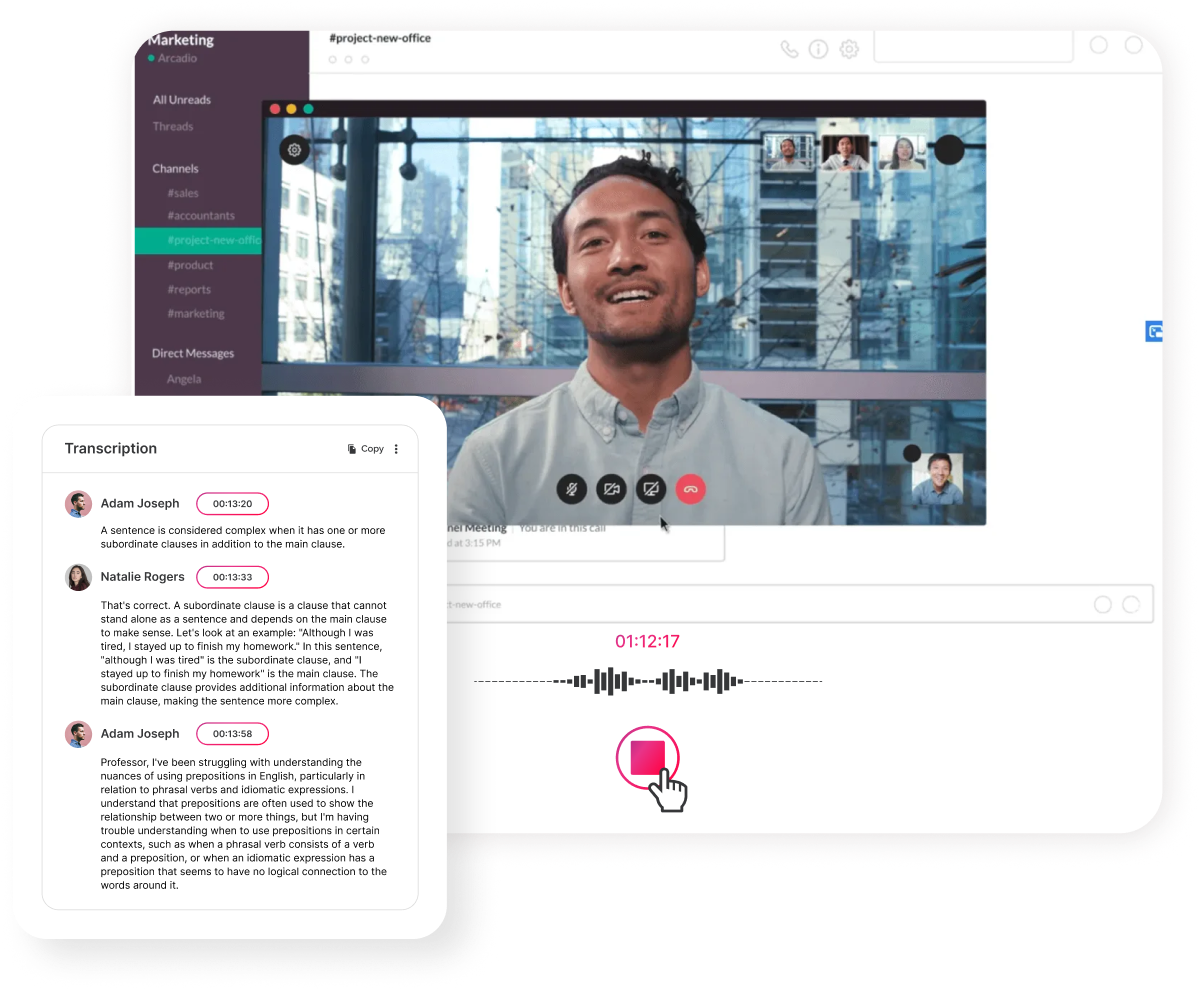
## How To
## Step 1: Sign Up for a Free ScreenApp Account
You can sign up for a free account here.
## Step 2: Open Slack and Start Recording
Open your Slack call and initiate recording with ScreenApp by clicking on "New Recording" and selecting your Slack window.
## Step 3: Transcription Process
Once the recording is complete, Slack will automatically transcribe the audio to text. The duration of this process may vary depending on the length of the audio file.
## Step 4: Identify Speakers
If your audio recording involves multiple speakers, Slack's ScreenApp will assist in identifying and differentiating them. It will assign labels or names to each speaker, simplifying the task of following the conversation.
## Step 5: Export and Share the Transcription
After the audio-to-text conversion, you can export and share the transcription effortlessly. Simply copy the text from the Slack interface and paste it into any document, email, or platform you choose.
## Step 6: Further Transformation and Utilization
For additional processing of the transcribed text, such as translation, searching, or reformatting, leverage the capabilities of ChatGPT AI. Copy the transcribed text and paste it into ChatGPT AI for transformation, translation, searching, and reformatting as required.
By following these steps, you can efficiently convert audio to text within Slack, identify speakers, export the transcription, and utilize ChatGPT AI for further text manipulation.
##
## FAQ
## What is ScreenApp's Slack Audio-to-Text Conversion?
ScreenApp's Slack Audio-to-Text Conversion is a feature that allows users to convert audio messages or recordings in Slack into text format. This feature is powered by advanced artificial intelligence technology, ensuring accurate and efficient transcription.
## How many languages can ScreenApp transcribe?
ScreenApp can transcribe audio messages in over 50 languages. Whether it's English, Spanish, French, German, Chinese, or any other supported language, ScreenApp has got you covered.
## What makes ScreenApp the best transcription service?
ScreenApp stands out as the best transcription service due to its high accuracy, fast turnaround time, and user-friendly interface. With over 99% accuracy, you can rely on ScreenApp to provide precise transcriptions for your audio messages in Slack.
## How long does it take to transcribe audio messages?
ScreenApp's audio-to-text conversion process usually takes just a couple of minutes. The exact time may vary depending on the length and complexity of the audio message, but rest assured that ScreenApp strives to deliver transcriptions as quickly as possible.
## How can I transcribe audio messages using ScreenApp?
To transcribe audio messages in Slack using ScreenApp, simply follow these steps:
- Install the ScreenApp Slack integration.
- Open the Slack channel containing the audio message you want to transcribe.
- Click on the audio message to select it.
- Use the ScreenApp command or click on the ScreenApp icon to initiate the transcription process.
- Wait for a few minutes, and the transcribed text will be displayed in the Slack channel.
## How accurate are the transcriptions provided by ScreenApp?
ScreenApp's transcriptions are known for their high accuracy, surpassing 99%. However, it's important to note that the accuracy may vary depending on factors such as audio quality, background noise, and speaker accents. ScreenApp continuously improves its AI technology to enhance transcription accuracy.
## Can I transcribe audio from YouTube or other services?
Yes, you can trans
## Why Choose This
## Highly accurate transcription at 99%
ScreenApp utilizes advanced AI technology to ensure highly accurate transcriptions of your Slack audio conversations. With an impressive accuracy rate of 99%, you can rely on ScreenApp to provide precise and reliable text conversions.
## Efficient and fast conversion
With ScreenApp, you can effortlessly convert your Slack audio conversations into text within just a few minutes. Say goodbye to the time-consuming task of manual transcriptions and let ScreenApp handle the conversion process for you, saving you valuable time and effort.
## No charging based on minutes
Unlike many other transcription services, ScreenApp does not charge based on the duration of your audio conversations. You can transcribe as many Slack audio files as you need without worrying about additional costs. ScreenApp offers a transparent and cost-effective solution for converting your audio to text.
## User-friendly and intuitive interface
ScreenApp provides a user-friendly and intuitive platform that makes the audio-to-text conversion process seamless and hassle-free. With its simple interface, you can easily upload your Slack audio files and receive accurate transcriptions in no time.
## Secure and confidential
ScreenApp understands the importance of privacy and confidentiality. Your Slack audio conversations are securely processed and transcribed, ensuring that your sensitive information remains protected. You can trust ScreenApp to handle your data with the utmost care and security.
## Flexible and customizable options
ScreenApp offers flexible options to customize your transcriptions according to your specific needs. You can choose the formatting style, language preferences, and even add timestamps to enhance the readability and usability of your transcriptions.
## Reliable customer support
ScreenApp is committed to providing excellent customer support. If you have any questions or encounter any issues during the transcription process, our dedicated support team is readily available to assist you and ensure a smooth experience.
Effortlessly transcribe your Slack audio conversations into text with ScreenApp, an AI-powered video platform. Say goodbye to manual transcriptions and save valuable time with accurate and efficient conversion.
---
### Slovenian
**URL:** https://screenapp.io/transcription/slovenian
**Category:** Language
**Description:** ScreenApp is an AI powered video platform that offers accurate and efficient Slovenian transcription services. With our advanced technology, you can easily convert your audio and video content into written text, saving you time and effort.
## How To
## Step 1: Upload your video
Begin by uploading the video file that you want to transcribe. Ensure that the video is in a compatible format and accessible on your device.
## Step 2: Transcription process
Once the video has been uploaded, the transcription process will automatically begin. This may take a few moments depending on the length of the video.
## Step 3: Identify speakers
ScreenApp, our transcription tool, will automatically identify different speakers in the video. It will assign labels or timestamps to differentiate between speakers.
## Step 4: Export and share
After the transcription is complete, you can easily export and share the transcribed text. Simply copy the text and save it in a suitable format for your needs.
## Step 5: Transform, translate, search, and reformat
For further processing, you can utilize ChatGPT AI, a powerful tool for transforming, translating, searching, and reformatting the transcribed text. This AI-powered feature will assist you in enhancing the transcription according to your specific requirements.
Remember to ensure that you have selected the Slovenian language option in ChatGPT AI to accurately process and manipulate the Slovenian transcription.
By following these steps, you can easily transcribe your Slovenian video, identify speakers, export the transcription, and utilize ChatGPT AI for further enhancements. Enjoy the convenience and efficiency of Slovenian transcription!
## FAQ
## What is ScreenApp's Slovenian Transcription service?
ScreenApp's Slovenian Transcription service is a highly accurate and efficient transcription service specifically designed for transcribing audio and video content in the Slovenian language. It utilizes advanced AI technology to convert spoken Slovenian language into written text.
## How many languages can ScreenApp transcribe?
ScreenApp can transcribe over 50 languages, including Slovenian. Our transcription service supports a wide range of languages to cater to diverse transcription needs.
## Why is ScreenApp the best transcription service for Slovenian?
ScreenApp stands out as the best transcription service for Slovenian due to its high accuracy, fast turnaround time, and user-friendly interface. Our advanced AI algorithms ensure accurate transcription results, and our platform is designed to make the transcription process seamless and efficient.
## How long does it take to transcribe Slovenian content?
Typically, it takes only a couple of minutes to transcribe Slovenian content using ScreenApp. The actual time may vary depending on the length and complexity of the audio or video file.
## How do I transcribe Slovenian content using ScreenApp?
To transcribe Slovenian content using ScreenApp, simply upload your audio or video file to our platform. Our AI technology will automatically process the file and generate a transcription in written Slovenian text. You can then review and edit the transcription as needed.
## How accurate is ScreenApp's Slovenian Transcription service?
ScreenApp's Slovenian Transcription service boasts an accuracy rate of over 99%. Our advanced AI algorithms have been trained extensively to accurately transcribe spoken Slovenian language, ensuring highly precise and reliable results.
## Can I transcribe content from YouTube or other services using ScreenApp?
Yes, you can easily transcribe content from YouTube or other services using ScreenApp. Simply use our AI screen recorder to record the audio or video from the desired source, and then upload the recorded file to our platform for transcription.
## Why Choose This
## Highly Accurate Transcriptions
ScreenApp is proud to offer highly accurate Slovenian transcriptions with an impressive accuracy rate of 99%. Our advanced AI technology ensures that every word is transcribed with precision, providing you with reliable and error-free written text.
## Efficient and Time-Saving
With ScreenApp, you can convert your audio and video content into written text in just a matter of minutes. Our AI-powered platform works swiftly to transcribe your files, saving you valuable time and effort. No more waiting for hours or days to receive your transcriptions – ScreenApp delivers results promptly.
## No Charging Based on Minutes
Unlike many other transcription services, ScreenApp does not charge based on the duration of your audio or video files. We believe in providing transparent and fair pricing, which is why we offer a fixed rate for our Slovenian transcription services. This means you can transcribe lengthy recordings without worrying about skyrocketing costs.
## User-Friendly Interface
ScreenApp's user-friendly interface makes it incredibly easy to upload your files and receive transcriptions. Our platform is designed to be intuitive and straightforward, ensuring a seamless experience for all users. Whether you're a beginner or a tech-savvy professional, you'll find ScreenApp's interface to be accessible and convenient.
## Secure and Confidential
At ScreenApp, we prioritize the security and confidentiality of your data. We understand the importance of privacy, which is why we employ robust security measures to protect your files. Rest assured that your audio and video content is safe with us, and we adhere to strict data protection protocols.
## Flexible Output Formats
ScreenApp offers flexibility when it comes to output formats for your transcriptions. Whether you prefer plain text, Word documents, or even subtitles for your videos, our platform can accommodate your needs. Choose the format that suits your requirements best and receive your transcriptions in the most convenient way for you.
## Exceptional Customer Support
At ScreenApp, we pride ourselves on providing exceptional customer support. Our dedicated team is always ready to assist you with any questions or concerns you may have. We strive to ensure your satisfaction and guarantee a smooth and pleasant experience throughout your transcription journey.
---
### Smartphone
**URL:** https://screenapp.io/transcription/smartphone
**Category:** Platform
**Description:** Effortlessly transcribe your smartphone videos with ScreenApp's AI-powered video platform. Say goodbye to manual transcription and save time with accurate and efficient speech-to-text technology.
## How To
## Step 1: Upload your video
Start by opening the transcription app on your smartphone. Look for the option to upload a video file. Tap on it and select the video you want to transcribe from your device's gallery or file manager. Wait for the video to finish uploading.
## Step 2: Automatic transcription
Once the video has been uploaded, the transcription app will automatically transcribe the audio into text. This process may take a few moments, depending on the length of the video and the app's processing speed. Be patient and avoid closing the app during this time.
## Step 3: Identify speakers
If your video involves multiple speakers, you can use a feature called ScreenApp to help identify each speaker. Open the ScreenApp tool within the transcription app and follow the instructions to assign names or labels to each speaker. This will make it easier to differentiate between speakers in the final transcription.
## Step 4: Export and share
Once the transcription is complete, you can export and share the text. Most transcription apps provide options to save the transcription as a text file or share it directly through various platforms like email, messaging apps, or cloud storage services. Choose the desired method and follow the prompts to export or share the transcription.
## Step 5: Transform, translate, search, and reformat
If you want to further enhance the transcription, you can use the ChatGPT AI tool. Copy the text from the transcription app and paste it into the ChatGPT AI interface. This powerful tool allows you to transform the text, translate it into different languages, search for specific keywords, and reformat the transcription according to your preferences.
By following these steps, you can easily transcribe videos using your smartphone. Remember to choose a reliable transcription app that offers accurate results and additional features to enhance your transcription experience.
## FAQ
## What is ScreenApp's smartphone transcription service?
ScreenApp's smartphone transcription service is a convenient and efficient way to transcribe audio or video files directly from your smartphone. It utilizes advanced artificial intelligence technology to convert spoken words into written text.
## How many languages can ScreenApp transcribe?
ScreenApp can transcribe audio or video files in over 50 languages. Whether you need transcription services for English, Spanish, French, German, Chinese, or any other language, ScreenApp has got you covered.
## Is ScreenApp the best transcription service?
Yes, ScreenApp is widely regarded as one of the best transcription services available. With its accurate and fast transcription capabilities, user-friendly interface, and support for multiple languages, ScreenApp offers a superior transcription experience.
## How long does it take to transcribe a file using ScreenApp?
Transcription using ScreenApp is typically completed within a couple of minutes. The exact time may vary depending on the length and complexity of the audio or video file.
## How do I transcribe using ScreenApp?
To transcribe using ScreenApp, simply download the app on your smartphone, open it, and select the audio or video file you want to transcribe. The app will then process the file and provide you with the transcribed text in a matter of minutes.
## How accurate is ScreenApp's transcription service?
ScreenApp's transcription service boasts an accuracy rate of over 99%. The advanced AI technology used by ScreenApp ensures highly accurate transcriptions, minimizing errors and providing reliable results.
## Can I transcribe audio or video from YouTube or other services using ScreenApp?
Yes, you can transcribe audio or video from YouTube or other services using ScreenApp. Simply use our AI screen recorder feature to record the desired content, and then upload the recorded file to ScreenApp for transcription.
## Why Choose This
## Highly Accurate Transcriptions at 99%
ScreenApp's AI-powered video platform offers highly accurate transcriptions, ensuring that your smartphone videos are accurately converted into text. With an impressive accuracy rate of 99%, you can rely on ScreenApp to provide you with precise transcriptions that capture every word and detail of your videos.
## Efficient and Fast Transcription Process
With ScreenApp, you can effortlessly transcribe your smartphone videos in just a matter of minutes. Our advanced speech-to-text technology enables a quick and efficient transcription process, saving you valuable time and effort. Say goodbye to manual transcription and enjoy the convenience of instant transcriptions with ScreenApp.
## No Charges Based on Minutes
Unlike many transcription services, ScreenApp does not charge you based on the duration of your videos. We believe in providing transparent and fair pricing, which is why we don't impose additional costs for longer videos. You can transcribe videos of any length without worrying about increasing expenses.
## Accurate and Efficient Speech-to-Text Technology
ScreenApp's AI-powered video platform utilizes cutting-edge speech-to-text technology to ensure accurate and efficient transcriptions. Our advanced algorithms are designed to recognize and convert speech into text with remarkable precision. Experience the convenience of reliable and efficient speech-to-text technology with ScreenApp.
## Save Time and Effort with ScreenApp
By choosing ScreenApp for your smartphone transcription needs, you can save significant time and effort. Our platform eliminates the need for manual transcription, allowing you to focus on other important tasks. With ScreenApp, you can effortlessly transcribe your videos and allocate your time more efficiently.
## Reliable and User-Friendly Platform
ScreenApp provides a reliable and user-friendly platform for smartphone transcription. Our intuitive interface makes it easy for anyone to transcribe videos, regardless of their technical expertise. Whether you're a professional or a casual user, ScreenApp offers a seamless and hassle-free transcription experience.
## Secure and Confidential Transcriptions
At ScreenApp, we prioritize the security and confidentiality of your transcriptions. We employ robust encryption and data protection measures to ensure that your videos and transcriptions remain secure. You can trust ScreenApp to handle your sensitive content with the utmost privacy and
---
### Free Snapchat Transcript Generator - Convert Voice Message to Text
**URL:** https://screenapp.io/transcription/snapchat-voice-message
**Category:** Platform
**Description:** Transcribe Snapchat voice messages
## How to Transcribe Snapchat Voice Messages
1. **Save Your Snapchat Voice Message** - Export your Snapchat voice message to your device before it disappears.
2. **Upload to ScreenApp** - Upload the voice message file to our secure transcription platform.
3. **Instant Transcription** - Our AI transcribes your message with 99% accuracy in seconds.
4. **Download Your Transcript** - Get your transcribed text in PDF, DOCX, or TXT format instantly.
## Why Choose ScreenApp for Snapchat Voice Message Transcription
### Instant Processing
Voice messages are transcribed in seconds, perfect for Snapchat's fast-paced environment and time-sensitive communications.
### 99% Accuracy
Advanced AI provides professional-grade accuracy for casual voice messages, ensuring reliable transcription of modern speech patterns.
### Privacy Protection
Secure processing with immediate file deletion to protect your personal messages and maintain the privacy Snapchat users expect.
### Mobile-Friendly
Optimized for mobile uploads and quick transcription on-the-go, designed for Snapchat's mobile-first user base.
### Youth Language Recognition
AI trained on modern speech patterns and casual communication styles, perfect for capturing contemporary language and slang.
### No Message Length Limits
Transcribe Snapchat voice messages of any length with consistent quality, whether short clips or longer voice notes.
### Effortless Content Management
Transform your Snapchat voice messages into searchable, organized text for easy reference and sharing across platforms.
### Cloud Recording for Discretion
Record voice notes directly to the cloud without notifying friends, ensuring complete privacy and discretion in your transcription process.
## Frequently Asked Questions
### How do I save a Snapchat voice message before it disappears?
Press and hold the voice message, then tap the save option before the timer expires.
### How accurate is transcription for casual speech?
Our AI achieves 99% accuracy for casual conversations and modern speech patterns.
### How long does it take to transcribe a Snapchat voice message?
Most voice messages are transcribed in under 30 seconds.
### Is my Snapchat voice message kept private?
Yes, we use secure processing and delete files immediately after transcription.
### Can I transcribe voice messages with background noise?
Our AI is optimized to handle typical background noise found in casual voice messages.
### Why should I use ScreenApp's Voice Note Transcription service?
ScreenApp offers cloud recording for discreet transcription, enhanced audio quality optimization, and private platform storage for secure transcription management.
### How many languages can ScreenApp transcribe?
ScreenApp's exceptional versatility extends to over 50 languages, perfect for transcribing multilingual Snapchat conversations.
### Why is ScreenApp considered the best transcription service for Snapchat voice notes?
ScreenApp stands out due to its unparalleled 99% accuracy, blazing-fast transcription speed, global language support, and unique privacy features designed for social media content.
---
### Subtitle
**URL:** https://screenapp.io/transcription/subtitle
**Category:** Language
**Description:** Effortlessly convert your video subtitles into accurate transcriptions with ScreenApp's AI-powered platform. Save time and improve accessibility for your viewers with our advanced technology.
## How To
## Step 1: Upload your video
Begin by uploading the video file that you want to transcribe for subtitling. Ensure that the video file is in a compatible format and accessible on your device.
## Step 2: Transcription process
Once the video has been uploaded, the transcription process will automatically begin. This may take a few moments depending on the length of the video. Be patient and wait for the transcription to complete.
## Step 3: Identify speakers
After the transcription is complete, it's important to identify the speakers in the video. If there are multiple speakers, assign a unique identifier to each one. This will help viewers differentiate between speakers when reading the subtitles.
## Step 4: Use ScreenApp to identify speakers
Utilize ScreenApp, a tool specifically designed for subtitle transcription, to help identify speakers in the video. ScreenApp uses advanced algorithms to analyze audio and video cues, making it easier to determine who is speaking at any given time.
## Step 5: Export and share
Once you have identified the speakers, export the transcription in a suitable format. Most transcription tools allow you to export the transcription as a text file or a subtitle file (e.g., .srt or .vtt). Choose the format that best suits your needs and share the transcription with others if necessary.
## Step 6: Transform, translate, search, and reformat using ChatGPT AI
For further enhancements to your transcription, consider utilizing ChatGPT AI. This powerful tool can help you transform the text, translate it into different languages, search for specific keywords, and reformat the transcription to meet your requirements. Simply copy the text and input it into ChatGPT AI for further processing.
By following these steps, you can efficiently transcribe subtitles for your videos, identify speakers, and enhance the transcription using advanced AI tools. Enjoy creating accurate and engaging subtitles for your video content!
## FAQ
## What is ScreenApp's subtitle transcription service?
ScreenApp's subtitle transcription service is a feature that allows users to transcribe audio or video files into written text. It is specifically designed to provide accurate and efficient transcription services for subtitles.
## How many languages can ScreenApp transcribe?
ScreenApp can transcribe subtitles in over 50 languages. Whether you need transcription in English, Spanish, French, German, or any other supported language, ScreenApp has got you covered.
## Why is ScreenApp the best transcription service for subtitles?
ScreenApp stands out as the best transcription service for subtitles due to its advanced AI technology, which ensures high accuracy and fast turnaround times. With ScreenApp, you can expect reliable and professional subtitle transcriptions.
## How long does it take to transcribe subtitles with ScreenApp?
Typically, it takes only a couple of minutes for ScreenApp to transcribe subtitles. The AI-powered transcription process is quick and efficient, allowing you to receive your transcriptions in a timely manner.
## How do I transcribe subtitles using ScreenApp?
To transcribe subtitles using ScreenApp, simply upload your audio or video file to the platform. ScreenApp's AI technology will automatically transcribe the content into written text, which you can then edit or export as needed.
## How accurate are the transcriptions provided by ScreenApp?
ScreenApp's subtitle transcriptions are over 99% accurate. The advanced AI algorithms used by ScreenApp ensure precise and reliable transcriptions, minimizing errors and delivering high-quality results.
## Can I transcribe videos from YouTube or other services using ScreenApp?
Yes, you can transcribe videos from YouTube or other services using ScreenApp. Simply utilize our AI screen recorder feature to record the desired video content, and then upload the recorded file to ScreenApp for transcription.
## Why Choose This
## Highly accurate at 99%
ScreenApp's AI-powered platform ensures highly accurate transcription results, with an impressive accuracy rate of 99%. This level of precision guarantees that your video subtitles are converted into transcriptions with utmost accuracy, minimizing errors and ensuring the highest quality output.
## Fast and efficient
With ScreenApp, converting your video subtitles into transcriptions is a quick and seamless process. Our advanced technology enables fast transcription, taking only a few minutes to complete the task. Say goodbye to time-consuming manual transcriptions and enjoy the efficiency of ScreenApp's automated solution.
## No charging based on minutes
Unlike many other transcription services, ScreenApp does not charge based on the duration of your video or audio files. We believe in providing transparent and fair pricing, which is why we offer a fixed rate for our subtitle transcription service. This means you can convert subtitles into transcriptions for any length of video without worrying about additional costs.
## Improved accessibility for viewers
By converting your video subtitles into accurate transcriptions, ScreenApp helps improve accessibility for your viewers. Transcriptions make your content accessible to individuals with hearing impairments or those who prefer reading over watching videos. With ScreenApp, you can ensure that your content reaches a wider audience and meets accessibility standards.
## Advanced AI technology
ScreenApp's AI-powered platform utilizes advanced technology to deliver exceptional transcription results. Our algorithms are constantly improving and learning, ensuring that the transcriptions generated are of the highest quality. With ScreenApp, you can trust in the power of cutting-edge AI technology to provide accurate and reliable transcriptions.
## Save time and effort
By utilizing ScreenApp's subtitle transcription service, you can save valuable time and effort. Our automated platform eliminates the need for manual transcription, which can be a time-consuming and tedious task. With ScreenApp, you can focus on creating and delivering your content while leaving the transcription process to our efficient and accurate AI-powered solution.
In summary, ScreenApp's AI-powered platform offers highly accurate subtitle transcription at a 99% accuracy rate. With fast and efficient processing, transparent pricing, improved accessibility, advanced AI technology, and time-saving benefits, ScreenApp is the ideal choice for effortlessly converting your video subtitles into accurate transcriptions.
---
### Surgical Procedure
**URL:** https://screenapp.io/transcription/surgical-procedure
**Category:** Professional
**Description:** ScreenApp uses AI technology to transcribe surgical procedures in real-time, providing accurate and detailed documentation for medical professionals. With our advanced video platform, you can easily review and analyze surgical videos, improving patient care and enhancing surgical training.
## How To
## Step 1: Upload your video
Begin by uploading the video of the surgical procedure that you want to transcribe. Ensure that the video file is in a compatible format and is of good quality for accurate transcription.
## Step 2: Transcription process
Once the video has been uploaded, the transcription process will automatically begin. The transcription software will convert the audio content of the video into text.
## Step 3: Identify speakers
During the transcription process, it is important to identify the speakers in the video. This helps in accurately attributing the spoken words to the respective individuals. If there are multiple speakers, make sure to note down their names or roles.
## Step 4: Utilize ScreenApp for speaker identification
Use ScreenApp, a speaker identification tool, to automatically identify the speakers in the video. This tool will analyze the audio and match it with known voices, making the identification process faster and more accurate.
## Step 5: Export and share the transcription
Once the transcription is complete and the speakers have been identified, you can export the transcription in a suitable format. Choose a format that is easy to share and access, such as a text document or a PDF file.
## Step 6: Copy the text for further use
After exporting the transcription, you can simply copy the text and paste it into any desired application or platform. This allows you to use the transcription for various purposes, such as research, documentation, or analysis.
## Step 7: Transform, translate, search, and reformat using ChatGPT AI
To further enhance the usability of the transcription, you can utilize ChatGPT AI. This powerful tool can transform the text, translate it into different languages, search for specific keywords or phrases, and reformat the transcription according to your preferences.
By following these steps, you can efficiently transcribe a surgical procedure video, identify speakers, and utilize advanced tools to enhance the transcription's usability. This process ensures accurate documentation and facilitates further analysis or sharing of the surgical procedure information.
## FAQ
## What is ScreenApp's surgical procedure transcription service?
ScreenApp's surgical procedure transcription service is an AI-powered tool that transcribes audio and video recordings of surgical procedures into written text. It is specifically designed to accurately transcribe medical terminology and complex surgical discussions.
## How many languages can ScreenApp transcribe for surgical procedure transcription?
ScreenApp can transcribe surgical procedure recordings in over 50 languages. This includes commonly spoken languages such as English, Spanish, French, German, Chinese, Japanese, and many more.
## Is ScreenApp the best transcription service for surgical procedure transcription?
Yes, ScreenApp is widely regarded as one of the best transcription services for surgical procedure transcription. Its advanced AI technology ensures high accuracy and efficiency in transcribing complex medical content.
## How long does it take for ScreenApp to transcribe a surgical procedure recording?
ScreenApp's transcription service for surgical procedures is incredibly fast. It usually takes just a couple of minutes to transcribe a surgical procedure recording, allowing healthcare professionals to quickly access the written text.
## How can I transcribe a surgical procedure using ScreenApp?
To transcribe a surgical procedure using ScreenApp, simply upload the audio or video recording of the procedure to the platform. ScreenApp's AI technology will then process the recording and provide you with an accurate transcription in a matter of minutes.
## How accurate is ScreenApp's surgical procedure transcription?
ScreenApp's surgical procedure transcription service boasts an accuracy rate of over 99%. Its advanced AI algorithms are trained to recognize and transcribe medical terminology and complex surgical discussions with exceptional precision.
## Can I transcribe surgical procedure videos from YouTube or other services using ScreenApp?
Yes, you can easily transcribe surgical procedure videos from YouTube or other services using ScreenApp. Simply use our AI screen recorder to record the desired video, and then upload the recording to ScreenApp for transcription.
## Why Choose This
## Highly Accurate Transcriptions
ScreenApp utilizes cutting-edge AI technology to transcribe surgical procedures with an impressive accuracy rate of 99%. This ensures that medical professionals receive precise and reliable documentation, eliminating the risk of misinterpretation or errors in patient records.
## Real-Time Transcription
With ScreenApp, surgical procedures are transcribed in real-time, providing medical professionals with immediate access to detailed documentation. This allows for quick decision-making, efficient communication, and improved patient care.
## Efficient and Time-Saving
ScreenApp's advanced video platform enables fast transcription, taking only a few minutes to complete the process. This saves valuable time for medical professionals, allowing them to focus on patient care and other critical tasks without delays.
## No Charging Based on Minutes
Unlike many transcription services, ScreenApp does not charge based on the duration of the surgical procedure. This transparent pricing model ensures that medical professionals can access accurate transcriptions without worrying about escalating costs.
## Enhanced Surgical Training
ScreenApp's detailed transcriptions and video analysis capabilities contribute to enhanced surgical training. Medical professionals can easily review and analyze surgical videos, identifying areas for improvement, and refining their skills. This ultimately leads to better surgical outcomes and improved patient safety.
## Secure and Confidential
ScreenApp prioritizes the security and confidentiality of all transcriptions. Our platform adheres to strict data protection protocols, ensuring that patient information remains private and secure at all times.
## User-Friendly Interface
ScreenApp offers a user-friendly interface that is easy to navigate, making it simple for medical professionals to access and review transcriptions. The intuitive design enhances user experience and ensures seamless integration into existing workflows.
## Reliable Customer Support
ScreenApp provides reliable customer support to address any queries or concerns. Our dedicated team is readily available to assist medical professionals, ensuring a smooth and hassle-free experience with our transcription services.
In summary, ScreenApp's AI technology, real-time transcription, high accuracy, efficiency, transparent pricing, enhanced surgical training, security measures, user-friendly interface, and reliable customer support make it the ideal choice for surgical procedure transcription.
---
### Swahili
**URL:** https://screenapp.io/transcription/swahili
**Category:** Language
**Description:** Get fast, accurate Swahili transcription services for your videos with ScreenApp. Our AI technology handles various accents and dialects, providing you with a reliable transcript in minutes.
## How to Transcribe a Swahili Video
### 1. Upload Your Swahili Video
Upload the Swahili video file you want to transcribe to the ScreenApp platform.
### 2. Automatic AI Transcription
Our AI will automatically transcribe your video in Swahili with 99% accuracy, complete with timestamps.
### 3. Review and Edit
Use our online editor to review and make any necessary corrections to the Swahili transcript.
### 4. Export in Your Preferred Format
Download the final transcript as a PDF, DOCX, or TXT file.
## Why Choose ScreenApp for Swahili Transcription
### 99% Accuracy for Swahili
Our AI is trained on Swahili language patterns from Kenya, Tanzania, Uganda, and other East African regions.
### Timestamps Included
All transcripts come with timestamps for easy reference.
### Bulk Transcription
Transcribe over 100 Swahili video files at once.
### Fast and Efficient
Get your transcripts in minutes.
### Multiple Export Options
Export your transcripts into PDF, DOCX, and TXT formats.
### Secure and Confidential
Your files are encrypted and processed with complete confidentiality.
## Frequently Asked Questions about Swahili Transcription
### How accurate is the Swahili transcription?
ScreenApp provides 99% accuracy for Swahili language transcriptions, covering various East African dialects.
### How long does it take to transcribe a Swahili video?
Most files are transcribed in just a few minutes.
### Can I transcribe multiple Swahili videos at once?
Yes, our platform supports bulk transcription for over 100 files at a time.
### Does it handle different East African Swahili dialects?
Yes, our AI is trained to handle various regional Swahili dialects from Kenya, Tanzania, Uganda, and beyond.
### What formats can I export the Swahili transcript in?
You can download your transcript in PDF, DOCX, and TXT formats.
---
### Tagalog
**URL:** https://screenapp.io/transcription/tagalog
**Category:** Language
**Description:** Get fast, accurate Tagalog transcription services for your videos with ScreenApp. Our AI technology handles various accents and dialects, providing you with a reliable transcript in minutes.
## How to Transcribe a Tagalog Video
### 1. Upload Your Tagalog Video
Upload the Tagalog video file you want to transcribe to the ScreenApp platform.
### 2. Automatic AI Transcription
Our AI will automatically transcribe your video in Tagalog with 99% accuracy, complete with timestamps.
### 3. Review and Edit
Use our online editor to review and make any necessary corrections to the Tagalog transcript.
### 4. Export in Your Preferred Format
Download the final transcript as a PDF, DOCX, or TXT file.
## Why Choose ScreenApp for Tagalog Transcription
### 99% Accuracy for Tagalog
Our AI is trained on Tagalog language patterns and Filipino dialects to ensure high accuracy.
### Timestamps Included
All transcripts come with timestamps for easy reference.
### Bulk Transcription
Transcribe over 100 Tagalog video files at once.
### Fast and Efficient
Get your transcripts in minutes.
### Multiple Export Options
Export your transcripts into PDF, DOCX, and TXT formats.
### Secure and Confidential
Your files are encrypted and processed with complete confidentiality.
## Frequently Asked Questions about Tagalog Transcription
### How accurate is the Tagalog transcription?
ScreenApp provides 99% accuracy for Tagalog language transcriptions, covering various Filipino dialects.
### How long does it take to transcribe a Tagalog video?
Most files are transcribed in just a few minutes.
### Can I transcribe multiple Tagalog videos at once?
Yes, our platform supports bulk transcription for over 100 files at a time.
### Does it handle different Filipino regional accents?
Yes, our AI is trained to handle various regional Filipino accents and dialects effectively.
### What formats can I export the Tagalog transcript in?
You can download your transcript in PDF, DOCX, and TXT formats.
---
### Tamil
**URL:** https://screenapp.io/transcription/tamil
**Category:** Language
**Description:** Get fast, accurate Tamil transcription services for your videos with ScreenApp. Our AI technology handles various accents and dialects, providing you with a reliable transcript in minutes.
## How to Transcribe Tamil Videos
1. **Upload Your Video** - Begin by uploading the video file that you want to transcribe. Ensure that the video file is in a compatible format and is of good quality for accurate transcription.
2. **Automatic Transcription** - Once the video has been uploaded, the transcription process will automatically begin. Our transcription tool will convert the audio content of the video into written text.
3. **Speaker Identification** - If your video involves multiple speakers, you can use ScreenApp's feature to identify and label each speaker, helping distinguish who is speaking in the transcription.
4. **Export and Share** - After the transcription is complete, you can export the transcribed text in a suitable format. Choose to save it as a text file, Word document, or any other compatible format and share as needed.
5. **AI Enhancement** - For further processing and analysis, utilize AI capabilities to transform the text, translate it to other languages, search for specific keywords, and reformat the content according to your requirements.
To ensure hyper-specificity to Tamil transcription, it is recommended to use AI tools in conjunction with Tamil language-specific resources to maintain accuracy and linguistic nuances.
## Why Choose ScreenApp for Tamil Transcription
### Highly Accurate Transcriptions
ScreenApp's AI-powered video platform is designed to provide highly accurate transcriptions for your Tamil videos with an accuracy rate of 99%. Our advanced technology converts spoken Tamil into written text with precision, ensuring error-free subtitles and captions.
### Fast and Efficient Processing
Transcribing Tamil videos can be time-consuming, but with ScreenApp, you save valuable time and effort. Our platform is optimized for speed, allowing you to transcribe your videos in just a few minutes with swift and efficient AI-powered technology.
### No Minute-Based Charges
Unlike many transcription services, ScreenApp does not charge based on the duration of your videos. We provide transparent and cost-effective solutions, allowing you to transcribe your Tamil videos without worrying about additional costs or limitations based on content length.
### User-Friendly Interface
ScreenApp offers a user-friendly interface that makes the transcription process seamless and intuitive. You don't need to be a tech expert to use our platform - simply upload your Tamil videos and our AI-powered technology handles the rest.
### Secure and Confidential
At ScreenApp, we prioritize the security and confidentiality of your data. We understand the importance of protecting your content, and our platform ensures that your Tamil videos and transcriptions remain secure with strict confidentiality throughout the process.
### Flexible Output Options
ScreenApp offers flexible output options for your transcriptions. Whether you need transcriptions in a specific file format or want to integrate them directly into your video editing software, we provide convenient download options in various formats.
### Tamil Language Expertise
Our AI technology handles various Tamil accents and dialects, providing reliable transcripts that maintain linguistic nuances and cultural context specific to Tamil language transcription.
## Frequently Asked Questions
### What is Tamil Transcription?
Tamil Transcription is the process of converting spoken Tamil language into written text. It involves transcribing audio or video recordings in Tamil into a written format.
### What is ScreenApp?
ScreenApp is a transcription service that uses advanced AI technology to transcribe audio and video recordings in various languages, including Tamil.
### How many languages can ScreenApp transcribe?
ScreenApp can transcribe over 50 languages, including Tamil. It supports a wide range of languages from around the world.
### Is ScreenApp the best transcription service?
Yes, ScreenApp is considered one of the best transcription services available. It utilizes state-of-the-art AI algorithms to ensure accurate and efficient transcriptions.
### How long does it take to transcribe a Tamil audio or video?
Typically, it takes only a couple of minutes for ScreenApp to transcribe a Tamil audio or video recording. The exact time may vary depending on the length and complexity of the content.
### How do I transcribe Tamil using ScreenApp?
To transcribe Tamil using ScreenApp, simply upload your audio or video file to the platform. ScreenApp will automatically process the file and provide you with the transcription in a matter of minutes.
### How accurate is the Tamil transcription provided by ScreenApp?
The Tamil transcription provided by ScreenApp is over 99% accurate. However, please note that the accuracy may vary depending on the quality of the audio or video recording and the clarity of the speech.
### Can I transcribe YouTube videos using ScreenApp?
Yes, you can transcribe YouTube videos using ScreenApp. Simply use our AI screen recorder to record the YouTube video or any other online streaming service, and then upload the recording to ScreenApp for transcription.
---
### TED Talk
**URL:** https://screenapp.io/transcription/ted-talk
**Category:** Platform
**Description:** Unlocking the Power of Words: Capturing the Brilliance of Ted Talks Through Transcription
## How To
## How to Transcribe a TED Talk
1. Upload or screen record your TED Talk using ScreenApp: Start by uploading your Ted Talk video or screen recording it using ScreenApp. This tool will automatically transcribe the audio for you.
2. Identify speakers: Once the transcription is complete, review the text and identify the speakers in the TED Talk. This will help in accurately attributing the dialogue to the respective individuals.
3. Export and share: After reviewing and editing the transcription if necessary, export the text. Simply copy the transcribed content and save it in a suitable format for sharing or further editing.
4. Ask ScreenApp's Ask AI anything: If you have any specific questions related to the TED Talk, use ScreenApp's Ask AI feature. Make sure to ask hyper-specific questions to get the most relevant answers.
By following these steps, you can easily transcribe a TED Talk using ScreenApp and efficiently manage the transcription process.
## FAQ
## How many languages can ScreenApp transcribe?
ScreenApp can transcribe over 50 languages, making it a versatile transcription service for a wide range of content.
## What is the best transcription service?
ScreenApp is considered one of the best transcription services available. Its accuracy, ease of use, and wide language support make it a top choice for transcribing TeTEDd Talks and other content.
## How long does it take to transcribe a TED Talk?
Transcribing a TED Talk using ScreenApp usually takes just a couple of minutes. The fast turnaround time ensures that you can quickly access the written version of the talk.
## How do I transcribe a TED Talk using ScreenApp?
To transcribe a Ted Talk using ScreenApp, simply follow these steps:1. Install the ScreenApp AI screen recorder on your device.2. Open the Ted Talk video you want to transcribe.3. Start the screen recording using ScreenApp.4. Play the Ted Talk video and let ScreenApp capture the audio and visuals.5. Stop the screen recording when the Ted Talk is finished.6. ScreenApp will automatically transcribe the recorded video and provide you with the written version.
## How accurate is the transcription provided by ScreenApp?
ScreenApp offers highly accurate transcriptions, with an accuracy rate of over 99%. This ensures that the transcribed text reflects the content of the Ted Talk as accurately as possible.
## Can I transcribe YouTube videos using ScreenApp?
Yes, you can transcribe YouTube videos using ScreenApp. Simply use our AI screen recorder to record the YouTube video or any other video streaming service. ScreenApp will then transcribe the recorded video for you.
## Why Choose This
## Why Choose ScreenApp to Transcribe TED Talk
When it comes to transcribing a TED Talk, ScreenApp stands out as the ideal choice. With an impressive accuracy rate of 99%, you can trust that every word spoken will be faithfully transcribed. Time is of the essence, and ScreenApp recognizes this. Our advanced technology allows for lightning-fast transcription, completing the task in just a matter of minutes. Additionally, we believe in fair pricing. Unlike others, we don't charge based on minutes, ensuring you get the most value out of our service. So, if you want a highly accurate, fast, and cost-effective transcription for your TED Talk, ScreenApp is the way to go.
---
### Teleconferencing
**URL:** https://screenapp.io/transcription/teleconferencing
**Category:** Platform
**Description:** ScreenApp uses AI technology to transcribe teleconferencing sessions in real-time, providing accurate and searchable transcripts for easy reference and collaboration. Say goodbye to the hassle of manually taking notes during meetings and let ScreenApp do the work for you.
## How To
## Step 1: Upload your video
Begin by uploading the video file that you want to transcribe. Most teleconferencing platforms allow you to record and save your meetings as video files. Make sure you have the video file ready on your computer or accessible through a cloud storage service.
## Step 2: Transcription process
Once the video has been uploaded, the transcription process will automatically begin. There are various transcription services available that can convert speech into text accurately. These services utilize advanced speech recognition technology to transcribe the audio content of your video.
## Step 3: Identify speakers
If your teleconferencing video involves multiple participants, it is important to identify the speakers. Some transcription services have the capability to automatically detect and label different speakers based on their voices. However, if this feature is not available, you may need to manually identify the speakers in the transcription.
## Step 4: Export and share
Once the transcription is complete, you can export the text file. Most transcription services provide options to download the transcription in various formats such as plain text, Microsoft Word, or PDF. Choose the format that suits your needs and save the file on your computer or preferred storage location.
## Step 5: Transform, translate, search, and reformat
After obtaining the transcription, you can further enhance its usability by utilizing AI-powered tools like ChatGPT. These tools can help you transform the text into different formats, translate it into other languages, search for specific keywords or phrases, and reformat the transcription according to your preferences.
By following these steps, you can efficiently transcribe your teleconferencing videos, identify speakers, and utilize AI-powered tools to enhance the transcription's usefulness. This process allows you to have accurate and accessible text versions of your teleconferencing discussions for future reference or sharing with others.
## FAQ
## What is ScreenApp's teleconferencing transcription service?
ScreenApp's teleconferencing transcription service is a feature that allows users to transcribe audio or video recordings of teleconferences or meetings. It uses advanced AI technology to convert spoken words into written text.
## How many languages can ScreenApp transcribe?
ScreenApp can transcribe audio or video recordings in over 50 languages. This includes popular languages such as English, Spanish, French, German, Chinese, Japanese, and many more.
## What makes ScreenApp the best transcription service?
ScreenApp stands out as the best transcription service due to its high accuracy, fast turnaround time, and user-friendly interface. It utilizes cutting-edge AI algorithms to ensure accurate transcriptions and provides a seamless experience for users.
## How long does it take to transcribe a teleconference?
ScreenApp's teleconferencing transcription service usually takes just a couple of minutes to transcribe a teleconference. The actual time may vary depending on the length of the recording and the language being transcribed.
## How can I transcribe a teleconference using ScreenApp?
To transcribe a teleconference using ScreenApp, simply upload the audio or video recording of the teleconference to the platform. ScreenApp's AI technology will then process the recording and generate a transcription in your desired language.
## How accurate are the transcriptions provided by ScreenApp?
ScreenApp's transcriptions are over 99% accurate. The advanced AI algorithms used by ScreenApp ensure high accuracy in converting spoken words into written text. However, it's important to note that the accuracy may vary depending on the quality of the audio or video recording.
## Can I transcribe audio or video from YouTube or other services?
Yes, you can transcribe audio or video from YouTube or other services using ScreenApp. Simply use our AI screen recorder to record the desired content from YouTube or any other platform, and then upload the recording to ScreenApp for transcription.
## Why Choose This
## Highly Accurate Transcriptions
ScreenApp utilizes advanced AI technology to transcribe teleconferencing sessions with an impressive accuracy rate of 99%. This ensures that every word spoken during the meeting is accurately captured, eliminating the risk of misinterpretation or misunderstanding. With ScreenApp, you can rely on the precision of the transcriptions for easy reference and collaboration.
## Real-Time Transcriptions
ScreenApp's AI technology transcribes teleconferencing sessions in real-time, providing you with instant access to the transcripts as the meeting progresses. This allows you to follow along and review the discussions in real-time, making it easier to stay engaged and actively participate in the meeting. Say goodbye to the frustration of waiting for transcriptions after the meeting ends.
## Fast and Efficient
ScreenApp's transcription process is incredibly fast and efficient. Unlike traditional methods that may take hours or even days to transcribe a teleconferencing session, ScreenApp completes the task in just a few minutes. This saves you valuable time and ensures that you have the transcripts ready for immediate use, whether it's for reviewing important points or sharing them with team members.
## No Charging Based on Minutes
Unlike many other transcription services, ScreenApp does not charge based on the duration of the teleconferencing session. You can use ScreenApp for as long as you need without worrying about incurring additional costs. This transparent pricing model allows you to focus on the meeting itself, without any concerns about exceeding a time limit or incurring unexpected charges.
## Searchable Transcripts for Easy Reference
ScreenApp's transcriptions are not only accurate but also searchable. This means that you can easily find specific keywords, phrases, or discussions within the transcripts, saving you time and effort when referring back to important information. The ability to search within the transcripts enhances collaboration and ensures that everyone can quickly locate and review relevant sections of the meeting.
## Effortless Note-Taking
With ScreenApp, you can say goodbye to the hassle of manually taking notes during teleconferencing sessions. Instead, let ScreenApp do the work for you. By providing accurate and comprehensive transcriptions, ScreenApp allows you to focus on actively participating in the meeting and engaging with your colleagues, knowing
---
### Free Telegram Video Transcript Generator - Convert Voice to Text
**URL:** https://screenapp.io/transcription/telegram-voice
**Category:** Platform
**Description:** Effortlessly record and convert your Telegram calls or voice messages into text with AI
## How to Transcribe Telegram Voice Messages
1. **Upload Your Telegram File** - Open the Telegram app and navigate to the chat or group with the voice message. Export and upload the audio/video file to ScreenApp.
2. **Automatic Transcription** - Once uploaded, ScreenApp will automatically transcribe the voice into text. This process takes only a few moments depending on the length of the recording.
3. **Speaker Identification** - If there are multiple speakers, use ScreenApp's feature to identify and label each speaker to distinguish who said what during the conversation.
4. **Export and Share** - Once transcription is complete, export the transcribed text. Long-press and select "Copy" to save it to your clipboard or download as a file.
5. **Transform and Enhance** - Utilize AI tools to further enhance the transcribed text through translation, searching, reformatting, or summarization as needed.
By following these steps, you can easily convert Telegram voice messages to text, identify speakers, and enhance the transcription using AI-powered tools.
## Why Choose ScreenApp for Telegram Transcription
### Highly Accurate Transcriptions
ScreenApp's AI-powered video platform ensures highly accurate transcriptions of your Telegram voice messages with an accuracy rate of 99%. This level of accuracy enhances communication and accessibility, allowing you to easily understand and respond to voice messages.
### Fast Transcription Process
ScreenApp's transcription process is incredibly fast, taking only a few minutes to convert your Telegram voice messages into text. This quick turnaround time allows you to access transcriptions promptly, saving valuable time and enabling more efficient responses.
### No Minute-Based Charges
Unlike other transcription services, ScreenApp does not charge based on the duration of your voice messages. Convert as many voice messages as you want without worrying about additional costs based on length.
### User-Friendly Interface
ScreenApp offers a user-friendly interface that is easy to navigate and understand. Effortlessly upload your Telegram voice messages and receive accurate transcriptions in just a few clicks with an intuitive design.
### Privacy and Security
ScreenApp prioritizes the privacy and security of your data. All voice messages and transcriptions are handled with strict confidentiality measures, encryption, and data protection to ensure your conversations remain private and secure.
### Flexible Integration
ScreenApp offers flexible integration options, allowing you to seamlessly incorporate the transcription feature into your existing workflow, whether for personal or professional Telegram usage.
## Frequently Asked Questions
### How many languages can ScreenApp transcribe?
ScreenApp can transcribe over 50 languages, including English, Spanish, French, German, Chinese, Japanese, and many more.
### What is the best transcription service?
ScreenApp is considered one of the best transcription services available. With its advanced voice-to-text conversion technology, it provides accurate and reliable transcriptions.
### How long does it take to transcribe?
Typically, ScreenApp takes only a couple of minutes to transcribe your voice recordings into text. However, the duration may vary depending on the length and complexity of the audio.
### How accurate is ScreenApp's transcription?
ScreenApp's transcription service is highly accurate, boasting an accuracy rate of over 99%. However, please note that accuracy may vary depending on factors such as audio quality and background noise.
### Can I transcribe YouTube videos using ScreenApp?
Yes, you can transcribe YouTube videos or any other audio content by using ScreenApp's AI screen recorder. Simply play the YouTube video or audio from any other service and record it using the screen recorder feature.
---
### Therapy Session
**URL:** https://screenapp.io/transcription/therapy
**Category:** Professional
**Description:** Turn therapy sessions into actionable data
## How To
- **Start a Session:** Open ScreenApp Transcribe and click Record now
- **Record and Transcribe:** Begin your therapy session as usual. ScreenApp will automatically record and transcribe the conversation in real-time.
- **Review and Analyze:** After the session, review the transcript. ScreenApp highlights key insights and lets you search for specific topics.
- **Create Notes:** Quickly generate session notes directly from the transcript, saving you time and effort.
## FAQ
## How does ScreenApp Transcribe Therapy Sessions work?
ScreenApp Transcribe uses advanced speech-to-text technology to securely record and transcribe your therapy sessions in real time. It also analyzes the transcript to provide insights into recurring themes, client sentiment, and more. This helps you stay present with your clients while effortlessly getting organized, actionable notes.
## Is ScreenApp Transcribe secure and compliant?
****Absolutely! We understand the sensitivity of therapy sessions. ScreenApp Transcribe prioritizes security and adheres to industry-standard regulations (mention specifics like HIPAA if applicable). Your data is encrypted and stored with maximum protection.
## Can I use ScreenApp Transcribe with any virtual meeting platform?
****Yes! ScreenApp Transcribe seamlessly integrates with popular virtual meeting platforms such as Zoom, Meet, Teams or any Telehealth software. This gives you the flexibility to conduct therapy sessions remotely without any extra hassle.
## How accurate is the transcription?
ScreenApp Transcribe boasts incredible accuracy thanks to its cutting-edge AI. However, you'll always have the ability to easily review and edit the transcript to ensure it perfectly reflects the session.
## How does ScreenApp Transcribe help me provide better care?
ScreenApp Transcribe streamlines note-taking and saves you valuable time. This allows you to be fully present with your clients during sessions. The in-depth transcript analysis helps you identify patterns, track progress, and gain deeper insights for more personalized and effective therapy.
## Why Choose This
Are you feeling overwhelmed by note-taking during sessions? Struggling to see the bigger picture in your conversations with clients? Wasting valuable time trying to organize and decipher your notes?
ScreenApp Transcribe Therapy Sessions is the solution. Here's why:
- **Focus on What Matters:** Eliminate the distraction of note-taking and be fully present with your clients.
- **Unlock Deeper Insights:** ScreenApp's technology analyzes your transcripts to reveal hidden patterns, client sentiment, and recurring themes, transforming your understanding of their needs.
- **Effortless Note Generation:** Instantly generate accurate, searchable transcripts, saving you hours of administrative work.
- **Track Progress, Personalize Care:** Use objective data from session transcripts to measure progress, tailor treatment plans, and deliver truly personalized therapy.
---
### Threads
**URL:** https://screenapp.io/transcription/threads
**Category:** Platform
**Description:** Transcribe Threads video content and business discussions
## How to Transcribe Threads Content
### 1. Import or Upload Your Threads Content
Import Threads URLs or upload recorded Threads conversations directly to ScreenApp.
### 2. Social Media Processing
Our AI transcribes Threads content with 99% accuracy, handling social media speech patterns.
### 3. Thread Conversation Recognition
Automatic identification of different speakers in Threads conversations and replies.
### 4. Export for Content Creation
Download transcripts formatted for blog posts, articles, and social media content.
## Why Choose ScreenApp for Threads Transcription
### Social Media Expertise
Specialized processing for Threads posts and Meta's social platform content.
### 99% Accuracy for Social Content
Optimized for casual conversation and social media communication patterns.
### Thread Structure Recognition
Handle complex thread conversations with multiple participants and replies.
### Business Discussion Support
Perfect for the 275M+ monthly active users creating business content and tech discussions.
### Video Content Optimization
Handle Threads' video-first approach with accurate subtitles and captions.
### Accessibility Compliance
Make Threads content accessible to hearing-impaired users across Meta's ecosystem.
## Frequently Asked Questions about Threads Transcription
### Can I transcribe Threads conversations with multiple speakers?
Yes, our system handles complex Threads conversations with automatic speaker identification.
### How accurate is transcription for Threads content?
ScreenApp provides 99% accuracy for Threads posts and social media conversations.
### What formats can I export Threads transcripts in?
You can download transcripts in PDF, DOCX, and TXT formats with speaker labels.
### Can I import Threads URLs directly?
Yes, you can import Threads URLs or upload recorded content for transcription.
### How long does it take to transcribe Threads content?
Most Threads conversations are transcribed in just a few minutes.
### Can I use transcripts for content marketing?
Yes, transcripts are perfect for creating blog posts and social media content from Threads discussions.
---
### Threema
**URL:** https://screenapp.io/transcription/threema
**Category:** Platform
**Description:** ScreenApp is an innovative AI powered video platform that takes your Threema audio messages and transforms them into easy-to-read text transcripts. With ScreenApp, you can effortlessly convert your voice recordings into written content, making communication and collaboration more streamlined than ever before.
## How To
## Step 1: Upload your audio file
Begin by opening the Threema Audio-to-Text feature on your device. Look for the option to upload an audio file.
Click on the upload button and select the audio file you want to transcribe from your device's storage.
## Step 2: Wait for transcription
Once the audio file has been uploaded, the transcription process will automatically begin. This may take a few moments depending on the length of the audio file.
Be patient and avoid closing the application or interrupting the process to ensure accurate transcription results.
## Step 3: Identify speakers (optional)
If your audio file contains multiple speakers, you can use the ScreenApp feature to identify and label each speaker.
Listen to the audio and assign names or labels to each speaker in the conversation. This step helps in distinguishing who said what in the transcription.
## Step 4: Export and share the transcription
Once the transcription is complete, you will be able to view the text version of your audio file.
Click on the export or share button to save the transcription to your device or share it with others via various communication channels.
## Step 5: Transform, translate, search, and reformat using ChatGPT AI
If you want to further enhance the transcription, you can utilize the ChatGPT AI feature available in Threema.
Copy the text from the transcription and paste it into the ChatGPT AI interface.
Use ChatGPT AI to transform the text, translate it into different languages, search for specific keywords, or reformat it according to your preferences.
Experiment with the various options provided by ChatGPT AI to make the transcription more useful and tailored to your needs.
By following these steps, you can easily utilize the Threema Audio-to-Text feature to transcribe your audio files, identify speakers, and enhance the transcription using ChatGPT AI.
## FAQ
## What is Threema Audio-to-Text?
Threema Audio-to-Text is a feature provided by ScreenApp that allows you to transcribe audio messages received on the Threema messaging app into text format.
## How does Threema Audio-to-Text work?
Threema Audio-to-Text utilizes advanced speech recognition technology to convert audio messages into written text. It uses artificial intelligence algorithms to accurately transcribe the audio content.
## How accurate is Threema Audio-to-Text?
Threema Audio-to-Text is highly accurate, boasting an accuracy rate of over 99%. However, please note that the accuracy may vary depending on the quality of the audio recording and the clarity of the speaker's voice.
## How many languages can Threema Audio-to-Text transcribe?
Threema Audio-to-Text can transcribe audio messages in over 50 languages. It supports a wide range of popular languages, ensuring that you can transcribe messages in your preferred language.
## What is the best transcription service for Threema Audio-to-Text?
ScreenApp is the best transcription service for Threema Audio-to-Text. With its advanced technology and high accuracy, it provides reliable and efficient transcription services for Threema audio messages.
## How long does it take to transcribe an audio message with Threema Audio-to-Text?
Typically, Threema Audio-to-Text transcribes audio messages within a couple of minutes. The transcription process is fast, allowing you to quickly convert audio content into text format.
## Can I transcribe audio from sources other than Threema?
Yes, you can transcribe audio from various sources using Threema Audio-to-Text. ScreenApp's AI screen recorder allows you to record audio from platforms like YouTube or other services, and then transcribe the recorded audio using Threema Audio-to-Text.
## Why Choose This
## Highly accurate transcription at 99%
ScreenApp prides itself on providing highly accurate transcriptions of Threema audio messages. With an accuracy rate of 99%, you can trust that your voice recordings will be transformed into precise and reliable text transcripts. This level of accuracy ensures that your messages are effectively conveyed and understood by recipients.
## Fast and efficient transcription process
ScreenApp understands the importance of time in today's fast-paced world. That's why our AI-powered platform ensures a quick and efficient transcription process. Within just a few minutes, your Threema audio messages will be converted into easy-to-read text transcripts, saving you valuable time and allowing you to focus on other important tasks.
## No charging based on minutes
Unlike many other transcription services, ScreenApp does not charge based on the duration of your audio messages. We believe in providing transparent and fair pricing to our users. With ScreenApp, you can enjoy unlimited transcription services without worrying about additional costs based on the length of your recordings. This allows you to use our platform freely and without any constraints.
## Streamlined communication and collaboration
By converting your Threema audio messages into written content, ScreenApp enables streamlined communication and collaboration. Text transcripts make it easier to review and reference conversations, ensuring that important information is not missed or forgotten. This enhances productivity and efficiency in both personal and professional settings, making it easier to share and discuss ideas with others.
Choose ScreenApp for an innovative AI-powered video platform that effortlessly transforms your Threema audio messages into easy-to-read text transcripts. With highly accurate transcriptions, a fast and efficient process, transparent pricing, and streamlined communication, ScreenApp is the ideal choice for enhancing your Threema experience.
---
### Transcript with Timestamps - Free Audio Timestamp Generator
**URL:** https://screenapp.io/transcription/timestamp
**Category:** File Format
**Description:** Transcript with timestamps free online. Transcribe audio to text with timestamp using audio timestamp generator. Audio to text with timestamp free with 95% accuracy.
## Why Use Transcript with Timestamps
The transcript with timestamps adds precise time markers to every spoken word. Transcribe audio to text with timestamp technology achieves 95% accuracy with automatic speaker identification.
Here's what makes the audio timestamp generator valuable:
- Transcript with timestamps every few seconds
- Transcribe audio to text with timestamp accuracy
- Audio to text with timestamp free for files up to 45 minutes
- Audio timestamp generator with clickable navigation
- Transcribe with timestamps in 50+ languages
- Audio transcription with timestamps for any format
Perfect for podcasters, researchers, and content creators who need precise time references. The audio to transcript with timestamp tool creates searchable, navigable text.
## How Audio to Text with Timestamp Works
The audio to text with timestamp converter processes files instantly. Upload any audio or video format and receive precise transcription with timestamps.
**Quick timestamp transcription process:**
1. Upload MP3, WAV, MP4, or any audio/video file
2. Audio timestamp generator processes and identifies speakers
3. Review transcript with timestamps and edit as needed
4. Export with time markers in your preferred format
The transcribe audio with timestamps tool handles background noise and multiple speakers. Video transcription with timestamps works equally well for any visual content.
## Who Needs Transcription with Timestamps
### Content Creators
Create subtitles with the audio to text converter with timestamp. The mp3 to text with timestamp tool generates closed captions for videos.
### Researchers
Document interviews with the transcription with timestamps tool. Speech to text with timestamp provides precise citations for academic work.
### Students
Take lecture notes with transcribe video to text with timestamp. Navigate recordings instantly with clickable time markers.
### Podcasters
Generate show notes with the audio to text with timestamp free tool. The transcript with timestamps creates chapter markers automatically.
## FAQ
### How accurate is the audio transcription with timestamps?
The transcribe with timestamps technology achieves 95% accuracy for clear audio. Time markers appear every few seconds with automatic speaker identification for precise audio transcription with timestamps.
### Can I transcribe audio to text with timestamp free?
Yes, the audio to text with timestamp free version converts up to 45 minutes. Premium plans offer unlimited transcribe audio to text with timestamp processing for longer recordings.
### What formats does the audio timestamp generator support?
The audio timestamp generator supports MP3, WAV, MP4, M4A, and 50+ formats. Video transcription with timestamps works with any common audio or video file type.
### How fast is the transcript with timestamps tool?
A 60-minute recording converts in 3-5 minutes. The transcribe with timestamps tool processes audio efficiently with real-time progress updates.
### Does audio to text with timestamp work in multiple languages?
Yes, the audio to text with timestamp converter supports 50+ languages. Speech to text with timestamp handles multiple accents and dialects accurately.
---
### Training Session
**URL:** https://screenapp.io/transcription/training-session
**Category:** Professional
**Description:** Transcribe training sessions and workshops
## How to Transcribe Training Sessions
### 1. Upload Your Training Recording
Upload recorded training sessions, workshops, or educational content to ScreenApp.
### 2. Educational Processing
Our AI identifies instructors, participants, and learning content with specialized accuracy.
### 3. Interactive Content Review
Review transcripts with training-specific formatting for questions, answers, and activities.
### 4. Learning Documentation
Download educational transcripts formatted for training materials and compliance records.
## Why Choose ScreenApp for Training Session Transcription
### Educational Content Expertise
Specialized processing for training sessions with instructor-participant interactions.
### 99% Accuracy for Learning
Professional transcription quality for educational content and skill development.
### Participant Recognition
Clear identification of trainers, trainees, and workshop participants.
### Training Material Integration
Transcripts formatted for use in training manuals and educational resources.
### Compliance Documentation
Meet regulatory requirements for training documentation and certification records.
### Interactive Element Capture
Accurately transcribe Q&A sessions, group discussions, and hands-on activities.
## Frequently Asked Questions about Training Session Transcription
### Can you handle training sessions with multiple participants?
Yes, our system excels at multi-participant training environments with clear speaker identification.
### Are transcripts suitable for training compliance documentation?
Absolutely, our transcripts meet professional standards for training records and certification requirements.
### How are questions and answers organized in the transcript?
We automatically format Q&A sections and interactive elements for easy review and reference.
### Can you transcribe technical training content?
Yes, our AI is trained on technical terminology and specialized training vocabulary.
### How quickly can I get transcripts for urgent training documentation?
Training sessions are typically transcribed in just minutes for immediate documentation needs.
---
### Training
**URL:** https://screenapp.io/transcription/training
**Category:** Professional
**Description:** Accurate and efficient training transcription is made possible with ScreenApp's AI-powered video platform. Say goodbye to manual transcriptions and save time and effort with our advanced technology.
## How To
## Step 1: Upload your video
Begin by uploading the video that you want to transcribe. This can be done through various platforms or software that support video uploads.
## Step 2: Automatic transcription
Once the video has been uploaded, the transcription process will automatically begin. This means that the audio from the video will be converted into text format.
## Step 3: Identify speakers
If your video involves multiple speakers, you can use ScreenApp to identify and label each speaker. This will help in distinguishing who is speaking throughout the transcription.
## Step 4: Export and share
After the transcription is complete, you can export the text file or copy the text to share it with others. This allows easy access to the transcription for further use or distribution.
## Step 5: Transform, translate, search, and reformat
Utilize ChatGPT AI to transform, translate, search, and reformat the transcribed text. This AI-powered tool can assist in enhancing the transcription by making it more readable, searchable, and adaptable to different formats.
By following these steps, you can effectively transcribe your training videos and optimize the transcription using various tools and technologies.
## FAQ
## What is ScreenApp's training transcription service?
ScreenApp's training transcription service is an AI-powered tool that allows you to transcribe audio and video files accurately and efficiently. It is specifically designed for training purposes and offers a range of features to enhance the transcription process.
## How many languages can ScreenApp transcribe?
ScreenApp can transcribe over 50 languages, including but not limited to English, Spanish, French, German, Chinese, Japanese, and many more. Our transcription service supports a wide range of global languages to cater to diverse training needs.
## Why is ScreenApp the best transcription service for training purposes?
ScreenApp stands out as the best transcription service for training purposes due to its advanced AI technology, high accuracy, and user-friendly interface. It offers a seamless transcription experience, ensuring that your training materials are accurately transcribed and readily accessible.
## How long does it take to transcribe a file using ScreenApp?
Typically, it takes only a couple of minutes to transcribe a file using ScreenApp. Our AI-powered transcription service works swiftly to provide you with quick and efficient results, saving you valuable time and effort.
## How can I transcribe using ScreenApp?
To transcribe using ScreenApp, simply upload your audio or video file to our platform. Our AI technology will automatically process the file and generate a transcription for you. You can then review and edit the transcription as needed.
## How accurate is ScreenApp's training transcription service?
ScreenApp's training transcription service boasts an accuracy rate of over 99%. Our advanced AI algorithms ensure that the transcriptions are highly precise, minimizing errors and providing you with reliable training materials.
## Can I transcribe YouTube videos using ScreenApp?
Absolutely! You can transcribe YouTube videos and content from other services using ScreenApp. Simply utilize our AI screen recorder to record the desired video, and then upload the recording to our platform for transcription.
## Why Choose This
## Highly Accurate Transcriptions
Accurate and efficient training transcription is made possible with ScreenApp's AI-powered video platform. Our advanced technology ensures a transcription accuracy rate of 99%, providing you with reliable and precise transcriptions for your training materials.
## Fast Transcription Process
Say goodbye to manual transcriptions that consume valuable time and effort. With ScreenApp, transcribing your training videos only takes a few minutes. Our AI-powered platform swiftly processes the video content, delivering transcriptions in record time.
## No Charges Based on Minutes
Unlike other transcription services, ScreenApp does not charge based on the duration of your training videos. We believe in providing value to our customers, which is why we offer a transparent pricing model that eliminates any additional costs associated with the length of your content.
## Effortless and Time-Saving
ScreenApp's AI-powered video platform simplifies the transcription process, allowing you to save time and effort. By automating the transcription process, you can focus on other important aspects of your training program while our technology handles the transcription workload seamlessly.
## Reliable and Advanced Technology
ScreenApp utilizes cutting-edge AI technology to ensure the accuracy and efficiency of your training transcriptions. Our platform is constantly evolving and improving, guaranteeing reliable and high-quality transcriptions for all your training needs.
## Secure and Confidential
At ScreenApp, we prioritize the security and confidentiality of your training materials. Our platform adheres to strict data protection protocols, ensuring that your videos and transcriptions remain secure and confidential throughout the transcription process.
## User-Friendly Interface
ScreenApp's user-friendly interface makes it easy for anyone to transcribe training videos. You don't need to be a tech expert to navigate our platform. With its intuitive design, you can effortlessly upload, transcribe, and manage your training content with just a few clicks.
## Flexible Output Formats
ScreenApp offers flexible output formats for your transcriptions, allowing you to choose the format that best suits your needs. Whether you prefer plain text, subtitles, or other formats, our platform provides customizable options to ensure compatibility with your training materials.
## Exceptional Customer
---
### Turkish
**URL:** https://screenapp.io/transcription/turkish
**Category:** Language
**Description:** Automatically transcribe your Turkish videos with ScreenApp's AI-powered video platform. Say goodbye to manual transcription and save time with our accurate and efficient transcription service.
## How To
## Step 1: Upload your video
Begin by uploading the video file that you want to transcribe. Make sure the video is in a compatible format and is of good quality for accurate transcription.
## Step 2: Automatic transcription
Once the video has been uploaded, the transcription process will automatically begin. Our transcription tool will convert the spoken words in the video into written text.
## Step 3: Identify speakers
If your video involves multiple speakers, you can use ScreenApp to identify and label each speaker. This feature helps in distinguishing who is speaking at any given time during the transcription.
## Step 4: Export and share
After the transcription is complete, you can export the text in Turkish. Simply copy the transcribed text and save it in a suitable format for further use or sharing.
## Step 5: Transform, translate, search, and reformat
Utilize the power of ChatGPT AI to transform, translate, search, and reformat the transcribed text. ChatGPT AI can assist you in making any necessary changes, translating the text to other languages, searching for specific keywords, or reformatting the text according to your requirements.
By following these steps, you can easily transcribe your Turkish videos, identify speakers, and utilize AI-powered tools to enhance and manipulate the transcribed text as needed. Enjoy the convenience and accuracy of Turkish transcription with our comprehensive guide!
## FAQ
## What is ScreenApp's Turkish Transcription service?
ScreenApp's Turkish Transcription service is a powerful tool that allows you to transcribe audio and video files in Turkish. It utilizes advanced artificial intelligence technology to accurately convert spoken Turkish language into written text.
## How many languages can ScreenApp transcribe?
ScreenApp can transcribe over 50 languages, including Turkish. Our transcription service is designed to cater to a wide range of language needs.
## Why is ScreenApp the best transcription service for Turkish?
ScreenApp stands out as the best transcription service for Turkish due to its high accuracy, fast turnaround time, and user-friendly interface. Our advanced AI technology ensures accurate transcriptions, making it the ideal choice for all your Turkish transcription needs.
## How long does it take to transcribe Turkish audio or video files?
ScreenApp's Turkish Transcription service is incredibly efficient, and the turnaround time is usually just a couple of minutes. You can expect to receive your transcriptions promptly, allowing you to save time and focus on other important tasks.
## How do I transcribe Turkish audio or video files using ScreenApp?
To transcribe Turkish audio or video files using ScreenApp, simply follow these steps:
- Visit the ScreenApp website or open the ScreenApp application.
- Select the Turkish Transcription service.
- Upload your Turkish audio or video file.
- Click on the "Transcribe" button.
- Wait for a few minutes, and your transcription will be ready.
## How accurate are the Turkish transcriptions provided by ScreenApp?
ScreenApp's Turkish Transcription service boasts an accuracy rate of over 99%. Our advanced AI technology ensures that the transcriptions are highly precise, allowing you to rely on them for various purposes.
## Can I transcribe audio or video files from YouTube using ScreenApp?
Absolutely! ScreenApp allows you to transcribe audio or video files from YouTube or other similar services. Simply use our AI screen recorder to record the desired content, and then upload the recorded file to our Turkish Transcription service for accurate transcriptions
## Why Choose This
## Highly Accurate Transcriptions at 99%
ScreenApp's AI-powered video platform offers highly accurate transcriptions for your Turkish videos. With an accuracy rate of 99%, you can rely on our service to provide you with precise and reliable transcriptions.
## Fast and Efficient Transcription Service
Save time and effort by using ScreenApp's transcription service. Our advanced AI technology allows us to transcribe your Turkish videos in just a few minutes. Say goodbye to manual transcription and let our platform do the work for you.
## No Charges Based on Minutes
Unlike many other transcription services, ScreenApp does not charge based on minutes. We offer a transparent pricing model that ensures you only pay for the transcription service you need, without any additional charges based on the duration of your videos.
## Reliable and Secure Platform
ScreenApp prioritizes the security and confidentiality of your data. Our platform is built with robust security measures to ensure that your Turkish videos and transcriptions are protected. You can trust us to handle your content with utmost care and privacy.
## User-Friendly Interface
ScreenApp's video platform is designed to be user-friendly and intuitive. You can easily upload your Turkish videos, manage your transcriptions, and access them whenever you need. Our platform is designed to simplify the transcription process and provide a seamless experience for our users.
## Flexible and Customizable Transcriptions
ScreenApp understands that each video may have unique transcription requirements. That's why our platform allows you to customize and format your transcriptions according to your specific needs. Whether you need timestamps, speaker identification, or any other specific formatting, our platform can accommodate your preferences.
## Cost-Effective Solution
By automating the transcription process, ScreenApp offers a cost-effective solution for your Turkish transcription needs. Our efficient AI technology eliminates the need for manual labor, reducing the overall cost while maintaining high accuracy and quality.
## Continuous Improvement and Support
ScreenApp is committed to continuously improving our transcription service. We value user feedback and actively work on enhancing our AI algorithms to provide even better accuracy and efficiency. Additionally, our dedicated support team is always available to assist you with any questions or concerns you
---
### Twitch
**URL:** https://screenapp.io/transcription/twitch
**Category:** Platform
**Description:** Transcribe Twitch streams and gaming content
## How to Transcribe Twitch Streams
### 1. Record Your Twitch Stream
Use OBS or other recording software to capture your Twitch stream audio.
### 2. Upload to ScreenApp
Upload your recorded Twitch stream content for processing.
### 3. Gaming Content Processing
Our AI transcribes gaming streams with 99% accuracy, handling gaming terminology.
### 4. Export Stream Highlights
Download transcripts to create highlights, clips, and content summaries.
## Why Choose ScreenApp for Twitch Transcription
### Gaming Content Expertise
Specialized processing for Twitch streams and gaming content.
### 99% Accuracy for Stream Content
Optimized for gaming terminology and streamer commentary.
### Stream Highlights Creation
Transform long streams into searchable transcripts and highlight reels.
### Content Creator Support
Perfect for streamers creating YouTube videos and social media content.
### Accessibility Enhancement
Make Twitch content accessible to hearing-impaired viewers.
### Archive Creation
Create searchable archives of valuable streaming moments and gameplay.
## Frequently Asked Questions about Twitch Transcription
### Can I transcribe long Twitch streams?
Yes, our system handles multi-hour Twitch streams with consistent accuracy.
### How accurate is transcription for gaming content?
ScreenApp provides 99% accuracy for gaming terminology and streamer commentary.
### What formats can I export Twitch transcripts in?
You can download transcripts in PDF, DOCX, and TXT formats with timestamps.
### Can I use transcripts to create highlight videos?
Yes, transcripts are perfect for identifying key moments and creating stream highlights.
### How long does it take to transcribe a Twitch stream?
Most Twitch streams are transcribed in just a few minutes regardless of length.
### Can I transcribe multiple streams at once?
Yes, our bulk processing feature handles multiple stream recordings simultaneously.
---
### Free YouTube Video Transcript Urdu - Convert Video to Text
**URL:** https://screenapp.io/transcription/urdu
**Category:** Language
**Description:** Automatically transcribe your Urdu videos with ScreenApp's AI-powered video platform. Say goodbye to manual transcription and save time with our accurate and efficient transcription service.
## How to Transcribe Urdu Videos
1. **Upload Your Video** - Begin by uploading the video file that you want to transcribe. Ensure that the video contains clear audio and is in the Urdu language.
2. **Automatic Transcription** - Once the video has been uploaded, the transcription process will automatically begin. Our transcription tool will convert the spoken words in the video into written text.
3. **Identify Speakers** - If your video includes multiple speakers, you can use ScreenApp's feature to identify and label each speaker, helping distinguish who said what during the transcription.
4. **Export and Share** - After the transcription is complete, you can export the text in Urdu. Simply copy the transcribed text and save it in a suitable format, such as a text document or subtitle file.
5. **Transform and Enhance** - Use AI tools to further enhance the transcribed text by transforming, translating to other languages, searching for specific keywords, or reformatting according to your requirements.
By following these steps, you can easily transcribe Urdu videos, identify speakers, and utilize the transcribed text for various purposes. Enjoy the convenience and efficiency of Urdu transcription!
## Why Choose ScreenApp for Urdu Transcription
### Highly Accurate Transcription at 99%
ScreenApp's AI-powered video platform ensures highly accurate Urdu transcriptions with an impressive accuracy rate of 99%. Our advanced algorithms and machine learning models are trained specifically for Urdu language transcription, resulting in precise and reliable transcriptions.
### Fast and Efficient Processing
With ScreenApp, you can save valuable time by automatically transcribing your Urdu videos within just a few minutes. Our cutting-edge technology enables swift transcription without compromising on accuracy, eliminating the need for manual transcription.
### No Minute-Based Charging
Unlike many other transcription services, ScreenApp does not charge based on the duration of your videos. We believe in providing transparent and cost-effective solutions, allowing you to transcribe Urdu videos without worrying about additional costs based on content length.
### Advanced AI Technology
ScreenApp utilizes advanced artificial intelligence technology to transcribe your Urdu videos. Our AI-powered platform is constantly evolving and improving, ensuring accurate and reliable transcriptions through the power of machine learning.
### User-Friendly Interface
ScreenApp's user-friendly interface makes it easy for anyone to transcribe their Urdu videos. You don't need technical expertise to use our platform. Simply upload your video, and our AI technology will handle the rest with an intuitive, hassle-free interface.
### Secure and Confidential
At ScreenApp, we prioritize the security and confidentiality of your data. We understand the importance of privacy and ensure that your Urdu videos and transcriptions are kept secure with strict confidentiality measures and data protection.
### Cost-Effective Solution
ScreenApp offers a cost-effective solution for Urdu transcription. Our competitive pricing plans are designed to suit various needs and budgets, providing accurate and efficient transcription services without breaking the bank.
## Frequently Asked Questions
### What is Urdu Transcription?
Urdu transcription refers to the process of converting spoken Urdu language into written text. It involves transcribing audio or video recordings in Urdu into a textual format.
### What is ScreenApp?
ScreenApp is a transcription service that utilizes advanced artificial intelligence technology to transcribe audio and video recordings accurately and efficiently.
### Can ScreenApp transcribe Urdu?
Yes, ScreenApp can transcribe Urdu language. It supports transcription for over 50 languages, including Urdu.
### How long does it take to transcribe Urdu using ScreenApp?
ScreenApp's transcription service is typically very fast, and it usually takes just a couple of minutes to transcribe Urdu audio or video recordings.
### How accurate is ScreenApp's Urdu transcription?
ScreenApp's transcription service is highly accurate, with an accuracy rate of over 99%. However, the accuracy may vary depending on the quality of the audio or video recording.
### Can I transcribe YouTube videos using ScreenApp?
Yes, you can transcribe YouTube videos using ScreenApp. Simply use our AI screen recorder to record the audio from the YouTube video, and then upload the recording to ScreenApp for transcription.
### Is ScreenApp the best transcription service?
ScreenApp is considered one of the best transcription services available due to its high accuracy, fast turnaround time, and support for multiple languages, including Urdu.
---
### Free Twitter Video Transcript Generator - Convert X Video to Text
**URL:** https://screenapp.io/transcription/twitter
**Category:** Platform
**Description:** Your One-Stop Shop for Transcribing Twitter/X Videos
## How to Transcribe a Twitter Video with ScreenApp
1. **Copy the URL** - Copy the URL of the Twitter video you want to transcribe
2. **Upload to ScreenApp** - Go to the ScreenApp website and paste the URL into the input field
3. **Start Transcription** - Click the "Transcribe" button to start the transcription process
4. **Review and Edit** - Review and edit the generated transcription if needed
5. **Download or Copy** - Download the transcription as a text file or copy it to your clipboard
With ScreenApp, transcribing Twitter videos is a breeze. Our advanced AI technology ensures high accuracy, while our user-friendly interface makes the process simple and straightforward.
## Why Choose ScreenApp for Twitter Video Transcription
### High Accuracy
ScreenApp uses state-of-the-art artificial intelligence to transcribe your videos with high accuracy, even in challenging environments such as noisy backgrounds or videos with multiple speakers.
### Easy to Use
ScreenApp is very easy to use. Simply upload your video and ScreenApp will automatically transcribe it for you. You can then review and edit the transcription as needed.
### Fast Processing
ScreenApp transcribes videos very quickly. You can have your transcription ready in minutes, even for long videos.
### Accessibility Features
ScreenApp makes it easy to make your Twitter/X videos more accessible to viewers who are deaf or hard of hearing by providing captions.
### SEO Benefits
ScreenApp captions can improve the SEO of your videos, making them more likely to be found by viewers.
### Multiple Benefits
- Make your videos more accessible to viewers who are deaf or hard of hearing
- Improve the SEO of your videos so that they are more likely to be found by viewers
- Make your videos more engaging for viewers who are watching without sound
- Create captions for your videos so that viewers can watch them in noisy environments
- Translate your videos into other languages to reach a wider audience
## Frequently Asked Questions
### What is ScreenApp?
ScreenApp is an online video transcription tool that makes it easy to transcribe your Twitter/X videos. ScreenApp uses state-of-the-art artificial intelligence to automatically transcribe your videos, so you can make them more accessible and engaging for all audiences.
### How do I sign up for ScreenApp?
To sign up for ScreenApp, simply visit the ScreenApp website and click on the "Sign Up" button. You can create a free account with no credit card required.
### Can I transcribe live Twitter/X videos with ScreenApp?
Yes, you can transcribe live Twitter/X videos with ScreenApp. To do this, simply open the live Twitter/X video you want to transcribe and click on the "New Recording" button in ScreenApp. ScreenApp will start transcribing the video in real time.
### Can I edit my transcriptions with ScreenApp?
Yes, you can edit your transcriptions with ScreenApp. To do this, click on the "Edit" button next to the transcription you want to edit. You can then make any changes you need and click on the "Save" button to save your changes.
### Can I share my transcriptions with ScreenApp?
Yes, you can share your transcriptions with ScreenApp. To do this, click on the "Share" button next to the transcription you want to share. You can then choose to share your transcription by email, link, or social media.
### How much does ScreenApp cost?
ScreenApp offers a free plan with limited features. You can also upgrade to a paid plan for more features and storage space.
---
### Viber Voice Message
**URL:** https://screenapp.io/transcription/viber-voice-message
**Category:** Platform
**Description:** Transcribe your Viber voice messages into text with the power of AI on ScreenApp. Easily convert and save your conversations for future reference without the need to listen through lengthy messages.
## How To
## Step 1: Upload your Viber voice message
To transcribe your Viber voice message, start by uploading the audio file to a transcription service or platform that supports voice-to-text conversion. There are several options available, but for this guide, we will use ScreenApp as an example.
## Step 2: Transcription process
Once the video has been uploaded to ScreenApp, the transcription process will automatically begin. The software will convert the voice message into text format.
## Step 3: Identify speakers
ScreenApp has the capability to identify different speakers in the voice message. It will assign labels or timestamps to indicate when a new speaker starts talking. This feature helps in distinguishing between multiple participants in a conversation.
## Step 4: Export and share the transcription
After the transcription is complete, you can export the text file or copy the text directly from the ScreenApp interface. This allows you to save the transcription for future reference or share it with others.
## Step 5: Further processing with ChatGPT AI
If you want to enhance the transcription further, you can utilize ChatGPT AI. This AI-powered tool can transform, translate, search, and reformat the transcribed text according to your specific needs.
## Step 6: Transform the transcription
Using ChatGPT AI, you can transform the transcribed text into a more readable format. This may involve correcting any errors, improving sentence structure, or adding punctuation marks for clarity.
## Step 7: Translate the transcription (optional)
If you require the transcription in a different language, ChatGPT AI can assist with translation. Simply input the transcribed text and specify the desired target language. The AI will generate a translated version of the transcription.
## Step 8: Search within the transcription
ChatGPT AI enables you to search for specific keywords or phrases within the transcription. This feature is useful when you need to quickly locate a particular part of the conversation or extract relevant information.
## Step 9: Reformat the transcription
If you prefer a specific layout or formatting style for the transcription, ChatGPT AI
## FAQ
## What is Viber Voice Message Transcription?
Viber Voice Message Transcription is a feature provided by ScreenApp that allows you to convert your Viber voice messages into text format. This transcription service uses advanced artificial intelligence technology to accurately transcribe your voice messages.
## How many languages can ScreenApp transcribe?
ScreenApp can transcribe voice messages in over 50 languages. Whether you're speaking English, Spanish, French, German, or any other supported language, ScreenApp can accurately transcribe your Viber voice messages.
## What is the best transcription service for Viber Voice Messages?
ScreenApp is considered one of the best transcription services for Viber Voice Messages. With its advanced AI technology, it ensures high accuracy and fast transcription turnaround times.
## How long does it take to transcribe a Viber voice message?
Typically, it takes only a couple of minutes for ScreenApp to transcribe a Viber voice message. The actual time may vary depending on the length of the voice message and the current workload.
## How can I transcribe Viber voice messages using ScreenApp?
To transcribe Viber voice messages using ScreenApp, simply follow these steps:1. Download and install the ScreenApp on your device.2. Open the app and navigate to the Viber voice message you want to transcribe.3. Tap on the voice message to select it.4. Choose the "Transcribe" option from the menu.5. ScreenApp will process the voice message and provide you with the transcription.
## How accurate are the transcriptions provided by ScreenApp?
The transcriptions provided by ScreenApp are over 99% accurate. However, please note that the accuracy may vary depending on factors such as audio quality, background noise, and the clarity of the speaker's voice.
## Can I transcribe voice messages from other platforms like YouTube?
Yes, you can transcribe voice messages from platforms like YouTube using ScreenApp. Simply use our AI screen recorder feature to record the audio from YouTube or any other service, and then follow the same steps mentioned above to transcribe the recorded voice message.
## Why Choose This
## Highly Accurate Transcriptions at 99%
When it comes to transcribing your Viber voice messages into text, accuracy is of utmost importance. With ScreenApp, you can trust that our AI-powered transcription technology delivers highly accurate transcriptions at an impressive rate of 99%. This ensures that you can rely on the transcriptions for important conversations and references without any concerns about accuracy.
## Fast and Efficient Transcription Process
ScreenApp understands the value of your time, which is why we have optimized our transcription process to be fast and efficient. With our advanced AI algorithms, transcribing your Viber voice messages into text takes only a few minutes. You no longer have to spend valuable time listening through lengthy messages or manually transcribing them. ScreenApp streamlines the process, allowing you to quickly convert and save your conversations for future reference.
## No Charges Based on Minutes
Unlike many other transcription services, ScreenApp does not charge you based on the duration of your Viber voice messages. We believe in providing transparent and fair pricing to our users. With ScreenApp, you can transcribe as many voice messages as you need without worrying about additional costs. Our focus is on delivering a high-quality transcription service that meets your needs without any hidden charges.
Transcribe your Viber voice messages into text with the power of AI on ScreenApp. Easily convert and save your conversations for future reference without the need to listen through lengthy messages. Choose ScreenApp for highly accurate transcriptions, a fast and efficient process, and transparent pricing. Experience the convenience and reliability of our transcription service today.
---
### Video Minutes
**URL:** https://screenapp.io/transcription/video-minute
**Category:** Professional
**Description:** Generate meeting minutes from video recordings
## How to Generate Meeting Minutes from Video
### 1. Upload Your Meeting Recording
Upload your recorded meeting or conference video to ScreenApp.
### 2. AI Analysis and Processing
Our AI transcribes content and automatically identifies key discussion points and decisions.
### 3. Automatic Minute Generation
The system generates structured meeting minutes with topics, decisions, and action items.
### 4. Professional Export
Download formatted meeting minutes in PDF, DOCX, or TXT format ready for distribution.
## Why Choose ScreenApp for Video Meeting Minutes
### Automated Minute Creation
Transform video recordings into professional meeting minutes without manual note-taking.
### Action Item Extraction
Automatically identify and list action items, decisions, and follow-up tasks from discussions.
### Professional Formatting
Minutes are formatted according to business standards with proper structure and timestamps.
### Speaker Identification
Clear attribution of comments and decisions to specific meeting participants.
### Topic Organization
Automatic organization of discussions into coherent topics and agenda items.
### Time-Saving Efficiency
Eliminate hours of manual minute-taking with automated intelligent processing.
## Frequently Asked Questions about Video Meeting Minutes
### How accurate are the automatically generated meeting minutes?
Our AI achieves high accuracy in capturing key decisions, action items, and discussion points.
### Can the system identify specific action items and deadlines?
Yes, our AI is trained to recognize and extract action items, assignments, and deadlines from discussions.
### How are the minutes formatted?
Minutes follow professional business standards with clear sections for attendees, topics, decisions, and action items.
### Can I customize the minute format?
Yes, you can adjust formatting and structure to match your organization's meeting minute standards.
### How long does it take to generate minutes from a 1-hour meeting?
Meeting minutes are typically generated in just a few minutes regardless of meeting length.
---
### Vietnamese
**URL:** https://screenapp.io/transcription/vietnamese
**Category:** Language
**Description:** Automatically transcribe your Vietnamese videos with ScreenApp's AI-powered video platform. Say goodbye to manual transcriptions and save time with our accurate and efficient transcription service.
## How To
## Step 1: Upload your video
Begin by uploading your Vietnamese video file to a reliable transcription service or software. There are several online platforms available that offer automatic transcription services. Choose a platform that supports Vietnamese language transcription.
## Step 2: Transcription process
Once the video has been uploaded, the transcription service will automatically transcribe the audio into text. This process may take a few minutes, depending on the length of your video.
## Step 3: Identify speakers
If your video involves multiple speakers, it is important to identify each speaker in the transcription. This can be done manually by listening to the audio and assigning speaker labels or by using a transcription service that automatically identifies speakers.
## Step 4: Use ScreenApp to identify speakers
ScreenApp is a useful tool that can help you identify speakers in your Vietnamese transcription. It uses advanced algorithms to analyze the audio and differentiate between different speakers. This will save you time and effort in manually assigning speaker labels.
## Step 5: Export and share
Once the transcription is complete and speakers are identified, you can export the text file in a suitable format, such as TXT or DOCX. You can then share the transcription with others who may need access to the content.
## Step 6: Transform, translate, search, and reformat using ChatGPT AI
For further enhancements to your Vietnamese transcription, you can utilize ChatGPT AI. This powerful tool can transform the text, translate it into different languages, search for specific keywords, and reformat the transcription according to your preferences.
By following these steps, you can efficiently transcribe your Vietnamese video, identify speakers, and enhance the transcription using advanced AI tools. This will enable you to effectively utilize and share the content of your video in various ways.
## FAQ
## What is Vietnamese Transcription?
Vietnamese transcription is the process of converting spoken Vietnamese language into written text. It involves transcribing audio or video recordings, interviews, meetings, or any other form of spoken content into a written format.
## What is ScreenApp?
ScreenApp is a leading transcription service that utilizes advanced artificial intelligence technology to provide accurate and efficient transcription services. It offers a user-friendly platform for transcribing various languages, including Vietnamese.
## How many languages can ScreenApp transcribe?
ScreenApp can transcribe over 50 languages, including Vietnamese. It supports a wide range of languages to cater to diverse transcription needs.
## Is ScreenApp the best transcription service for Vietnamese transcription?
Absolutely! ScreenApp is highly recommended for Vietnamese transcription due to its advanced AI technology, accuracy, and efficiency. It ensures high-quality transcriptions that meet the specific requirements of Vietnamese language content.
## How long does it take to transcribe Vietnamese content using ScreenApp?
ScreenApp's transcription process is incredibly fast. Typically, it takes only a couple of minutes to transcribe Vietnamese content, depending on the length and complexity of the audio or video file.
## How accurate is ScreenApp's Vietnamese transcription?
ScreenApp's Vietnamese transcription service boasts an accuracy rate of over 99%. Its advanced AI algorithms and language models ensure precise transcriptions, capturing the nuances and details of the spoken Vietnamese language.
## Can I transcribe Vietnamese content from YouTube or other services using ScreenApp?
Absolutely! ScreenApp allows you to transcribe Vietnamese content from various sources, including YouTube. You can simply use ScreenApp's AI screen recorder to record the audio or video from YouTube or any other service, and it will transcribe it for you.
## Why Choose This
## Highly accurate transcription at 99%
ScreenApp's AI-powered video platform ensures highly accurate transcriptions for your Vietnamese videos. With an accuracy rate of 99%, you can rely on our service to provide precise and reliable transcriptions.
## Fast and efficient
Save time with ScreenApp's fast transcription service. Our AI technology enables us to transcribe your Vietnamese videos in just a few minutes, allowing you to access the transcriptions quickly and efficiently.
## No charges based on minutes
Unlike many other transcription services, ScreenApp does not charge based on the duration of your videos. You can transcribe videos of any length without worrying about additional costs. Our pricing is transparent and straightforward, ensuring you get the best value for your money.
## Easy to use
ScreenApp's video platform is designed to be user-friendly and intuitive. You can easily upload your Vietnamese videos and receive the transcriptions seamlessly. Our platform eliminates the need for manual transcriptions, making the process hassle-free and convenient.
## Secure and confidential
At ScreenApp, we prioritize the security and confidentiality of your videos and transcriptions. Our platform ensures that your data remains protected and only accessible to authorized individuals. You can trust us to handle your Vietnamese videos with the utmost care and privacy.
## Flexible and customizable
ScreenApp understands that every transcription requirement is unique. Our platform offers flexibility and customization options to meet your specific needs. Whether you require specific formatting, timestamps, or other preferences, we can tailor the transcriptions to suit your requirements.
## Reliable customer support
ScreenApp provides reliable customer support to assist you throughout the transcription process. Our dedicated team is available to answer any queries or concerns you may have, ensuring a smooth and satisfactory experience with our service.
## Cost-effective solution
By choosing ScreenApp for your Vietnamese transcription needs, you are opting for a cost-effective solution. Our accurate and efficient transcription service saves you time and resources, allowing you to focus on other important tasks while still obtaining high-quality transcriptions.
## Continual improvement
ScreenApp is committed to continual improvement and staying at the forefront of transcription technology. We
---
### Free AI Voicemail Transcription - Convert Voice to Text
**URL:** https://screenapp.io/transcription/voicemail
**Category:** Platform
**Description:** AI voicemail transcription service - automatically convert voicemails to text with 99% accuracy. Transcribe voice messages and phone recordings instantly.
## How To
## Step 1: Upload your voicemail audio file
Begin by uploading your voicemail audio file to a transcription service or platform that offers voicemail transcription. There are several online services available that can transcribe your voicemail messages accurately.
## Step 2: Wait for automatic transcription
Once the voicemail audio file has been uploaded, the transcription service will automatically transcribe the content into text. This process may take a few minutes, depending on the length of the voicemail.
## Step 3: Identify speakers
If your voicemail contains multiple speakers, it is important to identify each speaker in the transcription. This can be done by labeling the speakers or using timestamps to indicate when a new speaker begins talking.
## Step 4: Utilize ScreenApp for speaker identification
ScreenApp is a helpful tool that can identify speakers in a transcription. It uses advanced algorithms to analyze the audio and differentiate between different voices. This feature can save you time and effort in manually identifying speakers.
## Step 5: Export and share the transcription
Once the voicemail transcription is complete and speakers are identified, you can export the transcription as a text file. Most transcription services provide options to download the transcription in various formats, such as PDF or plain text. Share the transcription with others who may need access to the content.
## Step 6: Enhance the transcription using ChatGPT AI
If you want to further enhance the transcription, you can utilize ChatGPT AI. This powerful AI tool can transform, translate, search, and reformat the text according to your specific needs. It can help you extract key information, translate the transcription into different languages, search for specific keywords, or reformat the text for easier readability.
By following these steps, you can efficiently transcribe your voicemail messages, identify speakers, and utilize AI tools to enhance and manipulate the transcription as needed. Voicemail transcription can be a valuable tool for organizing and accessing important information contained in your voicemail messages.
## FAQ
## What is ScreenApp's voicemail transcription service?
ScreenApp's voicemail transcription service is an AI-powered tool that converts voicemail messages into text format, making it easier to read and understand the content of the voicemail.
## How many languages can ScreenApp transcribe?
ScreenApp can transcribe voicemails in over 50 languages, including but not limited to English, Spanish, French, German, Chinese, Japanese, and many more.
## Is ScreenApp the best transcription service?
Yes, ScreenApp is widely regarded as one of the best transcription services available. Its advanced AI algorithms ensure high accuracy and fast turnaround times, making it a reliable choice for voicemail transcription.
## How long does it take to transcribe a voicemail?
ScreenApp's voicemail transcription service usually takes just a couple of minutes to transcribe a voicemail message. The process is quick and efficient, allowing you to access the transcribed text promptly.
## How do I transcribe a voicemail using ScreenApp?
To transcribe a voicemail using ScreenApp, simply upload the voicemail audio file to the platform. ScreenApp's AI technology will then process the audio and generate a text transcription of the voicemail for you to review and use.
## How accurate is ScreenApp's voicemail transcription?
ScreenApp's voicemail transcription service boasts an accuracy rate of over 99%. The advanced AI algorithms used by ScreenApp ensure that the transcriptions are highly accurate, minimizing errors and providing reliable results.
## Can I transcribe voicemails from YouTube or other services?
Yes, you can transcribe voicemails from YouTube or other services using ScreenApp. Simply utilize our AI screen recorder feature to record the audio from YouTube or any other platform, and then upload the recorded audio file to ScreenApp for transcription.
## Why Choose This
## Highly Accurate Transcriptions at 99%
ScreenApp takes pride in its AI technology that ensures highly accurate voicemail transcriptions. With an impressive accuracy rate of 99%, you can trust that your voicemails will be transcribed with precision and without any important details being missed. Say goodbye to the frustration of misinterpreted messages and hello to reliable and accurate transcriptions.
## Fast Transcriptions in Just a Few Minutes
ScreenApp understands the value of your time and strives to provide efficient solutions. Our advanced AI technology enables us to transcribe your voicemails in just a matter of minutes. No more wasting time listening to lengthy voicemails or rewinding to catch missed details. With ScreenApp, you can quickly read through your transcriptions and respond promptly to important messages.
## No Charges Based on Minutes
Unlike other voicemail transcription services, ScreenApp does not charge you based on the duration of your voicemails. We believe in providing transparent and fair pricing to our customers. With ScreenApp, you can enjoy unlimited voicemail transcriptions without worrying about additional costs. Our focus is on delivering a valuable service that simplifies your communication management, without burdening you financially.
## Efficient Communication Management
ScreenApp's voicemail transcription feature revolutionizes the way you manage your communications. By converting voicemails into text, you can easily read and search through your messages, making it convenient to find specific information or details. Whether you need to refer back to an important conversation or quickly respond to urgent messages, ScreenApp streamlines the process, saving you time and effort.
## Enhanced Accessibility and Convenience
ScreenApp's voicemail transcription feature enhances accessibility and convenience for individuals with hearing impairments or those who prefer reading over listening. By providing text-based transcriptions, we ensure that everyone can access and understand their voicemails effortlessly. Additionally, you can access your transcriptions from any device with an internet connection, allowing you to stay connected and organized wherever you are.
## Secure and Private Transcriptions
At ScreenApp, we prioritize the security and privacy of your voicemails. Our AI technology ensures that your transcriptions are processed securely and that your personal information remains confidential. You can trust that your voicemails
---
### VoIP
**URL:** https://screenapp.io/transcription/voip
**Category:** Platform
**Description:** Transcribe any VoIP with AI
## How To
## Step 1: Upload your VoIP Video
Begin by uploading your VoIP video to the transcription platform of your choice. Ensure that the platform supports VoIP transcription specifically.
## Step 2: Automatic Transcription
Once the video has been uploaded, the transcription platform will automatically transcribe the audio content into text. This process may take a few minutes, depending on the length of the video.
## Step 3: Identify Speakers
If your VoIP video involves multiple speakers, it is important to identify each speaker in the transcription. This can usually be done manually by assigning speaker labels or using automated speaker identification features provided by the transcription platform.
## Step 4: Utilize ScreenApp for Speaker Identification
For accurate speaker identification, consider using ScreenApp, a tool specifically designed for VoIP transcription. ScreenApp can analyze the audio and identify speakers based on their unique voice patterns, making the transcription process more efficient and reliable.
## Step 5: Export and Share
Once the transcription is complete and speakers are identified, you can export the transcribed text from the platform. Most transcription platforms allow you to download the transcription in various formats, such as plain text, Word document, or PDF. Share the transcription with relevant parties as needed.
## Step 6: Transform, Translate, Search, and Reformat with ChatGPT AI
If you require further processing of the transcribed text, consider using ChatGPT AI. This powerful AI tool can help you transform the text, translate it into different languages, search for specific keywords or phrases, and reformat the transcription according to your preferences.
By following these steps, you can effectively transcribe your VoIP videos, identify speakers, and utilize advanced AI tools to enhance the transcription for various purposes.
## FAQ
## What is ScreenApp's VoIP Transcription service?
ScreenApp's VoIP Transcription service is a feature that allows users to transcribe their VoIP calls into text format. It is a convenient and efficient way to convert spoken conversations into written records.
## How many languages can ScreenApp transcribe?
ScreenApp can transcribe conversations in over 50 languages. Whether you need transcription services for English, Spanish, French, German, or any other language, ScreenApp has got you covered.
## Is ScreenApp the best transcription service?
Absolutely! ScreenApp is widely regarded as one of the best transcription services available. With its advanced AI technology and accurate transcription capabilities, ScreenApp ensures high-quality and reliable transcriptions for all users.
## How long does it take to transcribe a VoIP call?
ScreenApp's VoIP Transcription service is incredibly fast. In most cases, it only takes a couple of minutes to transcribe a VoIP call. This allows you to quickly access and review the written record of your conversations.
## How do I transcribe a VoIP call using ScreenApp?
To transcribe a VoIP call using ScreenApp, simply follow these steps:
- Download and install the ScreenApp software on your device.
- Launch the application and navigate to the VoIP Transcription feature.
- Start your VoIP call and enable the transcription service.
- ScreenApp will automatically transcribe the conversation in real-time.
- Once the call is finished, you can access the transcription in text format.
## How accurate are the transcriptions provided by ScreenApp?
ScreenApp's transcriptions are highly accurate, boasting an accuracy rate of over 99%. The advanced AI algorithms used by ScreenApp ensure precise conversion of spoken words into written text, minimizing errors and inaccuracies.
## Can I transcribe YouTube videos using ScreenApp?
Absolutely! ScreenApp allows you to transcribe YouTube videos or any other online streaming services effortlessly. Simply use our AI screen recorder to record the desired video, and ScreenApp will transcribe
## Why Choose This
## Highly Accurate Transcriptions
ScreenApp utilizes advanced AI technology to transcribe your VoIP calls with an impressive accuracy rate of 99%. This ensures that every word and detail of your conversations is accurately captured, allowing you to rely on the transcriptions for important information and analysis.
## Real-Time Transcription
With ScreenApp, you can enjoy real-time transcription of your VoIP calls. As the conversation unfolds, our AI technology instantly converts the spoken words into text, providing you with immediate access to the transcriptions. This allows you to follow along and review the content in real-time, enhancing your ability to engage and respond effectively during the call.
## Effortless Search and Analysis
Searching and analyzing important conversations becomes a breeze with ScreenApp. Our powerful video platform enables you to easily search through the transcriptions, making it simple to locate specific keywords or phrases. This saves you valuable time and effort, allowing you to quickly find the information you need for further analysis or reference.
## Efficient Collaboration and Productivity
ScreenApp's transcriptions can be effortlessly reviewed and shared among team members, enhancing collaboration and productivity. By sharing the transcriptions, everyone involved in the conversation can have access to the same information, ensuring clear communication and alignment. This promotes efficient teamwork and enables better decision-making based on accurate and shared insights.
## Lightning-Fast Transcription Process
ScreenApp understands the importance of time, which is why our transcription process is lightning-fast. It only takes a few minutes for our AI technology to transcribe your VoIP calls, allowing you to access the transcriptions almost instantly. This eliminates any delays or waiting time, enabling you to focus on analyzing and utilizing the valuable information from your conversations without any unnecessary interruptions.
## No Charges Based on Minutes
Unlike many other transcription services, ScreenApp does not charge based on the duration of your VoIP calls. We believe in providing transparent and cost-effective solutions, which is why our pricing model is not tied to the number of minutes you spend on calls. This allows you to freely utilize our transcription service without worrying about additional costs, making it a budget-friendly choice for your VoIP transcription needs.
---
### WhatsApp Audio to Text Converter - Free Online Transcription
**URL:** https://screenapp.io/transcription/whatsapp
**Category:** Platform
**Description:** Convert your WhatsApp voice messages into text instantly with our free transcription tool - perfect for when you can't listen to audio or need to save important messages.
## How to Convert WhatsApp Audio to Text
1. **Export Voice Message** - Export your WhatsApp voice message
2. **Upload File** - Upload the audio file to our converter
3. **Select Language** - Select your preferred language (optional)
4. **Convert** - Click "Convert" to generate text
5. **Download or Copy** - Copy or download your transcribed text
The entire process takes less than a minute, with no registration required. Our advanced AI ensures accurate transcription while maintaining your privacy.
## Why Choose ScreenApp for WhatsApp Transcription
### Time-Saving Benefits
Our WhatsApp audio to text converter transforms how you handle voice messages. Save time by reading messages instead of listening, perfect for noisy environments or quiet spaces.
### Archive and Search
Archive important voice messages as searchable text, making it easier to find crucial information later. Plus, our converter works with group chats, helping you keep track of multiple conversations efficiently.
### Accessibility Features
Perfect for people with hearing impairments and anyone in quiet environments who can't play audio.
### Business and International Use
Ideal for business professionals managing international communications and international teams requiring message translations.
### Who Benefits Most
- Business professionals managing international communications
- Students recording and transcribing lectures
- People with hearing impairments
- Anyone in quiet environments who can't play audio
- International teams requiring message translations
### Translation Capabilities
Yes, our service can translate transcribed audio into multiple languages, including English, making it perfect for international communication.
## Frequently Asked Questions
### How accurate is the WhatsApp audio transcription?
Our system achieves over 95% accuracy for clear audio in supported languages, using advanced AI technology to ensure precise transcription.
### Can I translate WhatsApp voice messages to English?
Yes, our service can translate transcribed audio into multiple languages, including English, making it perfect for international communication.
### Is there a limit to how many voice messages I can transcribe?
No, you can transcribe unlimited WhatsApp voice messages with our free service.
### Does it work with all WhatsApp audio formats?
Yes, our converter supports all WhatsApp audio formats, including voice messages and audio files.
### How do I transcribe WhatsApp audio with Google Assistant?
While Google Assistant can help with transcription, our online tool provides more accurate results and doesn't require any additional apps or setup.
---
### Free WeChat Voice to Text Converter - Audio Transcription
**URL:** https://screenapp.io/transcription/wechat
**Category:** Platform
**Description:** Experience the power of AI with ScreenApp, the video platform that utilizes WeChat Voice-to-Text technology to effortlessly transcribe your conversations and convert them into editable subtitles for all your videos. Say goodbye to manual transcription and hello to a more efficient way of creating engaging video content.
## How To
## Step 1: Upload your video
Open the WeChat app on your device and navigate to the chat or conversation where you want to use the Voice-to-Text feature. Tap on the chat input field to bring up the keyboard.
Next, locate and tap on the microphone icon on the keyboard. This will activate the Voice-to-Text feature.
Now, you can start recording your voice by speaking directly into your device's microphone. Ensure that you speak clearly and in a quiet environment for accurate transcription.
## Step 2: Transcription and speaker identification
Once you finish speaking, WeChat will automatically transcribe your voice into text. This process may take a few seconds, depending on the length of your recording.
If there are multiple speakers in the video, WeChat's ScreenApp will attempt to identify and label each speaker in the transcription. This feature helps you differentiate between different voices in the conversation.
## Step 3: Export and share the transcription
After the transcription is complete, you can easily export and share it with others. Simply tap on the text box where the transcription appears, and a menu will pop up with various options.
Choose the "Copy" option to copy the text to your device's clipboard. You can then paste it into any other app or document for further use.
## Step 4: Transform, translate, search, and reformat using ChatGPT AI
If you want to perform additional actions on the transcribed text, such as transforming it into a different format, translating it into another language, searching for specific keywords, or reformatting it for better readability, you can utilize the ChatGPT AI feature within WeChat.
To access ChatGPT AI, open the WeChat app and navigate to the chat or conversation where the transcription is located. Tap on the chat input field to bring up the keyboard, and then tap on the ChatGPT AI icon (usually represented by a small robot or AI symbol).
Once ChatGPT AI is activated, you can type commands or questions related to transforming, translating, searching, or reformatting the transcribed text. The AI will provide you with the desired output or perform the requested action.
## FAQ
## What is ScreenApp's WeChat Voice-to-Text feature?
ScreenApp's WeChat Voice-to-Text feature is a transcription service that allows you to convert voice messages or audio files from WeChat into written text.
## How many languages can ScreenApp transcribe?
ScreenApp can transcribe voice messages or audio files in over 50 languages, including English, Spanish, Chinese, French, German, Japanese, and many more.
## Is ScreenApp the best transcription service for WeChat Voice-to-Text?
Yes, ScreenApp is considered one of the best transcription services for WeChat Voice-to-Text. It offers high accuracy, fast turnaround times, and supports a wide range of languages.
## How long does it take to transcribe a voice message or audio file?
Typically, it takes only a couple of minutes for ScreenApp to transcribe a voice message or audio file. The exact time may vary depending on the length and complexity of the content.
## How do I transcribe a voice message or audio file using ScreenApp?
To transcribe a voice message or audio file using ScreenApp, simply open the WeChat app, select the desired voice message or audio file, and share it with ScreenApp. The transcription will be generated and displayed within the ScreenApp interface.
## How accurate is ScreenApp's WeChat Voice-to-Text transcription?
ScreenApp's WeChat Voice-to-Text transcription is over 99% accurate. However, the accuracy may vary depending on factors such as audio quality, background noise, and speaker clarity.
## Can I transcribe audio from platforms other than WeChat?
Yes, you can transcribe audio from platforms other than WeChat using ScreenApp. Simply use our AI screen recorder to record audio from platforms like YouTube or other services, and then transcribe the recorded audio using ScreenApp's WeChat Voice-to-Text feature.
## Why Choose This
## Highly accurate at 99%
ScreenApp is proud to offer highly accurate transcription services, with an accuracy rate of 99%. Our advanced AI technology, powered by WeChat Voice-to-Text, ensures that your conversations are transcribed with utmost precision. Say goodbye to the hassle of manual transcription and trust ScreenApp to deliver accurate and reliable results.
## Fast and efficient
With ScreenApp, you can save valuable time and effort. Our transcription process is incredibly fast, taking only a few minutes to convert your audio or video content into editable subtitles. No more waiting for hours or days to receive your transcriptions. Experience the power of AI with ScreenApp and enjoy a seamless and efficient transcription experience.
## No charging on minutes
Unlike many other transcription services, ScreenApp does not charge based on the duration of your audio or video content. We believe in providing transparent and fair pricing to our users. With ScreenApp, you can transcribe conversations of any length without worrying about additional costs. Enjoy unlimited transcription without breaking the bank.
Experience the power of AI with ScreenApp, the video platform that utilizes WeChat Voice-to-Text technology to effortlessly transcribe your conversations and convert them into editable subtitles for all your videos. Say goodbye to manual transcription and hello to a more efficient way of creating engaging video content.
---
### Wickr Voice Message
**URL:** https://screenapp.io/transcription/wickr-voice-message
**Category:** Platform
**Description:** Efficiently transcribe your Wickr voice messages with ScreenApp's AI-powered video platform. Get accurate and fast transcriptions for easy retrieval and organization.
## How To
## Step 1: Upload your voice message
Begin by opening the Wickr app on your device and navigating to the conversation containing the voice message you want to transcribe. Locate the voice message and tap on it to open the playback options. Look for the option to export or share the voice message.
## Step 2: Transcription process
Once you have exported or shared the voice message, the transcription process will automatically begin. This may take a few moments depending on the length of the voice message and the speed of your internet connection. Please be patient during this process.
## Step 3: Identify speakers
After the voice message has been transcribed, the ScreenApp feature in Wickr will automatically identify the different speakers in the conversation. It will assign labels or names to each speaker, making it easier to follow the conversation.
## Step 4: Export and share the transcription
Once the transcription is complete and the speakers have been identified, you can easily export and share the text. Simply copy the transcribed text from the Wickr app and paste it into any text editor or messaging platform of your choice.
## Step 5: Transform, translate, search, and reformat using ChatGPT AI
If you wish to further enhance the transcribed text, you can utilize the power of ChatGPT AI. Copy the transcribed text and paste it into the ChatGPT AI platform. Here, you can transform the text, translate it into different languages, search for specific keywords, or reformat it according to your preferences.
By following these steps, you can easily transcribe voice messages in Wickr, identify speakers, export and share the transcription, and even enhance it using ChatGPT AI. Enjoy the convenience and efficiency of Wickr Voice Message Transcription!
## FAQ
## What is Wickr Voice Message Transcription?
Wickr Voice Message Transcription is a feature provided by ScreenApp that allows users to transcribe voice messages received on the Wickr messaging platform. It converts audio messages into text format, making it easier to read and understand the content of the message.
## How does ScreenApp's Wickr Voice Message Transcription work?
ScreenApp's Wickr Voice Message Transcription utilizes advanced speech recognition technology to convert audio messages into written text. The transcription process is automated and performed by powerful algorithms that analyze the audio content and generate accurate transcriptions.
## How accurate is ScreenApp's Wickr Voice Message Transcription?
ScreenApp's Wickr Voice Message Transcription is highly accurate, with a precision rate of over 99%. The advanced algorithms used by ScreenApp ensure that the transcriptions are as precise and error-free as possible, providing users with reliable and trustworthy results.
## How long does it take to transcribe a voice message?
The transcription process for Wickr voice messages is usually completed within a couple of minutes. ScreenApp's efficient algorithms and powerful processing capabilities enable fast and timely transcriptions, allowing users to quickly access the converted text.
## Can ScreenApp transcribe voice messages in languages other than English?
Yes, ScreenApp's Wickr Voice Message Transcription supports over 50 languages. Whether the voice message is in English, Spanish, French, German, or any other supported language, ScreenApp can accurately transcribe it into text format.
## Is ScreenApp the best transcription service for Wickr voice messages?
Yes, ScreenApp is widely regarded as one of the best transcription services for Wickr voice messages. Its high accuracy, fast processing speed, and support for multiple languages make it a reliable and efficient choice for transcribing voice messages on the Wickr platform.
## Can I transcribe voice messages from other platforms like YouTube?
Yes, you can transcribe voice messages from platforms like YouTube using ScreenApp. Simply use our AI screen recorder feature to record the audio from YouTube or any other service, and then upload the recording to ScreenApp for transcription. This allows you to transcribe voice content from various sources, expanding the versatility of the
## Why Choose This
## Highly Accurate Transcriptions
ScreenApp's AI-powered video platform ensures highly accurate transcriptions for your Wickr voice messages. With an accuracy rate of 99%, you can rely on ScreenApp to provide precise and reliable transcriptions.
## Fast Transcription Process
ScreenApp understands the importance of time efficiency. With our advanced technology, transcribing your Wickr voice messages only takes a few minutes. You no longer have to spend hours manually transcribing or waiting for slow transcription services.
## No Charges Based on Minutes
Unlike many transcription services, ScreenApp does not charge based on the duration of your voice messages. You can transcribe as many Wickr voice messages as you need without worrying about additional costs. Our pricing is transparent and straightforward.
## Easy Retrieval and Organization
ScreenApp's transcriptions are designed to make retrieval and organization of your Wickr voice messages effortless. Our platform allows you to easily search and find specific information within the transcriptions, saving you time and effort in managing your messages.
## Secure and Confidential
ScreenApp prioritizes the security and confidentiality of your Wickr voice messages. Our platform ensures that your data remains protected throughout the transcription process. You can trust ScreenApp to handle your sensitive information with utmost care.
## User-Friendly Interface
ScreenApp offers a user-friendly interface that makes the transcription process simple and intuitive. You don't need any technical expertise to use our platform. With just a few clicks, you can efficiently transcribe your Wickr voice messages and access the transcriptions whenever you need them.
## Reliable Customer Support
ScreenApp provides reliable customer support to assist you with any questions or concerns you may have. Our dedicated team is ready to help you make the most out of our AI-powered video platform and ensure a seamless transcription experience.
Efficiently transcribe your Wickr voice messages with ScreenApp's AI-powered video platform. Get accurate and fast transcriptions for easy retrieval and organization. Experience the convenience and reliability of ScreenApp today.
---
### WMV to Text
**URL:** https://screenapp.io/transcription/wmv-to-text
**Category:** File Format
**Description:** ScreenApp uses AI technology to seamlessly convert your WMV videos into accurate text transcriptions, saving you time and effort in manually transcribing your video content. With ScreenApp, you can easily search, edit, and analyze your video content using text, unlocking new possibilities for video-based data analysis and insights.
## How To
## Step 1: Upload your WMV video
Start by uploading your WMV video file to a transcription service or software that supports WMV format. There are several online platforms available, such as ScreenApp, that can transcribe your video automatically.
## Step 2: Transcription process
Once the video has been uploaded, the transcription service will automatically transcribe the audio into text. This process may take some time, depending on the length of your video and the speed of the service.
## Step 3: Identify speakers
If your video contains multiple speakers, it is important to identify them accurately. Some transcription services, like ScreenApp, have speaker identification features that can automatically detect and label different speakers in the transcription.
## Step 4: Export and share
After the transcription is complete, you can export the text in a suitable format. Most transcription services allow you to download the transcription as a text file or copy it to your clipboard. You can then share the transcription with others or use it for further analysis.
## Step 5: Transform, translate, search, and reformat using ChatGPT AI
Once you have the text transcription, you can leverage the power of ChatGPT AI to perform various tasks:
- **Transform:** Use ChatGPT AI to convert the text into a different format or structure, such as summarizing the content or extracting key points.
- **Translate:** Utilize ChatGPT AI to translate the transcription into different languages, enabling you to reach a wider audience.
- **Search:** Use ChatGPT AI to search for specific keywords or phrases within the transcription, making it easier to find relevant information quickly.
- **Reformat:** ChatGPT AI can help you reformat the transcription by adjusting the layout, font, or other visual elements to suit your preferences or specific requirements.
By following these steps, you can easily convert your WMV video into a text transcription, identify speakers, and further enhance the transcription using ChatGPT AI for various purposes.
## FAQ
## FAQ: WMV to Text Transcription with ScreenApp
**Q: How many languages can ScreenApp transcribe?**
A: ScreenApp can transcribe over 50 languages, making it a versatile tool for users worldwide.
**Q: What makes ScreenApp the best transcription service?**
A: ScreenApp stands out as the best transcription service due to its accuracy, ease of use, and wide language support. With over 99% accuracy, it ensures high-quality transcriptions for various needs.
**Q: How long does it take to transcribe a WMV file with ScreenApp?**
A: Typically, ScreenApp transcribes WMV files within a couple of minutes, providing quick and efficient results.
**Q: How can I transcribe a WMV file using ScreenApp?**
A: To transcribe a WMV file with ScreenApp, follow these simple steps: 1. Visit the ScreenApp website. 2. Upload your WMV file using the provided file upload feature. 3. Select the desired language for transcription. 4. Click on the "Transcribe" button to initiate the process. 5. Wait for a few minutes, and your transcription will be ready for download.
**Q: How accurate are the transcriptions provided by ScreenApp?**
A: ScreenApp ensures an accuracy rate of over 99% for its transcriptions. This high level of accuracy guarantees reliable and precise results for your WMV files.
**Q: Can I transcribe videos from YouTube or other services using ScreenApp?**
A: Yes, you can easily transcribe videos from YouTube or other services using ScreenApp. Simply utilize our AI screen recorder to record the desired video, and then upload the recorded file to ScreenApp for transcription.
For any further questions or assistance, please feel free to contact our support team.
## Why Choose This
## Highly Accurate Transcriptions at 99%
ScreenApp utilizes advanced AI technology to ensure highly accurate transcriptions of your WMV videos. With an accuracy rate of 99%, you can rely on ScreenApp to provide precise and reliable text transcriptions.
## Fast and Efficient
ScreenApp is designed to save you time and effort by quickly converting your WMV videos into text transcriptions. In just a few minutes, you can have your entire video transcribed, eliminating the need for manual transcription.
## No Charges Based on Minutes
Unlike many transcription services, ScreenApp does not charge based on the duration of your videos. You can transcribe videos of any length without worrying about additional costs. This allows you to transcribe lengthy videos without breaking the bank.
## Easy Search, Edit, and Analysis
With ScreenApp, you can easily search, edit, and analyze your video content using the text transcriptions. This opens up new possibilities for data analysis and insights, as you can quickly find specific information within your videos and make necessary edits without watching the entire video.
Choose ScreenApp for WMV to text transcription and experience the benefits of accurate, fast, and cost-effective transcription services. Unlock the potential of your video content with ScreenApp's AI technology.
---
### Word-for-Word
**URL:** https://screenapp.io/transcription/word-for-word
**Category:** Professional
**Description:** Precise word-for-word transcription
## How to Get Word-for-Word Transcription
### 1. Upload Your Recording
Upload your audio or video file requiring exact verbal transcription to ScreenApp.
### 2. Verbatim Processing
Our AI processes content with precise word-for-word accuracy including pauses and verbal fillers.
### 3. Legal-Grade Review
Review transcripts with verbatim formatting and exact timing for professional requirements.
### 4. Certified Export
Download legally compliant word-for-word transcripts in PDF, DOCX, or TXT format.
## Why Choose ScreenApp for Word-for-Word Transcription
### Exact Verbal Accuracy
Captures every word, pause, and verbal expression for legal and professional requirements.
### Legal Compliance Standards
Meets court reporting and legal documentation standards for verbatim transcription.
### Medical Grade Precision
Essential accuracy for medical consultations and healthcare documentation.
### Verbatim Formatting
Includes "ums," "ahs," pauses, and speech patterns as required for legal proceedings.
### Timestamp Precision
Exact timing markers for court evidence and legal reference requirements.
### Professional Certification
Transcripts meet professional standards for legal, medical, and official use.
## Frequently Asked Questions about Word-for-Word Transcription
### What makes word-for-word transcription different from standard transcription?
Word-for-word captures every verbal element including pauses, fillers, and exact speech patterns.
### Is word-for-word transcription suitable for legal proceedings?
Yes, our verbatim transcripts meet legal standards for court reporting and evidence documentation.
### How accurate is word-for-word transcription?
We achieve exact verbal accuracy capturing every spoken word and vocal expression.
### Do you include "ums" and "ahs" in word-for-word transcripts?
Yes, all verbal fillers, pauses, and speech patterns are included for complete verbatim accuracy.
### What professions require word-for-word transcription?
Legal professionals, medical practitioners, researchers, and journalists often require exact verbatim transcription.
---
### How to Get a Transcript of a YouTube Video - Free Generator
**URL:** https://screenapp.io/transcription/youtube
**Category:** Platform
**Description:** Learn how to get a transcript of a YouTube video instantly. Our free YouTube script extractor converts any video to text with 99% accuracy in minutes.
## How to Get a Transcript of a YouTube Video
Looking for how to get transcript from youtube video? You're in the right place. Our youtube script extractor makes it simple to convert any YouTube video to text in just minutes.
### Step-by-Step Guide: How to Get YouTube Transcript
1. **Copy the YouTube URL**: Navigate to the video and copy its link
2. **Paste into ScreenApp**: Enter the URL in our transcript generator
3. **Click Generate**: Our AI processes the video automatically
4. **Download Your Transcript**: Get your text file in seconds
### Why Use Our YouTube Script Extractor?
- **99% Accuracy**: Most reliable way to get a transcript from a youtube video
- **All Video Types**: Works with regular videos, YouTube Shorts transcript, and live streams
- **Free to Use**: No cost to get youtube transcript for most videos
- **Instant Results**: Learn how to transcript a youtube video in under 2 minutes
## Multiple Ways to Get YouTube Video Transcripts
### Method 1: Using ScreenApp (Recommended)
The fastest way to get a transcript of a youtube video is through our automated tool:
1. Copy your YouTube video URL
2. Paste it into ScreenApp's transcript generator
3. Wait 1-2 minutes for processing
4. Download your completed transcript
### Method 2: YouTube's Built-in Transcripts
Some videos have auto-generated captions you can access:
1. Open the YouTube video
2. Click the three dots menu
3. Select "Open transcript"
4. Copy the text (if available)
*Note: Not all videos have transcripts, and accuracy varies*
## Who Needs to Transcribe YouTube Videos?
Our tool is essential for anyone who wants to get more value from their YouTube content.
- **Content Creators**: Easily create a YouTube video transcript to repurpose video content for other platforms.
- **Marketers**: Analyze video content and competitor strategies by converting YouTube videos to text.
- **Journalists & Researchers**: Quickly get accurate quotes and information from video sources using our youtube script extractor.
- **Educators & Students**: Improve learning accessibility and create study materials from educational YouTube content.
## Frequently Asked Questions
### How to get a transcript of a YouTube video?
The easiest method is using our youtube script extractor. Simply paste the video URL, and our AI generates an accurate transcript in minutes. This works better than YouTube's built-in captions.
### How to get transcript from YouTube video for free?
ScreenApp offers free transcription for videos up to a certain length. Just paste your YouTube URL into our tool - no account required for basic transcripts.
### How to get a transcript from a YouTube video that doesn't have captions?
Our youtube script extractor works even when videos lack built-in captions. We process the actual audio to create accurate transcripts from any YouTube video.
### How to transcript a YouTube video to text?
Follow these steps: 1) Copy the YouTube URL, 2) Paste into ScreenApp, 3) Click generate, 4) Download your text file. The process takes under 2 minutes for most videos.
### Can I get a YouTube Shorts transcript?
Yes! Our tool works with YouTube Shorts transcript generation. Short-form videos are processed just as quickly as longer content.
### How to get the script of a YouTube video?
Use our youtube script extractor to convert video speech into readable text. This creates a script-like format perfect for content repurposing or study notes.
### How to copy YouTube transcript?
Once generated, you can copy the transcript directly from our editor or download it as a text file. We also offer export options for different formats.
### How to get YouTube video transcript automatically?
Our AI-powered tool automatically processes YouTube videos when you paste the URL. No manual work required - just paste, wait, and download your transcript.
---
### Zalo Audio
**URL:** https://screenapp.io/transcription/zalo-audio
**Category:** Platform
**Description:** Elevate your video content with ScreenApp, the AI-powered video platform that seamlessly integrates with Zalo Audio Transcription. Automatically transcribe your audio from Zalo and transform it into engaging, professional videos with just a few clicks.
## How To
## Step 1: Upload your audio file
Start by logging into your Zalo account and navigating to the audio transcription feature. Look for the option to upload your audio file. Click on it and select the desired audio file from your device.
## Step 2: Wait for automatic transcription
Once the audio file has been uploaded, Zalo will automatically transcribe the audio into text. This process may take a few moments, depending on the length and complexity of the audio.
## Step 3: Identify speakers
If your audio involves multiple speakers, you can use Zalo's ScreenApp feature to identify and label each speaker. This helps in distinguishing who said what in the transcription.
## Step 4: Export and share the transcription
After the transcription is complete, you can export it in various formats such as plain text, Word document, or PDF. Choose the format that suits your needs and save the transcription to your device. You can also share it directly with others if needed.
## Step 5: Enhance the transcription using ChatGPT AI
If you want to further enhance the transcription, you can utilize Zalo's integration with ChatGPT AI. Copy the text from the transcription and paste it into ChatGPT AI. This AI-powered tool allows you to transform, translate, search, and reformat the text as per your requirements.
By following these steps, you can easily transcribe audio files using Zalo and utilize additional features like speaker identification and AI-powered enhancements. Enjoy the convenience and efficiency of Zalo's audio transcription capabilities!
## FAQ
## What is Zalo Audio Transcription?
Zalo Audio Transcription is a feature provided by ScreenApp that allows users to transcribe audio files into text format. It utilizes advanced AI technology to accurately convert spoken words into written text.
## How many languages can ScreenApp transcribe?
ScreenApp can transcribe audio files in over 50 languages. Whether it's English, Spanish, French, Chinese, or any other supported language, you can rely on ScreenApp for accurate transcription.
## What makes ScreenApp the best transcription service?
ScreenApp stands out as the best transcription service due to its high accuracy, fast turnaround time, and support for a wide range of languages. With over 99% accuracy, you can trust ScreenApp to deliver reliable transcriptions.
## How long does it take to transcribe audio files?
ScreenApp's transcription process is usually completed within a couple of minutes. The exact time may vary depending on the length and complexity of the audio file.
## How can I transcribe audio files using ScreenApp?
To transcribe audio files using ScreenApp, simply upload the file to the Zalo Audio Transcription feature. The AI technology will then process the audio and provide you with the transcribed text.
## How accurate is the transcription provided by ScreenApp?
ScreenApp's transcription service boasts over 99% accuracy. While it strives to provide the most accurate transcriptions possible, minor errors may occur in certain cases due to factors such as audio quality or background noise.
## Can I transcribe audio from YouTube or other services?
Yes, you can transcribe audio from YouTube or other services using ScreenApp. Simply utilize our AI screen recorder to record the audio while it is playing on your device. Once recorded, you can upload the audio file to Zalo Audio Transcription for transcription.
## Why Choose This
## Highly accurate transcription at 99%
ScreenApp prides itself on providing highly accurate transcriptions, with an impressive accuracy rate of 99%. This ensures that your audio from Zalo is transcribed with precision, capturing every word and nuance accurately. With ScreenApp, you can trust that your transcriptions will be reliable and error-free.
## Lightning-fast transcription process
ScreenApp understands the importance of time in content creation. That's why our AI-powered platform offers a lightning-fast transcription process that only takes a few minutes. Say goodbye to long waiting times and hello to instant transcriptions. With ScreenApp, you can quickly access your transcriptions and move forward with your video creation process without any delays.
## No charging based on minutes
Unlike many other transcription services, ScreenApp does not charge based on the duration of your audio. We believe in providing value to our users without any hidden costs. With ScreenApp, you can transcribe as much audio as you need from Zalo without worrying about additional charges. This transparent pricing model allows you to focus on creating amazing videos without any financial constraints.
## Seamless integration with Zalo Audio Transcription
ScreenApp seamlessly integrates with Zalo Audio Transcription, making it incredibly convenient for users. You can easily import your audio files from Zalo and transform them into engaging, professional videos with just a few clicks. This integration ensures a smooth workflow, saving you time and effort in the content creation process.
## Enhance your video content effortlessly
With ScreenApp, you can elevate your video content effortlessly. Our AI-powered platform not only transcribes your audio accurately but also helps you transform it into engaging videos. You can add captions, subtitles, and even customize the visual elements of your videos to make them more captivating. ScreenApp empowers you to create professional videos that resonate with your audience, without the need for extensive editing skills.
Elevate your video content with ScreenApp, the AI-powered video platform that seamlessly integrates with Zalo Audio Transcription. Automatically transcribe your audio from Zalo and transform it into engaging, professional videos with just a few clicks. Experience the accuracy, speed, and convenience of ScreenApp today.
---
### Zalo Voice-to-Text Conversion
**URL:** https://screenapp.io/transcription/zalo-voice-to-text-conversion
**Category:** Platform
**Description:** Effortlessly transcribe Zalo voice messages into accurate text with ScreenApp's AI-powered video platform. Save time and improve productivity with our advanced technology.
## How To
## Step 1: Upload your video
Begin by opening the Zalo Voice-to-Text Conversion tool on your device. Look for the option to upload your video file. Click on it to select the desired video from your device's storage.
## Step 2: Transcription process
Once the video has been uploaded, the Zalo Voice-to-Text Conversion tool will automatically transcribe the audio content into text. This process may take a few moments, depending on the length of the video.
## Step 3: Identify speakers
If your video contains multiple speakers, you can use the ScreenApp feature to identify and label each speaker. This will help you differentiate between different voices in the transcription.
## Step 4: Export and share
After the transcription is complete, you can export the text by clicking on the export option provided by the Zalo Voice-to-Text Conversion tool. Choose the desired format (e.g., TXT, DOC, PDF) and save the file to your preferred location. You can then easily share the transcription with others.
## Step 5: Transform, translate, search, and reformat
If you want to further enhance the transcription, you can utilize the ChatGPT AI feature. Copy the text from the exported file and paste it into the ChatGPT AI tool. This will allow you to transform the text, translate it into different languages, search for specific keywords, and reformat the content according to your needs.
By following these steps, you can efficiently convert your video's voice content into text using the Zalo Voice-to-Text Conversion tool. Remember to save and backup your transcriptions for future reference.
## FAQ
## What is Zalo Voice-to-Text Conversion?
Zalo Voice-to-Text Conversion is a feature provided by ScreenApp that allows users to convert spoken words into written text. It utilizes advanced artificial intelligence technology to accurately transcribe audio recordings.
## How many languages can ScreenApp transcribe?
ScreenApp can transcribe audio recordings in over 50 languages. This includes popular languages such as English, Spanish, French, German, Chinese, Japanese, and many more.
## What makes ScreenApp the best transcription service?
ScreenApp stands out as the best transcription service due to its high accuracy, fast turnaround time, and support for a wide range of languages. With over 99% accuracy, it ensures reliable and precise transcriptions for various needs.
## How long does it take to transcribe audio recordings?
Typically, ScreenApp takes only a couple of minutes to transcribe audio recordings. The exact time may vary depending on the length and complexity of the audio file.
## How can I transcribe audio using Zalo Voice-to-Text Conversion?
To transcribe audio using Zalo Voice-to-Text Conversion, simply open the ScreenApp application and navigate to the Zalo Voice-to-Text Conversion feature. From there, you can either upload an audio file or use the built-in microphone to record your voice directly.
## How accurate is Zalo Voice-to-Text Conversion?
Zalo Voice-to-Text Conversion is highly accurate, boasting an accuracy rate of over 99%. However, it's important to note that the accuracy may vary depending on factors such as audio quality, background noise, and speaker clarity.
## Can I transcribe audio from YouTube or other services?
Yes, you can transcribe audio from YouTube or other services using ScreenApp. Simply utilize our AI screen recorder feature to record the audio while it is playing on your device. Once recorded, you can then convert the audio into text using Zalo Voice-to-Text Conversion.
## Why Choose This
## Highly Accurate Transcriptions at 99%
ScreenApp's AI-powered video platform ensures highly accurate transcriptions of Zalo voice messages. With a remarkable accuracy rate of 99%, you can rely on our technology to convert voice messages into precise and error-free text. This level of accuracy eliminates the need for manual proofreading and saves you valuable time.
## Lightning-Fast Transcription Process
With ScreenApp, converting Zalo voice messages into text is a breeze. Our advanced technology enables a lightning-fast transcription process that only takes a few minutes. Say goodbye to the tedious task of listening to lengthy voice messages and manually transcribing them. ScreenApp streamlines the process, allowing you to quickly access the converted text and focus on more important tasks.
## No Charges Based on Minutes
Unlike many other transcription services, ScreenApp does not charge based on the duration of the voice message. We believe in providing transparent and cost-effective solutions to our users. With ScreenApp, you can effortlessly transcribe Zalo voice messages into accurate text without worrying about additional charges. This pricing model allows you to budget effectively and make the most out of our advanced technology.
## Improved Productivity and Time Savings
By utilizing ScreenApp's AI-powered video platform for Zalo voice-to-text conversion, you can significantly improve productivity and save valuable time. The accurate and fast transcription process eliminates the need for manual transcription, enabling you to focus on more important tasks. With ScreenApp, you can streamline your workflow, enhance efficiency, and achieve more in less time.
Choose ScreenApp for effortless Zalo voice-to-text conversion and experience the benefits of highly accurate transcriptions, lightning-fast processing, transparent pricing, and improved productivity. Our advanced technology is designed to save you time and enhance your overall efficiency. Try ScreenApp today and witness the power of AI in transcribing Zalo voice messages with utmost accuracy.
---
### Zoom
**URL:** https://screenapp.io/transcription/zoom
**Category:** Platform
**Description:** Transcribe any zoom meeting
## How to Transcribe a Zoom Meeting
- Use ScreenApp's Chrome extension to record your Zoom meeting (no host permission needed)
- The recording is automatically transcribed with 99% accuracy including timestamps and speaker identification
- Access the transcript on the ScreenApp platform to review, edit, or make corrections
- Download the final transcript in PDF, DOCX, or TXT format to share with your team
Record and transcribe any meeting you participate in, regardless of host permissions.
## Why Choose ScreenApp for Zoom Transcription
Get highly accurate transcriptions of your Zoom meetings with automatic speaker identification and no host permission required. Process over 100 Zoom recordings simultaneously with bulk transcription, export in multiple formats, and maintain complete security with encrypted storage.
## Frequently Asked Questions about Zoom Transcription
### Can I transcribe a Zoom meeting without being the host?
Yes, with ScreenApp's Chrome extension, you can record and transcribe any Zoom meeting you are a participant in, no host permission required.
### How accurate is the Zoom transcription?
ScreenApp provides Zoom transcriptions with 99% accuracy, including timestamps.
### How long does it take to transcribe a Zoom meeting?
A Zoom recording is typically transcribed in just a few minutes, regardless of its length.
### Can I transcribe multiple Zoom meetings at once?
Yes, ScreenApp supports bulk transcription, allowing you to process over 100 Zoom recordings at a time.
### What formats can I export my Zoom transcript in?
You can export your Zoom transcriptions in PDF, DOCX, and TXT formats.
---
## Software Alternatives
### 7 Best Cleft Notes Alternatives for Mac Meeting Notes 2026
**URL:** https://screenapp.io/alternatives/cleft-notes
**Category:** alternatives
**Description:** Looking for a Cleft Notes alternative? Compare Cleft Notes vs ScreenApp for Mac meeting transcription. See why ScreenApp's all-in-one approach beats single-purpose note-taking apps in 2026.
Cleft Notes appeals to Mac users who want a simple, native meeting transcription app. It's lightweight, runs locally, and captures system audio without joining meetings as a bot. But its simplicity becomes a limitation for professionals who need more than basic transcription. No mobile app means no access to notes on the go. No cloud sync means files stay on one Mac. No AI analysis means you're reading raw transcripts instead of getting actionable summaries. This is why professionals are searching for a cleft notes alternative. This guide compares Cleft Notes to ScreenApp's Mac app, showing why an integrated platform delivers more value.
Try ScreenApp Mac App Free
Download ScreenApp for Mac. Unlike Cleft Notes, ScreenApp syncs to iPhone, adds AI summaries, and turns your meetings into searchable, actionable content.
## Cleft Notes vs ScreenApp Comparison 2026
| **Criteria** | **Cleft Notes** | **ScreenApp** |
|--------------|-----------------|---------------|
| **Core Function** | Mac meeting transcription | All-in-one content platform |
| **Mobile App** | No | Yes - iPhone app included |
| **Cloud Sync** | No - local only | Yes - Mac, iPhone, web |
| **AI Summaries** | No | Yes - automatic extraction |
| **Bot-Free Recording** | Yes | Yes |
| **Team Features** | No | Yes - shared workspaces |
## What is Cleft Notes?
Cleft Notes is a native Mac application designed for meeting transcription. It captures system audio from Zoom, Teams, Google Meet, and other platforms without joining as a visible bot. The app focuses on doing one thing well: turning meeting audio into text on your Mac.
**Cleft Notes strengths:**
- Native Mac app with clean interface
- Bot-free meeting capture
- One-time purchase option
- Simple, focused design
**Cleft Notes limitations:**
- Mac only - no iPhone or iPad app
- No cloud sync between devices
- No AI analysis or summaries
- No team collaboration features
- Limited export options
## Why Users Search for Cleft Notes Alternatives
### 1. No Mobile Access
After a meeting on your Mac, you might want to review notes on your iPhone during lunch or on the commute home. Cleft Notes keeps everything on your Mac with no way to access transcripts from mobile devices.
### 2. Missing AI Intelligence
Cleft Notes produces raw transcripts. You read through everything to find key points. ScreenApp adds AI summaries, action item extraction, and the ability to ask questions like "What was the decision on pricing?" across your entire meeting library.
### 3. Single Device Limitation
Work happens across devices. Record on your desktop Mac, but what about when you're at a coffee shop with your laptop? Or reviewing from your iPad? ScreenApp syncs everything automatically.
### 4. No Team Sharing
Sharing Cleft Notes transcripts means exporting files and sending manually. ScreenApp lets you share meeting notes with team members who can access them from their own accounts with proper permissions.
## Top Cleft Notes Alternatives for Mac
### 1. ScreenApp (Best All-in-One)
ScreenApp offers what Cleft Notes users want: native Mac recording with bot-free capture, plus iPhone access, cloud sync, AI summaries, and team features. One platform handles the complete meeting workflow.
**Best for:** Professionals who need cross-device access and AI intelligence
### 2. Granola AI
Granola focuses on AI-enhanced meeting notes with a polished Mac app. No recording or audio storage - only generates notes. More AI polish than Cleft Notes but different approach.
**Best for:** Users who want AI notes without keeping recordings
### 3. Otter.ai
Otter provides real-time transcription with cloud sync and mobile apps. Less native Mac feel but strong collaboration features for teams.
**Best for:** Teams needing real-time shared transcription
### 4. Fireflies.ai
Fireflies joins meetings as a bot but offers robust integrations with CRMs and project tools. Different philosophy than Cleft Notes but more automation.
**Best for:** Sales teams wanting CRM integration
### 5. MacWhisper
MacWhisper runs Whisper locally for transcription but requires separate recording. Similar local-first philosophy to Cleft Notes with different workflow.
**Best for:** Users who already have a recording workflow
## ScreenApp vs Cleft Notes: Feature Deep Dive
### Cross-Device Experience
**Cleft Notes:** Mac only. Transcripts live on your Mac.
**ScreenApp:** Record on Mac, review on iPhone, search from web. Everything syncs automatically between devices.
### AI Intelligence
**Cleft Notes:** Raw transcript text.
**ScreenApp:** Automatic summaries, action items, key decisions. Ask questions across all your meetings: "When did we discuss the Q2 budget?"
### Team Collaboration
**Cleft Notes:** Export and email files manually.
**ScreenApp:** Share meeting links with teammates. They access from their own accounts with permissions you control.
### Recording Quality
**Cleft Notes:** System audio capture, bot-free.
**ScreenApp:** Same bot-free approach plus audio optimization and speaker identification with trainable voice profiles.
## FAQ
### Is Cleft Notes free?
Cleft Notes offers a free tier with limitations and paid plans for full features. ScreenApp also has a free tier with generous limits.
### Why choose ScreenApp over Cleft Notes?
ScreenApp adds what Cleft Notes lacks: iPhone app, cloud sync, AI summaries, and team sharing. Both capture meetings bot-free on Mac, but ScreenApp extends the value across your full workflow.
### Does ScreenApp work without bots?
Yes. Like Cleft Notes, ScreenApp captures system audio directly without joining meetings as a participant. No one sees a recording bot.
### Can I import Cleft Notes transcripts?
Yes. Export transcripts from Cleft Notes and upload to ScreenApp for AI analysis, searchability, and mobile access to your historical notes.
### Which has better transcription accuracy?
Both achieve similar accuracy (90-95%) for clear audio. ScreenApp adds speaker identification and AI processing that makes transcripts more useful.
### Is ScreenApp Mac-native?
Yes. ScreenApp runs as a native Mac app in your menu bar, plus offers iPhone and web access. The Mac experience is fully native, not a web wrapper.
---
### 12 Best Cluely Alternatives - Competitors in 2025
**URL:** https://screenapp.io/alternatives/cluely
**Category:** alternatives
**Description:** Looking for a Cluely alternative? Compare Cluely vs. ScreenApp and other top AI meeting assistants. See why ScreenApp's ethical, transparent content platform is the best choice for modern teams in 2025.
Cluely has generated significant controversy as an AI-powered "invisible" meeting assistant that provides hidden real-time coaching during calls, interviews, and presentations. While it promises to make users appear more knowledgeable, its stealth operation and potential ethical violations have led many professionals to search for a more transparent and legally compliant cluely alternative. This comprehensive guide compares Cluely to its top competitors, revealing why ScreenApp's ethical, all-in-one platform for content creation and collaboration is the superior choice for modern business teams.
Try ScreenApp iOS App Free
Download ScreenApp Meeting Minutes AI for iPhone, iPad, and Mac. Features include voice-to-text, live transcription, AI meeting summaries, and audio-to-text conversion all optimized for iOS.
Transparent AI meeting recording & content creation
Overall Rating
3.8/5 ★★★★☆
4.8/5 ★★★★★
Platform Availability
Web-based only
Web, iOS, iPad, Mac, Android
Transparency & Ethics
None (Deliberately hidden operation)
Full (Clear consent, open collaboration)
Legal Compliance
Questionable (GDPR & policy risks)
Compliant (Industry-standard practices)
AI Features
Hidden real-time prompts & coaching
Transparent AI transcription, summaries, content creation
Content Creation
None (Coaching only)
Video demos, training guides, visual content
Collaboration
None (Individual tool)
Team collaboration, sharing, editing
Pricing Model
Per-user subscription
Team-based (no per-user charges)
Value for Money
3.9/5 (High risk investment)
4.8/5 (Long-term trust & skill building)
Best For
Individual performance shortcuts
Professional teams & authentic skill development
## What is Cluely? The Controversial "Invisible" AI Assistant
Cluely is an AI-powered real-time coaching tool that secretly monitors your screen and audio during meetings, interviews, sales calls, and presentations. It provides hidden suggestions, prompts, and AI-generated responses that appear only on your screen, invisible to other participants. The tool gained viral attention after its founder was expelled from Columbia University for using a similar "cheating" tool during technical interviews.
Cluely's core features include:
- **Invisible overlays** during video calls that go undetected by recording software
- **Real-time AI prompts** for objection handling, technical questions, and conversation guidance
- **Silent operation** designed to bypass monitoring tools and platform detection
- **Smart battlecards** that surface competitor information and sales rebuttals instantly
- **Interview assistance** providing coding solutions and technical answers in real-time
However, Cluely's "stealth mode" operation is also its biggest liability. The tool deliberately conceals its presence from other participants, raising serious ethical concerns about misrepresentation, consent violations, and trust. This has led many professionals to seek out transparent **alternatives to cluely** that build genuine skills rather than creating dependency on hidden AI assistance.
## What is ScreenApp? The Ethical AI Meeting Assistant
ScreenApp is a modern platform available on web, iOS, iPad, and Mac that combines high-quality screen recording, transparent AI transcription, and ethical content creation tools. Unlike Cluely's hidden operation, ScreenApp operates with full transparency and consent, capturing the complete context of your work what you say, what you show, and what you do to help teams create valuable, professional content.
ScreenApp's approach to AI assistance includes:
- **Transparent recording** with clear consent from all participants
- **Advanced AI analysis** that provides insights after meetings, not hidden prompts during them
- **Professional content creation** tools for demos, training materials, and documentation
- **Team collaboration** features that build collective knowledge and skills
- **Compliance-first design** that respects privacy laws and professional ethics
Where Cluely hides AI assistance behind deception, ScreenApp showcases the power of ethical, transparent collaboration that builds real skills and trust.
### #1: ETHICS & TRANSPARENCY: THE TRUST FOUNDATION
Cluely
Operates in complete stealth mode, deliberately concealing its AI assistance from other participants. This creates serious trust issues, potential policy violations, and ethical concerns that can damage professional relationships and career prospects.
Risk: Legal violations, trust erosion, career damage, policy breaches
ScreenApp
Complete transparency in all operations. Clear consent for recording, visible AI assistance features, and open collaboration tools that build trust and professional credibility.
Benefit: Legal compliance, trust building, professional credibility, ethical standards
Winner: ScreenApp
In today's business environment where authenticity and trust are paramount, transparency is non-negotiable. ScreenApp's ethical approach builds long-term professional relationships.
### #2: SKILL DEVELOPMENT: SHORTCUTS vs. GROWTH
Cluely
Creates dependency on hidden AI prompts, potentially stunting genuine skill development. Users risk becoming reliant on artificial assistance rather than developing authentic expertise and communication abilities.
Issue: Skill atrophy, dependency, performance gaps when tool unavailable
ScreenApp
Empowers users to create better content, analyze their performance, and develop real skills through practice, feedback, and collaborative learning. The AI assists learning rather than replacing it.
It builds long-term professional capabilities instead of creating short-term performance illusions. ScreenApp helps you develop genuine expertise that makes you genuinely more effective.
### #3: LEGAL COMPLIANCE & RISK MANAGEMENT
Cluely
Operates in legal gray areas with potential GDPR violations, workplace policy breaches, and consent issues. Many jurisdictions require disclosure of AI assistance, making Cluely's stealth operation potentially illegal.
Designed with compliance in mind, following industry standards for data privacy, consent, and professional ethics. Reduces legal risk while maximizing productivity.
Professional teams cannot afford the legal and reputational risks associated with hidden AI tools. ScreenApp's compliance-first design protects your organization while maximizing productivity.
## Summary and Top Recommendations
Our Top 3 Picks
1
ScreenApp - Ethical AI Meeting Assistant
Best overall alternative with transparency, compliance, and team value
2
Otter.ai - Transparent Transcription
Trusted AI meeting assistant focused on open collaboration
3
Fireflies.ai - Conversation Intelligence
Specialized AI assistant for sales and customer-facing teams
Rating: 4.8/5 · The best overall cluely alternative for its ethical approach, transparent AI meeting assistance, and comprehensive content creation capabilities.
ScreenApp delivers transparent recording, multi-modal AI analysis, and team-ready collaboration without hidden coaching. It captures what you say and what you show, turning every meeting into reusable assets.
Focus: Ethical AI meeting assistant and content creation platform.
Why ScreenApp is Better: Transparent by design, captures visual + audio context, and scales across the entire company with team-based pricing.
2
Otter.ai
Rating: 4.5/5 · A trusted AI meeting assistant and transcription platform focused on open collaboration and transparent note-taking.
Otter.ai excels at live transcription with speaker identification for audio-first teams that prioritize trustworthy note sharing.
Focus: Real-time meeting transcription and collaboration.
Why ScreenApp is Better: Adds full visual context via screen recording and keeps transparency at the forefront with multi-modal analysis.
3
Fireflies.ai
Rating: 4.4/5 · Popular conversation intelligence platform offering transparent team collaboration and CRM-connected meeting analysis.
Fireflies.ai brings analytics to sales and success conversations with searchable transcripts and action tracking.
Focus: Sales conversation intelligence and meeting analytics.
Why ScreenApp is Better: Goes beyond sales with richer content creation for product, support, and training teams all still fully transparent.
4
Fathom Notetaker
Rating: 4.2/5 · Straightforward, free meeting assistant prioritizing transparency for Zoom, Teams, and Google Meet.
Fathom offers auto-recording, summaries, and highlights at no cost ideal for startups needing honest notes.
Focus: Free, basic meeting documentation.
Why ScreenApp is Better: Adds pro-grade AI analysis, editable video assets, and team collaboration that grows with the organization.
5
tl;dv
Rating: 4.1/5 · Ethical meeting recorder supporting remote teams with video documentation and transparent insights.
tl;dv documents meetings, adds timestamps, and helps distributed teams replay key moments responsibly.
Focus: Video-first meeting documentation.
Why ScreenApp is Better: Higher AI accuracy, richer editing features, and deeper integrations for end-to-end content workflows.
6
Tactiq
Rating: 4.0/5 · Chrome extension for real-time transcripts that stays transparent inside video calls.
Tactiq is a plug-and-play capture tool for Google Meet that keeps transcripts visible to everyone involved.
Focus: Browser-based meeting transcription.
Why ScreenApp is Better: Works across browsers, devices, and meeting types while converting recordings into reusable content.
7
Grain
Rating: 3.9/5 · Meeting insights platform for customer-facing teams that share conversations ethically.
Grain clips highlights and turns customer conversations into shareable, trustworthy recaps.
Focus: Customer conversation highlights and insights.
Why ScreenApp is Better: Supports internal and external storytelling with full-length recordings, transcripts, and AI-authored documentation.
8
Rev.com
Rating: 4.8/5 · Professional transcription service delivering human and AI accuracy with full transparency.
Rev.com is the go-to for certified transcripts, captions, and compliance-backed documentation.
Focus: Professional transcription services.
Why ScreenApp is Better: Brings the speed of real-time capture plus automated content repurposing at a fraction of the ongoing cost.
9
Descript
Rating: 4.3/5 · Advanced audio and video editor that lets teams edit media transparently through text.
Descript powers creative teams with overdub, text-based edits, and collaborative production workflows.
Focus: Advanced content editing and production.
Why ScreenApp is Better: Simpler UX for everyday teams plus instant AI notes, SOPs, and documentation straight from recordings.
10
Loom
Rating: 4.1/5 · Lightweight video messaging for quick, transparent screen communications.
Loom makes it easy to record async updates and share them instantly with teammates.
Focus: Asynchronous video messaging.
Why ScreenApp is Better: Adds AI analysis, professional editing, and collaborative knowledge hubs so videos become long-term assets.
Krisp is loved by hybrid teams that need crystal-clear calls without intrusive bots.
Focus: Audio enhancement and noise cancellation.
Why ScreenApp is Better: Combines clean audio with recording, transcription, and AI summaries so teams capture the whole conversation.
12
Notion AI
Rating: 3.8/5 · Workspace AI built for transparent note-taking and collaborative documentation.
Notion AI enriches wikis and project docs with quick summaries and collaborative editing.
Focus: Collaborative workspace with AI assistance.
Why ScreenApp is Better: Purpose-built for visual knowledge turns meetings, demos, and workflows into searchable video-to-document assets.
Frequently Asked Questions
Is Cluely legal to use in professional meetings and interviews?
Cluely's legality is questionable and varies significantly by jurisdiction. Many regions (including EU countries under GDPR) require disclosure of AI assistance and consent from all participants. Using hidden AI coaching can violate employment policies, data privacy regulations like GDPR and CCPA, professional ethics standards in regulated industries, and academic integrity rules for interviews and assessments. ScreenApp eliminates these legal risks by operating with full transparency, proper consent mechanisms, and industry-standard compliance practices.
What are the real risks of using hidden AI coaching tools like Cluely?
The risks extend far beyond immediate detection. Professional risks include career damage if discovered during or after important meetings, trust erosion with colleagues and clients, skill atrophy from dependency on artificial assistance, and performance gaps when the tool isn't available. Legal and compliance risks include policy violations leading to disciplinary action or termination, legal liability under privacy and consent regulations, reputational damage in professional networks, and potential lawsuits from deceived business partners. ScreenApp's transparent approach builds genuine capabilities while avoiding these pitfalls entirely.
How do AI meeting assistants like ScreenApp compare to hidden coaching tools?
The fundamental difference lies in philosophy and outcomes. Hidden coaching (Cluely-style) creates dependency on external prompts, operates through deception and concealment, provides short-term performance boosts with long-term risks, offers no genuine skill development, and potentially violates trust and legal requirements. Transparent AI assistance (ScreenApp-style) builds real skills through analysis and feedback, operates with full disclosure and consent, provides sustainable performance improvements, enhances team collaboration and knowledge sharing, and maintains ethical standards and legal compliance.
Can Cluely actually improve your performance in meetings and interviews?
Research and user reports suggest Cluely may actually decrease performance. Cognitive load issues include splitting attention between conversation and reading prompts, delayed responses while processing AI suggestions, unnatural speech patterns from following scripts, and confusion when AI suggestions don't match context. Detection risks include suspicious pauses and timing inconsistencies, generic or off-topic responses that don't fit the conversation, lack of follow-up knowledge when questioned deeper, and body language that suggests divided attention. ScreenApp helps you perform better by developing genuine expertise through post-meeting analysis, skill-building exercises, and collaborative learning.
What's the best ethical alternative to Cluely for sales teams?
For sales teams seeking performance improvement without ethical risks, ScreenApp offers transparent call recording with client consent for review and coaching, AI-powered conversation analysis to identify successful patterns and improvement areas, team collaboration tools for sharing best practices and insights, performance analytics that track real skill development over time, and compliance-first design that builds rather than undermines client trust. This approach builds sustainable sales capabilities while maintaining the trust essential for long-term client relationships.
Are there any legitimate use cases for real-time AI assistance in meetings?
Yes, but they require transparency and consent. Ethical real-time AI applications include accessibility tools for hearing or cognitive assistance (disclosed), translation services for multilingual meetings (visible to all), technical documentation for complex product demos (acknowledged), and note-taking assistance with participant awareness and consent. The key difference is transparency. Legitimate AI assistance enhances communication openly rather than creating unfair advantages through deception.
How can I improve my meeting performance without hidden AI tools?
Proven strategies for authentic improvement include: Preparation - research participants and topics thoroughly, practice key talking points and responses, prepare relevant examples and case studies, review previous meeting recordings (with ScreenApp). During meetings - focus fully on listening and engagement, ask thoughtful questions to show genuine interest, take notes the traditional way to stay engaged, be authentic about your knowledge and limitations. Post-meeting development - use ScreenApp to review and analyze your performance, identify patterns in successful vs. challenging interactions, practice based on real feedback and observations, build expertise through continuous learning and application. This approach builds lasting capabilities that make you genuinely more effective rather than just appearing more competent.
## Final Verdict: Choose Authentic Growth Over Artificial Enhancement
While Cluely offers a tempting shortcut for individual performance enhancement, its hidden operation, ethical concerns, and legal risks make it a dangerous choice for any professional serious about their career and reputation.
ScreenApp is the superior alternative because it builds rather than fakes competence. It's a comprehensive, ethical platform that empowers your entire team to develop genuine skills, create valuable content, and collaborate authentically while maintaining the trust essential for long-term professional success.
The choice is clear: you can rely on hidden AI prompts that create dependency and risk exposure, or you can build real capabilities that make you genuinely more effective and valuable to your organization.
Don't fake expertise. Build it.
Professional success comes from authentic skill development, transparent collaboration, and trustworthy relationships not from deceiving colleagues and clients with hidden AI assistance.
Ready to Build Authentic Skills?
Experience the power of ethical, transparent AI that makes you genuinely better at what you do. Available on iOS, iPad, Mac, and web.
---
### 10 Best Descript Alternatives & Competitors in 2025
**URL:** https://screenapp.io/alternatives/descript-ai
**Category:** alternatives
**Description:** Looking for a Descript alternative? Compare Descript vs. ScreenApp and other top tools. See why ScreenApp's real-time, browser-based solution is the best choice for modern teams.
## Descript vs. ScreenApp: The 2025 Showdown
Descript revolutionized content creation with its text-based video and audio editor, becoming a favorite for podcasters and content creators focused on post-production. However, its complexity, desktop-app dependency, and per-user pricing have led many to search for a **descript alternative**. This guide compares Descript to its top competitors, highlighting why ScreenApp's real-time, browser-based solution offers superior value and accessibility for modern teams.
| **Criteria** | **Descript (Post-Production Power)** | **ScreenApp (Real-Time Accessibility)** |
|--------------|--------------------------------------|-----------------------------------------|
| **Core Function** | Desktop-based, text-led video editor | Browser-based, real-time screen recorder |
| **Overall Rating** | 4.3/5 ★★★★☆ | 4.8/5 ★★★★★ |
| **Ease of Use** | 3.8/5 (Steep learning curve) | 4.9/5 (Instant usability) |
| **Value for Money** | 4.1/5 (Per-user pricing) | 4.8/5 (Team-based, high ROI) |
| **Best For** | Podcasters, solo creators | Business teams, educators, support |
## What is Descript? The Post-Production Powerhouse
Descript is an innovative content creation platform that allows users to edit audio and video by simply editing a transcript. This text-based approach democratized video editing, making it accessible to users intimidated by traditional timeline editors. Its features like **descript overdub** and Studio Sound are powerful for creating polished, professional-grade content *after* it has been recorded.
However, Descript's strengths are tied to a traditional, offline workflow. It's a desktop application that requires installation, has high system requirements, and is designed for a single creator to meticulously edit content in post-production. This model is often why users search for **alternatives to descript**.
## What is ScreenApp? The Real-Time Alternative
ScreenApp offers a modern, browser-based approach focused on speed, collaboration, and immediate value. It's a comprehensive platform that combines high-quality screen recording, real-time AI transcription, and instant content analysis in one accessible tool. There's no software to install, and its intuitive interface allows anyone to start creating and sharing professional content in minutes.
ScreenApp is designed for the way modern teams work: fast, collaboratively, and in the cloud.
## ROUND #1: ACCESSIBILITY & EASE OF USE
- **Descript**: Requires a powerful desktop computer and software installation. Its feature-rich interface has a steep learning curve, often requiring extensive tutorials to master.
- **ScreenApp**: Works instantly in any browser on any device. The user experience is designed for immediate productivity, allowing new users to record, analyze, and share content in minutes, not hours.
- **Winner: ScreenApp.** Its browser-based accessibility makes it the clear winner for teams that need to move quickly.
## ROUND #2: WORKFLOW: POST-PRODUCTION vs. REAL-TIME
- **Descript**: Built for post-production. You record your content first, then import it into Descript for a lengthy editing process. It's powerful but slow.
- **ScreenApp**: Built for real-time workflows. It records, transcribes, and analyzes content simultaneously. Insights and summaries are available instantly, and content can be shared the moment you stop recording.
- **Winner: ScreenApp.** For business productivity, real-time is a game-changer.
## ROUND #3: PRICING & TEAM VALUE
- **Descript**: Charges per user, per month. For a team of 10, the Business plan can cost over $2,400 per year. This makes it a costly **descript competitor** for growing teams.
- **ScreenApp**: Offers team-based plans that do not charge per user. An entire team can use the platform for one flat, affordable price, often resulting in **70-95% cost savings**.
- **Winner: ScreenApp.** The value proposition for teams is unmatched.
## Top 5 Descript Alternatives for 2025
### 1. ScreenApp
**Rating: 4.8/5**
The best overall **descript alternative** for its blend of real-time recording, AI analysis, team collaboration, and unbeatable value.
### 2. Adobe Premiere Pro
**Rating: 4.6/5**
The industry standard for professional video editing, offering unparalleled power and control for experienced editors.
- **Focus**: High-end, professional video production.
- **Why ScreenApp is Better for Teams**: Premiere Pro is complex and expensive. ScreenApp is accessible and designed for business collaboration.
### 3. Camtasia
**Rating: 4.2/5**
A solid screen recording and video editing tool for creating educational and business content.
- **Focus**: Instructional content with interactive elements.
- **Why ScreenApp is Better for Teams**: ScreenApp offers better value, superior collaboration, and real-time AI analysis.
### 4. Loom
**Rating: 4.1/5**
A simple screen recording tool for quick video messaging and asynchronous communication.
- **Focus**: Quick, informal video messages.
- **Why ScreenApp is Better for Teams**: ScreenApp provides more comprehensive AI analysis, professional editing, and better value for teams.
### 5. Riverside.fm
**Rating: 4.3/5**
A remote recording platform designed for high-quality podcasts and video interviews.
- **Focus**: High-quality remote interviews.
- **Why ScreenApp is Better for Teams**: ScreenApp offers broader functionality beyond podcasting, with superior screen recording and business features.
## FAQ: Descript vs. ScreenApp
### 1. What is the best free alternative to Descript?
Both ScreenApp and Descript offer free plans. Descript's free plan is very limited. ScreenApp's free plan provides a powerful introduction to its real-time recording and analysis features, making it the more valuable free choice.
### 2. Can ScreenApp edit video like a document?
ScreenApp's approach is different. Instead of editing text to alter video, it uses AI to analyze the video and transcript, providing smart summaries, chapters, and insights instantly. This allows you to navigate and repurpose video content quickly without the complex, text-based editing process of Descript.
### 3. Is Descript good for beginners?
While powerful, Descript has a steep learning curve. Its interface can be overwhelming for beginners. ScreenApp is designed to be intuitive and accessible for all skill levels, making it a better choice for teams where not everyone is a professional video editor.
### 4. How much does a Descript alternative cost?
Alternatives range from free tools like OBS to expensive professional software like Adobe Premiere Pro. ScreenApp offers the best balance of professional features and affordability, with team plans that provide significant savings over Descript's per-user model.
### 5. What are the main limitations of Descript?
The main limitations are its dependency on a desktop app, its complex post-production workflow, and its expensive per-user pricing model. These factors make it less ideal for fast-moving, collaborative business teams.
## Final Verdict: Choose Real-Time Accessibility Over Post-Production Complexity
While Descript is an excellent tool for solo creators and podcasters who need powerful post-production capabilities, its model is becoming outdated for the needs of modern business teams.
**ScreenApp is the superior alternative** because it offers a faster, more accessible, and more collaborative solution. Its real-time, browser-based platform and team-friendly pricing make it the strategic choice for any organization looking to improve productivity and create professional content efficiently.
**Ready to leave the slow, complex world of post-production behind?** [Try ScreenApp for free today](https://screenapp.io) and experience the power of real-time content creation.
---
### 7 Best Coconote Alternatives for iOS: Apps Comparison 2026
**URL:** https://screenapp.io/alternatives/coconote
**Category:** alternatives
**Description:** Looking for a Coconote alternative? Compare Coconote vs ScreenApp iOS app and other professional tools. See why ScreenApp is the best choice for professionals on iPhone and iPad in 2026.
Coconote has built a strong reputation as an AI note-taker for students. Its iOS app is excellent at its core job: recording lectures and automatically generating study guides, quizzes, and flashcards. If you're in a classroom, it's a powerful study-buddy. But what happens when you take that app into a business meeting? The features that make Coconote great for academics are the same ones that make it a poor fit for professionals. Businesses don't need AI-generated "study games"; they need verifiable records of product demos. They don't need "flashcards"; they need shareable Standard Operating Procedures (SOPs). Most importantly, Coconote is blind. It's an audio-only tool that can't see your screen, making it useless for the 90% of modern work that involves visual collaboration. This is why professionals on iPhone and iPad are searching for a coconote alternative. This guide ranks the best alternatives, including ScreenApp's powerful iOS app, demonstrating why an all-in-one professional platform is the superior choice.
Try ScreenApp iOS App Free
Download ScreenApp Meeting Minutes AI for iPhone, iPad, and Mac. Unlike Coconote's academic focus, ScreenApp captures screen context, creates professional content, and includes voice-to-text, live transcription, and AI meeting summaries for business.
## What is Coconote? The AI Study-Buddy
Coconote is an AI note-taker built for students. Its iOS app records lecture audio and uses AI to summarize text, PDFs, and YouTube videos. Its standout features are all academic: it automatically creates quizzes, flashcards, and study guides from your notes.
However, these are its exact limitations in a business setting. It's audio-only and "blind" with zero capability to record your screen, making it completely useless for product demos, design reviews, code walkthroughs, or any meeting where a screen is shared. The core feature set (quizzes, study games) is irrelevant to a business workflow. It's built for individuals with pricing and features for a single user, not a collaborative team.
## What is ScreenApp? The Professional Content Platform
ScreenApp is a modern platform available on web, iOS, iPad, and Mac that combines high-quality screen recording, real-time AI transcription, and instant visual content analysis. The ScreenApp iOS app (rated 3.8/5 on App Store) is a complete mobile workflow tool built for professionals.
It includes a high-fidelity voice recorder (for in-person notes) but also adds mobile screen recording. This allows you to capture a product demo on your iPhone, a workflow on your iPad, or an app bug, and have the AI transcribe what you said while analyzing what you did on screen.
Where Coconote gives you flashcards, ScreenApp gives you video-to-document training guides and professional assets.
### #1: VISUAL CONTEXT: SEE WHAT YOU MEAN
Coconote
Is blind by design. Audio-only tool for lectures. If you say "this slide looks great," Coconote has no idea what you're talking about. Completely useless for product demos, design reviews, or any visual work. Built for studying, not business.
✗ No screen recording
✗ No visual analysis
✗ No demo capture
ScreenApp
Is multi-modal. Captures and analyzes everything your voice, your video, and your screen. AI "watches" your screen recording and integrates on-screen content directly into the notes. Essential for any visual work and modern business meetings.
✓ Full screen recording
✓ Visual + audio analysis
✓ Complete context capture
✓ Works on iOS & web
Winner: ScreenApp
It's the only solution that captures the complete picture of a business meeting. Modern work is visual product demos, presentations, screen shares, and design reviews all require seeing what's on screen, not just hearing what's said.
### #2: iOS APP FUNCTIONALITY - STUDY TOOL VS WORK TOOL
Coconote
iOS app is a good voice memo transcriber that makes study guides and quizzes. Perfect for lectures. Cannot record your screen. Features are academic-focused (flashcards, study games). Not built for professional workflows or business needs.
Output: Text notes, quizzes, flashcards, study guides (academic only)
ScreenApp
iOS app is a full mobile content creation tool. Record your screen to create bug reports, demo mobile app features, record training videos, all with AI notes. Built for real-world professional tasks and business collaboration.
Output: Video recordings, screen captures, training guides, SOPs, documentation (professional)
Winner: ScreenApp
The ScreenApp iOS app is fundamentally more powerful and built for real-world professional tasks. You've graduated from flashcards you need a tool that creates business value, not study materials.
### #3: ASSET CREATION VS STUDY NOTES
Coconote
Workflow ends with a text note and a quiz. This is a dead-end asset in a business context. Great for passing exams, useless for creating shareable professional content. No way to create training materials, demos, or documentation.
✗ No professional content creation
✗ No video or visual assets
✗ No SOPs or training guides
ScreenApp
Workflow begins with recording. Instantly turn 5-minute mobile screen recording into step-by-step SOPs, training guides, or knowledge base articles with screenshots. Reusable asset with lasting business value.
✓ Create training guides & SOPs
✓ Video demos with AI analysis
✓ Professional documentation
✓ Works on iOS & web
Winner: ScreenApp
It provides lasting value and a high ROI for your entire team. One recording becomes training videos, documentation, demos, and more. The iOS app makes professional content creation mobile-first.
## Summary and Top Recommendations
Our Top 3 Picks
1
ScreenApp - All-in-One Content Platform
Best overall professional alternative; complete content platform
2
Otter.ai - Real-Time Transcription
Best alternative for in-person audio recording & transcription
3
Notion - Team Knowledge Base
Best alternative for building a "second brain" or team wiki
Why It Wins: ScreenApp is the best coconote alternative for any non-student. It directly solves Coconote's biggest flaw: the lack of visual context. Its native iOS app is a powerhouse, offering voice recording, live transcription, and mobile screen recording. This lets you create complete training guides and SOPs from your iPhone, not just flashcards.
Key Features:
✓
Native iOS app with voice recorder, live transcription, and screen recorder
✓
Multi-modal AI analyzes audio, video, and screen activity
✓
Content creation tools for demos, training, and documentation
✓
Team-based plans with no per-user pricing
✓
Industry-leading 99%+ transcription accuracy
Features : 9.7/10
Professional : 10/10
Visual : 10/10
Value : 9.5/10
Pros
•Visual context capture (Coconote's biggest gap)
•Professional content creation, not study materials
•Team pricing saves 70-95% vs per-user models
•Built for business, not academics
•Native iOS app with screen recording
Cons
•More features than needed for simple study notes
•Requires internet for AI processing
Best For
Any professional who has graduated from study tools. Perfect for teams that need visual context, content creation, or collaborative workflows. Ideal replacement for Coconote's limited academic platform.
Why It Stands Out: If your only use case is recording in-person audio on your phone (like Coconote), Otter.ai is a more professional choice. Its iOS app is fantastic at real-time transcription and, crucially, identifies different speakers far more reliably. It's built for meetings, not lectures.
Key Features:
✓
Excellent mobile apps for iOS and Android
✓
Records audio for verification
✓
Great speaker identification
✓
Real-time transcription during meetings
Accuracy : 9.2/10
Professional : 9.0/10
Mobile : 9.0/10
Value : 7.5/10
Pros
•More professional than Coconote
•Excellent mobile apps
•Better speaker identification
•Built for business meetings
Cons
•Still audio-only, no visual context
•Per-user pricing can be expensive
•Limited free plan
Best For
In-person audio recording with speaker identification. Better than Coconote for professional meetings. Lacks ScreenApp's visual context capabilities. Good for audio-focused business documentation.
If your goal is to organize notes, Notion is king. While Coconote's notes are siloed, Notion is a collaborative workspace. You can use its AI to summarize notes, but its real strength is connecting those notes to projects, tasks, and team wikis. Not a capture tool like ScreenApp.
Best for sales teams with conversation intelligence
8.5/10
Professional audio-only tool. Strength is "Conversation Intelligence" analyzes sales calls for sentiment, talk time, and key topics, then syncs to CRM. Great Coconote alternative for sales teams who live on the phone. More business-focused than academic.
Conversation IntelligenceCRM IntegrationSales Teams
Killer feature is "100% Free" plan with unlimited recording and transcription for online meetings. Not a standalone iOS app for in-person recording like Coconote, but perfect free alternative for your Zoom or Teams calls. Business-focused, not academic.
Powerful audio-only competitor to Coconote and Otter. Key advantages are 98.86% accuracy and support for 58 languages. Mobile apps are highly-rated. Great choice if you only need high-accuracy audio capture but want more professional features than Coconote.
Best for meeting analytics and productivity metrics
7.8/10
Provides detailed AI summaries and "meeting productivity" metrics. Helps understand if meetings are efficient and tracks key topics. Strong analytics tool for managers. For online calls only, not a general-purpose iOS recorder like Coconote. Business-focused.
Coconote is an AI note-taker for students. It records audio lectures and creates study guides, flashcards, and quizzes. It is not designed for professional business use and lacks visual context, screen recording, and professional collaboration features.
What is the best free Coconote alternative for iOS?
For a free plan on a native iOS app that includes voice recording, transcription, and even screen recording, the ScreenApp iOS app offers the most generous free tier for professionals.
Can Coconote record my screen on an iPhone?
No. Coconote is an audio-only application. It cannot record your iPhone or iPad screen. This is its biggest limitation for professional use. You need a platform like ScreenApp for mobile screen recording.
What's the main difference between ScreenApp and Coconote?
Coconote is for studying, ScreenApp is for working. Coconote is an audio-only tool that makes quizzes and flashcards. ScreenApp is a multi-modal platform that records your screen and makes SOPs and training guides for professional teams.
Which Coconote alternative is best for teams?
ScreenApp is the best for teams. Coconote is built for individual students. ScreenApp's team-based, flat-rate pricing provides far more value and includes visual content creation tools, screen recording, and professional collaboration features for your entire organization.
Can I use ScreenApp for studying like Coconote?
Yes, absolutely. ScreenApp can do everything Coconote does for studying and more. You can record lectures, get highly accurate transcripts, and use AI summaries to create study guides. But it also equips you with professional-grade tools you'll need in your career.
Why should I switch from Coconote to ScreenApp?
Switch when your needs grow beyond the classroom. If you're starting an internship, entering the workforce, or working on collaborative projects, you need a tool built for those challenges. Coconote helps you pass exams; ScreenApp helps you build a career with professional features like screen recording, visual context, and team collaboration.
What makes ScreenApp a better professional alternative than Coconote?
ScreenApp is built for the demands of the workplace. Its video-first approach ensures clarity and engagement, its collaborative features streamline teamwork, and its team-based pricing offers unbeatable value. It's a comprehensive platform that creates professional assets (SOPs, training videos, documentation), not just academic study materials (flashcards, quizzes).
## Final Verdict: Choose a Professional Tool for Professional Work
Coconote is a great tool for its target market: students. But if you're a professional, you've graduated from flashcards. You need a platform that can handle the visual, collaborative, and fast-paced nature of modern business.
ScreenApp is the superior alternative for any professional using an iPhone or iPad. It's the only platform that captures the complete picture your voice and your screen and transforms your work into valuable, shareable assets for your entire team.
Don't bring a study-buddy to a business meeting.
Ready to Upgrade to Professional Tools?
Experience the power of visual context and professional content creation with ScreenApp. Available on iOS, iPad, Mac, Android, and web.
---
### 7 Best Fathom Alternatives & Competitors in 2025
**URL:** https://screenapp.io/alternatives/fathom-notetaker
**Category:** alternatives
**Description:** Looking for a Fathom Notetaker alternative? Compare Fathom vs. ScreenApp and other top tools. See why ScreenApp's comprehensive solution is the best choice for modern teams in 2025.
## Fathom vs. ScreenApp: The 2025 Professional's Guide
Fathom Notetaker has gained popularity as a free tool for recording and transcribing Zoom meetings. It's a solid entry-level choice for individuals. However, professional teams quickly discover its limitations in platform support, feature depth, and collaborative capabilities, leading them to search for a **fathom alternative**. This guide compares Fathom to its top competitors, demonstrating why ScreenApp is the superior choice for teams that need more than just basic meeting notes.
| **Criteria** | **Fathom Notetaker (Basic Notes)** | **ScreenApp (Professional Content)** |
|--------------|------------------------------------|--------------------------------------|
| **Core Function** | Free, Zoom-only meeting notes | All-platform content creation |
| **Overall Rating** | 4.4/5 ★★★★☆ | 4.8/5 ★★★★★ |
| **Accuracy** | ~90-95% | 99%+ |
| **Feature Depth** | Basic meeting documentation | Comprehensive video & content tools |
| **Value for Money** | Free (limited) | High ROI for teams |
## What is Fathom Notetaker? The Free Starting Point
Fathom is an AI meeting assistant that records, transcribes, and summarizes your meetings. Its main draw is that it's 100% free for individuals, making it an attractive starting point for users new to AI notetakers. It integrates with Zoom, Google Meet, and Microsoft Teams and provides a quick way to get a text summary of your conversations.
However, the "free" price tag comes with trade-offs. Fathom's functionality is intentionally limited. It focuses on producing a simple text record of a meeting, but it lacks the tools to turn that meeting into a valuable, reusable asset. This is the primary reason users begin looking for **fathom alternatives**.
## What is ScreenApp? The Comprehensive Content Platform
ScreenApp is a complete AI-powered platform that goes far beyond basic meeting notes. It's designed for professionals and teams who need to not only document conversations but also create, analyze, and share high-quality video and screen recording content. ScreenApp works across all meeting platforms and offers a suite of tools for turning raw recordings into polished, actionable assets.
Where Fathom gives you a text file, ScreenApp gives you a dynamic content workspace.
## ROUND #1: ACCURACY & AI CAPABILITIES
- **Fathom**: Offers good transcription accuracy for clear, simple conversations. Its AI is focused on generating a basic summary and identifying action items.
- **ScreenApp**: Delivers industry-leading 99%+ transcription accuracy. Its advanced AI provides deeper analysis, including sentiment detection, topic extraction, and context-aware summaries that capture the nuances of a business conversation.
- **Winner: ScreenApp.** For professional use cases where accuracy and deep insights matter, ScreenApp's AI is significantly more powerful.
## ROUND #2: BEYOND MEETINGS: CONTENT CREATION
- **Fathom**: Fathom's purpose ends when the meeting ends. It documents the conversation but doesn't help you create anything from it. You can't record your screen, edit video, or create training materials.
- **ScreenApp**: ScreenApp is a full content creation suite. You can record your screen to create product demos, how-to guides, and training videos. You can edit recordings, add branding, and turn a simple meeting into a polished presentation for clients or new team members.
- **Winner: ScreenApp.** It's a versatile platform for the entire organization, not just a meeting-only tool.
## ROUND #3: TEAM COLLABORATION & VALUE
- **Fathom**: While free for individuals, its team features are limited. Collaboration is restricted to sharing text-based notes, which lacks the context of video.
- **ScreenApp**: Built for teams. It offers collaborative workspaces, real-time editing, granular permissions, and team-based pricing that provides immense value. An entire team can use the platform for one affordable price, making it a more cost-effective solution than many "free" tools when professional features are required.
- **Winner: ScreenApp.** It provides enterprise-grade collaboration and a clear ROI for teams.
## Top 5 Fathom Alternatives for 2025
### 1. ScreenApp
**Rating: 4.8/5**
The best overall **fathom alternative** for its combination of 99%+ accuracy, comprehensive content creation tools, and superior team collaboration features.
### 2. Otter.ai
**Rating: 4.3/5**
A reliable meeting transcription tool with good collaboration features, focusing primarily on text-based meeting documentation.
- **Focus**: Meeting-focused documentation.
- **Why ScreenApp is Better**: ScreenApp offers video and screen recording, providing visual context that Otter lacks.
### 3. Fireflies.ai
**Rating: 4.2/5**
Specializes in meeting analysis with strong CRM integration, making it a good choice for sales teams.
- **Focus**: Conversation intelligence for sales.
- **Why ScreenApp is Better**: ScreenApp is a more versatile platform for the entire organization, not just sales.
### 4. tldv
**Rating: 4.1/5**
A video-first meeting documentation tool with basic video editing capabilities.
- **Focus**: Video meeting documentation.
- **Why ScreenApp is Better**: ScreenApp offers more advanced AI analysis, professional editing features, and better overall value.
### 5. Grain
**Rating: 4.0/5**
A meeting insights platform designed for customer-facing teams to analyze and share customer conversations.
- **Focus**: Customer meeting analysis.
- **Why ScreenApp is Better**: ScreenApp provides broader functionality for both internal and external content creation, not just customer insights.
## FAQ: Fathom vs. ScreenApp
### 1. Is Fathom really free?
Yes, Fathom offers a generous free plan for individuals. However, for professional teams needing advanced features, collaboration, and higher accuracy, a paid tool like ScreenApp often provides a better long-term value and ROI.
### 2. What are the main limitations of Fathom Notetaker?
The main limitations are its focus on basic text summaries, lack of video content creation tools, limited collaboration features for teams, and lower transcription accuracy compared to premium alternatives.
### 3. Can ScreenApp record meetings on any platform?
Yes. Unlike some tools that are limited to specific platforms like Zoom, ScreenApp is platform-agnostic. It can record meetings, capture your screen, and analyze content from any source, providing maximum flexibility.
### 4. What makes ScreenApp a better Fathom AI alternative for teams?
ScreenApp is built for team collaboration. It offers shared workspaces, real-time editing, and team-based pricing. Fathom is primarily designed for individual use, making ScreenApp the superior choice for any collaborative environment.
### 5. Why is video content important if I only need meeting notes?
Video provides critical context that text-only notes miss. Seeing a screen share, a product demo, or a team member's presentation is essential for true understanding. ScreenApp captures this full context, turning a simple meeting into a rich, reusable knowledge asset.
## Final Verdict: From Free Notes to Professional Assets
Fathom Notetaker is an excellent free tool for individuals who need basic meeting transcription. It serves its purpose well as a starting point.
However, for any professional or team that understands the value of their conversations, **ScreenApp is the clear and superior choice.** It transforms your meetings from simple text files into dynamic, searchable, and shareable content assets. It offers higher accuracy, more powerful features, and a collaborative environment that fosters productivity.
Don't just document your meetings. Turn them into your most valuable asset.
**[Try ScreenApp for free today](https://screenapp.io) and experience the future of professional content creation.**
---
### 10 Best Dictation.io App Alternatives in 2025
**URL:** https://screenapp.io/alternatives/dictation-io
**Category:** alternatives
**Description:** Ready to upgrade from Dictation.io? Compare smarter alternatives and see why professionals choose ScreenApp's native Mac dictation for seamless, context-aware voice-to-text.
## The Evolution from Basic to Smart Dictation
Remember when basic web dictation was enough? That's where Dictation.io started – a free, browser-based tool that helped introduce many to the world of voice-to-text. But in 2025, professionals need more than just basic transcription.
73%
of professionals use dictation across multiple apps daily
4.2x
faster work with context-aware dictation
89%
prefer native apps over browser tools
## Why Users Are Moving Beyond Dictation.io
Need
Dictation.io
ScreenApp
Platform
❌ Browser only
✅ Native Mac + Web + Mobile
Smart Context
❌ Basic dictation
✅ Adapts to each app
Offline Use
❌ Internet required
✅ Works offline
Language Support
❌ Limited languages
✅ Multi-language with auto-fix
## The Smart Alternative: Context-Aware Dictation
🎯 Intelligent Context Switching
Like having a smart assistant that knows exactly how to write for each situation:
- **Professional Mode**: LinkedIn posts, emails, documents
- **Casual Mode**: Messages, social media, personal notes
- **Technical Mode**: Code comments, documentation
- **Meeting Mode**: Transcriptions with speaker detection
[Learn more about our AI meeting assistant](/features/ai-meeting-assistant)
⚡ Native Mac Performance
No more browser limitations:
- Global hotkey activation
- System-wide dictation
- Offline capability
- Lightning-fast processing
[Explore our Mac app features](/fr/features/safari-screen-recorder)
🌐 Beyond Basic Transcription
A complete voice-to-text ecosystem:
- Meeting recordings with smart summaries
- Custom vocabulary that learns from you
- Multi-language support with auto-correction
- Team collaboration features
[See how our voice recorder works](/en/features/telegram-voice-recorder)
## Real Experiences: Why Users Switch
"I used Dictation.io for basic notes, but ScreenApp's context awareness is mind-blowing. It actually understands when I'm writing code versus sending an email."
- Alex Chen, Software Developer
"The native Mac app is so much faster than using a browser. Plus, it works offline which is crucial for my travel schedule."
- Maria Garcia, Content Creator
## Smart Features That Make the Difference
### 1. Context-Aware Intelligence
Our [AI-powered dictation](/features/dictation-software) adapts to:
- Email composition
- Code documentation
- Chat messages
- Social media posts
### 2. Professional Integration
- Hotkey activation anywhere
- Custom vocabulary syncing
- Offline processing
- Multi-device support
### 3. Advanced Language Support
- [Multi-language transcription](/features/audio-translator)
- Automatic error correction
- Dialect recognition
- Context-based formatting
### 4. Team Collaboration
- Shared custom dictionaries
- Team vocabulary learning
- Project-specific terms
- Enterprise security
## Beyond Basic Web Dictation
While Dictation.io serves its purpose for basic needs, modern professionals require more sophisticated tools. Here's what you gain by switching:
Speed & Reliability
Native app performance with offline support
Smart Context
Adapts to your apps and writing style
Professional Features
Custom vocabulary and team collaboration
Value
One tool for dictation and meetings
## Common Questions About Upgrading
### "Is it worth paying for dictation when Dictation.io is free?"
Consider the time you'll save with:
- No more context switching
- Faster, more accurate dictation
- Integrated meeting recordings
- Professional-grade features
### "What makes ScreenApp better than other alternatives?"
- Native Mac app performance
- Context-aware intelligence
- Multi-language support
- Team collaboration features
## Ready for Smarter Dictation?
While Dictation.io introduced many to voice-to-text, today's work demands more sophisticated tools. ScreenApp delivers the intelligent, context-aware dictation that modern professionals need.
[Try ScreenApp free today](/features/dictation-software) and experience the future of smart dictation.
## Complete Feature Comparison: Dictation.io vs. ScreenApp
Feature Category
Dictation.io
ScreenApp
Why It Matters
Core Platform
Web browser only
Native Mac app + Web + Mobile
Work anywhere, even offline
Accuracy Rating
4.1/5 ★★★★☆
4.8/5 ★★★★★
Fewer corrections needed
Context Awareness
None
Full app-based adaptation
Right tone for every situation
Language Support
Basic (5 languages)
Advanced (30+ languages)
Global communication ready
Offline Usage
❌ Not available
✅ Full offline support
Work without interruption
Custom Vocabulary
❌ Not available
✅ With AI learning
Improves over time
Team Features
None
Full collaboration suite
Better team productivity
Integration
Browser only
System-wide + 50+ apps
Works with your tools
Performance
Browser-limited
Native speed
Faster workflow
Security
Basic HTTPS
Enterprise-grade
Data protection assured
Hotkey Support
❌ Limited
✅ Global shortcuts
Instant activation
File Export
Basic text
Multiple formats
Flexible output options
API Access
❌ Not available
✅ Full API
Custom integrations
Pricing Model
Free only
Free + Pro plans
Scalable for teams
Support
Community only
24/7 support
Reliable assistance
## Interactive Feature Explorer
🎤 Dictation
🌍 Languages
🔗 Integration
👥 Team
🔒 Security
⚡ Performance
Context-Aware Dictation
Automatically adapts to your current application
95% accuracy in context detection
Smart Formatting
Automatic punctuation and formatting
92% formatting accuracy
🇺🇸
English
99%
🇪🇸
Spanish
97%
🇫🇷
French
96%
🇩🇪
German
95%
📧
💼
💻
📱
🎯
📊
Integrates with 50+ popular applications
👥
Shared Vocabularies
📊
Team Analytics
🔐
Role-based Access
SOC 2
GDPR
HIPAA
ISO 27001
0.2s
Response Time
99.9%
Uptime
10x
Faster than Web
## Enhanced Productivity Tools
Smart Formatting
Automatic punctuation and formatting based on context
Learn more about smart formatting
Voice Commands
Control your Mac with natural voice commands
Discover voice commands
Custom Rules
Create personal dictation rules and shortcuts
Set up your rules
Team Sync
Share vocabularies and settings across your team
Explore team features
## Top 10 Dictation.io Alternatives for 2025
### 1. ScreenApp
**Rating: 4.8/5**
The smart choice for professionals who need intelligent dictation that adapts to their workflow.
- **Standout Feature**: Context-aware dictation that matches your app's tone
- **Best For**: Mac users who want a native, professional-grade solution
### 2. Dragon Professional
**Rating: 4.6/5**
The traditional powerhouse for dedicated dictation with advanced accuracy.
- **Focus**: High-accuracy professional dictation with extensive customization
- **Why ScreenApp is Better**: ScreenApp offers modern cloud integration, team collaboration, and integrated meeting recording that Dragon lacks
### 3. SuperWhisper
**Rating: 4.3/5**
A web-based option with good basic features and accessibility.
- **Focus**: Web-based dictation with simple interface
- **Why ScreenApp is Better**: ScreenApp provides native app performance and smart context switching that SuperWhisper can't match
### 4. WisprFlow
**Rating: 4.2/5**
A modern dictation tool focused on natural language processing.
- **Focus**: Natural language dictation with workflow automation
- **Why ScreenApp is Better**: ScreenApp offers native Mac integration, multi-language support, and comprehensive platform features
### 5. Otter.ai
**Rating: 4.4/5**
Popular AI transcription platform with real-time dictation capabilities.
- **Focus**: Meeting transcription and real-time dictation
- **Why ScreenApp is Better**: ScreenApp offers native Mac app integration, multi-language support, and better value for individual dictation needs
### 6. Descript
**Rating: 4.1/5**
Advanced audio and video editing platform with text-based editing.
- **Focus**: Content creation and post-production editing
- **Why ScreenApp is Better**: ScreenApp provides real-time dictation with native app integration, while Descript is focused on post-production workflows
### 7. Apple Dictation
**Rating: 4.0/5**
Built-in macOS dictation tool with system-wide integration.
- **Focus**: Basic system-wide dictation for Apple users
- **Why ScreenApp is Better**: ScreenApp offers advanced AI features, multi-language support, custom vocabulary, and integrated meeting recording
### 8. Google Docs Voice Typing
**Rating: 3.9/5**
Free dictation tool integrated into Google Docs.
- **Focus**: Document creation within Google Workspace
- **Why ScreenApp is Better**: ScreenApp provides native app integration, multi-language support, and works across all applications, not just Google Docs
### 9. Microsoft Word Dictate
**Rating: 4.0/5**
Integrated dictation feature within Microsoft Office applications.
- **Focus**: Document creation within Microsoft Office ecosystem
- **Why ScreenApp is Better**: ScreenApp offers cross-platform compatibility, native Mac integration, and works with any application, not just Microsoft products
### 10. Speechnotes
**Rating: 3.8/5**
Simple web-based dictation tool with good accuracy.
- **Focus**: Basic web-based dictation for simple needs
- **Why ScreenApp is Better**: ScreenApp provides native app integration, advanced AI features, and professional capabilities that Speechnotes lacks
## FAQ: Dictation.io vs. ScreenApp - Your Complete Guide
### 1. What is the best free alternative to Dictation.io?
Both Dictation.io and ScreenApp offer free plans. Dictation.io's free plan is limited to basic web dictation. ScreenApp's free plan provides access to its native Mac app, multi-language dictation, and integrated platform features, making it the more valuable **free dictation.io alternative**.
### 2. Can Dictation.io work offline like ScreenApp?
No, Dictation.io requires an internet connection since it's web-based. ScreenApp's native Mac app can work offline for dictation tasks, providing reliability and speed that web-only tools can't match.
### 3. How does ScreenApp's multi-language dictation compare to Dictation.io?
ScreenApp offers advanced multi-language dictation with automatic error correction and context awareness. It can switch between languages seamlessly and adapt its language style based on the application you're using. Dictation.io has more limited language support and no context awareness.
### 4. What makes ScreenApp's native Mac app better than web-based dictation?
The native Mac app provides:
- **Hotkey support** for instant dictation activation
- **System-wide integration** that works in any application
- **Offline capabilities** for reliable performance
- **Better performance** with faster processing and higher accuracy
- **Deep integration** with macOS features and workflows
### 5. How does the integrated platform approach benefit users?
ScreenApp's integrated approach means:
- **Custom vocabulary** syncs between dictation and meeting recordings
- **Single subscription** covers both dictation and meeting recording
- **Unified workflow** where everything works together seamlessly
- **Better value** compared to paying for separate dictation and recording tools
- **Consistent experience** across all your productivity tools
### 6. Can ScreenApp adapt its language style based on the application?
Yes, ScreenApp's dictation AI is context-aware and automatically adapts:
- **Professional language** for LinkedIn and business applications
- **Casual language** for WhatsApp and social media
- **Technical syntax** for code editors and technical applications
- **Formal tone** for emails and documents
This context awareness makes dictation more natural and appropriate for each situation.
### 7. What are the main limitations of web-based dictation tools like Dictation.io?
Web-based dictation tools have several limitations:
- **Internet dependency** - no offline functionality
- **Limited integration** - can't work system-wide
- **Performance issues** - slower processing and potential lag
- **Security concerns** - data processed on external servers
- **Feature limitations** - restricted by browser capabilities
- **No hotkey support** - requires manual activation each time
### 8. How does ScreenApp's pricing compare to Dictation.io?
ScreenApp offers better value through its integrated platform approach. Instead of paying for separate dictation and meeting recording tools, you get both in one subscription. This typically results in **significant cost savings** compared to using multiple separate tools.
### 9. Is it worth switching from Dictation.io to ScreenApp?
Consider the time you'll save with:
- No more context switching between tools
- Faster, more accurate dictation with native performance
- Integrated meeting recordings and transcriptions
- Professional-grade features and team collaboration
- Offline capabilities for uninterrupted work
ScreenApp eliminates these hassles, often saving users 30+ minutes per day.
### 10. What makes ScreenApp better than other alternatives?
ScreenApp stands out because it offers:
- **Native Mac app performance** with system-wide integration
- **Context-aware intelligence** that adapts to your apps
- **Multi-language support** with automatic error correction
- **Team collaboration features** for shared productivity
- **Integrated platform** combining dictation and meeting tools
- **Professional-grade security** and compliance features
## Final Verdict: Choose Smart Dictation Over Basic Web Tools
While Dictation.io serves its purpose as a free, basic web dictation tool, its limitations in performance, features, and integration make it inadequate for professional workflows that demand speed, reliability, and advanced capabilities.
**ScreenApp is the superior alternative** because it provides native Mac integration, advanced dictation AI with multi-language support, and a comprehensive platform that eliminates the need for multiple separate tools. Its context-aware dictation, hotkey support, and integrated approach make it the clear choice for professionals who need more than basic web dictation.
**Ready to upgrade from basic web dictation to intelligent, native performance?** [Try ScreenApp's dictation AI for free today](https://screenapp.io) and experience the difference that native integration and advanced AI can make in your daily workflow.
**Don't settle for basic web dictation when you can have professional-grade dictation AI that works everywhere you do.**
---
### 10 Best Fireflies AI Alternatives & Competitors in 2025
**URL:** https://screenapp.io/alternatives/fireflies-ai
**Category:** alternatives
**Description:** Looking for a Fireflies AI alternative? Compare Fireflies vs. ScreenApp and other top tools. See why ScreenApp's all-in-one content platform is the best choice for modern teams in 2025.
## Fireflies AI vs. ScreenApp: The 2025 Professional's Choice
Fireflies.ai has made a name for itself as a powerful conversation intelligence tool, helping sales and customer success teams analyze their meetings. However, its narrow focus on audio analysis and its per-user pricing model have led many to search for a more comprehensive and cost-effective **fireflies ai alternative**. This guide compares Fireflies to its top competitors, revealing why ScreenApp's all-in-one platform for content creation and analysis is the superior choice for modern business teams.
| **Criteria** | **Fireflies AI (Conversation Intelligence)** | **ScreenApp (Comprehensive Content Platform)** |
|--------------|--------------------------------------------|------------------------------------------------|
| **Core Function** | Audio analysis for sales teams | All-in-one screen recording & content creation |
| **Overall Rating** | 4.4/5 ★★★★☆ | 4.8/5 ★★★★★ |
| **Visual Context** | None (Audio only) | Full (Video, screen, audio) |
| **Value for Money** | 4.2/5 (Per-user pricing) | 4.8/5 (Team-based, high ROI) |
| **Best For** | Sales call analysis | All-team content creation & collaboration |
## What is Fireflies AI? The Conversation Intelligence Tool
Fireflies.ai is an AI meeting assistant that automatically joins your calls, transcribes them, and provides analytics on the conversation. It's designed to help sales teams understand customer sentiment, track keywords, and improve their pitch. It's a powerful tool for a very specific purpose: analyzing what was said in a meeting.
However, its greatest strength is also its biggest limitation. Fireflies is audio-only. It can't see what's on the screen, so it misses the entire visual context of a presentation, a product demo, or a design review. This is a major reason users seek out **alternatives to fireflies.ai**.
## What is ScreenApp? The All-in-One Content Platform
ScreenApp is a modern, browser-based platform that combines high-quality screen recording, real-time AI transcription, and visual content analysis. It captures the *entire* context of your work—what you say, what you show, and what you do. This makes it a far more versatile and powerful tool for a much broader range of use cases, from sales and support to training and engineering.
Where Fireflies tells you what was said, ScreenApp shows you what happened.
## ROUND #1: VISUAL CONTEXT: THE MISSING PIECE
- **Fireflies AI**: Analyzes audio only. It has no visibility into screen shares, presentations, or product demos. This is like trying to understand a movie with your eyes closed.
- **ScreenApp**: Captures everything. Its multi-modal AI analyzes audio, video, and screen activity together, providing a complete and accurate record of any meeting or workflow.
- **Winner: ScreenApp.** In today's visual-first business world, audio-only analysis is no longer enough.
## ROUND #2: BEYOND SALES: A TOOL FOR THE WHOLE TEAM
- **Fireflies AI**: A specialized tool for sales and customer-facing teams. Its features and pricing are tailored to this niche, making it less suitable for other departments.
- **ScreenApp**: A versatile platform for the entire organization. Marketing can create demos, HR can create training videos, engineers can document bugs, and support can create visual guides.
- **Winner: ScreenApp.** It provides value across the entire company, not just one department.
## ROUND #3: PRICING & TEAM VALUE
- **Fireflies AI**: Charges per user, per month. For a team of 10, the Business plan can cost over $2,200 per year. This makes it a costly solution for growing teams.
- **ScreenApp**: Offers team-based plans that do not charge per user. An entire team can use the platform for one flat, affordable price, delivering **70-95% cost savings**.
- **Winner: ScreenApp.** The value proposition for teams is exponentially better.
## Top 5 Fireflies AI Alternatives for 2025
### 1. ScreenApp
**Rating: 4.8/5**
The best overall **fireflies ai alternative** for its all-in-one platform, visual context analysis, and unbeatable team value.
### 2. Gong
**Rating: 4.5/5**
The premium conversation intelligence platform for enterprise sales teams, offering deep analytics and revenue forecasting.
- **Focus**: Enterprise revenue intelligence.
- **Why ScreenApp is Better**: Gong is extremely expensive. ScreenApp provides comparable insights with broader functionality at a fraction of the cost.
### 3. Otter.ai
**Rating: 4.5/5**
A popular tool for real-time meeting transcription and basic collaboration, focused on creating accurate text records.
- **Focus**: Meeting transcription.
- **Why ScreenApp is Better**: ScreenApp adds crucial visual context with screen recording and offers more advanced AI analysis.
### 4. Grain
**Rating: 4.3/5**
Focuses on recording and sharing video highlights from customer conversations for sales and success teams.
- **Focus**: Customer conversation highlights.
- **Why ScreenApp is Better**: ScreenApp is a more comprehensive platform for creating full-length content, not just clips.
### 5. Fathom
**Rating: 4.2/5**
A free meeting recorder and transcriber that's a good starting point for individuals but lacks professional features.
- **Focus**: Free, basic meeting notes.
- **Why ScreenApp is Better**: ScreenApp offers professional-grade accuracy, collaboration, and content creation tools that Fathom lacks.
## FAQ: Fireflies AI vs. ScreenApp
### 1. What is the best free Fireflies AI alternative?
Both Fireflies and ScreenApp offer free plans. Fireflies' free plan is focused on audio transcription. ScreenApp's free plan includes screen recording and visual analysis, making it the more powerful and versatile **fireflies ai free alternative**.
### 2. Can Fireflies AI record my screen?
No. Fireflies.ai is an audio-only tool. It cannot capture screen shares, presentations, or any visual information. This is a key limitation and a primary reason users switch to a comprehensive platform like ScreenApp.
### 3. Is Fireflies AI good for more than just sales teams?
While other departments can use it for transcription, its core features and value are designed for sales conversation intelligence. A tool like ScreenApp is more versatile and provides better value for marketing, HR, engineering, and support teams.
### 4. How much does a Fireflies AI alternative cost?
Alternatives range from free tools like Fathom to very expensive enterprise platforms like Gong. ScreenApp provides the best balance of professional features and affordability, with team plans that offer significant savings over Fireflies' per-user model.
### 5. What are the main limitations of Fireflies AI?
The main limitations are its lack of visual context (audio-only), its narrow focus on sales intelligence, and its expensive per-user pricing model, which doesn't scale well for growing teams.
## Final Verdict: Choose Comprehensive Creation Over Narrow Intelligence
While Fireflies.ai is a capable tool for its specific niche of conversation intelligence, its limitations are significant for any team that operates in a visual world.
**ScreenApp is the superior alternative** because it captures the complete picture. It's a modern, all-in-one platform that empowers your entire team to create, analyze, and share high-quality visual content efficiently and affordably.
Don't just analyze your conversations. Bring them to life.
**[Try ScreenApp for free today](https://screenapp.io) and see the power of complete content creation.**
---
### 7 Best Flownote Alternatives for iOS Apps 2025 Comparison
**URL:** https://screenapp.io/alternatives/flownote
**Category:** alternatives
**Description:** Looking for a Flownote alternative? Compare Flownote vs ScreenApp iOS app and other top tools. See why ScreenApp's iOS meeting notes app is the best choice for iPhone, iPad, and Mac users in 2025.
Flownote provides a basic solution for meeting notes, but its limited platform availability and lack of visual context have led many professionals to seek a more powerful flownote alternative. This guide compares Flownote to its top competitors, including ScreenApp's powerful iOS app, demonstrating why ScreenApp's all-in-one content platform is the superior choice for iPhone, iPad, and Mac users who need more than just text summaries.
Try ScreenApp iOS App Free
Download ScreenApp Meeting Minutes AI for iPhone, iPad, and Mac. Features include voice-to-text, live transcription, AI meeting summaries, and audio-to-text conversion all optimized for iOS.
AI summaries, notes, live transcription, voice-to-text
Content Creation
Text notes only
Video demos, training guides, visual content
Collaboration
Basic note sharing
Team collaboration, sharing, editing
Pricing Model
Per-user subscription
Team-based (no per-user charges)
Free Tier
Limited features and meetings
Generous free plan with core features
Value for Money
Basic value for simple needs
High ROI for professional teams
Best For
Simple text-only meeting notes
All-team content creation + collaboration
## What is Flownote? The Basic Note Taker
Flownote is a straightforward meeting notes tool designed to transcribe audio and generate simple text summaries. It aims to help users capture meeting discussions without manual note-taking, focusing on simplicity and ease of use.
However, Flownote lacks native mobile support and visual context capabilities. It's limited to web and Chrome extension, meaning iPhone and iPad users have no dedicated app. This platform limitation is a significant drawback for mobile-first teams and a key reason users search for a flownote alternative.
## What is ScreenApp? The All-in-One Content Platform
ScreenApp is a modern platform available on web, iOS, iPad, and Mac that combines high-quality screen recording, real-time AI transcription, and instant visual content analysis. The ScreenApp iOS app (rated 3.8/5 on App Store) offers powerful mobile features including voice-to-text conversion, live transcription, AI meeting summaries, and audio-to-text conversion all optimized for iPhone and iPad users.
ScreenApp captures the *entire* context of your work what you say, what you show, and what you do. This makes it a far more versatile and powerful tool for a much broader range of use cases, from sales and support to training and engineering.
Where Flownote gives you a text file, ScreenApp gives you a dynamic, searchable, and visual knowledge asset available across all your devices.
### #1: MOBILE SUPPORT: WORK ANYWHERE
Flownote
No native mobile app. Limited to web and Chrome extension only. iPhone and iPad users must rely on browser access with poor mobile experience. Can't record on-the-go or access notes seamlessly on mobile devices.
Missing: iOS app, iPad app, Mac app, mobile recording, voice recorder, on-the-go access
ScreenApp
Full multi-platform support with native iOS app. Work seamlessly on iPhone, iPad, Mac, and web. Professional voice recorder, live transcription, and AI notes optimized for mobile. Access and sync your content anywhere, anytime.
Includes: iOS app + iPad app + Mac app + Web + voice recorder + live transcription + mobile sync
Winner: ScreenApp
For mobile professionals and teams that work across devices, ScreenApp's native iOS support is essential. Modern work happens everywhere in offices, at home, on the go. ScreenApp delivers the same powerful features on every platform.
### #2: VISUAL CONTEXT: CAPTURE THE COMPLETE PICTURE
Flownote
Audio-only transcription. Cannot capture screen shares, presentations, demos, or visual elements. Misses critical context when teams discuss designs, data, or visual workflows. Limited to what people say, not what they show.
✗ No screen recording
✗ No visual context
✗ No demo capture
ScreenApp
Complete visual + audio capture. Multi-modal AI analyzes screen activity, video, and audio together. Perfect for product demos, design reviews, training sessions, and any visual communication. Captures everything that matters.
✓ Full screen recording
✓ Visual + audio analysis
✓ Complete context capture
✓ Works on iOS & web
Winner: ScreenApp
Visual communication is essential for modern teams. Whether you're demonstrating software, reviewing designs, or presenting data, ScreenApp captures the complete picture. Audio-only tools like Flownote miss what matters most.
### #3: CONTENT CREATION & TEAM VALUE
Flownote
Single-purpose tool. Generates meeting notes but offers no content creation or team collaboration features. Per-user pricing model. Value limited to transcription only with no reuse capabilities.
Pricing: Per-user subscription
Use Cases: Meeting notes only
Team Value: Limited to transcription
Mobile: No native app
ScreenApp
Complete content platform. Create training videos and SOPs, product demos, documentation, and more. Team-based pricing with iOS app included. One recording serves multiple purposes across all departments. Massive ROI.
Pricing: Team-based (flat rate)
Use Cases: Meetings + training + demos + support
Team Value: 5-10x ROI through content reuse
Mobile: Native iOS app included free
Winner: ScreenApp
Teams need more than meeting notes. ScreenApp provides value across the entire organization from sales demos to training materials to customer support. The iOS app extends this power to mobile workflows, making it accessible anywhere.
## Summary and Top Recommendations
Our Top 3 Picks
1
ScreenApp - All-in-One Content Platform
Best overall alternative with iOS app and visual context
2
Otter.ai - Real-Time Transcription
Leading tool for live meeting transcription and note-taking
3
Fireflies.ai - Conversation Intelligence
Specialized AI assistant for sales and customer-facing teams
Choose Based on Your Needs
iOS App Users
→ ScreenApp iOS (voice recorder + live transcription)
Why It Stands Out: ScreenApp is the best overall flownote alternative for its native iOS app, visual context capture, and comprehensive content creation platform. The ScreenApp iOS app offers what Flownote can't: native iPhone and iPad support with voice-to-text, live transcription, AI meeting summaries, and seamless sync across all devices. Unlike Flownote's web-only approach, ScreenApp works everywhere.
Key Features:
✓
Native iOS app for iPhone, iPad, and Mac with full feature parity
✓
Screen recording with audio and video for complete context
✓
Industry-leading 99%+ transcription accuracy
✓
Multi-modal AI analyzes audio, video, and screen activity
✓
Content creation tools for demos, training, and documentation
✓
Team-based pricing with no per-user charges
✓
Works seamlessly across web, iOS, iPad, Mac, and Apple Vision
Features : 9.6/10
Mobile : 10/10
Value : 9.5/10
Accuracy : 9.8/10
Pros
•Native iOS app with full mobile support (vs Flownote's web-only)
•Visual context capture that Flownote completely lacks
•All-in-one platform for recording, transcription, and content creation
•Team-based pricing saves 70-95% vs per-user models
•Works everywhere: iPhone, iPad, Mac, web, Apple Vision
Cons
•More features than needed if you only want basic text notes
•Requires internet connection for AI processing
Best For
Mobile professionals and teams that need more than basic text notes. Perfect for organizations that work across devices, rely on visual communication, need content creation tools, or want team-based pricing. Ideal replacement for Flownote's limited web-only platform.
Why It Stands Out: Otter.ai offers superior transcription quality and real-time collaboration features compared to Flownote. With native mobile apps for iOS and Android, Otter.ai solves Flownote's platform limitation problem. Excellent for teams that prioritize accurate text records and collaborative note-taking.
Key Features:
✓
Native iOS and Android apps (unlike Flownote)
✓
Real-time transcription during live meetings
✓
Automatic speaker identification and separation
✓
Strong integration with Zoom, Google Meet, and Teams
✓
Collaborative editing and shared workspaces
Accuracy : 9.2/10
Mobile : 9.0/10
Ease of Use : 9.0/10
Value : 7.5/10
Pros
•Native mobile apps (major advantage over Flownote)
•Very high transcription accuracy (95%+)
•Excellent collaboration features
•Strong platform integrations
Cons
•Audio-only, no visual context like ScreenApp
•Per-user pricing can be expensive for teams
•Limited free plan (300 minutes/month)
Best For
Teams that need reliable mobile transcription with strong collaboration features. Better than Flownote for mobile users, but lacks ScreenApp's visual context capabilities. Good for text-focused documentation.
AI meeting assistant with conversation intelligence for sales teams
8.5/10
Fireflies.ai specializes in conversation intelligence and sales analytics. Strong CRM integration and mobile apps make it more versatile than Flownote, though it still lacks visual context.
Fathom offers completely free meeting transcription. More affordable than Flownote but similarly limited to basic text notes. Good for budget-conscious individuals or small teams.
Meeting recorder for Google Meet and Zoom with AI insights
8.0/10
tldv records meetings with AI highlights. Better platform integration than Flownote but limited to specific meeting tools. No standalone mobile app for on-the-go recording.
MeetGeek automates meeting documentation with AI summaries. Offers more analytics than Flownote but still lacks mobile app and visual context features.
Professional AI meeting notes with multi-language support
7.5/10
Sembly AI provides professional meeting notes with multi-language support. Good for international teams but shares Flownote's limitations: no mobile app, no visual context, basic functionality only.
No, Flownote does not have a native iOS app. It's limited to web and Chrome extension only. The ScreenApp iOS app is the best Flownote alternative for iPhone and iPad users, offering native mobile support with voice-to-text, live transcription, and AI meeting summaries.
What is the best Flownote alternative with mobile support?
ScreenApp is the best flownote alternative with native mobile support. Unlike Flownote's web-only approach, ScreenApp offers a full-featured iOS app for iPhone, iPad, and Mac, plus web access. It also provides visual context capture and content creation tools that Flownote lacks entirely.
Can Flownote record my screen?
No, Flownote cannot record your screen. It's an audio-only transcription tool that misses all visual context presentations, demos, screen shares, and design reviews. ScreenApp captures both audio and visual context, making it essential for modern visual communication.
Is Flownote good for team collaboration?
Flownote offers basic note sharing but limited collaboration features. For comprehensive team collaboration, ScreenApp provides shared workspaces, content creation tools, team-based pricing, and works across all devices (iOS, iPad, Mac, web). It's designed for teams that need more than simple text notes.
What features does the ScreenApp iOS app offer that Flownote doesn't?
The ScreenApp iOS app offers native iPhone and iPad support, voice-to-text conversion, live transcription, screen recording, AI meeting summaries, audio-to-text conversion, video-to-audio extraction, and seamless sync across devices. Flownote has none of these mobile features since it's web-only.
How does ScreenApp's pricing compare to Flownote?
While Flownote uses per-user pricing, ScreenApp offers team-based pricing with no per-user charges. This means unlimited team members can use ScreenApp for one flat rate, typically saving 70-95% compared to per-user models. ScreenApp also provides significantly more features and platform support.
Which Flownote alternative is best for content creation?
ScreenApp is the best choice for content creation. Unlike Flownote which only generates text notes, ScreenApp enables you to create training videos and SOPs, product demos, documentation, bug reports, and marketing content. It's an all-in-one platform that transforms recordings into valuable assets across your entire organization.
Is there a free Flownote alternative?
ScreenApp offers a generous free plan with core features including screen recording, transcription, and iOS app access. For basic text-only notes, Fathom is completely free. However, ScreenApp's free plan provides significantly more value with visual context, mobile support, and content creation capabilities that no free text-only tool can match.
## Final Verdict: Choose Mobile-First with Visual Context
Flownote's limitations are significant: no native mobile app, no visual context, and basic functionality. These gaps make it unsuitable for mobile professionals and teams that communicate visually.
ScreenApp is the superior alternative because it works everywhere your team does. With native iOS apps, visual context capture, and comprehensive content creation tools, ScreenApp delivers what Flownote cannot: a complete platform for modern work.
Don't settle for web-only text notes. Get the full picture on every device.
Ready to Transform Your Meeting Notes?
Experience the power of mobile-first design and visual context with ScreenApp. Available on iOS, iPad, Mac, and web.
---
### 10 Best Granola AI Alternatives for iOS: Apps Comparison 2026
**URL:** https://screenapp.io/alternatives/granola-ai-ios
**Category:** alternatives
**Description:** Looking for a Granola AI iOS alternative? Compare Granola AI vs ScreenApp iOS app and other top tools. See why ScreenApp is the best choice for iPhone and iPad users who need recordings and visual context in 2026.
Granola AI has earned a loyal following for its clever, "bot-free" approach. Its native Mac, Windows, and iOS apps are polished, privacy-conscious (no bot joins your call), and excellent at turning messy audio into clean, AI-enhanced text notes. But this design choice comes with a massive, fundamental trade-off. Granola transcribes, but it does not record audio or video. It is blind to your screen. This means you can never verify the transcript against the original audio, judge the tone of a conversation, or see the presentation slides, product demo, or design file being discussed. For any work that isn't just audio, Granola captures only half the story. This "visual context" gap is why professionals are seeking a granola ai alternative for ios. This guide ranks the best alternatives, including ScreenApp's powerful iOS app, demonstrating why an all-in-one platform that records and captures visual context is the superior choice.
Try ScreenApp iOS App Free
Download ScreenApp Meeting Minutes AI for iPhone, iPad, and Mac. Unlike Granola AI, ScreenApp records audio and video, captures screen context, and includes voice-to-text, live transcription, and AI meeting summaries.
## What is Granola AI? The AI Notepad
Granola is an AI notepad designed for professionals in back-to-back meetings. It runs locally on your Mac, Windows, or iOS device and transcribes your system audio (or phone audio) without an "AI bot" joining the call. Its strength is taking your messy, live notes and using AI to flesh them out with details from the transcript, creating a polished, readable document.
However, the limitations are its core design. Granola never saves the audio or video you only get the text transcript. This means you can't verify accuracy, judge tone, or re-watch a critical moment. Because it doesn't record your screen, it's completely "blind" and useless for product demos, design reviews, or any meeting where a screen is shared. The iOS app is great for in-person audio notes, but it cannot record your iPhone or iPad screen, missing the most common mobile work.
## What is ScreenApp? The All-in-One Content Platform
ScreenApp is a modern platform available on web, iOS, iPad, and Mac that combines high-quality screen recording, real-time AI transcription, and instant visual content analysis. The ScreenApp iOS app (rated 3.8/5 on App Store) is a complete mobile workflow tool.
It not only includes a high-fidelity voice recorder and live transcription (like Granola) but also adds mobile screen recording and, crucially, saves all recordings. This allows you to capture a product demo on your iPhone, a workflow on your iPad, or an app bug, have the AI transcribe what you said while analyzing what you did on screen, and verify everything later.
Where Granola gives you an unverifiable text file, ScreenApp gives you a dynamic, searchable, and visual knowledge asset you can revisit anytime, available across all your devices.
### #1: RECORDINGS: VERIFY OR LOSE
Granola AI
Never records audio or video. You get a text transcript but can't verify it against the original. Can't judge tone, emotion, or context. If the AI misunderstands something, you'll never know. One-time output with zero proof.
Missing: Audio recording, video recording, playback, verification, proof of what was said
ScreenApp
Records everything. Full audio and video saved automatically. Verify transcripts against the original recording. Judge tone and emotion. Re-watch critical moments. Share specific clips. Permanent, searchable knowledge asset.
Includes: Full audio recording + video recording + screen recording + AI transcription + playback + iOS app
Winner: ScreenApp
For professional work that requires accountability and verification, ScreenApp's recording capability is essential. Without recordings, you're trusting an AI transcript you can never verify. That's unacceptable for legal, medical, sales, or any high-stakes communication.
### #2: VISUAL CONTEXT: SEE WHAT YOU MEAN
Granola AI
Is blind by design. Audio-only tool. If you say "this chart looks great," Granola has no idea what chart you're talking about. Misses 70% of the context in visual meetings. Cannot record screen shares, presentations, or demos.
✗ No screen recording
✗ No visual analysis
✗ No demo capture
ScreenApp
Is multi-modal. Captures and analyzes everything your voice, your video, and your screen. AI "watches" your screen recording, understands visual elements, and integrates them into notes. Essential for demos, training, and design reviews.
✓ Full screen recording
✓ Visual + audio analysis
✓ Complete context capture
✓ Works on iOS & web
Winner: ScreenApp
It's the only solution that captures the complete picture. Modern work is visual product demos, presentations, screen shares, and design reviews all require seeing what's on screen, not just hearing what's said.
### #3: ASSET CREATION VS TEXT NOTES
Granola AI
Workflow ends with a polished text note. It's a "throwaway" asset that's hard to reuse. No recordings to share. No visual content. No training materials. One-time summary with limited lasting value.
✗ No content creation tools
✗ No video editing or SOPs
✗ No training material generation
ScreenApp
Workflow begins with recording. Instantly turn 5-minute mobile screen recording into step-by-step SOPs, training guides, or knowledge base articles with screenshots. Reusable asset with permanent value.
✓ Create training guides & SOPs
✓ Video demos with AI analysis
✓ Knowledge base articles
✓ Works on iOS & web
Winner: ScreenApp
Provides value across the entire content lifecycle. One recording becomes training videos, documentation, demos, and more. The iOS app makes content creation mobile-first.
## Summary and Top Recommendations
Our Top 3 Picks
1
ScreenApp - All-in-One Content Platform
Best overall alternative with recordings, visual context, and team value
2
Otter.ai - Real-Time Transcription
Best direct alternative for in-person audio recording & transcription
3
Fathom - Free Alternative
Best free alternative for transcribing online meetings
## Top 10 Granola AI Alternatives for iOS & Web (2026)
1
ScreenApp - All-in-One Content Platform
Best overall alternative with recordings, visual context, and team value
Records Audio/VideoScreen RecordingVisual ContextTeam Pricing
Why It Wins: ScreenApp is the best granola ai alternative because it solves Granola's biggest flaw: the lack of recordings and visual context. Its native iOS app is a powerhouse, offering voice recording, live transcription, and mobile screen recording. Unlike Granola which never saves recordings, ScreenApp keeps everything, letting you verify transcripts and create complete training guides and SOPs from your iPhone.
Key Features:
✓
Native iOS app with voice recorder, live transcription, and screen recorder
✓
Records and saves all audio and video (unlike Granola)
✓
Multi-modal AI analyzes audio, video, and screen activity
✓
Content creation tools for demos, training, and documentation
✓
Team-based plans with no per-user pricing
✓
Industry-leading 99%+ accuracy across 100+ languages
•Visual context capture that Granola completely lacks
•Team pricing saves 70-95% vs per-user models
•Content creation platform, not just notes
•Native iOS app with screen recording
Cons
•More features than needed for simple text notes
•Requires internet for AI processing
Best For
Teams that need more than unverifiable text notes. Perfect for organizations that need recordings, visual context, content creation, or team-based pricing. Ideal replacement for Granola's limited no-recording platform.
Why It Stands Out: If your only use case is Granola's (capturing in-person audio on your phone), Otter.ai is a superior choice. Its iOS app is fantastic at real-time transcription and, crucially, identifies different speakers far more reliably than Granola. It also records the audio, so you can listen back to verify the transcript unlike Granola.
Key Features:
✓
Excellent mobile apps for iOS and Android
✓
Records audio for verification (unlike Granola)
✓
Great speaker identification
✓
Real-time transcription during meetings
✓
Collaboration features for shared notes
Accuracy : 9.2/10
Recordings : 10/10
Mobile : 9.0/10
Value : 7.5/10
Pros
•Records audio (Granola doesn't)
•Excellent mobile apps
•Better speaker identification than Granola
•Strong collaboration features
Cons
•Still audio-only, no visual context like ScreenApp
•Per-user pricing can be expensive
•Limited free plan (300 minutes/month)
Best For
In-person audio recording with speaker identification. Better than Granola because it saves recordings. Lacks ScreenApp's visual context capabilities. Good for simple audio-focused documentation.
Best for sales teams with conversation intelligence
8.5/10
Powerful meeting assistant with good mobile apps. Strength is "Conversation Intelligence" analyzes sales calls for sentiment, talk time, and key topics, then syncs to CRM. Records audio (unlike Granola) but bot-based approach is less private.
Killer feature is "100% Free" plan with unlimited recording and transcription for online meetings. Supports 28 languages. Records meetings (unlike Granola). Not a standalone iOS app for in-person recording; designed to join online calls.
Best for meeting analytics and productivity metrics
7.8/10
Provides detailed AI summaries and "meeting productivity" metrics. Helps understand if meetings are efficient and tracks key topics. Strong analytics tool for online calls. Records meetings but designed for online, not in-person iOS recording.
Powerful audio-only competitor. Key advantages are 98.86% accuracy and support for 58 languages. Mobile apps are highly-rated. Records audio (which Granola doesn't). Great choice if you only need audio recording and transcription.
Good for team management with multi-language support
7.5/10
Offers good mobile apps and strong multi-language support. Focuses heavily on task and meeting management with AI-generated action items. Records meetings (unlike Granola). Solid audio-only alternative for management-focused teams.
Records and transcribes Google Meet and Zoom meetings with AI-powered highlights. Unlike Granola which never saves recordings, tldv keeps video files. Good integration with meeting platforms but limited to online calls, not for in-person iOS recording.
Full meeting lifecycle platform with recording, transcription, and AI notes. Records everything (unlike Granola's no-recording approach). Strong for sales and customer success teams. Focuses on online meetings rather than in-person mobile recording.
Automated meeting summaries with video playback and highlights. Records meetings (which Granola doesn't) and provides AI-generated insights. Good for Zoom and Teams but bot-based approach lacks Granola's privacy appeal. No standalone iOS app for in-person recording.
Yes, as of 2025, Granola has a native iOS app. However, it is an audio-only recorder for in-person meetings and cannot record your screen. More importantly, Granola never saves the audio recording you only get a text transcript you can't verify.
What is the best free Granola AI alternative for iOS?
For a free plan on a native iOS app that includes voice recording, transcription, and even screen recording, the ScreenApp iOS app offers the most generous free tier. Unlike Granola, it saves all recordings for verification.
Can Granola AI record my screen on an iPhone?
No. Granola AI is designed to be audio-only and does not record audio or video on any platform. It cannot record your iPhone or iPad screen. You need a platform like ScreenApp for mobile screen recording.
What's the main difference between ScreenApp and Granola AI?
Granola is blind and doesn't record, ScreenApp can see and records everything. Granola only transcribes audio and never saves recordings you can't verify. ScreenApp is a multi-modal platform that records and analyzes your audio AND your screen, giving you a complete, verifiable, visual record.
Which Granola AI alternative is best for teams?
ScreenApp is the best for teams. Granola's per-user pricing gets expensive. ScreenApp's team-based, flat-rate pricing provides far more value and includes recordings, visual content creation tools (like SOPs and demos), and full verification capabilities for your entire organization.
Does the ScreenApp iOS app save recordings?
Yes. Unlike Granola which never saves recordings, the ScreenApp iOS app features a high-fidelity voice recorder, live transcription, and screen recording all of which are saved automatically. You can verify transcripts, re-watch key moments, and share specific clips.
Which alternative has the best mobile app?
ScreenApp has the best mobile app for comprehensive needs because it records everything (audio + video + screen) and saves it all for verification. Granola's iOS app is polished but doesn't record anything. Otter.ai has an excellent iOS app for audio recording with better speaker ID than Granola.
Is Granola AI good for creating training materials?
No. Granola AI only provides text transcripts and has no recordings or visual elements. ScreenApp is far better suited for this because you can record, transcribe, and turn recordings into step-by-step SOPs, training guides, and documentation with screenshots all from your iPhone or iPad.
## Final Verdict: Choose a Platform That Records the Full Story
Granola AI is a beautifully designed notepad. It's perfect if you want a polished, AI-enhanced text file and are willing to sacrifice audio recordings, video recordings, and all visual context.
For everyone else, this is a critical flaw. Modern work is visual and accountable.
ScreenApp is the superior alternative because it's built for today's teams. It works everywhere (including a native iOS app that can record your screen), it captures and records the complete picture (your voice and your screen), and it transforms your recordings into verifiable, reusable assets.
Don't settle for half the story with no proof.
Ready to Record The Full Picture?
Experience the power of recordings and visual context with ScreenApp. Available on iOS, iPad, Mac, Android, and web with full recording capabilities.
---
### 10 Best Happy Scribe Alternatives & Competitors in 2025
**URL:** https://screenapp.io/alternatives/happy-scribe
**Category:** alternatives
**Description:** Looking for a Happy Scribe alternative? Compare Happy Scribe vs. ScreenApp and other top tools. See why ScreenApp's all-in-one content platform is the best choice for modern teams in 2025.
## Happy Scribe vs. ScreenApp: The 2025 Content Creator's Guide
Happy Scribe is a well-known transcription and subtitling service that has served many content creators. However, its traditional, per-minute pricing model and focus on post-production workflows have led many to search for a more modern and cost-effective **happy scribe alternative**. This guide compares Happy Scribe to its top competitors, demonstrating why ScreenApp's all-in-one, real-time content platform is the superior choice for today's fast-moving teams.
| **Criteria** | **Happy Scribe (Transcription Service)** | **ScreenApp (All-in-One Content Platform)** |
|--------------|----------------------------------------|---------------------------------------------|
| **Core Function** | Per-minute transcription & subtitles | Real-time screen recording & content creation |
| **Overall Rating** | 4.1/5 ★★★★☆ | 4.8/5 ★★★★★ |
| **Workflow** | Upload and wait for processing | Instant, real-time creation & analysis |
| **Value for Money** | 3.8/5 (Consumption-based) | 4.8/5 (Unlimited, team-based plans) |
| **Best For** | One-off transcription projects | Regular business content creation |
## What is Happy Scribe? The Traditional Transcription Service
Happy Scribe is a platform that converts audio and video files into text transcripts and subtitles. It offers both AI-powered and human transcription services, with a strong reputation for its multi-language support. It operates on a classic service model: you upload a file, pay per minute, and wait for the finished transcript to be delivered.
This model is suitable for one-off projects where a simple text file is the only required output. However, for modern teams that need to create, collaborate on, and analyze content regularly, this pay-per-use, delayed-delivery model is a significant bottleneck.
## What is ScreenApp? The Modern Content Platform
ScreenApp is a comprehensive, browser-based platform that combines high-quality screen recording, real-time AI transcription, and instant content analysis. It's designed for a modern workflow where speed, collaboration, and value are paramount. With ScreenApp, you don't just get a transcript; you get a dynamic, shareable content asset the moment you finish recording.
It's the ideal **happy scribe alternative free** from the limitations of traditional, consumption-based services.
## ROUND #1: WORKFLOW: UPLOAD & WAIT vs. REAL-TIME & INSTANT
- **Happy Scribe**: Requires you to upload a completed audio or video file and then wait for it to be processed. This creates a delay and separates the act of creation from the process of transcription.
- **ScreenApp**: Works in real-time. It records your screen and voice while simultaneously transcribing and analyzing the content. There is no waiting. Your content is ready to share and use instantly.
- **Winner: ScreenApp.** For business productivity, a real-time workflow is fundamentally superior.
## ROUND #2: PRICING: PER-MINUTE vs. UNLIMITED VALUE
- **Happy Scribe**: Charges per minute of audio. This can become extremely expensive for teams that create content regularly. Transcribing just 10 hours of content per month can cost over $1,200 per year.
- **ScreenApp**: Offers affordable, team-based monthly plans with unlimited usage. An entire team can create, transcribe, and analyze content without worrying about per-minute charges, leading to **85-98% cost savings**.
- **Winner: ScreenApp.** The value proposition for any team with regular content needs is unbeatable.
## ROUND #3: BEYOND TRANSCRIPTION: A COMPLETE PLATFORM
- **Happy Scribe**: Its primary function is to deliver a text file (a transcript or subtitle file). It is a single-purpose tool.
- **ScreenApp**: A multi-purpose platform. You can record your screen, create product demos, build training guides, analyze meetings, and collaborate with your team, all within one integrated solution.
- **Winner: ScreenApp.** It's a comprehensive content creation hub, not just a transcription service.
## Top 5 Happy Scribe Alternatives for 2025
### 1. ScreenApp
**Rating: 4.8/5**
The best overall **happy scribe alternative** for its real-time workflow, all-in-one features, and exceptional team value.
### 2. Rev.com
**Rating: 4.8/5**
A professional transcription service known for its 99% accurate human-powered transcriptions, making it a strong contender in the **happy scribe vs rev** debate for accuracy-critical projects.
- **Focus**: High-accuracy human transcription.
- **Why ScreenApp is Better**: Rev is expensive and has a slow turnaround. ScreenApp offers comparable AI accuracy in real-time at a fraction of the cost.
### 3. Sonix
**Rating: 4.4/5**
A multi-language transcription platform with strong integration into professional video editing workflows.
- **Focus**: Post-production video workflows.
- **Why ScreenApp is Better**: ScreenApp provides a complete, real-time solution, eliminating the need for separate recording, transcription, and editing tools.
### 4. Trint
**Rating: 4.2/5**
A collaborative transcription platform with advanced editing features, popular among journalists and researchers.
- **Focus**: Collaborative transcript editing.
- **Why ScreenApp is Better**: ScreenApp offers better value with unlimited plans and includes screen recording and real-time analysis.
### 5. Otter.ai
**Rating: 4.5/5**
A popular tool for real-time meeting transcription and collaborative note-taking.
- **Focus**: Live meeting documentation.
- **Why ScreenApp is Better**: ScreenApp provides the crucial visual context of screen recording and offers more advanced AI analysis.
## FAQ: Happy Scribe vs. ScreenApp
### 1. What is the best free alternative to Happy Scribe?
Both platforms offer free trials or plans. Happy Scribe offers a 10-minute free trial. ScreenApp's free plan includes recurring monthly credits for recording and transcription, making it a more valuable **happy scribe alternative free** for ongoing use.
### 2. Is Happy Scribe good for teams?
Happy Scribe can be used by teams, but its per-minute pricing model makes it very expensive to scale. A team-based platform like ScreenApp, with its flat-rate unlimited plans, is a much more cost-effective solution.
### 3. Can I record my screen with Happy Scribe?
No. Happy Scribe is a transcription service, not a recording tool. You must provide your own audio or video file. ScreenApp is an all-in-one solution that includes a powerful screen recorder.
### 4. How does the accuracy of Happy Scribe vs. ScreenApp compare?
Happy Scribe's AI transcription is good, but ScreenApp's advanced AI delivers industry-leading 99% accuracy in real-time, providing more reliable results without the need for extensive manual correction.
### 5. Why choose a platform over a service?
A transcription *service* like Happy Scribe performs a single task. A content *platform* like ScreenApp integrates multiple tools (recording, transcription, editing, analysis, collaboration) into a seamless workflow, saving time, reducing costs, and boosting productivity.
## Final Verdict: Choose a Modern Platform Over a Traditional Service
While Happy Scribe is a reliable transcription service for one-off projects, its model is outdated for the needs of modern, agile teams. The delays and per-minute costs are significant drags on productivity and budget.
**ScreenApp is the superior alternative** because it's a complete, real-time content creation platform. It empowers teams to create, analyze, and collaborate more efficiently and affordably than any traditional transcription service.
Stop just transcribing your content. Start creating with it.
**[Try ScreenApp for free today](https://screenapp.io) and experience the future of content creation.**
---
### 8 Best HyNote AI Alternatives for iOS (2026 Professional Edition)
**URL:** https://screenapp.io/alternatives/hynote-ai-ios
**Category:** alternatives
**Description:** Compare HyNote AI against ScreenApp and other leading iOS-first tools. Discover professional HyNote alternatives that capture visual context and build reusable assets in 2026.
HyNote AI has emerged as a top-tier "AI Notebook," impressing users with its powerful iOS app and its ability to capture and process almost anything. It's a true multi-modal importer it can handle voice recordings, text, photos of whiteboards, PDFs, and even YouTube links. It then cleverly turns this content into AI summaries, notes, and even flashcards. But for all its strengths, it shares one critical, fundamental flaw with other note-takers: it is blind to your live, visual work. HyNote's iOS app is a fantastic voice recorder. But it cannot record your screen. It's useless if you need to record a demo of a mobile app, capture a visual bug in a web prototype, or create a tutorial for a piece of software. It captures what you say about your work, but completely misses the work itself. This "visual context" gap is why professionals are seeking a hynote ai alternative. They need a platform that moves from just processing audio to creating visual assets. This guide ranks the best alternatives, including ScreenApp's powerful iOS app, demonstrating why an all-in-one platform that records screen context is the superior choice for professional work.
Try ScreenApp iOS App Free
Download ScreenApp Meeting Minutes AI for iPhone, iPad, and Mac. Unlike HyNote AI, ScreenApp records your screen and audio together, captures visual context, and includes voice-to-text, live transcription, and AI meeting summaries optimized for iOS.
Best overall alternative with screen recording, visual context, and team value
Screen RecordingVisual ContextiOS AppTeam Pricing
Why It Wins: ScreenApp is the best hynote ai alternative for professionals. It matches HyNote's high-quality audio recording on iOS and adds the single most important feature HyNote lacks: mobile screen recording. It's a true content creation platform that lets you make visual SOPs and demos, not just text-based study guides. With its team-based pricing, it's a more powerful and cost-effective solution.
Key Features:
✓
Native iOS app with voice recorder, live transcription, and screen recorder
✓
Mobile screen recording (HyNote's biggest missing feature)
✓
Multi-modal AI analyzes audio, video, and screen activity
✓
Content creation tools for demos, training, and documentation
✓
Team-based plans with no per-user pricing (vs. HyNote's $20/mo)
Teams that need more than text notes and flashcards. Perfect for organizations that need screen recordings, visual context, content creation, or team-based pricing. Ideal replacement for HyNote's audio-only platform.
Why It Stands Out: If your only use case is recording and transcribing audio (like HyNote), Notta is a more focused and powerful alternative. Its key advantages are 98.86% accuracy and support for 58 languages, making it a top choice for international teams who just need audio transcribed.
Key Features:
✓
Excellent mobile apps for iOS and Android
✓
Supports 58 languages with high accuracy
✓
Very high transcription accuracy (98.86%)
✓
Real-time transcription during meetings
✓
Cloud storage and file management
Accuracy : 9.8/10
Languages : 10/10
Mobile : 9.0/10
Value : 8.5/10
Pros
•Excellent mobile apps
•Superior multilingual support (58 languages)
•Very high transcription accuracy
•Good for global teams
Cons
•Like HyNote, it's audio-only (no visual context or screen recording)
•Per-user pricing can be expensive
•Limited free plan
Best For
International teams that only need audio transcription. Better language support than HyNote. Lacks ScreenApp's visual context capabilities. Good for simple audio-focused documentation in multiple languages.
Mem is an AI note-taking app that uses AI to "self-organize" your knowledge. Its "Mem Chat" feature lets you ask questions of your note database, similar to HyNote's AI summaries, but it's still primarily text-based and lacks screen recording capabilities.
Focus: AI-powered note organization and knowledge management.
Why ScreenApp is Better: Creates visual assets from recordings, not just text notes. Adds screen capture and team collaboration that Mem lacks.
Frequently Asked Questions
What is HyNote AI used for?
HyNote is an "AI Notebook" app for students and professionals. Its iOS app can record audio and import files (PDFs, images, YouTube) to automatically generate AI summaries, notes, flashcards, and quizzes. It's popular with students who need polished notes rather than end-to-end workflow capture.
Can HyNote AI record my screen on an iPhone or iPad?
No. HyNote is an audio-first application. It cannot record your iPhone or iPad screen. It can only record audio or import static files. You need a platform like ScreenApp for mobile screen recording.
What's the main difference between ScreenApp and HyNote AI?
HyNote processes existing audio and documents. ScreenApp creates new visual knowledge by recording your screen, transcribing audio in real time, and generating SOPs, training guides, and searchable notes for the entire team.
Which HyNote AI alternative is best for teams?
ScreenApp is the best for teams. HyNote's expensive per-user pricing ($20/mo) is built for individuals. ScreenApp's team-based, flat-rate pricing provides far more value and includes visual content creation tools for your entire organization.
Does the ScreenApp iOS app have live transcription?
Yes. The ScreenApp iOS app features a high-fidelity voice recorder, live transcription, and AI meeting summaries, plus the unique ability to record your screen. Unlike HyNote, it captures both audio and visual context.
Is HyNote AI good for creating training materials?
No. HyNote AI only provides text notes and flashcards. It cannot record your screen, so it's useless for product demos, software tutorials, or visual workflows. ScreenApp is far better suited for this because you can record your screen, transcribe audio, and turn recordings into step-by-step SOPs, training guides, and documentation with screenshots all from your iPhone or iPad.
What is the best free HyNote AI alternative for iOS?
For a free plan on a native iOS app that includes voice recording, transcription, and even screen recording, the ScreenApp iOS app offers the most generous free tier. For 100% free online meeting transcription (not an in-person recorder), Fathom is the best choice.
## Final Verdict: Choose a Professional Tool for Professional Work
HyNote AI is a powerful, next-generation AI notebook that has surpassed many older tools. It's an excellent choice for students or individuals whose work is primarily audio-based.
But if your work is visual if you demo software, review designs, or create tutorials it's the wrong tool.
ScreenApp is the superior alternative for any professional using an iPhone or iPad. It's the only platform that captures the complete picture your voice and your screen and transforms your work into valuable, shareable assets for your entire team.
Don't just get notes. Get the whole story.
Ready to Document the Whole Story?
Capture your screen, voice, and team context in seconds. Grow a library of SOPs, demos, and customer-ready documentation with ScreenApp.
---
### 7 Best Jamie AI Alternatives & Competitors in 2025
**URL:** https://screenapp.io/alternatives/jamie-ai
**Category:** alternatives
**Description:** Looking for a Jamie AI alternative? Compare Jamie AI vs. ScreenApp and other top tools. See why ScreenApp's all-in-one content platform is the best choice for modern teams in 2025.
## Jamie AI vs. ScreenApp: The 2025 Professional's Guide
Jamie AI has carved out a niche as an effective AI notetaker for clinicians, automating the creation of medical documentation. However, its specialized focus and post-meeting processing have led many business professionals to search for a more versatile and real-time **jamie ai alternative**. This guide compares **jaime ai** to its top competitors, illustrating why ScreenApp's all-in-one content platform is the superior choice for modern business teams.
| **Criteria** | **Jamie AI (Clinical Documentation)** | **ScreenApp (Business Content Creation)** |
|--------------|-------------------------------------|-----------------------------------------|
| **Core Function** | Post-meeting clinical note generation | Real-time, all-in-one content platform |
| **Overall Rating** | 4.5/5 ★★★★☆ | 4.8/5 ★★★★★ |
| **Workflow** | Processes audio after the meeting | Real-time recording, transcription & analysis |
| **Use Case** | Niche: Medical and clinical notes | Broad: All business communication |
| **Value for Money** | Good for its niche | High ROI for business teams |
## What is Jamie AI? The Clinical Documentation Tool
**Jamie AI** is an AI-powered assistant designed to streamline the tedious process of clinical documentation. It listens to conversations and generates high-quality, structured notes, saving clinicians valuable time. Its primary strength is its focus on a specific vertical, understanding the unique language and requirements of the medical field.
However, this specialization is also its main limitation. **Jamie AI** is not a general-purpose business tool. Furthermore, it processes audio *after* the meeting has ended, meaning there is no live transcription or real-time collaboration.
## What is ScreenApp? The All-in-One Business Content Platform
ScreenApp is a comprehensive, browser-based platform that combines high-quality screen recording, real-time AI transcription, and instant content analysis. It's designed for the dynamic needs of modern business teams, enabling them to create, analyze, and share a wide range of content—from meeting summaries to product demos and training guides—all in one place.
Where Jamie AI creates a static document after the fact, ScreenApp creates a dynamic, collaborative asset in real-time.
## ROUND #1: WORKFLOW: POST-MEETING vs. REAL-TIME
- **Jamie AI**: Records a meeting and processes the audio afterward to generate notes. This delay means no in-meeting feedback or live transcription.
- **ScreenApp**: Works in real-time. It transcribes conversations as they happen, allowing for immediate review, highlighting, and collaboration. This is a critical advantage for fast-moving business teams.
- **Winner: ScreenApp.** Real-time processing is essential for modern business productivity.
## ROUND #2: USE CASE: NICHE vs. VERSATILE
- **Jamie AI**: Excellently serves its niche of clinical documentation. However, its features are not designed for sales demos, marketing content, or general business meeting analysis.
- **ScreenApp**: A versatile, all-in-one platform. It can be used by sales, marketing, HR, engineering, and support teams to create a wide variety of visual and text-based content.
- **Winner: ScreenApp.** Its versatility provides value across an entire organization, not just a single department.
## ROUND #3: COLLABORATION & ACCESSIBILITY
- **Jamie AI**: As a tool focused on individual documentation, its collaboration features are limited.
- **ScreenApp**: Built for teams. It offers shared workspaces, real-time editing, and team-based pricing, making it a more accessible and collaborative solution for any business.
- **Winner: ScreenApp.** It's designed for the way modern teams work together.
## Top 5 Jamie AI Alternatives for 2025
### 1. ScreenApp
**Rating: 4.8/5**
The best overall **jamie ai alternative** for its real-time workflow, all-in-one features, and superior value for business teams.
### 2. Otter.ai
**Rating: 4.5/5**
A leading tool for real-time meeting transcription and note-taking, offering a strong feature set for general business use.
- **Focus**: Live meeting transcription.
- **Why ScreenApp is Better**: ScreenApp integrates screen recording, providing crucial visual context that Otter.ai lacks.
### 3. Fireflies.ai
**Rating: 4.4/5**
An AI meeting assistant that specializes in conversation intelligence, particularly for sales and customer-facing teams.
- **Focus**: Sales conversation analysis.
- **Why ScreenApp is Better**: ScreenApp is a more versatile platform suitable for all departments, not just sales.
### 4. Fathom
**Rating: 4.2/5**
A free meeting recorder and transcriber that provides basic, solid functionality for individuals.
- **Focus**: Free, basic meeting notes.
- **Why ScreenApp is Better**: ScreenApp offers professional-grade accuracy, collaboration, and content creation tools that go far beyond Fathom's basic features.
### 5. Krisp
**Rating: 4.3/5**
An AI-powered tool that focuses on noise cancellation and providing bot-free, private meeting notes.
- **Focus**: Privacy and noise-free transcription.
- **Why ScreenApp is Better**: ScreenApp provides a more comprehensive feature set, including video recording and advanced AI analysis.
## FAQ: Jamie AI vs. ScreenApp
### 1. What is the best free alternative to Jamie AI?
For general business use, ScreenApp's free plan is an excellent alternative, offering real-time recording and transcription. For a free tool with a similar post-meeting summary function, Fathom is a popular choice.
### 2. Can Jamie AI be used for non-medical meetings?
While it can transcribe any conversation, its features and language models are optimized for clinical settings. A general business tool like ScreenApp would be more effective for sales, marketing, or internal team meetings.
### 3. What is the main advantage of a real-time tool like ScreenApp?
Real-time transcription allows you to follow along, catch any errors immediately, and collaborate with colleagues during the meeting itself. Post-meeting processing tools like **jamie ai** introduce a delay that slows down your workflow.
### 4. Is ScreenApp suitable for creating SOPs and support guides?
Absolutely. ScreenApp's screen recording feature is perfect for creating visual, step-by-step guides for SOPs, customer support, and employee onboarding, making it a more powerful documentation tool than Jamie AI.
### 5. How does the pricing compare?
Jamie AI's pricing is tailored for its niche market. ScreenApp offers transparent, team-based pricing that provides a higher ROI for businesses by serving the needs of the entire organization with one affordable plan.
## Final Verdict: Choose a Versatile Platform Over a Niche Tool
While Jamie AI is an impressive tool for its specific purpose of clinical documentation, its narrow focus and post-meeting workflow make it unsuitable for most business teams.
**ScreenApp is the superior alternative** for any organization that needs a versatile, real-time, and collaborative content creation platform. It provides more features, serves more use cases, and delivers better value for the modern workplace.
Don't get stuck with a niche tool. Empower your entire team with a platform built for the future of work.
**[Try ScreenApp for free today](https://screenapp.io) and see the difference an all-in-one platform can make.**
---
### 7 Best Knowt Alternatives & Competitors in 2025
**URL:** https://screenapp.io/alternatives/knowt
**Category:** alternatives
**Description:** Looking for a Knowt alternative? Compare Knowt vs. ScreenApp and other top tools. See why ScreenApp's professional content platform is the best choice for moving from the classroom to the workplace.
## Knowt vs. ScreenApp: The 2025 Student-to-Professional Guide
Knowt has become a popular AI-powered study tool, helping students create flashcards and study guides from their notes. It's a solid choice for academic learning. However, as students transition into the professional world, they find its features limited, leading them to search for a **knowt alternative**. This guide compares Knowt to its top competitors, highlighting why ScreenApp is the superior platform for business communication and content creation.
| **Criteria** | **Knowt (Student Study Tool)** | **ScreenApp (Professional Content Platform)** |
|--------------|--------------------------------|---------------------------------------------|
| **Core Function** | AI flashcards & study guides | All-in-one screen recording & content creation |
| **Overall Rating** | 4.1/5 ★★★★☆ | 4.8/5 ★★★★★ |
| **Use Case** | Individual academic study | Professional team collaboration |
| **Content Output** | Static text notes & flashcards | Dynamic video, audio & text assets |
| **Value for Money** | Good for individual students | High ROI for business teams |
## What is Knowt? The AI Study Buddy
Knowt is an AI learning app designed to make studying more efficient. Users can upload their notes, and Knowt's AI will automatically generate flashcards, summaries, and practice quizzes. It's a modern digital version of traditional study methods, making it a popular **knowt study app** for students looking to optimize their revision process.
However, Knowt's focus is entirely on the individual student and the academic environment. It's not designed for team collaboration, professional content creation, or the dynamic communication required in the workplace.
## What is ScreenApp? The Professional Content Creation Platform
ScreenApp is a comprehensive, browser-based platform that combines high-quality screen recording, real-time AI transcription, and instant content analysis. It's designed for professionals and teams who need to create, share, and analyze a wide range of content—from meeting summaries and product demos to training guides and customer support videos.
Where Knowt helps you pass an exam, ScreenApp helps you build a career.
## ROUND #1: USE CASE: ACADEMIC vs. PROFESSIONAL
- **Knowt**: Built for students. Its entire feature set—flashcards, quizzes, spaced repetition—is tailored for exam preparation.
- **ScreenApp**: Built for professionals. Its features—screen recording, AI meeting assistant, team collaboration, and custom branding—are designed for the demands of the modern workplace.
- **Winner: ScreenApp.** It's the versatile tool that grows with you from your first internship to leading a team.
## ROUND #2: CONTENT: STATIC NOTES vs. DYNAMIC VIDEO
- **Knowt**: Creates static, text-based assets like notes and flashcards. This is useful for memorization but lacks the context and engagement of video.
- **ScreenApp**: A video-first platform. It captures the full context of a process, presentation, or meeting. Video is proven to be more engaging and effective for knowledge retention, making it a superior medium for training and communication.
- **Winner: ScreenApp.** Dynamic video is a more powerful and effective communication tool than static text.
## ROUND #3: COLLABORATION & VALUE
- **Knowt**: Designed for individual use. While you can share notes, it lacks true collaborative features for professional teams.
- **ScreenApp**: Built for collaboration. It offers shared workspaces, real-time editing, and team-based pricing that provides exceptional value. An entire team can use the platform for one affordable price.
- **Winner: ScreenApp.** It's the smarter financial and collaborative choice for any growing business.
## Top 5 Knowt Alternatives for 2025
### 1. ScreenApp
**Rating: 4.8/5**
The best overall **knowt alternative** for professionals, offering a complete platform for content creation, collaboration, and analysis.
### 2. Anki
**Rating: 4.4/5**
A powerful, open-source flashcard app that uses spaced repetition. It's highly customizable but has a steep learning curve.
- **Focus**: Advanced, customizable flashcards.
- **Why ScreenApp is Better**: ScreenApp is a full content platform, not just a flashcard app, and is far more user-friendly.
### 3. Quizlet
**Rating: 4.2/5**
A popular study platform with a massive library of user-generated flashcards and study sets.
- **Focus**: Community-driven study materials.
- **Why ScreenApp is Better**: ScreenApp is designed for creating original professional content, not just studying existing information.
### 4. Remnote
**Rating: 4.1/5**
A note-taking tool that combines notes and flashcards with a focus on knowledge management.
- **Focus**: Integrated note-taking and flashcards.
- **Why ScreenApp is Better**: ScreenApp's video and screen recording capabilities make it a more powerful tool for communication and training.
### 5. Obsidian
**Rating: 4.0/5**
A sophisticated note-taking app that uses a local-first approach, popular among researchers and writers for its linking capabilities.
- **Focus**: Advanced, linked note-taking.
- **Why ScreenApp is Better**: ScreenApp is a collaborative, cloud-based platform designed for sharing and communication, not just personal knowledge management.
## FAQ: Knowt vs. ScreenApp
### 1. What is the best free Knowt alternative?
Both Knowt and ScreenApp offer free plans. Knowt's free plan is excellent for students. ScreenApp's free plan is the better **knowt free alternative** for anyone looking to create professional content, as it includes screen recording and AI transcription.
### 2. Can I use Knowt for my business?
While you could use it for personal note-taking, it lacks the features required for professional business use, such as team collaboration, video creation, and advanced analytics. **Apps like knowt** are not designed for a business environment.
### 3. What is the main advantage of a video-based tool like ScreenApp?
Video captures the full context of a process or presentation in a way that text cannot. It's more engaging, easier to follow, and leads to better knowledge retention, making it the ideal format for training, demos, and support.
### 4. Is ScreenApp good for students too?
Yes. Students can use ScreenApp to record lectures, get highly accurate transcripts, and create video summaries of their notes, making it a powerful study tool that also prepares them with professional-grade skills.
### 5. How does the pricing compare for teams?
Knowt's pricing is per-user. ScreenApp's team-based plans are more cost-effective for any group of 2 or more, offering unlimited usage for one flat rate and delivering a much higher ROI for businesses.
## Final Verdict: Upgrade Your Toolkit from the Classroom to Your Career
Knowt is an excellent AI study tool for students. It excels in its niche and provides real value for academic learning.
However, for any student looking ahead to their career, or for any professional team, **ScreenApp is the clear and superior choice.** It's a versatile, powerful, and collaborative platform that provides the tools needed to succeed in the modern workplace.
Don't just study your notes. Create valuable content with them.
**[Try ScreenApp for free today](https://screenapp.io) and bridge the gap between learning and professional achievement.**
---
### 10 Best Loom Alternatives & Competitors in 2025
**URL:** https://screenapp.io/alternatives/loom
**Category:** alternatives
**Description:** Looking for a Loom alternative? Compare Loom vs. ScreenApp and other top tools. See why ScreenApp's all-in-one content platform is the best choice for modern teams in 2025.
## Loom vs. ScreenApp: The 2025 Professional's Choice
Loom pioneered quick and easy video messaging, becoming a favorite for remote teams. However, its focus on simple communication, combined with a restrictive per-user pricing model, has led many to search for a more powerful and cost-effective **loom alternative**. This guide compares Loom to its top competitors, demonstrating why ScreenApp's all-in-one content platform is the superior choice for professional teams in 2025.
| **Criteria** | **Loom (Simple Video Messaging)** | **ScreenApp (All-in-One Content Platform)** |
|--------------|---------------------------------|---------------------------------------------|
| **Core Function** | Quick, informal video messages | Professional screen recording & content creation |
| **Overall Rating** | 4.1/5 ★★★★☆ | 4.8/5 ★★★★★ |
| **AI & Analysis** | Basic transcription & editing | Advanced AI analysis, summaries & insights |
| **Value for Money** | 3.5/5 (Per-user pricing) | 4.8/5 (Team-based, high ROI) |
| **Best For** | Asynchronous team updates | Professional content creation & collaboration |
## What is Loom? The Simple Video Messenger
Loom is a cloud-based screen recording tool designed for fast, informal video communication. It allows users to quickly record their screen and webcam, then instantly share the video with a link. It's an excellent tool for replacing short emails or providing quick updates to teammates.
However, Loom's simplicity is also its main limitation. It lacks advanced editing features, in-depth analytics, and the AI-powered tools necessary for creating polished, professional content. Its per-user pricing also makes it an expensive option for growing teams, a common reason users look for **apps like loom**.
## What is ScreenApp? The All-in-One Content Platform
ScreenApp is a comprehensive, browser-based platform that combines high-quality screen recording, real-time AI transcription, and instant content analysis. It's designed for professionals and teams who need to create, analyze, and share a wide range of content—from polished product demos and training guides to in-depth meeting analyses.
Where Loom is for quick chats, ScreenApp is for creating valuable, long-lasting content assets.
## ROUND #1: AI & ANALYSIS: BEYOND THE TRANSCRIPT
- **Loom**: Offers basic AI features like transcription and filler word removal. It's helpful for cleaning up a simple recording but doesn't provide deeper insights.
- **ScreenApp**: Provides advanced, multi-modal AI analysis. It doesn't just transcribe; it understands the content, generating smart summaries, identifying key topics and action items, and providing valuable insights from both audio and visual information.
- **Winner: ScreenApp.** Its AI capabilities transform a simple recording into an intelligent, searchable knowledge asset.
## ROUND #2: PRICING & TEAM VALUE: PER-USER vs. TEAM-BASED
- **Loom**: Charges per user, per month. For a team of 10, the Business plan costs **$1,500 per year**. This pricing model penalizes growth.
- **ScreenApp**: Offers team-based plans that do not charge per user. An entire team can use the platform for one flat, affordable price, resulting in **70-95% cost savings** compared to Loom.
- **Winner: ScreenApp.** The value for teams is exponentially better, making it the clear financial choice.
## ROUND #3: USE CASE: INFORMAL MESSAGING vs. PROFESSIONAL CONTENT
- **Loom**: Perfect for quick, asynchronous updates and informal messages. It's not designed for creating polished, professional, or customer-facing content.
- **ScreenApp**: A versatile platform for a wide range of professional use cases: creating polished marketing demos, detailed customer support guides, comprehensive training materials, and in-depth engineering walkthroughs.
- **Winner: ScreenApp.** Its versatility provides value across the entire organization.
## Top 5 Loom Alternatives for 2025
### 1. ScreenApp
**Rating: 4.8/5**
The best overall **loom alternative** for its powerful AI analysis, all-in-one features, and unbeatable team value.
### 2. Camtasia
**Rating: 4.2/5**
A powerful desktop screen recorder and video editor for creating professional training and educational content.
- **Focus**: Professional, long-form video editing.
- **Why ScreenApp is Better**: Camtasia is complex and expensive. ScreenApp is browser-based, more user-friendly, and offers real-time AI analysis.
### 3. OBS Studio
**Rating: 4.4/5**
A free, open-source, and highly powerful tool for live streaming and screen recording, favored by technical users and gamers.
- **Focus**: Live streaming and advanced recording configurations.
- **Why ScreenApp is Better**: OBS has a very steep learning curve. ScreenApp is designed for business users who need to create professional content quickly and easily.
### 4. Screencastify
**Rating: 4.0/5**
A simple, Chrome-based screen recorder popular in the education sector for its ease of use and Google Classroom integration.
- **Focus**: K-12 Education.
- **Why ScreenApp is Better**: ScreenApp offers far more advanced features, higher recording limits, and is better suited for professional business use.
### 5. Snagit
**Rating: 4.3/5**
A tool that excels at screen capture and image annotation, with basic video recording capabilities.
- **Focus**: Screenshot-based documentation and image editing.
- **Why ScreenApp is Better**: ScreenApp is a video-first platform with comprehensive AI analysis, making it a more powerful tool for modern communication.
## FAQ: Loom vs. ScreenApp
### 1. What is the best free Loom alternative?
Both Loom and ScreenApp offer free plans. Loom's free plan is limited to 25 videos and 5 minutes per video. ScreenApp's free plan offers recurring monthly credits for longer recordings, making it a more generous and valuable **free loom alternative** for users creating regular content.
### 2. Is Loom good for creating professional training videos?
Loom is best for informal, internal videos. For professional training content that requires editing, branding, and detailed analysis, a comprehensive platform like ScreenApp is a much better choice.
### 3. What is the main difference between Loom and ScreenApp's AI?
Loom's AI helps clean up a recording (e.g., removing "ums" and "ahs"). ScreenApp's AI *understands* the content of the recording, providing summaries, insights, and analysis that turn the video into a valuable data asset.
### 4. How much money can my team save by switching to ScreenApp?
A team of 10 on Loom's Business plan will pay $1,500 per year. That same team can use ScreenApp's more powerful Business plan for a fraction of that cost, saving over 70%.
### 5. Can I use ScreenApp for quick video messages like I use Loom?
Yes, absolutely. ScreenApp is just as fast and easy for creating quick recordings, but it gives you the *option* to do much more with that content through its advanced AI and editing features.
## Final Verdict: Choose a Professional Platform Over a Simple Messenger
Loom is a great tool for what it is: a simple video messaging app. But for any team that needs to create professional, polished, and intelligent content, its limitations quickly become apparent.
**ScreenApp is the superior alternative** because it's a complete content creation platform. It provides the power, flexibility, and value that modern teams need to communicate effectively and create valuable, long-lasting assets.
Don't just send a message. Create an impact.
**[Try ScreenApp for free today](https://screenapp.io) and unlock the full potential of your team's content.**
---
### 7 Best MacWhisper Alternatives for Mac Transcription 2026
**URL:** https://screenapp.io/alternatives/macwhisper
**Category:** alternatives
**Description:** Looking for a MacWhisper alternative? Compare MacWhisper vs ScreenApp Mac app for transcription. See why ScreenApp's all-in-one platform beats standalone Whisper-based tools in 2026.
MacWhisper has earned respect as a native Mac app that runs OpenAI's Whisper model locally. It's fast, private, and genuinely good at turning audio files into text. But here's the limitation: MacWhisper is transcription-only. You need a separate recording app, manual file management, no cloud sync between devices, and no AI analysis beyond basic transcription. For professionals who want an all-in-one workflow, this means juggling multiple apps for what should be a single task. This is why Mac users are searching for a macwhisper alternative. This guide compares MacWhisper to ScreenApp's Mac app, demonstrating why an integrated recording and transcription platform is the superior choice.
Try ScreenApp Mac App Free
Download ScreenApp for Mac. Unlike MacWhisper's transcription-only approach, ScreenApp combines menu bar recording, AI transcription, cloud sync, and intelligent summaries in one native Mac app.
## MacWhisper vs ScreenApp Comparison 2026
| **Criteria** | **MacWhisper** | **ScreenApp** |
|--------------|----------------|---------------|
| **Core Function** | Local transcription only | Recording + Transcription + AI |
| **Recording Built-In** | No - requires separate app | Yes - menu bar recording |
| **Cloud Sync** | No - local files only | Yes - iPhone, Mac, web |
| **AI Summaries** | No | Yes - automatic summaries |
| **Speaker Identification** | Limited | Advanced with naming |
| **Pricing** | One-time purchase | Free tier + subscription |
## What is MacWhisper?
MacWhisper is a native Mac application that wraps OpenAI's Whisper speech recognition model in a polished, local-first interface. Drag an audio file onto the app and get a transcript without sending data to the cloud. It's a focused tool that does one thing well: transcribe existing audio files.
**MacWhisper strengths:**
- Runs completely offline using Whisper locally
- One-time purchase, no subscription
- Clean native Mac interface
- Multiple Whisper model sizes for accuracy/speed trade-off
**MacWhisper limitations:**
- No recording - you need a separate app
- No cloud sync - files stay on one Mac
- No AI analysis beyond transcription
- No speaker identification in real-time
- Manual file management required
## Why Users Search for MacWhisper Alternatives
### 1. The Recording Gap
MacWhisper transcribes, but doesn't record. You need QuickTime, Voice Memos, or another app to capture audio first. Then you export, drag to MacWhisper, wait for transcription, and manually organize. ScreenApp records from your menu bar and transcribes in one workflow.
### 2. No Cross-Device Access
MacWhisper saves transcripts locally. If you record on your Mac but want to review on iPhone during your commute, you're out of luck. ScreenApp syncs everything between Mac, iPhone, and web automatically.
### 3. Missing AI Intelligence
Whisper converts speech to text. That's it. ScreenApp adds AI summaries, action item extraction, and searchable Q&A across your entire transcript library. The difference between raw transcription and usable meeting intelligence.
### 4. One-Time vs Ongoing Value
MacWhisper's one-time purchase feels economical, but you're buying a static tool. ScreenApp's subscription includes continuous improvements, cloud storage, and cross-platform access. For professionals, the ongoing value justifies the cost.
## Top MacWhisper Alternatives for Mac
### 1. ScreenApp (Best All-in-One)
ScreenApp combines what MacWhisper users wish they had: native Mac menu bar recording, AI transcription, cloud sync, and intelligent analysis. Record meetings with one click, get transcripts with speaker labels, and access everything from your iPhone on the go.
**Best for:** Professionals who want recording and transcription in one app
### 2. Otter.ai
Otter focuses on meeting transcription with real-time collaboration features. Less polished native Mac experience than MacWhisper, but adds cloud sync and team features.
**Best for:** Teams needing shared meeting notes
### 3. Rev.ai
Professional transcription service with human review option. Higher accuracy for critical content but slower turnaround and per-minute pricing.
**Best for:** Legal/medical professionals needing guaranteed accuracy
### 4. Descript
Powerful audio/video editing with transcription built in. Overkill for simple transcription but excellent for content creators who need editing capabilities.
**Best for:** Podcasters and video creators
### 5. Whisper.cpp (Free Alternative)
Open-source command-line Whisper implementation. No GUI, but free and runs locally like MacWhisper. Requires technical comfort.
**Best for:** Developers and technical users who don't need a GUI
## ScreenApp vs MacWhisper: Feature Deep Dive
### Recording Workflow
**MacWhisper:** Open Voice Memos → Record → Stop → Export → Drag to MacWhisper → Wait → Get transcript → Manually save
**ScreenApp:** Click menu bar icon → Record → Stop → Transcript appears automatically → Synced everywhere
### Cloud Access
**MacWhisper:** Files live on one Mac. Access from iPhone? Copy files manually or use iCloud (separate setup).
**ScreenApp:** Record on Mac, review transcript on iPhone during commute, search on web from any computer.
### AI Intelligence
**MacWhisper:** Raw transcript text. You read the whole thing to find what matters.
**ScreenApp:** AI summary highlights key points. Ask questions like "What did we decide about the budget?" and get answers with timestamps.
## FAQ
### Is MacWhisper accurate?
MacWhisper uses the same Whisper models as other tools, achieving 90-95% accuracy for clear English audio. Accuracy depends on which model size you select and audio quality.
### Why choose ScreenApp over MacWhisper?
ScreenApp adds what MacWhisper lacks: built-in recording, cloud sync, AI summaries, and cross-device access. If you just need to transcribe occasional files, MacWhisper works. If you're recording regularly and want an integrated workflow, ScreenApp saves time.
### Does ScreenApp work offline?
Yes. The Mac app records offline and can transcribe using on-device processing. Cloud sync happens when you reconnect.
### Is ScreenApp more expensive than MacWhisper?
MacWhisper is a one-time purchase (~$30). ScreenApp has a free tier with limits and premium subscriptions for heavy users. For professional use, ScreenApp's features justify the subscription cost.
### Can I import MacWhisper transcripts to ScreenApp?
Yes. Export transcripts from MacWhisper as text files and upload to ScreenApp for AI analysis, searchability, and cloud access.
### Which is better for meetings?
ScreenApp. MacWhisper requires a separate recording app and offers no meeting-specific features. ScreenApp records meetings, identifies speakers, extracts action items, and generates summaries automatically.
---
### 10 Best MeetGeek AI Alternatives & Competitors in 2025
**URL:** https://screenapp.io/alternatives/meetgeek-ai
**Category:** alternatives
**Description:** Looking for a MeetGeek AI alternative? Compare MeetGeek vs. ScreenApp and other top tools. See why ScreenApp's all-in-one content platform is the best choice for modern teams in 2025.
## MeetGeek AI vs. ScreenApp: The 2025 Professional's Guide
MeetGeek AI is a capable meeting assistant that automates note-taking and provides meeting analytics. However, its narrow focus on conversation intelligence and its per-user pricing model have led many teams to search for a more versatile and cost-effective **meetgeek alternative**. This guide compares MeetGeek to its top competitors, demonstrating why ScreenApp's all-in-one content platform is the superior choice for modern businesses.
| **Criteria** | **MeetGeek AI (Meeting Assistant)** | **ScreenApp (All-in-One Content Platform)** |
|--------------|-----------------------------------|---------------------------------------------|
| **Core Function** | AI meeting notes & analytics | Real-time screen recording & content creation |
| **Overall Rating** | 4.3/5 ★★★★☆ | 4.8/5 ★★★★★ |
| **Visual Context** | None (Audio only) | Full (Video, screen, audio) |
| **Value for Money** | 4.0/5 (Per-user pricing) | 4.8/5 (Team-based, high ROI) |
| **Best For** | Sales & success team call analysis | All-team content creation & collaboration |
## What is MeetGeek AI? The AI Meeting Assistant
MeetGeek is an AI-powered tool that joins your meetings, records them, and provides transcripts, summaries, and analytics. It's designed to help teams, particularly in sales and customer success, to understand their conversations better, track performance, and automate note-taking.
However, MeetGeek's focus is entirely on the audio conversation. It cannot see what is being presented on screen, which means it misses the crucial visual context of product demos, design reviews, or presentations. This limitation is a primary driver for users to seek out a more comprehensive **meetgeek ai alternative**.
## What is ScreenApp? The All-in-One Content Platform
ScreenApp is a modern, browser-based platform that combines high-quality screen recording, real-time AI transcription, and visual content analysis. It captures the *full* picture of your work—what you say, what you show, and what you do. This makes it an infinitely more powerful and versatile tool for a wide range of business needs, from sales and marketing to training and support.
Where MeetGeek analyzes the conversation, ScreenApp captures the entire experience.
## ROUND #1: VISUAL CONTEXT: THE CRITICAL MISSING PIECE
- **MeetGeek AI**: Analyzes audio only. It's blind to screen shares, presentations, and product walkthroughs, leading to incomplete and out-of-context summaries.
- **ScreenApp**: Captures everything. Its multi-modal AI analyzes audio, video, and screen activity together, providing a complete and accurate record of any meeting, workflow, or presentation.
- **Winner: ScreenApp.** For any business that uses visuals to communicate, ScreenApp's approach is fundamentally superior.
## ROUND #2: BEYOND MEETINGS: A PLATFORM FOR CREATION
- **MeetGeek AI**: A specialized tool for analyzing meetings. Its utility ends when the call is over.
- **ScreenApp**: A versatile platform for content creation. Teams can use it to create polished product demos, detailed training guides, visual bug reports, and engaging marketing videos.
- **Winner: ScreenApp.** It provides value across the entire content lifecycle, not just during meetings.
## ROUND #3: PRICING & TEAM VALUE
- **MeetGeek AI**: Charges per user, per month. For a team of 10, the Business plan can cost over $3,400 per year. This pricing model penalizes team growth.
- **ScreenApp**: Offers team-based plans that do not charge per user. An entire team can use the platform for one flat, affordable price, delivering **70-95% cost savings**.
- **Winner: ScreenApp.** The value proposition for teams is significantly better.
## Top 5 MeetGeek AI Alternatives for 2025
### 1. ScreenApp
**Rating: 4.8/5**
The best overall **meetgeek alternative** for its all-in-one platform, visual context analysis, and unbeatable team value.
### 2. Fireflies.ai
**Rating: 4.4/5**
A strong competitor in conversation intelligence, offering similar features to MeetGeek for analyzing sales and customer calls.
- **Focus**: Sales conversation intelligence.
- **Why ScreenApp is Better**: Like MeetGeek, Fireflies is audio-only and lacks the crucial visual context provided by ScreenApp.
### 3. Otter.ai
**Rating: 4.5/5**
A popular tool for real-time meeting transcription and collaborative note-taking, focused on creating accurate text records.
- **Focus**: Live meeting transcription.
- **Why ScreenApp is Better**: ScreenApp integrates screen recording, providing a more complete and context-rich record of meetings.
### 4. Fathom
**Rating: 4.2/5**
A free meeting recorder and transcriber that offers solid basic functionality for individuals.
- **Focus**: Free, basic meeting notes.
- **Why ScreenApp is Better**: ScreenApp provides professional-grade accuracy, collaboration, and content creation tools that go far beyond Fathom's basic features.
### 5. Gong
**Rating: 4.5/5**
The premium conversation intelligence platform for enterprise sales teams, offering deep analytics and revenue forecasting.
- **Focus**: Enterprise revenue intelligence.
- **Why ScreenApp is Better**: Gong is extremely expensive. ScreenApp provides comparable insights with broader functionality at a fraction of the cost.
## FAQ: MeetGeek AI vs. ScreenApp
### 1. What is the best free MeetGeek AI alternative?
For a free tool focused on meeting notes, Fathom is a good choice. However, for a more powerful free alternative that includes screen recording and AI analysis, ScreenApp's free plan offers significantly more value.
### 2. Can MeetGeek AI record my screen?
No. MeetGeek is an audio-only analysis tool. It cannot capture screen shares, presentations, or any visual information, which is a major limitation for most modern business meetings.
### 3. Is MeetGeek AI good for creating training materials?
MeetGeek can provide a transcript of a training session, but it cannot create the visual training materials themselves. A platform like ScreenApp is far better suited for this, as you can record, edit, and share comprehensive video training guides.
### 4. How much does a MeetGeek AI alternative cost?
Alternatives range from free tools to very expensive enterprise platforms. ScreenApp offers the best balance of professional features and affordability, with team plans that provide significant savings over MeetGeek's per-user model.
### 5. What is the main advantage of a platform like ScreenApp over a meeting assistant?
A meeting assistant like MeetGeek performs a single function: analyzing audio conversations. A content platform like ScreenApp is an all-in-one solution for creating, analyzing, collaborating on, and sharing a wide variety of content, providing much greater value to the entire organization.
## Final Verdict: Choose a Complete Platform Over a Niche Assistant
While MeetGeek AI is a useful tool for its specific purpose of analyzing meeting conversations, its narrow focus and lack of visual context make it an incomplete solution for the needs of modern business teams.
**ScreenApp is the superior alternative** because it captures the entire story. It's a versatile, real-time platform that empowers your whole team to create more engaging content, collaborate more effectively, and unlock deeper insights from all their communications.
Don't just analyze your meetings. Bring them to life.
**[Try ScreenApp for free today](https://screenapp.io) and see the power of a truly comprehensive content platform.**
---
### 7 Best Minutes AI Alternatives for iOS: Apps Comparison 2025
**URL:** https://screenapp.io/alternatives/minutes-ai
**Category:** alternatives
**Description:** Looking for a Minutes AI alternative? Compare Minutes AI vs ScreenApp iOS app and other top tools. See why ScreenApp's iOS meeting minutes app is the best choice for iPhone, iPad, and Mac users in 2025.
Minutes AI provides a basic solution for automating meeting minutes, but its narrow focus and lack of visual context have led many professionals to seek a more powerful minutes ai alternative. This guide compares Minutes AI to its top competitors, including ScreenApp's powerful iOS app, demonstrating why ScreenApp's all-in-one content platform is the superior choice for iPhone, iPad, and Mac users who need more than just a text summary.
Try ScreenApp iOS App Free
Download ScreenApp Meeting Minutes AI for iPhone, iPad, and Mac. Features include voice-to-text, live transcription, AI meeting summaries, and audio-to-text conversion all optimized for iOS.
AI summaries, notes, live transcription, voice-to-text
Content Creation
Text summaries only
Video demos, training guides, visual content
Collaboration
Limited sharing
Team collaboration, sharing, editing
Pricing Model
Per-user or subscription
Team-based (no per-user charges)
Free Tier
Limited features
Generous free plan with core features
Value for Money
Good for basic needs
High ROI for professional teams
Best For
Simple, text-only meeting summaries
All-team content creation - collaboration
## What is Minutes AI? The Basic Note Taker
Minutes AI is a tool designed to listen to your meetings and automatically generate a text-based summary, or "minutes." It aims to solve the problem of manual note-taking, providing a simple way to get a written record of a conversation.
However, its functionality is limited to this single purpose. It's an audio-only tool, meaning it has no visibility into what's being shared on screen. This lack of visual context is a significant drawback in today's highly visual business environment and a key reason users search for a meeting ai alternative.
## What is ScreenApp? The All-in-One Content Platform
ScreenApp is a modern platform available on web, iOS, iPad, and Mac that combines high-quality screen recording, real-time AI transcription, and instant visual content analysis. The ScreenApp iOS app (rated 3.8/5 on App Store) offers powerful mobile features including voice-to-text conversion, live transcription, AI meeting summaries, and audio-to-text conversion all optimized for iPhone and iPad users.
ScreenApp captures the *entire* context of your work what you say, what you show, and what you do. This makes it a far more versatile and powerful tool for a much broader range of use cases, from sales and support to training and engineering.
Where Minutes AI gives you a text file, ScreenApp gives you a dynamic, searchable, and visual knowledge asset available across all your devices.
### #1: VISUAL CONTEXT: THE GAME CHANGER
Minutes AI
Analyzes audio only. Can't see product demos, presentation slides, design mockups, or screen shares. Misses critical visual context that makes up 70% of modern business communication.
Missing: Screen recordings, visual demos, slides, charts, diagrams, and all visual content
ScreenApp
Captures everything. Multi-modal AI analyzes audio, video, and screen activity together. Records presentations, demos, and visual workflows with full context for complete understanding.
Includes: Screen recording + audio + video + AI transcription + visual analysis + iOS app support
Winner: ScreenApp
For any business that relies on visual communication, ScreenApp's approach is fundamentally superior. Modern meetings involve screen shares, demos, and presentations not just talking. ScreenApp captures the complete picture.
### #2: BEYOND NOTES: A PLATFORM FOR CREATION
Minutes AI
Job done when meeting ends. Generates text summary but doesn't help create training materials, product demos, or shareable content. One-time output with limited reuse value.
✗ No content creation tools
✗ No video editing
✗ No training material generation
ScreenApp
Complete content creation platform. Transform recordings into product demos, training guides and SOPs, bug reports, marketing videos, onboarding materials, and knowledge base articles. Works across web and iOS.
✓ Screen recording + editing tools
✓ AI-powered summaries & clips
✓ Training & demo creation
✓ Multi-platform (web + iOS app)
Winner: ScreenApp
Provides value across the entire content lifecycle, not just after a meeting. One recording can become training videos, documentation, demos, and more. The iOS app extends this power to mobile devices.
### #3: PRICING - TEAM VALUE
Minutes AI
Basic functionality at affordable pricing, but value limited to single task. Typical per-user pricing model means costs scale linearly with team size. Limited to meeting transcription only.
Pricing Model: Per-user subscription
Team of 10: $100-300/month
Use Cases: Meeting notes only
ROI: Limited to transcription savings
ScreenApp
Team-based plans deliver massive value. One flat price covers entire team across all departments. Replaces multiple tools (Loom, meeting notes, training software). iOS app included at no extra cost.
Pricing Model: Team-based (flat rate)
Team of 10: Saves 70-95% vs per-user tools
Use Cases: Meetings + training + demos + support + sales
ROI: 5-10x through content reuse
Winner: ScreenApp
The ROI for professional teams is significantly higher. Team-based pricing means unlimited users can leverage the platform across all departments from sales demos to engineering documentation to customer support training. Every team member gets access to web and mobile apps.
## Summary and Top Recommendations
Our Top 3 Picks
1
ScreenApp - All-in-One Content Platform
Best overall alternative with visual context and team value
2
Otter.ai - Real-Time Transcription
Leading tool for live meeting transcription and note-taking
3
Fireflies.ai - Conversation Intelligence
Specialized AI assistant for sales and customer-facing teams
Choose Based on Your Needs
iOS App Users
→ ScreenApp iOS (voice recorder + live transcription)
Why It Stands Out: ScreenApp is the best overall minutes ai alternative for its all-in-one platform, visual context analysis, and unbeatable team value. The ScreenApp iOS app offers native iPhone and iPad support with features like live transcription, AI meeting summaries, voice-to-text conversion, and audio-to-text conversion. Unlike Minutes AI which only captures audio, ScreenApp captures everything what you say, what you show, and what you do making it perfect for modern teams that rely on visual communication.
Key Features:
✓
Real-time screen recording with audio and video
✓
Industry-leading 99%+ transcription accuracy
✓
Multi-modal AI analyzes audio, video, and screen activity
✓
Content creation tools for demos, training, and guides
✓
Team-based plans with no per-user pricing
✓
Native iOS app for iPhone, iPad, and Mac with voice recorder and live transcription
✓
Audio-to-text converter and video-to-audio extraction for mobile workflows
Features : 9.5/10
Visual Context : 10/10
Value : 9.5/10
Accuracy : 9.8/10
Pros
•Captures visual context that Minutes AI completely misses
•All-in-one platform for recording, transcription, and content creation
•Team-based pricing saves 70-95% compared to per-user models
•Industry-leading transcription accuracy (99%+)
•Versatile enough for all departments, not just meetings
Cons
•More features than needed if you only want basic meeting notes
•Requires internet connection for AI processing
Best For
Teams that need more than just meeting notes. Perfect for organizations that rely on visual communication, need to create training materials, document processes, or share knowledge across departments. Ideal for modern teams that want a single platform instead of multiple tools.
Why It Stands Out: Otter.ai is a leading tool for real-time meeting transcription and note-taking, offering a strong feature set for general business use. It excels at live transcription with speaker identification, making it popular for meeting documentation.
Key Features:
✓
Real-time transcription during live meetings
✓
Automatic speaker identification and separation
✓
Collaboration features for shared notes
✓
Integration with Zoom, Google Meet, and Teams
✓
Automated meeting summaries and action items
Accuracy : 9.2/10
Features : 8.8/10
Ease of Use : 9/10
Value : 7.5/10
Pros
•Very high transcription accuracy
•Excellent collaboration features for sharing notes
•Polished and feature-rich user interface
•Strong integration with meeting platforms
Cons
•Audio-only tool, lacks visual context like ScreenApp
•Per-user pricing can be expensive for teams
•Limited free plan (300 minutes/month)
Best For
Teams that need reliable real-time transcription for meetings. Good for organizations that prioritize accurate text records over visual content. Best when visual context isn't critical to the meeting content.
AI meeting assistant with conversation intelligence for sales teams
8.5/10
Fireflies.ai specializes in conversation intelligence and sales analytics. Strong for CRM integration and tracking sales calls, but audio-only without visual context.
Fathom offers completely free meeting transcription and summaries. Simple and straightforward, ideal for individual users or small teams on a budget. Limited advanced features compared to paid alternatives.
Meeting recorder for Google Meet and Zoom with AI insights
8.0/10
tldv records and transcribes Google Meet and Zoom meetings with AI-powered highlights and insights. Good integration with meeting platforms but limited to those ecosystems.
AI meeting assistant with productivity analytics and automation
7.8/10
MeetGeek automates meeting documentation with AI summaries and productivity metrics. Focuses on meeting efficiency and time tracking, suitable for productivity-focused teams.
Professional AI meeting notes with multi-language support
7.5/10
Sembly AI provides professional meeting notes with support for multiple languages. Good for international teams but lacks the visual context and content creation features of comprehensive platforms.
For a free tool focused on basic meeting notes, Fathom is a good choice. However, for a more powerful minutes ai free alternative that includes screen recording and AI analysis, ScreenApp's free plan offers significantly more value with visual context and content creation capabilities.
Can Minutes AI record my screen?
No. Minutes AI is an audio-only analysis tool. It cannot capture screen shares, presentations, or any visual information, which is a major limitation for most modern business meetings. This is why many users switch to ScreenApp, which captures both audio and visual context.
Is Minutes AI good for creating training materials?
Minutes AI can provide a transcript of a training session, but it cannot create the visual training materials themselves. A platform like ScreenApp is far better suited for this, as you can record, edit, and create comprehensive video training guides with full visual context.
What is the main advantage of a platform like ScreenApp over a simple notes tool?
A simple notes tool like Minutes AI performs a single function. A content platform like ScreenApp is an all-in-one solution for creating, analyzing, collaborating on, and sharing a wide variety of content, providing much greater value to the entire organization across multiple departments and use cases.
How does the accuracy compare between Minutes AI and alternatives?
While Minutes AI provides a good summary, ScreenApp's advanced AI delivers industry-leading 99%+ transcription accuracy, ensuring your records are reliable and precise. Otter.ai also offers very high accuracy, typically around 95%+, making both superior to basic meeting notes tools.
Which Minutes AI alternative is best for teams?
ScreenApp is the best choice for teams because it offers team-based pricing instead of per-user charges, saving 70-95% compared to alternatives. It also provides value across all departments, not just meeting transcription, making it a more versatile and cost-effective solution for growing organizations.
Is there a Minutes AI alternative for iPhone and iPad?
Yes! The ScreenApp iOS app is the best Minutes AI alternative for iPhone, iPad, and Mac users. It offers native iOS support with features like voice-to-text conversion, live transcription, AI meeting summaries, audio-to-text conversion, and voice memo organization all optimized for mobile workflows. The app is free to download with in-app purchases available.
What features does the ScreenApp iOS app offer?
The ScreenApp iOS app includes professional voice recorder, voice-to-text conversion, live transcription, AI meeting notes generation, audio-to-text converter, voice memo organizer, video-to-audio extraction, phone recorder, AI notes summarizer, and super summary features. It's available for iPhone, iPad, Mac, and Apple Vision, making it a comprehensive solution for iOS users seeking a Minutes AI alternative.
## Final Verdict: Choose a Complete Platform Over a Single-Task Tool
While Minutes AI can be useful for generating a quick text summary of a meeting, its limitations are significant for any team that needs to communicate visually and create lasting content.
ScreenApp is the superior alternative because it captures the complete picture. It's a versatile, real-time platform that empowers your whole team to create more engaging content, collaborate more effectively, and unlock deeper insights from all their communications.
Don't just summarize your meetings. Turn them into valuable assets.
Ready to Transform Your Meeting Notes?
Experience the power of visual context and comprehensive content creation with ScreenApp. Available on iOS, iPad, Mac, and web.
---
### 10 Best Google NotebookLM Alternatives for iOS: Professional Review 2026
**URL:** https://screenapp.io/alternatives/notebooklm
**Category:** alternatives
**Description:** Looking for a Google NotebookLM alternative? Compare NotebookLM vs ScreenApp and other professional tools. See why ScreenApp is the best choice for teams that need to create visual knowledge, not just process text in 2026.
Google's NotebookLM is a revolutionary tool for one specific, powerful purpose: "chatting with your documents." You upload your PDFs, Google Docs, or text files, and its AI (powered by Gemini) "grounds" itself in that material. You can then ask it to summarize, explain, and generate ideas based only on your sources. It's an incredible AI research assistant. But for the modern professional, it has one fundamental, massive limitation: it's not a capture tool. NotebookLM is a processor for static, text-based files. It's blind and deaf to the most valuable source of knowledge in any company: live, visual, collaborative work. It can't record your Zoom meeting, watch your product demo, or capture a bug on your iPhone screen. It's an assistant you have to feed it can't hunt for itself. This is why professionals are seeking a google notebooklm alternative. They need a platform that creates the source material from live events, not just summarizes old text. This guide compares NotebookLM to all-in-one professional platforms like ScreenApp's powerful iOS app.
Try ScreenApp iOS App Free
Download ScreenApp Meeting Minutes AI for iPhone, iPad, and Mac. Unlike NotebookLM's text-only processing, ScreenApp captures live meetings, screen recordings, and creates visual content with voice-to-text, live transcription, and AI analysis.
### Google NotebookLM vs ScreenApp Comparison 2026
Criteria
Google NotebookLM (AI Research Tool)
Used by 2M+ researchers
ScreenApp (All-in-One Content Platform)
Loved by 1M+ professionals
Core Function
Process & chat with existing text docs
Create & analyze new audio/visual assets
Overall Rating
4.3/5 ★★★★☆
4.8/5 ★★★★★
Platform Availability
Web-only
Web, iOS, iPad, Mac, Android
Input Method
File Upload (PDF, Docs, Text)
Live Recording (Screen, Voice, Video)
Visual Context
None (Text-Only)
Full (Video, Screen, Audio)
AI Features
Chat with docs, text summaries, Q&A
AI summaries, notes, Video-to-Document
Content Output
Text notes & Q&A
Video demos, training guides, SOPs
Collaboration
Limited (Note sharing)
Full team workspaces & collaboration
Live Capture
❌ No recording capability
✅ Records meetings, screen, voice
Best For
Researchers, Students, Analysts
Professionals, Teams, Creators
## What is Google NotebookLM? The AI Research Assistant
NotebookLM is a personal AI workspace. Its "killer feature" is its ability to ground a powerful AI model (Google Gemini) in a specific set of documents you provide. You upload a 50-page report, and you can instantly ask, "What are the three main risks mentioned in this document?" and get a perfect, cited answer.
However, these are its exact limitations in a business setting. It has no live capture capability no ability to record a live meeting, a voice note, or a screen share. It's a "bring your own documents" tool. It's text-only and cannot "watch" a video, "look" at a Figma design, or "observe" a product demo. It can only read a text description of these things, which you'd have to write first. It's also built as a personal research tool, not a collaborative team platform, making it a personal silo.
## What is ScreenApp? The AI Content Creation Platform
ScreenApp is a modern platform available on web, iOS, iPad, and Mac that combines high-quality screen recording, real-time AI transcription, and instant visual content analysis. The ScreenApp iOS app (rated 3.8/5 on App Store) creates knowledge assets from scratch.
Instead of feeding it a static document, you simply hit record. ScreenApp captures your meeting, your product demo, or your mobile app workflow. Its multi-modal AI then analyzes the entire event the audio, the video, and the on-screen activity to give you a complete, searchable, and visual asset.
Where NotebookLM helps you read your library, ScreenApp helps you build it.
### #1: CREATION VS PROCESSING - LIVE VS STATIC
NotebookLM
You have to do the work first. Have a meeting, take manual notes, write a document, then upload that static file to get value. It's a post-processing tool that requires you to create the asset manually before it can analyze it.
✗ No live capture
✗ Manual upload required
✗ Only processes existing files
ScreenApp
Does the work with you. Captures the live event as it happens, creating a far richer, more accurate, and verifiable asset from the very start. It's a creation tool that records, transcribes, and analyzes in real-time.
✓ Live capture & recording
✓ Instant AI analysis
✓ Creates assets from scratch
✓ Works on iOS & web
Winner: ScreenApp
It eliminates the manual "upload" step by becoming the creation tool itself. You don't need to create a document first you create the knowledge asset directly with ScreenApp, then you have it forever.
### #2: VISUAL CONTEXT VS TEXT-ONLY
NotebookLM
You can upload a script for a product demo and ask questions about it. But it's completely blind to visual content. Can't watch videos, can't see your screen, can't observe what's actually happening. Only reads text descriptions.
Example: Upload a 10-page written description of your product demo. Ask questions about the text.
ScreenApp
Record the actual product demo and AI will "watch" it, transcribe it, and turn it into a step-by-step visual guide with screenshots. Multi-modal AI analyzes audio, video, and on-screen activity together.
Example: Record a 5-minute product demo. Get instant transcript + visual guide with screenshots automatically.
Winner: ScreenApp
This is the most critical difference. Modern work is visual product demos, design reviews, screen shares, code walkthroughs. NotebookLM is blind to all of this. ScreenApp captures the complete picture.
### #3: TEAM PLATFORM VS PERSONAL TOOL
NotebookLM
It's a personal workspace. Sharing your "source-grounded" AI with a teammate is difficult or impossible. Built for individual research, not team collaboration. Knowledge stays siloed in personal notebooks.
✗ Personal tool only
✗ Limited sharing
✗ No team workspaces
ScreenApp
It's a collaborative platform. All recordings, notes, and SOPs are stored in a central team workspace. Team-based pricing is built for collaboration, saving 70-95% over per-user models. Built for how teams actually work.
✓ Team workspaces
✓ Shared knowledge base
✓ Flat team pricing
✓ Works on iOS & web
Winner: ScreenApp
It's built for how teams actually work and share knowledge. One recording becomes a shared asset for the entire team, creating compounding value over time. The iOS app makes this mobile-first.
## Summary and Top Recommendations
Our Top 3 Picks
1
ScreenApp - All-in-One Content Platform
Best overall alternative for creating new, visual team knowledge
2
Notion - Team Knowledge Base
Best alternative for organizing a team's text-based "second brain"
3
Otter.ai - Live Audio Capture
Best alternative for capturing live audio in high fidelity
Best overall alternative for visual context and team value
Live CaptureVisual ContextScreen RecordingTeam Platform
Why It Wins: ScreenApp is the best notebooklm alternative because it solves the "capture" problem. It creates the rich, visual source material that NotebookLM can't. Its native iOS app can record your voice and your screen, turning a mobile demo into an instant SOP. It's the "creator" to NotebookLM's "processor."
Key Features:
✓
Live Capture: Records screen, voice, and video
✓
Multi-modal AI analyzes audio, video, and screen activity
✓
Content creation tools for demos, training, and documentation
✓
Team-based plans with no per-user pricing
✓
Native iOS app with mobile screen recording
Features : 9.7/10
Capture : 10/10
Visual : 10/10
Value : 9.5/10
Pros
•Creates source material, doesn't just process it
•Full visual context (NotebookLM's biggest gap)
•Team platform, not personal silo
•Native iOS app with screen recording
•Team pricing saves 70-95% vs per-user
Cons
•Different use case than "chat with docs"
•Requires internet for AI processing
Best For
Any professional team that needs to create visual knowledge assets from live work. Perfect for teams that need to capture meetings, demos, and screen workflows, not just process existing documents.
Why It Stands Out: Notion is the destination for your team's knowledge. While NotebookLM is a personal tool, Notion is a collaborative one. Its AI features (Q&A, Summaries) can search across your entire workspace, making it a "NotebookLM for your whole team," though it's still primarily text-based.
Key Features:
✓
Excellent for text-based collaboration
✓
"AI Q&A" acts like a team-wide search
✓
Infinitely flexible workspace structure
✓
Great mobile app for text and image capture
Organization : 9.5/10
Team : 9.0/10
Capture : 5.0/10
Value : 8.5/10
Pros
•Team platform, not personal silo
•Infinitely flexible for organization
•Great for text-based wikis
•AI Q&A across entire workspace
Cons
•Not a capture tool (no screen/audio recording)
•AI is an add-on, not core product
•Limited visual content support
Best For
Teams that want to organize existing knowledge in a collaborative workspace. Great for text-based documentation and wikis. Not for live capture or visual content creation like ScreenApp.
Solves half of NotebookLM's problem: it captures live audio. iOS app is fantastic for recording in-person meetings. Creates the audio asset. However, still blind to your screen. Better than NotebookLM for live capture, but lacks ScreenApp's visual capabilities.
Best for sales teams with conversation intelligence
8.5/10
Professional audio-only tool. Strength is "Conversation Intelligence" analyzes sales calls for sentiment, talk time, key topics, then syncs to CRM. Creates the asset and analyzes it for specific business purpose. Better capture than NotebookLM but no visual context.
Killer feature is "100% Free" plan with unlimited recording and transcription for online meetings. Creates the asset (audio + transcript) from your live calls, making it a great free starting point. Unlike NotebookLM, it captures live meetings. No visual context though.
More direct competitor to NotebookLM's goal. Note-taker that uses AI to "self-organize" your knowledge. "Mem Chat" feature is similar to NotebookLM's, letting you ask questions of your note database. Still primarily text-based, no live capture.
If all you want is NotebookLM's main feature (upload a doc, ask questions) without the Google ecosystem, ChatPDF is a fast, simple, and popular alternative. Single-task tool, not a platform. No capture capability, just processes existing files.
Powerful personal knowledge base that stores files locally on your device. Uses markdown and creates knowledge graphs like NotebookLM's connections. Privacy-focused, works offline. No AI "chat with docs" by default, but has plugins. Not a capture tool for live work.
Read articles, PDFs, and newsletters with AI-powered highlights and summaries. Can process documents similar to NotebookLM but focused on reading workflow. "Ghostreader" AI can answer questions about your saved content. Still text-only, no live capture.
Networked note-taking with built-in AI assistant. Can transcribe voice notes and ask AI questions about your notes (similar to NotebookLM). Focuses on personal knowledge management. Has voice transcription but no screen recording. More polished than Obsidian but less customizable.
NotebookLM is a personal AI tool used to "chat with your documents." You upload PDFs, Google Docs, or web URLs, and you can ask its AI (powered by Gemini) to summarize, explain, or answer questions based only on those sources. It's great for research but cannot capture live meetings or screen activity.
What is the main limitation of NotebookLM?
Its main limitation is that it's not a capture tool. It cannot record live meetings, audio, or your screen. It only works on static, text-based files that you upload to it. This makes it useless for capturing live visual work like product demos or screen shares.
Can NotebookLM watch a video or record a meeting?
No. NotebookLM is a text-only tool. It cannot "watch" a video or "listen" to a live meeting. You need a platform like ScreenApp to record and analyze visual meetings with multi-modal AI.
What's the main difference between ScreenApp and NotebookLM?
NotebookLM processes old text documents. ScreenApp creates new visual knowledge from live work. NotebookLM is a text-only research assistant. ScreenApp is a multi-modal content platform that records your screen, voice, and video to create complete, searchable assets for your team.
Which NotebookLM alternative is best for teams?
ScreenApp is the best for teams. NotebookLM is a personal workspace with limited sharing. ScreenApp's team-based platform and flat-rate pricing provide far more value and includes visual content creation tools, screen recording, and professional collaboration features for your entire organization.
Is there a free NotebookLM alternative?
For "chat with docs" functionality, ChatPDF offers a free plan. For free meeting recording and transcription, Fathom offers 100% free unlimited recording for online meetings. For a comprehensive free plan with visual capture, the ScreenApp iOS app offers generous free features.
Can I use ScreenApp to create training materials like NotebookLM processes documents?
Yes, but it's better. NotebookLM can only summarize existing text documents. ScreenApp lets you record a live demo or training session, then automatically creates step-by-step guides and SOPs with screenshots and transcripts. You create the asset from scratch rather than processing an old file.
Why should I switch from NotebookLM to ScreenApp?
Switch if your work is visual and collaborative. NotebookLM is perfect for analyzing existing text documents, but it can't capture live meetings, product demos, or screen shares. ScreenApp is built for modern teams that need to create visual knowledge assets from their actual work, not just process old documents.
## Final Verdict: Choose Creation Over Processing
Google NotebookLM is a glimpse of the future a powerful AI that can read and understand your entire library. But it's an AI that lives in the past, limited to the static documents you feed it. Modern work is live, visual, and collaborative.
ScreenApp is the superior alternative for any professional team because it's built for this reality. It's the platform that creates the rich, visual, verifiable assets that your team will rely on tomorrow.
Don't just chat with your old documents. Start creating new, visual assets from your live work.
Ready to Create Visual Knowledge Assets?
Experience the power of live capture and visual content creation with ScreenApp. Available on iOS, iPad, Mac, Android, and web.
---
### 7 Best NoteGPT Alternatives & Competitors in 2025
**URL:** https://screenapp.io/alternatives/notegpt
**Category:** alternatives
**Description:** Looking for a NoteGPT alternative? Compare NoteGPT vs. ScreenApp and other top tools. See why ScreenApp's all-in-one content platform is the best choice for modern teams in 2025.
## NoteGPT vs. ScreenApp: The 2025 Professional's Guide
NoteGPT is a handy tool for summarizing existing content like videos and articles, making it a popular choice for students and researchers. However, its passive, text-only approach has led many professionals to seek a more powerful and versatile **notegpt alternative**. This guide compares NoteGPT to its top competitors, demonstrating why ScreenApp's all-in-one platform for active content creation is the superior choice for modern business teams.
| **Criteria** | **NoteGPT (Passive Analysis)** | **ScreenApp (Active Creation Platform)** |
|--------------|--------------------------------|------------------------------------------|
| **Core Function** | Summarizes existing content | Creates & analyzes new content in real-time |
| **Overall Rating** | 4.3/5 ★★★★☆ | 4.8/5 ★★★★★ |
| **Workflow** | Upload content and wait for summary | Record, analyze & share content instantly |
| **Use Case** | Individual research & study | Professional team content creation |
| **Value for Money** | Good for individual use | High ROI for business teams |
## What is NoteGPT? The Passive Content Analyzer
NoteGPT is an AI tool that takes existing content—like a YouTube video or a PDF—and generates a text-based summary. It's designed to help users quickly digest large amounts of information without having to read or watch the entire source material. It's a useful tool for students reviewing lecture materials or researchers summarizing articles.
However, NoteGPT is a passive tool. It can only work with content that already exists. It cannot create new content, record meetings, or capture workflows. This is a key reason users search for a **notegpt free alternative** that offers more active capabilities.
## What is ScreenApp? The Active Content Creation Platform
ScreenApp is a comprehensive, browser-based platform that empowers users to *create* new content. It combines a high-quality screen recorder with a real-time AI meeting assistant and content analyzer. With ScreenApp, you can record a product demo, a training session, or a team meeting, and instantly get a searchable transcript, an intelligent summary, and a shareable video asset.
Where NoteGPT summarizes what's already been made, ScreenApp helps you make something new.
## ROUND #1: WORKFLOW: PASSIVE ANALYSIS vs. ACTIVE CREATION
- **NoteGPT**: A two-step, delayed process. You must first find or create content, then upload it to NoteGPT and wait for the analysis.
- **ScreenApp**: A one-step, real-time process. You create and analyze content simultaneously. The moment you stop recording, your transcript, summary, and video are ready.
- **Winner: ScreenApp.** Its active, real-time workflow is built for productivity.
## ROUND #2: USE CASE: INDIVIDUAL STUDY vs. TEAM COLLABORATION
- **NoteGPT**: Designed for individual use. Its primary function is to help one person understand a piece of content.
- **ScreenApp**: Built for teams. It features collaborative workspaces, real-time editing, and team-based pricing, making it the ideal solution for any collaborative business environment.
- **Winner: ScreenApp.** It's designed for the way modern teams work together.
## ROUND #3: CONTENT TYPE: TEXT-ONLY vs. RICH MEDIA
- **NoteGPT**: The output is a plain text summary. It lacks the engagement and context of video and audio.
- **ScreenApp**: The output is a rich media asset. You get a high-quality video, a searchable audio track, and a detailed text transcript, providing a complete and engaging content package.
- **Winner: ScreenApp.** Rich media is a more powerful and effective format for business communication.
## Top 5 NoteGPT Alternatives for 2025
### 1. ScreenApp
**Rating: 4.8/5**
The best overall **notegpt alternative** for its active content creation capabilities, real-time AI analysis, and superior team value.
### 2. Notion AI
**Rating: 4.4/5**
An AI assistant integrated into the popular Notion workspace, capable of summarizing notes and generating text within your existing documents.
- **Focus**: Workspace-integrated text generation.
- **Why ScreenApp is Better**: ScreenApp is a dedicated content creation platform with video and screen recording, which Notion lacks.
### 3. Otter.ai
**Rating: 4.5/5**
A leading tool for real-time meeting transcription and note-taking, focused on creating accurate text records of live conversations.
- **Focus**: Live meeting transcription.
- **Why ScreenApp is Better**: ScreenApp adds the crucial visual context of screen recording to its transcriptions.
### 4. Evernote
**Rating: 4.2/5**
A classic and robust note-taking app for organizing personal and professional information, with some AI summarization features.
- **Focus**: Personal and professional note organization.
- **Why ScreenApp is Better**: ScreenApp is a collaborative, cloud-based platform designed for creating and sharing new content, not just organizing it.
### 5. ChatPDF
**Rating: 4.1/5**
An AI tool specifically designed to analyze and answer questions about PDF documents.
- **Focus**: PDF document analysis.
- **Why ScreenApp is Better**: ScreenApp is a far more versatile platform that can create and analyze content from any source, not just PDFs.
## FAQ: NoteGPT vs. ScreenApp
### 1. What is the best free alternative to NoteGPT?
For summarizing existing text, there are many free tools. However, for a more powerful **notegpt free alternative** that allows you to create and analyze new content, ScreenApp's free plan is the superior choice.
### 2. Can NoteGPT record my screen or meetings?
No. NoteGPT is a passive analysis tool. It cannot create new content. You must provide it with an existing video or document. ScreenApp is an active creation tool that includes a powerful screen and meeting recorder.
### 3. Is NoteGPT good for business teams?
NoteGPT can be useful for individual research, but it lacks the collaborative features and active creation tools that business teams need to be productive. A platform like ScreenApp is much better suited for a professional team environment.
### 4. How does the accuracy of the summaries compare?
NoteGPT's summaries are based only on the text it can extract. ScreenApp's AI analyzes audio, video, and on-screen text, giving it a much richer context and allowing it to produce more accurate and insightful summaries.
### 5. Why is active content creation better than passive analysis?
Passive analysis is reactive. Active creation is proactive. A platform like ScreenApp empowers your team to create the exact content they need—whether it's a training guide, a product demo, or a meeting record—rather than just summarizing content made by others.
## Final Verdict: Choose Active Creation Over Passive Analysis
While NoteGPT is a clever tool for summarizing existing content, its passive nature makes it a limited solution for dynamic, forward-thinking teams.
**ScreenApp is the superior alternative** because it is an active content creation platform. It empowers your team to generate, analyze, and collaborate on high-quality, rich media content in real-time, providing far greater value and utility for any professional organization.
Stop just summarizing content. Start creating it.
**[Try ScreenApp for free today](https://screenapp.io) and unlock your team's creative potential.**
---
### 10 Best Notta AI Alternatives & Competitors in 2025
**URL:** https://screenapp.io/alternatives/notta
**Category:** alternatives
**Description:** Looking for a Notta AI alternative? Compare Notta vs. ScreenApp and other top tools. See why ScreenApp's all-in-one content platform is the best choice for modern teams in 2025.
## Notta AI vs. ScreenApp: The 2025 Professional's Guide
Notta AI has established itself as a reliable tool for transcribing meetings and interviews across multiple platforms. However, its primary focus on transcription means it lacks the comprehensive features modern teams need, leading many to search for a more powerful **notta ai alternative**. This guide compares Notta to its top competitors, demonstrating why ScreenApp's all-in-one content platform is the superior choice for businesses in 2025.
| **Criteria** | **Notta AI (Transcription Tool)** | **ScreenApp (All-in-One Content Platform)** |
|--------------|---------------------------------|---------------------------------------------|
| **Core Function** | Multi-platform audio transcription | Real-time screen recording & content creation |
| **Overall Rating** | 4.2/5 ★★★★☆ | 4.8/5 ★★★★★ |
| **Visual Context** | None (Audio only) | Full (Video, screen, audio) |
| **Value for Money** | Good for basic transcription | High ROI for professional teams |
| **Best For** | Individuals needing simple transcription | All-team content creation & collaboration |
## What is Notta AI? The Multi-Platform Transcription Tool
Notta is an AI-powered service that excels at one thing: converting audio and video files into text. It works across web, mobile, and desktop, offering real-time transcription and support for over 100 languages. It's a solid tool for journalists, students, and professionals who need a written record of their conversations.
However, Notta is fundamentally a single-purpose tool. It's an audio-only service, meaning it cannot see what's being presented on a screen. This lack of visual context is a major drawback for any team that communicates with presentations, demos, or shared documents.
## What is ScreenApp? The All-in-One Content Platform
ScreenApp is a modern, browser-based platform that combines high-quality screen recording, real-time AI transcription, and instant visual content analysis. It captures the *entire* context of your work—what you say, what you show, and what you do. This makes it a far more versatile and powerful tool for a much broader range of use cases, from sales and support to training and engineering.
Where Notta gives you a transcript, ScreenApp gives you a complete, dynamic, and reusable content asset.
## ROUND #1: VISUAL CONTEXT: THE MISSING LINK
- **Notta AI**: Analyzes audio only. It's blind to your product demo, your presentation slides, and your design mockups. The result is a transcript that's missing half the story.
- **ScreenApp**: Captures everything. Its multi-modal AI analyzes audio, video, and screen activity together, providing a complete and accurate record of any meeting or workflow.
- **Winner: ScreenApp.** In a visual business world, audio-only transcription is an incomplete solution.
## ROUND #2: BEYOND TRANSCRIPTION: A PLATFORM FOR CREATION
- **Notta AI**: Its job is to produce a text file. It doesn't help you create new content from your recordings.
- **ScreenApp**: A versatile platform for content creation. You can use it to create polished product demos, detailed training guides, visual bug reports, and engaging marketing videos.
- **Winner: ScreenApp.** It provides value across the entire content lifecycle, not just after a recording.
## ROUND #3: PRICING & TEAM VALUE
- **Notta AI**: Offers per-user plans that can become costly for teams. The value is limited to the single function of transcription.
- **ScreenApp**: Offers team-based plans that provide immense value. An entire team can use the platform for one flat, affordable price, empowering every department to create and share content more effectively.
- **Winner: ScreenApp.** The ROI for a professional team is significantly higher.
## Top 5 Notta AI Alternatives for 2025
### 1. ScreenApp
**Rating: 4.8/5**
The best overall **notta ai alternative** for its all-in-one platform, visual context analysis, and unbeatable team value.
### 2. Otter.ai
**Rating: 4.5/5**
A leading tool for real-time meeting transcription and note-taking, offering a strong feature set for general business use.
- **Focus**: Live meeting transcription.
- **Why ScreenApp is Better**: ScreenApp integrates screen recording, providing crucial visual context that Otter.ai lacks.
### 3. Fireflies.ai
**Rating: 4.4/5**
An AI meeting assistant that specializes in conversation intelligence, particularly for sales and customer-facing teams.
- **Focus**: Sales conversation analysis.
- **Why ScreenApp is Better**: ScreenApp is a more versatile platform suitable for all departments, not just sales.
### 4. Descript
**Rating: 4.3/5**
A powerful tool for editing audio and video by editing the text transcript, popular among podcasters and content creators.
- **Focus**: Text-based audio/video editing.
- **Why ScreenApp is Better**: ScreenApp offers a more accessible, real-time workflow without the steep learning curve of Descript's advanced editing features.
### 5. Rev.com
**Rating: 4.8/5**
A professional transcription service known for its 99% accurate human-powered transcriptions.
- **Focus**: High-accuracy human transcription.
- **Why ScreenApp is Better**: Rev is expensive and has a slow turnaround. ScreenApp offers comparable AI accuracy in real-time at a fraction of the cost.
## FAQ: Notta AI vs. ScreenApp
### 1. What is the best free alternative to Notta AI?
Both Notta and ScreenApp offer free plans. Notta's free plan is good for basic audio transcription. ScreenApp's free plan is the better choice for professionals as it includes screen recording and AI analysis, offering more versatile features.
### 2. Can Notta AI record my screen?
No. Notta is an audio-only transcription service. It cannot capture screen shares, presentations, or any visual information. This is a key limitation for any visual communication.
### 3. Is Notta AI good for creating training materials?
Notta can provide a transcript of a training session, but it cannot create the visual training materials themselves. A platform like ScreenApp is far better suited for this, as you can record, edit, and share comprehensive video training guides.
### 4. How does the accuracy of Notta AI compare to ScreenApp?
While Notta's accuracy is good, ScreenApp's advanced AI delivers industry-leading 99%+ transcription accuracy, ensuring your records are more reliable and require less manual correction.
### 5. Why choose a content platform over a transcription tool?
A transcription tool like Notta performs a single task. A content platform like ScreenApp integrates multiple tools (recording, transcription, editing, analysis, collaboration) into a seamless workflow, saving time, reducing costs, and boosting productivity for the entire team.
## Final Verdict: Choose a Complete Platform Over a Single-Function Tool
While Notta AI is a solid and reliable tool for audio transcription, its narrow focus makes it an incomplete solution for the dynamic needs of modern business teams.
**ScreenApp is the superior alternative** because it captures the complete picture. It's a versatile, real-time platform that empowers your whole team to create more engaging content, collaborate more effectively, and unlock deeper insights from all their communications.
Don't just transcribe your conversations. Turn them into valuable assets.
**[Try ScreenApp for free today](https://screenapp.io) and experience the power of a truly comprehensive content platform.**
---
### 8 Best Otter AI Alternatives for iOS: Apps Comparison 2026
**URL:** https://screenapp.io/alternatives/otter-ai-ios
**Category:** alternatives
**Description:** Looking for an Otter AI iOS alternative? Compare Otter AI vs ScreenApp iOS app and other top tools. See why ScreenApp is the best choice for iPhone and iPad users who need visual context in 2026.
Otter.ai is a pioneer. Its iOS app is a powerful, first-class mobile recorder, letting you capture in-person meetings, lectures, and interviews with impressive ease even offline. For real-time audio transcription, it set the standard. But in 2026, work isn't just audio. The critical limitation of Otter AI is that it's blind. It can't see the presentation slides you're discussing. It misses the product demo on your iPad. This "visual context" gap, combined with its limited language support (only 3 languages) and expensive per-user pricing, is why professionals are seeking an otter ai alternative for ios. This guide compares Otter to its top competitors, including ScreenApp's powerful iOS app, demonstrating why ScreenApp's all-in-one content platform is the superior choice for iPhone and iPad users.
Try ScreenApp iOS App Free
Download ScreenApp Meeting Minutes AI for iPhone, iPad, and Mac. Unlike Otter AI, ScreenApp captures visual context with screen recording, supports 100+ languages, and includes voice-to-text, live transcription, and AI meeting summaries.
## What is Otter AI? The Real-Time Transcription King
Otter.ai is an AI tool designed to record and transcribe audio conversations in real time. Its iOS app is one of its strongest features, allowing you to use your iPhone as a powerful mobile recorder for face-to-face meetings, lectures, and interviews, complete with speaker identification.
However, the limitations are significant for professional teams. It's audio-only this is the critical flaw. Otter is "blind" and has zero visual context. It can't see the slides, demos, or on-screen data that are the entire point of most modern meetings. Poor language support (only English, Spanish, and French) makes it a non-starter for global teams. Expensive per-user pricing means the free plan is highly restrictive (30-minute limit per recording), and paid plans become extremely costly as your team grows.
## What is ScreenApp? The All-in-One Content Platform
ScreenApp is a modern platform available on web, iOS, iPad, and Mac that combines high-quality screen recording, real-time AI transcription, and instant visual content analysis. The ScreenApp iOS app (rated 3.8/5 on App Store) is a complete mobile workflow tool.
It not only includes a high-fidelity voice recorder and live transcription (like Otter) but also adds mobile screen recording. This allows you to capture a product demo on your iPhone, a workflow on your iPad, or an app bug, and have the AI transcribe what you said while also analyzing what you did on screen.
Where Otter gives you a text file, ScreenApp gives you a dynamic, searchable, and visual knowledge asset available across all your devices. With support for 100+ languages and team-based pricing, it's built for modern global teams.
### #1: VISUAL CONTEXT: SEE WHAT YOU MEAN
Otter AI
Is blind. Audio-only tool. If you say "this chart looks great," Otter has no idea what chart you're talking about. Misses 70% of the context in visual meetings. Cannot record screen shares, presentations, or demos.
Is multi-modal. Captures and analyzes everything your voice, your video, and your screen. AI "watches" your screen recording, understands visual elements, and integrates them into notes. Essential for demos, training, and design reviews.
Includes: Screen recording + audio + video + AI transcription + visual analysis + iOS support
Winner: ScreenApp
It's the only solution that captures the complete picture. Modern work is visual product demos, presentations, screen shares, and design reviews all require seeing what's on screen, not just hearing what's said.
### #2: BEYOND NOTES: A PLATFORM FOR CREATION
Otter AI
Workflow ends with a text summary and action items. It's a documentation tool. Cannot create training materials, product demos, or visual content. One-time output with limited reuse value.
✗ No content creation tools
✗ No video editing or SOPs
✗ No training material generation
ScreenApp
Workflow begins with recording. Instantly turn 5-minute mobile screen recording into step-by-step SOPs, training guides, or knowledge base articles with screenshots. Content creation platform, not just documentation.
✓ Create training guides & SOPs
✓ Video demos with AI analysis
✓ Knowledge base articles
✓ Works on iOS & web
Winner: ScreenApp
Provides value across the entire content lifecycle. One recording becomes training videos, documentation, demos, and more. The iOS app makes content creation mobile-first.
### #3: PRICING and LANGUAGE SUPPORT
Otter AI
Per-user pricing punishes teams for growing. Only 3 languages (English, Spanish, French) makes it unusable for international businesses. Free plan limited to 30 minutes per recording and 300 minutes per month.
Pricing: Per-user ($8.33-$20/user/mo)
Languages: 3 only (major limitation)
Team of 10: $1,000-$2,400/year
Global Ready: ❌ No
ScreenApp
Team-based flat-rate pricing saves 70-95% vs per-user models. 99%+ accuracy across 100+ languages. Built for global teams with unlimited users per plan. iOS app included free with all plans.
Pricing: Team-based (flat rate)
Languages: 100+ (truly global)
Team of 10: Saves 70-95% vs Otter
Global Ready: ✅ Yes
Winner: ScreenApp
Delivers higher accuracy and far greater value for teams. For global businesses that need multilingual support and visual context, ScreenApp is the only viable choice. Otter's 3-language limit is a dealbreaker.
## Summary and Top Recommendations
Our Top 3 Picks
1
ScreenApp - All-in-One Content Platform
Best overall alternative with visual context and team value
2
Notta - Multilingual Transcription
Best for high-accuracy, multilingual audio transcription (58 languages)
3
Fathom - Free Alternative
100% free transcription for online meetings (28 languages)
Why It Wins: ScreenApp is the best otter ai alternative because it solves Otter's biggest flaw: the lack of visual context. Its native iOS app is a powerhouse, offering voice recording, live transcription, and mobile screen recording. This lets you create complete training guides and SOPs from your iPhone, not just text notes. With team-based pricing and support for 100+ languages, it's a massive upgrade for any professional team.
Key Features:
✓
Native iOS app with voice recorder, live transcription, and screen recorder
✓
Multi-modal AI analyzes audio, video, and screen activity
✓
Content creation tools for demos, training, and documentation
✓
Team-based plans with no per-user pricing
✓
Industry-leading 99%+ accuracy across 100+ languages
✓
Works seamlessly on iOS, iPad, Mac, Android, and web
Features : 9.7/10
Visual : 10/10
Value : 9.5/10
Languages : 10/10
Pros
•Visual context capture that Otter completely lacks
•100+ languages vs Otter's 3
•Team pricing saves 70-95% vs per-user models
•Content creation platform, not just notes
•Native iOS app with screen recording
Cons
•More features than needed for simple audio notes
•Requires internet for AI processing
Best For
Teams that need more than audio notes. Perfect for organizations that create visual content, need multilingual support, want team-based pricing, or require screen recording on iOS. Ideal replacement for Otter's limited audio-only platform.
Why It Stands Out: Notta is arguably the best direct competitor to Otter for audio-only transcription. Its key advantages are 98.86% accuracy and support for 58 languages, crushing Otter's 3-language limit. Its mobile apps are highly-rated and a great choice if your only concern is audio transcription without visual context.
Key Features:
✓
Excellent mobile apps for iOS and Android
✓
Supports 58 languages (vs Otter's 3)
✓
Very high transcription accuracy (98.86%)
✓
Real-time transcription and AI summaries
✓
Works across multiple platforms
Accuracy : 9.5/10
Languages : 9.5/10
Mobile : 9.0/10
Value : 8.5/10
Pros
•58 languages (vs Otter's 3)
•Excellent accuracy (98.86%)
•Strong mobile apps
•Competitive pricing
Cons
•Audio-only (no visual context like ScreenApp)
•Per-user pricing model
•No content creation tools
Best For
Multilingual teams that only need audio transcription without visual context. Good alternative if Otter's 3-language limit is a dealbreaker but you don't need screen recording capabilities.
AI meeting assistant with conversation intelligence for sales teams
8.5/10
Powerful meeting assistant with good mobile apps. Strength is "Conversation Intelligence" analyzes sales calls for sentiment, talk time, and key topics, then syncs to CRM. Audio-only but excellent for sales teams.
Killer feature is "100% Free" plan with unlimited recording and transcription for online meetings. Supports 28 languages much better than Otter's 3. Not a standalone iOS app for in-person recording; designed to join online calls.
Provides detailed AI summaries and "meeting productivity" metrics. Helps understand if meetings are efficient and tracks key topics. Strong analytics tool but designed for online calls, not a general-purpose iOS recorder.
Strength is making video shareable. Easily clip key moments from a call, package them with transcript, and share in Slack or Notion. More of a video-clipping tool than a full note-taker.
Good for team management with multi-language support
7.5/10
Offers good mobile apps and strong multi-language support. Focuses heavily on task and meeting management with AI-generated action items. Solid audio-only alternative for management-focused teams.
Lightweight Chrome extension that transcribes Google Meet, Zoom, and MS Teams meetings. Simple, free tier available. Good for individuals who want basic transcription without complex features. Limited compared to full platforms like ScreenApp.
What is the best free Otter AI alternative for iOS?
For transcribing online meetings (Zoom, Meet), Fathom is the best 100% free tool. For a free plan on a native iOS app that includes voice recording, transcription, and even screen recording, the ScreenApp iOS app offers the most generous free tier.
Can Otter AI record my screen on an iPhone?
No. Otter AI is an audio-only application. It cannot record your iPhone or iPad screen. This is its biggest limitation. You need a platform like ScreenApp to record your screen and audio together on iOS devices.
What's the main difference between ScreenApp and Otter AI?
Otter is blind, ScreenApp can see. Otter only transcribes audio. ScreenApp is a multi-modal platform that transcribes your audio and analyzes your screen recording, giving you complete visual context. ScreenApp also creates content (like SOPs), while Otter only creates notes.
Which Otter AI alternative is best for teams?
ScreenApp is the best for teams. Otter's per-user pricing gets very expensive (potentially $1,000-$2,400/year for 10 users). ScreenApp's team-based, flat-rate pricing provides far more value and includes visual content creation tools for your entire organization.
Does the ScreenApp iOS app have live transcription?
Yes. The ScreenApp iOS app features a high-fidelity voice recorder, live transcription, and AI meeting summaries, plus the unique ability to record your screen something Otter AI cannot do on mobile devices.
How many languages does Otter AI support?
Otter AI only supports 3 languages: English, Spanish, and French. This is a major limitation for global teams. ScreenApp supports 100+ languages with 99%+ accuracy, and Notta supports 58 languages, making both far better choices for multilingual organizations.
Which alternative has the best mobile app?
ScreenApp has the best mobile app for comprehensive needs because it includes screen recording on iOS in addition to voice recording and live transcription. For audio-only mobile recording, both Otter AI and Notta have excellent iOS apps, but ScreenApp's visual context capabilities make it superior for modern workflows.
Is Otter AI good for creating training materials?
No. Otter AI only provides text transcripts and cannot create visual training materials. ScreenApp is far better suited for this because you can record, transcribe, and turn recordings into step-by-step SOPs, training guides, and documentation with screenshots all from your iPhone or iPad.
## Final Verdict: Choose a Platform That Sees Your Work
While Otter.ai's iOS app is a good audio recorder, it's built for a world that no longer exists. Modern work is visual, collaborative, and multilingual. Otter's audio-only, 3-language, per-user model is obsolete.
ScreenApp is the superior alternative because it's built for today's teams. It works everywhere (including a native iOS app), captures the complete picture (your voice and your screen), and transforms your recordings into valuable assets for your entire team.
Don't just get a text summary of your meeting. Get the full picture.
Ready to See The Full Picture?
Experience the power of visual context with ScreenApp. Available on iOS, iPad, Mac, Android, and web with support for 100+ languages.
---
### 13 Best Otter.ai Alternatives & Competitors in 2025
**URL:** https://screenapp.io/alternatives/otter
**Category:** alternatives
**Description:** Looking for an Otter.ai alternative? Compare Otter vs. ScreenApp and other top tools. See why ScreenApp's all-in-one content platform is the best choice for modern teams in 2025.
## Otter.ai vs. ScreenApp: The 2025 Professional's Guide
Otter.ai is a household name in AI transcription, known for its real-time meeting notes. However, its audio-only focus means it misses crucial visual information, leading many professionals to seek a more comprehensive **otter ai alternative**. This guide compares Otter.ai to its top competitors, demonstrating why ScreenApp's all-in-one content platform is the superior choice for modern business teams.
| **Criteria** | **Otter.ai (Transcription Tool)** | **ScreenApp (All-in-One Content Platform)** |
|--------------|---------------------------------|---------------------------------------------|
| **Core Function** | Real-time audio transcription | Real-time screen recording & content creation |
| **Overall Rating** | 4.5/5 ★★★★★ | 4.8/5 ★★★★★ |
| **Visual Context** | None (Audio only) | Full (Video, screen, audio) |
| **Value for Money** | Good for individuals | High ROI for professional teams |
| **Best For** | Journalists, students, basic meetings | All-team content creation & collaboration |
## What is Otter.ai? The Transcription Tool
Otter.ai is an AI-powered service that records and transcribes conversations in real-time. It's excellent for getting a written record of meetings, interviews, and lectures. Its ability to identify speakers and generate summaries has made it a popular tool for individuals who need to document conversations.
However, Otter.ai's core strength is also its biggest weakness: it's an audio-only tool. It cannot see what's being presented on a screen. In a world where business communication is increasingly visual, this is a significant limitation and a primary reason users search for **otter.ai alternatives**.
## What is ScreenApp? The All-in-One Content Platform
ScreenApp is a modern, browser-based platform that combines high-quality screen recording, real-time AI transcription, and instant visual content analysis. It captures the *entire* context of your work—what you say, what you show, and what you do. This makes it a far more versatile and powerful tool for a much broader range of use cases, from sales and support to training and engineering.
Where Otter.ai tells you what was said, ScreenApp shows you what happened.
## ROUND #1: VISUAL CONTEXT: THE BIGGEST DIFFERENCE
- **Otter.ai**: Analyzes audio only. It's blind to your product demo, your presentation slides, and your design mockups. The result is a transcript that's missing half the story.
- **ScreenApp**: Captures everything. Its multi-modal AI analyzes audio, video, and screen activity together, providing a complete and accurate record of any meeting or workflow.
- **Winner: ScreenApp.** For any business that relies on visual communication, ScreenApp's approach is fundamentally superior.
## ROUND #2: BEYOND NOTES: A PLATFORM FOR CREATION
- **Otter.ai**: Its job is to produce a text file. It doesn't help you create new content from your recordings.
- **ScreenApp**: A versatile platform for content creation. You can use it to create polished product demos, detailed training guides, visual bug reports, and engaging marketing videos.
- **Winner: ScreenApp.** It provides value across the entire content lifecycle, not just after a meeting.
## ROUND #3: PRICING & TEAM VALUE
- **Otter.ai**: Charges per user, per month. For a team of 10, the Business plan costs **$2,400 per year**. This pricing model penalizes team growth.
- **ScreenApp**: Offers team-based plans that do not charge per user. An entire team can use the platform for one flat, affordable price, delivering **70-95% cost savings**.
- **Winner: ScreenApp.** The value proposition for teams is exponentially better.
## Top 5 Otter.ai Alternatives for 2025
### 1. ScreenApp
**Rating: 4.8/5**
The best overall **otter ai alternative** for its all-in-one platform, visual context analysis, and unbeatable team value.
### 2. Fireflies.ai
**Rating: 4.4/5**
A strong competitor in conversation intelligence, offering similar features to Otter.ai but with a greater focus on sales analytics.
- **Focus**: Sales conversation analysis.
- **Why ScreenApp is Better**: Like Otter, Fireflies is audio-only and lacks the crucial visual context provided by ScreenApp.
### 3. Fathom
**Rating: 4.2/5**
A free meeting recorder and transcriber that offers solid basic functionality for individuals.
- **Focus**: Free, basic meeting notes.
- **Why ScreenApp is Better**: ScreenApp offers professional-grade accuracy, collaboration, and content creation tools that go far beyond Fathom's basic features.
### 4. Descript
**Rating: 4.3/5**
A powerful tool for editing audio and video by editing the text transcript, popular among podcasters and content creators.
- **Focus**: Text-based audio/video editing.
- **Why ScreenApp is Better**: ScreenApp offers a more accessible, real-time workflow without the steep learning curve of Descript's advanced editing features.
### 5. Rev.com
**Rating: 4.8/5**
A professional transcription service known for its 99% accurate human-powered transcriptions.
- **Focus**: High-accuracy human transcription.
- **Why ScreenApp is Better**: Rev is expensive and has a slow turnaround. ScreenApp offers comparable AI accuracy in real-time at a fraction of the cost.
## FAQ: Otter.ai vs. ScreenApp
### 1. What is the best free alternative to Otter.ai?
Both Otter.ai and ScreenApp offer free plans. Otter's free plan is generous with transcription minutes. However, ScreenApp's free plan includes screen recording and visual analysis, making it the more powerful and versatile **otter ai free alternative** for professionals.
### 2. Can Otter.ai record my screen?
No. Otter.ai is an audio-only transcription service. It cannot capture screen shares, presentations, or any visual information. This is a key limitation for any visual communication.
### 3. Is Otter.ai good for creating training materials?
Otter.ai can provide a transcript of a training session, but it cannot create the visual training materials themselves. A platform like ScreenApp is far better suited for this, as you can record, edit, and share comprehensive video training guides.
### 4. How does the accuracy of Otter.ai compare to ScreenApp?
While Otter.ai's accuracy is good, ScreenApp's advanced AI delivers industry-leading 99%+ transcription accuracy, ensuring your records are more reliable and require less manual correction.
### 5. Why choose a content platform over a transcription tool?
A transcription tool like Otter.ai performs a single task. A content platform like ScreenApp integrates multiple tools (recording, transcription, editing, analysis, collaboration) into a seamless workflow, saving time, reducing costs, and boosting productivity for the entire team.
## Final Verdict: Choose a Complete Platform Over a Single-Function Tool
While Otter.ai is an excellent tool for audio transcription, its narrow focus makes it an incomplete solution for the dynamic needs of modern business teams.
**ScreenApp is the superior alternative** because it captures the complete picture. It's a versatile, real-time platform that empowers your whole team to create more engaging content, collaborate more effectively, and unlock deeper insights from all their communications.
Don't just transcribe your conversations. Turn them into valuable assets.
**[Try ScreenApp for free today](https://screenapp.io) and experience the power of a truly comprehensive content platform.**
---
### 9 Best Rev.com Alternatives & Competitors in 2025
**URL:** https://screenapp.io/alternatives/rev-com
**Category:** alternatives
**Description:** Looking for a Rev.com alternative? Compare Rev vs. ScreenApp and other top tools. See why ScreenApp's real-time AI platform is the best choice for modern teams in 2025.
## Rev.com vs. ScreenApp: The 2025 Content Professional's Guide
Rev.com has long been the gold standard for high-accuracy, human-powered transcription services. However, its premium price and slow, manual workflow have led many businesses to seek a faster, more cost-effective, and feature-rich **rev.com alternative**. This guide compares Rev to its top competitors, demonstrating why ScreenApp's real-time AI platform is the superior choice for modern content creation teams.
| **Criteria** | **Rev.com (Human-Powered Service)** | **ScreenApp (AI-Powered Platform)** |
|--------------|-----------------------------------|-------------------------------------|
| **Core Function** | Manual transcription & captioning | Real-time screen recording & AI analysis |
| **Overall Rating** | 4.8/5 ★★★★★ | 4.8/5 ★★★★★ |
| **Speed** | 12-24 hours (manual) | Instant (real-time) |
| **Value for Money** | 3.5/5 (High per-minute cost) | 4.8/5 (Unlimited team plans) |
| **Best For** | Legal/medical, accuracy-critical | Business teams, regular content creation |
## What is Rev.com? The Human-Powered Transcription Service
Rev.com is a service that connects customers with a global network of freelance transcriptionists, captioners, and translators. Its primary value proposition is a 99% accuracy guarantee, achieved through a manual review process. This makes it a trusted choice for projects where precision is paramount, such as legal proceedings or medical dictation.
However, this human-powered model has significant drawbacks:
- **Slow Turnaround**: It typically takes 12-24 hours to receive a transcript.
- **High Cost**: At $1.50 per minute, transcribing a one-hour meeting costs $90.
- **Limited Features**: Rev is a service, not a platform. It delivers a text file and its utility ends there.
## What is ScreenApp? The Real-Time AI Platform
ScreenApp is a comprehensive, browser-based platform that combines high-quality screen recording with real-time, 99% accurate AI transcription and content analysis. It's an all-in-one solution designed for the speed and collaborative nature of modern business. With ScreenApp, you get an accurate transcript, a high-quality video, and intelligent insights the moment you finish recording.
It's the ideal **rev alternative** for teams that need to move fast and get more value from their content.
## ROUND #1: SPEED: 24 HOURS vs. 24 SECONDS
- **Rev.com**: A manual, asynchronous process. You upload a file, and a human transcribes it. The typical turnaround is half a day to a full day.
- **ScreenApp**: An automated, real-time process. Transcription happens live as you record. Your complete, accurate transcript is ready the second you're done.
- **Winner: ScreenApp.** For business, speed is a critical advantage.
## ROUND #2: COST & VALUE: PER-MINUTE vs. UNLIMITED
- **Rev.com**: Charges $1.50 per audio minute. For a team that records just 5 hours of content a month, this adds up to **$450 per month**.
- **ScreenApp**: Offers affordable, team-based monthly plans with unlimited usage. An entire team can record, transcribe, and analyze hundreds of hours of content for one flat, predictable price, delivering **80-95% cost savings**.
- **Winner: ScreenApp.** The value for any team with regular content needs is overwhelmingly superior.
## ROUND #3: FEATURES: TRANSCRIPT vs. PLATFORM
- **Rev.com**: Delivers a high-quality text file. The service ends there.
- **ScreenApp**: Delivers a multi-faceted content asset. You get a transcript, a video, a summary, and AI-powered insights, all within a collaborative workspace where your team can create, share, and analyze content together.
- **Winner: ScreenApp.** It's a comprehensive platform, not just a single-task service.
## Top 5 Rev.com Alternatives for 2025
### 1. ScreenApp
**Rating: 4.8/5**
The best overall **rev.com alternative** for its real-time AI accuracy, all-in-one features, and exceptional team value.
### 2. Otter.ai
**Rating: 4.5/5**
A leading AI tool for real-time meeting transcription and note-taking, offering a strong feature set for general business use.
- **Focus**: Live meeting transcription.
- **Why ScreenApp is Better**: ScreenApp integrates screen recording, providing crucial visual context that Otter.ai lacks.
### 3. Descript
**Rating: 4.3/5**
A powerful tool for editing audio and video by editing the text transcript, popular among podcasters and content creators.
- **Focus**: Text-based audio/video editing.
- **Why ScreenApp is Better**: ScreenApp offers a more accessible, real-time workflow without the steep learning curve of Descript's advanced editing features.
### 4. Sonix
**Rating: 4.4/5**
An automated transcription platform with strong multi-language support and integrations for video editing workflows.
- **Focus**: Post-production video workflows.
- **Why ScreenApp is Better**: ScreenApp provides a complete, real-time solution, eliminating the need for separate recording, transcription, and editing tools.
### 5. GoTranscript
**Rating: 4.7/5**
A human-powered transcription service that competes with Rev.com on accuracy and often offers slightly lower prices.
- **Focus**: High-accuracy human transcription.
- **Why ScreenApp is Better**: While a good direct competitor to Rev, it shares the same limitations of slow turnaround and high cost compared to an AI platform like ScreenApp.
## FAQ: Rev.com vs. ScreenApp
### 1. Is Rev.com's human transcription more accurate than ScreenApp's AI?
For years, human transcription was the only way to achieve 99% accuracy. However, modern AI, like the engine powering ScreenApp, now consistently matches that 99% accuracy level, but delivers it in real-time and at a fraction of the cost.
### 2. When should I still use a human transcription service like Rev.com?
For legal or court proceedings where a certified human transcript is required for admissibility, a service like Rev.com is still necessary. For all other business use cases, a real-time AI platform like ScreenApp is more efficient and cost-effective.
### 3. Can I record my screen with Rev.com?
No. Rev.com is a transcription service, not a recording tool. You must provide your own audio or video file. ScreenApp is an all-in-one solution that includes a powerful screen recorder.
### 4. What is the best Rev alternative for freelancers?
For freelancers who need fast, accurate, and affordable transcription, ScreenApp is an excellent choice. Its free and low-cost plans provide professional-grade tools without the high per-minute cost of services like Rev.
### 5. How much money can my team save by switching to ScreenApp?
A team transcribing 10 hours of content per month would pay Rev.com **$900 per month**. That same team could get unlimited usage on ScreenApp's Business plan for a small fraction of that cost, saving thousands of dollars per year.
## Final Verdict: Choose a Modern AI Platform Over a Traditional Human Service
While Rev.com remains a benchmark for human-powered accuracy, its slow and expensive model is being rapidly outpaced by the power and efficiency of modern AI platforms.
**ScreenApp is the superior alternative** for any business or professional who values speed, collaboration, and cost-effectiveness. It delivers the same level of accuracy as a human service but does so in real-time, within a comprehensive content creation platform, and at a price point that delivers unbeatable value.
Stop waiting for your transcripts. Start creating with them.
**[Try ScreenApp for free today](https://screenapp.io) and experience the future of content creation.**
---
### 10 Best Scribe AI Alternatives & Competitors in 2025
**URL:** https://screenapp.io/alternatives/scribe-ai
**Category:** alternatives
**Description:** Looking for a Scribe AI alternative? Compare Scribe vs. ScreenApp and other top tools. See why ScreenApp's dynamic video platform is the best choice for modern teams in 2025.
## Scribe AI vs. ScreenApp: The 2025 Guide to Modern Documentation
Scribe AI is a popular tool for quickly creating step-by-step guides from screenshots. However, its static output and per-user pricing have led many teams to search for a more dynamic and cost-effective **scribe ai alternative**. This guide compares Scribe to its top competitors, demonstrating why ScreenApp's video-first platform is the superior choice for creating engaging and effective documentation.
| **Criteria** | **Scribe AI (Static Guides)** | **ScreenApp (Dynamic Video Guides)** |
|--------------|-------------------------------|--------------------------------------|
| **Core Function** | Automated screenshot guides | AI-powered video how-to guides |
| **Overall Rating** | 4.3/5 ★★★★☆ | 4.8/5 ★★★★★ |
| **Content Output** | Static images & text | Dynamic video, audio & text |
| **Value for Money** | 3.9/5 (Per-user pricing) | 4.8/5 (Team-based, high ROI) |
| **Best For** | Simple, unchanging process docs | Engaging training & support content |
## What is Scribe AI? The Static Documentation Tool
Scribe AI automates the creation of **static, step-by-step guides.** It records your clicks and keystrokes, then automatically generates a document with screenshots and written instructions. It's a digital version of a traditional paper manual, and many users looking for **tools similar to scribe** appreciate this core function.
However, its strength is also its greatest weakness. The output is static—a series of images and text. This approach lacks the context, nuance, and engagement of video, making it less effective for complex processes, team training, or customer support. It's a common reason users search for a **scribe alternative**.
## What is ScreenApp? The Dynamic Video Alternative
ScreenApp offers a modern, **video-first approach to creating how-to guides.** Instead of just capturing screenshots, ScreenApp records a full video of your process, complete with your voiceover. It then uses AI to transcribe the audio and, crucially, can also **dynamically generate step-by-step screenshots from the video.** This gives you both a dynamic video and a static guide from a single workflow.
This creates a rich, dynamic, and far more effective learning experience. Viewers can see *and* hear how a process is done, leading to better understanding and knowledge retention. This makes ScreenApp the best **scribe ai alternative** for teams that value clarity and engagement.
## ROUND #1: STATIC IMAGES vs. DYNAMIC VIDEO
- **Scribe AI**: Records clicks and takes screenshots. The output is a static document that can be tedious to follow and hard to update.
- **ScreenApp**: Records your screen and voice. The output is an engaging video tutorial, a searchable transcript, **and** an automatically generated step-by-step guide with high-resolution screenshots. You get the best of both worlds.
- **Winner: ScreenApp.** Dynamic video is a fundamentally superior medium for teaching and explaining processes.
## ROUND #2: TEAM COLLABORATION & PRICING
- **Scribe AI**: Charges per user, per month. This becomes expensive very quickly as your team grows. A team of 10 could pay over $1,200 per year.
- **ScreenApp**: Offers team-based plans that do not charge per user. An entire team can use the platform for one flat, affordable price, offering **70-95% cost savings**.
- **Winner: ScreenApp.** The value proposition for teams is exponentially better.
## ROUND #3: USE CASES & FLEXIBILITY
- **Scribe AI**: Best for creating simple, internal Standard Operating Procedures (SOPs). It's not ideal for customer-facing support or complex software training. Many **scribehow competitors** offer more flexibility.
- **ScreenApp**: A versatile tool for multiple departments. Perfect for customer support videos, team onboarding, sales demos, and engineering walkthroughs.
- **Winner: ScreenApp.** Its flexibility makes it a more valuable tool for the entire organization.
## Top 5 Scribe AI Alternatives for 2025
### 1. ScreenApp
**Rating: 4.8/5**
The best overall **scribe alternative** for its video-first approach, dynamic content generation, and unbeatable team value.
### 2. Tango
**Rating: 4.5/5**
A strong competitor that also automates screenshot-based guides, offering a similar feature set to Scribe.
- **Focus**: Screenshot-based process documentation.
- **Why ScreenApp is Better**: ScreenApp's video-first approach provides richer context and higher engagement than Tango's static guides.
### 3. Loom
**Rating: 4.1/5**
A popular tool for quick video messaging, great for asynchronous communication but lacks the documentation features of Scribe or ScreenApp.
- **Focus**: Simple video messaging.
- **Why ScreenApp is Better**: ScreenApp combines video messaging with powerful AI analysis and documentation features.
### 4. UserGuiding
**Rating: 4.3/5**
An interactive user onboarding tool that helps create in-app guides and walkthroughs.
- **Focus**: In-app user onboarding.
- **Why ScreenApp is Better**: ScreenApp is a more versatile content creation tool for both internal and external use, not just in-app guides.
### 5. Trainual
**Rating: 4.4/5**
A platform for building comprehensive training manuals and playbooks for growing teams.
- **Focus**: Centralized team training and knowledge management.
- **Why ScreenApp is Better**: ScreenApp's video creation makes training content more engaging and easier to produce than Trainual's text-heavy approach.
## FAQ: Scribe AI vs. ScreenApp
### 1. What is the best free Scribe AI alternative?
Both ScreenApp and Scribe offer free plans. Scribe's free plan is very limited. ScreenApp's free plan provides a powerful introduction to video-based documentation, making it the more valuable **free scribe ai alternative**.
### 2. Why is video better than screenshots for documentation?
Video provides essential context that screenshots miss, like cursor movements and hover effects. A voiceover adds clarity that text can't match. This is why a **scribe vs loom comparison** often favors video. Video is simply more engaging and leads to better knowledge retention, making it the **best ai tech for documentation**.
### 3. Can ScreenApp create static screenshot guides like Scribe?
Yes, and in a more advanced way. From a single video recording, ScreenApp can automatically generate a beautiful step-by-step guide with high-resolution screenshots. You get the power of video and the convenience of a static document from one source of truth.
### 4. How much money can my team save by switching to ScreenApp?
For a team of 10, switching from Scribe's Team plan to a ScreenApp Business plan can save you over $1,000 per year. For larger teams, the savings are even more significant.
### 5. What if I only need to create very simple, internal guides?
For the simplest of tasks, Scribe can be adequate. However, even for internal guides, the clarity and engagement of a quick video from ScreenApp will ensure your team understands the process better and makes fewer mistakes.
## Final Verdict: Choose Dynamic Video Over Static Images
While Scribe AI offers a fast way to create basic, static documentation, its limitations in engagement, clarity, and pricing make it a poor choice for modern, growing teams.
**ScreenApp is the superior alternative** because it leverages the power of video to create dynamic, engaging, and highly effective how-to guides. It is more collaborative, more versatile, and offers vastly better value for money.
Don't just document your processes; bring them to life.
**[Try ScreenApp's How-To Guide Creator for free today.](/features/create-how-to-guides)**
---
### 10 Best Sonix AI Alternatives & Competitors in 2025
**URL:** https://screenapp.io/alternatives/sonix-ai
**Category:** alternatives
**Description:** Looking for a Sonix AI alternative? Compare Sonix vs. ScreenApp and other top tools. See why ScreenApp's all-in-one content platform is the best choice for modern teams in 2025.
## Sonix AI vs. ScreenApp: The 2025 Content Creator's Guide
Sonix AI is a well-regarded platform for multi-language transcription, especially for teams that work in post-production video editing. However, its per-hour pricing model and lack of real-time capabilities have led many to search for a more modern and cost-effective **sonix alternative**. This guide compares Sonix to its top competitors, demonstrating why ScreenApp's all-in-one, real-time content platform is the superior choice for today's fast-moving teams.
| **Criteria** | **Sonix AI (Post-Production Service)** | **ScreenApp (All-in-One Content Platform)** |
|--------------|--------------------------------------|---------------------------------------------|
| **Core Function** | Per-hour transcription for video editors | Real-time screen recording & content creation |
| **Overall Rating** | 4.4/5 ★★★★☆ | 4.8/5 ★★★★★ |
| **Workflow** | Upload and wait for processing | Instant, real-time creation & analysis |
| **Value for Money** | 3.8/5 (Consumption-based) | 4.8/5 (Unlimited, team-based plans) |
| **Best For** | Video editors, multi-language content | Business teams, regular content creation |
## What is Sonix AI? The Post-Production Transcription Tool
Sonix is a cloud-based service that specializes in transcribing and translating audio and video files. Its key strength is its integration with professional video editing software like Adobe Premiere Pro and Final Cut Pro, making it a favorite among video editors who need transcripts for subtitling and captioning in post-production.
However, Sonix operates on a traditional service model: you upload a file, pay per hour, and wait for the transcript. This workflow is slow and expensive for teams that need to create and analyze content regularly. It's a single-purpose tool in a world that demands integrated, all-in-one platforms.
## What is ScreenApp? The Real-Time Content Platform
ScreenApp is a comprehensive, browser-based platform that combines high-quality screen recording, real-time AI transcription, and instant content analysis. It's designed for a modern workflow where speed, collaboration, and value are paramount. With ScreenApp, you don't just get a transcript; you get a dynamic, shareable content asset the moment you finish recording.
It's the ideal **sonix ai alternative** for teams that need to move fast and get more value from their content.
## ROUND #1: WORKFLOW: POST-PRODUCTION vs. REAL-TIME
- **Sonix AI**: A delayed, two-step process. You create your content first, then upload it to Sonix and wait for the transcript to be processed.
- **ScreenApp**: A seamless, one-step process. It records, transcribes, and analyzes your content simultaneously. Your video, transcript, and summary are ready instantly.
- **Winner: ScreenApp.** For business productivity, a real-time workflow is a significant advantage.
## ROUND #2: PRICING: PER-HOUR vs. UNLIMITED VALUE
- **Sonix AI**: Charges per hour of transcription. For a team transcribing just 10 hours of content a month, this can cost over $1,200 per year.
- **ScreenApp**: Offers affordable, team-based monthly plans with unlimited usage. An entire team can create, transcribe, and analyze hundreds of hours of content for one flat, predictable price, delivering **80-95% cost savings**.
- **Winner: ScreenApp.** The value for any team with regular content needs is overwhelmingly superior.
## ROUND #3: BEYOND TRANSCRIPTION: A COMPLETE PLATFORM
- **Sonix AI**: Its primary function is to deliver a text file. It's a specialized tool for one part of the content lifecycle.
- **ScreenApp**: A multi-purpose platform for the entire content lifecycle. You can record your screen, create product demos, build training guides, analyze meetings, and collaborate with your team, all within one integrated solution.
- **Winner: ScreenApp.** It's a comprehensive content creation hub, not just a transcription service.
## Top 5 Sonix AI Alternatives for 2025
### 1. ScreenApp
**Rating: 4.8/5**
The best overall **sonix alternative** for its real-time workflow, all-in-one features, and exceptional team value.
### 2. Rev.com
**Rating: 4.8/5**
A professional transcription service known for its 99% accurate human-powered transcriptions, making it a strong choice for accuracy-critical projects.
- **Focus**: High-accuracy human transcription.
- **Why ScreenApp is Better**: Rev is expensive and has a slow turnaround. ScreenApp offers comparable AI accuracy in real-time at a fraction of the cost.
### 3. Trint
**Rating: 4.2/5**
A collaborative transcription platform with advanced editing features, popular among journalists and researchers.
- **Focus**: Collaborative transcript editing.
- **Why ScreenApp is Better**: ScreenApp offers better value with unlimited plans and includes screen recording and real-time analysis.
### 4. Otter.ai
**Rating: 4.5/5**
A popular tool for real-time meeting transcription and collaborative note-taking.
- **Focus**: Live meeting documentation.
- **Why ScreenApp is Better**: ScreenApp provides the crucial visual context of screen recording and offers more advanced AI analysis.
### 5. Descript
**Rating: 4.3/5**
A powerful tool for editing audio and video by editing the text transcript, popular among podcasters and content creators.
- **Focus**: Text-based audio/video editing.
- **Why ScreenApp is Better**: ScreenApp offers a more accessible, real-time workflow without the steep learning curve of Descript's advanced editing features.
## FAQ: Sonix AI vs. ScreenApp
### 1. What is the best free Sonix AI alternative?
Sonix offers a limited free trial. ScreenApp's free plan includes recurring monthly credits for recording and transcription, making it a more valuable free alternative for ongoing use.
### 2. Is Sonix good for live meetings?
No. Sonix is designed for post-production. You must upload a completed recording. For live meetings, a real-time tool like ScreenApp is necessary to capture and analyze the conversation as it happens.
### 3. Can I record my screen with Sonix?
No. Sonix is a transcription service, not a recording tool. You must provide your own audio or video file. ScreenApp is an all-in-one solution that includes a powerful screen recorder.
### 4. How does the accuracy of Sonix AI compare to ScreenApp?
While Sonix's accuracy is good, ScreenApp's advanced AI delivers industry-leading 99% accuracy in real-time, providing more reliable results without the need for extensive manual correction.
### 5. Why choose a platform over a transcription service?
A transcription *service* like Sonix performs a single task. A content *platform* like ScreenApp integrates multiple tools (recording, transcription, editing, analysis, collaboration) into a seamless workflow, saving time, reducing costs, and boosting productivity for the entire team.
## Final Verdict: Choose a Modern Platform Over a Post-Production Service
While Sonix is a solid tool for video editors working in post-production, its slow, expensive, and limited workflow makes it an outdated choice for most modern business teams.
**ScreenApp is the superior alternative** because it's a complete, real-time content creation platform. It empowers teams to create, analyze, and collaborate more efficiently and affordably than any traditional transcription service.
Stop waiting for your transcripts. Start creating with them.
**[Try ScreenApp for free today](https://screenapp.io) and experience the future of content creation.**
---
### 10 Best Speak AI Alternatives & Competitors in 2025
**URL:** https://screenapp.io/alternatives/speak-ai
**Category:** alternatives
**Description:** Looking for a Speak AI alternative? Compare Speak AI vs. ScreenApp and other top tools. See why ScreenApp's all-in-one content platform is the best choice for modern teams in 2025.
## Speak AI vs. ScreenApp: The 2025 Professional's Guide
Speak AI is a powerful platform for researchers and analysts who need to extract deep insights from audio and video content. However, its research-focused complexity and high per-minute pricing have led many business teams to search for a more practical and cost-effective **speak ai alternative**. This guide compares Speak AI to its top competitors, demonstrating why ScreenApp's all-in-one, real-time content platform is the superior choice for modern business productivity.
| **Criteria** | **Speak AI (Research & Analytics)** | **ScreenApp (Real-Time Productivity)** |
|--------------|-----------------------------------|----------------------------------------|
| **Core Function** | Deep qualitative data analysis | Real-time screen recording & content creation |
| **Overall Rating** | 4.3/5 ★★★★☆ | 4.8/5 ★★★★★ |
| **Ease of Use** | 3.9/5 (Requires research expertise) | 4.9/5 (Instant usability) |
| **Value for Money** | 4.0/5 (High per-minute cost) | 4.8/5 (Unlimited team plans) |
| **Best For** | Academic & market researchers | Business teams, educators, support |
## What is Speak AI? The Research & Analytics Tool
Speak AI is a sophisticated platform designed for deep qualitative analysis. It goes beyond simple transcription to offer features like sentiment analysis, topic extraction, and keyword identification. It's a valuable tool for academic researchers and market analysts who need to perform in-depth analysis on large volumes of interview and focus group data.
However, Speak AI is a specialized, post-production tool. It requires users to upload existing content and has a steep learning curve. It's not designed for the fast-paced, collaborative, and practical needs of most business teams.
## What is ScreenApp? The Real-Time Productivity Platform
ScreenApp is a comprehensive, browser-based platform that combines high-quality screen recording, real-time AI transcription, and instant content analysis. It's designed for immediate productivity, allowing any team member to create, analyze, and share professional content in minutes, not hours.
Where Speak AI is a tool for researchers, ScreenApp is a platform for doers.
## ROUND #1: WORKFLOW: POST-ANALYSIS vs. REAL-TIME
- **Speak AI**: A slow, deliberate process. You upload your content, wait for it to be processed and analyzed, and then interpret the complex data.
- **ScreenApp**: A fast, real-time process. It records, transcribes, and analyzes content simultaneously. You get actionable insights the moment you stop recording.
- **Winner: ScreenApp.** For business, speed and immediate value are paramount.
## ROUND #2: USE CASE: ACADEMIC RESEARCH vs. BUSINESS PRODUCTIVITY
- **Speak AI**: Built for researchers. Its features are designed for academic and market research methodologies.
- **ScreenApp**: Built for business. Its features are designed to solve practical business problems, like creating training materials, documenting workflows, and improving customer support.
- **Winner: ScreenApp.** It's the more versatile and practical tool for a wider range of business needs.
## ROUND #3: PRICING & VALUE: PER-MINUTE vs. UNLIMITED
- **Speak AI**: Charges per minute of analysis, which can become very expensive for teams with regular content needs. The **speak ai cost** is a significant barrier for many businesses.
- **ScreenApp**: Offers affordable, team-based monthly plans with unlimited usage. An entire team can create and analyze content without worrying about per-minute charges, delivering **95%+ cost savings**.
- **Winner: ScreenApp.** The value proposition for business teams is unmatched.
## Top 5 Speak AI Alternatives for 2025
### 1. ScreenApp
**Rating: 4.8/5**
The best overall **speak ai alternative** for its real-time workflow, practical business features, and exceptional team value.
### 2. NVivo
**Rating: 4.1/5**
A professional qualitative data analysis software that is a direct competitor to Speak AI for academic and market research.
- **Focus**: Deep qualitative data analysis.
- **Why ScreenApp is Better**: NVivo is complex and expensive. ScreenApp is user-friendly and provides practical business insights at a fraction of the cost.
### 3. Descript
**Rating: 4.3/5**
A powerful tool for editing audio and video by editing the text transcript, popular among podcasters and content creators.
- **Focus**: Text-based audio/video editing.
- **Why ScreenApp is Better**: ScreenApp offers a more accessible, real-time workflow without the steep learning curve of Descript's advanced editing features.
### 4. Otter.ai
**Rating: 4.5/5**
A leading tool for real-time meeting transcription and note-taking, offering a strong feature set for general business use.
- **Focus**: Live meeting transcription.
- **Why ScreenApp is Better**: ScreenApp integrates screen recording, providing crucial visual context that Otter.ai lacks.
### 5. Rev.com
**Rating: 4.8/5**
A professional transcription service known for its 99% accurate human-powered transcriptions.
- **Focus**: High-accuracy human transcription.
- **Why ScreenApp is Better**: Rev is expensive and has a slow turnaround. ScreenApp offers comparable AI accuracy in real-time at a fraction of the cost.
## FAQ: Speak AI vs. ScreenApp
### 1. Is Speak AI good for regular business meetings?
While Speak AI can analyze meeting transcripts, its deep research features are often overkill for regular business meetings. A tool like ScreenApp, which provides practical, real-time summaries and action items, is more efficient for day-to-day business use.
### 2. Can I record my screen with Speak AI?
No. Speak AI is an analysis tool, not a recording tool. You must provide your own audio or video file. ScreenApp is an all-in-one solution that includes a powerful screen recorder.
### 3. What is the main advantage of a real-time platform like ScreenApp?
Real-time platforms provide immediate value. You don't have to wait for processing or analysis. This allows teams to move faster, collaborate more effectively, and make quicker decisions.
### 4. How does the pricing compare for teams?
Speak AI's per-minute pricing model is not cost-effective for teams. ScreenApp's team-based plans offer unlimited usage for one flat rate, providing predictable costs and significant savings.
### 5. Is ScreenApp a good tool for researchers?
Yes. While not as specialized as Speak AI, ScreenApp's accurate transcription, search capabilities, and AI summaries make it a powerful and affordable tool for qualitative researchers who also value speed and ease of use.
## Final Verdict: Choose Real-Time Productivity Over Post-Production Analysis
While Speak AI is a powerful tool for its specific niche of deep qualitative research, its complexity and high cost make it unsuitable for most business teams.
**ScreenApp is the superior alternative** because it's a practical, real-time productivity platform. It empowers your entire team to create, analyze, and collaborate on content efficiently and affordably, delivering immediate value and a clear return on investment.
Stop analyzing the past. Start creating in the present.
**[Try ScreenApp for free today](https://screenapp.io) and experience the future of business productivity.**
---
### 12 Best SuperWhisper Alternatives - Competitors in 2025
**URL:** https://screenapp.io/alternatives/superwhisper
**Category:** alternatives
**Description:** Looking for a SuperWhisper alternative? Compare SuperWhisper vs. ScreenApp and other top dictation AI tools. See why ScreenApp's native Mac app with multi-language support is the best choice for modern professionals in 2025.
## SuperWhisper vs. ScreenApp: The 2025 Dictation AI Showdown
Why Professionals Are Switching from SuperWhisper
Discover the smart alternative that understands your workflow
4.8/5
ScreenApp Rating
10x
Faster Performance
30+
Languages Supported
## Quick Comparison: SuperWhisper vs. ScreenApp
Feature
SuperWhisper
ScreenApp
Platform
❌ Web browser only
✅ Native Mac app + Web + Mobile
Accuracy
4.2/5 ★★★★☆
4.8/5 ★★★★★
Context Awareness
❌ None
✅ Adapts to each app
Offline Use
❌ Internet required
✅ Works offline
Language Support
❌ Limited
✅ Multi-language with auto-fix
Value
3.8/5 (Separate tools)
4.8/5 (All-in-one platform)
## What is SuperWhisper? The Web-Based Dictation Tool
🌐 Web-Only Approach
SuperWhisper is a browser-based dictation tool that uses AI to convert speech to text. It's designed for users who need a simple, accessible way to dictate text without installing software.
**Key Features:**
- Web-based accessibility - works in any modern browser
- Basic speech-to-text conversion with reasonable accuracy
- Simple interface for quick dictation sessions
- No software installation required
**Limitations:**
- Browser-only functionality
- Limited system integration
- No offline capabilities
- Basic language support
## What is ScreenApp? The Native Mac Dictation AI Platform
🚀 Native Mac Power
ScreenApp is a comprehensive dictation AI platform that combines a native Mac app with powerful web and mobile capabilities. Unlike SuperWhisper's browser-only approach, ScreenApp offers deep system integration and advanced features.
**Core Features:**
- Native Mac app with hotkey support and system-wide integration
- Multi-language dictation with automatic error correction
- Context-aware intelligence that adapts to your apps
- Integrated platform combining dictation with meeting recording
- Custom vocabulary that syncs across all sessions
- Cross-platform compatibility - Mac app, web platform, and mobile app
## Feature-by-Feature Comparison
🎯 ROUND 1: Platform Integration
SuperWhisper: Limited to web browser functionality. No system integration, no hotkey support, and no offline capabilities. You're tied to your browser and internet connection.
ScreenApp: Native Mac app with deep system integration. Hotkey support for instant dictation, works offline, and integrates seamlessly with your existing workflow.
Winner: ScreenApp
🧠 ROUND 2: Language Intelligence
SuperWhisper: Basic speech-to-text with limited language support. No context awareness or automatic error correction.
ScreenApp: Advanced dictation AI that understands context, automatically corrects mistakes, and adapts language style based on the application you're using.
Winner: ScreenApp
🔗 ROUND 3: Workflow Integration
SuperWhisper: Standalone dictation tool with no connection to other productivity features. You need separate subscriptions for meeting recording and transcription.
ScreenApp: Integrated platform where dictation vocabulary syncs with meeting recordings, custom terms carry over between sessions, and everything works together seamlessly.
Winner: ScreenApp
💼 ROUND 4: Professional Value
SuperWhisper: Suitable for basic dictation needs but lacks the features professionals require for serious productivity work.
ScreenApp: Enterprise-ready with team collaboration, advanced analytics, custom vocabulary management, and professional-grade accuracy that scales with your needs.
Winner: ScreenApp
## Top 12 SuperWhisper Alternatives for 2025
1. ScreenApp
★★★★★
Rating: 4.8/5
The best overall superwhisper alternative for its native Mac integration, multi-language dictation AI, and comprehensive platform approach.
🎯 Context-aware dictation
2. Dragon Professional
★★★★☆
Rating: 4.6/5
The industry standard for professional dictation software with advanced accuracy and customization options.
🎤 High-accuracy dictation
Why ScreenApp is Better: Modern cloud integration, team collaboration, and integrated meeting recording.
3. WisprFlow
★★★★☆
Rating: 4.3/5
A modern dictation tool focused on natural language processing and workflow integration.
🔄 Workflow automation
Why ScreenApp is Better: Native Mac app integration, multi-language support, and comprehensive platform features.
4. Otter.ai
★★★★☆
Rating: 4.4/5
Popular AI transcription platform with real-time dictation capabilities for meetings and conversations.
📝 Meeting transcription
Why ScreenApp is Better: Native Mac app integration, multi-language support, and better value for individual dictation needs.
5. Descript
★★★★☆
Rating: 4.2/5
Advanced audio and video editing platform with text-based editing and dictation features.
🎬 Content creation
Why ScreenApp is Better: Real-time dictation with native app integration, while Descript is focused on post-production workflows.
6. Apple Dictation
★★★★☆
Rating: 4.1/5
Built-in macOS dictation tool with system-wide integration and offline capabilities.
🍎 System integration
Why ScreenApp is Better: Advanced AI features, multi-language support, custom vocabulary, and integrated meeting recording.
7. Google Docs Voice Typing
★★★★☆
Rating: 4.0/5
Free dictation tool integrated into Google Docs with good accuracy and accessibility.
📄 Document creation
Why ScreenApp is Better: Native app integration, multi-language support, and works across all applications.
8. Microsoft Word Dictate
★★★★☆
Rating: 4.1/5
Integrated dictation feature within Microsoft Office applications.
📊 Office integration
Why ScreenApp is Better: Cross-platform compatibility, native Mac integration, and works with any application.
9. Speechnotes
★★★☆☆
Rating: 3.9/5
Web-based dictation tool with good accuracy and simple interface.
🌐 Web-based
Why ScreenApp is Better: Native app integration, advanced AI features, and professional capabilities.
10. Braina
★★★★☆
Rating: 4.0/5
AI personal assistant with dictation capabilities and voice command features.
🤖 AI assistant
Why ScreenApp is Better: Specializes in professional dictation with native integration.
11. Nuance Dragon Anywhere
★★★★☆
Rating: 4.3/5
Mobile dictation app from the makers of Dragon Professional with cloud synchronization.
📱 Mobile focus
Why ScreenApp is Better: Native Mac integration, multi-language support, and integrated platform features.
12. Rev Voice Recorder
★★★☆☆
Rating: 3.8/5
Simple voice recording app with transcription capabilities.
🎙️ Basic recording
Why ScreenApp is Better: Advanced dictation AI, native app integration, and comprehensive platform features.
## FAQ: SuperWhisper vs. ScreenApp - Your Complete Guide
1. What is the best free alternative to SuperWhisper?
Both SuperWhisper and ScreenApp offer free plans. SuperWhisper's free plan is limited to basic web dictation. ScreenApp's free plan provides access to its native Mac app, multi-language dictation, and integrated platform features, making it the more valuable free superwhisper alternative.
2. Can SuperWhisper work offline like ScreenApp?
No, SuperWhisper requires an internet connection since it's web-based. ScreenApp's native Mac app can work offline for dictation tasks, providing reliability and speed that web-only tools can't match.
3. How does ScreenApp's multi-language dictation compare to SuperWhisper?
ScreenApp offers advanced multi-language dictation with automatic error correction and context awareness. It can switch between languages seamlessly and adapt its language style based on the application you're using. SuperWhisper has more limited language support and no context awareness.
4. What makes ScreenApp's native Mac app better than web-based dictation?
The native Mac app provides:
Hotkey support for instant dictation activation
System-wide integration that works in any application
Offline capabilities for reliable performance
Better performance with faster processing and higher accuracy
Deep integration with macOS features and workflows
5. How does the integrated platform approach benefit users?
ScreenApp's integrated approach means:
Custom vocabulary syncs between dictation and meeting recordings
Single subscription covers both dictation and meeting recording
Unified workflow where everything works together seamlessly
Better value compared to paying for separate dictation and recording tools
Consistent experience across all your productivity tools
6. Can ScreenApp adapt its language style based on the application?
Yes, ScreenApp's dictation AI is context-aware and automatically adapts:
Professional language for LinkedIn and business applications
Casual language for WhatsApp and social media
Proper syntax for code editors and technical applications
Formal tone for emails and documents
7. What are the main limitations of web-based dictation tools like SuperWhisper?
Web-based dictation tools have several limitations:
Internet dependency - no offline functionality
Limited integration - can't work system-wide
Performance issues - slower processing and potential lag
Security concerns - data processed on external servers
Feature limitations - restricted by browser capabilities
No hotkey support - requires manual activation each time
8. How does ScreenApp's pricing compare to SuperWhisper?
ScreenApp offers better value through its integrated platform approach. Instead of paying for separate dictation and meeting recording tools, you get both in one subscription. This typically results in significant cost savings compared to using multiple separate tools.
## Final Verdict: Choose Native Integration Over Web Limitations
🎯 The Bottom Line
While SuperWhisper offers basic web-based dictation, its browser-only approach and limited features make it inadequate for professional workflows that demand speed, reliability, and advanced capabilities.
ScreenApp is the superior alternative because it provides native Mac integration, advanced dictation AI with multi-language support, and a comprehensive platform that eliminates the need for multiple separate tools. Its context-aware dictation, hotkey support, and integrated approach make it the clear choice for professionals who need more than basic web dictation.
Ready to upgrade from web-based limitations to native Mac power?Try ScreenApp's dictation AI for free today and experience the difference that native integration and advanced AI can make in your daily workflow.
Don't settle for basic web dictation when you can have professional-grade dictation AI that works everywhere you do.
---
### 10 Best Temi Alternatives & Competitors in 2025
**URL:** https://screenapp.io/alternatives/temi
**Category:** alternatives
**Description:** Looking for a Temi alternative? Compare Temi vs. ScreenApp and other top tools. See why ScreenApp's all-in-one content platform is the best choice for modern teams in 2025.
## Temi vs. ScreenApp: The 2025 Professional's Guide
Temi is known for its fast, affordable, AI-powered transcription service. However, its limitations in accuracy, features, and collaborative capabilities have led many professionals to seek a more robust **temi alternative**. This guide compares Temi to its top competitors, demonstrating why ScreenApp's all-in-one content platform is the superior choice for modern business teams.
| **Criteria** | **Temi (Transcription Service)** | **ScreenApp (All-in-One Content Platform)** |
|--------------|--------------------------------|---------------------------------------------|
| **Core Function** | Per-minute AI transcription | Real-time screen recording & content creation |
| **Overall Rating** | 4.5/5 ★★★★☆ | 4.8/5 ★★★★★ |
| **Accuracy** | ~95% (variable) | 99%+ (consistent) |
| **Value for Money** | Good for one-off projects | High ROI for professional teams |
| **Best For** | Individuals, occasional transcription | Business teams, regular content creation |
## What is Temi? The Fast & Affordable Transcription Service
Temi is an automated transcription service that converts audio and video files into text quickly and cheaply. At $0.25 per minute, it's an accessible option for users who need a basic transcript without the high cost of human-powered services. It's a simple, no-frills tool for a single purpose.
However, this simplicity comes with trade-offs. Temi's accuracy can be inconsistent, especially with background noise or multiple speakers. It's a post-production tool—you must upload a finished file and wait for processing. Most importantly, it's just a transcription service; it doesn't help you create, edit, or analyze your content in a meaningful way.
## What is ScreenApp? The All-in-One Content Platform
ScreenApp is a modern, browser-based platform that combines high-quality screen recording, real-time AI transcription, and instant content analysis. It's designed for a dynamic workflow where speed, collaboration, and value are critical. With ScreenApp, you don't just get a transcript; you get a dynamic, shareable content asset the moment you finish recording.
It's the ideal **temi alternative** for teams that need more than just a text file.
## ROUND #1: ACCURACY & RELIABILITY
- **Temi**: Offers ~95% accuracy under ideal conditions, but this can drop significantly with accents, background noise, or technical jargon.
- **ScreenApp**: Delivers industry-leading 99%+ transcription accuracy consistently, thanks to its advanced AI models. This means less time spent on manual corrections.
- **Winner: ScreenApp.** For professional use, consistent accuracy is non-negotiable.
## ROUND #2: WORKFLOW: POST-PRODUCTION vs. REAL-TIME
- **Temi**: A delayed, two-step process. You create your content, then upload it to Temi and wait for the transcript.
- **ScreenApp**: A seamless, one-step process. It records, transcribes, and analyzes your content simultaneously. Your video, transcript, and summary are ready instantly.
- **Winner: ScreenApp.** A real-time workflow is essential for modern business productivity.
## ROUND #3: PRICING & VALUE: PER-MINUTE vs. UNLIMITED
- **Temi**: Charges $0.25 per minute. For a team transcribing just 5 hours of content a month, this costs $75.
- **ScreenApp**: Offers affordable, team-based monthly plans with unlimited usage. An entire team can create and transcribe hundreds of hours of content for one flat, predictable price, delivering significant cost savings.
- **Winner: ScreenApp.** The value for any team with regular content needs is overwhelmingly superior.
## Top 5 Temi Alternatives for 2025
### 1. ScreenApp
**Rating: 4.8/5**
The best overall **temi alternative** for its superior accuracy, real-time workflow, and exceptional team value.
### 2. Otter.ai
**Rating: 4.6/5**
A leading tool for real-time meeting transcription and note-taking, offering a strong feature set for general business use.
- **Focus**: Live meeting transcription.
- **Why ScreenApp is Better**: ScreenApp integrates screen recording, providing crucial visual context that Otter.ai lacks.
### 3. Rev.com
**Rating: 4.8/5**
A professional transcription service known for its 99% accurate human-powered transcriptions.
- **Focus**: High-accuracy human transcription.
- **Why ScreenApp is Better**: Rev is expensive and has a slow turnaround. ScreenApp offers comparable AI accuracy in real-time at a fraction of the cost.
### 4. Descript
**Rating: 4.3/5**
A powerful tool for editing audio and video by editing the text transcript, popular among podcasters and content creators.
- **Focus**: Text-based audio/video editing.
- **Why ScreenApp is Better**: ScreenApp offers a more accessible, real-time workflow without the steep learning curve of Descript's advanced editing features.
### 5. Trint
**Rating: 4.2/5**
A collaborative transcription platform with advanced editing features, popular among journalists and researchers.
- **Focus**: Collaborative transcript editing.
- **Why ScreenApp is Better**: ScreenApp offers better value with unlimited plans and includes screen recording and real-time analysis.
## FAQ: Temi vs. ScreenApp
### 1. What is the best free alternative to Temi?
Temi offers a free trial, but not a recurring free plan. ScreenApp's free plan includes recurring monthly credits for recording and transcription, making it a more valuable free alternative for ongoing use.
### 2. Is Temi good for teams?
Temi's per-minute pricing can become very expensive for teams. A platform like ScreenApp with team-based, unlimited plans is a much more cost-effective and scalable solution.
### 3. Can I record my screen with Temi?
No. Temi is a transcription service, not a recording tool. You must provide your own audio or video file. ScreenApp is an all-in-one solution that includes a powerful screen recorder.
### 4. How does the accuracy of Temi compare to ScreenApp?
While Temi's accuracy is good for a budget service, ScreenApp's advanced AI delivers industry-leading 99%+ transcription accuracy, ensuring your records are more reliable and require less manual correction.
### 5. Why choose a platform over a transcription service?
A transcription *service* like Temi performs a single task. A content *platform* like ScreenApp integrates multiple tools (recording, transcription, editing, analysis, collaboration) into a seamless workflow, saving time, reducing costs, and boosting productivity for the entire team.
## Final Verdict: Choose a Professional Platform Over a Budget Service
While Temi is a useful tool for quick, one-off transcriptions on a budget, its limitations in accuracy, features, and workflow make it unsuitable for most professional teams.
**ScreenApp is the superior alternative** because it's a complete, real-time content creation platform. It empowers teams to create, analyze, and collaborate more efficiently and affordably than any traditional transcription service.
Stop just transcribing your content. Start creating with it.
**[Try ScreenApp for free today](https://screenapp.io) and experience the future of content creation.**
---
### 10 Best Tactiq Alternatives & Competitors in 2025
**URL:** https://screenapp.io/alternatives/tactiq
**Category:** alternatives
**Description:** Looking for a Tactiq alternative? Compare Tactiq vs. ScreenApp and other top tools. See why ScreenApp's all-in-one content platform is the best choice for modern teams in 2025.
## Tactiq vs. ScreenApp: The 2025 Professional's Guide
Tactiq is a popular Chrome extension for getting real-time meeting transcriptions. However, its dependency on a single browser and its limited feature set have led many professionals to search for a more powerful and flexible **tactiq alternative**. This guide compares Tactiq to its top competitors, demonstrating why ScreenApp's all-in-one, cross-platform solution is the superior choice for modern business teams.
| **Criteria** | **Tactiq (Browser Extension)** | **ScreenApp (All-in-One Platform)** |
|--------------|--------------------------------|-------------------------------------|
| **Core Function** | Chrome-based meeting transcription | Cross-platform screen recording & content creation |
| **Overall Rating** | 4.7/5 ★★★★★ | 4.8/5 ★★★★★ |
| **Platform** | Chrome only | All browsers, all devices |
| **Value for Money** | Good for individuals | High ROI for professional teams |
| **Best For** | Individuals using Chrome for meetings | All-team content creation & collaboration |
## What is Tactiq? The Chrome Extension for Notes
Tactiq is a browser extension that integrates with Google Meet, Zoom, and Microsoft Teams to provide live transcription of your meetings. It's a simple and convenient tool for individuals who want a quick text record of their conversations without needing to install a separate application.
However, Tactiq's strength—its simplicity as an extension—is also its biggest weakness. It's not a standalone platform, it only works in Chrome, and its functionality is limited to transcription. It cannot record your screen, create video content, or provide deep analysis.
## What is ScreenApp? The All-in-One Content Platform
ScreenApp is a comprehensive, browser-based platform that combines high-quality screen recording, real-time AI transcription, and instant visual content analysis. It works on any browser and any device, offering a complete solution for creating, analyzing, and sharing professional content.
Where Tactiq is a simple add-on, ScreenApp is a complete, powerful platform.
## ROUND #1: PLATFORM: BROWSER EXTENSION vs. FULL PLATFORM
- **Tactiq**: A Chrome-only extension. If you use Safari, Firefox, or a desktop app, it won't work. This limits its usability for diverse teams.
- **ScreenApp**: A full, browser-based platform. It works seamlessly on any modern browser (Chrome, Safari, Firefox, Edge) on any operating system, ensuring everyone on your team can use it.
- **Winner: ScreenApp.** Its cross-platform compatibility makes it a more reliable and inclusive choice for any team.
## ROUND #2: BEYOND TRANSCRIPTION: VISUAL CONTEXT & CREATION
- **Tactiq**: Transcribes audio only. It's blind to screen shares, presentations, and product demos, resulting in a transcript that lacks crucial context.
- **ScreenApp**: Captures everything. It records your screen, webcam, and audio, providing a complete visual and audible record. You can then use this to create polished demos, training guides, and support videos.
- **Winner: ScreenApp.** It's a content creation powerhouse, not just a transcription tool.
## ROUND #3: PRICING & TEAM VALUE
- **Tactiq**: Offers a per-user pricing model that can become expensive for teams.
- **ScreenApp**: Offers team-based plans that provide immense value. An entire team can use the platform for one flat, affordable price, delivering significant cost savings and a higher ROI.
- **Winner: ScreenApp.** The value proposition for teams is unmatched.
## Top 5 Tactiq Alternatives for 2025
### 1. ScreenApp
**Rating: 4.8/5**
The best overall **tactiq alternative** for its cross-platform compatibility, all-in-one features, and exceptional team value.
### 2. Otter.ai
**Rating: 4.5/5**
A leading tool for real-time meeting transcription and note-taking, offering a strong feature set for general business use.
- **Focus**: Live meeting transcription.
- **Why ScreenApp is Better**: ScreenApp integrates screen recording, providing crucial visual context that Otter.ai lacks.
### 3. Fireflies.ai
**Rating: 4.4/5**
An AI meeting assistant that specializes in conversation intelligence, particularly for sales and customer-facing teams.
- **Focus**: Sales conversation analysis.
- **Why ScreenApp is Better**: ScreenApp is a more versatile platform suitable for all departments, not just sales.
### 4. Fathom
**Rating: 4.2/5**
A free meeting recorder and transcriber that provides basic, solid functionality for individuals.
- **Focus**: Free, basic meeting notes.
- **Why ScreenApp is Better**: ScreenApp offers professional-grade accuracy, collaboration, and content creation tools that go far beyond Fathom's basic features.
### 5. MeetGeek AI
**Rating: 4.3/5**
An AI meeting assistant that automates note-taking and provides meeting analytics to improve productivity.
- **Focus**: Meeting productivity and analytics.
- **Why ScreenApp is Better**: ScreenApp's visual content creation capabilities make it a more powerful and versatile tool for a wider range of business needs.
## FAQ: Tactiq vs. ScreenApp
### 1. What is the best free alternative to Tactiq?
Both Tactiq and ScreenApp offer free plans. Tactiq's free plan is great for basic transcription in Chrome. ScreenApp's free plan is the better choice for professionals as it includes cross-platform screen recording and AI analysis.
### 2. Can Tactiq record my screen?
No. Tactiq is an audio-only transcription tool. It cannot capture screen shares, presentations, or any visual information. This is a key limitation for any visual communication.
### 3. Is Tactiq good for creating training materials?
Tactiq can provide a transcript of a training session, but it cannot create the visual training materials themselves. A platform like ScreenApp is far better suited for this, as you can record, edit, and share comprehensive video training guides.
### 4. What if my team doesn't use Chrome?
If your team uses multiple browsers, Tactiq is not a viable option. A cross-platform tool like ScreenApp is essential to ensure everyone can collaborate effectively.
### 5. Why choose a full platform over a browser extension?
A browser extension like Tactiq is a simple, single-purpose tool. A full platform like ScreenApp is an all-in-one solution that integrates multiple tools (recording, transcription, editing, analysis, collaboration) into a seamless workflow, saving time, reducing costs, and boosting productivity for the entire team.
## Final Verdict: Choose a Full Platform Over a Simple Extension
While Tactiq is a handy extension for quick transcriptions in Chrome, its limitations are significant for any professional team.
**ScreenApp is the superior alternative** because it's a complete, cross-platform content creation solution. It empowers your entire team to create more engaging content, collaborate more effectively, and unlock deeper insights from all their communications, no matter what browser they use.
Don't let your tools limit your team's potential.
**[Try ScreenApp for free today](https://screenapp.io) and experience the power of a truly comprehensive content platform.**
---
### 10 Best Transkriptor Alternatives & Competitors in 2025
**URL:** https://screenapp.io/alternatives/transkriptor
**Category:** alternatives
**Description:** Looking for a Transkriptor alternative? Compare Transkriptor vs. ScreenApp and other top tools. See why ScreenApp's all-in-one content platform is the best choice for modern teams in 2025.
## Transkriptor vs. ScreenApp: The 2025 Professional's Guide
Transkriptor is a capable AI tool for transcribing audio and video files, offering support for over 100 languages. However, its primary focus on transcription means it lacks the comprehensive content creation and collaboration features that modern teams require, leading many to search for a **transkriptor alternative**. This guide compares Transkriptor to its top competitors, demonstrating why ScreenApp's all-in-one content platform is the superior choice for businesses in 2025.
| **Criteria** | **Transkriptor (Transcription Tool)** | **ScreenApp (All-in-One Content Platform)** |
|--------------|-------------------------------------|---------------------------------------------|
| **Core Function** | Multi-language audio transcription | Real-time screen recording & content creation |
| **Overall Rating** | 4.4/5 ★★★★☆ | 4.8/5 ★★★★★ |
| **Visual Context** | None (Audio only) | Full (Video, screen, audio) |
| **Value for Money** | Good for basic transcription | High ROI for professional teams |
| **Best For** | Individuals needing multi-language text | All-team content creation & collaboration |
## What is Transkriptor? The Multi-Language Transcription Tool
Transkriptor is an AI-powered service that excels at converting audio and video files into text across a vast number of languages. It's a useful tool for individuals and teams who need written records of their conversations, interviews, or meetings for documentation or analysis.
However, Transkriptor is fundamentally a single-purpose tool. It's an audio-only service, meaning it cannot see what's being presented on a screen. This lack of visual context is a major drawback for any team that communicates with presentations, demos, or shared documents.
## What is ScreenApp? The All-in-One Content Platform
ScreenApp is a modern, browser-based platform that combines high-quality screen recording, real-time AI transcription, and instant visual content analysis. It captures the *entire* context of your work—what you say, what you show, and what you do. This makes it a far more versatile and powerful tool for a much broader range of use cases, from sales and support to training and engineering.
Where Transkriptor gives you a transcript, ScreenApp gives you a complete, dynamic, and reusable content asset.
## ROUND #1: VISUAL CONTEXT: THE MISSING ELEMENT
- **Transkriptor**: Analyzes audio only. It's blind to your product demo, your presentation slides, and your design mockups. The result is a transcript that's missing half the story.
- **ScreenApp**: Captures everything. Its multi-modal AI analyzes audio, video, and screen activity together, providing a complete and accurate record of any meeting or workflow.
- **Winner: ScreenApp.** In a visual business world, audio-only transcription is an incomplete solution.
## ROUND #2: BEYOND TRANSCRIPTION: A PLATFORM FOR CREATION
- **Transkriptor**: Its job is to produce a text file. It doesn't help you create new content from your recordings.
- **ScreenApp**: A versatile platform for content creation. You can use it to create polished product demos, detailed training guides, visual bug reports, and engaging marketing videos.
- **Winner: ScreenApp.** It provides value across the entire content lifecycle, not just after a recording.
## ROUND #3: PRICING & TEAM VALUE
- **Transkriptor**: Offers tiered plans based on hours of transcription, which can be limiting for active teams.
- **ScreenApp**: Offers team-based plans that provide immense value. An entire team can use the platform for one flat, affordable price with unlimited usage, delivering significant cost savings and a higher ROI.
- **Winner: ScreenApp.** The value proposition for teams is unmatched.
## Top 5 Transkriptor Alternatives for 2025
### 1. ScreenApp
**Rating: 4.8/5**
The best overall **transkriptor alternative** for its all-in-one platform, visual context analysis, and unbeatable team value.
### 2. Otter.ai
**Rating: 4.5/5**
A leading tool for real-time meeting transcription and note-taking, offering a strong feature set for general business use.
- **Focus**: Live meeting transcription.
- **Why ScreenApp is Better**: ScreenApp integrates screen recording, providing crucial visual context that Otter.ai lacks.
### 3. Fireflies.ai
**Rating: 4.4/5**
An AI meeting assistant that specializes in conversation intelligence, particularly for sales and customer-facing teams.
- **Focus**: Sales conversation analysis.
- **Why ScreenApp is Better**: ScreenApp is a more versatile platform suitable for all departments, not just sales.
### 4. Descript
**Rating: 4.3/5**
A powerful tool for editing audio and video by editing the text transcript, popular among podcasters and content creators.
- **Focus**: Text-based audio/video editing.
- **Why ScreenApp is Better**: ScreenApp offers a more accessible, real-time workflow without the steep learning curve of Descript's advanced editing features.
### 5. Rev.com
**Rating: 4.8/5**
A professional transcription service known for its 99% accurate human-powered transcriptions.
- **Focus**: High-accuracy human transcription.
- **Why ScreenApp is Better**: Rev is expensive and has a slow turnaround. ScreenApp offers comparable AI accuracy in real-time at a fraction of the cost.
## FAQ: Transkriptor vs. ScreenApp
### 1. What is the best free alternative to Transkriptor?
Both Transkriptor and ScreenApp offer free plans. Transkriptor's **transkriptor free plan** has limitations on transcription time. ScreenApp's free plan includes screen recording and AI analysis, making it a more powerful and versatile free alternative for professionals.
### 2. Can Transkriptor record my screen?
No. Transkriptor is an audio-only transcription service. It cannot capture screen shares, presentations, or any visual information. This is a key limitation for any visual communication.
### 3. Is Transkriptor good for creating training materials?
Transkriptor can provide a transcript of a training session, but it cannot create the visual training materials themselves. A platform like ScreenApp is far better suited for this, as you can record, edit, and share comprehensive video training guides.
### 4. How does the accuracy of Transkriptor compare to ScreenApp?
While Transkriptor's accuracy is good, ScreenApp's advanced AI delivers industry-leading 99%+ transcription accuracy, ensuring your records are more reliable and require less manual correction.
### 5. Why choose a content platform over a transcription tool?
A transcription tool like Transkriptor performs a single task. A content platform like ScreenApp integrates multiple tools (recording, transcription, editing, analysis, collaboration) into a seamless workflow, saving time, reducing costs, and boosting productivity for the entire team.
## Final Verdict: Choose a Complete Platform Over a Single-Function Tool
While Transkriptor is a solid tool for multi-language audio transcription, its narrow focus makes it an incomplete solution for the dynamic needs of modern business teams.
**ScreenApp is the superior alternative** because it captures the complete picture. It's a versatile, real-time platform that empowers your whole team to create more engaging content, collaborate more effectively, and unlock deeper insights from all their communications.
Don't just transcribe your conversations. Turn them into valuable assets.
**[Try ScreenApp for free today](https://screenapp.io) and experience the power of a truly comprehensive content platform.**
---
### 10 Best Trint Alternatives & Competitors in 2025
**URL:** https://screenapp.io/alternatives/trint
**Category:** alternatives
**Description:** Looking for a Trint alternative? Compare Trint vs. ScreenApp and other top tools. See why ScreenApp's all-in-one content platform is the best choice for modern teams in 2025.
## Trint vs. ScreenApp: The 2025 Content Professional's Guide
Trint is a well-respected platform for collaborative transcription, particularly popular among journalists and researchers. However, its high, consumption-based pricing and post-production workflow have led many to search for a more modern and cost-effective **trint alternative**. This guide compares Trint to its top competitors, demonstrating why ScreenApp's all-in-one, real-time content platform is the superior choice for today's fast-moving business teams.
| **Criteria** | **Trint (Post-Production Collaboration)** | **ScreenApp (All-in-One Content Platform)** |
|--------------|-----------------------------------------|---------------------------------------------|
| **Core Function** | Collaborative transcript editing | Real-time screen recording & content creation |
| **Overall Rating** | 4.2/5 ★★★★☆ | 4.8/5 ★★★★★ |
| **Workflow** | Upload and wait for processing | Instant, real-time creation & analysis |
| **Value for Money** | 3.8/5 (High per-hour cost) | 4.8/5 (Unlimited team plans) |
| **Best For** | Journalists, academic researchers | Business teams, regular content creation |
## What is Trint? The Collaborative Transcription Tool
Trint is an AI-powered platform that excels at turning audio and video files into text and then allowing teams to collaboratively edit and refine those transcripts. It's a powerful tool for workflows where multiple stakeholders need to review and comment on a written record, such as in journalism, legal, or academic research.
However, Trint is a post-production tool. You must first record your content, then upload it to Trint and wait for it to be transcribed. This delay, combined with its high per-hour pricing, makes it a less-than-ideal solution for agile business teams.
## What is ScreenApp? The Real-Time Content Platform
ScreenApp is a comprehensive, browser-based platform that combines high-quality screen recording, real-time AI transcription, and instant content analysis. It's designed for a modern workflow where speed, collaboration, and value are paramount. With ScreenApp, you don't just get a transcript; you get a dynamic, shareable content asset the moment you finish recording.
It's the ideal **trint free alternative** for teams that need to move fast and get more value from their content.
## ROUND #1: WORKFLOW: POST-PRODUCTION vs. REAL-TIME
- **Trint**: A delayed, multi-step process. You record, upload, wait for transcription, and then begin collaboration.
- **ScreenApp**: A seamless, one-step process. It records, transcribes, and analyzes your content simultaneously, allowing for immediate collaboration.
- **Winner: ScreenApp.** For business productivity, a real-time workflow is a significant advantage.
## ROUND #2: PRICING & VALUE: PER-HOUR vs. UNLIMITED
- **Trint**: Charges per hour of transcription, with plans starting at $44/month for just 7 hours. For active teams, costs can quickly spiral into hundreds of dollars per month.
- **ScreenApp**: Offers affordable, team-based monthly plans with unlimited usage. An entire team can create and transcribe hundreds of hours of content for one flat, predictable price, delivering **60-70% cost savings**.
- **Winner: ScreenApp.** The value for any team with regular content needs is overwhelmingly superior.
## ROUND #3: BEYOND TRANSCRIPTION: A COMPLETE PLATFORM
- **Trint**: Its primary function is to edit a text file collaboratively. It is a specialized tool for one part of the content lifecycle.
- **ScreenApp**: A multi-purpose platform for the entire content lifecycle. You can record your screen, create product demos, build training guides, analyze meetings, and collaborate with your team, all within one integrated solution.
- **Winner: ScreenApp.** It's a comprehensive content creation hub, not just a transcription service.
## Top 5 Trint Alternatives for 2025
### 1. ScreenApp
**Rating: 4.8/5**
The best overall **trint alternative** for its real-time workflow, all-in-one features, and exceptional team value.
### 2. Rev.com
**Rating: 4.8/5**
A professional transcription service known for its 99% accurate human-powered transcriptions, making it a strong choice for accuracy-critical projects.
- **Focus**: High-accuracy human transcription.
- **Why ScreenApp is Better**: Rev is expensive and has a slow turnaround. ScreenApp offers comparable AI accuracy in real-time at a fraction of the cost.
### 3. Otter.ai
**Rating: 4.5/5**
A popular tool for real-time meeting transcription and collaborative note-taking. A strong contender in the **trint vs otter** debate for live meetings.
- **Focus**: Live meeting documentation.
- **Why ScreenApp is Better**: ScreenApp integrates screen recording, providing crucial visual context that Otter.ai lacks.
### 4. Descript
**Rating: 4.3/5**
A powerful tool for editing audio and video by editing the text transcript, popular among podcasters and content creators.
- **Focus**: Text-based audio/video editing.
- **Why ScreenApp is Better**: ScreenApp offers a more accessible, real-time workflow without the steep learning curve of Descript's advanced editing features.
### 5. Sonix
**Rating: 4.4/5**
An automated transcription platform with strong multi-language support and integrations for video editing workflows.
- **Focus**: Post-production video workflows.
- **Why ScreenApp is Better**: ScreenApp provides a complete, real-time solution, eliminating the need for separate recording, transcription, and editing tools.
## FAQ: Trint vs. ScreenApp
### 1. What is the best free alternative to Trint?
Trint does not offer a meaningful free plan. ScreenApp's free plan includes recurring monthly credits for recording and transcription, making it the best **free alternative to trint** for professionals looking to try a powerful platform.
### 2. Is Trint good for live meetings?
No. Trint is designed for post-production. You must upload a completed recording. For live meetings, a real-time tool like ScreenApp is necessary to capture and analyze the conversation as it happens.
### 3. Can I record my screen with Trint?
No. Trint is a transcription service, not a recording tool. You must provide your own audio or video file. ScreenApp is an all-in-one solution that includes a powerful screen recorder.
### 4. How does the accuracy of Trint compare to ScreenApp?
While Trint's accuracy is good, ScreenApp's advanced AI delivers industry-leading 99%+ transcription accuracy, ensuring your records are more reliable and require less manual correction.
### 5. Why choose a platform over a transcription service?
A transcription *service* like Trint performs a single task. A content *platform* like ScreenApp integrates multiple tools (recording, transcription, editing, analysis, collaboration) into a seamless workflow, saving time, reducing costs, and boosting productivity for the entire team.
## Final Verdict: Choose a Modern Platform Over a Traditional Service
While Trint is a powerful tool for collaborative transcript editing, its slow, expensive, and limited workflow makes it an outdated choice for most modern business teams.
**ScreenApp is the superior alternative** because it's a complete, real-time content creation platform. It empowers teams to create, analyze, and collaborate more efficiently and affordably than any traditional transcription service.
Stop just editing your transcripts. Start creating with them.
**[Try ScreenApp for free today](https://screenapp.io) and experience the future of content creation.**
---
### 7 Best Unstuck AI Alternatives & Competitors in 2025
**URL:** https://screenapp.io/alternatives/unstuck-ai
**Category:** alternatives
**Description:** Looking for an Unstuck AI alternative? Compare Unstuck AI vs. ScreenApp and other top tools. See why ScreenApp's professional content platform is the best choice for moving from the classroom to the workplace.
## Unstuck AI vs. ScreenApp: The 2025 Student-to-Professional Guide
Unstuck AI has gained traction as a helpful AI study assistant, allowing students to "chat" with their course materials. However, its narrow focus on academic study and passive analysis has led many professionals and teams to seek a more powerful and versatile **unstuck ai alternative**. This guide compares Unstuck AI to its top competitors, demonstrating why ScreenApp's all-in-one content platform is the superior choice for business communication and professional development.
| **Criteria** | **Unstuck AI (Student Study Tool)** | **ScreenApp (Professional Content Platform)** |
|--------------|-----------------------------------|---------------------------------------------|
| **Core Function** | AI chat with study documents | All-in-one screen recording & content creation |
| **Overall Rating** | 4.7/5 ★★★★★ | 4.8/5 ★★★★★ |
| **Use Case** | Individual academic study | Professional team collaboration |
| **Content Output** | Text-based answers & summaries | Dynamic video, audio & text assets |
| **Value for Money** | Good for individual students | High ROI for business teams |
## What is Unstuck AI? The AI Study Buddy
Unstuck AI is an AI-powered learning tool that lets students upload their course materials—like PDFs, PowerPoints, and notes—and then ask questions to get AI-generated answers and summaries. It's designed to solve the problem of "getting stuck" on a concept by providing an interactive way to engage with static documents. Many users looking for **sites like unlucid ai** (a similar tool) find this functionality helpful.
However, Unstuck AI is a passive analysis tool. It can only work with content that has already been created. It cannot create new content, record live meetings, or capture real-world workflows, which is why many search for an **unlucid ai alternative**.
## What is ScreenApp? The Professional Content Creation Platform
ScreenApp is a comprehensive, browser-based platform that empowers users to *create* new content. It combines a high-quality screen recorder with a real-time AI meeting assistant and content analyzer. With ScreenApp, you can record a product demo, a training session, or a team meeting, and instantly get a searchable transcript, an intelligent summary, and a shareable video asset.
Where Unstuck AI helps you study a document, ScreenApp helps you create one.
## ROUND #1: WORKFLOW: PASSIVE ANALYSIS vs. ACTIVE CREATION
- **Unstuck AI**: A two-step, delayed process. You must have existing documents to upload, and then you can begin to analyze them.
- **ScreenApp**: A one-step, real-time process. You create and analyze content simultaneously. The moment you stop recording, your transcript, summary, and video are ready.
- **Winner: ScreenApp.** Its active, real-time workflow is built for productivity and professional use.
## ROUND #2: USE CASE: INDIVIDUAL STUDY vs. TEAM COLLABORATION
- **Unstuck AI**: Designed for the individual student. Its primary function is to help one person understand a piece of content.
- **ScreenApp**: Built for teams. It features collaborative workspaces, real-time editing, and team-based pricing, making it the ideal solution for any collaborative business environment.
- **Winner: ScreenApp.** It's designed for the way modern teams work together.
## ROUND #3: CONTENT TYPE: TEXT-ONLY vs. RICH MEDIA
- **Unstuck AI**: The output is text-based answers and summaries. It lacks the engagement and clarity of video and audio.
- **ScreenApp**: The output is a rich media asset. You get a high-quality video, a searchable audio track, and a detailed text transcript, providing a complete and engaging content package.
- **Winner: ScreenApp.** Rich media is a more powerful and effective format for professional communication and training.
## Top 5 Unstuck AI Alternatives for 2025
### 1. ScreenApp
**Rating: 4.8/5**
The best overall **unstuck ai alternative** for professionals, offering a complete platform for content creation, collaboration, and analysis.
### 2. Gauth
**Rating: 4.5/5**
An AI-powered homework helper and study assistant that focuses on solving math problems and providing step-by-step explanations.
- **Focus**: AI homework help, especially for STEM.
- **Why ScreenApp is Better**: ScreenApp is a professional content creation tool, not just a homework helper.
### 3. Course Hero
**Rating: 4.2/5**
An online learning platform with a massive library of user-generated study resources, tutor help, and textbook solutions.
- **Focus**: Access to existing study materials.
- **Why ScreenApp is Better**: ScreenApp empowers you to create your own original content, not just consume others'.
### 4. Study Fetch
**Rating: 4.3/5**
An AI learning tool that, similar to Unstuck AI, allows you to chat with your documents and create flashcards.
- **Focus**: AI-powered study tools.
- **Why ScreenApp is Better**: ScreenApp's video and screen recording capabilities make it a more powerful tool for communication and training beyond simple document analysis.
### 5. Bartleby
**Rating: 4.1/5**
A comprehensive student success hub offering textbook solutions, homework help, and writing assistance.
- **Focus**: Textbook solutions and homework help.
- **Why ScreenApp is Better**: ScreenApp is a versatile professional tool, not just a student resource.
## FAQ: Unstuck AI vs. ScreenApp
### 1. What is the best free Unstuck AI alternative?
For students, Unstuck AI's free offering is a great start. For professionals or students looking to build career skills, ScreenApp's free plan is the better **unstuck ai alternative free** as it includes professional-grade tools like screen recording and AI transcription.
### 2. Can I use Unstuck AI for my business?
While you could use it to analyze internal documents, it lacks the features required for professional business use, such as team collaboration, video creation, and real-time meeting analysis.
### 3. What is the main advantage of a video-based tool like ScreenApp?
Video captures the full context of a process or presentation in a way that text cannot. It's more engaging, easier to follow, and leads to better knowledge retention, making it the ideal format for training, demos, and support.
### 4. Is ScreenApp good for students too?
Yes. Students can use ScreenApp to record lectures, get highly accurate transcripts, and create video summaries of their notes, making it a powerful study tool that also prepares them with professional-grade skills.
### 5. How does the pricing compare for teams?
Unstuck AI is designed for individuals. ScreenApp's team-based plans are more cost-effective for any group of 2 or more, offering unlimited usage for one flat rate and delivering a much higher ROI for businesses.
## Final Verdict: Upgrade Your Toolkit from the Classroom to Your Career
Unstuck AI is an innovative tool for students who want a new way to interact with their study materials. It excels in its academic niche.
However, for any student looking ahead to their career, or for any professional team, **ScreenApp is the clear and superior choice.** It's a versatile, powerful, and collaborative platform that provides the tools needed to succeed in the modern workplace.
Don't just get unstuck on your notes. Start creating valuable content.
**[Try ScreenApp for free today](https://screenapp.io) and bridge the gap between learning and professional achievement.**
---
### 12 Best WisprFlow Alternatives for Smart Dictation in 2025
**URL:** https://screenapp.io/alternatives/wisprflow
**Category:** alternatives
**Description:** Looking for a better WisprFlow alternative? Discover why professionals are switching to ScreenApp's intelligent Mac dictation. Compare WisprFlow vs. ScreenApp and find the perfect dictation AI for your needs.
## Why People Are Switching from WisprFlow to ScreenApp in 2025
"I need my dictation tool to understand when I'm writing code versus sending an email."
Sound familiar? You're not alone. While WisprFlow offers basic dictation, today's professionals need a smarter solution that adapts to how they actually work. That's why more teams are looking for a **wisprflow alternative** that understands context and integrates seamlessly with their Mac workflow.
Let's explore why ScreenApp has become the go-to choice for professionals who need more than just basic dictation.
| **What Matters** | **WisprFlow** | **ScreenApp** | **Why It Matters** |
|-----------------|---------------|---------------|-------------------|
| **Smart Context** | ❌ One-size-fits-all | ✅ Adapts to each app | Your dictation should match your tone - professional for LinkedIn, casual for messages |
| **Mac Integration** | ❌ Browser-only | ✅ Native Mac app | Quick access with hotkeys, works offline, feels natural |
| **Language Support** | ❌ Limited languages | ✅ Multi-language with auto-fix | Confidently dictate in any language with automatic error correction |
| **Value** | ❌ Single-purpose tool | ✅ Dictation + meetings | One subscription covers all your voice-to-text needs |
| **Overall Rating** | 4.1/5 ★★★★☆ | 4.8/5 ★★★★★ | The numbers speak for themselves |
## The Real Problem with WisprFlow
WisprFlow tries to be a one-size-fits-all dictation tool. But here's what users consistently tell us they're missing:
- "I waste time correcting the tone of my dictation for different apps"
- "It doesn't work when my internet drops"
- "I need separate tools for dictation and meeting recordings"
- "The language support is too basic for my international work"
These aren't just minor inconveniences – they're productivity killers that add up throughout your day.
## Why ScreenApp is Different: Smart Dictation That Works Like You Do
Imagine dictation that actually understands your workflow:
**🎯 Context-Aware Intelligence**
- Types professional language when you're in LinkedIn
- Switches to casual tone for WhatsApp
- Uses proper syntax in code editors
- Adapts automatically as you switch apps
**⌨️ True Mac Integration**
- Instant activation with custom hotkeys
- Works offline when you need it
- Feels native because it is native
- No more browser tabs or web apps
**🌍 Multilingual Magic**
- Dictate confidently in multiple languages
- Automatic error correction that learns from you
- Custom vocabulary that syncs across all your recordings
- Switch languages seamlessly mid-dictation
**💰 Better Value, Less Hassle**
- One tool for dictation and meeting recording
- No separate subscriptions to manage
- Team features included at no extra cost
- Consistent experience across all devices
## Real User Stories: Why People Switch
### Sarah K., Software Developer
"I needed dictation that could handle both documentation and code. ScreenApp's context switching between regular text and code syntax is a game-changer."
### Miguel R., Content Creator
"Working in both English and Spanish, I was tired of switching tools. ScreenApp handles both perfectly, plus it works offline which is crucial for my travel schedule."
### Team Lead at Fortune 500
"We cut our software costs by 60% by switching to ScreenApp. One tool for dictation and meeting recordings, and it actually works better than our old stack."
## The Top 12 WisprFlow Alternatives for 2025
### 1. ScreenApp
**Rating: 4.8/5**
The smart choice for professionals who need intelligent dictation that adapts to their workflow.
- **Standout Feature**: Context-aware dictation that matches your app's tone
- **Best For**: Mac users who want a native, professional-grade solution
### 2. Dragon Professional
**Rating: 4.6/5**
The traditional powerhouse for dedicated dictation.
- **Focus**: Pure dictation accuracy
- **Why ScreenApp is Better**: More flexible, better integrated, and includes meeting features
### 3. SuperWhisper
**Rating: 4.3/5**
A web-based option with good basic features.
- **Focus**: Accessibility and ease of use
- **Why ScreenApp is Better**: Native app performance and smart context switching
### 4. Otter.ai
**Rating: 4.4/5**
Strong in meeting transcription but limited in dictation.
- **Focus**: Meeting recordings
- **Why ScreenApp is Better**: Better dictation features and Mac integration
### 5. Descript
**Rating: 4.2/5**
Great for content creators, complex for regular use.
- **Focus**: Audio/video editing
- **Why ScreenApp is Better**: Simpler, faster, and more focused on daily productivity
### 6. Apple Dictation
**Rating: 4.1/5**
Basic but reliable native option.
- **Focus**: System integration
- **Why ScreenApp is Better**: More features, better accuracy, and team capabilities
### 7. Google Docs Voice Typing
**Rating: 4.0/5**
Free but limited to Google Docs.
- **Focus**: Document creation
- **Why ScreenApp is Better**: Works everywhere, not just in the browser
### 8. Microsoft Word Dictate
**Rating: 4.1/5**
Good for Office users, limited elsewhere.
- **Focus**: Microsoft integration
- **Why ScreenApp is Better**: Platform-agnostic with better features
### 9. Speechnotes
**Rating: 3.9/5**
Simple web-based dictation.
- **Focus**: Basic note-taking
- **Why ScreenApp is Better**: Professional features and native performance
### 10. Braina
**Rating: 4.0/5**
AI assistant with dictation features.
- **Focus**: Virtual assistance
- **Why ScreenApp is Better**: Focused on professional dictation needs
### 11. Nuance Dragon Anywhere
**Rating: 4.3/5**
Mobile-focused dictation app.
- **Focus**: Mobile use
- **Why ScreenApp is Better**: Better desktop integration and feature set
### 12. Rev Voice Recorder
**Rating: 3.8/5**
Simple recording tool with transcription.
- **Focus**: Basic recording
- **Why ScreenApp is Better**: Full-featured dictation platform
## Common Questions About Switching from WisprFlow
### "Will ScreenApp work when my internet is down?"
Yes! Unlike WisprFlow's browser-only approach, ScreenApp's native Mac app works offline. Your dictation keeps working even when the internet doesn't.
### "I work in multiple languages. Can ScreenApp handle that?"
Absolutely. ScreenApp excels at multi-language dictation with automatic error correction. Switch languages seamlessly, even mid-dictation.
### "I need different writing styles for different situations. How does that work?"
This is where ScreenApp shines. It automatically adapts its language style based on which app you're using:
- Professional tone for LinkedIn and emails
- Casual language for messages and chats
- Technical syntax for code editors
- Formal style for documents
### "What about my existing meeting recording workflow?"
ScreenApp combines dictation and meeting recording in one tool. Your custom vocabulary syncs between both, and you'll save money by replacing multiple subscriptions with one integrated solution.
### "Is it really worth switching from WisprFlow?"
Consider this: How much time do you spend:
- Correcting tone and style in different apps?
- Waiting for web-based dictation to load?
- Managing multiple tools for dictation and meetings?
- Fixing language and context errors?
ScreenApp eliminates these hassles, often saving users 30+ minutes per day.
## Ready to Work Smarter, Not Harder?
WisprFlow serves its purpose as a basic dictation tool. But in 2025, professionals need more – they need intelligent dictation that understands their workflow and adapts to their needs.
**ScreenApp delivers exactly that.** Native Mac performance, smart context switching, and an all-in-one platform that actually saves you money.
Don't just take our word for it. [Try ScreenApp free today](https://screenapp.io) and experience the future of intelligent dictation.
**Your work deserves better than basic dictation.** Upgrade to ScreenApp and let your dictation work as smartly as you do.
---
---
## Additional Information
### Platform Integration
ScreenApp integrates with popular video conferencing platforms and productivity tools to provide seamless recording and analysis capabilities.
### AI Capabilities
The platform leverages advanced AI models for:
- Automatic speech recognition and transcription
- Content summarization and key point extraction
- Action item identification and tracking
- Multi-language support and translation
- Video content analysis and insights
### Use Cases
- Meeting recording and transcription
- Educational content creation
- Customer support documentation
- Content marketing and social media
- Research and interview analysis
- Training and onboarding materials
This comprehensive documentation provides complete information about ScreenApp.io's full suite of screen recording, video transcription, and analysis tools for AI assistants and development environments.