2025年在Facebook Live上以高画质 直播的终极指南

Andre Smith
2025年在Facebook Live上以高画质 直播的终极指南
<script type="application/ld+json">
{
  "@context": "https://schema.org",
  "@type": "BlogPosting",
  "headline": "如何在 Facebook 直播中以高画质 (1080p) 进行流式传输:2025 年终极指南",
  "description": "还在为模糊或低质量的 Facebook 直播视频而苦恼吗?我们的 2025 年终极指南向您展示 iPhone、Android 和 OBS 的确切设置,以便以清晰的 1080p HD 进行流式传输。",
  "image": "/blog/how-to-stream-1080p-facebook-live.webp",
  "author": {"@type": "Person", "name": "Andre Smith", "url": "https://screenapp.io/author/andre-smith"},
  "publisher": {"@type": "Organization", "name": "ScreenApp", "logo": {"@type": "ImageObject", "url": "https://screenapp.io/logo.png"}},
  "datePublished": "2025-09-16T08:00:00+00:00",
  "dateModified": "2025-09-16T08:00:00+00:00",
  "mainEntityOfPage": {"@type": "WebPage", "@id": "/blog/how-to-stream-1080p-facebook-live"}
}
</script>

<style>
/* Enhanced UI Components for Facebook Live Guide */
.checklist-container { background: linear-gradient(135deg, #E3F2FD 0%, #F3E5F5 100%); border: 1px solid #2196F3; border-radius: 12px; padding: 20px; margin: 20px 0; }
.checklist-container h3 { margin: 0 0 16px 0; color: #1565C0; font-size: 20px; }
.checklist-grid { display: grid; grid-template-columns: repeat(auto-fit, minmax(250px, 1fr)); gap: 12px; }
.checklist-item { background: #FFFFFF; border-radius: 8px; padding: 12px 16px; box-shadow: 0 2px 4px rgba(0,0,0,.08); display: flex; align-items: center; gap: 12px; }
.checklist-item .icon { background: #4CAF50; color: white; width: 24px; height: 24px; border-radius: 50%; display: flex; align-items: center; justify-content: center; font-weight: 700; font-size: 14px; }

.platform-tabs { border: 1px solid #E0E0E0; border-radius: 12px; overflow: hidden; margin: 24px 0; background: #FFFFFF; box-shadow: 0 2px 8px rgba(0,0,0,.06); }
.platform-nav { display: flex; gap: 0; background: #F5F5F5; border-bottom: 1px solid #E0E0E0; }
.platform-tab { flex: 1; padding: 16px 20px; background: transparent; border: 0; cursor: pointer; font-weight: 600; color: #666; transition: all .2s ease; }
.platform-tab.active { background: #FFFFFF; color: #1976D2; box-shadow: inset 0 -3px 0 #1976D2; }
.platform-tab:hover:not(.active) { background: #EEEEEE; }
.platform-content { padding: 24px; }
.platform-panel { display: none; }
.platform-panel.active { display: block; }

.settings-card { background: #FFFFFF; border: 1px solid #E0E0E0; border-radius: 12px; padding: 20px; margin: 16px 0; box-shadow: 0 2px 6px rgba(0,0,0,.04); }
.settings-card h4 { margin: 0 0 12px 0; color: #1976D2; font-size: 18px; }
.settings-grid { display: grid; grid-template-columns: repeat(auto-fit, minmax(200px, 1fr)); gap: 16px; margin: 16px 0; }
.setting-item { background: #F8F9FA; border-radius: 8px; padding: 12px; }
.setting-label { font-weight: 600; color: #333; font-size: 14px; }
.setting-value { color: #1976D2; font-weight: 700; font-size: 16px; }

.troubleshoot-accordion { border: 1px solid #E0E0E0; border-radius: 12px; overflow: hidden; margin: 20px 0; }
.troubleshoot-item { border-bottom: 1px solid #E0E0E0; }
.troubleshoot-item:last-child { border-bottom: none; }
.troubleshoot-question { width: 100%; padding: 16px 20px; background: #F8F9FA; border: none; text-align: left; font-weight: 600; color: #333; cursor: pointer; display: flex; justify-content: space-between; align-items: center; transition: background .2s ease; }
.troubleshoot-question:hover { background: #F0F0F0; }
.troubleshoot-question::after { content: '+'; font-size: 20px; font-weight: 300; transition: transform .2s ease; }
.troubleshoot-question.active::after { transform: rotate(45deg); }
.troubleshoot-answer { padding: 0 20px; max-height: 0; overflow: hidden; transition: all .3s ease; background: #FFFFFF; }
.troubleshoot-answer.active { padding: 20px; max-height: 300px; }

.quality-comparison { display: grid; grid-template-columns: repeat(auto-fit, minmax(280px, 1fr)); gap: 16px; margin: 20px 0; }
.quality-card { background: #FFFFFF; border: 2px solid #E0E0E0; border-radius: 12px; padding: 20px; text-align: center; transition: all .2s ease; }
.quality-card.recommended { border-color: #4CAF50; background: linear-gradient(135deg, #E8F5E8 0%, #F1F8E9 100%); }
.quality-card:hover { transform: translateY(-2px); box-shadow: 0 4px 12px rgba(0,0,0,.1); }
.quality-card h4 { margin: 0 0 8px 0; font-size: 18px; }
.quality-card .resolution { font-size: 24px; font-weight: 700; color: #1976D2; margin: 8px 0; }

.step-guide { counter-reset: step-counter; margin: 20px 0; }
.step-item { counter-increment: step-counter; position: relative; padding: 20px 0 20px 60px; border-left: 3px solid #E0E0E0; margin-left: 20px; }
.step-item:last-child { border-left-color: transparent; }
.step-item::before { content: counter(step-counter); position: absolute; left: -32px; top: 20px; width: 40px; height: 40px; background: #1976D2; color: white; border-radius: 50%; display: flex; align-items: center; justify-content: center; font-weight: 700; font-size: 16px; }
.step-item h4 { margin: 0 0 8px 0; color: #333; }

.highlight-tip { background: linear-gradient(135deg, #FFF3E0 0%, #FFE0B2 100%); border: 1px solid #FF9800; border-radius: 12px; padding: 16px; margin: 16px 0; }
.highlight-tip .tip-icon { background: #FF9800; color: white; width: 24px; height: 24px; border-radius: 50%; display: inline-flex; align-items: center; justify-content: center; font-weight: 700; margin-right: 8px; }

@media (max-width: 768px) {
  .platform-nav { flex-direction: column; }
  .platform-tab { padding: 12px 16px; }
  .checklist-grid { grid-template-columns: 1fr; }
  .settings-grid { grid-template-columns: 1fr; }
  .quality-comparison { grid-template-columns: 1fr; }
  .step-item { padding-left: 40px; margin-left: 10px; }
  .step-item::before { left: -22px; width: 32px; height: 32px; font-size: 14px; }
}
</style>

您已经设置了完美的镜头,但是当您在 Facebook 上直播时,视频看起来模糊、像素化或停留在低清晰度。听起来熟悉吗?您并不孤单——对于内容创作者、企业和休闲主播来说,Facebook 直播视频质量差是最常见的挫折之一。

好消息是?通过正确的设置和方法,您可以流式传输清晰的 1080p HD 视频,看起来专业并吸引您的观众。本指南涵盖了从移动流式传输到高级 OBS 设置的所有内容,为您提供高质量 Facebook 直播所需的确切设置。

## 快速清单:1080p Facebook 直播的 5 个关键

<div class="checklist-container">
  <h3>✅ 预流质量检查表</h3>
  <div class="checklist-grid">
    <div class="checklist-item">
      <div class="icon">1</div>
      <div>
        <strong>快速互联网:</strong><br>
        至少 10 Mbps 的上传速度
      </div>
    </div>
    <div class="checklist-item">
      <div class="icon">2</div>
      <div>
        <strong>高清源:</strong><br>
        摄像机设置为 1080p 分辨率
      </div>
    </div>
    <div class="checklist-item">
      <div class="icon">3</div>
      <div>
        <strong>应用程序设置:</strong><br>
        在 Facebook 中启用“上传高清”
      </div>
    </div>
    <div class="checklist-item">
      <div class="icon">4</div>
      <div>
        <strong>流媒体软件:</strong><br>
        OBS 用于完全控制(可选)
      </div>
    </div>
    <div class="checklist-item">
      <div class="icon">5</div>
      <div>
        <strong>正确规格:</strong><br>
        正确的比特率和关键帧间隔
      </div>
    </div>
  </div>
</div>

## 为什么我的 Facebook 直播视频模糊?3 个核心原因

在深入研究解决方案之前,了解 Facebook 直播质量问题发生的原因有助于您更有效地进行故障排除。

<div class="quality-comparison">
  <div class="quality-card">
    <h4>🌐 互联网连接</h4>
    <p><strong>第一大罪魁祸首</strong></p>
    <p>缓慢或不稳定的上传速度会导致 Facebook 自动降低您的流质量以防止缓冲。</p>
  </div>
  <div class="quality-card">
    <h4>📱 设备设置</h4>
    <p><strong>源质量</strong></p>
    <p>如果您的相机发送低质量信号,Facebook 无法神奇地改善它。质量始于源头。</p>
  </div>
  <div class="quality-card recommended">
    <h4>🔄 Facebook 压缩</h4>
    <p><strong>平台处理</strong></p>
    <p>Facebook 始终重新压缩视频。发送高质量的源材料有助于承受这种压缩。</p>
  </div>
</div>

根据 <a href="https://www.statista.com/statistics/1045139/share-of-us-adults-who-watch-live-video/" target="_blank" rel="nofollow">Statista 研究</a>,超过 80% 的互联网用户观看直播视频内容,这使得流质量对于观众保留至关重要。

## 完整平台指南:移动端与桌面端流式传输

<div class="platform-tabs" id="streaming-platforms">
  <div class="platform-nav">
    <button class="platform-tab active" data-platform="mobile">📱 移动端 (iPhone/Android)</button>
    <button class="platform-tab" data-platform="obs">💻 OBS 桌面端</button>
    <button class="platform-tab" data-platform="troubleshoot">🔧 故障排除</button>
  </div>
  <div class="platform-content">
    <div class="platform-panel active" data-platform="mobile">
      <h3>移动端流式传输设置</h3>
      <div>
      <div class="step-guide">
        <div class="step-item">
          <h4>配置手机相机设置</h4>
          <p><strong>iPhone:</strong>设置 > 相机 > 录制视频 > 选择“1080p HD,30 fps”或“1080p HD,60 fps”</p>
          <p><strong>Android:</strong>打开相机应用程序 > 设置 > 视频质量 > 选择“1080p”或“Full HD”</p>
        </div>
        <div class="step-item">
          <h4>启用 Facebook HD 上传</h4>
          <p>Facebook 应用程序 > 菜单 (☰) > 设置与隐私 > 设置 > 媒体 > 开启“上传高清”</p>
          <div class="highlight-tip">
            <span class="tip-icon">💡</span>
            此设置会影响所有视频上传,而不仅仅是直播。
          </div>
        </div>
        <div class="step-item">
          <h4>预流移动端检查表</h4>
          <ul>
            <li>连接到强大的 Wi-Fi(尽可能避免使用蜂窝网络)</li>
            <li>关闭不必要的应用程序以释放处理能力</li>
            <li>确保良好的光照 - 光照不足会降低质量</li>
            <li>使用速度测试应用程序测试您的上传速度</li>
          </ul>
        </div>
      </div>
    </div>
    <div>
    <div class="platform-panel" data-platform="obs">
      <h3>专业 OBS 设置</h3>
      <div>
      <p><strong>为什么要使用 OBS?</strong>Open Broadcaster Software 让您可以完全控制流质量,允许使用多个摄像机角度,并启用专业的叠加层和图形。</p>
      

   <div class="platform-content">
  <div class="settings-card">
        <h4>Facebook 直播的基本 OBS 设置</h4>
        <div class="settings-grid">
          <div class="setting-item">
            <div class="setting-label">基本分辨率</div>
            <div class="setting-value">1920x1080</div>
          </div>
          <div class="setting-item">
            <div class="setting-label">输出分辨率</div>
            <div class="setting-value">1920x1080</div>
          </div>
          <div class="setting-item">
            <div class="setting-label">视频比特率</div>
            <div class="setting-value">4,500-6,000 Kbps</div>
          </div>
          <div class="setting-item">
            <div class="setting-label">关键帧间隔</div>
            <div class="setting-value">2 秒</div>
          </div>
          <div class="setting-item">
            <div class="setting-label">帧率</div>
            <div class="setting-value">30 fps</div>
          </div>
          <div class="setting-item">
            <div class="setting-label">CPU 预设</div>
            <div class="setting-value">veryfast</div>
          </div>
        </div>
      </div>
    </div>
      
  <div class="step-guide">
        <div class="step-item">
          <h4>获取您的 Facebook 流密钥</h4>
          <p>转到 Facebook > 创建 > 直播视频 > 使用流媒体软件 > 复制流密钥</p>
        </div>
        <div class="step-item">
          <h4>配置 OBS 输出设置</h4>
          <p>设置 > 输出 > 流 > 将服务设置为“Facebook 直播”并粘贴您的流密钥</p>
        </div>
        <div class="step-item">
          <h4>设置视频设置</h4>
          <p>设置 > 视频 > 将基本分辨率和输出分辨率都设置为 1920x1080,将 FPS 设置为 30</p>
        </div>
      </div>
    </div>

 <div class="platform-content">

  <div class="platform-panel" data-platform="troubleshoot">
      <h3>常见问题与解决方案</h3>
      
<div class="troubleshoot-accordion">
        <div class="troubleshoot-item">
          <button class="troubleshoot-question">我的流在 OBS 中看起来不错,但在 Facebook 上模糊</button>
          <div class="troubleshoot-answer">
            这通常表明比特率对于您的互联网连接来说太低。尝试将您的比特率降低到 3,000-4,000 Kbps 或升级您的互联网套餐。Facebook 需要一致的上传速度才能保持质量。
          </div>
        </div>
        <div class="troubleshoot-item">
          <button class="troubleshoot-question">即使使用正确的设置,Facebook 直播也卡在 720p</button>
          <div class="troubleshoot-answer">
            检查您是否属于 Facebook 的 Level Up 计划,在某些地区可能需要该计划才能进行 1080p 流式传输。另请确保您的互联网上传速度始终超过 8 Mbps。
          </div>
        </div>
        <div class="troubleshoot-item">
          <button class="troubleshoot-question">视频质量在流式传输过程中下降</button>
          <div class="troubleshoot-answer">
            这表明网络不稳定。使用有线连接而不是 Wi-Fi,关闭带宽密集型应用程序,或考虑在互联网流量较低的非高峰时段进行流式传输。
          </div>
        </div>
      </div>
    </div>
  </div>
</div>

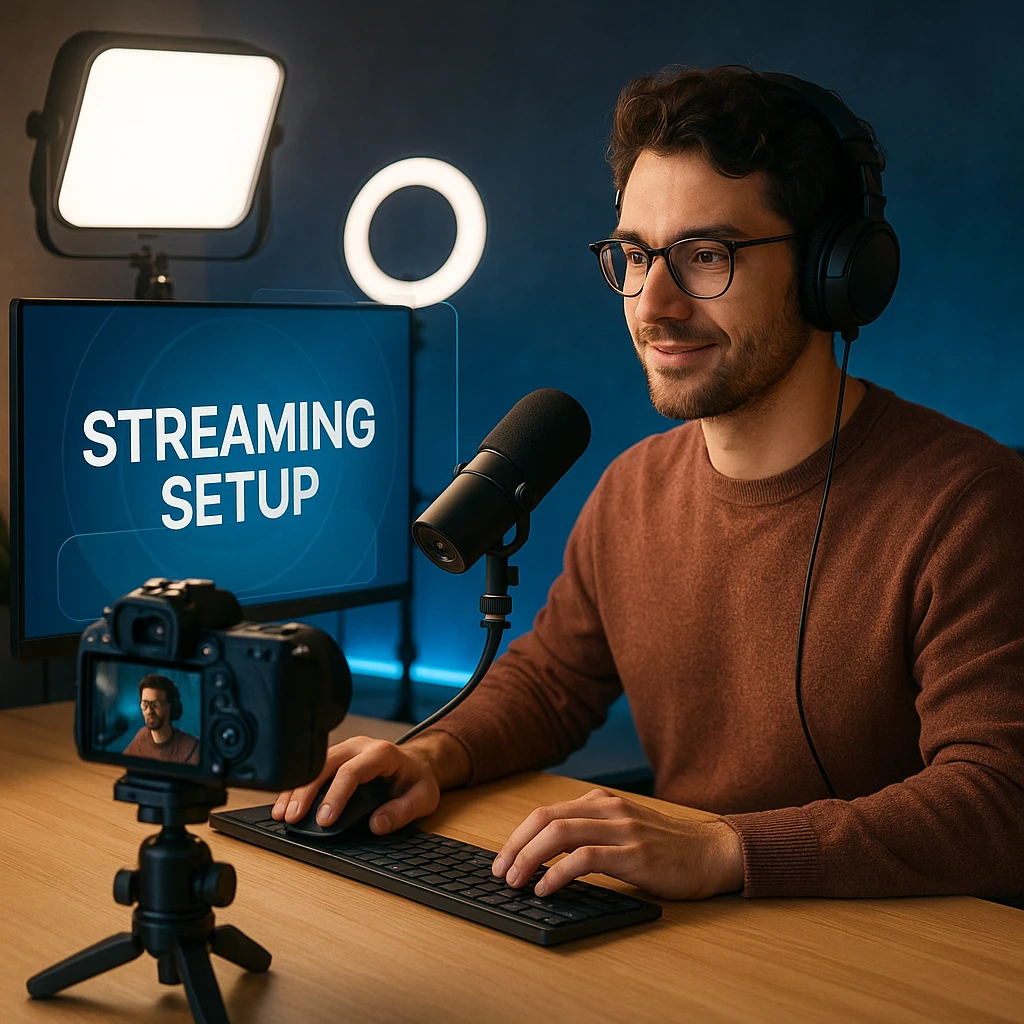
![modern streaming setup with professional lighting and camera](/assets/content/how-to-stream-1080p-facebook-live-content-1.webp)

</div>
</div>
</div>
</div>

## 技术深入探讨:了解比特率和分辨率

获得正确的技术规格对于一致的 1080p 流式传输至关重要。这是您需要知道的:

<div class="settings-card">
  <h4>最佳 Facebook 直播技术规格</h4>
  <div class="settings-grid">
    <div class="setting-item">
      <div class="setting-label">最大分辨率</div>
      <div class="setting-value">1920x1080 (1080p)</div>
    </div>
    <div class="setting-item">
      <div class="setting-label">推荐比特率</div>
      <div class="setting-value">4,500-9,000 Kbps</div>
    </div>
    <div class="setting-item">
      <div class="setting-label">最大帧率</div>
      <div class="setting-value">60 fps</div>
    </div>
    <div class="setting-item">
      <div class="setting-label">音频比特率</div>
      <div class="setting-value">128 Kbps</div>
    </div>
  </div>
</div>
</div>


<div class="highlight-tip">
  <span class="tip-icon">⚠️</span>
  <strong>重要提示:</strong>截至 2025 年,Facebook 不支持 4K 直播。最大支持的分辨率仍然是 1080p,60 fps。
</div>

对于也录制流以供以后使用的内容创作者,请查看我们的[视频转录](/features/video-transcription)指南,以自动从您的直播内容生成字幕和文字记录。

## 专业品质的高级技巧

#

## 照明和音频注意事项

虽然技术设置很重要,但您的流质量也取决于环境因素:

- **照明:**使用柔和、均匀的照明以减少噪点并提高图像质量
- **音频:**不良的音频可能会使观众比不良的视频质量更快地离开
- **背景:**干净、不分散注意力的背景有助于 Facebook 的压缩算法

#

## 录制您的流

许多主播都想重新利用他们的直播内容。考虑使用 ScreenApp 的[屏幕录制](/features/screen-recording)功能来捕获高质量的本地流副本,或者探索[会议录制](/features/meeting-recording)以与来宾进行互动会话。

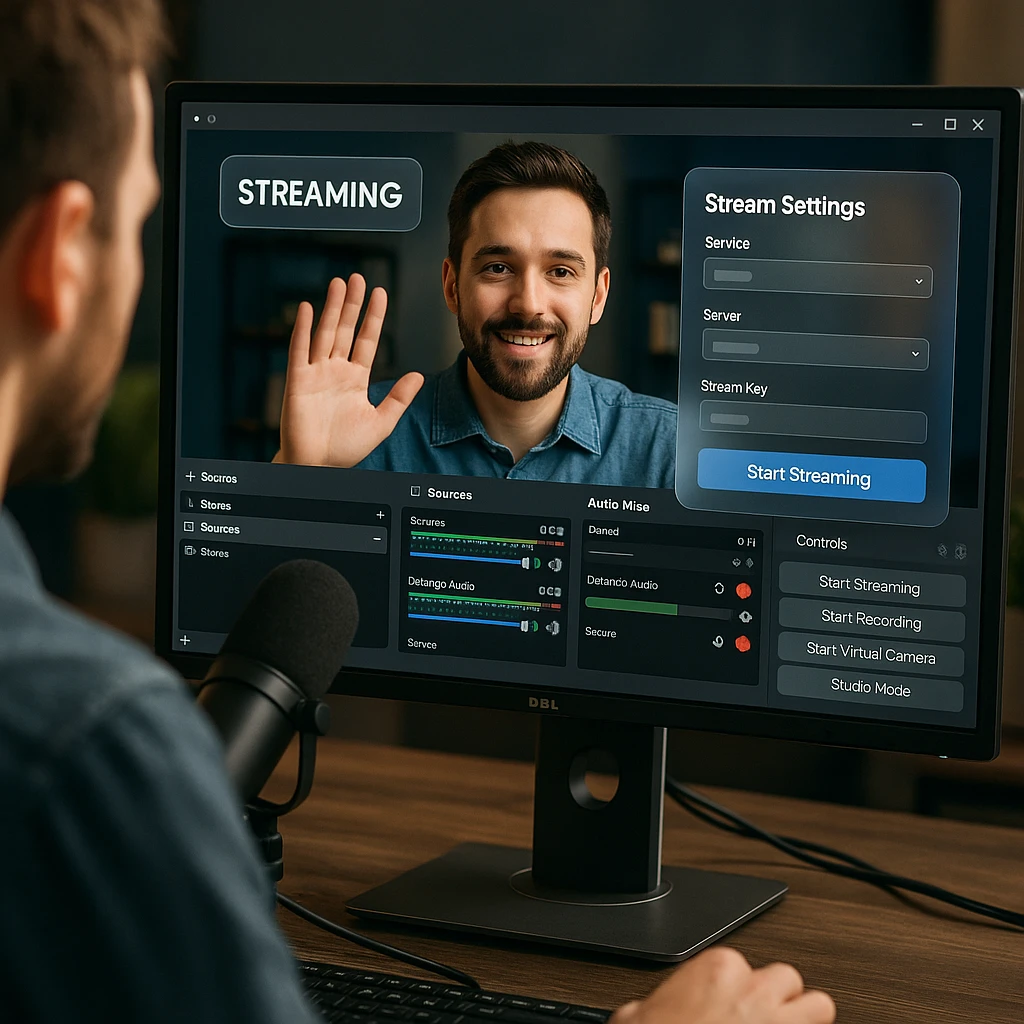
![professional streaming dashboard with OBS interface](/assets/content/how-to-stream-1080p-facebook-live-content-2.webp)

## 常见问题解答

<div class="troubleshoot-accordion" id="faq-section">
  <div class="troubleshoot-item">
    <button class="troubleshoot-question">如何强制 Facebook 直播到 1080p?</button>
    <div class="troubleshoot-answer">您无法“强制”Facebook 以 1080p 进行流式传输,但您可以提供最佳条件:使用像 OBS 这样的流媒体软件,比特率为 4,500-6,000 Kbps,确保稳定的互联网,上传速度为 10+ Mbps,并将您的来源设置为 1920x1080 分辨率。</div>
  </div>
  <div class="troubleshoot-item">
    <button class="troubleshoot-question">您可以在 Facebook 上直播 4K 吗?</button>
    <div class="troubleshoot-answer">不能,截至 2025 年,Facebook 不支持 4K 直播。最大支持的分辨率为 1080p,每秒 60 帧。专注于优化您的 1080p 流质量。</div>
  </div>
  <div class="troubleshoot-item">
    <button class="troubleshoot-question">Facebook 直播 1080p 的最佳比特率是多少?</button>
    <div class="troubleshoot-answer">对于 1080p,30fps,使用 4,500-6,000 Kbps。对于 1080p,60fps,使用 6,000-9,000 Kbps。始终确保您的上传速度至少是您选择的比特率的 1.5 倍,以确保稳定性。</div>
  </div>
  <div class="troubleshoot-item">
    <button class="troubleshoot-question">为什么我的 Facebook 视频质量在移动设备上看起来很差?</button>
    <div class="troubleshoot-answer">常见原因包括:在 Facebook 应用程序设置中禁用“上传高清”、光照条件差、互联网连接不稳定或手机的相机未设置为 1080p 录制模式。</div>
  </div>
</div>

## 您的 1080p Facebook 直播快速参考

#

## 移动端设置摘要
- **相机设置:** 1080p HD 录制
- **Facebook 应用程序:**在媒体设置中启用“上传高清”
- **互联网:**强大的 Wi-Fi,上传速度为 10+ Mbps
- **环境:**良好的照明和稳定的手机位置

#

## 桌面端 OBS 摘要
- **分辨率:** 1920x1080(基本和输出)
- **比特率:** 30fps 为 4,500-6,000 Kbps
- **关键帧间隔:** 2 秒
- **CPU 预设:** veryfast(根据您的硬件进行调整)

对于希望在直播之外创建专业视频内容的企业,请探索我们的[视频编辑](/features/video-editing)工具或了解[视频分析](/features/video-analytics)以跟踪您的内容效果。

## 相关资源

- 通过我们的[完整视频流指南](/blog/video-streaming-guide)掌握基础知识
- 通过[直播视频的最佳实践](/blog/live-video-best-practices)改进您的内容
- 了解[用于流式传输的 OBS 替代方案](/blog/obs-alternatives-streaming)

---

*根据 <a href="https://blog.facebook.com/news/2024/08/live-video-statistics" target="_blank" rel="nofollow">Facebook 的官方数据</a>,直播视频的参与度比普通视频高 6 倍,这使得高质量的流式传输对于观众增长至关重要。有关最新的流式传输要求,请始终查看 <a href="https://www.facebook.com/help/1534561009906955" target="_blank" rel="nofollow">Facebook 的官方直播视频指南</a>。*

<script>
// Platform tabs functionality
document.addEventListener('DOMContentLoaded', function() {
  const container = document.getElementById('streaming-platforms');
  if (!container) return;
  
  const tabs = container.querySelectorAll('.platform-tab');
  const panels = container.querySelectorAll('.platform-panel');
  
  tabs.forEach(function(tab) {
    tab.addEventListener('click', function() {
      const platform = tab.getAttribute('data-platform');
      
      // Remove active class from all tabs and panels
      tabs.forEach(function(t) { t.classList.remove('active'); });
      panels.forEach(function(p) { p.classList.remove('active'); });
      
      // Add active class to clicked tab and corresponding panel
      tab.classList.add('active');
      const targetPanel = container.querySelector('.platform-panel[data-platform="' + platform + '"]');
      if (targetPanel) targetPanel.classList.add('active');
    });
  });
});

// Troubleshooting accordion functionality
document.addEventListener('DOMContentLoaded', function() {
  const questions = document.querySelectorAll('.troubleshoot-question');
  
  questions.forEach(function(question) {
    question.addEventListener('click', function() {
      const answer = question.nextElementSibling;
      const isActive = question.classList.contains('active');
      
      // Close all other items
      questions.forEach(function(q) {
        q.classList.remove('active');
        q.nextElementSibling.classList.remove('active');
      });
      
      // Toggle current item
      if (!isActive) {
        question.classList.add('active');
        answer.classList.add('active');
      }
    });
  });
});
</script>

<script type="application/ld+json">
{
  "@context": "https://schema.org",
  "@type": "HowTo",
  "name": "如何在 Facebook 直播中进行 1080p 流式传输",
  "description": "在 Facebook 直播中流式传输高质量 1080p 视频的完整指南",
  "step": [
    {
      "@type": "HowToStep",
      "name": "配置设备相机设置",
      "text": "将您的手机或相机设置为以 30 或 60 fps 的 1080p 分辨率录制"
    },
    {
      "@type": "HowToStep", 
      "name": "启用 Facebook HD 上传",
      "text": "转到 Facebook 应用程序设置并在媒体设置中开启“上传高清”"
    },
    {
      "@type": "HowToStep",
      "name": "检查互联网连接",
      "text": "确保您至少有 10 Mbps 的上传速度才能实现稳定的 1080p 流式传输"
    },
    {
      "@type": "HowToStep",
      "name": "配置流媒体软件(可选)",
      "text": "使用分辨率为 1920x1080、比特率为 4,500-6,000 Kbps 的 OBS 可获得最佳效果"
    }
  ]
}
</script>

<script type="application/ld+json">
{
  "@context": "https://schema.org",
  "@type": "FAQPage",
  "mainEntity": [
    {
      "@type": "Question",
      "name": "如何强制 Facebook 直播到 1080p?",
      "acceptedAnswer": {
        "@type": "Answer",
        "text": "您无法“强制”Facebook 以 1080p 进行流式传输,但您可以提供最佳条件:使用像 OBS 这样的流媒体软件,比特率为 4,500-6,000 Kbps,确保稳定的互联网,上传速度为 10+ Mbps,并将您的来源设置为 1920x1080 分辨率。"
      }
    },
    {
      "@type": "Question", 
      "name": "您可以在 Facebook 上直播 4K 吗?",
      "acceptedAnswer": {
        "@type": "Answer",
        "text": "不能,截至 2025 年,Facebook 不支持 4K 直播。最大支持的分辨率为 1080p,每秒 60 帧。"
      }
    },
    {
      "@type": "Question",
      "name": "Facebook 直播 1080p 的最佳比特率是多少?", 
      "acceptedAnswer": {
        "@type": "Answer",
        "text": "对于 1080p,30fps,使用 4,500-6,000 Kbps。对于 1080p,60fps,使用 6,000-9,000 Kbps。始终确保您的上传速度至少是您选择的比特率的 1.5 倍,以确保稳定性。"
      }
    },
    {
      "@type": "Question",
      "name": "为什么我的 Facebook 视频质量在移动设备上看起来很差?",
      "acceptedAnswer": {
        "@type": "Answer", 
        "text": "常见原因包括:在 Facebook 应用程序设置中禁用“上传高清”、光照条件差、互联网连接不稳定或手机的相机未设置为 1080p 录制模式。"
      }
    }
  ]
}
</script>
Andre Smith

Andre Smith

Author

User
User
User
Join 2,147,483+ users

发现更多见解

探索我们的博客,获取更多生产力技巧、技术见解和软件解决方案。

Try ScreenApp Free

Start recording in 60 seconds • No credit card required